
The interactive grid combines the reporting power of an interactive report with spreadsheet-style editing. Users page or scroll through rows, filter, sort, highlight, and chart them, and where you allow it they change cells in place, add and delete rows, paste from a spreadsheet, and save everything with one click.
For maintaining reference data, entering many rows quickly, or editing the lines of an order, nothing in Oracle APEX is more productive. This guide builds an editable Stores grid, covers everything users can do with it, and finishes by driving the grid from JavaScript.
Interactive Grid or Interactive Report?
The two look alike and share many features, but they are different components.
| Interactive Report | Interactive Grid |
|---|---|
| Read-only, rendered on the server as HTML | Loads data into a JavaScript model and renders it in the browser |
| Better for large read-only result sets | Better when users edit several rows at once |
| Has computed columns, pivots, and subscriptions | Has editing, copy and paste, frozen columns, and a rich JavaScript API |
Use the grid when users need to edit in bulk, or when you need the rows in JavaScript. Use the interactive report for everything else.
Creating an Editable Interactive Grid
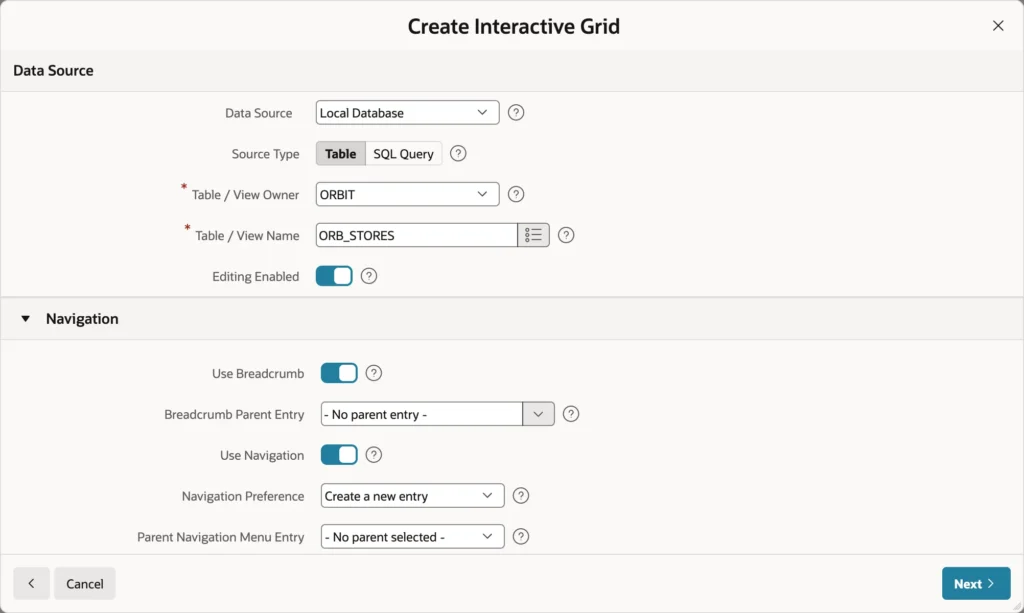
- On the application home page, click Create Page, then Interactive Grid.
- Enter a page number and a name such as Stores.
- Set Data Source to Local Database and Source Type to Table, then choose your table.
- Switch on Editing Enabled.
- Enter an icon such as fa-map-marker, and click Create Page.
What Editing Adds
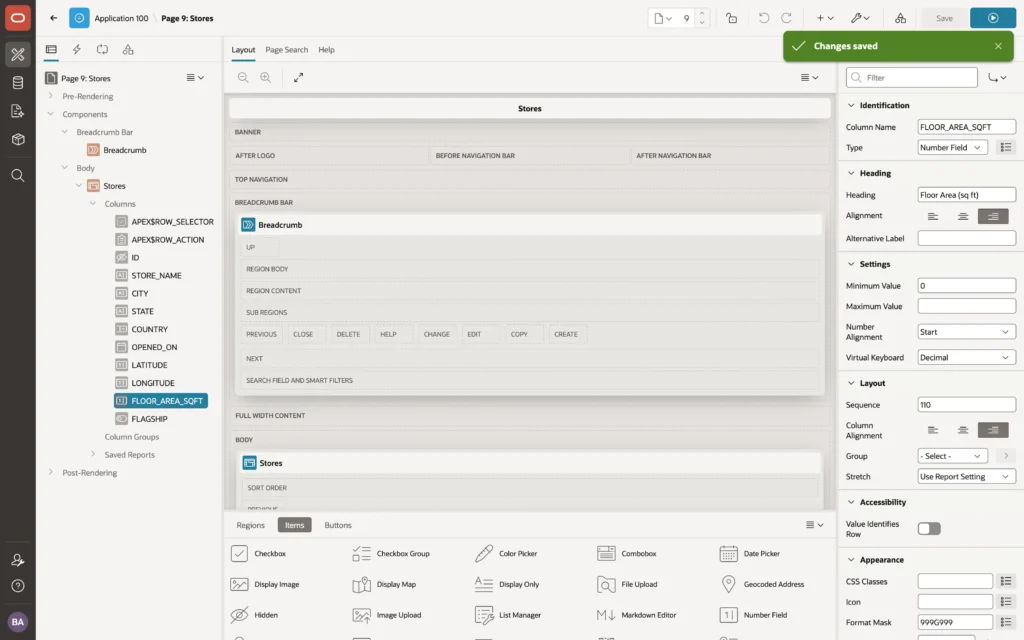
Because editing is enabled, APEX adds three things: a row selector column of checkboxes, a row action column of menus, and a save process of type Interactive Grid Automatic Row Processing that inserts, updates, and deletes changed rows when the user clicks Save.
The table's primary key becomes a hidden column with Primary Key, Query Only, and Value Protected switched on. APEX uses it to identify rows, never lets users change it, and leaves the database to generate it for new rows.
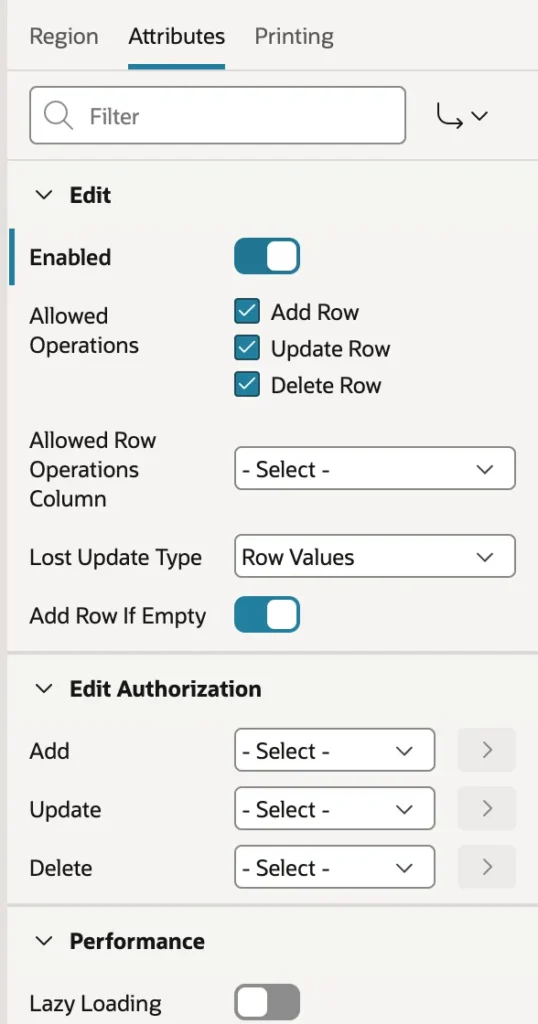
If you create a grid without editing, select the region, open the Attributes tab, and switch on Edit Enabled. APEX adds the columns and the process then.
- Allowed Operations: Add Row, Update Row, and Delete Row, in any combination. A grid for correcting data might allow updates only.
- Allowed Row Operations Column: a column whose value restricts what may be done to that row, so a grid can let users edit open orders but not shipped ones.
- Lost Update Type: how APEX detects that someone else changed a row, by comparing row values or using a row version column.
- Add Row If Empty: whether an empty grid starts with a blank row ready for input.
- Edit Authorization: separate authorization schemes for adding, updating, and deleting.
Configuring Grid Columns
Grid columns behave much like page items. Each has a Type, from Text Field, Number Field, and Date Picker through Select List, Popup LOV, Switch, Checkbox, Textarea, Rich Text Editor, Star Rating, Display Only, and Hidden, with the settings of that item type plus the heading and layout properties of a report column.
Typical changes on a new grid are a shorter heading, a required value, a format mask, and a minimum value. The interesting one is turning a stored code into a readable list.
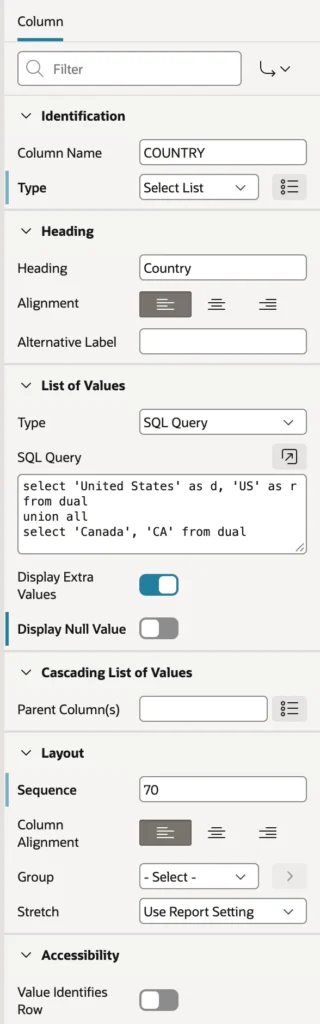
select 'United States' as d, 'US' as r from dual
union all
select 'Canada', 'CA' from dual
A list of values query returns two columns: the display value users see and the return value stored in the table. The grid shows United States while the table keeps US. For longer lists, a popup list of values works better than a select list.
A BOOLEAN column needs no work at all. The SQL data type introduced in Oracle Database 23ai is recognized by APEX 26.1, which makes it a switch automatically, shows On and Off, and saves TRUE and FALSE. Compare that with the older approach of building a yes or no checkbox by hand.
Using the Grid
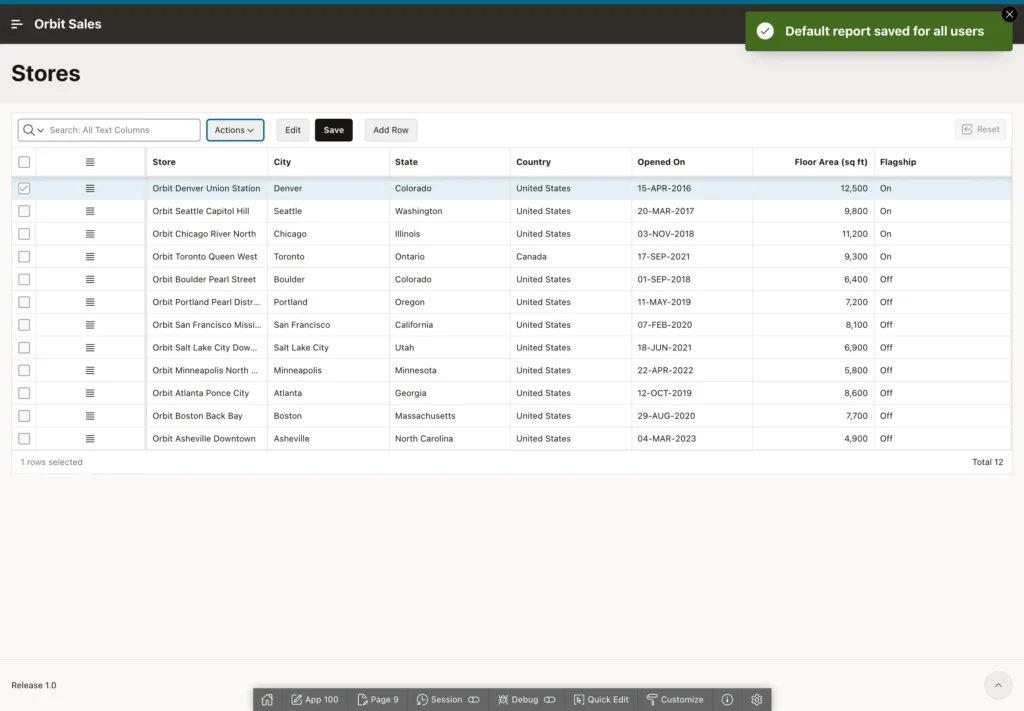
The grid is always ready for editing, because there is no separate edit page. Users move between navigation mode, where arrow keys move from cell to cell, and edit mode, where they type into a cell, by double-clicking, pressing Enter or F2, or clicking Edit. Tab moves to the next cell and Escape returns to navigation mode.
Editing Cells

Change a value and the cell shows a small triangle in its corner. Nothing is saved yet: changes stay in the browser until the user clicks Save, so people can edit many cells across many rows and commit them in one go.
Row Actions
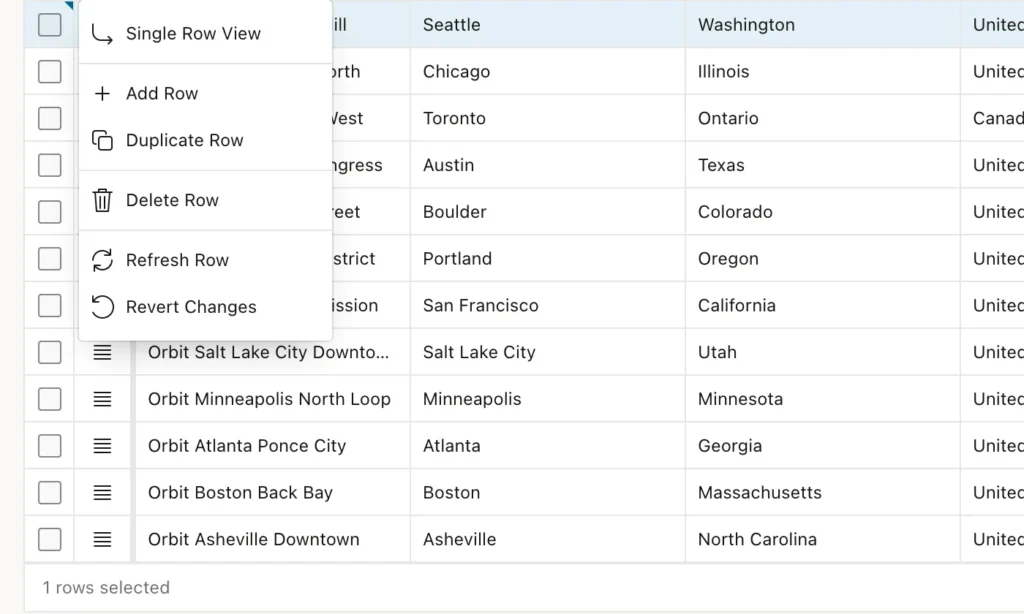
| Action | Does |
|---|---|
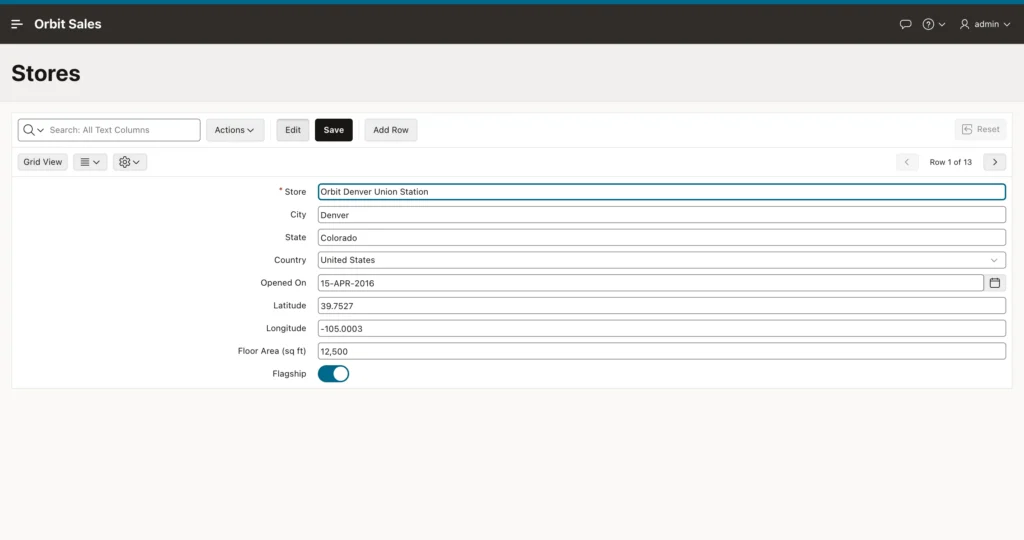
| Single Row View | Shows the row as a form, with previous and next buttons |
| Add Row and Duplicate Row | Inserts a blank row, or a copy of this one |
| Delete Row | Marks the row for deletion when the grid is saved |
| Refresh Row | Reloads the row from the database |
| Revert Changes | Undoes unsaved changes to the row |
Adding a Row
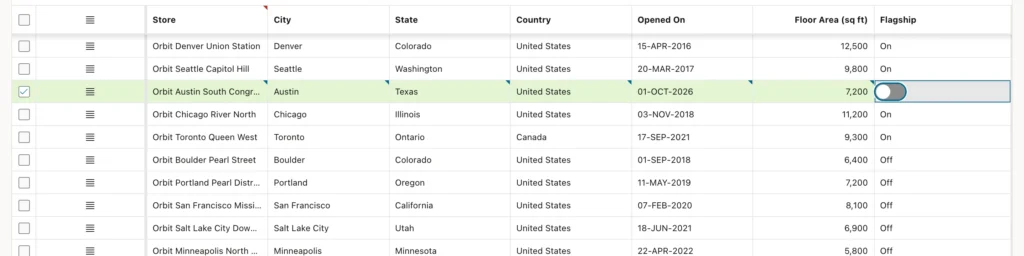
Click Add Row, type the values, and press Tab between cells. Click Save, and APEX sends the row to the server, the automatic row processing inserts it, the database assigns the key, and a Changes saved message confirms it.
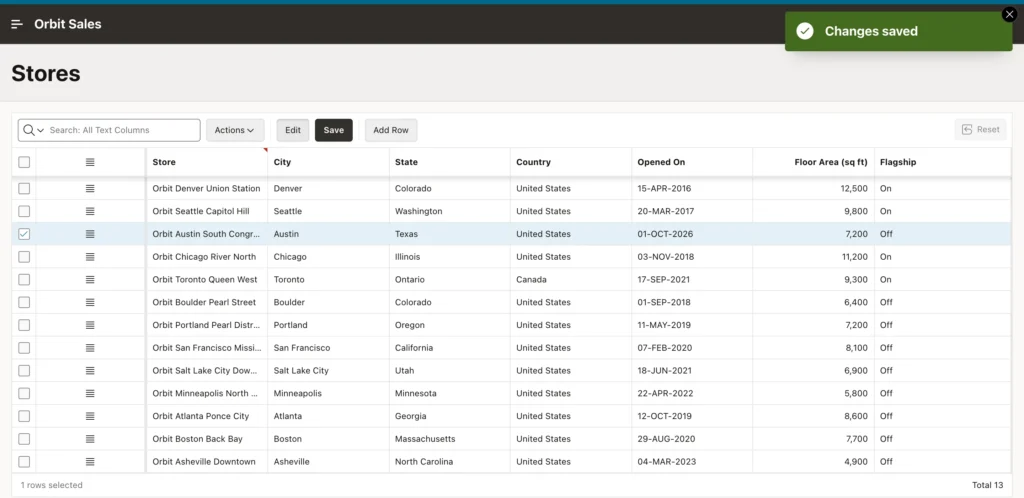
If you need custom toolbar behavior instead, you can build custom add, edit, save, and delete buttons.
Validation Errors
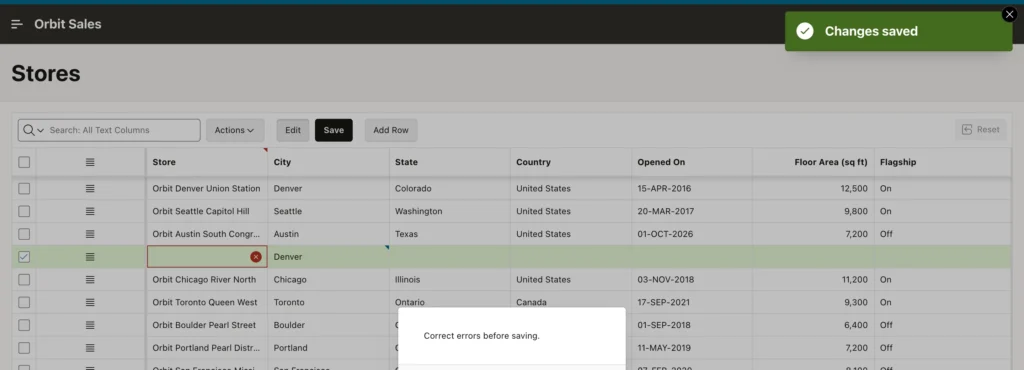
Leave a required cell empty and the save is refused, with an error icon on the offending cell. Hover over it or move into the cell to read the message.
Validations that need the database, such as checking that a name is unique, run on the server when the grid is saved, and their errors appear on the offending rows the same way. Writing your own is the same skill as any PL/SQL validation returning error text.
Selecting, Copying, and Pasting
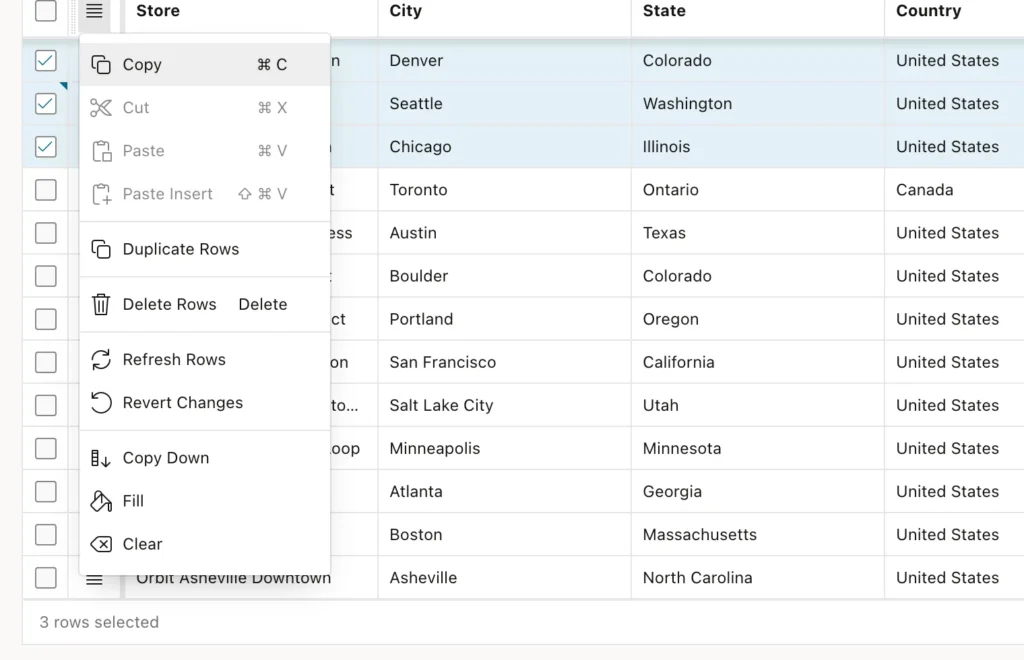
Select rows with their checkboxes, or with Shift and Ctrl clicks as in a spreadsheet, then open the menu in the row action column header. You can duplicate, delete, refresh, or revert the selection, copy the first row's values down into the others, fill a column with one value, or clear values.
APEX 26.1 adds Copy, Cut, Paste, and Paste Insert with the usual keyboard shortcuts. Copy rows or a block of cells and paste them into a spreadsheet, or copy from a spreadsheet into the grid. Paste overwrites the selected cells, while Paste Insert adds the clipboard rows as new ones, which makes loading a few dozen rows a matter of seconds.
Actions, Selection, Cell Selection switches the grid from selecting rows to selecting ranges of cells, which is what you want when copying or filling part of a column.
The Grid's Report Features
The Actions menu offers most of the interactive report's features: Columns, Filter, Data with sort, aggregate, refresh, and flashback, Format with control break, highlight, and stretch column widths, Selection, Chart, Report, and Download in CSV, HTML, Excel, and PDF.
Users can also resize columns by dragging heading edges, reorder them by dragging headings, and freeze columns so they stay in view while scrolling.
Saving the Default Report
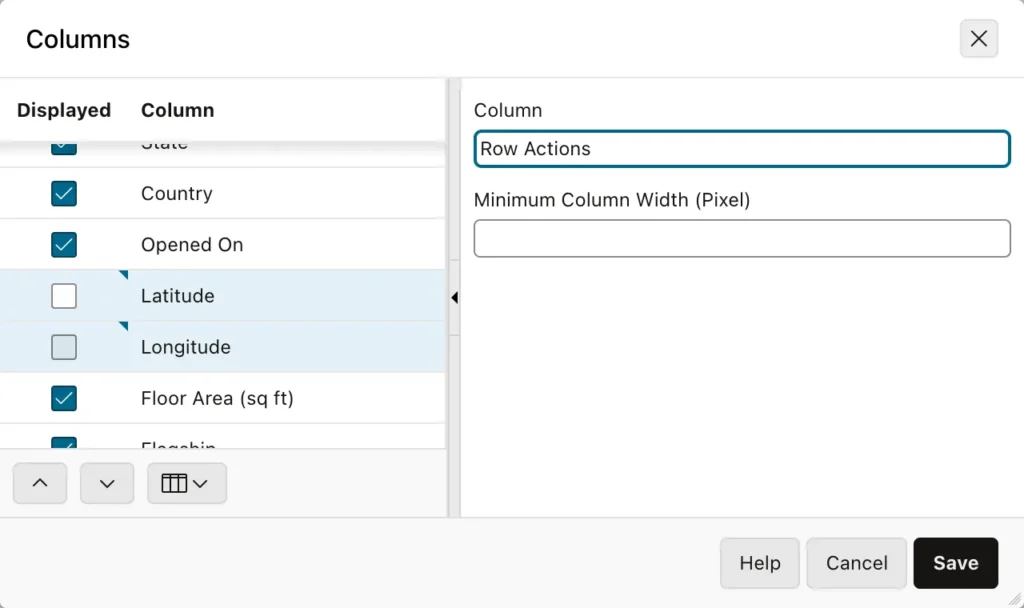
Columns such as latitude and longitude are needed by the data but nobody wants to read them. Hide them with Actions, Columns, then choose Actions, Report, Save.
Because you are a developer looking at the primary report, Save changes the default for all users. The columns remain in the grid, so users can display them again and the single row view still shows them. An ordinary user choosing Save gets a private copy instead.
Grid Attributes
- Toolbar Show and Controls decide whether the toolbar appears and which controls it has.
- Pagination Type is Scroll, which loads more rows as the user scrolls, or Page with page buttons, plus Show Total Count.
- Appearance covers Select First Row and Fixed Row Height.
- Enable Users To covers Save Public Report, Flashback, Define Chart View, and Download, with formats and an authorization scheme.
- Heading Fixed To keeps headings visible against the page, the region, or nothing.
- Initialization JavaScript Function customizes the grid's options, toolbar, and menus as it is created.
Columns have their own Enable Users To switches for sorting, control breaks, aggregates, and hiding, plus a column filter group, exactly as in interactive reports.
A grid can also be the detail of another grid on the same page. Set Master Detail Master Region to the master grid and the Master Column of the foreign key to the master's key, and selecting a master row shows its details, with new rows getting the master key automatically. When the master is a form instead, you link the two yourself, as in a master detail form with an interactive grid.
Working with the Grid in JavaScript
Everything users do with the grid, JavaScript can do too. The first step is finding the region.
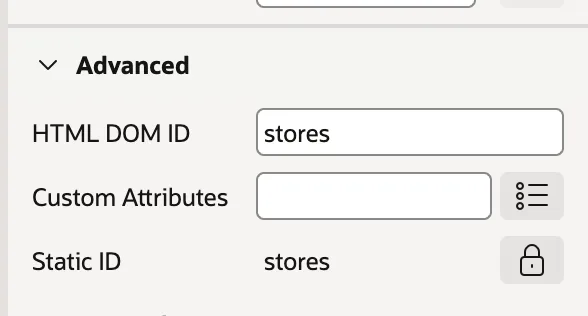
Since APEX 26.1 every component has a Static ID, a stable name generated from the component's name and used by APEXlang and by references between components. What earlier releases called the Static ID of a region, the id of its HTML element, is now the HTML DOM ID, and that is what JavaScript uses. Set Advanced HTML DOM ID to a name such as stores, and apex.region("stores") returns the region.
The grid's data lives in a model. This code collects the names of the flagship stores and shows them in an alert.
var grid  = apex.region("stores").widget().interactiveGrid("getViews", "grid"),
    model = grid.model,
    names = [];

model.forEach(function (record) {
    var flagship = model.getValue(record, "FLAGSHIP");   // { v: true, d: "On" }
    if (flagship.v === true) {
        names.push(model.getValue(record, "STORE_NAME"));
    }
});

apex.message.alert("Flagship stores: " + names.join(", "));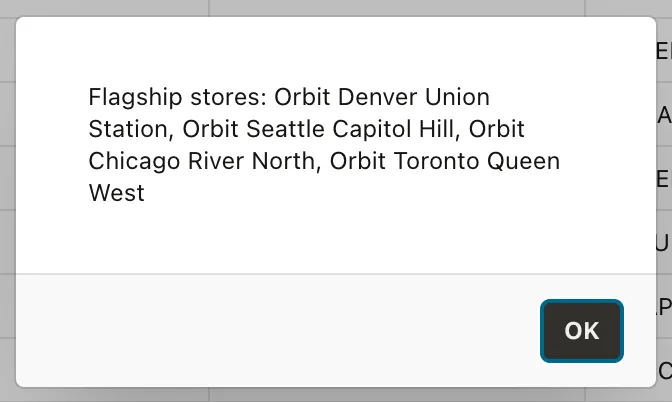
Note how the switch value is read. For columns whose display value differs from the stored value, such as lists of values and switches, the model holds an object with the value and the display text. For plain columns it holds the value itself.
The model does much more: setValue changes a cell, getSelectedRecords returns the selected rows, and the region's actions let you invoke toolbar buttons such as save from code. From there it is a short step to looping through grid records or inserting records with JavaScript.
Conclusion
The interactive grid is an interactive report that can edit, and that one difference changes how much work users can get done. Enabling editing adds a row selector column, a row action column, and an automatic row processing process that saves inserts, updates, and deletes together, while the Edit attributes decide which operations are allowed, per grid and even per row. Columns behave like page items, so a stored code becomes a select list, a number gets a format mask and a minimum, and a BOOLEAN column becomes a switch on its own in APEX 26.1. Users edit in place, add, duplicate, revert, and delete rows, see required-value errors before anything reaches the server, select rows or cell ranges, and copy, cut, and paste between the grid and a spreadsheet. As the developer you save the default layout for everyone, tune the toolbar, pagination, and per-column permissions, and when you need more control the grid's JavaScript model puts every row and cell within reach.
