
A modal dialog is a good way to let users pick something, a customer, a product, an address, without leaving the page they are working on. The picked value then has to get back to that page. Oracle APEX has a declarative way to do this: the dialog closes with Items to Return, and the parent page's Dialog Closed event reads them with a Set Value action of type Dialog Return Item. This guide builds a customer picker that returns the customer's ID and name to an order page.
The Two Pages
- Page 30, New Order: the parent page, with the items P30_CUSTOMER_ID and P30_CUSTOMER_NAME, and a Select Customer button that opens page 31.
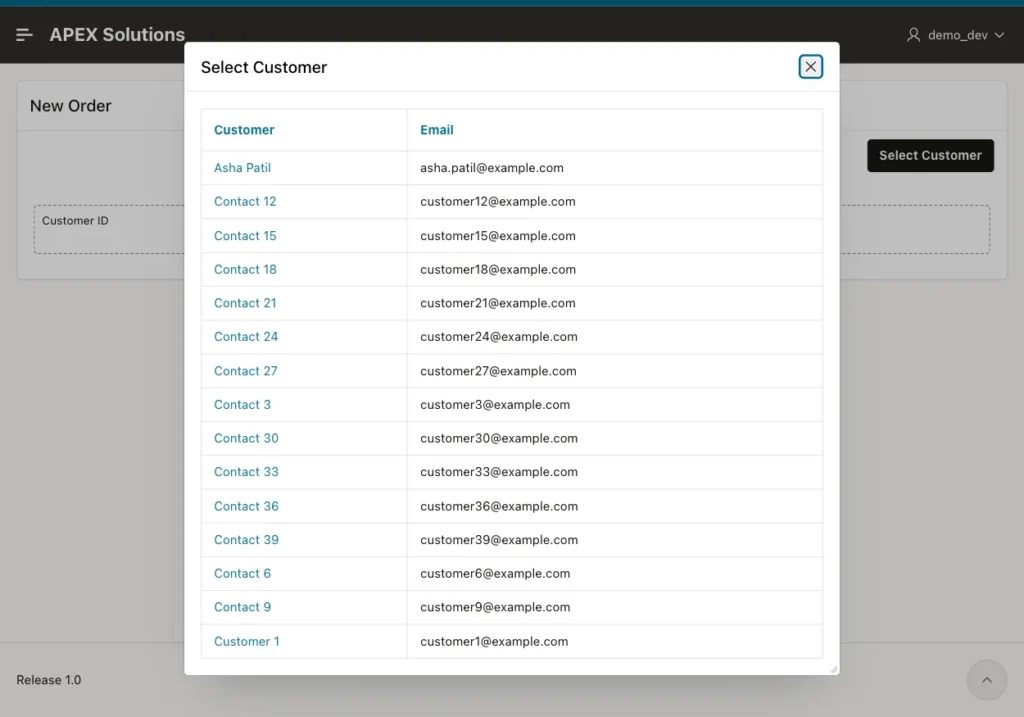
- Page 31, Select Customer: a modal dialog page with a report of customers, and two hidden items, P31_CUSTOMER_ID and P31_CUSTOMER_NAME, that carry the choice back.
The Select Customer button has Action Redirect to Page in this Application, page 31. Because page 31's Page Mode is Modal Dialog, APEX opens it as a dialog over page 30:
Step 1: Make the Report Rows Clickable
The report on page 31 queries the customers:
Example:
select customer_id, name, email
from   customers
order  by name
The NAME column has Type Link with Target URL # and these Link Attributes, which put the row's values on the link:
Example:
class="select-customer" data-id="#CUSTOMER_ID#" data-name="#NAME#"
Step 2: Close the Dialog with Items to Return
A dynamic action on page 31 fires on Click, with Selection Type jQuery Selector and selector .select-customer. It has three true actions:
- Set Value, Set Type JavaScript Expression this.triggeringElement.dataset.id, affected item P31_CUSTOMER_ID.
- Set Value, Set Type JavaScript Expression this.triggeringElement.dataset.name, affected item P31_CUSTOMER_NAME.
- Close Dialog, with Items to Return P31_CUSTOMER_ID,P31_CUSTOMER_NAME.
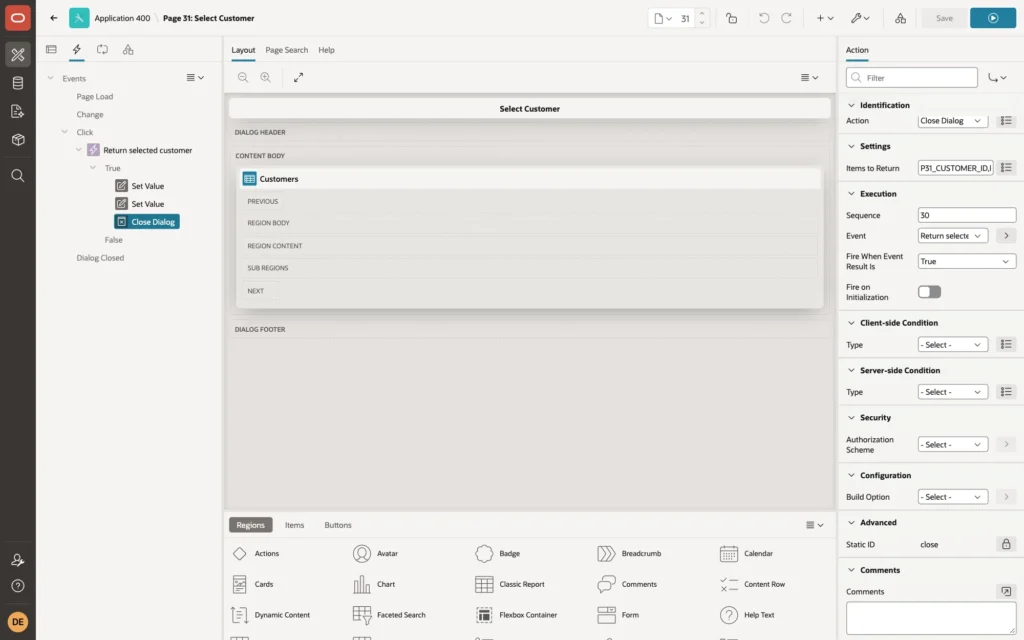
Turn off Fire on Initialization for all three actions. Set Value actions have it on by default, and with it on, the actions run when the dialog loads: the dialog picked the first customer in the list and closed itself before the user could choose. This is the most common reason a dialog closes as soon as it opens.
Step 3: Receive the Values on the Parent Page
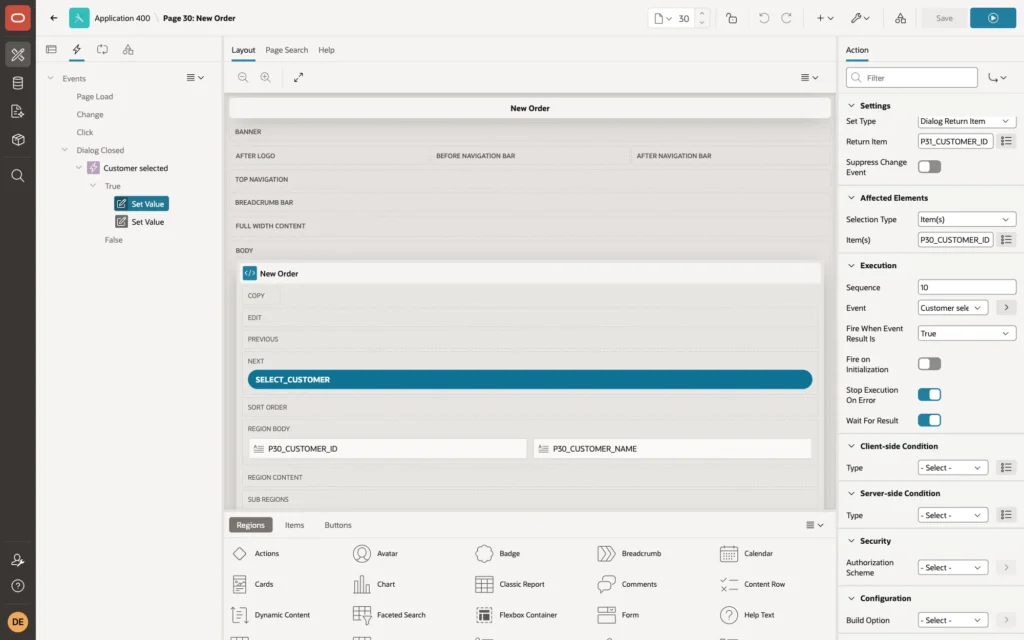
On page 30, create a dynamic action on the event Dialog Closed, with Selection Type Button and the Select Customer button: the dialog closed event fires on the element that opened the dialog. Add two Set Value actions:
- Set Type Dialog Return Item, Return Item P31_CUSTOMER_ID, affected item P30_CUSTOMER_ID.
- Set Type Dialog Return Item, Return Item P31_CUSTOMER_NAME, affected item P30_CUSTOMER_NAME.
The Result
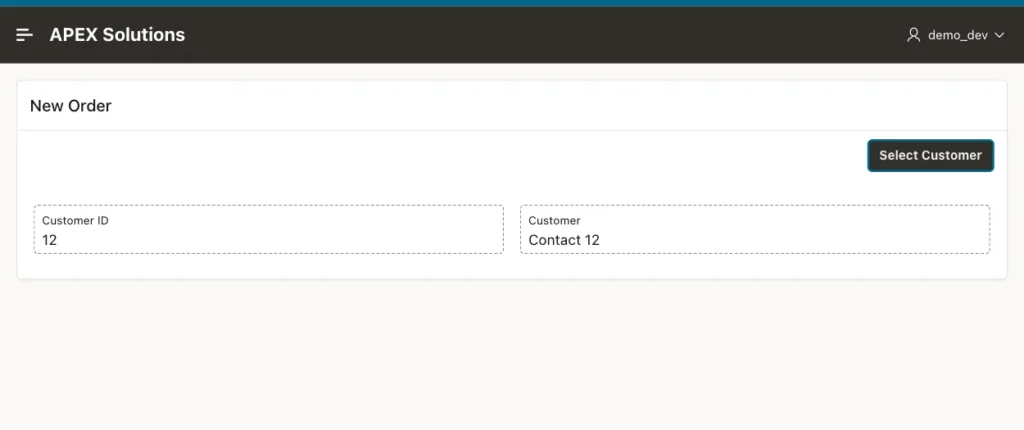
Clicking Contact 12 in the dialog closes it, and the New Order page shows the chosen customer:
Things to Know
- Return Item names the item on the dialog page, not on the parent page; that is why the parent's actions refer to P31 items.
- For a single value, a Popup LOV item is often simpler than a dialog page. A dialog is the better choice when the user needs a full report, filters, or a form to create a new record first.
- When the dialog itself saves data, use a Close Dialog process after the save instead of the dynamic action; its Items to Return work the same way.
- To refresh a report on the parent instead of setting items, use a Refresh action on the Dialog Closed event.
Related Guides
- Oracle Apex - On Close Dialog Refresh Parent Page Regions
- Oracle APEX Dynamic Actions: A Complete Guide
Conclusion
To return values from a modal dialog in Oracle APEX, set items on the dialog page, close it with those items listed in Items to Return, and read them on the parent page in a Dialog Closed dynamic action with Set Value of type Dialog Return Item. Keep Fire on Initialization off for the dialog's actions.
