
Page processes run when a page is submitted. Almost everything that makes an application pleasant to use happens before that: a field appearing when it becomes relevant, a sales rep filling itself in when a customer is chosen, a warning arriving the moment a discount is too high.
Dynamic actions define that behavior without JavaScript. You describe an event, an optional condition, and the actions to take, and Oracle APEX generates the code. This guide covers how they fit together, then builds seven of them, including the message actions and report dialog action added in 26.1.
How a Dynamic Action Works
Read one out loud and it explains itself: when this event happens to these elements, if this condition holds, do these true actions, otherwise do these false actions.
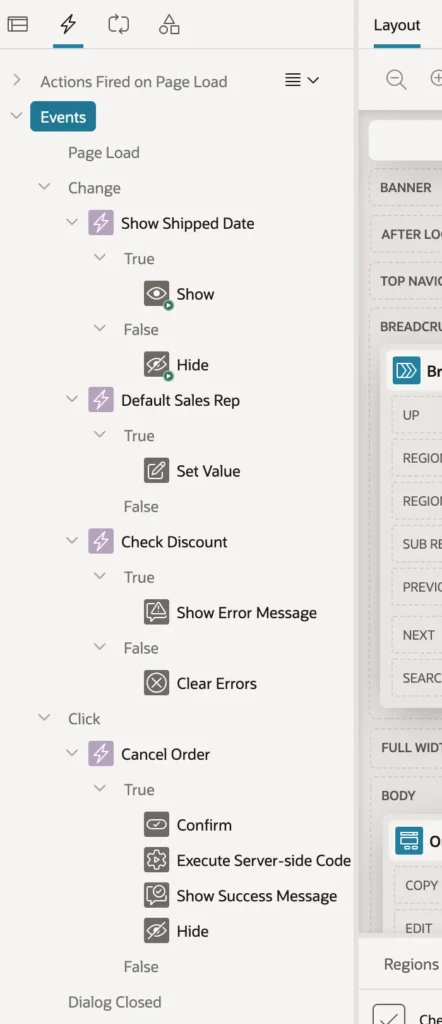
The dynamic action itself defines the when.
- Event is what happens: a change, a click, page load, a dialog closing, and many more.
- Selection Type is what it happens to: items, a button, a region, grid columns, a jQuery selector, or a JavaScript expression.
- Client-side Condition is checked in the browser when the event fires, and decides between the true and false actions. With no condition, only the true actions run.
- Server-side Condition is checked when the page renders. If false, the dynamic action is not put on the page at all.
- Event Scope decides whether the action binds only to elements present at load, or also to elements created later by a refresh.
- Execution Type is Immediate, Debounce, or Throttle.
Debounce and Throttle are worth knowing before you need them. Debounce waits until a burst of events stops, which is what a search-as-you-type field wants so it queries once rather than on every keystroke. Throttle runs at most once per interval while events keep arriving, which is what a scroll handler wants.
Each action then defines the what: the action itself, the affected elements, whether it also fires on page load, and whether a failure stops the actions that follow.
Showing and Hiding Items
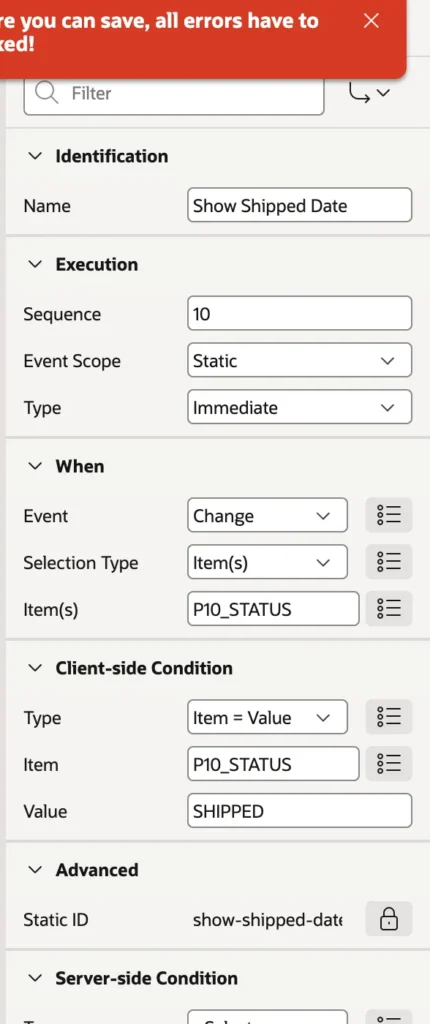
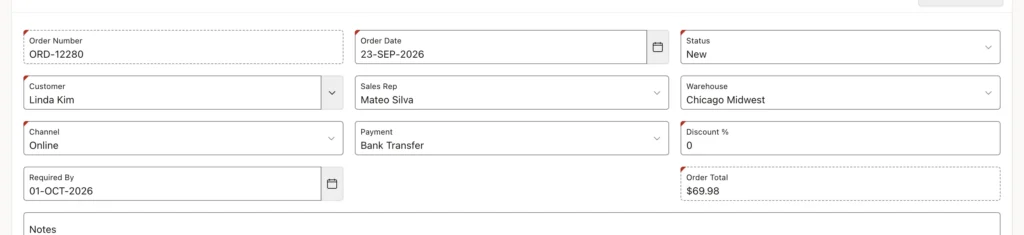
A shipped date on an order that has not shipped is clutter. Create a dynamic action on the status item's Change event, set the condition to compare the status with the shipped value, and give it a Show action affecting the date item.
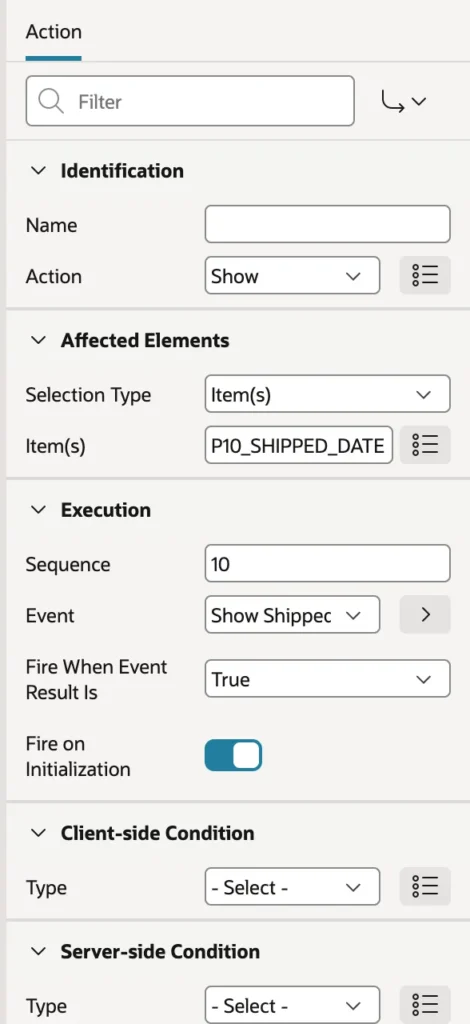
Create Opposite Action is the shortcut worth remembering here. It adds the matching false action, in this case Hide, with the same affected item already filled in, which saves both typing and the mistake of hiding the wrong thing.
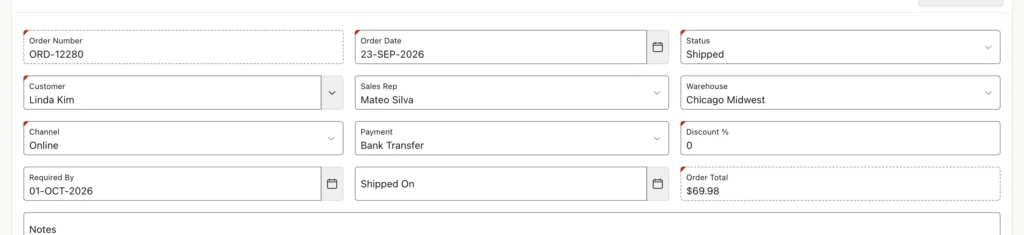
Fire on Initialization is what makes this work on arrival. At page load APEX evaluates the condition once and runs the matching actions, so an existing order opens in the correct state. Without it the field would stay visible until the user touched the status.
One caution: showing and hiding are conveniences, not security. A hidden item can still be reached with browser tools, so rules that matter belong in validations and authorization. Note too that Disable has a side effect Hide does not, because disabled items are not submitted with the page.
Fetching Values from the Server
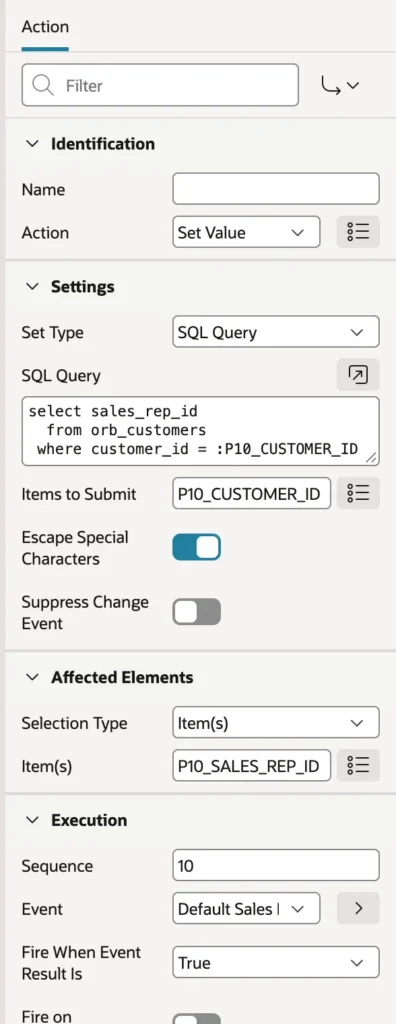
When a user picks a customer, the order should default to that customer's sales representative. The browser has no idea who that is, so the action has to ask the server.
select sales_rep_id
  from orb_customers
 where customer_id = :P10_CUSTOMER_ID
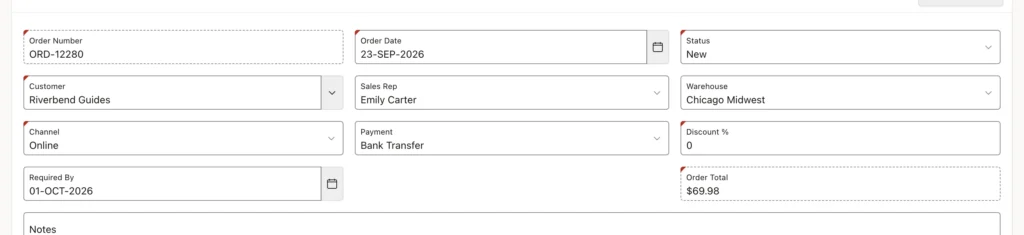
Two settings decide whether this works, and both are easy to get wrong.
Items to Submit must list the customer item. The query runs on the server, which sees session state rather than the screen, so without it the query reads whatever customer was last saved instead of the one just chosen. This is the single most common cause of a Set Value action that appears to do nothing.
Fire on Initialization must be off. Leave it on and every time somebody opens an existing order, the action quietly replaces a sales representative that was chosen deliberately. The rule is simple: on for actions that set up the page, off for actions that change data.
Messages in the Browser
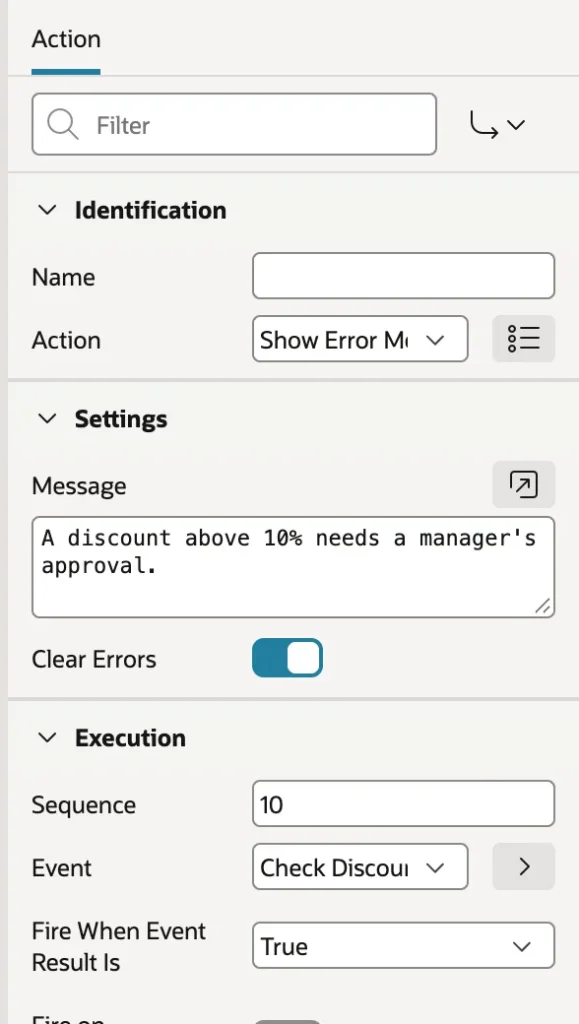
APEX 26.1 adds Show Success Message, Show Error Message, and Clear Errors, which put messages in the same notification area that processes and validations use, so early feedback looks identical to the real thing.
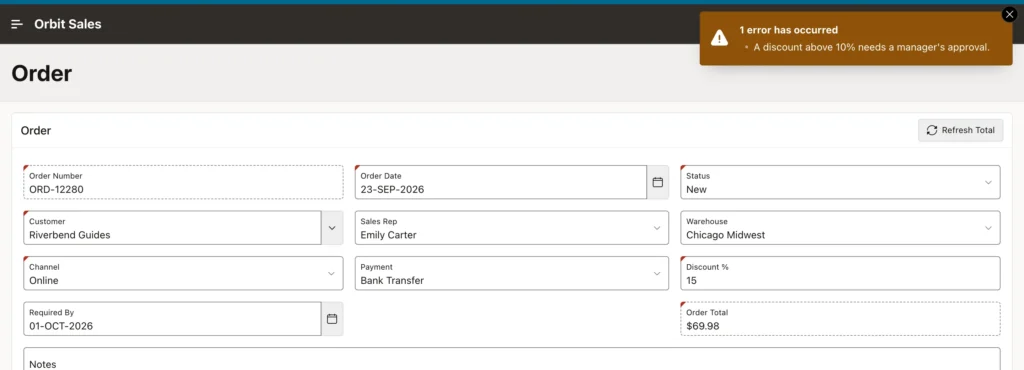
Add a condition comparing the discount with the threshold, a Show Error Message action as the true side, and Clear Errors as the false side, and users learn about a problem while they are still looking at the field rather than after they save.
What this does not do is prevent the save. The dynamic action informs, while the validation and the database package still enforce. Browser feedback is a courtesy, the server has the final word, and building only the courtesy is how unenforced rules get shipped.
Confirm, Run Code, Report the Result
A dynamic action can run a chain of actions, each waiting for the last, which is how you do real work without leaving the page.
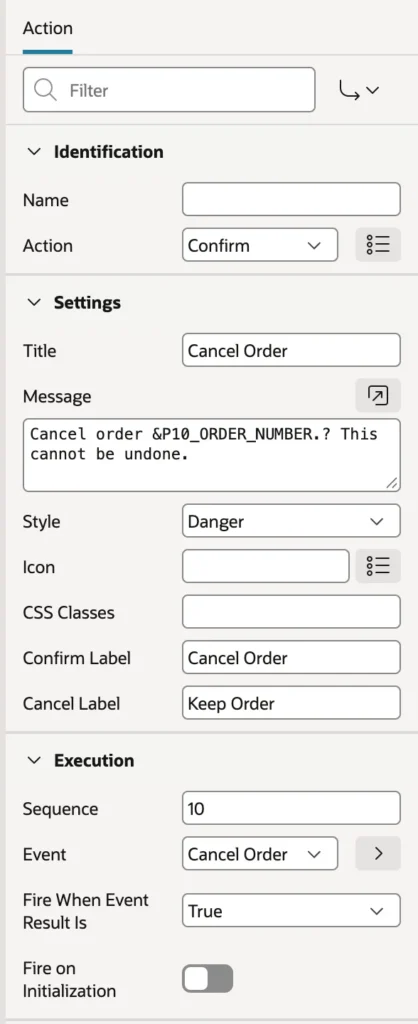
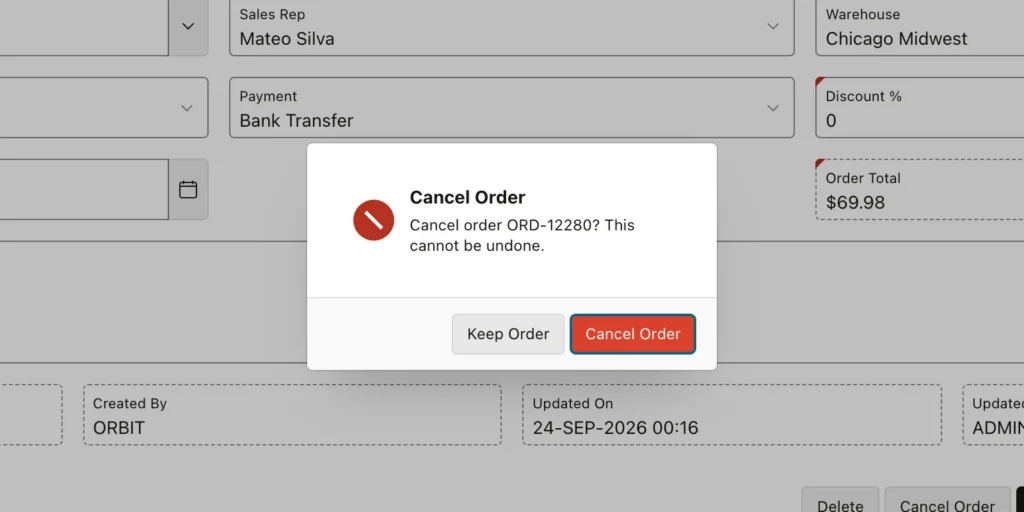
Start with Confirm, with a message naming the record and buttons labeled in real words rather than OK and Cancel. A user who declines stops everything that follows, which is exactly what you want.
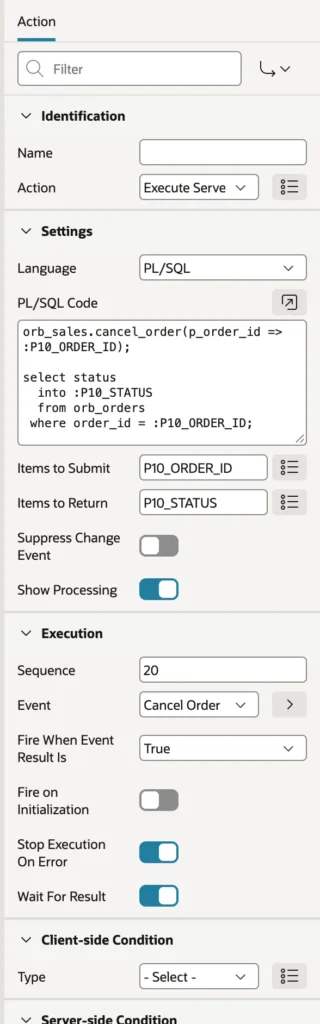
orb_sales.cancel_order(p_order_id => :P10_ORDER_ID);

select status
  into :P10_STATUS
  from orb_orders
 where order_id = :P10_ORDER_ID;
The server-side code action reads the submitted items as bind variables and sends the assigned items back. Show Processing, new in 26.1, displays a spinner while it runs, which matters because a silent pause reads as a broken button. Follow it with Show Success Message, and finish by hiding the button.
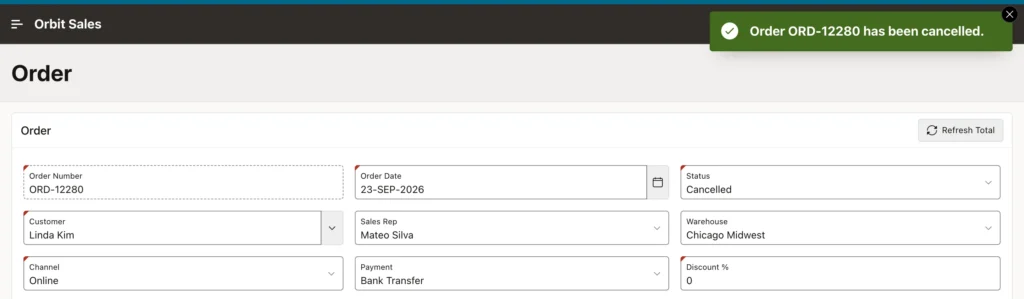
That final Hide action is where the Fire on Initialization trap bites hardest. Hide is created with it switched on, because it usually sets up initial state, so leaving the default means the button vanishes on page load and nobody can ever click it. Switch it off. The Actions Fired on Page Load node at the top of the tree lists everything that runs at load, and is the fastest way to find this class of bug.
Refreshing Regions
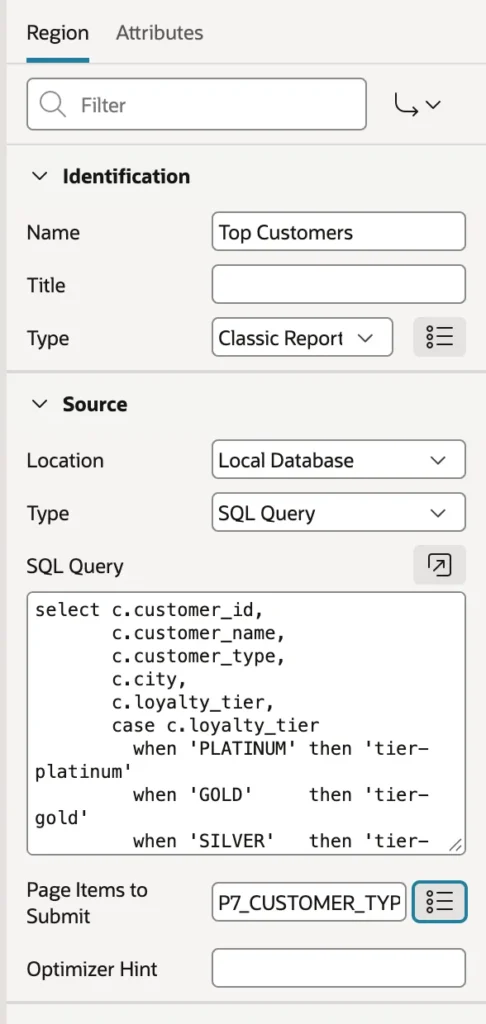
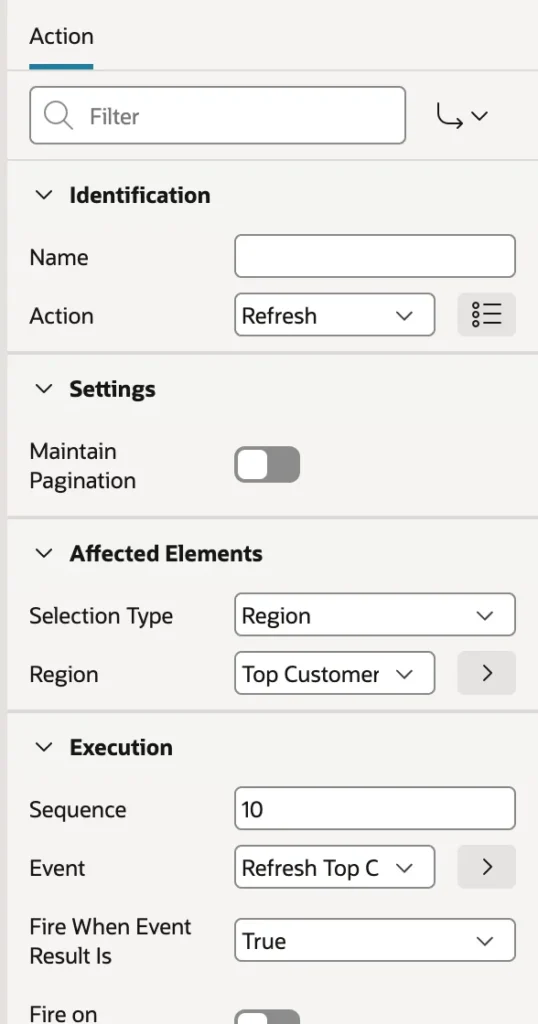
Adding a filter to a report takes three steps: an item, a condition in the query that ignores a null value, and a Refresh action on the item's change.
and (:P7_CUSTOMER_TYPE is null or c.customer_type = :P7_CUSTOMER_TYPE)
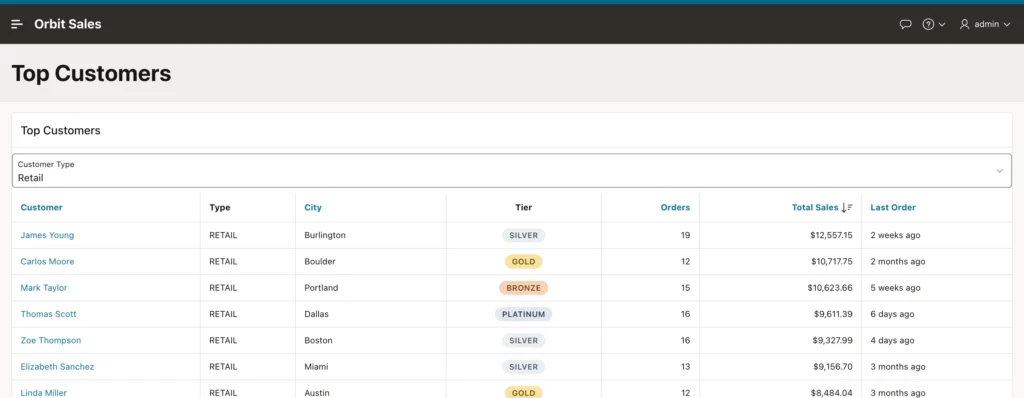
Leave the item out of the region's Page Items to Submit and the refresh happens but nothing changes, because the server reads the item's previous value. It is the same lesson as Set Value, and it is worth testing deliberately once so you recognize the symptom later.
Refresh works on reports, grids, cards, charts, calendars, maps, and items with lists of values. Maintain Pagination keeps a report on its current page, and every refresh fires Before Refresh and After Refresh events that other dynamic actions can hook.
Reacting When a Dialog Closes
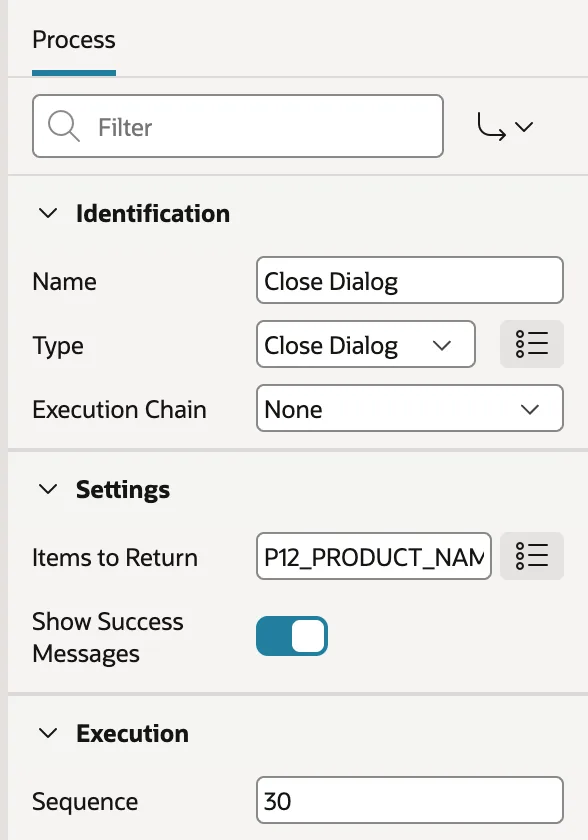
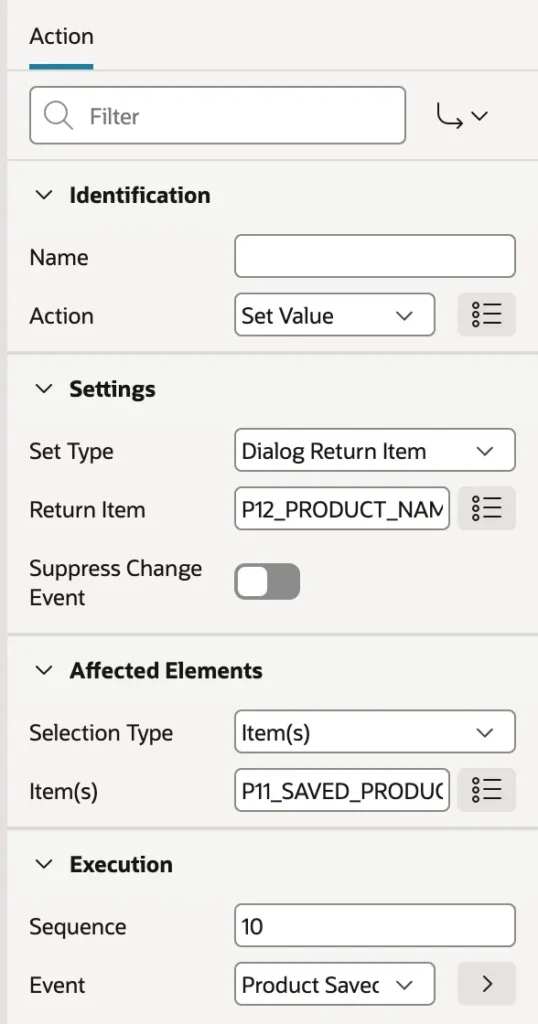
A modal page's Close Dialog process names the items it returns, and the calling page receives a Dialog Closed event carrying them. Catch it with a dynamic action on the region, use Set Value with the Dialog Return Item type to capture the value, refresh the region, and show a message that names what was saved.
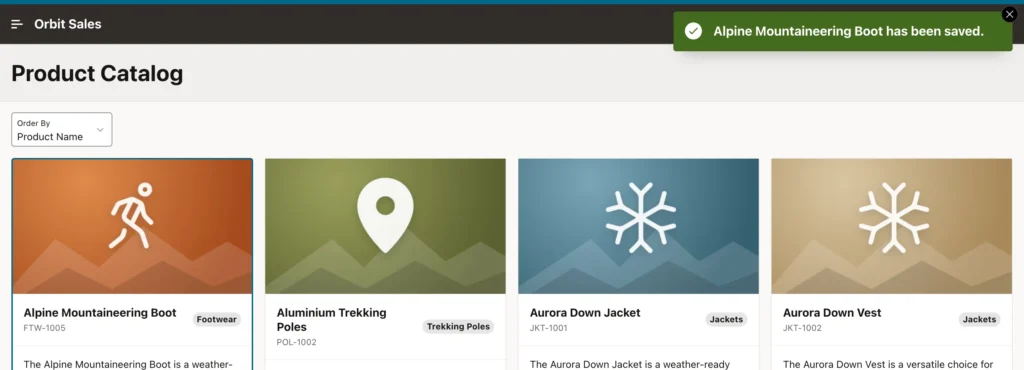
The message substitutes the item's value as it is right now, set moments earlier by the Set Value action, because message actions substitute in the browser rather than on the server. Note also the difference between the two events: Dialog Closed fires only on a proper close, while Dialog Closed or Canceled also fires when the user gives up and closes the window.
Opening a Report's Own Dialogs
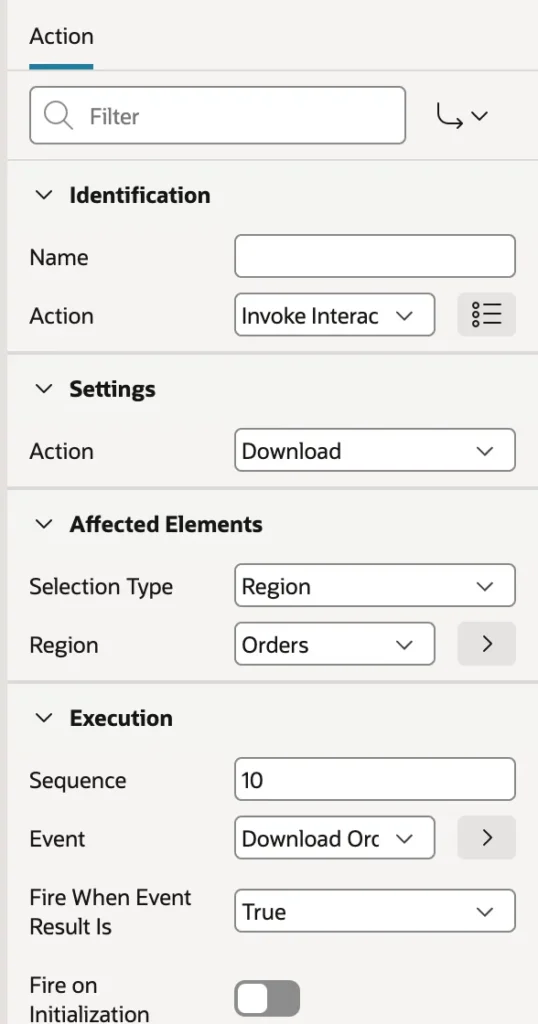
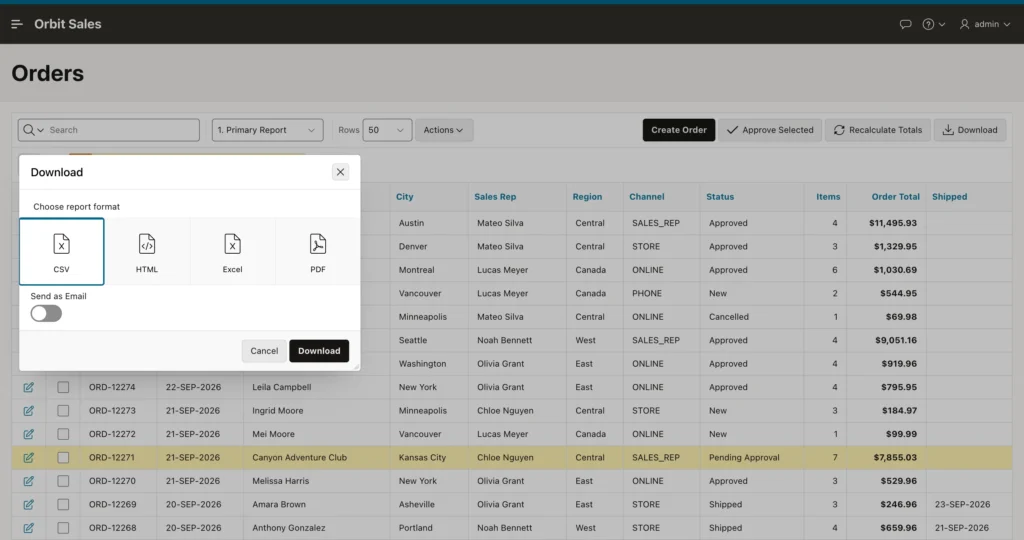
Invoke Interactive Report Dialog, new in 26.1, opens one of an interactive report's own dialogs from any button or event: Download, Filter, Chart, Columns, Highlight, Group By, Save Report, and the rest. Users who never think to open the Actions menu get a visible button instead.
The Events and Actions Available
| Group | Events |
|---|---|
| Browser | Change, Click, Double Click, Get Focus, Input, Key Down, Key Press, Key Release, Lose Focus, mouse and touch events, Page Load, Page Unload, Resize, Scroll, Select, Swipe, Tap |
| Framework | Before Page Submit, Before Refresh, After Refresh, Dialog Closed, Dialog Closed or Canceled |
| Component | Selection changes, page and view changes, calendar and map events, grid row initialization and save, faceted search and smart filter changes |
| Custom | Any event name you trigger from JavaScript |
A few deserve singling out. Change fires when a value changes and the user leaves the field, while Input fires on every keystroke, which is the pair to choose between for live feedback. Before Page Submit runs before a submit and can cancel it, making it the place for a final confirmation. Row Initialization on a grid fires as each row becomes active, for per-row defaults or column visibility.
| Group | Actions |
|---|---|
| Component | Show, Hide, Enable, Disable, Clear, Set Value, Set Focus, Refresh, Open and Close Region, Expand and Collapse Tree |
| Execute | Execute JavaScript Code, Execute Server-side Code, Download, Print Report, Invoke Interactive Report Dialog |
| Notification | Alert, Confirm, Show Success Message, Show Error Message, Clear Errors |
| Navigation | Submit Page, Close Dialog, Cancel Dialog |
| Style and misc | Add Class, Remove Class, Set Style, Cancel Event, Get Current Position, Share |
Open Region and Close Region drive the inline dialogs, drawers, and popups from the region templates. Download fetches files from a query without leaving the page. Submit Page submits from an event that is not a button click. Cancel Event stops an event, which is how a Before Page Submit action aborts a submit. And Alert differs from Confirm in one important way: it does not stop the actions that follow.
When No Action Fits
Execute JavaScript Code runs your own code, with the triggering element, the affected elements, the browser event, and the event's data all available on this. It is the right escape hatch, and the wrong first choice.
const discount = Number(apex.item('P10_DISCOUNT_PCT').getValue());
if (discount > 10) {
    apex.message.alert('A discount above 10% needs approval.');
}
Prefer declarative actions wherever they do the job, because they survive upgrades, appear in Page Designer's tree where the next developer will find them, and cannot go stale against an API. Reach for JavaScript when the declarative list genuinely runs out.
Conclusion
Dynamic actions are how an APEX page behaves while somebody is using it, and almost all of their difficulty lives in two settings. Items to Submit decides whether server-side work sees what is on screen or what was last saved, and Fire on Initialization decides whether an action also runs at page load, which is right for showing and hiding and wrong for anything that changes data or responds to a click. Past that it is a vocabulary: conditions pick between true and false actions, Create Opposite Action builds the mirror for you, chained actions confirm then run server code then report, Refresh redraws a region in place, and the Dialog Closed event with returned items closes the loop between a drawer and the page behind it. APEX 26.1 adds proper notification messages in the browser and a way to open an interactive report's own dialogs from a button. Use the declarative actions until they genuinely fail you, keep the enforcement on the server, and the browser will feel responsive without a line of JavaScript in the page.
