
A text item accepts anything the user types and then has to check it. When a column can only take a limited set of values, such as a department, a blood group, or an insurance plan, it is better to offer the choices and let the user pick one.
A list item does exactly that: it shows the user a label, such as Cardiology, and stores a value, such as 101. This guide covers list items in Oracle Forms 14.1.2: the five list styles, what happens to values that are not in the list, how to fill a list from the database, and the triggers and built-ins that work with lists.
Sample Form for This Guide
The examples and screenshots use the sample forms CH10_PATIENT and CH10_DOCTOR from the Oracle Forms code repository on GitHub. Download them, open them in Forms Builder, and connect as CAREWELL to follow along.
| Form | File | What it shows |
|---|---|---|
| CH10_PATIENT | forms/ch10/ch10_patient.fmb | A T-list, a poplist filled from the database, and a combo box |
| CH10_DOCTOR | forms/ch10/ch10_doctor.fmb | A spin list, a slider, and a check box |
The forms run against the CareWell Clinic sample schema, which you install first.
Oracle Forms List Styles at a Glance
| List Style | How it looks | Best for |
|---|---|---|
| Poplist (default) | Shows the current value and opens a list of all elements on click. | Lists of up to a few dozen elements. |
| T-list | Shows several elements at once, with the current one highlighted. | Short lists that deserve space on the screen. |
| Combo Box | Like a poplist, but also accepts a typed value. | Values that are usually, but not always, in the list. |
| Spin List | The current value with two small arrows that step through the elements and wrap around. | Stepping through a short ordered list. |
| Slider | A bar with a thumb the user drags to a whole number. | A number in a range, such as a fee. |
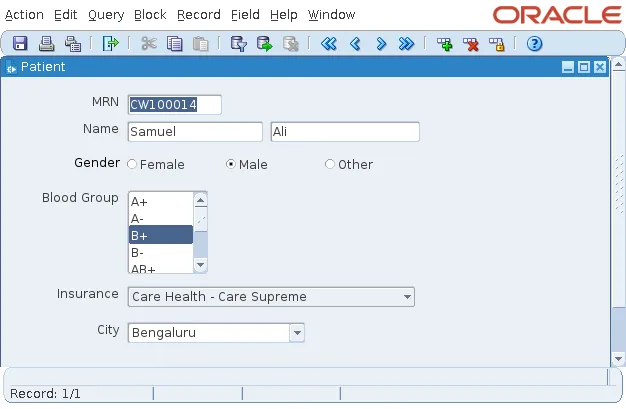
The sample form CH10_PATIENT shows the blood group as a T-list, the insurance plan as a poplist filled from the database, and the city as a combo box. Its gender is a radio group.
Create a List Item and Its Elements
Set an item's Item Type to List Item, then choose its List Style in the Functional group of the Property Palette.
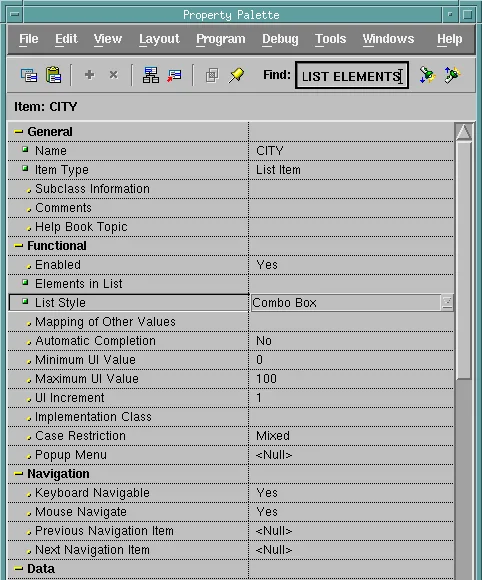
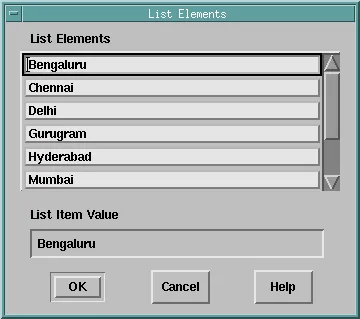
A list item holds a list of elements, each a label and a value. The Elements in List property opens a dialog in which you type the labels, one per line, and below each the List Item Value it stands for. The item stores the value, and the user sees the label.
Poplist, T-list, and Combo Box
A poplist opens a list of all its elements when the user clicks it. It is the default and suits most lists.
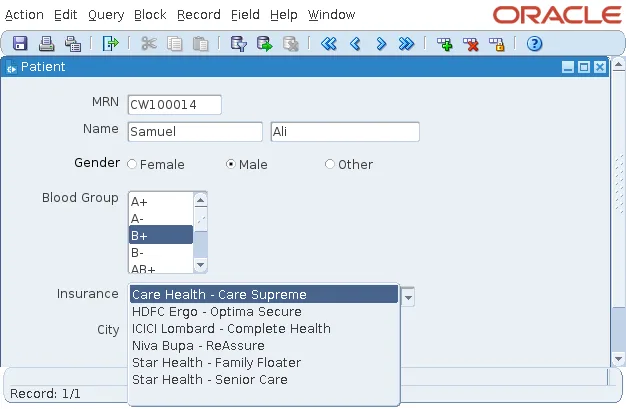
A T-list shows as many elements as its height allows, with the current one highlighted, and suits short lists like the eight blood groups. A combo box also accepts a value the user types, such as a city that is not in the list. With Automatic Completion set to Yes, Forms completes what the user types from the list's elements.
Spin List and Slider
The sample form CH10_DOCTOR shows a doctor's department as a spin list, whose arrows step through the eight departments, and the consultation fee as a slider from 0 to 200 in steps of 5.
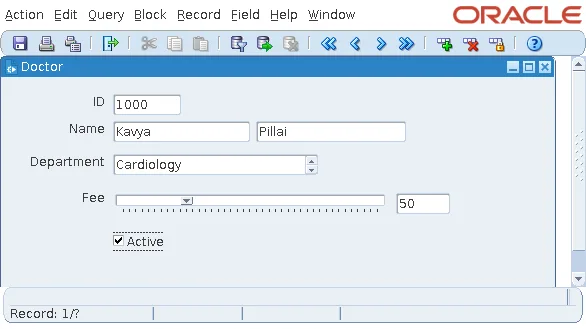
A slider's values come from three properties, not from list elements: Minimum UI Value, Maximum UI Value, and UI Increment, and its data type must be a number. A slider shows where its value lies, not the value itself, so the form adds a display item next to it with the formula :doctors.consult_fee.
Values That Are Not in the List
A list item can only show a value that is in its list. When a query fetches a row whose column holds another value, Forms silently rejects the record: it does not appear in the block, and no message says why. An assignment of such a value from code is refused too.
This is the most common surprise with list items. A department added to the database last week, missing from a list defined at design time, makes its doctors disappear from the form.
Two properties and one habit prevent it:
- Mapping of Other Values, set to the value or name of one element, maps every value not in the list to that element.
- For nulls, a poplist or combo box whose item is not Required adds a blank element by itself, as the insurance list shows at its end. A T-list shows null as no selection.
- The better fix is to fill the list from the database, so it is always complete.
Fill a List from the Database
PLAN_ID lists the insurance plans stored in the table INSURANCE_PLANS. Rather than copy them into the form, CH10_PATIENT fills the list from the table when the form starts, and only then queries the patients, so every patient's plan is in the list.
Example (WHEN-NEW-FORM-INSTANCE trigger on the form):
declare
  rg     recordgroup;
  status number;
begin
  rg := create_group_from_query('RG_PLANS',
          'select provider || '' - '' || plan_name, to_char(plan_id) ' ||
          'from insurance_plans order by provider, plan_name');
  status := populate_group(rg);
  if status = 0 then
    populate_list('PATIENTS.PLAN_ID', rg);
  end if;
  go_block('PATIENTS');
  execute_query;
end;
Here is what each call does:
- CREATE_GROUP_FROM_QUERY creates a record group, a table in the form's memory, from a query.
- POPULATE_GROUP runs the query and returns 0 when it succeeds.
- POPULATE_LIST replaces the list's elements with the rows of the group, which must have two VARCHAR2 columns: the label, then the value. The plan ID is a number, so the query converts it with TO_CHAR.
PLAN_ID keeps one element at design time, which POPULATE_LIST replaces. That element keeps the item usable if the list cannot be filled. For more on record groups, see POPULATE_GROUP in Oracle Forms.
Triggers for List Items
Two triggers fire when the user makes a choice in a list, before the item is validated:
- WHEN-LIST-CHANGED fires when the user selects another element, or types into a combo box, where it fires at the first character.
- WHEN-LIST-ACTIVATED fires when the user double-clicks an element of a T-list.
Built-ins for List Items
POPULATE_LIST and RETRIEVE_LIST
POPULATE_LIST replaces a list's elements with the rows of a record group of two VARCHAR2 columns, label and value. RETRIEVE_LIST copies the elements into such a group, so you can restore them later.
Syntax:
populate_list(list_name varchar2 | list_id item, recgrp_name varchar2 | recgrp_id recordgroup)
retrieve_list(list_name varchar2 | list_id item, recgrp_name varchar2 | recgrp_id recordgroup)
ADD_LIST_ELEMENT, DELETE_LIST_ELEMENT, and CLEAR_LIST
These add an element at a position (1 is the first), remove one, or remove them all.
Syntax:
add_list_element(list_name varchar2 | list_id item, list_index number,
                 list_label varchar2, list_value varchar2)
delete_list_element(list_name varchar2 | list_id item, list_index number)
clear_list(list_name varchar2 | list_id item)
A value typed into a combo box is not added to its list, but ADD_LIST_ELEMENT in a WHEN-VALIDATE-ITEM trigger can add it.
DELETE_LIST_ELEMENT fails with FRM-41331 for the element of the item's Initial Value. In a poplist or T-list of a data block without an other-values element, it also fails for any element while the block holds queried or changed records.
GET_LIST_ELEMENT_COUNT, GET_LIST_ELEMENT_LABEL, and GET_LIST_ELEMENT_VALUE
Syntax:
get_list_element_count(list_name varchar2 | list_id item) return varchar2
get_list_element_label(list_name varchar2 | list_id item, list_index number) return varchar2
get_list_element_value(list_name varchar2 | list_id item, list_index number) return varchar2
To find the label of the item's current value, for example to show Cardiology in a message instead of 101, loop over the elements until the value matches.
For choices with only two states, a check box is simpler, and for two to five visible options, a radio group. Text items and their shared properties are covered in how to use text items in Oracle Forms.
Conclusion
List items in Oracle Forms show labels and store values, in five styles: poplist, T-list, combo box (which accepts typed values), spin list, and slider (a range of whole numbers). A value that is not in the list makes Forms silently reject the queried record, so use Mapping of Other Values, or better, fill the list from the database with CREATE_GROUP_FROM_QUERY, POPULATE_GROUP, and POPULATE_LIST. React to choices with WHEN-LIST-CHANGED and WHEN-LIST-ACTIVATED, and change lists at run time with ADD_LIST_ELEMENT, DELETE_LIST_ELEMENT, CLEAR_LIST, and the GET_LIST_ELEMENT built-ins.
