
Oracle Forms is not a single program you download and run. It is a set of tools and servers installed into an Oracle home on top of Oracle Fusion Middleware, and it runs inside a WebLogic Server domain.
This guide walks you through a complete Oracle Forms 14.1.2 installation for development: the JDK, Fusion Middleware Infrastructure, Oracle Forms itself, and a development domain. By the end, you will run a test form in the Forms Standalone Launcher and open Forms Builder.
Oracle Forms 14.1.2, released with Oracle Fusion Middleware 14c at the end of 2024, runs on JDK 17 and 21 and works with Oracle AI Database 26ai. It also adds REST calls, a JSON package, and a new client that runs without a browser.
The Installation at a Glance
| Step | What you do | Tool |
|---|---|---|
| 1 | Install the JDK | JDK installer or archive |
| 2 | Install Fusion Middleware Infrastructure | fmw_14.1.2.0.0_infrastructure.jar |
| 3 | Install Oracle Forms into the same Oracle home | Forms installer |
| 4 | Create a development domain | Configuration Wizard |
| 5 | Complete the domain | Two WLST scripts |
| 6 | Start the server | startWebLogic |
| 7 | Run the test form | Forms Standalone Launcher |
| 8 | Start Forms Builder | Start menu or frmbld.sh |
What an Oracle Forms Installation Includes
An Oracle Forms 14.1.2 installation has five parts:
- Oracle JDK, version 17 or 21. Everything in Fusion Middleware is Java, from the installers to the servers.
- Oracle Fusion Middleware Infrastructure 14.1.2. It installs WebLogic Server, the Java application server that hosts the Forms servlet, plus the libraries Forms is built on. It also creates the Oracle home, the directory every other product installs into.
- Oracle Forms 14.1.2 itself: Forms Builder to design forms, the Forms Compiler to turn design files into runnable files, and Forms Services to run forms for users. Oracle Reports is included too, but it is deprecated.
- A WebLogic domain, created with the Configuration Wizard, in which the Forms servlet runs.
- An Oracle Database for your forms. Forms 14.1.2 supports Oracle Database 19c (19.23 or later) and Oracle AI Database 23ai and 26ai.
When a user runs a form, three programs work together. The Forms client is a Java program on the user's computer that draws the screen. It first contacts the Forms servlet in WebLogic Server, which starts a Forms runtime process (frmweb) on the server, one per user session, to run the form's logic and talk to the database. For a closer look at these pieces, see the guide to the key components of Oracle Forms architecture.
Choose the Right Oracle Forms Setup
The installer and the Configuration Wizard offer three setups:
| Setup | What you get | Use it for |
|---|---|---|
| Standalone Forms Builder | Forms Builder and the Forms Compiler only, with no WebLogic Server and no way to run forms | Designing and compiling forms when a Forms server is available elsewhere |
| Development domain | Forms Builder, the Compiler, and a Forms server in a single WebLogic server, with no schemas to create in the database | Development and testing on your own computer |
| Full Forms domain | An Administration Server, a managed server WLS_FORMS in a cluster, Enterprise Manager, and optionally Oracle HTTP Server. It needs repository schemas in a database. | Test and production servers |
For learning Forms and most development work, choose the development domain. It is the lightest setup that lets you both build and run forms.
The domain template behind it, Oracle Forms Development, runs Forms in the Administration Server itself. It uses a restricted version of Fusion Middleware's Java Required Files (JRF), so you need no Repository Creation Utility and no schemas in the database. This guide installs that setup, and every example in this Oracle Forms series ran in one.
Oracle Forms 14.1.2 System Requirements
Forms 14.1.2 runs on Microsoft Windows x64 and Linux x86-64. There is no version for macOS or ARM processors. On a Mac with Apple silicon, you can run the Linux version in a virtual machine or a container that emulates x86-64.
| Requirement | Details |
|---|---|
| JDK | Oracle JDK 17.0.12 or later, or 21.0.4 or later, 64-bit. Check Oracle's Fusion Middleware Supported System Configurations page for the exact versions certified on your platform. |
| Disk space | About 6 GB for the Oracle home and a domain (a test installation took 5.3 GB), plus about 4 GB for the installers, which you can delete afterward. |
| Memory | 8 GB or more. A running development domain uses about 2 GB, and a database on the same computer needs its own share. |
| Database | Any Oracle Database you can connect to. Oracle AI Database 26ai Free costs nothing and is enough for development. |
| Operating system | On Linux, the packages the installer checks for, among them motif, libXtst, libaio, and the X fonts. On Windows, an administrator account for the installation. |
If you still need a database, the Oracle Database 26ai SQL and PL/SQL book shows how to install Oracle AI Database 26ai Free.
Download the Software
You need three downloads:
- The JDK, from Oracle's Java downloads page: the installer for Windows (.exe or .msi), or the .tar.gz archive for Linux x64.
- Oracle Fusion Middleware Infrastructure 14.1.2.0.0, from the Oracle Software Delivery Cloud (edelivery.oracle.com). It is a zip file containing fmw_14.1.2.0.0_infrastructure.jar, the same for every platform.
- Oracle Forms and Reports 14.1.2.0.0, also from the Software Delivery Cloud. It is a zip file with the installer for your platform, such as fmw_14.1.2.0.0_fr_linux64.bin for Linux.
The Forms downloads page on oracle.com links to both Fusion Middleware files. Sign in with a free Oracle account and accept the license agreement, which allows development use. Choose Linux x86-64 or Microsoft Windows x64 (64-bit) as the platform.
Step 1: Install the JDK
On Windows, run the JDK installer and accept its defaults. On Linux, unpack the archive into a directory of your choice and check the version.
Unpack the JDK on Linux:
mkdir -p /u01/jdk
tar -xzf jdk-21_linux-x64_bin.tar.gz -C /u01/jdk --strip-components=1
/u01/jdk/bin/java -version
Note the JDK's directory. The installers ask for it, and the domain uses it to start WebLogic Server.
Step 2: Install Fusion Middleware Infrastructure
Unzip the Infrastructure download and start its installer with the JDK's java. On Windows, run it from a command prompt opened as administrator.
Start the Infrastructure installer:
/u01/jdk/bin/java -jar fmw_14.1.2.0.0_infrastructure.jar
The installer asks for two things that matter:
- The Oracle home, the directory to install into, such as C:\Oracle\Middleware\Oracle_Home on Windows or /u01/oracle/fmw on Linux.
- The installation type. Choose Fusion Middleware Infrastructure.
Accept the other defaults and let it install. On Linux, the first Oracle installation also asks for an inventory directory, where Oracle's installers keep track of what they installed.
If the installer reports that it cannot access the jar file, see the fix for the Unable to access jarfile fmw_14.1.2.0.0_infrastructure_generic.jar error.
Silent Installation with a Response File
Every Oracle installer can also run without its windows, reading its answers from a response file. This is handy for scripted or repeatable installs.
Syntax:
java -jar fmw_14.1.2.0.0_infrastructure.jar -silent -responseFile file [-invPtrLoc file]
Response file for the Infrastructure:
[ENGINE]
Response File Version=1.0.0.0.0
[GENERIC]
ORACLE_HOME=/u01/oracle/fmw
INSTALL_TYPE=Fusion Middleware Infrastructure
DECLINE_SECURITY_UPDATES=true
SECURITY_UPDATES_VIA_MYORACLESUPPORT=false
Step 3: Install Oracle Forms
Start the Forms installer: setup on Windows, or the .bin file on Linux, pointing it to your JDK.
Start the Forms installer on Linux:
./fmw_14.1.2.0.0_fr_linux64.bin -jreLoc /u01/jdk
Install into the same Oracle home as the Infrastructure, then choose the installation type:
| Installation type | What it installs |
|---|---|
| Standalone Forms Builder | Only Forms Builder and the Compiler. |
| Oracle Forms Deployment | Forms, with Forms Builder and Forms Services. |
| Forms and Reports Deployment | Forms plus Oracle Reports. |
For a development domain, choose Oracle Forms Deployment, or Forms and Reports Deployment if you also want Reports. In a silent installation, the response file names the type in INSTALL_TYPE, exactly as the installer shows it.
Response file for Forms:
[ENGINE]
Response File Version=1.0.0.0.0
[GENERIC]
ORACLE_HOME=/u01/oracle/fmw
INSTALL_TYPE=Forms and Reports Deployment
DECLINE_SECURITY_UPDATES=true
SECURITY_UPDATES_VIA_MYORACLESUPPORT=false
Step 4: Create a Development Domain
The Configuration Wizard creates the WebLogic domain. Start it from the Oracle home: oracle_common\common\bin\config.cmd on Windows, or oracle_common/common/bin/config.sh on Linux. Then go through its pages:
- Configuration Type: choose Create a new domain and enter its location, such as /u01/oracle/domains/forms_dev. Oracle recommends a directory outside the Oracle home.
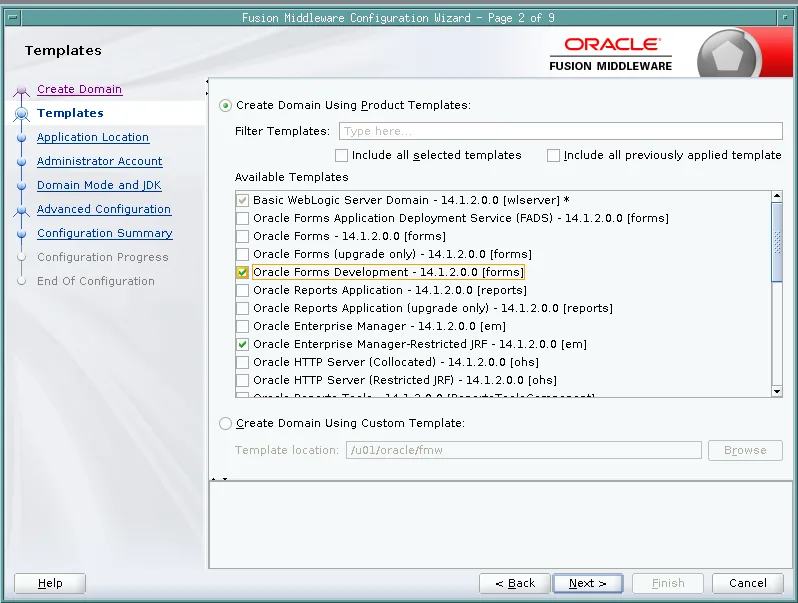
- Templates: select Oracle Forms Development. The wizard adds the templates it depends on, such as Oracle Enterprise Manager-Restricted JRF.
- Application Location: accept the default.
- Administrator Account: enter the administrator's name (weblogic) and password. You need them to start the server and sign in to its consoles.
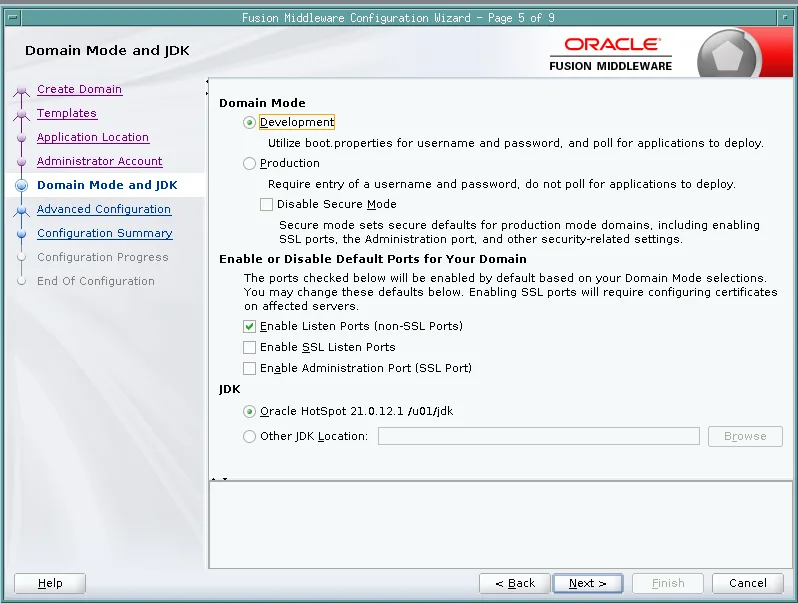
- Domain Mode and JDK: choose Development mode and check that the JDK is the one you installed.
- Advanced Configuration: leave the options unselected.
- Configuration Summary: check your choices and click Create. After a few minutes, the wizard reports that the domain was created, with the URL of its Administration Server.
Step 5: Complete the Development Domain
This step is easy to miss. A domain created from the Oracle Forms Development template is not quite ready to run forms.
The template registers a Forms instance called forms1 on a machine called AdminServerMachine, but it leaves the Administration Server off that machine and never creates the instance's directory. Forms then cannot find its instance, and you see one of these errors:
- FRM-93131: Cannot find base HTML file, from the Forms servlet.
- FRM-93500: unexpected error while attempting to create the runtime process, from the Forms runtime.
In testing, this happened to every development domain created from the template, whether with the Configuration Wizard or with WLST.
Two small scripts fix it. They are in the setup/forms folder of the Oracle Forms code repository on GitHub. Run them with WLST, the WebLogic Scripting Tool that every Forms installation includes, after you create the domain and before you start it for the first time.
First, assign-machine.py puts the Administration Server on AdminServerMachine, so Forms can find its instance.
Assign the Administration Server to its machine:
cd /u01/oracle/fmw/oracle_common/common/bin
./wlst.sh assign-machine.py /u01/oracle/domains/forms_dev
Second, create-forms-instance.py creates the instance directory, config/fmwconfig/components/FORMS/instances/forms1, inside the domain. It copies the files listed in Oracle's own provisioning document for a Forms instance (forms/provision/forms-instance-config.xml in the Oracle home), such as the scripts that start Forms Builder and the Compiler, the key-mapping resource files, and the toolkit's color and font files. It also copies the page templates the Forms servlet reads from the instance's server directory.
Create the Forms instance directory:
./wlst.sh create-forms-instance.py /u01/oracle/domains/forms_dev
On Windows, run wlst.cmd instead of wlst.sh, with Windows paths. When the server starts, Forms writes its configuration using the instance's directory, and the test form runs.
Step 6: Start and Stop the Server
A development domain has one server, the Administration Server, which also runs Forms. Start it with the script in the domain's directory.
Start WebLogic Server on Linux:
cd /u01/oracle/domains/forms_dev
./startWebLogic.sh
On Windows, run startWebLogic.cmd in the domain's directory. The server asks for the administrator's name and password.
To start it without being asked, create a file named boot.properties in servers/AdminServer/security under the domain's directory. The server encrypts the file the first time it starts.
Contents of boot.properties:
username=weblogic
password=your_password
The server is ready when its console shows "The server started in RUNNING mode." To stop it, run stopWebLogic.sh (or stopWebLogic.cmd) in the domain's bin directory, or press Ctrl+C in the window where it runs.
Step 7: Run a Form with the Forms Standalone Launcher
Forms 14.1.2 runs forms in the Forms Standalone Launcher (FSAL), a small Java program called frmsal.jar that opens the form in a window of its own. It replaces the Java applet, which modern browsers no longer run. The user's computer needs Java 17 or later.
Download frmsal.jar from the Forms server's usage page at /forms/html/fsal.htm, for example http://localhost:7001/forms/html/fsal.htm, and save it in your home directory. Keep two rules in mind:
- The file must keep its name, frmsal.jar.
- It must come from the Forms server you run it against. A launcher from one Forms installation does not work with another.
Then start a form with its URL.
Syntax:
java -jar frmsal.jar -url "http[s]://server:port/forms/frmservlet[?config=section][&form=module][¶meter=value]..."
Example:
java -jar frmsal.jar -url "http://localhost:7001/forms/frmservlet?form=test.fmx"
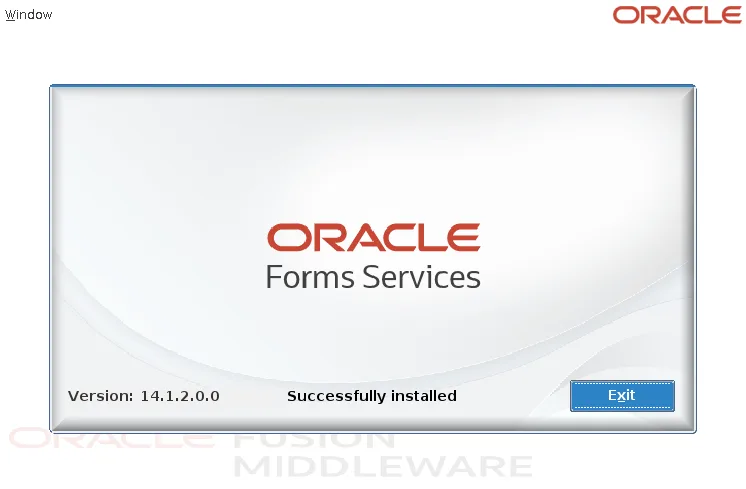
test.fmx is a form that Forms installs to check an installation. If everything works, it opens with the Oracle Forms Services logo, the version, and the words Successfully installed.
The URL can name a configuration section of the Forms configuration file, formsweb.cfg, and override its parameters, such as the form to run (form), the user and database (userid), and the window size (width and height). Without config, Forms uses the [default] section.
Step 8: Start Forms Builder
On Windows, start Forms Builder from the Start menu, in the Oracle home's program group. On Linux, run the script that the Forms instance provides.
Start Forms Builder on Linux:
/u01/oracle/domains/forms_dev/config/fmwconfig/components/FORMS/instances/forms1/bin/frmbld.sh
Forms Builder opens with the Object Navigator, and you are ready to build forms. To compile and run a form once you have one, see how to run and compile an Oracle Form.
Character Sets on Linux
Forms Builder on Linux does not start if NLS_LANG specifies a Unicode character set such as AL32UTF8. It stops with FRM-91111, window system startup failure.
Set NLS_LANG to a single-byte character set, such as AMERICAN_AMERICA.WE8ISO8859P1, before you start it. Forms Builder on Linux also needs a window manager on the X display, which a normal desktop always has.
Troubleshooting Common Installation Errors
| Error | Cause | Fix |
|---|---|---|
| FRM-93131: Cannot find base HTML file | The development domain was not completed. | Run assign-machine.py and create-forms-instance.py before the first start. |
| FRM-93500: unexpected error while attempting to create the runtime process | Forms cannot find its instance. | Same as above. |
| FRM-91111: window system startup failure | NLS_LANG uses a Unicode character set on Linux. | Set NLS_LANG to a single-byte character set such as AMERICAN_AMERICA.WE8ISO8859P1. |
| The launcher does not work | frmsal.jar came from another Forms installation, or was renamed. | Download frmsal.jar again from this server's fsal.htm page. |
Conclusion
To install Oracle Forms 14.1.2 for development, install the JDK, then Fusion Middleware Infrastructure, then Oracle Forms (Oracle Forms Deployment) into the same Oracle home. Create a domain from the Oracle Forms Development template, complete it with the two WLST scripts before its first start, and start it with startWebLogic. Finally, run test.fmx with the Forms Standalone Launcher to confirm the installation, and open Forms Builder to start building forms.
