
A sign-up page lets a visitor ask for an account without help from an administrator. The visitor enters a user name, an email address and a password. The request waits until someone approves it, so a stranger cannot get into the application on their own.
This guide builds the whole flow for a custom user table: a public sign-up page, a table with a status for each request, an approval page for administrators and a sign-in that refuses accounts that are not approved yet. Every part was tested in a running application.
The guide Learn How to Create User in Oracle Apex shows how an administrator creates users in the workspace. Here the user starts the request, and your own table keeps the accounts. The scheme itself is the one from Create Custom Authentication in 5 Easy Steps in Oracle Apex.
Step 1: Create the Table for Accounts
SIGNUP_ACCOUNTS holds every request and every approved account. The column STATUS is PENDING for a new request and changes to ACTIVE or REJECTED when an approver decides. The column IS_APPROVER marks the users who may open the approval page.
Example:
create table signup_accounts (
  account_id    number generated by default on null as identity,
  username      varchar2(30 char)  not null,
  email         varchar2(120 char) not null,
  password_salt raw(16)            default on null sys_guid() not null,
  password_hash varchar2(128 char) not null,
  status        varchar2(10 char)  default on null 'PENDING' not null,
  is_approver   varchar2(1 char)   default on null 'N' not null,
  requested_on  timestamp with time zone default on null systimestamp not null,
  decided_by    varchar2(30 char),
  decided_on    timestamp with time zone,
  constraint signup_accounts_pk primary key (account_id),
  constraint signup_accounts_user_uk unique (username),
  constraint signup_accounts_email_uk unique (email),
  constraint signup_accounts_user_ck check (username = upper(username)),
  constraint signup_accounts_email_ck check (email = lower(email)),
  constraint signup_accounts_status_ck check (status in ('PENDING', 'ACTIVE', 'REJECTED')),
  constraint signup_accounts_appr_ck check (is_approver in ('Y', 'N'))
);

create index signup_accounts_status_ix on signup_accounts (status);

select table_name, constraint_name, constraint_type
from   user_constraints
where  table_name = 'SIGNUP_ACCOUNTS'
and    constraint_name not like 'SYS%'
order  by constraint_type, constraint_name;
Output:
Table SIGNUP_ACCOUNTS created.

Index SIGNUP_ACCOUNTS_STATUS_IX created.

TABLE_NAME         CONSTRAINT_NAME              CONSTRAINT_TYPE
__________________ ____________________________ __________________
SIGNUP_ACCOUNTS    SIGNUP_ACCOUNTS_APPR_CK      C
SIGNUP_ACCOUNTS    SIGNUP_ACCOUNTS_EMAIL_CK     C
SIGNUP_ACCOUNTS    SIGNUP_ACCOUNTS_STATUS_CK    C
SIGNUP_ACCOUNTS    SIGNUP_ACCOUNTS_USER_CK      C
SIGNUP_ACCOUNTS    SIGNUP_ACCOUNTS_PK           P
SIGNUP_ACCOUNTS    SIGNUP_ACCOUNTS_EMAIL_UK     U
SIGNUP_ACCOUNTS    SIGNUP_ACCOUNTS_USER_UK      U

7 rows selected.
A few details in the table:
- The user name is unique and stored in upper case. The email address is unique and stored in lower case. The check constraints keep both rules in the database, so no page can break them.
- STATUS, IS_APPROVER, the salt and the request time use DEFAULT ON NULL. A sign-up never has to set them, so a request is always PENDING and never an approver.
- The password is never stored. The table keeps a random salt and the SHA-512 hash of the password and the salt.
- The index on STATUS keeps the list of pending requests fast when the table grows.
Step 2: Create the Package
One package holds the rules, so the page and the SQL tests use the same code. REGISTER creates a request after checking the user name, the email address and the password. AUTHENTICATE is the function of the authentication scheme. APPROVE and REJECT decide a request.
Example:
create or replace package sign_up as
  c_min_length constant pls_integer := 10;

  function  username_problem (p_username in varchar2) return varchar2;
  function  email_problem (p_email in varchar2) return varchar2;
  function  password_problem (p_username in varchar2, p_password in varchar2) return varchar2;
  procedure register (p_username in varchar2, p_email in varchar2, p_password in varchar2);
  function  authenticate (p_username in varchar2, p_password in varchar2) return boolean;
  function  is_approver (p_username in varchar2) return boolean;
  procedure approve (p_username in varchar2, p_decided_by in varchar2);
  procedure reject (p_username in varchar2, p_decided_by in varchar2);
end sign_up;
/
create or replace package body sign_up as

  function hash_password (p_salt in raw, p_password in varchar2) return varchar2 is
    l_hash varchar2(128 char);
  begin
    select standard_hash(utl_raw.cast_to_raw(p_password) || p_salt, 'SHA512')
    into   l_hash
    from   dual;
    return l_hash;
  end hash_password;

  function username_problem (p_username in varchar2) return varchar2 is
    l_count pls_integer;
  begin
    if not regexp_like(p_username, '^[A-Za-z][A-Za-z0-9_]{2,29}$') then
      return 'Use 3 to 30 letters, digits or underscores, starting with a letter.';
    end if;
    select count(*) into l_count
    from   signup_accounts
    where  username = upper(p_username);
    if l_count > 0 then
      return 'This user name is already taken.';
    end if;
    return null;
  end username_problem;

  function email_problem (p_email in varchar2) return varchar2 is
    l_count pls_integer;
  begin
    if not regexp_like(p_email, '^[A-Za-z0-9._%+-]+@[A-Za-z0-9.-]+\.[A-Za-z]{2,}$') then
      return 'Enter a valid email address.';
    end if;
    select count(*) into l_count
    from   signup_accounts
    where  email = lower(p_email);
    if l_count > 0 then
      return 'This email address is already registered.';
    end if;
    return null;
  end email_problem;

  function password_problem (p_username in varchar2, p_password in varchar2) return varchar2 is
  begin
    if p_password is null or length(p_password) < c_min_length then
      return 'Use at least ' || c_min_length || ' characters.';
    elsif not regexp_like(p_password, '[A-Z]') or not regexp_like(p_password, '[a-z]') or not regexp_like(p_password, '[0-9]') then
      return 'Use upper case letters, lower case letters and a digit.';
    elsif instr(upper(p_password), upper(p_username)) > 0 then
      return 'The password must not contain the user name.';
    end if;
    return null;
  end password_problem;

  procedure register (p_username in varchar2, p_email in varchar2, p_password in varchar2) is
    l_salt    signup_accounts.password_salt%type := sys_guid();
    l_hash    signup_accounts.password_hash%type;
    l_problem varchar2(200 char);
  begin
    l_problem := coalesce(username_problem(p_username),
                          email_problem(p_email),
                          password_problem(p_username, p_password));
    if l_problem is not null then
      raise_application_error(-20001, l_problem);
    end if;
    l_hash := hash_password(l_salt, p_password);
    insert into signup_accounts (username, email, password_salt, password_hash)
    values (upper(p_username), lower(p_email), l_salt, l_hash);
  exception
    when dup_val_on_index then
      raise_application_error(-20002, 'This user name or email address is already registered.');
  end register;

  function authenticate (p_username in varchar2, p_password in varchar2) return boolean is
    l_account signup_accounts%rowtype;
  begin
    select * into l_account
    from   signup_accounts
    where  username = upper(p_username);
    if l_account.password_hash != hash_password(l_account.password_salt, p_password) then
      return false;
    end if;
    if l_account.status = 'PENDING' then
      apex_util.set_custom_auth_status('Your account is waiting for approval.');
      return false;
    elsif l_account.status = 'REJECTED' then
      apex_util.set_custom_auth_status('Your sign-up request was not approved.');
      return false;
    end if;
    return true;
  exception
    when no_data_found then
      return false;
  end authenticate;

  function is_approver (p_username in varchar2) return boolean is
    l_flag signup_accounts.is_approver%type;
  begin
    select is_approver into l_flag
    from   signup_accounts
    where  username = upper(p_username)
    and    status = 'ACTIVE';
    return l_flag = 'Y';
  exception
    when no_data_found then
      return false;
  end is_approver;

  procedure decide (p_username in varchar2, p_decided_by in varchar2, p_status in varchar2) is
  begin
    update signup_accounts
    set    status     = p_status,
           decided_by = upper(p_decided_by),
           decided_on = systimestamp
    where  username = upper(p_username)
    and    status   = 'PENDING';
    if sql%rowcount = 0 then
      raise_application_error(-20003, 'No pending request for this user name.');
    end if;
  end decide;

  procedure approve (p_username in varchar2, p_decided_by in varchar2) is
  begin
    decide(p_username, p_decided_by, 'ACTIVE');
  end approve;

  procedure reject (p_username in varchar2, p_decided_by in varchar2) is
  begin
    decide(p_username, p_decided_by, 'REJECTED');
  end reject;

end sign_up;
/
show errors
Output:
Package SIGN_UP compiled

Package Body SIGN_UP compiled

No errors.
How the package works:
- USERNAME_PROBLEM, EMAIL_PROBLEM and PASSWORD_PROBLEM return the text of the first broken rule, or NULL when the value is fine. The page shows this text next to the item.
- REGISTER runs the three checks again before the insert, so a request that skips the page still cannot get in. A unique key violation from two requests at the same time is turned into a clear message.
- AUTHENTICATE checks the hash first. Only when the password is right does it look at the status. A pending or rejected account then gets its own message through APEX_UTIL.SET_CUSTOM_AUTH_STATUS.
- APPROVE and REJECT change only a request that is still PENDING, and they record who decided and when.
- IS_APPROVER is true only for an ACTIVE account with the flag Y.
The hash is enough for this guide. For a real application, use a slow hashing method or keep the users in Oracle APEX accounts or an identity provider.
Step 3: Add the First Approver
Someone has to approve the first request, so one approver is created by SQL. The call below registers SIGNUP_ADMIN, approves the request in the name of SYSTEM and sets the approver flag. Replace the placeholder with your own test password:
Example:
begin
  sign_up.register('SIGNUP_ADMIN', 'admin@example.com', '<password for SIGNUP_ADMIN>');
  sign_up.approve('SIGNUP_ADMIN', 'SYSTEM');
  update signup_accounts
  set    is_approver = 'Y'
  where  username = 'SIGNUP_ADMIN';
  commit;
end;
/

select username, email, status, is_approver
from   signup_accounts
where  username = 'SIGNUP_ADMIN';
Output:
PL/SQL procedure successfully completed.

USERNAME        EMAIL                STATUS    IS_APPROVER
_______________ ____________________ _________ ______________
SIGNUP_ADMIN    admin@example.com    ACTIVE    Y
Step 4: Test the Package in SQL
Before any page exists, the package can be tested. The script below tries five bad requests, a good request, two duplicates and a sign-in before and after approval. Each line shows what the call returned. The placeholder stands for a test password, and the test user is deleted at the end:
Example:
set serveroutput on
declare
  procedure show (p_label in varchar2, p_value in varchar2) is
  begin
    dbms_output.put_line(rpad(p_label, 40) || p_value);
  end show;

  function yn (p_value in boolean) return varchar2 is
  begin
    return case when p_value then 'TRUE' else 'FALSE' end;
  end yn;

  procedure try_register (p_label in varchar2, p_user in varchar2, p_email in varchar2, p_password in varchar2) is
  begin
    sign_up.register(p_user, p_email, p_password);
    show(p_label, 'registered');
  exception
    when others then
      show(p_label, sqlerrm);
  end try_register;

  procedure try_decide (p_label in varchar2, p_approve in boolean, p_user in varchar2) is
  begin
    if p_approve then
      sign_up.approve(p_user, 'SIGNUP_ADMIN');
    else
      sign_up.reject(p_user, 'SIGNUP_ADMIN');
    end if;
    show(p_label, 'done');
  exception
    when others then
      show(p_label, sqlerrm);
  end try_decide;
begin
  try_register('Bad user name',            '1x',          'zz1@example.com', '<password for ZZ_ONE>');
  try_register('Bad email address',        'zz_one',      'not-an-email',    '<password for ZZ_ONE>');
  try_register('Too short',                'zz_one',      'zz1@example.com', 'Ab1');
  try_register('No digit',                 'zz_one',      'zz1@example.com', 'OnlyLettersHere');
  try_register('Contains the user name',   'zz_one',      'zz1@example.com', 'Xzz_one2026ab');
  try_register('Good request',             'zz_one',      'zz1@example.com', '<password for ZZ_ONE>');
  try_register('Same user name, other case', 'ZZ_One',    'zz2@example.com', '<password for ZZ_ONE>');
  try_register('Same email, other case',   'zz_two',      'ZZ1@Example.com', '<password for ZZ_ONE>');
  show('Pending can sign in?',      yn(sign_up.authenticate('ZZ_ONE', '<password for ZZ_ONE>')));
  try_decide('Approve an unknown user name', true, 'NOBODY');
  try_decide('Approve ZZ_ONE', true, 'ZZ_ONE');
  show('Approved can sign in?',     yn(sign_up.authenticate('ZZ_ONE', '<password for ZZ_ONE>')));
  show('Wrong password can sign in?', yn(sign_up.authenticate('ZZ_ONE', 'not-the-password')));
  show('Unknown user can sign in?', yn(sign_up.authenticate('NOBODY', 'not-the-password')));
  try_decide('Approve ZZ_ONE a second time', true, 'ZZ_ONE');
  show('ZZ_ONE is an approver?',    yn(sign_up.is_approver('ZZ_ONE')));
  show('SIGNUP_ADMIN is an approver?', yn(sign_up.is_approver('SIGNUP_ADMIN')));
end;
/

select username, email, status, is_approver, decided_by
from   signup_accounts
order  by username;

delete from signup_accounts where username = 'ZZ_ONE';
commit;
Output:
Bad user name                           ORA-20001: Use 3 to 30 letters, digits or underscores, starting with a letter.
Bad email address                       ORA-20001: Enter a valid email address.
Too short                               ORA-20001: Use at least 10 characters.
No digit                                ORA-20001: Use upper case letters, lower case letters and a digit.
Contains the user name                  ORA-20001: The password must not contain the user name.
Good request                            registered
Same user name, other case              ORA-20001: This user name is already taken.
Same email, other case                  ORA-20001: This email address is already registered.
Pending can sign in?                    FALSE
Approve an unknown user name            ORA-20003: No pending request for this user name.
Approve ZZ_ONE                          done
Approved can sign in?                   TRUE
Wrong password can sign in?             FALSE
Unknown user can sign in?               FALSE
Approve ZZ_ONE a second time            ORA-20003: No pending request for this user name.
ZZ_ONE is an approver?                  FALSE
SIGNUP_ADMIN is an approver?            TRUE

PL/SQL procedure successfully completed.

USERNAME        EMAIL                STATUS    IS_APPROVER    DECIDED_BY
_______________ ____________________ _________ ______________ _______________
SIGNUP_ADMIN    admin@example.com    ACTIVE    Y              SYSTEM
ZZ_ONE          zz1@example.com      ACTIVE    N              SIGNUP_ADMIN

1 row deleted.

Commit complete.
The results match the rules:
- Each bad value got its own message, and only the good request was registered.
- The same user name in another case and the same email address in another case were both refused.
- A pending account could not sign in. After the approval the same password worked.
- A wrong password and an unknown user name both returned FALSE, and a second approval failed because no request was pending.
- Only SIGNUP_ADMIN is an approver.
Step 5: Create the Authentication Scheme
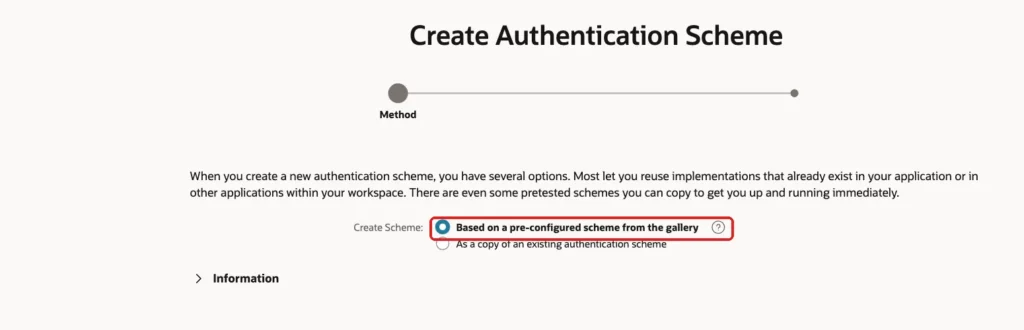
Open the application, click Shared Components and, under Security, click Authentication Schemes. Click Create. Keep the first option, Based on a pre-configured scheme from the gallery, and click Next:
Enter the Name Sign-Up Accounts and select Custom as the Scheme Type. In Authentication Function Name, enter sign_up.authenticate. Then click Create Authentication Scheme:
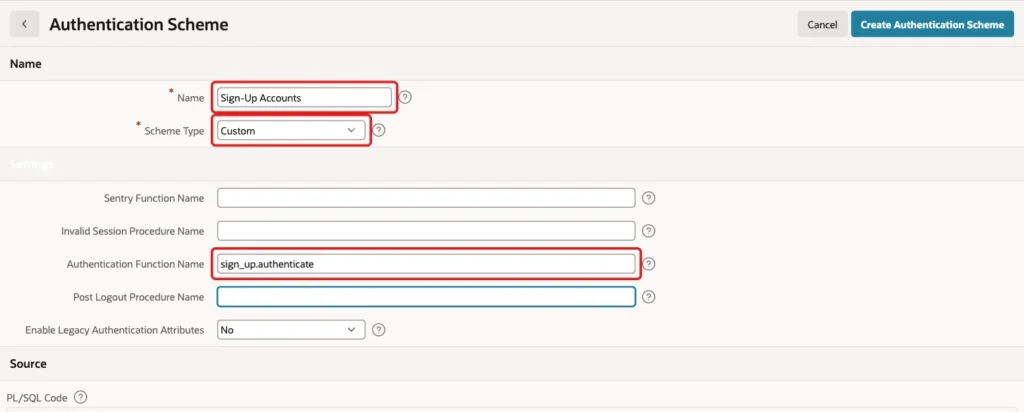
Do not make it the current scheme yet. The pages come first, and the scheme is switched on in Step 10.
Step 6: Create the Authorization Scheme for Approvers
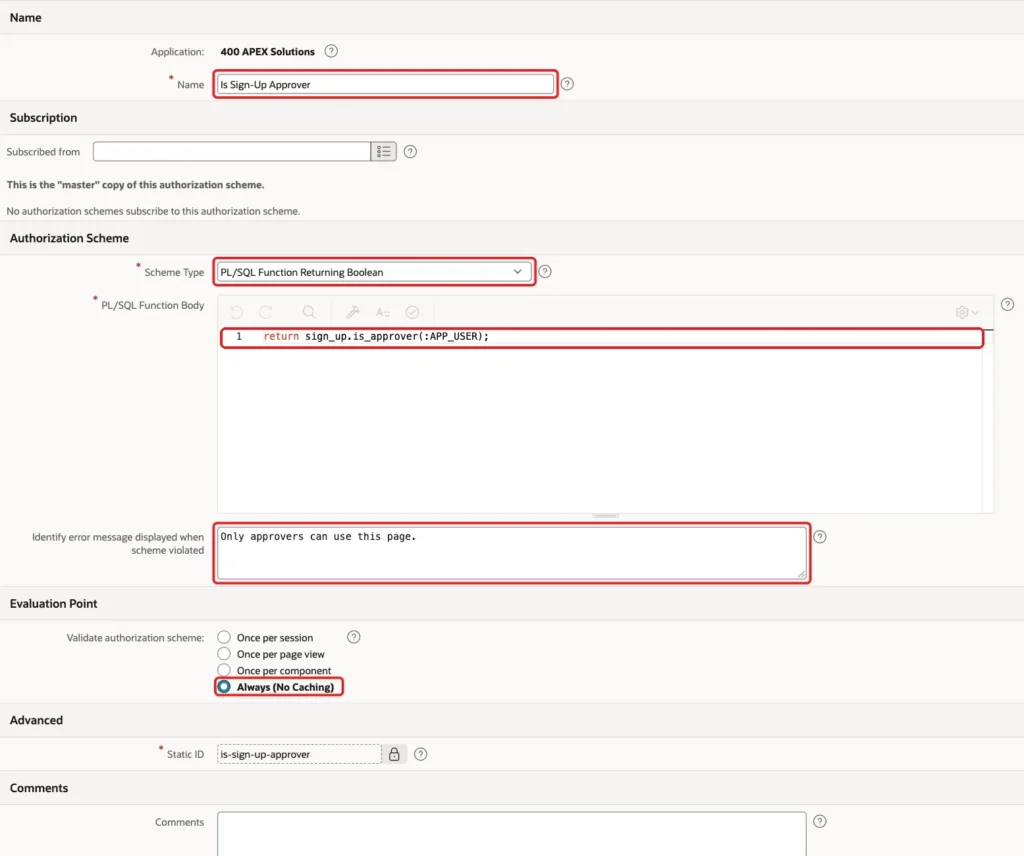
The approval page must be open only to approvers. In Shared Components, click Authorization Schemes and then Create. Set the Name to Is Sign-Up Approver and the Scheme Type to PL/SQL Function Returning Boolean. Use the code below:
Example:
return sign_up.is_approver(:APP_USER);
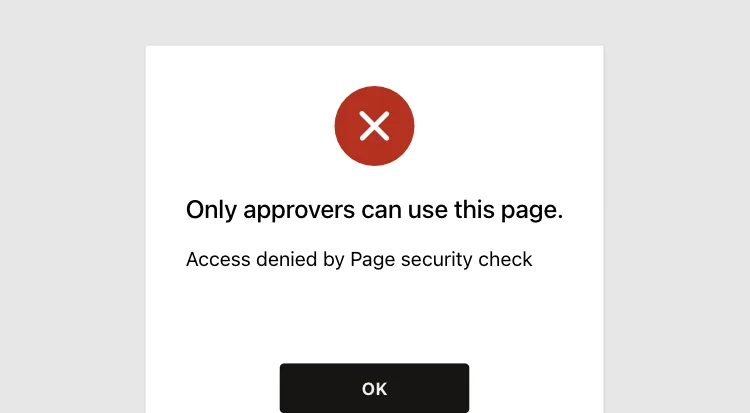
Enter the error message Only approvers can use this page. Set Validate authorization scheme to Always (No Caching), so a change of the approver flag counts at once:
Step 7: Create the Sign-Up Page
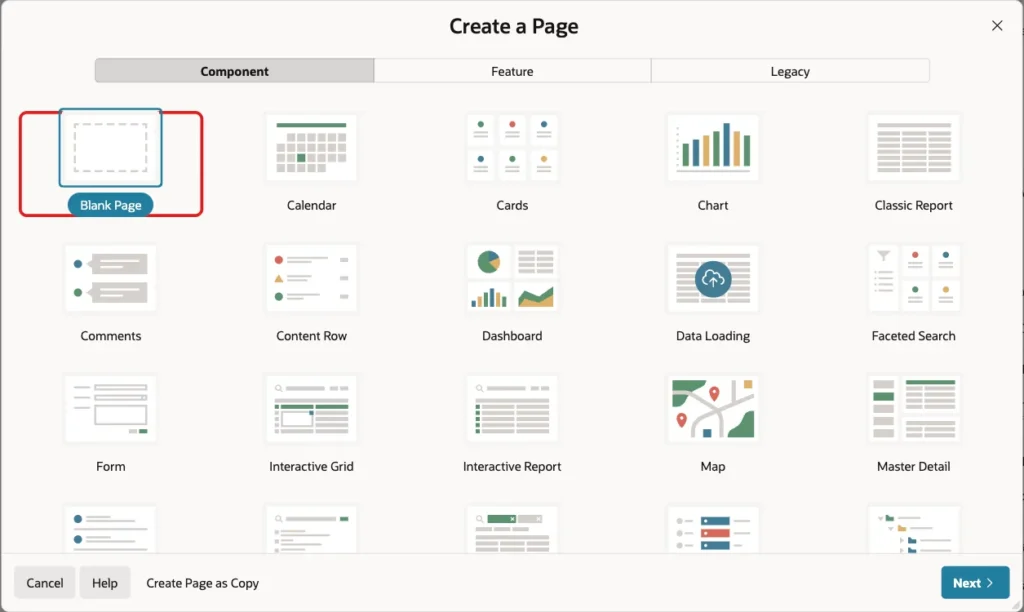
In App Builder, click Create Page. Select Blank Page and click Next:
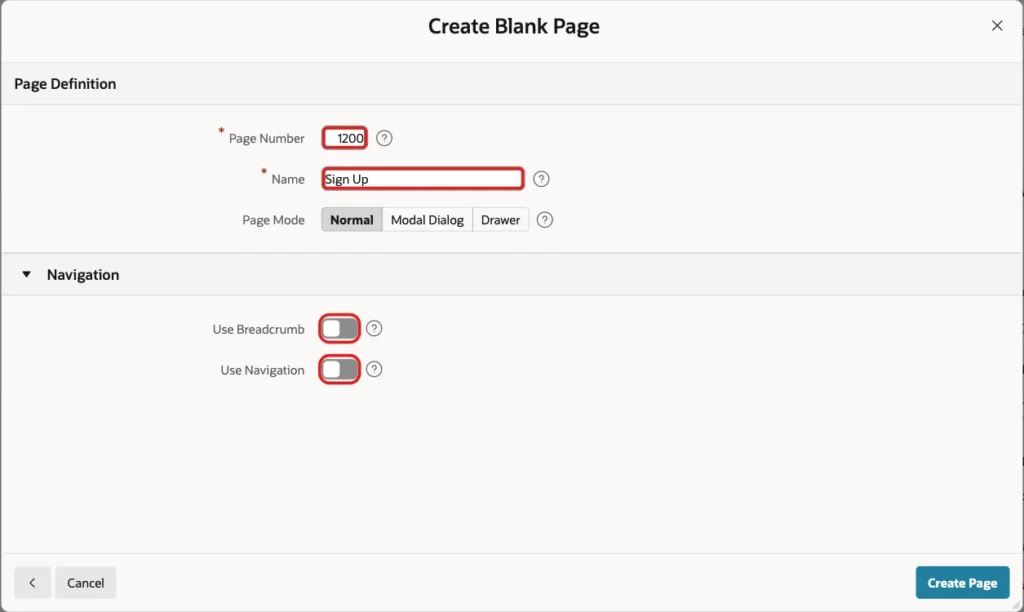
Enter Page Number 1200 and Name Sign Up. Turn off Use Breadcrumb and Use Navigation. Visitors reach this page from the sign-in page, so it needs no menu entry. Click Create Page:
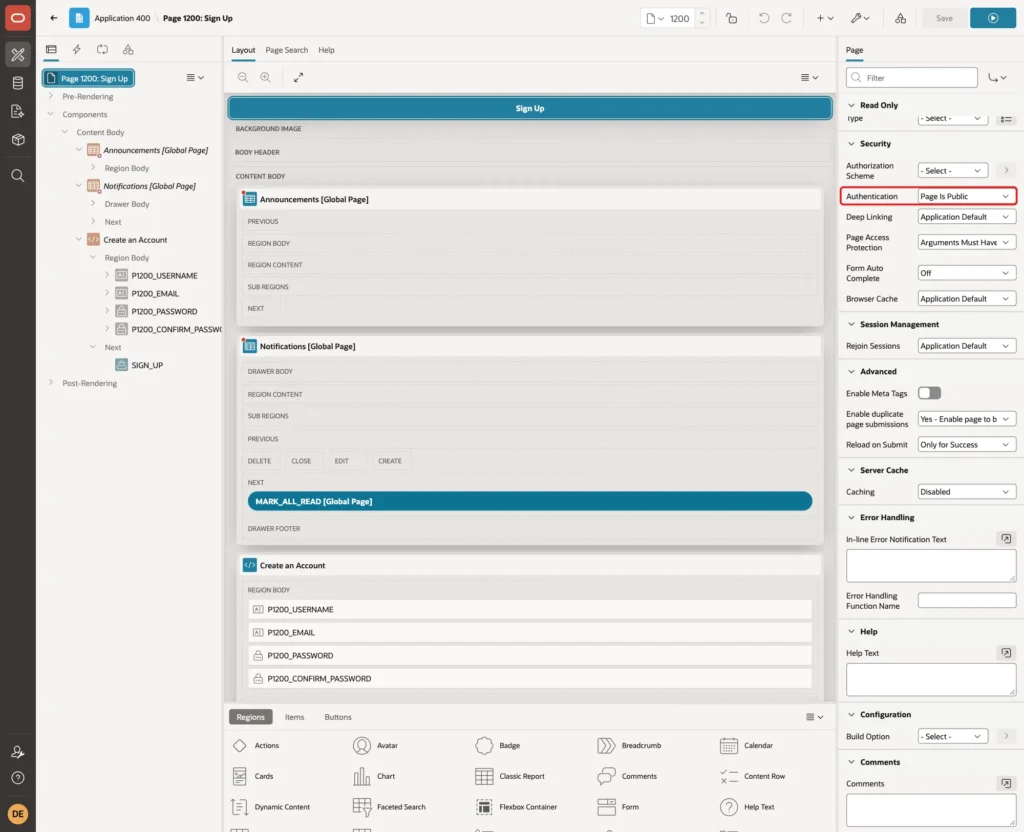
In Page Designer, select the page. Set Page Template to Login, the template of the sign-in page, so both pages look the same. Then, under Security, set Authentication to Page Is Public. A visitor has no session and no account yet, so the page must not ask for a sign-in:
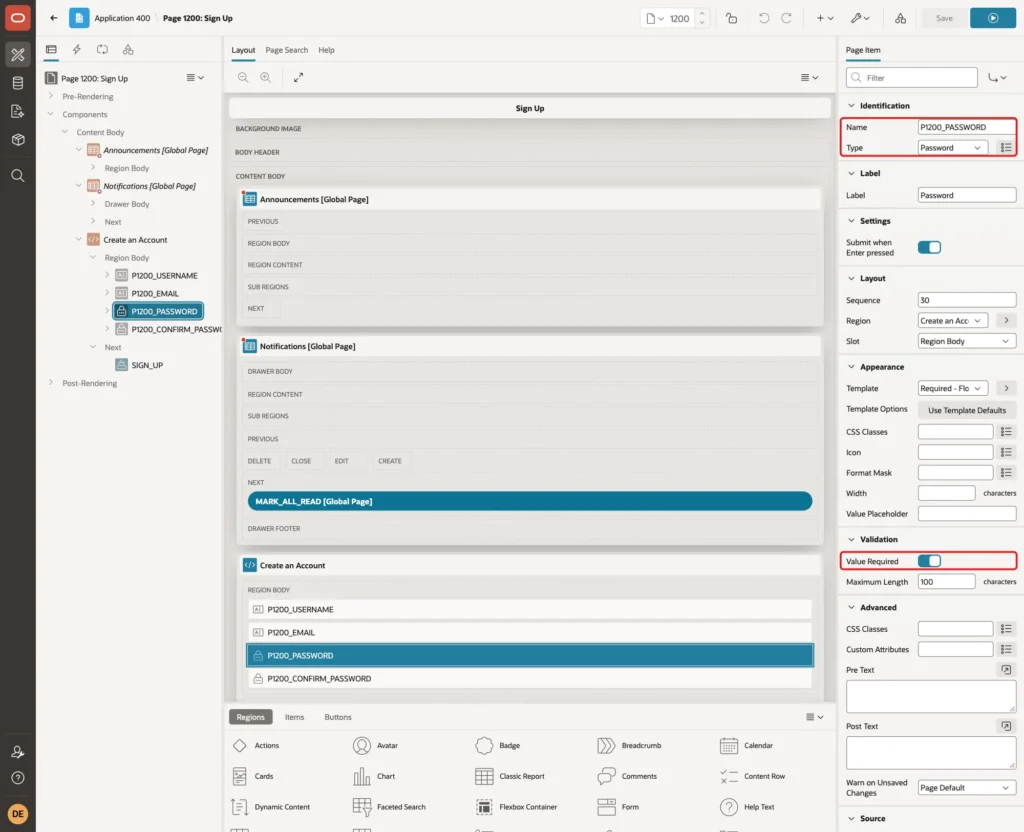
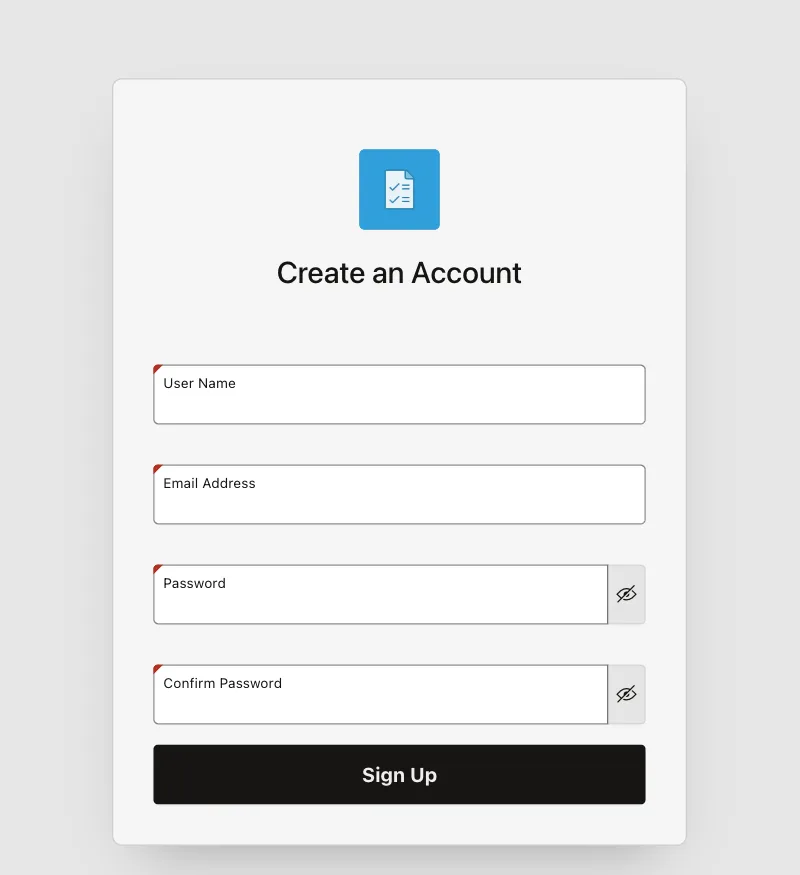
Create a Static Content region named Create an Account. Set its Template to Login and the Slot to Content Body. In the same region, create four items in this order:
- P1200_USERNAME, Type Text Field, label User Name, Maximum Length 30.
- P1200_EMAIL, Type Text Field, label Email Address, Maximum Length 120.
- P1200_PASSWORD, Type Password, label Password, Maximum Length 100.
- P1200_CONFIRM_PASSWORD, Type Password, label Confirm Password, Maximum Length 100.
For all four items, set Value Required to on and the Template to Required - Floating. For the two password items, set Session State Storage to Per Request (Memory Only), so the passwords are never kept in the session:
Create a button named SIGN_UP with the label Sign Up in the Next slot of the region. Turn Hot on, so it is the main button.
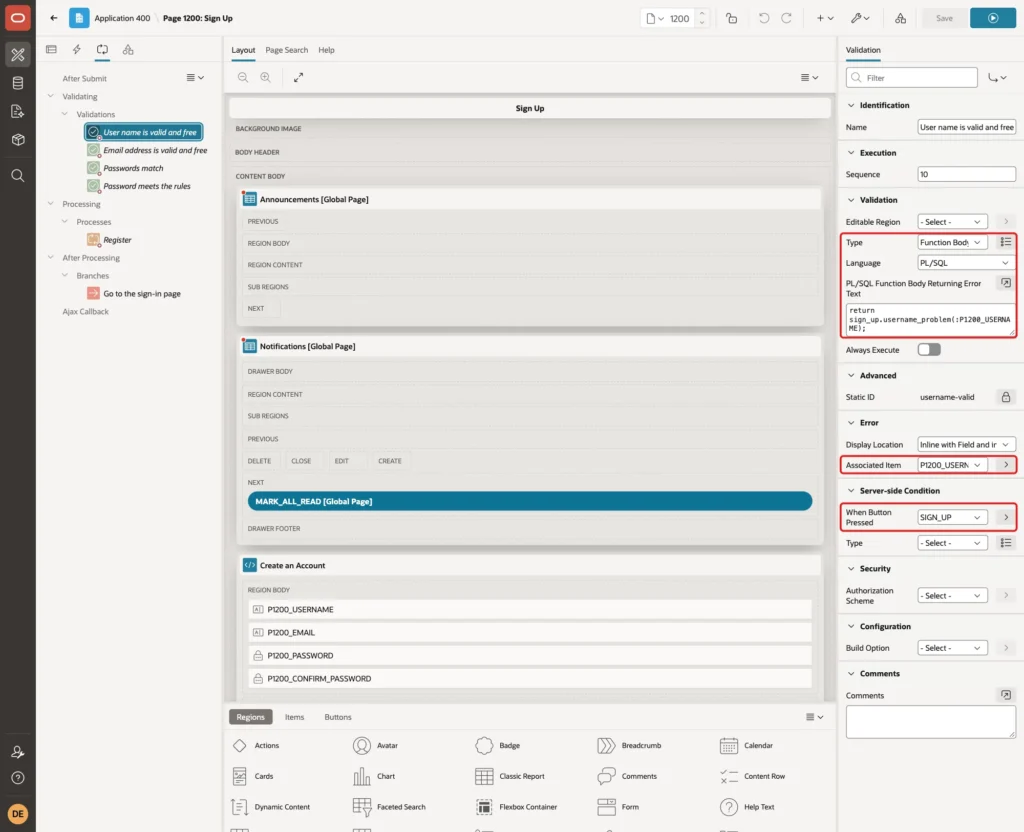
The page needs four validations, which run only when the button is pressed. Open the Processing tab and create them under Validations. The first checks the user name.
Set Type to Function Body with Language PL/SQL, and enter the code below. The function returns an error text, so the validation needs no Error Message of its own. Set the Associated Item to P1200_USERNAME and the Server-side Condition When Button Pressed to SIGN_UP:
Example:
return sign_up.username_problem(:P1200_USERNAME);
The second validation, Email address is valid and free, works the same way with the code below and the Associated Item P1200_EMAIL:
Example:
return sign_up.email_problem(:P1200_EMAIL);
The third validation, Passwords match, has the Type Expression with the PL/SQL expression below. The Error Message is The passwords do not match and the Associated Item is P1200_CONFIRM_PASSWORD:
Example:
:P1200_PASSWORD = :P1200_CONFIRM_PASSWORD
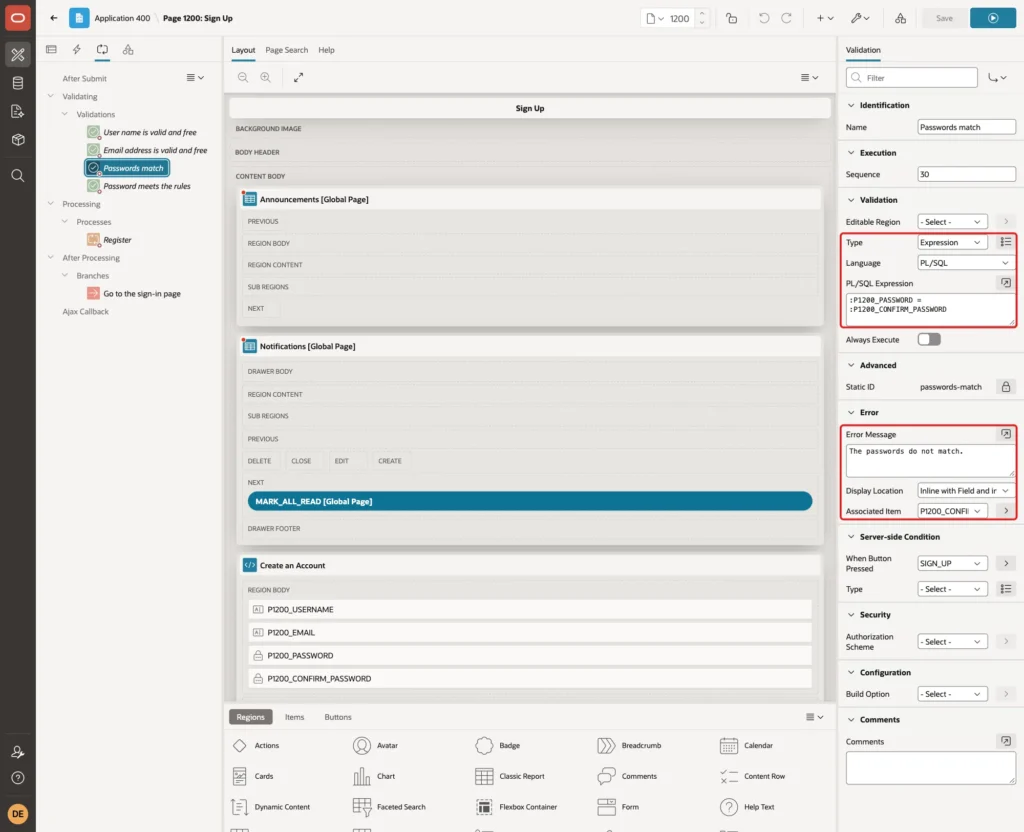
The fourth validation, Password meets the rules, is a function body like the first one, with the Associated Item P1200_PASSWORD:
Example:
return sign_up.password_problem(:P1200_USERNAME, :P1200_PASSWORD);
Create a process under Processing. Set Name to Register, Type to Execute Code and the PL/SQL Code below. Set the Success Message to Thank you. Your account is waiting for approval. and the Server-side Condition When Button Pressed to SIGN_UP:
Example:
sign_up.register(
    p_username => :P1200_USERNAME,
    p_email    => :P1200_EMAIL,
    p_password => :P1200_PASSWORD);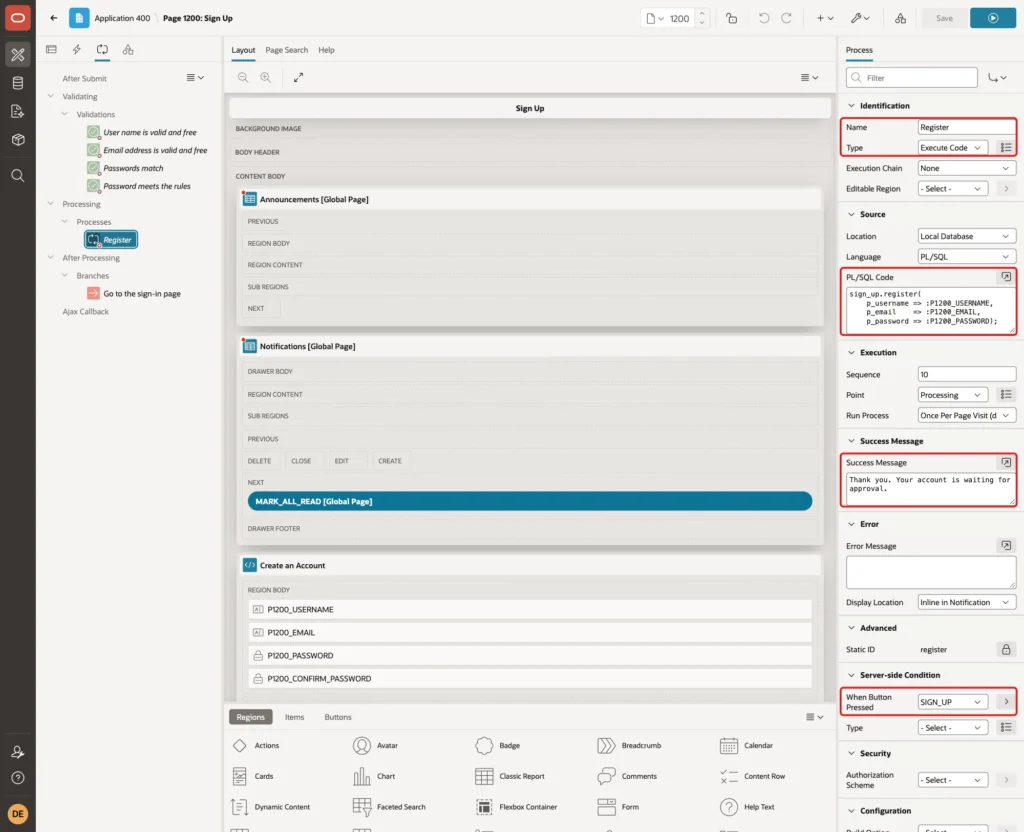
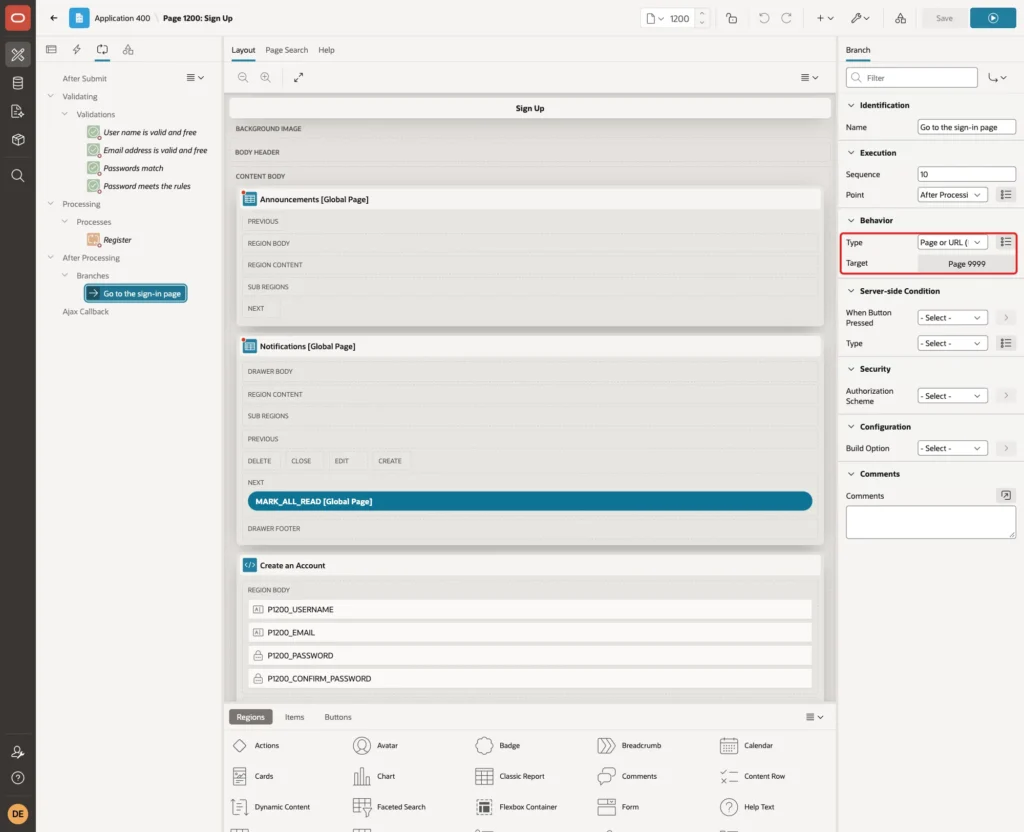
Last, create a branch under After Processing. Set Name to Go to the sign-in page, Type to Page or URL and Target to page 9999. The success message is shown on that page:
Click Save. The validations already check the same rules as the package, and the package checks them again, so the database is protected even if someone posts the form without the page.
Step 8: Create the Approval Page
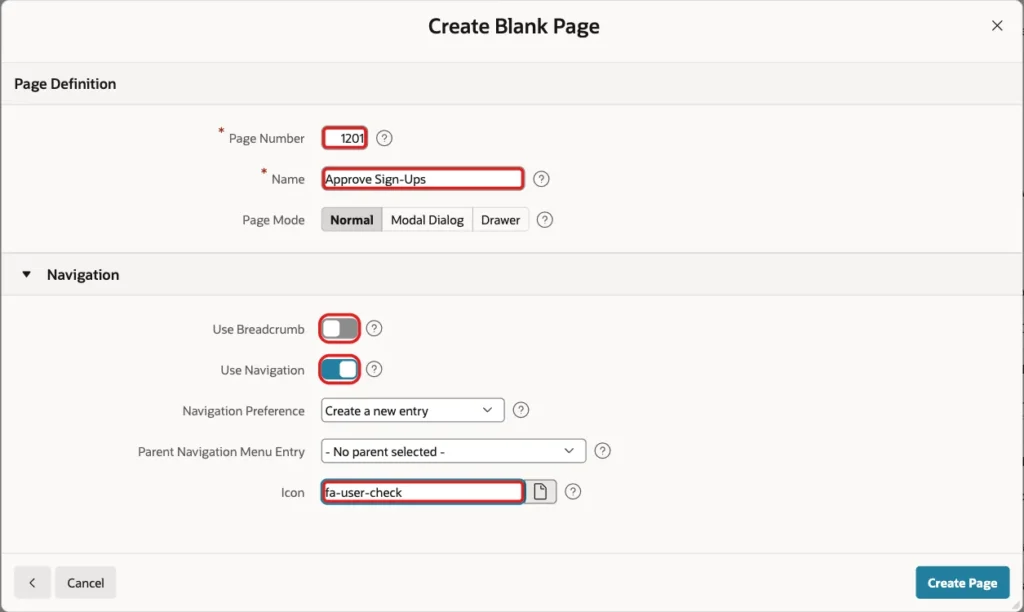
Create a second blank page with Page Number 1201 and Name Approve Sign-Ups. This time turn Use Navigation on and enter the icon fa-user-check, so approvers get a menu entry:
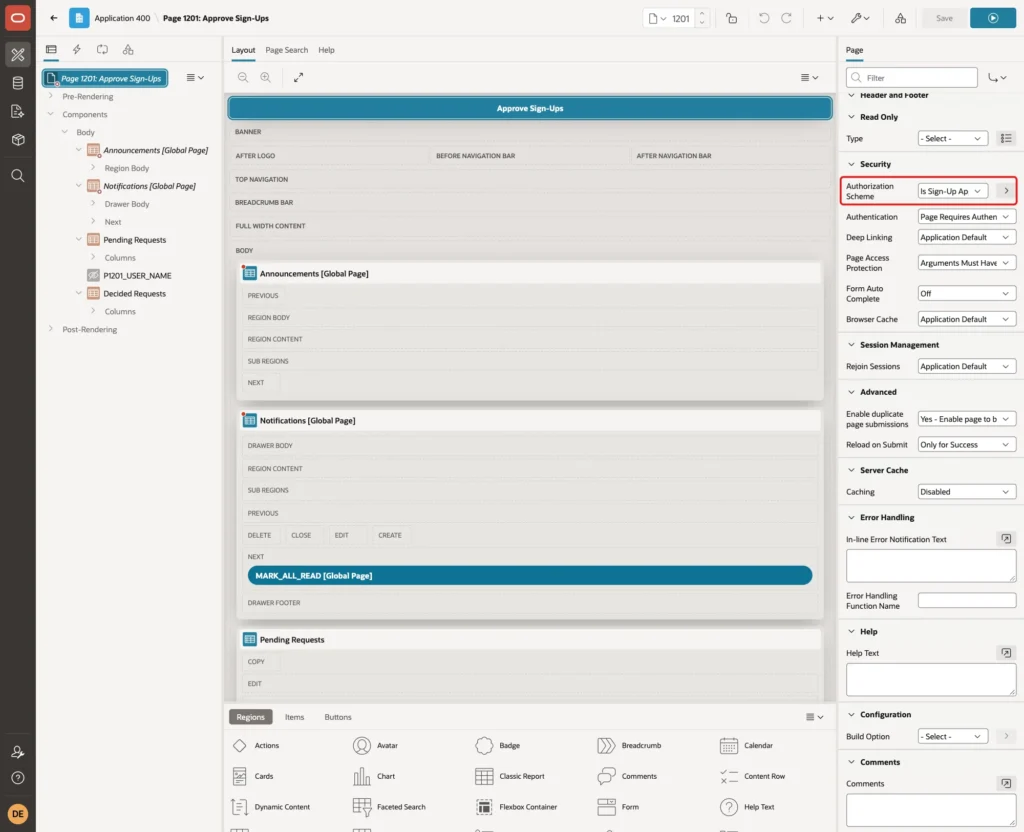
Select the page in Page Designer. Under Security, set Authorization Scheme to Is Sign-Up Approver. Every region, item and process of the page is now protected by it:
Create a Classic Report region named Pending Requests with the SQL Query below. The two literal columns become the links in the next step:
Example:
select a.username,
       a.email,
       to_char(a.requested_on, 'YYYY-MM-DD HH24:MI') as requested_on,
       'Approve' as approve_action,
       'Reject' as reject_action
from   signup_accounts a
where  a.status = 'PENDING'
order  by a.requested_on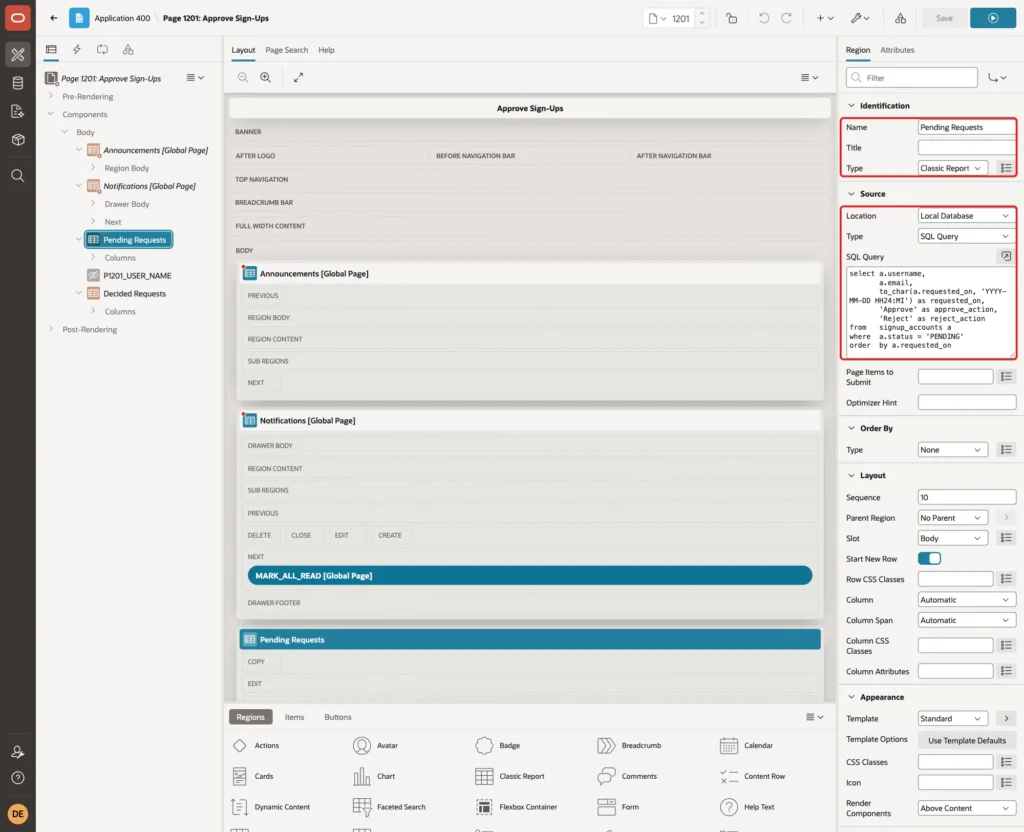
Open the column APPROVE_ACTION. Set Type to Link. In Target, choose Type URL and enter the call below. It asks for a confirmation and then submits the page with the request APPROVE. Set Link Text to Approve:
Example:
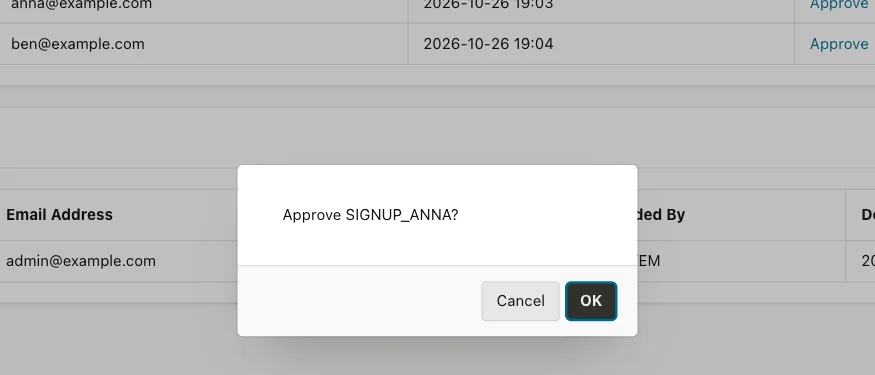
javascript:apex.page.confirm('Approve #USERNAME#?', {request: 'APPROVE', set: {'P1201_USER_NAME': '#USERNAME#'}});
Do the same for REJECT_ACTION with the request REJECT and the link text Reject:
Example:
javascript:apex.page.confirm('Reject #USERNAME#?', {request: 'REJECT', set: {'P1201_USER_NAME': '#USERNAME#'}});Create a second Classic Report region, Decided Requests, with the query below. It is the history of all decisions:
Example:
select a.username,
       a.email,
       a.status,
       a.decided_by,
       to_char(a.decided_on, 'YYYY-MM-DD HH24:MI') as decided_on
from   signup_accounts a
where  a.status != 'PENDING'
order  by a.decided_on desc nulls last
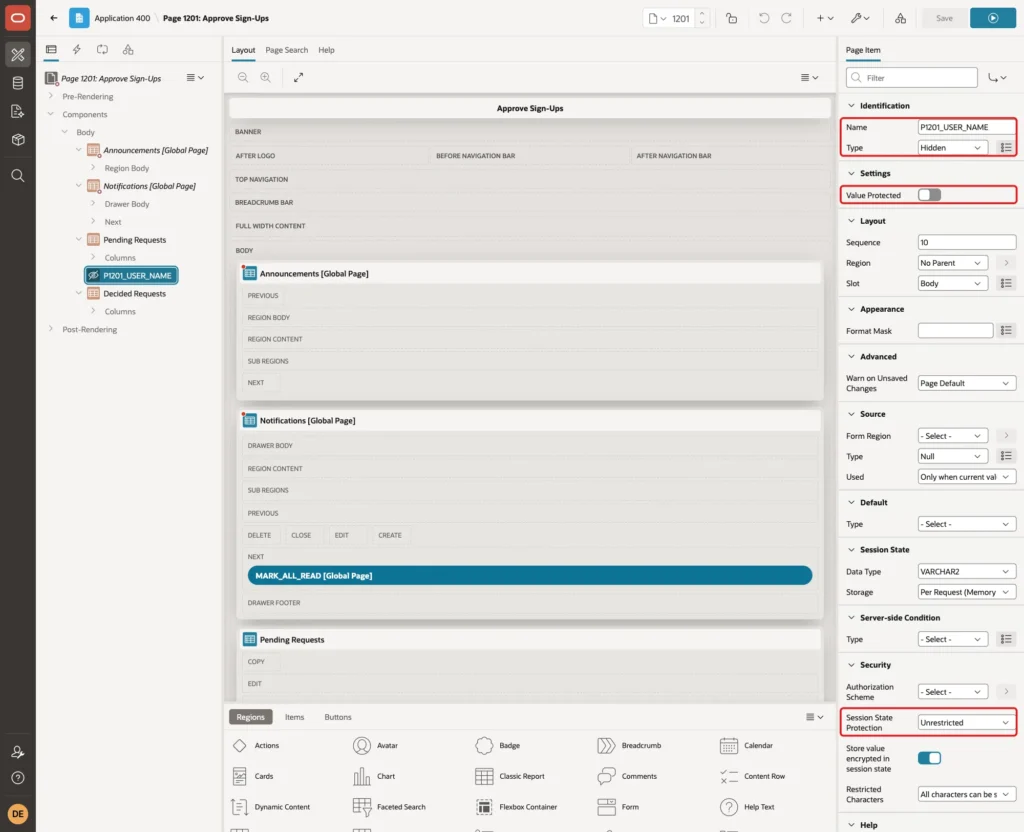
The links need a place for the chosen user name. Create an item P1201_USER_NAME with Type Hidden. Turn Value Protected off, because the link sets the value in the browser. Session State Protection stays Unrestricted. This is safe here only because the whole page needs the approver authorization:
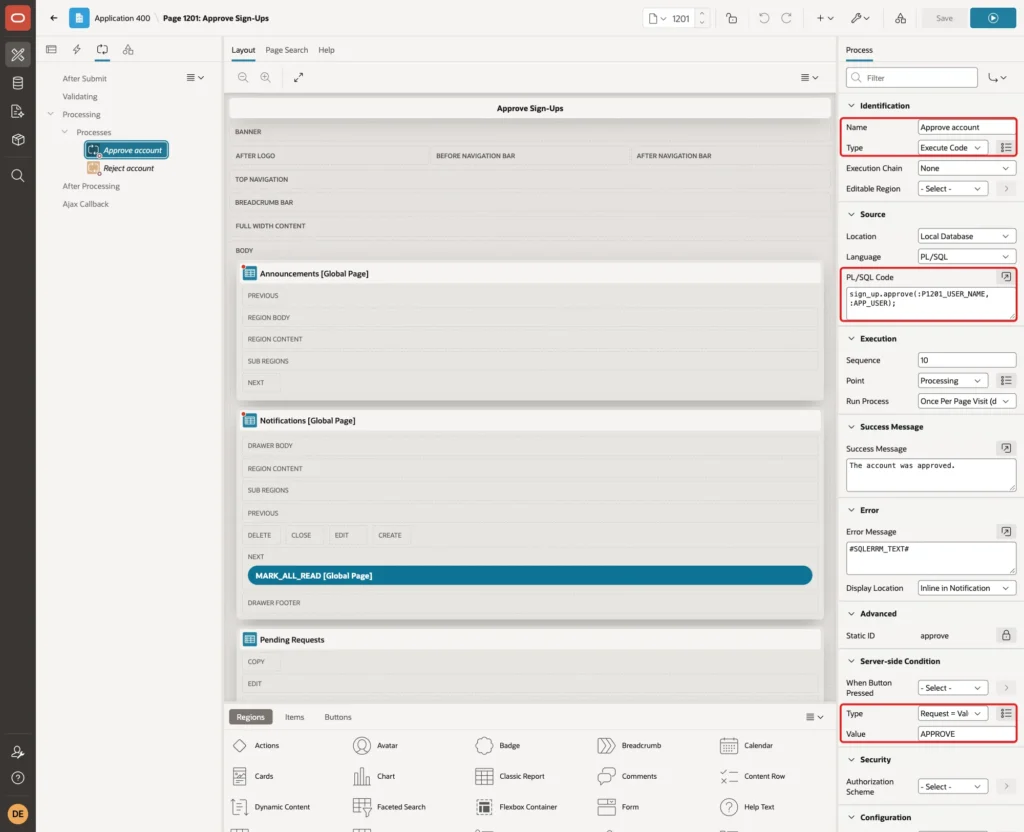
Create the process Approve account under Processing. Set Type to Execute Code and use the code below. Set the Success Message to The account was approved, the Error Message to #SQLERRM_TEXT# and the Server-side Condition Type to Request = Value with the Value APPROVE:
Example:
sign_up.approve(:P1201_USER_NAME, :APP_USER);
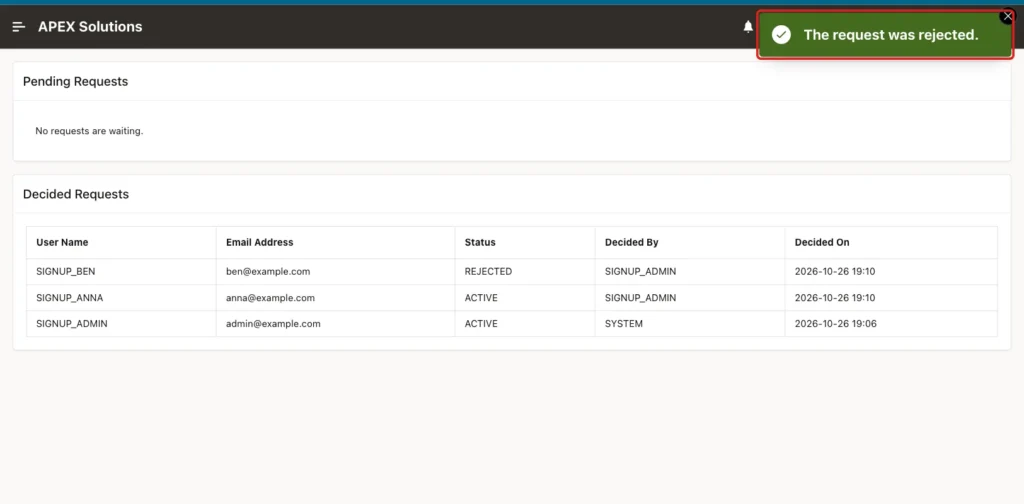
Create the process Reject account the same way. It calls sign_up.reject, has the success message The request was rejected and runs for the Value REJECT:
Example:
sign_up.reject(:P1201_USER_NAME, :APP_USER);
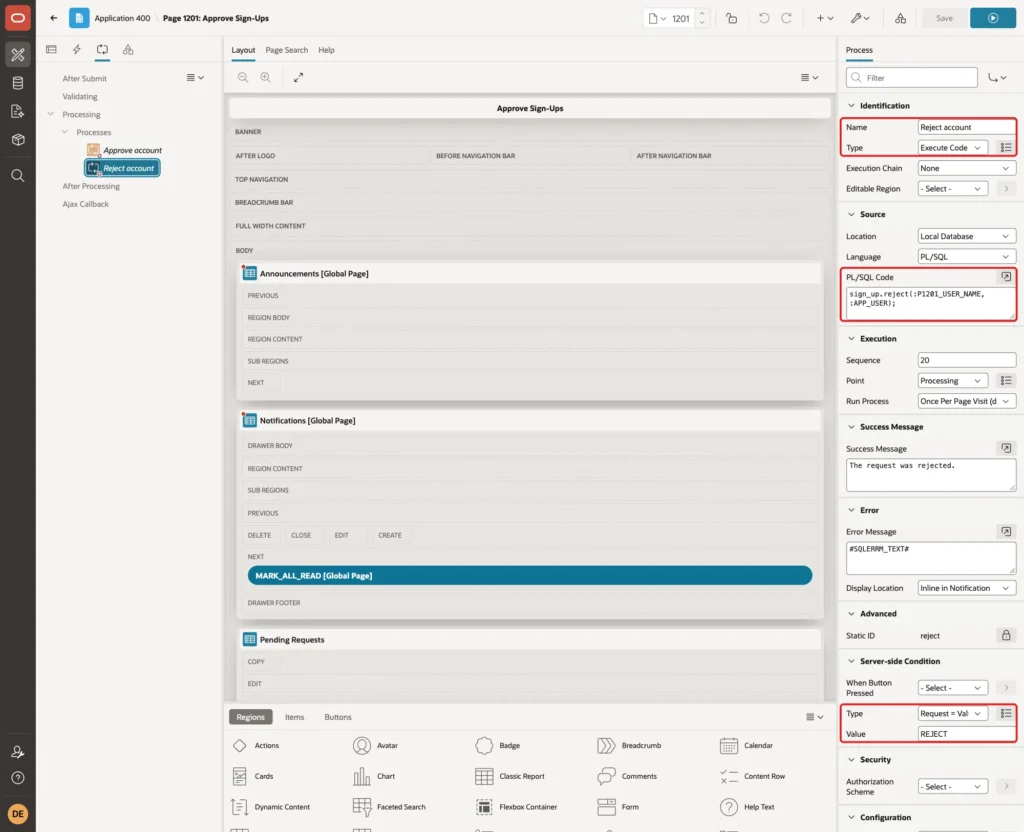
Click Save. The navigation menu entry of the wizard also needs the same authorization scheme. Open the entry Approve Sign-Ups in Shared Components, under Lists, and set its Authorization Scheme to Is Sign-Up Approver, so other users do not see it.
Step 9: Add a Link to the Sign-In Page
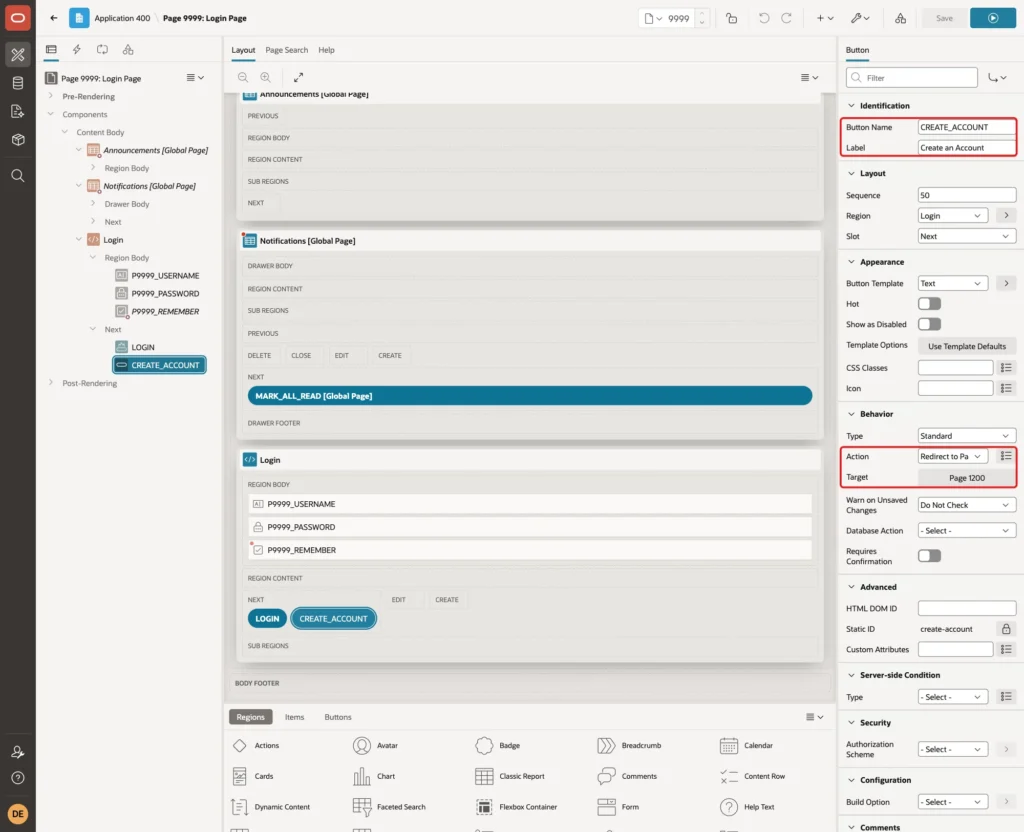
Visitors need a way to reach the sign-up page. Open page 9999, the sign-in page. In the region Login, create a button named CREATE_ACCOUNT with the label Create an Account.
Put it in the Next slot with Sequence 50, so it sits below Sign In. Set Action to Redirect to Page in this Application with Target page 1200, and Warn on Unsaved Changes to Do Not Check:
Step 10: Make the Scheme Current and Test
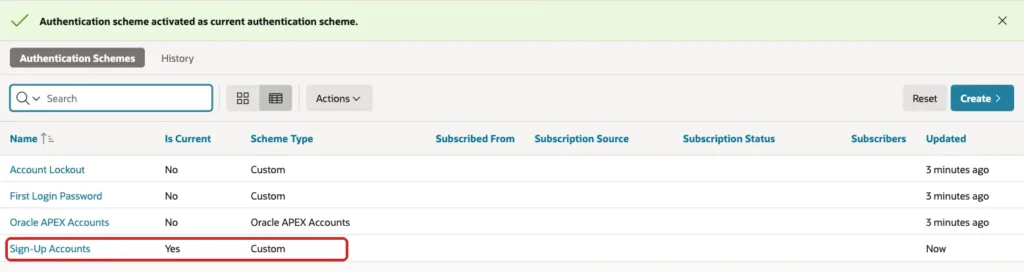
Now switch the application to the new scheme. Open Sign-Up Accounts in Authentication Schemes and click Make Current Scheme:

Confirm the question with OK. The list shows Yes in the Is Current column for Sign-Up Accounts:
The tests ran in a browser without a session, because the sign-up page is public. The page opens without a sign-in and shows the four fields:
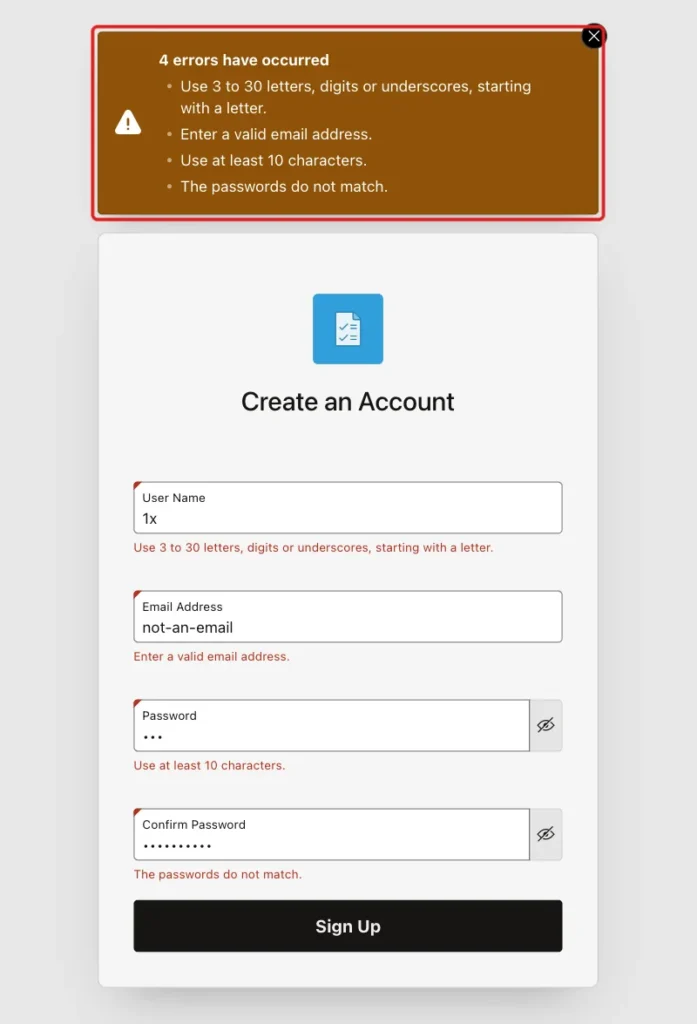
First, a click on Sign Up with empty fields gave the message that each field must have a value. Then the form was sent with four bad values: the user name 1x, the email address not-an-email, a three-character password and a different text in the confirmation. All four rules answered at once, each next to its own item:
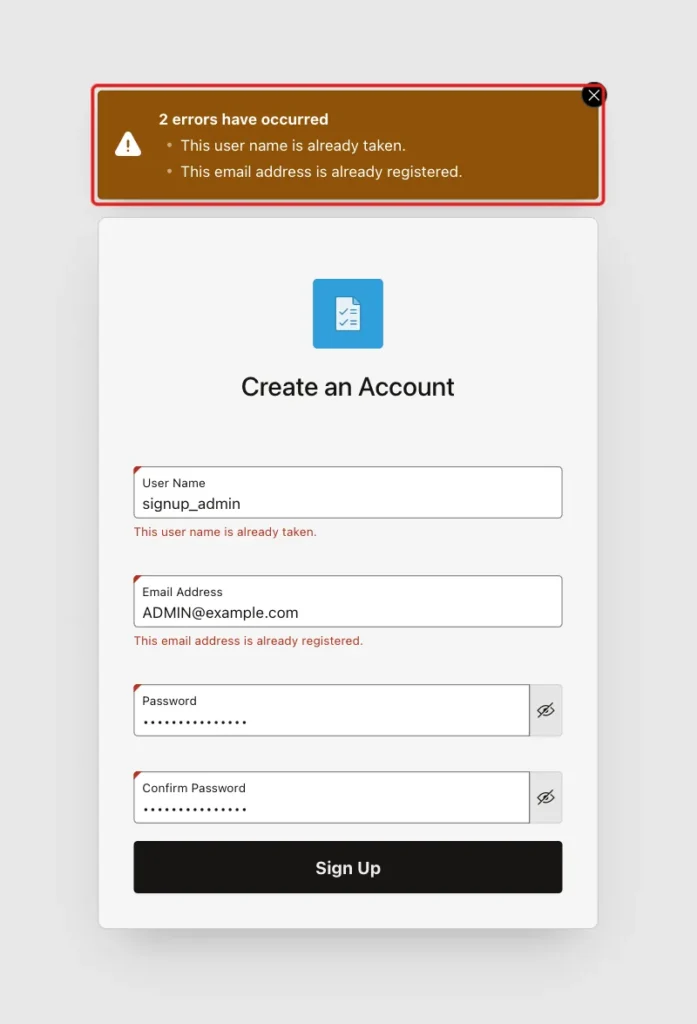
Next, the existing user name signup_admin, in lower case, and the email address ADMIN@example.com were tried. Both were refused, because the package compares them in upper and lower case:
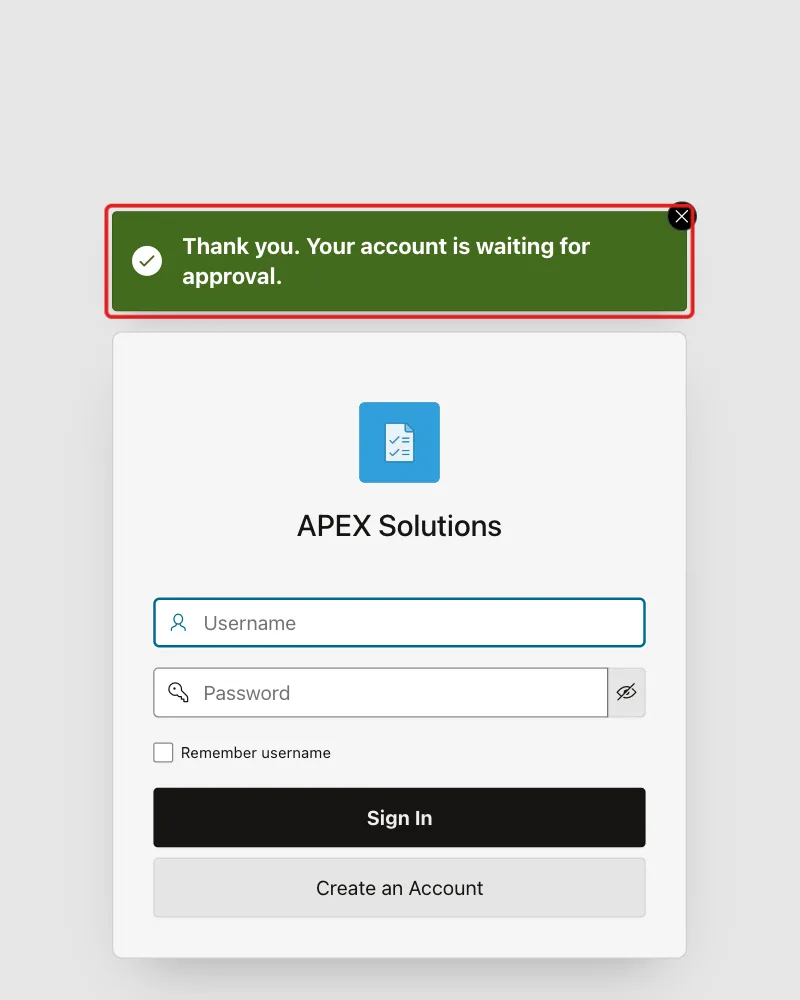
Then two good requests were sent, for signup_anna with the email address Anna@Example.com and for signup_ben. Each one opened the sign-in page with the success message:
Step 11: Test Signing In and the Approval
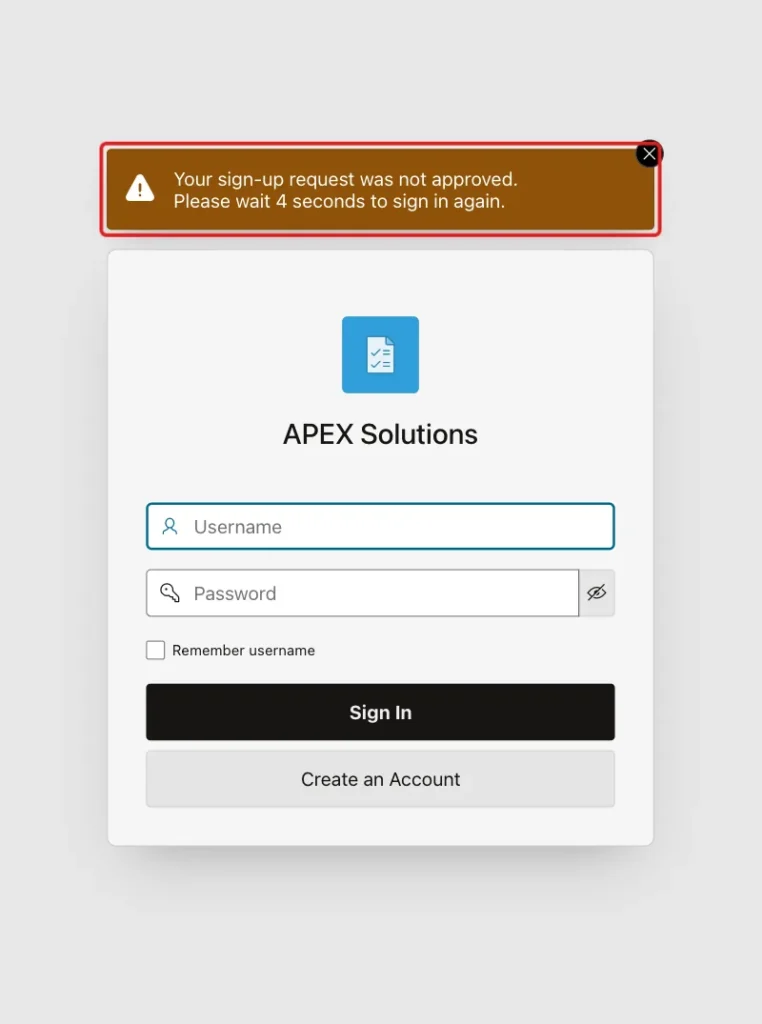
The first sign-in was SIGNUP_ANNA with the right password, while the request was still pending. The sign-in was refused with the message from the package:
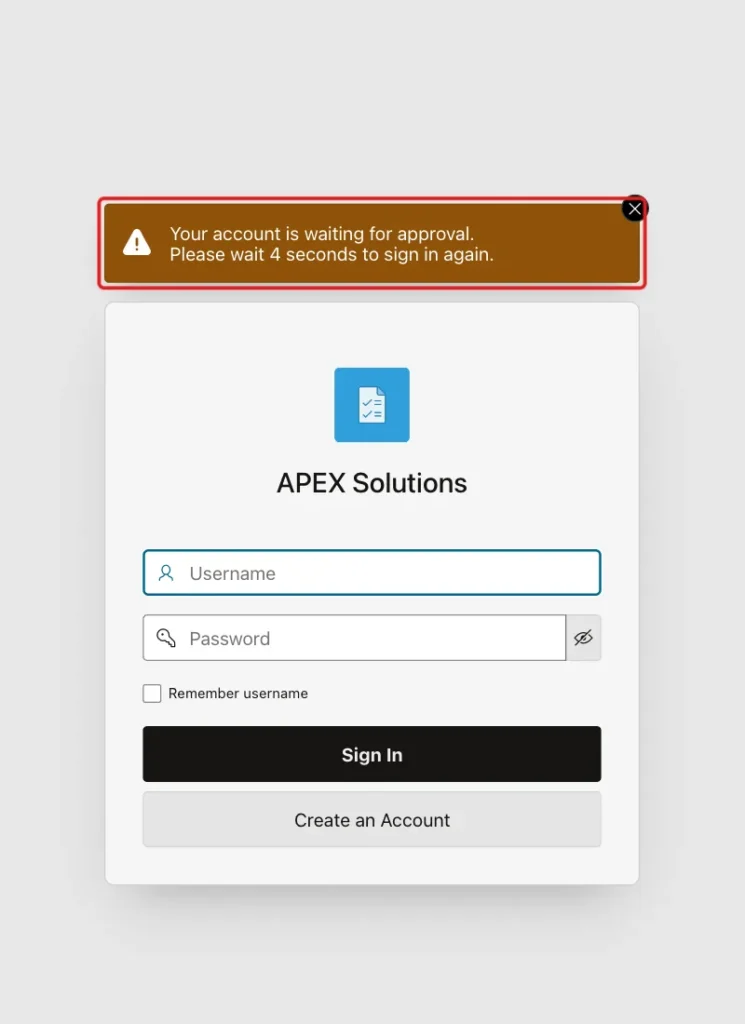
The message appears only after the password is right. In SQL, a wrong password and an unknown user name both returned FALSE, and in the browser an unknown user name got Invalid Login Credentials. The sign-in page does not tell a stranger which user names exist.
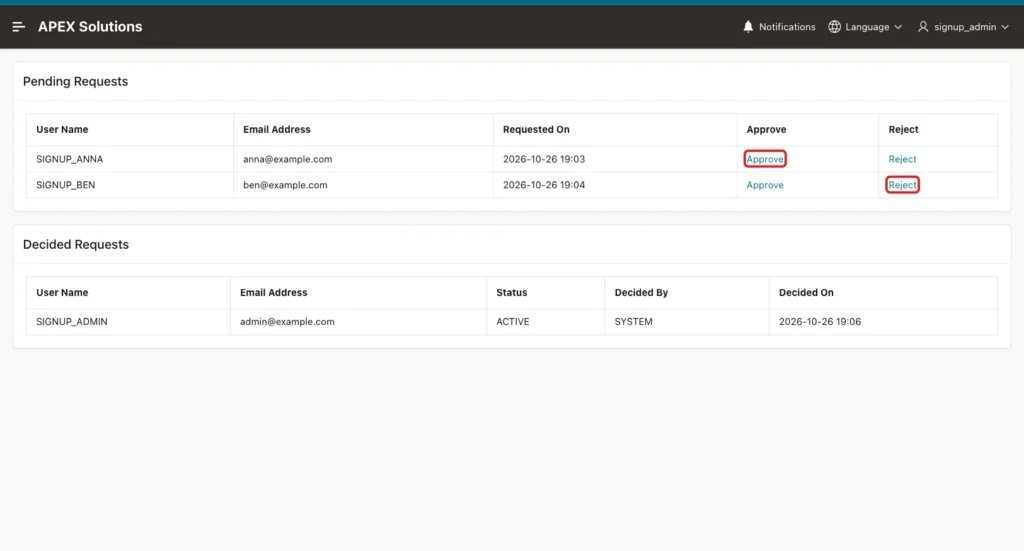
Next, SIGNUP_ADMIN signed in and opened Approve Sign-Ups. The report listed both requests. The boxes mark the two links that were used:
A click on Approve for SIGNUP_ANNA opened the confirmation question. After OK, the message The account was approved. appeared. Then Reject was clicked for SIGNUP_BEN, with the same question:
The page then showed no pending requests and listed the three decisions, with the approver and the time:
These results were checked next:
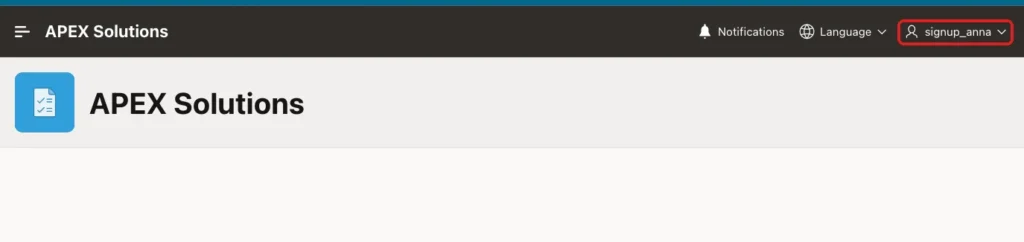
- SIGNUP_ANNA signed in with the same password as before and opened the home page.
- SIGNUP_BEN, the rejected account, was refused with the message Your sign-up request was not approved.
- SIGNUP_ANNA opened the address of the approval page in the same session and got the error message of the authorization scheme.
- The same address with the request APPROVE and a user name added to it, without a checksum, gave a session state protection error, and no row changed.
The table confirms the same result. The second query shows that only a salt and a hash are stored:
Example:
select username, email, status, is_approver, decided_by
from   signup_accounts
order  by username;

select username,
       length(password_hash) as hash_length,
       case when password_hash = upper(password_hash) then 'hex' end as hash_format,
       utl_raw.length(password_salt) as salt_bytes
from   signup_accounts
order  by username;
Output:
USERNAME        EMAIL                STATUS      IS_APPROVER    DECIDED_BY
_______________ ____________________ ___________ ______________ _______________
SIGNUP_ADMIN    admin@example.com    ACTIVE      Y              SYSTEM
SIGNUP_ANNA     anna@example.com     ACTIVE      N              SIGNUP_ADMIN
SIGNUP_BEN      ben@example.com      REJECTED    N              SIGNUP_ADMIN

USERNAME           HASH_LENGTH HASH_FORMAT       SALT_BYTES
_______________ ______________ ______________ _____________
SIGNUP_ADMIN               128 hex                       16
SIGNUP_ANNA                128 hex                       16
SIGNUP_BEN                 128 hex                       16
After the tests, Oracle APEX Accounts was made the current scheme again, because the other users of this application live there. The custom scheme, the package and the two pages stay for the next application that needs them.
Things to Know
- The sign-up page tells a visitor that a user name or an email address is already taken. That helps people, and it also lets a script test names. Add a CAPTCHA, a limit for requests from one address or an email confirmation before you put such a page on the internet.
- Oracle APEX still slows down repeated failed sign-ins. In the tests, the next attempt had to wait 4, 5, 10 and then 15 seconds, so wait before you repeat a test.
- If a valid user gets Invalid Login Credentials, check the current scheme first. In a first test, SIGNUP_ADMIN was refused, because the application still used Oracle APEX Accounts. The access log of the workspace names the authentication method of each attempt.
- A rejected request keeps its user name and email address, because of the unique keys. Delete the row if the person may try again.
- The approval page is protected by the page authorization. The hidden item is unrestricted, so never remove that authorization.
- The package sends no email. Add a message to the user in the processes Approve account and Reject account if you want to tell the user about the decision.
Related Guides
- Learn How to Create User in Oracle Apex
- How to Lock a User Account After Failed Login Attempts in Oracle APEX
Conclusion
A table with a status, a package with the rules and a custom authentication scheme give you a sign-up flow in which nobody gets in before an approver agrees. The sign-up page is public, and everything behind it stays closed.
The tests showed that bad values, duplicates and pending or rejected accounts are all refused, and that only an approver can reach the approval page. Keep the rules in one package, so the page, the scheme and the SQL tests never disagree.
See my articles more often when you search Google.
