
Users often keep data in spreadsheets and need to bring it into an application: new employees, price lists, budgets. Oracle APEX has a declarative feature for this. A Data Load Definition describes the file and how its columns map to a table, and a Data Loading page lets users upload an Excel, CSV, XML, or JSON file, preview it, and load it with one click. This guide builds an employee upload for Excel files, from the definition to the loaded rows.
The Target Table and the File
The rows go into an EMPLOYEES_UPLOAD table with the columns EMP_NAME, EMAIL, DEPARTMENT, SALARY, and HIRE_DATE. The sample file is an Excel workbook with one sheet and a header row: Emp Name, Email, Department, Salary, and Hire Date.
Step 1: Create the Data Load Definition
In App Builder, open Shared Components, then Data Load Definitions, and click Create. Choose From scratch, enter a name, Employees Upload, and select the target table EMPLOYEES_UPLOAD. On the Sample Data step, upload a sample of the file users will load:
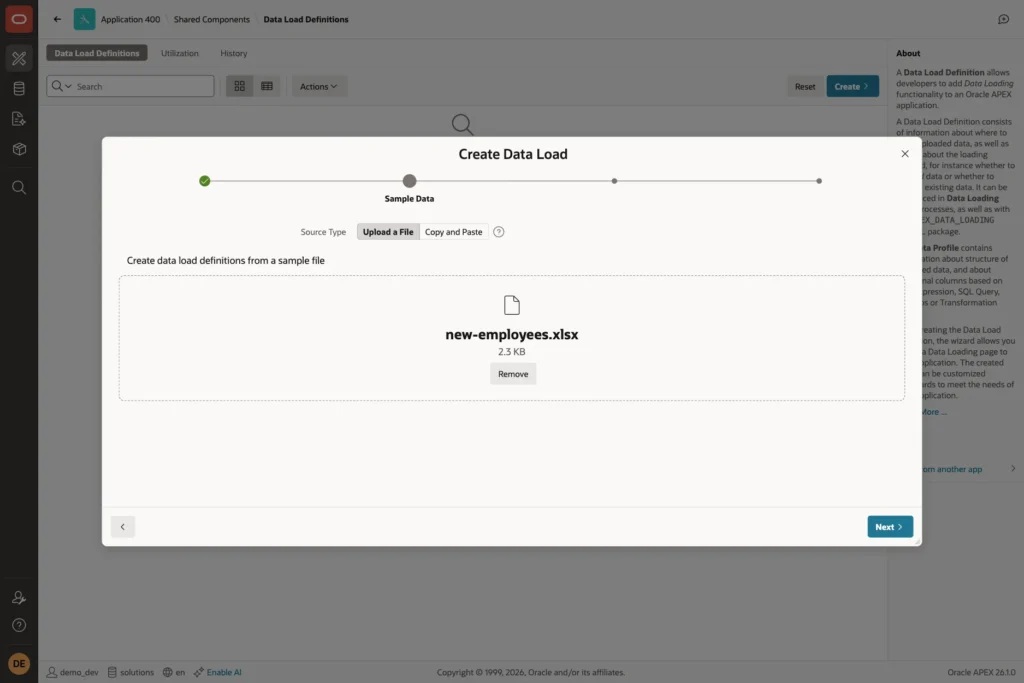
Step 2: Check the Column Mapping
APEX reads the sample, derives a column name and data type for each spreadsheet column, and maps it to a table column of the same name:
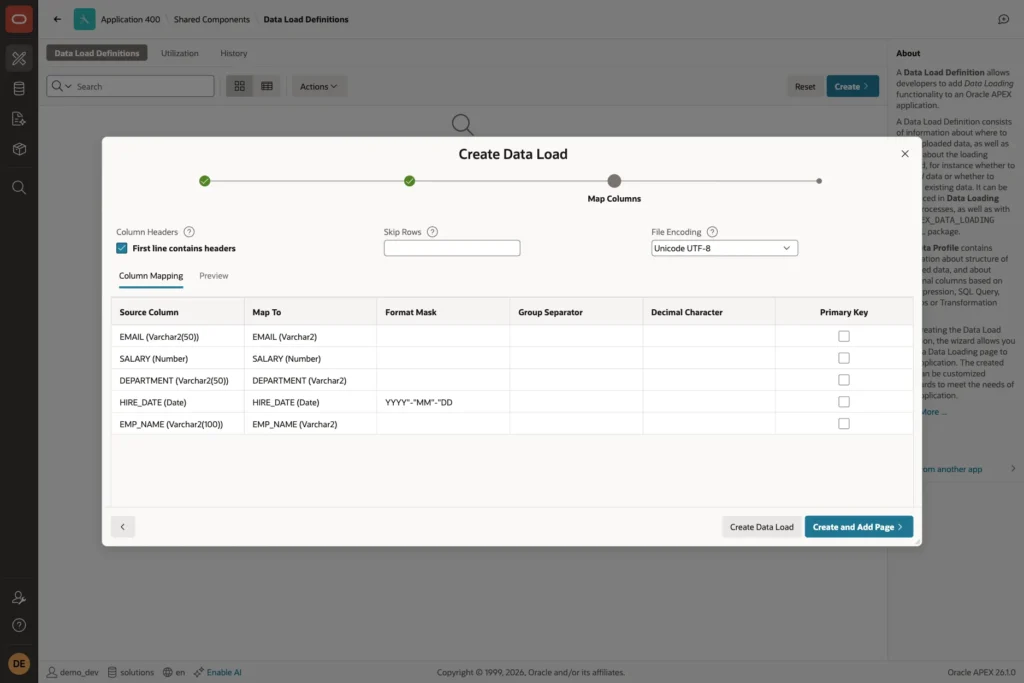
- Header names become column names: Emp Name becomes EMP_NAME, so it maps to EMP_NAME automatically. A header that does not match any column is left without a mapping; choose the table column in Map To for it. In a first test, the header Name stayed unmapped for exactly that reason.
- Format Mask, Group Separator, and Decimal Character tell APEX how to read dates and numbers in the file.
- First line contains headers must be on when the sheet has a header row, as here.
Step 3: Create the Data Loading Page
Click Create and Add Page. In the page dialog, enter a page number and name, and select the data load definition:
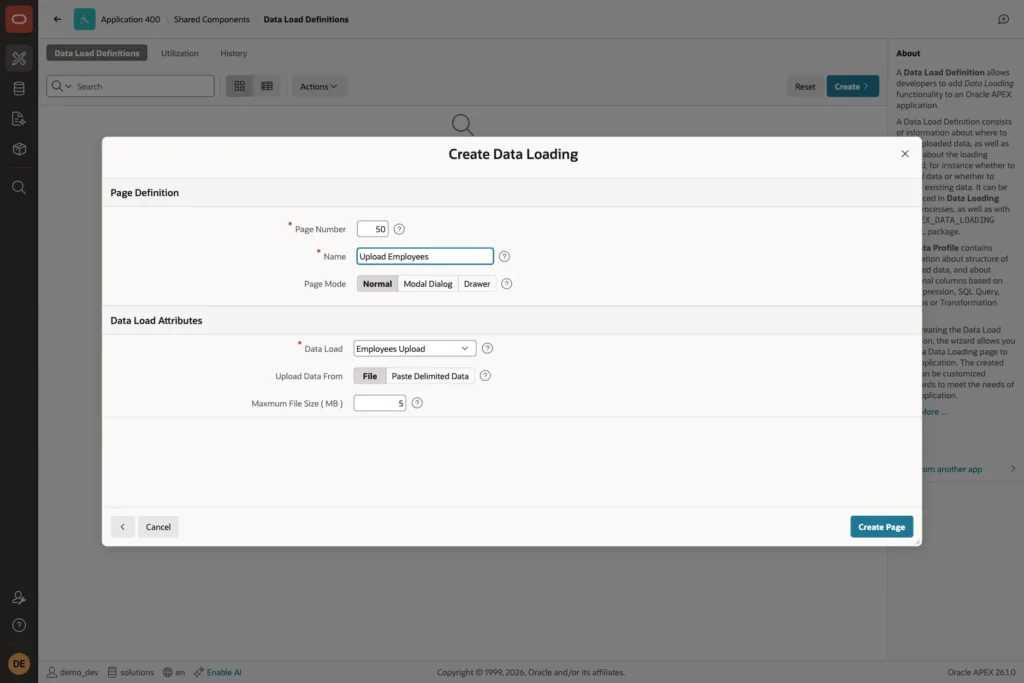
APEX creates a page with a file upload item, a preview report, and Clear and Load Data buttons. The Load Data button runs a Data Loading process that uses the definition. The same page type is also available directly from Create Page.
Using the Page
The user chooses or drops a file on the page:
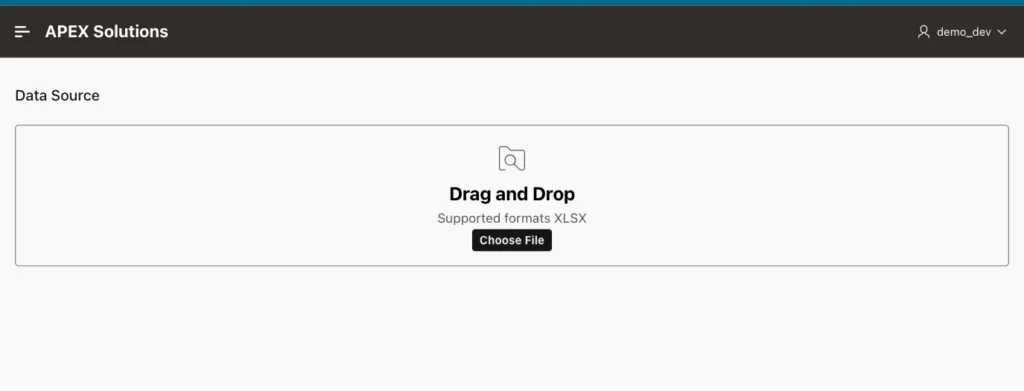
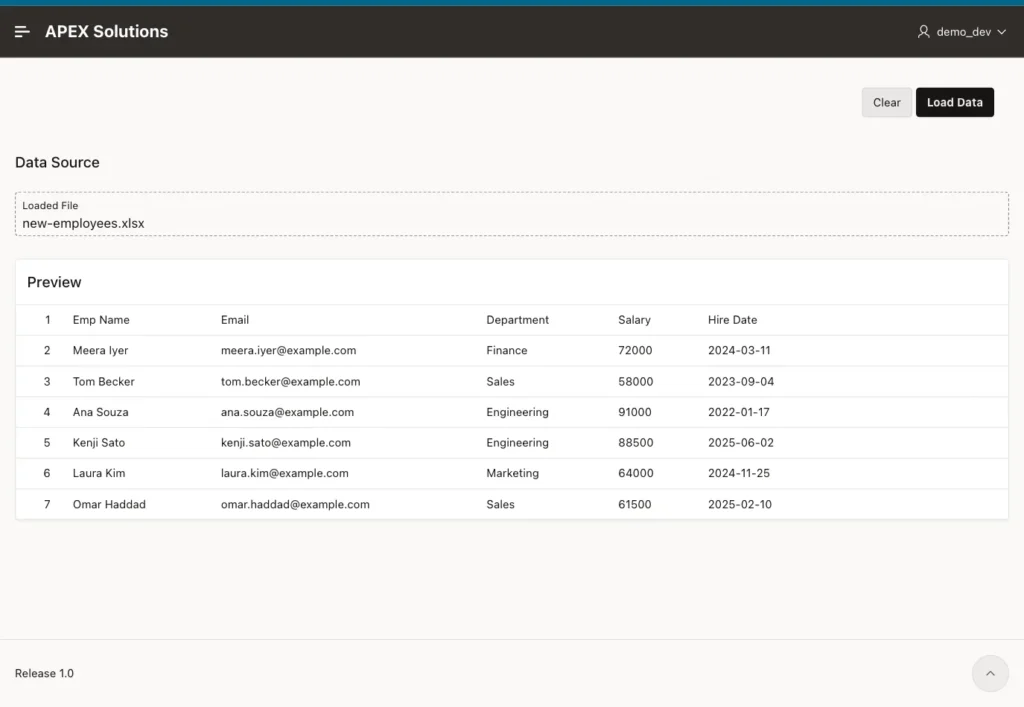
After the upload, the page shows a preview of the parsed rows, so the user can check them before anything is saved. Line 1 is the header row:
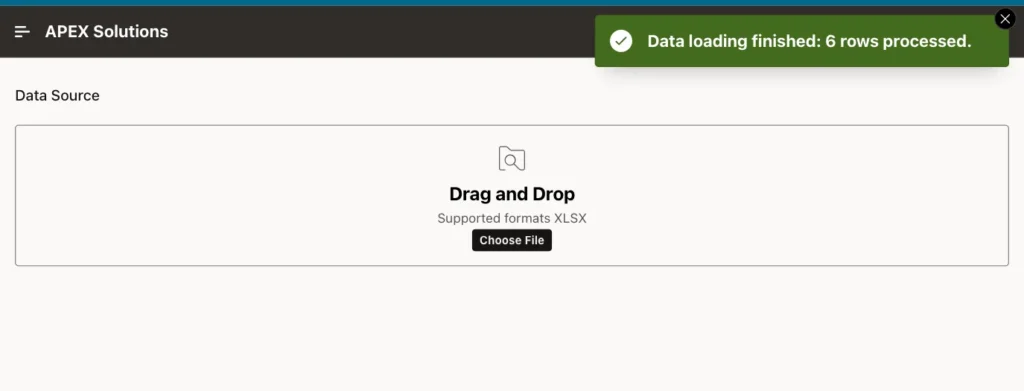
Load Data inserts the rows and reports how many were processed:
The table now holds the six employees, with salaries as numbers and hire dates as dates:
Example:
select emp_name, email, department, salary, to_char(hire_date, 'YYYY-MM-DD') as hire_date
from   employees_upload
order  by employee_id;
Output:
EMP_NAME       EMAIL                      DEPARTMENT        SALARY HIRE_DATE
______________ __________________________ ______________ _________ _____________
Meera Iyer     meera.iyer@example.com     Finance            72000 2024-03-11
Tom Becker     tom.becker@example.com     Sales              58000 2023-09-04
Ana Souza      ana.souza@example.com      Engineering        91000 2022-01-17
Kenji Sato     kenji.sato@example.com     Engineering        88500 2025-06-02
Laura Kim      laura.kim@example.com      Marketing          64000 2024-11-25
Omar Haddad    omar.haddad@example.com    Sales              61500 2025-02-10

6 rows selected.
Things to Know
- Loading Method on the definition decides what happens to existing rows: Append adds rows, Merge updates rows with matching primary key columns and inserts the rest, and Replace deletes all rows first.
- Error Handling decides what happens to rows that fail, for example a text in a number column: stop the whole load, skip such rows, or log them into a collection or an error table for review.
- Data profile columns can transform values while loading, for example trim spaces, convert to upper case, or look up an ID from a name in another table.
- For a workbook with several sheets, the page shows a worksheet selector; the default sheet is set on the definition.
- The same definition can be used from PL/SQL with APEX_DATA_LOADING.LOAD_DATA, for scheduled loads.
Related Guides
- How to Parse CSV, Excel, and ZIP Files in PL/SQL Using APEX_DATA_PARSER and APEX_ZIP
- Oracle APEX Data Sources: REST, Data Loads, and Duality Views
Conclusion
To let users load Excel files into a table in Oracle APEX, create a Data Load Definition from a sample file, check the column mapping and format masks, and add a Data Loading page. Users then upload, preview, and load with one click, and the definition's loading method and error handling decide how the rows are written.
