
Organization charts, product categories, folder structures, and bills of materials are hierarchies: each row has a parent row in the same table. In a flat report, users cannot see who reports to whom; in a tree, they see it at a glance and can expand only the branches they care about.
Oracle APEX has a Tree region and a Tree page type that build the tree from a hierarchical query with CONNECT BY. This guide creates an EMPLOYEES table with a manager column, goes through every step of the Tree page wizard, adjusts the generated query to show job titles and different icons for managers and team members, and tests the result.
Step 1: Create the Table
A hierarchy in one table needs a parent column that points to the same table. In EMPLOYEES, MANAGER_ID points to the EMPLOYEE_ID of the employee's manager:
Example:
create table employees (
    employee_id number generated by default as identity
                constraint employees_pk primary key,
    name        varchar2(100) not null,
    job_title   varchar2(60)  not null,
    manager_id  number
                constraint employees_manager_fk references employees,
    constraint employees_not_own_manager_ck check (manager_id <> employee_id)
);

create index employees_manager_ix on employees (manager_id);
Output:
Table EMPLOYEES created.

Index EMPLOYEES_MANAGER_IX created.
- EMPLOYEES_PK is the primary key. The tree uses it as the ID of each node.
- EMPLOYEES_MANAGER_FK is a self-referencing foreign key: a manager must be an existing employee. The managing director, at the top, has no manager, so MANAGER_ID is nullable.
- EMPLOYEES_NOT_OWN_MANAGER_CK stops an employee from being their own manager, which would make the row its own parent.
- EMPLOYEES_MANAGER_IX supports the CONNECT BY, which looks up the employees of each manager.
Add an organization of ten employees. The rows are inserted with fixed IDs, so the identity is moved past them at the end:
Example:
insert into employees (employee_id, name, job_title, manager_id) values (1, 'Asha Rao',      'Managing Director', null);
insert into employees (employee_id, name, job_title, manager_id) values (2, 'Daniel Brooks', 'Sales Manager',     1);
insert into employees (employee_id, name, job_title, manager_id) values (3, 'Mei Chen',      'IT Manager',        1);
insert into employees (employee_id, name, job_title, manager_id) values (4, 'Omar Haddad',   'Finance Manager',   1);
insert into employees (employee_id, name, job_title, manager_id) values (5, 'Lena Fischer',  'Sales Executive',   2);
insert into employees (employee_id, name, job_title, manager_id) values (6, 'Ravi Kumar',    'Sales Executive',   2);
insert into employees (employee_id, name, job_title, manager_id) values (7, 'Sofia Rossi',   'Developer',         3);
insert into employees (employee_id, name, job_title, manager_id) values (8, 'Tom Walker',    'Developer',         3);
insert into employees (employee_id, name, job_title, manager_id) values (9, 'Nina Petrova',  'DBA',               3);
insert into employees (employee_id, name, job_title, manager_id) values (10, 'Kofi Mensah',  'Accountant',        4);

alter table employees modify employee_id generated by default as identity (start with 11);

commit;
Before building the page, check the hierarchy with a CONNECT BY query. LEVEL is 1 for the top row, 2 for its employees, and so on:
Example:
select lpad(' ', 4 * (level - 1)) || name as employee,
       job_title
from   employees
start  with manager_id is null
connect by prior employee_id = manager_id
order  siblings by name;
Output:
EMPLOYEE                JOB_TITLE
_______________________ ____________________
Asha Rao                Managing Director
    Daniel Brooks       Sales Manager
        Lena Fischer    Sales Executive
        Ravi Kumar      Sales Executive
    Mei Chen            IT Manager
        Nina Petrova    DBA
        Sofia Rossi     Developer
        Tom Walker      Developer
    Omar Haddad         Finance Manager
        Kofi Mensah     Accountant

10 rows selected.
Step 2: Create the Page with the Tree Wizard
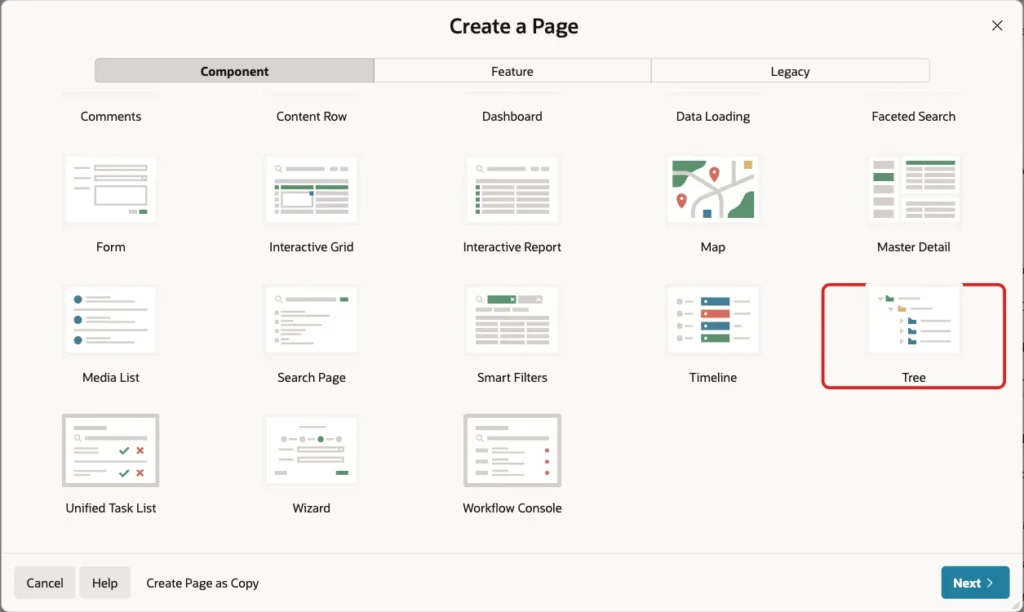
In App Builder, open the application, click Create Page, and select Tree on the Component tab:
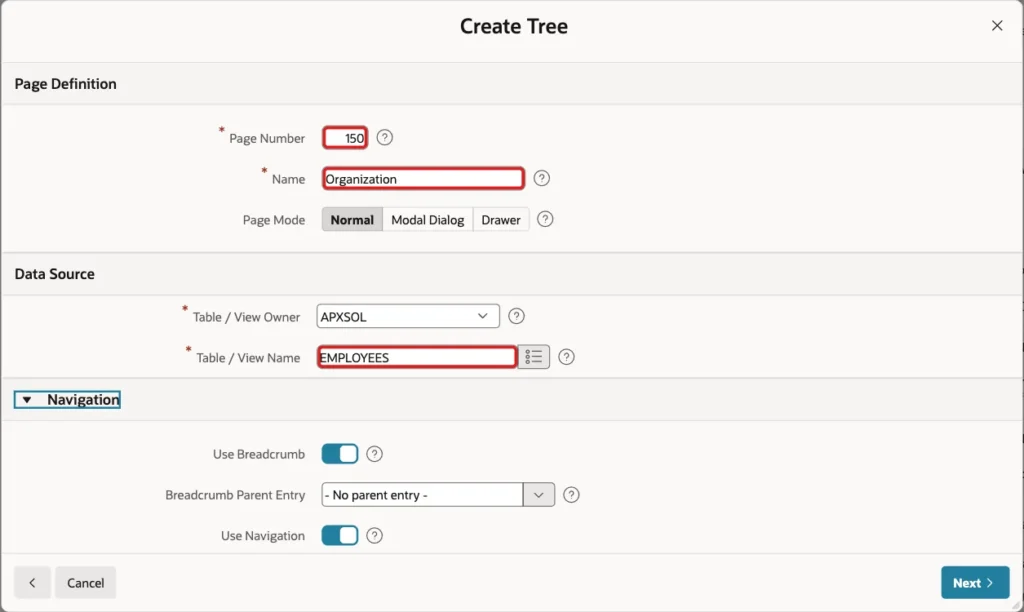
Enter Page Number 150 and Name Organization, keep Page Mode Normal, and enter Table / View Name EMPLOYEES. Keep the Navigation defaults, and click Next:
Map the columns of the hierarchy:
- ID: EMPLOYEE_ID, the key of each node.
- Parent ID: MANAGER_ID, the key of the node's parent.
- Node Text: NAME, the text shown on each node.
- Start With: MANAGER_ID, with Start Tree Value is NULL, so the tree starts at the employees without a manager.
- Include Buttons: keep Collapse All and Expand All.
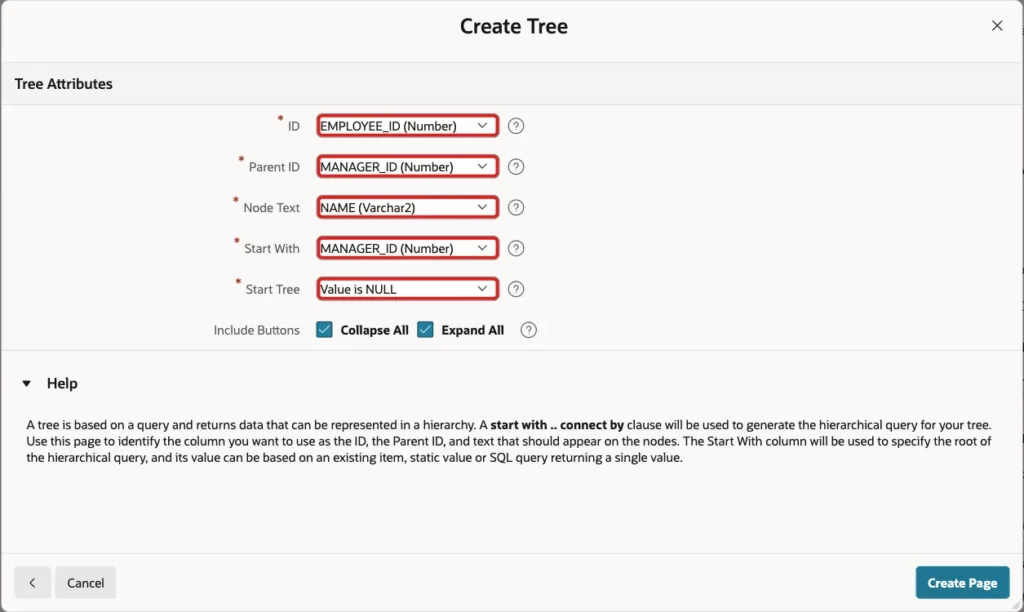
Click Create Page. APEX creates a Tree region with a hierarchical query built from these choices, and the two buttons.
Step 3: Show Job Titles and Icons
In Page Designer, select the Organization region. Its Source is the generated SQL query; replace it with this version:
Example:
select case when connect_by_isleaf = 1 then 0
            when level = 1             then 1
            else                           -1
       end as status,
       level,
       name || ' - ' || job_title as title,
       case when connect_by_isleaf = 1 then 'fa-user'
            else 'fa-users'
       end as icon,
       employee_id as value,
       null as tooltip,
       null as link
from   employees
start  with manager_id is null
connect by prior employee_id = manager_id
order  siblings by name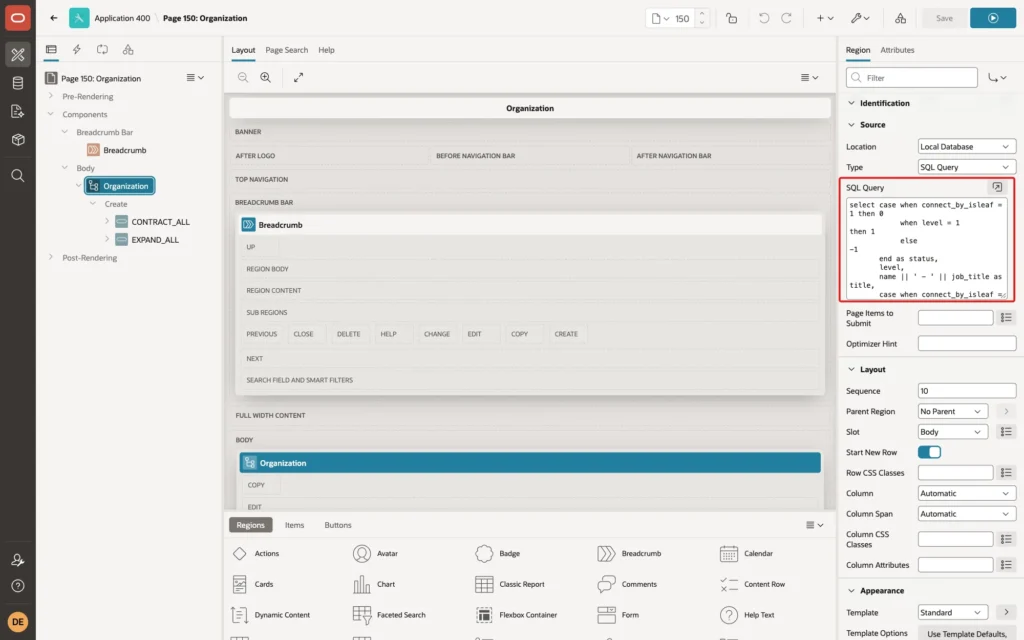
The tree region reads these columns:
- STATUS decides how a node starts: 0 is a leaf without children, 1 is expanded, and -1 is collapsed. With this CASE, only the top level starts expanded.
- LEVEL places the node in the hierarchy, and ORDER SIBLINGS BY sorts the employees under each manager by name.
- TITLE is the node text, now with the job title. The query changed only this column and ICON from the generated version.
- ICON is a Font APEX icon name: fa-users for managers, who have employees, and fa-user for leaves. CONNECT_BY_ISLEAF is 1 for rows without children.
- VALUE is the node's ID, used for links and the selected node page item.
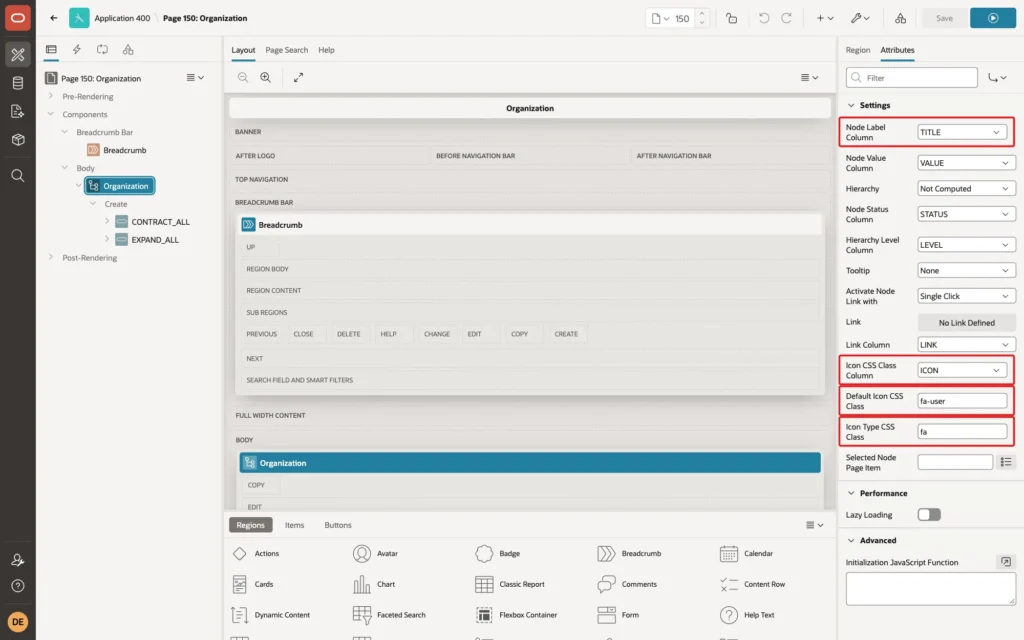
Then open the region's Attributes tab. Node Label Column is TITLE and Icon CSS Class Column is ICON. Set Default Icon CSS Class to fa-user and Icon Type CSS Class to fa, the base class of Font APEX icons:
Step 4: Test the Tree
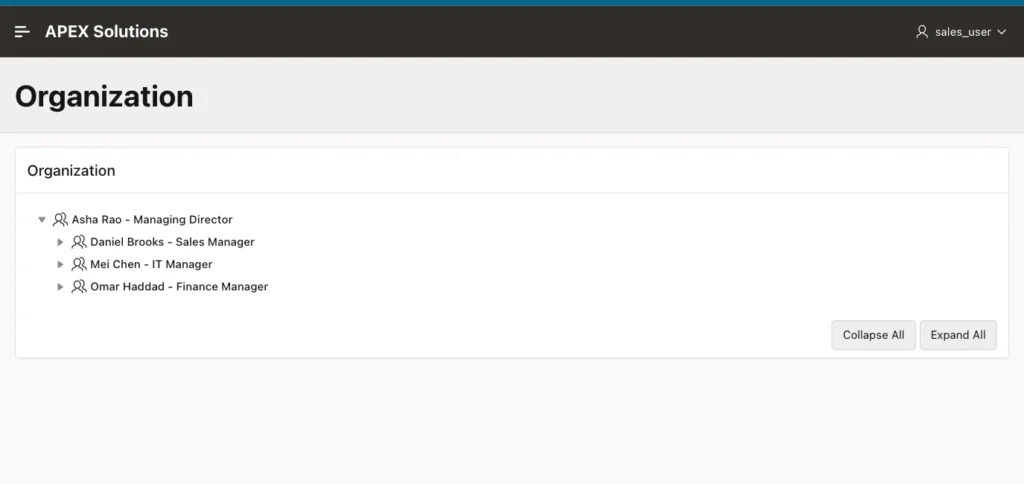
Run the page. The managing director is expanded, and the three department managers are collapsed:
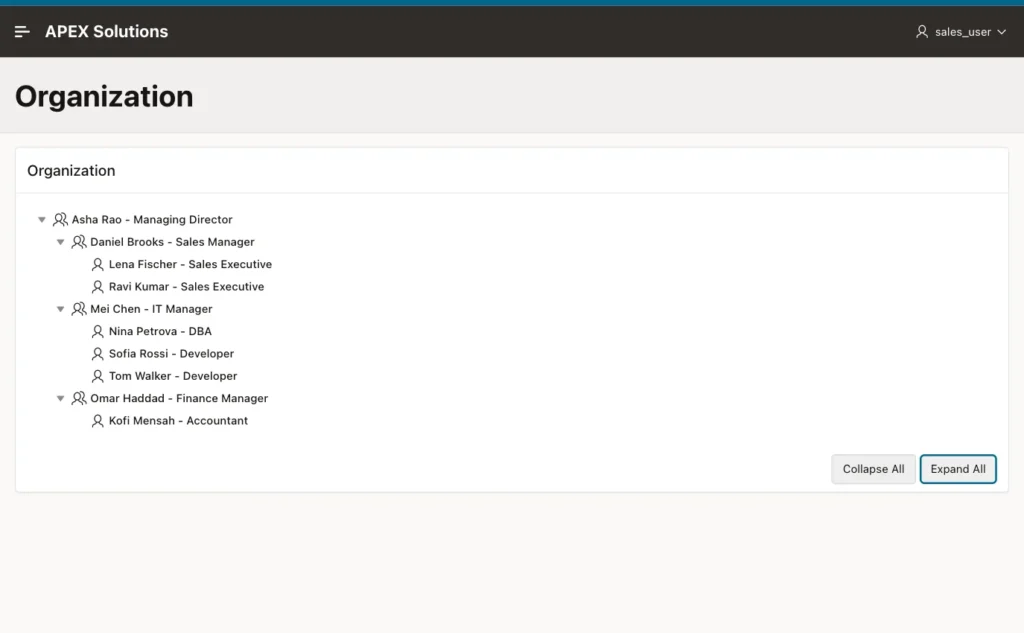
Click Expand All to open every branch. Managers show the group icon, and team members the single-person icon:
Users can also expand and collapse single branches with the arrow next to each manager.
Things to Know
- Set a Link on the tree, using the VALUE column, to open an employee's details when a node is clicked; Activate Node Link with decides whether a single or a double click opens it.
- Selected Node Page Item stores the value of the clicked node in a page item, so other regions on the page can show details of the selected employee.
- For large hierarchies, start the tree at a chosen node with Start Tree Based on Existing Item, instead of loading the whole organization.
- CONNECT BY raises ORA-01436 when the data contains a loop, such as two employees managing each other. The check constraint prevents only the direct case, so validate manager changes in the application too.
Related Guides
- Maps, Calendars, and Trees in Oracle APEX
- How to Build and Control Trees and Menus Using JavaScript in Oracle APEX
Conclusion
To show hierarchical data in an Oracle APEX tree, store the parent in a self-referencing foreign key, and create a Tree page with the wizard: ID, Parent ID, node text, and where the tree starts.
Then refine the generated CONNECT BY query: put useful text in TITLE, choose icons with CONNECT_BY_ISLEAF, set the start status of each node, and set Icon Type CSS Class to fa for Font APEX icons.
