
Some data has more than one level of children. A project has tasks, and each task has checklist items. An order has lines, and each line has deliveries. Users want to see and edit all three levels on one page, without opening a new page for every task.
Oracle APEX can link any number of Interactive Grids with the Master Region property. This guide builds a page with three editable grids, where the second grid follows the first and the third follows the second. One Save button stores new and changed rows of all three levels in a single submit.
The guide How to Build an Orders and Order Lines Master-Detail Page in Oracle APEX creates two linked grids with the Master Detail wizard. That wizard stops at two levels. This guide builds the grids by hand in Page Designer, adds the third level, and shows what is needed to save a new parent and its new children together.
The example uses projects, tasks and checklist items; the same steps work for any three tables linked by foreign keys.
Step 1: Create the Tables
Three tables hold the data:
- PLAN_PROJECTS is the top level, with one row per project.
- PLAN_TASKS has the tasks of each project.
- PLAN_TASK_ITEMS has the checklist items of each task.
Create the tables, the indexes and the sample data:
Example:
create table plan_projects (
  project_id    number generated by default on null as identity
                constraint plan_projects_pk primary key,
  project_name  varchar2(100) not null
                constraint plan_projects_name_uk unique,
  owner_name    varchar2(60) not null,
  due_date      date
);

create table plan_tasks (
  task_id     number generated by default on null as identity
              constraint plan_tasks_pk primary key,
  project_id  number not null
              constraint plan_tasks_project_fk references plan_projects on delete cascade,
  task_name   varchar2(100) not null,
  status      varchar2(12) default on null 'OPEN' not null
              constraint plan_tasks_status_ck check (status in ('OPEN', 'IN PROGRESS', 'DONE')),
  constraint plan_tasks_name_uk unique (project_id, task_name)
);

create index plan_tasks_project_ix on plan_tasks (project_id);

create table plan_task_items (
  item_id    number generated by default on null as identity
             constraint plan_task_items_pk primary key,
  task_id    number not null
             constraint plan_task_items_task_fk references plan_tasks on delete cascade,
  item_text  varchar2(200) not null,
  is_done    varchar2(1) default on null 'N' not null
             constraint plan_task_items_done_ck check (is_done in ('Y', 'N'))
);

create index plan_task_items_task_ix on plan_task_items (task_id);

insert into plan_projects (project_name, owner_name, due_date)
values ('Office Move', 'Anita Rao', date '2026-12-15');
insert into plan_projects (project_name, owner_name, due_date)
values ('Website Redesign', 'Daniel Kim', date '2027-02-28');

insert into plan_tasks (project_id, task_name, status) values (1, 'Book movers', 'DONE');
insert into plan_tasks (project_id, task_name, status) values (1, 'Set up network', 'IN PROGRESS');
insert into plan_tasks (project_id, task_name) values (2, 'Write content plan');

insert into plan_task_items (task_id, item_text, is_done) values (1, 'Get three quotes', 'Y');
insert into plan_task_items (task_id, item_text, is_done) values (1, 'Sign the contract', 'Y');
insert into plan_task_items (task_id, item_text) values (2, 'Order switches');
insert into plan_task_items (task_id, item_text) values (2, 'Test Wi-Fi coverage');
insert into plan_task_items (task_id, item_text) values (3, 'List all current pages');

commit;

select p.project_name, t.task_name, t.status, i.item_text, i.is_done
from plan_projects p
join plan_tasks t on t.project_id = p.project_id
join plan_task_items i on i.task_id = t.task_id
order by p.project_id, t.task_id, i.item_id;
Output:
Table PLAN_PROJECTS created.

Table PLAN_TASKS created.

Index PLAN_TASKS_PROJECT_IX created.

Table PLAN_TASK_ITEMS created.

Index PLAN_TASK_ITEMS_TASK_IX created.

1 row inserted.

1 row inserted.

1 row inserted.

1 row inserted.

1 row inserted.

1 row inserted.

1 row inserted.

1 row inserted.

1 row inserted.

1 row inserted.

Commit complete.

PROJECT_NAME        TASK_NAME             STATUS         ITEM_TEXT                 IS_DONE
___________________ _____________________ ______________ _________________________ __________
Office Move         Book movers           DONE           Get three quotes          Y
Office Move         Book movers           DONE           Sign the contract         Y
Office Move         Set up network        IN PROGRESS    Order switches            N
Office Move         Set up network        IN PROGRESS    Test Wi-Fi coverage       N
Website Redesign    Write content plan    OPEN           List all current pages    N
The keys are what the page is built on:
- Each table has an identity primary key: PLAN_PROJECTS_PK, PLAN_TASKS_PK and PLAN_TASK_ITEMS_PK. The grids use them to find the rows they update and delete.
- PLAN_TASKS_PROJECT_FK links each task to a project, and PLAN_TASK_ITEMS_TASK_FK links each item to a task. ON DELETE CASCADE removes the tasks and items of a deleted project.
- PLAN_TASKS_PROJECT_IX and PLAN_TASK_ITEMS_TASK_IX index the foreign keys. The lower grids query by these columns every time the user selects a row above.
- PLAN_PROJECTS_NAME_UK keeps project names unique, and PLAN_TASKS_NAME_UK allows a task name only once per project.
- STATUS and IS_DONE use DEFAULT ON NULL and check constraints, so no trigger is needed to fill or check them.
Step 2: Create a Blank Page
In App Builder, open the application and click Create Page. On the Component tab, select Blank Page:

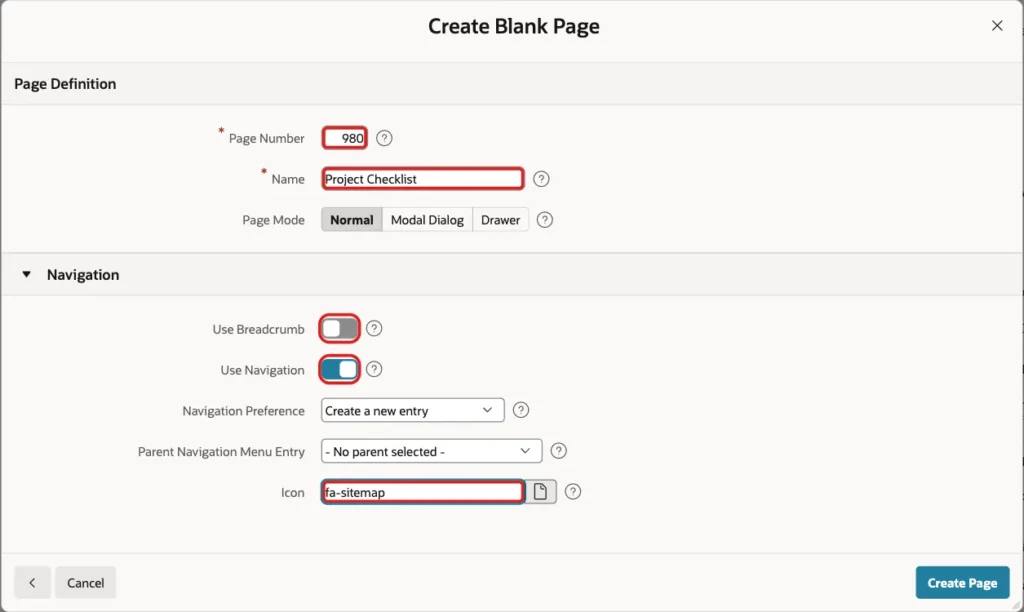
Set Page Number to 980 and Name to Project Checklist. Turn Use Breadcrumb off, keep Use Navigation on, and set Icon to fa-sitemap. Click Create Page:
APEX opens the new page in Page Designer. The next steps add the three grids to its Body.
Step 3: Add the Projects Grid
In the Rendering tree, right-click Body and choose Create Region. Set these properties:
- Identification, Name: Projects
- Identification, Type: Interactive Grid
- Source, Table Name: PLAN_PROJECTS

A new Interactive Grid region gets the Interactive Report template, which hides the region title. Under Appearance, set Template to Standard, so the page shows the headings Projects, Tasks and Checklist Items:

Open the Attributes tab of the region. Under Edit, turn Enabled on. Under Toolbar, uncheck Save Button in Controls. The page gets its own Save button in Step 7, and that step explains why the grid buttons must go:
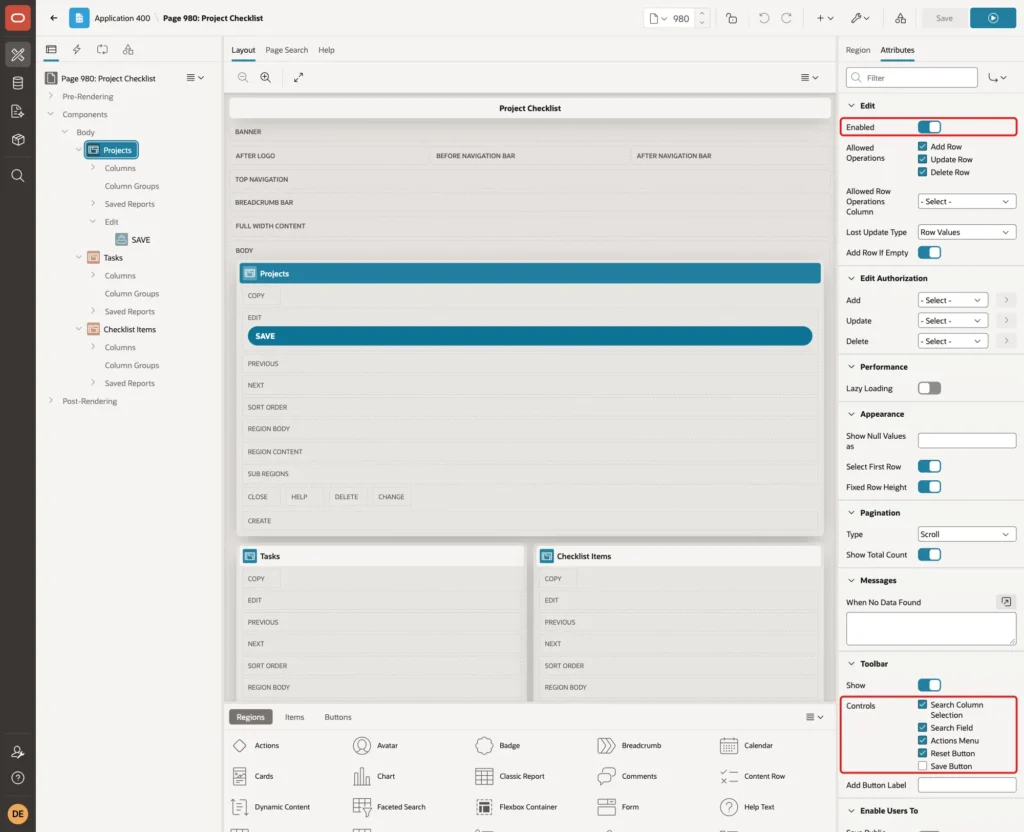
When you turn on Edit, Page Designer also creates a process named Projects - Save Interactive Grid Data. Step 8 checks it.
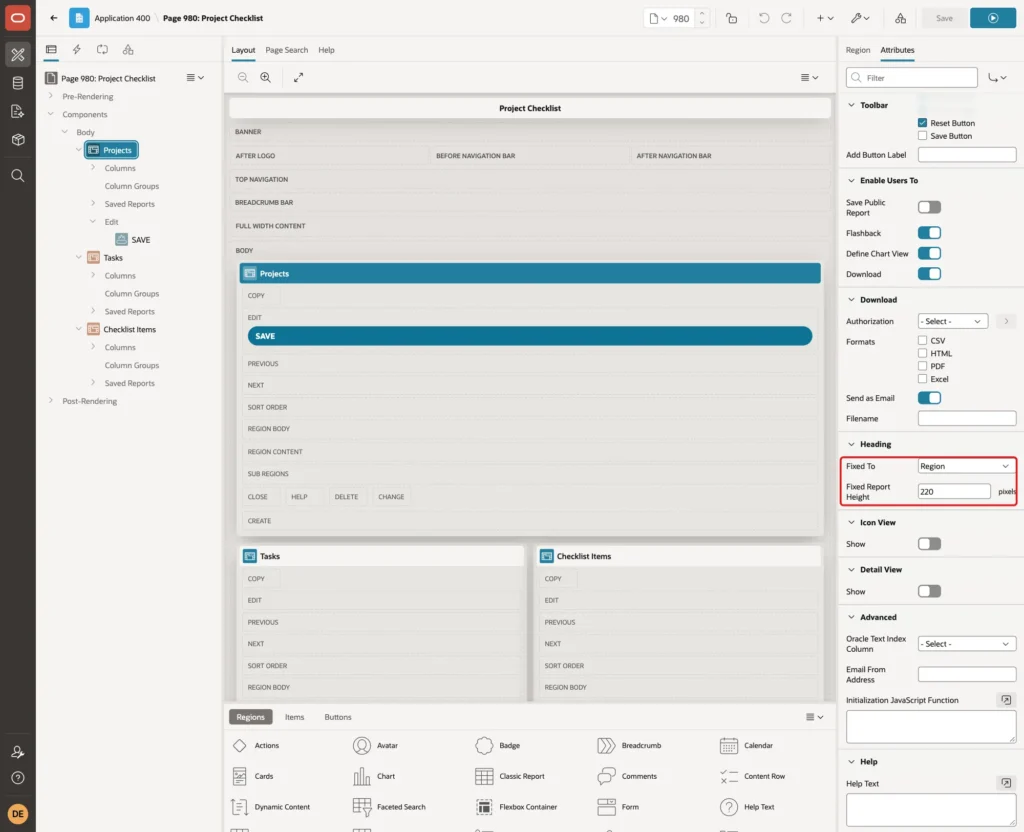
Further down on the Attributes tab, set Heading, Fixed To to Region and Fixed Report Height to 220. The project list then scrolls inside its grid, and the two grids below stay in view:
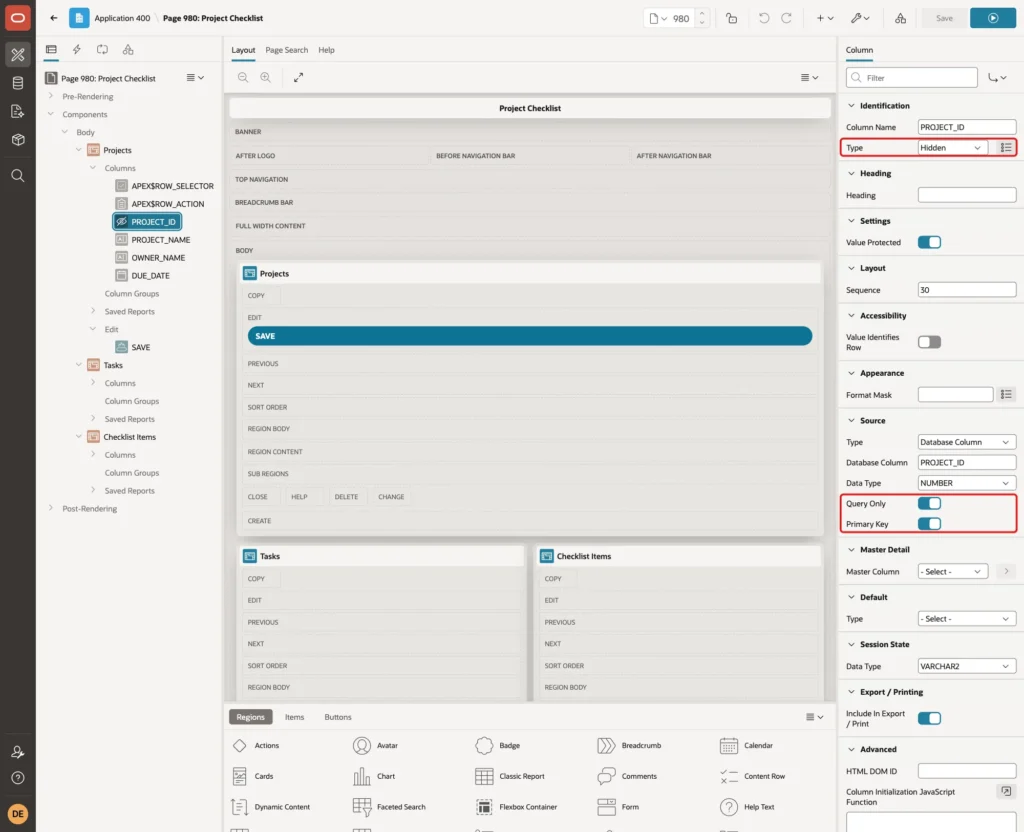
Go back to the Region tab and expand Projects and Columns. Page Designer read the primary key constraint and set up PROJECT_ID by itself: Type is Hidden, and Primary Key and Query Only are on. Leave it as it is:
Select PROJECT_NAME and set Heading to Project. Set the Heading of OWNER_NAME to Owner and of DUE_DATE to Due Date.
Step 4: Add the Tasks Grid
Right-click Body again, choose Create Region, and set Name to Tasks, Type to Interactive Grid, Table Name to PLAN_TASKS and Template to Standard. Then set these properties:
- Layout, Column Span: 6, so the grid takes the left half of the page
- Master Detail, Master Region: Projects
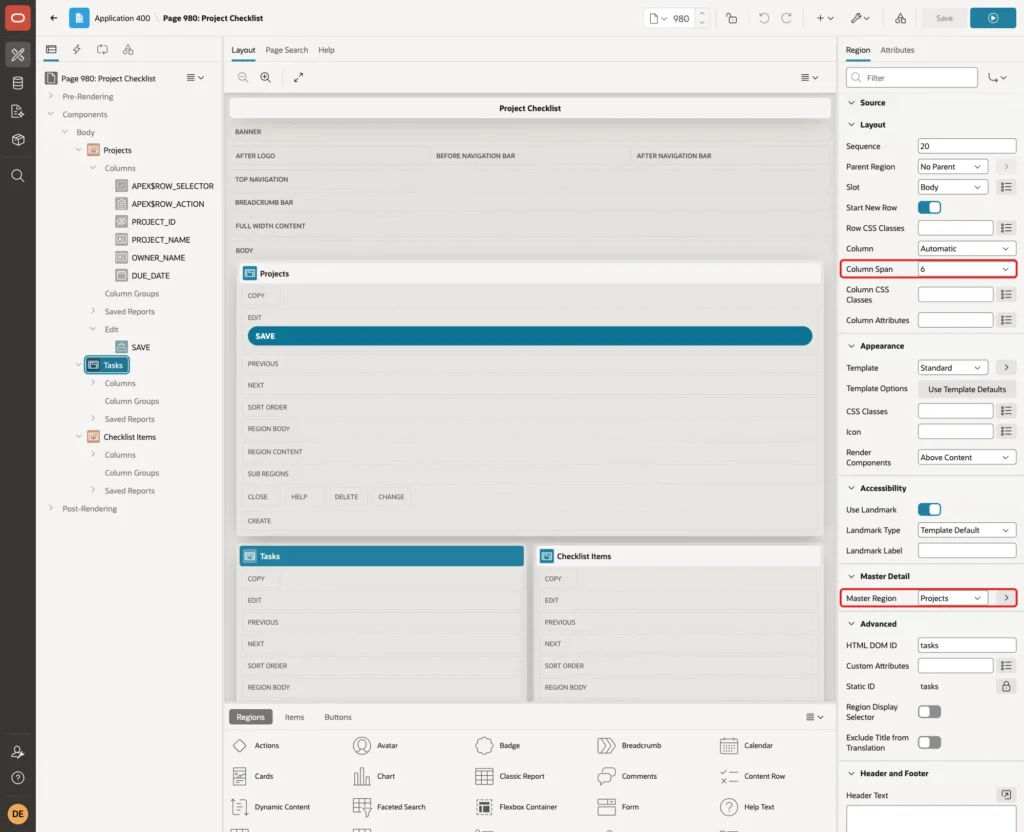
On the Attributes tab, make the same three changes as for Projects: Edit Enabled on, Save Button unchecked, and Fixed To Region with Fixed Report Height 220.
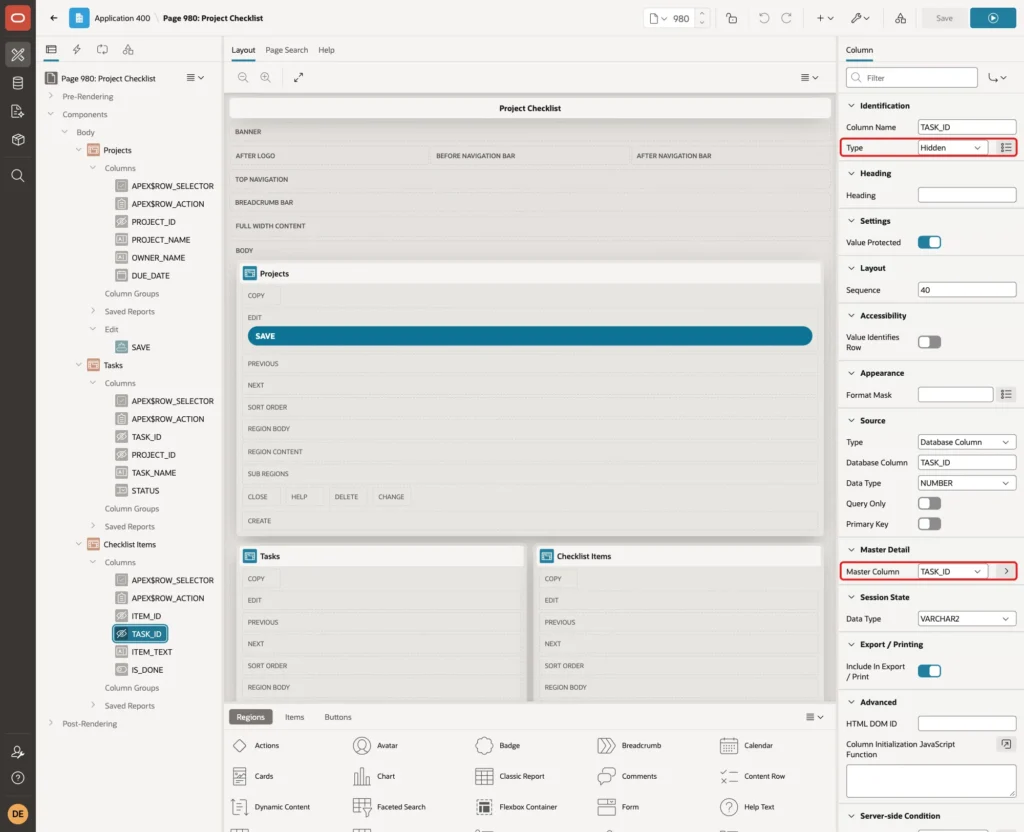
Expand the Columns of Tasks and select PROJECT_ID. A new grid shows a foreign key column as a visible Number Field, and Page Designer does not link it to the master grid. Set Type to Hidden, and under Master Detail set Master Column to PROJECT_ID:
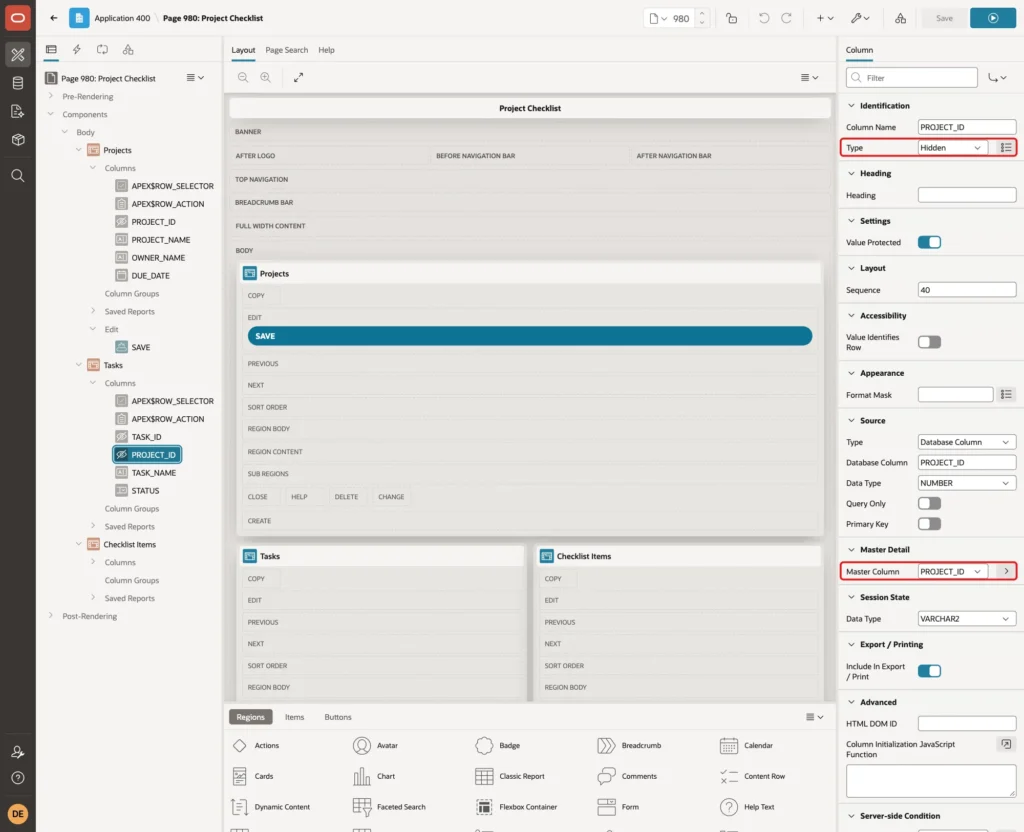
Master Column does two things. The grid shows only tasks whose PROJECT_ID matches the selected project, and it fills PROJECT_ID in every new task. Users never type the key.
Select TASK_NAME and set Heading to Task. Then select STATUS, set Type to Select List, and under List of Values set Type to Static Values with three entries: Open / OPEN, In Progress / IN PROGRESS and Done / DONE. Turn Display Null Value off:

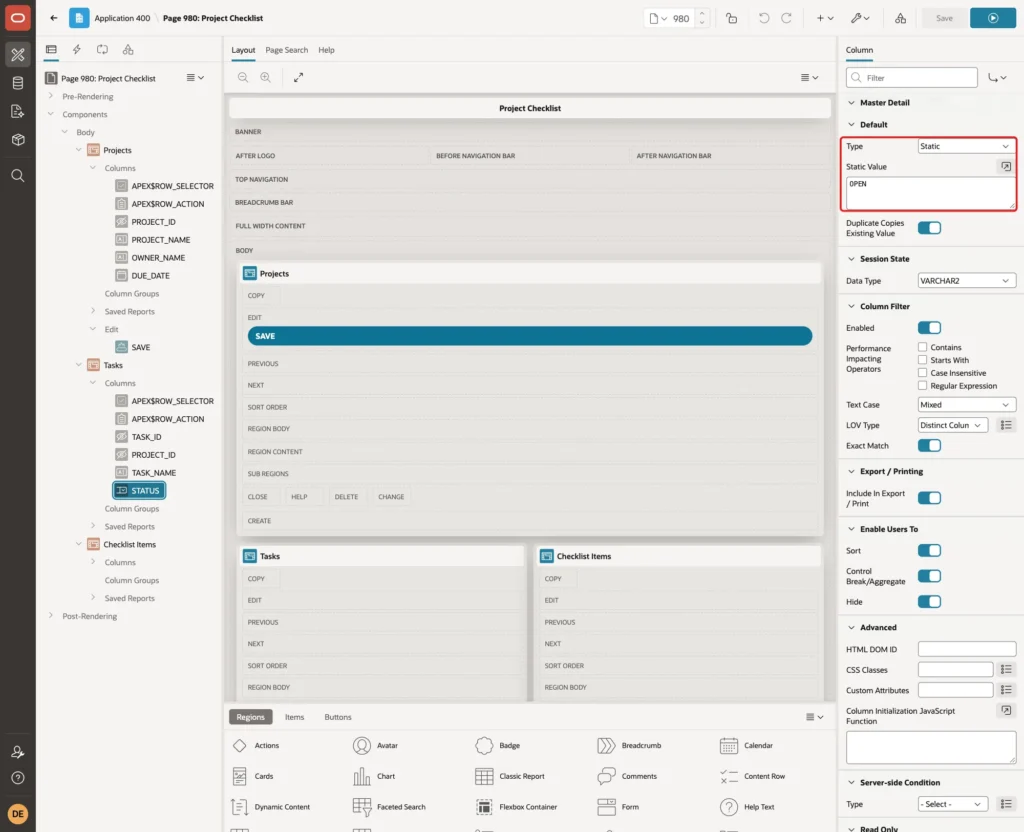
STATUS is NOT NULL, so Value Required is on for this column. Without a column default, a new task starts with an empty status, and Save stops with Status must have some value. The table default never gets a chance. Under Default, set Type to Static and Static Value to OPEN:
Step 5: Add the Checklist Items Grid
Create a third region with Name Checklist Items, Type Interactive Grid, Table Name PLAN_TASK_ITEMS and Template Standard. Then set:
- Layout, Start New Row: off, so the grid sits next to Tasks
- Layout, Column Span: 6
- Master Detail, Master Region: Tasks
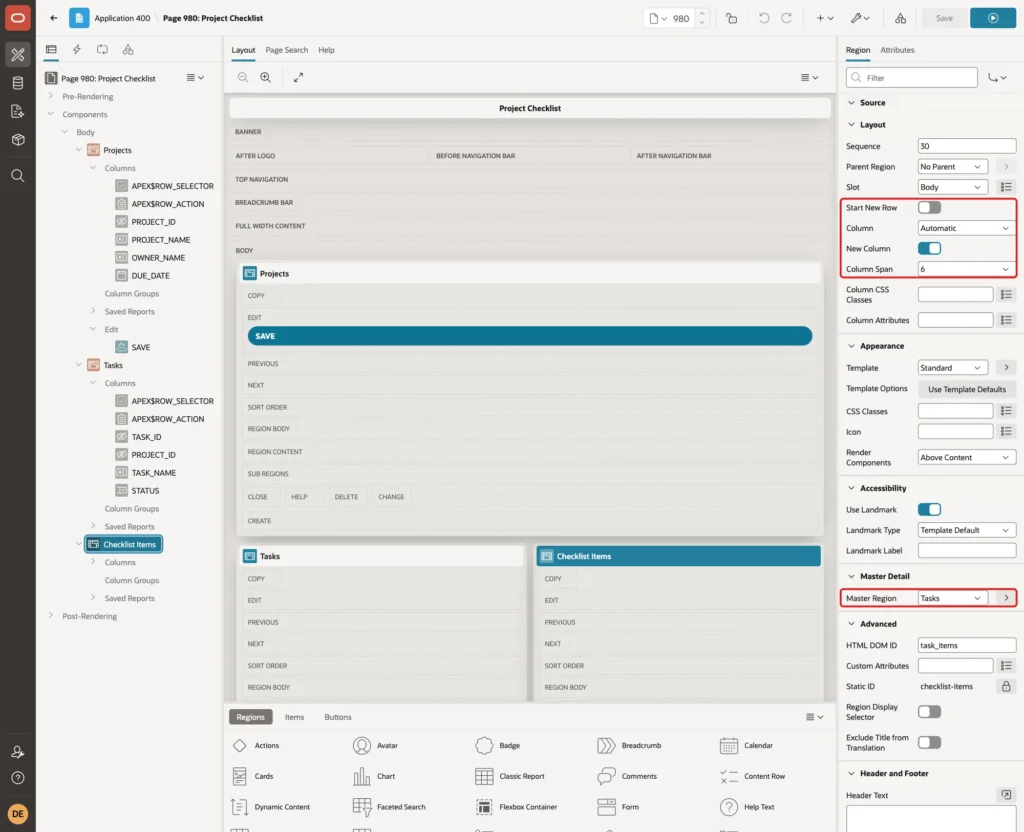
The Master Region of this grid is Tasks. That is what makes the page three levels deep: Projects drives Tasks, and Tasks drives Checklist Items. On the Attributes tab, again turn Edit Enabled on, uncheck Save Button, and set the fixed height of 220.
In its Columns, select TASK_ID. Set Type to Hidden and Master Column to TASK_ID:
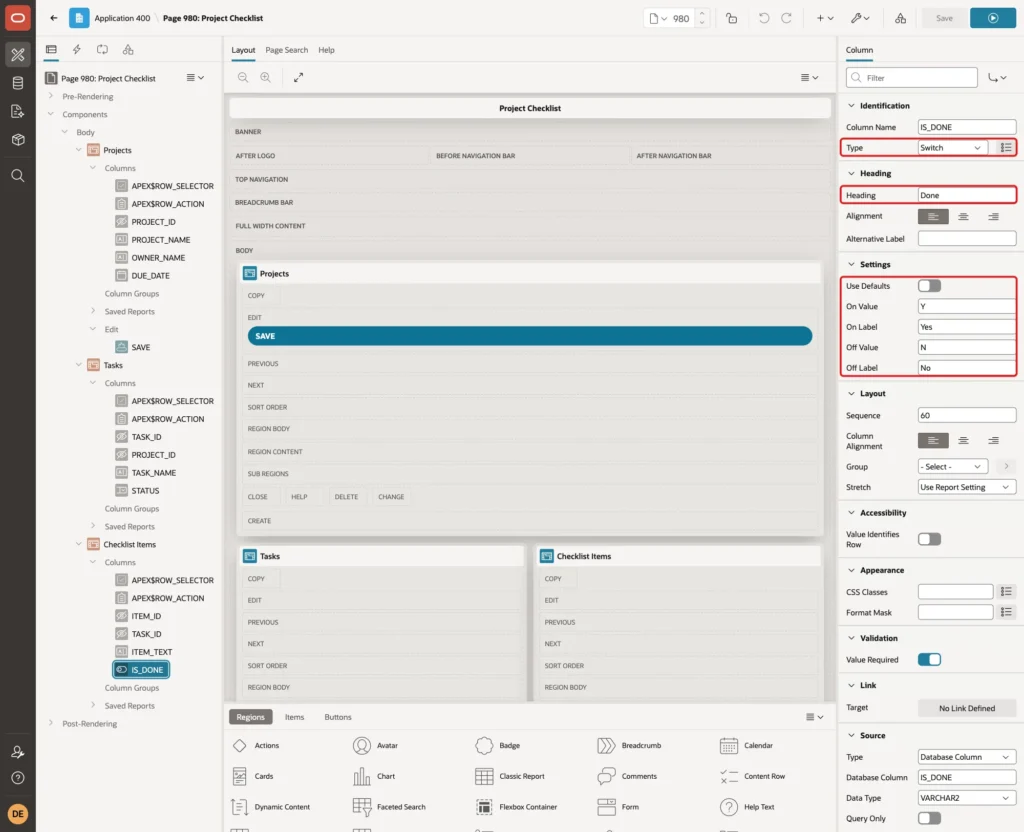
Set the Heading of ITEM_TEXT to Checklist Item. Then select IS_DONE and set Type to Switch and Heading to Done. Under Settings, turn Use Defaults off and enter On Value Y, On Label Yes, Off Value N and Off Label No. Under Default, set Type to Static and Static Value to N:
Step 6: Run the Page
Save the page and run it. The Projects grid selects its first row, and the Tasks grid shows the tasks of that project. The Tasks grid also selects its first row, so the Checklist Items grid shows the items of that task:

Click Set up network in the Tasks grid. The Checklist Items grid refreshes and shows the items of that task:
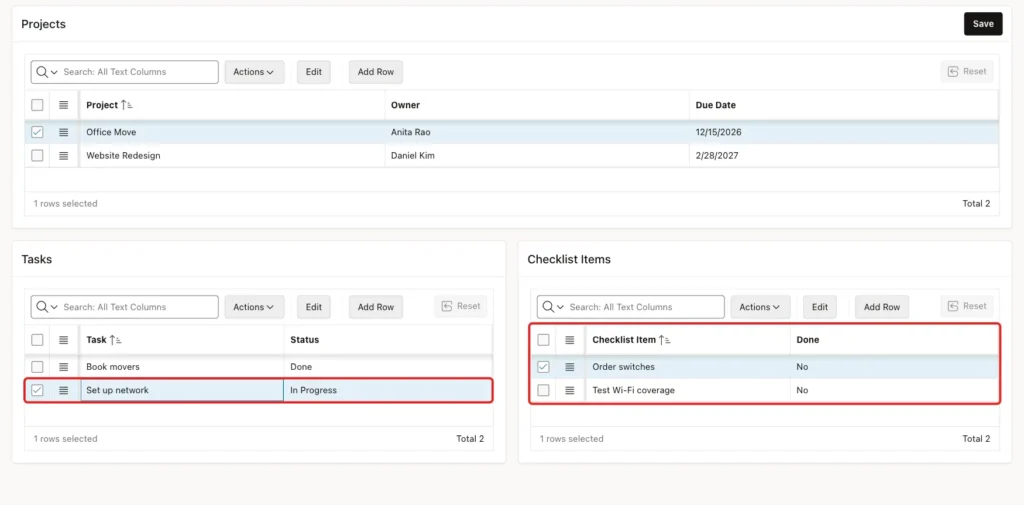
Selecting Website Redesign in the Projects grid changed both lower grids: Tasks showed Write content plan, and Checklist Items showed List all current pages.
Step 7: Add One Save Button for All Three Grids
In the Rendering tree, right-click the Projects region and choose Create Button. Set Button Name to SAVE, Label to Save, Slot to Edit and Hot on:
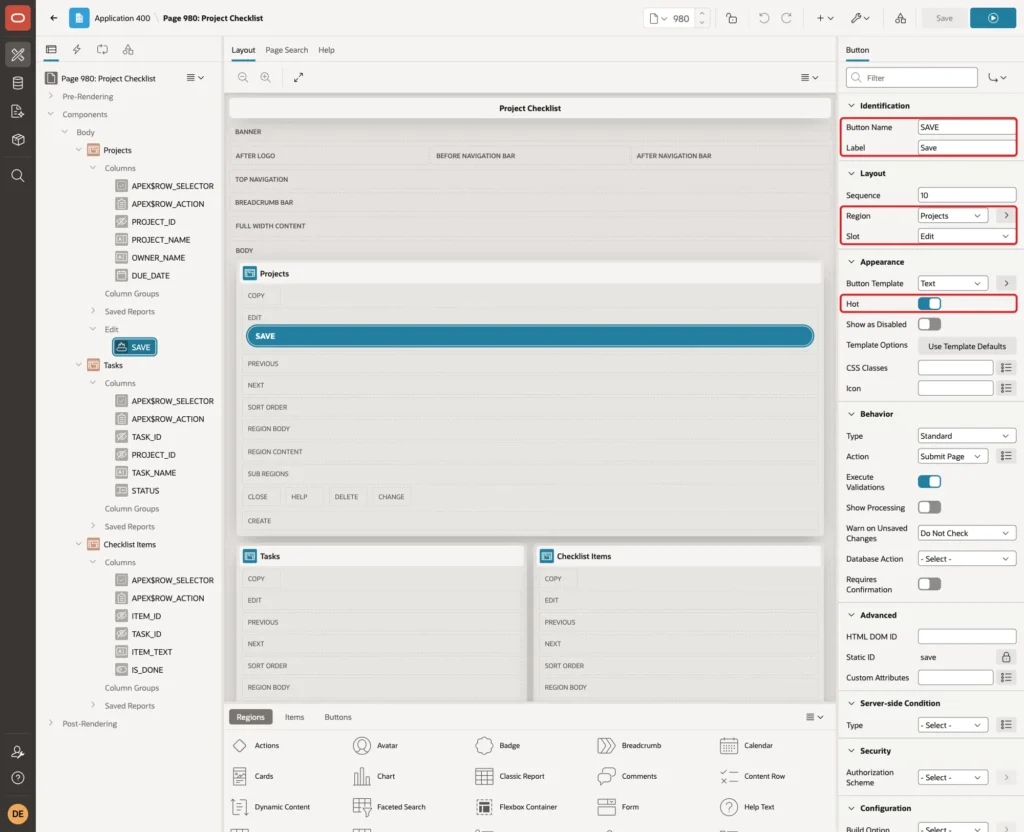
Keep Behavior, Action at Submit Page:
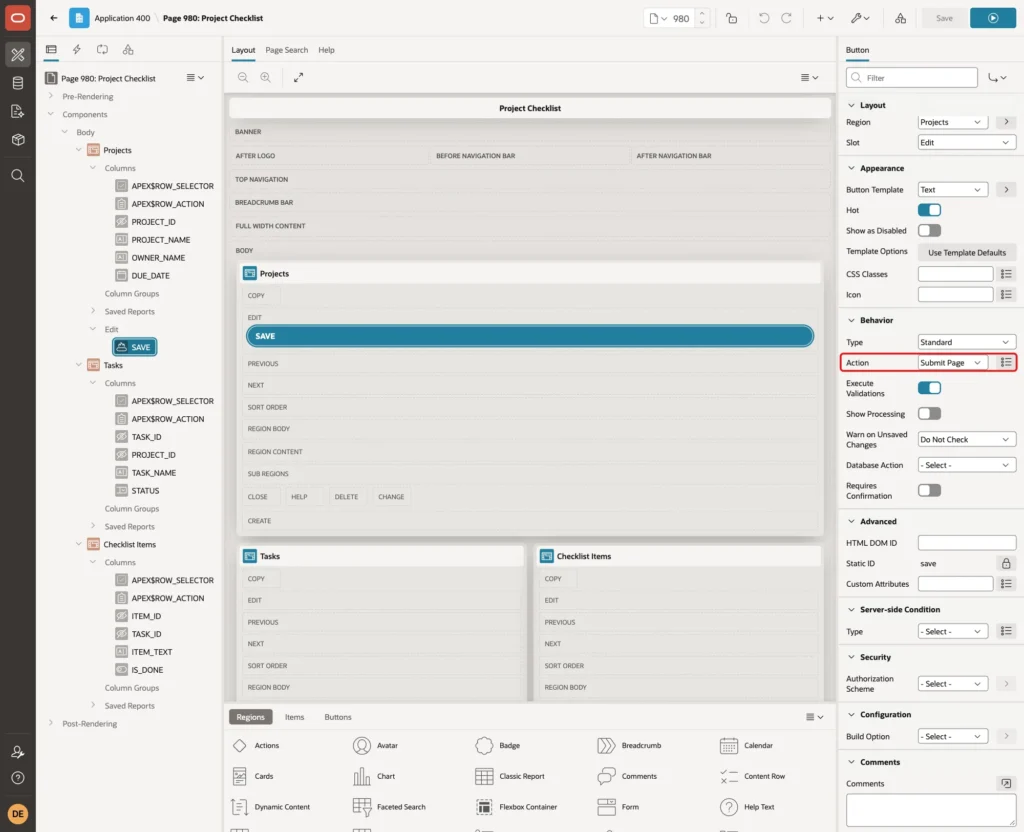
Submitting the page sends the changes of all three grids, and the three save processes store them in one request.
The grid toolbar Save buttons were removed for a reason. In a first test, the page still had them. A new project with a new task saved with the grid Save button failed with ORA-06502: PL/SQL: value or conversion error: character to number conversion error:
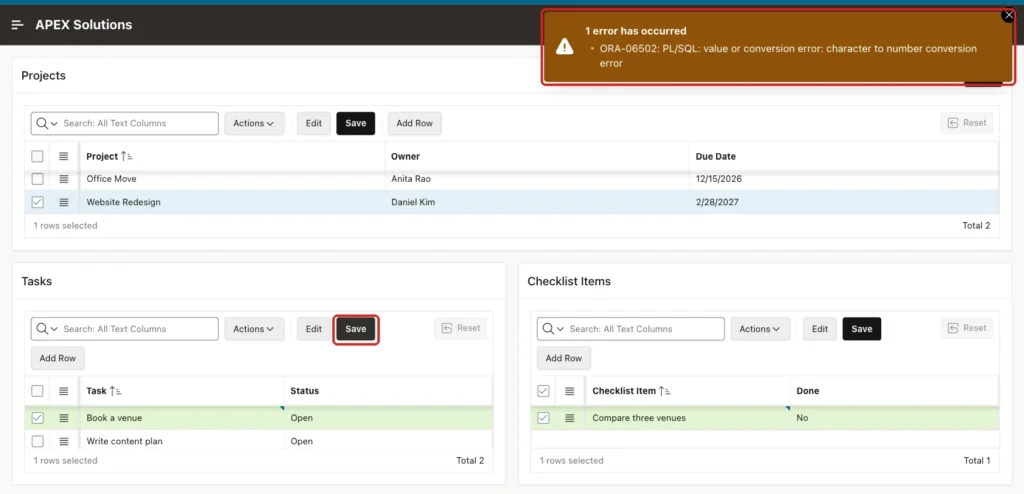
The same error came back in every test where a new parent row and its new child rows were saved together with a toolbar Save button. It did not matter which grid's button was clicked. The new task kept its temporary key, t1000, and the database rejected it as a number. Nothing was saved, not even the parent row.
A toolbar Save worked when the parent row already existed, for example a new task under a saved project. The page Save button worked in every case, as the tests in Step 9 show.
Step 8: Check the Order of the Save Processes
Open the Processing tab. Page Designer created one Interactive Grid - Automatic Row Processing (DML) process for each grid when Edit was turned on:
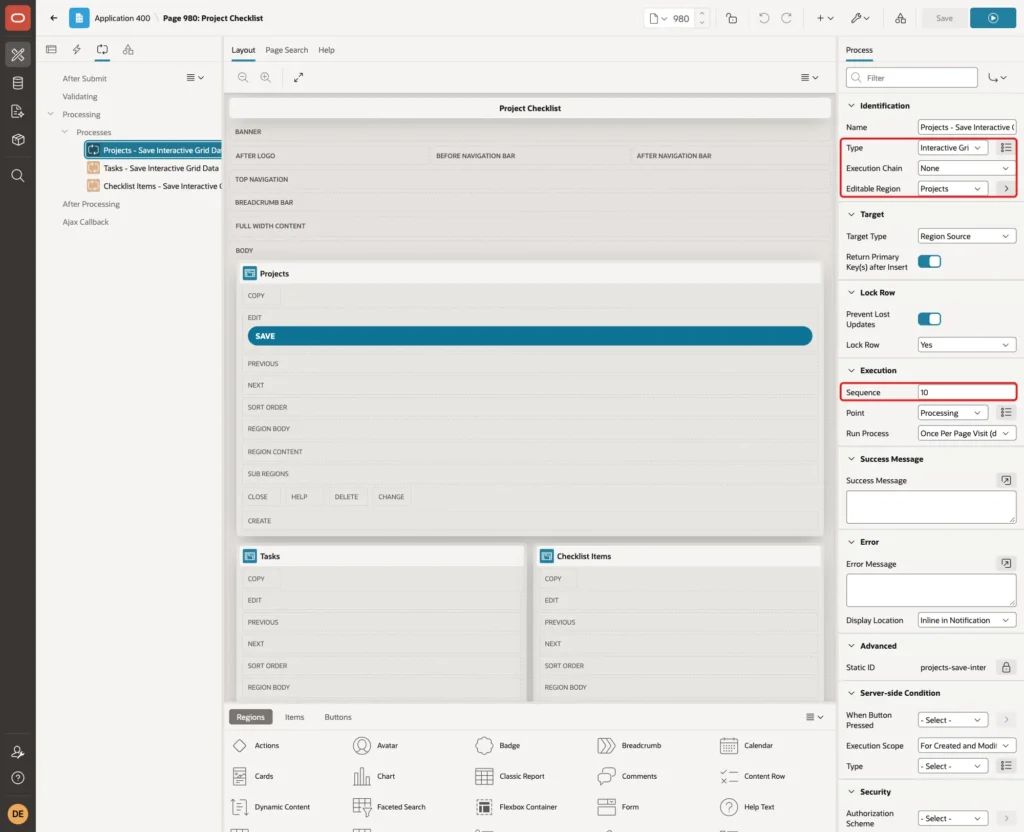
The processes must run from the top level down: Projects - Save Interactive Grid Data with Sequence 10, Tasks with 20 and Checklist Items with 30. Page Designer numbers each new process after the existing ones, so creating the grids from the top level down gives this order.
In a test with the Projects process moved to Sequence 40, after the other two, the page Save failed with the same ORA-06502 error and saved nothing. Each parent row must be inserted before its children, so APEX can put the new key into them.
Step 9: Test the Page
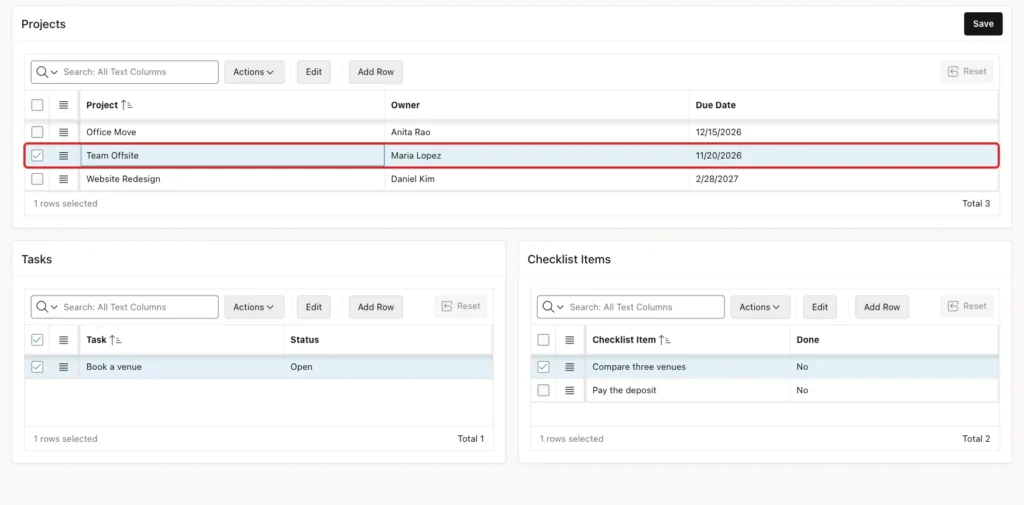
First, add all three levels at once. Click Add Row in the Projects grid and enter Team Offsite, owner Maria Lopez, due 11/20/2026. While the new project is selected, the Tasks grid adds an empty row by itself, because Add Row If Empty is on by default. Type Book a venue into it.
The Checklist Items grid also added an empty row for the new task. Type Compare three venues into it, click Add Row in that grid, and type Pay the deposit. All new rows are green, and nothing is saved yet:
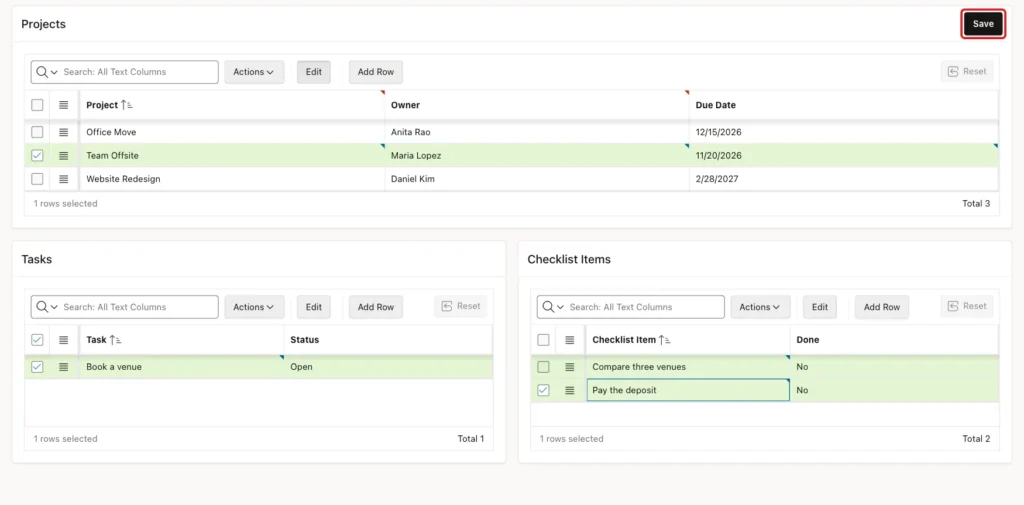
Click Save. The page reloads. Select Team Offsite to see the saved rows:
Check the keys in SQL:
Example:
select p.project_id, p.project_name, t.task_id, t.project_id as task_project_id, t.task_name, i.item_id, i.task_id as item_task_id, i.item_text
from plan_projects p
join plan_tasks t on t.project_id = p.project_id
join plan_task_items i on i.task_id = t.task_id
where p.project_name = 'Team Offsite'
order by i.item_id;
Output:
   PROJECT_ID PROJECT_NAME       TASK_ID    TASK_PROJECT_ID TASK_NAME          ITEM_ID    ITEM_TASK_ID ITEM_TEXT
_____________ _______________ __________ __________________ _______________ __________ _______________ _______________________
           81 Team Offsite            61                 81 Book a venue            61              61 Compare three venues
           81 Team Offsite            61                 81 Book a venue            62              61 Pay the deposit
The task got the new PROJECT_ID 81, and both items got the new TASK_ID 61. The browser only knew temporary keys when the user typed the rows; APEX filled in the real keys during the save.
Second, unsaved rows under different parents. In this test, a new task Label the boxes was added under Office Move. Then Website Redesign was selected, and a new task Pick a color scheme was added there.
One click on Save stored both tasks, each with its own PROJECT_ID. The grid keeps the pending changes of every parent until the page is submitted.
Third, a missing value. Select Team Offsite, click Add Row in the Checklist Items grid, leave the new row empty, and click Save:

The message Checklist Item must have some value appeared, the empty cell was marked, and the page was not submitted.
The empty rows that a grid adds on its own are different. In an earlier test, a new project was saved while the Tasks and Checklist Items grids still held their untouched empty rows. The project was saved, and the empty rows were ignored.
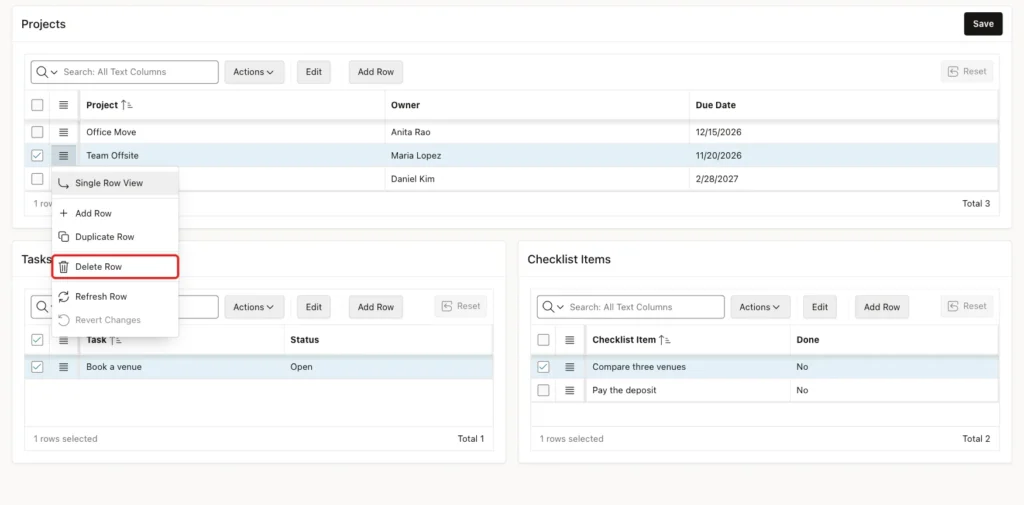
Fourth, delete a project with its children. Select Team Offsite, open the row actions menu, and choose Delete Row:
The row is struck through, and the lower grids are empty. Click Save:
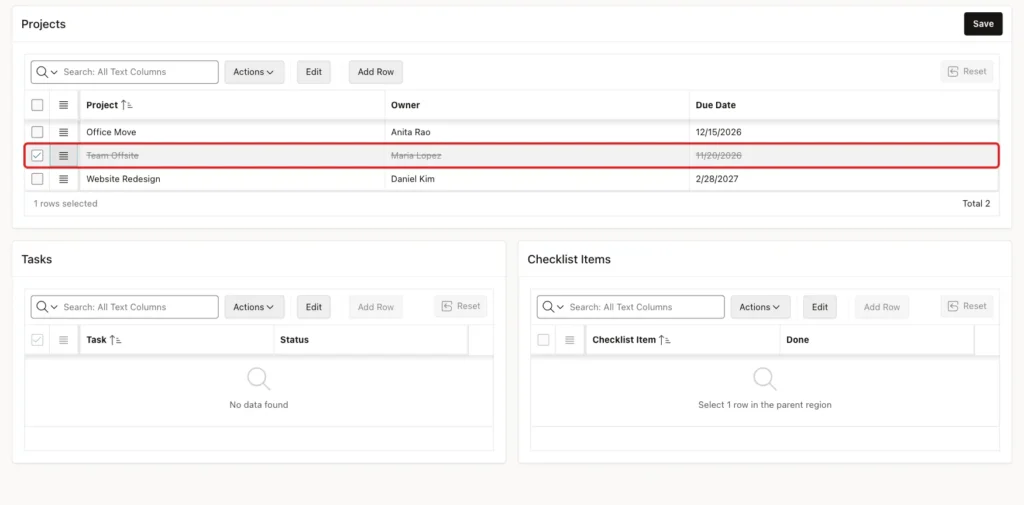
Check that the project, its task and its items are gone:
Example:
select (select count(*) from plan_projects where project_name = 'Team Offsite') as projects,
       (select count(*) from plan_tasks where task_name = 'Book a venue') as tasks,
       (select count(*) from plan_task_items where item_text in ('Compare three venues', 'Pay the deposit')) as items
from dual;
Output:
   PROJECTS    TASKS    ITEMS
___________ ________ ________
          0        0        0
The page deleted only the project row. The foreign keys with ON DELETE CASCADE removed the task and the two items.
Things to Know
- Any number of levels works the same way. Each grid's Master Region points to the grid one level up, and its foreign key column has Master Column set to the parent's key.
- Page Designer finds the primary key of the table, but it does not link the foreign key column. Set Master Column yourself, or the lower grid shows all rows.
- Use one page Save button. With the grid toolbar Save buttons, saving a new parent together with its new children failed with ORA-06502, and nothing was saved.
- Keep the save processes in level order: parent first, then child, then grandchild.
- The save is all or nothing. When one row fails, no row of any grid is saved.
- Duplicate names are stopped by the unique keys. A second project named Team Offsite failed with ORA-00001 on PLAN_PROJECTS_NAME_UK. Add a validation if users need a friendlier message.
- Give NOT NULL columns with table defaults a column Default too, such as STATUS and IS_DONE here. Without it, a new task failed with Status must have some value, because Value Required is checked before the row reaches the table.
Related Guides
- How to Build an Orders and Order Lines Master-Detail Page in Oracle APEX
- Oracle APEX Interactive Grid: A Complete Guide
Conclusion
A three-level master-detail page in Oracle APEX is three editable Interactive Grids chained with Master Region and Master Column. The second grid follows the first, and the third follows the second, so users can move through projects, tasks and checklist items on one page.
Saving is where the details matter. With the save processes in level order and one page Save button, a new project, its task and its items were stored in a single submit with the correct keys. A delete on the top level removed everything below it through the foreign keys.
See my articles more often when you search Google.
