
Smart Filters put every filter of a report into one search bar. Users pick a value from a suggestion chip, open a filter to see all its values with counts, or type free text, and each choice becomes a chip they can remove with one click. The report refreshes after every change, without a page submit.
This guide builds a complete Smart Filters page step by step: the Create Page wizard, a customer filter that shows names but filters by ID, date and amount range filters with manual entry, and a search filter. Every result is compared with SQL.
The overview post Faceted Search, Smart Filters, and Search in Oracle APEX explains the concepts; this one is the hands-on build.
The guide uses orders as the example. The same steps work for any table or view.
Step 1: Create the Tables
The report shows rows of the ORDERS table with the customer name from CUSTOMERS and the order total from ORDER_LINES. If you start from scratch, create these tables with a few sample rows:
Example:
create table customers (
    customer_id number generated by default as identity
                constraint customers_pk primary key,
    name        varchar2(100) not null,
    email       varchar2(120) not null
);

create table products (
    product_id number generated by default as identity
               constraint products_pk primary key,
    name       varchar2(60)  not null,
    category   varchar2(30)  not null,
    price      number(10, 2) not null
);

create table orders (
    order_id    number generated by default as identity
                constraint orders_pk primary key,
    customer_id number not null
                constraint orders_customer_fk references customers,
    order_date  date default sysdate not null,
    status      varchar2(12) default 'NEW' not null
                constraint orders_status_ck
                check (status in ('NEW', 'APPROVED', 'SHIPPED', 'CANCELLED')),
    approved_by varchar2(60),
    approved_on date
);

create index orders_customer_ix on orders (customer_id);

create table order_lines (
    line_id    number generated by default as identity
               constraint order_lines_pk primary key,
    order_id   number not null
               constraint order_lines_order_fk references orders on delete cascade,
    product_id number not null
               constraint order_lines_product_fk references products,
    quantity   number not null
               constraint order_lines_qty_ck check (quantity > 0),
    unit_price number(10, 2) not null,
    constraint order_lines_product_uk unique (order_id, product_id)
);

create index order_lines_product_ix on order_lines (product_id);

insert into customers (name, email) values ('Customer 1', 'customer1@example.com');
insert into customers (name, email) values ('Customer 2', 'customer2@example.com');
insert into customers (name, email) values ('Customer 3', 'customer3@example.com');

insert into products (name, category, price) values ('Laptop Pro 14', 'Computers', 1450);
insert into products (name, category, price) values ('Monitor 27', 'Displays', 320);
insert into products (name, category, price) values ('Keyboard', 'Accessories', 45);

insert into orders (customer_id, order_date, status) values (1, trunc(sysdate) - 2, 'NEW');
insert into orders (customer_id, order_date, status) values (2, trunc(sysdate) - 5, 'NEW');
insert into orders (customer_id, order_date, status) values (3, trunc(sysdate) - 8, 'APPROVED');
insert into orders (customer_id, order_date, status) values (1, trunc(sysdate) - 12, 'SHIPPED');
insert into orders (customer_id, order_date, status) values (2, trunc(sysdate) - 15, 'CANCELLED');

insert into order_lines (order_id, product_id, quantity, unit_price) values (1, 1, 1, 1450);
insert into order_lines (order_id, product_id, quantity, unit_price) values (1, 3, 2, 45);
insert into order_lines (order_id, product_id, quantity, unit_price) values (2, 2, 2, 320);
insert into order_lines (order_id, product_id, quantity, unit_price) values (3, 1, 1, 1450);
insert into order_lines (order_id, product_id, quantity, unit_price) values (4, 2, 1, 320);
insert into order_lines (order_id, product_id, quantity, unit_price) values (5, 3, 4, 45);
commit;- ORDERS_CUSTOMER_FK and ORDER_LINES_ORDER_FK link the three tables. ORDERS_STATUS_CK allows only four status values.
- ORDER_LINES_PRODUCT_UK stops the same product from appearing twice on one order.
- The screenshots in this guide use 150 orders and 42 customers, so the counts you see will differ from the five sample orders.
Step 2: Create a View for the Report
Smart Filters filter the columns of the report's source, so every column you want to filter on must be in it. A view joins the tables once and computes the order total and line count:
Example:
create or replace view order_search_v as
select o.order_id,
       o.order_date,
       o.status,
       o.customer_id,
       c.name as customer_name,
       count(l.line_id) as line_count,
       nvl(sum(l.quantity * l.unit_price), 0) as order_total
  from orders o
  join customers c on c.customer_id = o.customer_id
  left join order_lines l on l.order_id = o.order_id
 group by o.order_id, o.order_date, o.status, o.customer_id, c.name;

select status, count(*) as orders, sum(order_total) as total
  from order_search_v
 group by status
 order by status;
Output:
View ORDER_SEARCH_V created.

STATUS          ORDERS    TOTAL
____________ _________ ________
APPROVED            51    90175
CANCELLED           16    31400
NEW                 36    63930
SHIPPED             47    84660
The view keeps CUSTOMER_ID next to CUSTOMER_NAME. The customer filter later shows the name but filters by the ID.
Step 3: Start the Create Page Wizard
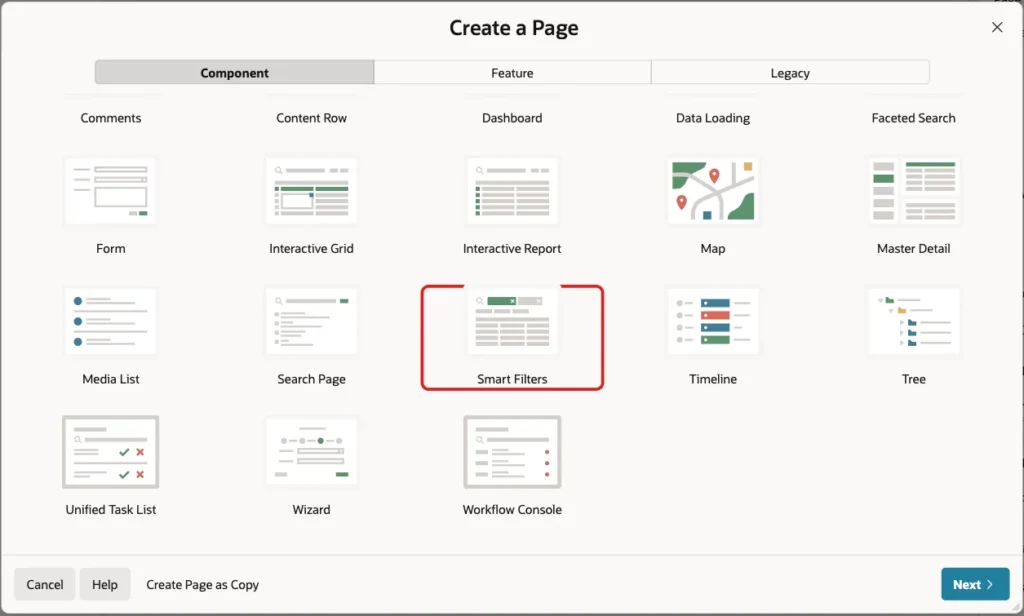
In App Builder, open the application and click Create Page. On the Component tab, click Smart Filters:
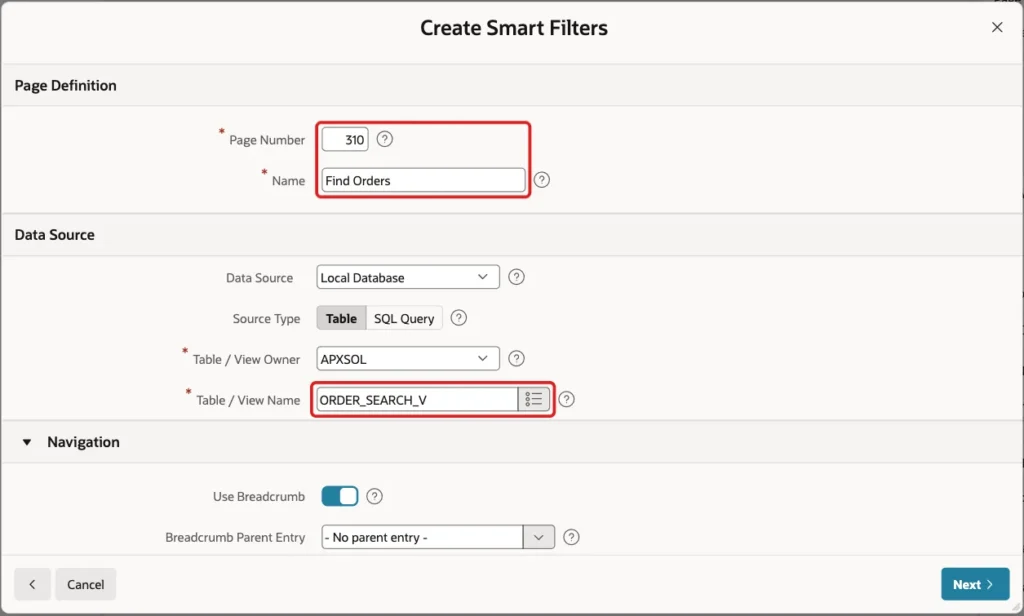
Enter Page Number 310 and Name Find Orders. Keep Data Source Local Database and Source Type Table, and enter ORDER_SEARCH_V in Table / View Name:
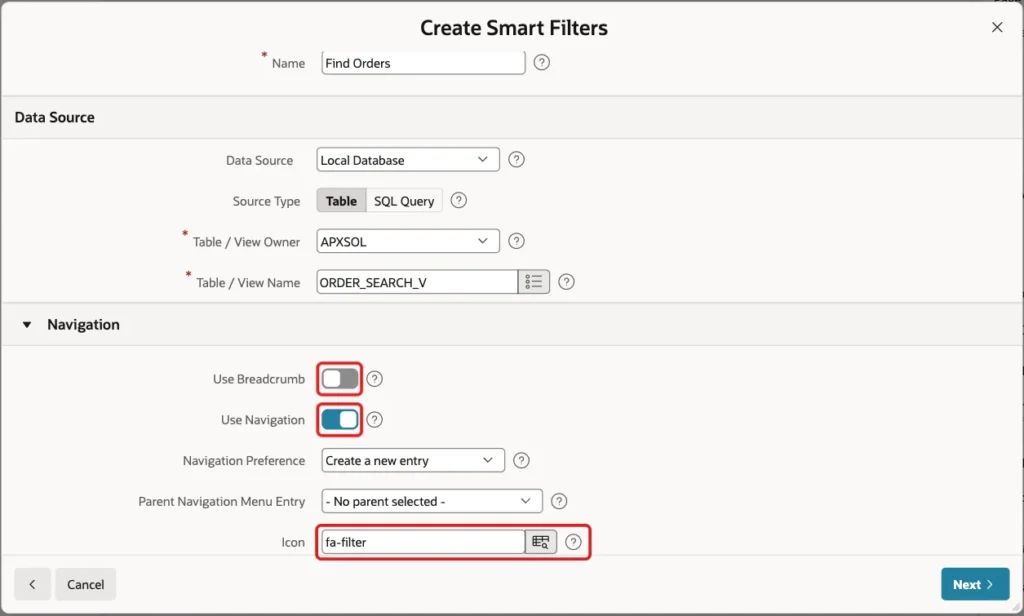
Scroll down to Navigation. Turn off Use Breadcrumb, keep Use Navigation on, and set Icon to fa-filter. Click Next:
Step 4: Choose the Wizard Filters
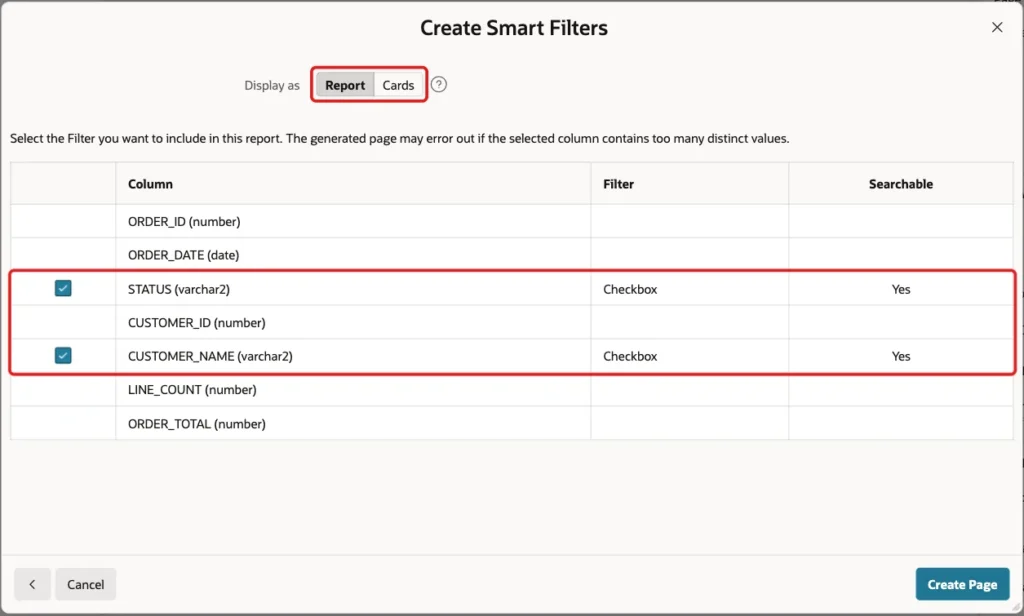
The second screen sets the result display and the first filters. Keep Display as Report. The wizard offered checkboxes only for STATUS and CUSTOMER_NAME, the two columns with few distinct values, and both were already selected. Click Create Page:
The wizard created a Search region of type Smart Filters with three filters, P310_SEARCH, P310_STATUS and P310_CUSTOMER_NAME, and a classic report named Search Results. The Filtered Region property ties the filters to the report:
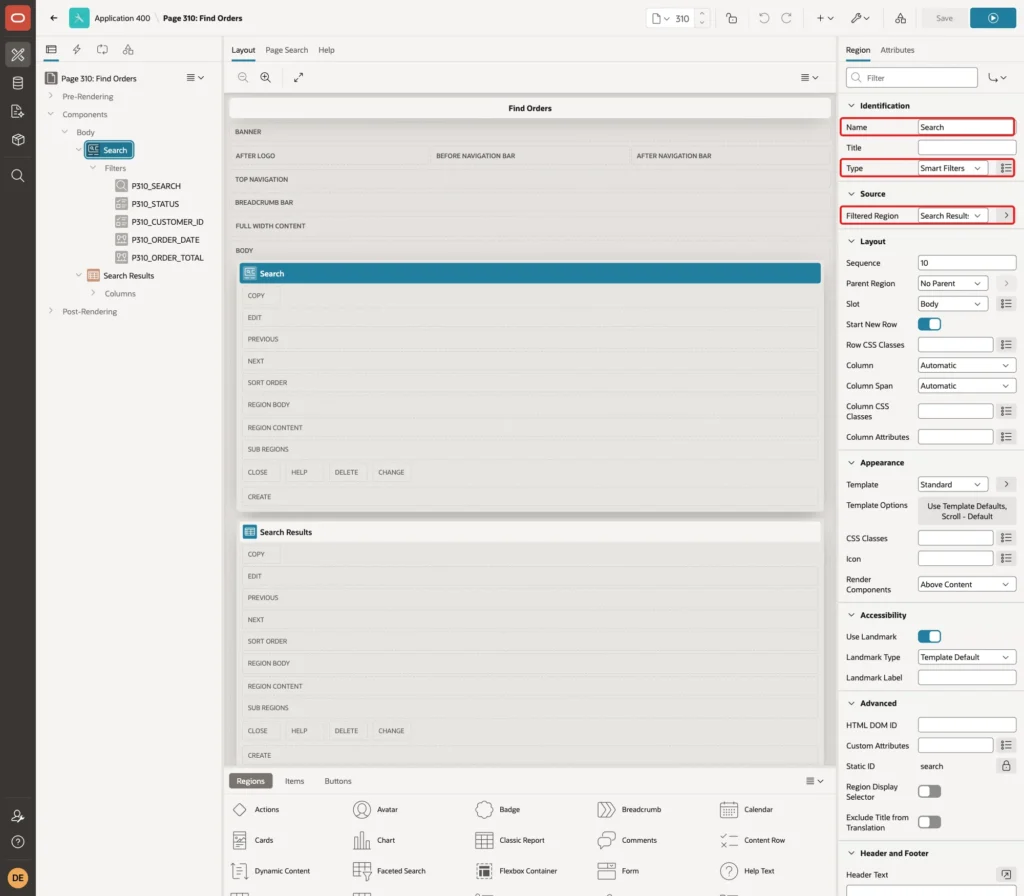
The tree in this screenshot already shows the filters of the next steps. Right after the wizard, it has P310_CUSTOMER_NAME instead of P310_CUSTOMER_ID and no range filters.
Step 5: Check the Search and Status Filters
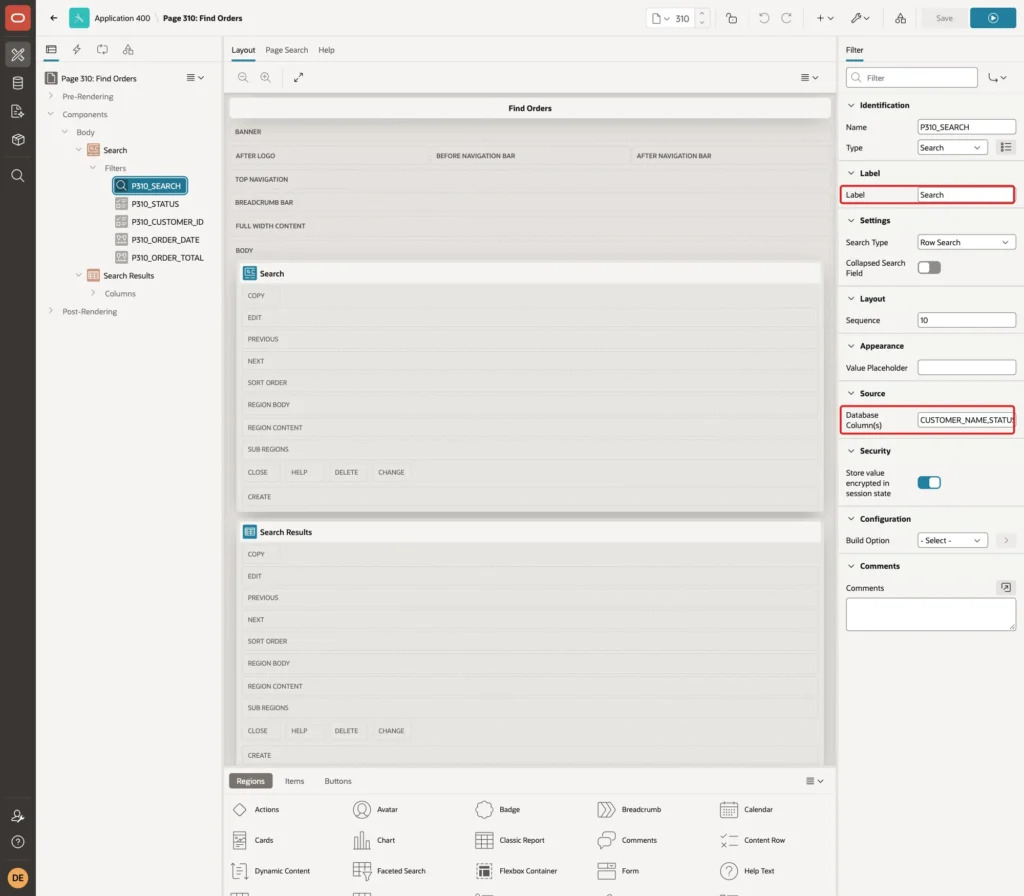
Select P310_SEARCH. Its Type is Search, and Database Column(s) lists the columns that free text is searched in. The wizard filled in CUSTOMER_NAME and STATUS:
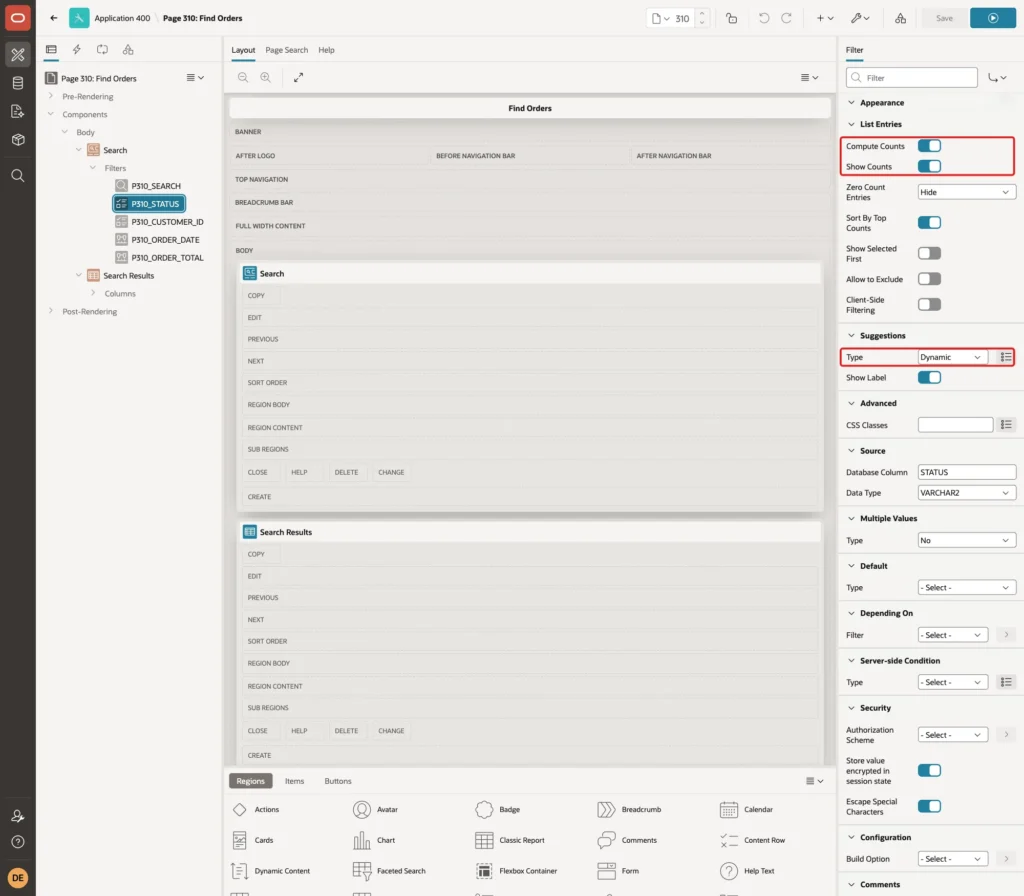
Select P310_STATUS. Compute Counts and Show Counts are on, so every value shows its number of rows. Suggestions Type Dynamic offers the most frequent value as a chip under the search bar:
Step 6: Filter by Customer ID with a Name List
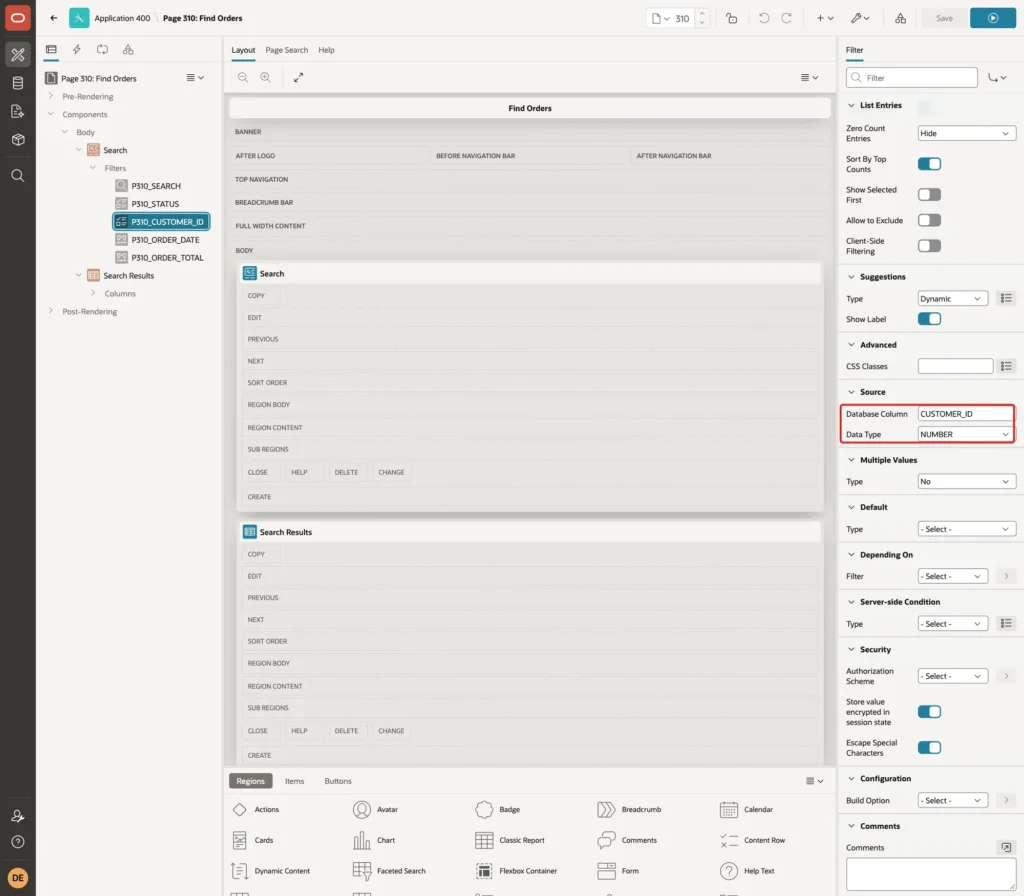
The wizard filter P310_CUSTOMER_NAME filters on the name. Two customers can share a name, so filter on the key instead. Select P310_CUSTOMER_NAME and change Name to P310_CUSTOMER_ID and Label to Customer. Keep Type Checkbox Group.
Set List of Values Type to SQL Query and enter this query:
Example:
select name as d,
       customer_id as r
  from customers
 order by name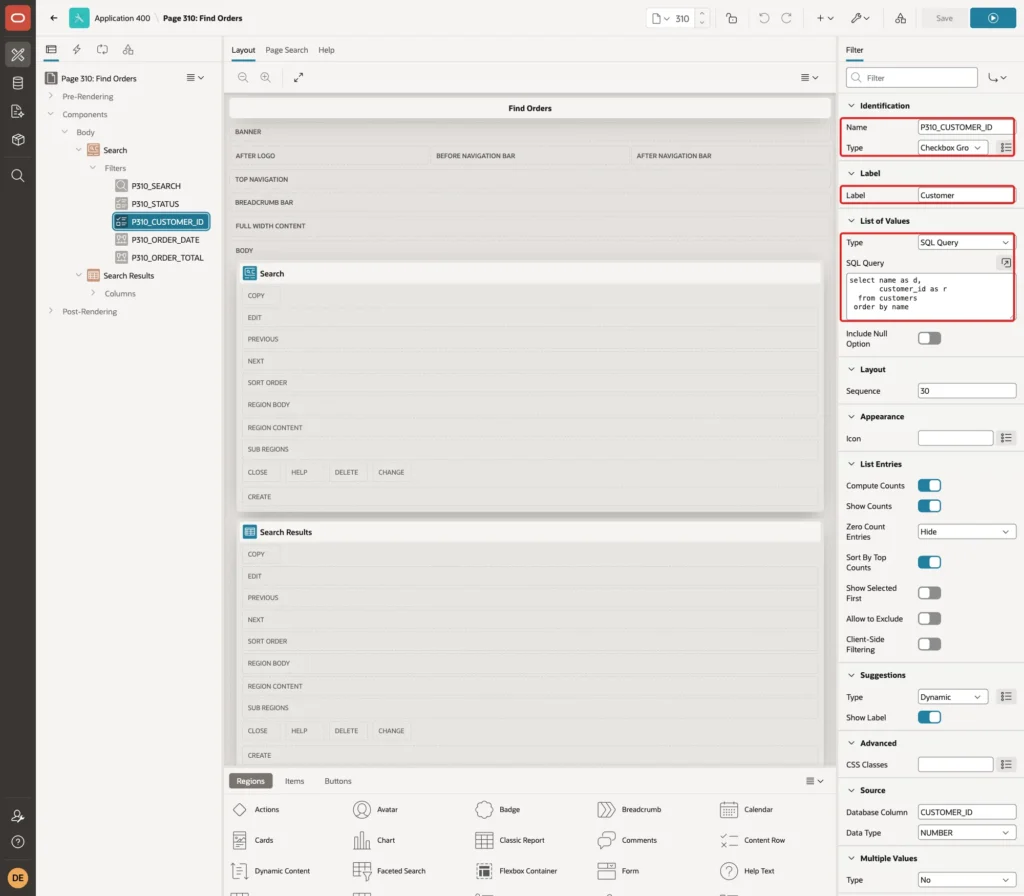
In the Source group, set Database Column to CUSTOMER_ID and Data Type to NUMBER:
Step 7: Add an Order Date Range Filter
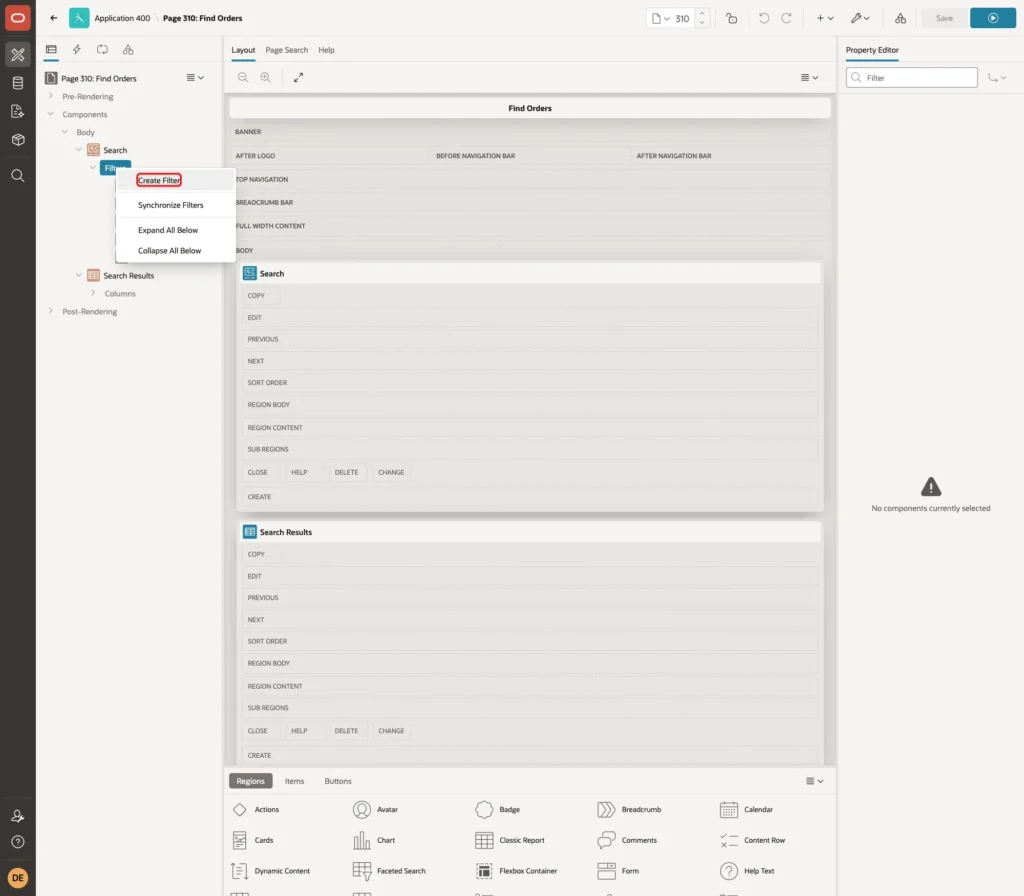
In the Rendering tree, right-click Filters under the Search region and choose Create Filter:
Set Name to P310_ORDER_DATE, Type to Range and Label to Order Date. Turn on Manual Entry, so users can also type their own from and to dates. Set List of Values Type to SQL Query:
Example:
select 'Last 7 days' as d,
       to_char(trunc(sysdate) - 7, 'YYYYMMDDHH24MISS') || '|' as r
  from dual
union all
select 'Last 30 days',
       to_char(trunc(sysdate) - 30, 'YYYYMMDDHH24MISS') || '|'
  from dual
union all
select 'Older than 30 days',
       '|' || to_char(trunc(sysdate) - 30, 'YYYYMMDDHH24MISS')
  from dual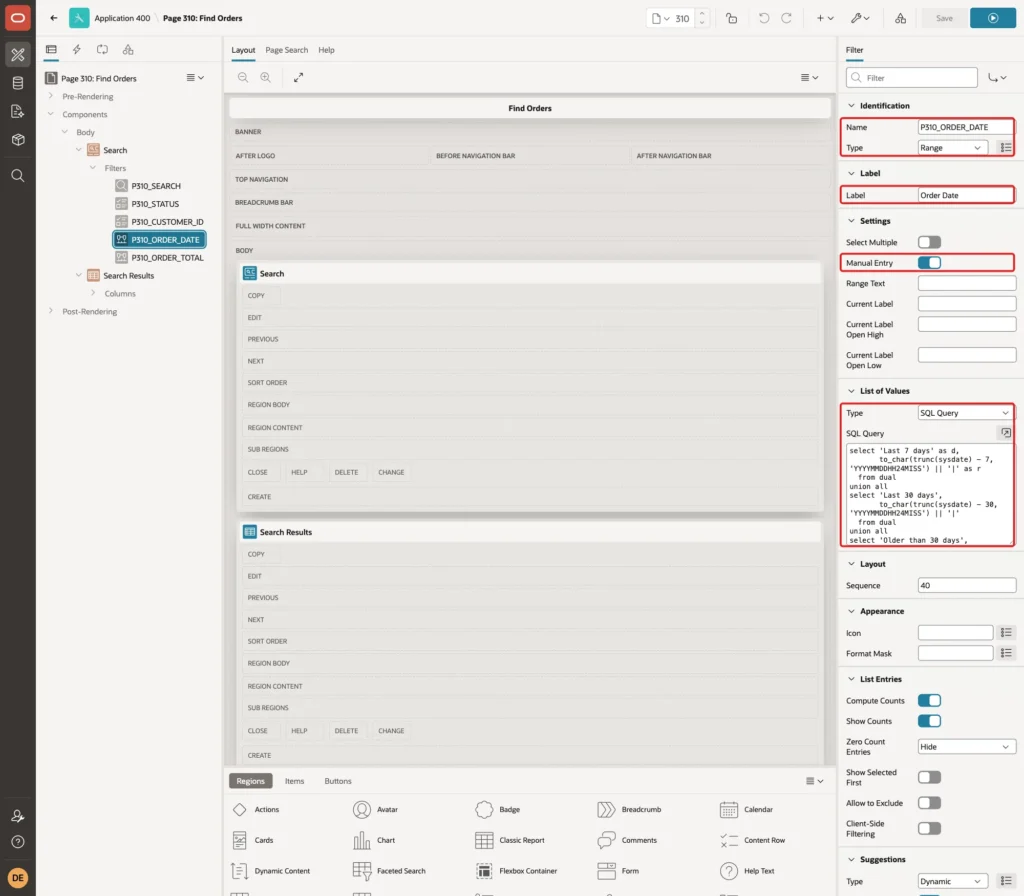
- A range return value is a lower and an upper bound separated by a vertical bar. An empty bound means open-ended.
- For a DATE column, write each bound as YYYYMMDDHH24MISS. A SQL query computes the bounds from SYSDATE, so the ranges move with the calendar. Fixed static dates would go out of date.
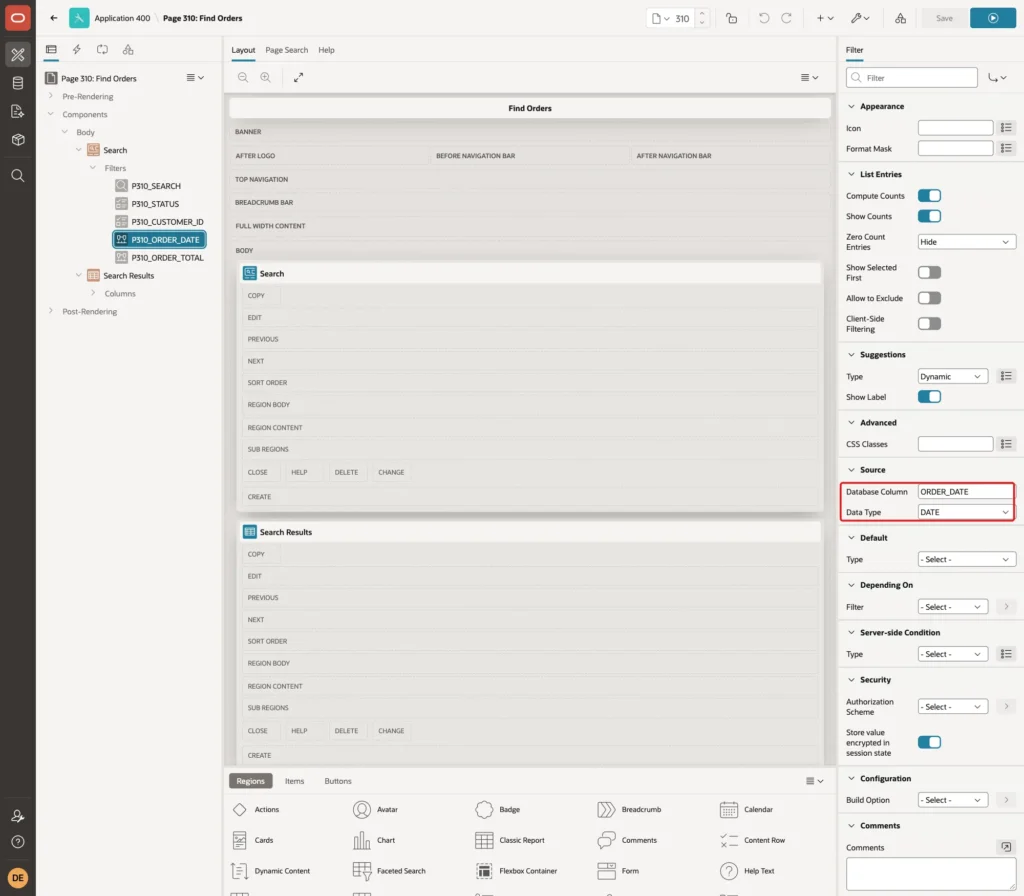
In the Source group, set Database Column to ORDER_DATE and Data Type to DATE:
Step 8: Add an Order Total Range Filter
Create another filter. Set Name to P310_ORDER_TOTAL, Type to Range, Label to Order Total, and turn on Manual Entry. Set List of Values Type to Static Values with these entries:
| Display Value | Return Value |
|---|---|
| Under 1000 | |1000 |
| 1000 to 2000 | 1000|2000 |
| 2000 and more | 2000| |
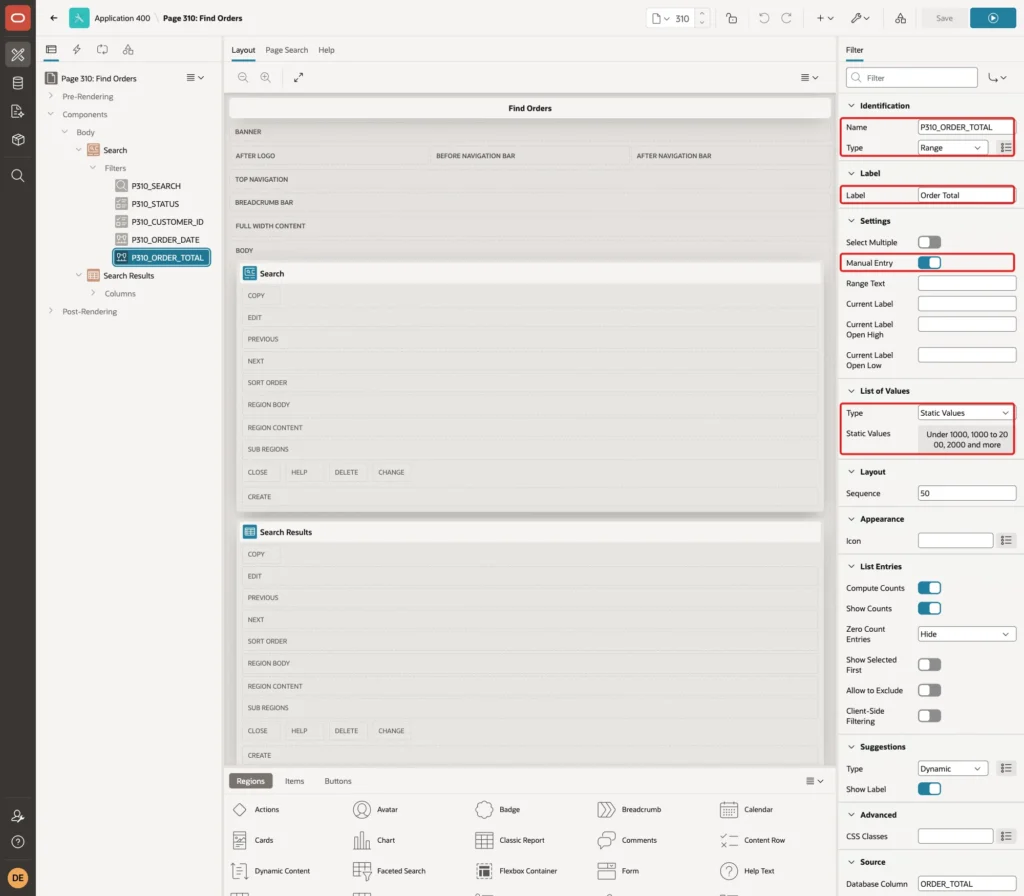
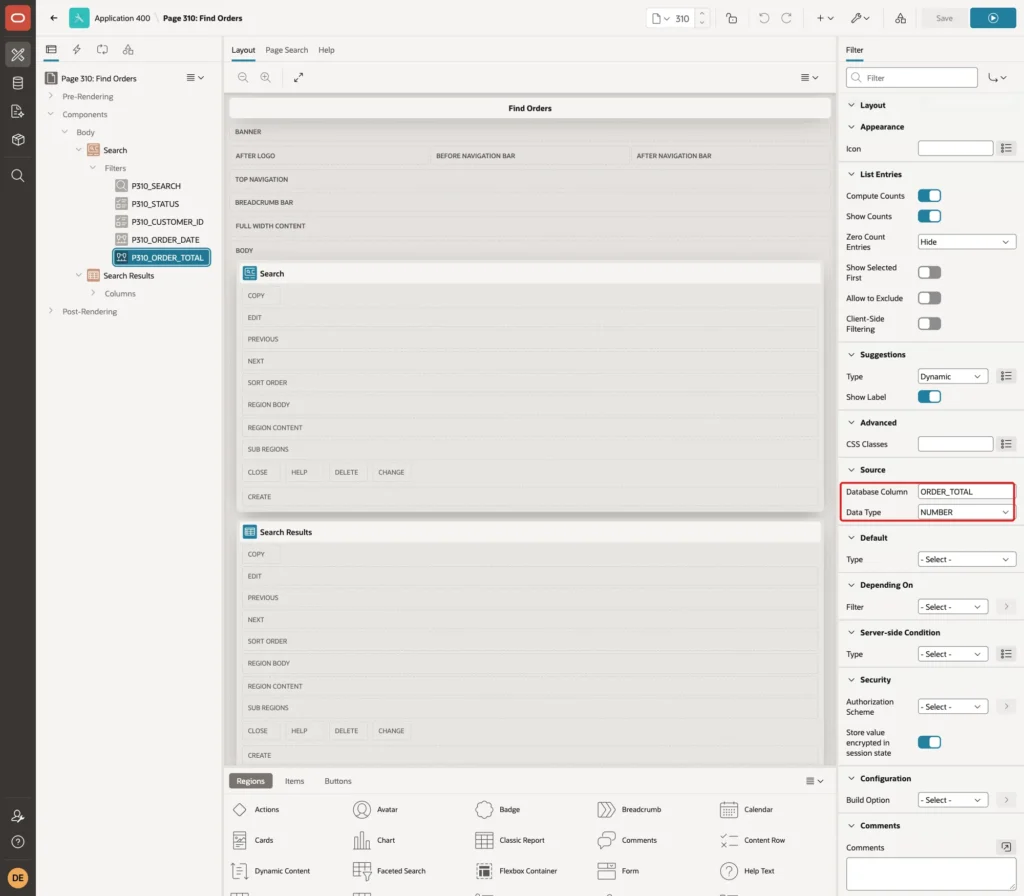
In the Source group, set Database Column to ORDER_TOTAL and Data Type to NUMBER:
Step 9: Clean Up the Report
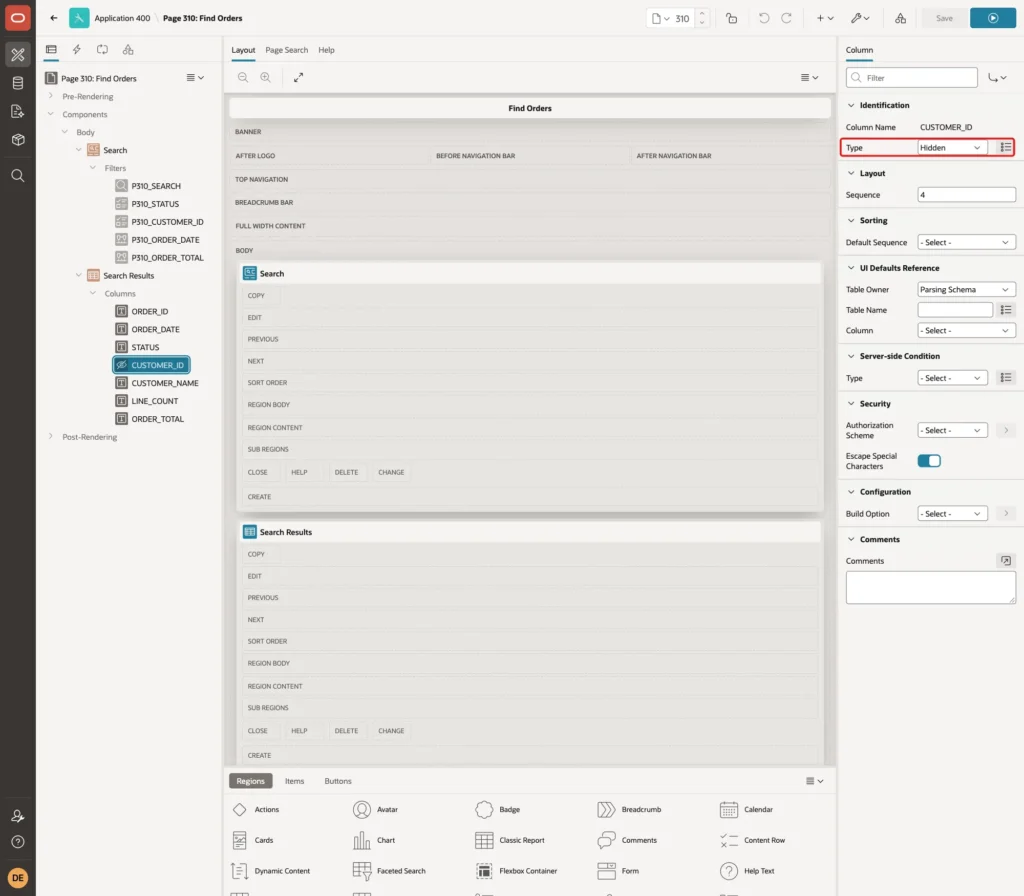
Expand Columns under Search Results. Select CUSTOMER_ID and set Type to Hidden. The column stays in the query for the customer filter but does not show:
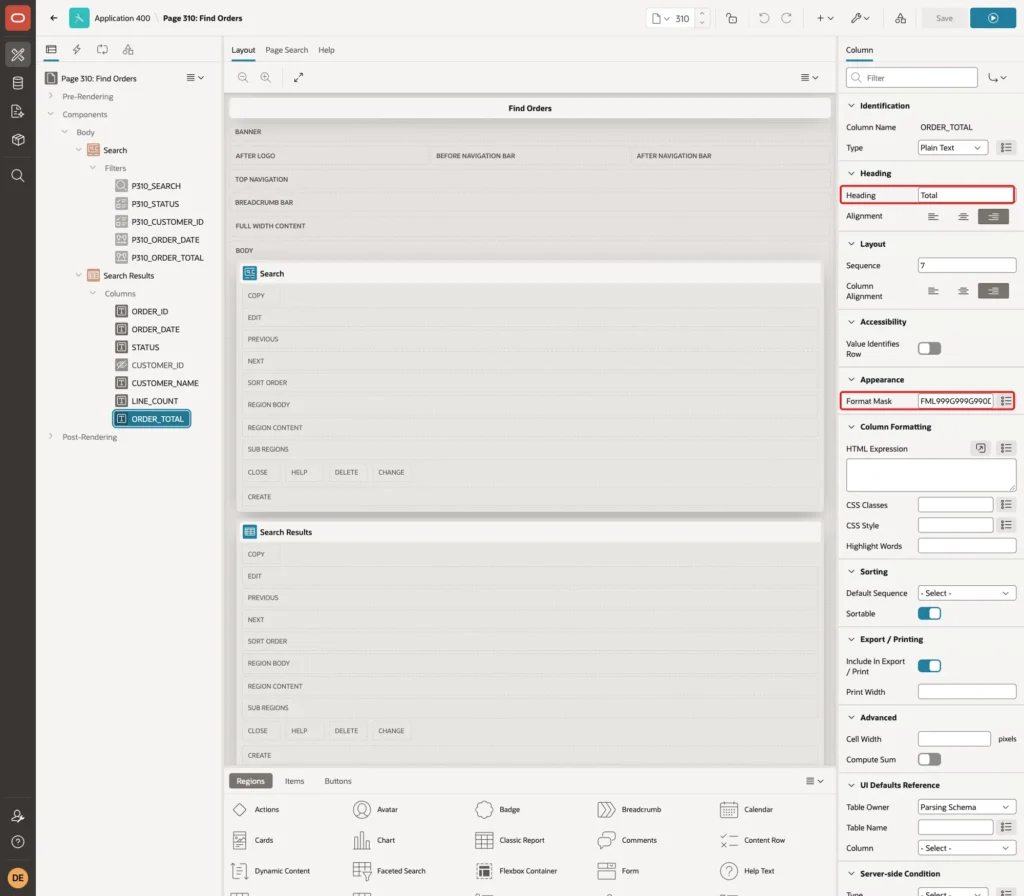
Select ORDER_TOTAL. Set Heading to Total and Format Mask to FML999G999G990D00:
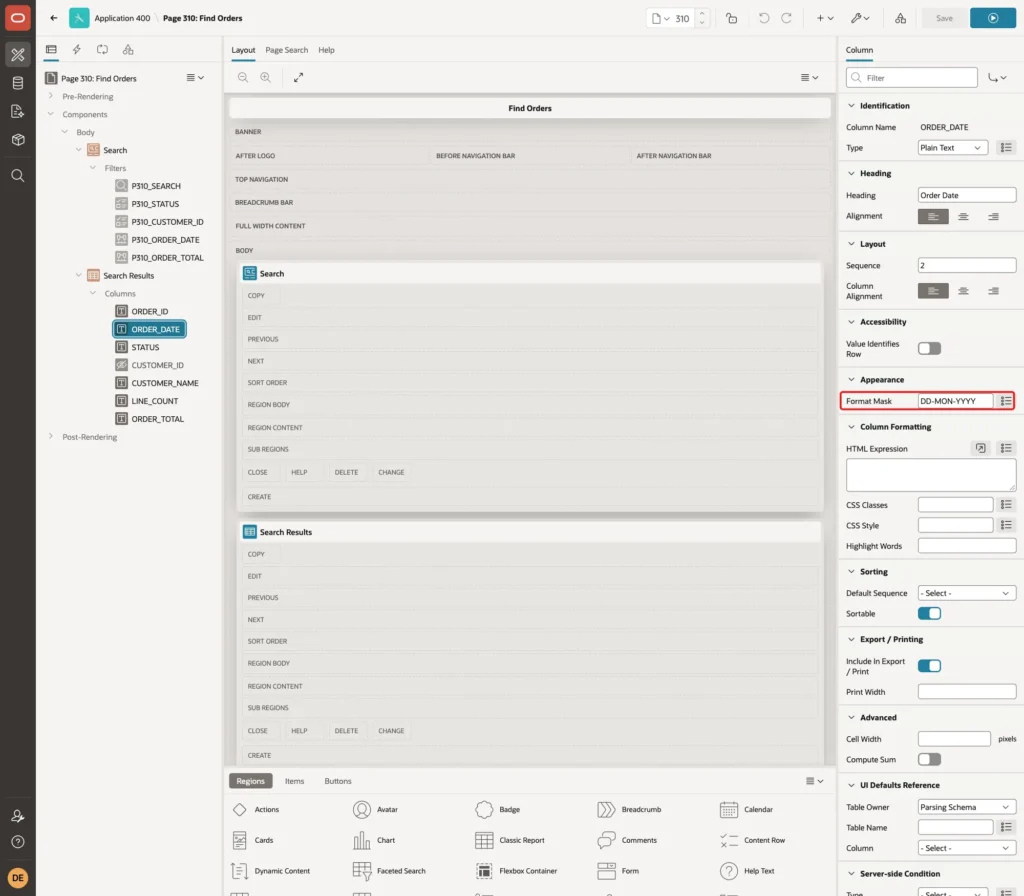
Select ORDER_DATE and set Format Mask to DD-MON-YYYY. Change the other headings the same way: Order, Customer and Lines.
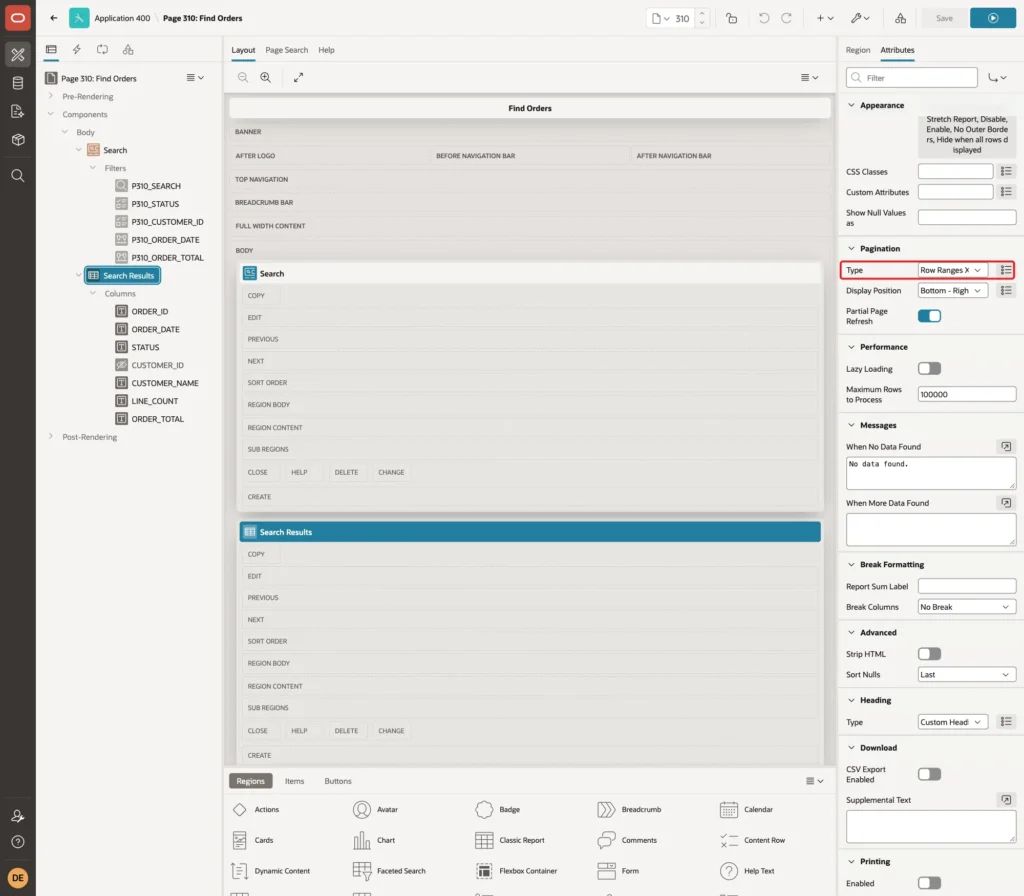
Select the Search Results region and open the Attributes tab. Set Pagination Type to Row Ranges X to Y of Z (with pagination). The total row count shows how many rows the filters leave. Save the page.
Step 10: Test the Filters
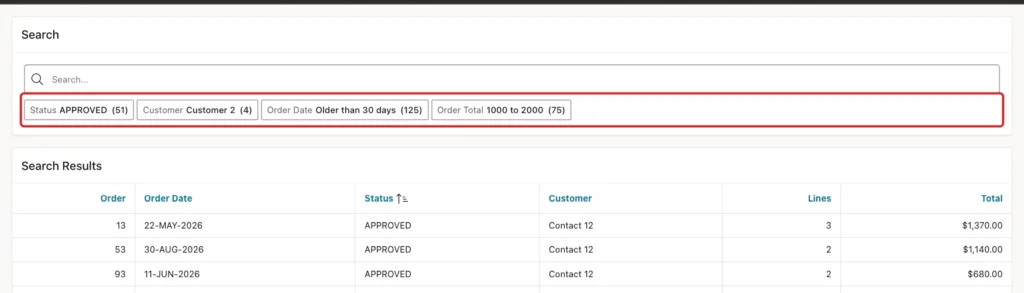
Run the page. The suggestion chips under the search bar offer the most frequent value of each filter with its count:
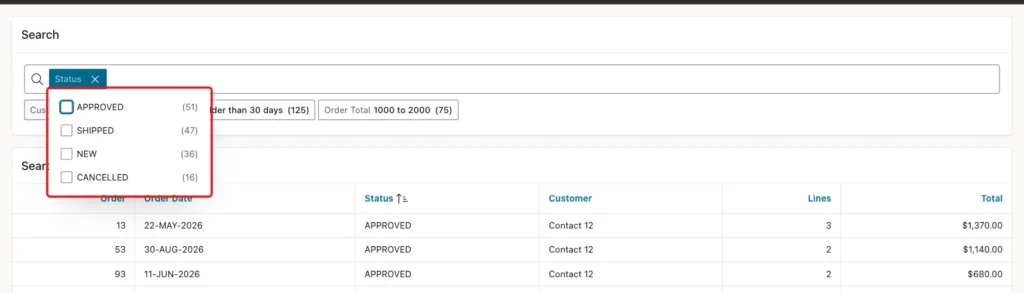
Click the Status label of a chip. A list with every status and its count opens:
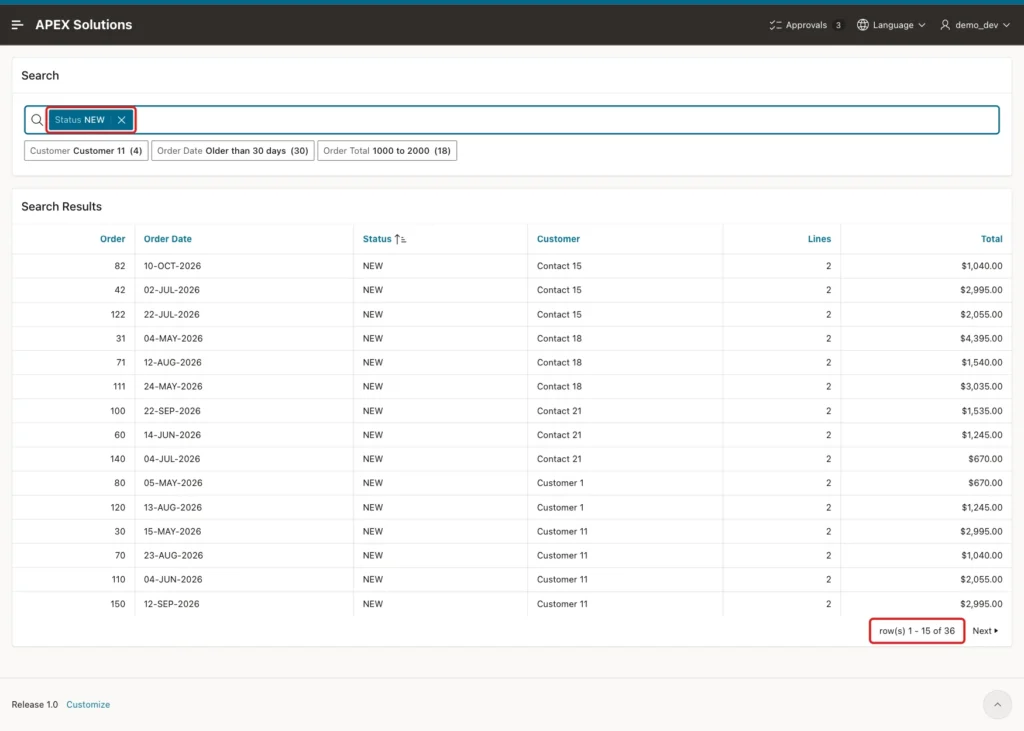
Select NEW and press Escape. The filter becomes a chip in the search bar, the report shows 36 rows, and the other suggestion counts change to match:
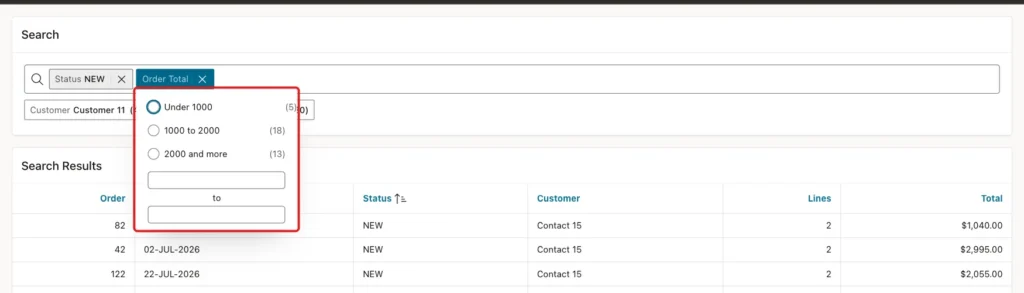
Open Order Total. The three bands show their counts within the NEW orders, and the manual entry fields sit below them:
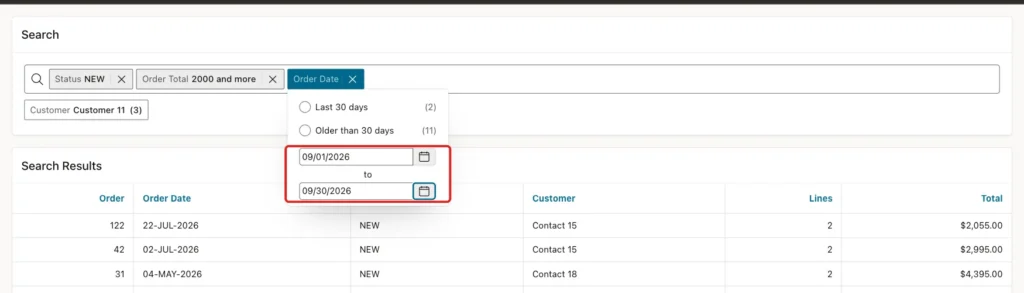
Select 2000 and more. Then open Order Date and type 09/01/2026 and 09/30/2026 in the from and to fields. The fields use the application date format. Press Enter:
Three chips are now active and the report shows two orders:
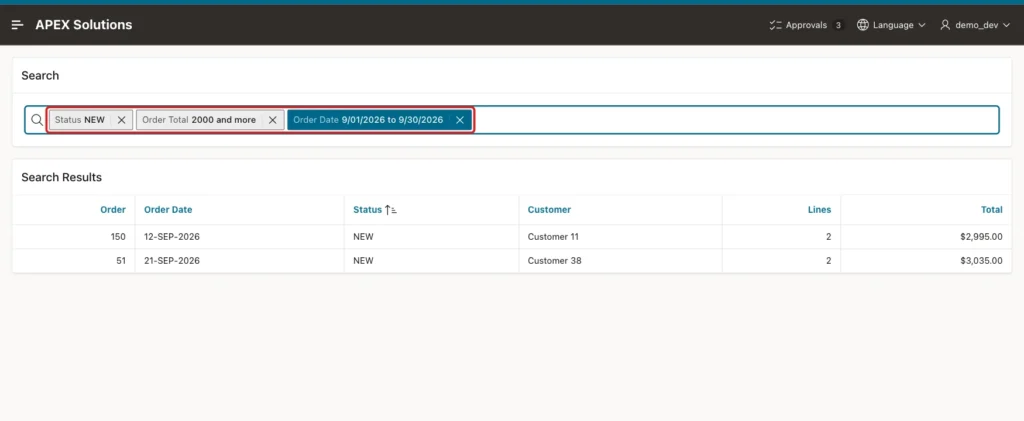
The same conditions in SQL return the same counts and the same two orders:
Example:
select count(*) as new_orders
  from order_search_v
 where status = 'NEW';

select count(*) as new_2000_plus
  from order_search_v
 where status = 'NEW'
   and order_total >= 2000;

select order_id, to_char(order_date, 'DD-MON-YYYY') as order_date,
       customer_name, order_total
  from order_search_v
 where status = 'NEW'
   and order_total >= 2000
   and order_date >= date '2026-09-01'
   and order_date <  date '2026-10-01'
 order by order_id desc;
Output:
   NEW_ORDERS
_____________
           36

   NEW_2000_PLUS
________________
              13

   ORDER_ID ORDER_DATE     CUSTOMER_NAME       ORDER_TOTAL
___________ ______________ ________________ ______________
        150 12-SEP-2026    Customer 11                2995
         51 21-SEP-2026    Customer 38                3035
After a page reload, the three chips were still there. Filters are page items in session state, so they stay while the session lasts. Each chip has an X that removes only that filter.
Step 11: Search Text vs. Filter Values
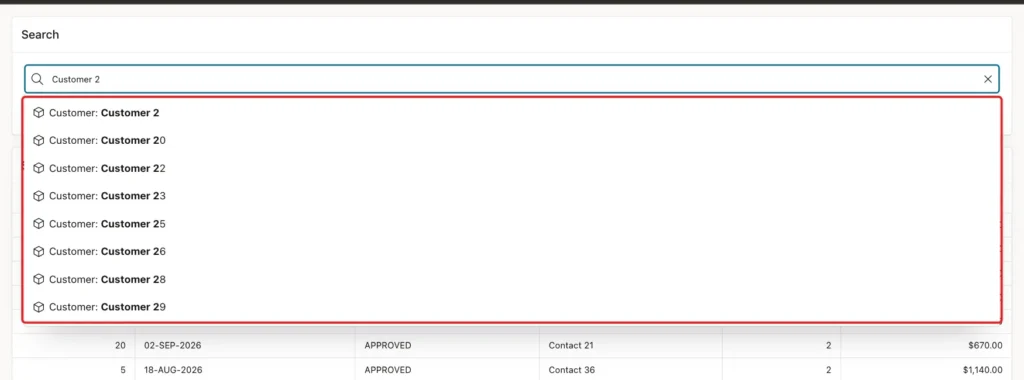
Clear the filters and type Customer 2 in the search bar. While you type, the bar suggests matching filter values:
Press Escape to close the list and then Enter. The text becomes a search chip and the report shows 33 rows:
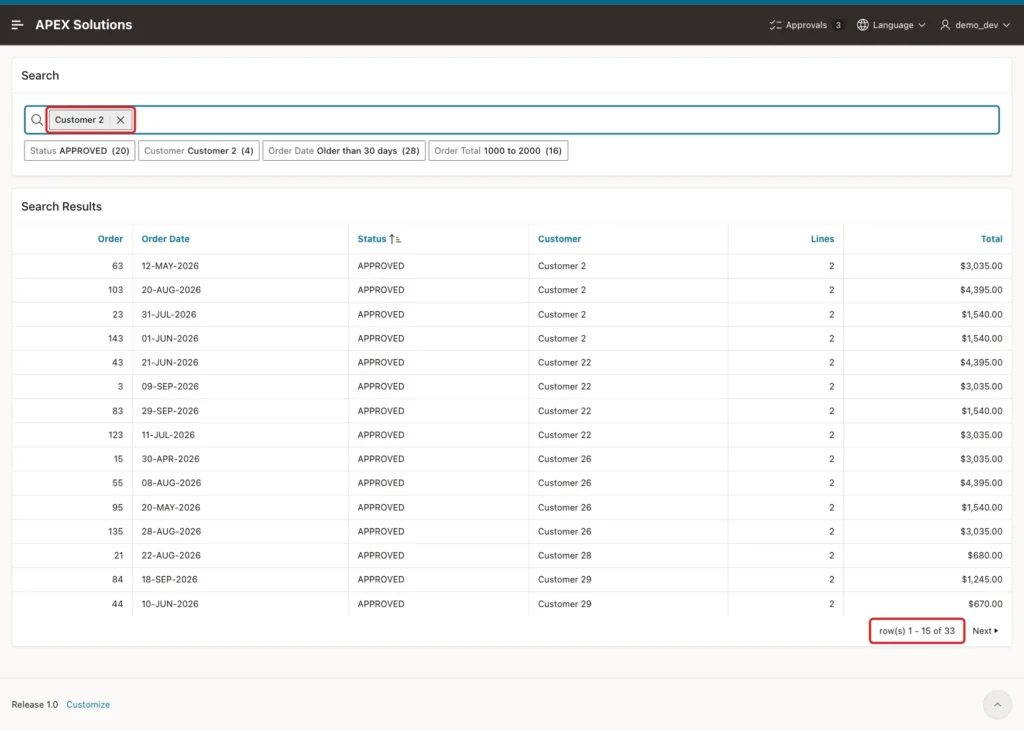
A phrase search would find 30 orders. The search matches each word separately: rows must contain Customer and 2 somewhere in the searched columns, so Customer 32 is included too. The SQL confirms it:
Example:
select count(*) as phrase_match
  from order_search_v
 where upper(customer_name) like '%CUSTOMER 2%';

select count(*) as both_words
  from order_search_v
 where (upper(customer_name) like '%CUSTOMER%' or upper(status) like '%CUSTOMER%')
   and (upper(customer_name) like '%2%'        or upper(status) like '%2%');

select customer_name, count(*) as orders
  from order_search_v
 where upper(customer_name) like '%CUSTOMER%'
   and customer_name like '%2%'
 group by customer_name
 order by customer_name;

select count(*) as customer_2_filter
  from order_search_v o
  join customers c on c.customer_id = o.customer_id
 where c.name = 'Customer 2';
Output:
   PHRASE_MATCH
_______________
             30

   BOTH_WORDS
_____________
           33

CUSTOMER_NAME       ORDERS
________________ _________
Customer 2               4
Customer 20              3
Customer 22              4
Customer 23              4
Customer 25              3
Customer 26              4
Customer 28              4
Customer 29              4
Customer 32              3

9 rows selected.

   CUSTOMER_2_FILTER
____________________
                   4
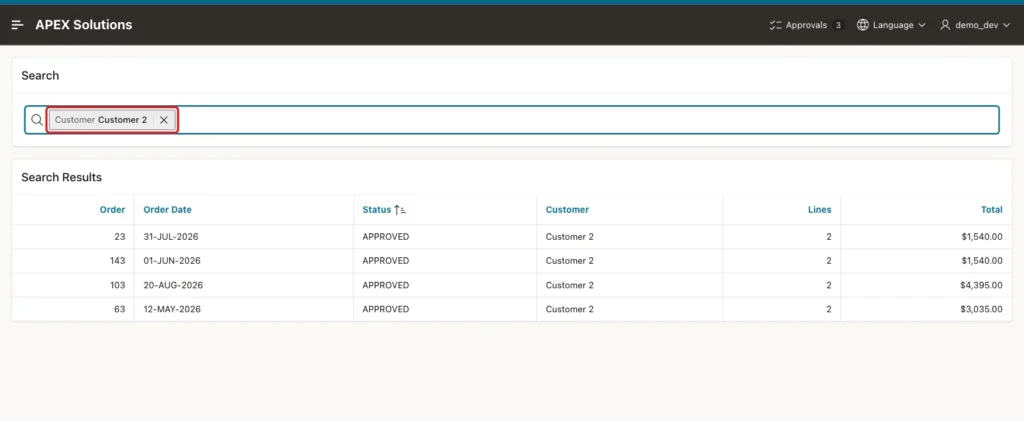
Remove the chip, type Customer 2 again and click the suggestion Customer: Customer 2. Now the Customer filter is applied with the ID, and the report shows exactly the four orders of that customer, as in the last query:
Step 12: Check Overlapping Ranges and a Reversed Range
The Order Date ranges overlap: an order from the last 7 days is also in the last 30 days. The filter list showed Last 7 days 4 and Last 30 days 21. SQL counts 25 orders in the last 30 days:
Example:
select count(case when order_date >= trunc(sysdate) - 7  then 1 end) as last_7_days,
       count(case when order_date >= trunc(sysdate) - 30 then 1 end) as last_30_days,
       count(case when order_date <  trunc(sysdate) - 30 then 1 end) as older
  from order_search_v;
Output:
   LAST_7_DAYS    LAST_30_DAYS    OLDER
______________ _______________ ________
             4              25      125
Selecting Last 30 days returned row(s) 1 - 15 of 25, so the filter itself is correct. Only the list count of 21 left out the four orders already counted under Last 7 days. Use ranges that do not overlap when the counts must add up.
As a negative test, a manual Order Total range from 3000 to 1000 was accepted without an error message. The report showed No data found, because no total is at least 3000 and below 1000.
Things to Know
- Every filter column must be in the report source. A view is the simplest way to add joined or computed columns.
- The wizard offers filters only for some columns. Add the others in Page Designer with Create Filter on the Filters node.
- Range return values use lower|upper, and dates use YYYYMMDDHH24MISS. Manual date entry uses the application date format.
- Zero Count Entries Hide removes values with no rows. After the NEW and 2000 and more filters, Last 7 days disappeared from the Order Date list.
- Free text search matches each word on its own in the Database Column(s) of the search filter. Pick a suggested value when you need an exact match.
- Filters are kept in session state. They survive a page reload but not a new session.
Related Guides
- Faceted Search, Smart Filters, and Search in Oracle APEX
- How to Search Across Several Tables from One Search Page in Oracle APEX
Conclusion
To add Smart Filters to a report in Oracle APEX, create a Smart Filters page on a view that holds every column to filter. Then add filters in Page Designer: a checkbox filter with a name list that returns IDs, and range filters with manual entry for dates and amounts.
Test each combination against SQL. The tests here showed that filters combine with AND, that free text matches words separately, and that overlapping ranges show bucketed counts in the list while the filter itself returns every matching row.
