
Sometimes a person without an account needs to see one record: a proposal, a plan or a status page. A secure link solves this. The link carries a long random token, shows one record, stops working after a set time and can be revoked at any moment.
This guide builds the whole feature in Oracle APEX: a table of tokens, a small package that creates and revokes them, a public page that opens a record from a token, and an administrator page that creates and revokes links. It uses a table of documents as the example, and the same steps work for any table.
The guide How to Protect Oracle APEX Pages from URL Tampering explains checksums, which protect links inside a signed-in session. This guide is different: the link is opened by someone who is not signed in, so a checksum cannot be used and the token itself is the protection.
Step 1: Create the Tables
SHARE_DOCS holds the records that can be shared. INTERNAL_NOTE is data that must never be visible through a shared link. SHARE_TOKENS holds one row per link: the token, the record, the expiry time, a revoke time and a view counter.
Example:
create table share_docs (
  doc_id      integer generated by default on null as identity,
  title       varchar2(120 char) not null,
  owner_name  varchar2(80 char) not null,
  summary     varchar2(500 char) not null,
  internal_note varchar2(200 char),
  created_on  date default on null sysdate not null,
  constraint share_docs_pk primary key (doc_id),
  constraint share_docs_title_uk unique (title)
);

create table share_tokens (
  token_id    integer generated by default on null as identity,
  doc_id      integer not null,
  token       varchar2(64 char) not null,
  created_by  varchar2(80 char) default on null coalesce(sys_context('APEX$SESSION','APP_USER'), user) not null,
  created_on  date default on null sysdate not null,
  expires_on  date not null,
  revoked_on  date,
  view_count  integer default on null 0 not null,
  last_viewed_on date,
  constraint share_tokens_pk primary key (token_id),
  constraint share_tokens_token_uk unique (token),
  constraint share_tokens_doc_fk foreign key (doc_id) references share_docs (doc_id) on delete cascade,
  constraint share_tokens_exp_ck check (expires_on > created_on),
  constraint share_tokens_views_ck check (view_count >= 0)
);

create index share_tokens_doc_ix on share_tokens (doc_id);

insert into share_docs (title, owner_name, summary, internal_note) values ('Spring Price Proposal', 'Maria Lopez', 'Proposed price list for the spring season: 4 percent increase on hardware, no change on services.', 'Discount floor is 12 percent');
insert into share_docs (title, owner_name, summary, internal_note) values ('Warehouse Move Plan', 'Chen Wei', 'The warehouse moves to the new site on 14 March. Stock counts are frozen on 10 March.', 'Contractor quote not final');
insert into share_docs (title, owner_name, summary, internal_note) values ('Support Hours Update', 'Priya Nair', 'Phone support will run from 8:00 to 18:00 on weekdays from next month.', null);
commit;

select doc_id, title, owner_name from share_docs order by doc_id;
Output:
Table SHARE_DOCS created.

Table SHARE_TOKENS created.

Index SHARE_TOKENS_DOC_IX created.

1 row inserted.

1 row inserted.

1 row inserted.

Commit complete.

   DOC_ID TITLE                    OWNER_NAME
_________ ________________________ ______________
        1 Spring Price Proposal    Maria Lopez
        2 Warehouse Move Plan      Chen Wei
        3 Support Hours Update     Priya Nair
A few details in the tables:
- The unique constraint on TOKEN makes sure that two links never share a token, and it gives the public page an index to find the row quickly.
- The foreign key has ON DELETE CASCADE, so deleting a record removes its links.
- The check constraint EXPIRES_ON > CREATED_ON rejects a link that is already expired when it is created.
- CREATED_BY, CREATED_ON and VIEW_COUNT use DEFAULT ON NULL, so no trigger is needed.
Step 2: Grant Access to DBMS_CRYPTO
A link token must be impossible to guess. Do not build it from a sequence, a date or DBMS_RANDOM. DBMS_CRYPTO.RANDOMBYTES returns bytes from a cryptographic generator, and 32 bytes give a 64 character token with 256 bits of randomness.
The schema needs the EXECUTE privilege on the package. In a first test, the package call failed with PLS-00201 because the privilege was missing. A DBA grants it once, as SYS in the pluggable database:
Example:
grant execute on sys.dbms_crypto to apxsol;
Output:
Grant succeeded.
Step 3: Create the Package
All rules live in one package, so the pages stay thin. The view SHARE_ACTIVE_TOKENS is the single definition of a usable link: not revoked and not expired. The public page reads from this view.
The package has three programs. CREATE_LINK makes a token and checks the hours. OPEN_LINK counts a view, and only for a usable link. REVOKE_LINK sets the revoke time.
Example:
create or replace view share_active_tokens as
select t.token_id, t.token, t.doc_id, t.expires_on
from   share_tokens t
where  t.revoked_on is null
and    t.expires_on > sysdate;

create or replace package share_link as
  function create_link (p_doc_id in integer, p_hours in number) return varchar2;
  procedure open_link  (p_token in varchar2);
  procedure revoke_link (p_token_id in integer);
end share_link;
/

create or replace package body share_link as
  function create_link (p_doc_id in integer, p_hours in number) return varchar2 is
    l_token share_tokens.token%type;
  begin
    if p_hours is null or p_hours <= 0 or p_hours > 720 then
      raise_application_error(-20001, 'Hours must be between 1 and 720.');
    end if;
    l_token := lower(rawtohex(dbms_crypto.randombytes(32)));
    insert into share_tokens (doc_id, token, expires_on)
    values (p_doc_id, l_token, sysdate + p_hours / 24);
    return l_token;
  end create_link;

  procedure open_link (p_token in varchar2) is
  begin
    update share_tokens
    set    view_count = view_count + 1,
           last_viewed_on = sysdate
    where  token = p_token
    and    revoked_on is null
    and    expires_on > sysdate;
  end open_link;

  procedure revoke_link (p_token_id in integer) is
  begin
    update share_tokens
    set    revoked_on = sysdate
    where  token_id = p_token_id
    and    revoked_on is null;
  end revoke_link;
end share_link;
/

show errors
Output:
View SHARE_ACTIVE_TOKENS created.

Package SHARE_LINK compiled

Package Body SHARE_LINK compiled

No errors.
A trigger is not used here. A random token cannot be declared as a column default in a safe way, so a function is the right tool. Everything else uses constraints and defaults.
Step 4: Test the Package in SQL
Test the rules before building any page. The script below creates a link, opens it twice, tries a changed token, lets it expire, revokes it and tries zero hours. It ends with a rollback, so no test row stays.
Example:
variable t varchar2(64)

exec :t := share_link.create_link(1, 24)

select length(:t) as token_length from dual;

select round((expires_on - created_on) * 24) as valid_hours, view_count, revoked_on
from   share_tokens
where  token = :t;

exec share_link.open_link(:t)
exec share_link.open_link(:t)

select view_count from share_tokens where token = :t;

select d.title
from   share_docs d
join   share_active_tokens a on a.doc_id = d.doc_id
where  a.token = :t;

select d.title
from   share_docs d
join   share_active_tokens a on a.doc_id = d.doc_id
where  a.token = substr(:t, 1, 63) || 'x';

update share_tokens
set    created_on = sysdate - 2/24,
       expires_on = sysdate - 1/24
where  token = :t;

select d.title
from   share_docs d
join   share_active_tokens a on a.doc_id = d.doc_id
where  a.token = :t;

exec share_link.open_link(:t)

select view_count from share_tokens where token = :t;

update share_tokens
set    created_on = sysdate - 2/24,
       expires_on = sysdate + 1
where  token = :t;

declare
  l_id share_tokens.token_id%type;
begin
  select token_id into l_id from share_tokens where token = :t;
  share_link.revoke_link(l_id);
end;
/

select revoked_on is not null as revoked
from   share_tokens
where  token = :t;

select d.title
from   share_docs d
join   share_active_tokens a on a.doc_id = d.doc_id
where  a.token = :t;

declare
  l_token varchar2(64);
begin
  l_token := share_link.create_link(1, 0);
end;
/

rollback;
Output:
PL/SQL procedure successfully completed.

   TOKEN_LENGTH
_______________
             64

   VALID_HOURS    VIEW_COUNT REVOKED_ON
______________ _____________ _____________
            24             0

PL/SQL procedure successfully completed.

PL/SQL procedure successfully completed.

   VIEW_COUNT
_____________
            2

TITLE
________________________
Spring Price Proposal

no rows selected

1 row updated.

no rows selected

PL/SQL procedure successfully completed.

   VIEW_COUNT
_____________
            2

1 row updated.

PL/SQL procedure successfully completed.

REVOKED
__________
true

no rows selected
declare
*
ERROR at line 1:
ORA-20001: Hours must be between 1 and 720.
ORA-06512: at "APXSOL.SHARE_LINK", line 6
ORA-06512: at line 4
Help: https://docs.oracle.com/error-help/db/ora-20001/

Rollback complete.
The results match the rules:
- The token has 64 characters and the link is valid for 24 hours.
- Two opens give a view count of 2.
- A token with one changed character finds nothing.
- An expired link finds nothing and the view count stays at 2.
- A revoked link finds nothing, and zero hours is rejected with ORA-20001.
Step 5: Create the Public Page
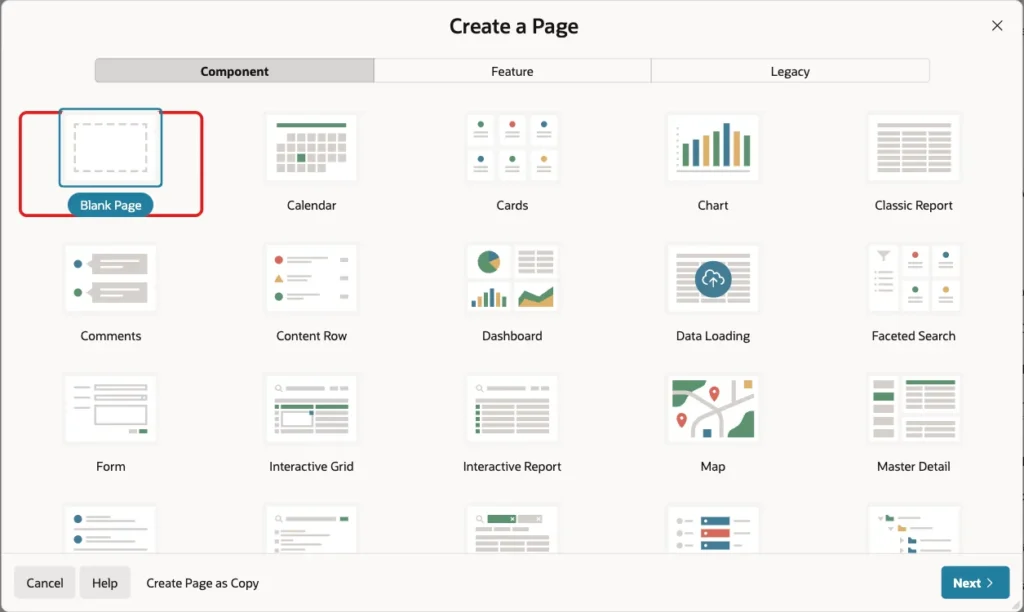
In App Builder, click Create Page. Select Blank Page and click Next:
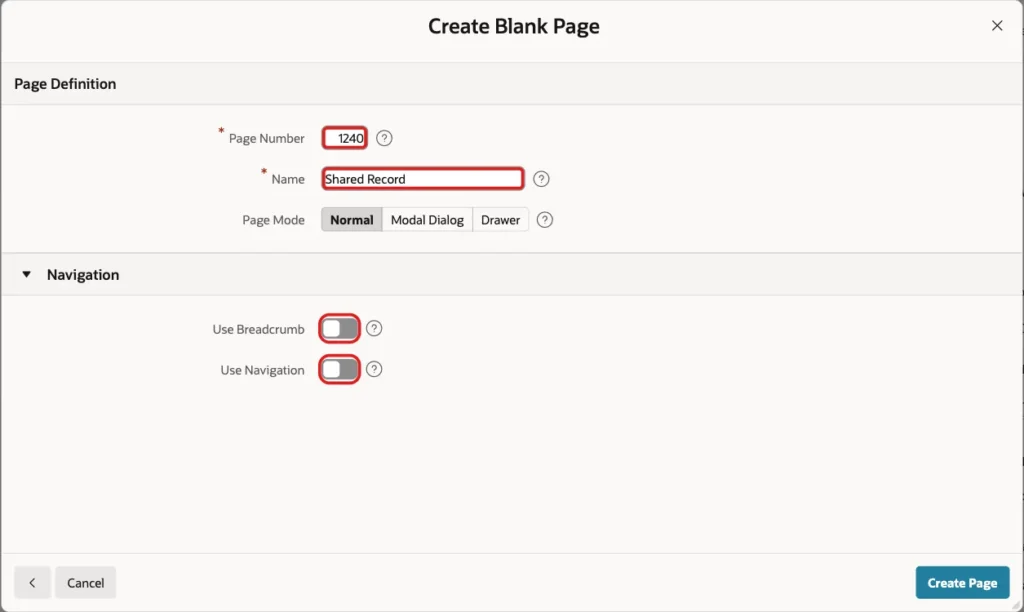
Enter Page Number 1240 and Name Shared Record. Turn off Use Breadcrumb and Use Navigation, because visitors reach this page only through a link. Click Create Page:
Step 6: Add the Report
In Page Designer, create a region in the Body slot. Set the Title to Shared Record and the Type to Classic Report. Under Source, set Location to Local Database and Type to SQL Query:
Example:
select d.title,
       d.owner_name,
       d.summary,
       to_char(a.expires_on, 'YYYY-MM-DD HH24:MI') as link_expires
from   share_docs d
join   share_active_tokens a on a.doc_id = d.doc_id
where  a.token = :P1240_T
The query lists only the safe columns. INTERNAL_NOTE is not selected, so it is never sent to the browser. If the token is not valid, the query returns no row.

Open the region Messages and set When No Data Found to This link is not valid or has expired. One message for every failure does not tell an attacker whether a token existed, was revoked or was never issued.
Step 7: Add the Token Item
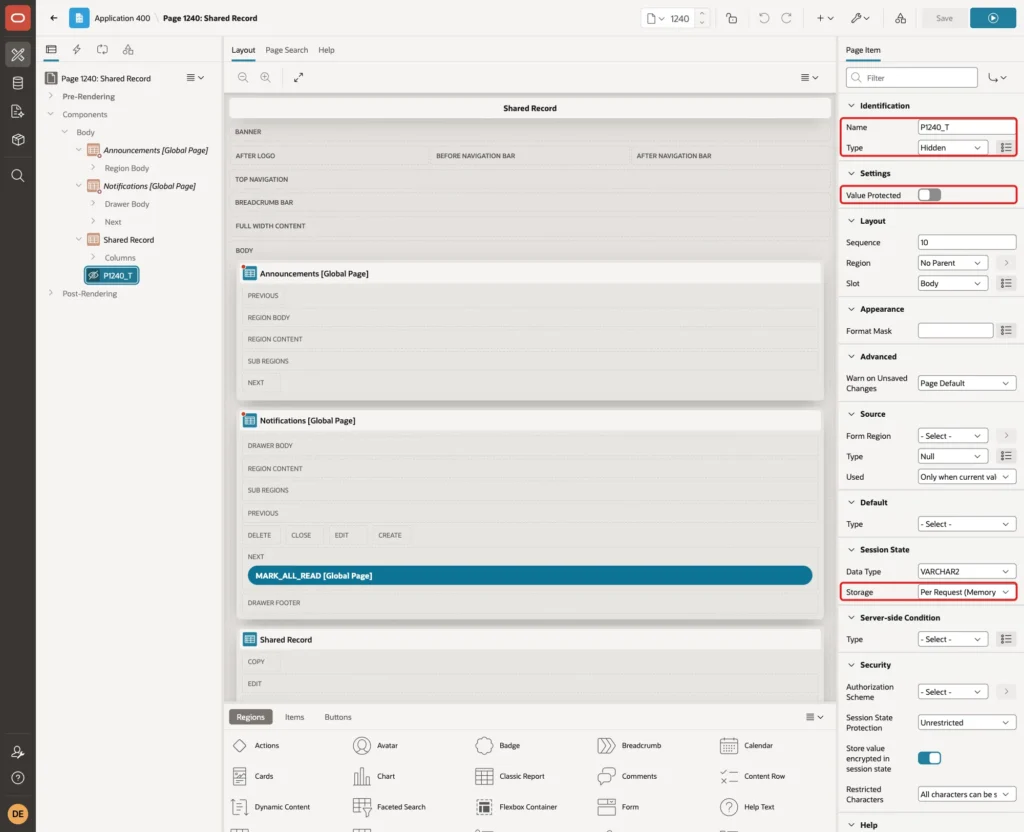
Create a page item named P1240_T. Set Type to Hidden. Turn off Value Protected, because the value comes from the link and has no checksum. Keep Storage at Per Request (Memory Only), so the token is not kept in session state after the request:
Step 8: Count Each View
Create a process under Pre-Rendering, Before Header. Name it Count the view, set Type to Execute Code and enter the call below. Set the Server-side Condition to Item is NOT NULL with Item P1240_T:
Example:
share_link.open_link(:P1240_T);
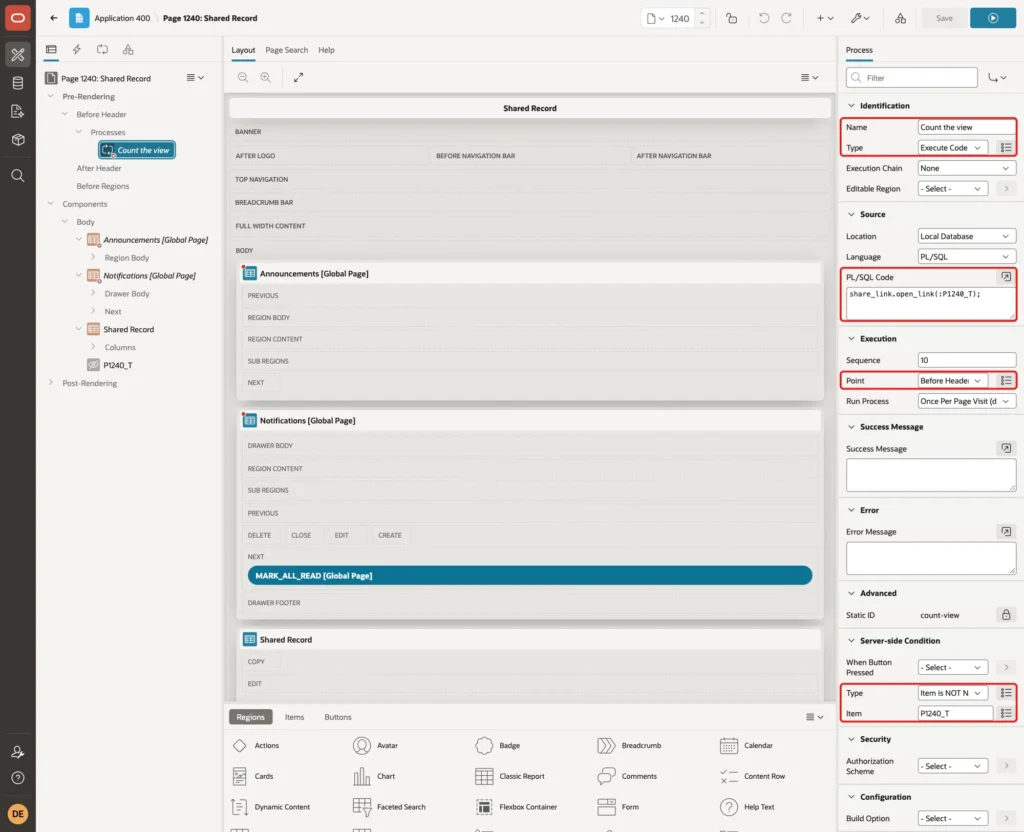
The process counts only usable links, because OPEN_LINK has the same conditions as the view.
Step 9: Make the Page Public
Click the page name at the top of the tree. Under Security, set Authentication to Page Is Public. Leave Page Access Protection at Unrestricted so the address works without a checksum. Click Save:
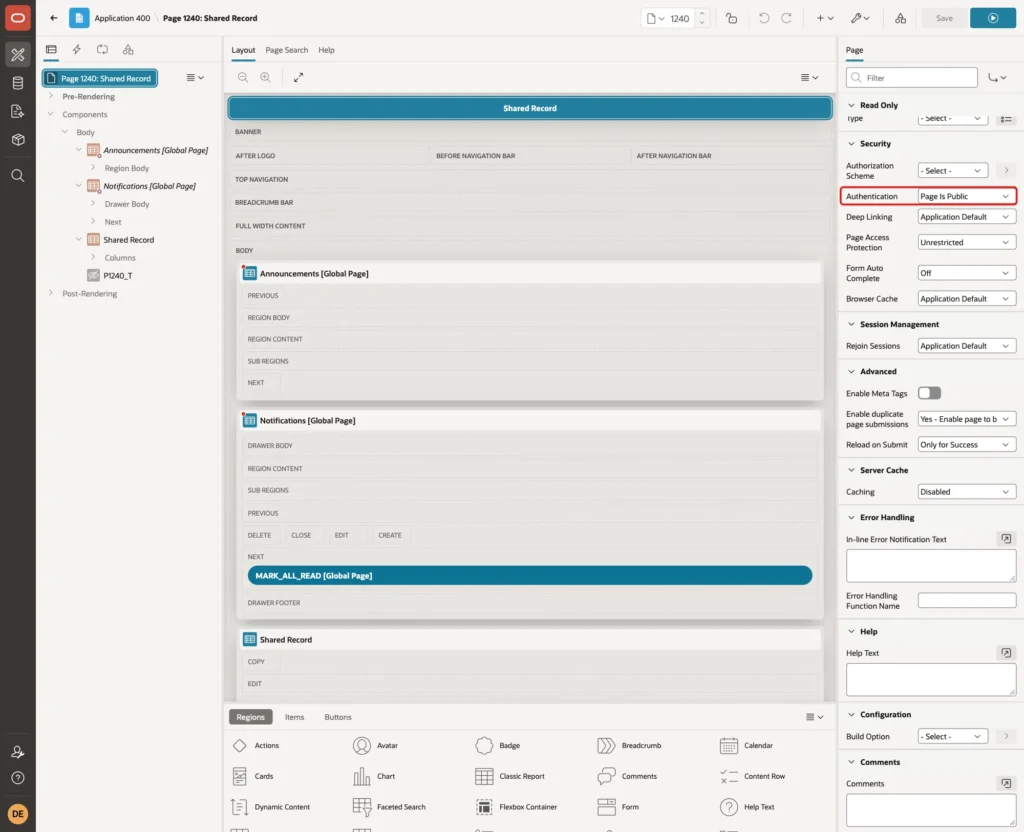
The page alias is SHARED and the item is passed in the address as p1240_t. The guide How to Build a Public Page That Needs No Login in Oracle APEX covers public pages in more detail.
Step 10: Create the Administrator Page
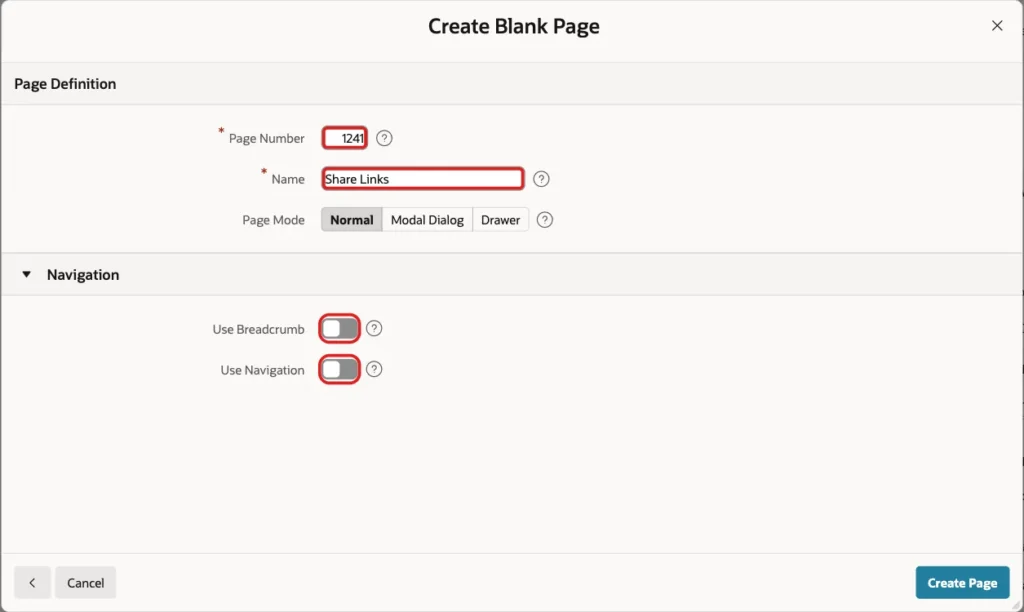
Create a second blank page with Page Number 1241 and Name Share Links. Turn off Use Breadcrumb and Use Navigation:
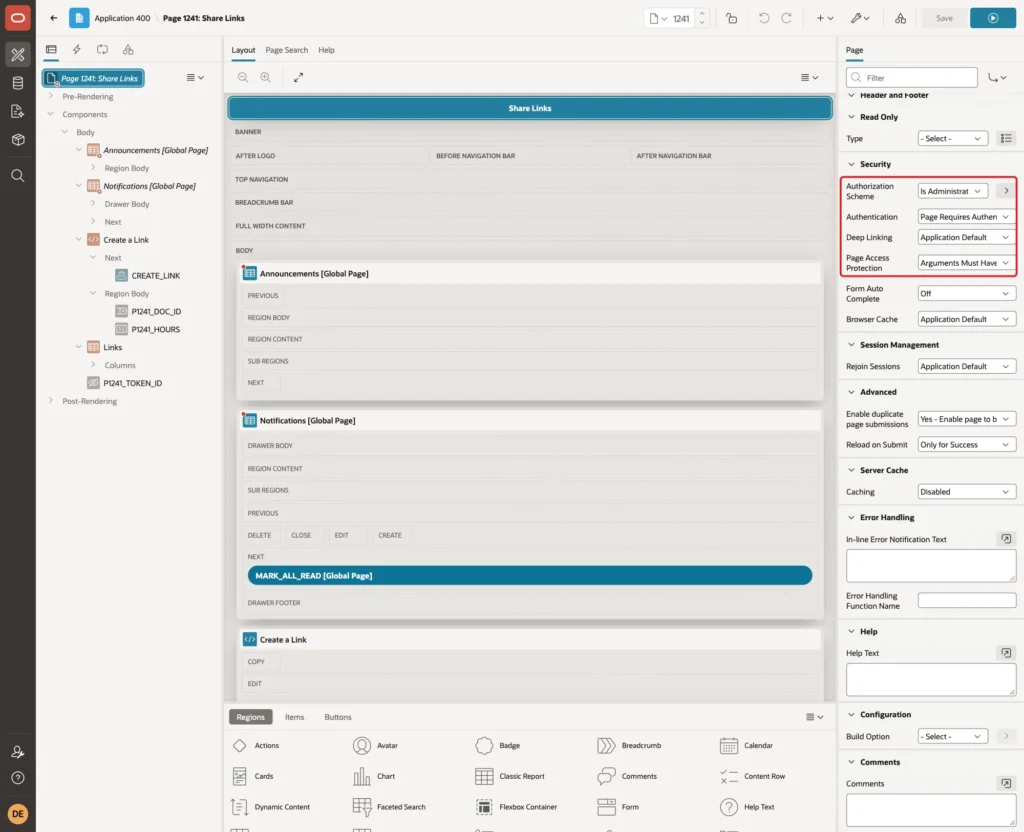
Select the page name. Under Security, set Authorization Scheme to Is Administrator and Page Access Protection to Arguments Must Have Checksum. The page keeps the application default for Authentication, which requires a sign-in:
Step 11: Add the Create Form
Create a Static Content region named Create a Link in the Body slot. Add a button named CREATE_LINK with the label Create Link and the slot Next.
Add a page item P1241_DOC_ID with Type Select List and the label Record. Under List of Values, set Type to SQL Query and enter the query below. Set the Null Display Value to - Select Record -:
Example:
select title as display_value,
       doc_id as return_value
from   share_docs
order  by title
Add a page item P1241_HOURS with Type Number Field, the label Valid for (hours) and a static default value of 24. Do not turn on Value Required on either item. The reason is shown in the tests below.
Step 12: Validate and Create the Link
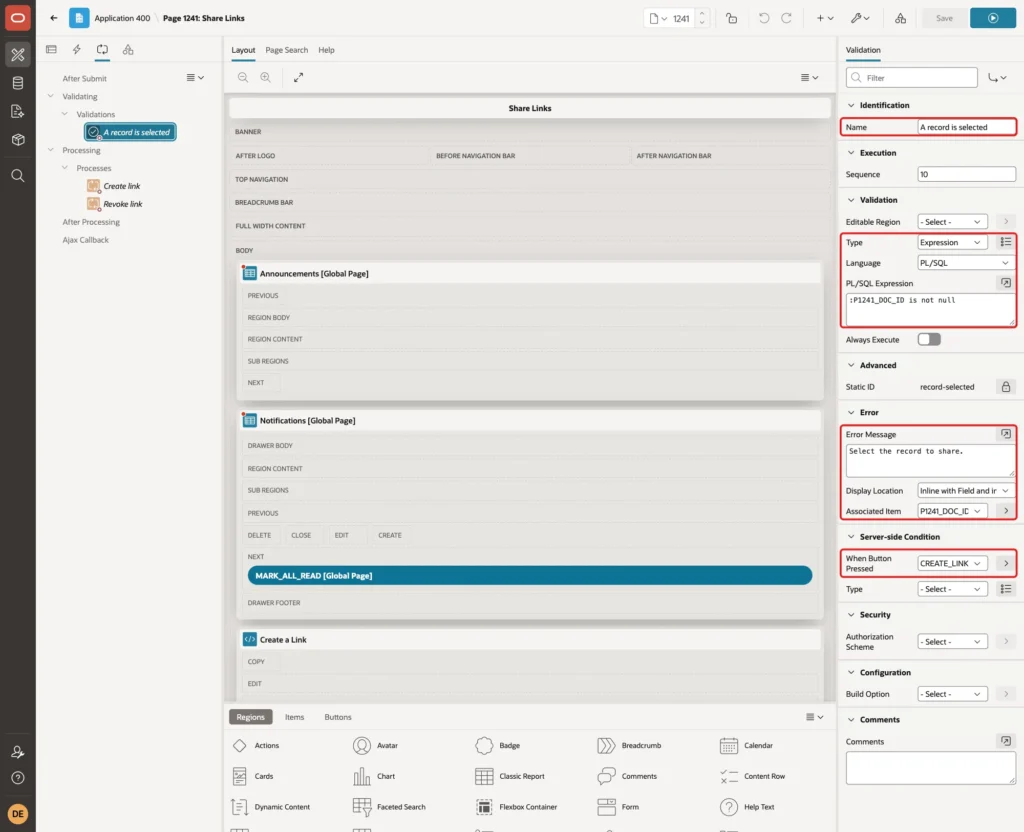
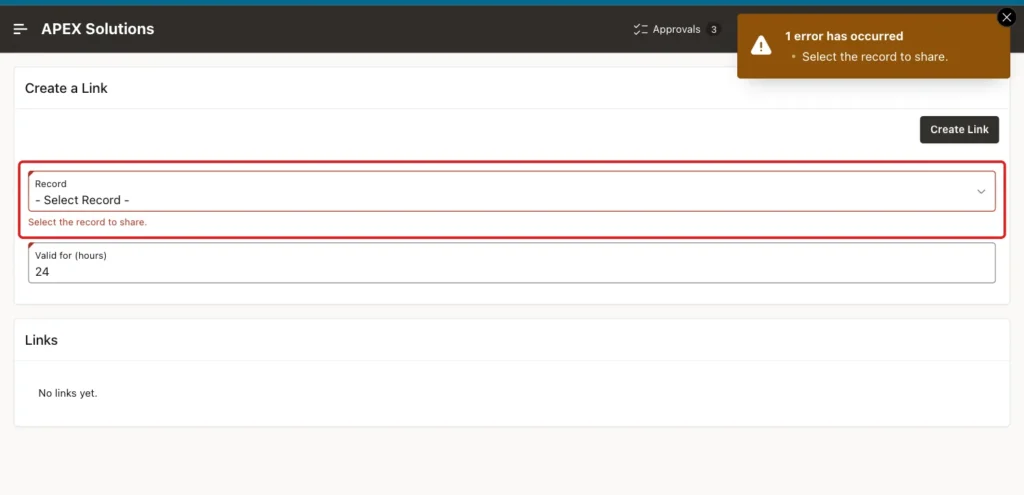
Create a validation named A record is selected. Set Type to Expression, Language to PL/SQL and the expression to :P1241_DOC_ID is not null. Set the Error Message to Select the record to share., the Associated Item to P1241_DOC_ID and When Button Pressed to CREATE_LINK:
Create a process named Create link under Processing. Set Type to Execute Code, When Button Pressed to CREATE_LINK and the Success Message to The link was created.:
Example:
declare
  l_token share_tokens.token%type;
begin
  l_token := share_link.create_link(:P1241_DOC_ID, :P1241_HOURS);
end;
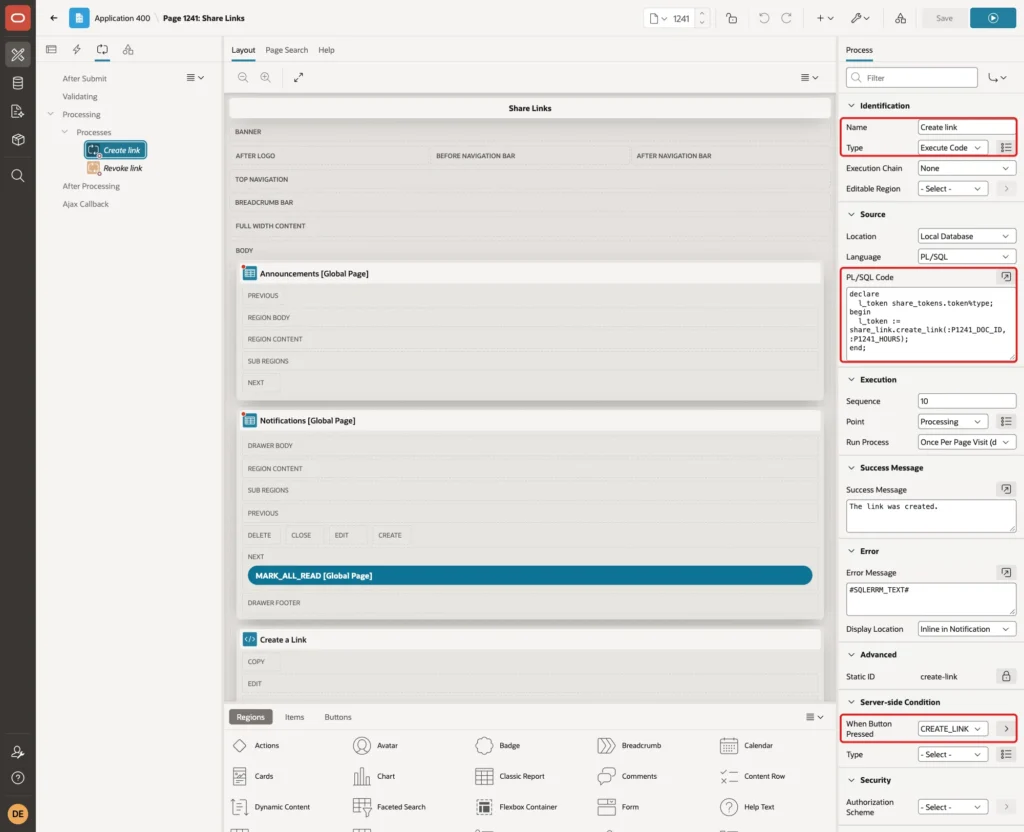
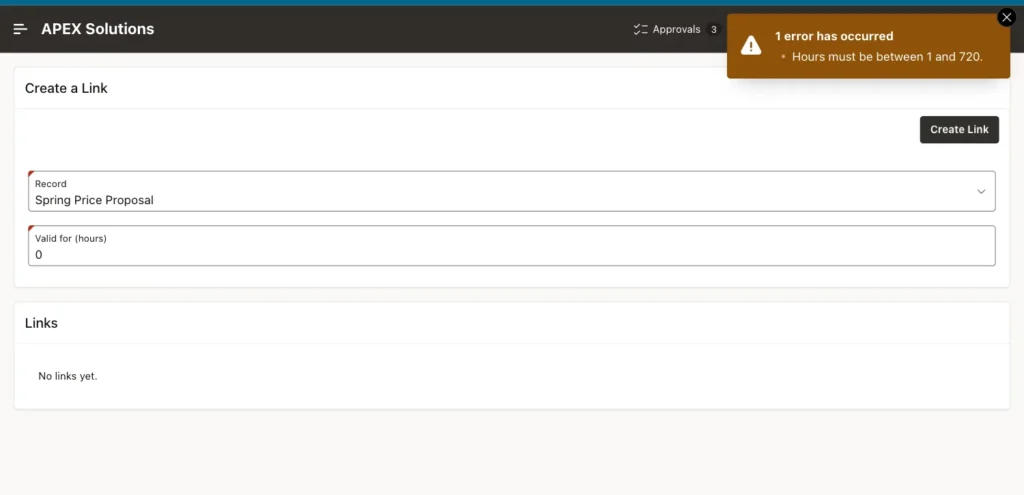
The package checks the hours, so an empty value or zero shows the message of the package in the notification area.
Step 13: List the Links and Revoke Them
Create a Classic Report region named Links in the Body slot with the query below. The status is calculated in the query, and the link address is built by APEX_PAGE.GET_URL with the session set to 0:
Example:
select t.token_id,
       d.title,
       t.created_by,
       to_char(t.expires_on, 'YYYY-MM-DD HH24:MI') as expires_on,
       case
         when t.revoked_on is not null then 'Revoked'
         when t.expires_on <= sysdate then 'Expired'
         else 'Active'
       end as status,
       t.view_count,
       apex_page.get_url(
         p_application => :APP_ID,
         p_page        => 1240,
         p_session     => 0,
         p_items       => 'P1240_T',
         p_values      => t.token) as share_url,
       case when t.revoked_on is null and t.expires_on > sysdate then 'Revoke' end as revoke_action
from   share_tokens t
join   share_docs d on d.doc_id = t.doc_id
order  by t.token_id desc
Set TOKEN_ID to Type Hidden. Set REVOKE_ACTION to Type Link, Link Text to #REVOKE_ACTION# and the Target to a URL with the code below. The link text is empty for a link that is already revoked or expired, so no Revoke link is shown for it.
Example:
javascript:apex.page.confirm('Revoke this link?', {request: 'REVOKE', set: {'P1241_TOKEN_ID': '#TOKEN_ID#'}});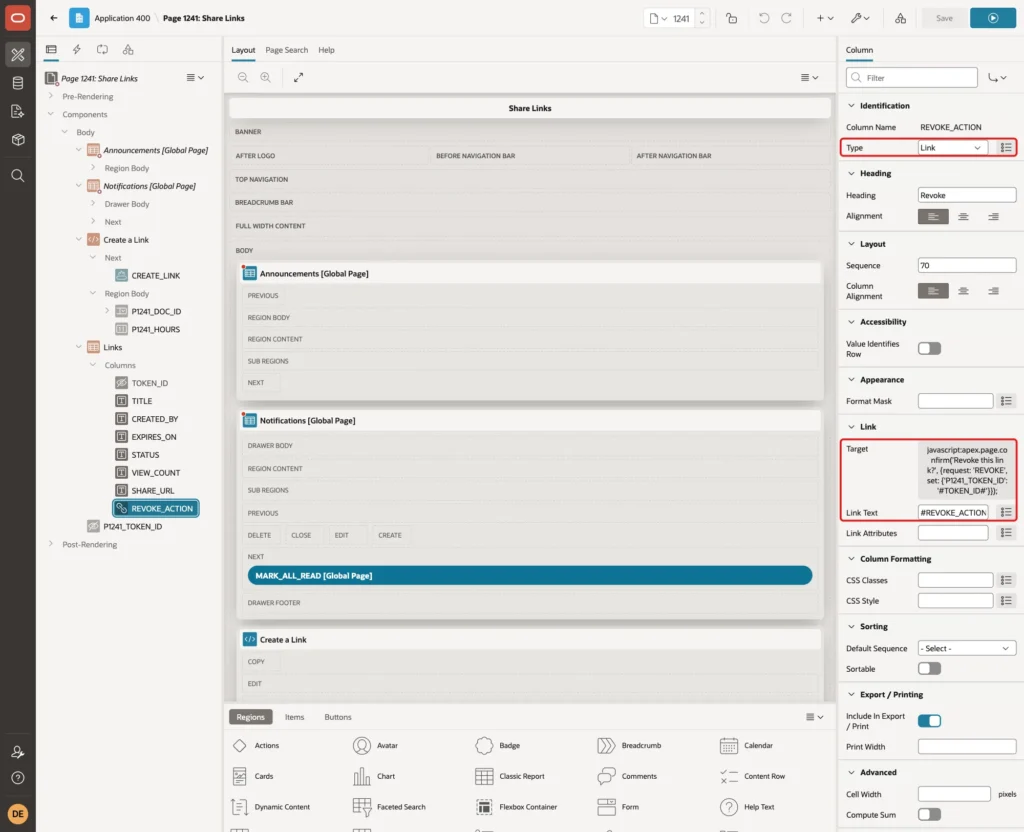
Add a hidden page item P1241_TOKEN_ID with Value Protected turned off and Storage set to Per Request. Then create a process named Revoke link with the code below and the condition Request = Value REVOKE:
Example:
share_link.revoke_link(:P1241_TOKEN_ID);
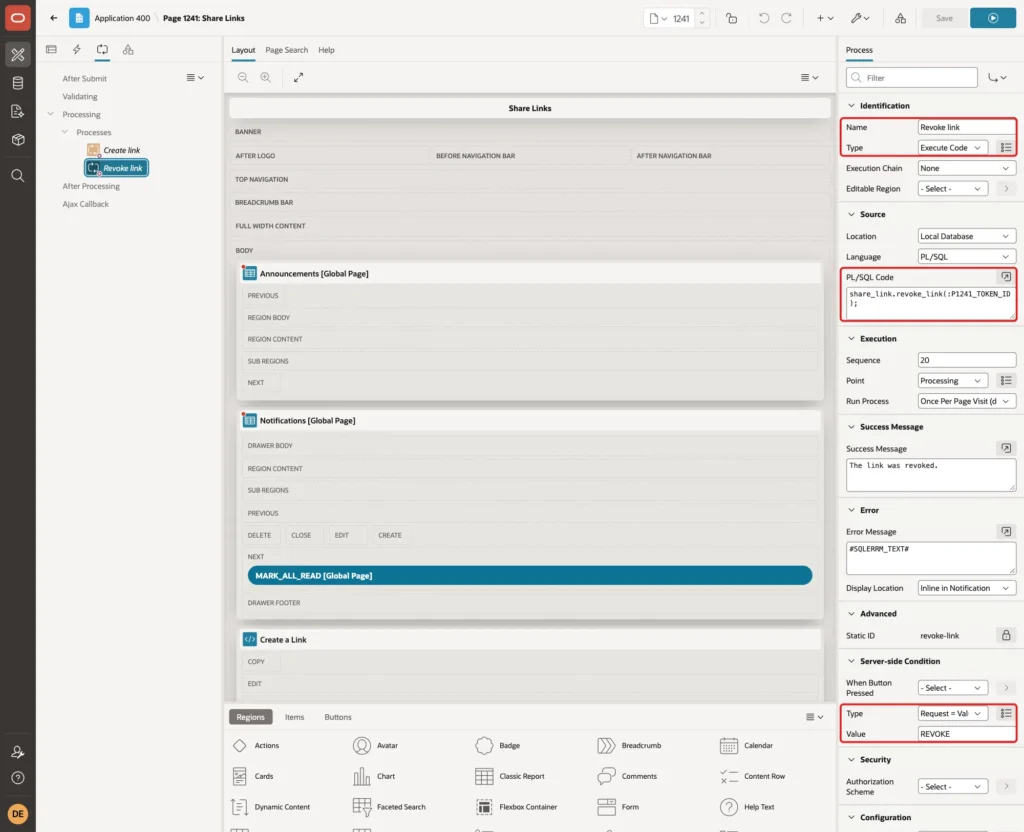
Save the page. The Revoke process only changes rows by TOKEN_ID, and the page itself is limited to administrators.
Step 14: Test the Feature
Sign in as DEMO_DEV, who is an administrator, and open the Share Links page. No link exists yet:
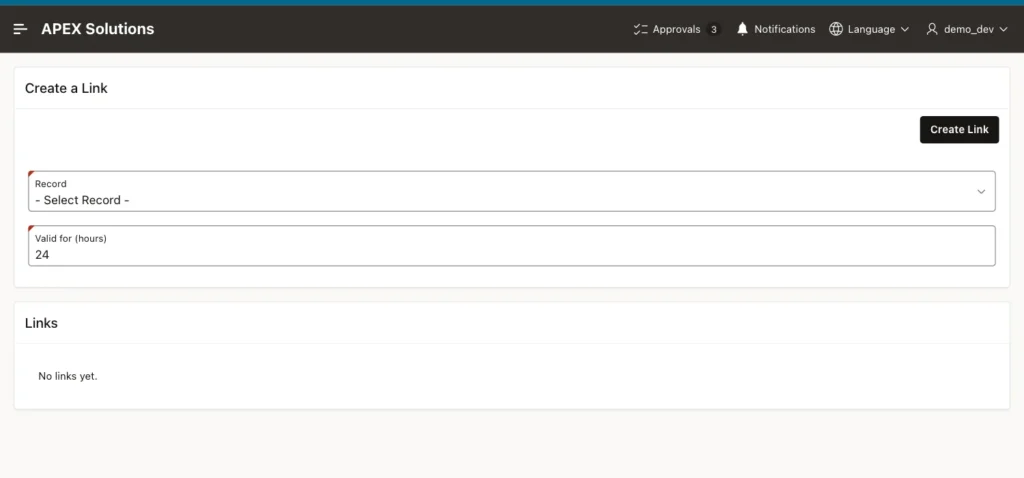
First, a negative test. Click Create Link without a record. The validation stops the request and shows the message next to the item:
Next, select the record Spring Price Proposal, enter 0 hours and click Create Link. The package rejects the value:
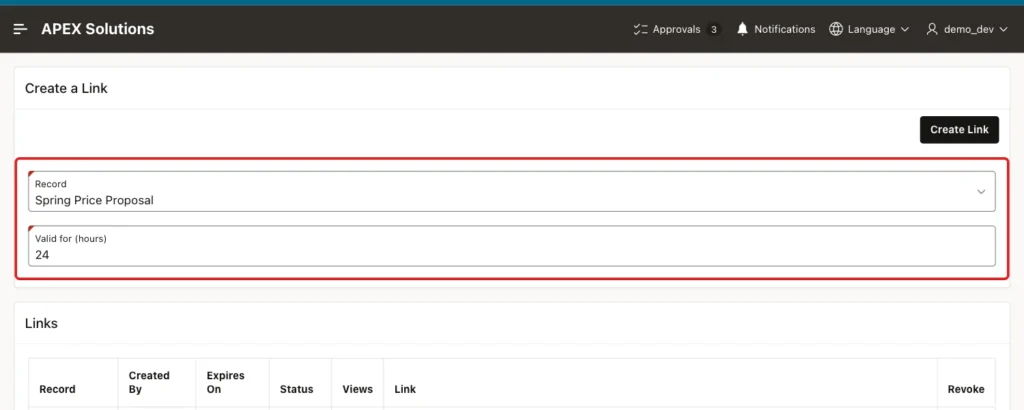
Now select the record Spring Price Proposal and keep 24 hours:
Click Create Link. The report shows the link with the status Active and 0 views. The Link column holds the address with the token:
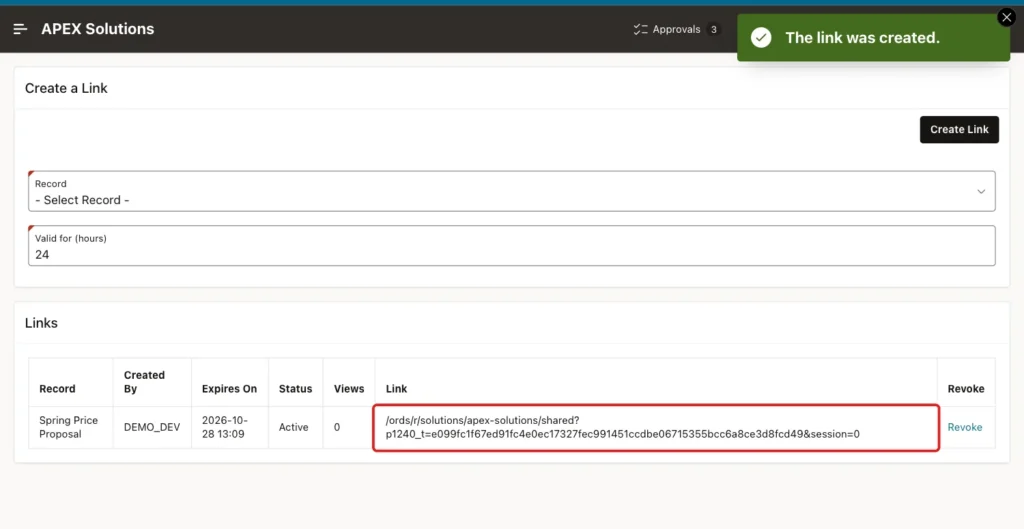
Add the host name to the address and send it to the person. In the test, a new browser with no sign-in opened the address. The page showed the title, owner, summary and expiry time, and the user name nobody. The internal note was not on the page:
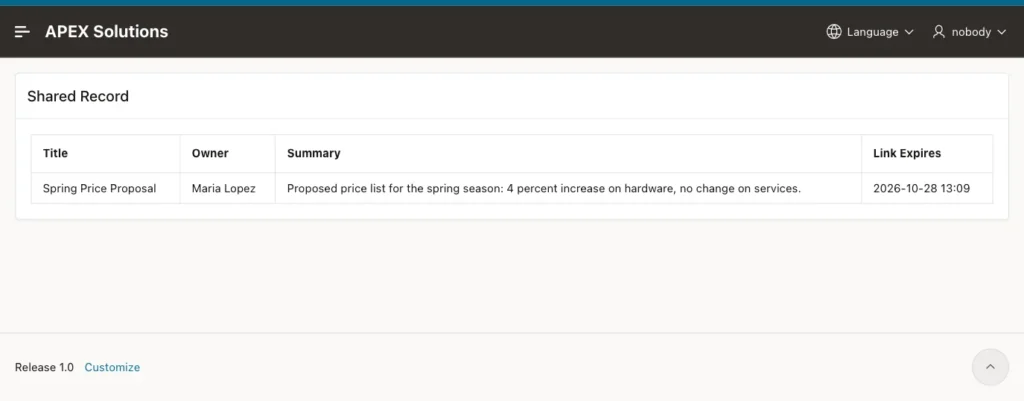
The first request of a new browser passes through a short time zone step before the page appears. This is normal for a new APEX session.
Then the same address was opened with the last character of the token changed. The visitor saw only the generic message:
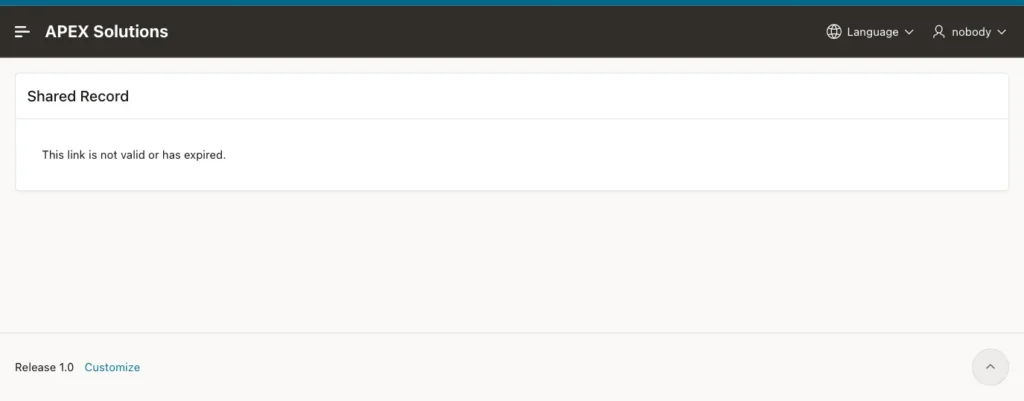
Opening the page with no token at all gave the same message. The view counter did not change for these two requests.
For the expiry test, a second link for the record Warehouse Move Plan was created for 1 hour. While it was valid, a visitor could open it. Then its times were moved into the past with an update, and the visitor saw the not valid message:

The report now shows the status Expired, and no Revoke link is offered for that row:

Next, click Revoke on the link of Spring Price Proposal. APEX asks for a confirmation:

After a click on OK, the message says that the link was revoked, and the status changes to Revoked:

The first address, which worked before, now shows the not valid message:

Finally, SALES_USER, who is not an administrator, tried to open the Share Links page. APEX denied access and no link was shown:
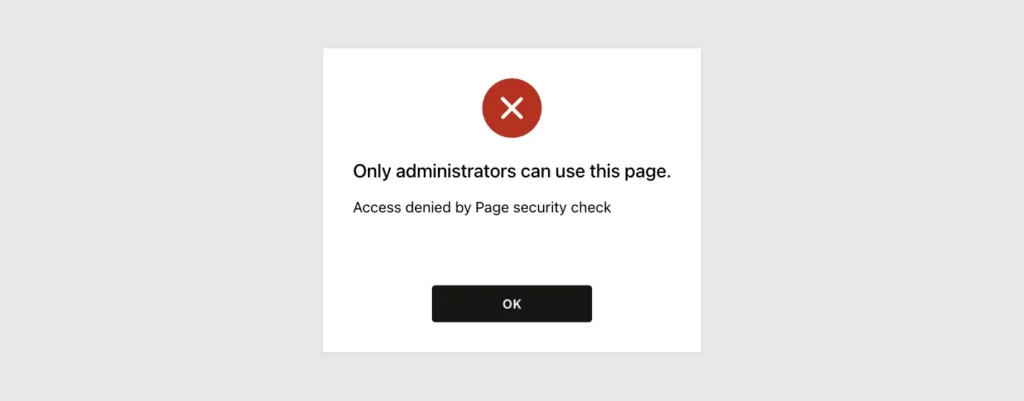
In the first version of this page, the Revoke link failed with the message Record must have some value. The cause was Value Required on the Record item. The revoke request is a page submit, so the item was checked even though no link was being created.
The fix was to remove Value Required and use the validation of Step 12, which runs only for the Create Link button.
Things to Know
- The token is the only protection of the public page. Keep it long and random, and never build it from a record number, a date or a sequence.
- Use one generic message for every failure. It does not tell a visitor whether a token was ever valid.
- A link can be forwarded, so anyone who has it can see the record. Show only safe columns, and choose short validity times for sensitive data.
- Tokens appear in browser history and in web server logs. For very sensitive data, add a second factor such as a code sent separately.
- The view counter counts every open of a valid link, including refreshes of the page. It is a usage hint, not a list of people.
- The address in the report is relative. Put your own host name in front of it before you send it.
- Deleting a record deletes its links, because of ON DELETE CASCADE. Revoking keeps the row, so the history stays.
Related Guides
- How to Protect Oracle APEX Pages from URL Tampering
- How to Build a Public Page That Needs No Login in Oracle APEX
Conclusion
A secure expiring link needs a table of random tokens, one view that defines a usable link and one public page that reads from that view. An administrator page creates and revokes the links, and a package keeps the rules in one place.
The tests showed that a valid link opened the record without a sign-in, while a changed token, an expired link and a revoked link all showed the same generic message and no data.
See my articles more often when you search Google.
