
Many users prefer a dark screen, especially in the evening or in dim rooms, while others find a light screen easier to read. Forcing one look on everyone is not necessary: each user can choose the appearance that suits them, and the choice can stay with their account.
Oracle APEX supports this without code. The Universal Theme comes with several theme styles, including the dark Vita - Dark, and one application setting lets each user pick a style from a Customize link. APEX stores the choice as a user preference and applies it on every page, also after the next sign-in. This guide turns it on, switches a user to dark mode, and checks that the choice is kept.
What You Need
This feature does not depend on any table: it works for every page of an application that uses the Universal Theme. The screenshots use a Sales Dashboard page with cards and charts, so you can see how the dark style changes regions and charts too.
Step 1: Check the Theme Styles
In App Builder, open Shared Components, click Themes, and click the Universal Theme. The Styles section lists the theme styles of the application:
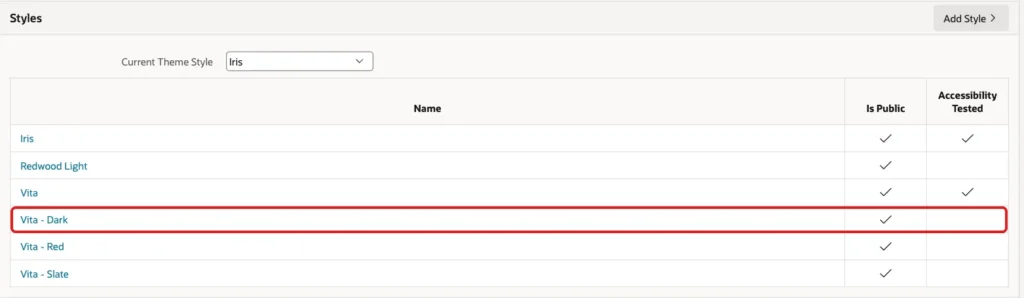
- Current Theme Style, here Iris, is the default style: what every user sees until they choose another.
- Is Public marks the styles users may choose. In this APEX 26.1 application, all six built-in styles are public, including Vita - Dark.
- The built-in styles are read-only: their edit page has only a Cancel button. To offer a style of your own, for example a dark style in your company colors, create it with Theme Roller and save it as a new public style.
Step 2: Let Users Choose the Style
In Shared Components, click User Interface Attributes. In the Attributes section, turn on Enable End Users to choose Theme Style, and click Apply Changes:
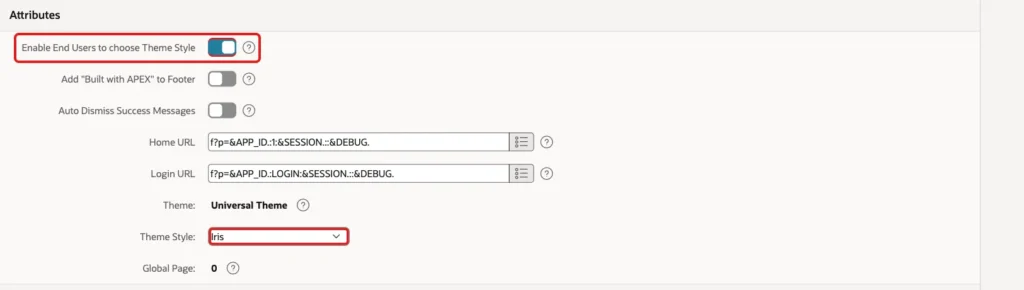
Theme Style, lower in the same section, is the application's default style, the same as Current Theme Style on the theme.
Step 3: Switch to Dark Mode as a User
Run the application and sign in. The page footer now has a Customize link next to the release number:
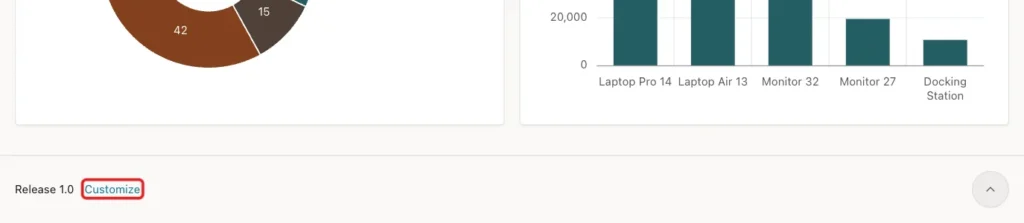
Customize opens a dialog with the public styles. Select Vita - Dark and click Apply Changes:
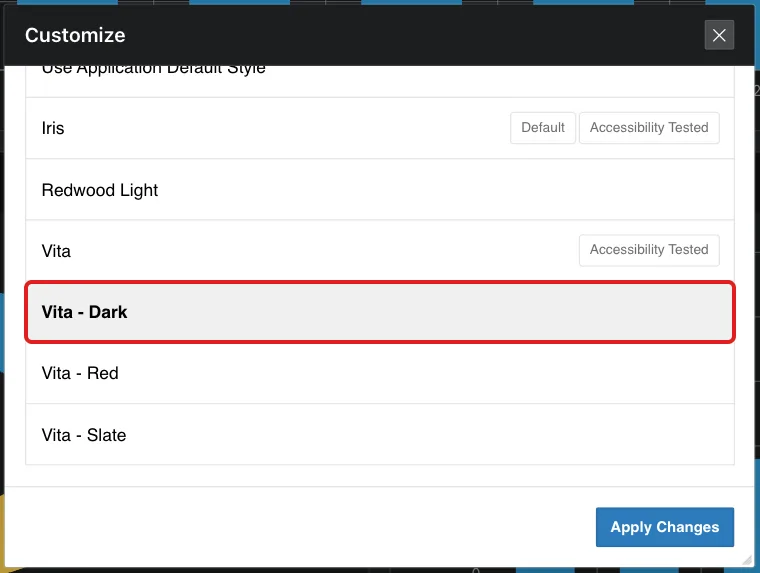
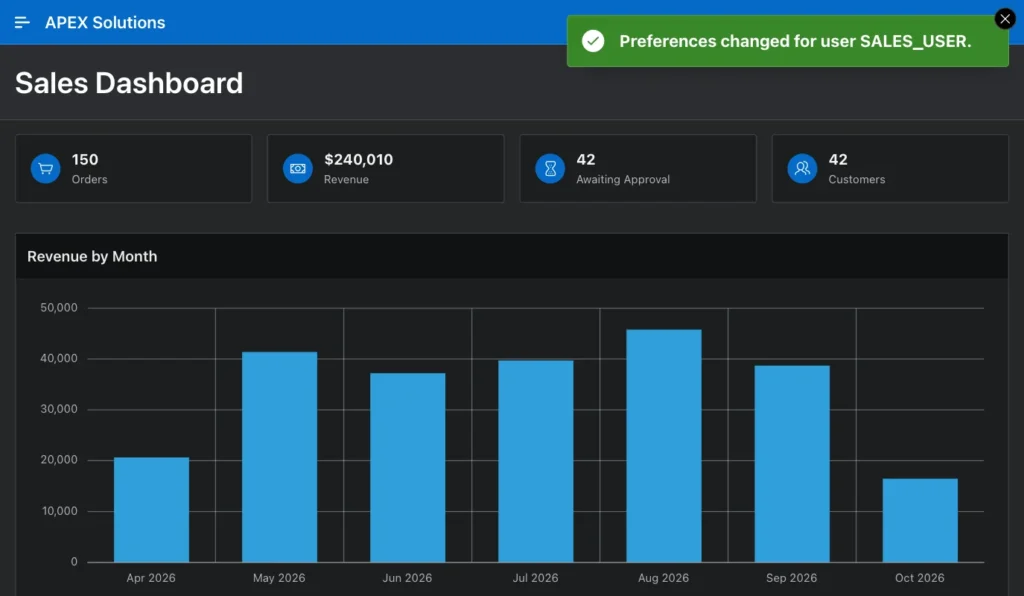
The page reloads in the dark style, with the message Preferences changed for user SALES_USER. Regions, cards, and charts all follow the style:
Testing That the Choice Is Kept
The page loaded the style sheet Vita-Dark.min.css instead of Iris.min.css. In a new browser, without any cookies from the first session, SALES_USER signed in again, and the dashboard opened in Vita - Dark at once: the choice is stored for the user on the server, not in the browser.
To go back, open Customize and choose Use Application Default Style. After that, the page loaded Iris.min.css again.
Things to Know
- Check custom colors in your pages with the dark style too: inline CSS with fixed colors, such as a white background, does not change with the style. Use Universal Theme CSS variables or classes instead of fixed colors.
- To offer only light and dark, create your own styles with Theme Roller and make only those two public.
Related Guides
Conclusion
To let users switch between light and dark mode in Oracle APEX, make sure a dark theme style such as Vita - Dark is public, and turn on Enable End Users to choose Theme Style in User Interface Attributes.
Users then pick the style in the Customize dialog, and APEX keeps their choice across pages and sign-ins, while the application's default style stays for everyone else.
