
Many records need a fixed set of steps before they are finished. An order must be paid, picked, packed and shipped; a new employee needs a laptop, an account and a badge. A checklist on each record shows what is done, who did it and when, and a progress bar shows at a glance how far each record is.
This guide builds such a checklist in Oracle APEX. Checklist templates hold the standard steps, and a new record gets its own copy of the steps. Users tick the steps with checkboxes that save at once through Ajax, and a report shows the progress as a bar with a Complete badge at 100%.
The guide uses orders as the example; the same steps work for any table. The post How to Build a Survey Form from Question Tables in Oracle APEX also builds rows from a set of template questions. This one copies steps to each record, saves each tick without a page submit, and tracks progress per record.
Step 1: Create the Tables
The example needs four tables and one view:
- CHK_TEMPLATES holds the checklist templates, such as Standard Order and Express Order.
- CHK_TEMPLATE_ITEMS holds the steps of each template with a sequence number.
- CHK_ORDERS holds the records that get a checklist, with the template they were created from.
- CHK_ORDER_STEPS holds the copied steps of each order, with IS_DONE, DONE_BY and DONE_ON.
- CHK_ORDER_PROGRESS_V counts the done steps per order and calculates the percentage.
Create the tables, the view and the sample templates:
Example:
create table chk_templates (
  template_id    number generated by default on null as identity,
  template_name  varchar2(100) not null,
  is_active      varchar2(1)   default on null 'Y' not null,
  constraint chk_templates_pk primary key (template_id),
  constraint chk_templates_name_uk unique (template_name),
  constraint chk_templates_active_ck check (is_active in ('Y', 'N'))
);

create table chk_template_items (
  template_item_id  number generated by default on null as identity,
  template_id       number        not null,
  step_seq          number(3)     not null,
  step_label        varchar2(200) not null,
  constraint chk_template_items_pk primary key (template_item_id),
  constraint chk_template_items_tpl_fk foreign key (template_id)
    references chk_templates (template_id),
  constraint chk_template_items_seq_uk unique (template_id, step_seq)
);

create table chk_orders (
  order_id       number generated by default on null as identity,
  order_no       varchar2(20)  not null,
  customer_name  varchar2(100) not null,
  order_date     date          default on null sysdate not null,
  template_id    number        not null,
  constraint chk_orders_pk primary key (order_id),
  constraint chk_orders_no_uk unique (order_no),
  constraint chk_orders_tpl_fk foreign key (template_id)
    references chk_templates (template_id)
);

create index chk_orders_tpl_ix on chk_orders (template_id);

create table chk_order_steps (
  step_id     number generated by default on null as identity,
  order_id    number        not null,
  step_seq    number(3)     not null,
  step_label  varchar2(200) not null,
  is_done     varchar2(1)   default on null 'N' not null,
  done_by     varchar2(128),
  done_on     date,
  constraint chk_order_steps_pk primary key (step_id),
  constraint chk_order_steps_order_fk foreign key (order_id)
    references chk_orders (order_id) on delete cascade,
  constraint chk_order_steps_seq_uk unique (order_id, step_seq),
  constraint chk_order_steps_done_ck check (
    (is_done = 'Y' and done_by is not null and done_on is not null)
    or (is_done = 'N' and done_by is null and done_on is null))
);

create or replace view chk_order_progress_v as
select o.order_id,
       o.order_no,
       o.customer_name,
       o.order_date,
       count(s.step_id) as steps_total,
       count(case when s.is_done = 'Y' then 1 end) as steps_done,
       case when count(s.step_id) = 0 then 0
            else round(100 * count(case when s.is_done = 'Y' then 1 end) / count(s.step_id))
       end as pct_done
from   chk_orders o
       left join chk_order_steps s on s.order_id = o.order_id
group  by o.order_id, o.order_no, o.customer_name, o.order_date;

insert into chk_templates (template_id, template_name) values (1, 'Standard Order');
insert into chk_templates (template_id, template_name) values (2, 'Express Order');
alter table chk_templates modify template_id generated by default on null as identity (start with limit value);

insert into chk_template_items (template_id, step_seq, step_label) values (1, 10, 'Confirm payment received');
insert into chk_template_items (template_id, step_seq, step_label) values (1, 20, 'Pick items from the warehouse');
insert into chk_template_items (template_id, step_seq, step_label) values (1, 30, 'Pack and label the parcel');
insert into chk_template_items (template_id, step_seq, step_label) values (1, 40, 'Hand over to the courier');
insert into chk_template_items (template_id, step_seq, step_label) values (1, 50, 'Send the tracking email');
insert into chk_template_items (template_id, step_seq, step_label) values (2, 10, 'Confirm payment received');
insert into chk_template_items (template_id, step_seq, step_label) values (2, 20, 'Pack the parcel');
insert into chk_template_items (template_id, step_seq, step_label) values (2, 30, 'Book the same-day courier');
commit;

select t.template_name, i.step_seq, i.step_label
from   chk_templates t
       join chk_template_items i on i.template_id = t.template_id
order  by t.template_id, i.step_seq;
Output:
Table CHK_TEMPLATES created.

Table CHK_TEMPLATE_ITEMS created.

Table CHK_ORDERS created.

Index CHK_ORDERS_TPL_IX created.

Table CHK_ORDER_STEPS created.

View CHK_ORDER_PROGRESS_V created.

1 row inserted.

1 row inserted.

Table CHK_TEMPLATES altered.

1 row inserted.

1 row inserted.

1 row inserted.

1 row inserted.

1 row inserted.

1 row inserted.

1 row inserted.

1 row inserted.

Commit complete.

TEMPLATE_NAME        STEP_SEQ STEP_LABEL
_________________ ___________ ________________________________
Standard Order             10 Confirm payment received
Standard Order             20 Pick items from the warehouse
Standard Order             30 Pack and label the parcel
Standard Order             40 Hand over to the courier
Standard Order             50 Send the tracking email
Express Order              10 Confirm payment received
Express Order              20 Pack the parcel
Express Order              30 Book the same-day courier

8 rows selected.
- CHK_TEMPLATE_ITEMS_SEQ_UK and CHK_ORDER_STEPS_SEQ_UK allow each sequence number only once per template and per order.
- CHK_ORDER_STEPS_DONE_CK keeps the columns in step: a done step has a user and a date, an open step has neither.
- CHK_ORDER_STEPS_ORDER_FK has ON DELETE CASCADE, so deleting an order also deletes its steps.
- IS_ACTIVE, IS_DONE and ORDER_DATE use DEFAULT ON NULL, so no trigger is needed to fill them.
The view uses a LEFT JOIN, so an order without steps still appears with 0%. The CASE expression avoids a division by zero in that case. The two templates were inserted with fixed IDs, so the ALTER TABLE statement moves the identity past the highest ID.
Step 2: Create the Checklist Package
The package has two procedures. CREATE_ORDER inserts an order and copies the steps of its template. SET_STEP ticks or unticks one step:
Example:
create or replace package chk_pkg as
  procedure create_order (
    p_order_no      in  chk_orders.order_no%type,
    p_customer_name in  chk_orders.customer_name%type,
    p_template_id   in  chk_orders.template_id%type,
    p_order_id      out chk_orders.order_id%type);

  procedure set_step (
    p_order_id in chk_order_steps.order_id%type,
    p_step_id  in chk_order_steps.step_id%type,
    p_done     in varchar2,
    p_user     in varchar2);
end chk_pkg;
/

create or replace package body chk_pkg as
  procedure create_order (
    p_order_no      in  chk_orders.order_no%type,
    p_customer_name in  chk_orders.customer_name%type,
    p_template_id   in  chk_orders.template_id%type,
    p_order_id      out chk_orders.order_id%type)
  is
  begin
    insert into chk_orders (order_no, customer_name, template_id)
    values (p_order_no, p_customer_name, p_template_id)
    returning order_id into p_order_id;

    insert into chk_order_steps (order_id, step_seq, step_label)
    select p_order_id, i.step_seq, i.step_label
    from   chk_template_items i
           join chk_templates t on t.template_id = i.template_id
    where  i.template_id = p_template_id
    and    t.is_active = 'Y';

    if sql%rowcount = 0 then
      raise_application_error(-20003,
        'The checklist template is inactive or has no steps.');
    end if;
  exception
    when dup_val_on_index then
      raise_application_error(-20002,
        'Order number ' || p_order_no || ' already exists.');
  end create_order;

  procedure set_step (
    p_order_id in chk_order_steps.order_id%type,
    p_step_id  in chk_order_steps.step_id%type,
    p_done     in varchar2,
    p_user     in varchar2)
  is
  begin
    update chk_order_steps
    set    is_done = p_done,
           done_by = case when p_done = 'Y' then p_user end,
           done_on = case when p_done = 'Y' then sysdate end
    where  step_id  = p_step_id
    and    order_id = p_order_id;

    if sql%rowcount = 0 then
      raise_application_error(-20001,
        'This step does not belong to the selected order.');
    end if;
  end set_step;
end chk_pkg;
/

select object_name, object_type, status
from   user_objects
where  object_name = 'CHK_PKG';
Output:
Package CHK_PKG compiled

Package Body CHK_PKG compiled

OBJECT_NAME    OBJECT_TYPE     STATUS
______________ _______________ _________
CHK_PKG        PACKAGE         VALID
CHK_PKG        PACKAGE BODY    VALID
CREATE_ORDER copies the template steps with one INSERT ... SELECT. It copies only from an active template. If no row was copied, it raises ORA-20003, and a duplicate order number becomes the friendly ORA-20002 message.
The steps are copied, not linked. A later change to a template does not change the checklists of existing orders, which keeps the history correct.
SET_STEP updates the step only when it belongs to the given order. It sets DONE_BY and DONE_ON when the step is ticked and clears them when it is unticked. The user name comes in as a parameter; in APEX it is :APP_USER.
A trigger could also copy the steps after each insert into CHK_ORDERS. The package was chosen because the template is a choice of the user, and one call creates the order and its steps together. Neither procedure commits; APEX commits at the end of the request.
Step 3: Test the Package in SQL
Create two orders from the two templates, then tick two steps of the first order:
Example:
set serveroutput on
declare
  l_id number;
begin
  chk_pkg.create_order('SO-1001', 'Northwind Traders', 1, l_id);
  dbms_output.put_line('SO-1001 created with id ' || l_id);
  chk_pkg.create_order('SO-1002', 'Blue Harbor Cafe', 2, l_id);
  dbms_output.put_line('SO-1002 created with id ' || l_id);
  commit;
end;
/

select order_id, step_id, step_seq, step_label, is_done
from   chk_order_steps
order  by order_id, step_seq;

begin
  chk_pkg.set_step(1, 1, 'Y', 'DEMO_DEV');
  chk_pkg.set_step(1, 2, 'Y', 'DEMO_DEV');
  commit;
end;
/

select order_no, steps_done, steps_total, pct_done
from   chk_order_progress_v
order  by order_no;
Output:
SO-1001 created with id 1
SO-1002 created with id 2

PL/SQL procedure successfully completed.

   ORDER_ID    STEP_ID    STEP_SEQ STEP_LABEL                       IS_DONE
___________ __________ ___________ ________________________________ __________
          1          1          10 Confirm payment received         N
          1          2          20 Pick items from the warehouse    N
          1          3          30 Pack and label the parcel        N
          1          4          40 Hand over to the courier         N
          1          5          50 Send the tracking email          N
          2          6          10 Confirm payment received         N
          2          7          20 Pack the parcel                  N
          2          8          30 Book the same-day courier        N

8 rows selected.

PL/SQL procedure successfully completed.

ORDER_NO       STEPS_DONE    STEPS_TOTAL    PCT_DONE
___________ _____________ ______________ ___________
SO-1001                 2              5          40
SO-1002                 0              3           0
SO-1001 got the five steps of Standard Order and SO-1002 the three steps of Express Order. After two ticks, the view shows SO-1001 at 40% and SO-1002 at 0%.
Now test the error cases: a duplicate order number, a step of another order, a template without steps, and a direct update that skips the package:
Example:
declare
  l_id number;
begin
  chk_pkg.create_order('SO-1001', 'Another Customer', 1, l_id);
end;
/

begin
  chk_pkg.set_step(2, 1, 'Y', 'DEMO_DEV');
end;
/

insert into chk_templates (template_name, is_active) values ('Retired Process', 'N');

declare
  l_id number;
begin
  chk_pkg.create_order('SO-9001', 'Test Customer', 3, l_id);
end;
/

select count(*) as orders_named_so_9001
from   chk_orders
where  order_no = 'SO-9001';

rollback;

update chk_order_steps
set    is_done = 'Y'
where  step_id = 3;

select step_id, is_done, done_by
from   chk_order_steps
where  order_id = 1
order  by step_seq;
Output:
declare
*
ERROR at line 1:
ORA-20002: Order number SO-1001 already exists.
ORA-06512: at "APXSOL.CHK_PKG", line 26
ORA-06512: at line 4
Help: https://docs.oracle.com/error-help/db/ora-20002/

begin
*
ERROR at line 1:
ORA-20001: This step does not belong to the selected order.
ORA-06512: at "APXSOL.CHK_PKG", line 45
ORA-06512: at line 2
Help: https://docs.oracle.com/error-help/db/ora-20001/

1 row inserted.

declare
*
ERROR at line 1:
ORA-20003: The checklist template is inactive or has no steps.
ORA-06512: at "APXSOL.CHK_PKG", line 21
ORA-06512: at line 4
Help: https://docs.oracle.com/error-help/db/ora-20003/

   ORDERS_NAMED_SO_9001
_______________________
                      0

Rollback complete.

Error starting at line : 28 File @ b73/31-errors.sql
In command -
update chk_order_steps
set    is_done = 'Y'
where  step_id = 3
Error report -
ORA-02290: check constraint (APXSOL.CHK_ORDER_STEPS_DONE_CK) violated
Help: https://docs.oracle.com/error-help/db/ora-02290/

   STEP_ID IS_DONE    DONE_BY
__________ __________ ___________
         1 Y          DEMO_DEV
         2 Y          DEMO_DEV
         3 N
         4 N
         5 N
The inactive template raised ORA-20003 after the order row had been inserted. The count shows that SO-9001 was not saved: Oracle rolled back the whole failed call, not only the last statement. The direct update failed on CHK_ORDER_STEPS_DONE_CK, because it set IS_DONE without a user and a date.
Finally, check that a template change does not reach existing orders. The test is rolled back at the end:
Example:
update chk_template_items
set    step_label = 'Send the tracking email and SMS'
where  template_id = 1
and    step_seq = 50;

select 'template' as source, step_label
from   chk_template_items
where  template_id = 1 and step_seq = 50
union all
select o.order_no, s.step_label
from   chk_order_steps s
       join chk_orders o on o.order_id = s.order_id
where  s.step_seq = 50;

rollback;
Output:
1 row updated.

SOURCE      STEP_LABEL
___________ __________________________________
template    Send the tracking email and SMS
SO-1001     Send the tracking email
SO-1003     Send the tracking email

Rollback complete.
Step 4: Create the Order Checklist Page
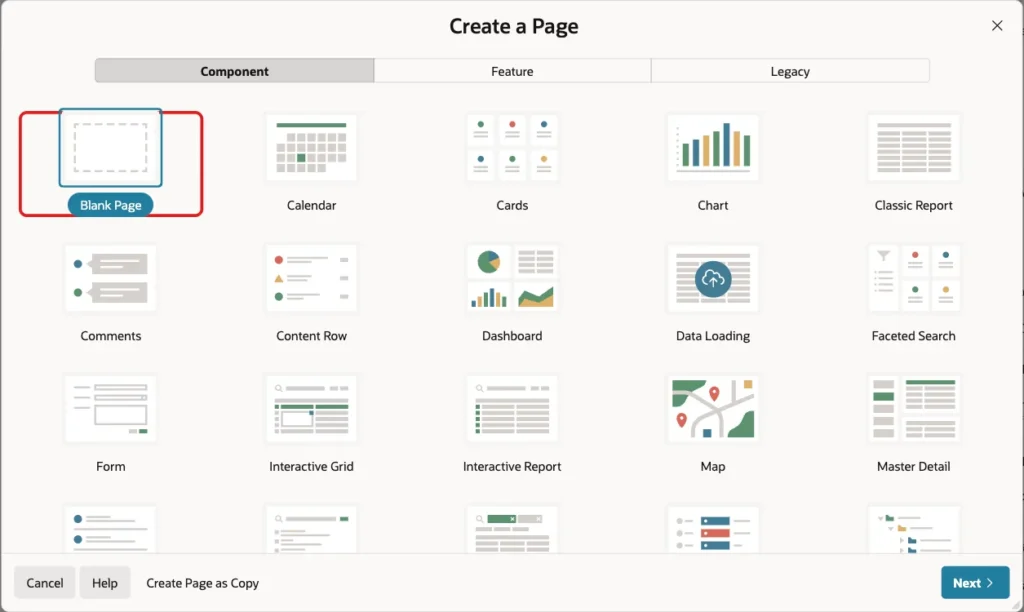
In App Builder, open the application, click Create Page and select Blank Page:
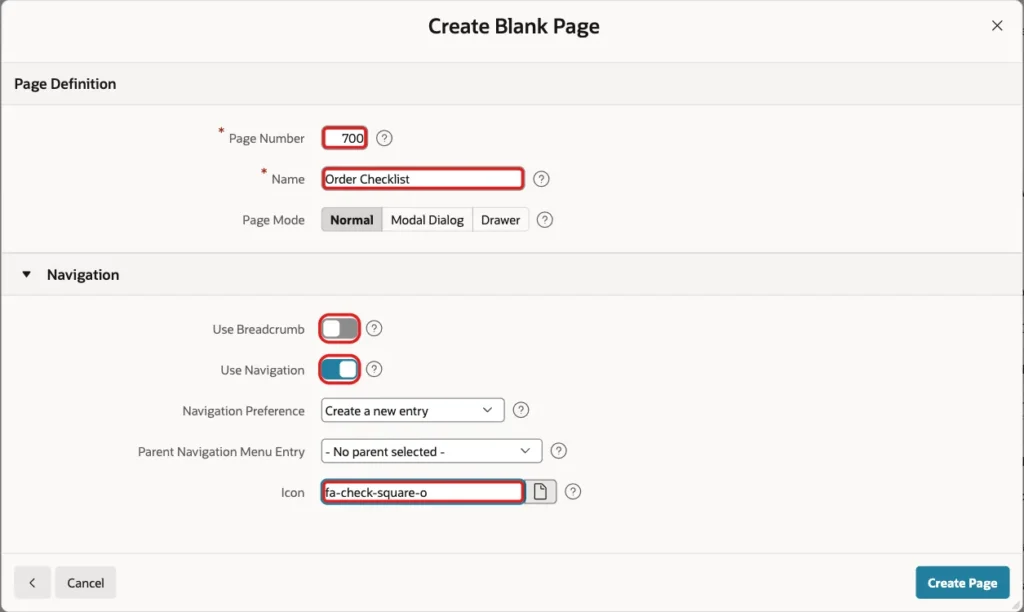
Enter page number 700 and the name Order Checklist. Turn Use Breadcrumb off, keep Use Navigation on and enter the icon fa-check-square-o. Click Create Page:
Step 5: Set the Page Security and CSS
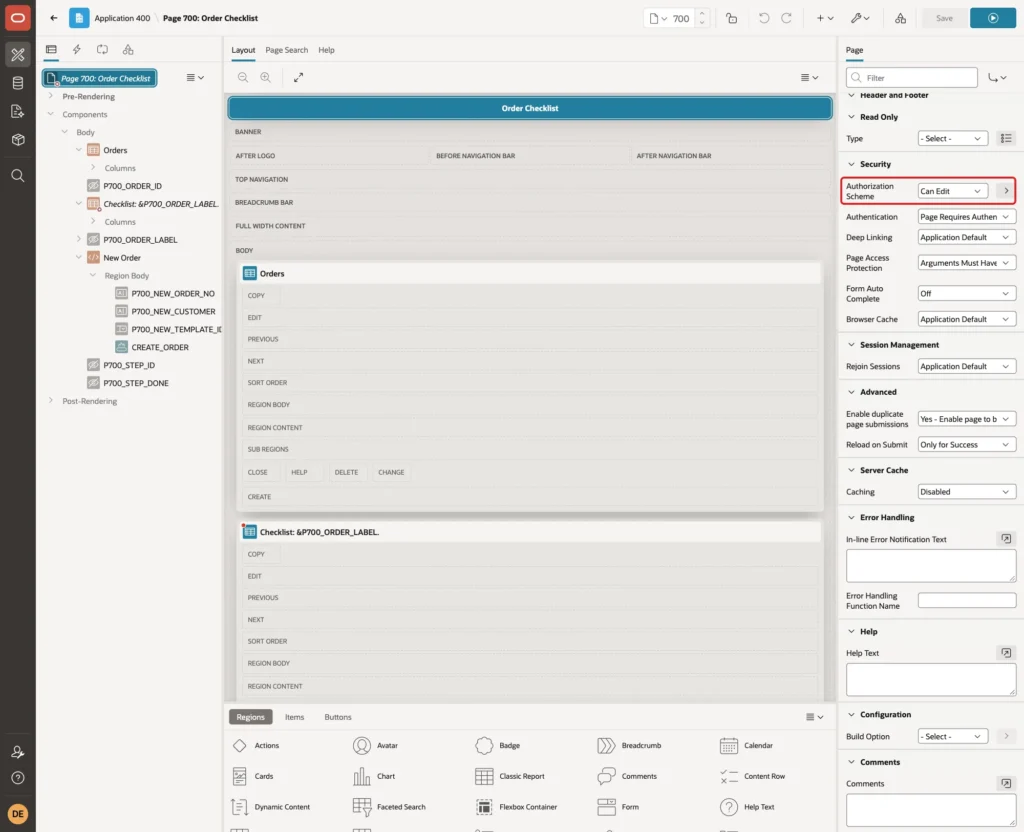
Only users who work on orders should tick steps. In Page Designer, select the page node and set Security, Authorization Scheme to Can Edit. In this example, Can Edit passes for editors and administrators:
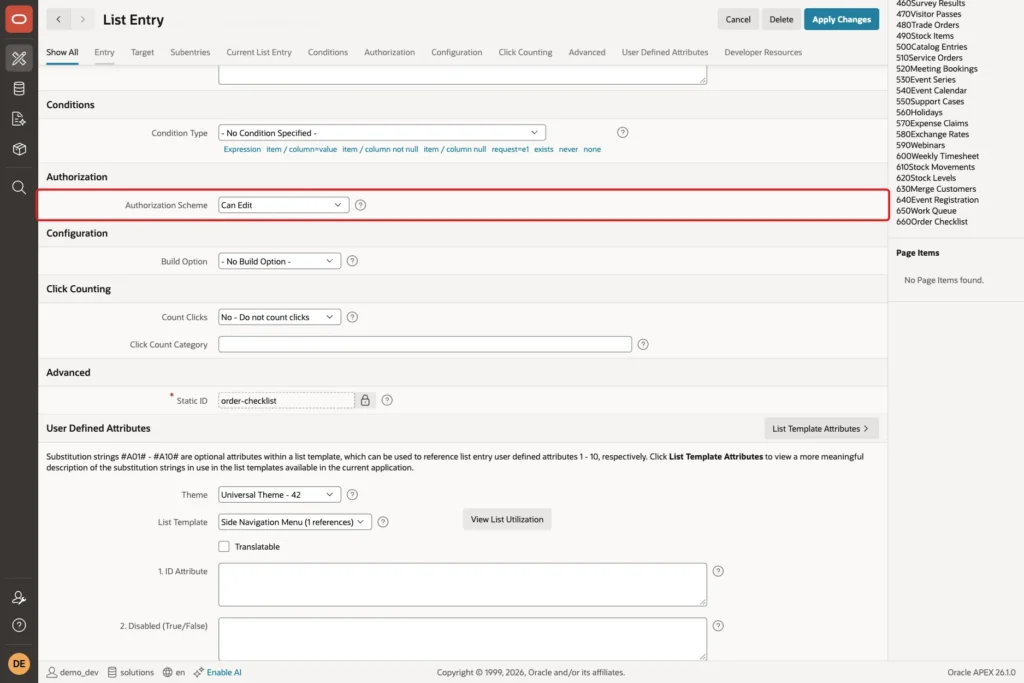
The wizard also created an Order Checklist entry in the navigation menu. In Shared Components, open Navigation Menu, edit the Order Checklist entry and set Authorization Scheme to Can Edit, then click Apply Changes:
Back on the page node, enter this CSS in CSS, Inline. It styles the status badge and puts each checkbox next to its label:
Example:
.chk-badge { display: inline-block; padding: 2px 10px; border-radius: 12px; font-size: 12px; }
.chk-step { display: flex; align-items: center; gap: 8px; }
.chk-step input { width: 18px; height: 18px; }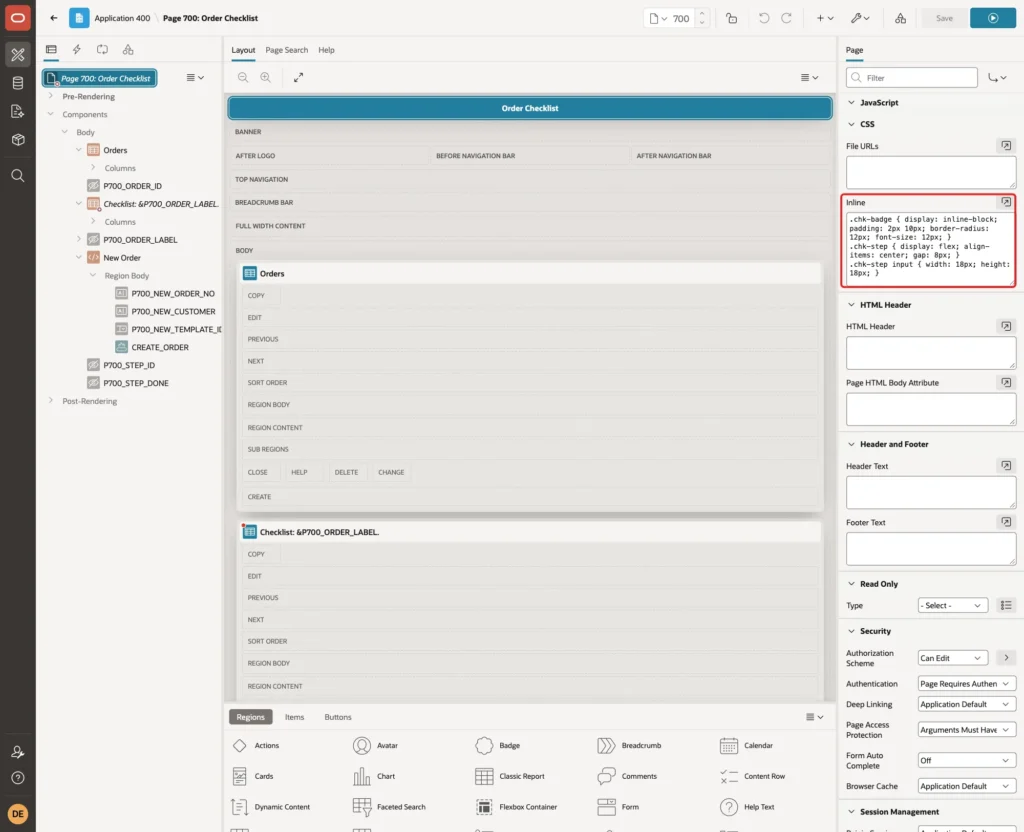
Step 6: Add the Orders Report with Progress
Right-click Body and select Create Region. Set Name to Orders, Type to Classic Report and enter this SQL Query:
Example:
select order_id,
       order_no,
       customer_name,
       steps_done || ' of ' || steps_total as steps,
       pct_done,
       case when pct_done = 100 then 'Complete' else 'In Progress' end as status_label,
       case when pct_done = 100 then 'u-success' else 'u-warning' end as status_css,
       'Open' as open_link
from   chk_order_progress_v
order  by order_no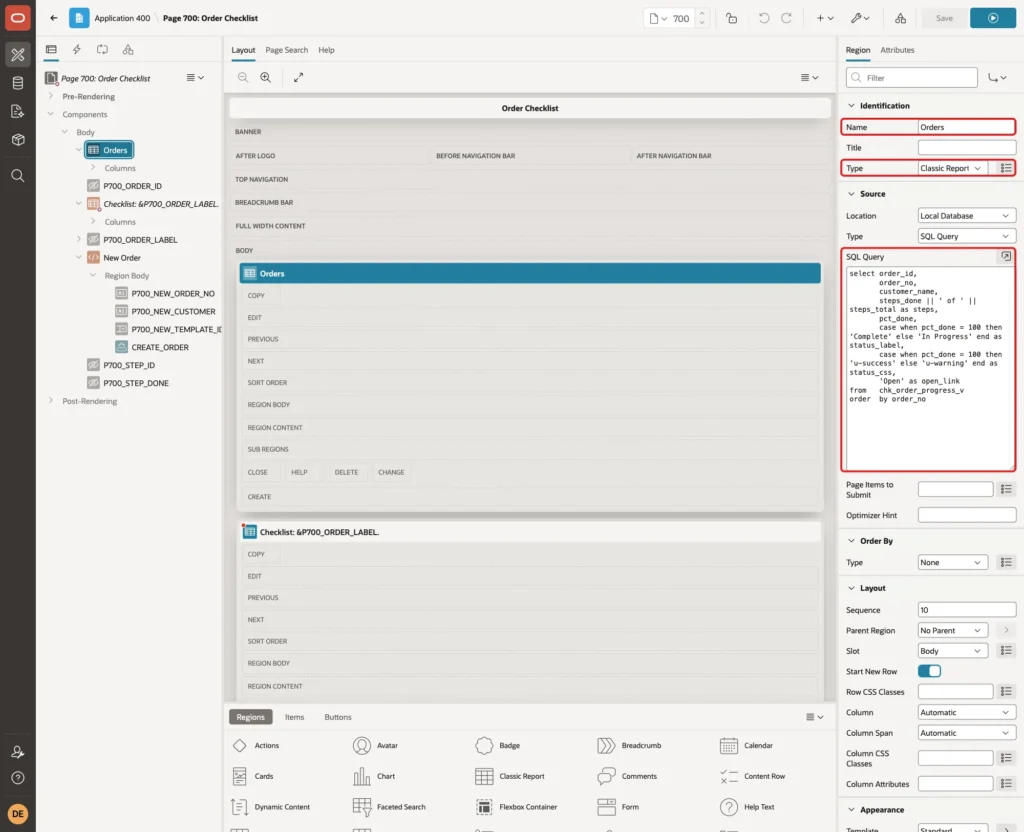
The query reads the view from Step 1. STATUS_LABEL is Complete at 100% and In Progress otherwise. STATUS_CSS holds the Universal Theme class u-success or u-warning, which colors the badge green or orange.
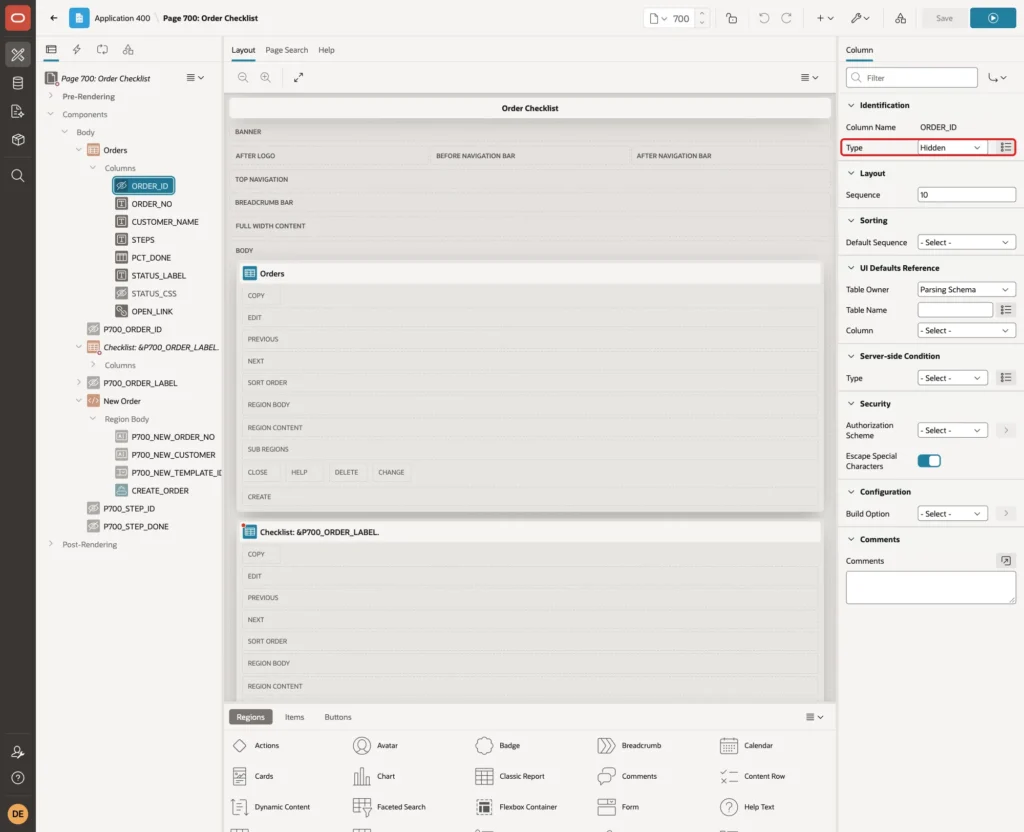
Expand Columns, select ORDER_ID and set Type to Hidden:
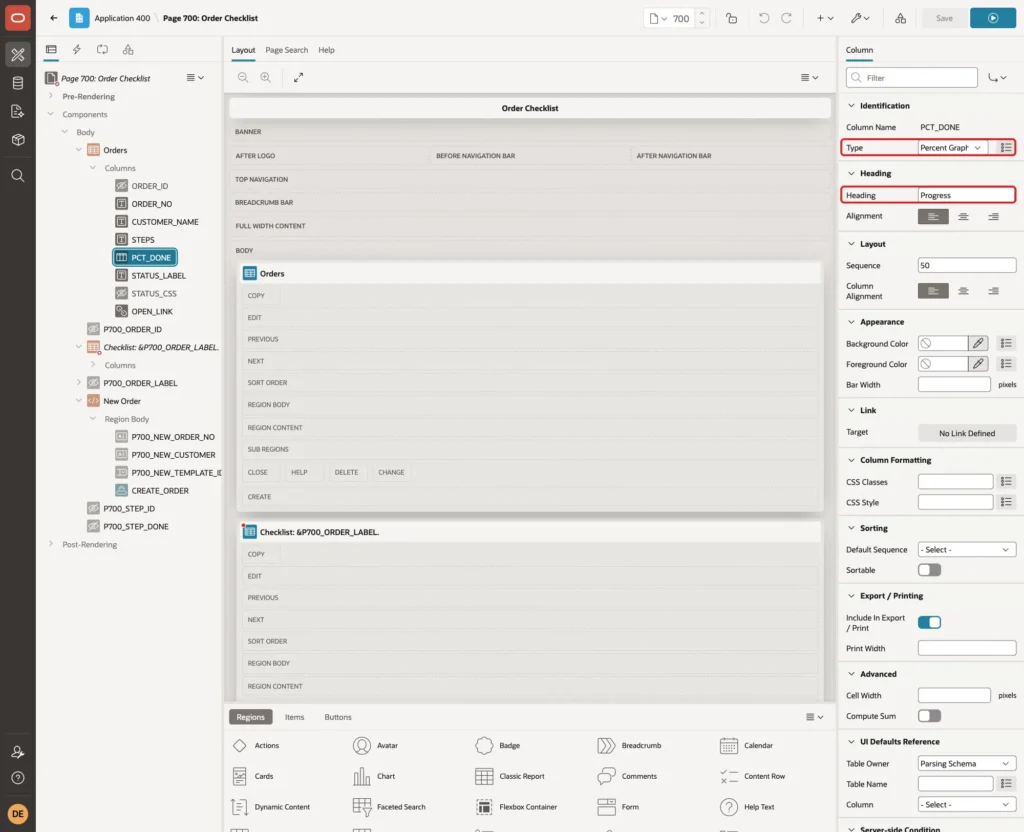
Select PCT_DONE. Set Type to Percent Graph and Heading to Progress. This built-in column type draws a bar for a value from 0 to 100:
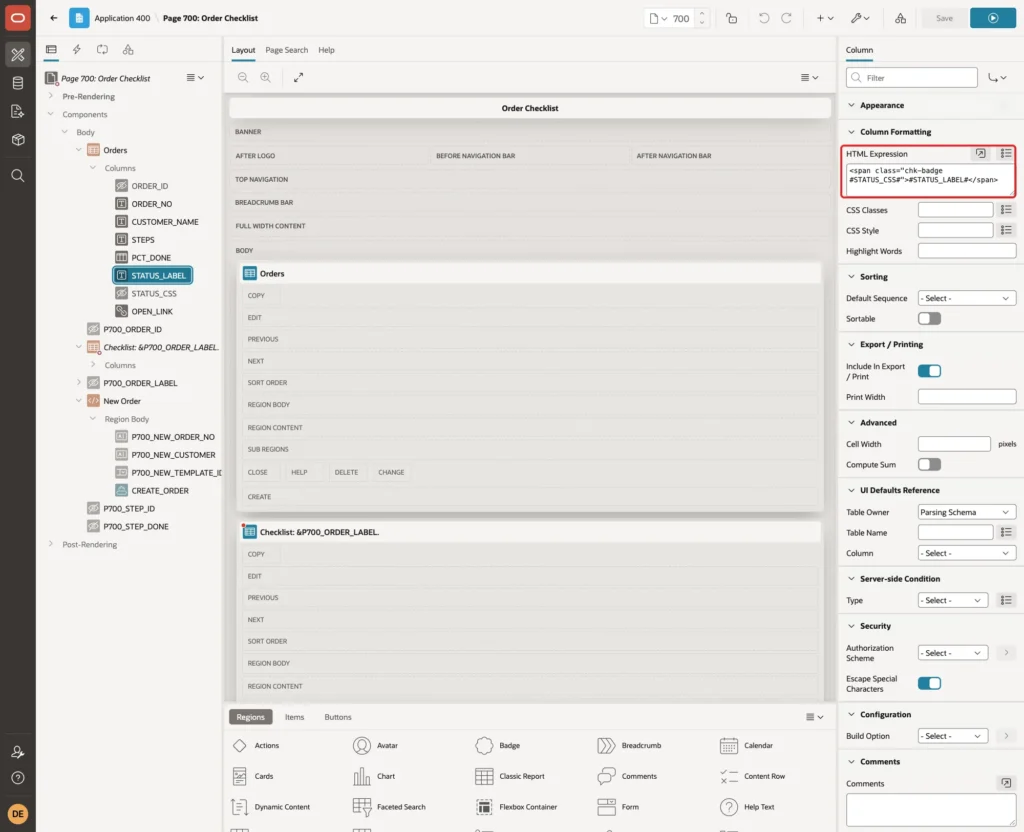
Select STATUS_LABEL and enter this HTML Expression under Column Formatting:
Example:
<span class="chk-badge #STATUS_CSS#">#STATUS_LABEL#</span>
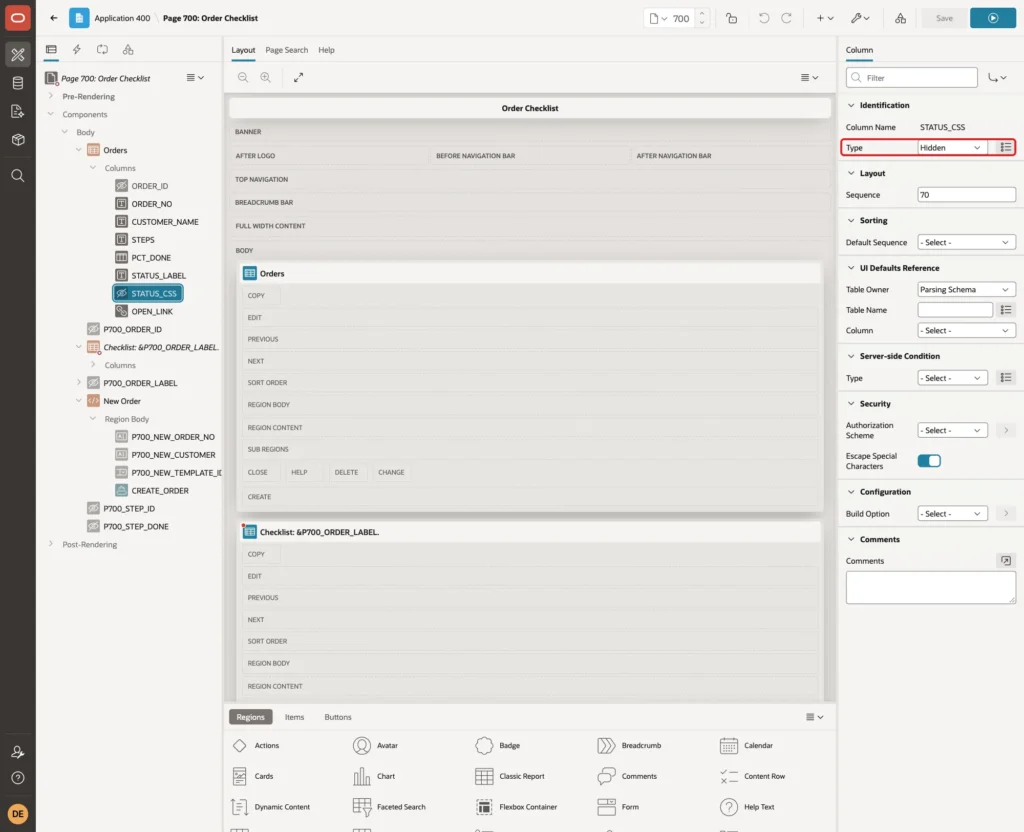
Select STATUS_CSS and set Type to Hidden. A hidden column can still be used in the HTML Expression of another column:
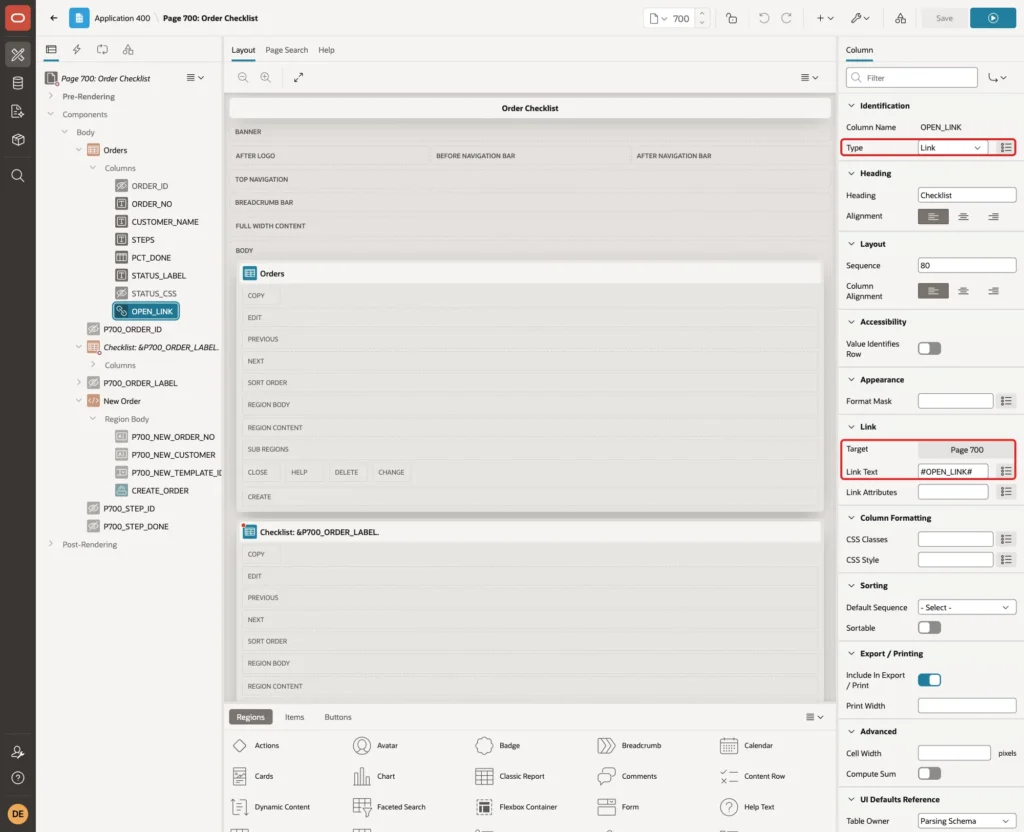
Select OPEN_LINK. Set Type to Link, Heading to Checklist and Link Text to #OPEN_LINK#:
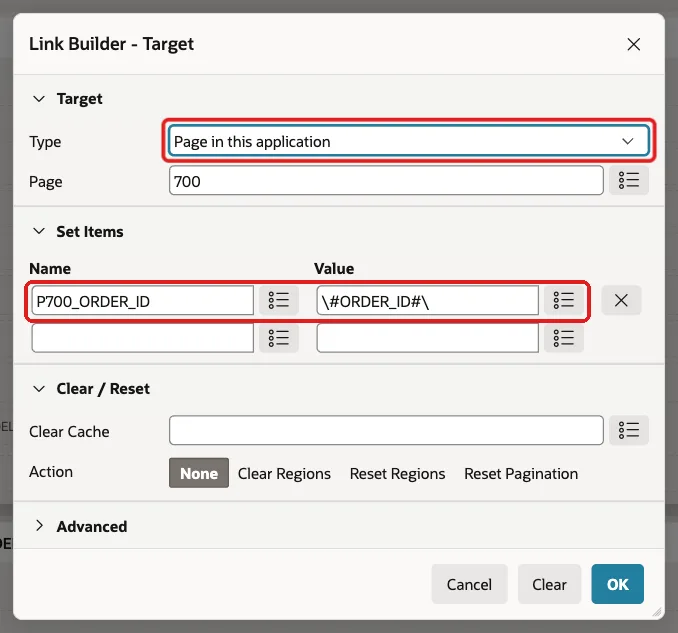
Click Target. Set Type to Page in this application and Page to 700. Under Set Items, set Name to P700_ORDER_ID and Value to #ORDER_ID#, then click OK:
Set the other headings to Order, Customer and Steps Done, and turn Sorting, Sortable off for the columns so the report keeps the order of the query.
Step 7: Add the Hidden Items
Right-click Body, select Create Page Item and create P700_ORDER_ID with Type Hidden. Keep Value Protected on and the default storage Per Session. The Open link sets it, and the link has a checksum, so users cannot change it in the URL. A test with a hand-edited URL ended with a session state protection violation.
Create P700_ORDER_LABEL the same way. It holds the order number and customer for the region title.
Then create P700_STEP_ID with these properties:
- Type: Hidden
- Value Protected: off
- Session State, Storage: Per Request (Memory Only)
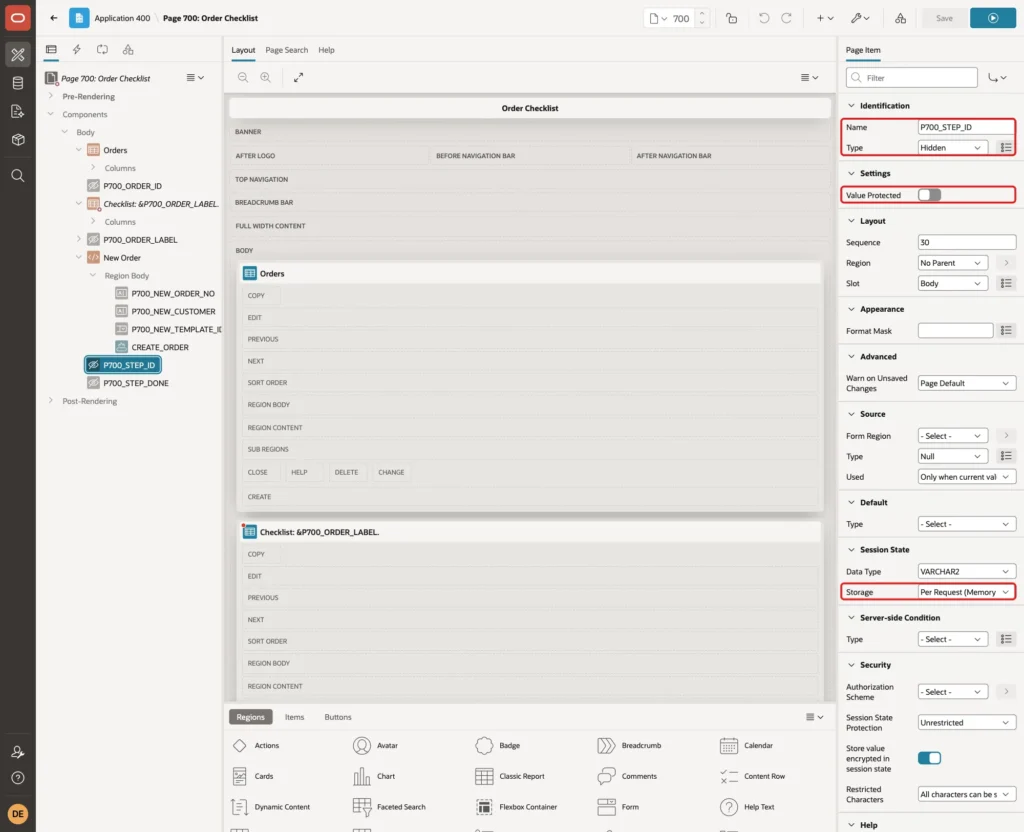
Create P700_STEP_DONE with the same properties. Value Protected must be off for both, because JavaScript sets their values in the browser. That is safe here, because SET_STEP checks that the step belongs to the selected order.
Step 8: Add the Order Label Computation
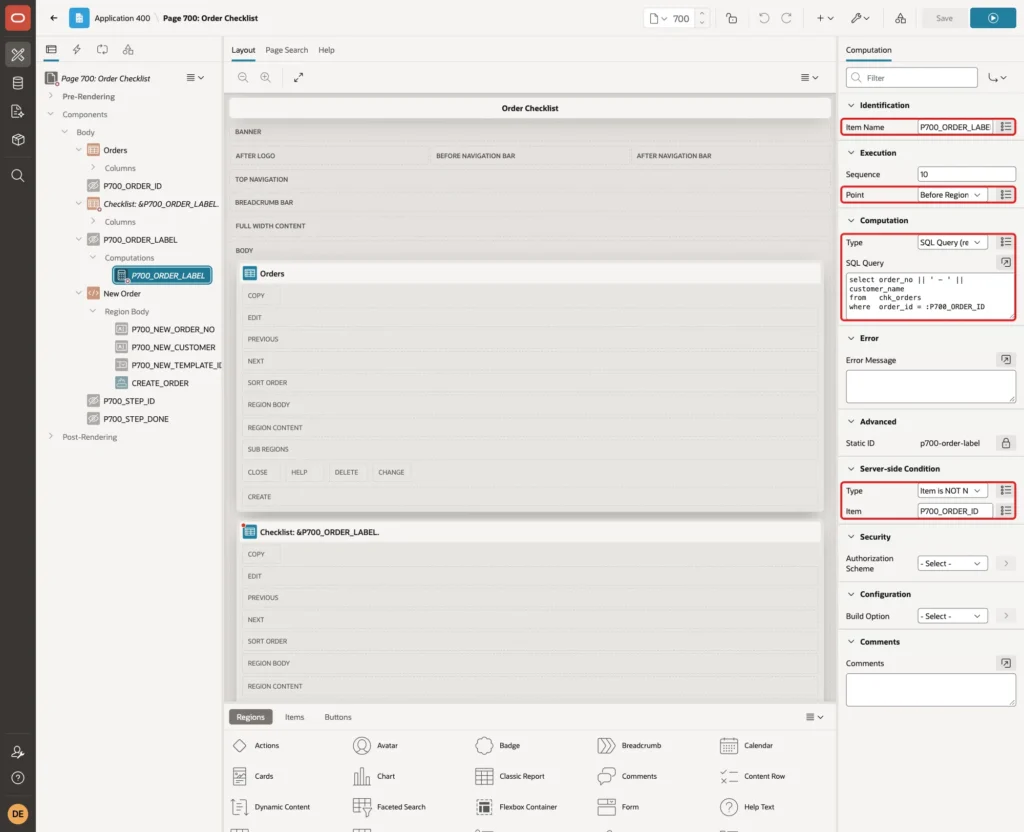
Right-click P700_ORDER_LABEL and select Create Computation. Set Point to Before Regions, Type to SQL Query (return single value) and enter this query:
Example:
select order_no || ' - ' || customer_name
from   chk_orders
where  order_id = :P700_ORDER_ID
Under Server-side Condition, set Type to Item is NOT NULL and Item to P700_ORDER_ID:
Step 9: Add the Checklist Region
Create a second region below Orders. Set Title to Checklist: &P700_ORDER_LABEL., Type to Classic Report and enter this SQL Query:
Example:
select step_id,
       step_seq,
       step_label,
       case when is_done = 'Y' then 'checked' end as checked_attr,
       done_by,
       done_on
from   chk_order_steps
where  order_id = :P700_ORDER_ID
order  by step_seq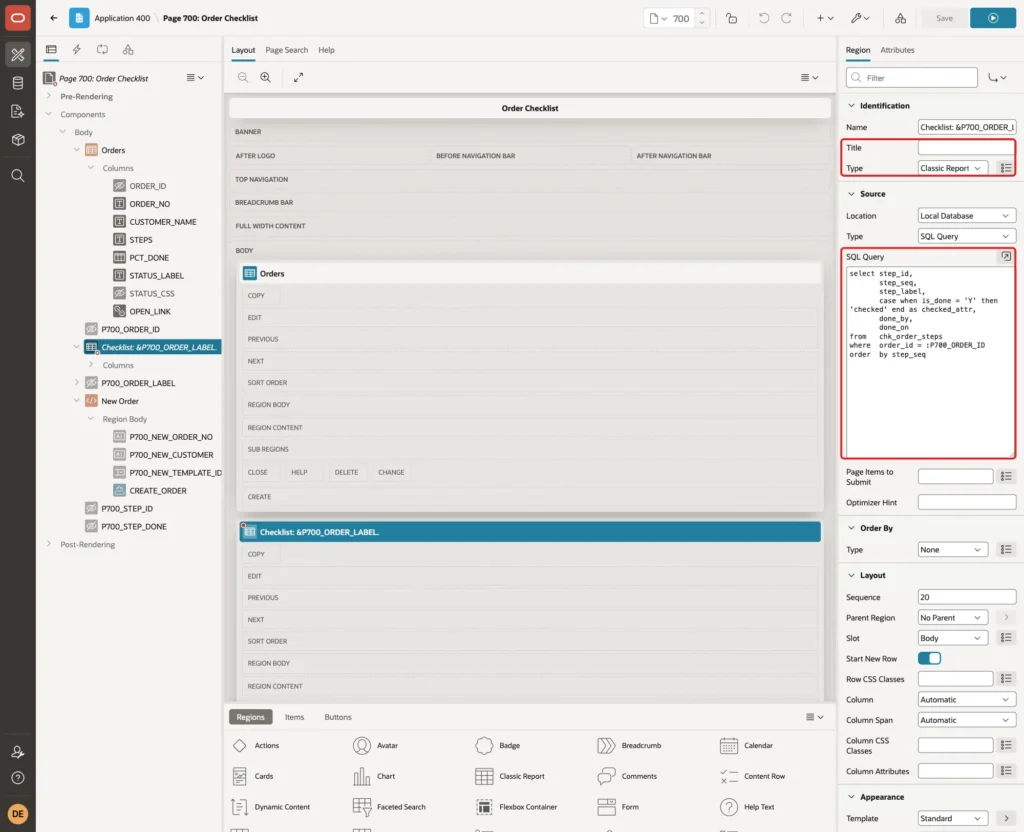
CHECKED_ATTR returns the word checked for a done step. The HTML of the checkbox uses it, so done steps show ticked when the region renders.
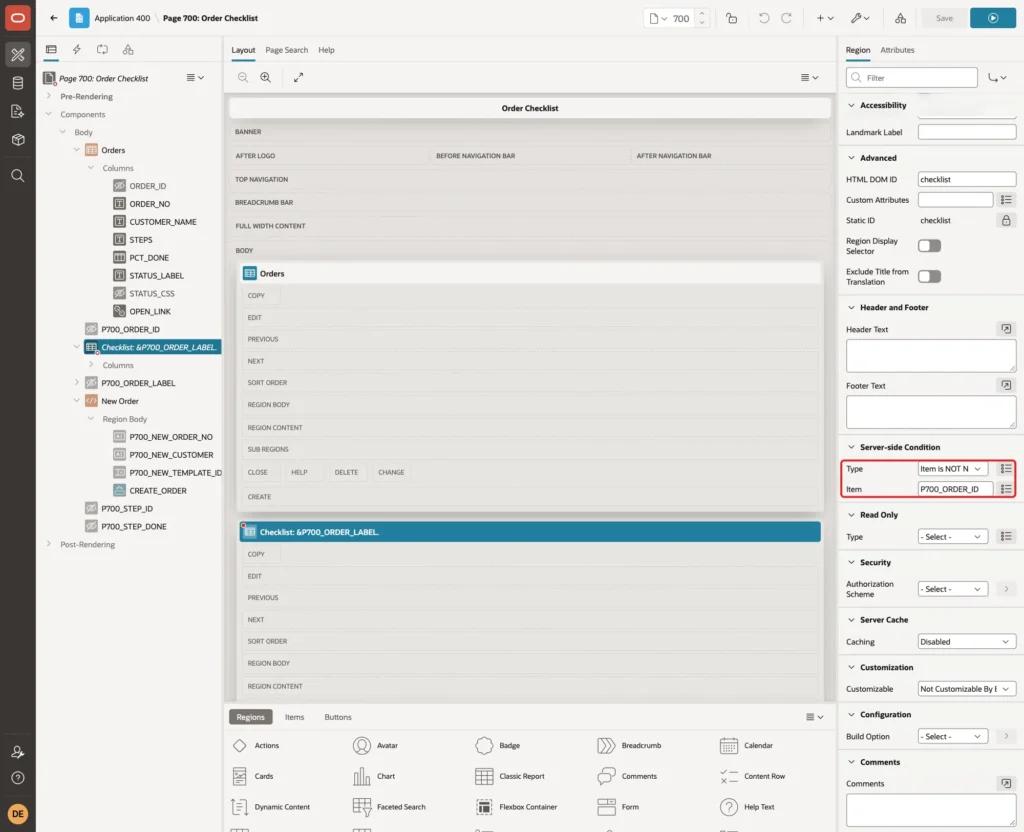
Under Server-side Condition, set Type to Item is NOT NULL and Item to P700_ORDER_ID. The region shows only after the user opens an order:
Expand Columns and set Type to Hidden for STEP_ID, STEP_SEQ and CHECKED_ATTR. Then select STEP_LABEL, set Heading to Step and enter this HTML Expression:
Example:
<label class="chk-step"><input type="checkbox" class="js-step" data-id="#STEP_ID#" #CHECKED_ATTR#>#STEP_LABEL#</label>
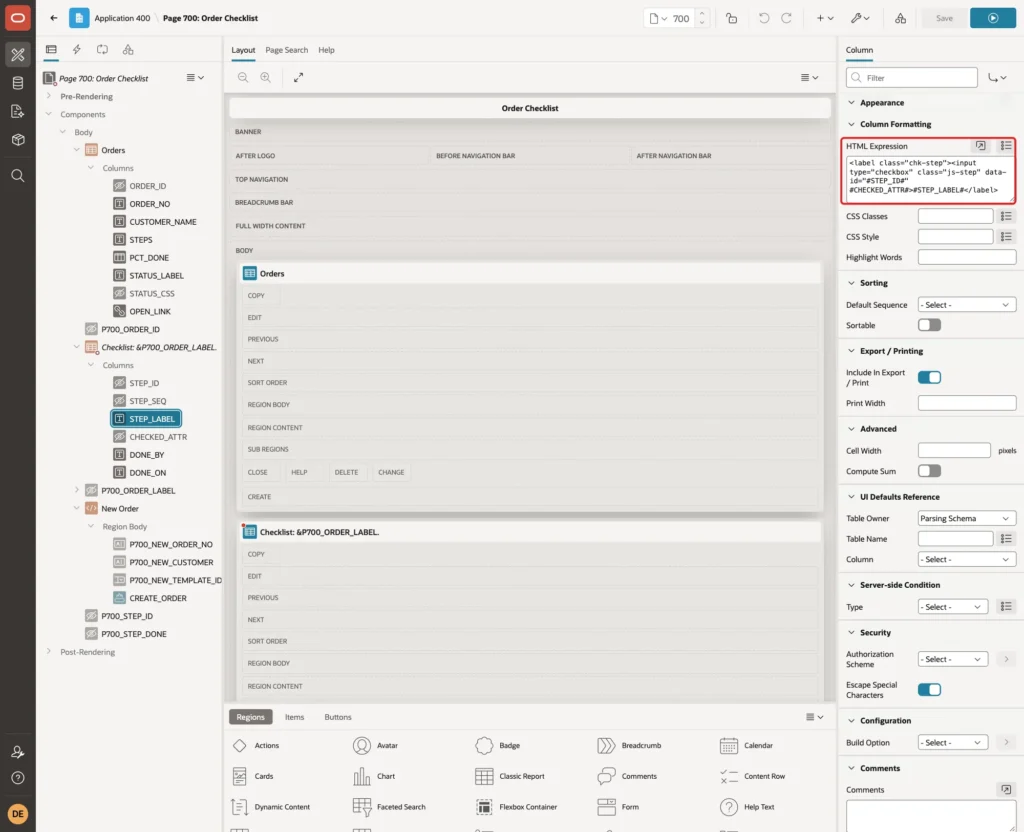
The class js-step lets the dynamic action find the checkboxes, and data-id carries the step ID. The label wraps the checkbox, so a click on the text also ticks it.
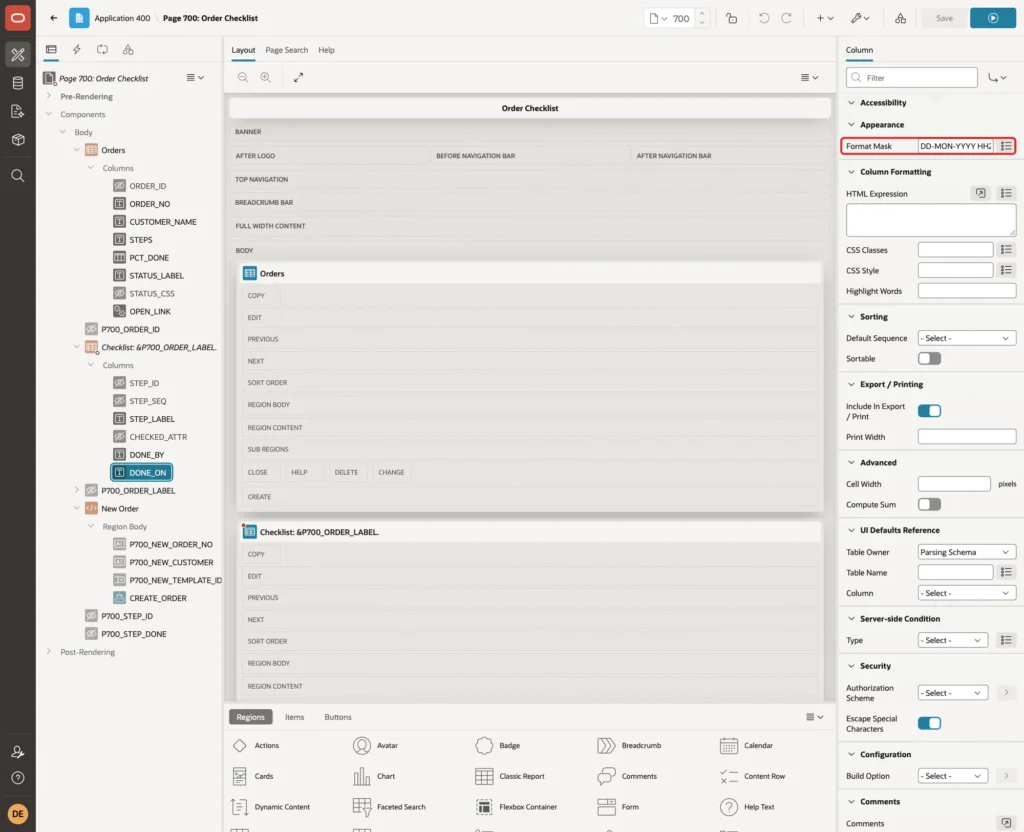
Select DONE_ON and set Format Mask to DD-MON-YYYY HH24:MI. Set the headings Done By and Done On, and turn Sortable off for the columns:
Step 10: Add the New Order Region
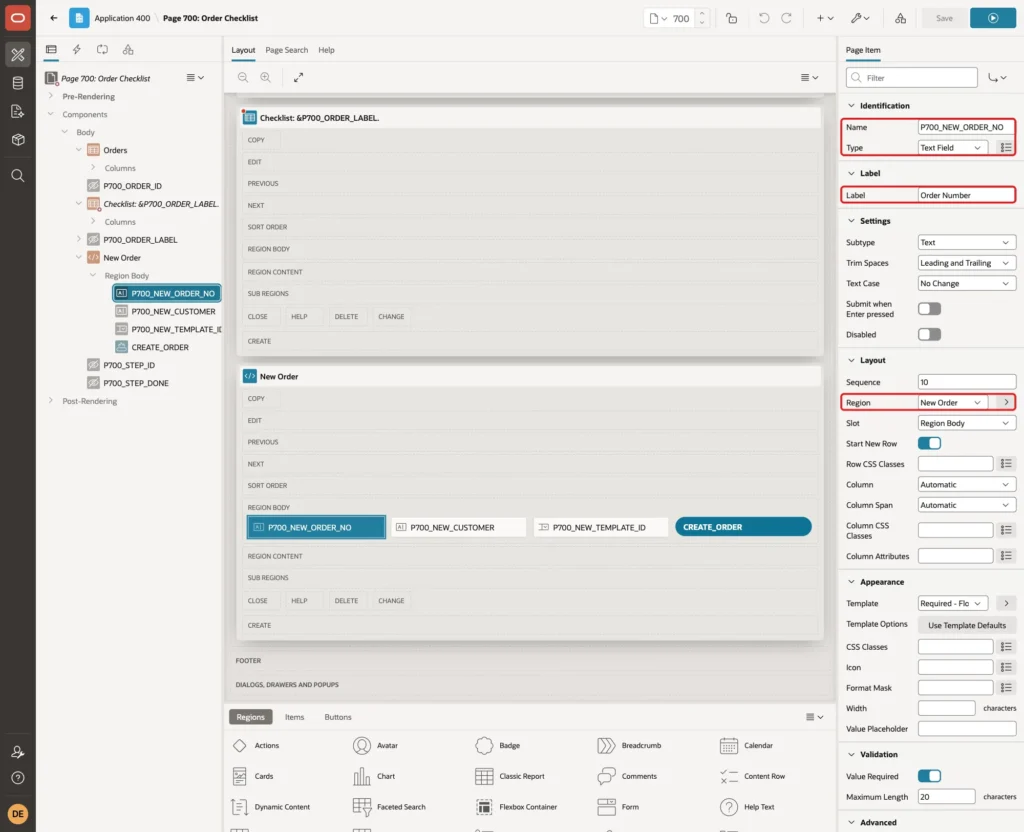
Create a third region. Set Name to New Order and Type to Static Content. Right-click it and create the page item P700_NEW_ORDER_NO with Type Text Field and Label Order Number:
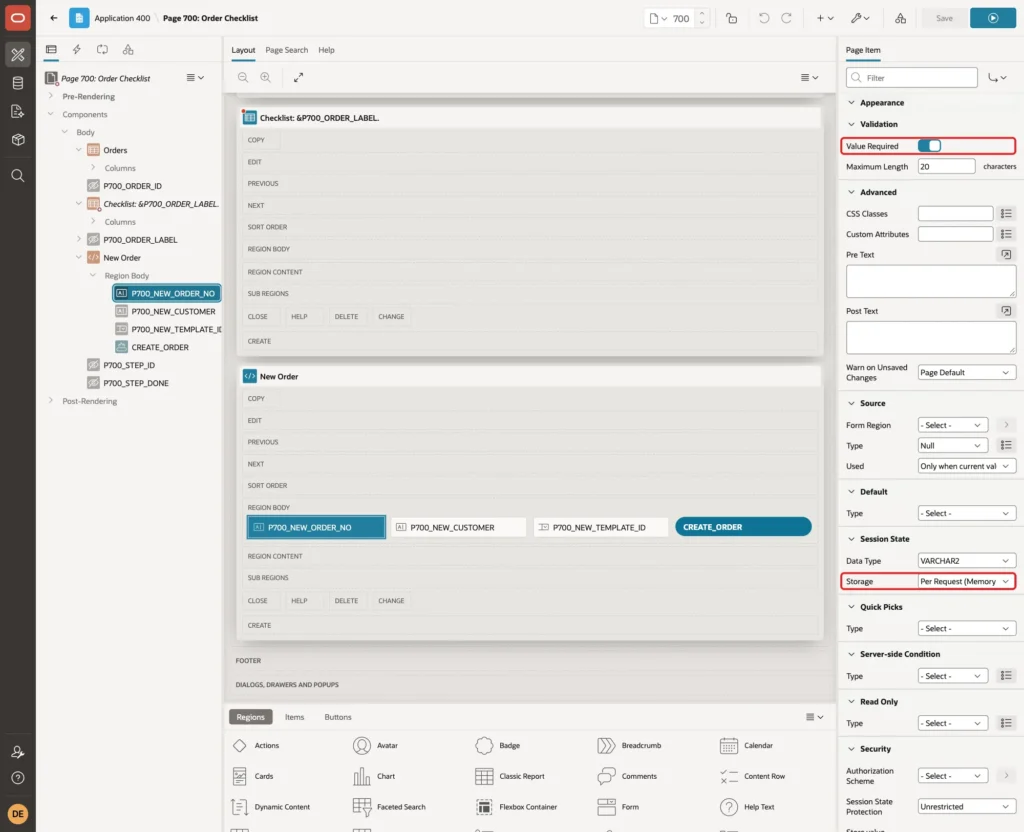
Turn Validation, Value Required on and set Session State, Storage to Per Request (Memory Only). The form starts empty again after each new order:
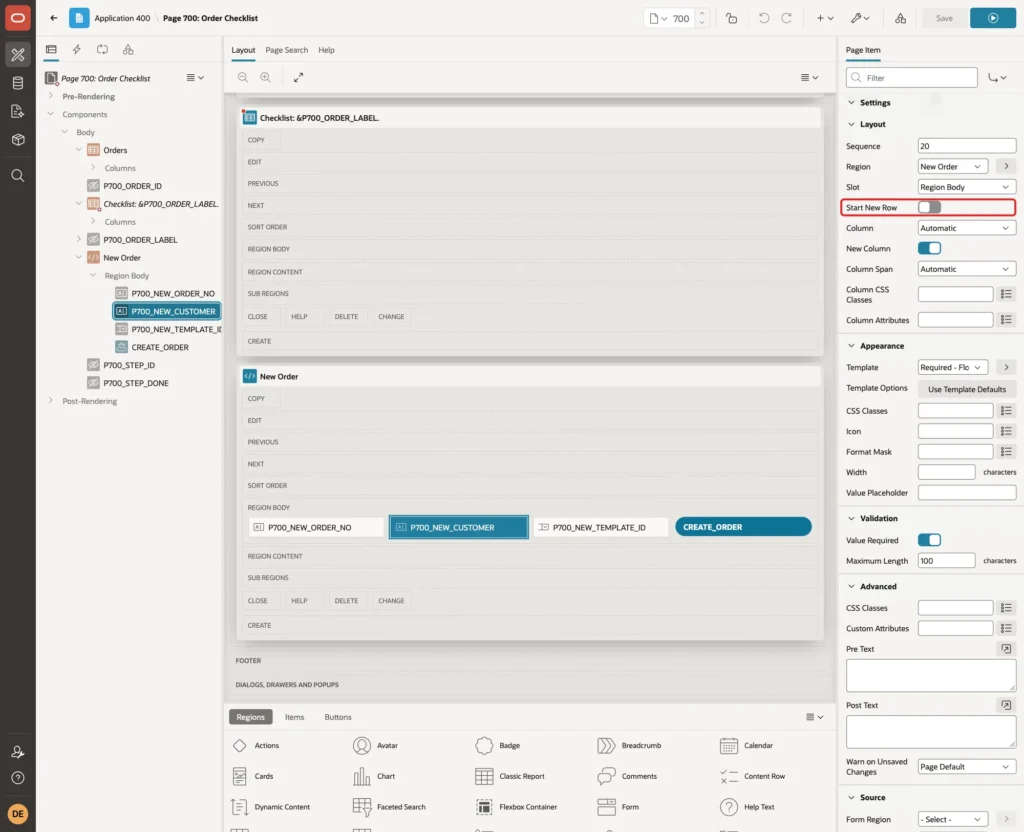
Create P700_NEW_CUSTOMER with Type Text Field, Label Customer, Value Required on and Storage Per Request. Turn Layout, Start New Row off so it sits next to the order number:
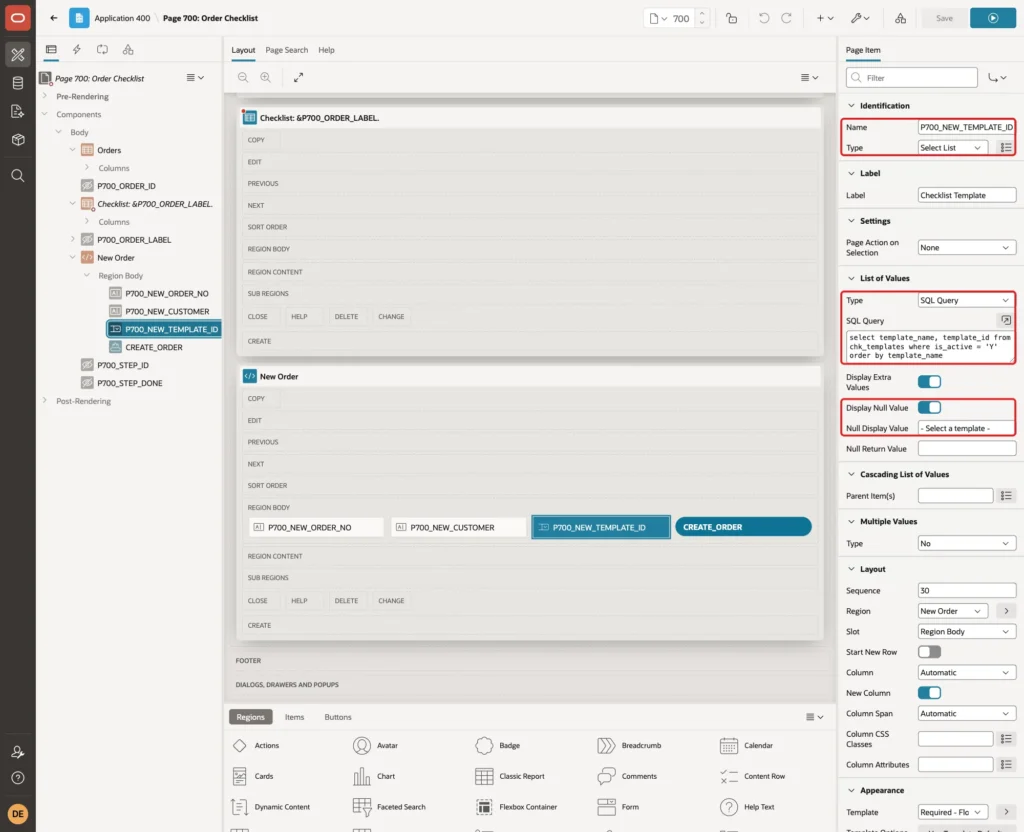
Create P700_NEW_TEMPLATE_ID with Type Select List and Label Checklist Template. Set List of Values, Type to SQL Query and enter this query:
Example:
select template_name, template_id
from   chk_templates
where  is_active = 'Y'
order  by template_name
Keep Display Null Value on and set Null Display Value to "- Select a template -". Also set Value Required on, Storage Per Request and Start New Row off:
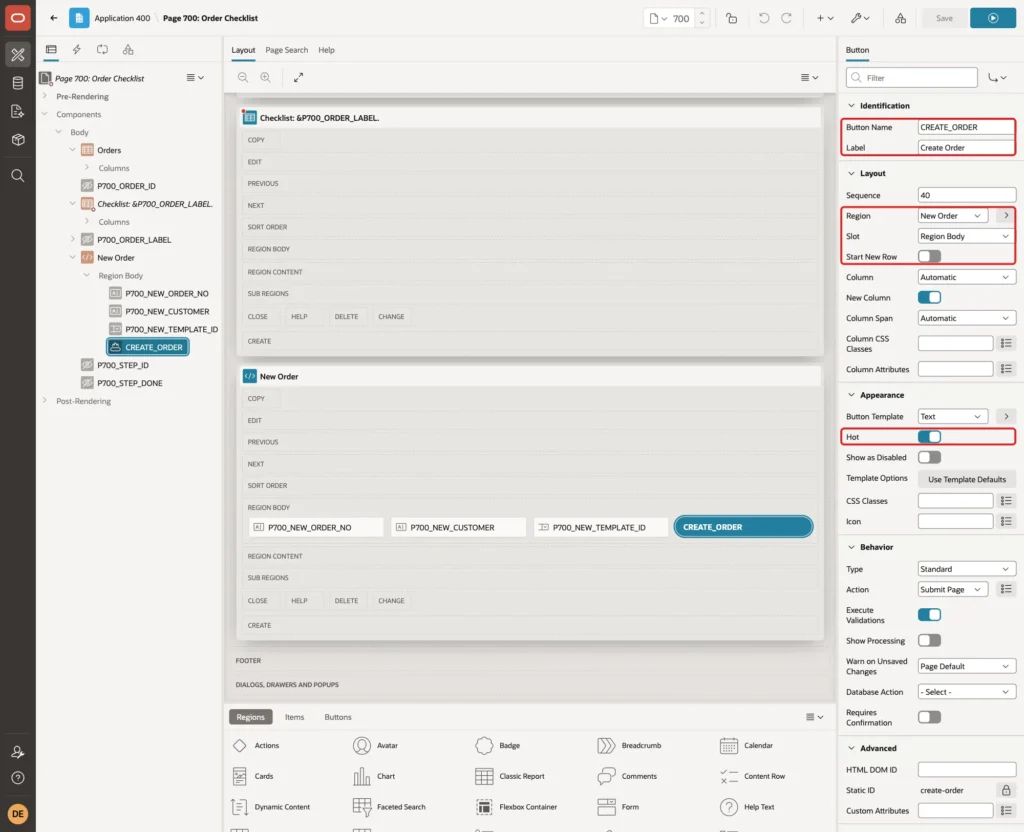
Right-click the region New Order and select Create Button. Set Button Name to CREATE_ORDER, Label to Create Order, Slot to Region Body, Start New Row off and Hot on:
Step 11: Add the Process and the Branch
Open the Processing tab, right-click Processing and select Create Process. Set Name to Create Order with Checklist, Type to Execute Code and enter this PL/SQL Code:
Example:
begin
    chk_pkg.create_order(
        p_order_no      => :P700_NEW_ORDER_NO,
        p_customer_name => :P700_NEW_CUSTOMER,
        p_template_id   => :P700_NEW_TEMPLATE_ID,
        p_order_id      => :P700_ORDER_ID);
end;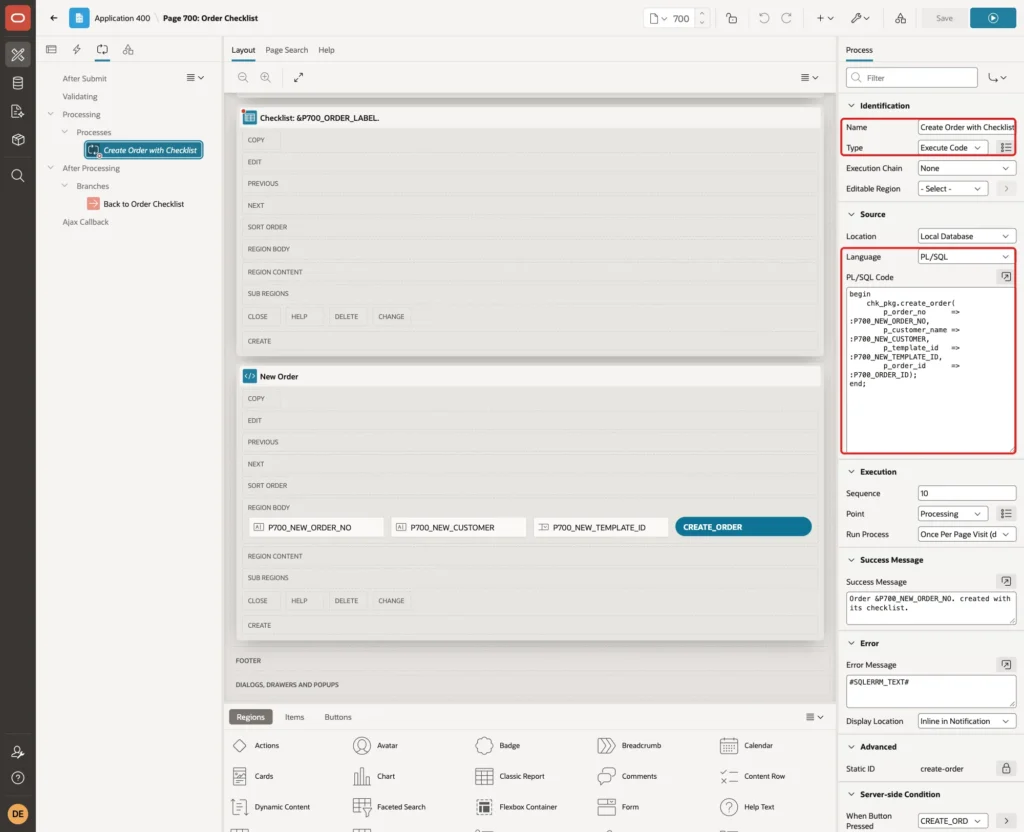
The procedure returns the new order ID into P700_ORDER_ID, so the page shows the checklist of the new order after the reload.
Set Success Message to "Order &P700_NEW_ORDER_NO. created with its checklist.", Error Message to #SQLERRM_TEXT#, and When Button Pressed to CREATE_ORDER:
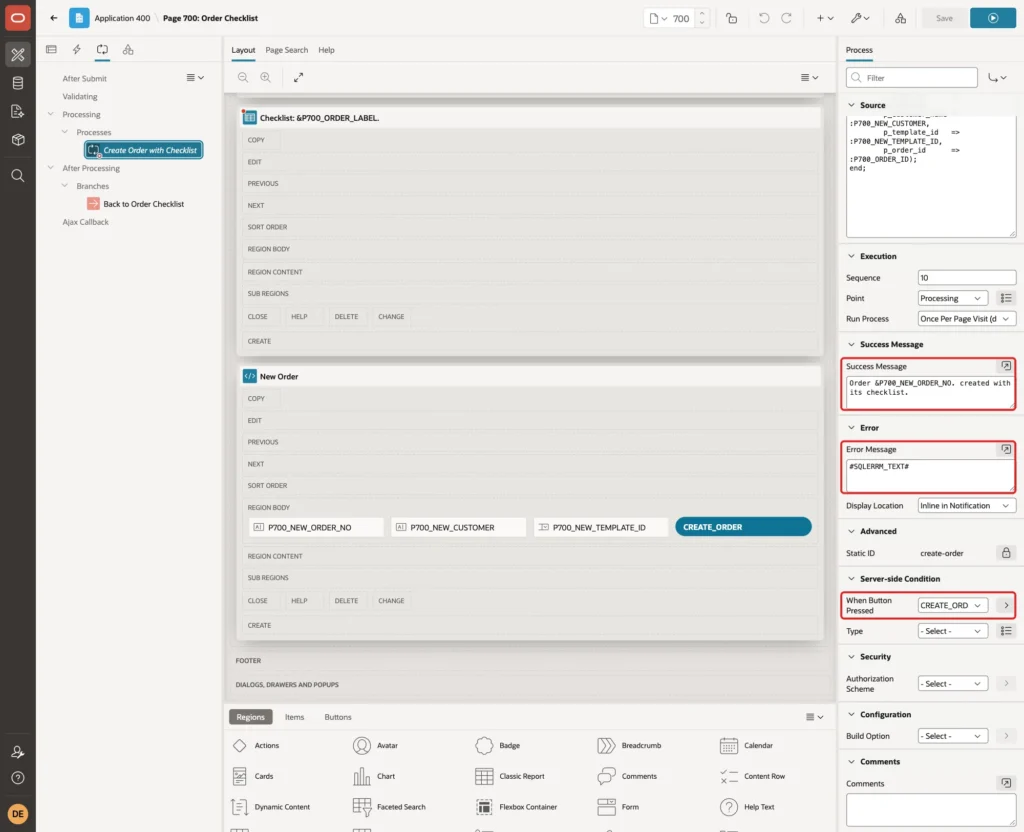
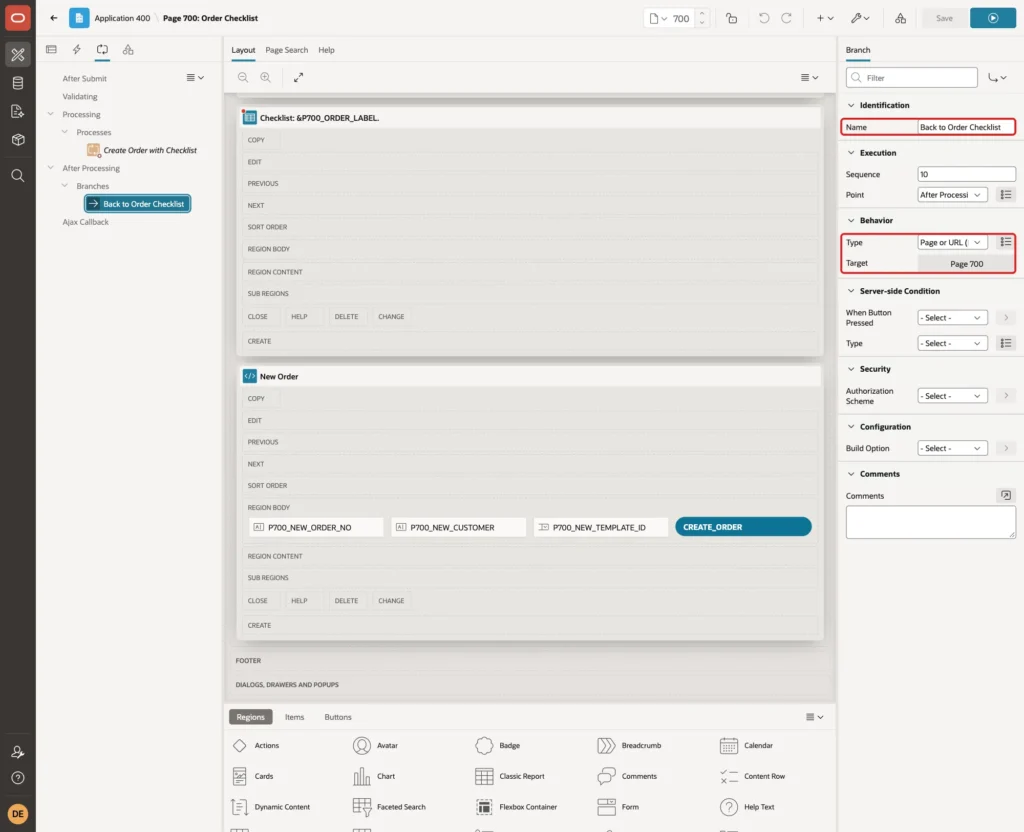
#SQLERRM_TEXT# shows the text of the package error without the ORA- number. Right-click After Processing and select Create Branch. Set Name to Back to Order Checklist, Type to Page or URL (Redirect) and Target to page 700:
Step 12: Save Each Tick with a Dynamic Action
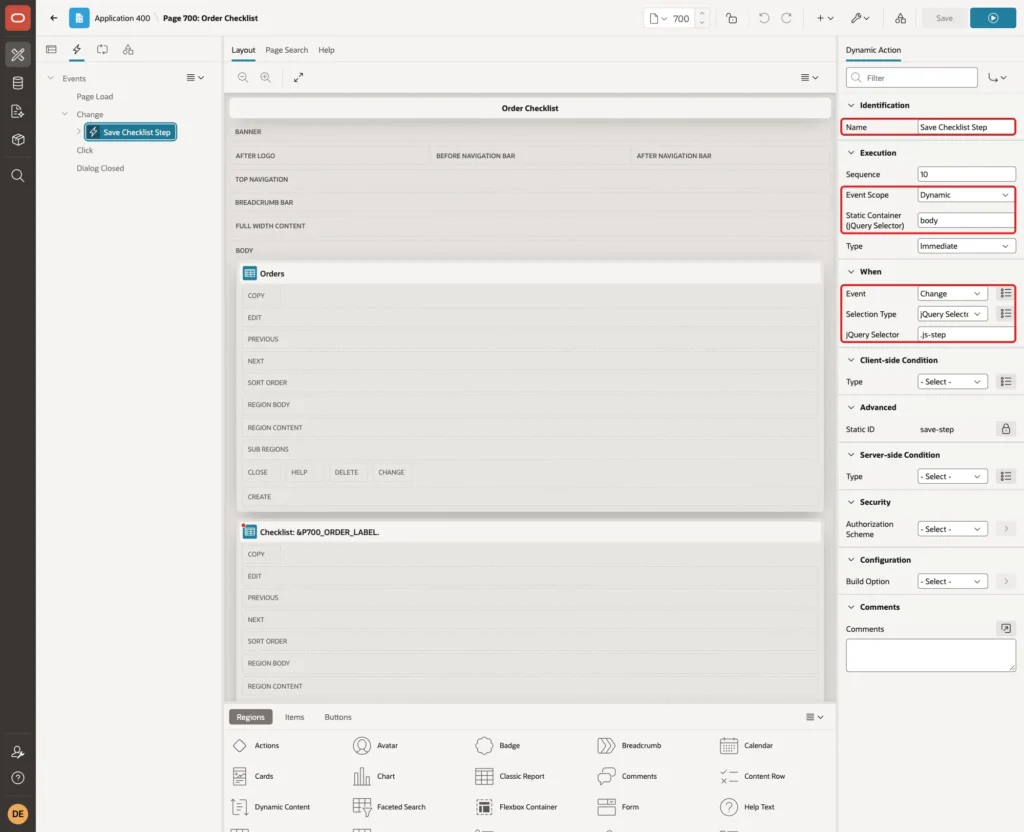
Open the Dynamic Actions tab, right-click Change and select Create Dynamic Action. Set Name to Save Checklist Step, Selection Type to jQuery Selector and jQuery Selector to .js-step.
Set Execution, Event Scope to Dynamic and Static Container to body. The checklist region is refreshed after each tick, and Dynamic scope keeps the event working for the new checkboxes:
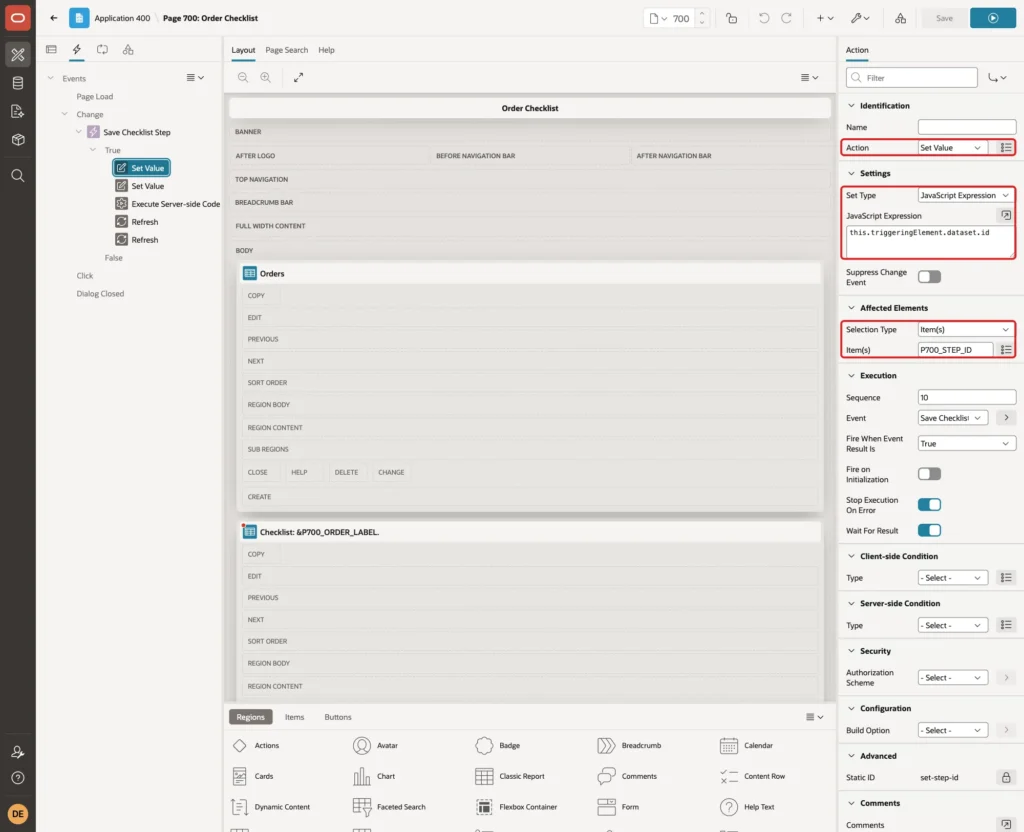
Select the True action and set Action to Set Value, Set Type to JavaScript Expression, JavaScript Expression to this.triggeringElement.dataset.id, and Item(s) to P700_STEP_ID:
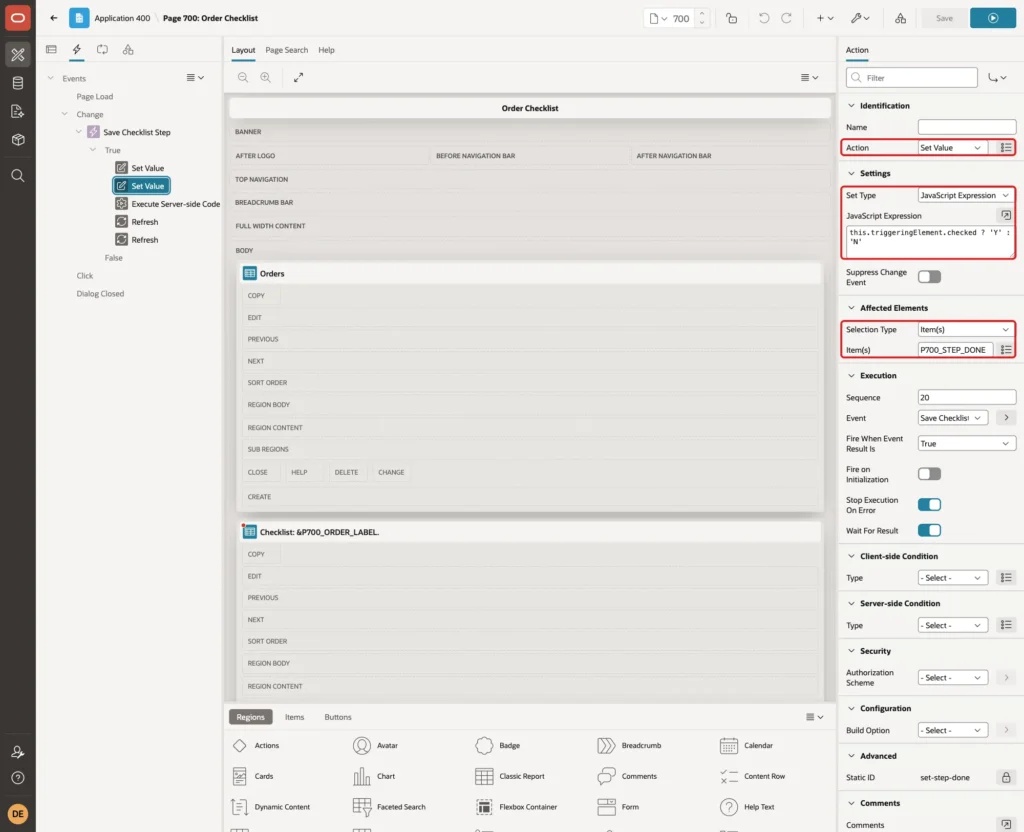
Add a second Set Value action with this JavaScript Expression and Item(s) P700_STEP_DONE:
Example:
this.triggeringElement.checked ? 'Y' : 'N'
Add a third action. Set Action to Execute Server-side Code, Language to PL/SQL, Items to Submit to P700_STEP_ID,P700_STEP_DONE, and enter this PL/SQL Code:
Example:
begin
    chk_pkg.set_step(
        p_order_id => :P700_ORDER_ID,
        p_step_id  => :P700_STEP_ID,
        p_done     => :P700_STEP_DONE,
        p_user     => :APP_USER);
end;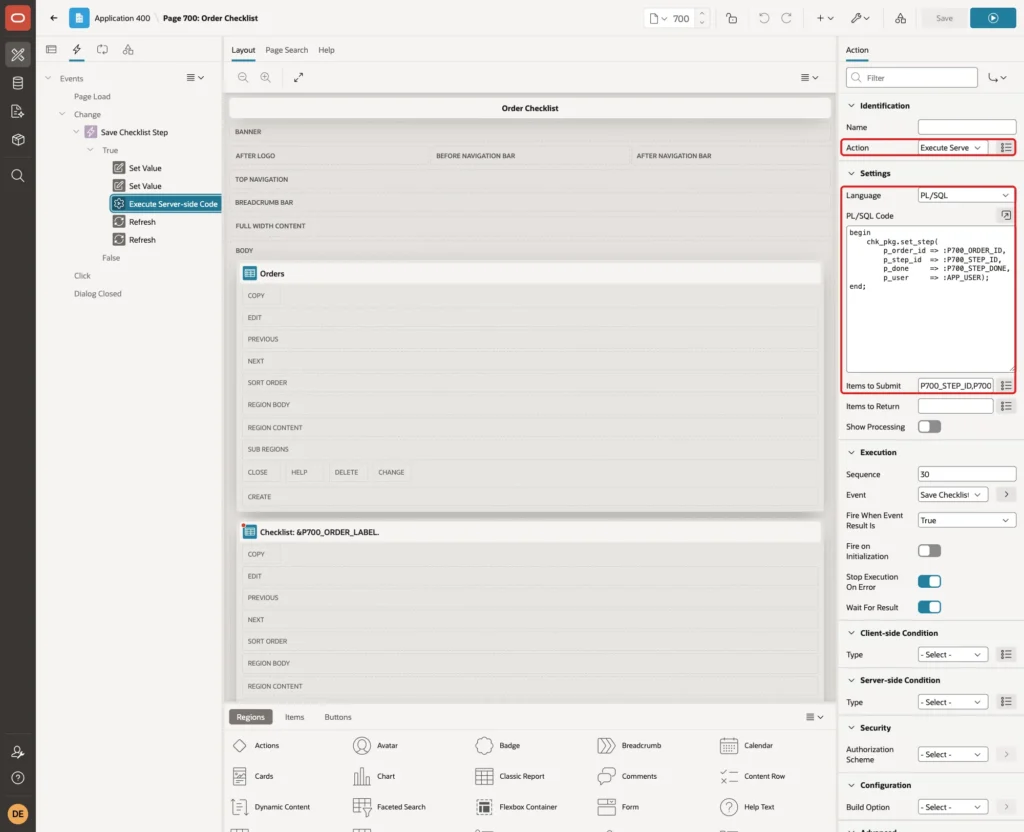
P700_ORDER_ID is not in Items to Submit. The server reads it from session state, where the Open link put it. Wait For Result stays on, so the next actions run after the save.
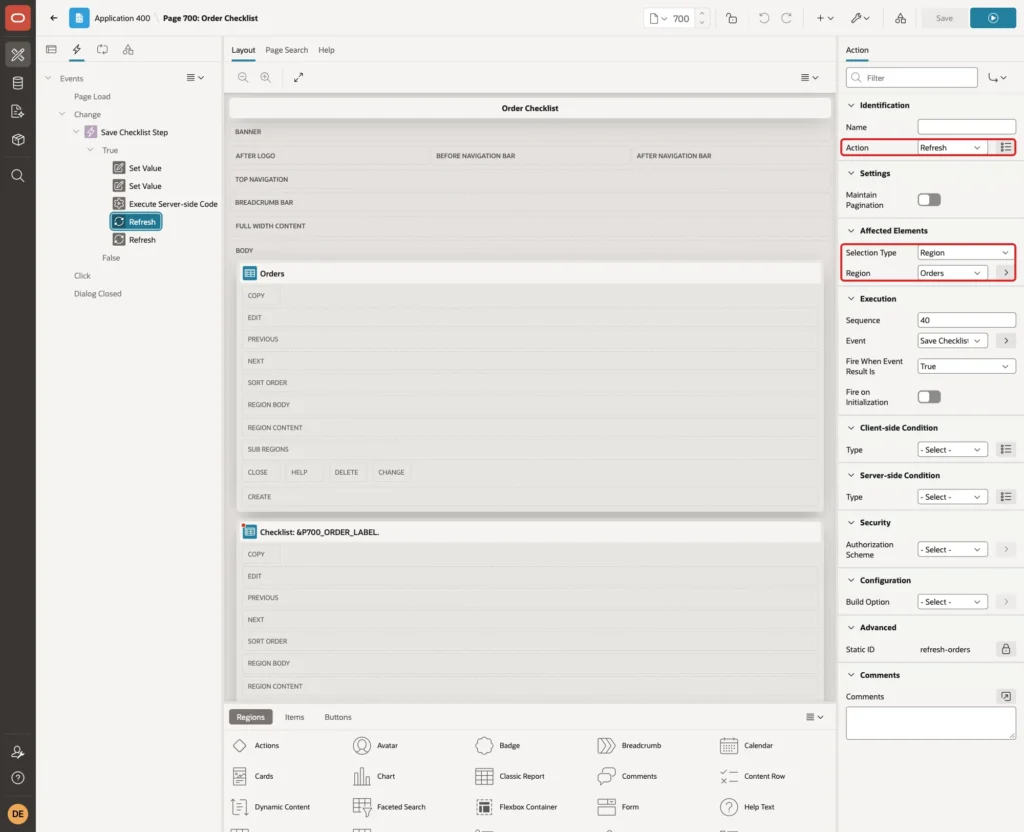
Add a Refresh action with Selection Type Region and Region Orders. It updates the progress bar:
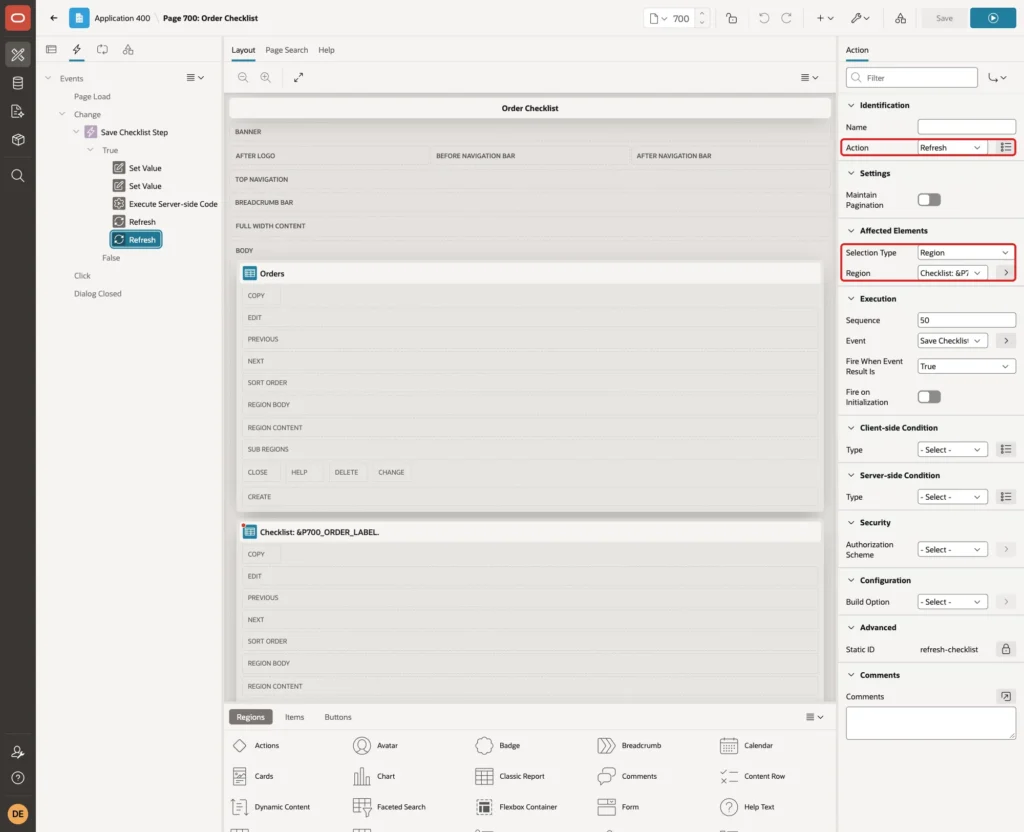
Add a last Refresh action for the Checklist region. It shows the new Done By and Done On values. Save the page:
Step 13: Test Ticking Steps
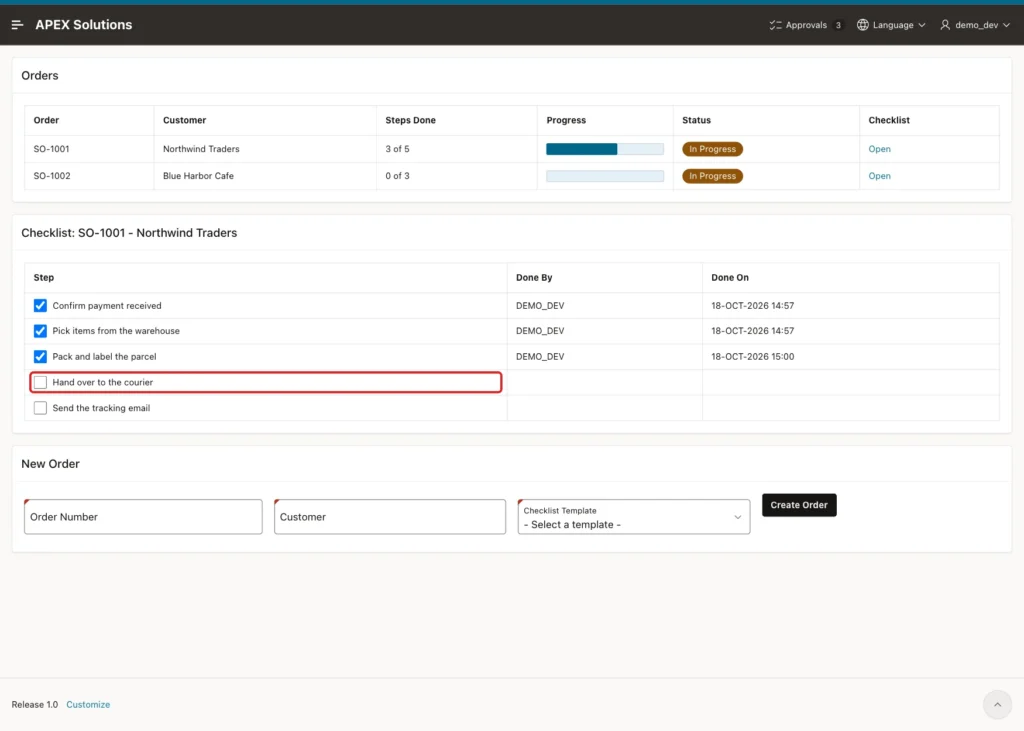
Run the page as DEMO_DEV and click Open in the row of SO-1001. The checklist shows the two steps ticked in the SQL test. Tick Hand over to the courier:
The page did not reload. The step shows DEMO_DEV and the time, and the Orders report changed to 4 of 5 with a longer bar:
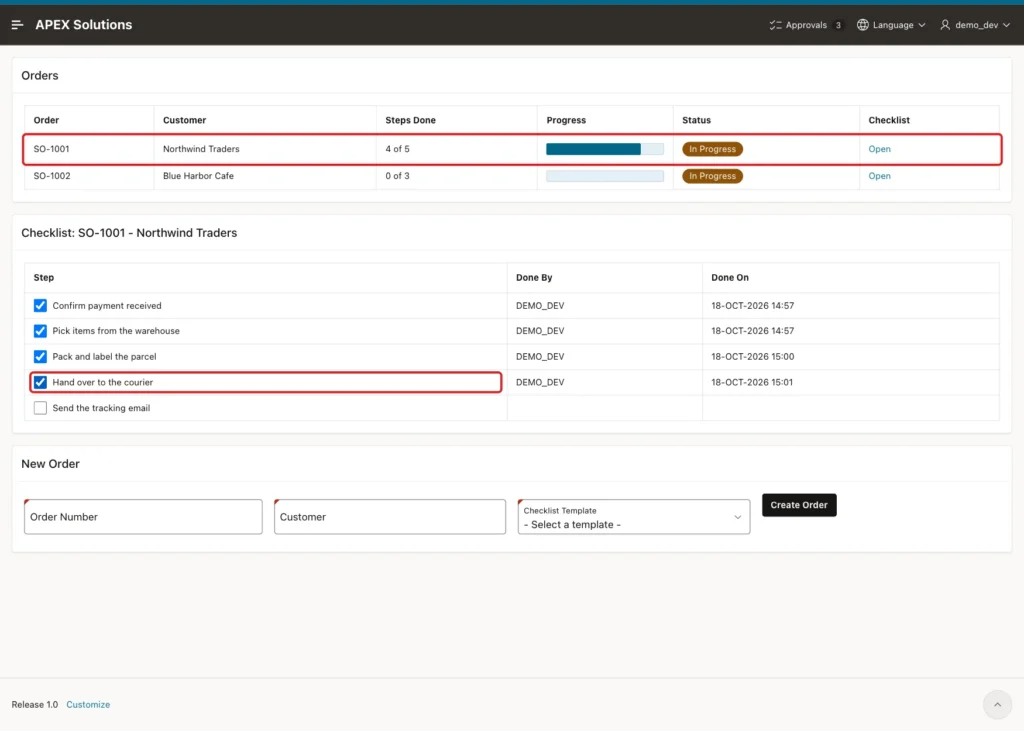
In this test, Pack and label the parcel had also been ticked earlier. Unticking it changed the row to 3 of 5 and cleared Done By and Done On; ticking it again brought back 4 of 5.
The times are the clock of the database server, which runs on UTC in this example. Use TIMESTAMP WITH LOCAL TIME ZONE if users should see their own time zone.
Step 14: Test a New Order and 100% Progress
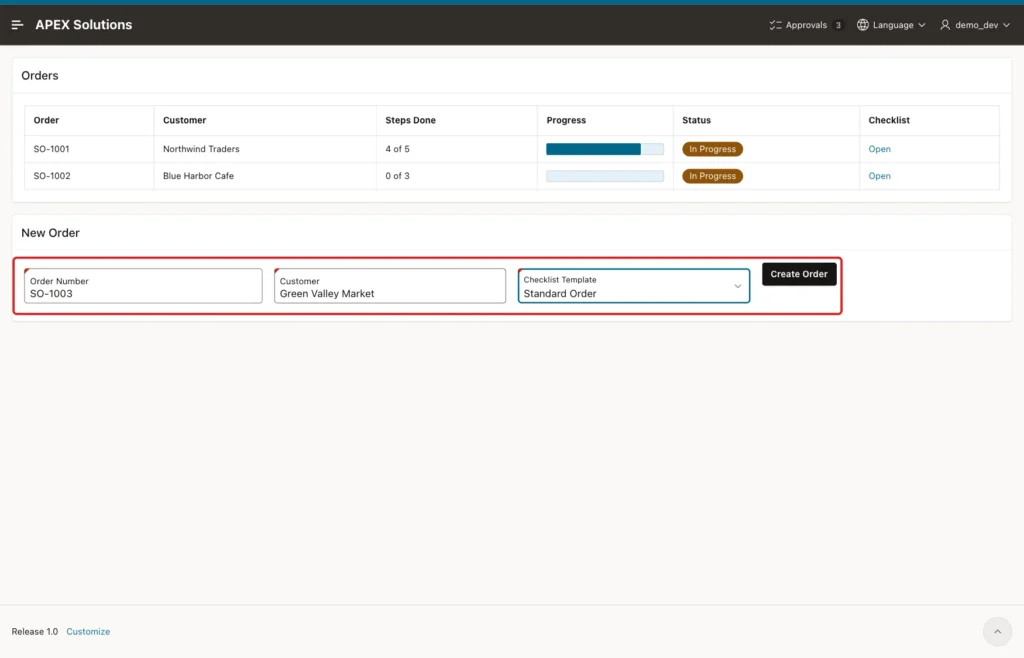
Enter the order number SO-1003, the customer Green Valley Market and the template Standard Order, then click Create Order:
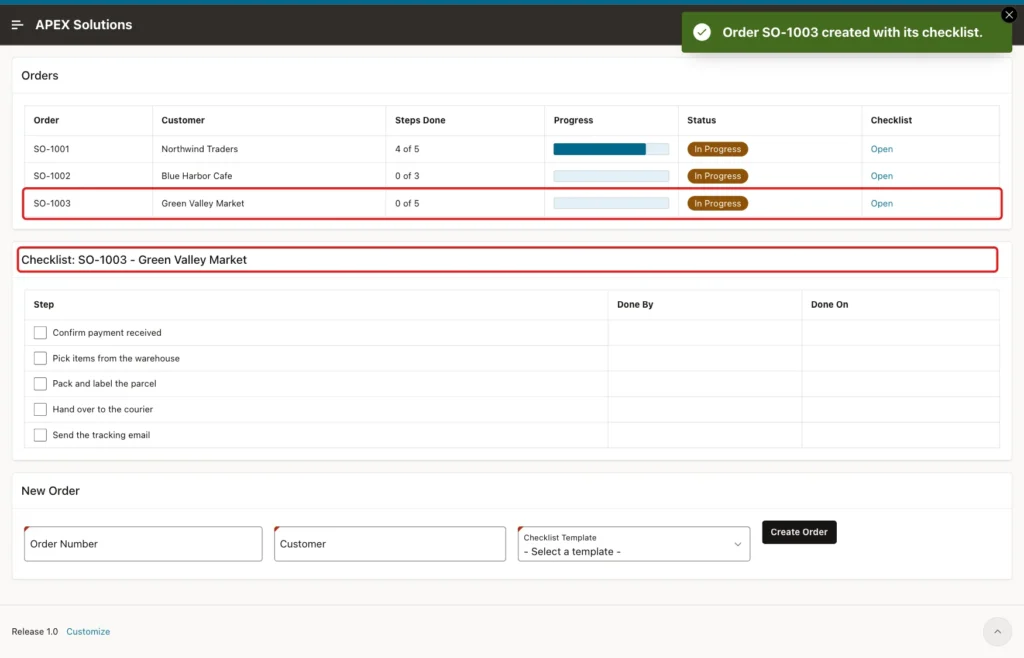
The page shows the success message, SO-1003 at 0 of 5, and its checklist with the five copied steps:
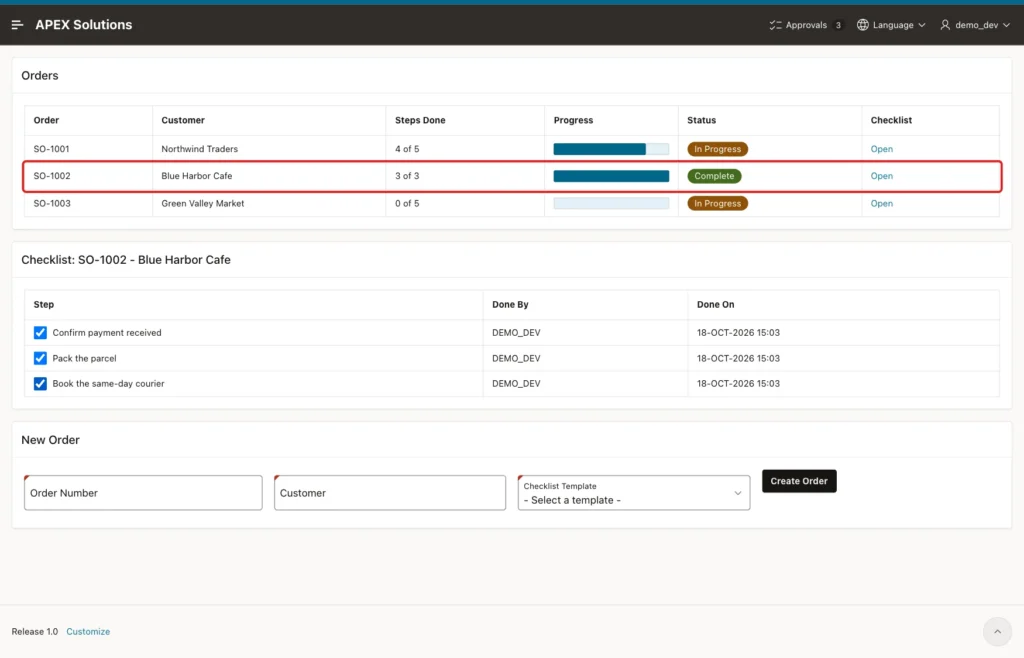
Open SO-1002 and tick its three steps. The bar fills up and the badge changes to Complete. SO-1001 and SO-1003 are not affected:
As ORDER_EDITOR, who has the Editor role, two steps of SO-1003 were ticked. The final state in SQL:
Example:
select order_no, steps_done, steps_total, pct_done
from   chk_order_progress_v
order  by order_no;

select o.order_no, s.step_label, s.is_done, s.done_by
from   chk_order_steps s
       join chk_orders o on o.order_id = s.order_id
where  o.order_no = 'SO-1003'
order  by s.step_seq;
Output:
ORDER_NO       STEPS_DONE    STEPS_TOTAL    PCT_DONE
___________ _____________ ______________ ___________
SO-1001                 4              5          80
SO-1002                 3              3         100
SO-1003                 2              5          40

ORDER_NO    STEP_LABEL                       IS_DONE    DONE_BY
___________ ________________________________ __________ _______________
SO-1003     Confirm payment received         Y          ORDER_EDITOR
SO-1003     Pick items from the warehouse    Y          ORDER_EDITOR
SO-1003     Pack and label the parcel        N
SO-1003     Hand over to the courier         N
SO-1003     Send the tracking email          N
Step 15: Test the Error Cases
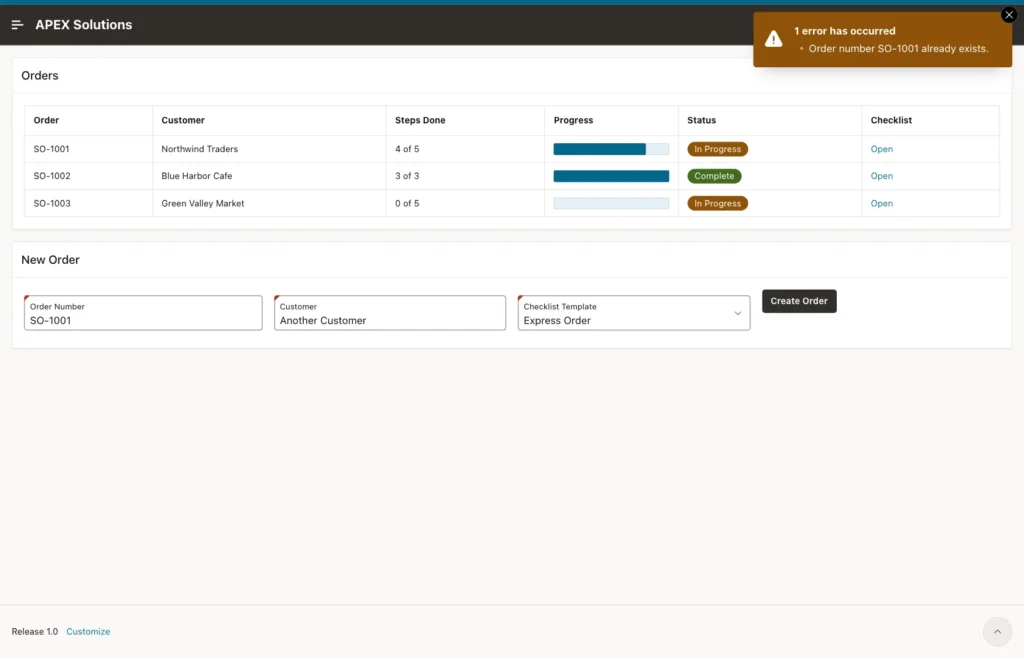
Create an order with the existing number SO-1001. The process shows the package message, and no order is created:
Clicking Create Order with empty fields showed three Value Required errors: Order Number, Customer and Checklist Template must have some value.
Next, a forged request. With SO-1003 open, the browser console changed the data-id of the first checkbox to 5, a step of SO-1001, and the box was ticked. The Ajax call returned the package error:
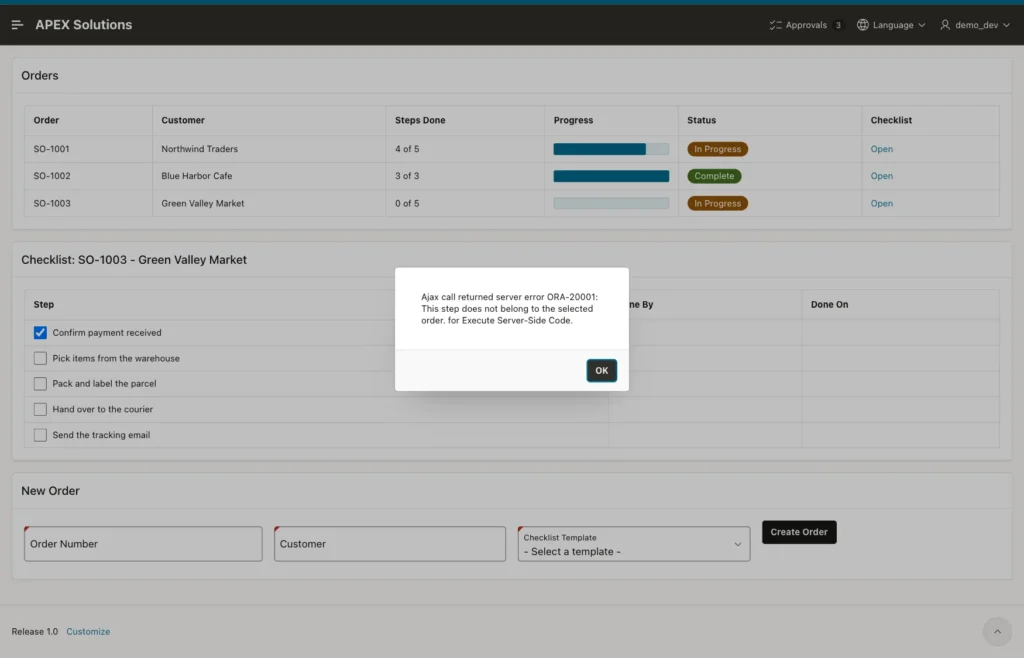
The checkbox stayed ticked in the browser, because the dynamic action stops at the error and does not refresh the region. Nothing was saved:
Example:
select o.order_no, s.step_id, s.step_label, s.is_done, s.done_by
from   chk_order_steps s
       join chk_orders o on o.order_id = s.order_id
where  s.step_id = 5
or     o.order_no = 'SO-1003'
order  by o.order_no, s.step_seq;
Output:
ORDER_NO       STEP_ID STEP_LABEL                       IS_DONE    DONE_BY
___________ __________ ________________________________ __________ __________
SO-1001              5 Send the tracking email          N
SO-1003             31 Confirm payment received         N
SO-1003             32 Pick items from the warehouse    N
SO-1003             33 Pack and label the parcel        N
SO-1003             34 Hand over to the courier         N
SO-1003             35 Send the tracking email          N

6 rows selected.
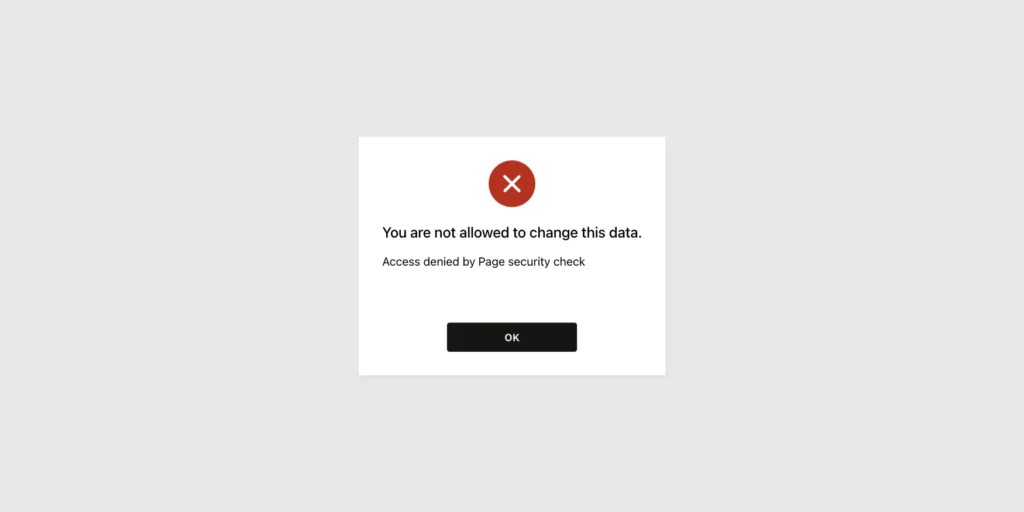
Last, SALES_USER, who has only the Reader role, opened the page URL. APEX blocked the page, and the Order Checklist menu entry was not shown to this user:
Things to Know
- Copy the template steps to each record. If records link to template rows instead, a template change rewrites the history of finished records.
- Keep the progress in a view. A stored percentage column would need a trigger or extra code to stay correct after each tick.
- Values set by JavaScript need Value Protected off. Check them on the server, as SET_STEP does with the order ID from session state.
- A region refresh replaces the checkboxes with new elements. Event Scope Dynamic with the body as container keeps the event working for them.
- The Percent Graph column type expects a number from 0 to 100.
Related Guides
- How to Build a Survey Form from Question Tables in Oracle APEX
- How to Build a Work Queue with "Take Next" Using SKIP LOCKED in Oracle APEX
Conclusion
A checklist with progress in Oracle APEX needs template tables, a steps table per record, a view for the progress and a small package. Each new record gets its own copy of the template steps, and constraints keep the done flag, user and date consistent.
On the page, checkboxes in a classic report save each tick through a dynamic action with Ajax, and a Percent Graph column with a Complete badge shows the progress. Duplicates, forged step IDs and readers were tested and refused.
