
A photo gallery lets users upload several pictures at once and browse them as a grid of cards or as a slideshow. Oracle APEX has the parts for both: a multiple file upload item, a Cards region that reads pictures straight from a BLOB column, and a Carousel Container region template that turns its sub regions into slides.
This guide builds a gallery with all three. It uses products as the example, and the same steps work for any table that owns pictures. The photos are stored in their own table, uploaded in one go, shown in a grid and in a carousel, opened in full size, and deleted.
The guide How to Upload an Image and Show It in a Form and a Report in Oracle APEX stores one image in a column of the record. This guide is for many pictures per record, and for the gallery and carousel that show them.
Step 1: Create the Table
The pictures go into their own table, PRODUCT_IMAGES, so a product can have any number of them. The table has no sample rows. The sample photos of this guide are uploaded through the page in the test section.
Example:
create table product_images (
    image_id     number generated by default on null as identity,
    product_id   number         not null,
    file_name    varchar2(200)  not null,
    mime_type    varchar2(100)  not null,
    file_size    number         not null,
    image_blob   blob           not null,
    uploaded_by  varchar2(100)  default on null coalesce(sys_context('APEX$SESSION', 'APP_USER'), user) not null,
    uploaded_on  timestamp with time zone default on null systimestamp not null,
    constraint product_images_pk primary key (image_id),
    constraint product_images_product_fk foreign key (product_id)
        references products (product_id) on delete cascade,
    constraint product_images_mime_ck check (mime_type like 'image/%'),
    constraint product_images_size_ck check (file_size > 0)
);

create index product_images_product_ix on product_images (product_id);

select table_name, constraint_name, constraint_type
from   user_constraints
where  table_name = 'PRODUCT_IMAGES'
and    generated = 'USER NAME'
order by constraint_type, constraint_name;
Output:
Table PRODUCT_IMAGES created.

Index PRODUCT_IMAGES_PRODUCT_IX created.

TABLE_NAME        CONSTRAINT_NAME              CONSTRAINT_TYPE
_________________ ____________________________ __________________
PRODUCT_IMAGES    PRODUCT_IMAGES_MIME_CK       C
PRODUCT_IMAGES    PRODUCT_IMAGES_SIZE_CK       C
PRODUCT_IMAGES    PRODUCT_IMAGES_PK            P
PRODUCT_IMAGES    PRODUCT_IMAGES_PRODUCT_FK    R
A few details in the table:
- The foreign key to PRODUCTS has ON DELETE CASCADE, so deleting a product deletes its photos, and an index on PRODUCT_ID keeps the list of one product's photos fast.
- UPLOADED_BY and UPLOADED_ON use DEFAULT ON NULL, so the insert statement never sets them. The user name comes from the APEX session.
- The check constraint PRODUCT_IMAGES_MIME_CK accepts only MIME types that start with image/. It is the database side of the file type rule, in case a file gets past the page.
- The existing PRODUCTS table is not changed.
Step 2: Create the Photo Gallery Page
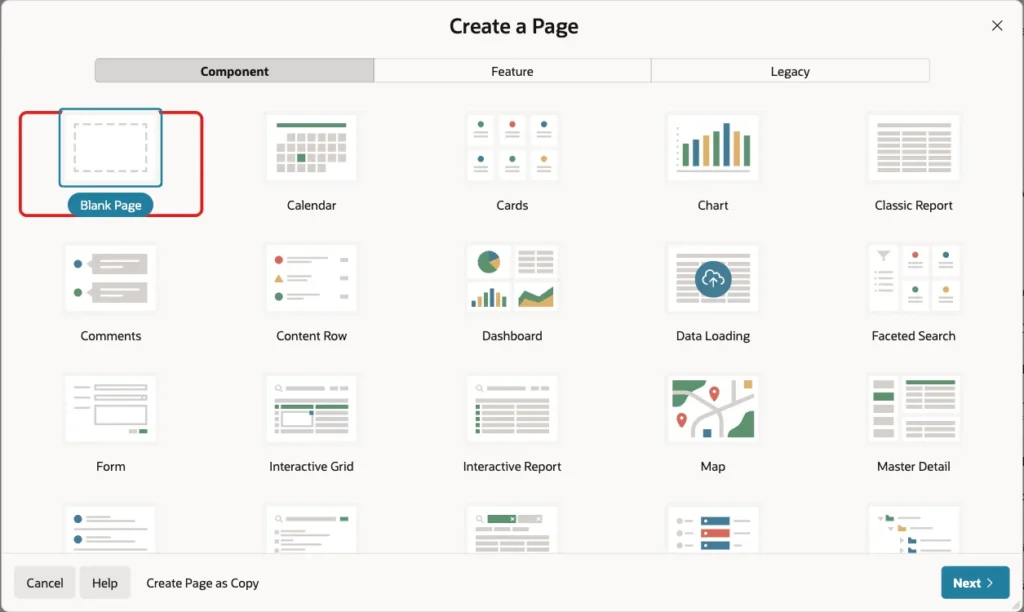
In App Builder, open the application and click Create Page. On the Component tab, select Blank Page:
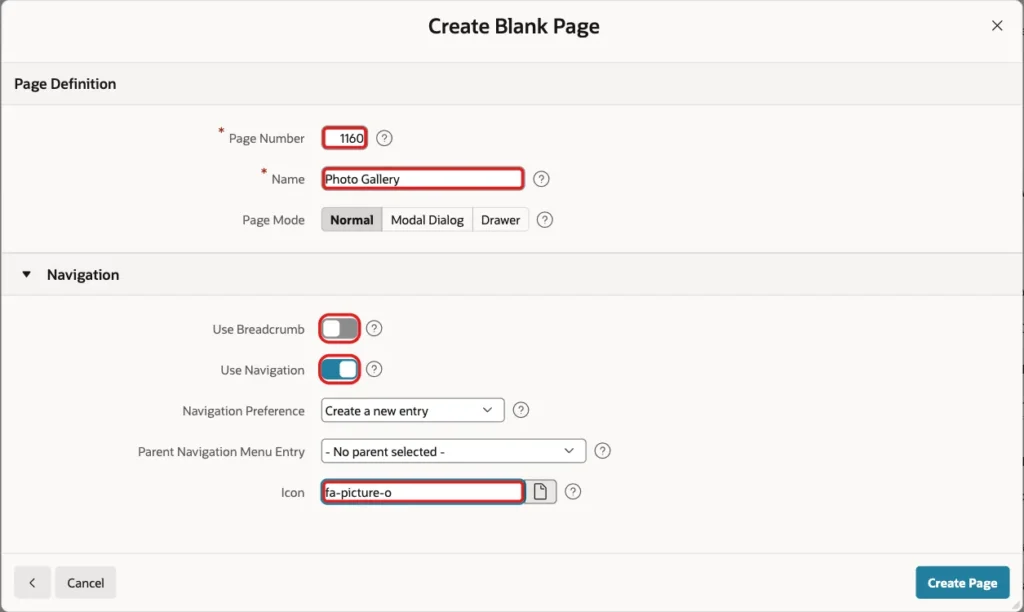
On the next screen, enter Page Number 1160 and Name Photo Gallery. Turn off Use Breadcrumb, keep Use Navigation on and enter the Icon fa-picture-o. Then click Create Page:
Step 3: Add the Upload Region
In Page Designer, drag a Static Content region into the Body. Set Name to Upload Photos:

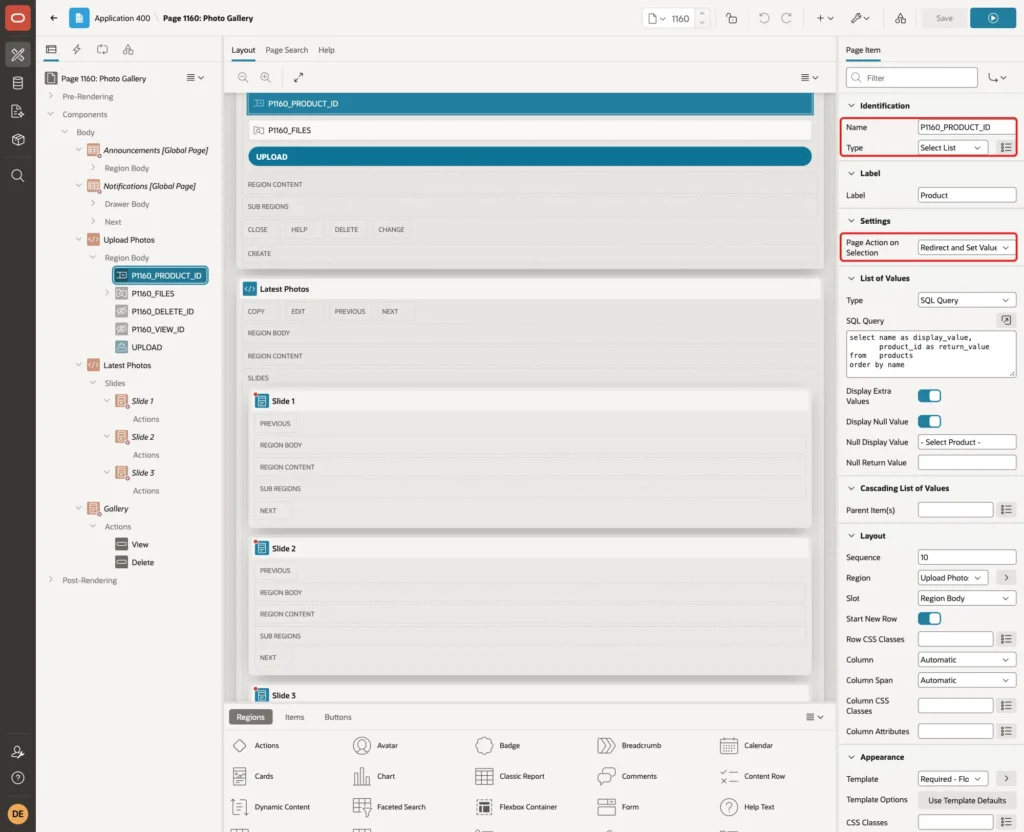
The first item chooses the product. Create a page item named P1160_PRODUCT_ID of type Select List with the label Product. Set Page Action on Selection to Redirect and Set Value, so the page reloads with the chosen product:
In the List of Values group, set Type to SQL Query and enter the query below. Turn on Display Null Value and enter - Select Product - as the Null Display Value:
Example:
select name as display_value,
       product_id as return_value
from   products
order by name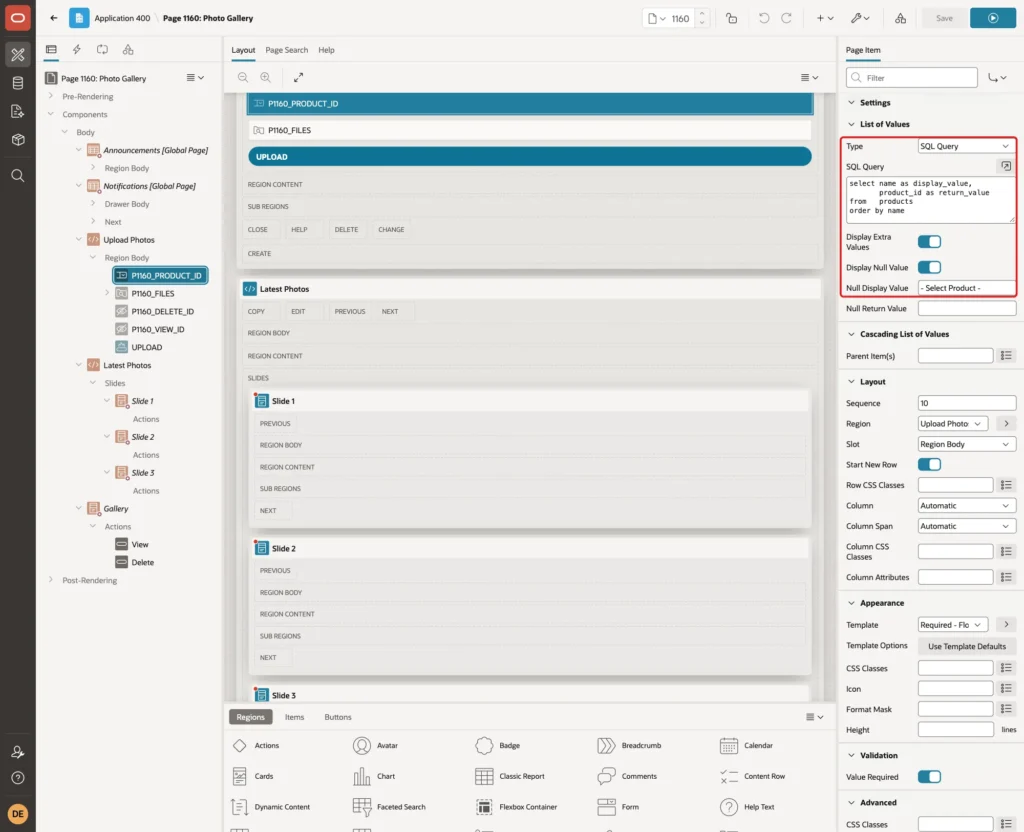
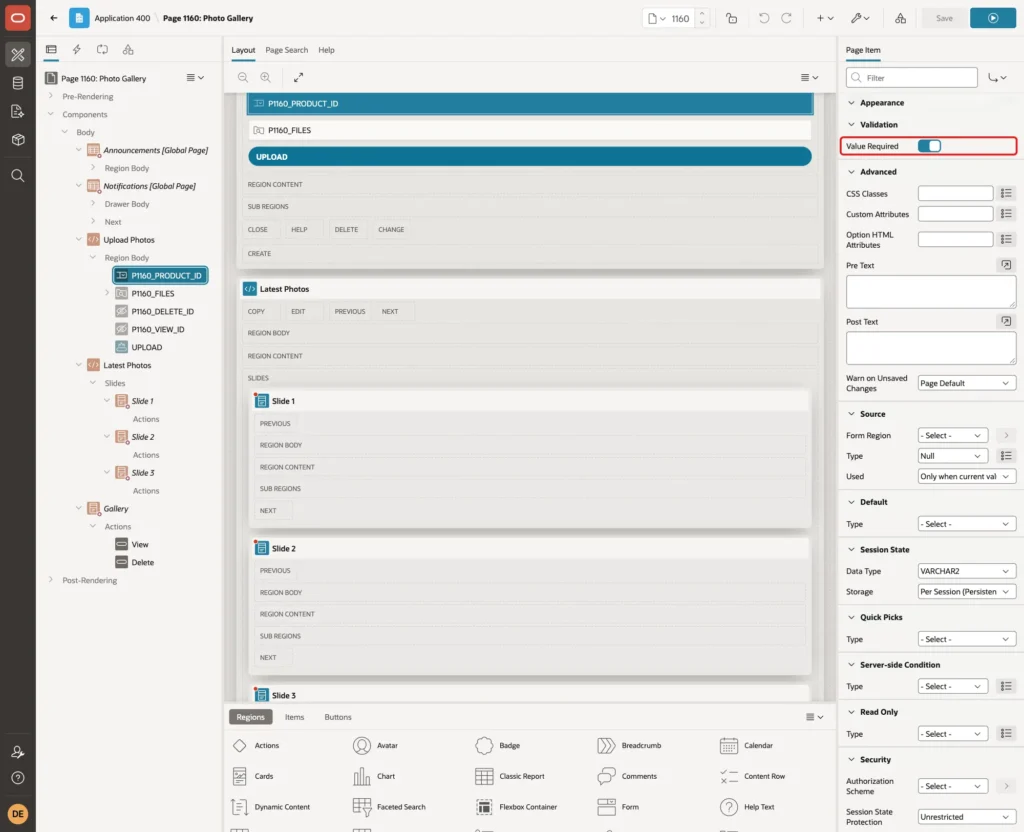
In the Validation group, turn on Value Required:
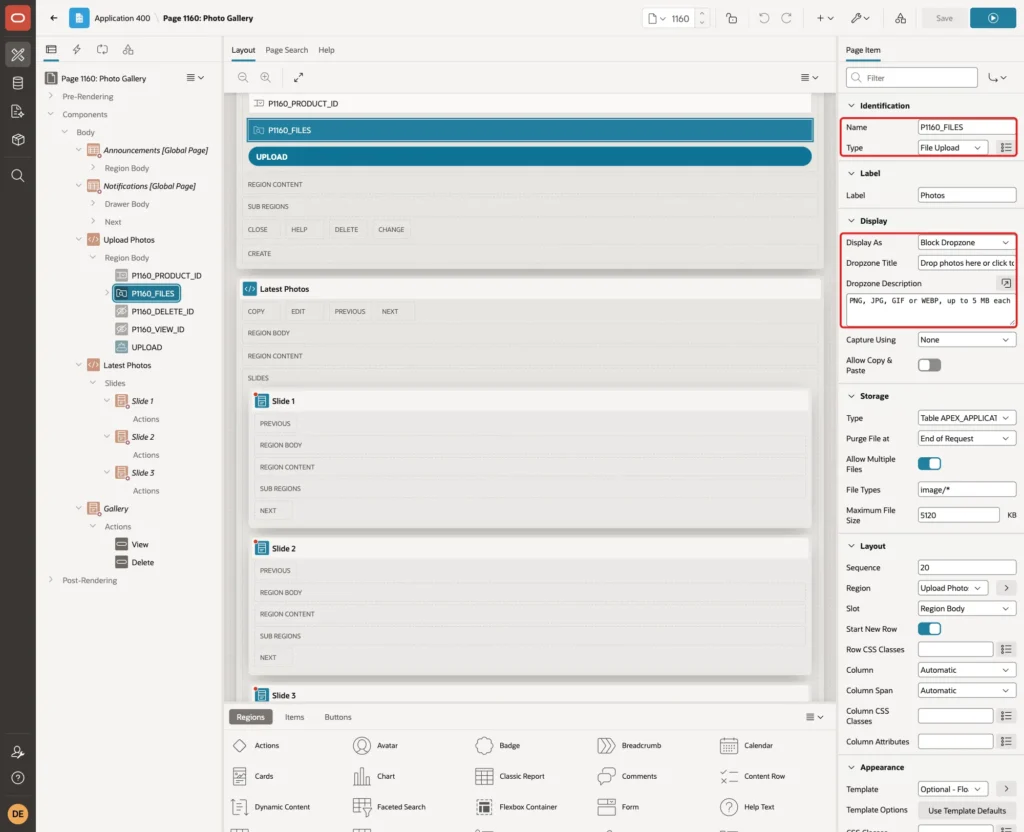
The second item takes the files. Create a page item named P1160_FILES of type File Upload with the label Photos. Set Display As to Block Dropzone and enter a title and a description for the drop zone:
In the Storage group, set Type to Table APEX_APPLICATION_TEMP_FILES and Purge File at to End of Request. Turn on Allow Multiple Files, enter image/* as File Types and 5120 as Maximum File Size, which is in KB:
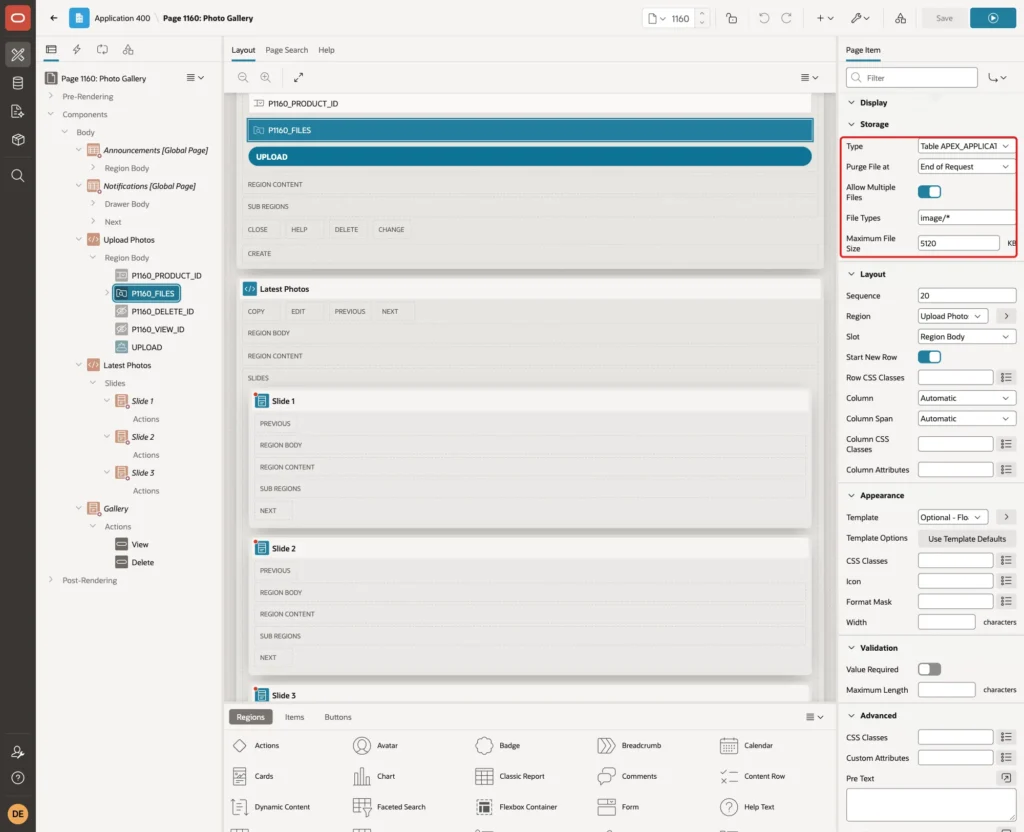
The temporary files table holds the uploads only until the end of the request. The process in Step 4 copies them into PRODUCT_IMAGES before that.
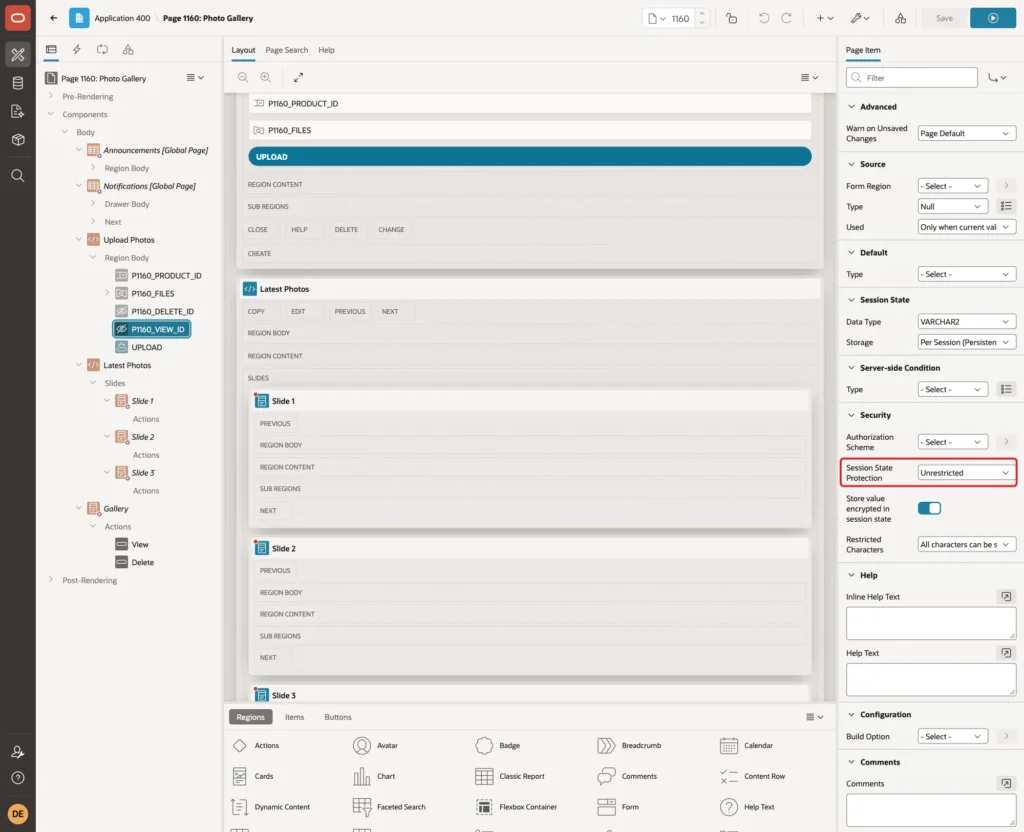
Two hidden items carry values from the gallery to the server. P1160_DELETE_ID holds the photo to delete, and P1160_VIEW_ID holds the photo to open. Create both with type Hidden and turn off Value Protected, because the browser sets them:
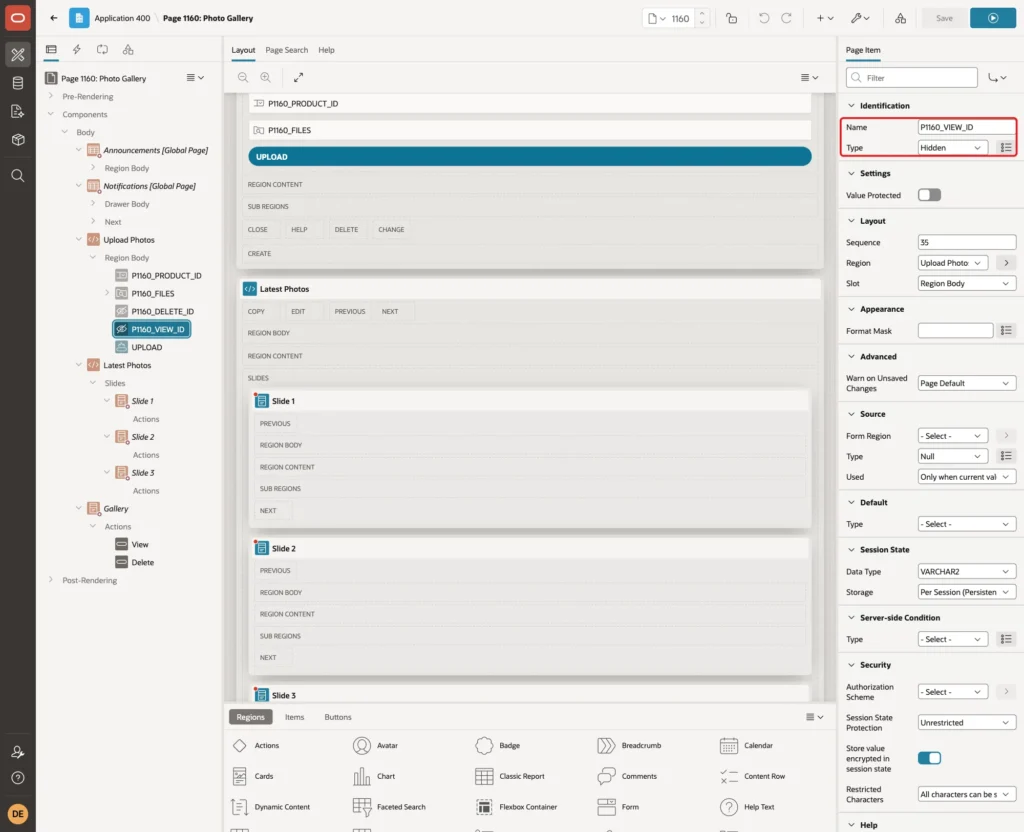
In the Security group, Session State Protection shows Unrestricted after Value Protected is turned off:
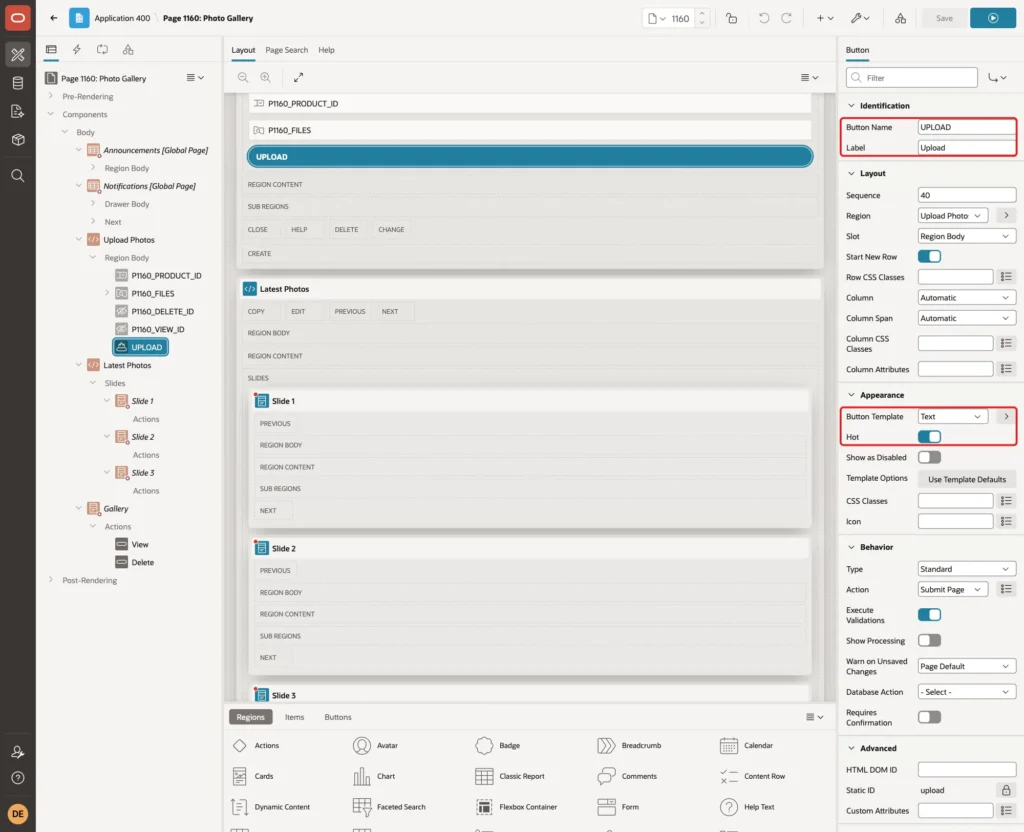
Finally, create a button named UPLOAD with the label Upload in the same region. Select the Text button template and turn on Hot:
Step 4: Add the Validation and the Processes
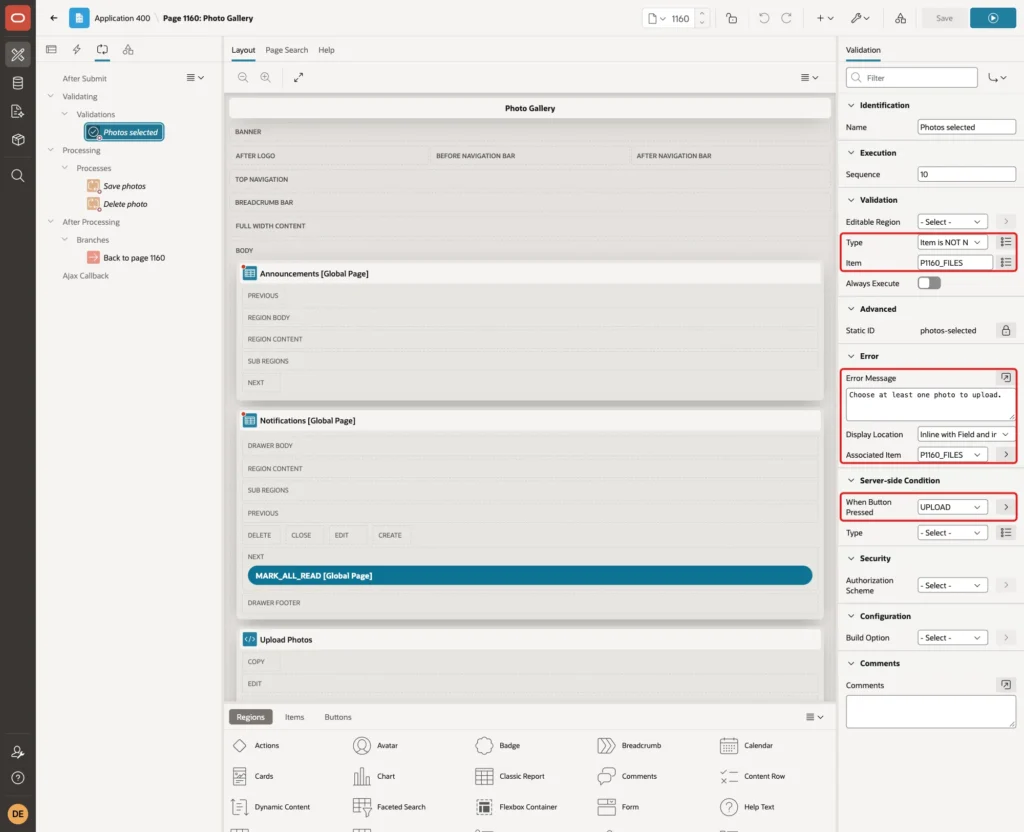
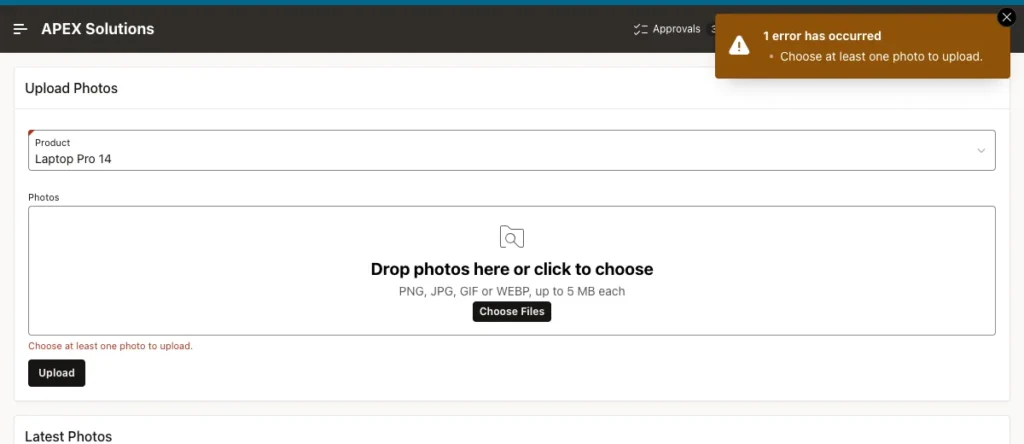
Click the Processing tab. Create a validation named Photos selected. Set Type to Item is NOT NULL, Item to P1160_FILES and Error Message to "Choose at least one photo to upload." Set When Button Pressed to UPLOAD, so the check runs only for the upload:
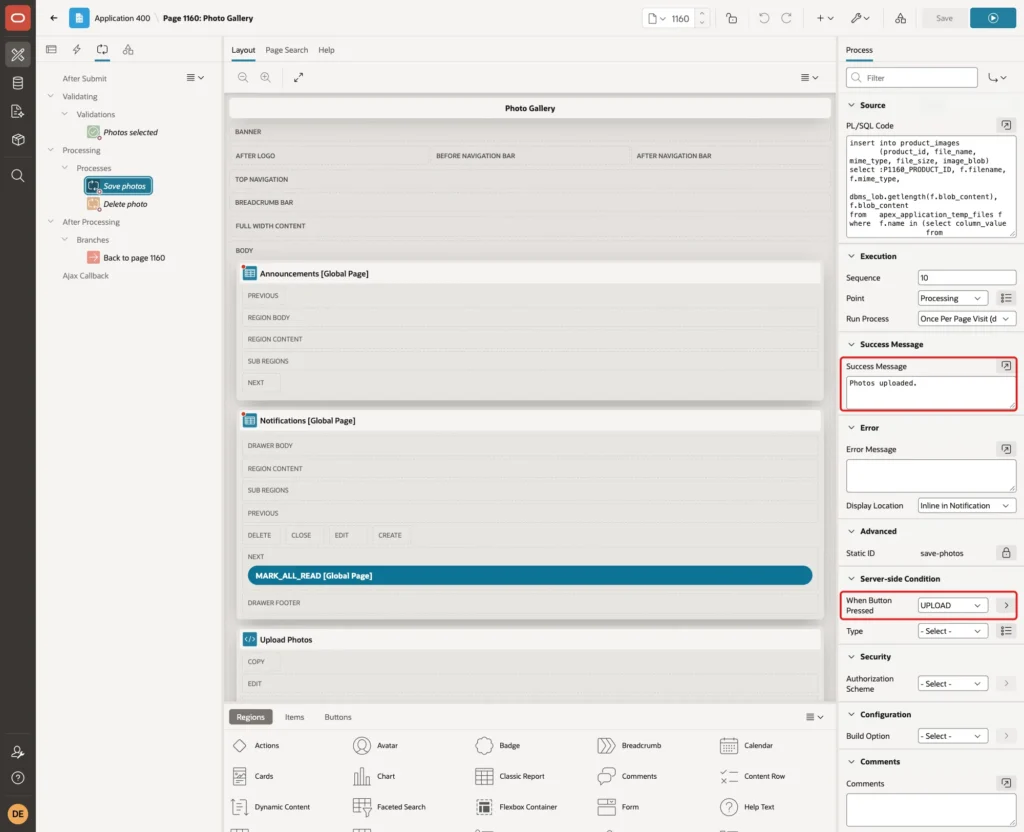
Create a process named Save photos with Type Execute Code and this PL/SQL code. One statement copies every selected file. The file names come from the colon separated value of P1160_FILES, and APEX_STRING.SPLIT turns that value into rows:
Example:
insert into product_images
       (product_id, file_name, mime_type, file_size, image_blob)
select :P1160_PRODUCT_ID, f.filename, f.mime_type,
       dbms_lob.getlength(f.blob_content), f.blob_content
from   apex_application_temp_files f
where  f.name in (select column_value
                  from   apex_string.split(:P1160_FILES, ':'));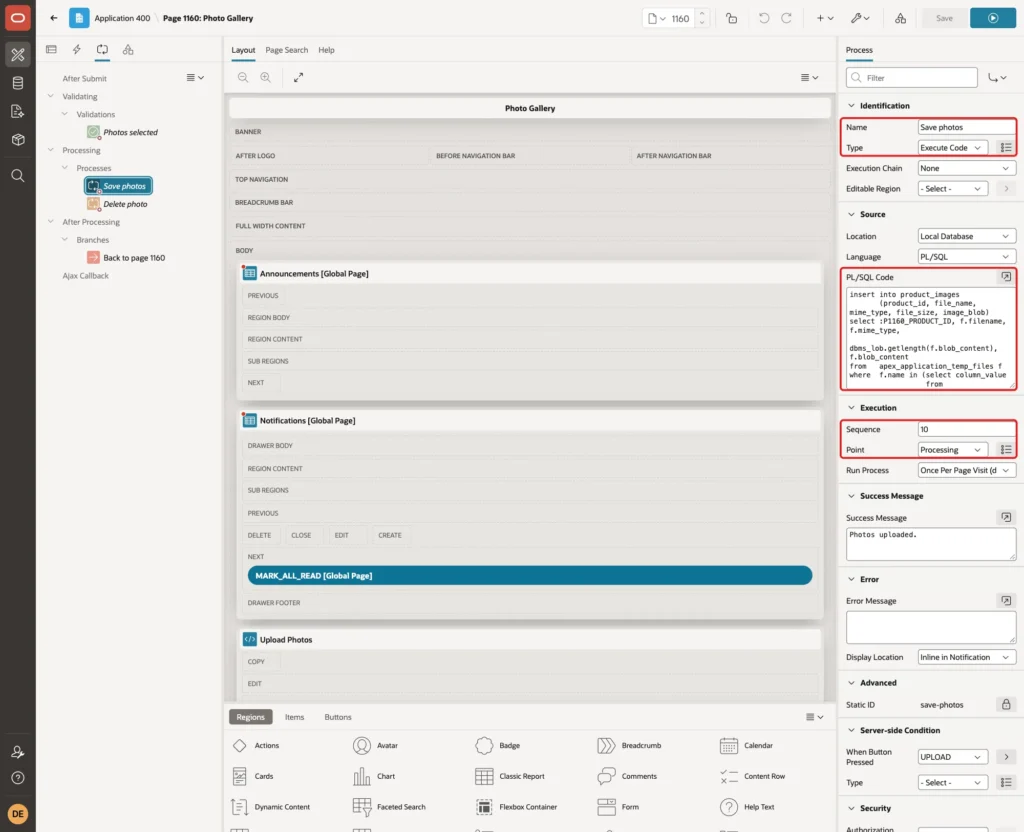
Enter "Photos uploaded." as Success Message and set When Button Pressed to UPLOAD:
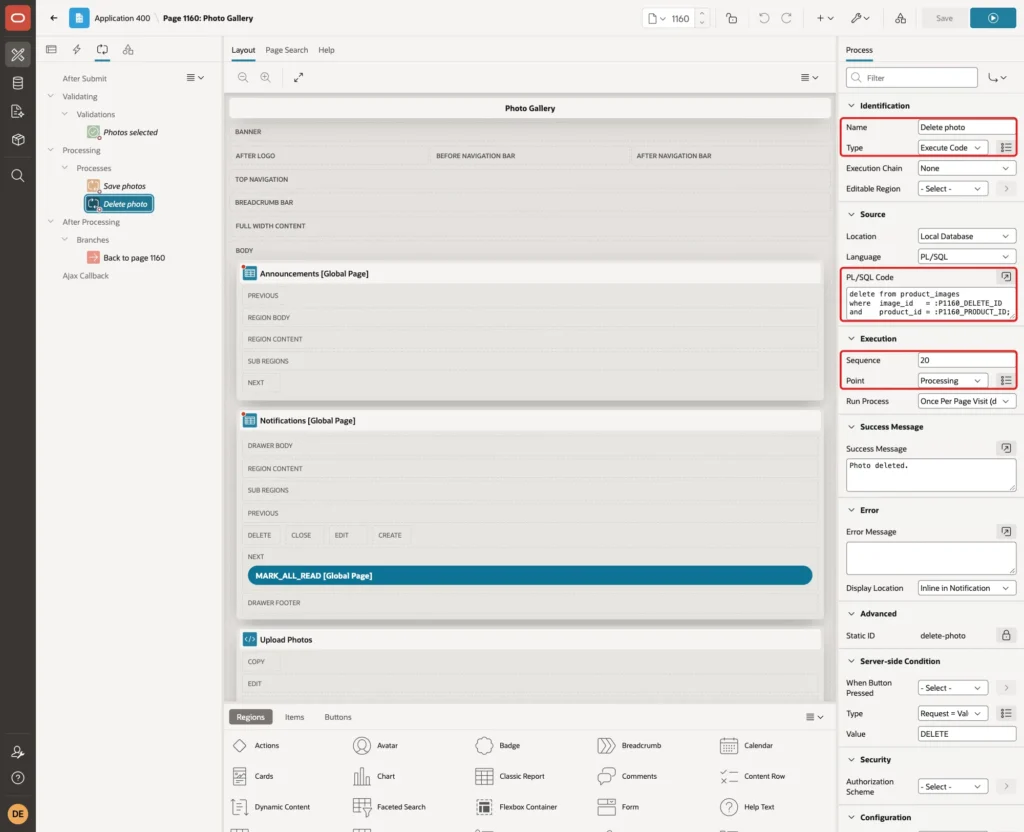
Create a second process named Delete photo with Sequence 20 and this code. The condition on PRODUCT_ID makes sure a photo can only be deleted from the product that is selected:
Example:
delete from product_images
where  image_id   = :P1160_DELETE_ID
and    product_id = :P1160_PRODUCT_ID;
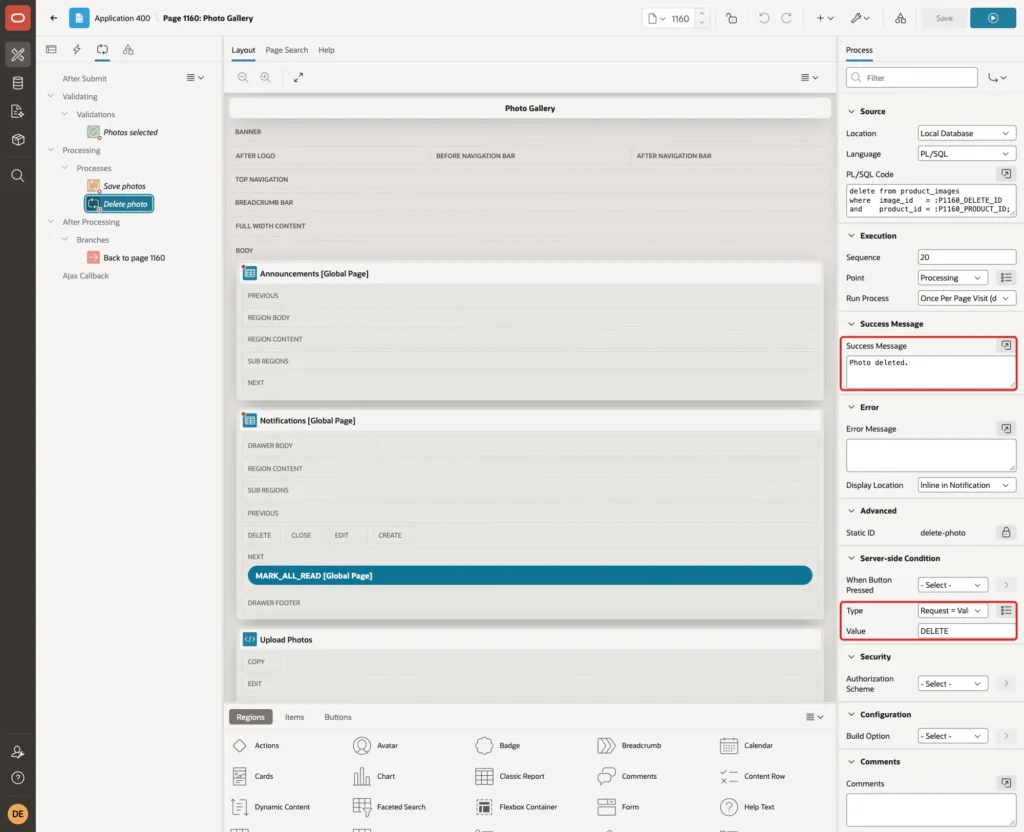
Enter "Photo deleted." as Success Message. Set the Server-side Condition Type to Request = Value and the Value to DELETE. The gallery sends this request when a user confirms a delete:
Create a branch to page 1160 after the processes. It keeps the chosen product, with Items set to P1160_PRODUCT_ID and the value &P1160_PRODUCT_ID., and clears the cache of the page.
Step 5: Add an Application Process to Show a Photo in Full Size
The cards show small pictures. To show a picture in full size, the browser needs a URL that returns the BLOB. An Ajax Callback application process can do that.
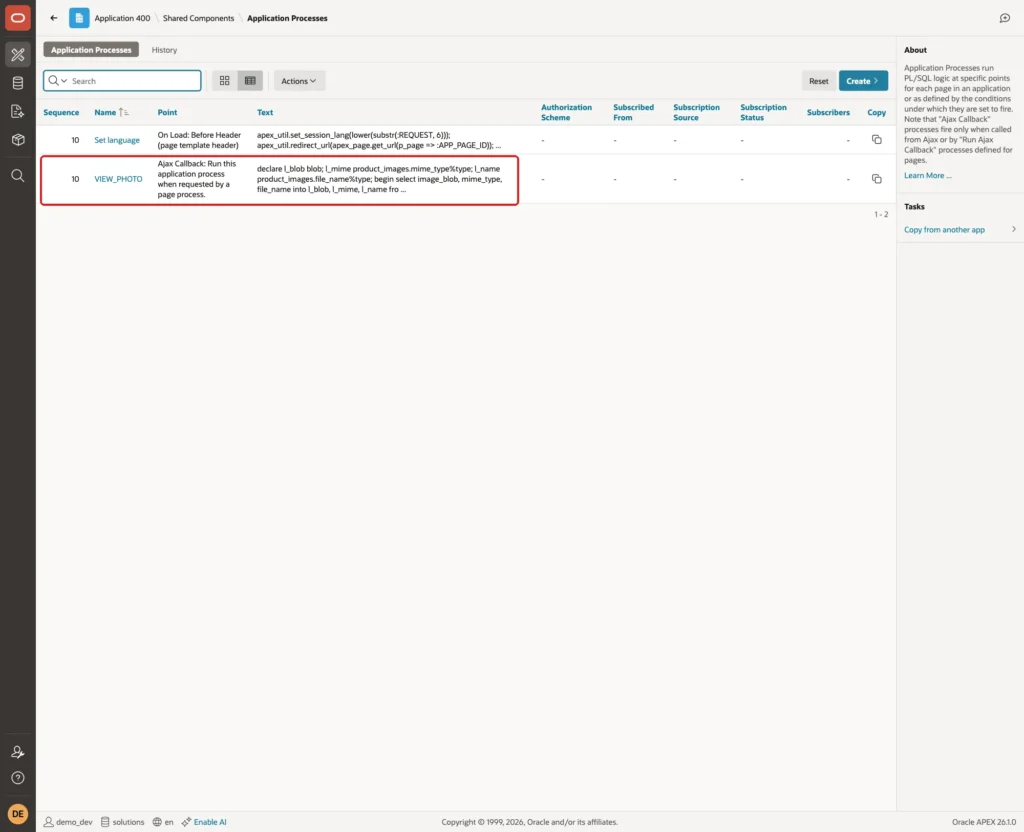
Open Shared Components. Under Logic, click Application Processes. Click Create and enter these values:
- Name: VIEW_PHOTO
- Process Point: Ajax Callback
- Type: Execute Code, with the code below
Example:
declare
    l_blob blob;
    l_mime product_images.mime_type%type;
    l_name product_images.file_name%type;
begin
    select image_blob, mime_type, file_name
    into   l_blob, l_mime, l_name
    from   product_images
    where  image_id = to_number(:P1160_VIEW_ID);

    owa_util.mime_header(l_mime, false);
    htp.p('Content-Length: ' || dbms_lob.getlength(l_blob));
    htp.p('Content-Disposition: inline; filename="' || l_name || '"');
    owa_util.http_header_close;
    wpg_docload.download_file(l_blob);
    apex_application.stop_apex_engine;
exception
    when no_data_found or value_error then
        htp.p('Photo not found.');
end;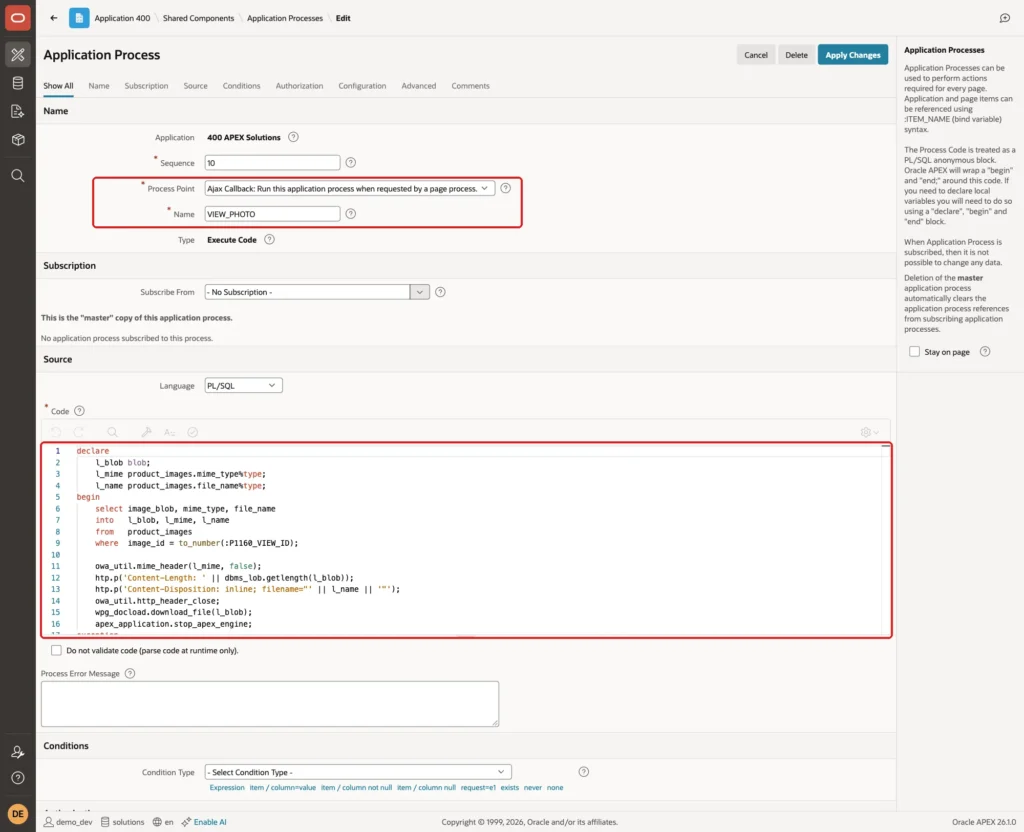
The code sends the MIME type and the length as headers, then the BLOB, and stops the APEX engine so no page is added to the picture. The list of application processes now shows VIEW_PHOTO:
Step 6: Show the Photos in a Cards Region
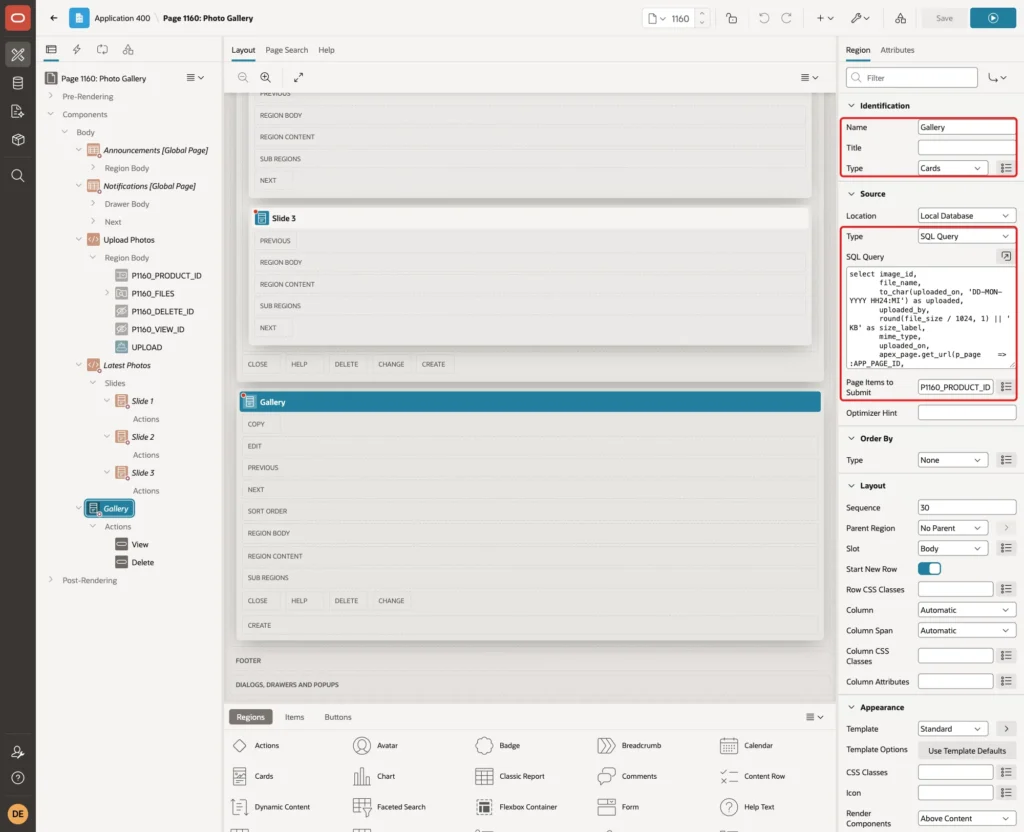
Drag a Cards region into the Body, below the upload region. Set Name to Gallery, set Source Type to SQL Query and enter the query below. The column VIEW_URL builds a link that calls VIEW_PHOTO with a checksum, so the link cannot be changed in the browser:
Example:
select image_id,
       file_name,
       to_char(uploaded_on, 'DD-MON-YYYY HH24:MI') as uploaded,
       uploaded_by,
       round(file_size / 1024, 1) || ' KB' as size_label,
       mime_type,
       uploaded_on,
       apex_page.get_url(p_page    => :APP_PAGE_ID,
                         p_request => 'APPLICATION_PROCESS=VIEW_PHOTO',
                         p_items   => 'P1160_VIEW_ID',
                         p_values  => image_id) as view_url,
       image_blob
from   product_images
where  product_id = :P1160_PRODUCT_ID
order by uploaded_on desc, image_id desc
Set Page Items to Submit to P1160_PRODUCT_ID:
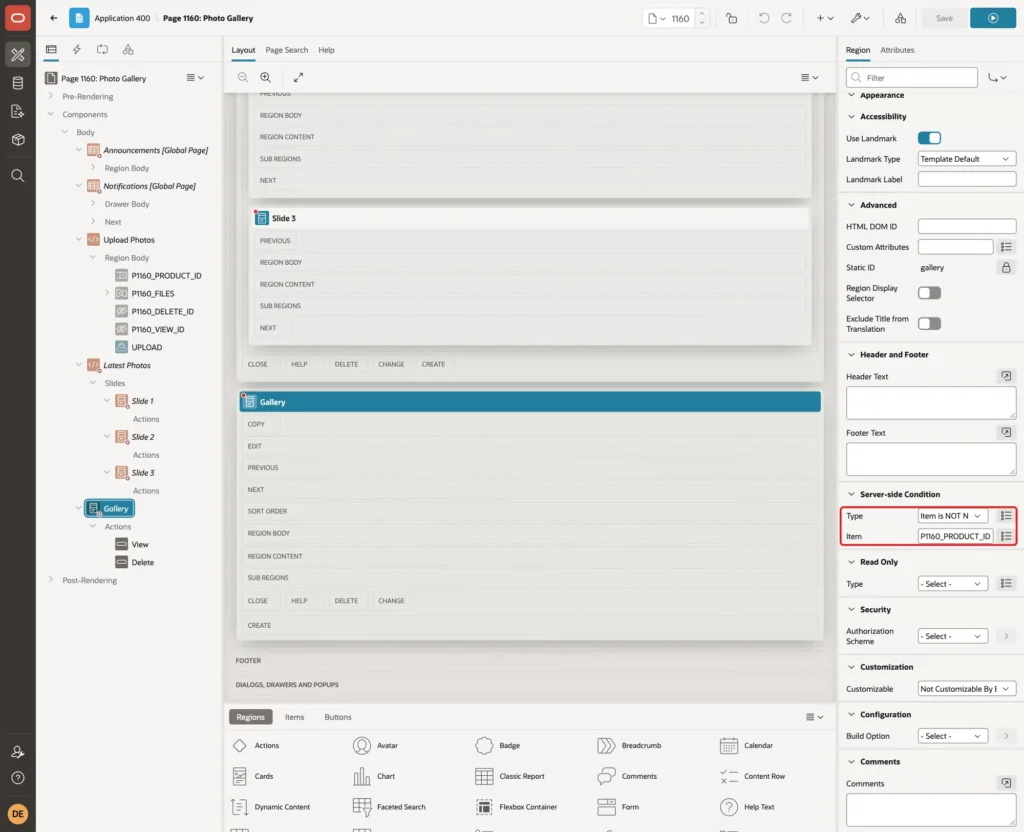
In the Server-side Condition group, set Type to Item is NOT NULL and Item to P1160_PRODUCT_ID. The query then runs only after a product is chosen:
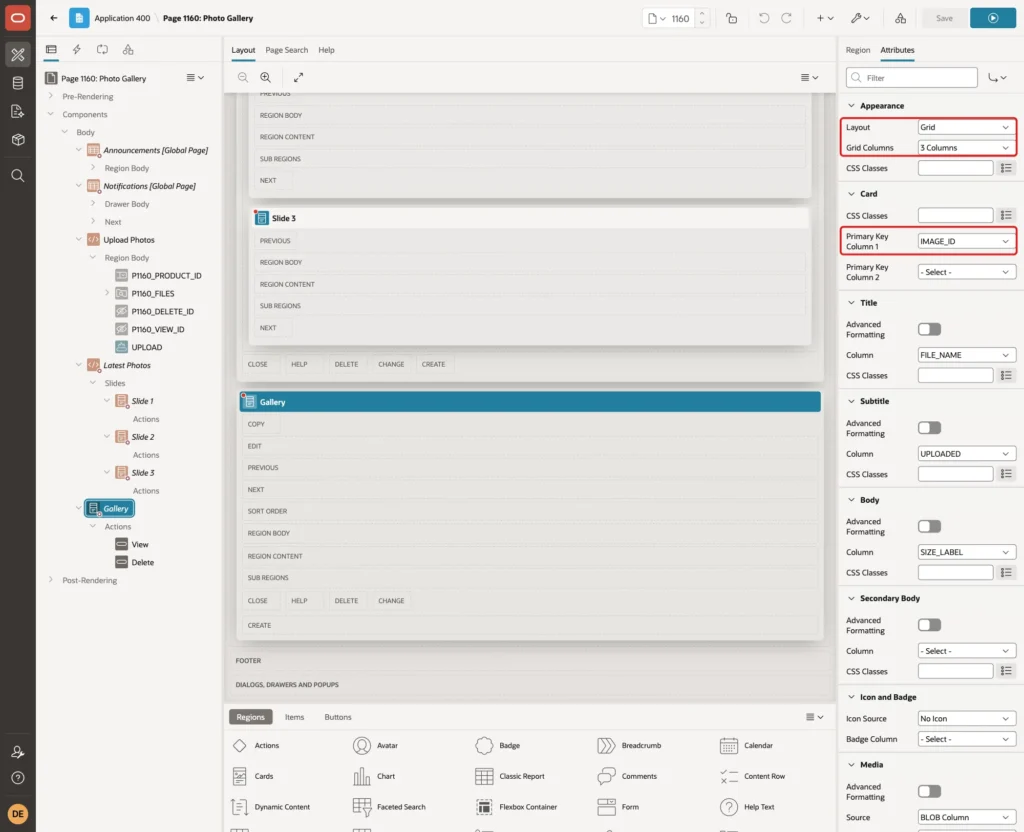
Click the Attributes tab. In the Appearance group, set Layout to Grid and Grid Columns to 3 Columns. In the Card group, set Primary Key Column 1 to IMAGE_ID:
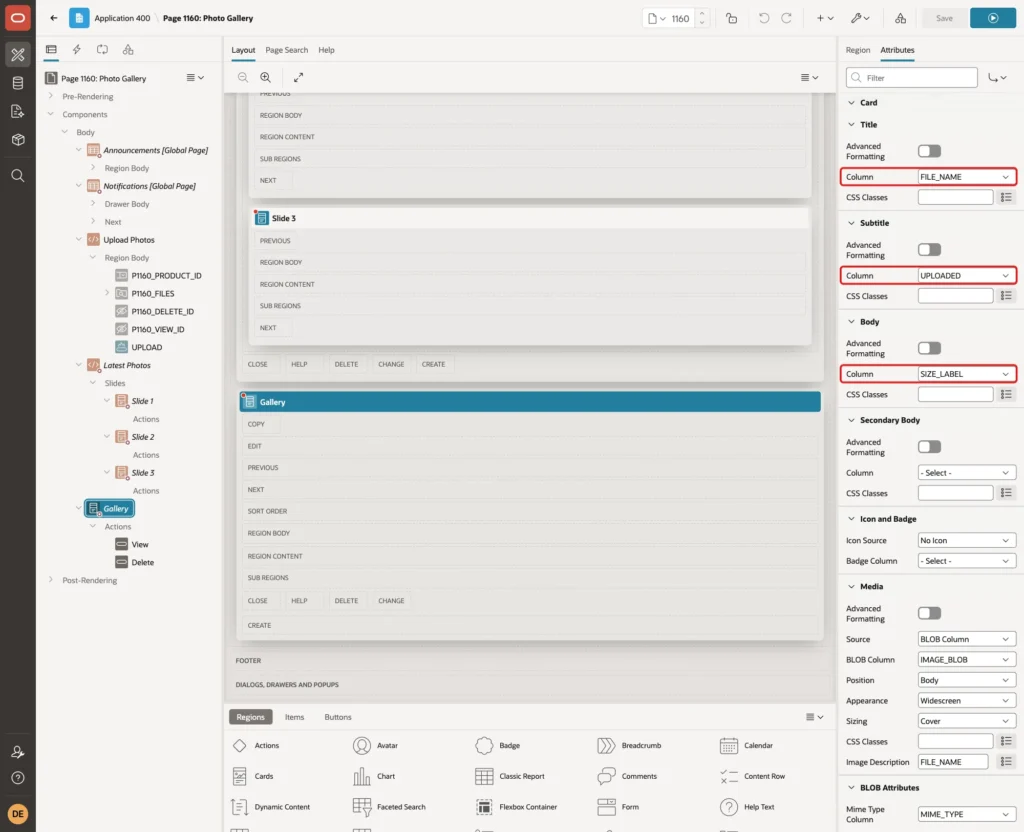
Set Title to FILE_NAME, Subtitle to UPLOADED and Body to SIZE_LABEL:
In the Media group, set Source to BLOB Column and BLOB Column to IMAGE_BLOB. Set Appearance to Widescreen and Sizing to Cover, so every picture fills the same frame. Enter FILE_NAME as Image Description.
In the BLOB Attributes group, set Mime Type Column to MIME_TYPE and Last Updated Column to UPLOADED_ON:
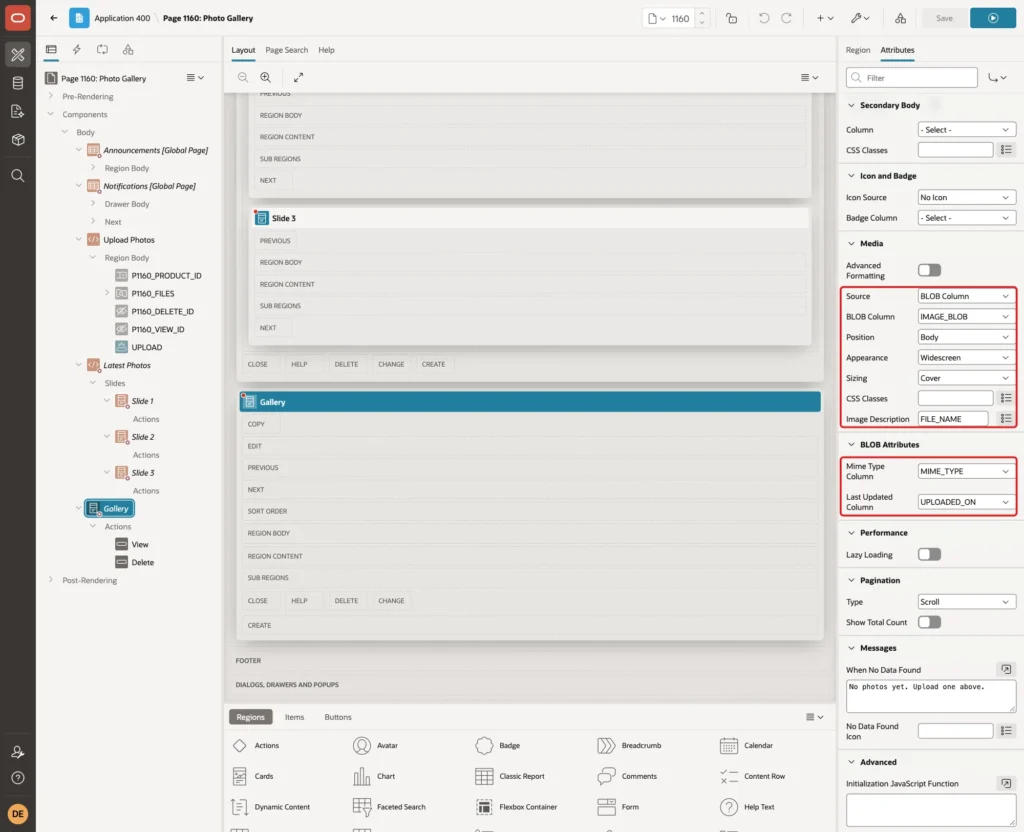
Enter "No photos yet. Upload one above." as When No Data Found in the Messages group.
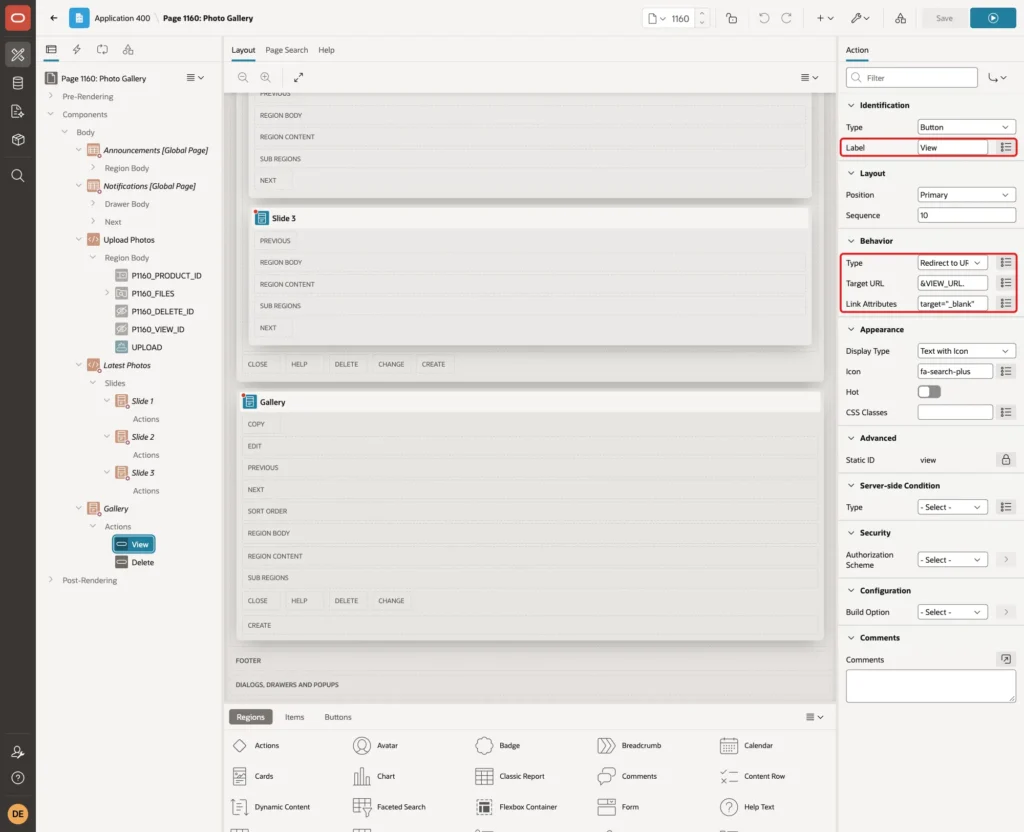
Now add two actions to the cards. Right-click the Gallery region and choose Create Action. Name the first action View. Set Type to Button, Label to View, Behavior Type to Redirect to URL and Target URL to &VIEW_URL.
Enter target="_blank" as Link Attributes, so the picture opens in a new tab. Set Display Type to Text with Icon and the Icon to fa-search-plus:
Create a second action named Delete with the Icon fa-trash-o. Set Behavior Type to Redirect to URL and enter this Target URL. It asks for a confirmation, then submits the request DELETE with the ID of the photo:
Example:
javascript:apex.confirm('Delete this photo?', {request: 'DELETE', set: {'P1160_DELETE_ID': '&IMAGE_ID.'}});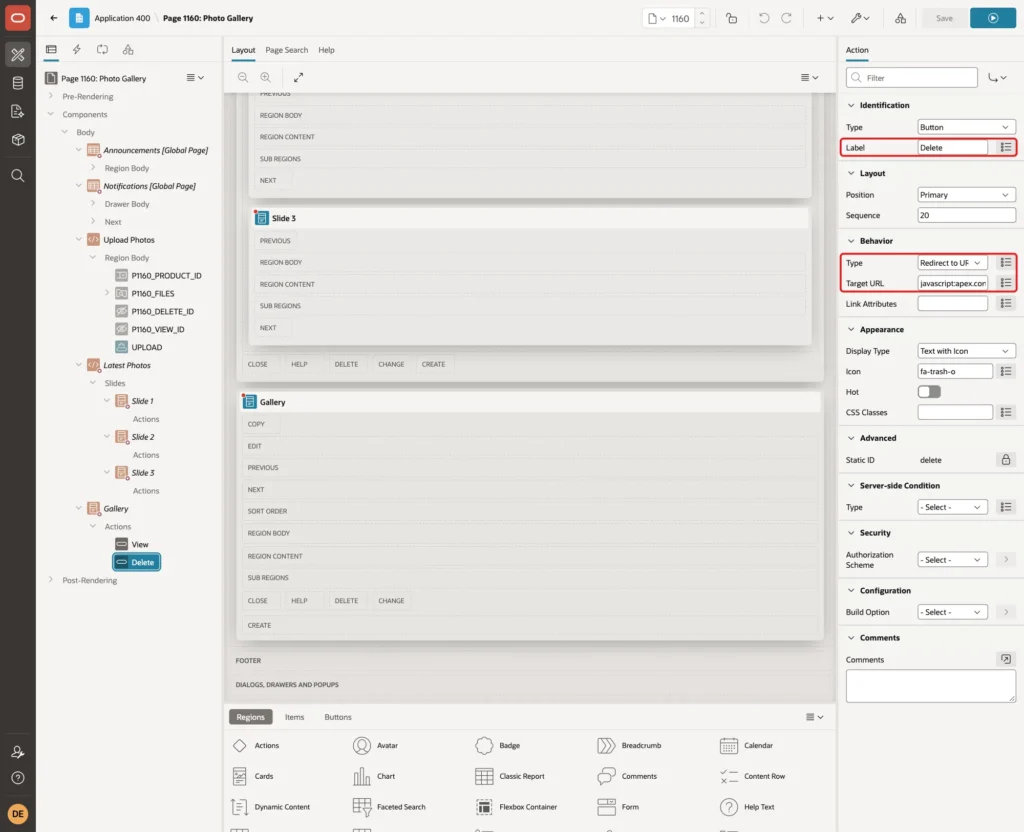
In a first test, the target URL used #FILE_NAME# and #IMAGE_ID# in the JavaScript, as in a classic report. The confirmation then showed the text #FILE_NAME# instead of the file name. Cards use the &COLUMN. syntax for column values, so the final URL uses &IMAGE_ID. and a fixed text.
Step 7: Add the Carousel
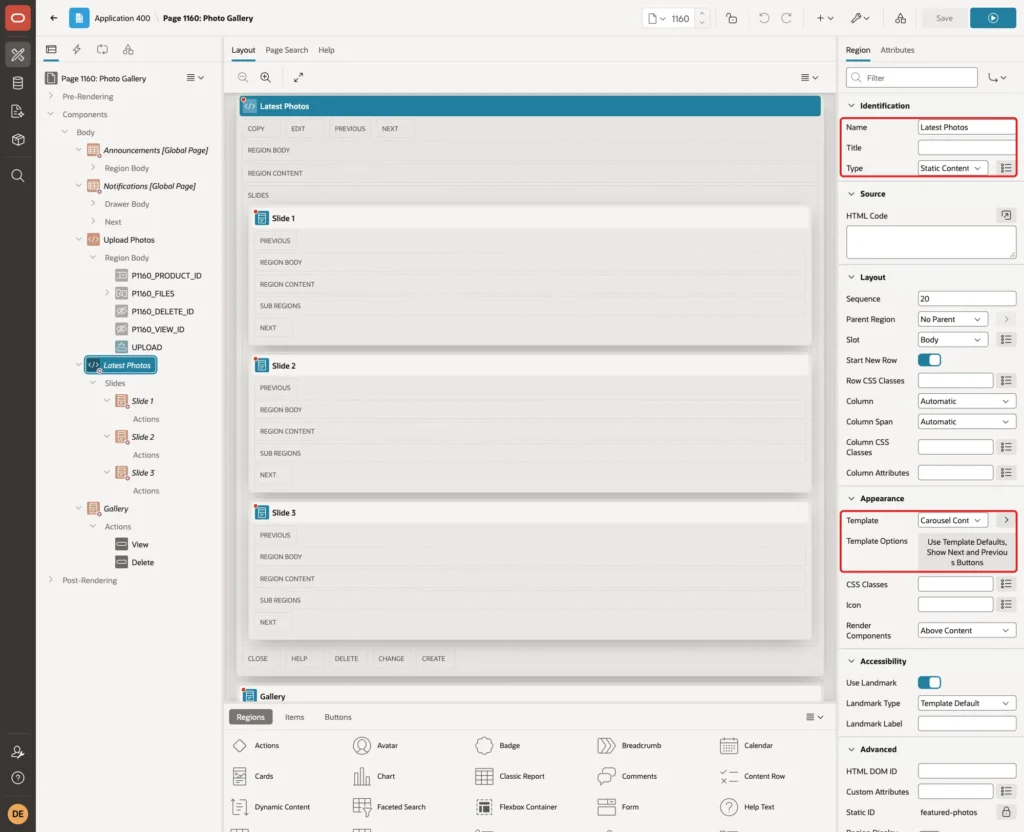
The Carousel Container is a region template. It shows each of its sub regions as one slide, with arrows and dots to move between them. It does not read rows by itself, so each slide here is a small Cards region that shows one photo.
Drag a Static Content region into the Body between the two other regions. Set Name to Latest Photos. In the Appearance group, set Template to Carousel Container. The template option Show Next and Previous Buttons turns on the arrows:
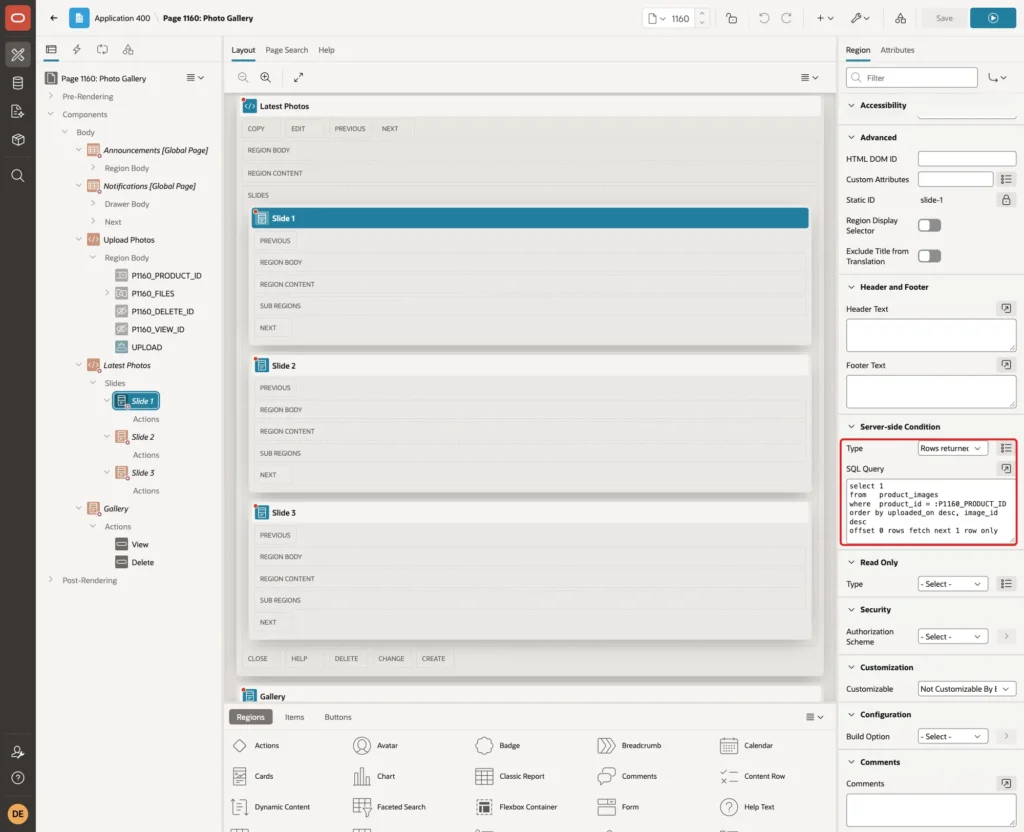
Without a product or without photos, the container would show an empty box with arrows. Set the Server-side Condition Type to Rows returned and use this query. The carousel then appears only when the product has photos:
Example:
select 1
from   product_images
where  product_id = :P1160_PRODUCT_ID

Now create the first slide. Drag a Cards region onto the Latest Photos region, or set its Parent Region. Name it Slide 1, set Source Type to SQL Query and enter this query. OFFSET 0 returns the newest photo, and Slide 2 and Slide 3 use OFFSET 1 and OFFSET 2:
Example:
select image_id,
       file_name,
       to_char(uploaded_on, 'DD-MON-YYYY HH24:MI') as uploaded,
       round(file_size / 1024, 1) || ' KB' as size_label,
       mime_type,
       uploaded_on,
       image_blob
from   product_images
where  product_id = :P1160_PRODUCT_ID
order by uploaded_on desc, image_id desc
offset 0 rows fetch next 1 row only
Set Page Items to Submit to P1160_PRODUCT_ID:
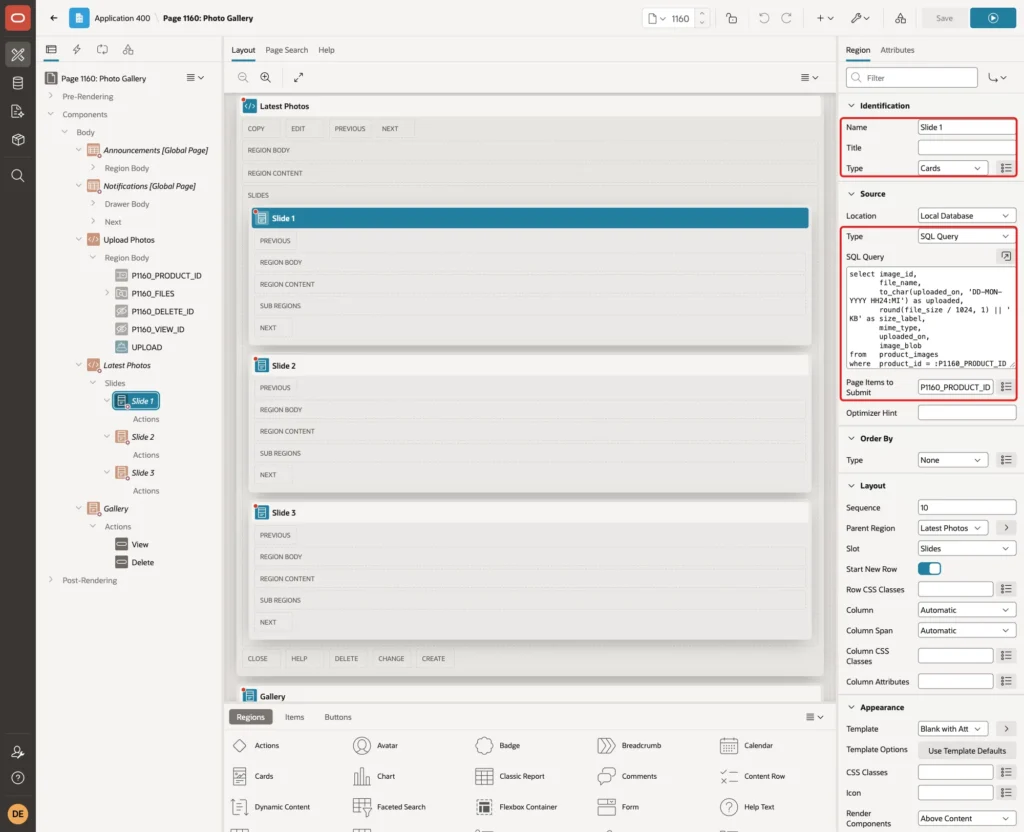
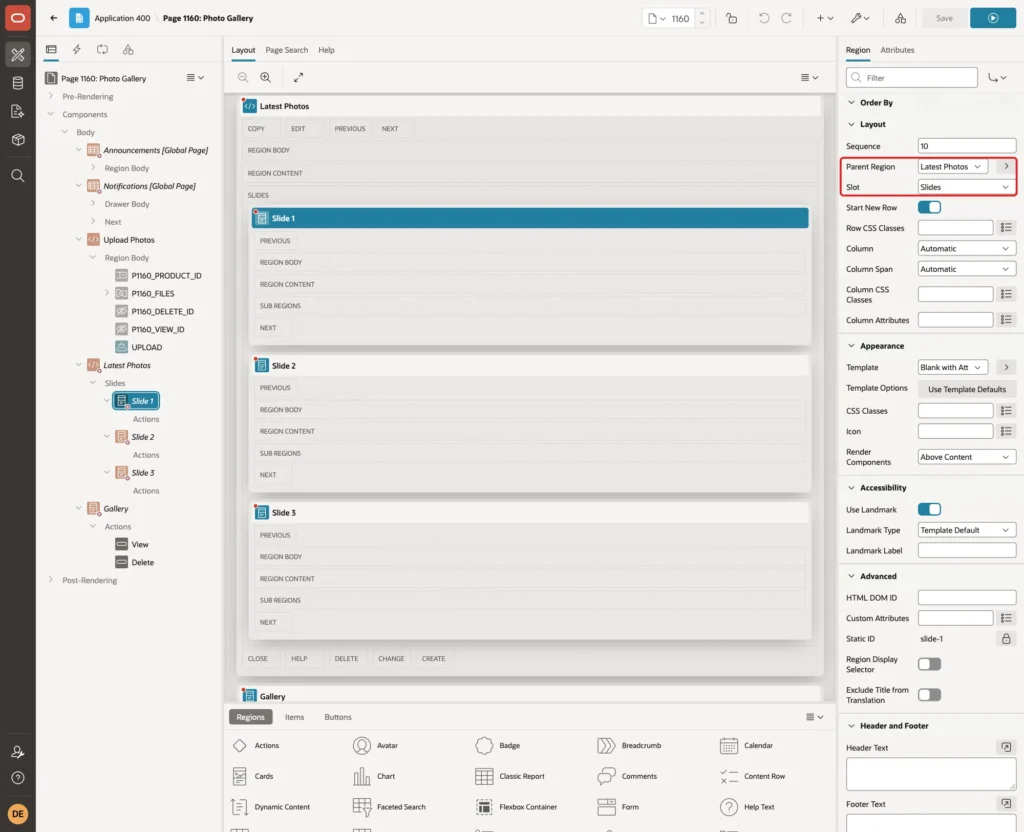
In the Layout group, set Parent Region to Latest Photos and Slot to Slides. Slides is the slot that the carousel template defines for its sub regions:
A slide must not appear when the product has fewer photos than the slide number. Set the Server-side Condition Type to Rows returned and use the same query as the slide, which returns a row only when that photo exists:
On the Attributes tab, set Layout to Horizontal (Row) and Primary Key Column 1 to IMAGE_ID. Set Title to FILE_NAME, Subtitle to UPLOADED and Body to SIZE_LABEL:

In a first test, Layout was Grid with one column. Page Designer allows only 2 to 5 grid columns, so a slide would have filled half of the width. The Horizontal layout shows the picture and the text side by side in the full width.
Use the same Media settings as the gallery: Source BLOB Column, BLOB Column IMAGE_BLOB, Appearance Widescreen, Sizing Cover. Set the BLOB Attributes to MIME_TYPE and UPLOADED_ON:
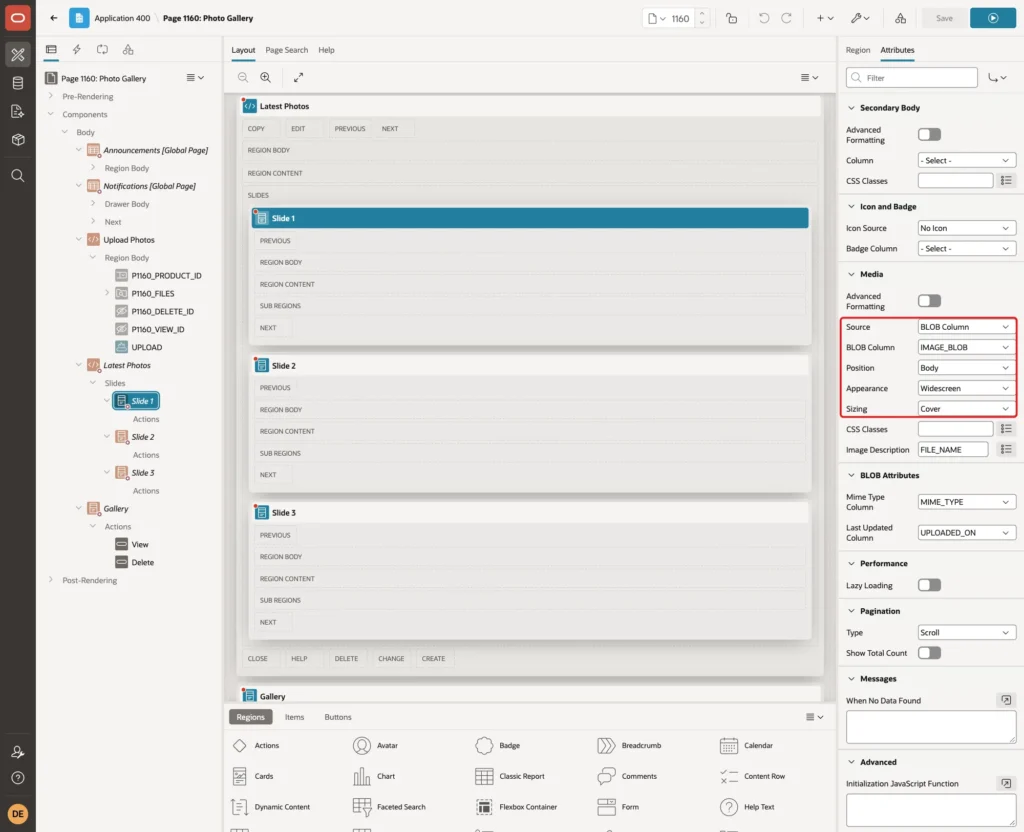
Copy Slide 1 twice. Rename the copies to Slide 2 and Slide 3, and change OFFSET 0 to OFFSET 1 and OFFSET 2 in both queries, the region query and the condition. Save the page.
Test the Gallery and the Carousel
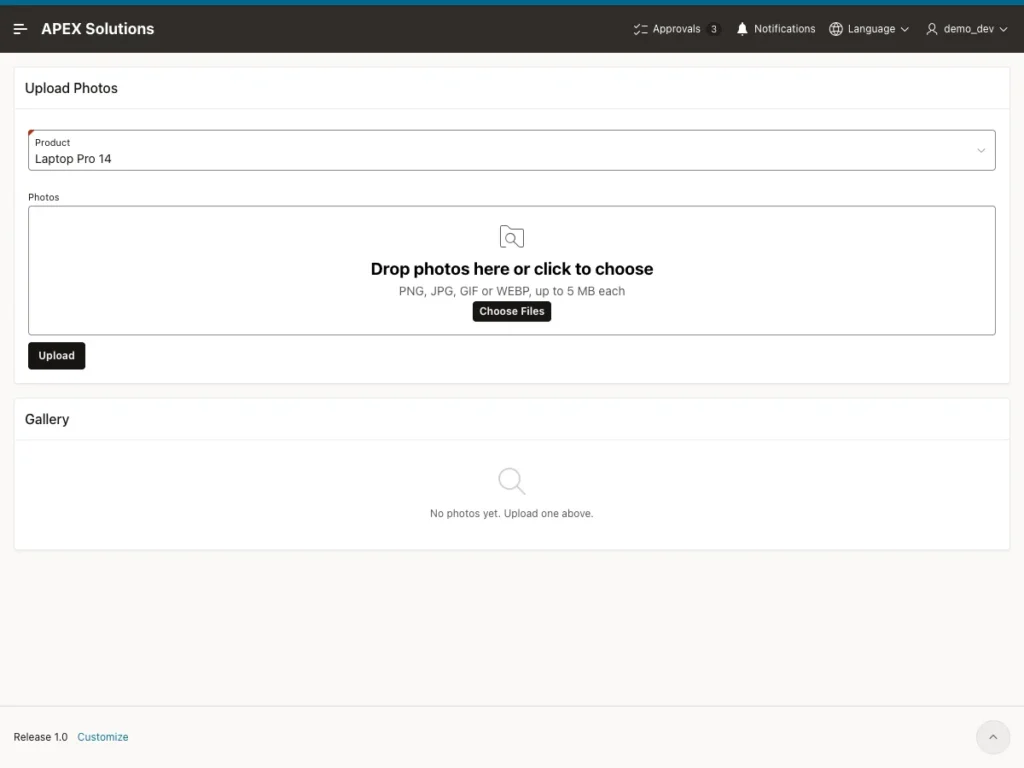
Run the page as the user DEMO_DEV. Before any product is chosen, the page shows only the upload region. The photos table is empty at the start:
Example:
select p.name as product, i.image_id, i.file_name, i.mime_type, i.file_size,
       dbms_lob.getlength(i.image_blob) as blob_bytes, i.uploaded_by
from   product_images i
join   products p on p.product_id = i.product_id
order by i.image_id;

select count(*) as photo_count from product_images;
Output:
no rows selected

   PHOTO_COUNT
______________
             0
Select Laptop Pro 14. The carousel is hidden and the gallery shows the empty message:
Upload three photos
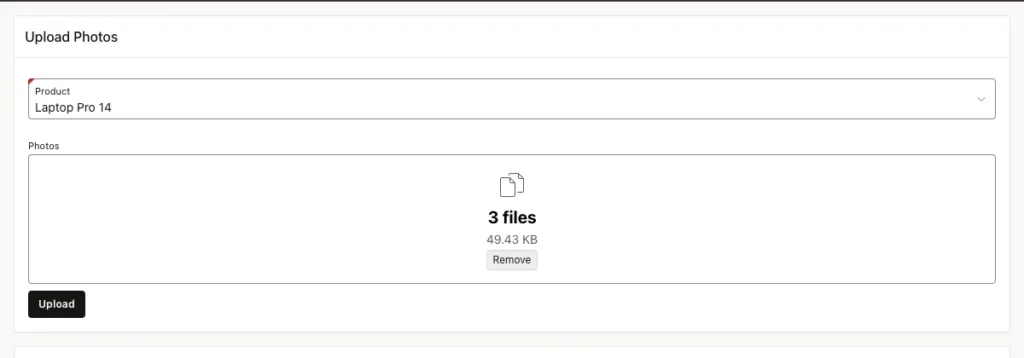
Click the drop zone, or drop files on it, and choose three images: sunrise.jpg, lake.jpg and dusk.jpg. The drop zone shows the number of files and their total size:
Click Upload. The page shows the success message, the carousel with the newest photo, and the gallery with three cards:
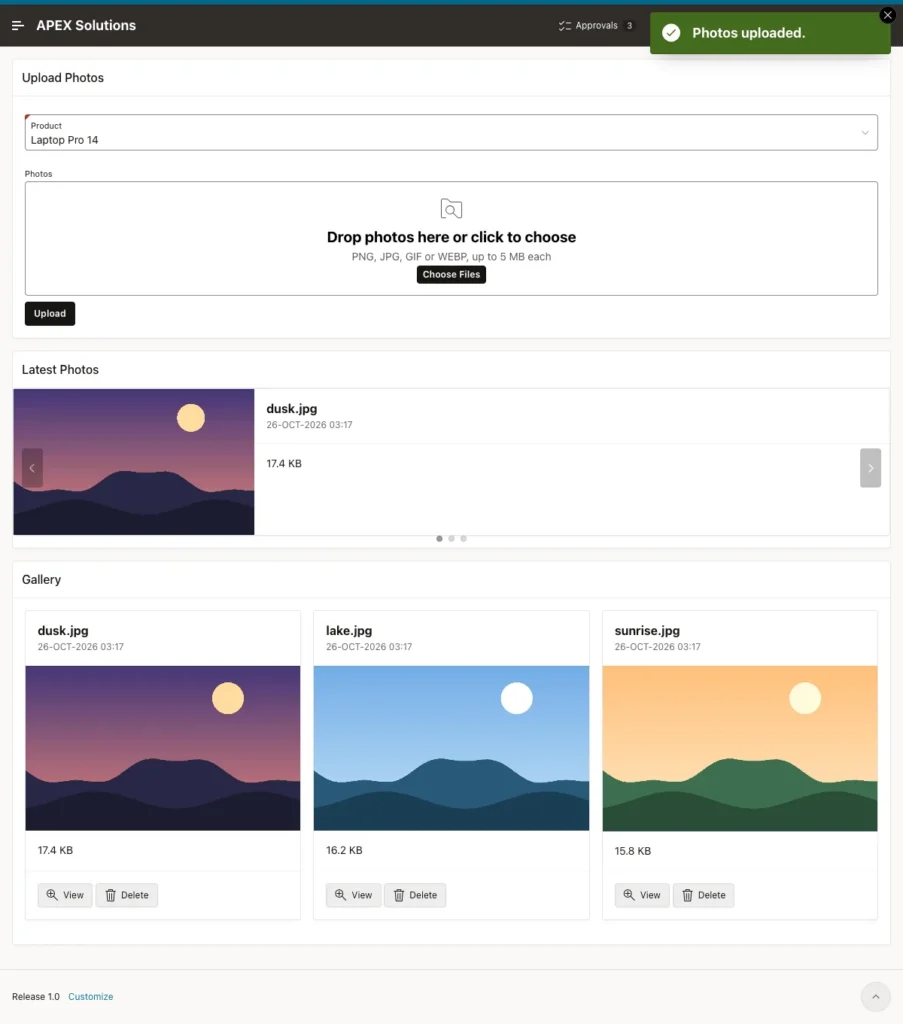
The table has three rows. The BLOB length matches the file size of each photo, and the user name came from the session:
Example:
select p.name as product, i.image_id, i.file_name, i.mime_type, i.file_size,
       dbms_lob.getlength(i.image_blob) as blob_bytes, i.uploaded_by
from   product_images i
join   products p on p.product_id = i.product_id
order by i.image_id;

select count(*) as photo_count from product_images;
Output:
PRODUCT             IMAGE_ID FILE_NAME      MIME_TYPE        FILE_SIZE    BLOB_BYTES UPLOADED_BY
________________ ___________ ______________ _____________ ____________ _____________ ______________
Laptop Pro 14             21 sunrise.jpg    image/jpeg           16189         16189 DEMO_DEV
Laptop Pro 14             22 lake.jpg       image/jpeg           16581         16581 DEMO_DEV
Laptop Pro 14             23 dusk.jpg       image/jpeg           17850         17850 DEMO_DEV

   PHOTO_COUNT
______________
             3
Move through the carousel
Click the right arrow, or a dot, to go to the next slide. The second slide shows lake.jpg, the second newest photo:

Open a photo in full size
Click View on a card. The picture opens in a new tab at its real size, served as image/jpeg by the VIEW_PHOTO process:

Delete a photo
Click Delete on the lake.jpg card. The confirmation shows the fixed text:
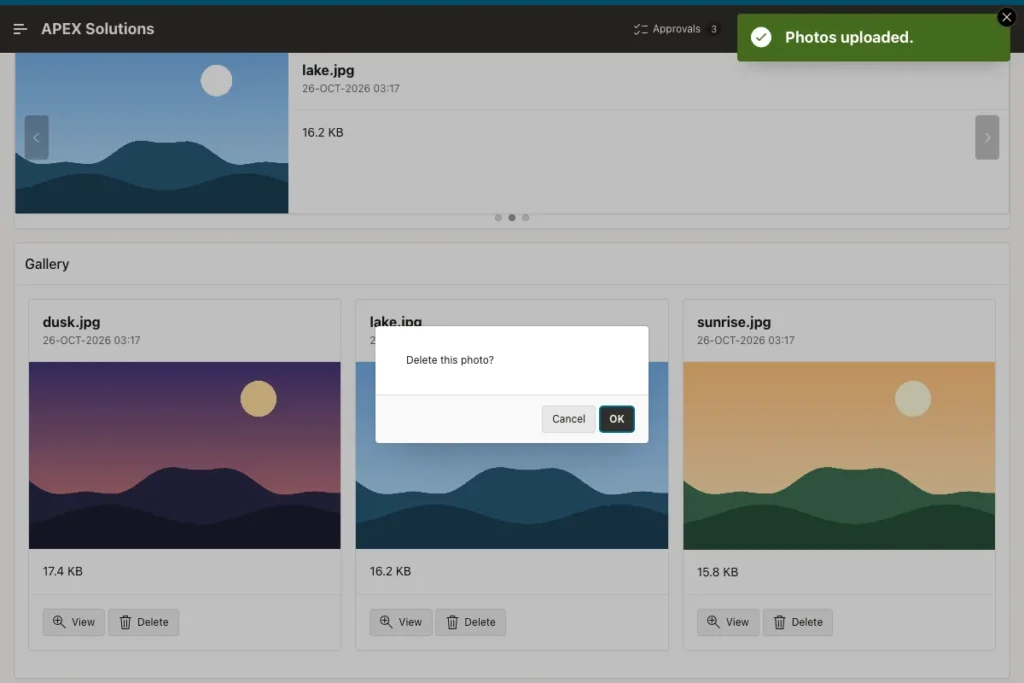
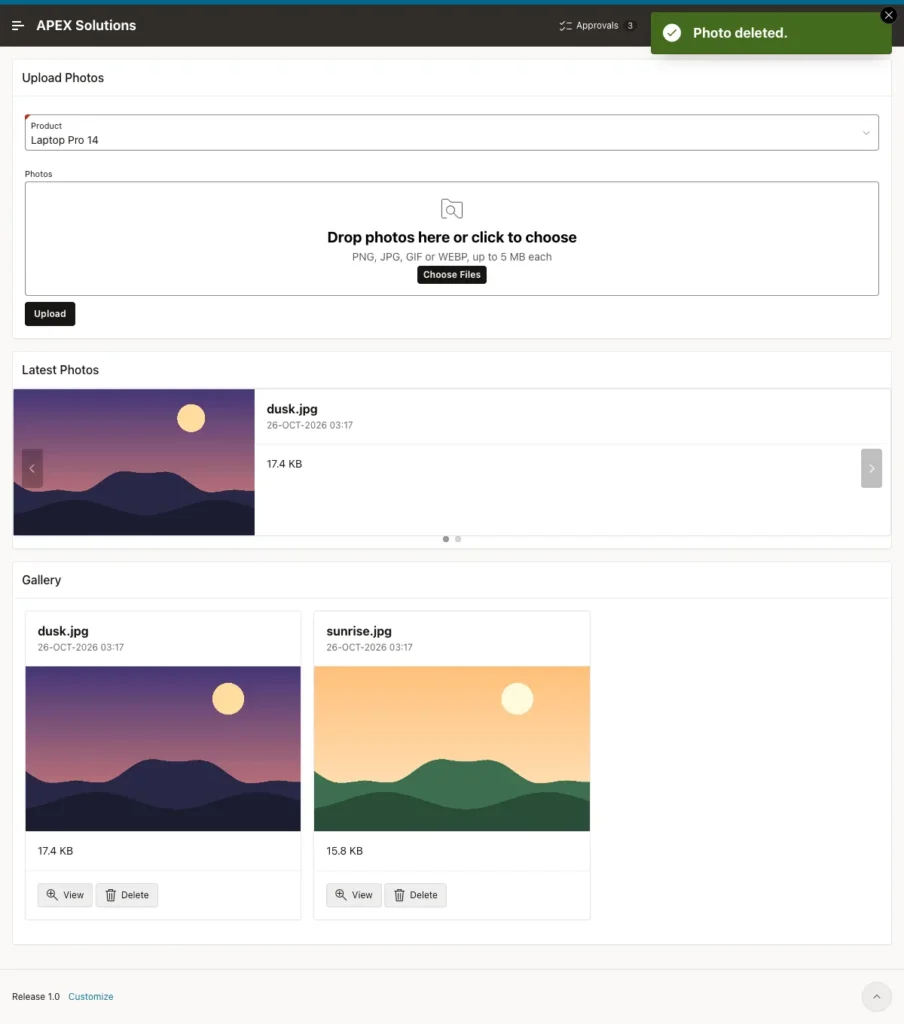
Click OK. The photo is gone from the gallery and the carousel, which now has two dots:
Example:
select p.name as product, i.image_id, i.file_name, i.mime_type, i.file_size,
       dbms_lob.getlength(i.image_blob) as blob_bytes, i.uploaded_by
from   product_images i
join   products p on p.product_id = i.product_id
order by i.image_id;

select count(*) as photo_count from product_images;
Output:
PRODUCT             IMAGE_ID FILE_NAME      MIME_TYPE        FILE_SIZE    BLOB_BYTES UPLOADED_BY
________________ ___________ ______________ _____________ ____________ _____________ ______________
Laptop Pro 14             21 sunrise.jpg    image/jpeg           16189         16189 DEMO_DEV
Laptop Pro 14             23 dusk.jpg       image/jpeg           17850         17850 DEMO_DEV

   PHOTO_COUNT
______________
             2
Because only two photos exist, Slide 3 is not rendered. The query behind its condition returns no row:
Example:
select image_id,
       file_name,
       to_char(uploaded_on, 'DD-MON-YYYY HH24:MI') as uploaded,
       round(file_size / 1024, 1) || ' KB' as size_label,
       mime_type
from   product_images
where  product_id = 1
order by uploaded_on desc, image_id desc
offset 0 rows fetch next 1 row only;

select image_id, file_name
from   product_images
where  product_id = 1
order by uploaded_on desc, image_id desc
offset 2 rows fetch next 1 row only;
Output:
   IMAGE_ID FILE_NAME    UPLOADED             SIZE_LABEL    MIME_TYPE
___________ ____________ ____________________ _____________ _____________
         23 dusk.jpg     26-OCT-2026 03:17    17.4 KB       image/jpeg

no rows selected
Reject a file that is not an image
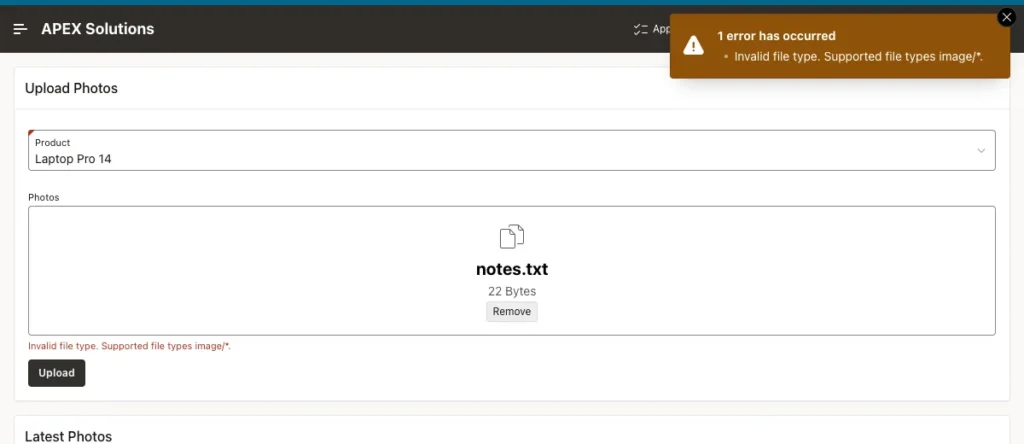
Choose a text file named notes.txt and click Upload. The upload item refuses it with the message Invalid file type, and nothing is saved:
Click Upload again without choosing a file. The validation answers:
Both attempts changed nothing. The count is still two:
Example:
select p.name as product, i.image_id, i.file_name, i.mime_type, i.file_size,
       dbms_lob.getlength(i.image_blob) as blob_bytes, i.uploaded_by
from   product_images i
join   products p on p.product_id = i.product_id
order by i.image_id;

select count(*) as photo_count from product_images;
Output:
PRODUCT             IMAGE_ID FILE_NAME      MIME_TYPE        FILE_SIZE    BLOB_BYTES UPLOADED_BY
________________ ___________ ______________ _____________ ____________ _____________ ______________
Laptop Pro 14             21 sunrise.jpg    image/jpeg           16189         16189 DEMO_DEV
Laptop Pro 14             23 dusk.jpg       image/jpeg           17850         17850 DEMO_DEV

   PHOTO_COUNT
______________
             2
The page is the first line of defense. The table is the second. An insert of a text file with the MIME type text/plain is refused by the check constraint:
Example:
insert into product_images (product_id, file_name, mime_type, file_size, image_blob)
values (1, 'notes.txt', 'text/plain', 22, utl_raw.cast_to_raw('This is not an image.'));
Output:
Error starting at line : 1 File @ b119/14-bad-mime.sql
In command -
insert into product_images (product_id, file_name, mime_type, file_size, image_blob)
values (1, 'notes.txt', 'text/plain', 22, utl_raw.cast_to_raw('This is not an image.'))
Error report -
ORA-02290: check constraint (APXSOL.PRODUCT_IMAGES_MIME_CK) violated
Help: https://docs.oracle.com/error-help/db/ora-02290/
Another product and the cascade
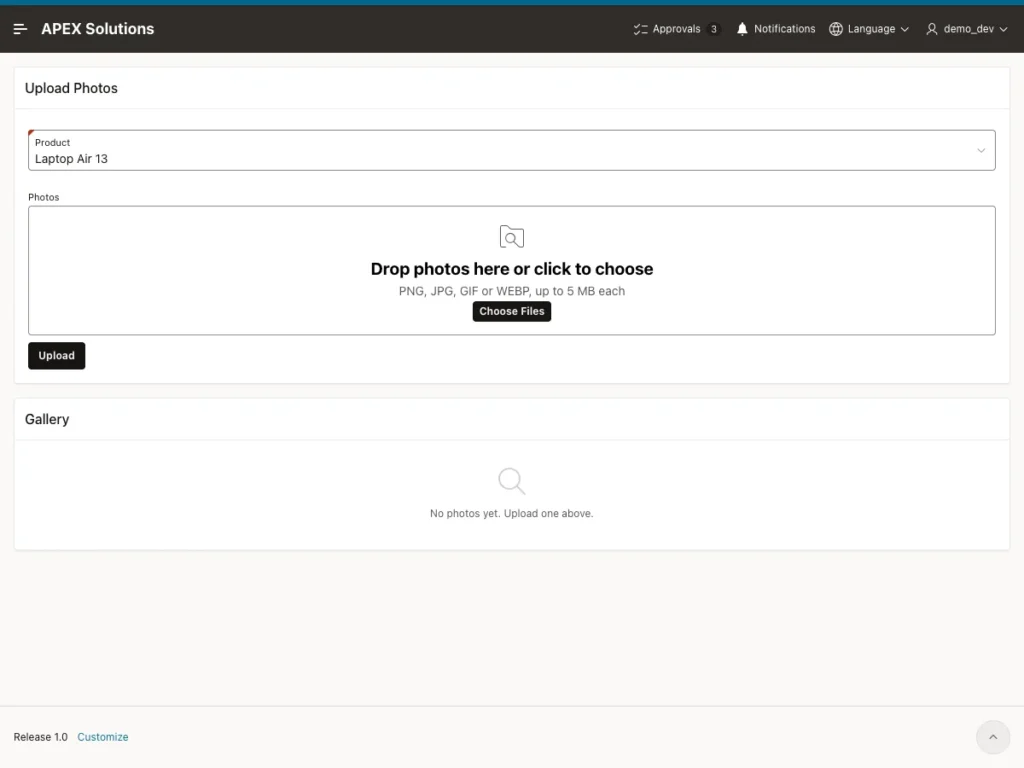
Select Laptop Air 13. It has no photos, so the page shows the empty message and no carousel. The photos belong to one product only:
The cascade was tested with a scratch product. The product got one photo, and deleting the product deleted the photo too. The scratch rows are removed:
Example:
insert into products (name, category, price) values ('ZZ Scratch Product', 'Accessories', 1);

insert into product_images (product_id, file_name, mime_type, file_size, image_blob)
select product_id, 'scratch.png', 'image/png', 4, utl_raw.cast_to_raw('abcd')
from   products
where  name = 'ZZ Scratch Product';

select count(*) as images_before from product_images where file_name = 'scratch.png';

delete from products where name = 'ZZ Scratch Product';

select count(*) as images_after from product_images where file_name = 'scratch.png';

commit;
Output:
1 row inserted.

1 row inserted.

   IMAGES_BEFORE
________________
               1

1 row deleted.

   IMAGES_AFTER
_______________
              0

Commit complete.
Things to Know
- The carousel has a fixed number of slides, here three, because each slide is a sub region. Add more slide regions with a higher OFFSET for a longer carousel. A slide without a photo is hidden by its condition.
- The Cards region has the layouts Grid, Float and Horizontal (Row). None of them is a slideshow, so the Carousel Container region template is what turns cards into slides.
- For a BLOB picture, the Cards region needs the BLOB column, the primary key column and the MIME type column in the query and in the attributes.
- In card actions, write column values as &COLUMN. and not as #COLUMN#.
- The File Types value image/* is checked by the upload item, and the check constraint on MIME_TYPE checks again in the database. Neither one proves that a file is a real picture, so scan uploads if the files come from the public.
- The VIEW_PHOTO link has a checksum. In a test, a link with the ID changed by hand returned HTTP 400, so a user cannot swap the ID. The process does not check the product, so any signed in user who has a link can open that photo. Add an authorization scheme to the process if photos are private.
- Pictures live in the database here. Many large photos make the table grow quickly, so keep the 5 MB limit or resize the pictures before they are saved.
Related Guides
- How to Upload an Image and Show It in a Form and a Report in Oracle APEX
- Oracle APEX Cards, Content Rows, and Template Components
Conclusion
A gallery needs a table for the pictures, a multiple file upload item, a process that copies the files into the table, and a Cards region on the BLOB column. A Carousel Container with one small Cards region per slide turns the newest photos into a slideshow.
The tests showed that the upload accepts several images at once, that a text file and an empty upload are refused, that the carousel and the gallery follow the chosen product, and that the database rejects a file that is not an image. Keep the checks in the page and in the table.
See my articles more often when you search Google.
