
Once an application has approvals, approvers need to know when something is waiting for them, and requesters want to see where their requests stand. Without that, approvals sit unnoticed, and people ask by email whether anyone has looked at their order yet.
Oracle APEX has the Unified Task List page type for this: one page with all open tasks of the signed-in user, with Claim, Approve, and Reject buttons in each row.
This guide gives approvers a My Approvals list with a count badge in the navigation bar, gives requesters a My Requests list, and tests both with two approvers who share the work.
Step 1: The Tables and the Approval Task
The approvals are for orders. Here are the order tables of the example with their keys:
Example:
create table customers (
    customer_id number generated by default as identity
                constraint customers_pk primary key,
    name        varchar2(100) not null,
    email       varchar2(120) not null
);

create table products (
    product_id number generated by default as identity
               constraint products_pk primary key,
    name       varchar2(60)  not null,
    category   varchar2(30)  not null,
    price      number(10, 2) not null
);

create table orders (
    order_id    number generated by default as identity
                constraint orders_pk primary key,
    customer_id number not null
                constraint orders_customer_fk references customers,
    order_date  date default sysdate not null,
    status      varchar2(12) default 'NEW' not null
                constraint orders_status_ck
                check (status in ('NEW', 'APPROVED', 'SHIPPED', 'CANCELLED')),
    approved_by varchar2(60),
    approved_on date
);

create table order_lines (
    line_id    number generated by default as identity
               constraint order_lines_pk primary key,
    order_id   number not null
               constraint order_lines_order_fk references orders on delete cascade,
    product_id number not null
               constraint order_lines_product_fk references products,
    quantity   number not null
               constraint order_lines_qty_ck check (quantity > 0),
    unit_price number(10, 2) not null,
    constraint order_lines_product_uk unique (order_id, product_id)
);

create index order_lines_order_ix on order_lines (order_id);
create index order_lines_product_ix on order_lines (product_id);
The guide builds on the Order Approval task definition of the previous guide, How to Build an Approval Flow for Orders with Human Tasks. In short:
- A Human Task - Create process on page 190 creates an Order Approval task for an order.
- The potential owners of each task are the users with the Administrator role, from this query:
Example:
select user_name
from   apex_appl_acl_user_roles
where  application_id = :APP_ID
and    role_static_id = 'administrator'
- Approve sets the order to APPROVED, Reject to CANCELLED.
Step 2: Add a Second Approver
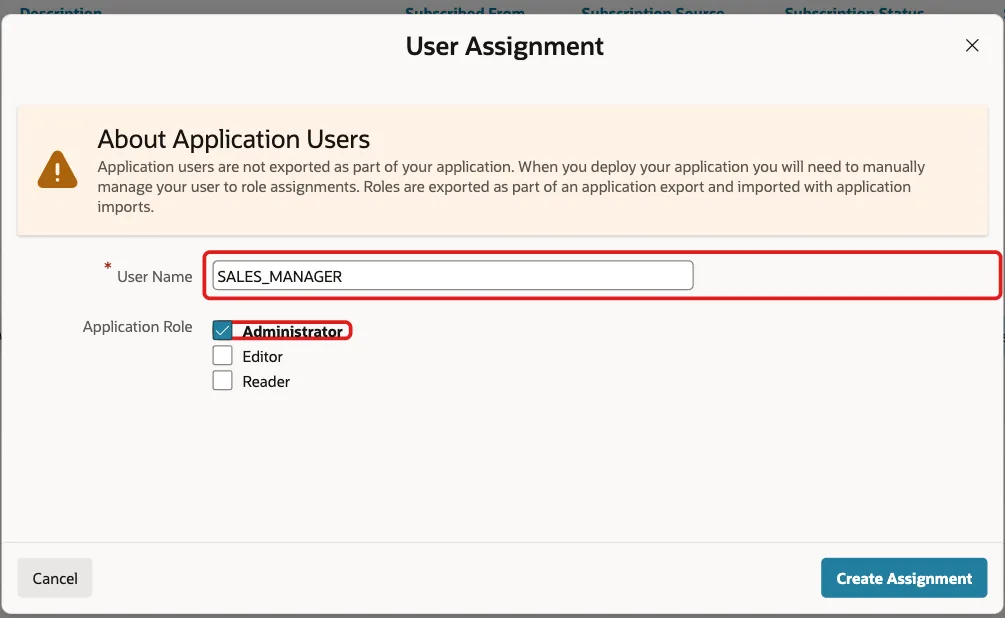
With one administrator, every task is assigned to that user at once. With several, tasks start as Unassigned and any of them can take one. To share the work, a second user, SALES_MANAGER, gets the Administrator role.
In Shared Components, open Application Access Control, click Add User Role Assignment, enter User Name SALES_MANAGER, check Administrator, and click Create Assignment:
The participant query now returns two users:
Example:
select user_name
from   apex_appl_acl_user_roles
where  application_id = 400
and    role_static_id = 'administrator'
order by user_name;
Output:
USER_NAME
________________
DEMO_DEV
SALES_MANAGER
Step 3: Create the My Approvals Page
Click Create Page, and on the Component tab click Unified Task List. Enter Page Number 191, Name My Approvals, and Report Context My Tasks. Turn off Use Breadcrumb, keep Use Navigation on, and click Create Page.
The Report Context decides which tasks the page shows:
- My Tasks: tasks the signed-in user can work on, as potential owner or actual owner.
- Initiated by Me: tasks the signed-in user created, for requesters.
- Admin Tasks: tasks for their business administrators.
The page reads the tasks with the table function APEX_HUMAN_TASK.GET_TASKS. Select the region My Tasks - Report in Page Designer to see its query, with p_context => 'MY_TASKS':
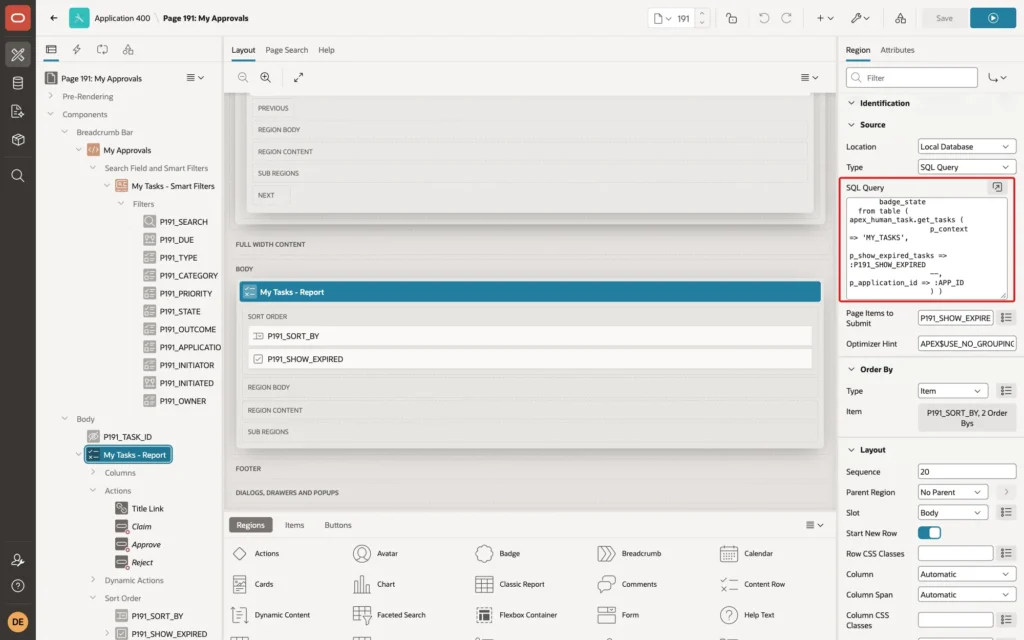
The wizard also creates a search field with filters for due date, type, priority, state, outcome, initiator, and owner, a sort order, and the row actions Claim, Approve, and Reject.
Step 4: Create the My Requests Page
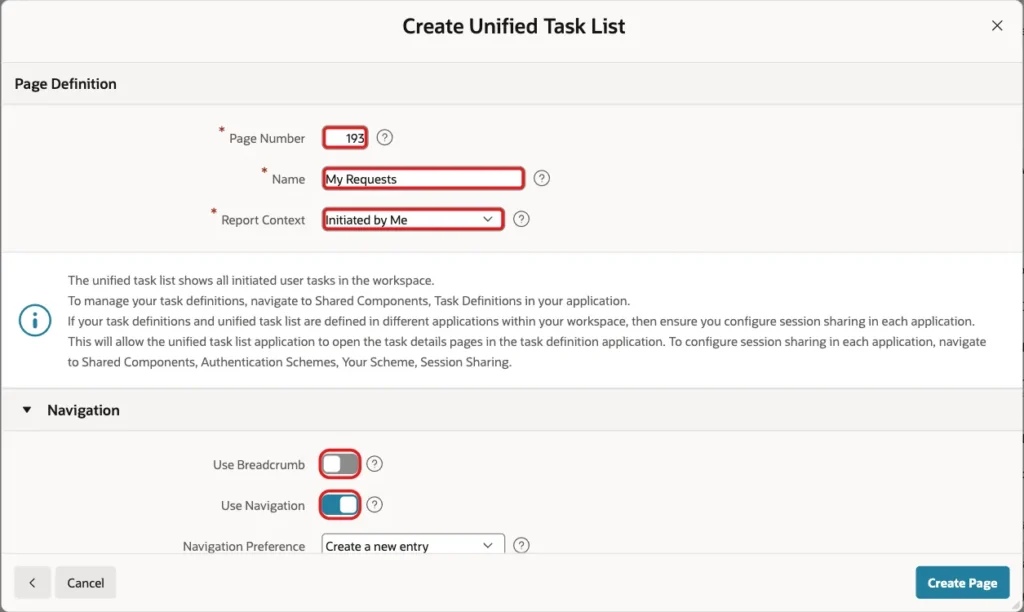
Create a second Unified Task List page the same way, with Page Number 193, Name My Requests, and Report Context Initiated by Me:
Step 5: Count the Pending Approvals
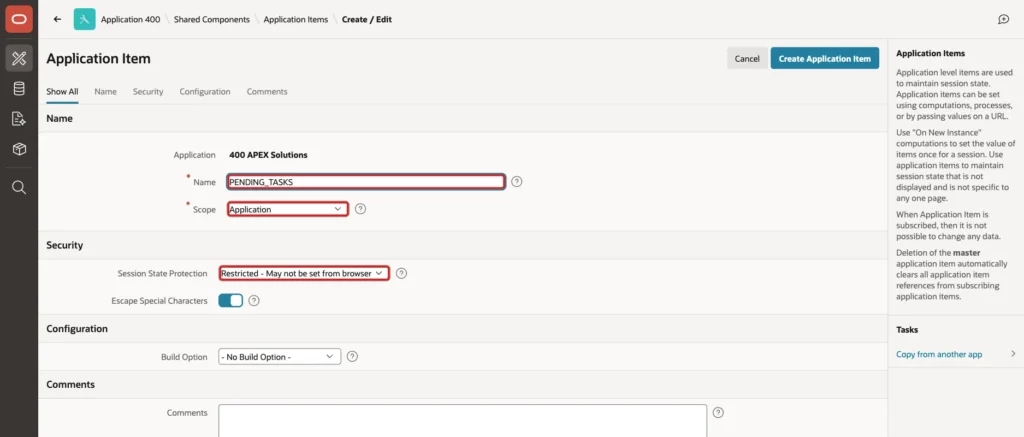
Approvers should see at a glance how many tasks wait for them. The count goes into an application item. In Shared Components, click Application Items, then Create, and enter Name PENDING_TASKS, Scope Application, and Session State Protection Restricted - May not be set from browser, so users cannot change the value from a URL:
Click Create Application Item. Then click Application Computations in Shared Components, click Create, and enter:
- Computation Item: PENDING_TASKS.
- Computation Point: Before Header, so the count is fresh on every page view.
- Computation Type: SQL Query (return single value).
Enter this Computation:
Example:
select count(*)
from   table(apex_human_task.get_tasks(p_context => 'MY_TASKS'))
where  state_code in ('UNASSIGNED', 'ASSIGNED')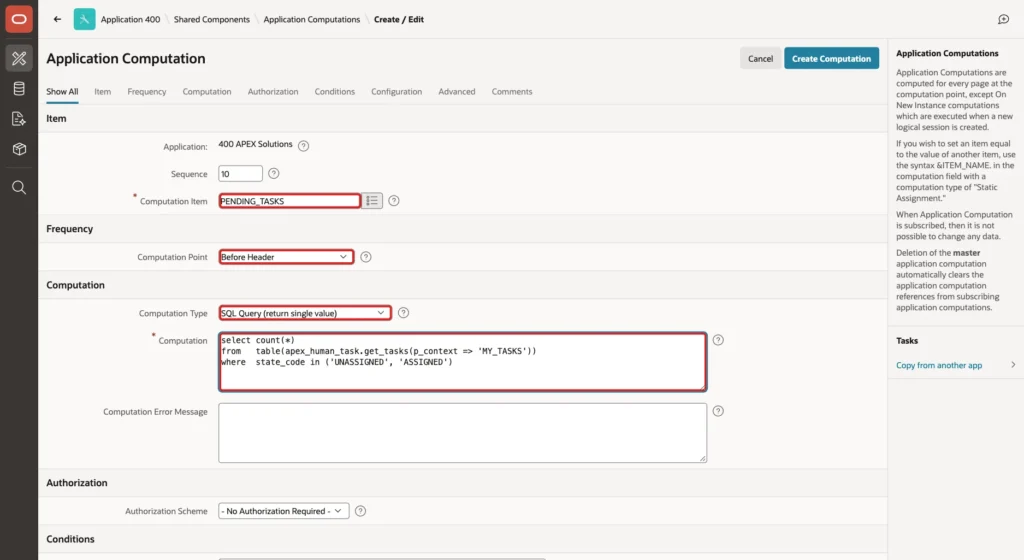
Click Create Computation. GET_TASKS with MY_TASKS returns the same tasks as the My Approvals page, so the count and the list always agree.
Step 6: Show the Count as a Badge
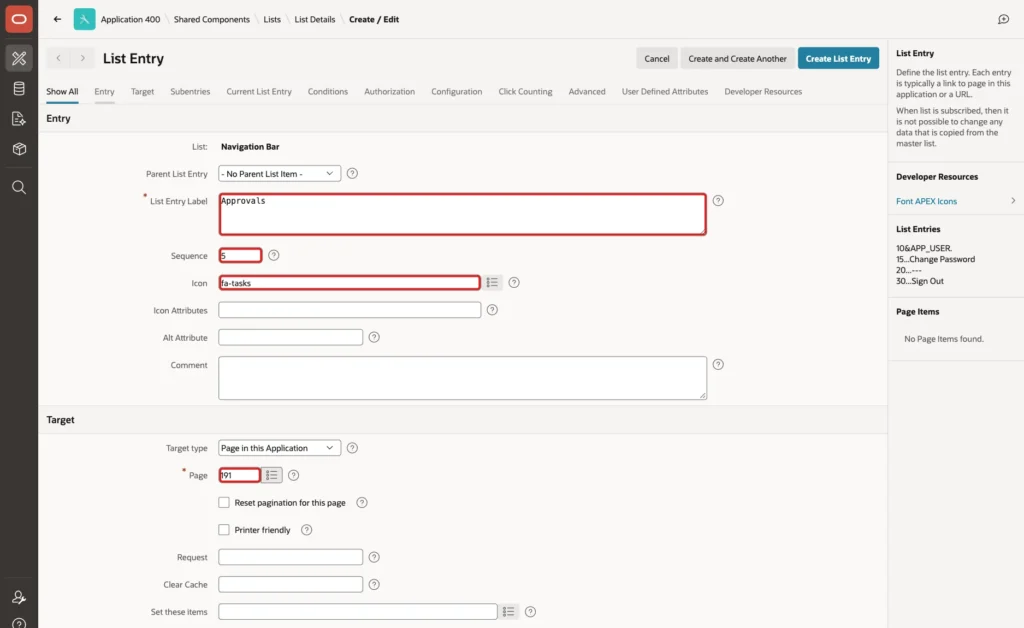
The Side Navigation Menu list template has no badge, but the Navigation Bar template has one: its first user-defined attribute is the Badge Value. In Shared Components, click Lists, then Navigation Bar, and click Create List Entry. Enter:
- List Entry Label: Approvals.
- Sequence: 5, so it comes before the user menu.
- Icon: fa-tasks.
- Target type: Page in this Application, Page: 191.
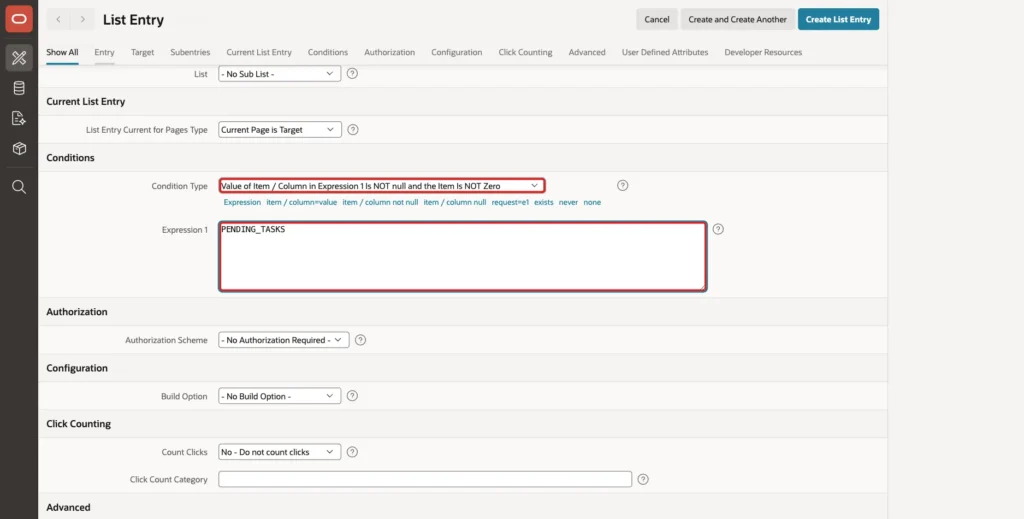
In the Conditions section, set Condition Type to Value of Item / Column in Expression 1 Is NOT null and the Item Is NOT Zero, and Expression 1 to PENDING_TASKS. Users without open tasks, such as requesters, do not see the entry at all:
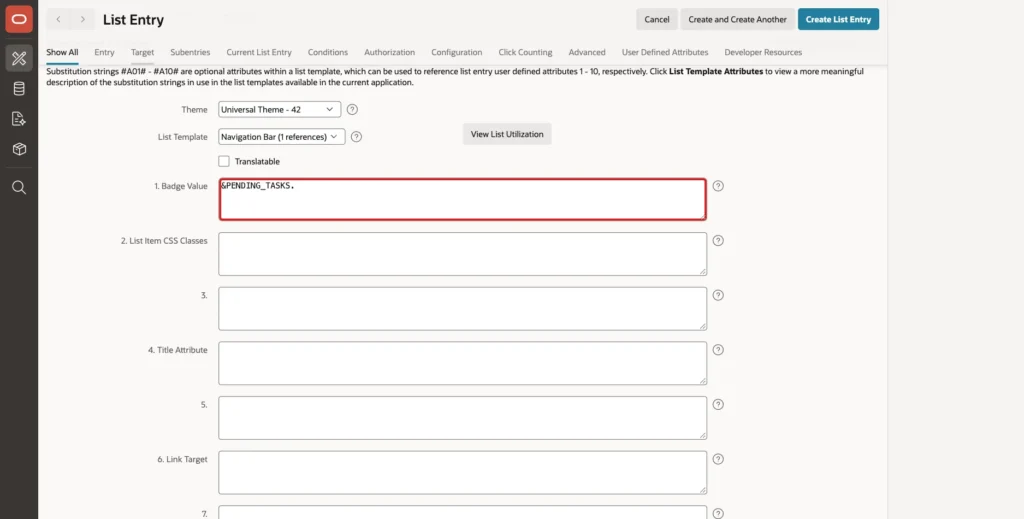
In the User Defined Attributes section, set 1. Badge Value to &PENDING_TASKS., and click Create List Entry:
Step 7: Test with Two Approvers
ORDER_EDITOR requested approval for orders 20, 21, and 22 on page 190. ORDER_EDITOR's navigation bar showed no Approvals entry, because the editor has no tasks to work on.
DEMO_DEV signed in and saw Approvals with the badge 3. My Approvals listed the three tasks as Unassigned, each with Claim, Approve, and Reject. DEMO_DEV clicked Claim on order 20:
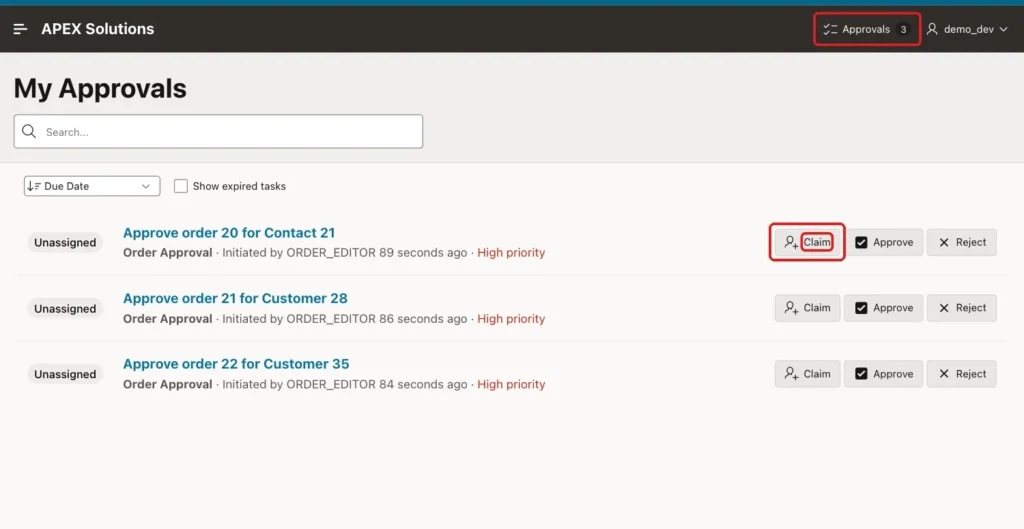
APEX showed Task claimed, and order 20 became Assigned to DEMO_DEV. SALES_MANAGER, the second approver, then saw the badge 2 and only orders 21 and 22: a claimed task leaves the list of the other potential owners. SALES_MANAGER clicked Approve on order 21 directly, without claiming it first:
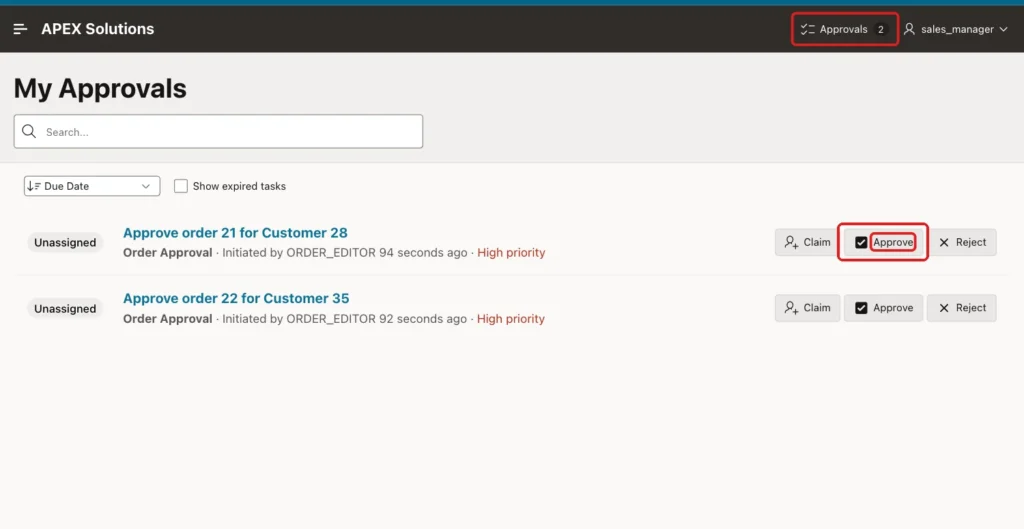
APEX showed Task approved and removed the row. The badge still showed 2 until the next page view: the row actions refresh the list without reloading the page, and the computation runs Before Header. After opening the page again, SALES_MANAGER's badge showed 1.
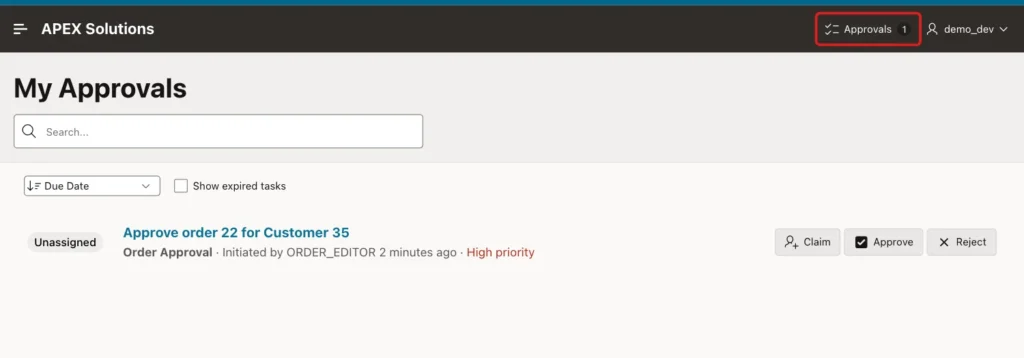
DEMO_DEV approved order 20 from the list. After the next page view, DEMO_DEV's badge showed 1, for order 22, which is still waiting:
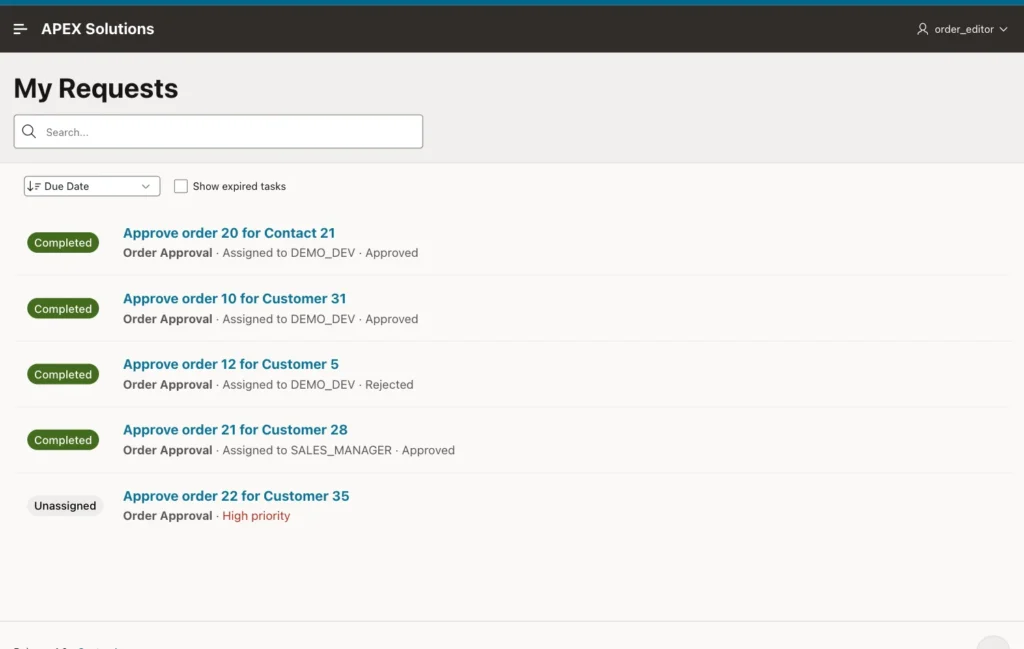
ORDER_EDITOR opened My Requests and saw every request, with its state, who it is assigned to, and the outcome:
The tasks and the orders agree:
Example:
select t.detail_pk as order_id,
       t.state,
       t.outcome,
       t.actual_owner,
       o.status as order_status
from   apex_tasks t
join   orders o on o.order_id = to_number(t.detail_pk)
where  t.task_def_static_id = 'order-approval'
and    t.detail_pk in ('20', '21', '22')
order by t.detail_pk;
Output:
ORDER_ID    STATE         OUTCOME     ACTUAL_OWNER     ORDER_STATUS
___________ _____________ ___________ ________________ _______________
20          Completed     Approved    DEMO_DEV         APPROVED
21          Completed     Approved    SALES_MANAGER    APPROVED
22          Unassigned                                 NEW
Things to Know
- Approve and Reject in the list complete the task without opening it. For decisions that need a look at the record, approvers can click the subject to open the task details page.
- Claim makes a task the user's own, so two approvers do not work on the same order. An approver can also approve an unassigned task directly, as SALES_MANAGER did.
- The Before Header computation updates the badge on the next page view, not right after a row action in the list.
- APEX_HUMAN_TASK.GET_TASKS works in any query, so the same count can feed a dashboard card or a home page region.
Related Guides
- How to Build an Approval Flow for Orders with Human Tasks in Oracle APEX
- How to Create Tasks and Run Workflows from PL/SQL Using APEX_HUMAN_TASK and APEX_WORKFLOW
Conclusion
To show pending approvals in Oracle APEX, create a Unified Task List page with Report Context My Tasks for approvers, and one with Initiated by Me for requesters. Count the open tasks with APEX_HUMAN_TASK.GET_TASKS in an application computation.
Show the count as the badge of a Navigation Bar entry that appears only when the count is not zero. With several approvers, tasks start unassigned, and Claim keeps two people from working on the same one.
