
Many business processes are a series of steps with decisions between them: check the order, ask a manager when the amount is high, wait for packing, ship. Written as page processes and status columns, such a process is spread over many places, and nobody can see at a glance where an order is stuck.
Oracle APEX Workflow models the whole process as a diagram: activities such as Execute Code, Human Task, Switch, and Wait, connected by arrows with conditions. APEX runs it in the background, step by step, and records every activity.
This guide builds an order fulfillment workflow in the Workflow Designer, starts it from a page, and follows two orders through it.
It builds on the approval task of How to Build an Approval Flow for Orders with Human Tasks in Oracle APEX. Starting and controlling workflows from PL/SQL is covered in How to Create Tasks and Run Workflows from PL/SQL Using APEX_HUMAN_TASK and APEX_WORKFLOW.
Step 1: The Tables and the Process
The workflow works on orders and their lines. Here are the tables with their keys:
Example:
create table customers (
    customer_id number generated by default as identity
                constraint customers_pk primary key,
    name        varchar2(100) not null,
    email       varchar2(120) not null
);

create table products (
    product_id number generated by default as identity
               constraint products_pk primary key,
    name       varchar2(60)  not null,
    category   varchar2(30)  not null,
    price      number(10, 2) not null
);

create table orders (
    order_id    number generated by default as identity
                constraint orders_pk primary key,
    customer_id number not null
                constraint orders_customer_fk references customers,
    order_date  date default sysdate not null,
    status      varchar2(12) default 'NEW' not null
                constraint orders_status_ck
                check (status in ('NEW', 'APPROVED', 'SHIPPED', 'CANCELLED')),
    approved_by varchar2(60),
    approved_on date
);

create table order_lines (
    line_id    number generated by default as identity
               constraint order_lines_pk primary key,
    order_id   number not null
               constraint order_lines_order_fk references orders on delete cascade,
    product_id number not null
               constraint order_lines_product_fk references products,
    quantity   number not null
               constraint order_lines_qty_ck check (quantity > 0),
    unit_price number(10, 2) not null,
    constraint order_lines_product_uk unique (order_id, product_id)
);

create index order_lines_order_ix on order_lines (order_id);
create index order_lines_product_ix on order_lines (product_id);
The process for each order:
- If the order total is above 1,000, a manager approves it with the Order Approval task. Otherwise the workflow approves it automatically.
- An approved order waits for packing, here one minute, and is then set to SHIPPED.
- A rejected order ends the workflow; the task's Reject action has already cancelled it.
Step 2: Create the Workflow
In App Builder, open Shared Components, click Workflows, and click Create. The Workflow Designer opens with a new workflow: a Start, one Activity, and an End. Select the workflow, New, in the tree on the left, and set Name to Order Fulfillment and Title to Fulfill order. Under it, select the version and set Workflow Version to 1.0.
The workflow needs the order's data. In the version's Additional Data group, set Type to SQL Query and enter this query. :APEX$WORKFLOW_DETAIL_PK is the primary key the workflow is started for, the order ID:
Example:
select o.order_id,
       c.name as customer_name,
       (select nvl(sum(l.quantity * l.unit_price), 0)
        from   order_lines l
        where  l.order_id = o.order_id) as order_total
from   orders o
join   customers c on c.customer_id = o.customer_id
where  o.order_id = :APEX$WORKFLOW_DETAIL_PK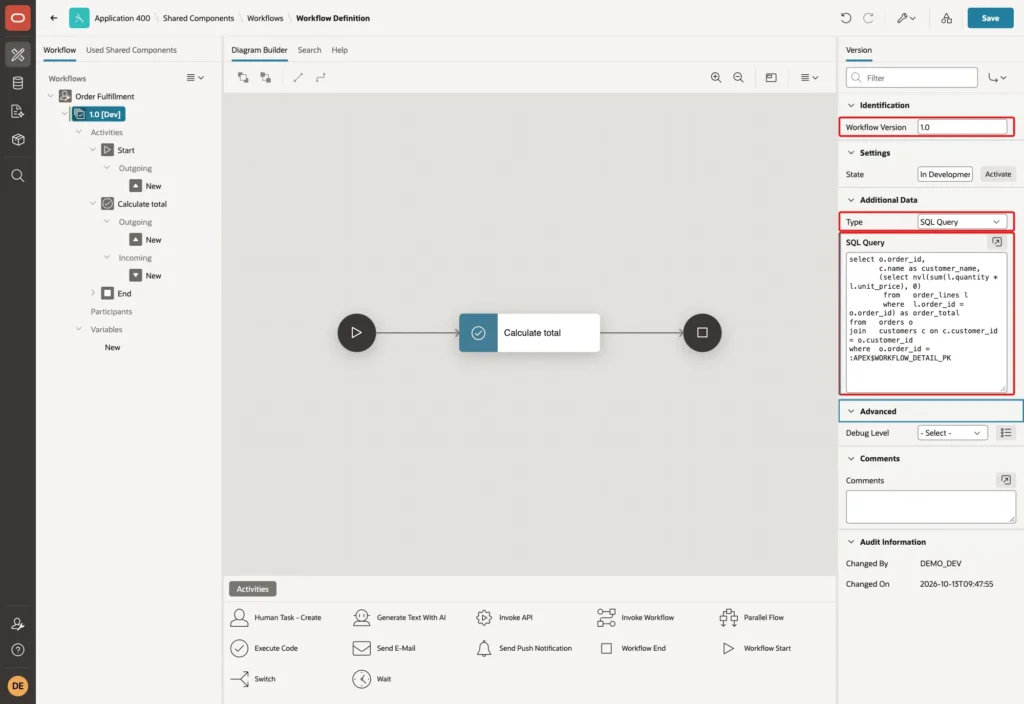
Every activity can use the columns of this query as bind variables, such as :ORDER_TOTAL.
Step 3: Add a Variable and the Participants
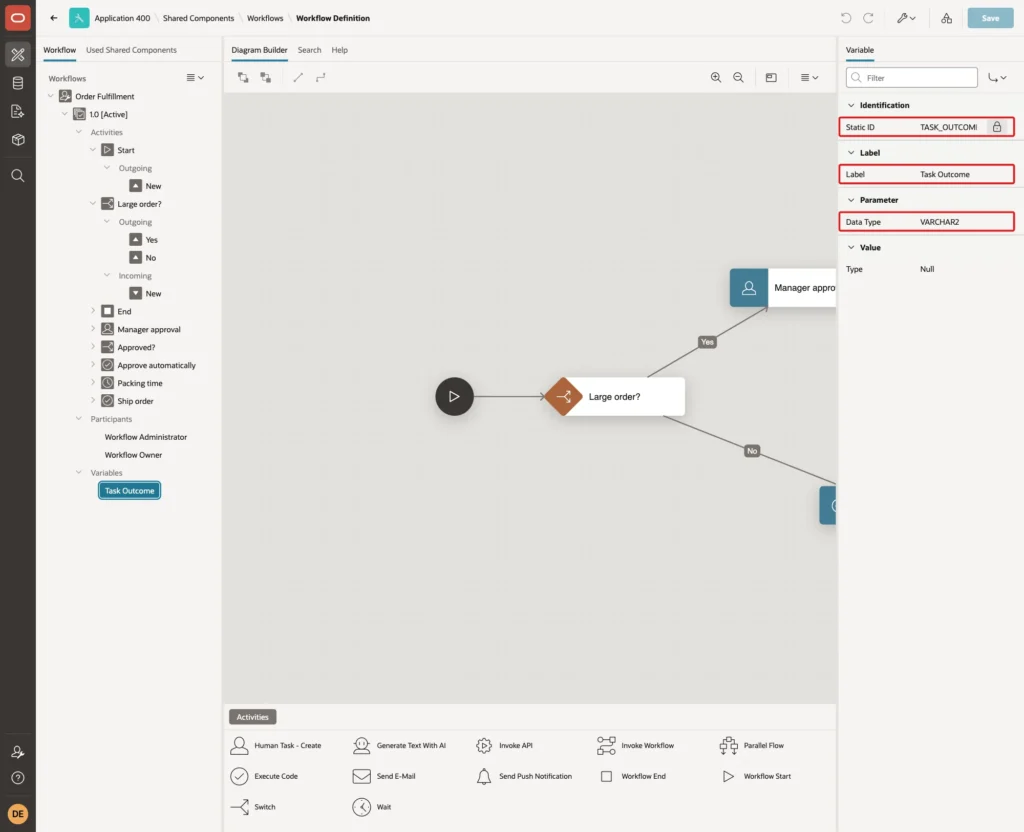
The workflow must remember the manager's decision. Right-click Variables, click Create Variable, and enter Static ID TASK_OUTCOME, Label Task Outcome, and Data Type VARCHAR2:
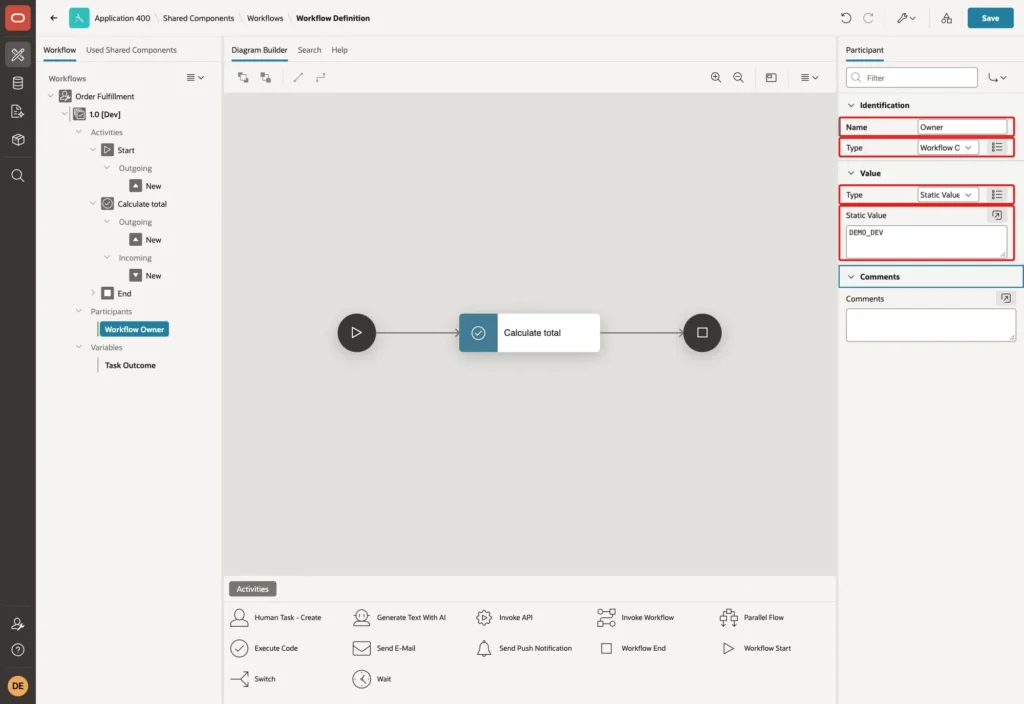
Right-click Participants and click Create Participant twice: a Workflow Owner and a Workflow Administrator, both with Value Type Static Value and Static Value DEMO_DEV. They are the users responsible for the workflow's instances:
Step 4: Decide by the Order Total
Select the generated Activity and turn it into the first decision: Name Large order?, Type Switch, Switch Type True False Check, Condition Type Expression, Language PL/SQL, and PL/SQL Expression:
Example:
:ORDER_TOTAL > 1000
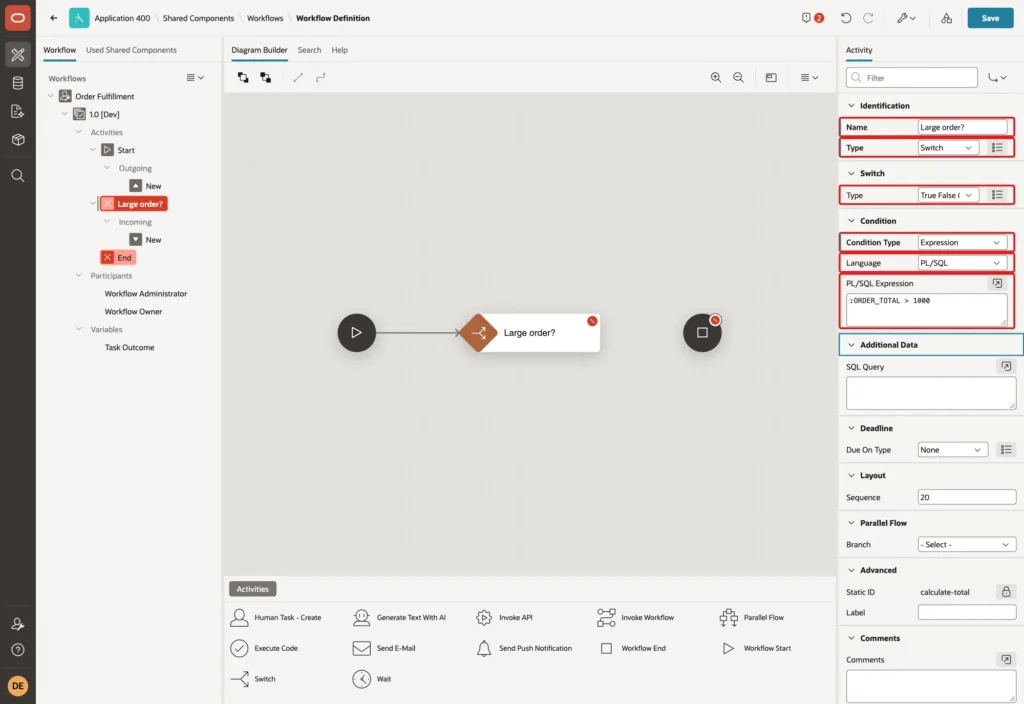
Changing the type to Switch removes the activity's connection to End; the new connections follow in Step 7.
Step 5: Add the Activities
Right-click Activities and click Create Activity for each of the following. First the manager's approval: Name Manager approval, Type Human Task - Create, Definition Order Approval, Details Primary Key Item APEX$WORKFLOW_DETAIL_PK, and in the Result group Outcome TASK_OUTCOME:
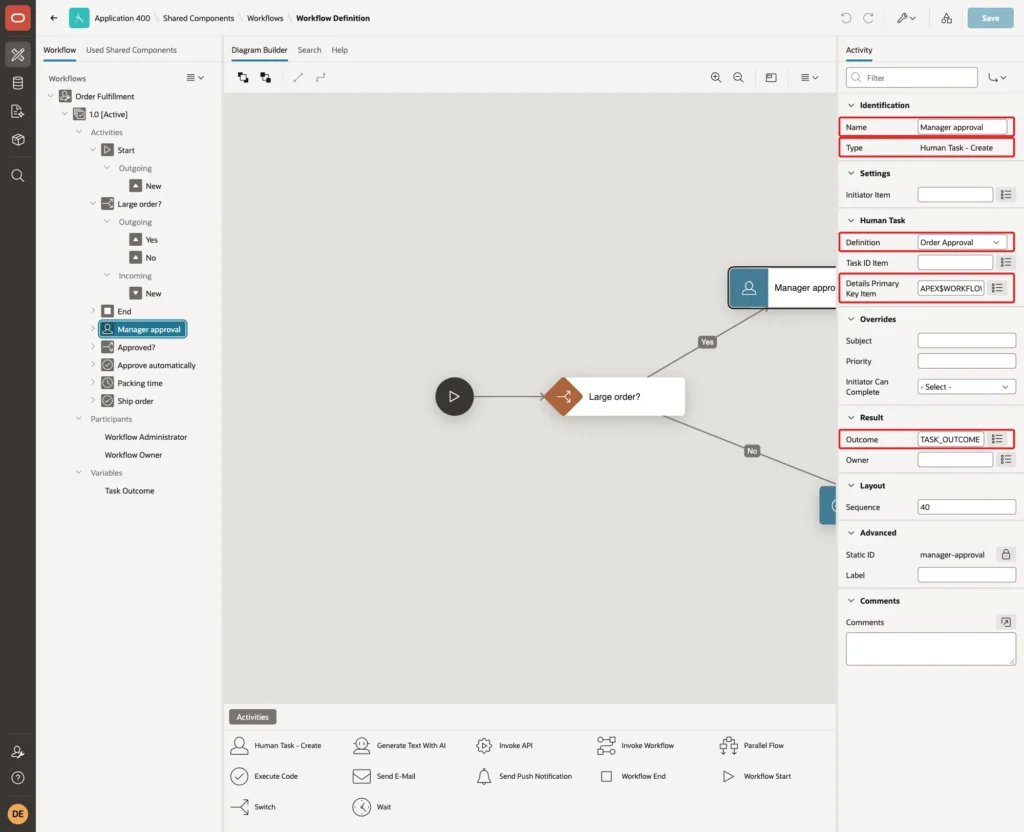
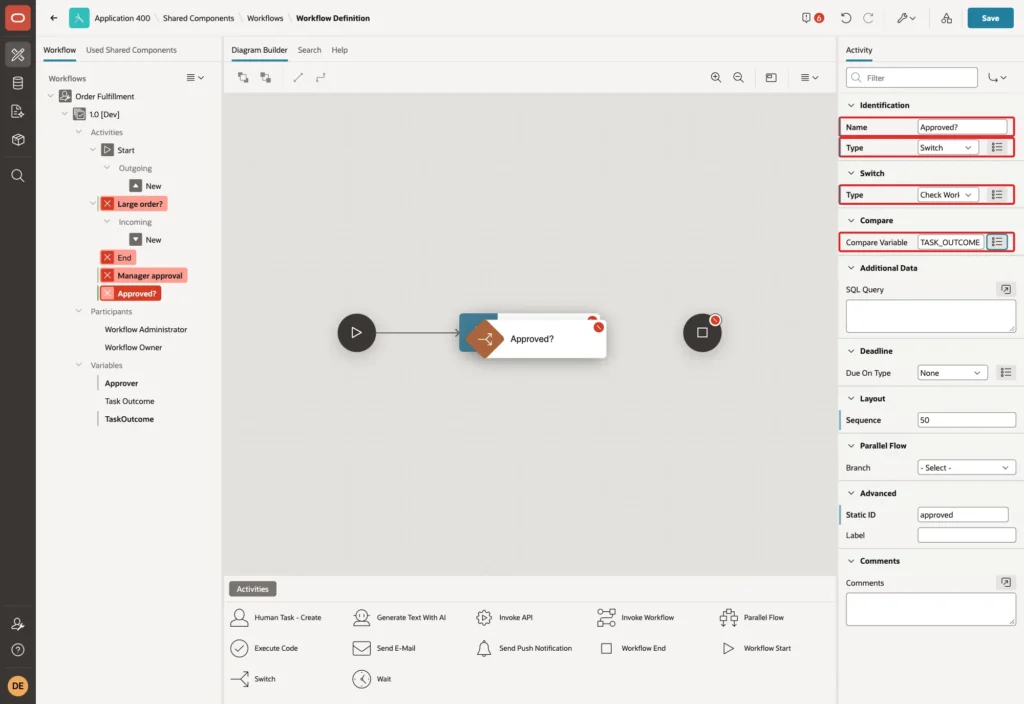
The workflow waits at this activity until the task is completed, and then stores the outcome, APPROVED or REJECTED, in TASK_OUTCOME. Next, the check of the outcome: Name Approved?, Type Switch, Switch Type Check Workflow Variable, Compare Variable TASK_OUTCOME:
For small orders: Name Approve automatically, Type Execute Code, with this PL/SQL Code:
Example:
update orders
set    status      = 'APPROVED',
       approved_by = 'WORKFLOW',
       approved_on = sysdate
where  order_id = :APEX$WORKFLOW_DETAIL_PK;
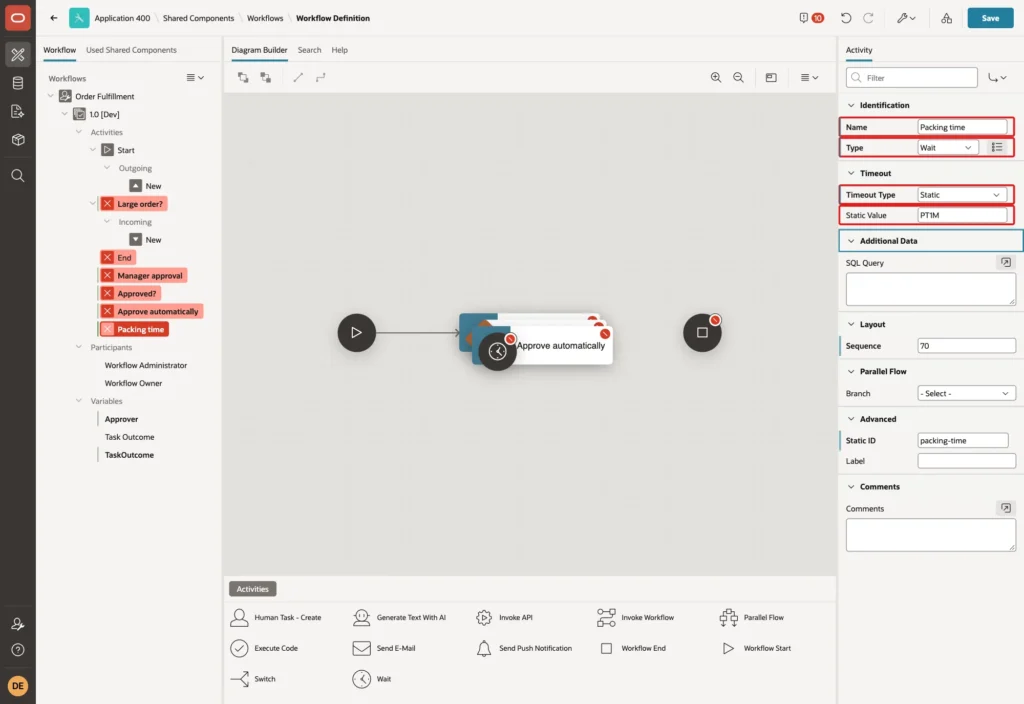
The packing time: Name Packing time, Type Wait, Timeout Type Static, Static Value PT1M. The value is an ISO 8601 duration; PT1M is one minute, PT4H four hours, P2D two days:
Finally, Name Ship order, Type Execute Code, with this code:
Example:
update orders
set    status = 'SHIPPED'
where  order_id = :APEX$WORKFLOW_DETAIL_PK
and    status   = 'APPROVED';

Step 6: Connect the Activities
Right-click an activity in the tree and click Create Connection to add an arrow from it; then set the connection's Name and its To activity. The switch Large order? gets two connections with a condition:
- Yes: When True, To Manager approval.
- No: When False, To Approve automatically.
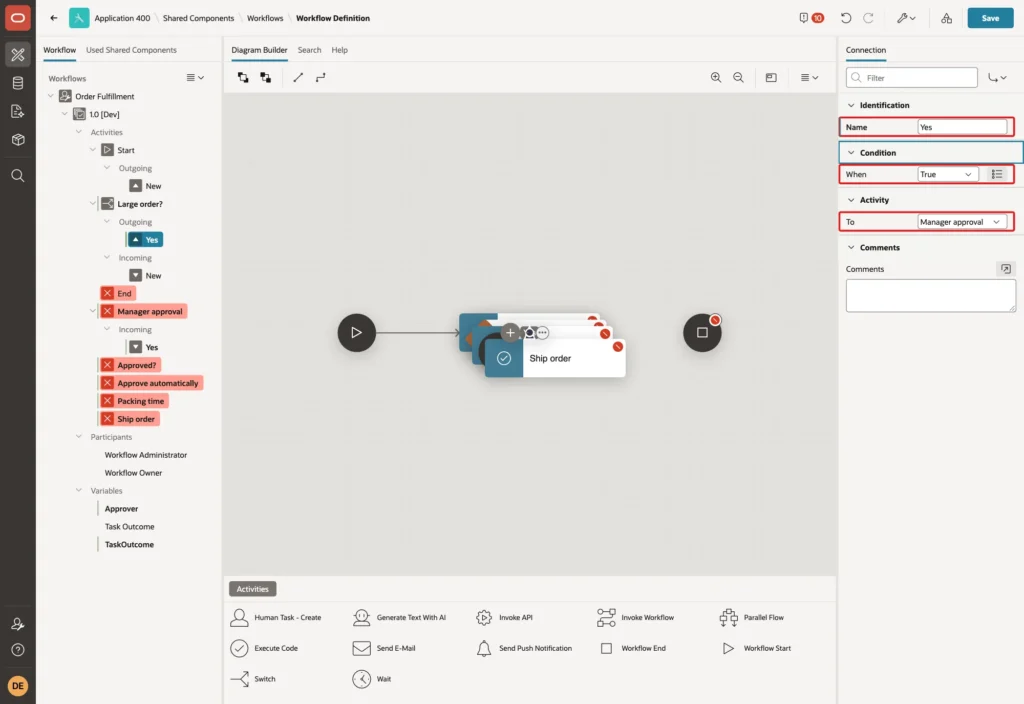
The switch Approved? compares TASK_OUTCOME with a value:
- Approved: Operator Is Equal To, Value APPROVED, To Packing time.
- Rejected: Operator Otherwise, To End.
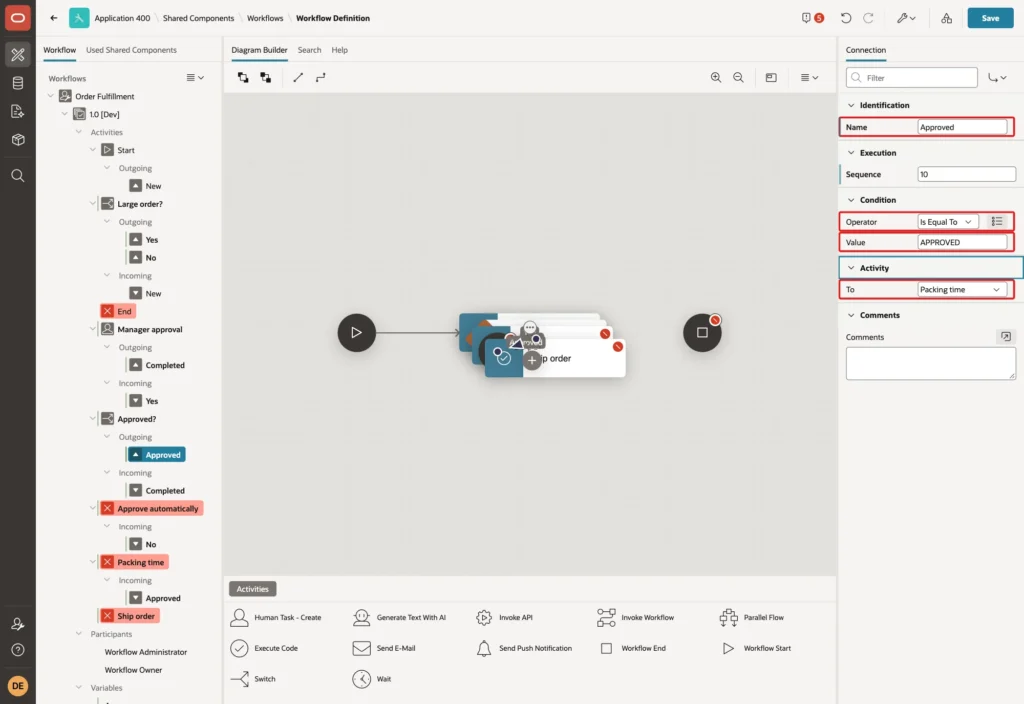
Add the remaining connections without conditions: Manager approval to Approved?, Approve automatically to Packing time, Packing time to Ship order, and Ship order to End. Click Save. Position the activities in the diagram by dragging them; the finished workflow:

Step 7: Activate the Version
Pages start the active version of a workflow. In a first test, while the version was still In Development, starting the workflow failed with Workflow order-fulfillment has no Active version. Select the version 1.0 and click Activate, and confirm with OK:
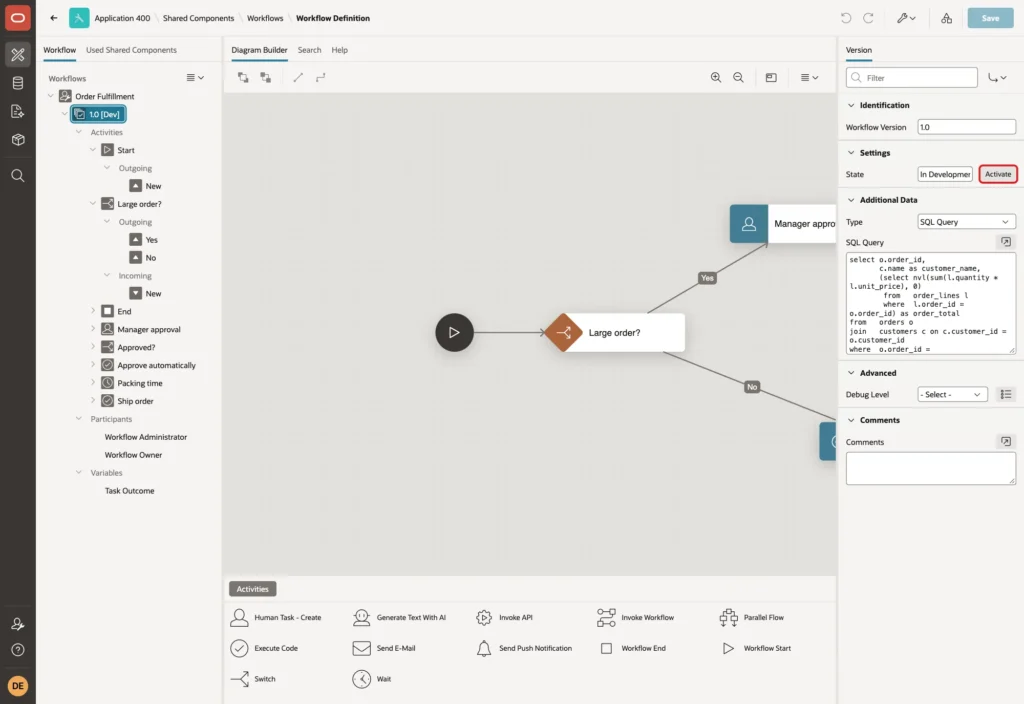
The version shows as 1.0 [Active] and can no longer be changed. To change the workflow later, create a new version from it.
Step 8: Start the Workflow from a Page
Create a Blank Page 230, Order Fulfillment, with a Static Content region, a Select List P230_ORDER_ID of NEW orders that have no workflow yet, and a button START labeled Start Fulfillment. The list of values query:
Example:
select 'Order ' || o.order_id || ' - ' || c.name || ' - '
       || to_char((select nvl(sum(l.quantity * l.unit_price), 0)
                   from   order_lines l
                   where  l.order_id = o.order_id), 'FML999G990') as display_value,
       o.order_id as return_value
from   orders o
join   customers c on c.customer_id = o.customer_id
where  o.status = 'NEW'
and    not exists (
           select 1
           from   apex_workflows w
           where  w.workflow_def_static_id = 'order-fulfillment'
           and    w.detail_pk = to_char(o.order_id))
and    not exists (
           select 1
           from   apex_tasks t
           where  t.detail_pk = to_char(o.order_id)
           and    t.state_code in ('UNASSIGNED', 'ASSIGNED'))
order by o.order_id
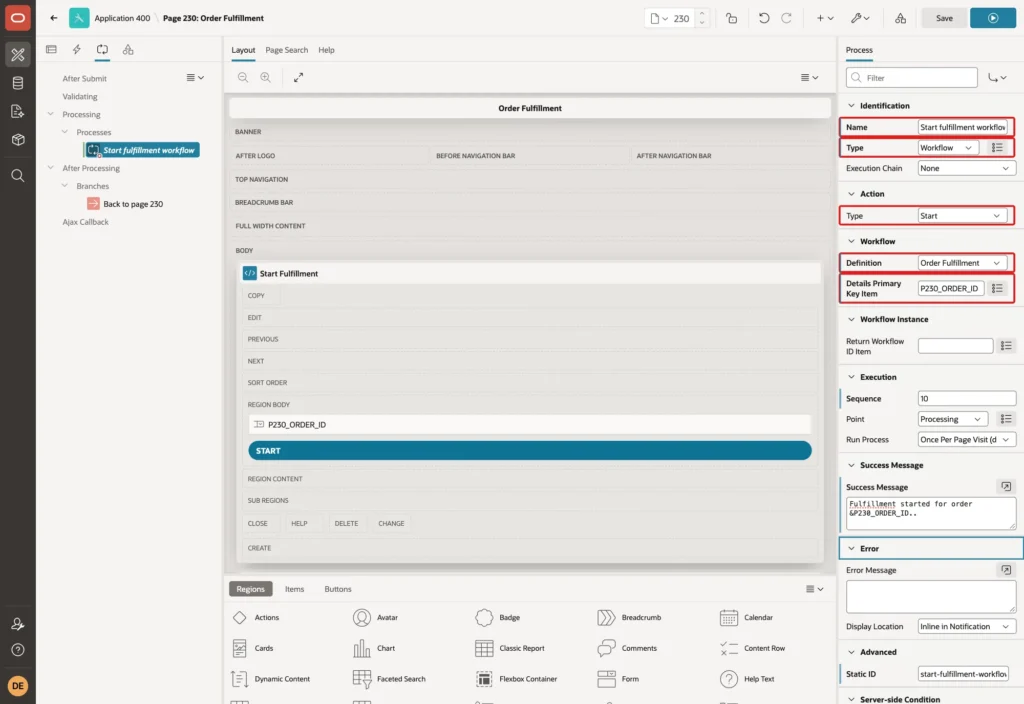
In the Processing tab, create a process named Start fulfillment workflow, Type Workflow, Action Type Start, Definition Order Fulfillment, and Details Primary Key Item P230_ORDER_ID. Set When Button Pressed to START and the Success Message to Fulfillment started for order &P230_ORDER_ID..:
To follow the workflows, add a Classic Report region on APEX_WORKFLOWS, with the last activity from APEX_WORKFLOW_ACTIVITIES:
Example:
select w.detail_pk as order_id,
       w.state     as workflow_state,
       (select max(a.name) keep (dense_rank last order by a.start_time)
        from   apex_workflow_activities a
        where  a.workflow_id = w.workflow_id) as last_activity,
       o.status    as order_status,
       o.approved_by,
       w.start_time,
       w.end_time
from   apex_workflows w
join   orders o on o.order_id = to_number(w.detail_pk)
where  w.workflow_def_static_id = 'order-fulfillment'
order by w.start_time desc
Step 9: Test It
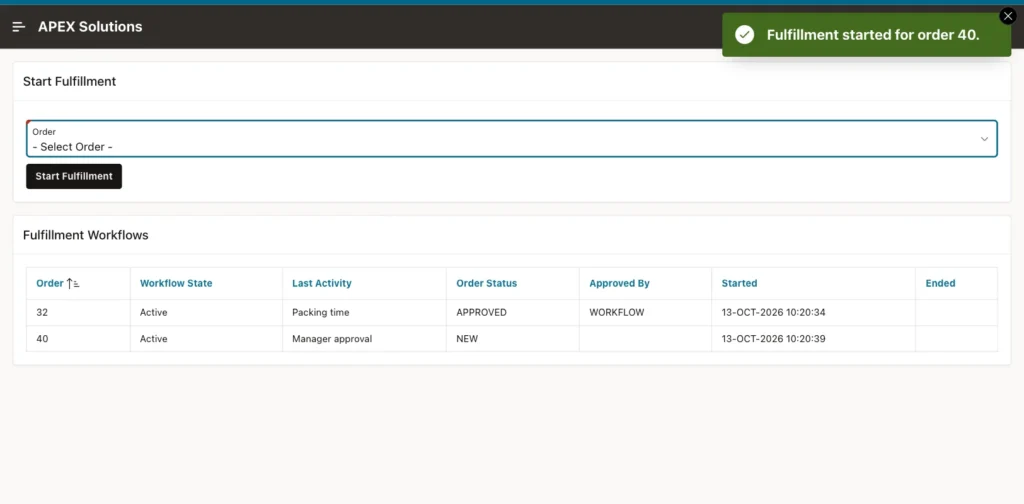
ORDER_EDITOR started the workflow for order 32, with a total of $670, and then for order 40, with $1,535:
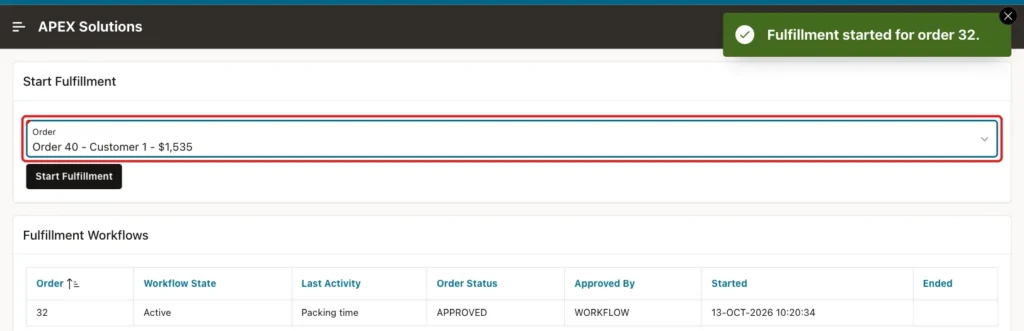
Order 32 went straight through Approve automatically and stopped at Packing time, approved by WORKFLOW. Order 40 stopped at Manager approval, still NEW:
The approval task for order 40 appeared in DEMO_DEV's My Approvals, initiated by ORDER_EDITOR, who started the workflow. DEMO_DEV clicked Approve:
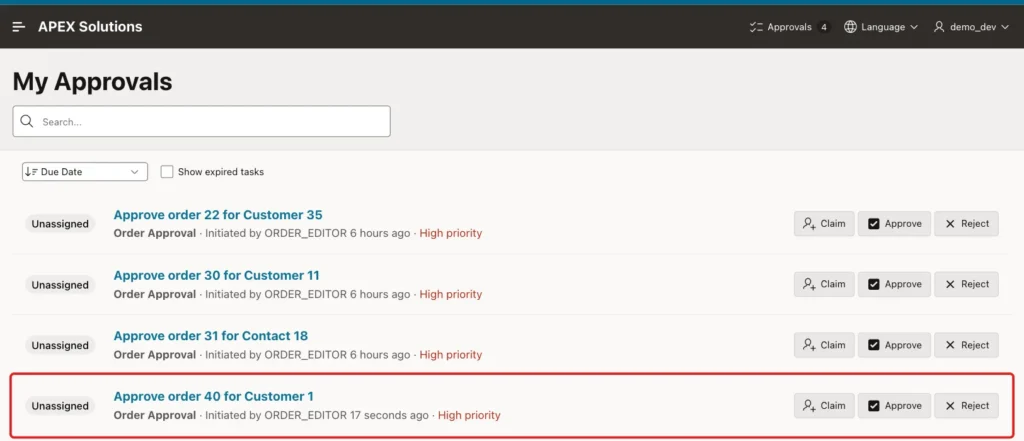
Order 40 moved on to Approved? and then to Packing time.
Both orders stayed at Packing time longer than one minute: the activities' due time was one minute after they started, but APEX checks wait timeouts with the scheduler job ORACLE_APEX_WF_TIMEOUT, which runs every five minutes. At 10:25:34, the job ended both waits, and both workflows shipped their orders and completed:
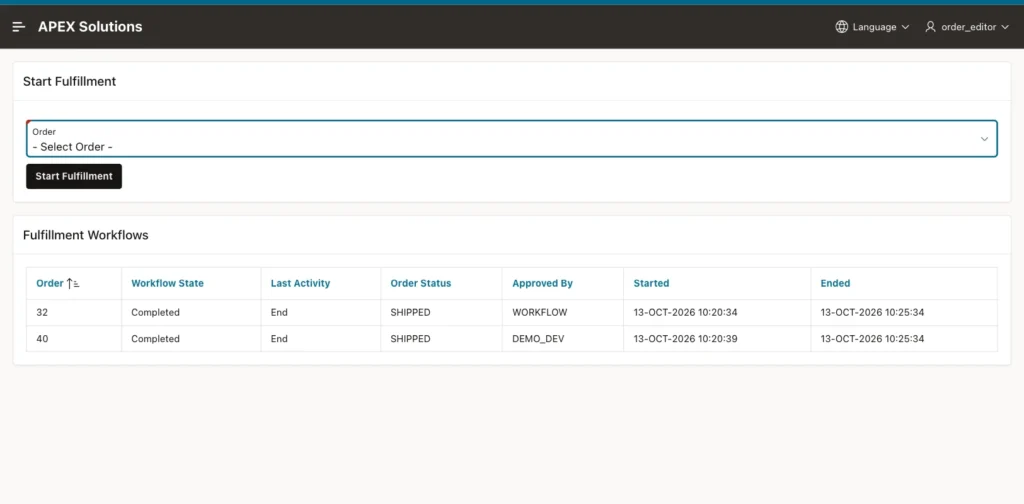
APEX_WORKFLOW_ACTIVITIES has the full history of each workflow:
Example:
select w.detail_pk as order_id,
       a.name      as activity,
       a.state,
       to_char(a.start_time, 'HH24:MI:SS') as started,
       to_char(a.due_on,     'HH24:MI:SS') as due,
       to_char(a.end_time,   'HH24:MI:SS') as ended
from   apex_workflow_activities a
join   apex_workflows w on w.workflow_id = a.workflow_id
where  w.workflow_def_static_id = 'order-fulfillment'
order by w.detail_pk, a.start_time, a.end_time;
Output:
ORDER_ID    ACTIVITY                 STATE        STARTED     DUE         ENDED
___________ ________________________ ____________ ___________ ___________ ___________
32          Start                    COMPLETED    10:20:35                10:20:35
32          Large order?             COMPLETED    10:20:35                10:20:35
32          Approve automatically    COMPLETED    10:20:35                10:20:35
32          Packing time             COMPLETED    10:20:35    10:21:35    10:25:34
32          Ship order               COMPLETED    10:25:34                10:25:34
32          End                      COMPLETED    10:25:34                10:25:34
40          Start                    COMPLETED    10:20:39                10:20:39
40          Large order?             COMPLETED    10:20:39                10:20:39
40          Manager approval         COMPLETED    10:20:39                10:20:58
40          Approved?                COMPLETED    10:20:58                10:20:58
40          Packing time             COMPLETED    10:20:58    10:21:58    10:25:34
40          Ship order               COMPLETED    10:25:34                10:25:34
40          End                      COMPLETED    10:25:34                10:25:34

13 rows selected.
Example:
select order_id, status, approved_by
from   orders
where  order_id in (32, 40)
order by order_id;
Output:
   ORDER_ID STATUS     APPROVED_BY
___________ __________ ______________
         32 SHIPPED    WORKFLOW
         40 SHIPPED    DEMO_DEV
Things to Know
- Plan Wait activities with the five-minute timeout job in mind: a wait ends at the first run of the job after its due time.
- Importing an application with APEXlang reset the version to In Development in this test, until the version's state was set to active in the source.
- A rejected approval ends the workflow at End; add an Execute Code activity on the Rejected branch to do more, such as recording the reason.
Related Guides
- How to Build an Approval Flow for Orders with Human Tasks in Oracle APEX
- How to Create Tasks and Run Workflows from PL/SQL Using APEX_HUMAN_TASK and APEX_WORKFLOW
Conclusion
To automate a business process in Oracle APEX, create a workflow with additional data for its record, add activities such as Switch, Human Task - Create, Execute Code, and Wait, and connect them with conditions in the Workflow Designer.
Activate the version, start the workflow from a page with a Workflow process, and follow its instances in APEX_WORKFLOWS and APEX_WORKFLOW_ACTIVITIES. Each order then takes its own path, and the history shows every step.
See my articles more often when you search Google.
