
Many users keep data in a spreadsheet before it goes into an application. A purchase list, a price update or a stock count often starts in Excel. Typing those rows again into a form is slow, and every retyped value is a chance for a mistake.
The Oracle APEX Interactive Grid can take rows straight from the clipboard. This guide builds an editable grid that accepts rows copied from Excel with Paste Insert, matches text such as type names to the right IDs, and checks every pasted value in the browser and on the server before it is saved.
Two earlier guides cover nearby topics. How to Fill Down and Copy Values in an Interactive Grid in Oracle APEX copies cells inside the same grid. How to Let Users Upload an Excel File and Load It into a Table in Oracle APEX loads a whole file.
This article is about copying rows from a spreadsheet and pasting them into the grid as new rows.
The example uses an equipment register; the same steps work for any table.
Step 1: Create the Tables
Two tables hold the data:
- EQUIPMENT_TYPES lists the types (Laptop, Monitor, Printer, Projector).
- EQUIPMENT_UNITS has one row per device, with its serial number, model, type, purchase date, cost and warranty.
Example:
create table equipment_types (
  type_id    number generated by default on null as identity
             constraint equipment_types_pk primary key,
  type_name  varchar2(50) not null
             constraint equipment_types_name_uk unique
);

create table equipment_units (
  unit_id          number generated by default on null as identity
                   constraint equipment_units_pk primary key,
  serial_no        varchar2(30) not null
                   constraint equipment_units_serial_uk unique,
  model_name       varchar2(100) not null,
  type_id          number not null
                   constraint equipment_units_type_fk references equipment_types,
  purchased_on     date not null,
  unit_cost        number(10,2) not null
                   constraint equipment_units_cost_ck check (unit_cost >= 0),
  warranty_months  number(3) default on null 12 not null
                   constraint equipment_units_warranty_ck check (warranty_months between 0 and 120)
);

create index equipment_units_type_ix on equipment_units (type_id);

insert into equipment_types (type_name) values ('Laptop');
insert into equipment_types (type_name) values ('Monitor');
insert into equipment_types (type_name) values ('Printer');
insert into equipment_types (type_name) values ('Projector');

insert into equipment_units (serial_no, model_name, type_id, purchased_on, unit_cost, warranty_months)
values ('LT-1001', 'ThinkPad T14', 1, date '2026-01-15', 1249.00, 36);
insert into equipment_units (serial_no, model_name, type_id, purchased_on, unit_cost, warranty_months)
values ('MN-2001', 'Dell P2425H', 2, date '2026-02-03', 219.99, 24);

commit;

select u.serial_no, u.model_name, t.type_name, to_char(u.purchased_on, 'YYYY-MM-DD') as purchased_on, u.unit_cost, u.warranty_months
from equipment_units u
join equipment_types t on t.type_id = u.type_id
order by u.serial_no;
Output:
Table EQUIPMENT_TYPES created.

Table EQUIPMENT_UNITS created.

Index EQUIPMENT_UNITS_TYPE_IX created.

1 row inserted.

1 row inserted.

1 row inserted.

1 row inserted.

1 row inserted.

1 row inserted.

Commit complete.

SERIAL_NO    MODEL_NAME      TYPE_NAME    PURCHASED_ON       UNIT_COST    WARRANTY_MONTHS
____________ _______________ ____________ _______________ ____________ __________________
LT-1001      ThinkPad T14    Laptop       2026-01-15              1249                 36
MN-2001      Dell P2425H     Monitor      2026-02-03            219.99                 24
- EQUIPMENT_UNITS_SERIAL_UK makes each serial number unique, and EQUIPMENT_UNITS_TYPE_FK links each unit to a type. EQUIPMENT_UNITS_TYPE_IX indexes that foreign key.
- EQUIPMENT_UNITS_COST_CK blocks a negative cost, and EQUIPMENT_UNITS_WARRANTY_CK allows 0 to 120 months. WARRANTY_MONTHS uses DEFAULT ON NULL, so a row without a warranty gets 12 months without a trigger.
- The table stores TYPE_ID, but a spreadsheet holds type names such as Laptop. Step 4 handles that difference.
Step 2: Create the Interactive Grid Page
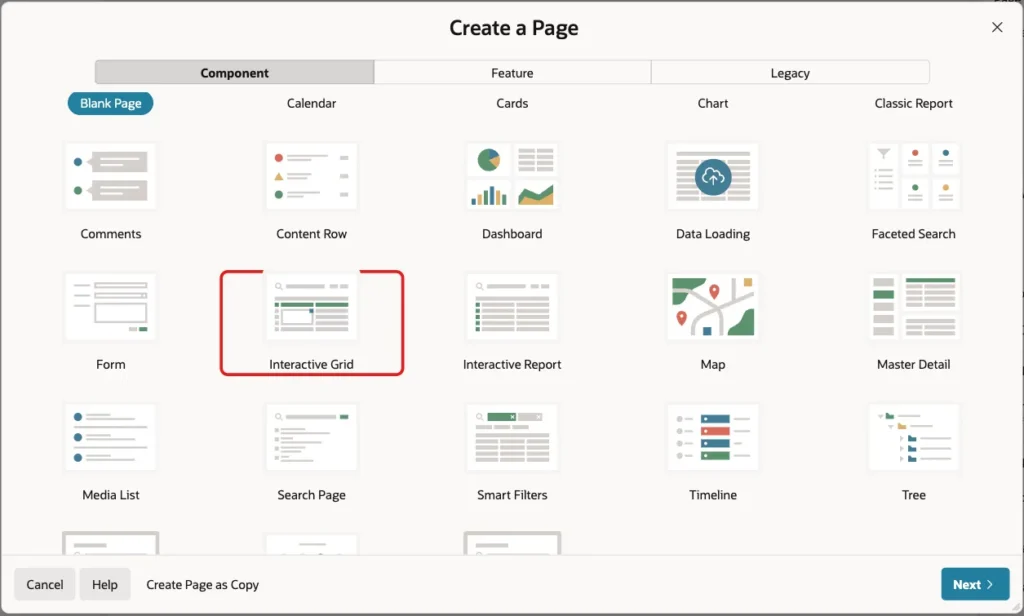
In App Builder, open the application and click Create Page. On the Component tab, select Interactive Grid:
Set Page Number to 960 and Name to Equipment Units. Keep Page Mode Normal:

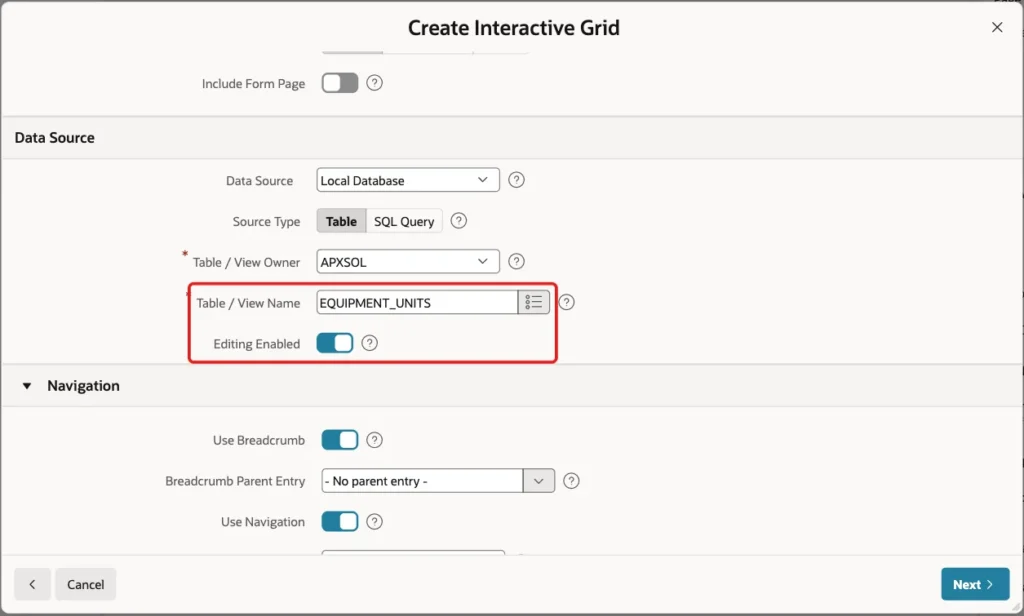
Under Data Source, keep Source Type Table, set Table / View Name to EQUIPMENT_UNITS and turn on Editing Enabled. Paste works only in an editable grid:
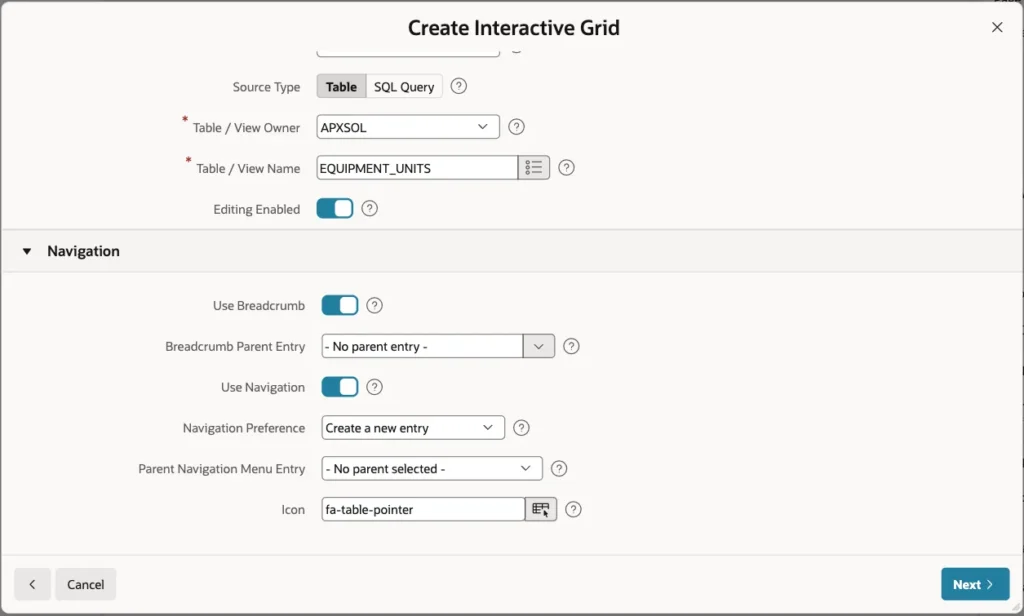
Keep the Navigation settings. The wizard adds a breadcrumb and a navigation menu entry:
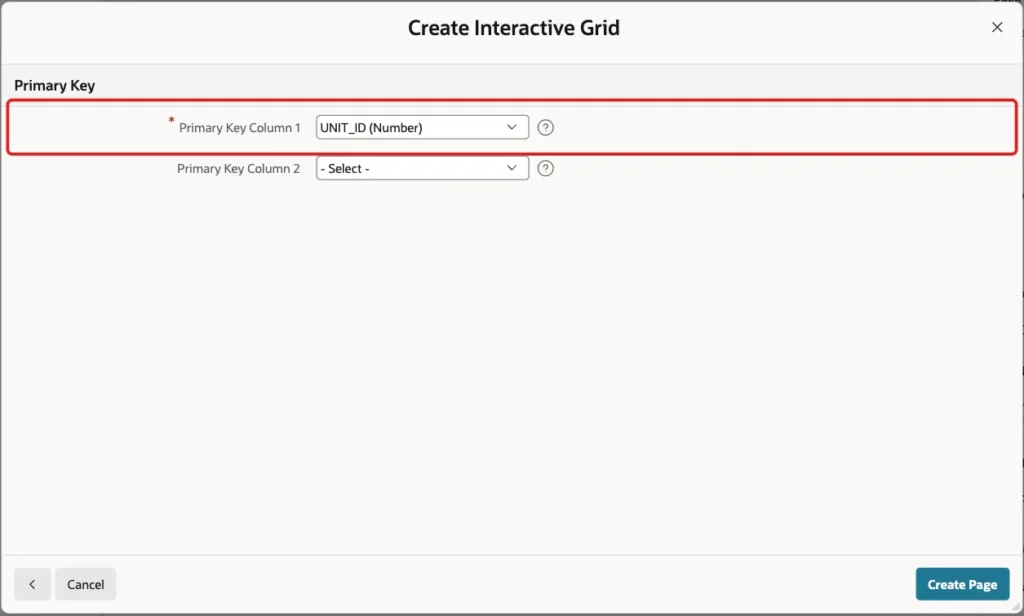
Click Next. On the Primary Key screen, select UNIT_ID and click Create Page:
Step 3: Show the Type Name Instead of the Type ID
The wizard shows TYPE_ID as a number. People who paste from Excel have type names, so the grid must show and accept names. In Page Designer, select the Equipment Units region. Under Source, set Type to SQL Query and enter this query:
Example:
select u.unit_id,
       u.serial_no,
       u.model_name,
       t.type_name,
       u.purchased_on,
       u.unit_cost,
       u.warranty_months
from equipment_units u
join equipment_types t on t.type_id = u.type_id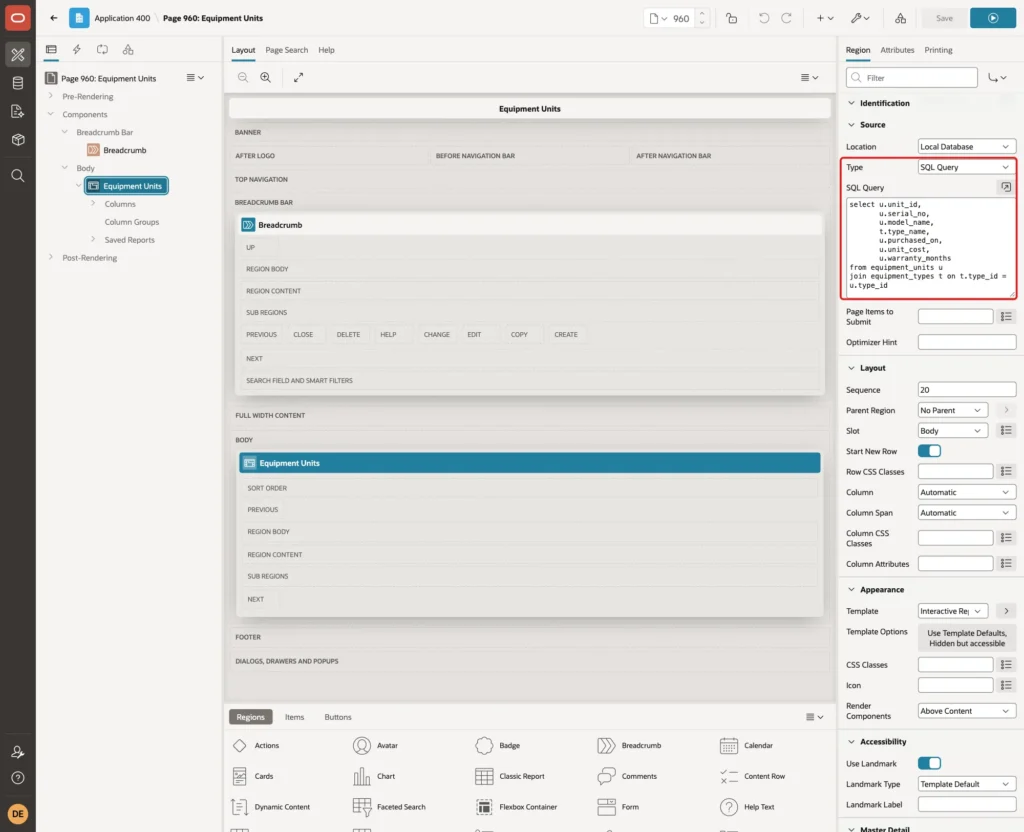
When you leave the SQL Query field, Page Designer updates the column list. In this example, it removed TYPE_ID and added a TYPE_NAME column as a Text Field.
Step 4: Turn TYPE_NAME into a Select List
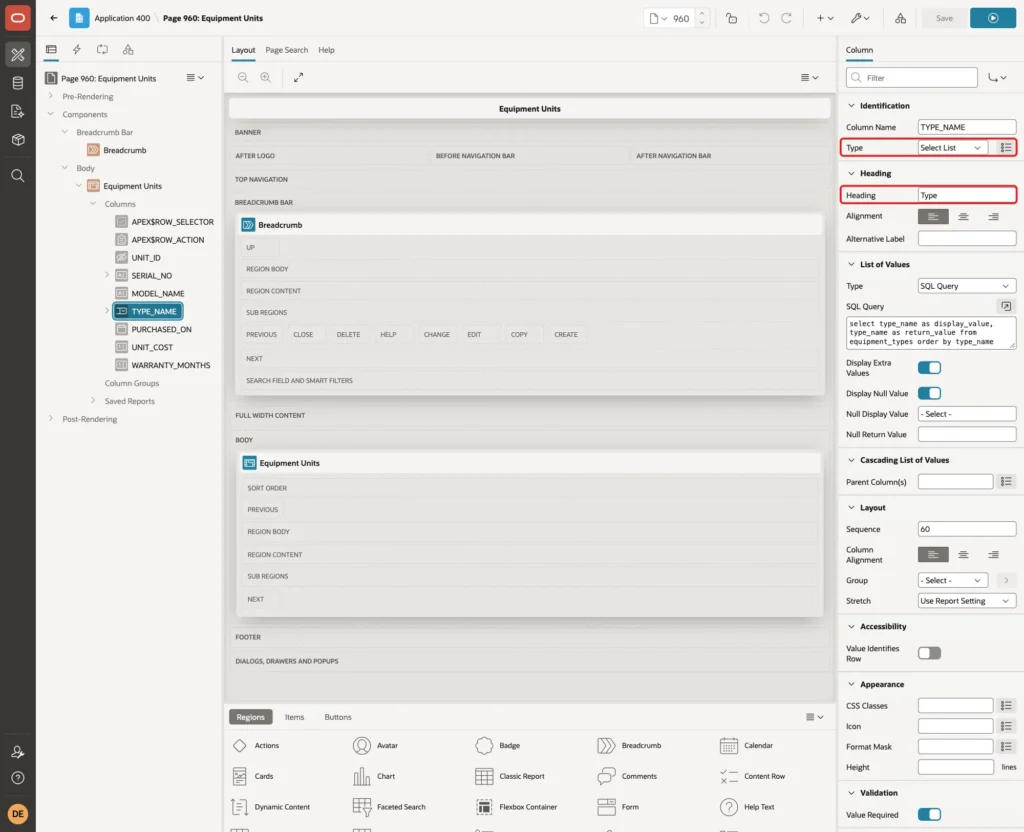
Expand Equipment Units and Columns, and select TYPE_NAME. Set Type to Select List and Heading to Type:
Under List of Values, set Type to SQL Query and enter this query. Keep Display Null Value on and set Null Display Value to - Select -:
Example:
select type_name as display_value,
       type_name as return_value
from equipment_types
order by type_name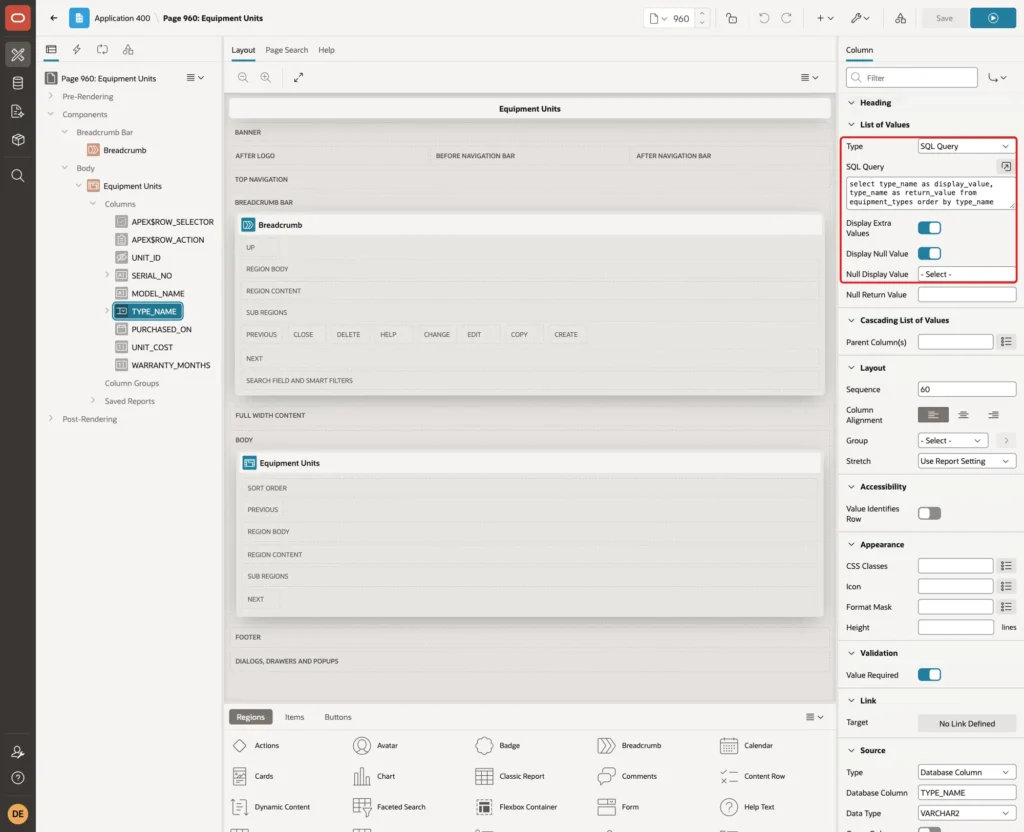
The return value is the name, not the ID, on purpose. In a first test, the select list returned TYPE_ID. Pasting the text Printer into it left the cell empty, and only the text 3 (the ID) was accepted. A pasted value is matched against the return value of the list.
A Popup LOV did not help either: it stored the pasted text Printer as the value while the cell still showed the old type. With the name as the return value, a pasted Printer matches at once.
Step 5: Set Limits on the Number Columns
Select UNIT_COST. Under Settings, set Minimum Value to 0:
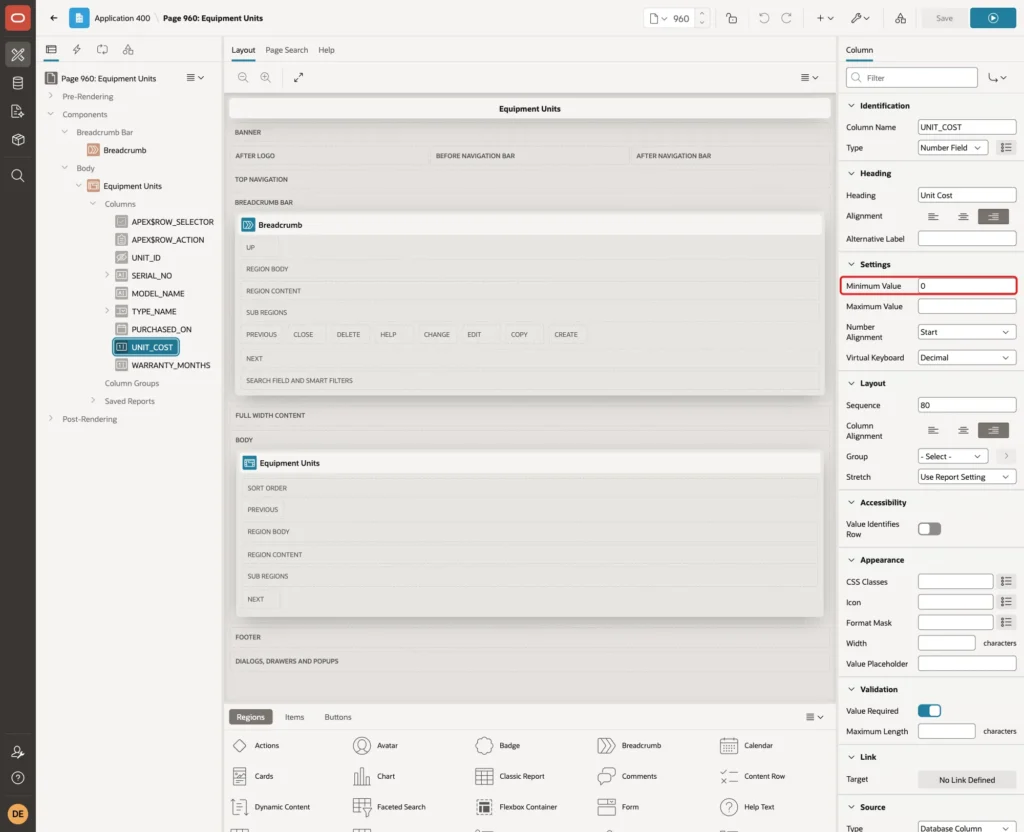
Select WARRANTY_MONTHS. Set Heading to Warranty (Months), and under Settings set Minimum Value to 0 and Maximum Value to 120:
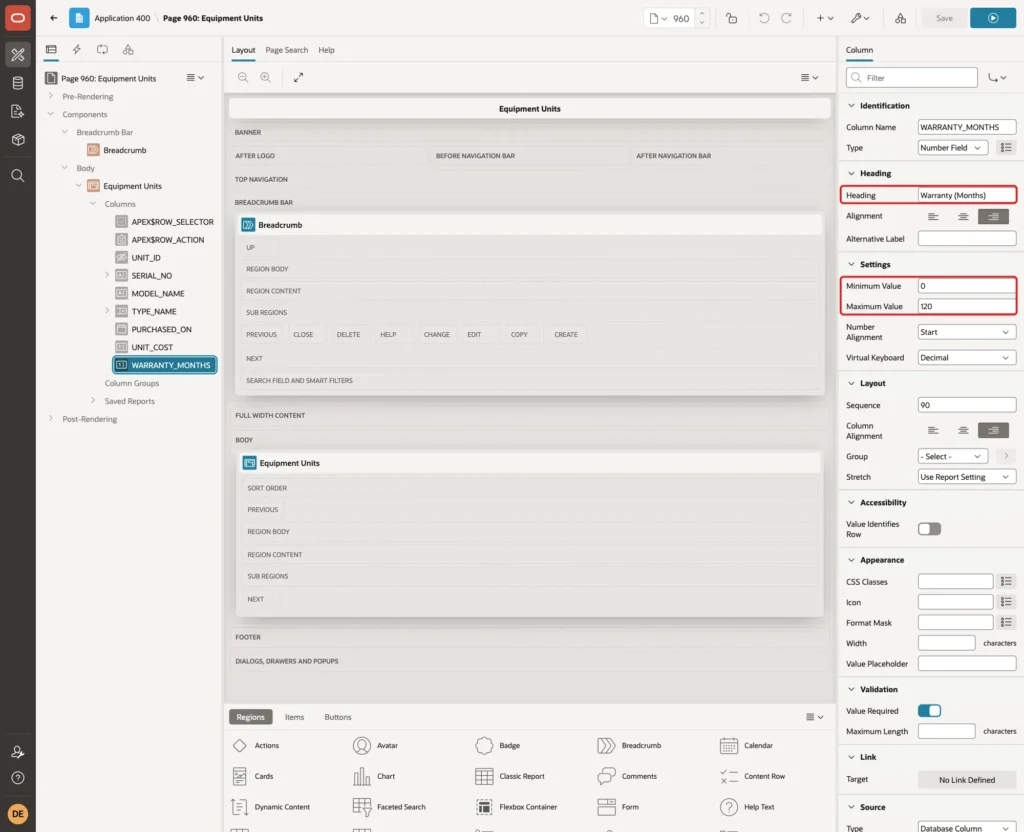
Without these settings, a pasted -5 or 200 passed the browser and failed on save with a raw ORA-02290 check constraint message. With them, the grid marks the cell before the user clicks Save.
Step 6: Save the Rows with PL/SQL Code
The grid now works with TYPE_NAME, but the table needs TYPE_ID. The save process must look up the ID. On the Processing tab, select the Equipment Units - Save Interactive Grid Data process. Under Target, set Target Type to PL/SQL Code and enter this code in PL/SQL Code to Insert/Update/Delete:
Example:
begin
    case :APEX$ROW_STATUS
    when 'C' then
        insert into equipment_units
            (serial_no, model_name, type_id, purchased_on, unit_cost, warranty_months)
        values
            (:SERIAL_NO, :MODEL_NAME,
             (select type_id from equipment_types where type_name = :TYPE_NAME),
             :PURCHASED_ON, :UNIT_COST, :WARRANTY_MONTHS)
        returning unit_id into :UNIT_ID;
    when 'U' then
        update equipment_units
        set serial_no       = :SERIAL_NO,
            model_name      = :MODEL_NAME,
            type_id         = (select type_id from equipment_types where type_name = :TYPE_NAME),
            purchased_on    = :PURCHASED_ON,
            unit_cost       = :UNIT_COST,
            warranty_months = :WARRANTY_MONTHS
        where unit_id = :UNIT_ID;
    when 'D' then
        delete from equipment_units
        where unit_id = :UNIT_ID;
    end case;
exception
    when dup_val_on_index then
        apex_error.add_error(
            p_message          => 'Serial No ' || :SERIAL_NO || ' is pasted more than once.',
            p_display_location => apex_error.c_inline_in_notification);
end;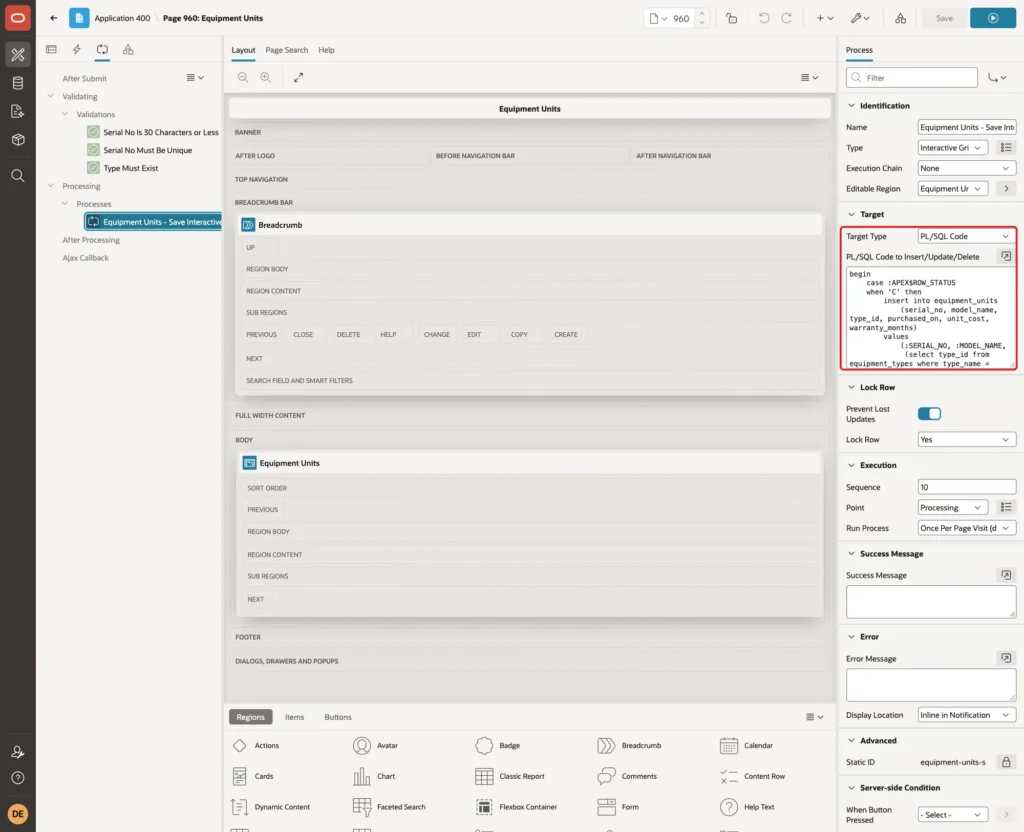
- :APEX$ROW_STATUS is C for a new row, U for a changed row and D for a deleted row.
- Each statement finds TYPE_ID with a subquery on the type name.
- RETURNING unit_id INTO :UNIT_ID gives the new key back to the grid, so a pasted row can be edited again after the save.
- The exception handler catches a serial number that appears twice in the same save. Step 7 explains why a validation cannot catch that case.
The Return Primary Key(s) after Insert option disappears when Target Type is PL/SQL Code; the RETURNING clause does that job.
Step 7: Add Validations for Pasted Values
Paste skips some checks that typing would get. In a test, a 45-character serial number was pasted into the 30-character column without any warning, and the save failed with ORA-12899. Three validations give clear messages instead.
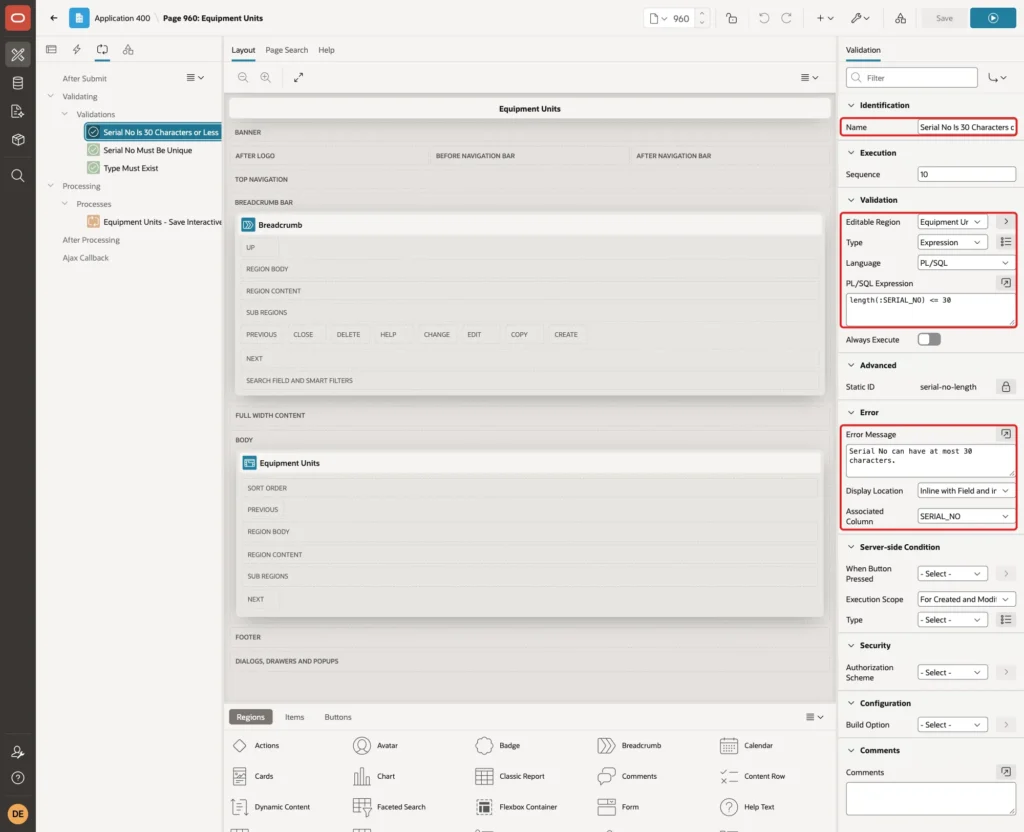
On the Processing tab, right-click Validations and click Create Validation. Set Name to Serial No Is 30 Characters or Less, Editable Region to Equipment Units, Type to Expression, Language to PL/SQL, and enter this PL/SQL Expression:
Example:
length(:SERIAL_NO) <= 30
Under Error, enter the Error Message Serial No can have at most 30 characters. and set Associated Column to SERIAL_NO:
Create a second validation named Serial No Must Be Unique. Set Editable Region to Equipment Units, Type to No Rows Returned, and enter this SQL Query:
Example:
select 1
from equipment_units
where serial_no = :SERIAL_NO
and (:APEX$ROW_STATUS = 'C' or unit_id <> :UNIT_ID)
Set the Error Message to Serial No &SERIAL_NO. already exists. and Associated Column to SERIAL_NO:
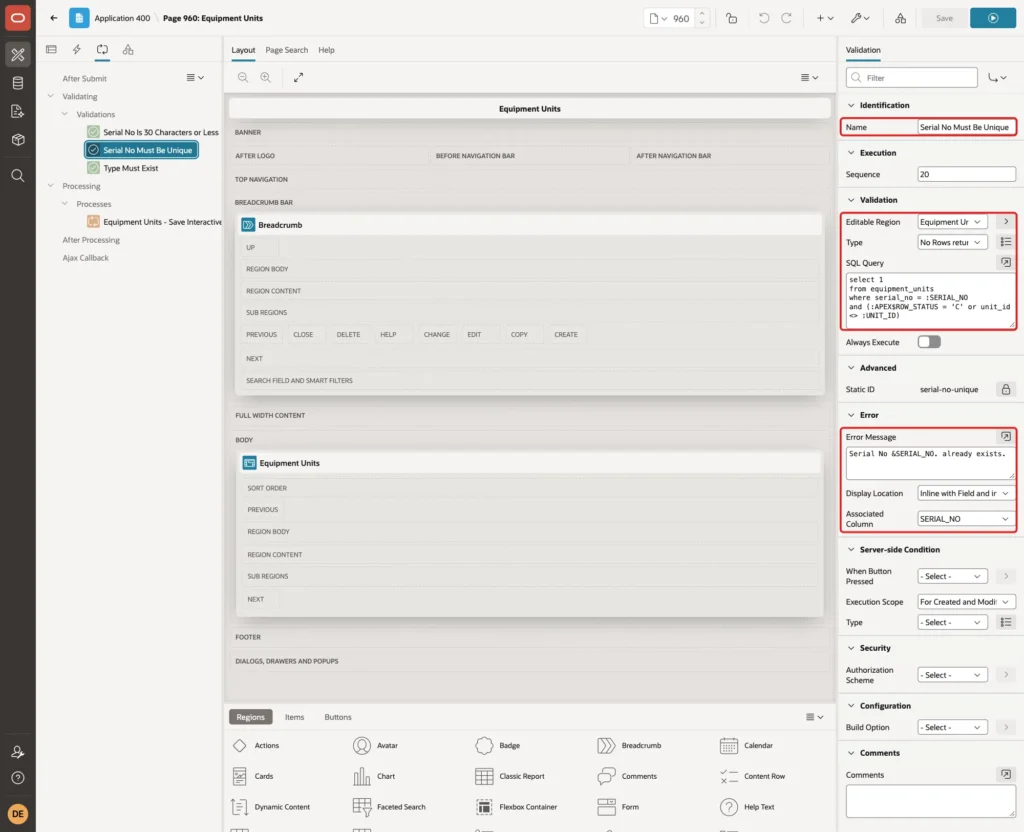
The :APEX$ROW_STATUS = 'C' test lets a new row skip the UNIT_ID comparison, because a pasted row has no key yet. An edited row may keep its own serial number.
This validation reads the table, so it cannot see other rows of the same save. Two pasted rows with the same new serial number both pass it. The exception handler in Step 6 catches that case when the insert hits the unique constraint.
Create a third validation named Type Must Exist. Set Editable Region to Equipment Units, Type to Rows Returned, and enter this SQL Query:
Example:
select 1
from equipment_types
where type_name = :TYPE_NAME
Set the Error Message to Type &TYPE_NAME. is not in the list. and Associated Column to TYPE_NAME:
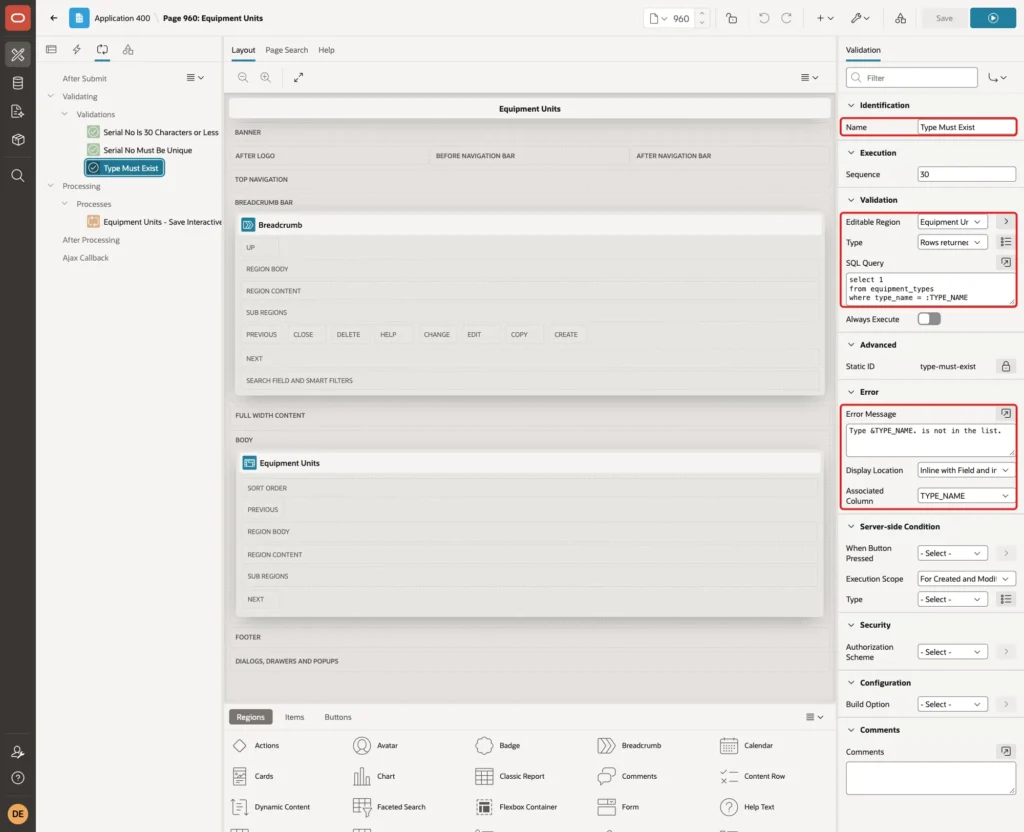
The select list already blocks unknown names in the browser. The server does not check select list values in a grid save, though. The Test the Rules section shows a changed request that only this validation stopped. Click Save in Page Designer.
Step 8: Put the Columns in Spreadsheet Order
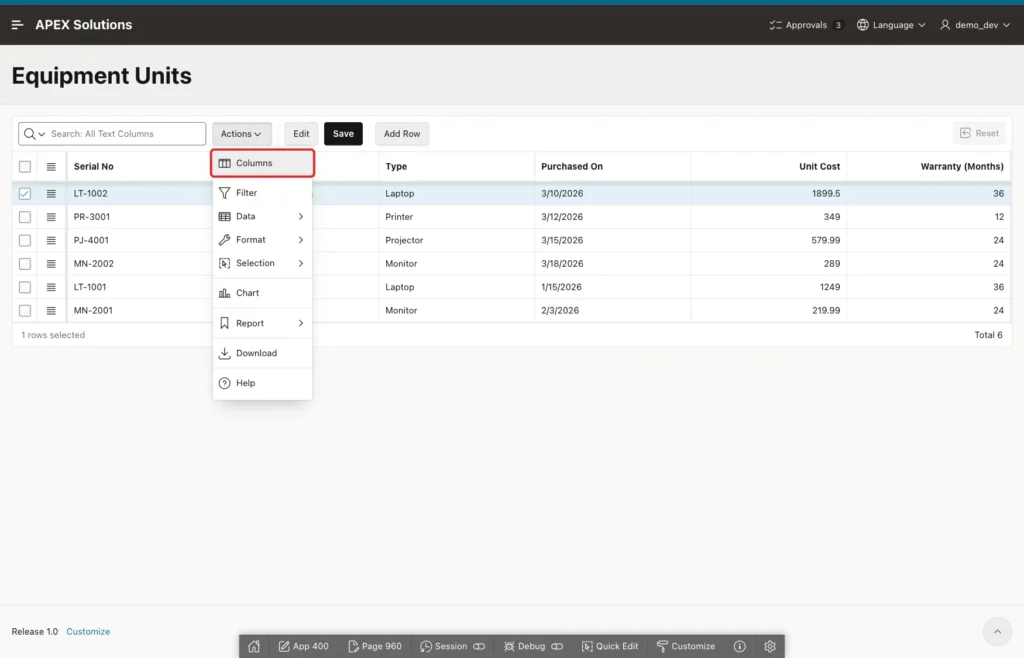
Paste fills the grid columns from left to right, starting at the cell you click. The spreadsheet columns must be in the same order as the grid columns. After Step 3, the new Type column was the last column in the grid, after Warranty (Months).
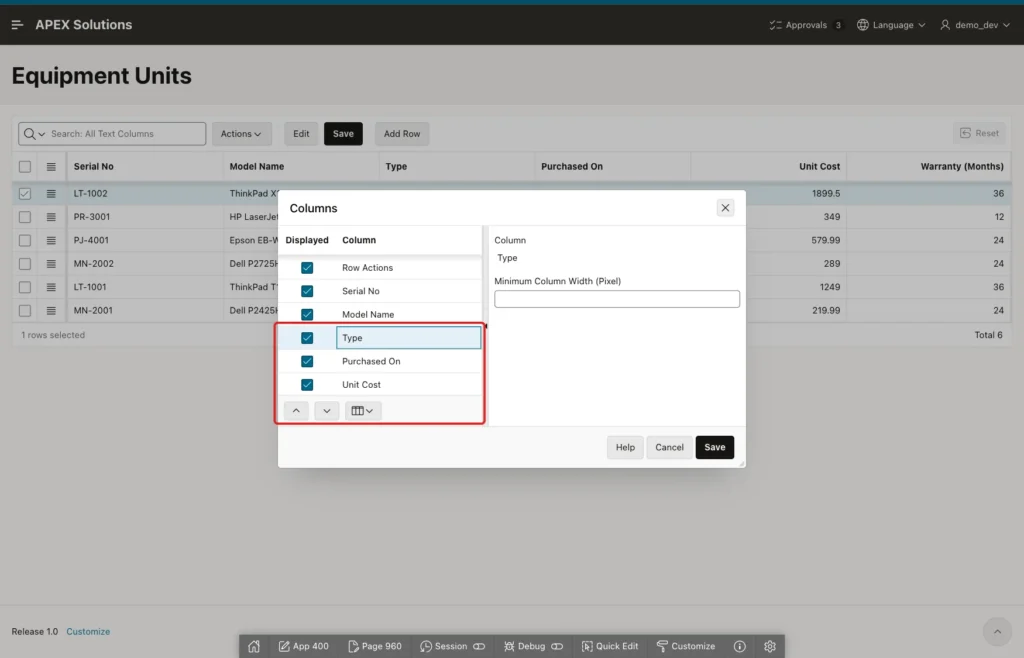
Changing the Sequence of TYPE_NAME in Page Designer did not move it, because the grid takes the order from its saved default report. Run the page while you are logged in to App Builder, open Actions and click Columns:
Select Type and click Move Up until it is below Model Name. Click Save:
Then open Actions, Report and click Save. Because you run the page as a developer, APEX shows Default report saved for all users:
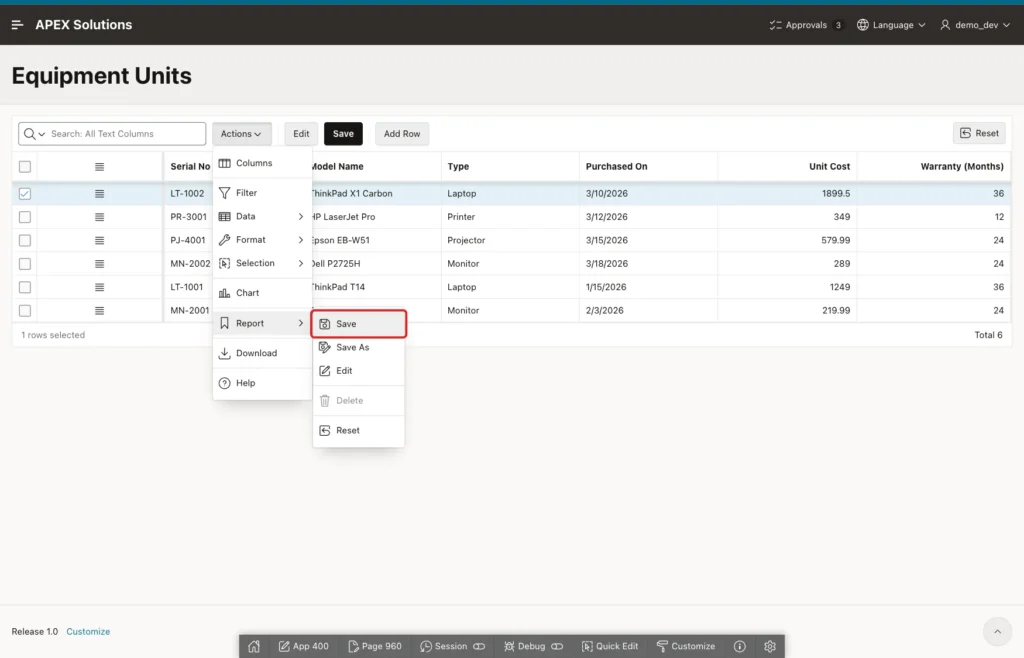
In a later test as another user, the grid showed Serial No, Model Name, Type, Purchased On, Unit Cost and Warranty (Months), in that order.
Step 9: Copy the Rows in Excel
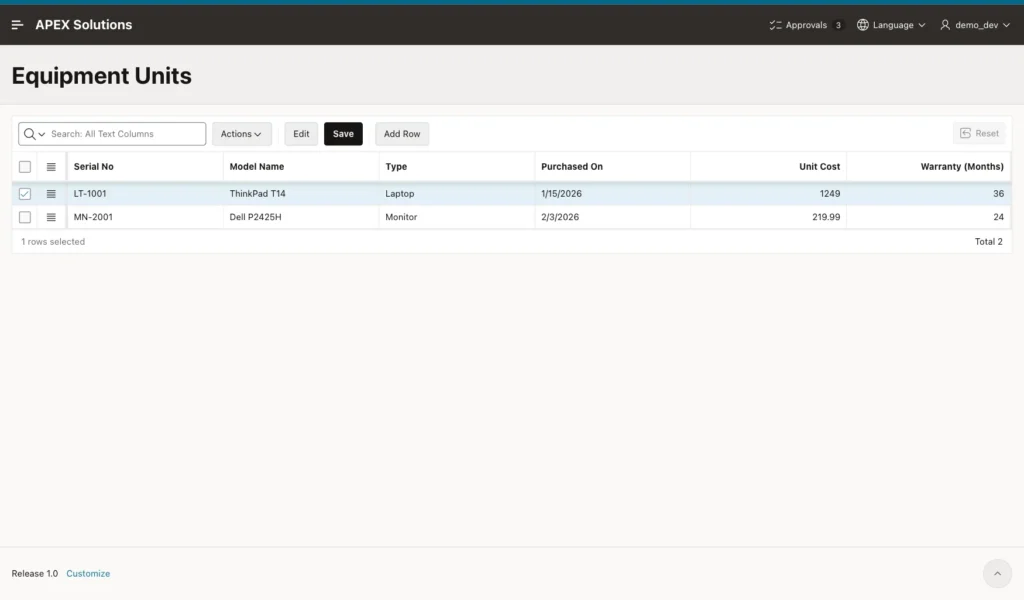
Run the page. The grid shows the two units from Step 1:
The spreadsheet has four new units, with the columns in the same order as the grid:
| Serial No | Model Name | Type | Purchased On | Unit Cost | Warranty (Months) |
|---|---|---|---|---|---|
| LT-1002 | ThinkPad X1 Carbon | Laptop | 3/10/2026 | $1,899.50 | 36 |
| PR-3001 | HP LaserJet Pro | Printer | 3/12/2026 | $349.00 | 12 |
| PJ-4001 | Epson EB-W51 | Projector | 3/15/2026 | $579.99 | 24 |
| MN-2002 | Dell P2725H | Monitor | 3/18/2026 | $289.00 | 24 |
Select the four data rows without the heading row and copy them. A spreadsheet puts the cells on the clipboard as tab-separated text and as an HTML table. In this example, the clipboard was filled by a test script with both forms, like a spreadsheet copy.
When both forms were present, the grid used the HTML table. In a test with different text in each form, the row from the HTML table was pasted.
Step 10: Paste the Rows with Paste Insert
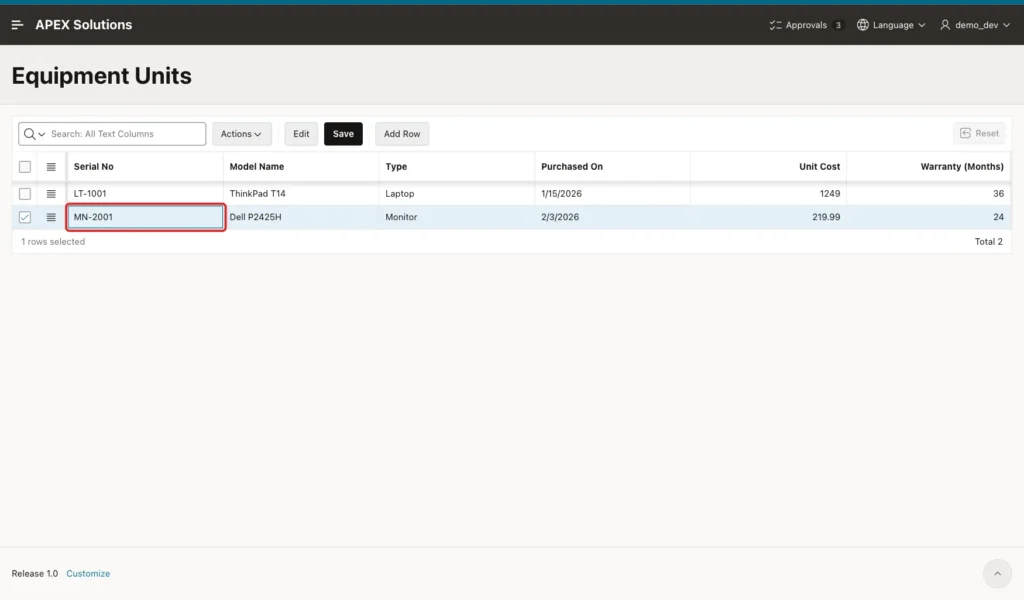
Click the Serial No cell of the last row, MN-2001. The pasted rows are added below this row, and the first pasted value goes into the column you click:
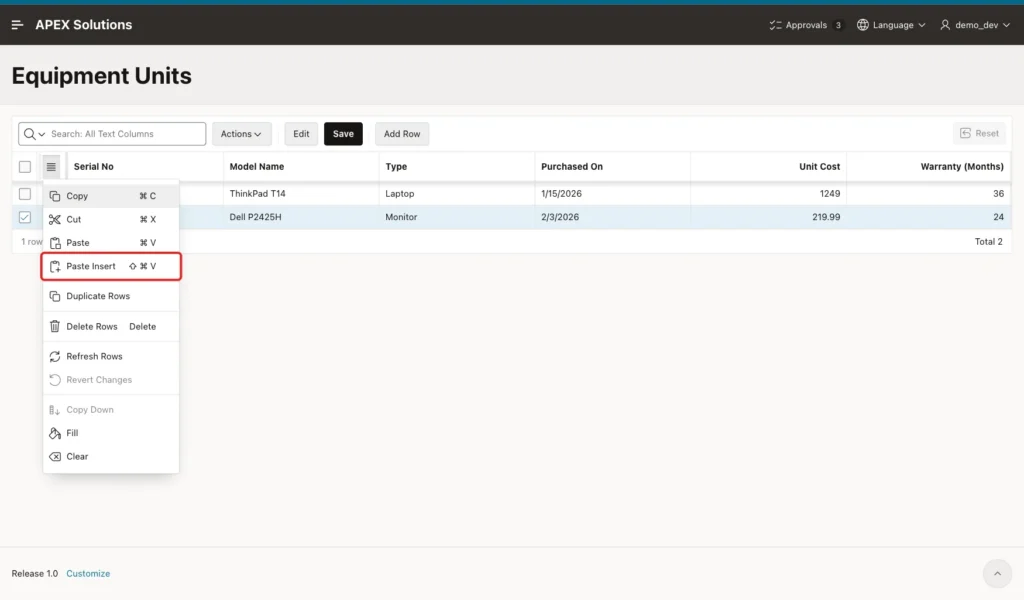
Open the Selection Actions menu (the icon in the header of the row actions column) and click Paste Insert. The menu also shows the keyboard shortcut; on the Mac used for this guide it was Shift+Cmd+V:
The grid adds four rows and the footer shows 4 rows pasted:
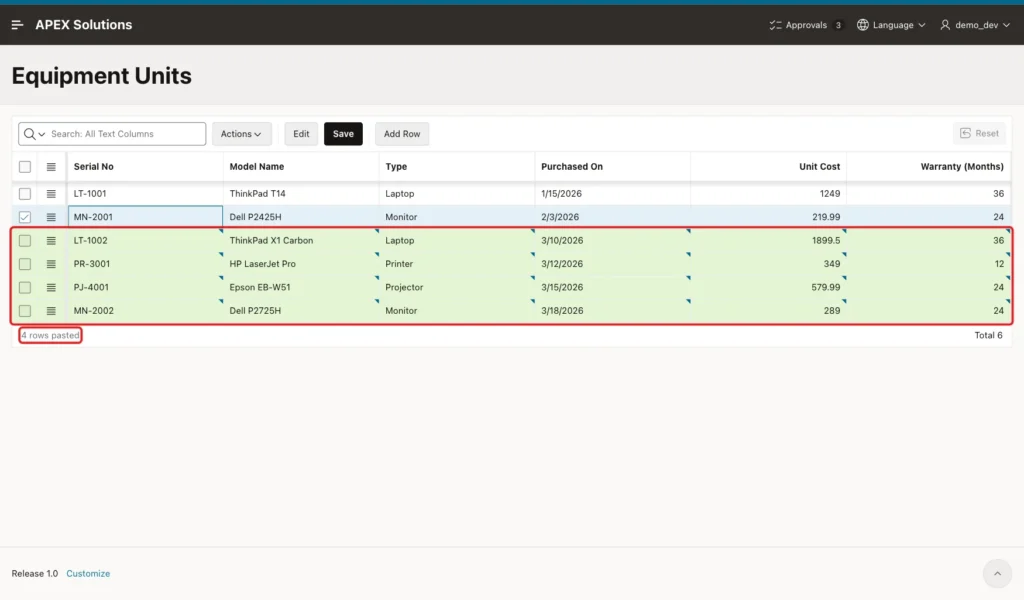
Each cell went through the column item. The type names were matched in the select list, the dates were read in the application date format, and the currency values with $ and thousands separators became plain numbers.
Step 11: Save and Check the Data
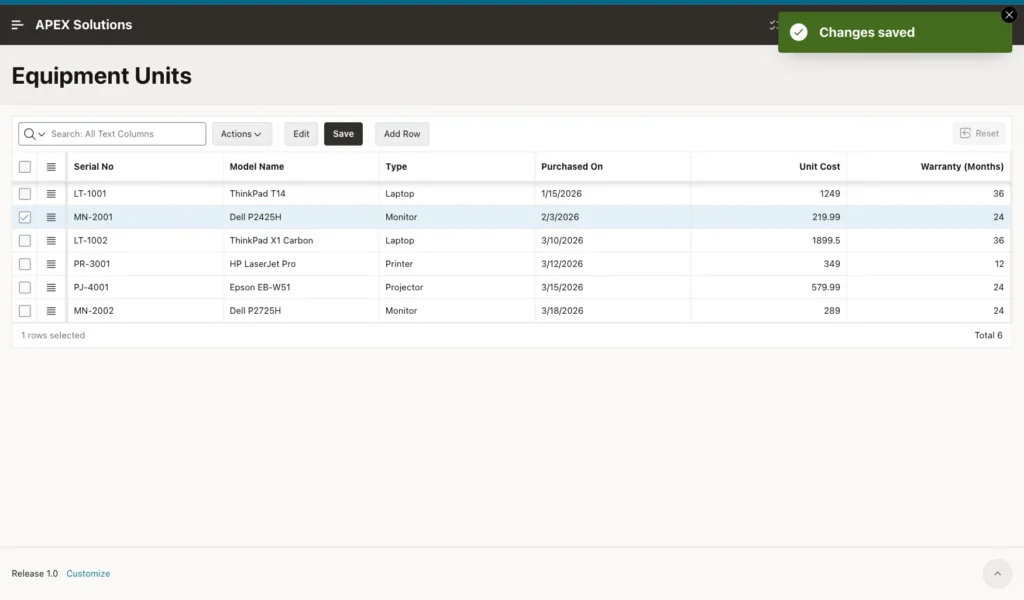
Click Save. The grid shows Changes saved:
Check the table in SQL:
Example:
select u.serial_no, u.model_name, t.type_name,
       to_char(u.purchased_on, 'YYYY-MM-DD') as purchased_on,
       u.unit_cost, u.warranty_months
from equipment_units u
join equipment_types t on t.type_id = u.type_id
order by u.serial_no;
Output:
SERIAL_NO    MODEL_NAME            TYPE_NAME    PURCHASED_ON       UNIT_COST    WARRANTY_MONTHS
____________ _____________________ ____________ _______________ ____________ __________________
LT-1001      ThinkPad T14          Laptop       2026-01-15              1249                 36
LT-1002      ThinkPad X1 Carbon    Laptop       2026-03-10            1899.5                 36
MN-2001      Dell P2425H           Monitor      2026-02-03            219.99                 24
MN-2002      Dell P2725H           Monitor      2026-03-18               289                 24
PJ-4001      Epson EB-W51          Projector    2026-03-15            579.99                 24
PR-3001      HP LaserJet Pro       Printer      2026-03-12               349                 12

6 rows selected.
The four pasted units are in the table with the right type, date, cost and warranty.
Test the Rules
First, Paste instead of Paste Insert. Copy two new rows, click the Serial No cell of MN-2001 and use Paste (Cmd+V):
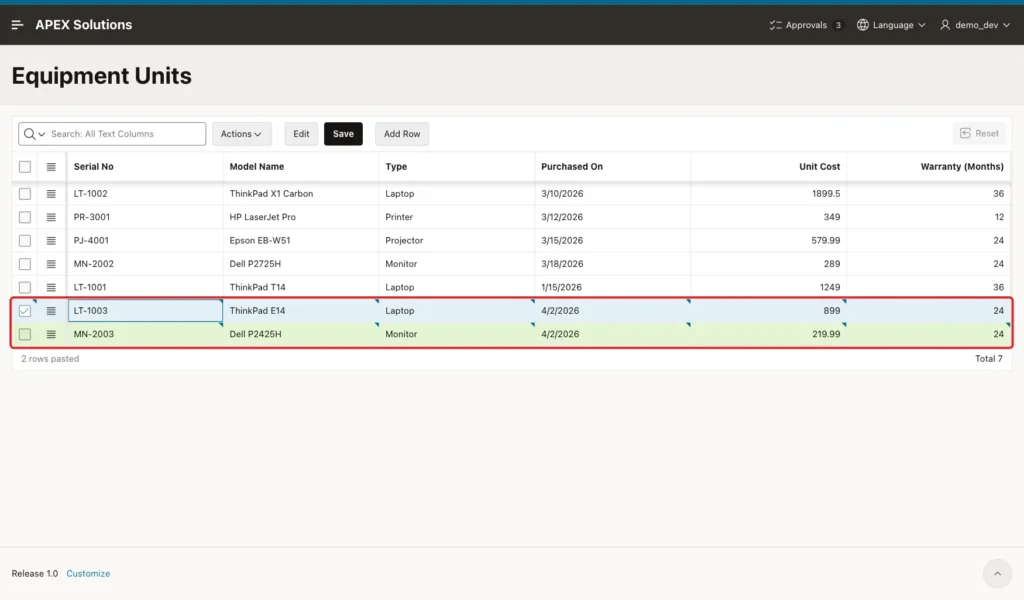
The first copied row overwrote MN-2001, now shown as LT-1003, and only the second row was added. Clicking Add Row first does not help: the empty row is added below the selected row, and the second pasted row overwrites the row after it. Reload the page to drop these changes, and always use Paste Insert for new rows.
Second, invalid values. Paste three rows with a lowercase type laptop, the ISO date 2026-04-02 and the text TBD as the cost:
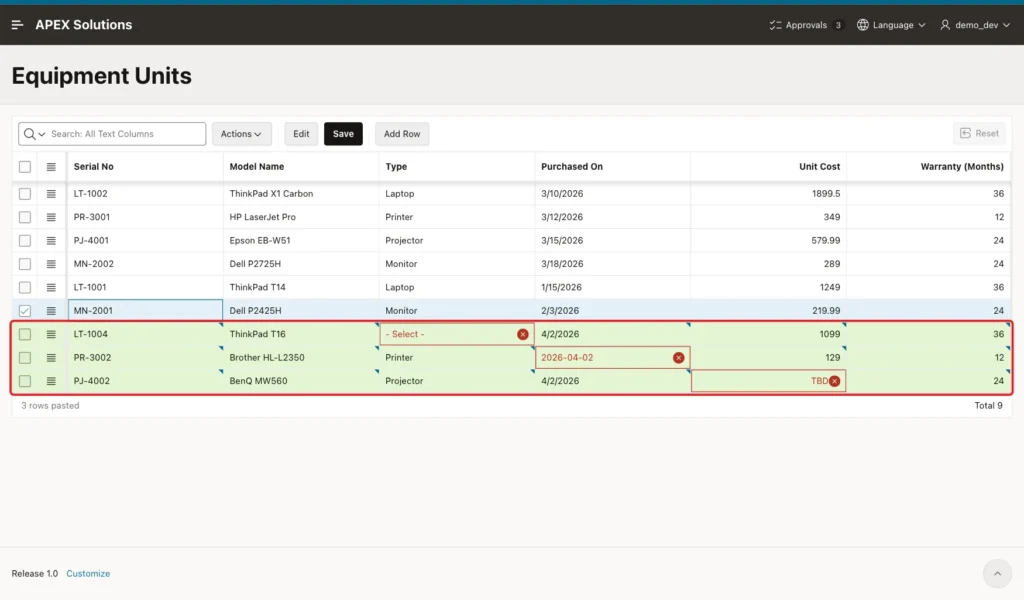
The type match is case-sensitive, so laptop left the Type cell empty (Type must have some value). The date had to be 4/2/2026, the application date format. Clicking Save showed Correct errors before saving and sent nothing to the server.
Third, a serial number that already exists. Paste a row with LT-1002 and click Save:
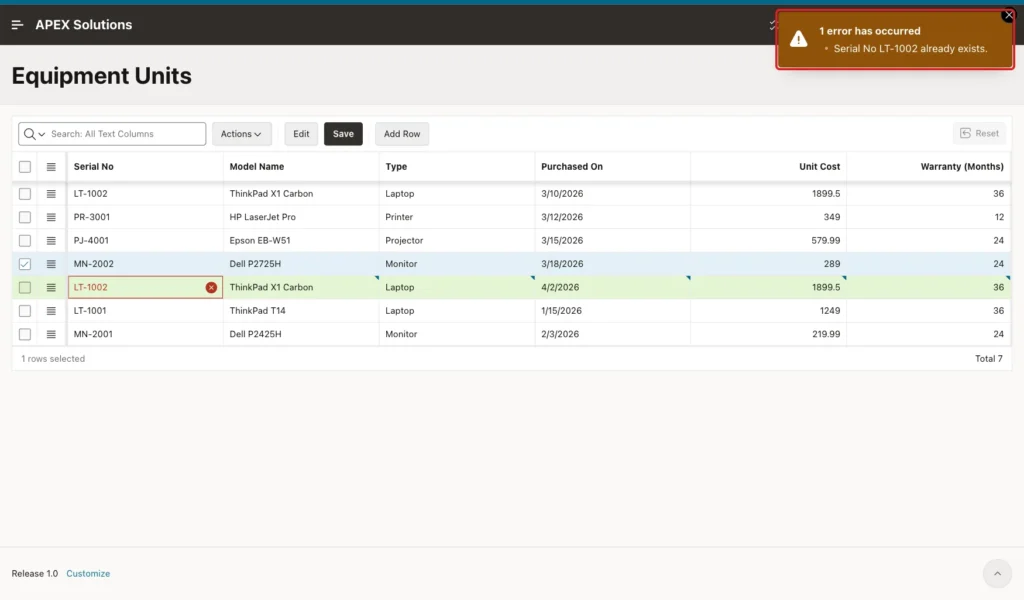
Fourth, the same new serial number twice. Paste two rows with PR-3003 and click Save:
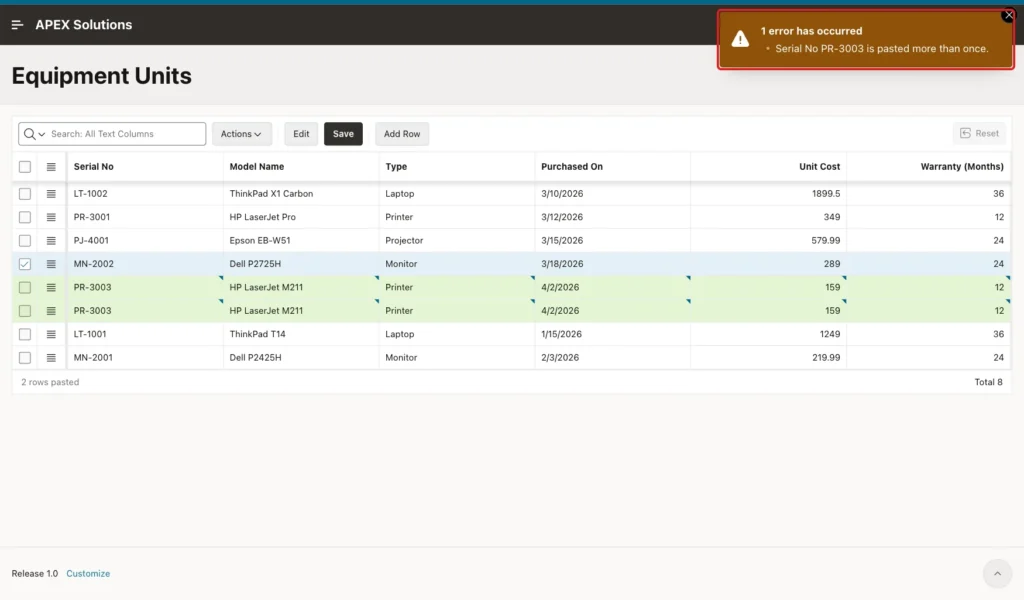
Before the handler was added, this case showed ORA-00001 unique constraint violated. A first version with raise_application_error showed the message with an ORA-20001: prefix, so the handler uses apex_error.add_error. No PR-3003 row was saved; the whole save is rolled back.
Fifth, a changed request. A test script pasted one valid row and changed the save request on its way to the server. With the type changed to Tablet, the reply was Type Tablet is not in the list. and nothing was saved. Without the Type Must Exist validation, the same request failed with ORA-01400 cannot insert NULL into TYPE_ID.
With the cost changed to -777, the server refused the row without any extra validation, because Minimum Value is also checked on the server. Its message read Unit Cost must be a number less than or equal to . with no number at the end.
With the warranty changed to 500, the server answered Warranty (Months) must be a number between 0 and 120.
Finally, the other save paths. Changing the cost of an existing row and saving updated that row, and a pasted row that was saved and then deleted was removed from the table. The UPDATE and DELETE branches of the process work as well.
Things to Know
- Use Paste Insert for new rows. Paste writes over the selected row and the rows below it, and adds rows only when it runs past the last row.
- Click a cell in the first column before you paste. In both row selection and cell selection mode, a row pasted from the Unit Cost cell put the serial number into Unit Cost, the model into Warranty (Months), and dropped the rest.
- A pasted value is matched against the return value of a select list, case-sensitive, with leading and trailing spaces removed. An unknown value leaves the cell empty.
- Dates must be in the application date format. 2026-04-02, 10-Mar-2026 and 31/03/2026 were all rejected in a date picker column that expects 3/10/2026.
- Number columns accepted $1,899.50 and 1,899.50 as 1899.5, and rejected text such as abc or TBD.
- Extra columns at the right are ignored, and missing columns stay empty, which the required checks then report.
- Do not copy the heading row. It became a row of its own, with errors in every column that expects a type, date or number.
- In the HTML table form, a line break inside a cell was removed and the two lines were joined without a space. In the plain text form, a quoted cell with a line break was split into two rows, and the quotes were kept.
- Text Field length limits are not checked on paste. Use a validation, as in Step 7.
- The save is all or nothing. When one pasted row fails a server validation or a constraint, none of the rows are saved.
Related Guides
- How to Fill Down and Copy Values in an Interactive Grid in Oracle APEX
- How to Let Users Upload an Excel File and Load It into a Table in Oracle APEX
Conclusion
To paste rows from Excel into an Interactive Grid in Oracle APEX, make the grid editable, put its columns in the same order as the spreadsheet, and use Paste Insert from the selection menu. A select list that returns names and a PL/SQL save process let users paste names while the table keeps IDs.
In this example, four rows copied from a spreadsheet were added and saved in one request. Wrong types, dates and numbers were marked in the browser, and duplicates and changed requests were stopped on the server with clear messages.
See my articles more often when you search Google.
