
Wide grids are hard to read. When a row has a dozen columns, users scroll to the right to see dates or amounts, and the column that names the row scrolls out of view. They then lose track of which row they are looking at.
The Oracle APEX Interactive Grid can freeze columns. A frozen column stays at the left edge while the other columns scroll past it. This guide freezes a column as a user, saves it as the default for everyone, freezes a second column, and keeps a personal layout in a private report.
The guide Oracle APEX Interactive Grid: A Complete Guide mentions freezing in one sentence, and How to Use the Grid, Table, and Single Row Views of an Oracle APEX Interactive Grid shows the freezeColumn JavaScript method. This article covers the declarative way: the column menu, the saved reports, and how freezing behaves.
The example uses a list of fleet vehicles; the same steps work for any table.
Step 1: Create the Tables
Two tables hold the data:
- FLEET_DEPOTS lists the depots where vehicles are kept.
- FLEET_VEHICLES has one row per vehicle, with thirteen visible columns: enough to make the grid wider than the screen.
Example:
set define off

create table fleet_depots (
    depot_id    number generated by default on null as identity,
    depot_name  varchar2(40) not null,
    city        varchar2(40) not null,
    constraint fleet_depots_pk primary key (depot_id),
    constraint fleet_depots_name_uk unique (depot_name)
);

create table fleet_vehicles (
    vehicle_id         number generated by default on null as identity,
    reg_no             varchar2(12)  not null,
    make               varchar2(30)  not null,
    model              varchar2(30)  not null,
    model_year         number(4)     not null,
    fuel_type          varchar2(10)  not null,
    depot_id           number        not null,
    driver_name        varchar2(60),
    odometer_km        number(7)     default on null 0 not null,
    last_service_date  date,
    next_service_date  date,
    insurance_expiry   date          not null,
    purchase_price     number(10,2)  not null,
    status             varchar2(12)  default on null 'ACTIVE' not null,
    constraint fleet_vehicles_pk primary key (vehicle_id),
    constraint fleet_vehicles_reg_uk unique (reg_no),
    constraint fleet_vehicles_depot_fk foreign key (depot_id)
        references fleet_depots (depot_id),
    constraint fleet_vehicles_fuel_ck check (fuel_type in ('DIESEL', 'PETROL', 'ELECTRIC', 'HYBRID')),
    constraint fleet_vehicles_status_ck check (status in ('ACTIVE', 'IN SERVICE', 'RETIRED')),
    constraint fleet_vehicles_year_ck check (model_year between 2000 and 2030)
);

create index fleet_vehicles_depot_ix on fleet_vehicles (depot_id);

insert into fleet_depots (depot_name, city) values ('North Yard', 'Leeds');
insert into fleet_depots (depot_name, city) values ('City Hub', 'Manchester');
insert into fleet_depots (depot_name, city) values ('Harbour Base', 'Liverpool');

insert into fleet_vehicles (reg_no, make, model, model_year, fuel_type, depot_id, driver_name, odometer_km, last_service_date, next_service_date, insurance_expiry, purchase_price, status)
select 'FV21 KTA', 'Ford', 'Transit Custom', 2021, 'DIESEL', depot_id, 'Asha Menon', 84210, date '2026-06-14', date '2026-12-14', date '2027-03-31', 31450, 'ACTIVE' from fleet_depots where depot_name = 'North Yard';
insert into fleet_vehicles (reg_no, make, model, model_year, fuel_type, depot_id, driver_name, odometer_km, last_service_date, next_service_date, insurance_expiry, purchase_price, status)
select 'FV22 LMB', 'Volkswagen', 'Crafter', 2022, 'DIESEL', depot_id, 'Brian Cole', 61500, date '2026-08-02', date '2027-02-02', date '2027-05-15', 38900, 'ACTIVE' from fleet_depots where depot_name = 'North Yard';
insert into fleet_vehicles (reg_no, make, model, model_year, fuel_type, depot_id, driver_name, odometer_km, last_service_date, next_service_date, insurance_expiry, purchase_price, status)
select 'FV23 EVA', 'Renault', 'Kangoo E-Tech', 2023, 'ELECTRIC', depot_id, 'Carla Diaz', 22340, date '2026-09-10', date '2027-09-10', date '2027-01-20', 34200, 'ACTIVE' from fleet_depots where depot_name = 'City Hub';
insert into fleet_vehicles (reg_no, make, model, model_year, fuel_type, depot_id, driver_name, odometer_km, last_service_date, next_service_date, insurance_expiry, purchase_price, status)
select 'FV20 PQR', 'Mercedes-Benz', 'Sprinter', 2020, 'DIESEL', depot_id, 'Dev Patel', 128900, date '2026-10-01', date '2026-11-05', date '2026-12-31', 41750, 'IN SERVICE' from fleet_depots where depot_name = 'City Hub';
insert into fleet_vehicles (reg_no, make, model, model_year, fuel_type, depot_id, driver_name, odometer_km, last_service_date, next_service_date, insurance_expiry, purchase_price, status)
select 'FV24 HYB', 'Toyota', 'Proace City', 2024, 'HYBRID', depot_id, 'Elena Rossi', 9800, date '2026-07-21', date '2027-07-21', date '2027-06-30', 29900, 'ACTIVE' from fleet_depots where depot_name = 'City Hub';
insert into fleet_vehicles (reg_no, make, model, model_year, fuel_type, depot_id, driver_name, odometer_km, last_service_date, next_service_date, insurance_expiry, purchase_price, status)
select 'FV19 OLD', 'Vauxhall', 'Vivaro', 2019, 'DIESEL', depot_id, null, 176400, date '2025-11-30', null, date '2026-11-30', 26300, 'RETIRED' from fleet_depots where depot_name = 'Harbour Base';
insert into fleet_vehicles (reg_no, make, model, model_year, fuel_type, depot_id, driver_name, odometer_km, last_service_date, next_service_date, insurance_expiry, purchase_price, status)
select 'FV22 PET', 'Peugeot', 'Partner', 2022, 'PETROL', depot_id, 'Farid Khan', 45120, date '2026-05-18', date '2026-11-18', date '2027-04-12', 23800, 'ACTIVE' from fleet_depots where depot_name = 'Harbour Base';
insert into fleet_vehicles (reg_no, make, model, model_year, fuel_type, depot_id, driver_name, odometer_km, last_service_date, next_service_date, insurance_expiry, purchase_price, status)
select 'FV23 ELC', 'Nissan', 'Townstar EV', 2023, 'ELECTRIC', depot_id, 'Grace Lee', 18760, date '2026-09-25', date '2027-09-25', date '2027-08-01', 33100, 'ACTIVE' from fleet_depots where depot_name = 'Harbour Base';

commit;

select v.reg_no, v.make, v.model, v.fuel_type, d.depot_name, v.driver_name,
       v.odometer_km, to_char(v.next_service_date, 'YYYY-MM-DD') as next_service, v.status
from fleet_vehicles v
join fleet_depots d on d.depot_id = v.depot_id
order by v.reg_no;
Output:
Table FLEET_DEPOTS created.

Table FLEET_VEHICLES created.

Index FLEET_VEHICLES_DEPOT_IX created.

1 row inserted.

1 row inserted.

1 row inserted.

1 row inserted.

1 row inserted.

1 row inserted.

1 row inserted.

1 row inserted.

1 row inserted.

1 row inserted.

1 row inserted.

Commit complete.

REG_NO      MAKE             MODEL             FUEL_TYPE    DEPOT_NAME      DRIVER_NAME       ODOMETER_KM NEXT_SERVICE    STATUS
___________ ________________ _________________ ____________ _______________ ______________ ______________ _______________ _____________
FV19 OLD    Vauxhall         Vivaro            DIESEL       Harbour Base                           176400                 RETIRED
FV20 PQR    Mercedes-Benz    Sprinter          DIESEL       City Hub        Dev Patel              128900 2026-11-05      IN SERVICE
FV21 KTA    Ford             Transit Custom    DIESEL       North Yard      Asha Menon              84210 2026-12-14      ACTIVE
FV22 LMB    Volkswagen       Crafter           DIESEL       North Yard      Brian Cole              61500 2027-02-02      ACTIVE
FV22 PET    Peugeot          Partner           PETROL       Harbour Base    Farid Khan              45120 2026-11-18      ACTIVE
FV23 ELC    Nissan           Townstar EV       ELECTRIC     Harbour Base    Grace Lee               18760 2027-09-25      ACTIVE
FV23 EVA    Renault          Kangoo E-Tech     ELECTRIC     City Hub        Carla Diaz              22340 2027-09-10      ACTIVE
FV24 HYB    Toyota           Proace City       HYBRID       City Hub        Elena Rossi              9800 2027-07-21      ACTIVE

8 rows selected.
- FLEET_VEHICLES_DEPOT_FK links each vehicle to a depot, and FLEET_VEHICLES_DEPOT_IX indexes that foreign key.
- FLEET_VEHICLES_REG_UK keeps the registration number unique. It is the column users need to see all the time.
- The check constraints allow only known fuel types, statuses and model years. ODOMETER_KM and STATUS use DEFAULT ON NULL, so new rows get 0 and ACTIVE without a trigger.
Step 2: Create the Interactive Grid Page
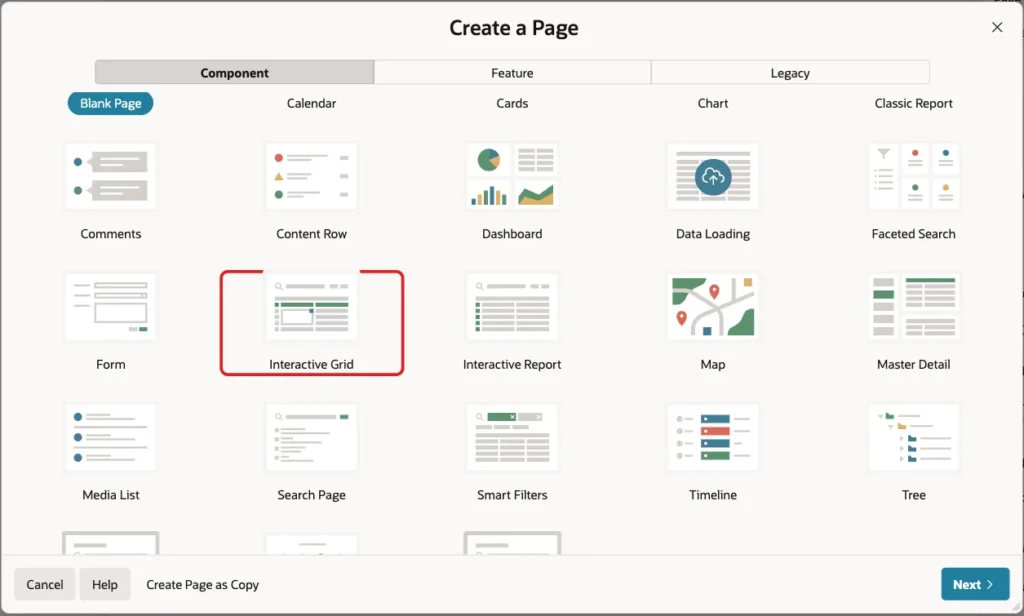
In App Builder, open the application and click Create Page. On the Component tab, select Interactive Grid:
Set Page Number to 950 and Name to Fleet Vehicles. Keep Page Mode Normal:
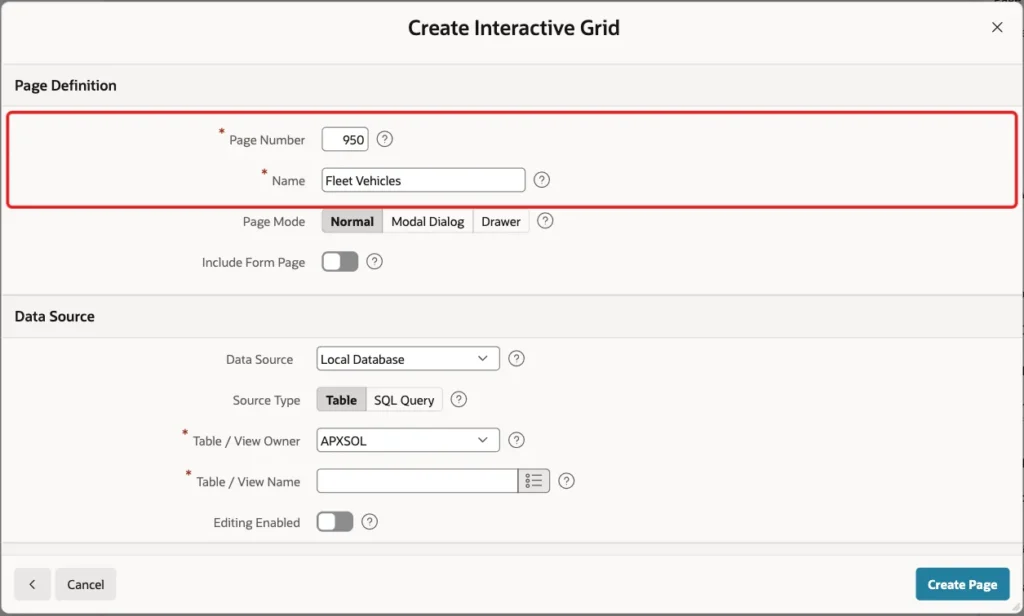
Under Data Source, keep Source Type Table and set Table / View Name to FLEET_VEHICLES. Leave Editing Enabled off, because this page only displays the vehicles:

Keep the Navigation settings and click Create Page. A read-only grid has no Primary Key screen, so the page is created right away:

Step 3: Show the Depot Name and Set an HTML DOM ID
The wizard shows DEPOT_ID as a number. In Page Designer, expand Fleet Vehicles and Columns, and select DEPOT_ID. Set Type to Select List and Heading to Depot:
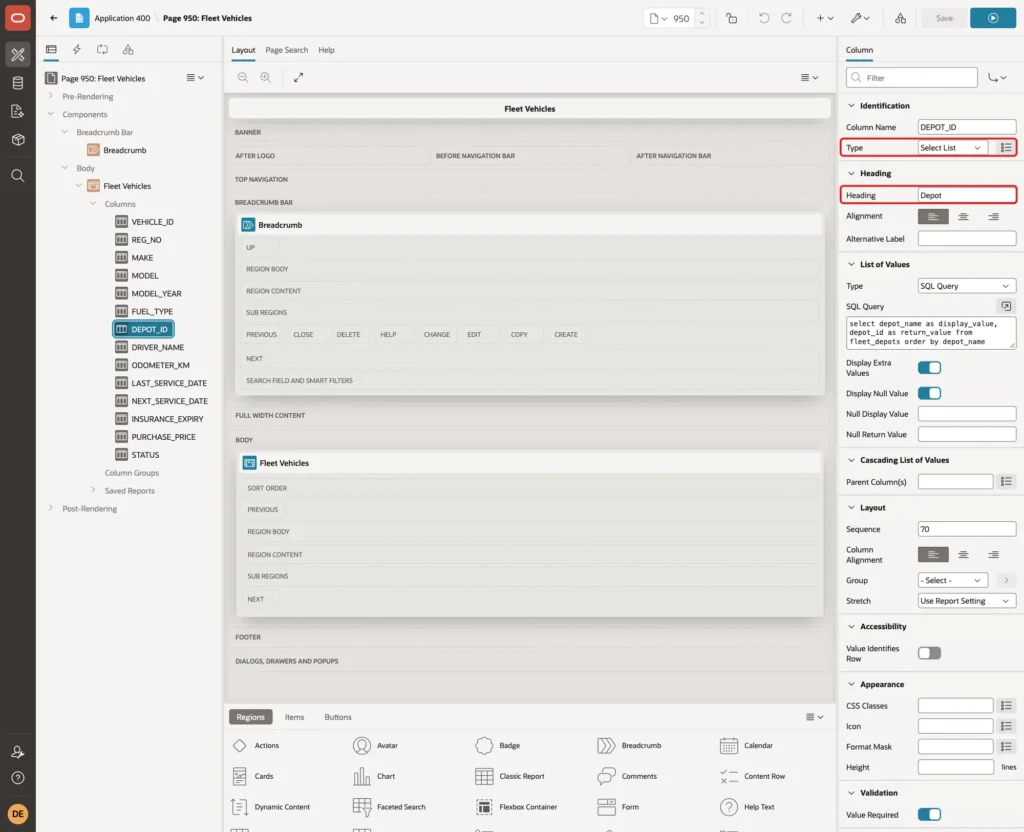
Under List of Values, set Type to SQL Query and enter this query:
Example:
select depot_name as display_value,
       depot_id as return_value
from fleet_depots
order by depot_name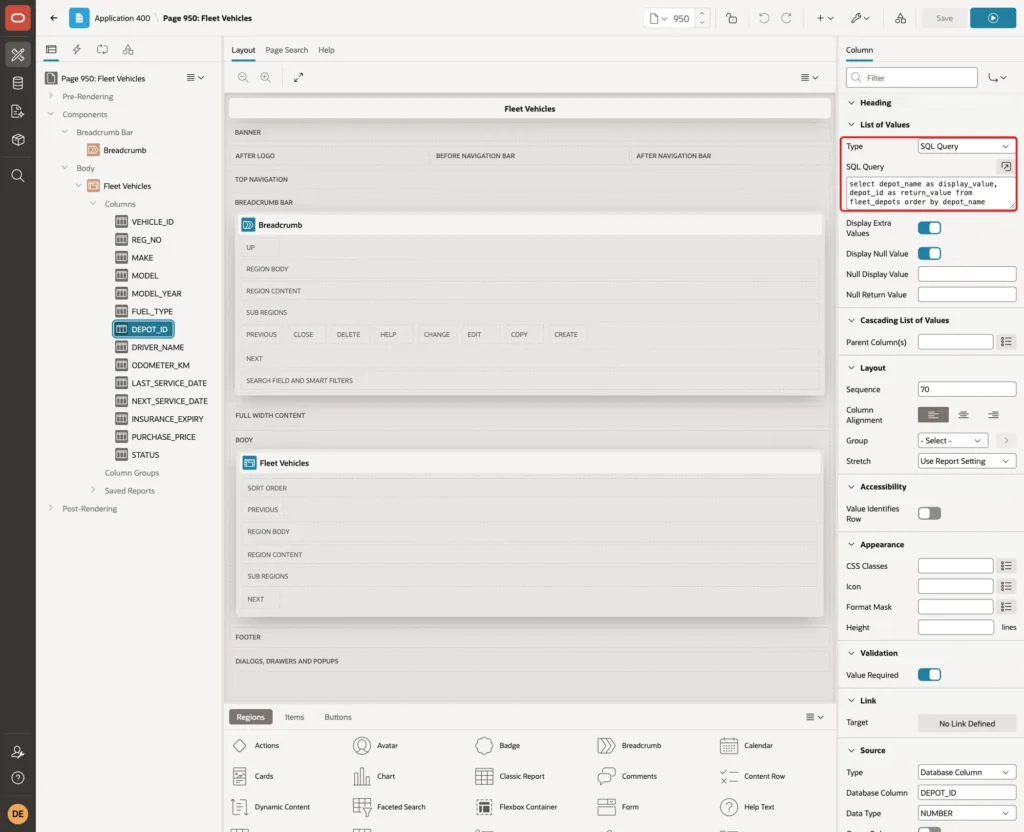
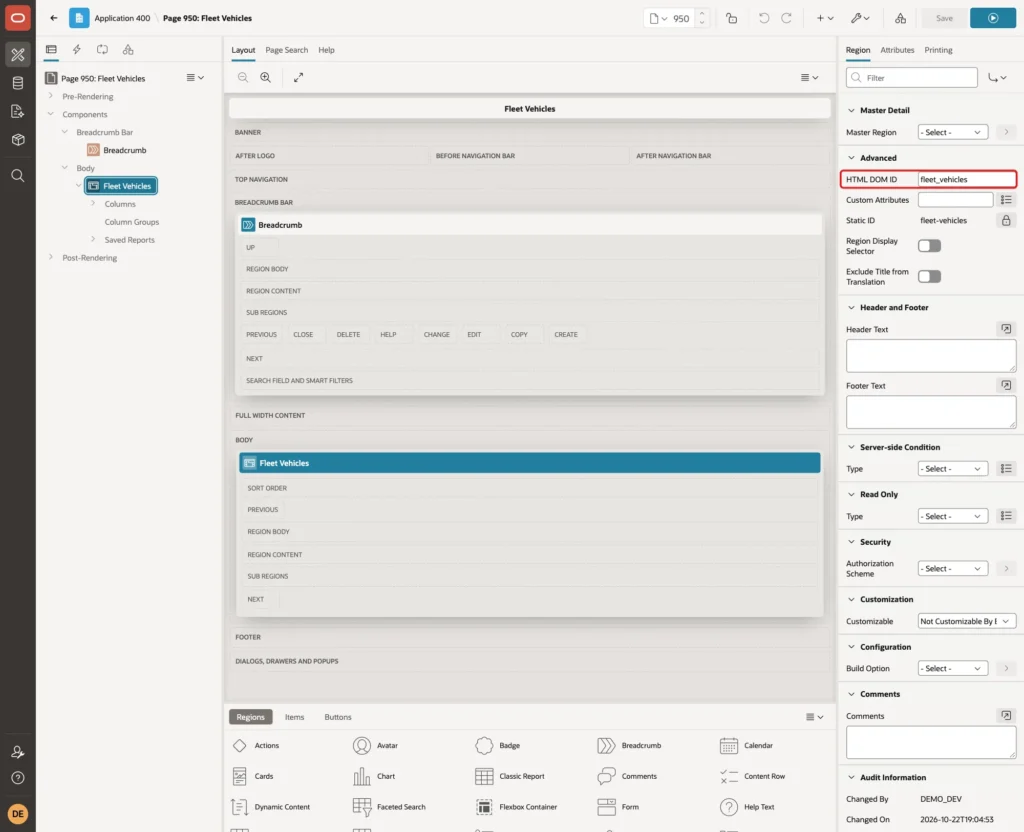
Select the Fleet Vehicles region and, under Advanced, set HTML DOM ID to fleet_vehicles. The test section uses it to read the frozen columns from the browser console. Click Save:
Step 4: Give the Columns a Minimum Width
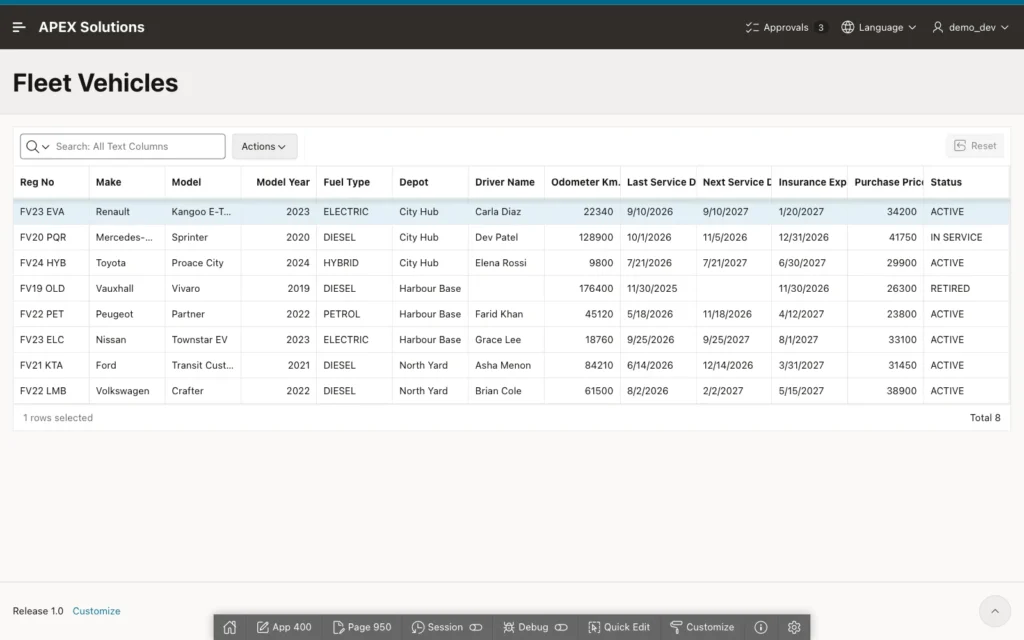
Run the page while you are logged in to App Builder. The grid squeezes all thirteen columns into the window, so long headings and values are cut off:
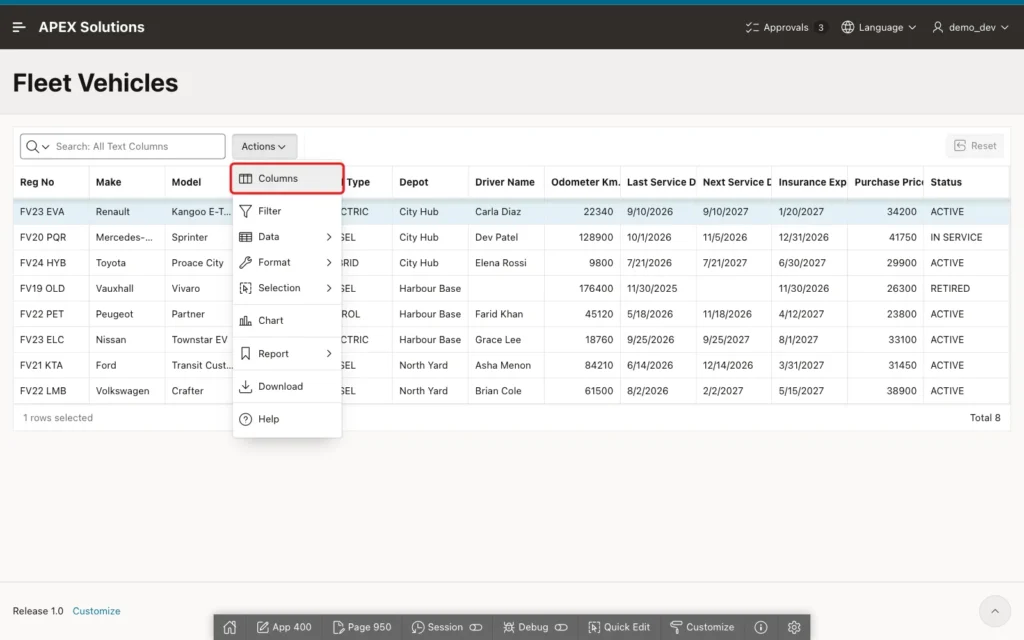
Freezing only helps when the grid scrolls sideways. Open Actions and click Columns:
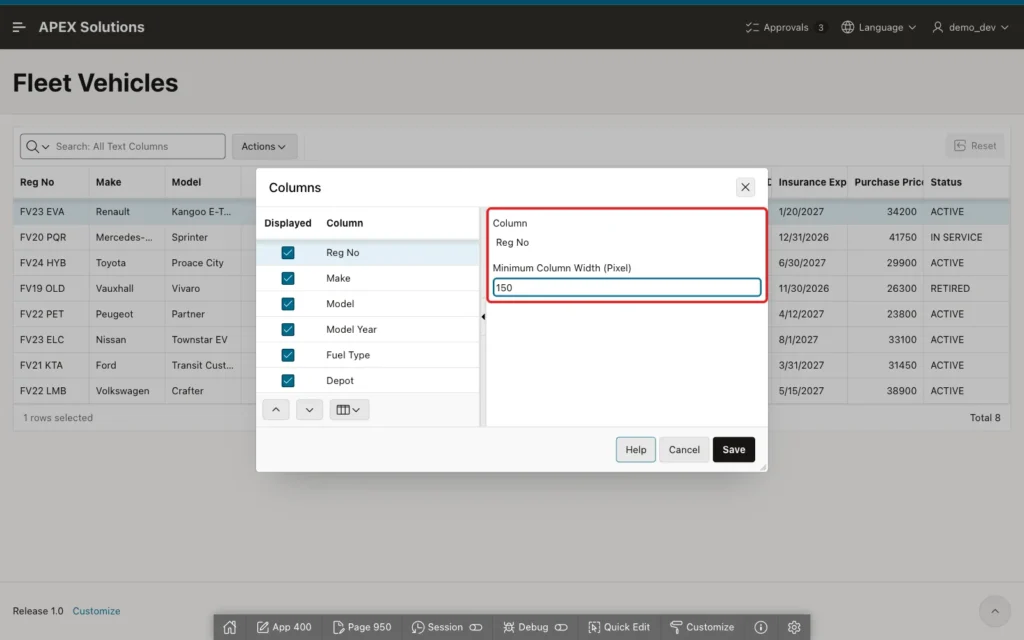
Click Reg No in the list and enter 150 in Minimum Column Width (Pixel). Repeat this for every column, then click Save:
Thirteen columns of 150 pixels need 1950 pixels, so the grid now has a horizontal scroll bar. The columns are readable:
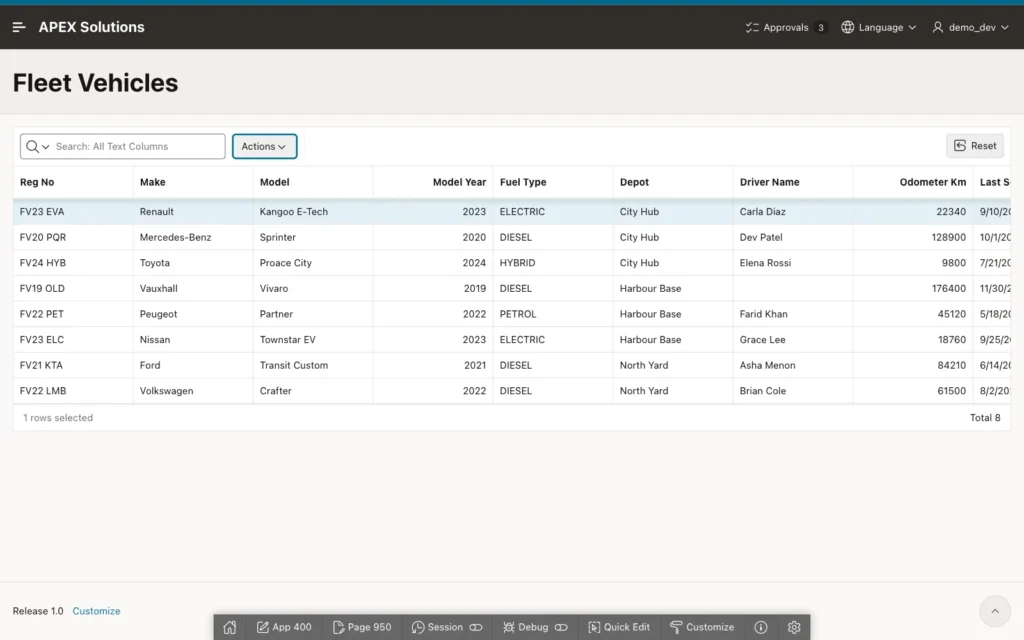
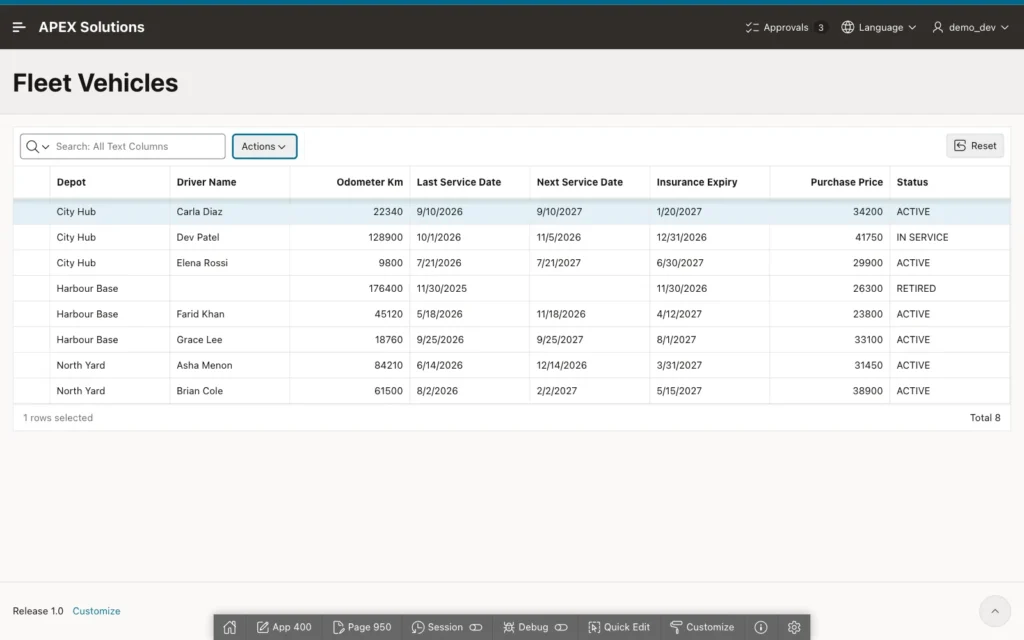
Scroll the grid to the right. The registration numbers disappear, and the rows can no longer be told apart:
Step 5: Freeze the Reg No Column
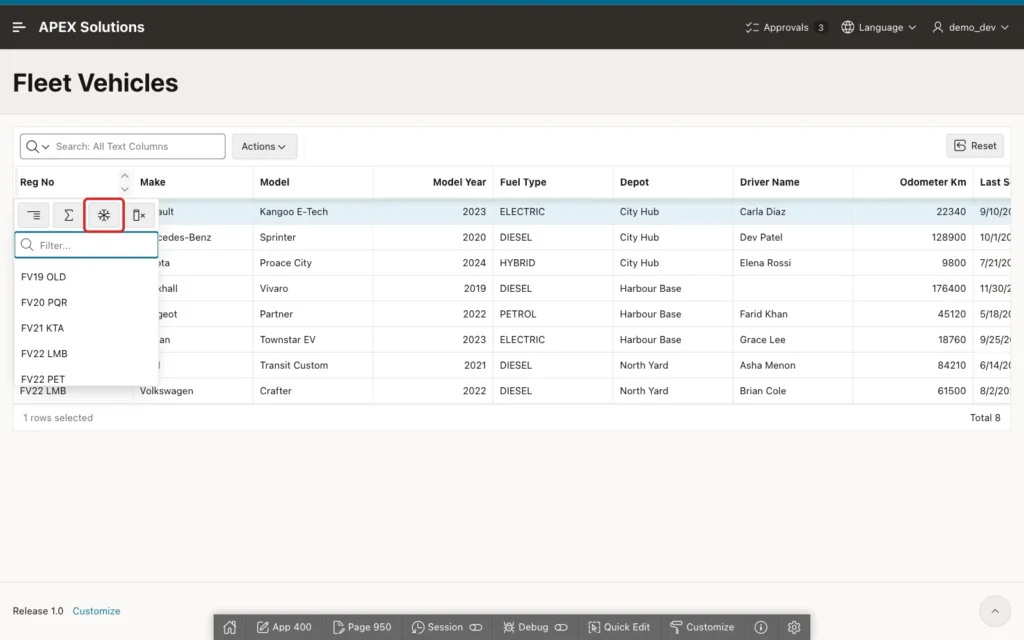
Scroll back to the left and click the Reg No heading. The heading menu has four buttons: Control Break, Aggregate, Freeze and Hide. Click Freeze, the snowflake icon:
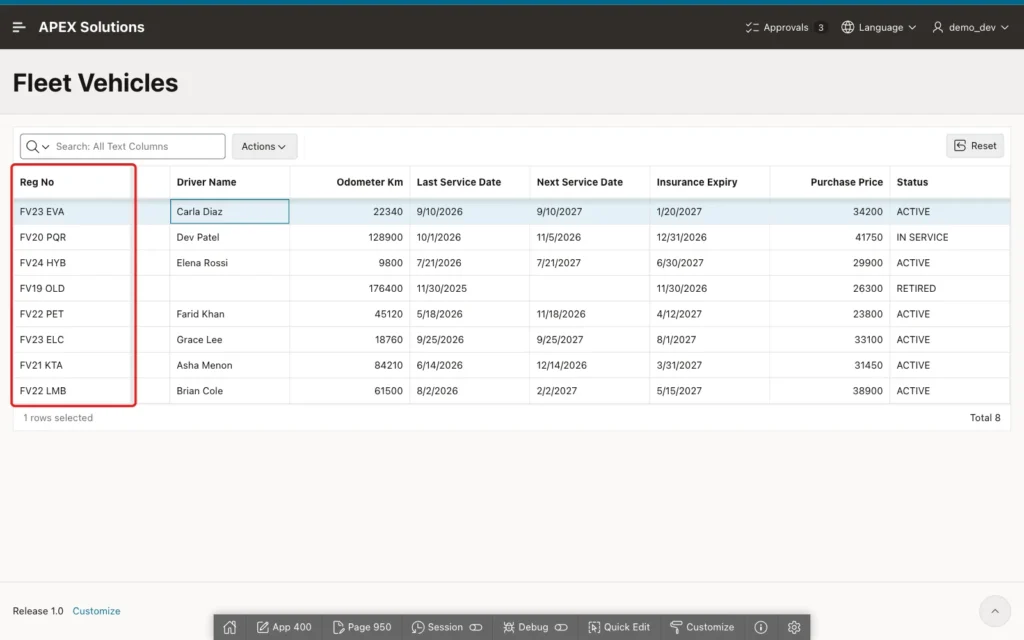
Scroll to the right again. Reg No stays at the left edge, and the other columns slide under it:
Step 6: Save the Frozen Column as the Default
The freeze and the widths are now part of your own view only. To give them to every user, open Actions, Report and click Save:
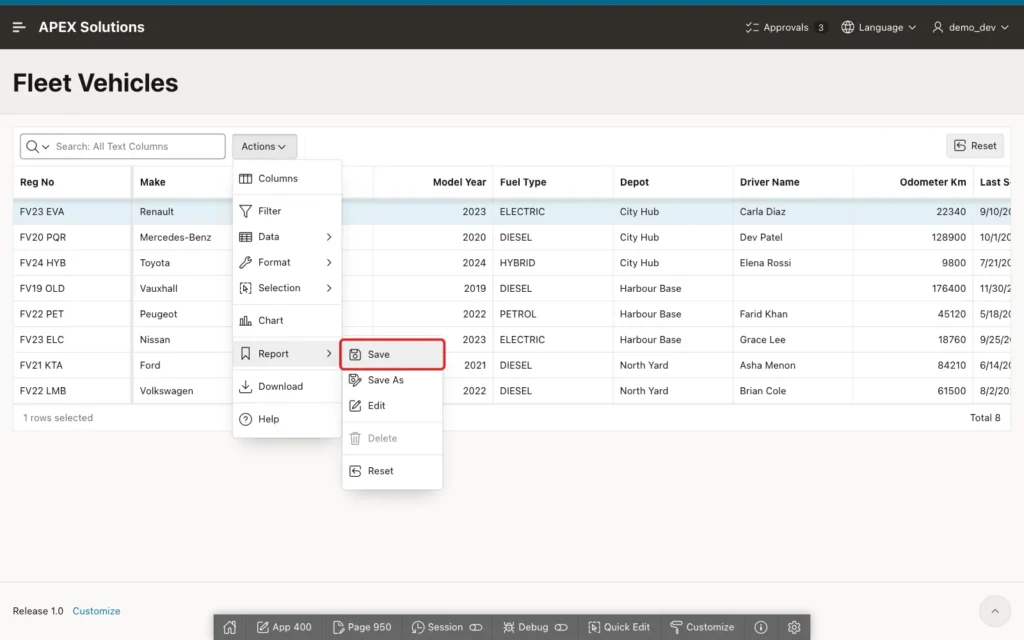
Because you run the page as a developer, APEX saves the layout as the primary report and shows Default report saved for all users. The frozen column, the column order and the widths are stored with the page and exported with the application.
Step 7: Check the Default as an End User
Log in as an end user and open Fleet Vehicles. The grid opens with the 150-pixel columns and Reg No frozen. Scrolled to the right, it looks like this:
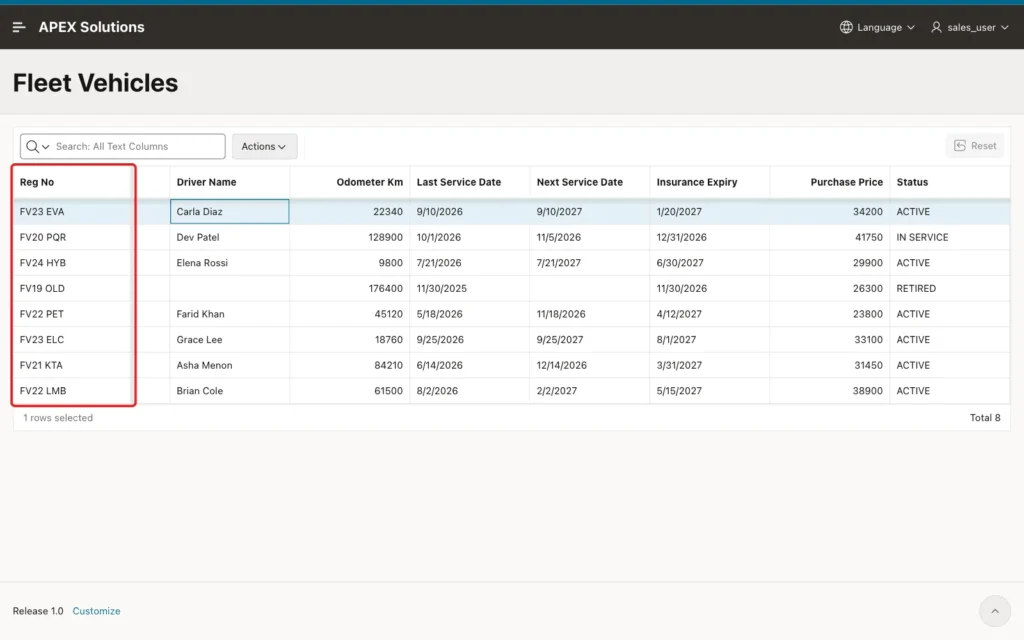
Step 8: Freeze More Columns
Frozen columns always form one block at the left of the grid. In a test, the end user clicked the Driver Name heading and clicked Freeze. APEX froze Driver Name and every column to its left, seven columns in all:
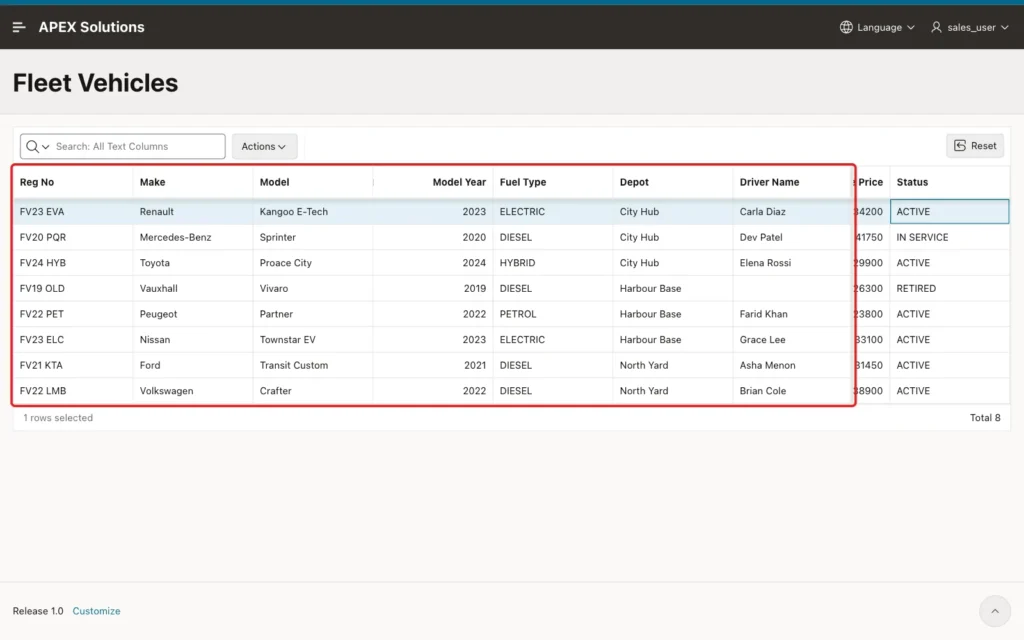
Seven frozen columns take 1050 of the 1246 pixels of the grid, so only a narrow strip is left for scrolling. To undo it, open the Driver Name heading again. The button is now pressed and named Unfreeze:
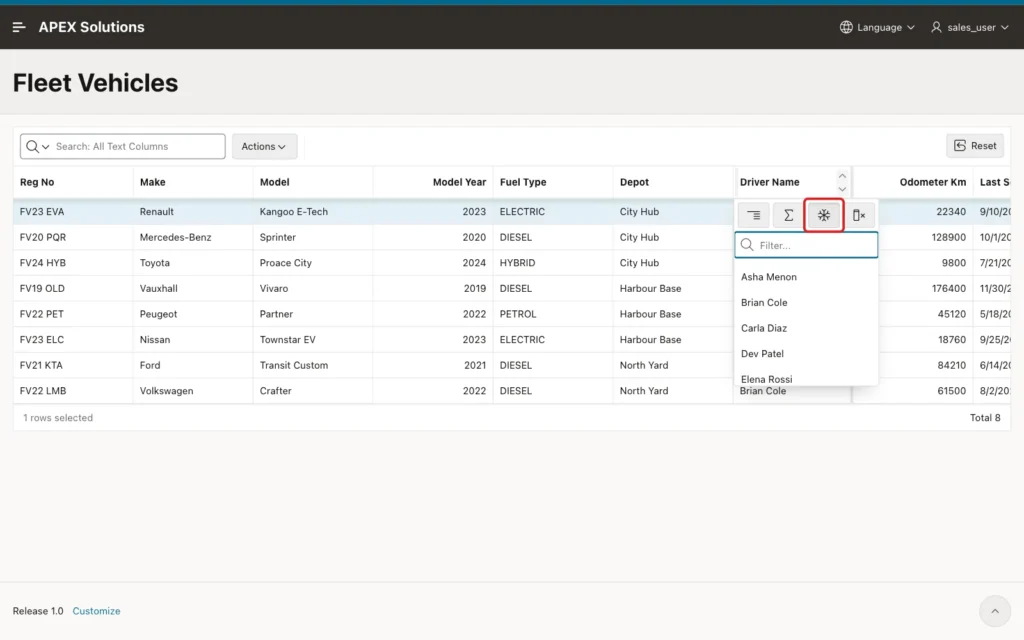
Unfreeze on the last frozen column releases only that column. In another test, Unfreeze on Make, inside the block, released Make and all frozen columns to its right; only Reg No stayed frozen.
Step 9: Move a Column Next to the Frozen One
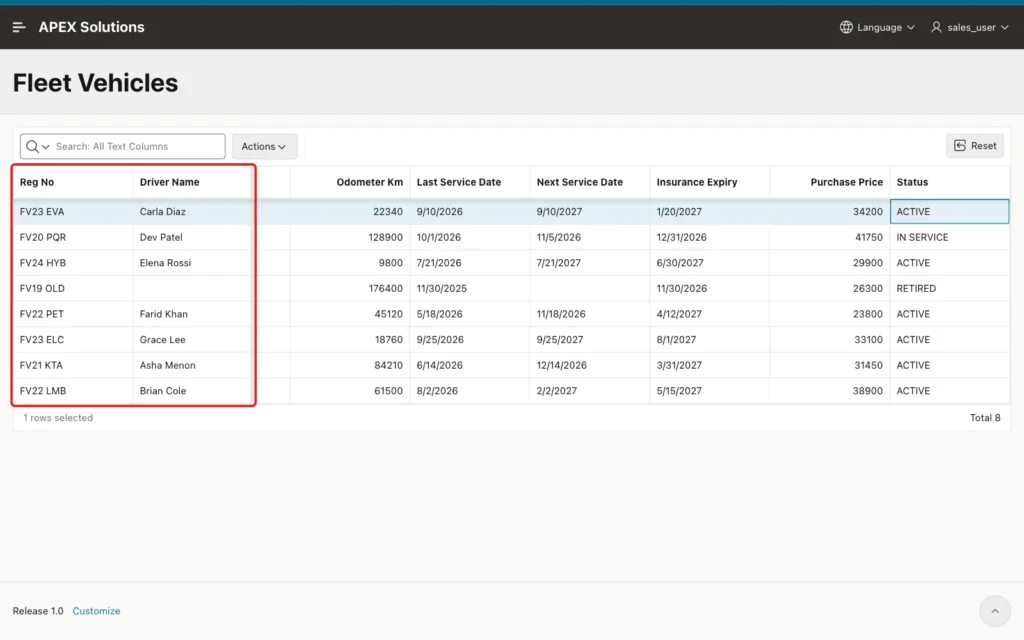
To freeze Reg No and Driver Name only, Driver Name must sit right after Reg No. Open Actions, Columns, click Driver Name and click the Move Up button five times. Then click Save:

Now reload the page (F5 or Cmd+R) before you freeze the column. In three tests, freezing a column right after moving it in the Columns dialog looked fine in the browser. The request sent to the server had an empty column list, though, so the freeze was lost after a reload and in saved reports.
After the reload, click the Driver Name heading and click Freeze. Two columns are frozen, and the rest of the grid scrolls:
Step 10: Keep the Layout in a Private Report
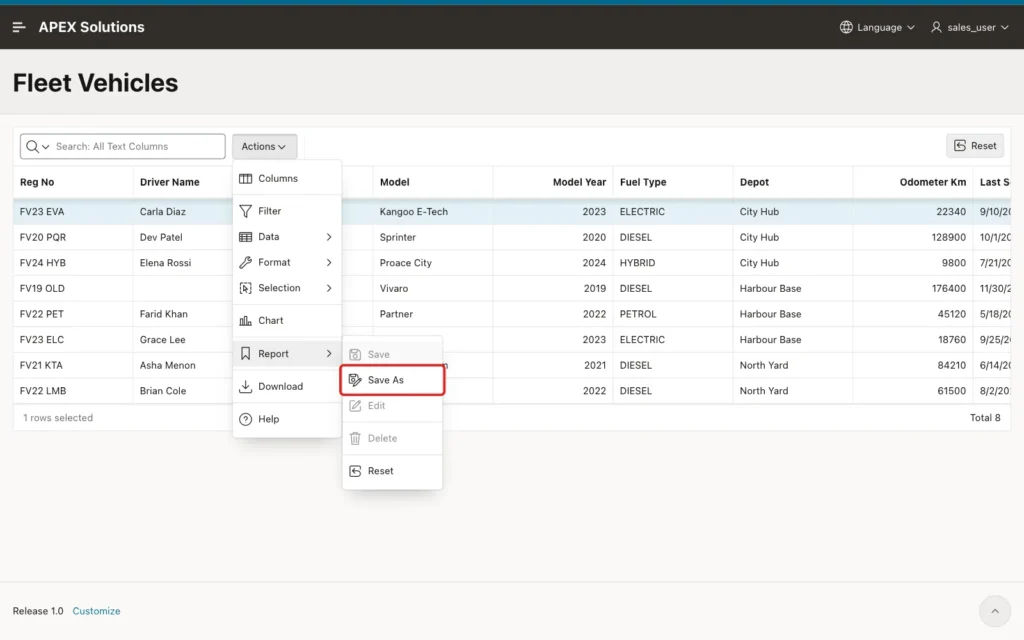
An end user cannot change the default report. The changes so far live only in the current session; after the next login, the grid opens with the default layout again. To keep them, open Actions, Report and click Save As:
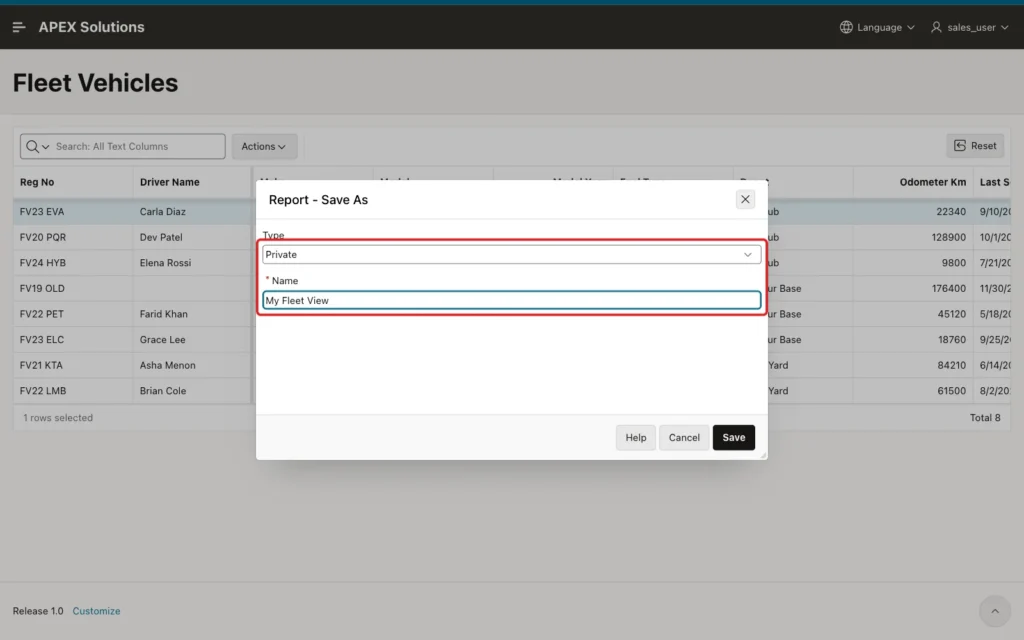
Keep Type Private, enter My Fleet View as the Name and click Save:
APEX shows Private report saved, and a Saved Reports list appears in the toolbar with My Fleet View selected:

Log out and log in again as the same user. The grid opens My Fleet View, with both columns frozen:
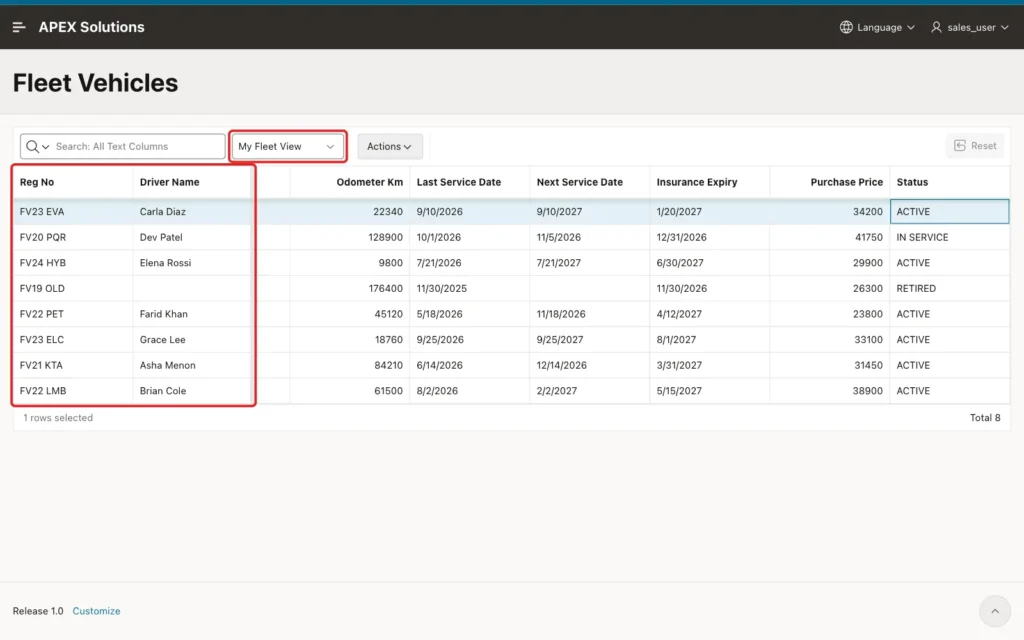
Selecting Primary Report in the list brings back the default layout with only Reg No frozen.
Test the Saved Reports
First, check in the browser which columns are frozen. Open the browser console on the page and run:
Example:
apex.region("fleet_vehicles").call("getViews", "grid").view$
    .grid("getColumns")
    .filter(c => c.frozen)
    .map(c => c.label)
Output:
["Reg No", "Driver Name"]
With Primary Report selected, the same call returned only ["Reg No"].
Second, check the saved reports in SQL. The APEX dictionary views show the frozen columns of each report:
Example:
select r.type, r.name, r.application_user, ic.name as column_name, rc.width
from apex_appl_page_ig_rpts r
join apex_appl_page_ig_rpt_columns rc on rc.report_id = r.report_id
join apex_appl_page_ig_columns ic on ic.column_id = rc.column_id
where r.application_id = 400
and r.page_id = 950
and r.type in ('PRIMARY', 'PRIVATE')
and rc.is_frozen = 'Yes'
and ic.name <> 'VEHICLE_ID'
order by r.type, rc.display_seq;
Output:
TYPE       NAME             APPLICATION_USER    COLUMN_NAME       WIDTH
__________ ________________ ___________________ ______________ ________
PRIMARY                                         REG_NO              150
PRIVATE    My Fleet View    SALES_USER          REG_NO              150
PRIVATE    My Fleet View    SALES_USER          DRIVER_NAME         150
The primary report freezes REG_NO for everyone, and the private report of SALES_USER freezes REG_NO and DRIVER_NAME. The query leaves out VEHICLE_ID: APEX also marked the hidden primary key column, which sits before Reg No, as frozen.
Every session that changes the grid gets its own working copy of type SESSION. The test sessions of this example left eleven of them:
Example:
select type, count(*) as reports
from apex_appl_page_ig_rpts
where application_id = 400
and page_id = 950
group by type
order by type;
Output:
TYPE          REPORTS
__________ __________
PRIMARY             1
PRIVATE             1
SESSION            11
Third, freeze too much. With the primary report, the end user froze Last Service Date, which froze nine columns of 150 pixels. They are wider than the grid, so the frozen block covers the whole view:
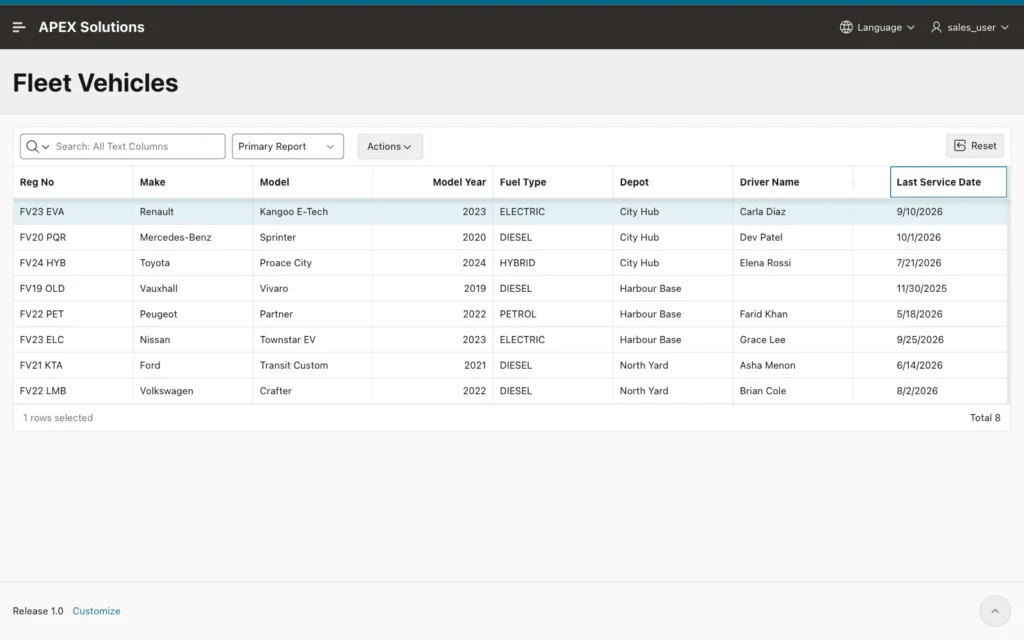
Scrolling did not bring the last columns into view, and their headings could not be clicked. Unfreeze from the heading menu, or select the saved report again, to get them back.
Things to Know
- There is no Freeze property on a column in Page Designer. A frozen column is a setting of a saved report, so the developer sets it at runtime and saves the primary report (Step 6).
- Frozen columns are always the first columns of the grid. Freezing a column further right freezes everything to its left; move the column first (Step 9).
- After moving a column in the Columns dialog, reload the page before you freeze it. Without the reload, the freeze was not saved in three tests, even though the grid showed it.
- Keep the frozen block narrow. The grid stretches columns to fit the window, so freezing makes sense only when the columns have a minimum width and the grid scrolls sideways.
- End user changes last for the session only. A private report (Save As) keeps them, and in this example APEX opened it again at the next login.
Related Guides
- Oracle APEX Interactive Grid: A Complete Guide
- How to Use the Grid, Table, and Single Row Views of an Oracle APEX Interactive Grid
Conclusion
To freeze columns in an Interactive Grid in Oracle APEX, give the columns a minimum width so the grid scrolls, then click Freeze in the column heading menu. Save the primary report as a developer to make the frozen column the default for everyone.
In this example, Reg No stayed in view for every user, and an end user added Driver Name in a private report that survived the next login. Freezing works best for one or two key columns placed at the start of the grid.
See my articles more often when you search Google.
