
A project plan is easiest to read as a Gantt chart: each task is a bar from its start to its end date, the filled part shows its progress, and arrows show which task must finish before the next one starts.
In a table of dates, overlaps and delays are hard to spot; on a Gantt chart they are visible at once.
Oracle APEX has a Gantt chart type in its chart region. This guide creates project and task tables, builds the chart with the Create Page wizard, fixes the timeline and the progress scale that the first version got wrong, adds a tooltip, and draws the dependency arrows between tasks.
Step 1: Create the Tables
PROJECTS holds the project with its start and end date. PROJECT_TASKS holds the tasks, with the assignee, the dates, the progress in percent, and DEPENDS_ON_ID, a foreign key to the task that must finish first:
Example:
create table projects (
    project_id number generated by default as identity
               constraint projects_pk primary key,
    name       varchar2(100) not null
               constraint projects_name_uk unique,
    start_date date not null,
    end_date   date not null,
    constraint projects_dates_ck check (end_date >= start_date)
);

create table project_tasks (
    task_id        number generated by default as identity
                   constraint project_tasks_pk primary key,
    project_id     number not null
                   constraint project_tasks_project_fk
                   references projects on delete cascade,
    name           varchar2(100) not null,
    assignee       varchar2(60),
    start_date     date not null,
    end_date       date not null,
    progress       number(3) default 0 not null
                   constraint project_tasks_progress_ck check (progress between 0 and 100),
    depends_on_id  number
                   constraint project_tasks_depends_fk references project_tasks,
    constraint project_tasks_dates_ck check (end_date >= start_date)
);

create index project_tasks_project_ix on project_tasks (project_id);
create index project_tasks_depends_ix on project_tasks (depends_on_id);

insert into projects (project_id, name, start_date, end_date)
values (1, 'Website Relaunch', date '2026-10-05', date '2026-11-20');

insert into project_tasks (task_id, project_id, name, assignee, start_date, end_date, progress, depends_on_id)
select 1, 1, 'Requirements',     'Anna',  date '2026-10-05', date '2026-10-09', 100, null from dual union all
select 2, 1, 'Design',           'Ben',   date '2026-10-12', date '2026-10-23',  60, 1    from dual union all
select 3, 1, 'Content Writing',  'Clara', date '2026-10-12', date '2026-10-30',  40, 1    from dual union all
select 4, 1, 'Development',      'David', date '2026-10-26', date '2026-11-13',   0, 2    from dual union all
select 5, 1, 'Testing',          'Anna',  date '2026-11-09', date '2026-11-18',   0, 4    from dual union all
select 6, 1, 'Go Live',          'Ben',   date '2026-11-20', date '2026-11-20',   0, 5    from dual;

commit;

alter table projects modify project_id generated by default as identity (start with limit value);
alter table project_tasks modify task_id generated by default as identity (start with limit value);

alter session set nls_date_format = 'YYYY-MM-DD';

select t.task_id, t.name, t.assignee, t.start_date, t.end_date, t.progress, d.name as depends_on
from   project_tasks t
left join project_tasks d on d.task_id = t.depends_on_id
order by t.start_date, t.task_id;
Output:
Table PROJECTS created.

Table PROJECT_TASKS created.

Index PROJECT_TASKS_PROJECT_IX created.

Index PROJECT_TASKS_DEPENDS_IX created.

1 row inserted.

6 rows inserted.

Commit complete.

Table PROJECTS altered.

Table PROJECT_TASKS altered.

Session altered.

   TASK_ID NAME               ASSIGNEE    START_DATE    END_DATE         PROGRESS DEPENDS_ON
__________ __________________ ___________ _____________ _____________ ___________ _______________
         1 Requirements       Anna        2026-10-05    2026-10-09            100
         2 Design             Ben         2026-10-12    2026-10-23             60 Requirements
         3 Content Writing    Clara       2026-10-12    2026-10-30             40 Requirements
         4 Development        David       2026-10-26    2026-11-13              0 Design
         5 Testing            Anna        2026-11-09    2026-11-18              0 Development
         6 Go Live            Ben         2026-11-20    2026-11-20              0 Testing

6 rows selected.- Check constraints keep the end date on or after the start date and the progress between 0 and 100.
- The sample rows use fixed IDs, so the dependencies can refer to them. The two ALTER TABLE statements then move the identity columns past the highest ID, so new rows from the application do not collide with them.
Step 2: Create the Chart Page
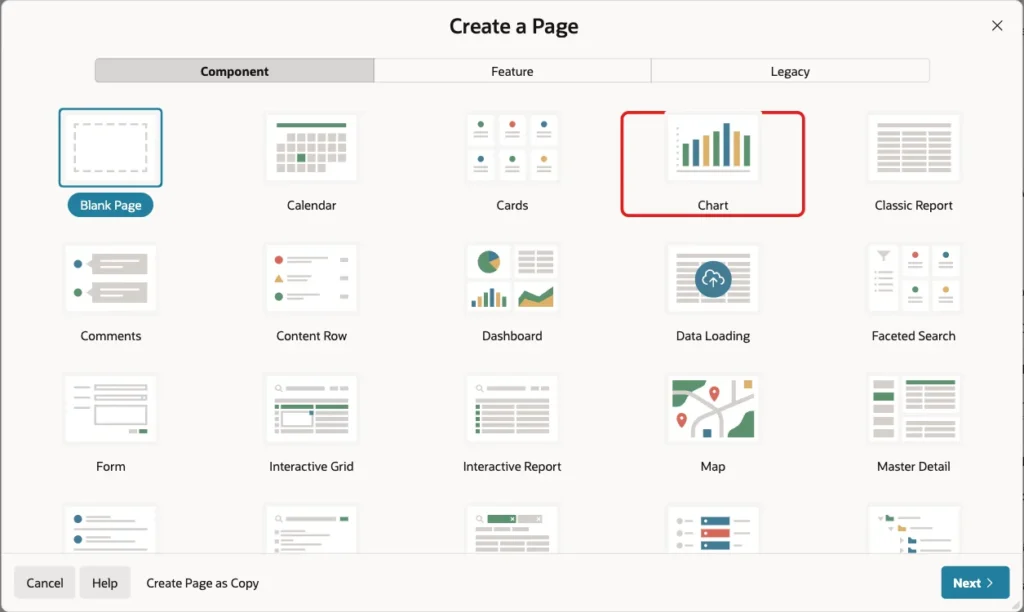
In App Builder, click Create Page, and on the Component tab click Chart:
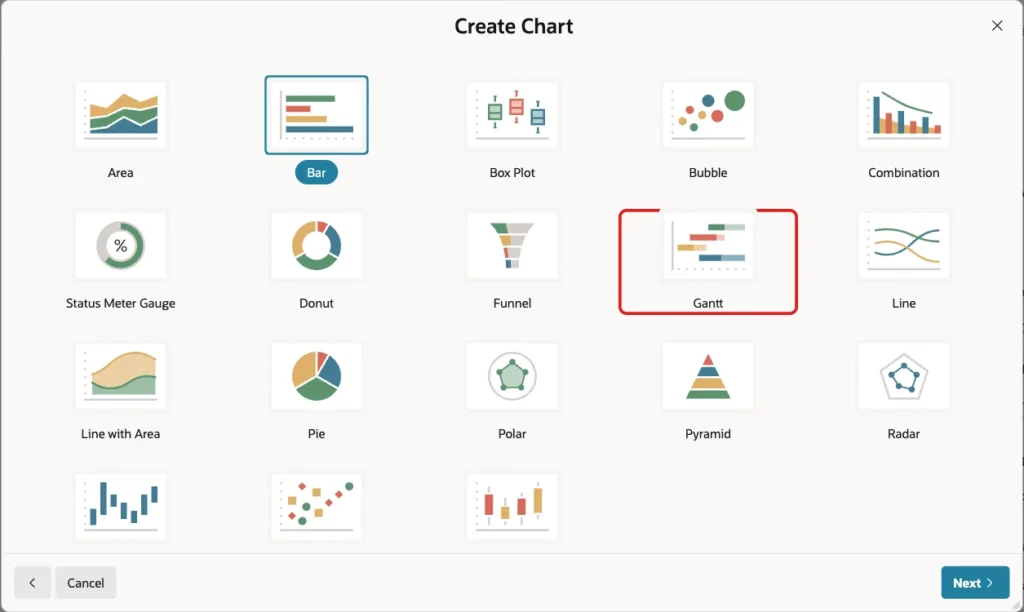
In the list of chart types, click Gantt:
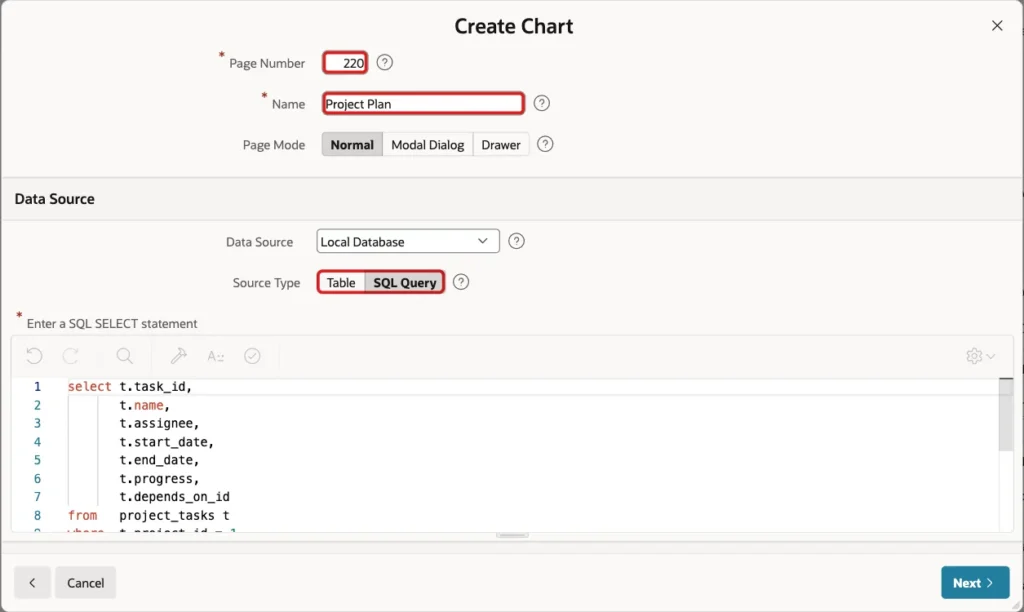
Enter Page Number 220 and Name Project Plan, and set Source Type to SQL Query:
Enter a query on the project's tasks, turn off Use Breadcrumb, keep Use Navigation on, and click Next:
Example:
select t.task_id,
       t.name,
       t.assignee,
       t.start_date,
       t.end_date,
       t.progress,
       t.depends_on_id
from   project_tasks t
where  t.project_id = 1
order by t.start_date, t.task_id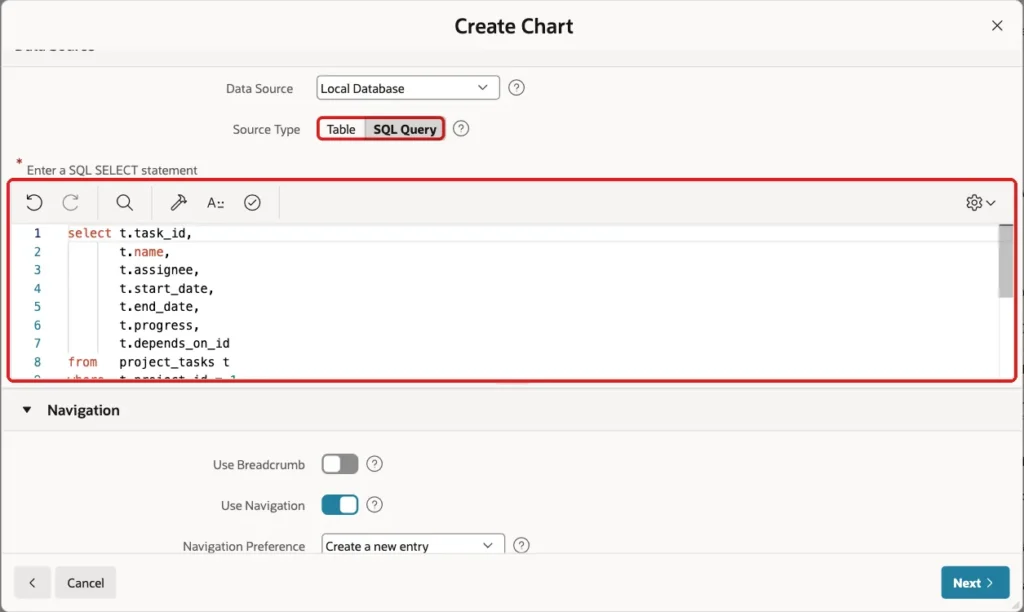
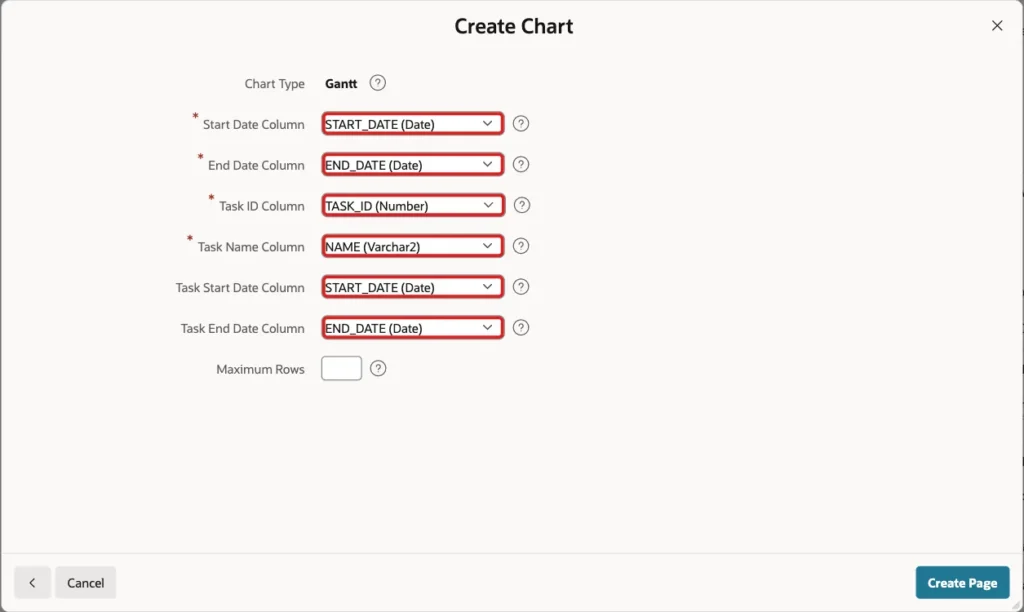
In the last step, map the columns: Start Date Column START_DATE, End Date Column END_DATE, Task ID Column TASK_ID, Task Name Column NAME, Task Start Date Column START_DATE, and Task End Date Column END_DATE. Click Create Page:
Step 3: Fix the Timeline
The first run of the page showed only the dates 10/05 to 10/08 and one bar, Requirements. The wizard's Start Date Column and End Date Column are not the task dates: they set the visible range of the whole chart, and APEX took them from the first row, the Requirements task. Every other task was outside that range.
The range should be the project's dates. In Page Designer, select the series under the chart region, set its Name to Tasks, and replace the SQL Query with this one:
Example:
select t.task_id,
       t.name,
       t.assignee,
       t.start_date,
       t.end_date + 1 as end_date,
       t.progress / 100 as progress,
       t.depends_on_id,
       p.start_date as project_start,
       p.end_date + 1 as project_end,
       t.name || ' - ' || t.assignee || ', ' || t.progress || '% done' as tooltip
from   project_tasks t
join   projects p on p.project_id = t.project_id
where  t.project_id = 1
order by t.start_date, t.task_id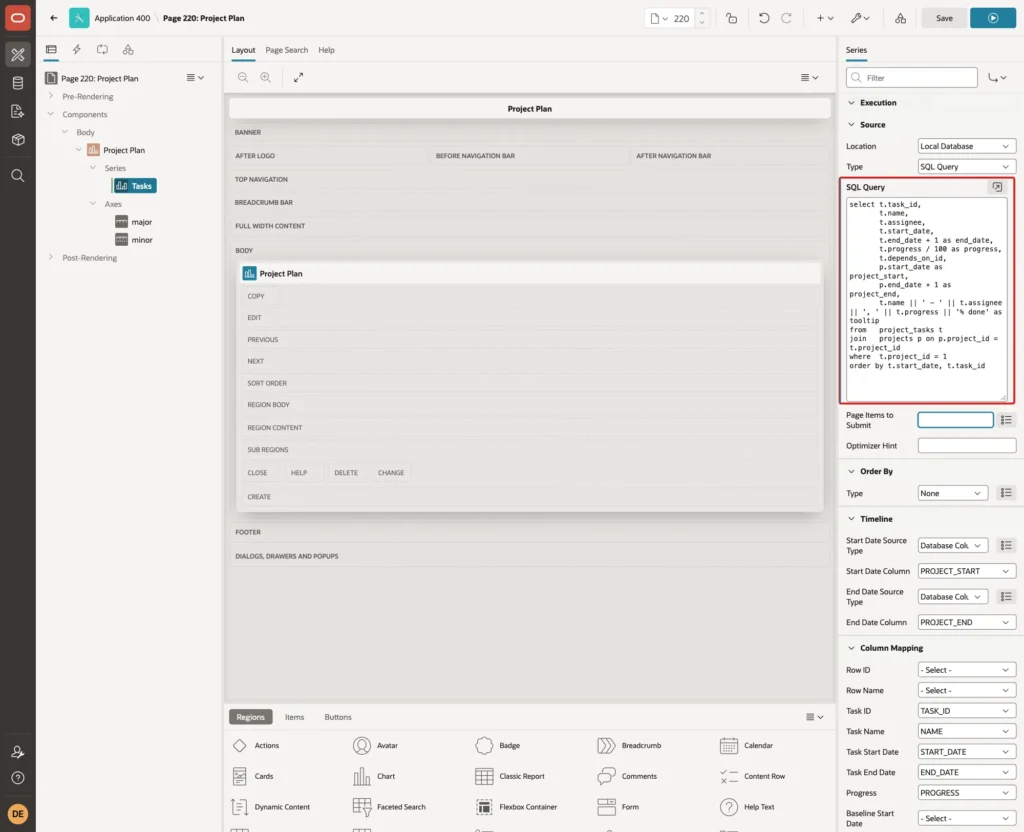
- PROJECT_START and PROJECT_END are the project's dates on every row, for the chart's range.
- end_date + 1 draws a task to the end of its last day, because a date value is the start of that day. Go Live starts and ends on the same day, and its bar covers that day.
- progress / 100 is explained in the next step.
- TOOLTIP is the text shown when the mouse is over a bar.
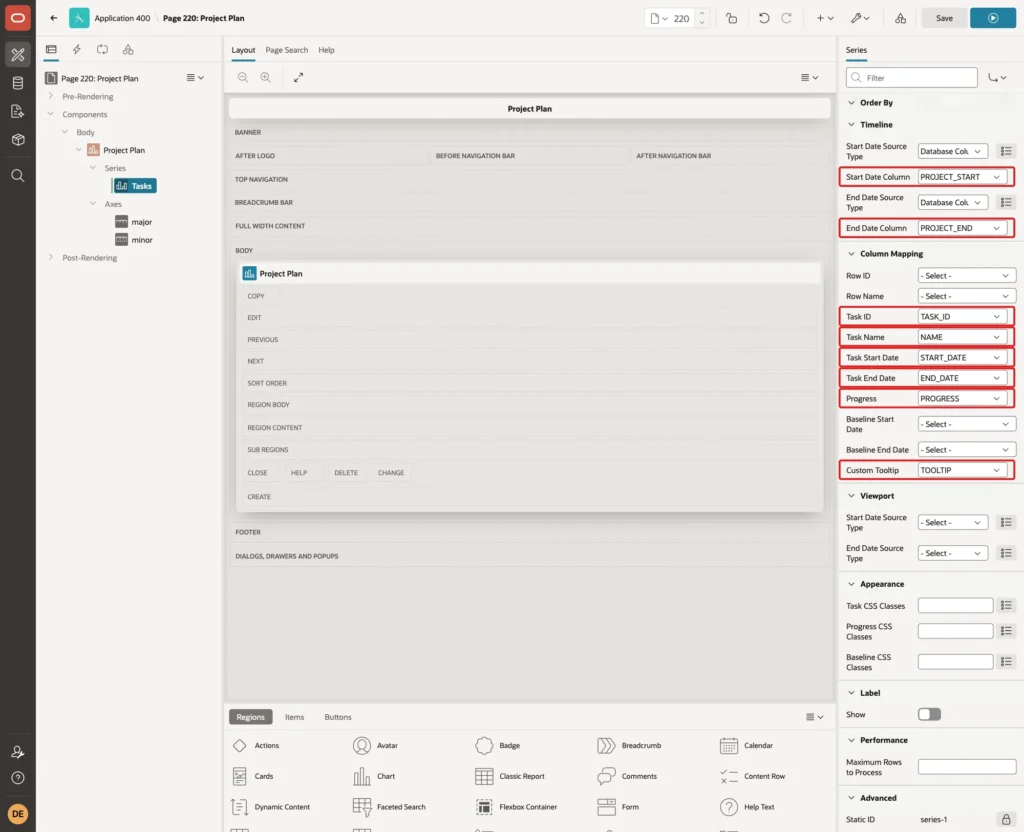
In the Timeline group, set Start Date Column to PROJECT_START and End Date Column to PROJECT_END. In Column Mapping, keep the task columns, and set Progress to PROGRESS and Custom Tooltip to TOOLTIP:
Step 4: Show Progress as a Fraction
In a first test, Progress mapped to the column with values such as 60 drew the Design bar completely filled. The chart expects progress as a fraction between 0 and 1, so the query divides the percentage by 100: 60 becomes 0.6, and the bar is filled to 60 percent.
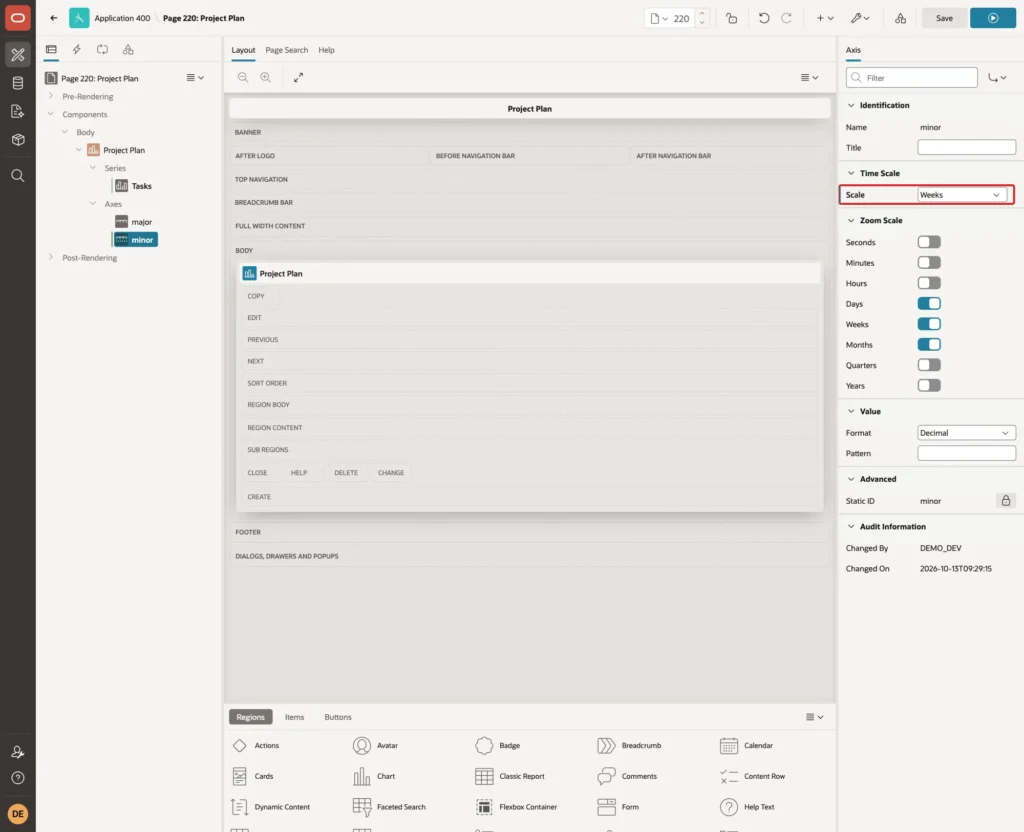
The minor axis of the wizard shows days, which made the labels overlap for a seven-week project. Select the axis minor under Axes and set its Time Scale to Weeks:
Step 5: Draw the Dependencies
The chart's column mapping has no column for dependencies. The Gantt chart supports them in its options, as a list of predecessor and successor task IDs, so the list is built in SQL and passed to the chart in JavaScript.
Add a Hidden page item to the chart region, P220_DEPENDENCIES, with Source Type SQL Query, Used Always, replacing any existing value in session state, and this query:
Example:
select json_arrayagg(
           json_object(
               'id'                value 'dep-' || task_id,
               'predecessorTaskId' value to_char(depends_on_id),
               'successorTaskId'   value to_char(task_id))
           returning clob)
from   project_tasks
where  project_id = 1
and    depends_on_id is not null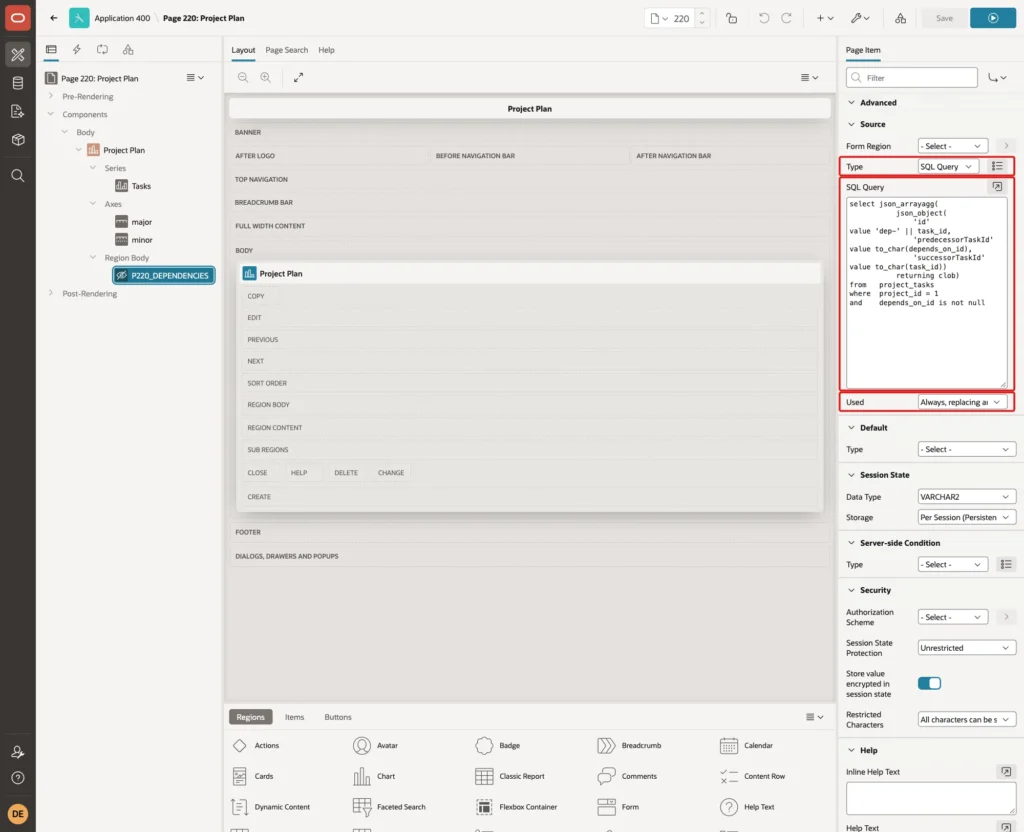
TO_CHAR passes the task IDs as text. Then select the chart region, open its Attributes tab, and in the Advanced group enter this Initialization JavaScript Function:
Example:
function( options ) {
    options.dependencies = JSON.parse( apex.item( "P220_DEPENDENCIES" ).getValue() || "[]" );
    return options;
}
APEX calls the function with the chart's options before it draws the chart. Click Save.
Step 6: Test It
DEMO_DEV opened Project Plan. The chart showed the whole project, from early October to November 20, with a bar per task, the progress of Design and Content Writing, and arrows from each task to the one that depends on it:
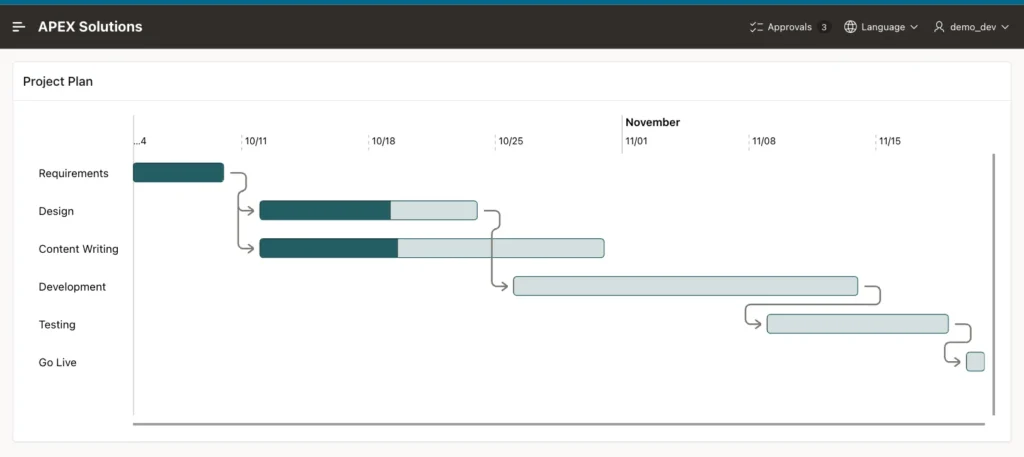
The chart also shows a planning problem: the arrow from Development to Testing runs backward, because Testing starts on November 9, before Development ends on November 13. Moving the mouse over the Design bar showed the custom tooltip:

Then the progress of two tasks was updated in SQL:
Example:
update project_tasks set progress = 100 where task_id = 2;
update project_tasks set progress = 25  where task_id = 4;
commit;

select name, progress
from   project_tasks
where  task_id in (2, 4);
Output:
1 row updated.

1 row updated.

Commit complete.

NAME              PROGRESS
______________ ___________
Design                 100
Development             25
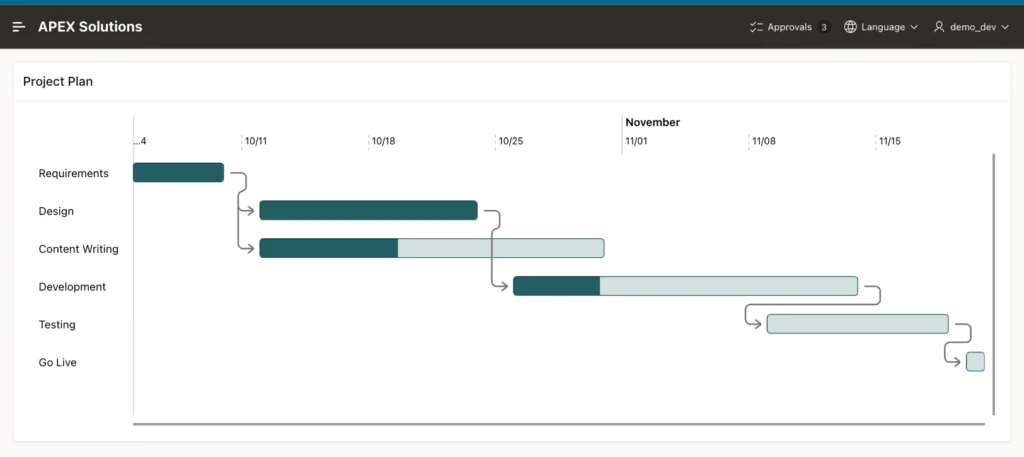
After reloading the page, Design was completely filled and Development a quarter:
Things to Know
- To show several projects, add a page item for the project and use it in the queries instead of project_id = 1; for one row per project with several tasks, map Row ID and Row Name.
- Baseline Start Date and Baseline End Date map a second pair of dates per task, such as the originally planned ones.
- The chart does not check dependencies. Add a validation or a report of tasks that start before their predecessor ends.
Related Guides
- How to Build a Dashboard Page with KPI Cards and Charts in Oracle APEX
- How to Build a Calendar Page with Drag-and-Drop Events in Oracle APEX
Conclusion
To build a Gantt chart in Oracle APEX, create a Chart page of type Gantt on your task table, then set the chart's timeline to the project dates, not to a task's dates, and map progress as a fraction between 0 and 1.
Add a custom tooltip and weekly labels, and draw dependencies by passing a JSON list of predecessor and successor task IDs to the chart in its Initialization JavaScript Function.
See my articles more often when you search Google.
