
A JSON Relational Duality View shows rows from several tables as one JSON document. An order, its client and its lines come back as a single document, while the data stays in normal tables with primary and foreign keys. Updates through the view change those tables, and the database decides what may be changed.
Oracle APEX 26.1 can use a duality view as the source of a report and a form, with no SQL and no PL/SQL processes. This guide builds that form, shows how APEX handles the read-only parts of the document, and adds the document ETag to the lost update check.
The example uses orders as the document; the same steps work for any duality view. The guide Oracle APEX Data Sources: REST, Data Loads, and Duality Views gives an overview and builds a report with nested rows. This article is about editing data through a form.
Step 1: Create the Tables
The document needs three tables. WEB_CLIENTS holds the clients, WEB_ORDERS the order headers, and WEB_ORDER_LINES the lines of each order. The keys, the unique order number and the check constraints are all declared, so the database protects the data for every program, not only for APEX.
STATUS and ORDER_DATE use DEFAULT ON NULL, so a new order gets NEW and today's date without a trigger.
Example:
create table web_clients (
  client_id    number generated by default on null as identity,
  client_name  varchar2(100 char) not null,
  city         varchar2(60 char),
  constraint web_clients_pk primary key (client_id),
  constraint web_clients_name_uk unique (client_name)
);

create table web_orders (
  order_id       number generated by default on null as identity,
  order_no       varchar2(20 char) not null,
  client_id      number not null,
  order_date     date default on null trunc(sysdate) not null,
  status         varchar2(12 char) default on null 'NEW' not null,
  delivery_note  varchar2(400 char),
  constraint web_orders_pk primary key (order_id),
  constraint web_orders_no_uk unique (order_no),
  constraint web_orders_client_fk foreign key (client_id)
    references web_clients (client_id),
  constraint web_orders_status_ck
    check (status in ('NEW', 'PAID', 'SHIPPED', 'CANCELLED'))
);

create index web_orders_client_ix on web_orders (client_id);

create table web_order_lines (
  line_id     number generated by default on null as identity,
  order_id    number not null,
  line_no     number(3) not null,
  item_name   varchar2(100 char) not null,
  quantity    number(5) not null,
  unit_price  number(10,2) not null,
  constraint web_order_lines_pk primary key (line_id),
  constraint web_order_lines_order_fk foreign key (order_id)
    references web_orders (order_id) on delete cascade,
  constraint web_order_lines_no_uk unique (order_id, line_no),
  constraint web_order_lines_qty_ck check (quantity > 0),
  constraint web_order_lines_price_ck check (unit_price >= 0)
);

insert into web_clients (client_name, city) values ('Blue Harbor Cafe', 'Lisbon');
insert into web_clients (client_name, city) values ('Northwind Studio', 'Oslo');
insert into web_clients (client_name, city) values ('Green Leaf Market', 'Dublin');

insert into web_orders (order_no, client_id, order_date, status, delivery_note)
values ('WO-1001', 1, date '2026-10-01', 'NEW', 'Leave at the back door');
insert into web_orders (order_no, client_id, order_date, status)
values ('WO-1002', 2, date '2026-10-03', 'PAID');
insert into web_orders (order_no, client_id, order_date, status)
values ('WO-1003', 3, date '2026-10-05', 'SHIPPED');

insert into web_order_lines (order_id, line_no, item_name, quantity, unit_price)
values (1, 1, 'Espresso beans 1 kg', 4, 18.50);
insert into web_order_lines (order_id, line_no, item_name, quantity, unit_price)
values (1, 2, 'Paper cups (100)', 10, 6.20);
insert into web_order_lines (order_id, line_no, item_name, quantity, unit_price)
values (2, 1, 'Studio lamp', 2, 79.00);
insert into web_order_lines (order_id, line_no, item_name, quantity, unit_price)
values (3, 1, 'Fruit crates', 25, 3.40);
insert into web_order_lines (order_id, line_no, item_name, quantity, unit_price)
values (3, 2, 'Price labels (500)', 1, 12.00);

commit;

select o.order_id, o.order_no, c.client_name, o.order_date, o.status,
       count(l.line_id) as lines
from   web_orders o
join   web_clients c on c.client_id = o.client_id
left   join web_order_lines l on l.order_id = o.order_id
group  by o.order_id, o.order_no, c.client_name, o.order_date, o.status
order  by o.order_id;
Output:
Table WEB_CLIENTS created.

Table WEB_ORDERS created.

Index WEB_ORDERS_CLIENT_IX created.

Table WEB_ORDER_LINES created.

1 row inserted.

1 row inserted.

1 row inserted.

1 row inserted.

1 row inserted.

1 row inserted.

1 row inserted.

1 row inserted.

1 row inserted.

1 row inserted.

1 row inserted.

Commit complete.

   ORDER_ID ORDER_NO    CLIENT_NAME          ORDER_DATE    STATUS        LINES
___________ ___________ ____________________ _____________ __________ ________
          1 WO-1001     Blue Harbor Cafe     01-10-26      NEW               2
          2 WO-1002     Northwind Studio     03-10-26      PAID              1
          3 WO-1003     Green Leaf Market    05-10-26      SHIPPED           2
Step 2: Create the Duality View
The duality view WEB_ORDER_DV returns one document per order. The client is a nested object and the lines are an array. The annotations after each table name decide what the view allows:
- WEB_ORDERS has WITH INSERT UPDATE DELETE, so orders can be created, changed and deleted through the view.
- WEB_CLIENTS has WITH NOINSERT NOUPDATE NODELETE. The client data is read-only in this document.
- WEB_ORDER_LINES has WITH INSERT UPDATE DELETE, so a document can also change its lines.
Example:
create or replace json relational duality view web_order_dv as
select json {
  '_id'          : o.order_id,
  'orderNo'      : o.order_no,
  'orderDate'    : o.order_date,
  'status'       : o.status,
  'deliveryNote' : o.delivery_note,
  'client'       : (select json {
                       'clientId'   : c.client_id,
                       'clientName' : c.client_name,
                       'city'       : c.city
                     }
                     from web_clients c with noinsert noupdate nodelete
                     where c.client_id = o.client_id),
  'lines'        : [select json {
                       'lineId'    : l.line_id,
                       'lineNo'    : l.line_no,
                       'item'      : l.item_name,
                       'quantity'  : l.quantity,
                       'unitPrice' : l.unit_price
                     }
                     from web_order_lines l with insert update delete
                     where l.order_id = o.order_id]
}
from web_orders o with insert update delete;

select json_serialize(data pretty) as order_document
from   web_order_dv v
where  v.data."_id" = 1;
Output:
View WEB_ORDER_DV created.

ORDER_DOCUMENT
___________________________________________________
{
  "_id" : 1,
  "_metadata" :
  {
    "etag" : "01146849BD61C0C83354C8E7176726AF",
    "asof" : "0000000001EEA22D"
  },
  "orderNo" : "WO-1001",
  "orderDate" : "2026-10-01T00:00:00",
  "status" : "NEW",
  "deliveryNote" : "Leave at the back door",
  "client" :
  {
    "clientId" : 1,
    "clientName" : "Blue Harbor Cafe",
    "city" : "Lisbon"
  },
  "lines" :
  [
    {
      "lineId" : 1,
      "lineNo" : 1,
      "item" : "Espresso beans 1 kg",
      "quantity" : 4,
      "unitPrice" : 18.5
    },
    {
      "lineId" : 2,
      "lineNo" : 2,
      "item" : "Paper cups (100)",
      "quantity" : 10,
      "unitPrice" : 6.2
    }
  ]
}
The database adds _metadata with an etag and an asof value to each document. The etag is a hash of the document, so it changes whenever any part of the order, its client or its lines changes.
Test the View in SQL
Before building pages, test what the view allows. The script changes the status, tries to rename the client, changes the client of the order, and finally sends a wrong etag. A rollback at the end undoes all changes:
Example:
update web_order_dv v
set    v.data = json_transform(v.data, set '$.status' = 'PAID')
where  v.data."_id" = 1;

select order_no, status from web_orders where order_id = 1;

update web_order_dv v
set    v.data = json_transform(v.data, set '$.client.clientName' = 'Blue Harbour')
where  v.data."_id" = 1;

update web_order_dv v
set    v.data = json_transform(v.data, set '$.client.clientId' = 2)
where  v.data."_id" = 1;

select order_no, client_id from web_orders where order_id = 1;

update web_order_dv v
set    v.data = json_transform(v.data,
                  set '$._metadata.etag' = '00000000000000000000000000000000',
                  set '$.status' = 'SHIPPED')
where  v.data."_id" = 1;

rollback;
Output:
1 row updated.

ORDER_NO    STATUS
___________ _________
WO-1001     PAID

Error starting at line : 7 File @ b54/02-dv-tests.sql
In command -
update web_order_dv v
set    v.data = json_transform(v.data, set '$.client.clientName' = 'Blue Harbour')
where  v.data."_id" = 1
Error report -
ORA-40940: Cannot update field 'clientName' corresponding to column
'CLIENT_NAME' of table 'WEB_CLIENTS' in JSON Relational Duality View
'WEB_ORDER_DV': Missing UPDATE annotation or NOUPDATE annotation specified.
Help: https://docs.oracle.com/error-help/db/ora-40940/

1 row updated.

ORDER_NO       CLIENT_ID
___________ ____________
WO-1001                2

Error starting at line : 17 File @ b54/02-dv-tests.sql
In command -
update web_order_dv v
set    v.data = json_transform(v.data,
                  set '$._metadata.etag' = '00000000000000000000000000000000',
                  set '$.status' = 'SHIPPED')
where  v.data."_id" = 1
Error report -
ORA-42699: Cannot update JSON Relational Duality View 'WEB_ORDER_DV': The ETAG
of document with ID 'FB03C10200' in the database did not match the ETAG passed
in.
Help: https://docs.oracle.com/error-help/db/ora-42699/

Rollback complete.- The status update changed WEB_ORDERS.
- The client name change failed with ORA-40940, because WEB_CLIENTS is NOUPDATE in this view.
- Setting client.clientId to 2 worked. It changed the foreign key CLIENT_ID of the order, not the client row.
- The wrong etag failed with ORA-42699. The database compares the etag of a document with the current one before it writes.
Step 3: Open JSON Duality Views in Shared Components
APEX uses a duality view through a shared component of the same name. It holds the owner and name of the view and a data profile that maps each JSON field to a column.
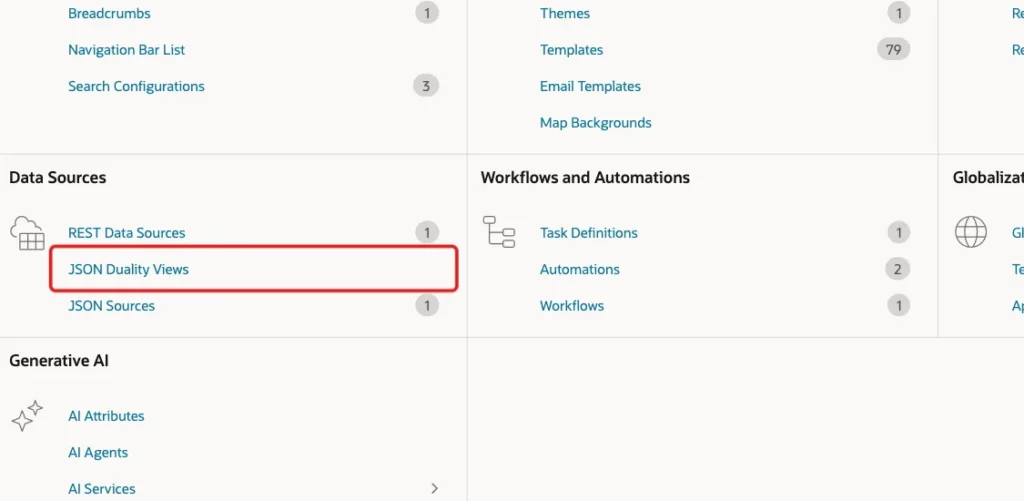
In App Builder, open the application and click Shared Components. Under Data Sources, click JSON Duality Views:
On the JSON Duality Views page, click Create:
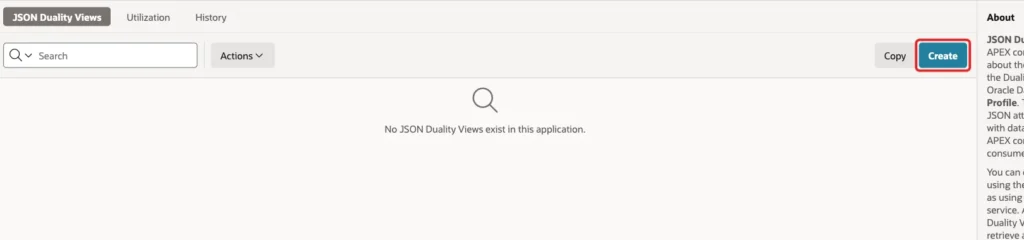
This step is required. In a first test, the Create Page wizard listed no duality views at all, because its list shows only the JSON Duality View components of the application, not the views in the schema.
Step 4: Create the JSON Duality View Component
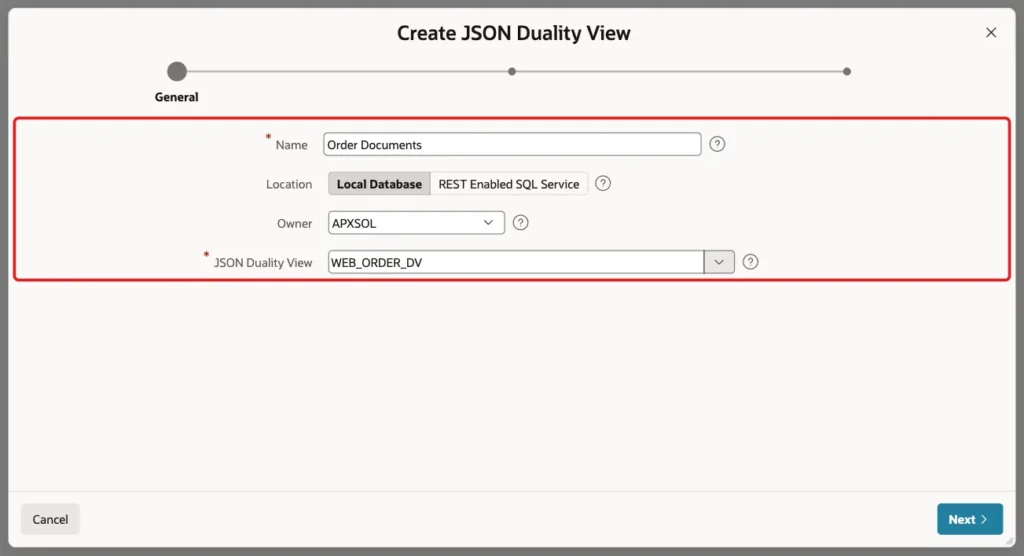
On the General screen, enter Order Documents as the Name. Keep Location Local Database and the Owner, select WEB_ORDER_DV in JSON Duality View, and click Next:
APEX reads the JSON schema of the view and shows the Review Data Profile screen. ID, from the _id field, is the primary key. APEX_METADATA_ETAG and APEX_METADATA_ASOF come from _metadata, and the client fields become CLIENT_CITY, CLIENT_CLIENTID and CLIENT_CLIENTNAME:
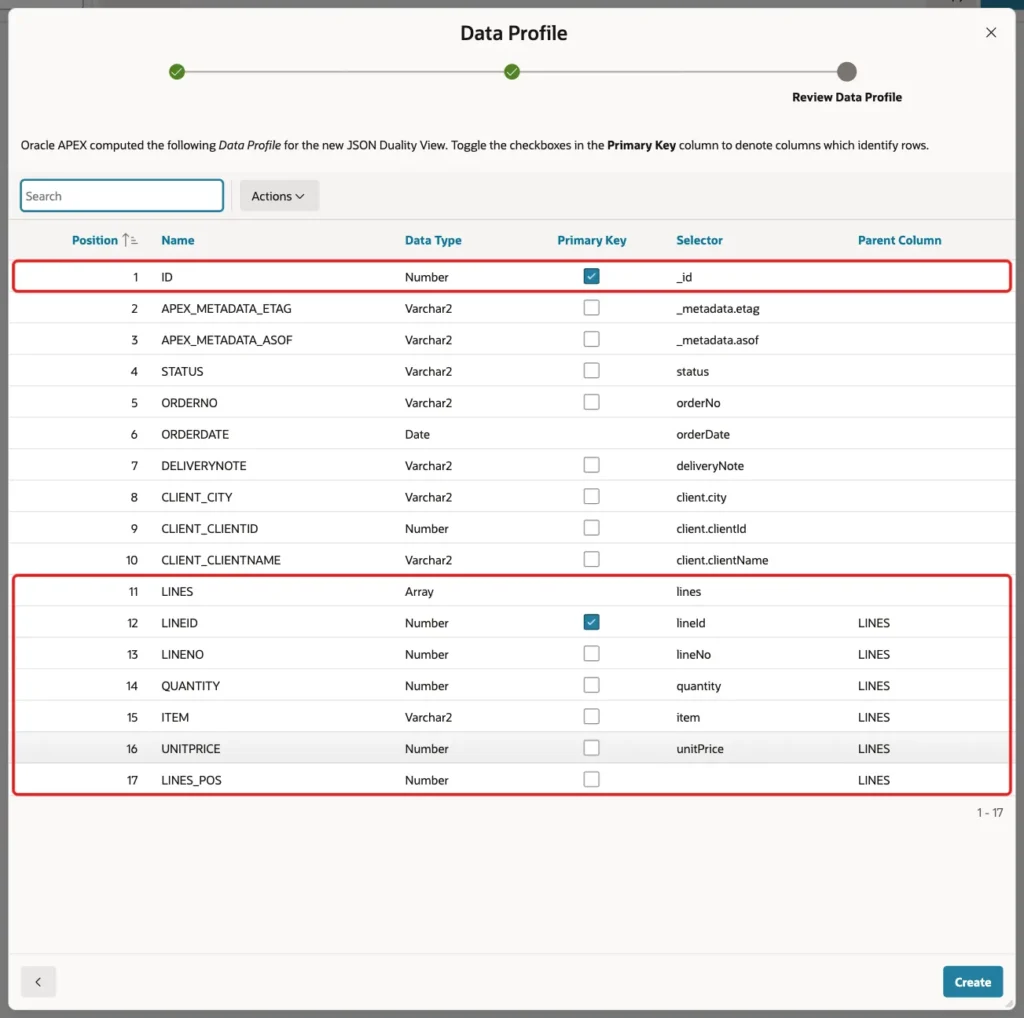
The lines array becomes the column LINES of type Array, and its fields have LINES as their Parent Column. A form shows one order, so it uses only the top-level columns. Click Create. APEX shows the message JSON Duality View created.
Step 5: Fix the Date Column in the Data Profile
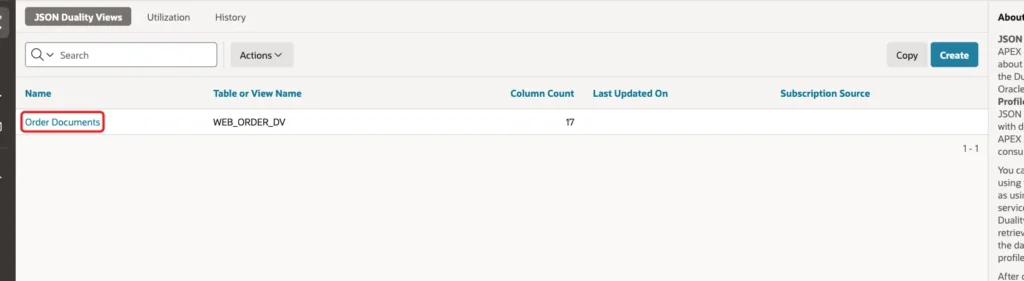
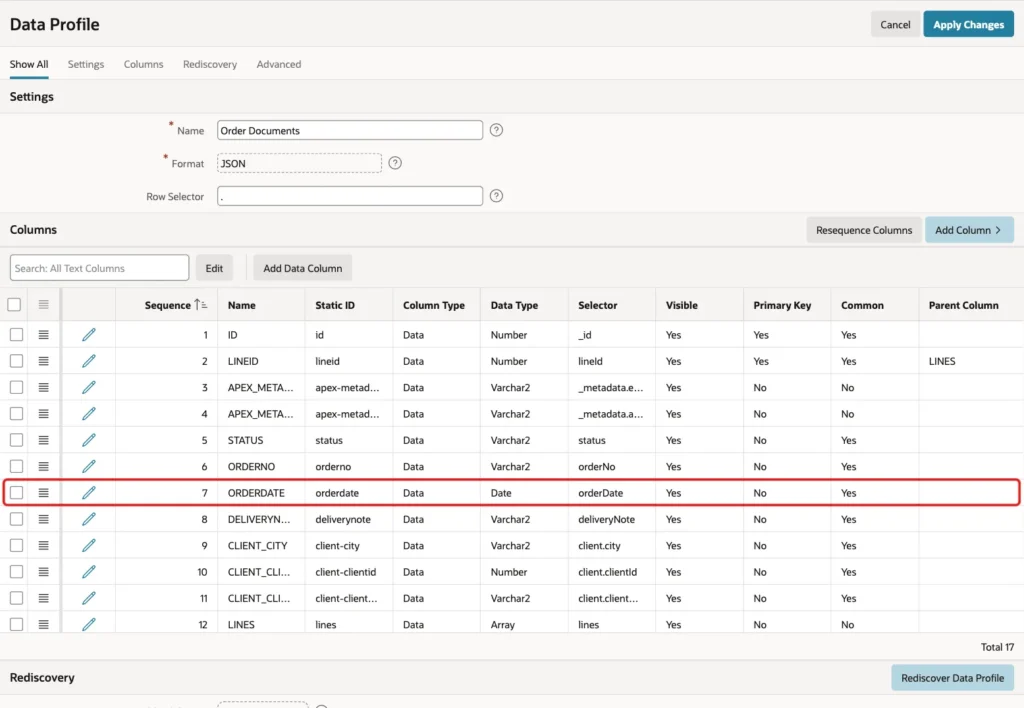
The duality view returns dates as text like "2026-10-01T00:00:00", without a time zone. The wizard marked ORDERDATE as Has Time Zone. In a first test, the report page from Step 6 then failed with ORA-01843: An invalid month was specified.
Back on the JSON Duality Views page, click Order Documents:
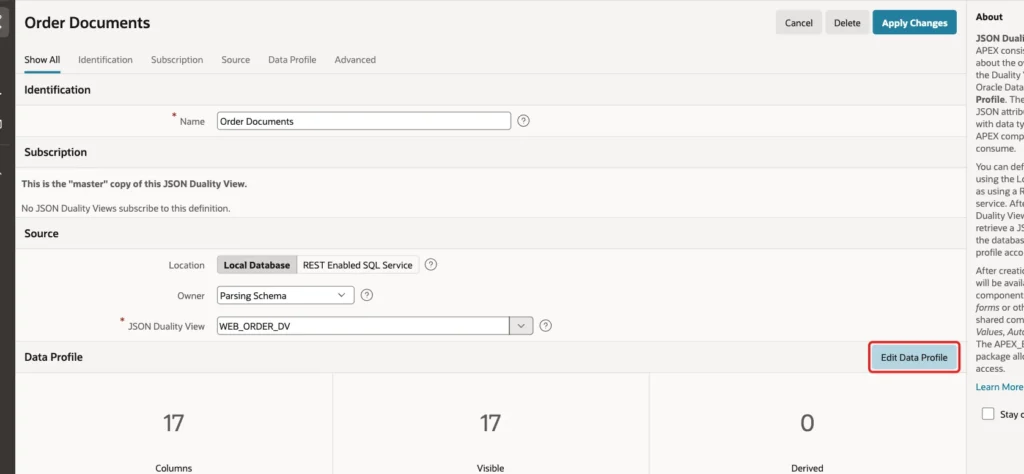
Click Edit Data Profile:
In the Columns grid, click the edit icon of the ORDERDATE row:
Turn off Has Time Zone and click Apply Changes. Data Type stays Date:
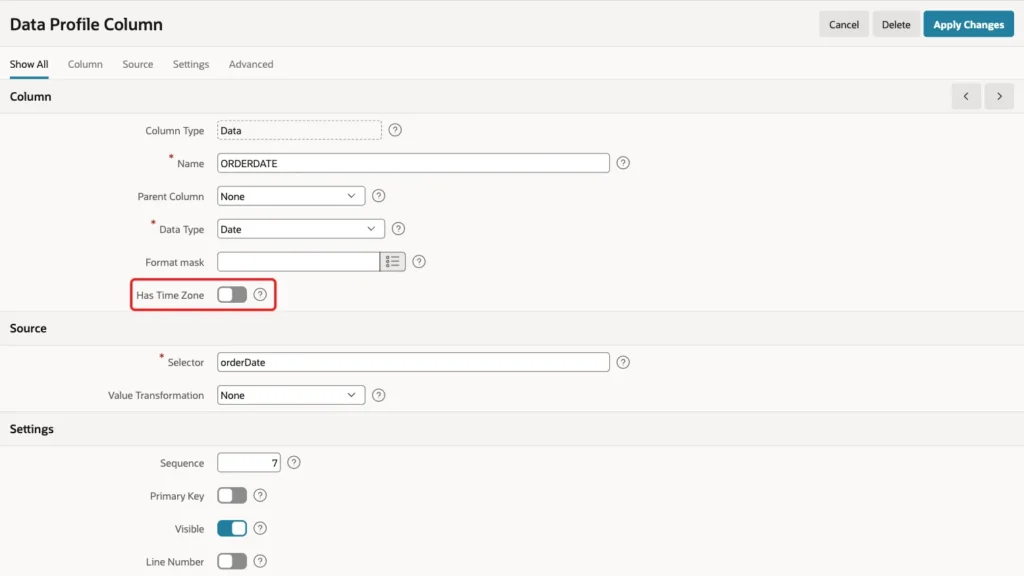
With this one change, the report and the form show and save the order date. You do not need to remove the date column.
Step 6: Create the Report and Form Pages
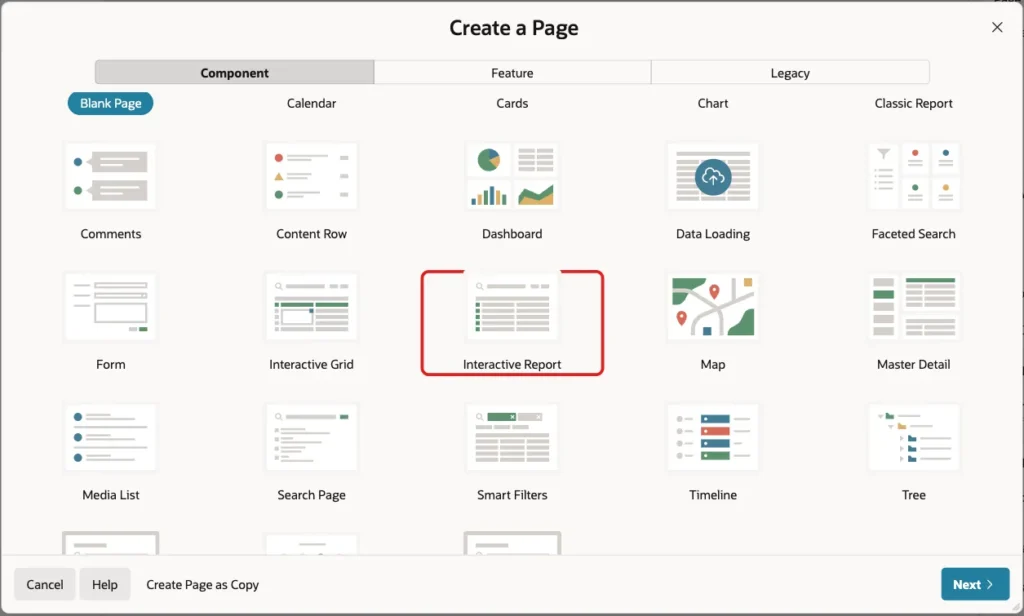
Open the application, click Create Page, and click Interactive Report on the Component tab:
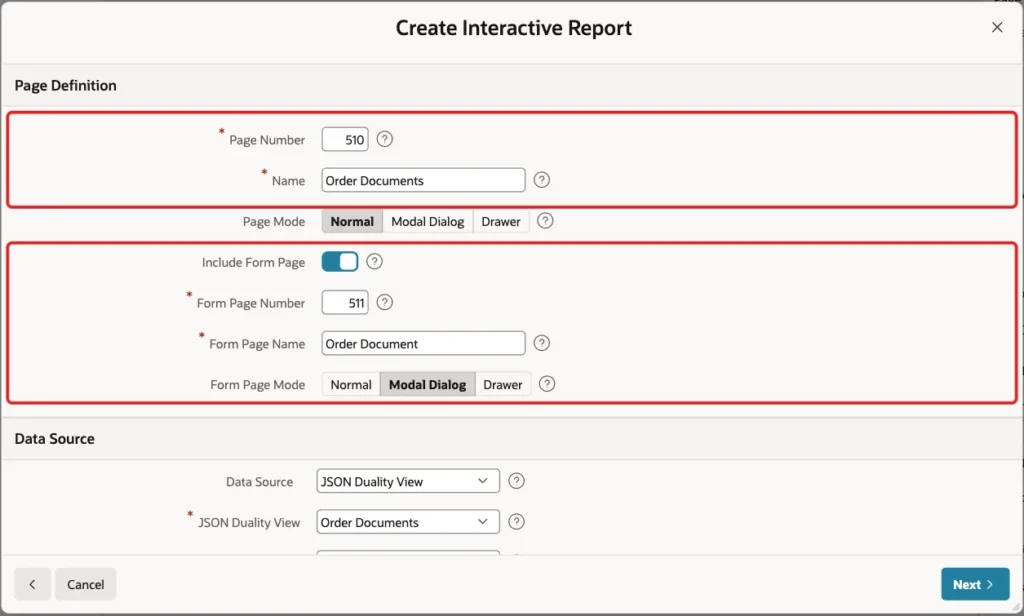
Enter Page Number 510 and Name Order Documents. Turn on Include Form Page, enter Form Page Number 511 and Form Page Name Order Document, and select Form Page Mode Modal Dialog:
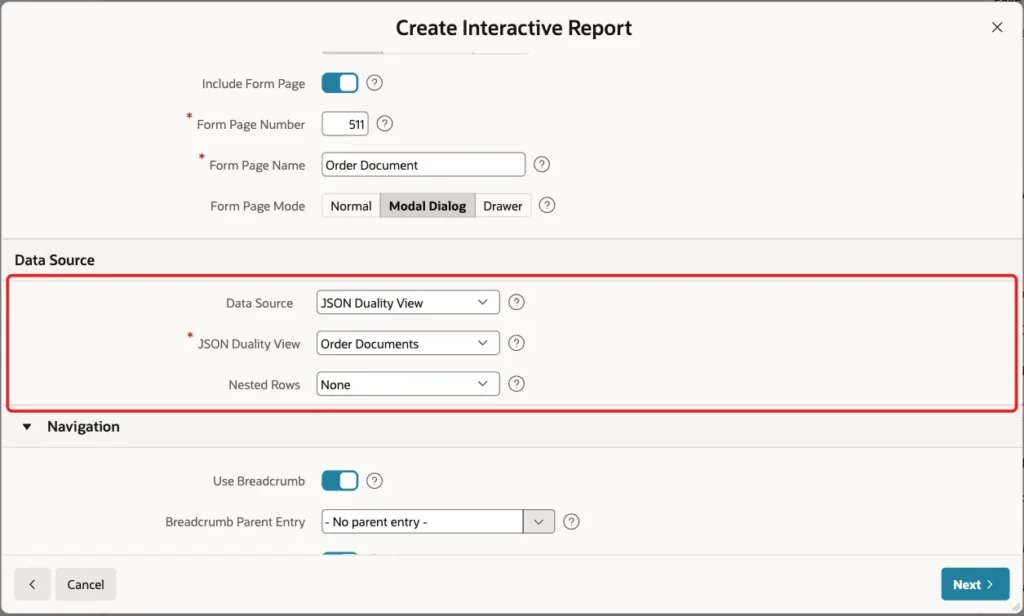
In the Data Source section, select JSON Duality View as the Data Source and Order Documents as the JSON Duality View. Keep Nested Rows at None, so the report shows one row per order:
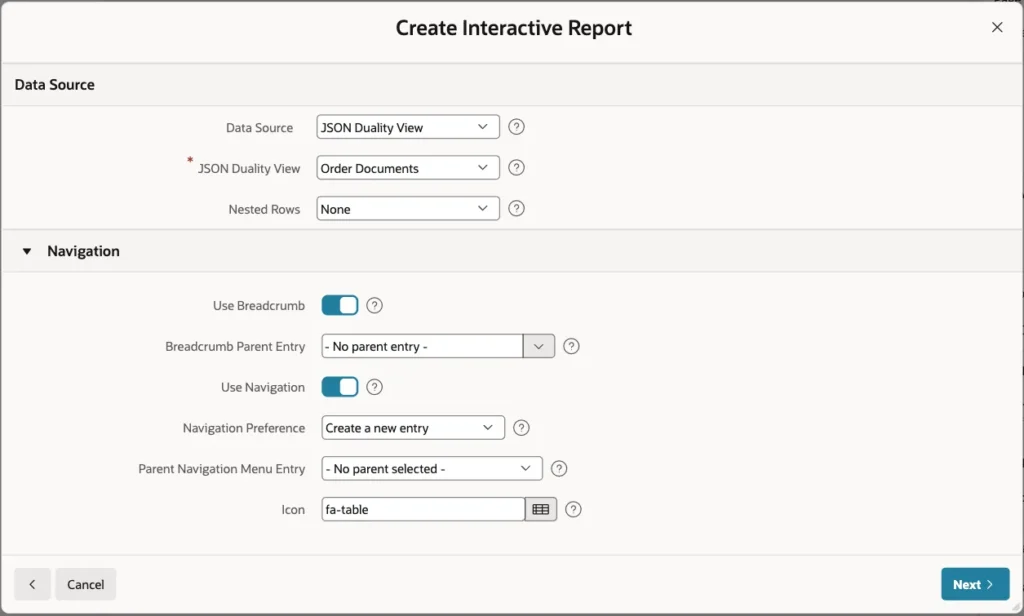
Keep the Navigation settings, so the wizard adds a breadcrumb and a navigation menu entry, and click Next:
On the Primary Key screen, keep ID (Number) as Primary Key Column 1 and click Create Page:
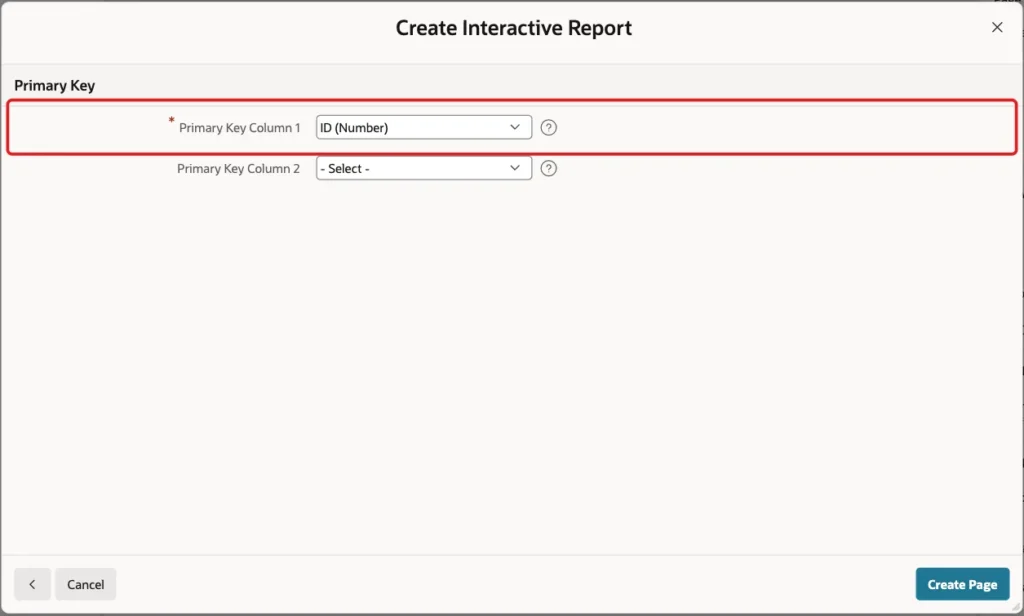
The wizard creates a form item for each top-level column. It leaves out the two metadata columns and the LINES array.
Step 7: Check the Form Region Source
Open page 511 in Page Designer and select the Order Document region. Under Source, Location is JSON Duality View and JSON Duality View is Order Documents. The region has no table name and no SQL query:
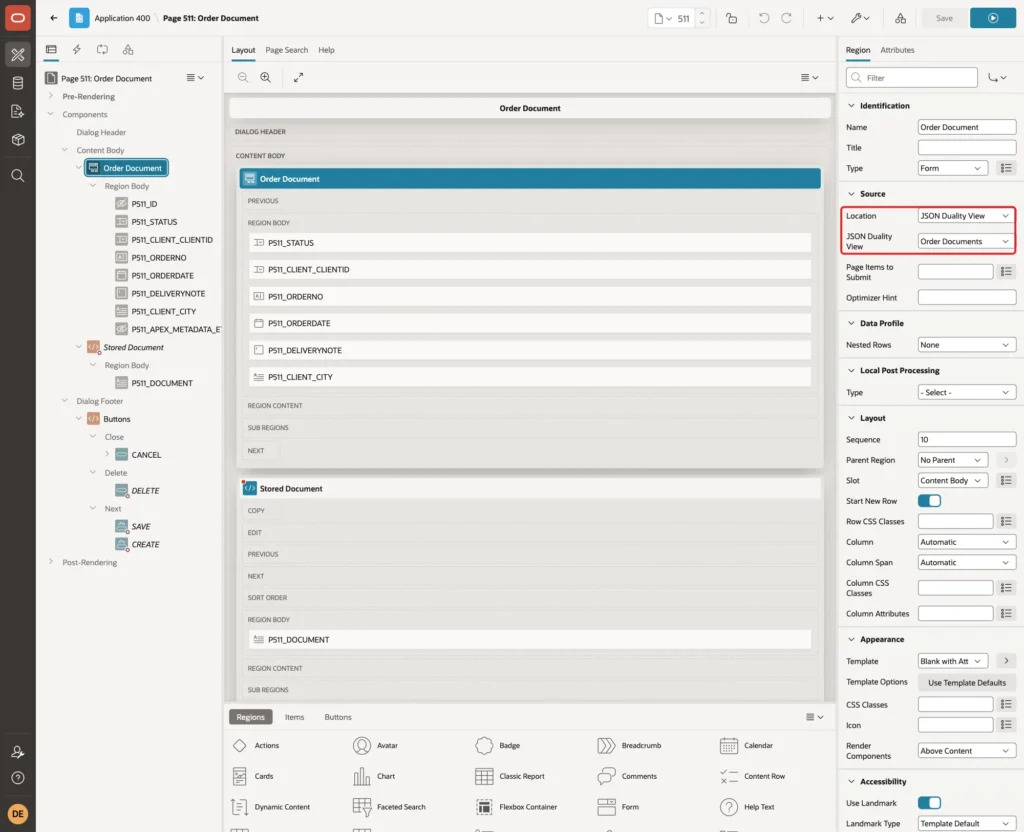
The Automatic Row Processing (DML) process of the wizard also uses this region. APEX writes inserts, updates and deletes through the view, and the database changes the tables.
Step 8: Make Status a Select List
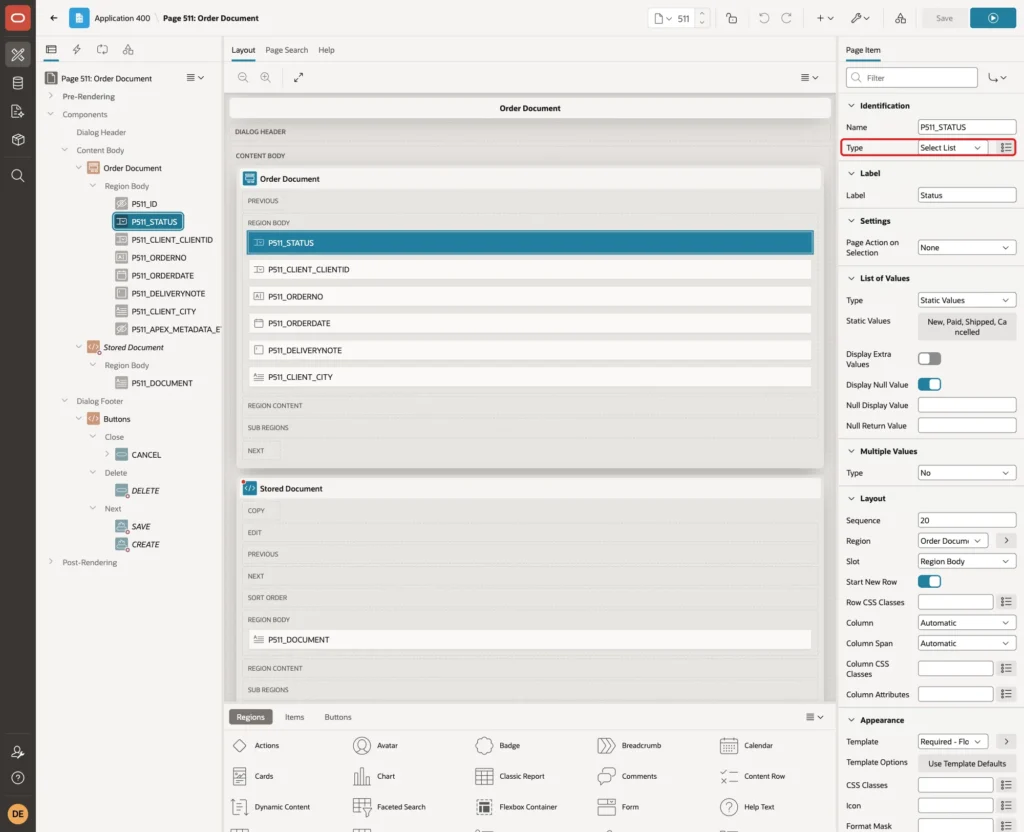
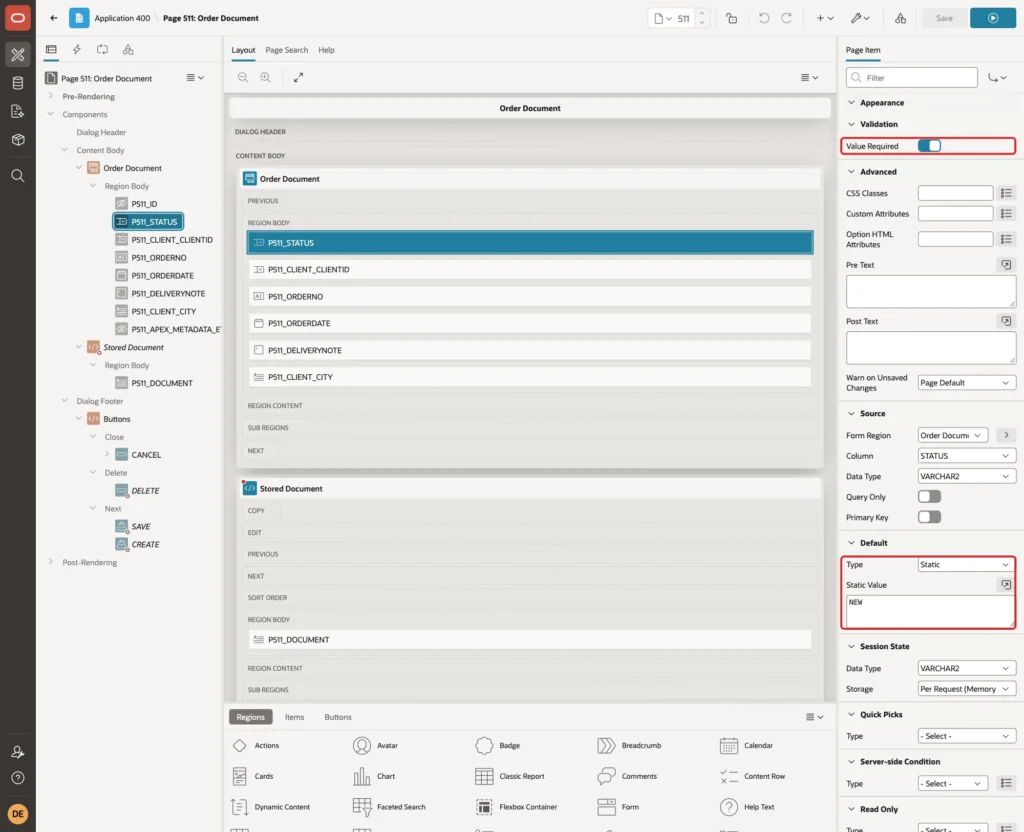
Select P511_STATUS. Set Type to Select List:
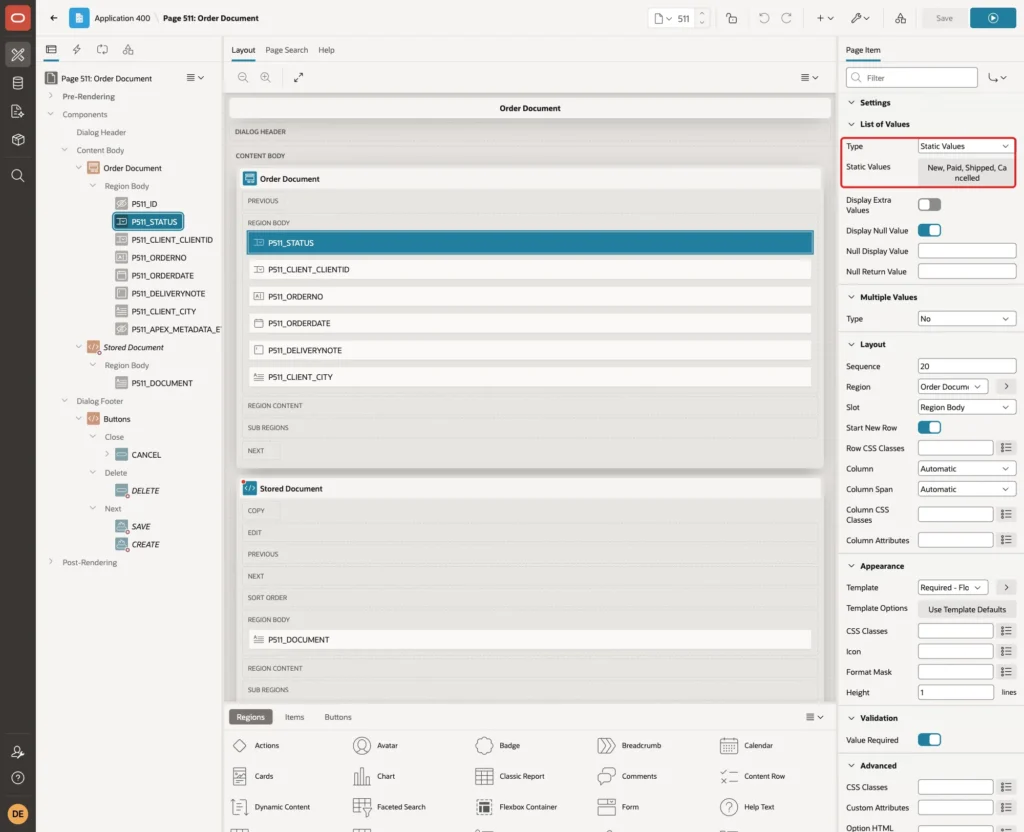
Under List of Values, set Type to Static Values and enter the four statuses of the check constraint, with display values New, Paid, Shipped and Cancelled and return values NEW, PAID, SHIPPED and CANCELLED:
Turn on Value Required under Validation and set Template to Required - Floating. Under Default, set Type to Static and Static Value to NEW, so a new order starts as New:
Step 9: Choose the Client from a List
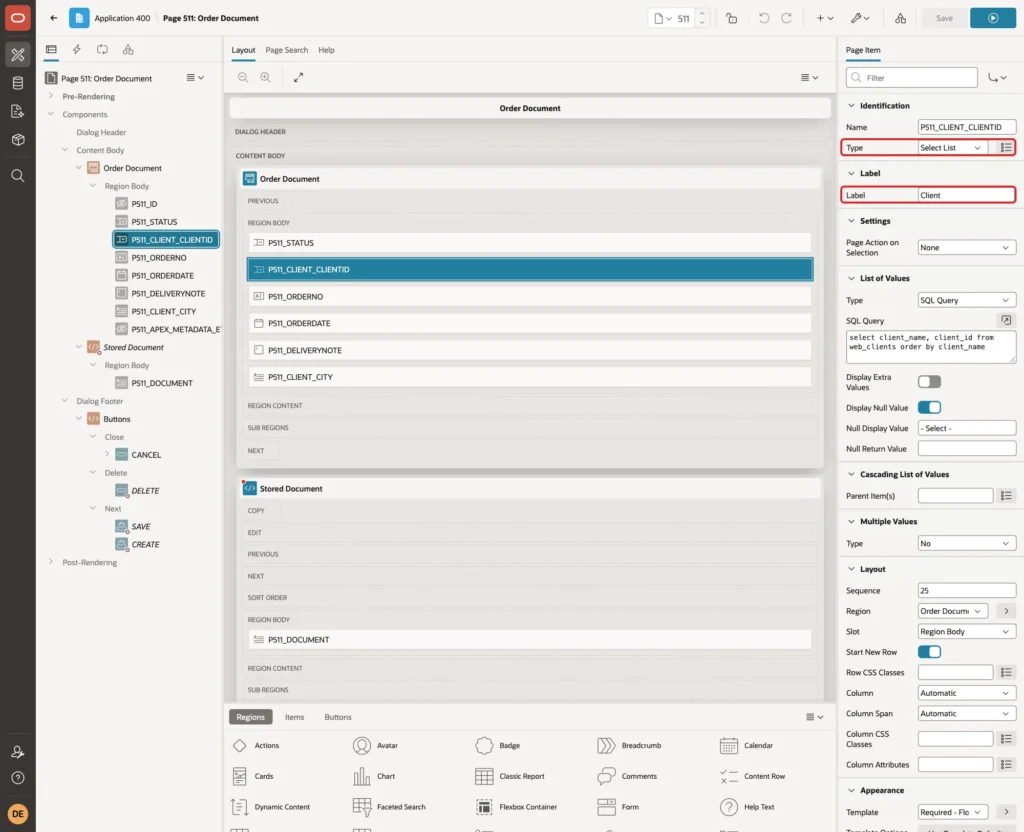
The wizard made a number field P511_CLIENT_CLIENTID for client.clientId. Users should pick a client by name. Select the item, set Type to Select List and Label to Client:
Under List of Values, set Type to SQL Query and enter this query:
Example:
select client_name, client_id
from   web_clients
order  by client_name
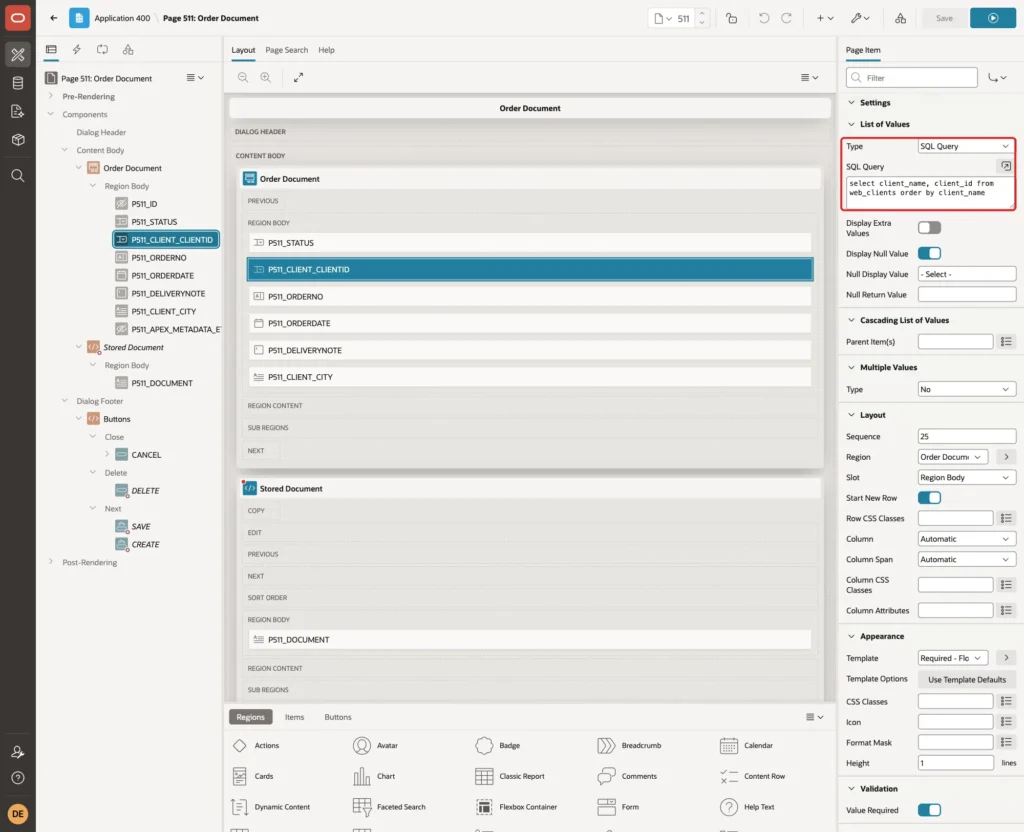
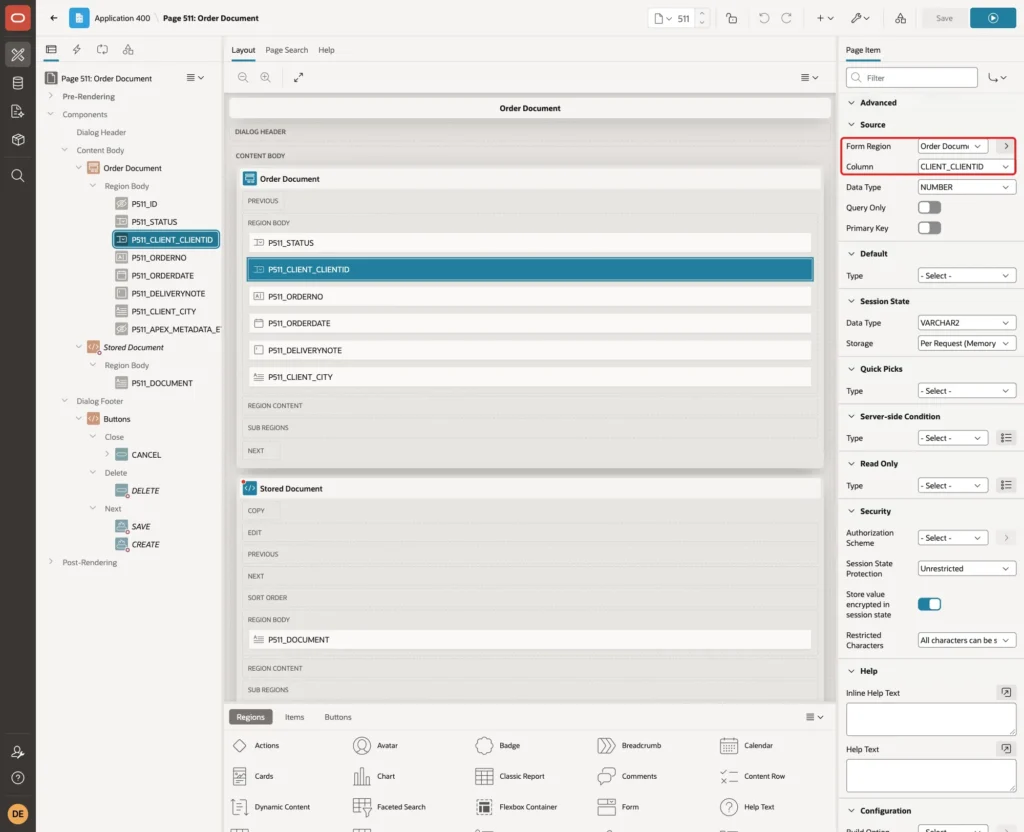
Turn on Value Required and set Template to Required - Floating. Under Source, the item still uses Form Region Order Document and Column CLIENT_CLIENTID. Changing this value changes the foreign key of the order, as the SQL test in Step 2 showed:
Step 10: Make the Client Fields Read-Only
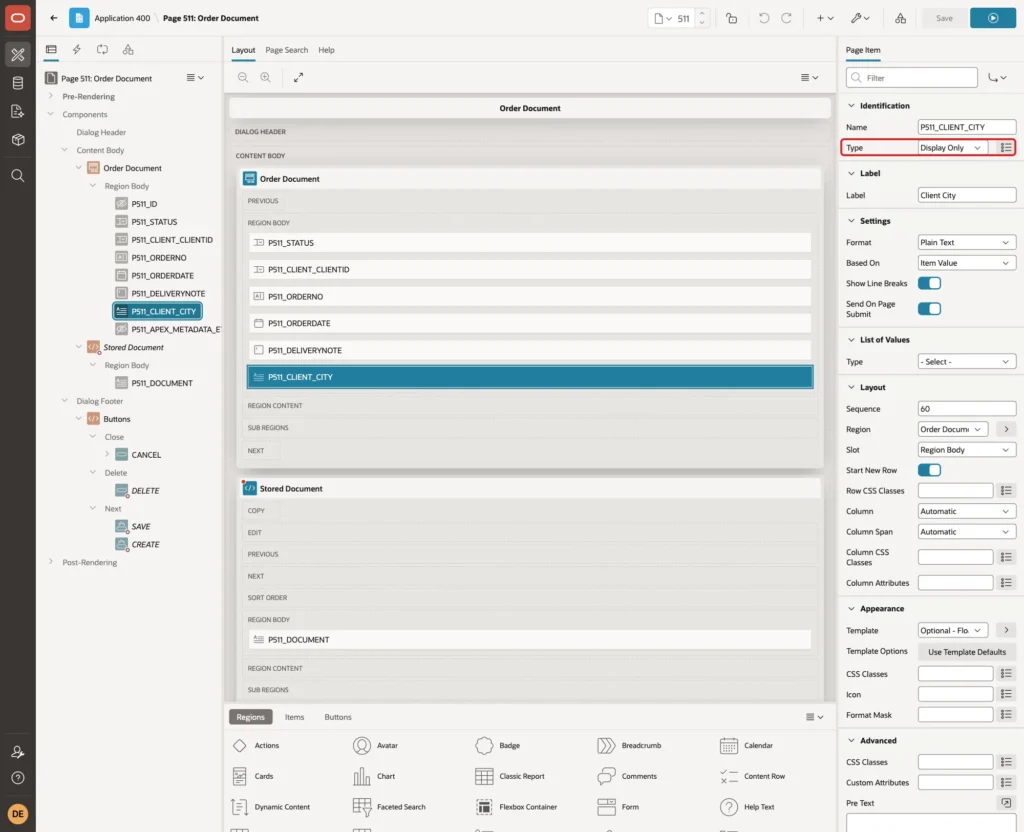
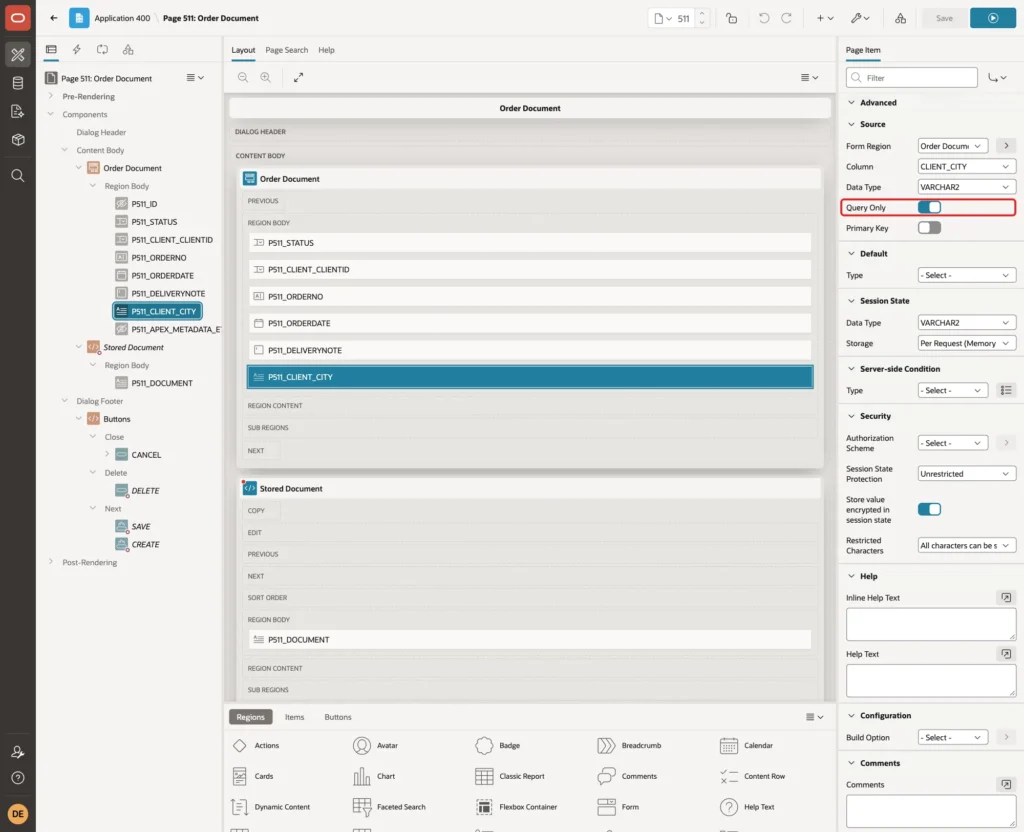
The client name and city come from WEB_CLIENTS, which is NOUPDATE in the view. Select P511_CLIENT_CLIENTNAME and delete it, because the Client select list already shows the name.
Select P511_CLIENT_CITY and set Type to Display Only:
Under Source, turn on Query Only. APEX then reads the city but never writes it back:
Also rename the other items. Change their labels Orderno to Order No, Orderdate to Order Date and Deliverynote to Delivery Note. Turn on Value Required for Order No and Order Date, set Maximum Length 20 on Order No and 400 on Delivery Note, the sizes of the table columns.
Step 11: Add the ETag to the Form
APEX forms have their own lost update detection: on save, APEX compares the values of the form columns with the row in the database. In a first test, without the step below, another session changed the quantity of a line of WO-1001 while the form was open. Saving a new status then worked without a message.
The line was not lost: APEX writes only the mapped fields, and the new quantity stayed. But the user saved a document that had changed since they opened it. The etag covers the whole document, including the lines, so add it to the form.
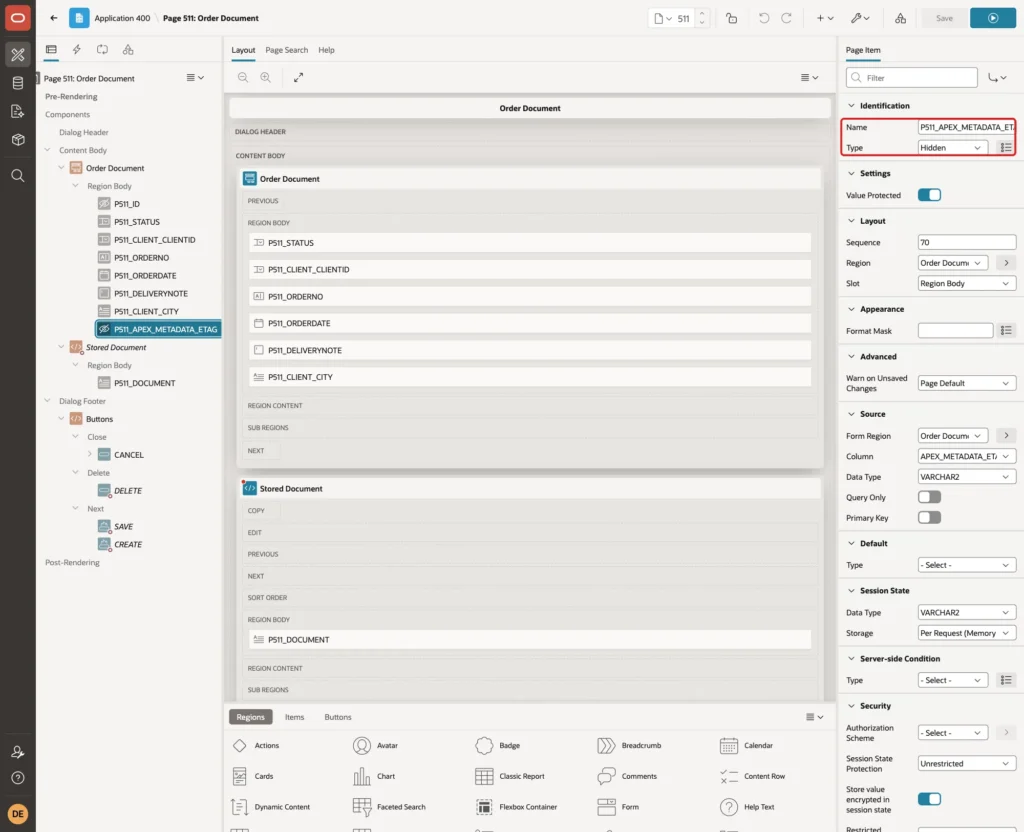
Right-click the Order Document region, click Create Page Item, and name it P511_APEX_METADATA_ETAG. Set Type to Hidden:
Under Source, set Form Region to Order Document, Column to APEX_METADATA_ETAG and Data Type to VARCHAR2:
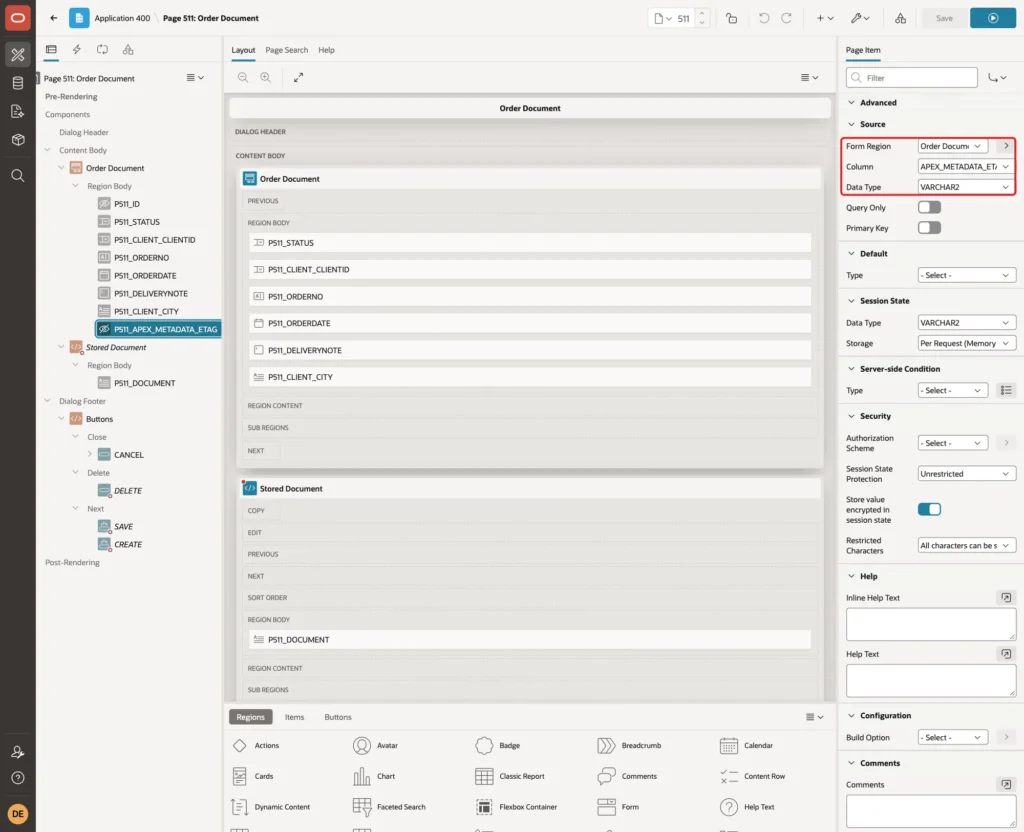
Keep Value Protected on, which is the default for hidden items. The etag is now part of the form columns, so a change anywhere in the document stops the save. Step 15 tests it.
Step 12: Show the Stored Document
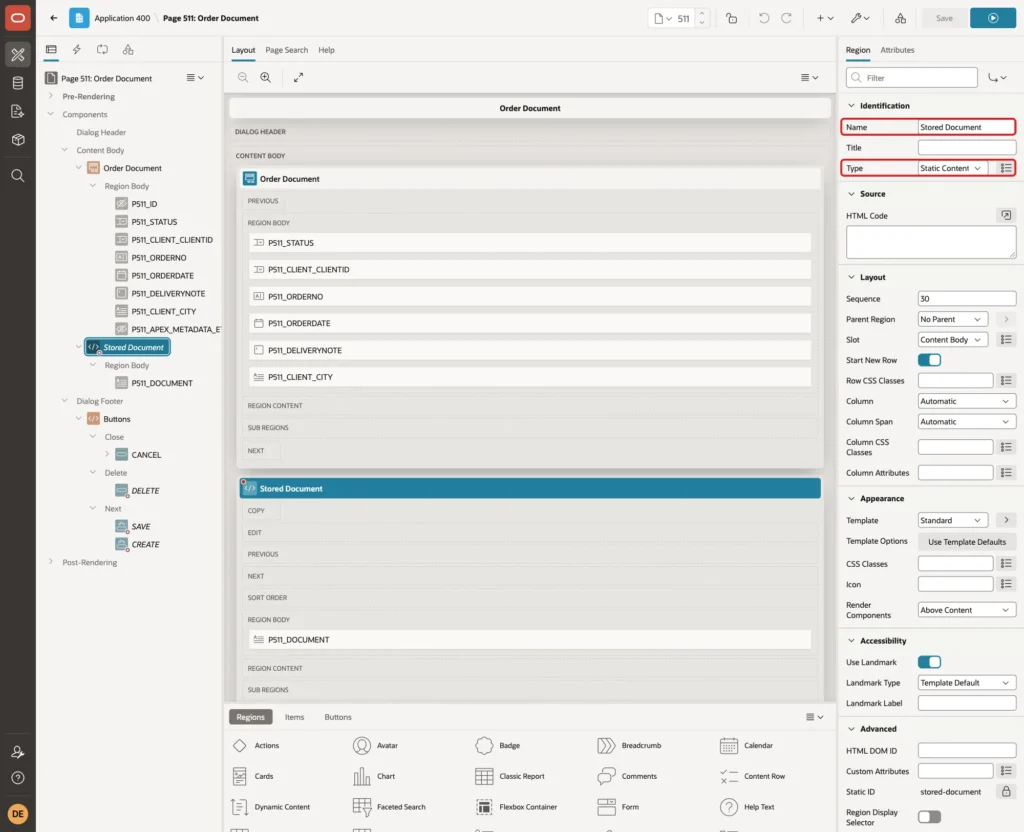
A read-only view of the JSON document helps to understand what the form changes. Right-click Content Body, click Create Region, and name it Stored Document. Keep Type Static Content:
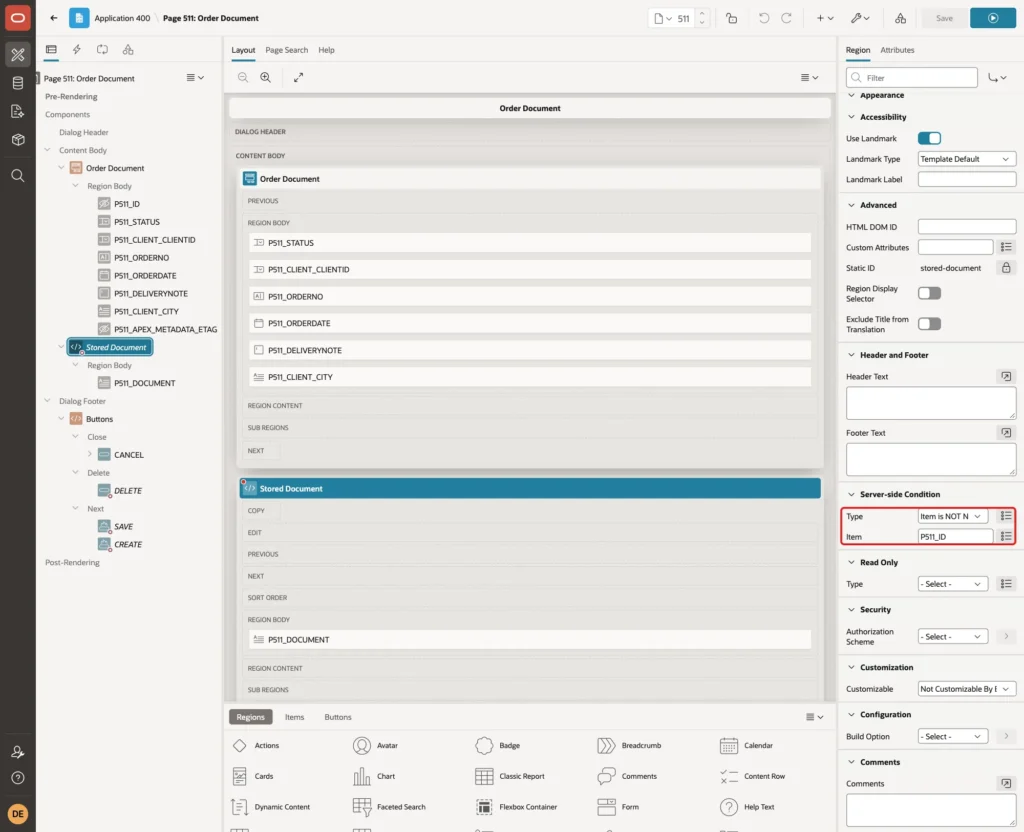
Under Server-side Condition, set Type to Item is NOT NULL and Item to P511_ID, so the region appears only for existing orders:
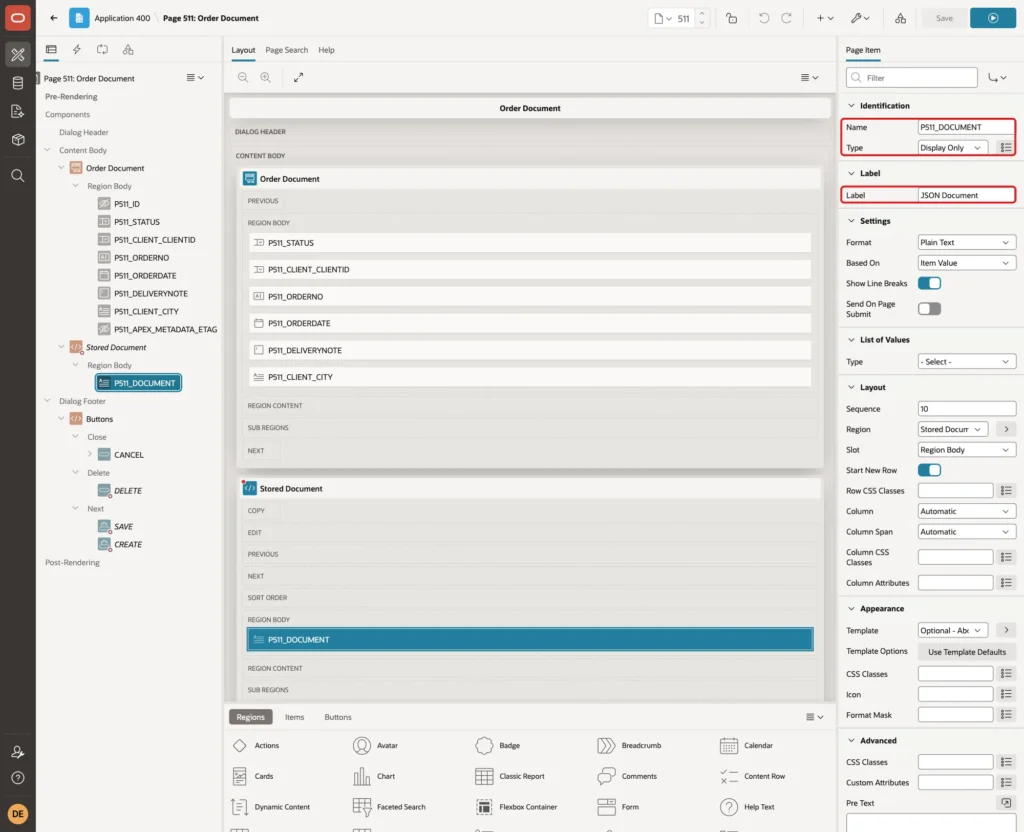
Create a page item P511_DOCUMENT in this region. Set Type to Display Only and Label to JSON Document:
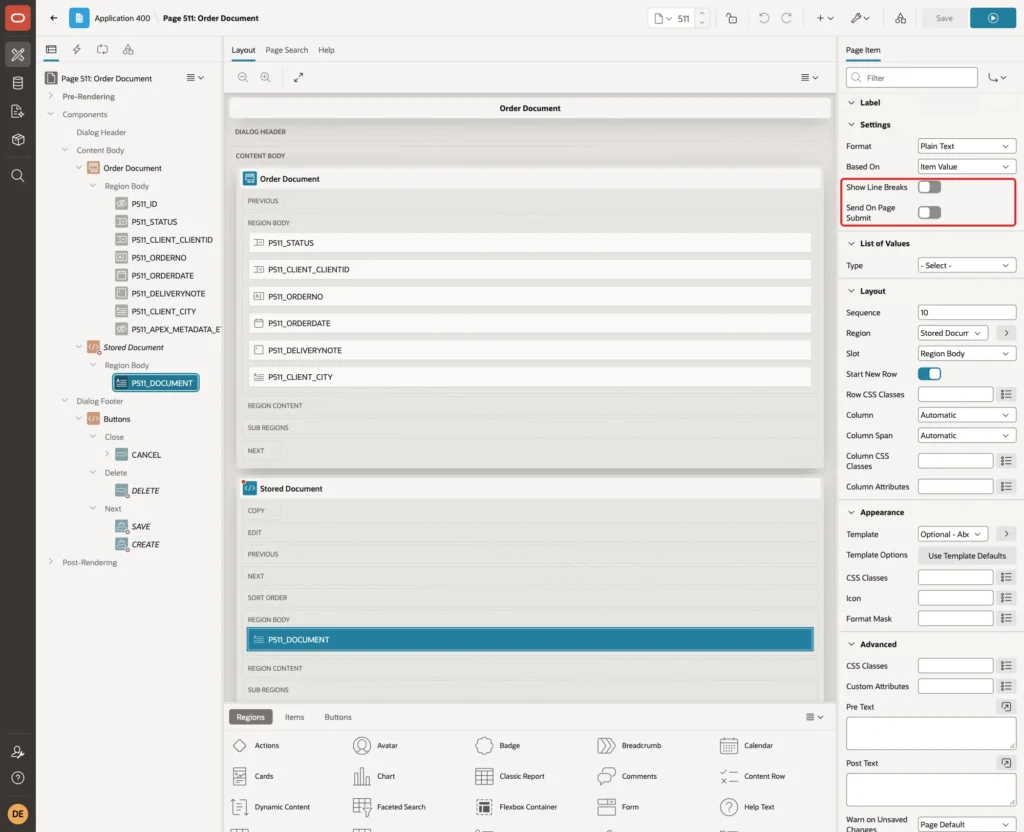
Under Settings, turn off Show Line Breaks and Send On Page Submit. The document is only shown, never sent back:
Under Source, set Type to SQL Query (return single value), enter this query, and set Used to Always, replacing any existing value in session state:
Example:
select json_serialize(v.data pretty)
from   web_order_dv v
where  json_value(v.data, '$._id' returning number) = :P511_ID
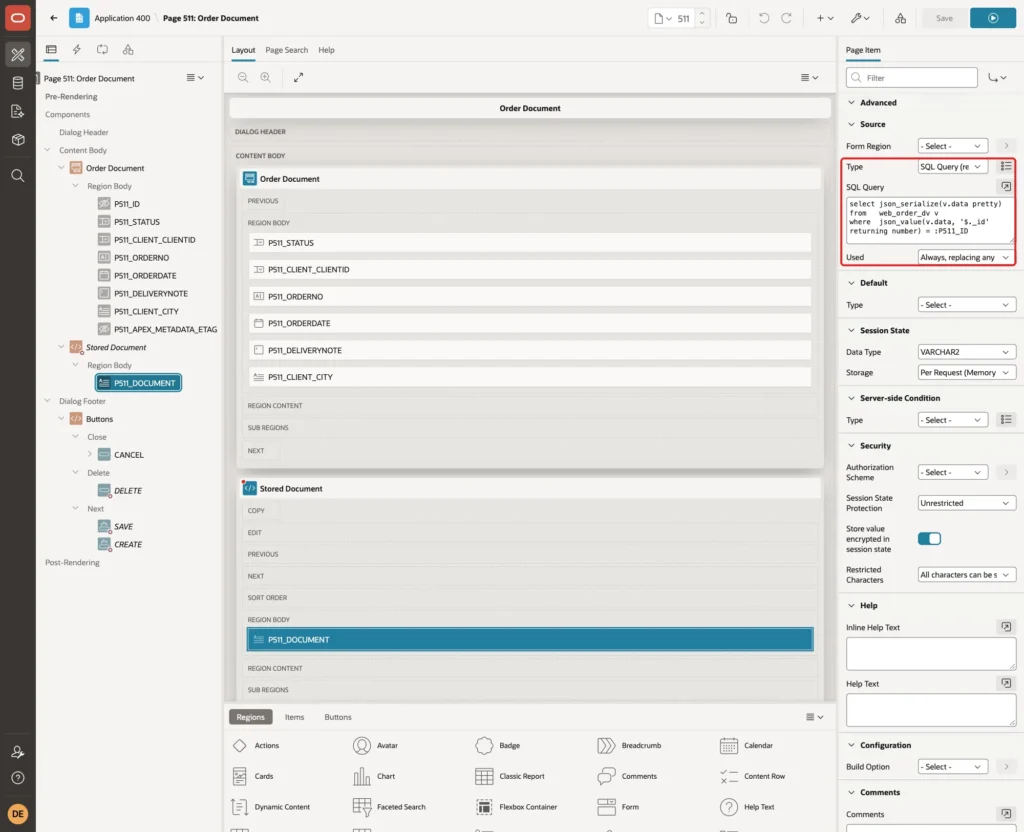
Display Only items escape special characters by default, so the JSON text is shown safely. Select the page node (Page 511: Order Document) and enter this CSS under CSS, Inline, so the document keeps its indentation and scrolls:
Example:
#P511_DOCUMENT { display: block; white-space: pre; font-family: monospace; font-size: 12px; font-weight: 400; max-height: 320px; overflow: auto; }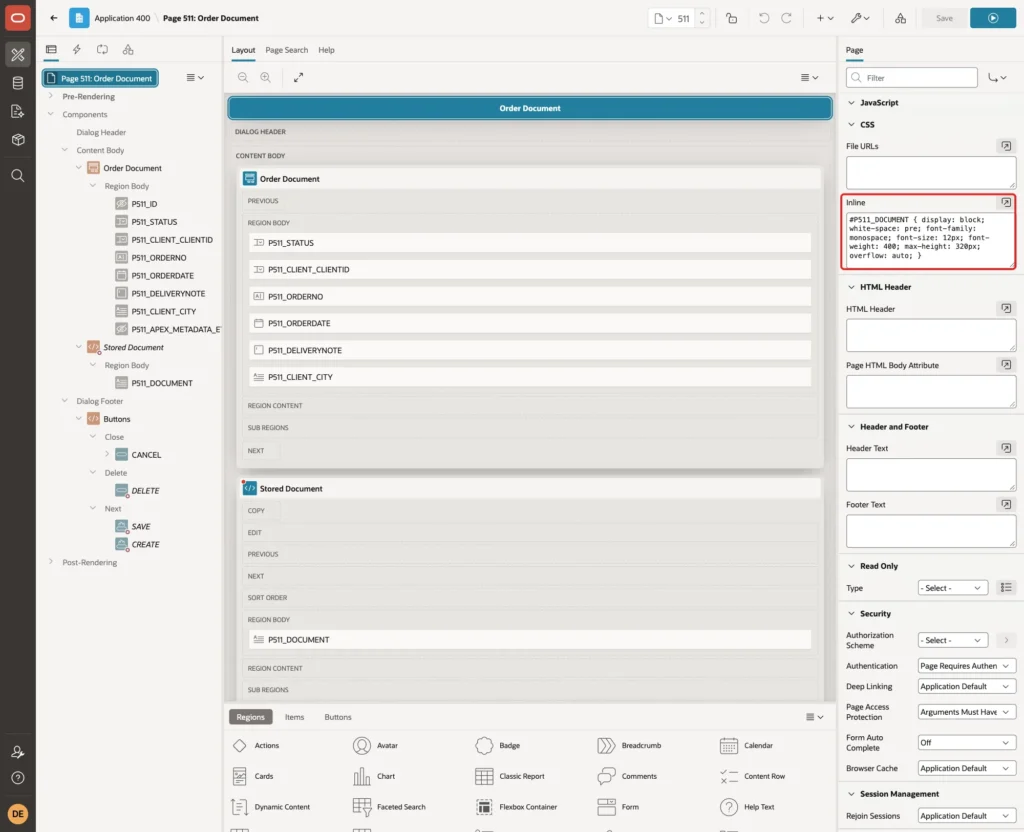
Step 13: Check That the Order No Is Unique
The unique constraint WEB_ORDERS_NO_UK protects the order number. In a first test, a new order with the existing number WO-1001 failed with only a general message: ORA-42692: Cannot insert into JSON Relational Duality View 'APXSOL'.'WEB_ORDER_DV': Error while inserting into table 'WEB_ORDERS'.
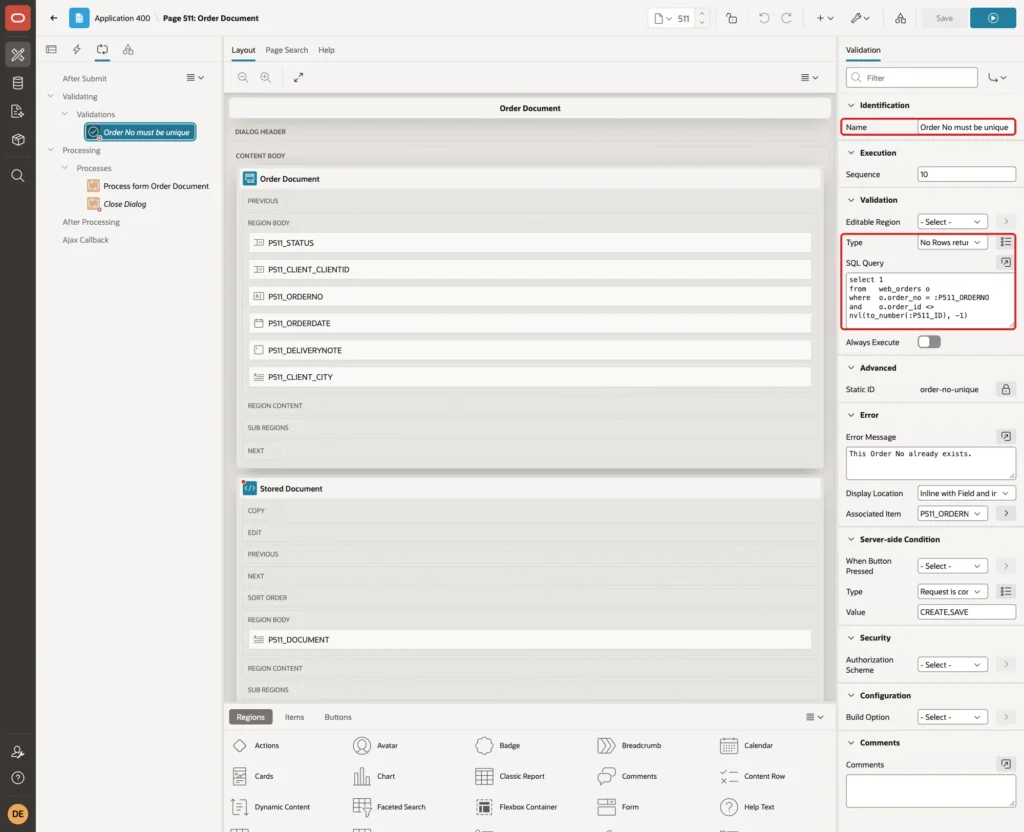
A validation gives users a clear message. In the Processing tab, right-click Validating, click Create Validation, and name it Order No must be unique. Set Type to No Rows returned and enter this query:
Example:
select 1
from   web_orders o
where  o.order_no = :P511_ORDERNO
and    o.order_id <> nvl(to_number(:P511_ID), -1)
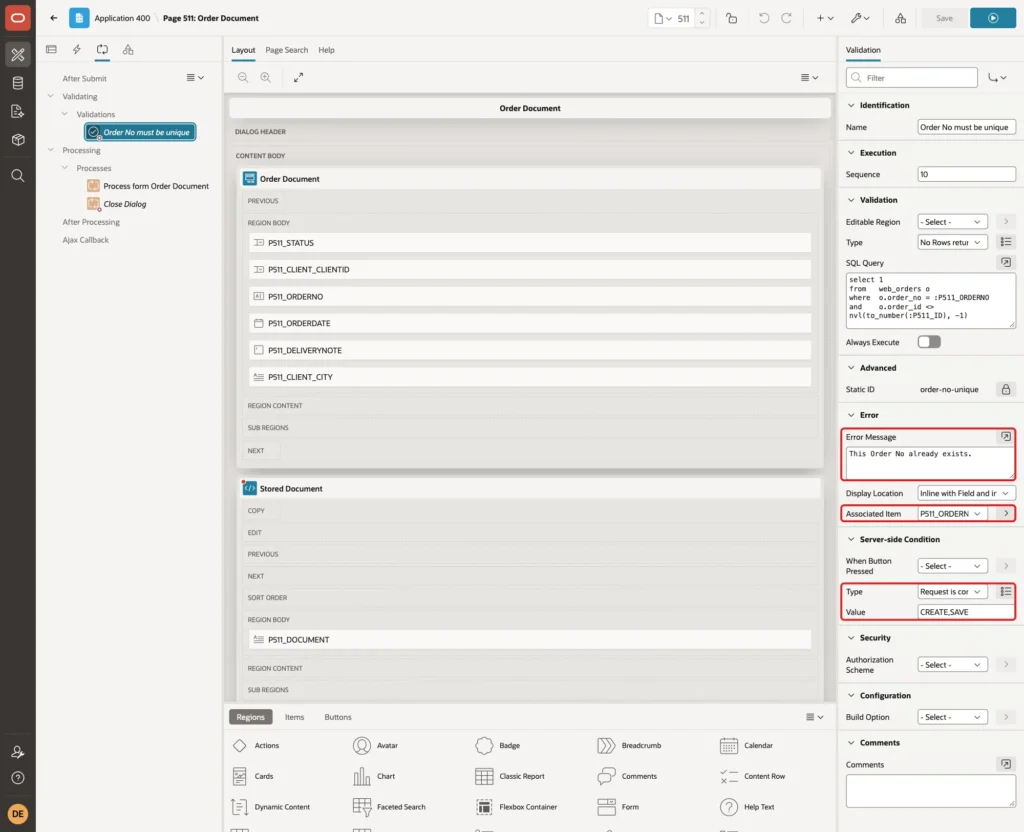
Set the Error Message to This Order No already exists., Associated Item to P511_ORDERNO, and under Server-side Condition set Type to Request is contained in Value with Value CREATE,SAVE. The query skips the order itself, so saving an order with its own number still works. The constraint stays as the final protection.
Step 14: Tidy the Report Columns
Open page 510. Under the Order Documents region, expand Columns. Change the headings Orderno, Orderdate, Deliverynote and Client Clientname to Order No, Order Date, Delivery Note and Client. Select CLIENT_CLIENTID and set Type to Hidden:
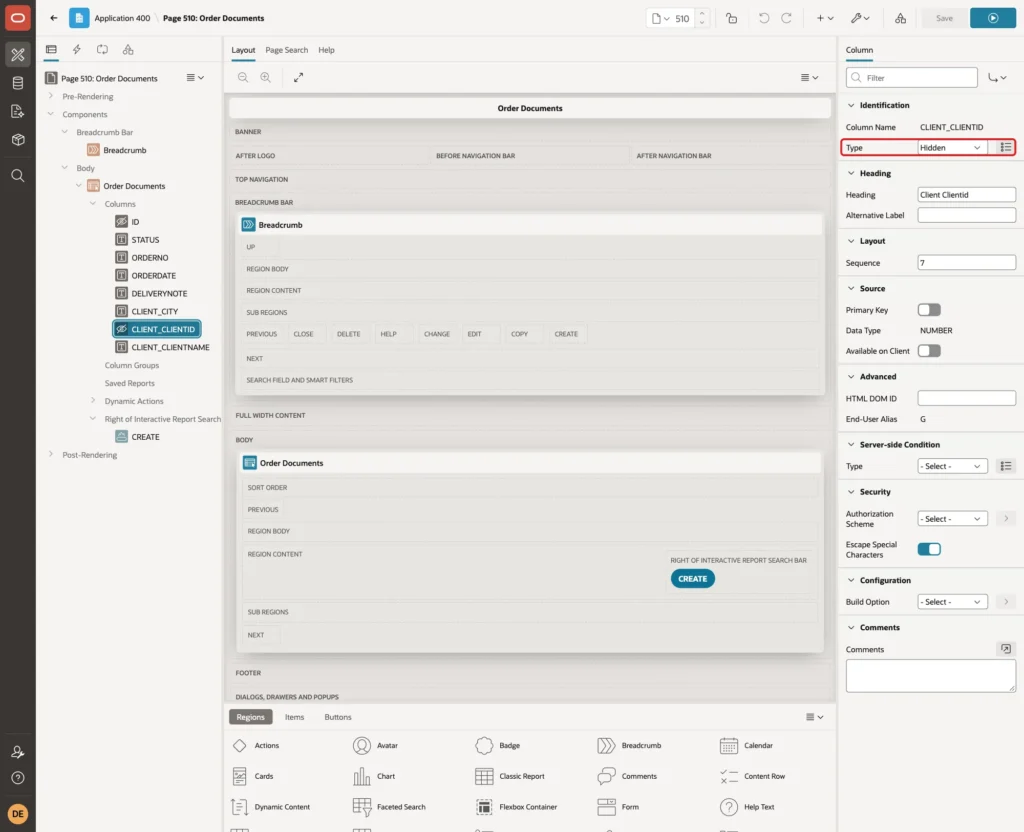
Click Save.
Step 15: Test the Form
Run page 510. The report shows one row per order document, with the client name and city from the nested client object:
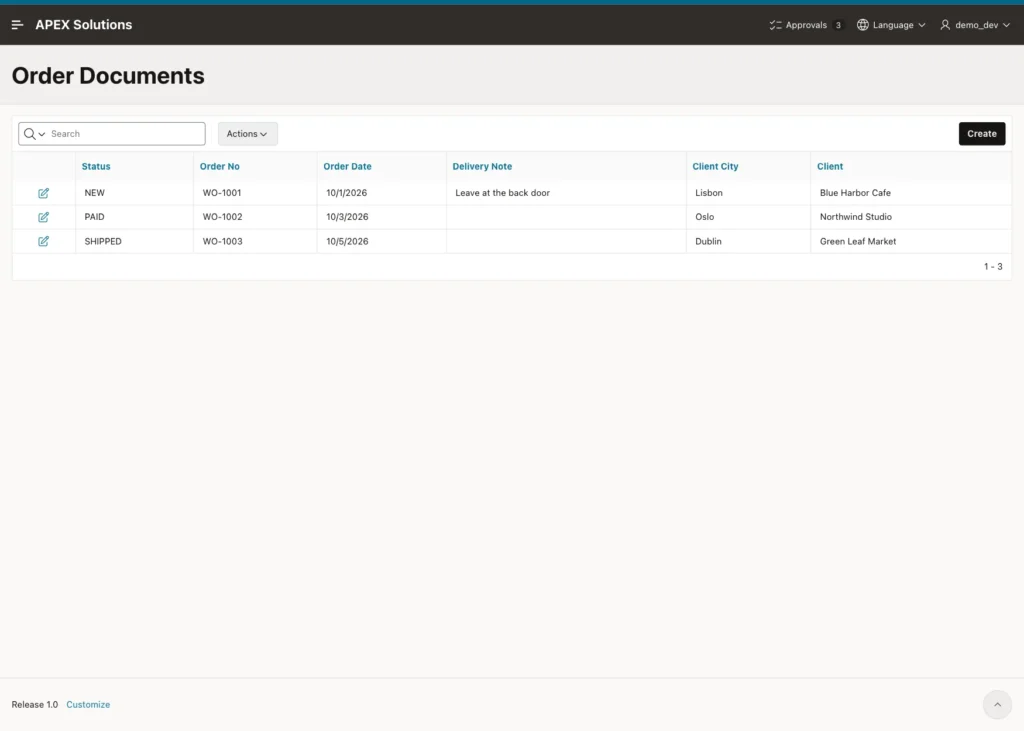
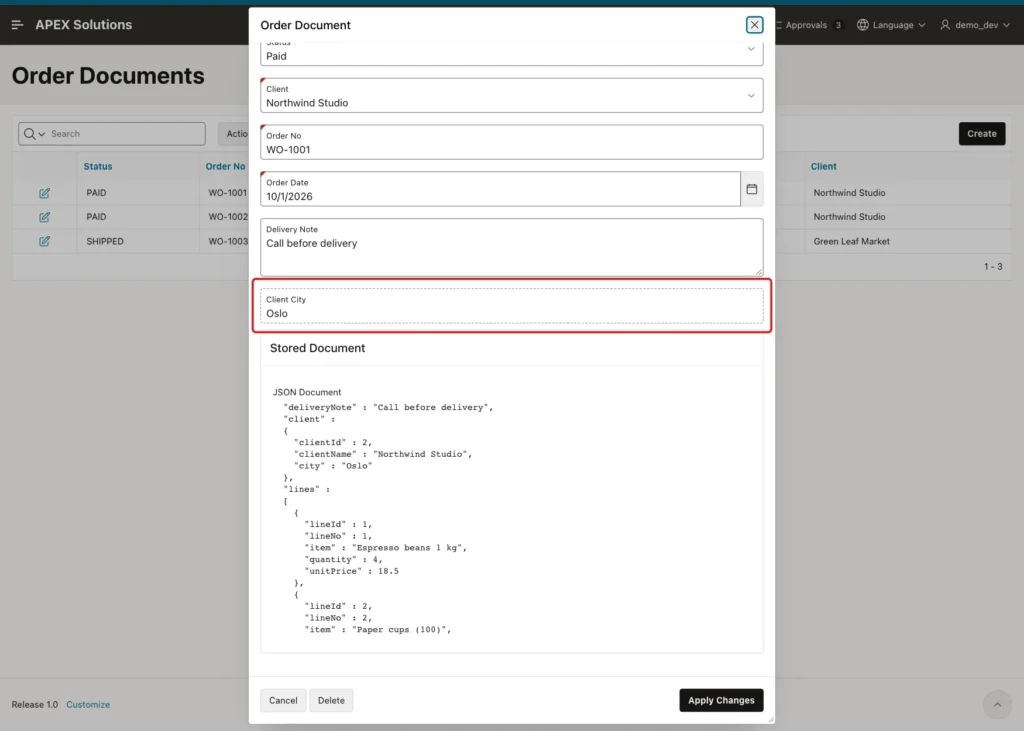
Click the edit icon of WO-1001. The form shows the order fields, the client as a select list, the city as display only, and the stored document below:
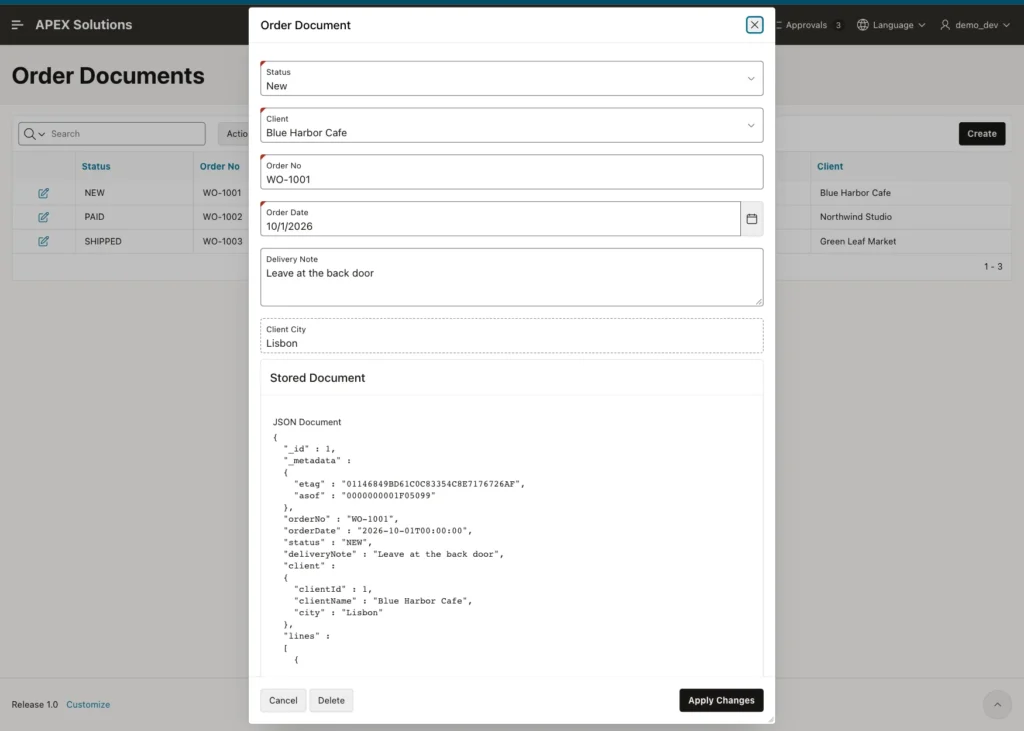
Update an Order
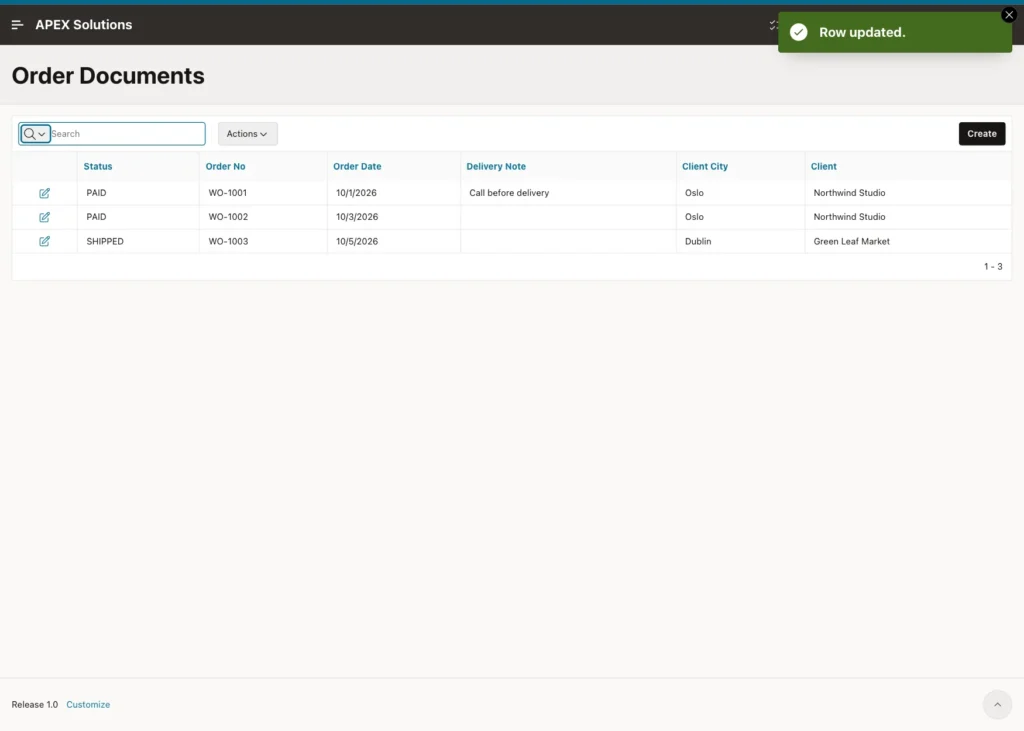
Change Status to Paid, Client to Northwind Studio and Delivery Note to Call before delivery, then click Apply Changes:
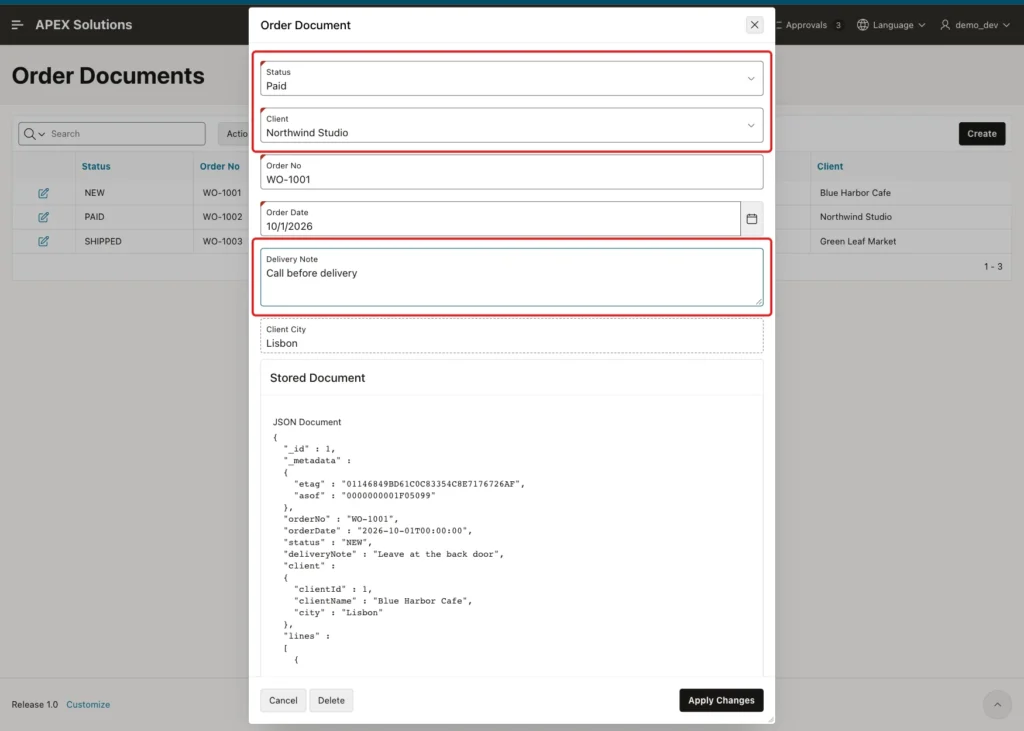
APEX shows Row updated. The report now shows Oslo as the city of WO-1001, because the order points to another client:
Check the tables in SQL:
Example:
select o.order_id, o.order_no, o.client_id, c.client_name, o.status, o.delivery_note
from   web_orders o join web_clients c on c.client_id = o.client_id
order  by o.order_id;
Output:
   ORDER_ID ORDER_NO       CLIENT_ID CLIENT_NAME          STATUS     DELIVERY_NOTE
___________ ___________ ____________ ____________________ __________ _______________________
          1 WO-1001                2 Northwind Studio     PAID       Call before delivery
          2 WO-1002                2 Northwind Studio     PAID
          3 WO-1003                3 Green Leaf Market    SHIPPED
WEB_ORDERS has the new status, delivery note and CLIENT_ID 2. WEB_CLIENTS did not change. The lines of WO-1001 are also unchanged:
Example:
select order_id, line_no, item_name, quantity, unit_price
from   web_order_lines
order  by order_id, line_no;
Output:
   ORDER_ID    LINE_NO ITEM_NAME                 QUANTITY    UNIT_PRICE
___________ __________ ______________________ ___________ _____________
          1          1 Espresso beans 1 kg              4          18.5
          1          2 Paper cups (100)                10           6.2
          2          1 Studio lamp                      2            79
          3          1 Fruit crates                    25           3.4
          3          2 Price labels (500)               1            12
Open WO-1001 again. The Client City is Oslo, and the stored document now has the client object of Northwind Studio, while the lines are the same:
Create an Order
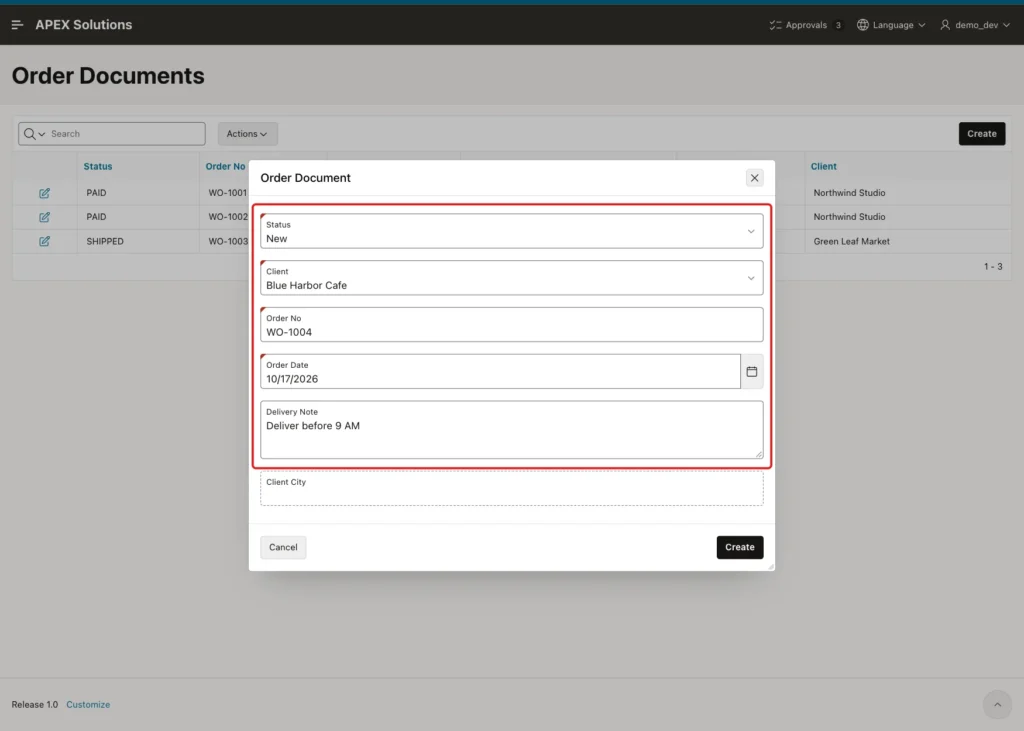
Close the dialog and click Create. Status is already New from the default, and the Stored Document region is hidden. Select Blue Harbor Cafe, enter Order No WO-1004, Order Date 10/17/2026 and Delivery Note Deliver before 9 AM, and click Create:
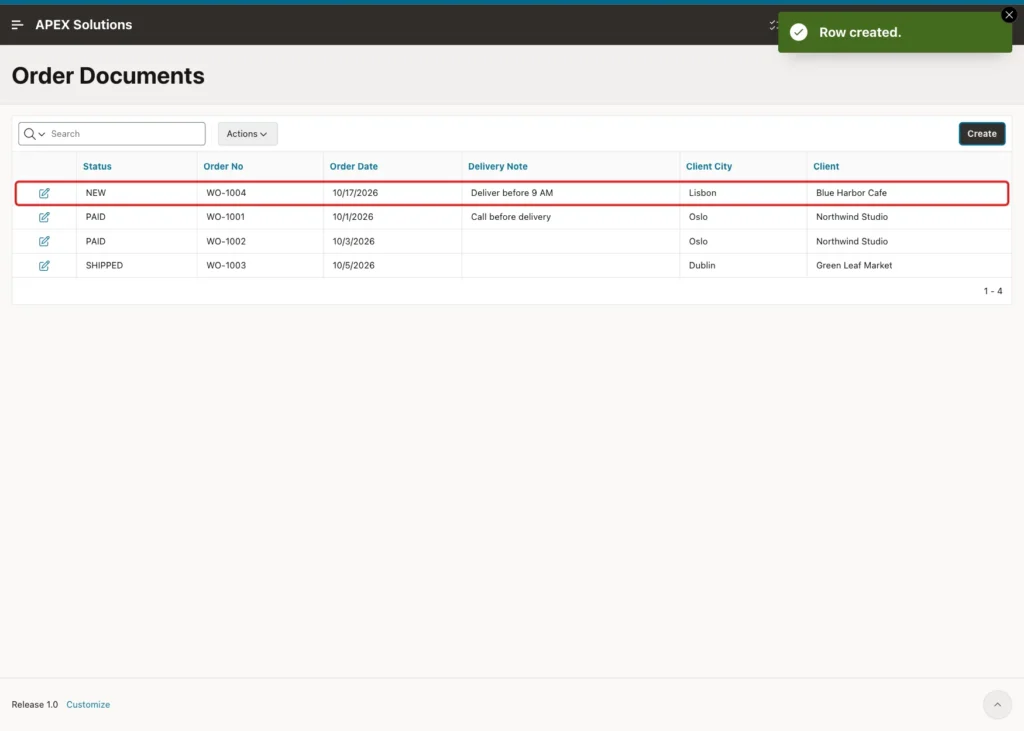
APEX shows Row created, and WO-1004 appears in the report:
Example:
select o.order_id, o.order_no, o.client_id, o.order_date, o.status, o.delivery_note
from   web_orders o
order  by o.order_id;

select client_id, client_name, city
from   web_clients
order  by client_id;
Output:
   ORDER_ID ORDER_NO       CLIENT_ID ORDER_DATE    STATUS     DELIVERY_NOTE
___________ ___________ ____________ _____________ __________ _______________________
          1 WO-1001                2 01-10-26      PAID       Call before delivery
          2 WO-1002                2 03-10-26      PAID
          3 WO-1003                3 05-10-26      SHIPPED
         44 WO-1004                1 17-10-26      NEW        Deliver before 9 AM

   CLIENT_ID CLIENT_NAME          CITY
____________ ____________________ _________
           1 Blue Harbor Cafe     Lisbon
           2 Northwind Studio     Oslo
           3 Green Leaf Market    Dublin
The insert through the view created the WEB_ORDERS row, and the identity column generated ORDER_ID 44. The gap comes from earlier test inserts, because identity values are not gap-free. No client row was inserted, since WEB_CLIENTS is NOINSERT.
Try a Duplicate Order No
Click Create again, select Green Leaf Market, enter Order No WO-1001 and a date, and click Create. The validation from Step 13 stops the save:
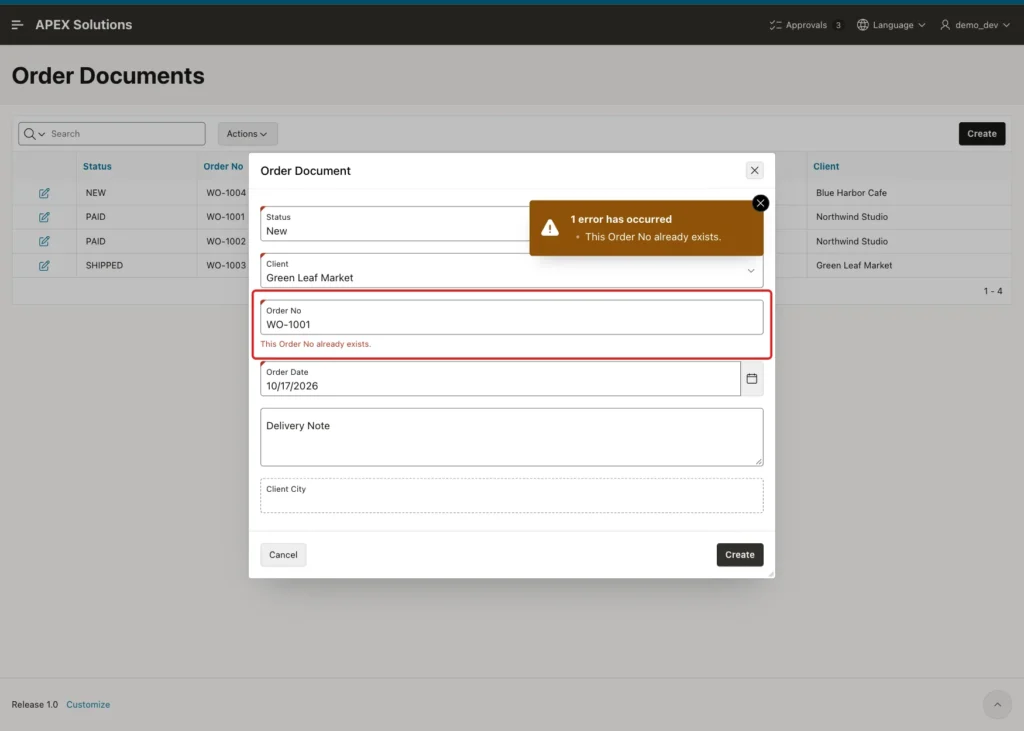
Changing the number of WO-1002 to WO-1003 and clicking Apply Changes showed the same message. Saving WO-1002 with its own number worked.
Delete an Order
Open WO-1004 and click Delete. APEX asks for confirmation:
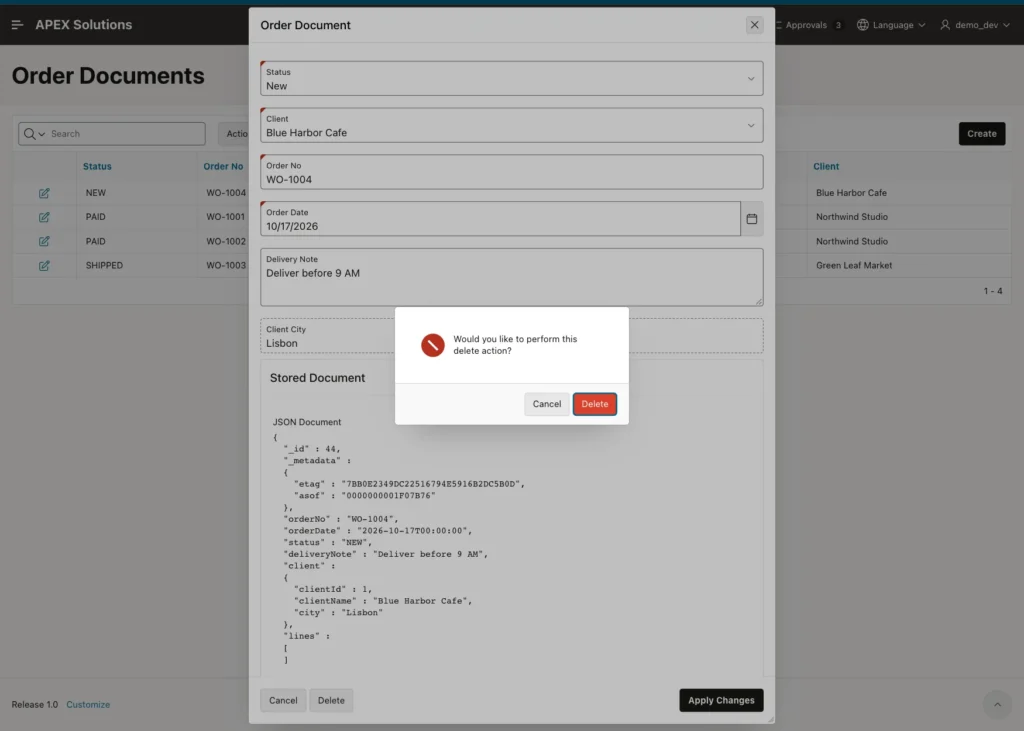
Click Delete. APEX deletes the document through the view, and the row is gone from WEB_ORDERS, as the final query below shows.
Save After Another Session Changed the Document
Open WO-1003. While the form is open, another session changes only a line of this order:
Example:
update web_order_lines
set    quantity = 30
where  order_id = 3
and    line_no = 1;

commit;
Output:
1 row updated.

Commit complete.
In the form, change Status to Cancelled and click Apply Changes. APEX stops the save:
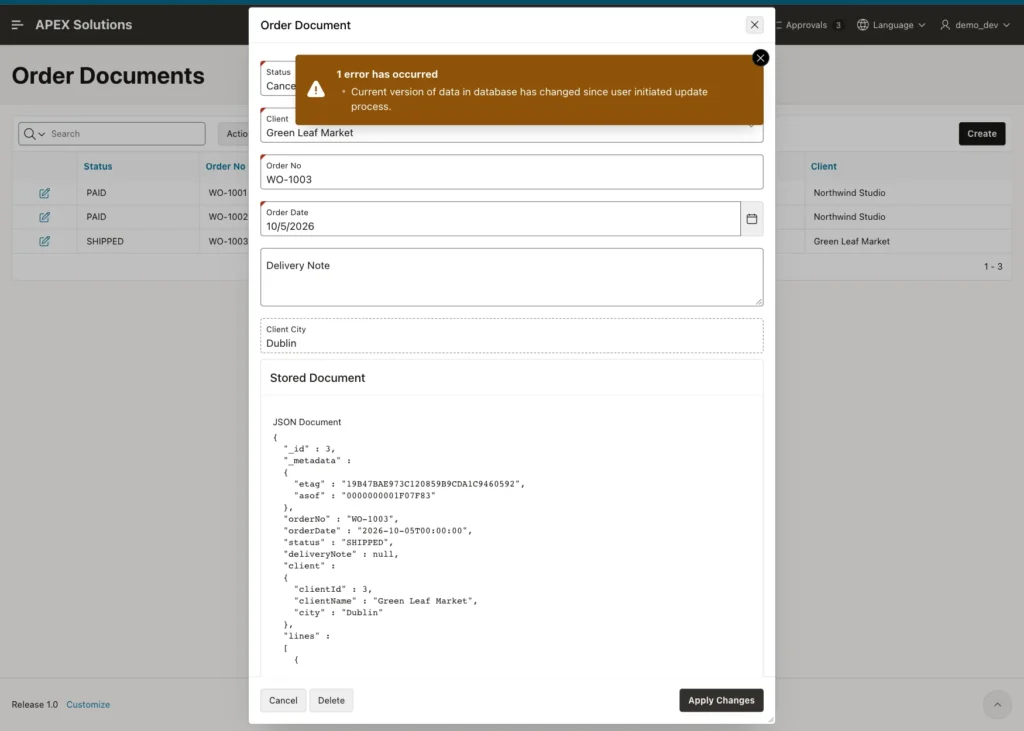
None of the visible fields changed, but the etag did, because the lines are part of the document. Close the dialog and open WO-1003 again: the stored document shows "quantity" : 30, and saving Cancelled now works. The final state of the tables:
Example:
select o.order_id, o.order_no, o.client_id, o.status, o.delivery_note
from   web_orders o
order  by o.order_id;

select order_id, line_no, item_name, quantity
from   web_order_lines
order  by order_id, line_no;
Output:
   ORDER_ID ORDER_NO       CLIENT_ID STATUS       DELIVERY_NOTE
___________ ___________ ____________ ____________ _______________________
          1 WO-1001                2 PAID         Call before delivery
          2 WO-1002                2 PAID
          3 WO-1003                3 CANCELLED

   ORDER_ID    LINE_NO ITEM_NAME                 QUANTITY
___________ __________ ______________________ ___________
          1          1 Espresso beans 1 kg              4
          1          2 Paper cups (100)                10
          2          1 Studio lamp                      2
          3          1 Fruit crates                    30
          3          2 Price labels (500)               1
WO-1004 is deleted, WO-1003 is Cancelled, and the quantity 30 from the other session is kept.
Things to Know
- The Create Page wizard lists only JSON Duality View components from Shared Components. Create the component first, then the pages.
- The data profile marked the date field as Has Time Zone, and the report failed with ORA-01843. Turning off Has Time Zone on the ORDERDATE column fixed the report and the form.
- The annotations of the duality view are the real security. A change to a NOUPDATE field fails with ORA-40940 in the form too, so make such items Display Only with Query Only, or remove them.
- Changing a nested key like client.clientId changes the foreign key of the order. It does not change the client row.
- On update, APEX writes only the mapped fields. Lines and other fields outside the form stay as they are.
- APEX checks for lost updates on the form columns only. Add the APEX_METADATA_ETAG column as a hidden item to detect any change in the document.
- Errors from the view hide the original constraint error (ORA-42692 instead of the unique key error), so add validations with clear messages for the rules users can break.
Related Guides
- Oracle APEX Data Sources: REST, Data Loads, and Duality Views
- How to Publish JSON Duality Views through ORDS
Conclusion
To build a form on a JSON Relational Duality View in Oracle APEX, create a JSON Duality View component in Shared Components, check the date columns of its data profile, and create the report and form pages on it. The form then reads and writes the document, and the database updates the tables behind it.
Keep the read-only parts of the document out of the save, add the etag as a hidden item for a full change check, and give users clear validation messages. The duality view annotations and the table constraints stay the final protection for every program that uses the data.
