
An administrator who creates an account also knows the first password. A safer start is to make the user choose a new password at the first sign-in, before anything else in the application opens. The same rule helps after an administrator resets a forgotten password.
Oracle APEX has this feature built in for its own accounts. For your own user table you add a flag and a redirect. This guide shows both ways and tests what a user can still reach while the flag is on.
The guide How to Let Users Change Their Own Password in Oracle APEX covers a voluntary change from a page the user opens. Create Change Password Screen for Custom Authentication in Oracle Apex builds a change screen for custom users. This guide adds the part that forces the change and blocks everything else until it is done.
Step 1: Force the Change for Oracle APEX Accounts
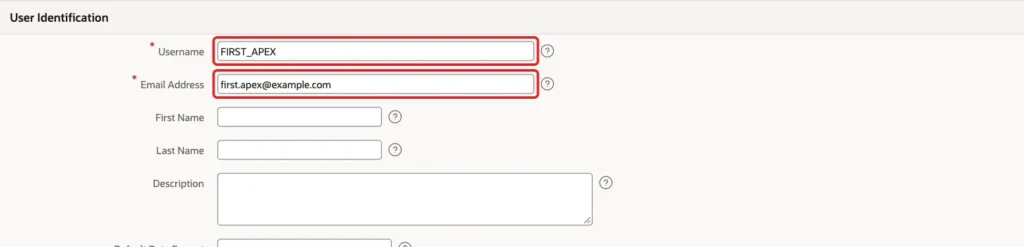
Oracle APEX accounts need no code. Open Administration, click Manage Users and Groups and then Create User. Enter a Username and an Email Address:
In the Password group, enter the temporary password twice. The switch Require Change of Password on First Use is on by default. Leave it on and click Create User:

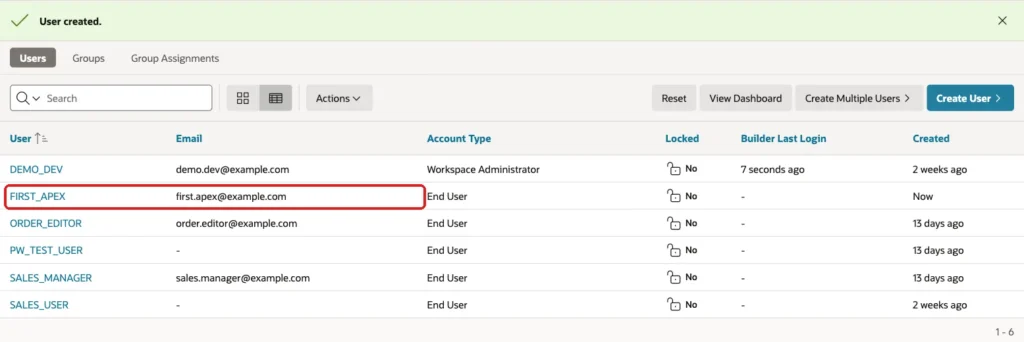
The list shows the new account as an End User:
The same can be done in SQL. The call below creates a second account the same way. APEX_UTIL.EXPIRE_END_USER_ACCOUNT forces a change for an account that already exists, for example after a password reset:
Example:
exec apex_util.set_workspace('SOLUTIONS')

begin
  apex_util.create_user(
    p_user_name                    => 'FIRST_APEX2',
    p_email_address                => 'first.apex2@example.com',
    p_web_password                 => '<temporary password for FIRST_APEX2>',
    p_change_password_on_first_use => 'Y');
  commit;
end;
/

select user_name, account_locked, failed_access_attempts
from   apex_workspace_apex_users
where  user_name like 'FIRST_APEX%'
order  by user_name;
Output:
PL/SQL procedure successfully completed.

PL/SQL procedure successfully completed.

USER_NAME      ACCOUNT_LOCKED       FAILED_ACCESS_ATTEMPTS
______________ _________________ _________________________
FIRST_APEX     No                                        0
FIRST_APEX2    No                                        0
Example:
exec apex_util.set_workspace('SOLUTIONS')

begin
  apex_util.expire_end_user_account(p_user_name => 'FIRST_APEX');
  commit;
end;
/

select user_name, account_expiry
from   apex_workspace_apex_users
where  user_name like 'FIRST_APEX%'
order  by user_name;
Output:
PL/SQL procedure successfully completed.

PL/SQL procedure successfully completed.

USER_NAME      ACCOUNT_EXPIRY
______________ _________________
FIRST_APEX     11-09-26
FIRST_APEX2    26-10-26
The flag is stored as an account expiry date. The account FIRST_APEX shows a date in the past after the call, and FIRST_APEX2 shows the day it was created. An expired date means that the next sign-in must change the password.
The next test signed in to the application as an account created this way. The sign-in did not open the application. It opened the change page of Oracle APEX with the message that the password must be changed:
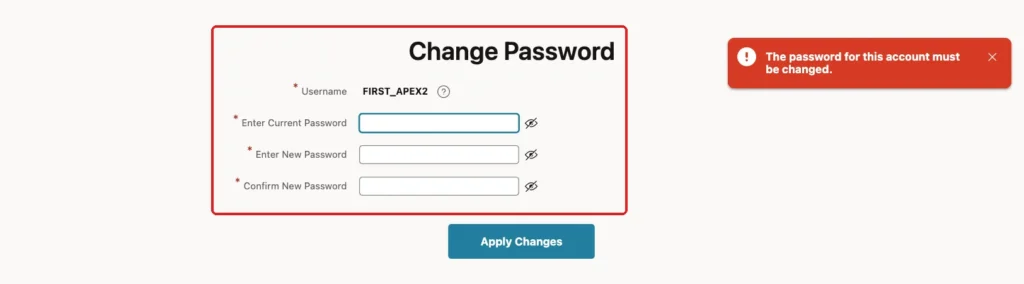
The screenshot shows the account created with SQL, which looks the same as the account created on the page. These results were checked:
- Opening the home page or any other page of the application at that point led back to the sign-in page. The user has no session until the password is changed.
- Different values in the two new password fields gave the message Confirmation password does not match password.
- A wrong current password gave the message Invalid Password.
- After a change, the page returned to the sign-in page, and the new password opened the home page without another prompt.
- EXPIRE_END_USER_ACCOUNT on the account FIRST_APEX brought the change page back at the next sign-in.
One result needs care. In a first test, the new password abc was accepted. The sample instance had no password rules set, only a list of allowed characters, so the built-in page checked nothing but the match. Set the password rules of the instance in Manage Instance before you rely on this page.
The built-in page cannot be changed, and it has no rules of your own. If you need your own rules, a flag in your own table, or a page in the style of your application, use the custom method in the next steps.
Step 2: Create the Table for Custom Accounts
The custom method uses its own user table. PORTAL_USERS holds the salt, the password hash and the flag MUST_CHANGE_PW. The flag is Y for a new account, so an administrator cannot forget to set it. A check constraint allows only Y and N.
Example:
create table portal_users (
  user_id             number generated by default on null as identity,
  username            varchar2(50 char)  not null,
  password_salt       raw(16)            default on null sys_guid() not null,
  password_hash       varchar2(128 char) not null,
  must_change_pw      varchar2(1 char)   default on null 'Y' not null,
  password_changed_on timestamp with time zone,
  created_on          date               default on null sysdate not null,
  constraint portal_users_pk primary key (user_id),
  constraint portal_users_uk unique (username),
  constraint portal_users_user_ck check (username = upper(username)),
  constraint portal_users_must_ck check (must_change_pw in ('Y', 'N'))
);

select table_name, constraint_name, constraint_type
from   user_constraints
where  table_name = 'PORTAL_USERS'
and    constraint_name not like 'SYS%'
order  by constraint_type, constraint_name;
Output:
Table PORTAL_USERS created.

TABLE_NAME      CONSTRAINT_NAME         CONSTRAINT_TYPE
_______________ _______________________ __________________
PORTAL_USERS    PORTAL_USERS_MUST_CK    C
PORTAL_USERS    PORTAL_USERS_USER_CK    C
PORTAL_USERS    PORTAL_USERS_PK         P
PORTAL_USERS    PORTAL_USERS_UK         U
A few details in the table:
- USERNAME is unique and must be in upper case, so a user name cannot exist twice in different case.
- MUST_CHANGE_PW, the salt and CREATED_ON use DEFAULT ON NULL, so an insert does not need to set them.
- PASSWORD_CHANGED_ON stays empty until the user chooses a password, so it also tells you who never did.
The two sample accounts are created with a procedure of the package from the next step. FIRST_NEW keeps the flag. FIRST_REGULAR had its password changed, so its flag is N. Replace the placeholders with your own test passwords:
Example:
begin
  first_login.create_user('FIRST_NEW',     '<temporary password for FIRST_NEW>');
  first_login.create_user('FIRST_REGULAR', '<temporary password for FIRST_REGULAR>');
  commit;
end;
/

update portal_users set must_change_pw = 'N', password_changed_on = systimestamp
where  username = 'FIRST_REGULAR';
commit;

select user_id, username, must_change_pw, password_changed_on
from   portal_users
order  by user_id;
Output:
PL/SQL procedure successfully completed.

1 row updated.

Commit complete.

   USER_ID USERNAME         MUST_CHANGE_PW    PASSWORD_CHANGED_ON
__________ ________________ _________________ ____________________________________
         1 FIRST_NEW        Y
         2 FIRST_REGULAR    N                 26-10-26 2:58:15.952255000 PM GMT
Step 3: Create the Package
The package has the authentication function, a function that tells if the flag is set, the password rules and the procedure that changes the password. One place for the rules means the page and the SQL tests use the same code.
Example:
create or replace package first_login as
  c_min_length constant pls_integer := 10;

  procedure create_user (p_username in varchar2, p_temp_password in varchar2);
  procedure reset_password (p_username in varchar2, p_temp_password in varchar2);
  function  authenticate (p_username in varchar2, p_password in varchar2) return boolean;
  function  must_change (p_username in varchar2) return boolean;
  function  password_problem (p_username in varchar2, p_old in varchar2, p_new in varchar2) return varchar2;
  procedure change_password (p_username in varchar2, p_old in varchar2, p_new in varchar2);
end first_login;
/
create or replace package body first_login as

  function hash_password (p_salt in raw, p_password in varchar2) return varchar2 is
    l_hash varchar2(128 char);
  begin
    select standard_hash(utl_raw.cast_to_raw(p_password) || p_salt, 'SHA512')
    into   l_hash
    from   dual;
    return l_hash;
  end hash_password;

  procedure create_user (p_username in varchar2, p_temp_password in varchar2) is
    l_salt portal_users.password_salt%type := sys_guid();
    l_hash portal_users.password_hash%type := hash_password(l_salt, p_temp_password);
  begin
    insert into portal_users (username, password_salt, password_hash, must_change_pw)
    values (upper(p_username), l_salt, l_hash, 'Y');
  end create_user;

  procedure reset_password (p_username in varchar2, p_temp_password in varchar2) is
    l_salt portal_users.password_salt%type := sys_guid();
    l_hash portal_users.password_hash%type := hash_password(l_salt, p_temp_password);
  begin
    update portal_users
    set    password_salt  = l_salt,
           password_hash  = l_hash,
           must_change_pw = 'Y'
    where  username = upper(p_username);
  end reset_password;

  function authenticate (p_username in varchar2, p_password in varchar2) return boolean is
    l_user portal_users%rowtype;
  begin
    select * into l_user
    from   portal_users
    where  username = upper(p_username);
    return l_user.password_hash = hash_password(l_user.password_salt, p_password);
  exception
    when no_data_found then
      return false;
  end authenticate;

  function must_change (p_username in varchar2) return boolean is
    l_flag portal_users.must_change_pw%type;
  begin
    select must_change_pw into l_flag
    from   portal_users
    where  username = upper(p_username);
    return l_flag = 'Y';
  exception
    when no_data_found then
      return false;
  end must_change;

  function password_problem (p_username in varchar2, p_old in varchar2, p_new in varchar2) return varchar2 is
  begin
    if p_new is null or length(p_new) < c_min_length then
      return 'Use at least ' || c_min_length || ' characters.';
    elsif not regexp_like(p_new, '[A-Z]') or not regexp_like(p_new, '[a-z]') or not regexp_like(p_new, '[0-9]') then
      return 'Use upper case letters, lower case letters and a digit.';
    elsif p_new = p_old then
      return 'The new password must be different from the current password.';
    elsif instr(upper(p_new), upper(p_username)) > 0 then
      return 'The password must not contain the user name.';
    end if;
    return null;
  end password_problem;

  procedure change_password (p_username in varchar2, p_old in varchar2, p_new in varchar2) is
    l_salt    portal_users.password_salt%type := sys_guid();
    l_hash    portal_users.password_hash%type;
    l_problem varchar2(200 char);
  begin
    if not authenticate(p_username, p_old) then
      raise_application_error(-20001, 'The current password is not correct.');
    end if;
    l_problem := password_problem(p_username, p_old, p_new);
    if l_problem is not null then
      raise_application_error(-20002, l_problem);
    end if;
    l_hash := hash_password(l_salt, p_new);
    update portal_users
    set    password_salt       = l_salt,
           password_hash       = l_hash,
           must_change_pw      = 'N',
           password_changed_on = systimestamp
    where  username = upper(p_username);
  end change_password;

end first_login;
/
show errors
Output:
Package FIRST_LOGIN compiled

Package Body FIRST_LOGIN compiled

No errors.
How the package works:
- AUTHENTICATE compares the SHA-512 hash of the password and the salt. It returns FALSE for an unknown user name and does not reveal which part was wrong.
- MUST_CHANGE returns TRUE only when the flag is Y. A user who is not in the table, such as an Oracle APEX account, gets FALSE.
- PASSWORD_PROBLEM returns the text of the first broken rule or NULL. The rules are a length of 10, upper case, lower case and a digit, a new value, and no user name inside the password.
- CHANGE_PASSWORD checks the current password again, checks the rules, writes a new salt and hash, sets the flag to N and records the time.
- RESET_PASSWORD is the administrator call. It sets a temporary password and the flag to Y in one update.
The hash is enough for this guide. For a real application, use a slow hashing method or keep the users in Oracle APEX accounts or an identity provider.
Step 4: Test the Package in SQL
The test below signs in with the temporary password, tries four bad new passwords and then a good one. A bad attempt must leave the flag at Y. The labels show what each call did. The placeholders stand for the real test passwords:
Example:
set serveroutput on
declare
  procedure show (p_label in varchar2, p_value in varchar2) is
  begin
    dbms_output.put_line(rpad(p_label, 34) || p_value);
  end show;

  function yn (p_value in boolean) return varchar2 is
  begin
    return case when p_value then 'TRUE' else 'FALSE' end;
  end yn;

  procedure try_change (p_label in varchar2, p_old in varchar2, p_new in varchar2) is
  begin
    first_login.change_password('FIRST_NEW', p_old, p_new);
    show(p_label, 'changed');
  exception
    when others then
      show(p_label, sqlerrm);
  end try_change;
begin
  show('Temporary password works?', yn(first_login.authenticate('FIRST_NEW', '<temporary password for FIRST_NEW>')));
  show('Must change?', yn(first_login.must_change('FIRST_NEW')));
  show('Regular user must change?', yn(first_login.must_change('FIRST_REGULAR')));
  try_change('Wrong current password', 'not-the-password', '<a strong new password>');
  try_change('Too short', '<temporary password for FIRST_NEW>', 'Ab1');
  try_change('No digit', '<temporary password for FIRST_NEW>', 'OnlyLettersHere');
  try_change('Same as current', '<temporary password for FIRST_NEW>', '<temporary password for FIRST_NEW>');
  try_change('Contains the user name', '<temporary password for FIRST_NEW>', 'Xfirst_new2026');
  show('Must change after failed tries?', yn(first_login.must_change('FIRST_NEW')));
  try_change('Strong new password', '<temporary password for FIRST_NEW>', '<a strong new password>');
  show('Must change after the change?', yn(first_login.must_change('FIRST_NEW')));
  show('Old password still works?', yn(first_login.authenticate('FIRST_NEW', '<temporary password for FIRST_NEW>')));
  show('New password works?', yn(first_login.authenticate('FIRST_NEW', '<a strong new password>')));
end;
/

select username, must_change_pw, password_changed_on
from   portal_users
order  by user_id;
Output:
Temporary password works?         TRUE
Must change?                      TRUE
Regular user must change?         FALSE
Wrong current password            ORA-20001: The current password is not correct.
Too short                         ORA-20002: Use at least 10 characters.
No digit                          ORA-20002: Use upper case letters, lower case letters and a digit.
Same as current                   ORA-20002: The new password must be different from the current password.
Contains the user name            ORA-20002: The password must not contain the user name.
Must change after failed tries?   TRUE
Strong new password               changed
Must change after the change?     FALSE
Old password still works?         FALSE
New password works?               TRUE

PL/SQL procedure successfully completed.

USERNAME         MUST_CHANGE_PW    PASSWORD_CHANGED_ON
________________ _________________ ____________________________________
FIRST_NEW        N                 26-10-26 2:58:44.304680000 PM GMT
FIRST_REGULAR    N                 26-10-26 2:58:15.952255000 PM GMT
The result matches the rules. The four bad attempts failed with their own messages, and the flag stayed TRUE. The good password set the flag to FALSE, the old password stopped working and the new one worked. FIRST_REGULAR was never affected.
The next call acts as an administrator who resets the password of FIRST_NEW. The flag is on again, as for a new account:
Example:
begin
  first_login.reset_password('FIRST_NEW', '<new temporary password for FIRST_NEW>');
  commit;
end;
/

select username, must_change_pw, password_changed_on
from   portal_users
order  by user_id;
Output:
PL/SQL procedure successfully completed.

USERNAME         MUST_CHANGE_PW    PASSWORD_CHANGED_ON
________________ _________________ ____________________________________
FIRST_NEW        Y                 26-10-26 2:58:44.304680000 PM GMT
FIRST_REGULAR    N                 26-10-26 2:58:15.952255000 PM GMT
Step 5: Create the Authentication Scheme
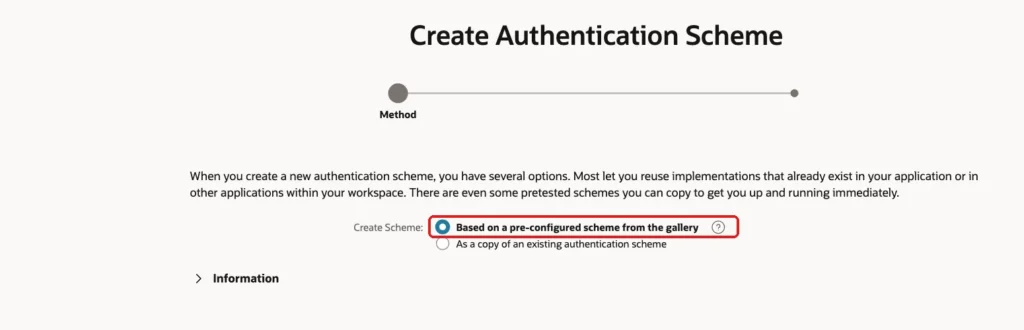
Open the application, click Shared Components, and under Security click Authentication Schemes. Click Create. Keep the first option, Based on a pre-configured scheme from the gallery, and click Next. The steps are the same as in Create Custom Authentication in 5 Easy Steps in Oracle Apex:
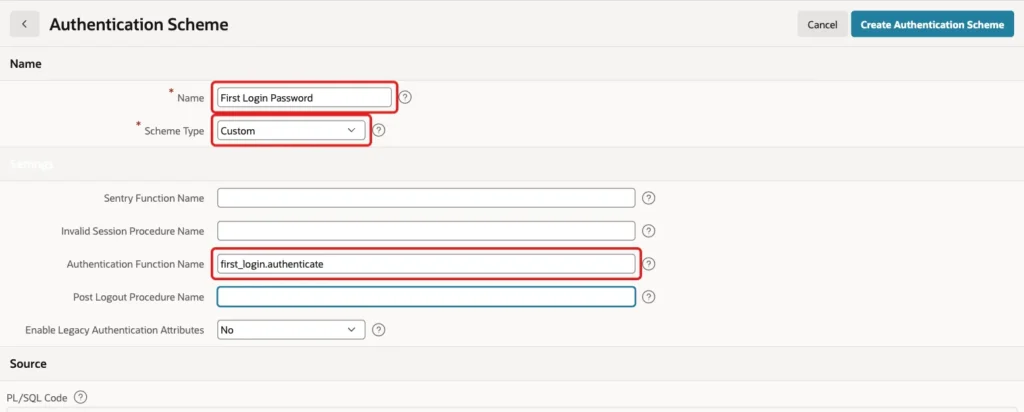
Enter the Name First Login Password and select Custom as the Scheme Type. In Authentication Function Name, enter first_login.authenticate. Then click Create Authentication Scheme:
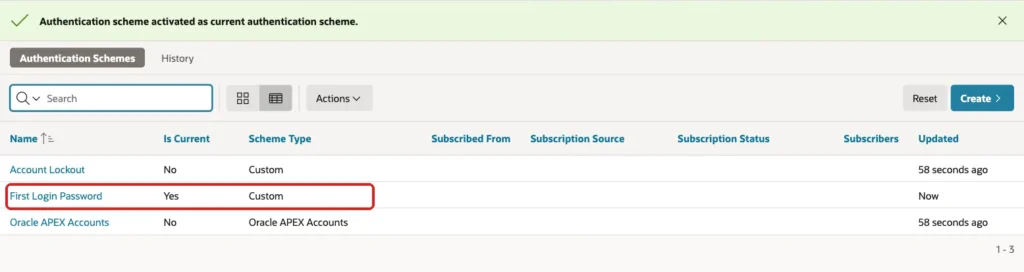
Open the new scheme and click Make Current Scheme:

Confirm the question with OK. The list shows Yes in the Is Current column for First Login Password:
Step 6: Create the Change Password Page
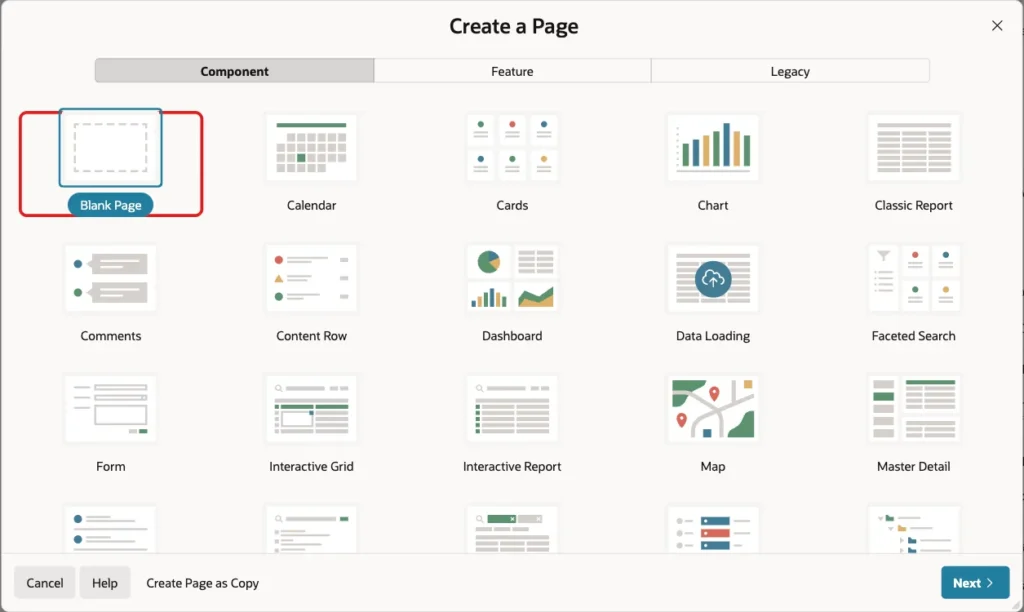
In App Builder, click Create Page. Select Blank Page and click Next:
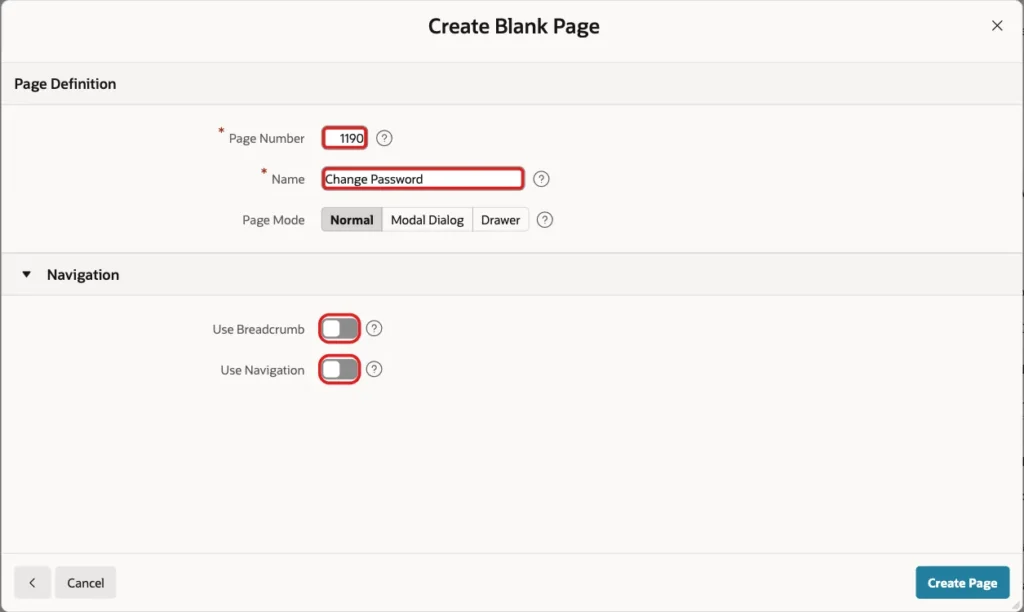
Enter Page Number 1190 and Name Change Password. Turn off Use Breadcrumb and Use Navigation. Users reach this page only by the redirect from Step 7, so it needs no menu entry. Click Create Page:
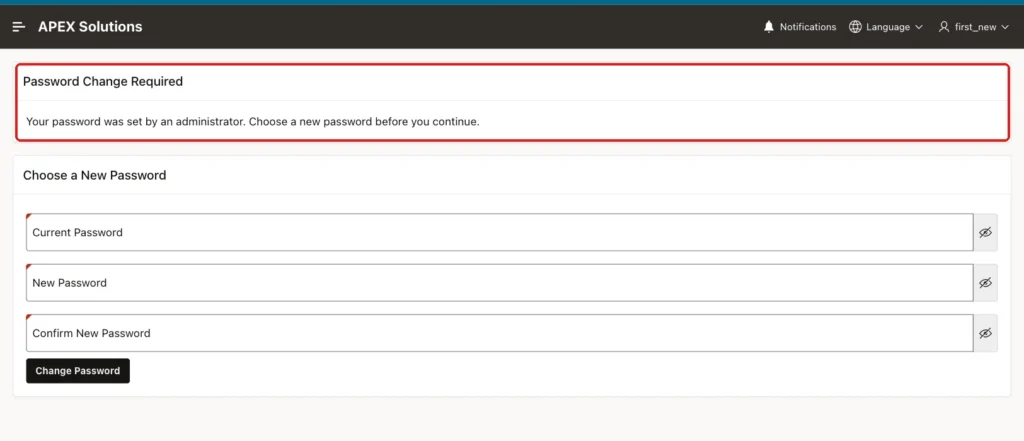
In Page Designer, add two Static Content regions. The first is named Password Change Required and has the HTML Code below. The second is named Choose a New Password and holds the items. Give the first region Sequence 10 and the second Sequence 20, so the text comes first.
Example:
<p>Your password was set by an administrator. Choose a new password before you continue.</p>
In the second region, create three items of Type Password. Name them P1190_CURRENT_PASSWORD, P1190_NEW_PASSWORD and P1190_CONFIRM_PASSWORD, with the labels Current Password, New Password and Confirm New Password. Set Value Required to on and the Template to Required - Floating for all three:
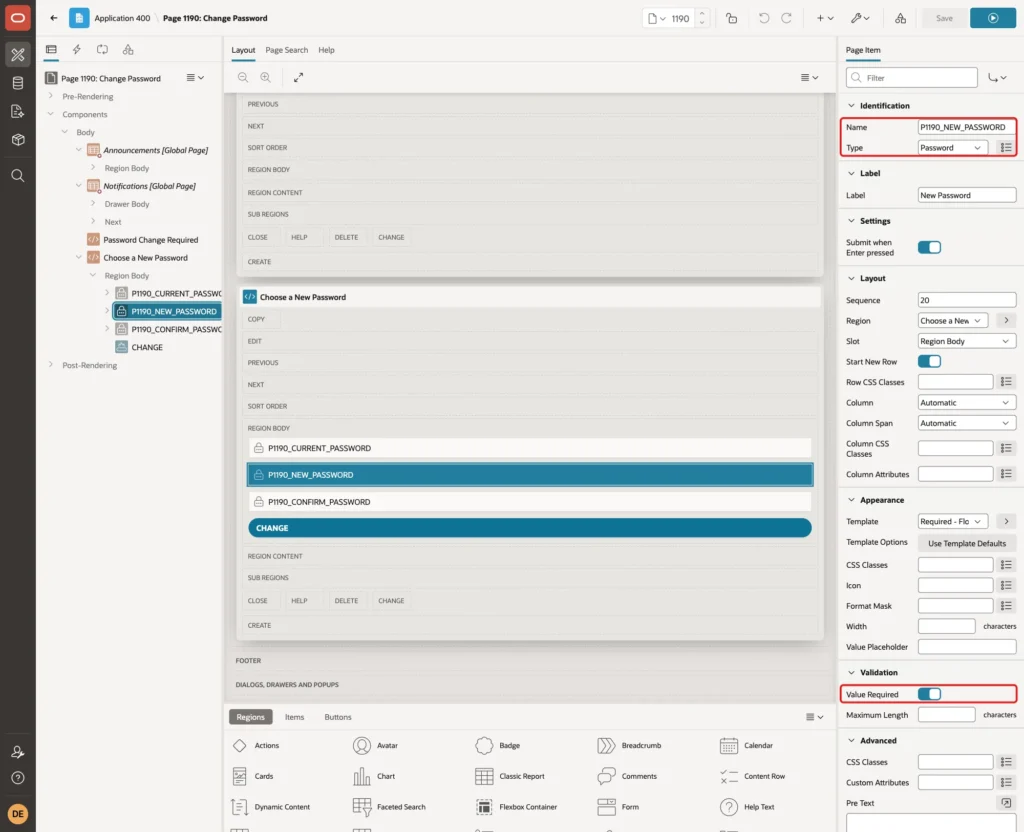
Create a button named CHANGE with the label Change Password in the same region. Turn Hot on, so it is the main button of the page.
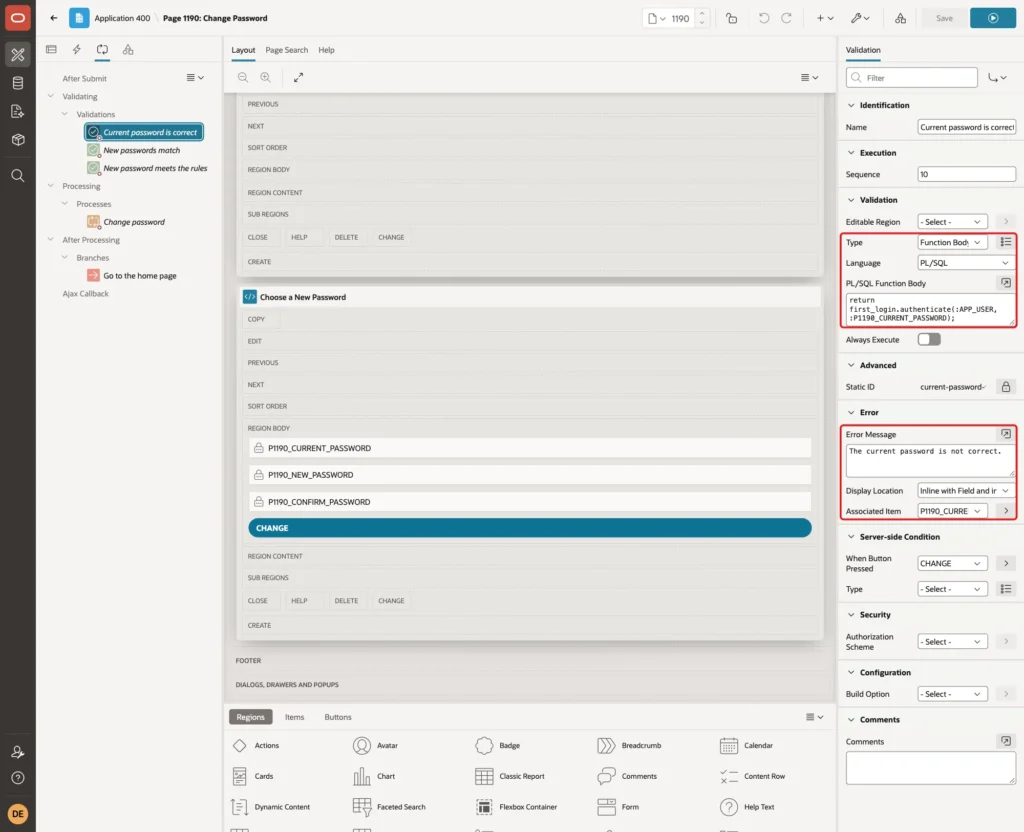
The page needs three validations, which run only when the button is pressed. Open the Processing tab and create them under Validations. The first checks the current password. Set Type to Function Body with Language PL/SQL, and enter the code below. The Error Message is The current password is not correct, and the Associated Item is P1190_CURRENT_PASSWORD:
Example:
return first_login.authenticate(:APP_USER, :P1190_CURRENT_PASSWORD);
The second validation, New passwords match, has the Type Expression with the PL/SQL expression below. The Error Message is The new passwords do not match and the Associated Item is P1190_CONFIRM_PASSWORD:
Example:
:P1190_NEW_PASSWORD = :P1190_CONFIRM_PASSWORD
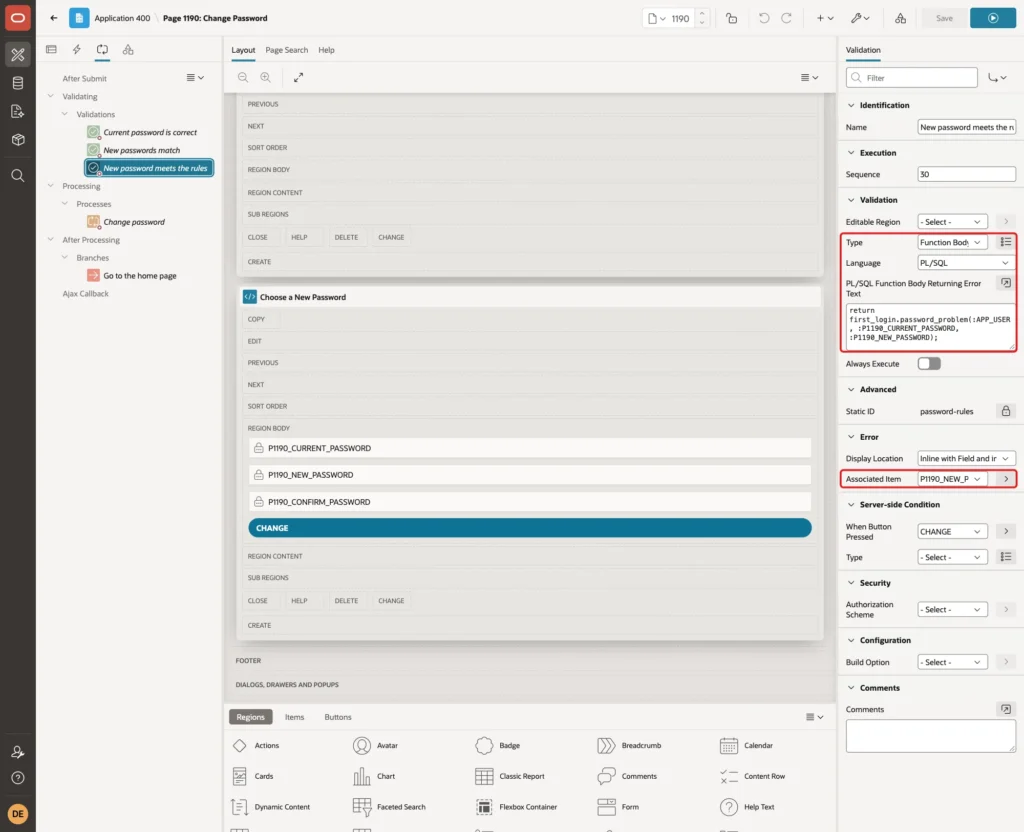
The third validation, New password meets the rules, returns the error text of the package. When the function returns NULL, the validation passes, so it has no Error Message of its own. The Associated Item is P1190_NEW_PASSWORD:
Example:
return first_login.password_problem(:APP_USER, :P1190_CURRENT_PASSWORD, :P1190_NEW_PASSWORD);
Create a process under Processing. Set Name to Change password, Type to Execute Code and the PL/SQL Code below. Set the Success Message to Your password has been changed, and the Server-side Condition When Button Pressed to CHANGE:
Example:
first_login.change_password(
    p_username => :APP_USER,
    p_old      => :P1190_CURRENT_PASSWORD,
    p_new      => :P1190_NEW_PASSWORD);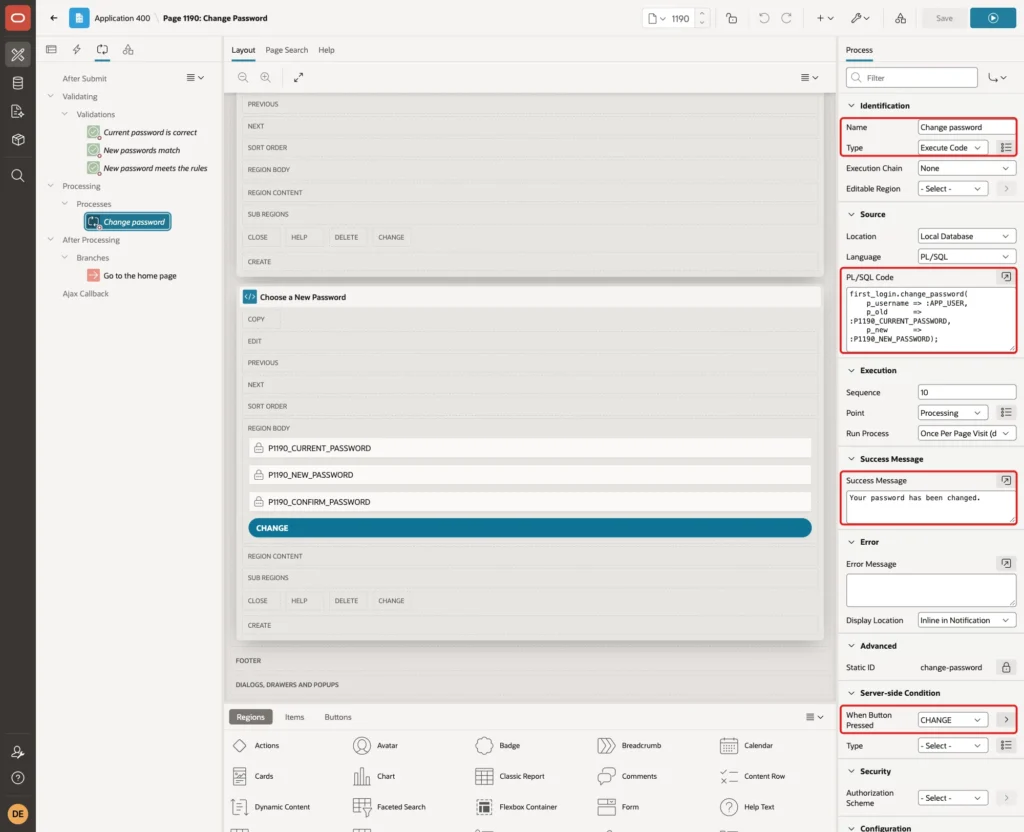
Last, create a branch under After Processing. Set Name to Go to the home page, Type to Page or URL and Target to page 1:
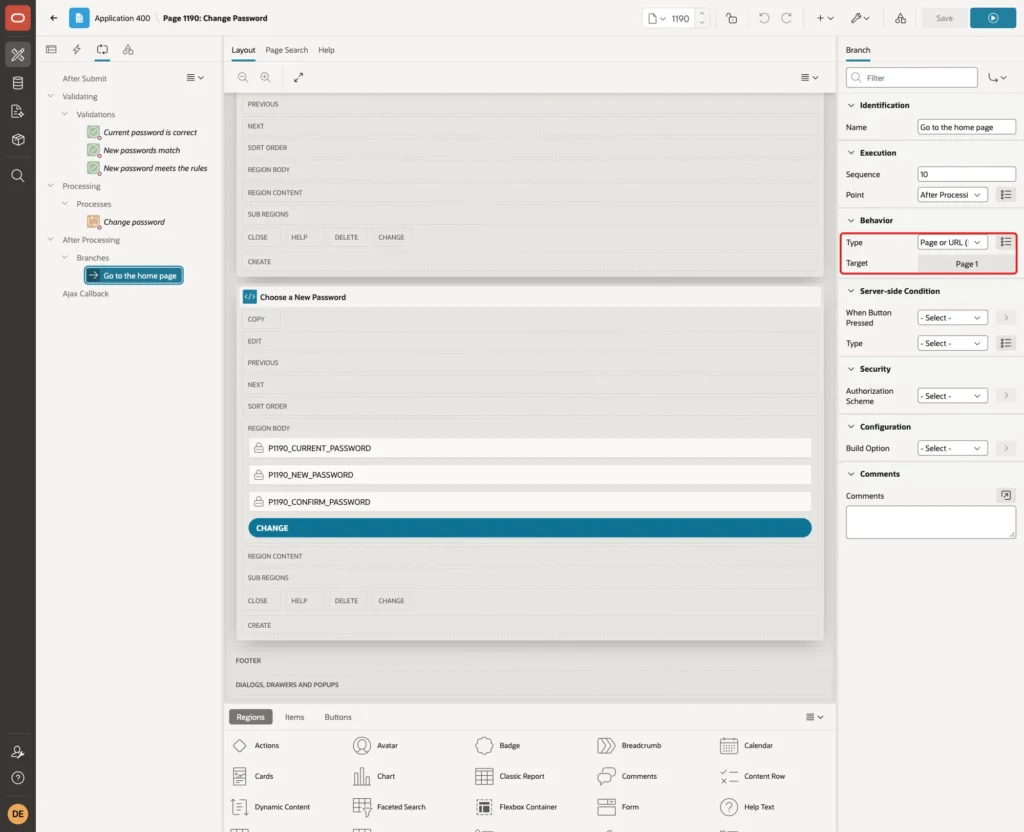
Click Save. The page makes no other check of the flag. If a user without the flag opens it, the user can still change the password, but only with the current password, so nothing is bypassed.
Step 7: Redirect Users Who Must Change
The flag does nothing until something sends the user to the page. A page cannot do it, because the user may open any page. An application process runs for every page, so it is the right place.
In Shared Components, click Application Processes and then Create. Set Sequence to 5, Process Point to On Load: Before Header (page template header) and Name to Require password change. Use the code below. It redirects to page 1190:
Example:
apex_util.redirect_url(apex_page.get_url(p_page => 1190));
Under Conditions, set Condition Type to Expression with Language PL/SQL, and enter the expression below. The first part keeps the user on the change page. Without it, the page would redirect to itself in a loop. The second part is the flag:
Example:
:APP_PAGE_ID <> 1190 and first_login.must_change(:APP_USER)
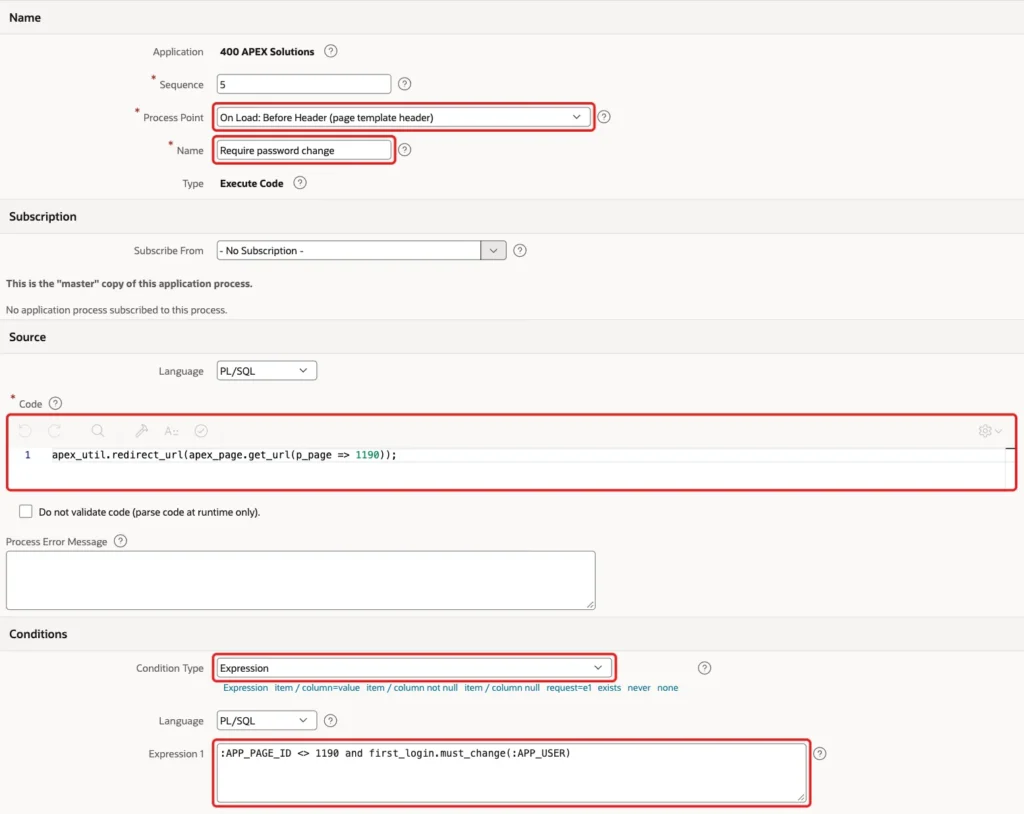
Apply the changes. The process calls the same package as the authentication scheme, so keep the two together.
Step 8: Test Signing In
The first test signed in as FIRST_NEW with the temporary password. The sign-in did not open the home page. It opened the Change Password page, and the region text explains why:
Next, the same session tried to open other pages by their URL. Each one ended on the change page:
- The home page, the customer page, the page with orders and lines, the sales dashboard and the products page all redirected to the page new-password-required.
- The redirect keeps the session, so the user does not have to sign in again.
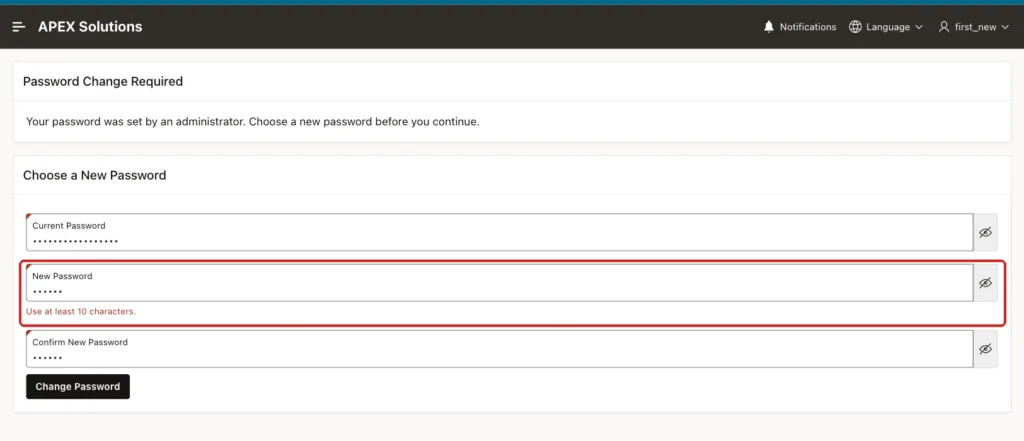
Then the form was submitted with bad values. A current password that is wrong, two new passwords that differ and a new password that is too short each gave an error under the matching item. The short password gave Use at least 10 characters:
With a good new password, the page showed the success message and opened the home page:

In the same session, the customer page and the orders page opened without a redirect. A new sign-in with the old temporary password was refused with Invalid Login Credentials. The new password signed in and went straight to the home page.
FIRST_REGULAR, whose flag is N, signed in and reached the home page, the customer page and the orders page without ever seeing the change page. DEMO_DEV, an Oracle APEX account, was also not affected, because MUST_CHANGE returns FALSE for a user who is not in the table.
Step 9: Close the Gap for Ajax Callbacks
The redirect runs when a page is displayed. It does not run for an Ajax callback, because that request does not render a page. In a test, FIRST_NEW signed in again after an administrator reset, so the flag was on. The browser then called an application process of the sample application, VIEW_PHOTO, with this script:
Example:
$.ajax({
  type: 'POST',
  url: 'wwv_flow.ajax',
  data: {
    p_flow_id: $v('pFlowId'),
    p_flow_step_id: $v('pFlowStepId'),
    p_instance: $v('pInstance'),
    p_request: 'APPLICATION_PROCESS=VIEW_PHOTO',
    x01: 'test'
  },
  dataType: 'text'
});
Output:
HTTP 200 success body="Photo not found.\n"
The process ran for a user who had not changed the password yet. The code of that process looked for a photo and found none, which is why the message says so. It does prove that the process code was reached.
The fix is an authorization scheme with the same rule, applied to the processes and pages that read or change data. In Shared Components, click Authorization Schemes and then Create.
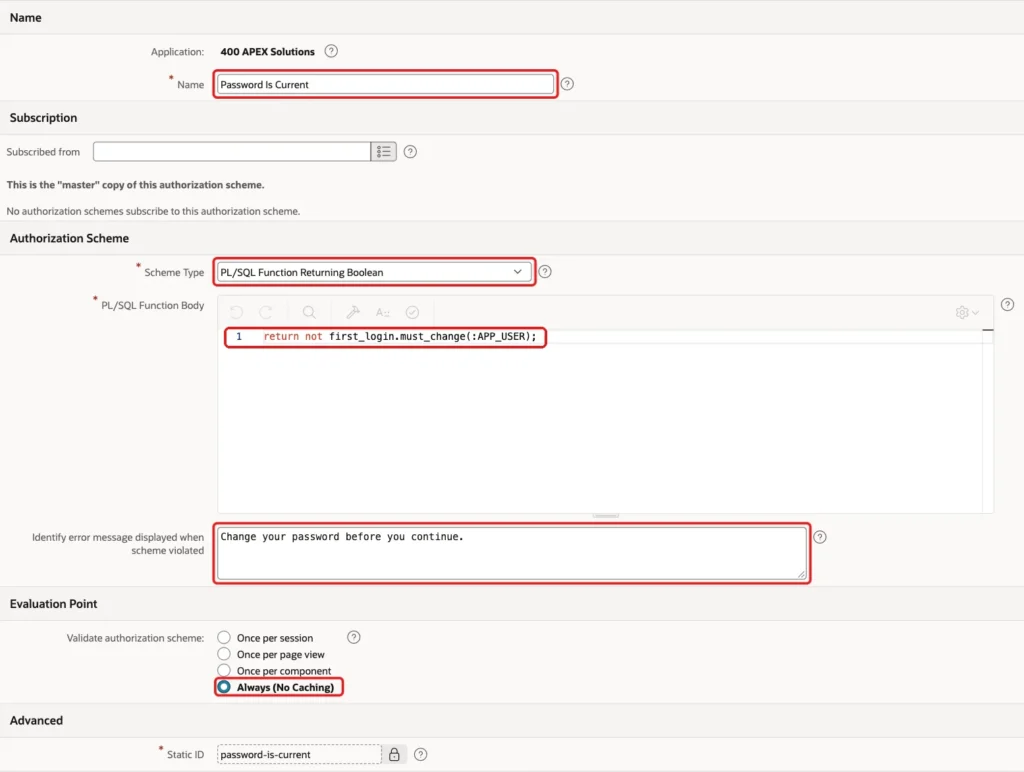
Set the Name to Password Is Current, the Scheme Type to PL/SQL Function Returning Boolean and the code below. Enter an error message and set Validate authorization scheme to Always (No Caching), so a change of the flag counts at once:
Example:
return not first_login.must_change(:APP_USER);
Then open the process VIEW_PHOTO under Application Processes. In the Authorization group, select Password Is Current:

The same call, from a session of a user with the flag on, then came back with an empty body:
Output:
HTTP 200 success body=""
The process code did not run. A session of FIRST_REGULAR made the same call and got the answer Photo not found. again, so users without the flag are not affected. Apply the scheme to every process and page of your own that reads or changes data.
After the tests, Oracle APEX Accounts was made the current scheme again, because the other users of this application live there. The custom scheme and the package stay for the next application that needs them.
Things to Know
- The built-in change page of Oracle APEX accepts any password that matches the confirmation, unless the instance has password rules. Check the rules in Manage Instance before you rely on it.
- The redirect process shows the change page for page views only. Protect every Ajax callback and page process that changes data with an authorization scheme, as in Step 9.
- A user who is forced to change the password still has a session. The pages that matter are protected by the process and the scheme, not by the session.
- The condition :APP_PAGE_ID <> 1190 is needed. Without it, the process would also redirect the change page, so the user could never reach the form.
Related Guides
- How to Let Users Change Their Own Password in Oracle APEX
- How to Lock a User Account After Failed Login Attempts in Oracle APEX
Conclusion
Oracle APEX accounts can require a new password at the first sign-in with one switch or with APEX_UTIL.EXPIRE_END_USER_ACCOUNT. For a custom user table, a flag with a default of Y, a package with the rules and an application process that redirects give the same result and let you set the rules.
The tests showed that every page redirects while the flag is on, that bad passwords are refused and that a good one clears the flag. They also showed that an Ajax callback needs its own authorization scheme. Keep the rules in one package, so the page and the SQL tests never disagree.
See my articles more often when you search Google.
