
A dashboard is more useful when users can choose what they look at. Two controls cover most needs: a date range that limits the data, and a chart type that shows the same numbers as lines, bars or areas. Both should work at once, without reloading the whole page.
In Oracle APEX, this takes two date pickers, a select list and two dynamic actions. This guide builds a dashboard where a new date range refreshes a chart and a totals report, a wrong range shows an error, and the chart type switches in the browser and is kept after a reload.
The guide How to Build a Dashboard Page with KPI Cards and Charts in Oracle APEX builds a dashboard with fixed charts. This one adds the user controls: the date range filter, the region refresh, the chart type switch and the checks against invalid or forged values.
The example uses daily website visits from three traffic sources. The same steps work for any measure with a date, such as orders, tickets, bookings or sensor readings.
Step 1: Create the Tables
The example needs two tables. TRAFFIC_SOURCES holds the sources, and DAILY_VISITS holds the visits and signups per source and day. The insert generates data from 1 May to 23 October 2026:
Example:
create table traffic_sources (
  source_id    number generated by default on null as identity
               constraint traffic_sources_pk primary key,
  source_name  varchar2(30) not null
               constraint traffic_sources_name_uk unique,
  sort_order   number(3) not null
);

create table daily_visits (
  visit_id     number generated by default on null as identity
               constraint daily_visits_pk primary key,
  source_id    number not null
               constraint daily_visits_source_fk references traffic_sources,
  visit_date   date not null
               constraint daily_visits_date_ck check (visit_date = trunc(visit_date)),
  visits       number(8) not null
               constraint daily_visits_visits_ck check (visits >= 0),
  signups      number(8) default on null 0 not null,
  constraint daily_visits_signups_ck check (signups between 0 and visits),
  constraint daily_visits_uk unique (source_id, visit_date)
);

create index daily_visits_date_ix on daily_visits (visit_date);

insert into traffic_sources (source_name, sort_order)
values ('Search', 10), ('Social', 20), ('Email', 30);

insert into daily_visits (source_id, visit_date, visits, signups)
select source_id,
       visit_date,
       visits,
       round(visits * case source_name when 'Email' then 0.06 when 'Search' then 0.04 else 0.02 end)
from (
  select s.source_id,
         s.source_name,
         d.visit_date,
         round(
           case s.source_name when 'Search' then 900 when 'Social' then 520 else 260 end
           * case when d.visit_date - trunc(d.visit_date, 'IW') >= 5 then 0.6 else 1 end
           * (1 + (d.visit_date - date '2026-05-01') / 600)
           + mod(ora_hash(s.source_name || to_char(d.visit_date, 'YYYYMMDD')), 120)
         ) as visits
  from traffic_sources s
  cross join (
    select date '2026-05-01' + level - 1 as visit_date
    from dual
    connect by level <= date '2026-10-23' - date '2026-05-01' + 1
  ) d
  where not (s.source_name = 'Email'
             and d.visit_date between date '2026-10-05' and date '2026-10-09')
);

commit;

select s.source_name,
       count(*) as days,
       to_char(min(v.visit_date), 'YYYY-MM-DD') as first_day,
       to_char(max(v.visit_date), 'YYYY-MM-DD') as last_day,
       sum(v.visits) as visits,
       sum(v.signups) as signups
from daily_visits v
join traffic_sources s on s.source_id = v.source_id
group by s.source_name, s.sort_order
order by s.sort_order;
Output:
Table TRAFFIC_SOURCES created.

Table DAILY_VISITS created.

Index DAILY_VISITS_DATE_IX created.

3 rows inserted.

523 rows inserted.

Commit complete.

SOURCE_NAME       DAYS FIRST_DAY     LAST_DAY         VISITS    SIGNUPS
______________ _______ _____________ _____________ _________ __________
Search             176 2026-05-01    2026-10-23       170860       6834
Social             176 2026-05-01    2026-10-23       103418       2070
Email              171 2026-05-01    2026-10-23        54942       3297
A few details matter for the dashboard:
- The check constraint DAILY_VISITS_DATE_CK accepts only dates without a time, and the unique constraint DAILY_VISITS_UK allows one row per source and day.
- DAILY_VISITS_SIGNUPS_CK keeps signups between 0 and the number of visits. SIGNUPS uses DEFAULT ON NULL 0, so no trigger is needed.
- The Email source has no rows from 5 to 9 October. The chart must show these days as 0.
- The index on VISIT_DATE supports the date range filter.
Step 2: Create a Blank Page
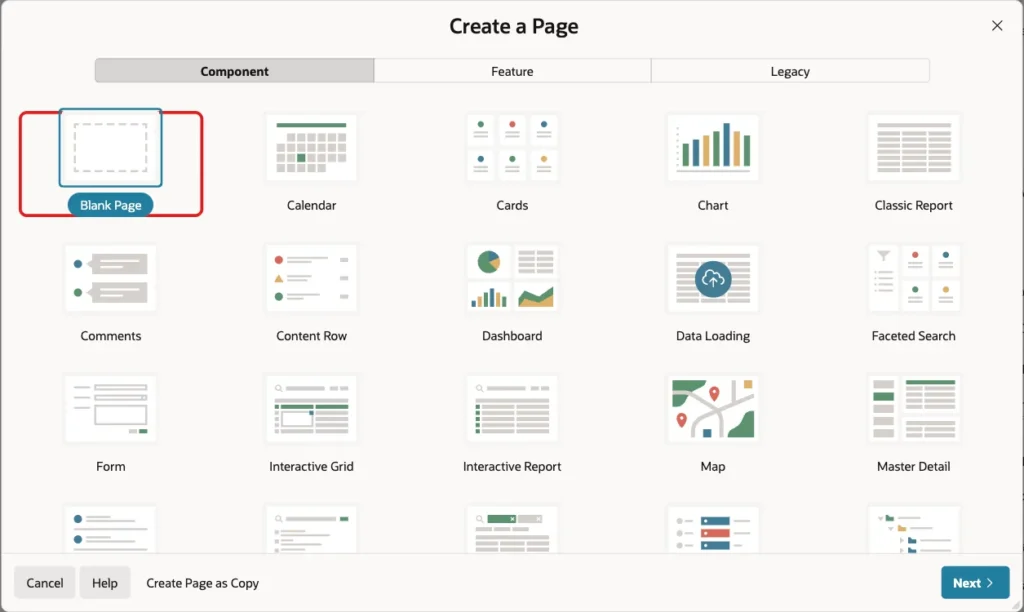
In App Builder, open the application and click Create Page. On the Component tab, select Blank Page:
Set Page Number to 1040 and Name to Visits Dashboard. Turn Use Breadcrumb off, keep Use Navigation on, set Icon to fa-dashboard and click Create Page:

APEX opens the new page in Page Designer.
Step 3: Add the Date Range Items
In the Rendering tree, right-click Body and choose Create Region. Set Name to Filters and keep the Type Static Content:

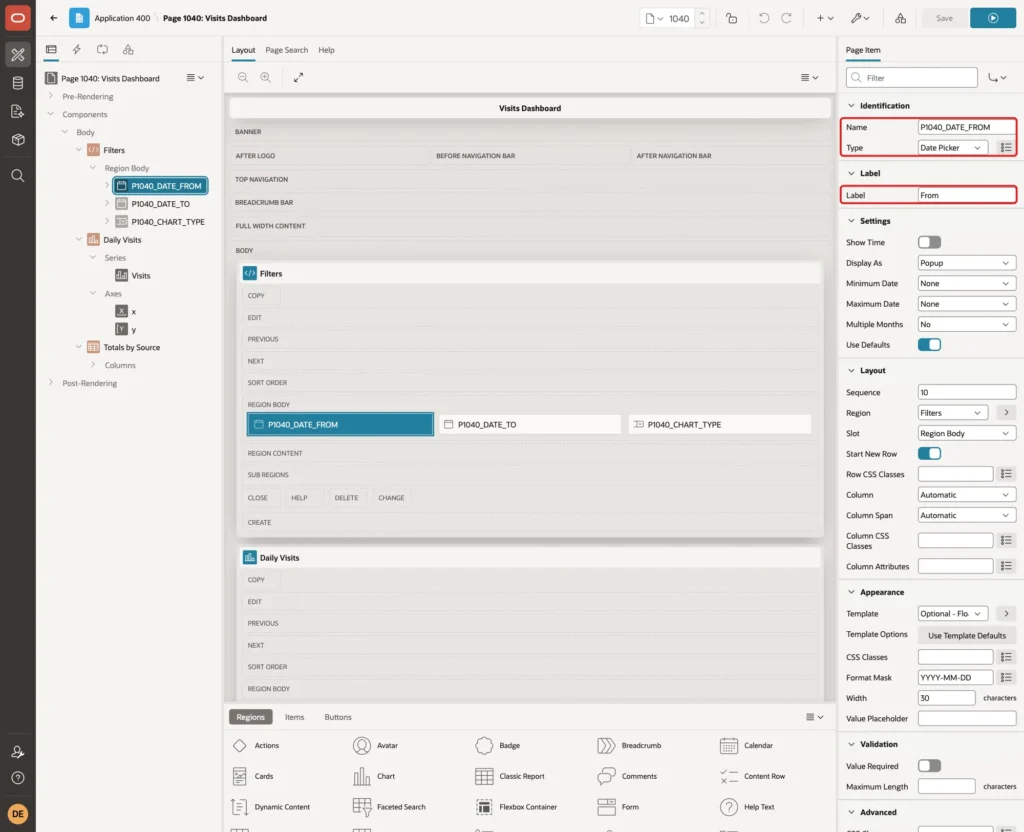
Right-click the Filters region and choose Create Page Item. Set Name to P1040_DATE_FROM, Type to Date Picker and Label to From:
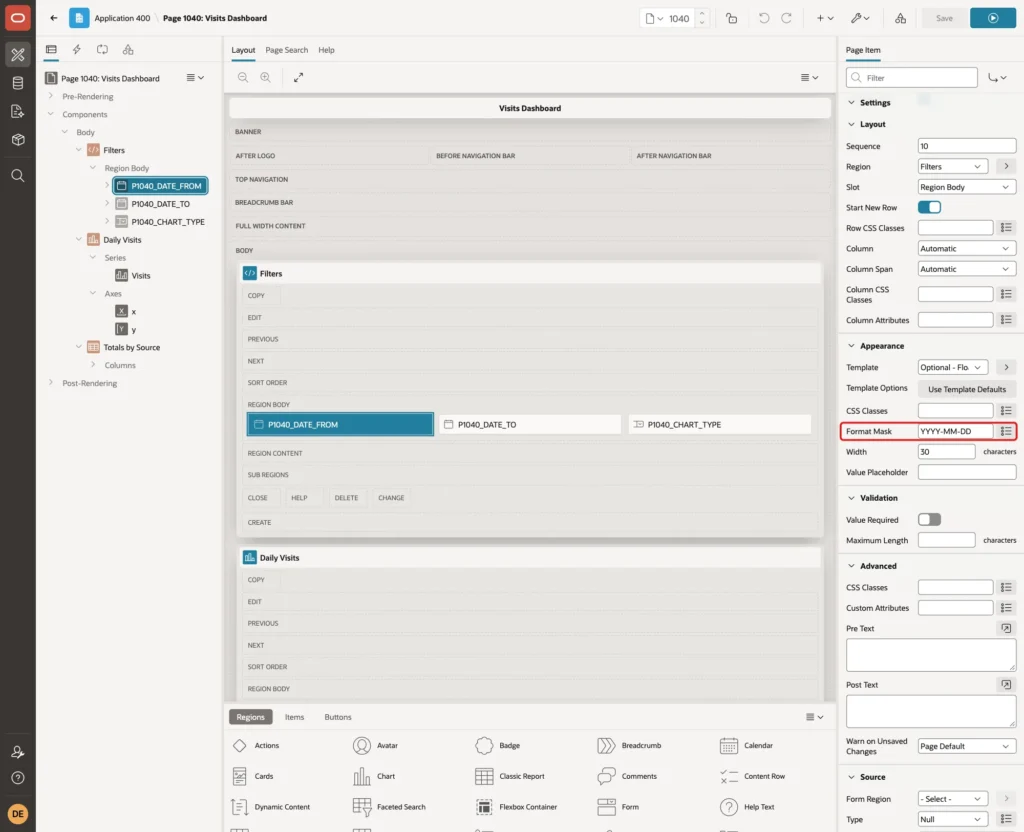
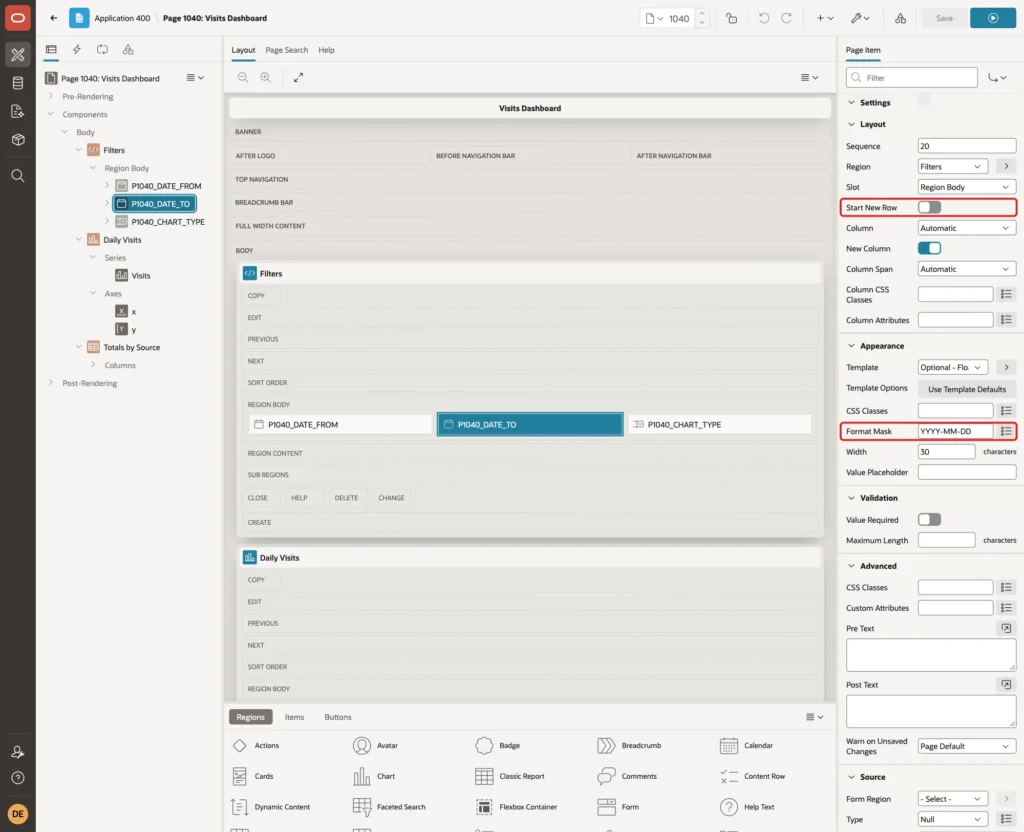
Under Appearance, set Format Mask to YYYY-MM-DD. A fixed format makes the value easy to convert in SQL, whatever the language of the user:
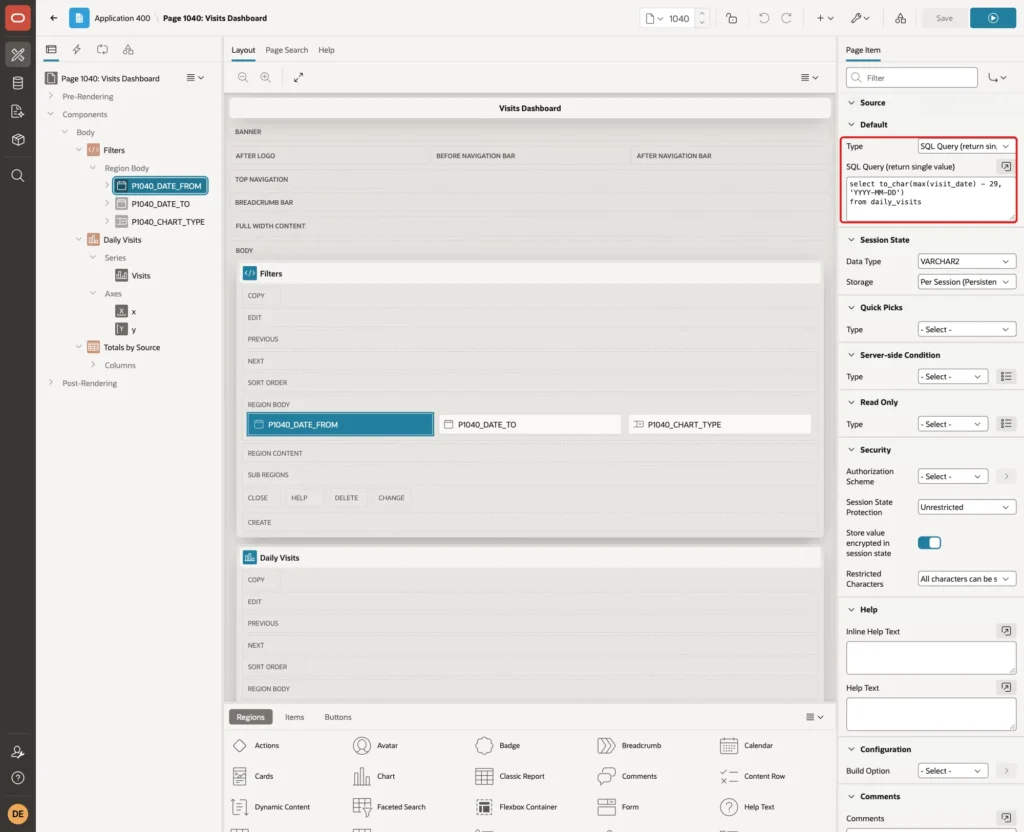
Under Default, set Type to SQL Query (return single value) and enter this query. The range then starts 29 days before the latest day with data:
Example:
select to_char(max(visit_date) - 29, 'YYYY-MM-DD')
from daily_visits
Create a second item in the Filters region. Set Name to P1040_DATE_TO, Type to Date Picker and Label to To:
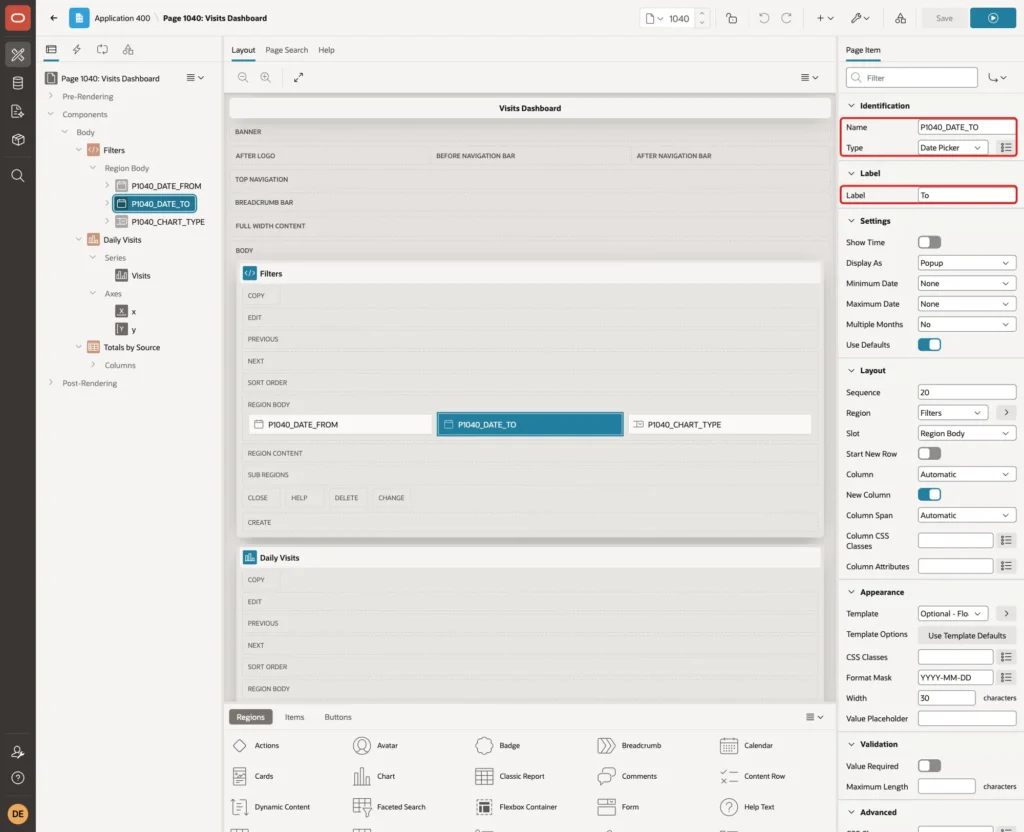
Under Layout, turn Start New Row off. Under Appearance, set Format Mask to YYYY-MM-DD:
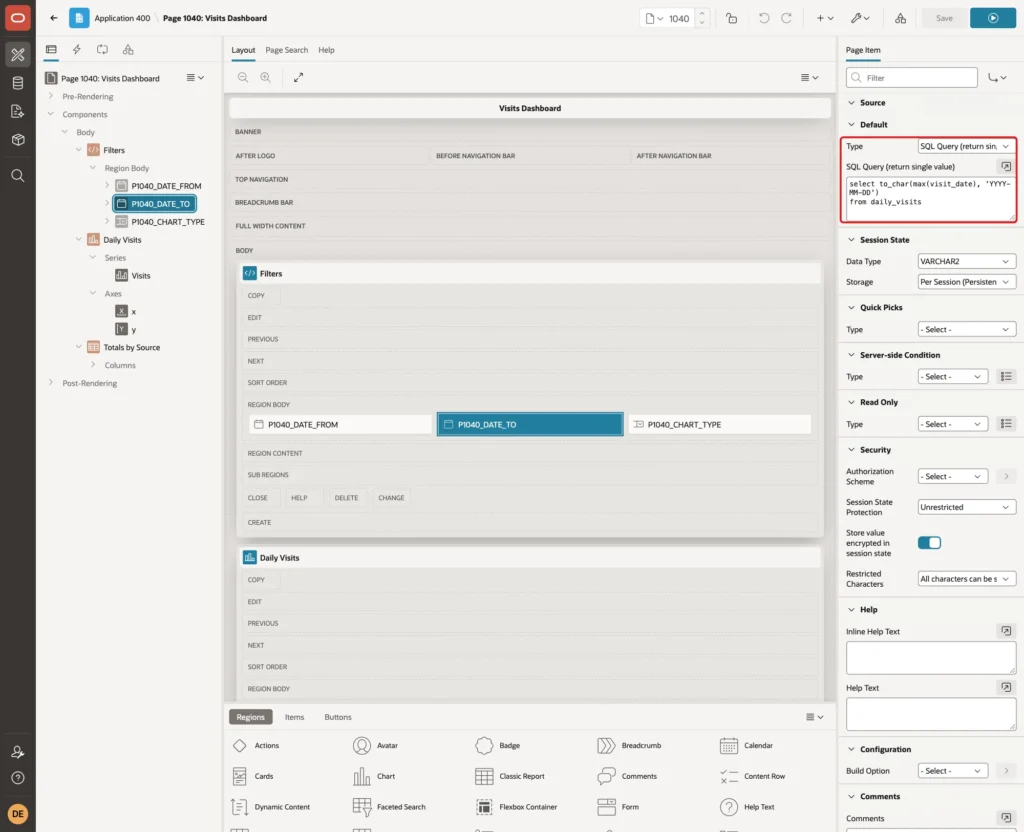
Under Default, set Type to SQL Query (return single value) and enter this query. The default range covers the last 30 days with data:
Example:
select to_char(max(visit_date), 'YYYY-MM-DD')
from daily_visits
Step 4: Add the Chart Type Item
Create a third item in the Filters region. Set Name to P1040_CHART_TYPE, Type to Select List and Label to Chart Type. Under List of Values, set Type to Static Values, and turn Display Extra Values and Display Null Value off:
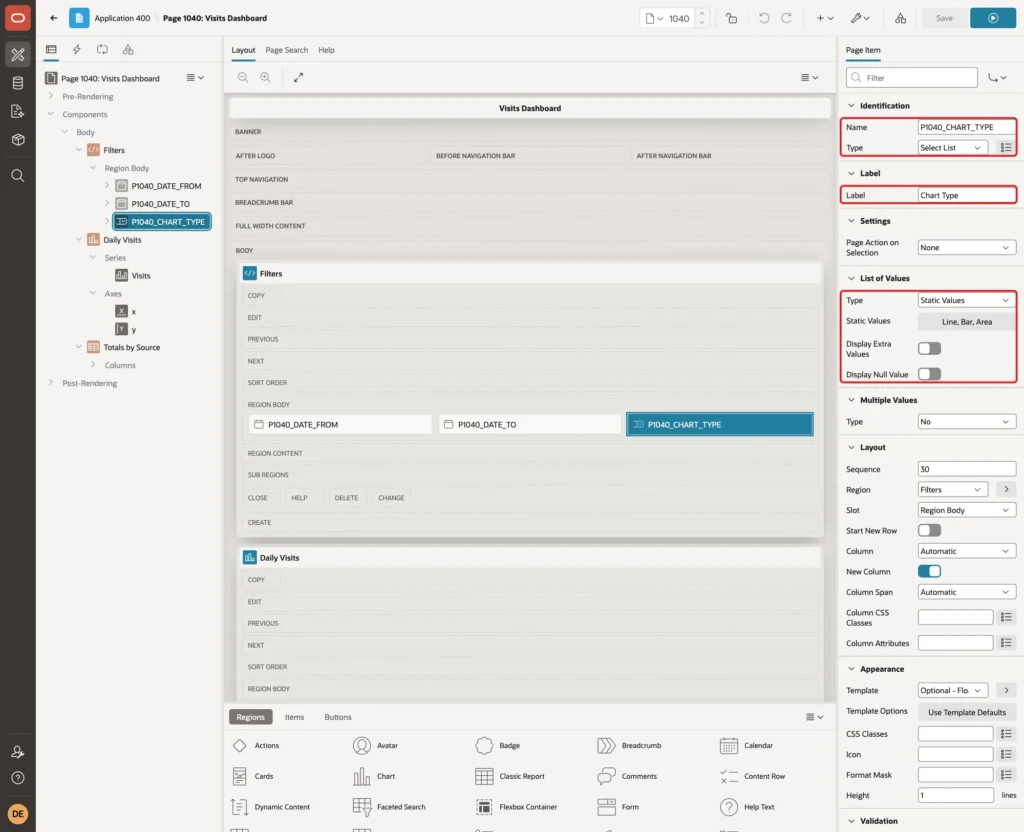
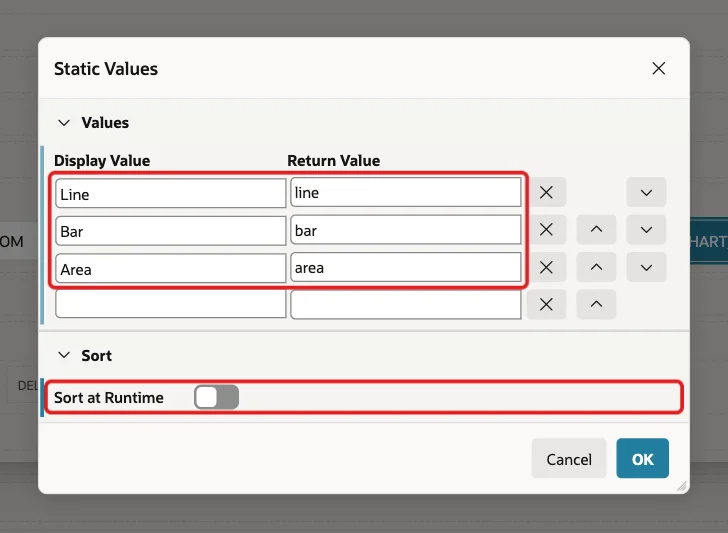
Click the Static Values button. Enter Line with return value line, Bar with bar, and Area with area. Turn Sort at Runtime off, so the list keeps this order, and click OK:
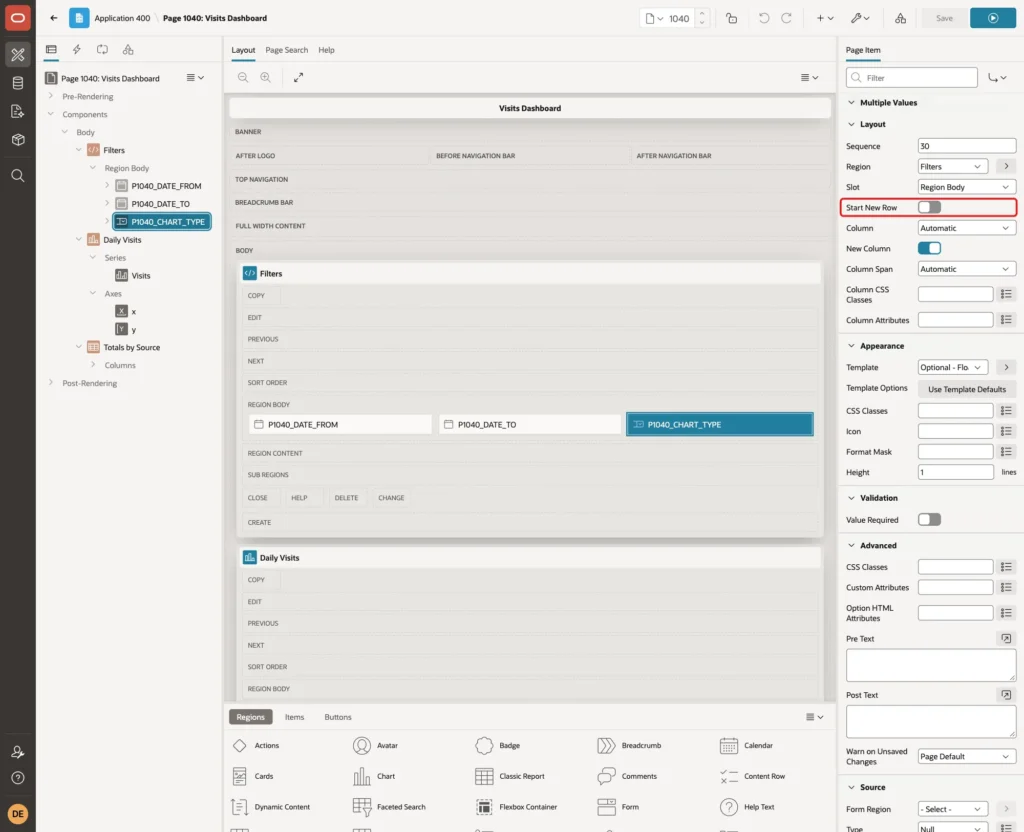
Under Layout, turn Start New Row off, so all three controls sit in one row:
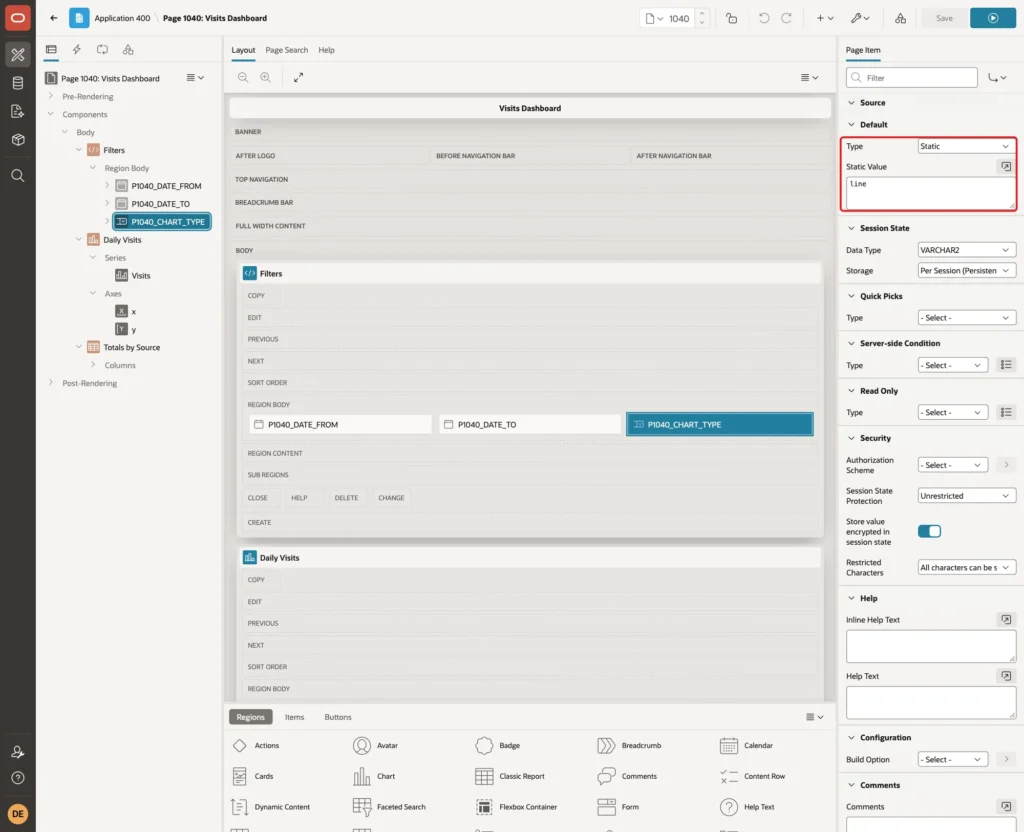
Under Default, set Type to Static and Static Value to line:
Step 5: Write the Chart Query
The chart shows one line per traffic source and one point per day. The query reads the two date items, creates one row per day in the range, and joins the visits to it:
Example:
with params as (
  select to_date(:P1040_DATE_FROM default null on conversion error, 'YYYY-MM-DD') as date_from,
         to_date(:P1040_DATE_TO default null on conversion error, 'YYYY-MM-DD') as date_to
  from dual
),
days as (
  select p.date_from + level - 1 as visit_date
  from params p
  where p.date_to >= p.date_from
    and p.date_to - p.date_from < 366
  connect by level <= p.date_to - p.date_from + 1
)
select s.source_name,
       d.visit_date,
       nvl(v.visits, 0) as visits
from days d
cross join traffic_sources s
left join daily_visits v
       on v.source_id = s.source_id
      and v.visit_date = d.visit_date
order by s.sort_order, d.visit_date
The query works in three parts:
- PARAMS converts the two item values to dates. DEFAULT NULL ON CONVERSION ERROR turns a text that is not a valid date into NULL instead of an error.
- DAYS creates one row per day, only when the end date is on or after the start date and the range is at most 366 days long.
- The cross join with TRAFFIC_SOURCES and the left join to DAILY_VISITS give every source a value for every day, with NVL turning a missing day into 0.
Run the query with P1040_DATE_FROM set to 2026-10-03 and P1040_DATE_TO set to 2026-10-10:
Output:
Session altered.

PL/SQL procedure successfully completed.

PL/SQL procedure successfully completed.

SOURCE_NAME    VISIT_DATE       VISITS
______________ _____________ _________
Search         2026-10-03          796
Search         2026-10-04          699
Search         2026-10-05         1242
Search         2026-10-06         1139
Search         2026-10-07         1171
Search         2026-10-08         1233
Search         2026-10-09         1185
Search         2026-10-10          751
Social         2026-10-03          396
Social         2026-10-04          472
Social         2026-10-05          756
Social         2026-10-06          765
Social         2026-10-07          764
Social         2026-10-08          674
Social         2026-10-09          671
Social         2026-10-10          446
Email          2026-10-03          271
Email          2026-10-04          217
Email          2026-10-05            0
Email          2026-10-06            0
Email          2026-10-07            0
Email          2026-10-08            0
Email          2026-10-09            0
Email          2026-10-10          259

24 rows selected.
Email returns 0 from 5 to 9 October, although DAILY_VISITS has no rows for these days. Without the generated days, the Email line would simply skip them.
Step 6: Add the Chart Region
Right-click the Filters region and choose Create Region Below. Set Name to Daily Visits and Type to Chart:
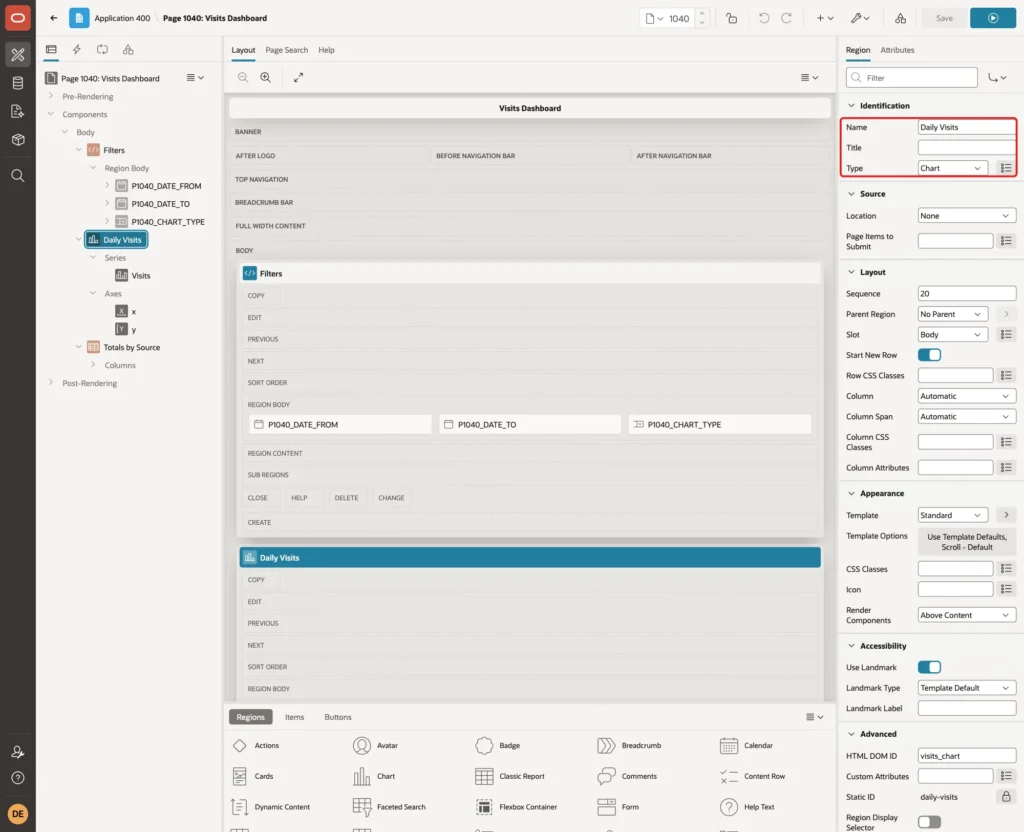
Under Advanced, set HTML DOM ID to visits_chart. The JavaScript code in Step 10 finds the chart by this ID:

In Page Designer, the Static ID shown under Advanced is locked. The HTML DOM ID is the id that ends up on the page.
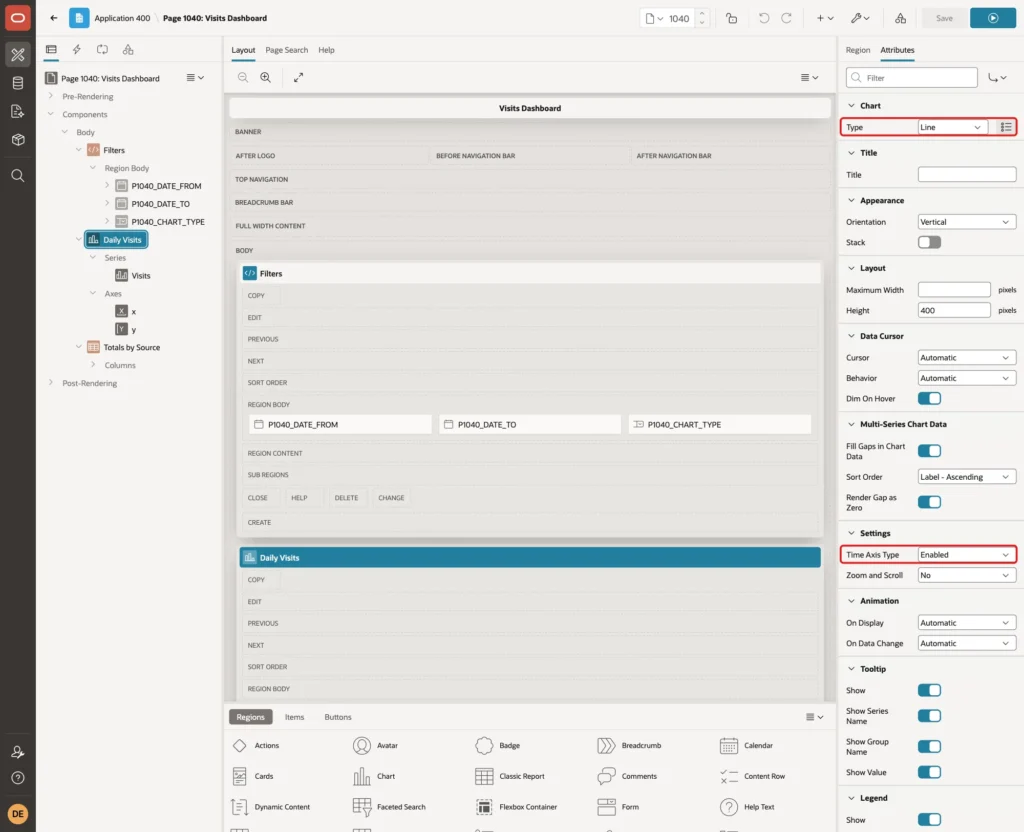
Click the Attributes tab. Set Type under Chart to Line, and under Settings set Time Axis Type to Enabled. The time axis spaces the days evenly and prints the month only where it changes:
Under Advanced, enter this function in Initialization JavaScript Function. It sets the chart type from the select list before the chart is drawn:
Example:
function (options) {
  var type = apex.item('P1040_CHART_TYPE').getValue();
  if (['line', 'bar', 'area'].indexOf(type) > -1) {
    options.type = type;
  }
  return options;
}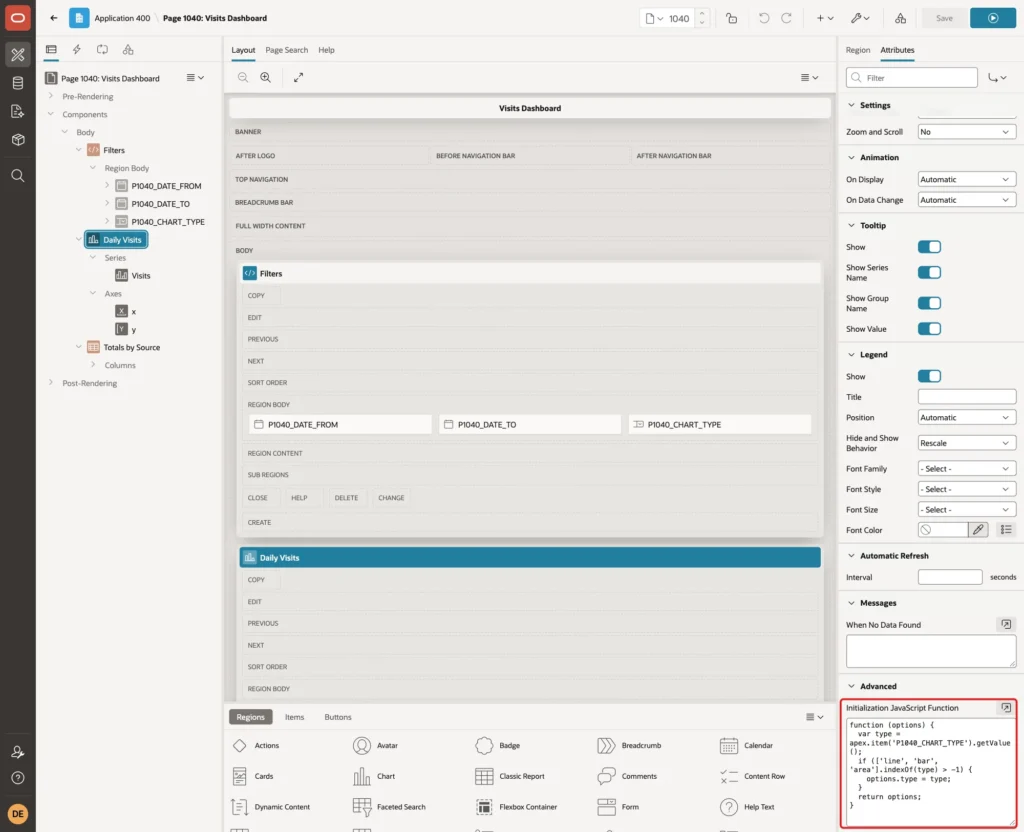
The function only accepts the three known types. Any other value leaves the type set in Page Designer, which is Line.
Step 7: Create the Chart Series
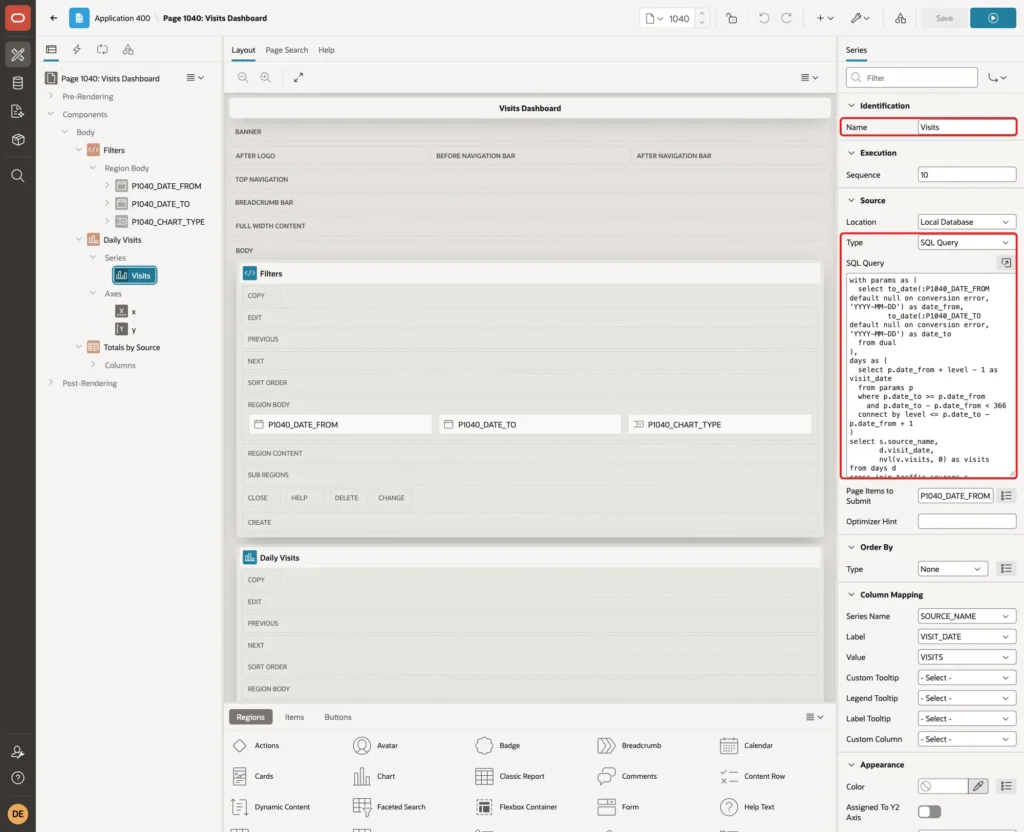
Expand Series under the chart region and select New. Set Name to Visits. Under Source, set Type to SQL Query and enter the query from Step 5:
Set Page Items to Submit to P1040_DATE_FROM,P1040_DATE_TO. Under Column Mapping, set Series Name to SOURCE_NAME, Label to VISIT_DATE and Value to VISITS:
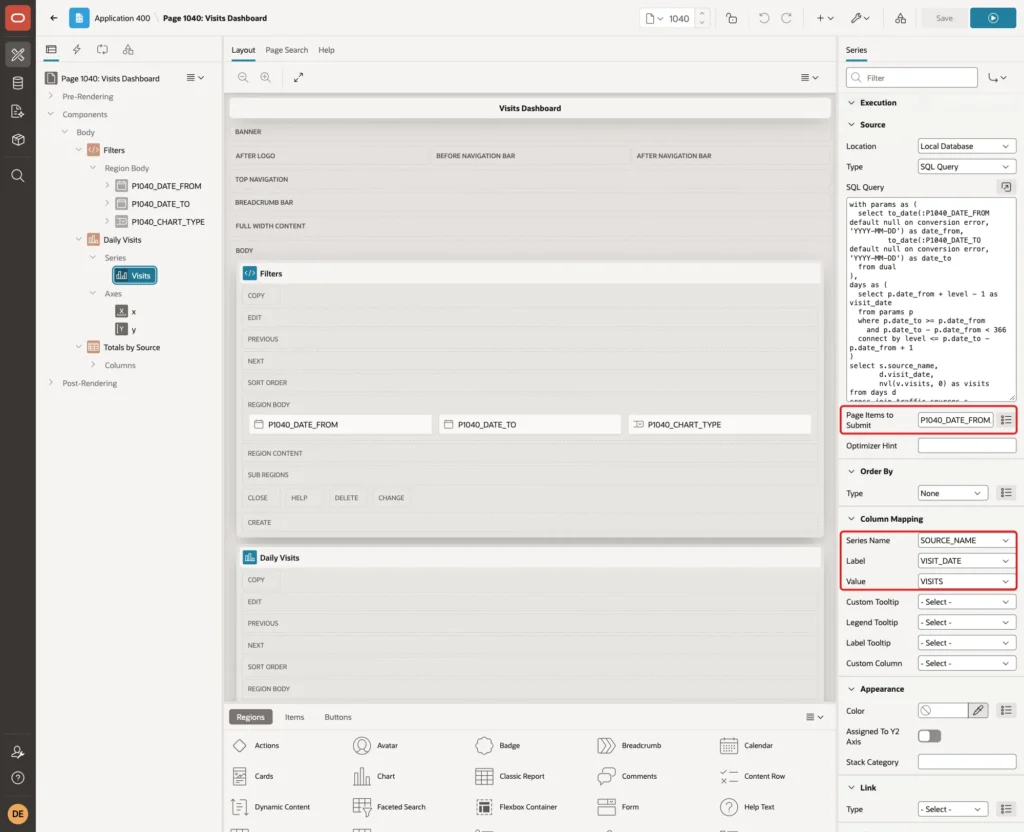
Page Items to Submit sends the current date values with every data request of the chart. It also stores them in session state, so the page keeps the range when it is opened again.
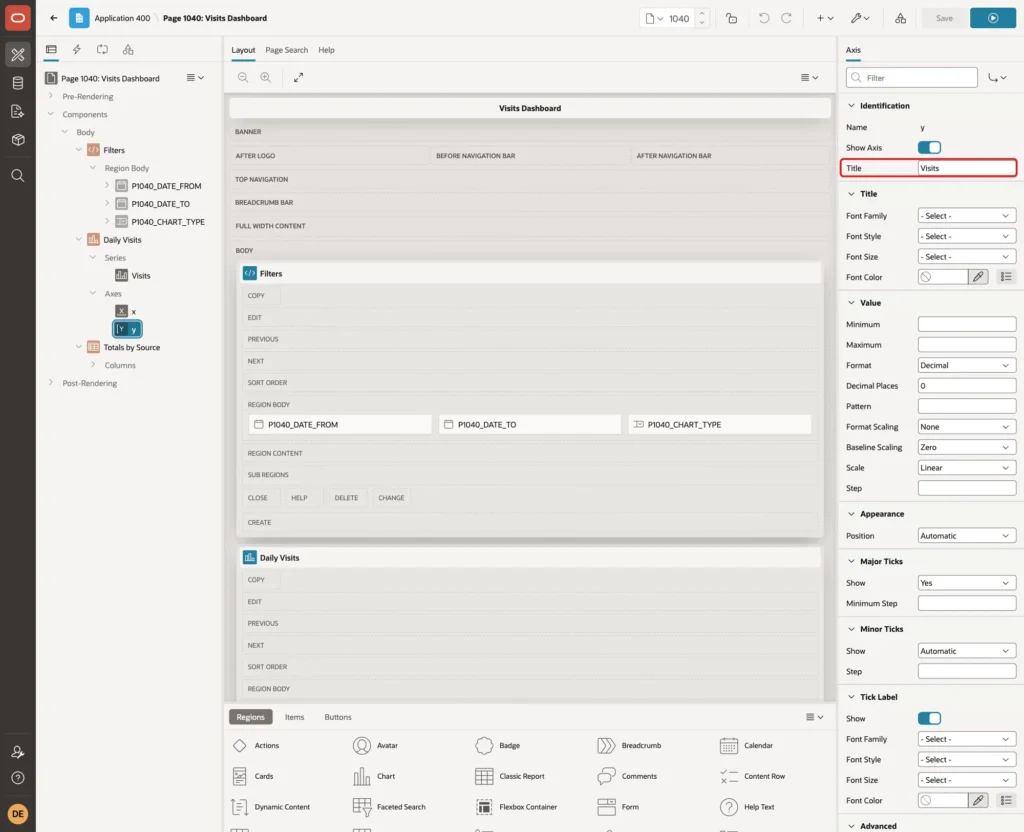
Expand Axes and select y. Set Title to Visits:
Step 8: Add the Totals Report
A dashboard usually has more than one region that follows the date range. This example adds a report with the totals per source. The query uses the same date checks as the chart:
Example:
with params as (
  select to_date(:P1040_DATE_FROM default null on conversion error, 'YYYY-MM-DD') as date_from,
         to_date(:P1040_DATE_TO default null on conversion error, 'YYYY-MM-DD') as date_to
  from dual
)
select s.source_name,
       count(v.visit_id) as days_with_data,
       nvl(sum(v.visits), 0) as visits,
       nvl(sum(v.signups), 0) as signups,
       round(100 * sum(v.signups) / nullif(sum(v.visits), 0), 1) as conversion_pct
from params p
cross join traffic_sources s
left join daily_visits v
       on v.source_id = s.source_id
      and v.visit_date between p.date_from and p.date_to
where p.date_to >= p.date_from
  and p.date_to - p.date_from < 366
group by s.source_name, s.sort_order
order by s.sort_order
Run it for 1 to 10 October:
Output:
Session altered.

PL/SQL procedure successfully completed.

PL/SQL procedure successfully completed.

SOURCE_NAME       DAYS_WITH_DATA    VISITS    SIGNUPS    CONVERSION_PCT
______________ _________________ _________ __________ _________________
Search                        10     10560        423                 4
Social                        10      6354        125                 2
Email                          5      1526         91                 6
DAYS_WITH_DATA counts the days that have a row in DAILY_VISITS, so Email shows 5 days for these 10 days. The left join keeps every source in the report, even one without any rows in the range.
Right-click the Daily Visits region and choose Create Region Below. Set Name to Totals by Source and Type to Classic Report. Under Source, set Type to SQL Query, enter the query above and set Page Items to Submit to P1040_DATE_FROM,P1040_DATE_TO:

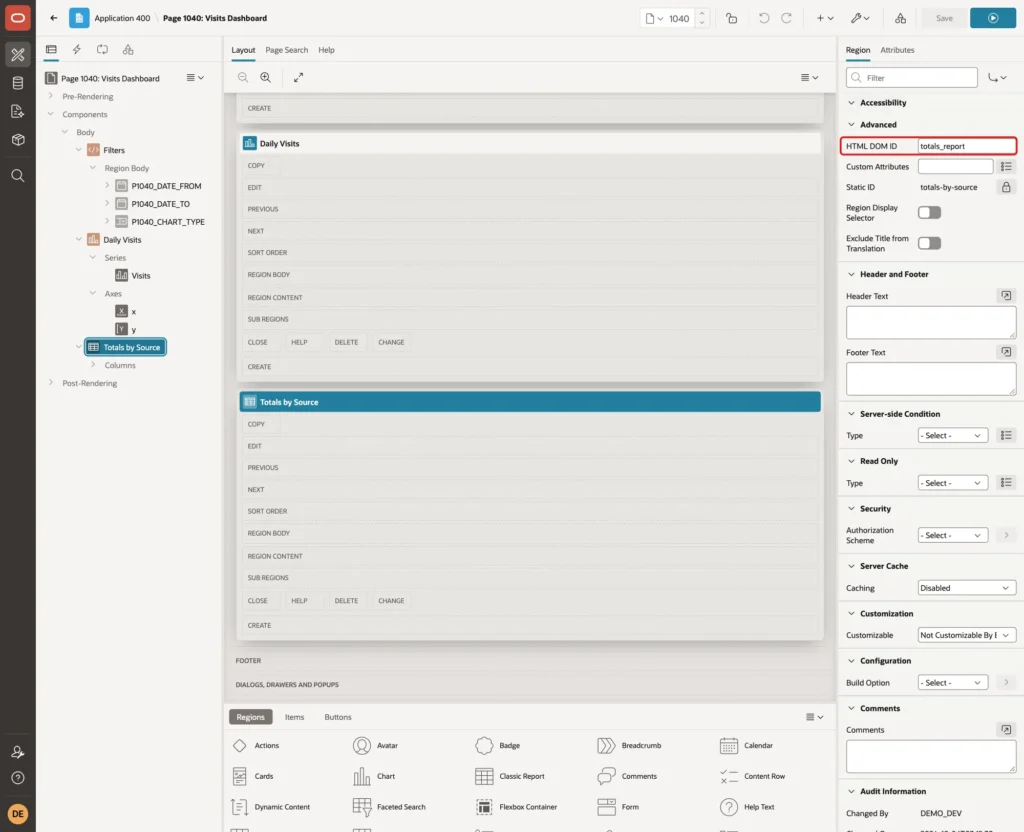
Under Advanced, set HTML DOM ID to totals_report:
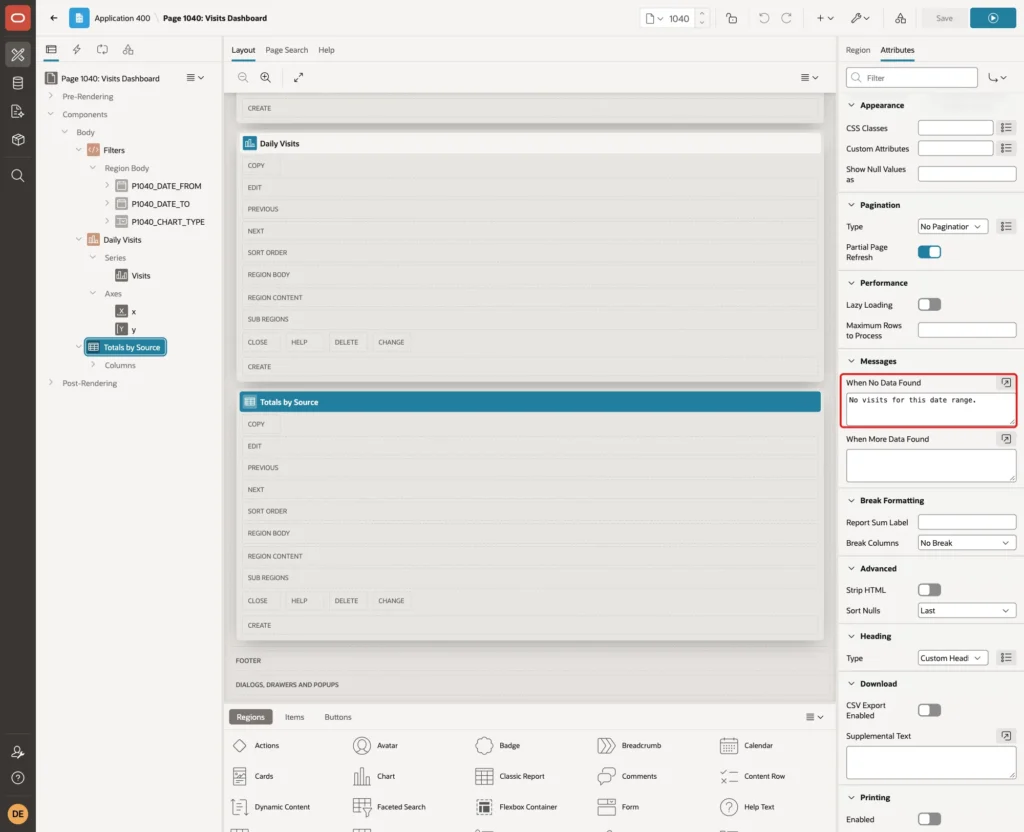
Click the Attributes tab. Under Messages, set When No Data Found to No visits for this date range.:
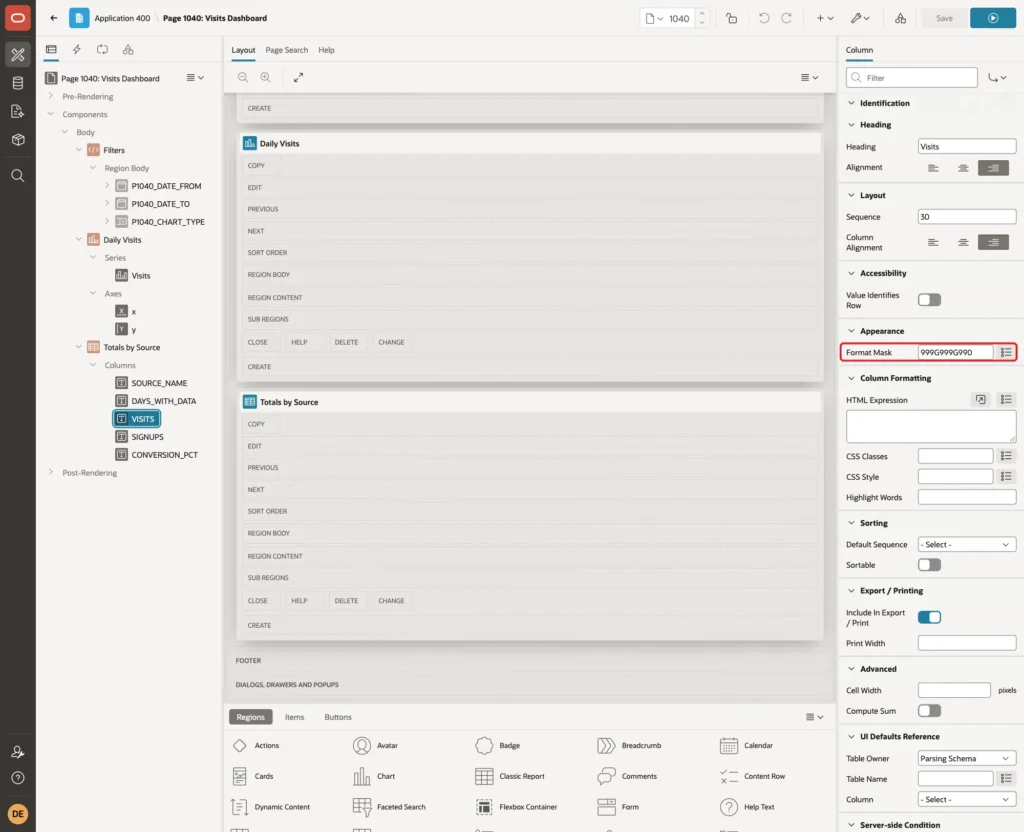
Expand Columns under the report. Select VISITS and set Format Mask to 999G999G990. Do the same for SIGNUPS:
Select CONVERSION_PCT, set Heading to Conversion % and Format Mask to 990D0. Also set the Heading of SOURCE_NAME to Source:

Step 9: Refresh the Regions When the Dates Change
In the Rendering tree, right-click P1040_DATE_FROM and choose Create Dynamic Action:
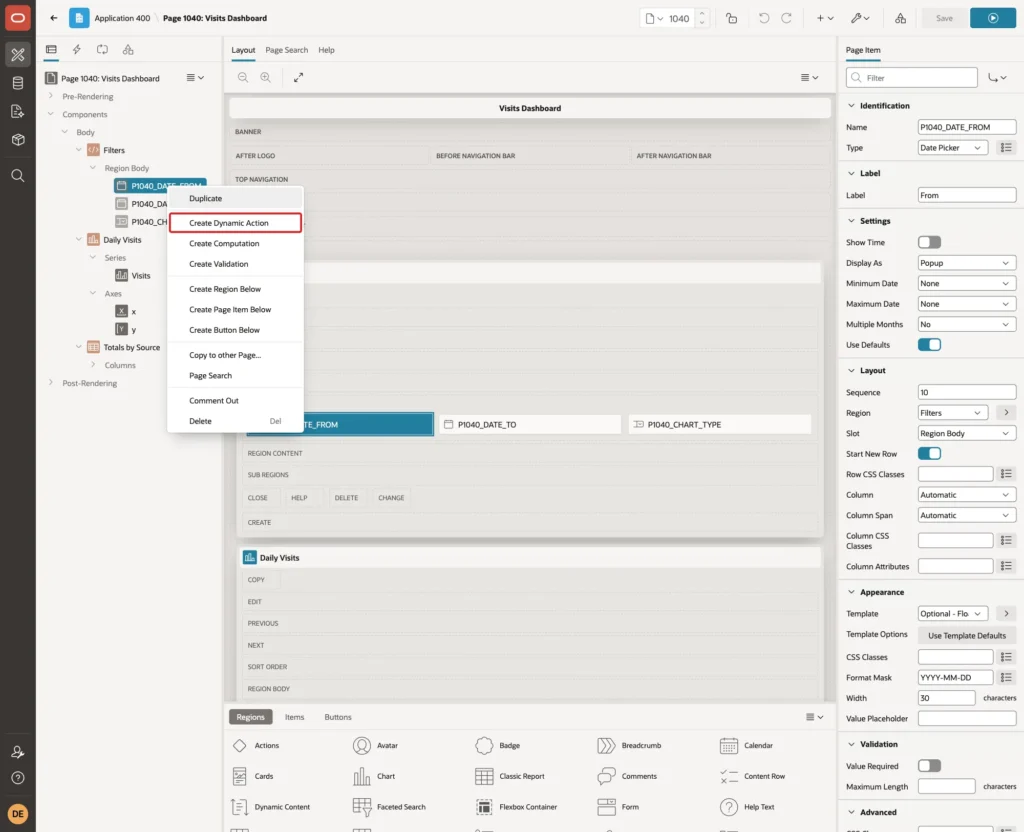
Set Name to Refresh on Date Change. Keep Event Change and Selection Type Item(s), and set Item(s) to P1040_DATE_FROM,P1040_DATE_TO. Under Client-side Condition, set Type to JavaScript expression and enter this expression:
Example:
(function () {
  var f = apex.item('P1040_DATE_FROM').getNativeValue(),
      t = apex.item('P1040_DATE_TO').getNativeValue();
  return f instanceof Date && t instanceof Date && f <= t && (t - f) / 86400000 < 366;
})()
getNativeValue returns the date picker value as a JavaScript Date. The expression is true only for two valid dates, with the start on or before the end and at most 366 days between them. These are the same rules as in the SQL queries.
Select the True action Show. Set Action to Execute JavaScript Code and enter this code. It removes an error message left from an earlier wrong range:
Example:
apex.message.clearErrors();
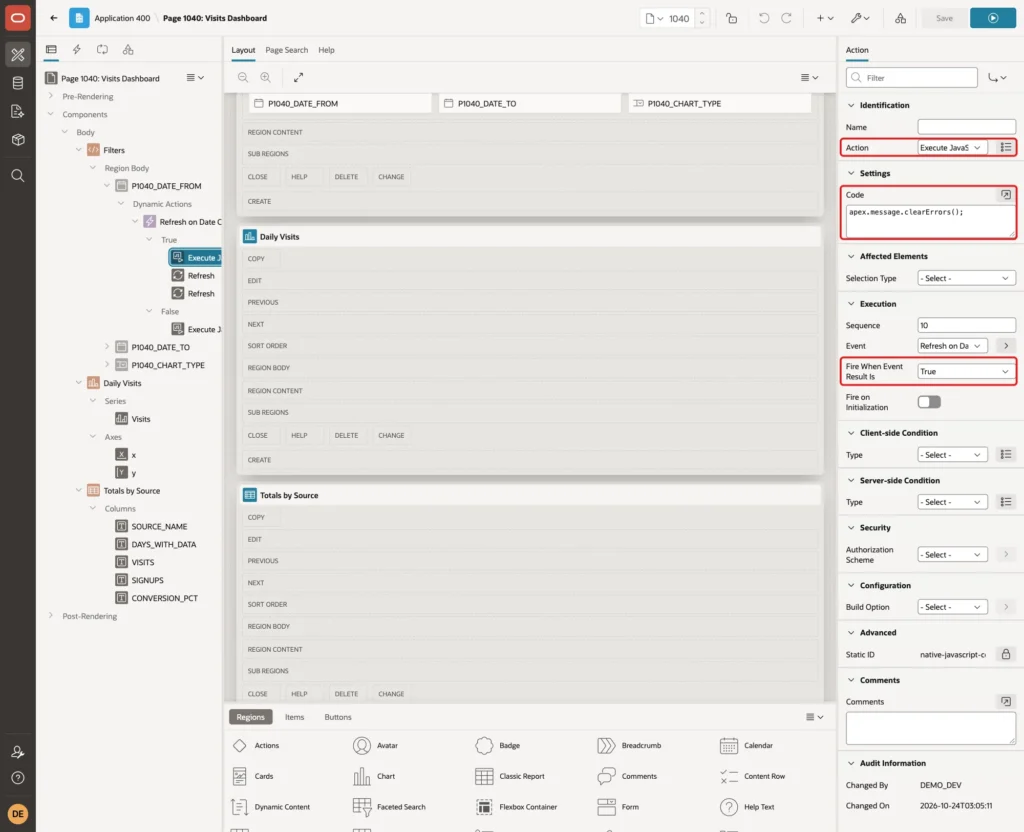
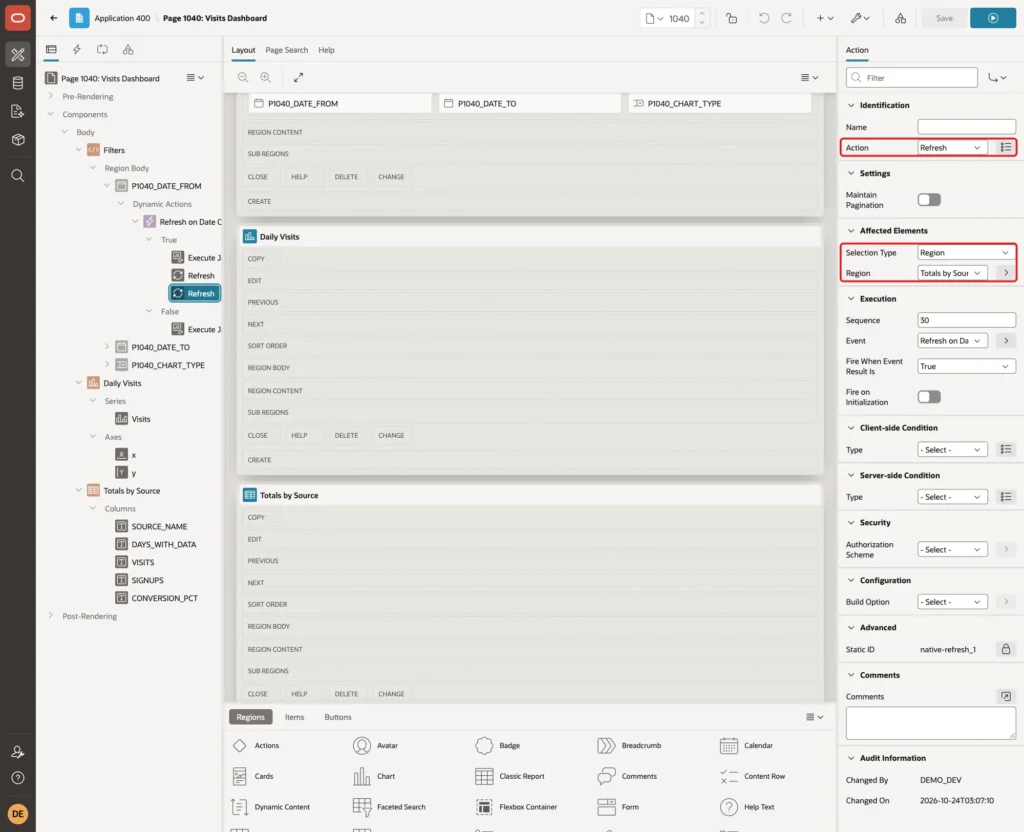
Right-click the dynamic action and choose Create TRUE Action. Set Action to Refresh, Selection Type to Region and Region to Daily Visits:

Create one more True action with Action Refresh and Region Totals by Source:
Right-click the dynamic action and choose Create FALSE Action. Set Action to Execute JavaScript Code and enter this code:
Example:
apex.message.clearErrors();
apex.message.showErrors([{
  type: 'error',
  location: 'page',
  message: 'Pick a From date on or before the To date, no more than 366 days apart.',
  unsafe: false
}]);
Fire on Initialization stays off for all four actions. On page load, the regions already use the default dates.
Step 10: Switch the Chart Type
Right-click P1040_CHART_TYPE and choose Create Dynamic Action. Set Name to Switch Chart Type and keep Event Change with the item P1040_CHART_TYPE:
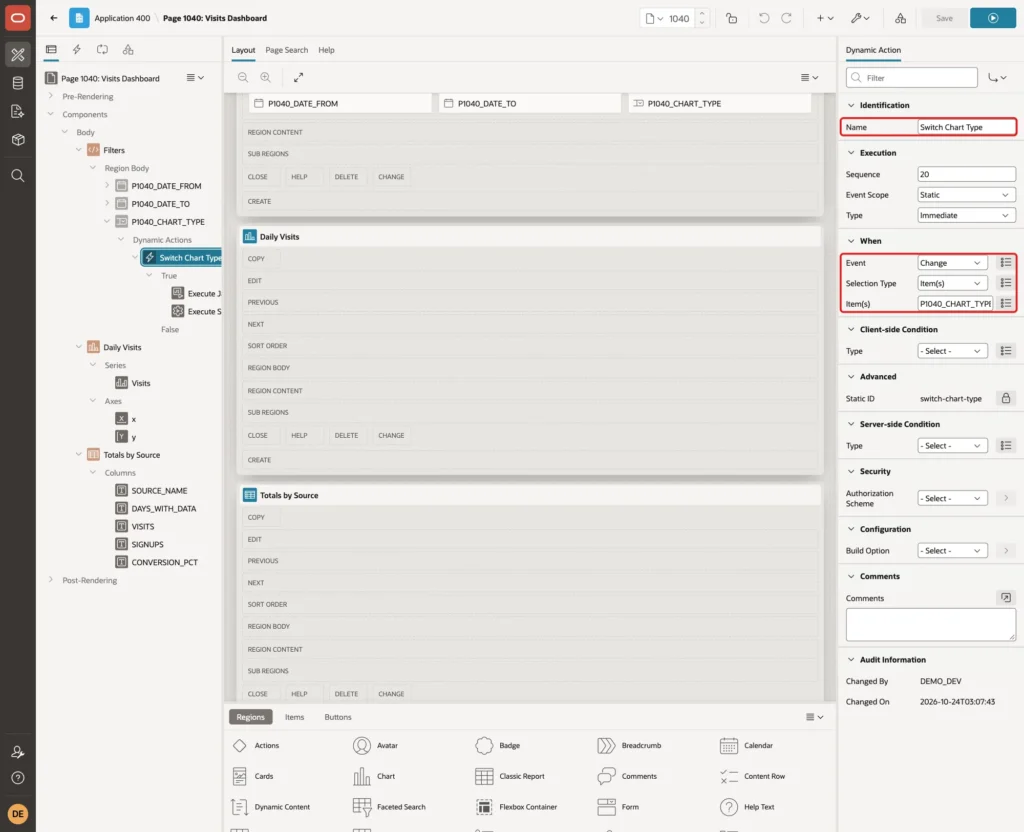
Select the True action Show, set Action to Execute JavaScript Code and enter this code:
Example:
var type = $v('P1040_CHART_TYPE');
if (['line', 'bar', 'area'].indexOf(type) > -1) {
  apex.region('visits_chart').widget().ojChart('option', 'type', type);
}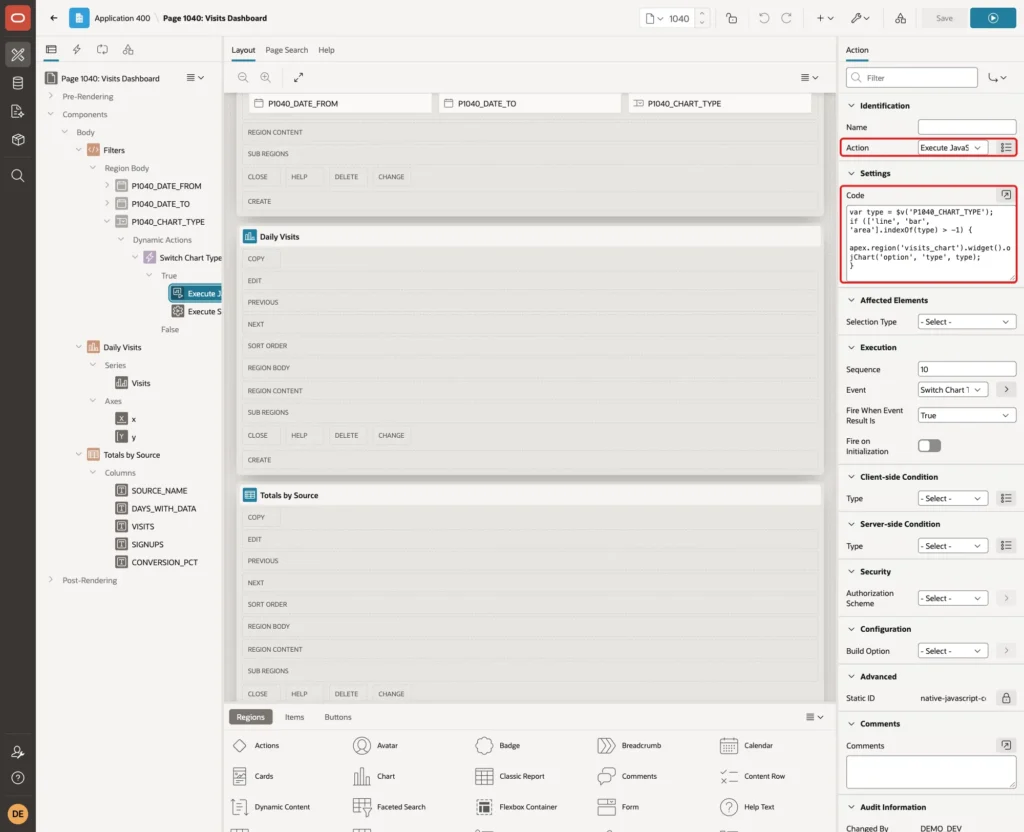
apex.region('visits_chart').widget() returns the Oracle JET chart of the region. Setting its type option redraws the same data as bars or areas, without a new request to the server.
Right-click the dynamic action and choose Create TRUE Action. Set Action to Execute Server-side Code, Language to PL/SQL, PL/SQL Code to null; and Items to Submit to P1040_CHART_TYPE:
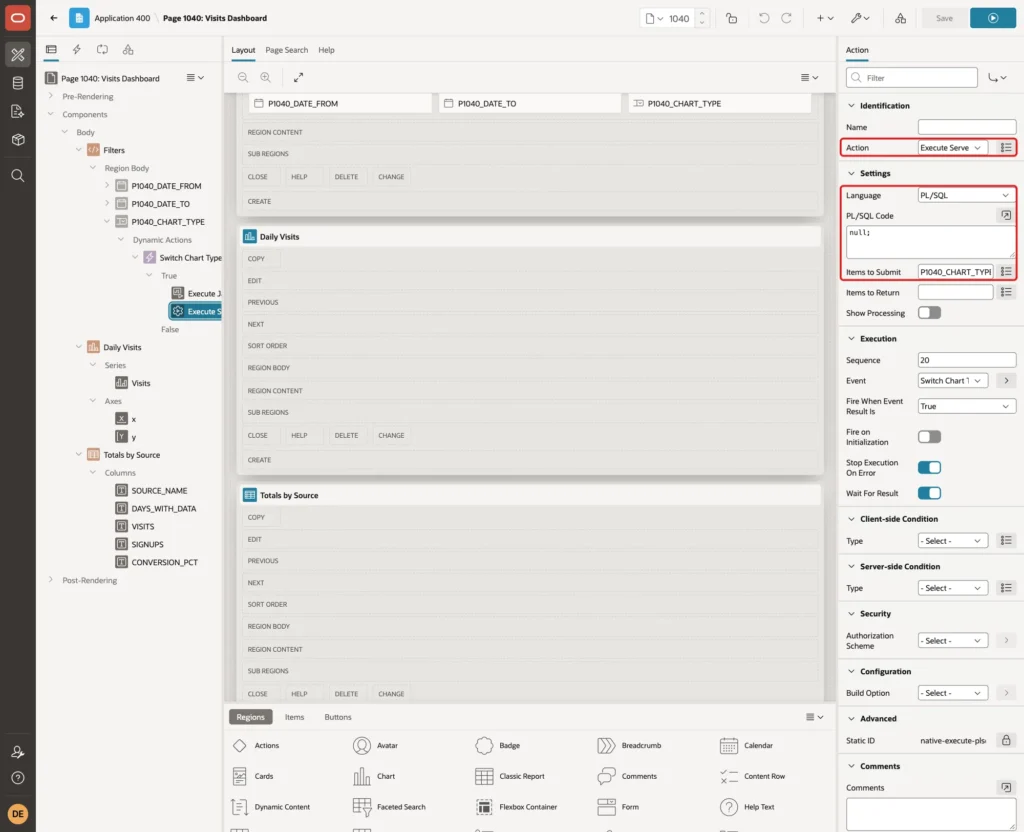
The PL/SQL block does nothing. Items to Submit is what matters: it sends the new chart type to the server and stores it in session state. When the page is opened again, the Initialization JavaScript Function from Step 6 reads it and draws the chart with the chosen type.
Step 11: Turn Off the Unsaved Changes Warning
In a first test, the page asked "Leave site?" every time a user had changed a filter and then left the page. APEX treated the changed items as unsaved data. Filters are not data to save, so turn the warning off for this page.
Select the page node Page 1040: Visits Dashboard. Under Navigation, turn Warn on Unsaved Changes off and click Save:

Step 12: Test the Dashboard
Run the page as a user with read-only access. It opens with the last 30 days and a line chart. The Email line drops to 0 from 5 to 9 October:

The report matches the SQL output for the default range:
Output:
Session altered.

PL/SQL procedure successfully completed.

PL/SQL procedure successfully completed.

SOURCE_NAME       DAYS_WITH_DATA    VISITS    SIGNUPS    CONVERSION_PCT
______________ _________________ _________ __________ _________________
Search                        30     32212       1290                 4
Social                        30     19523        389                 2
Email                         25      8554        514                 6
Select Bar in the Chart Type list. The chart changes at once, and the report stays as it is:

Select Area. The areas are drawn on top of each other, not stacked, so each area still ends at the visits of its own source:
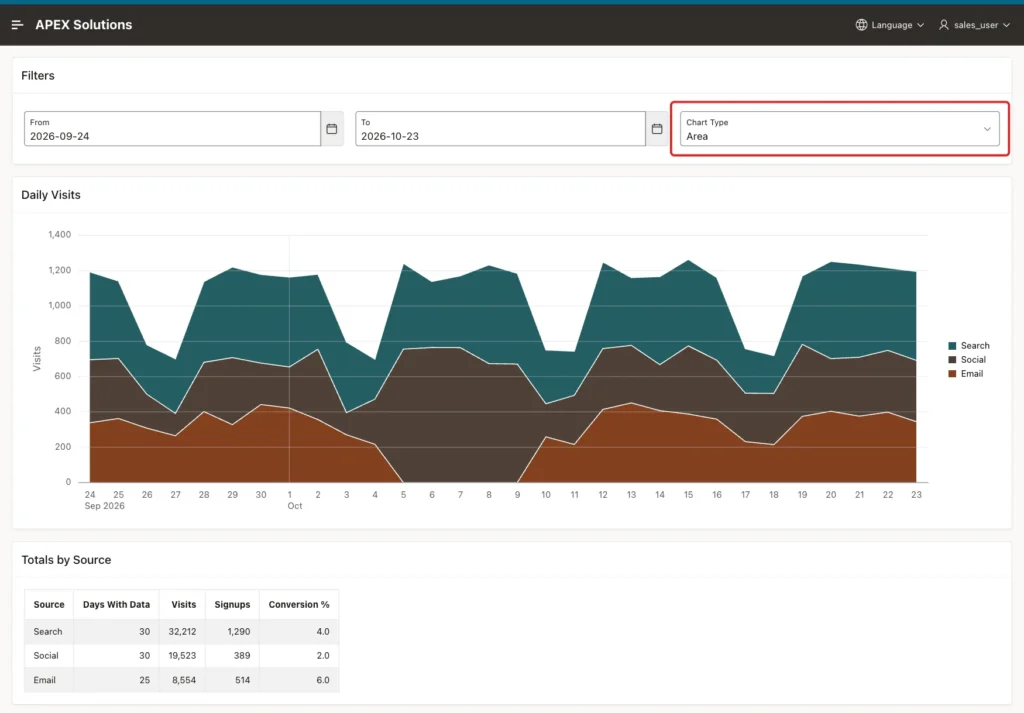
Now select Bar again and click into the From field. The date picker opens on the current value:
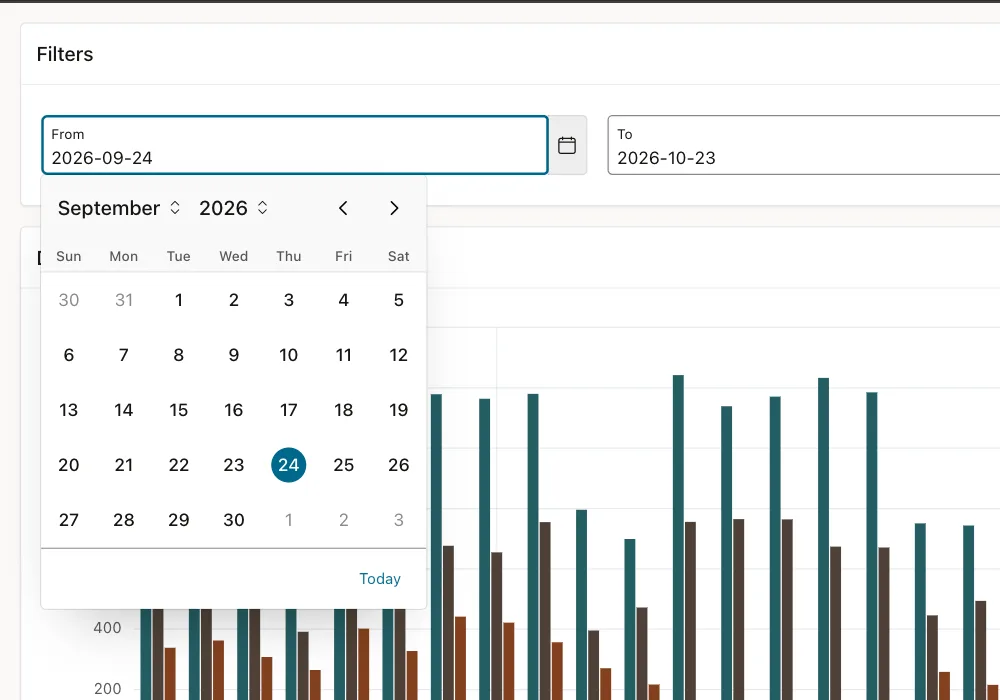
Set From to 2026-10-01 and To to 2026-10-10. After each change, the chart and the report refresh. The chart keeps the Bar type:
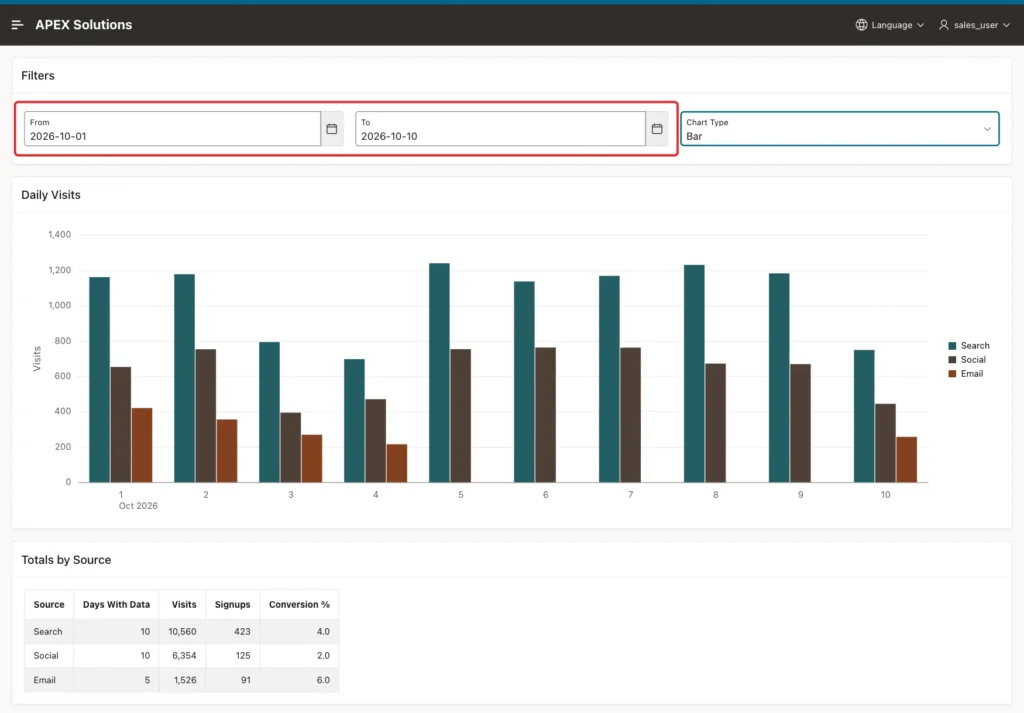
The report shows the same totals as the SQL output in Step 8. The values in the chart were also read from the chart widget in the browser for 3 to 10 October. All 24 values matched the SQL output in Step 5.
Reload the page. It opens with 1 to 10 October and the Bar chart, because the dates and the chart type are in session state.
Now set From to 2026-10-15, after the To date. The error message appears, and no request is sent:
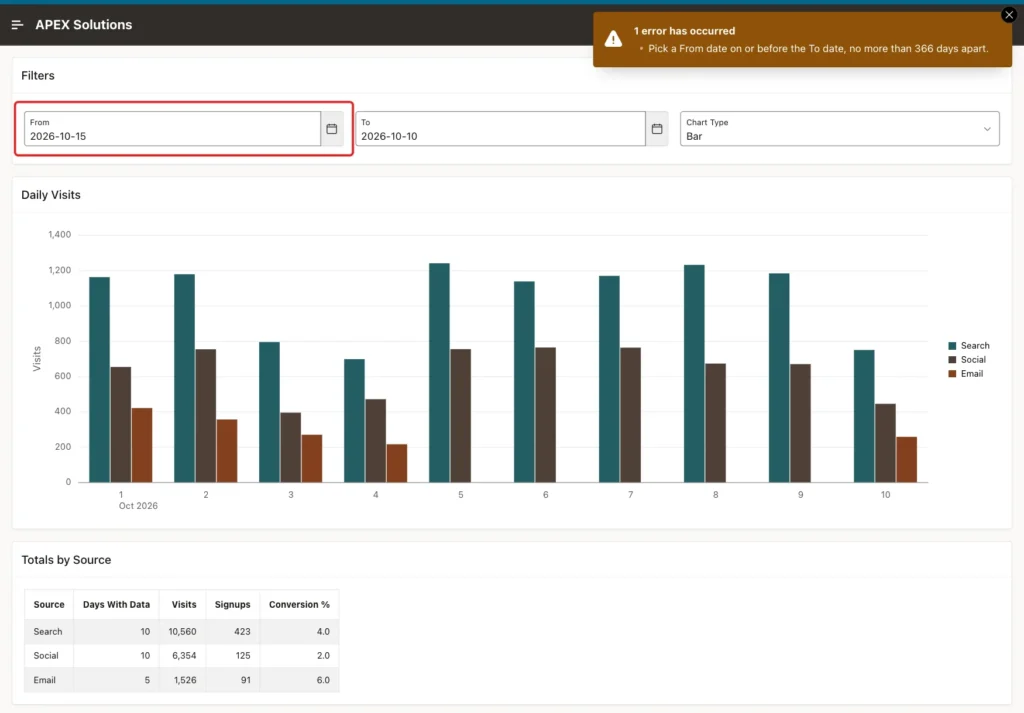
The chart and the report still show 1 to 10 October, while the From field shows the new date. The error message tells the user why. The same message appeared for a range from 1 January 2025 to 23 October 2026 and for the text abc. The next valid change cleared the message.
Step 13: Test Forged Values
A user can skip the client-side check from the browser console. Signed in as a read-only user, the item values were set without the change event, and both regions were refreshed directly:
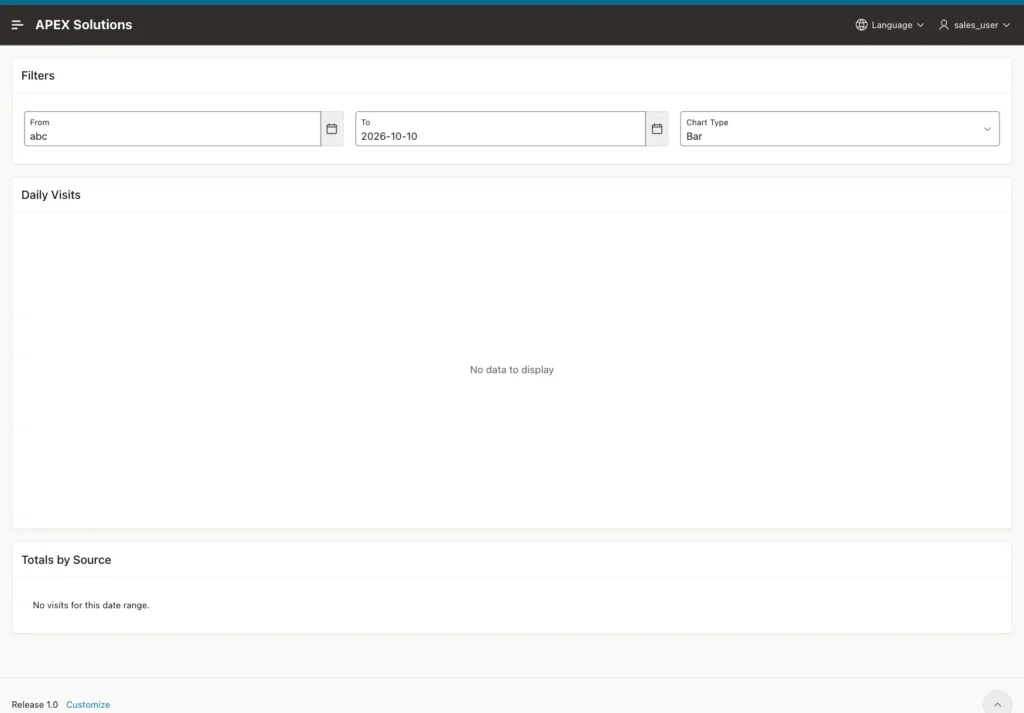
The texts abc, 2026-02-30 and 2026-10-01' or 1=1 --, a reversed range and a range from 1 January 2024 to 23 October 2026 were tried. Each time the chart showed No data to display, and the report showed its no-data message. No request failed. This query shows why:
Example:
set linesize 200
alter session set nls_date_format = 'YYYY-MM-DD';
column date_from_text format a24
column date_to_text format a12
column result format a8
select t.date_from_text,
       t.date_to_text,
       to_date(t.date_from_text default null on conversion error, 'YYYY-MM-DD') as date_from,
       to_date(t.date_to_text default null on conversion error, 'YYYY-MM-DD') as date_to,
       case when to_date(t.date_to_text default null on conversion error, 'YYYY-MM-DD')
               - to_date(t.date_from_text default null on conversion error, 'YYYY-MM-DD') between 0 and 365
            then 'rows' else 'no rows' end as result
from (
  select '2026-10-01' as date_from_text, '2026-10-10' as date_to_text from dual union all
  select 'abc', '2026-10-10' from dual union all
  select '2026-02-30', '2026-03-05' from dual union all
  select '2026-10-10', '2026-10-01' from dual union all
  select '2025-01-01', '2026-10-23' from dual union all
  select '2026-10-01'' or 1=1 --', '2026-10-10' from dual
) t;
Output:
Session altered.

DATE_FROM_TEXT           DATE_TO_TEXT    DATE_FROM     DATE_TO       RESULT
________________________ _______________ _____________ _____________ __________
2026-10-01               2026-10-10      2026-10-01    2026-10-10    rows
abc                      2026-10-10                    2026-10-10    no rows
2026-02-30               2026-03-05                    2026-03-05    no rows
2026-10-10               2026-10-01      2026-10-10    2026-10-01    no rows
2025-01-01               2026-10-23      2025-01-01    2026-10-23    no rows
2026-10-01' or 1=1 --    2026-10-10                    2026-10-10    no rows

6 rows selected.
Every text that is not a valid date becomes NULL, and the range checks reject the rest. The values are bind variables, so the text with or 1=1 is never run as SQL.
A forged chart type was tested too. The values pie and line');alert(1);// were added to the select list from the console and selected. The chart kept its type, because the code only accepts line, bar and area. After a reload, the chart was a line chart again and no alert appeared.
Things to Know
- Set Page Items to Submit on every region that reads the date items. A region refresh sends only the items listed there.
- Generate the days of the range and left join the data, so missing days show as 0 instead of disappearing from a line.
- Check the range twice: in the client-side condition for a clear message, and in SQL for forged requests.
- Use a fixed date format such as YYYY-MM-DD for the date items, and convert the text with DEFAULT NULL ON CONVERSION ERROR.
- The chart type can change in the browser with the ojChart type option. The data stays the same and no request is needed.
- Store the chart type in session state and read it in the Initialization JavaScript Function, or a reload brings back the type from Page Designer.
- Turn off Warn on Unsaved Changes on pages where items only filter data.
- When the client-side check fails, the regions keep their old data. Keep the error message visible until the user fixes the range.
Related Guides
- How to Build a Dashboard Page with KPI Cards and Charts in Oracle APEX
- How to Auto-Refresh a Dashboard Region Without Reloading the Page in Oracle APEX
Conclusion
Date range and chart type controls turn a fixed dashboard in Oracle APEX into one that users can explore. Two date pickers and a dynamic action refresh any number of regions, and a select list with a few lines of JavaScript switches the chart between line, bar and area.
The details make it reliable: Page Items to Submit on each region, generated days for gaps, a clear message for a wrong range, safe SQL for forged values, and session state that keeps the user's choices after a reload.
See my articles more often when you search Google.
