
Many records are repeated with small changes: a monthly purchase order, a standard quote, a project with the same task list. Typing the header and every detail row again is slow and causes mistakes. Users want one button that makes a full copy, header and lines, which they then adjust.
This guide adds a Copy with Lines button to an Oracle APEX form. One PL/SQL process inserts the new master row, copies all its detail rows with INSERT ... SELECT, and a branch opens the new copy with a success message.
The guide uses purchase orders and their lines as the example; the same steps work for any master-detail pair of tables.
The older post How to Copy an Existing Record into a New Form in Oracle APEX fills a new, unsaved form with the values of one row. Here the copy is saved at once in the database, and it includes all the child rows.
Step 1: Create the Tables
The example uses three tables. SUPPLY_VENDORS lists the vendors, PURCHASE_ORDERS is the master table, and PURCHASE_ORDER_LINES holds the detail rows of each purchase order.
PURCHASE_ORDERS has a column COPIED_FROM_PO_ID with a foreign key to the same table, so every copy remembers its source. Create the tables, the indexes and the sample data:
Example:
create table supply_vendors (
  vendor_id    number generated by default on null as identity,
  vendor_name  varchar2(100 char) not null,
  constraint supply_vendors_pk primary key (vendor_id),
  constraint supply_vendors_name_uk unique (vendor_name)
);

create table purchase_orders (
  po_id              number generated by default on null as identity,
  vendor_id          number            not null,
  po_date            date              default on null trunc(sysdate) not null,
  status             varchar2(10 char) default on null 'NEW' not null,
  notes              varchar2(400 char),
  copied_from_po_id  number,
  created_by         varchar2(255)     default on null
                       coalesce(sys_context('APEX$SESSION', 'APP_USER'), user) not null,
  created_on         date              default on null sysdate not null,
  constraint purchase_orders_pk primary key (po_id),
  constraint purchase_orders_vendor_fk foreign key (vendor_id)
    references supply_vendors (vendor_id),
  constraint purchase_orders_copied_fk foreign key (copied_from_po_id)
    references purchase_orders (po_id),
  constraint purchase_orders_status_ck check (status in ('NEW', 'APPROVED', 'RECEIVED'))
);

create index purchase_orders_vendor_ix on purchase_orders (vendor_id);
create index purchase_orders_copied_ix on purchase_orders (copied_from_po_id);

create table purchase_order_lines (
  line_id      number generated by default on null as identity,
  po_id        number             not null,
  line_no      number(3)          not null,
  item_name    varchar2(100 char) not null,
  quantity     number(8)          not null,
  unit_price   number(10,2)       not null,
  line_amount  number(12,2) generated always as (quantity * unit_price) virtual,
  constraint purchase_order_lines_pk primary key (line_id),
  constraint purchase_order_lines_po_fk foreign key (po_id)
    references purchase_orders (po_id) on delete cascade,
  constraint purchase_order_lines_no_uk unique (po_id, line_no),
  constraint purchase_order_lines_qty_ck check (quantity > 0),
  constraint purchase_order_lines_price_ck check (unit_price >= 0)
);

insert into supply_vendors (vendor_name) values ('Atlas Office Supply');
insert into supply_vendors (vendor_name) values ('Brightline Electronics');
insert into supply_vendors (vendor_name) values ('Coastal Paper Co');

insert into purchase_orders (vendor_id, po_date, status, notes, created_by)
values (1, date '2026-10-01', 'RECEIVED', 'Monthly office supplies', 'DEMO_DEV');
insert into purchase_orders (vendor_id, po_date, status, notes, created_by)
values (2, date '2026-10-06', 'APPROVED', 'Laptops for new hires', 'SALES_MANAGER');

insert into purchase_order_lines (po_id, line_no, item_name, quantity, unit_price)
values (1, 1, 'Printer paper A4 (box)', 20, 24.50);
insert into purchase_order_lines (po_id, line_no, item_name, quantity, unit_price)
values (1, 2, 'Blue pens (pack of 50)', 4, 18.00);
insert into purchase_order_lines (po_id, line_no, item_name, quantity, unit_price)
values (1, 3, 'Sticky notes (pack of 12)', 10, 9.75);
insert into purchase_order_lines (po_id, line_no, item_name, quantity, unit_price)
values (2, 1, 'Laptop 14 inch', 3, 1150.00);
insert into purchase_order_lines (po_id, line_no, item_name, quantity, unit_price)
values (2, 2, 'USB-C dock', 3, 189.00);
commit;

select o.po_id, v.vendor_name, o.status, count(l.line_id) as lines, sum(l.line_amount) as total
from   purchase_orders o
join   supply_vendors v on v.vendor_id = o.vendor_id
left   join purchase_order_lines l on l.po_id = o.po_id
group  by o.po_id, v.vendor_name, o.status
order  by o.po_id;
Output:
Table SUPPLY_VENDORS created.

Table PURCHASE_ORDERS created.

Index PURCHASE_ORDERS_VENDOR_IX created.

Index PURCHASE_ORDERS_COPIED_IX created.

Table PURCHASE_ORDER_LINES created.

1 row inserted.

1 row inserted.

1 row inserted.

1 row inserted.

1 row inserted.

1 row inserted.

1 row inserted.

1 row inserted.

1 row inserted.

1 row inserted.

Commit complete.

   PO_ID VENDOR_NAME               STATUS         LINES    TOTAL
________ _________________________ ___________ ________ ________
       1 Atlas Office Supply       RECEIVED           3    659.5
2 Brightline Electronics APPROVED 2 4017- STATUS, PO_DATE, CREATED_BY and CREATED_ON use DEFAULT ON NULL. A copy that leaves them out gets the status NEW, today's date and the current APEX user, with no trigger and no extra code.
- PURCHASE_ORDER_LINES_PO_FK uses ON DELETE CASCADE, and PURCHASE_ORDER_LINES_NO_UK keeps line numbers unique within one purchase order.
- LINE_AMOUNT is a virtual column, so the copy does not insert it. The database calculates it for the new lines.
Step 2: Create the Report and Form Pages
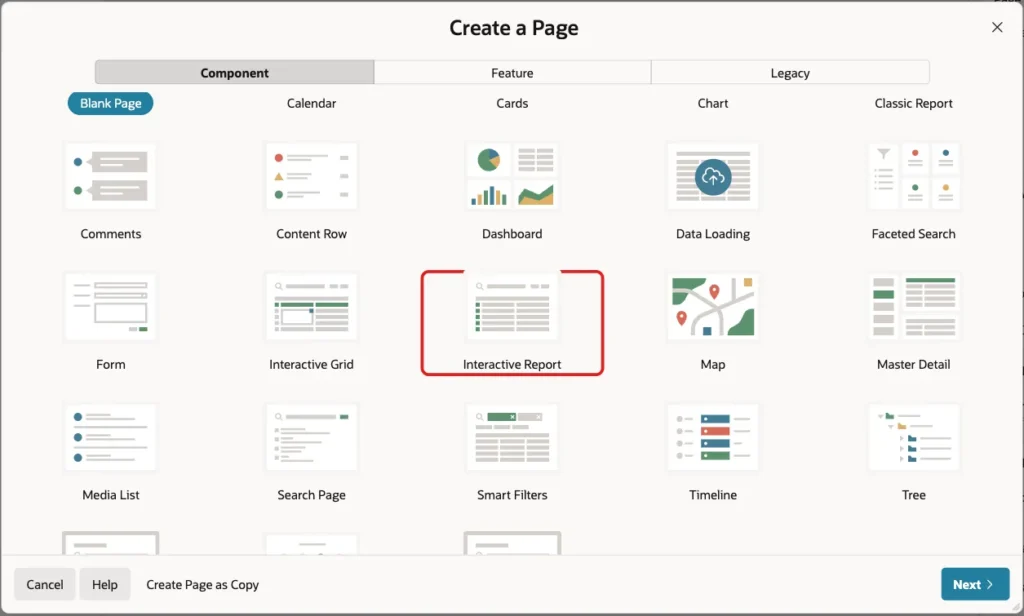
In App Builder, open the application and click Create Page. On the Component tab, click Interactive Report:
Enter Page Number 450 and Name Purchase Orders. Turn on Include Form Page, enter Form Page Number 451 and Form Page Name Purchase Order, and keep Form Page Mode Normal:
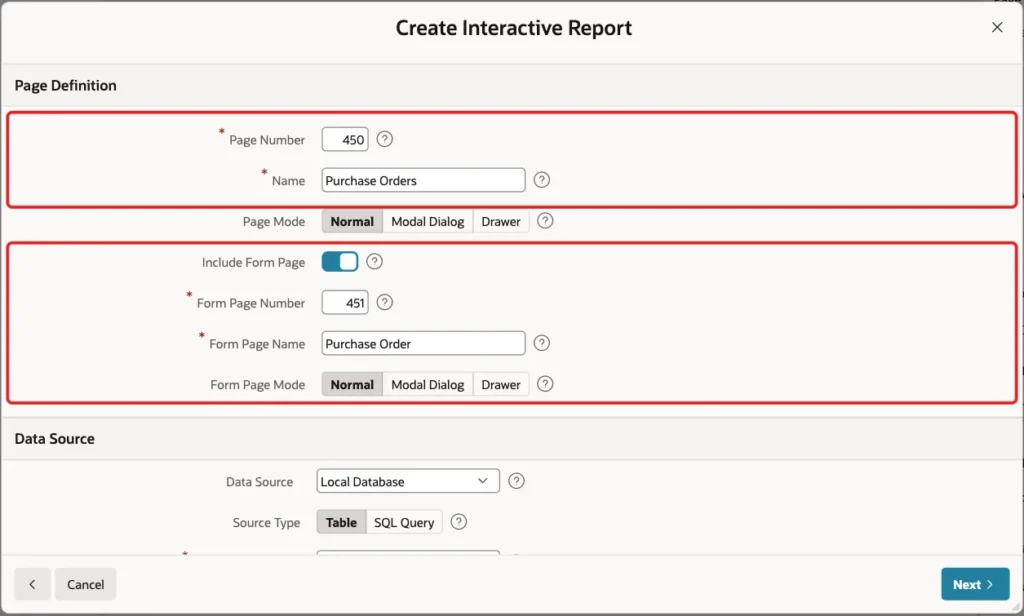
A normal page is used for the form because the branch after the copy opens the same form again with the new record.
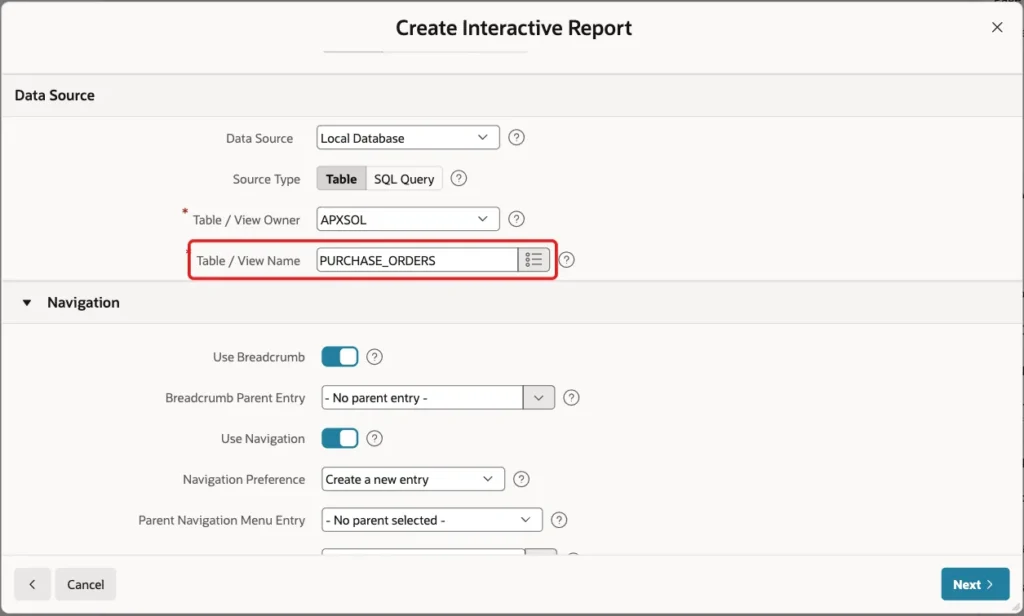
Under Data Source, keep Local Database and Source Type Table, and enter Table / View Name PURCHASE_ORDERS. Keep the Navigation settings and click Next:
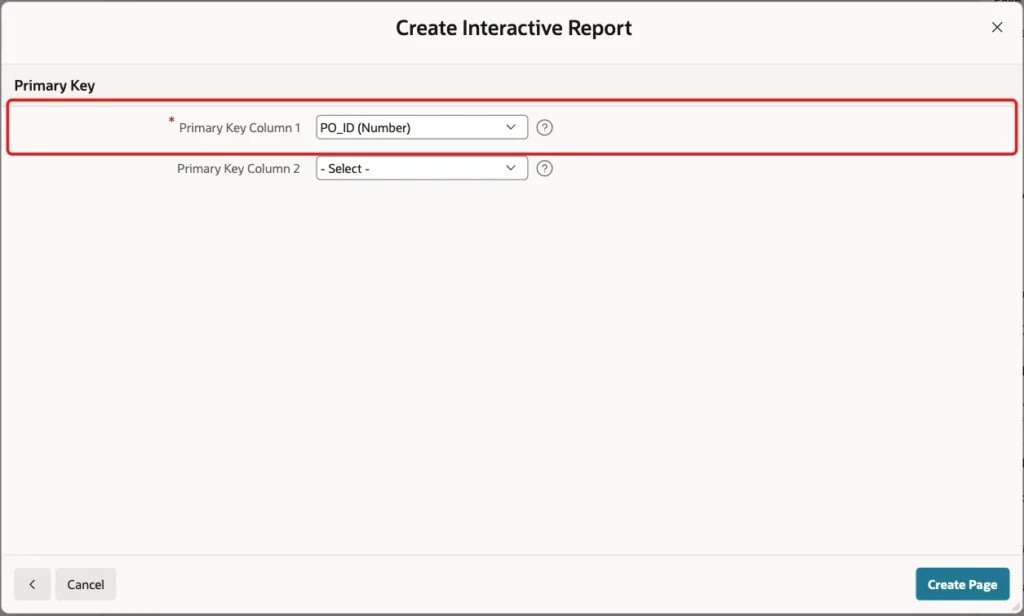
On the Primary Key screen, select PO_ID (Number) as Primary Key Column 1 and click Create Page:
Step 3: Fix the Generated Form Items
The wizard made a select list for P451_COPIED_FROM_PO_ID with a new list of values on PURCHASE_ORDERS. That list returns PO_ID but displays STATUS, so a copy of purchase order 1 would show the word RECEIVED instead of the number 1.
Open page 451 in Page Designer and select P451_COPIED_FROM_PO_ID. Set Type to Display Only and Label to Copied From PO:
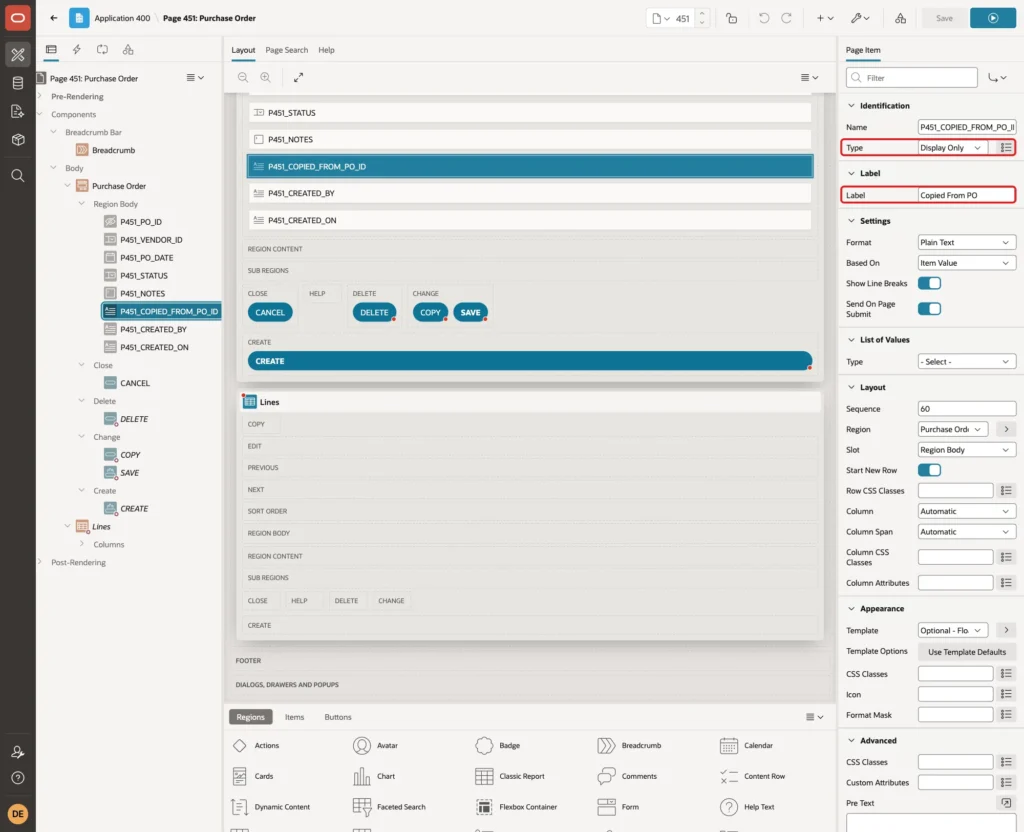
Set Type Display Only for P451_CREATED_BY and P451_CREATED_ON too. The wizard made them required text fields, but the table fills them with DEFAULT ON NULL. Also change P451_STATUS to a Select List with the static values New, Approved and Received.
On page 450, the Copied From PO column of the report had the same list of values. Set its Type to Plain Text, so the report shows the number too.
Step 4: Show the Lines on the Form
The form needs to show the detail rows, so users can see what will be copied. In the Rendering tree, right-click Body and choose Create Region. Set Name Lines and Type Classic Report. Under Source, set Type SQL Query, enter this query, and enter P451_PO_ID in Page Items to Submit:
Example:
select line_no,
       item_name,
       quantity,
       unit_price,
       line_amount
  from purchase_order_lines
 where po_id = :P451_PO_ID
 order by line_no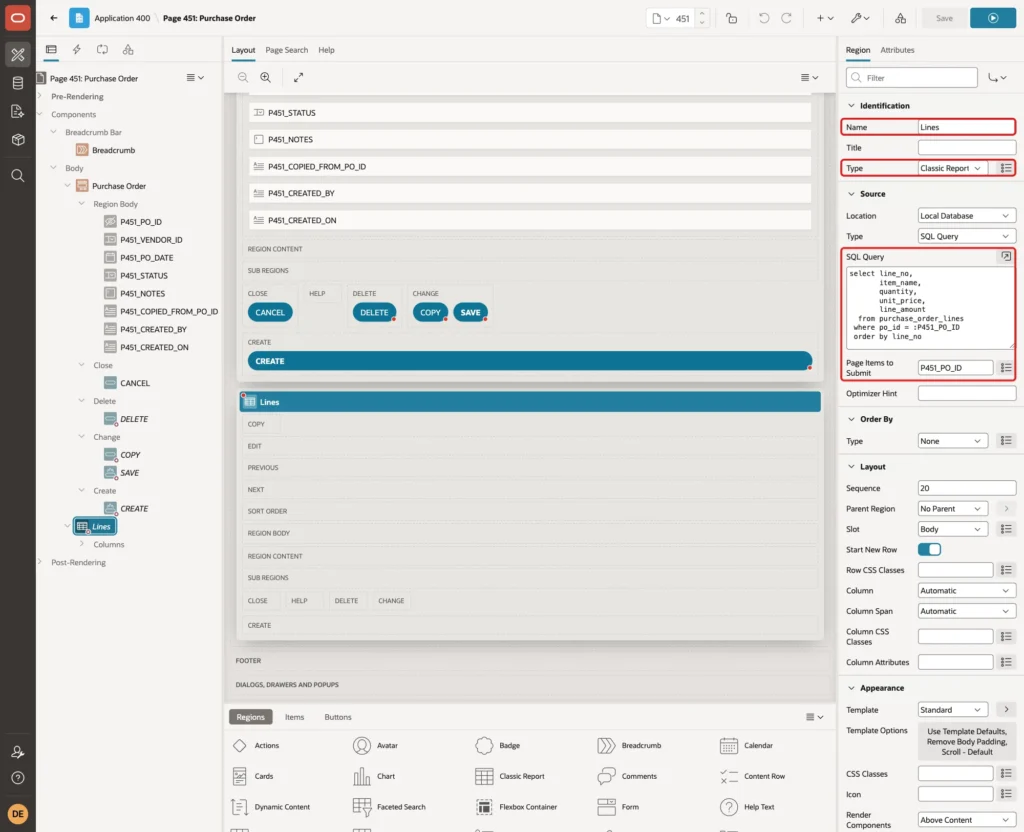
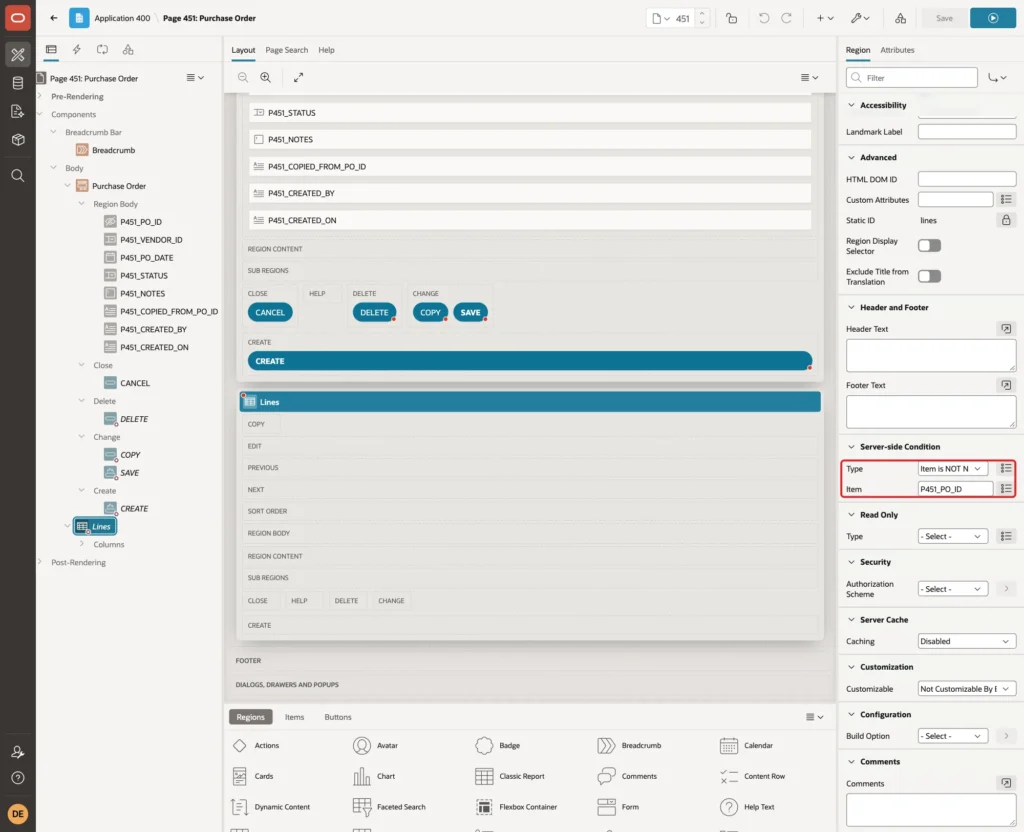
Under Server-side Condition, set Type Item is NOT NULL and Item P451_PO_ID. A new purchase order has no lines yet, so the region shows only for an existing one:
Editing lines is not part of this guide. For an editable grid of detail rows, see the master-detail guide in Related Guides.
Step 5: Add the Copy Button
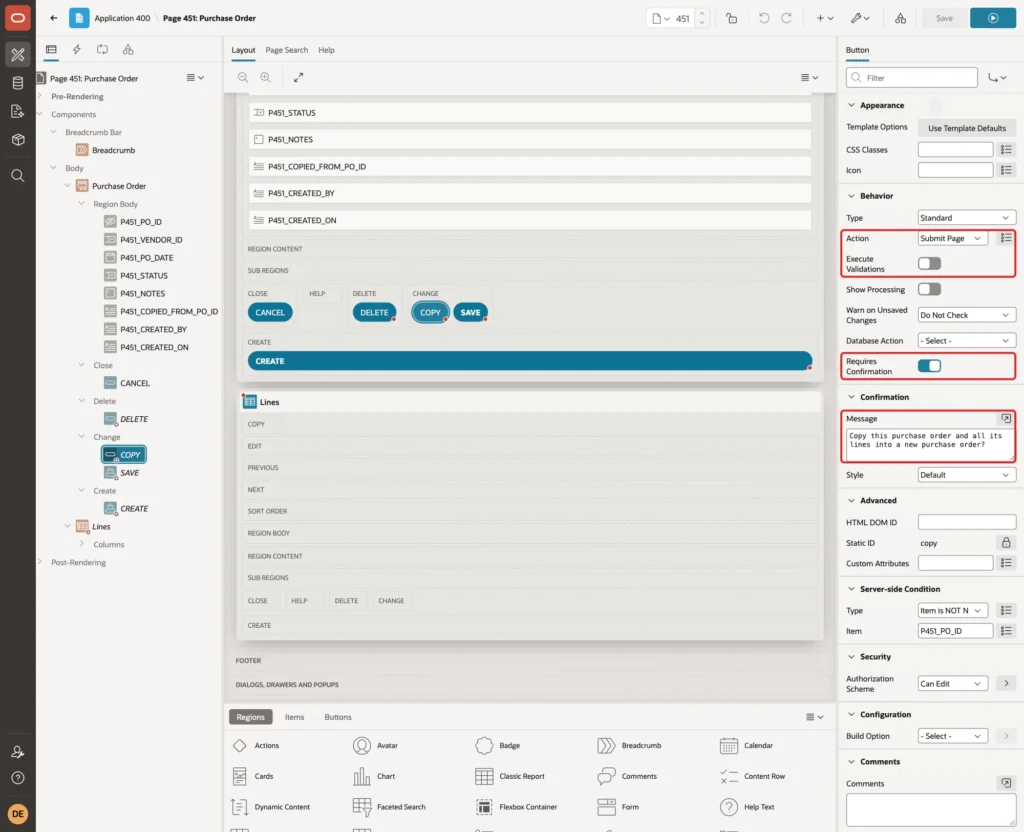
In the Rendering tree, right-click Change under the Purchase Order region and choose Create Button. Set Button Name COPY and Label Copy with Lines. Keep Slot Change and set Sequence 25, so the button sits next to Apply Changes:
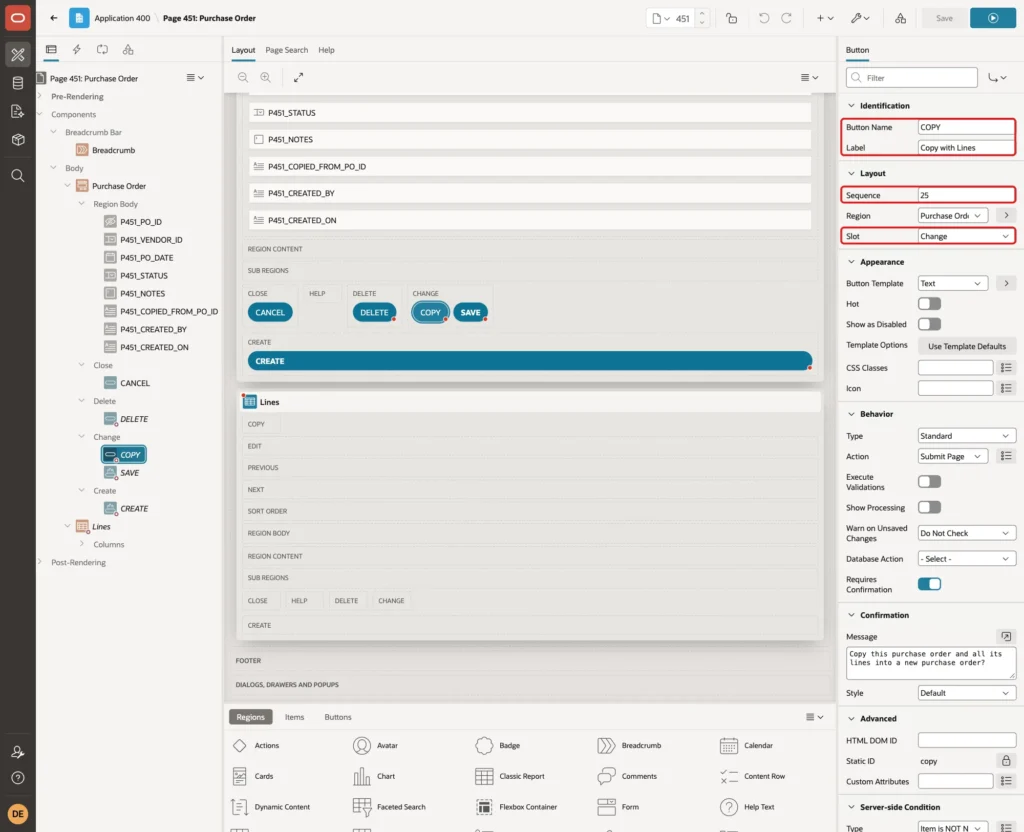
In the Behavior group, keep Action Submit Page and turn off Execute Validations. The copy is made from the saved row, so the validations of the form fields do not matter here.
Turn on Requires Confirmation and enter the Message Copy this purchase order and all its lines into a new purchase order?:
Under Server-side Condition, set Type Item is NOT NULL and Item P451_PO_ID, so the button shows only for a saved purchase order. Under Security, set Authorization Scheme Can Edit:
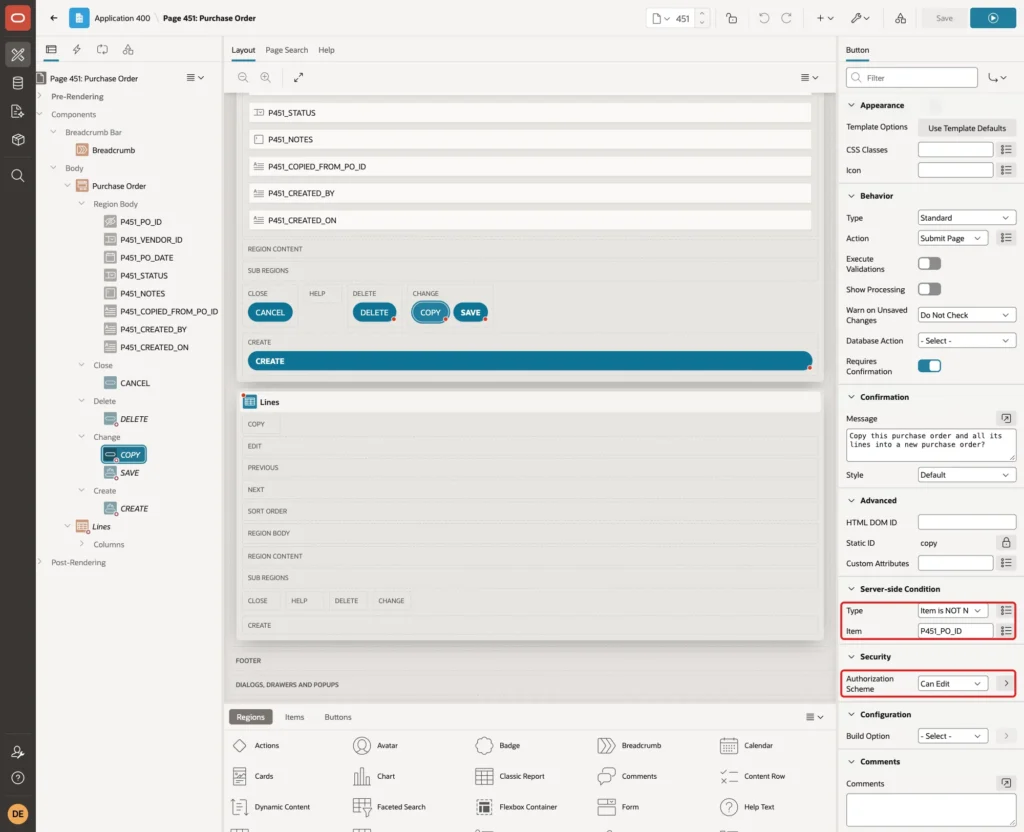
Can Edit is an authorization scheme of this application of type Is In Role or Group, for the roles Administrator and Editor. The guide How to Hide Buttons and Regions Based on the User's Role in Oracle APEX shows how to create such a scheme.
Step 6: Create the Copy Process
The first idea was a single INSERT ... SELECT for the master row with a RETURNING clause, to get the new ID back. Oracle does not allow RETURNING after INSERT ... SELECT, as this test shows:
Example:
set serveroutput on
declare
  l_new_id purchase_orders.po_id%type;
begin
  insert into purchase_orders (vendor_id, notes, copied_from_po_id)
  select vendor_id, notes, po_id from purchase_orders where po_id = 1
  returning po_id into l_new_id;
  dbms_output.put_line('new id ' || l_new_id);
  rollback;
end;
/
Output:
  returning po_id into l_new_id;
  *
ERROR at line 6:
ORA-06550: line 6, column 3:
PL/SQL: ORA-03049: SQL keyword 'RETURNING' is not syntactically valid following '...where po_id = 1
  '
ORA-06550: line 4, column 3:
PL/SQL: SQL Statement ignored
Help: https://docs.oracle.com/error-help/db/ora-06550/
So the process reads the source row into a record first, inserts the new master row with VALUES and RETURNING, and then copies the lines with INSERT ... SELECT.
Open the Processing tab, right-click Processes and choose Create Process. Set Name Copy with lines and Type Execute Code, and enter this PL/SQL Code:
Example:
declare
    l_source purchase_orders%rowtype;
    l_new_id purchase_orders.po_id%type;
begin
    select *
    into   l_source
    from   purchase_orders
    where  po_id = :P451_PO_ID;

    insert into purchase_orders (vendor_id, notes, copied_from_po_id)
    values (l_source.vendor_id, l_source.notes, l_source.po_id)
    returning po_id into l_new_id;

    insert into purchase_order_lines
           (po_id, line_no, item_name, quantity, unit_price)
    select l_new_id, line_no, item_name, quantity, unit_price
    from   purchase_order_lines
    where  po_id = l_source.po_id;

    :P451_PO_ID := l_new_id;
end;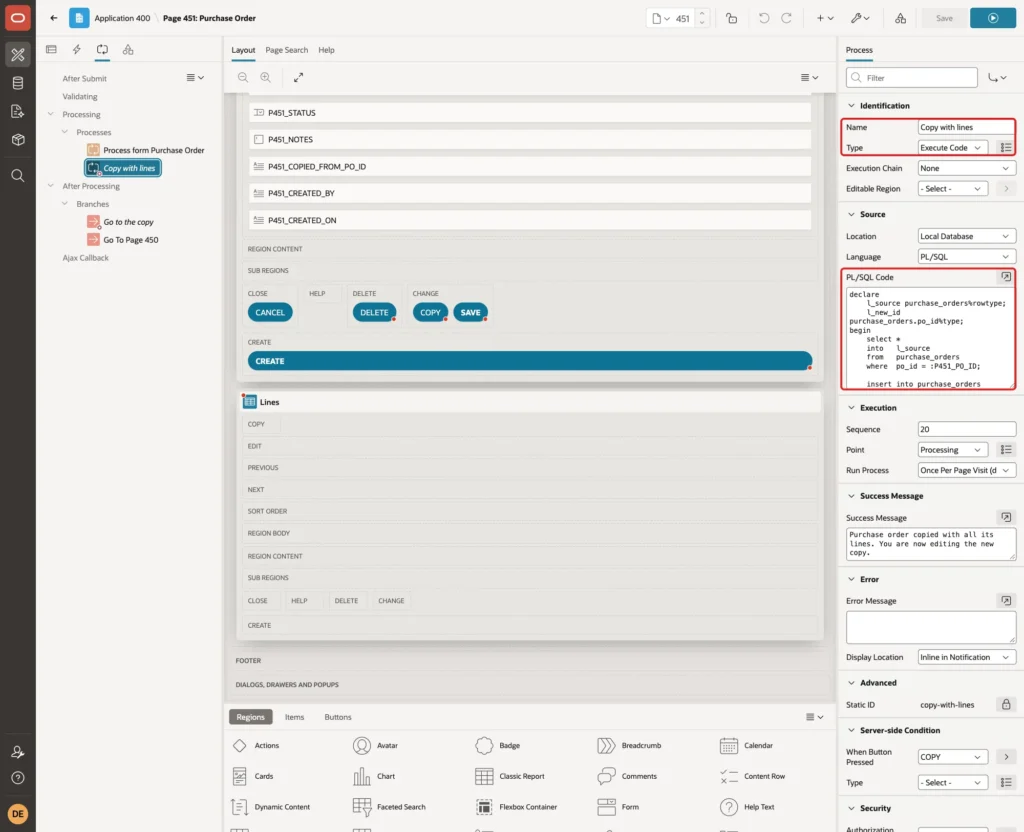
The INSERT lists only the columns to copy: the vendor and the notes. STATUS, PO_DATE, CREATED_BY and CREATED_ON are left out, so the column defaults give the copy the status NEW, today's date and the current user. COPIED_FROM_PO_ID stores the source.
The second INSERT copies every line with the new PO_ID. The last line puts the new ID into P451_PO_ID, so the branch can open the copy.
Enter the Success Message Purchase order copied with all its lines. You are now editing the new copy. Under Server-side Condition, set When Button Pressed COPY, and under Security set Authorization Scheme Can Edit:
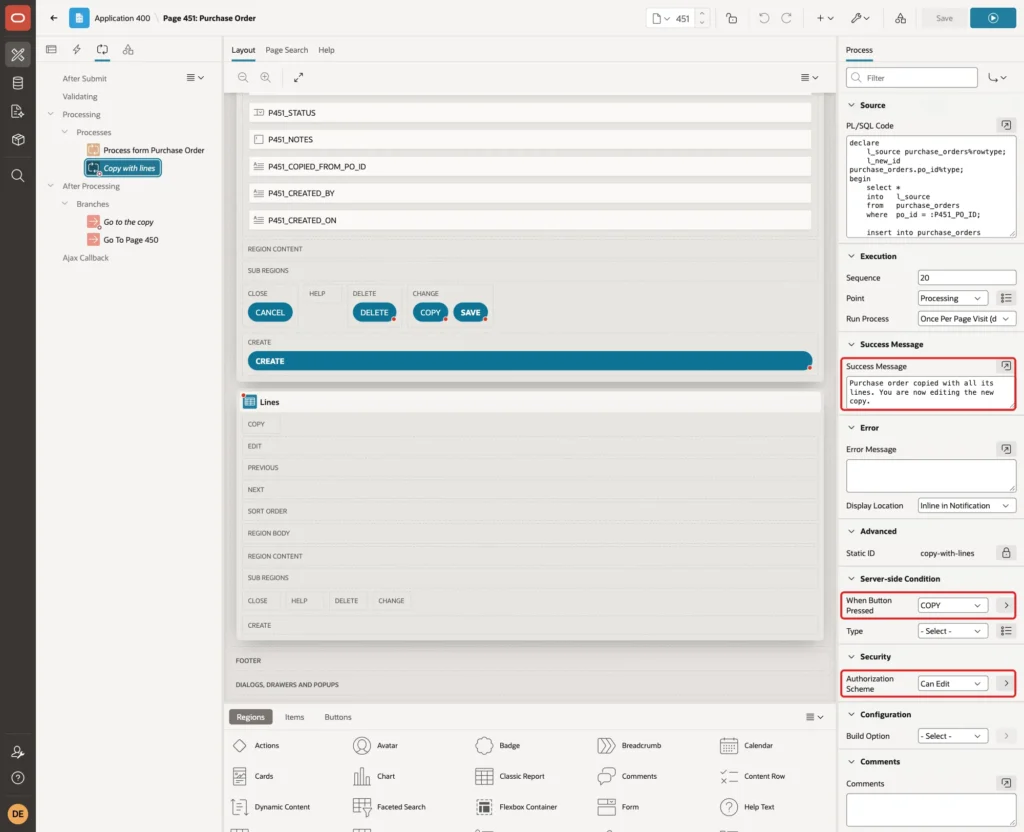
The authorization on the process matters. The button condition only hides the button, while the process check also stops a request sent without the button.
Step 7: Open the Copy After Processing
The wizard created a branch Go To Page 450, which returns to the report after every submit. The copy should open in the form instead.
Right-click Branches under After Processing and choose Create Branch. Set Name Go to the copy and Sequence 0, so it runs before the existing branch. Set Target to Page 451, with Set Items P451_PO_ID to &P451_PO_ID. and Clear Cache 451. Under Server-side Condition, set When Button Pressed COPY:
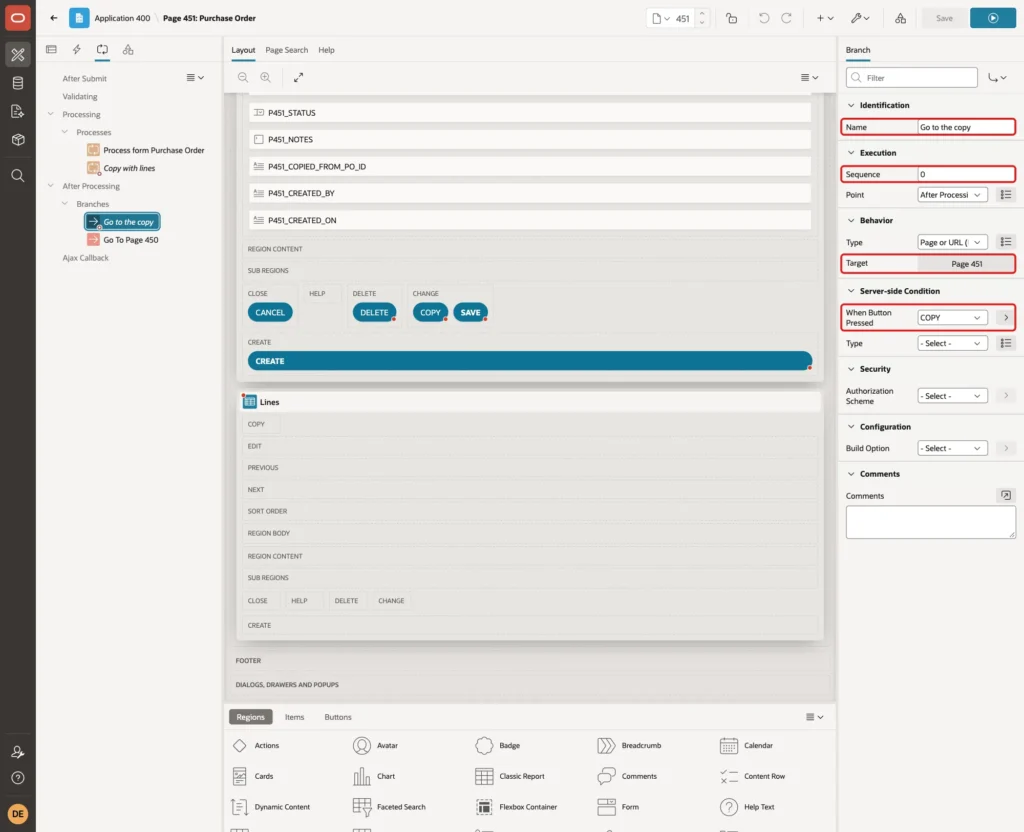
Clear Cache 451 removes the values of the source purchase order, and the form loads the new row by its ID. Click Save.
Testing It
Copy a Purchase Order
Log in as DEMO_DEV, who has the Administrator role, and open Purchase Orders. The sample data has two purchase orders:
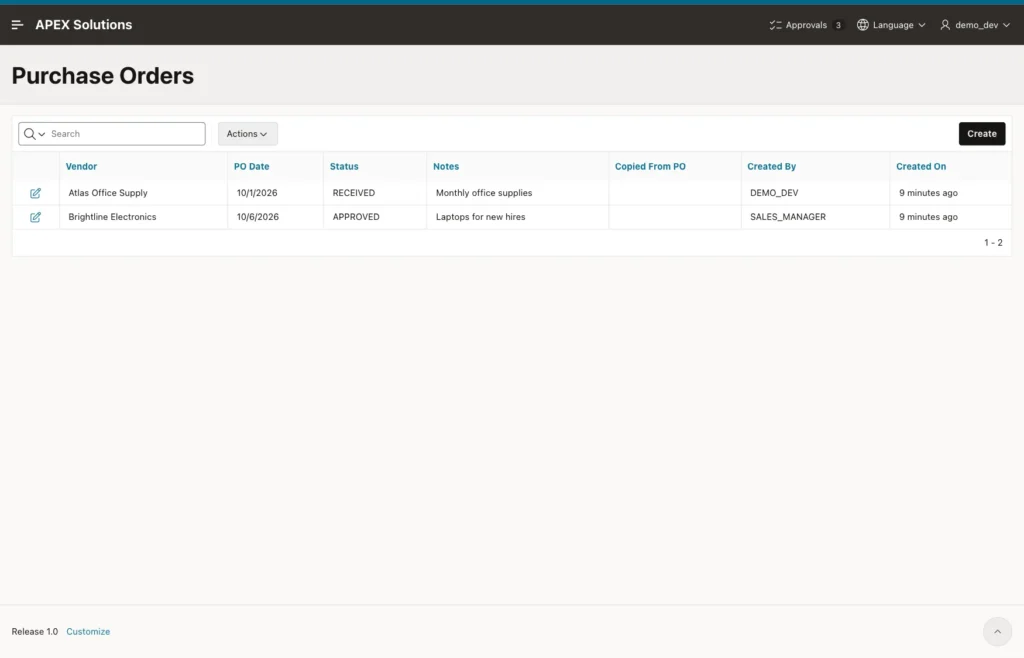
Open the received purchase order of Atlas Office Supply. The form shows its three lines and the Copy with Lines button:
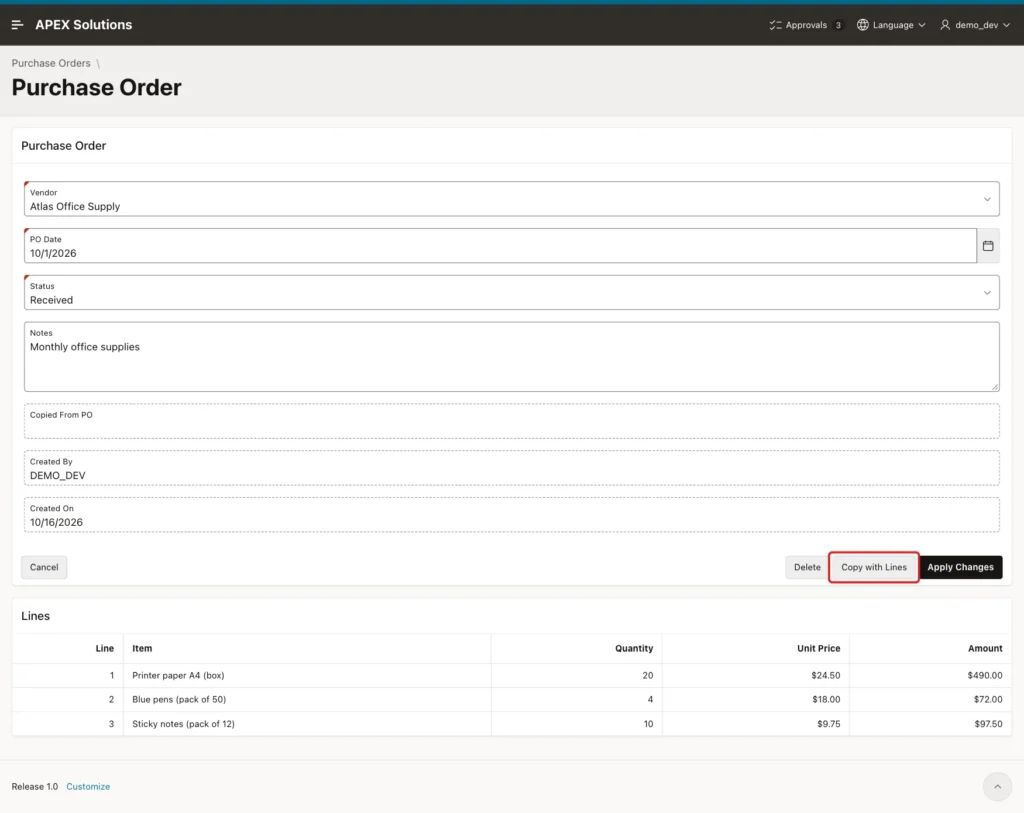
Click Copy with Lines. The confirmation dialog appears:
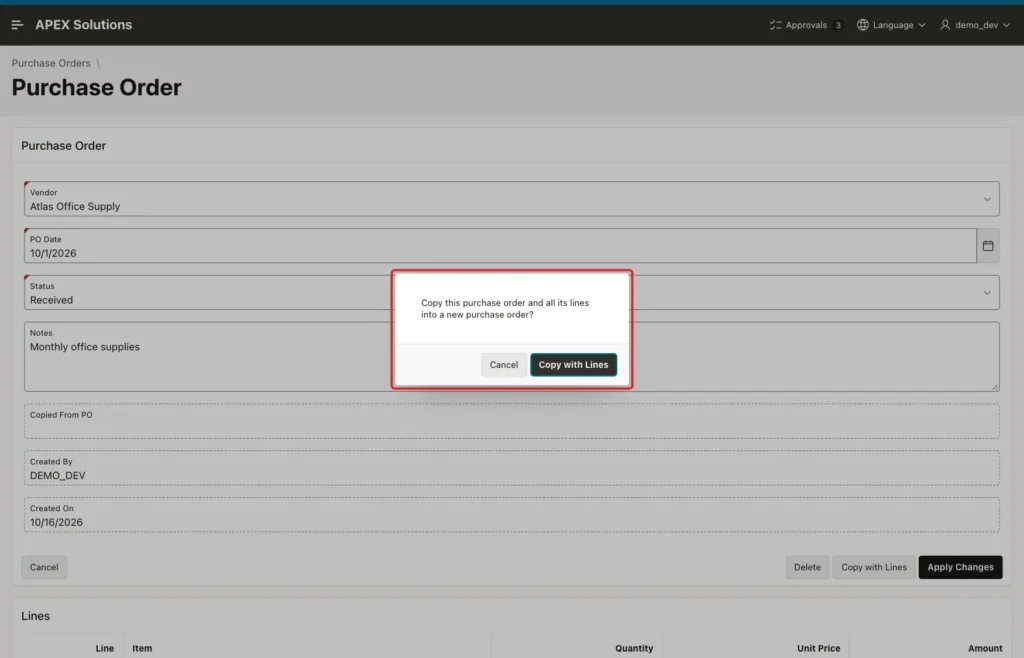
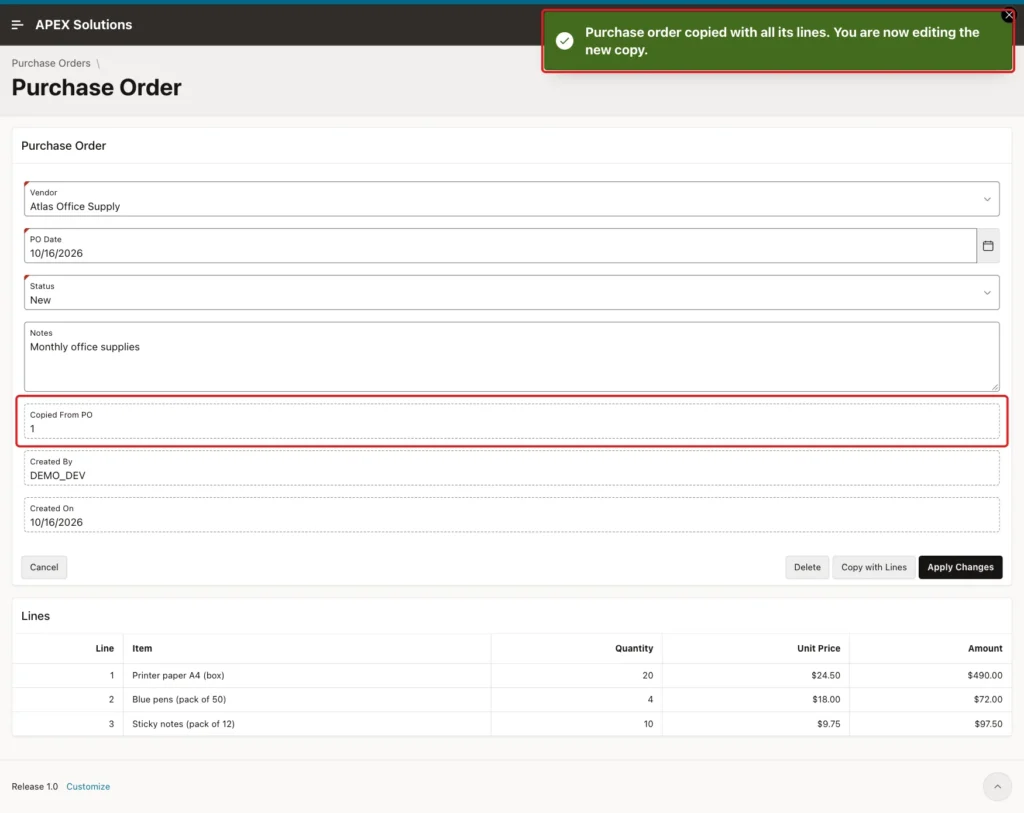
Click Copy with Lines in the dialog. The page opens the new purchase order with the success message. It has status New, today's date, Copied From PO 1 and the same three lines:
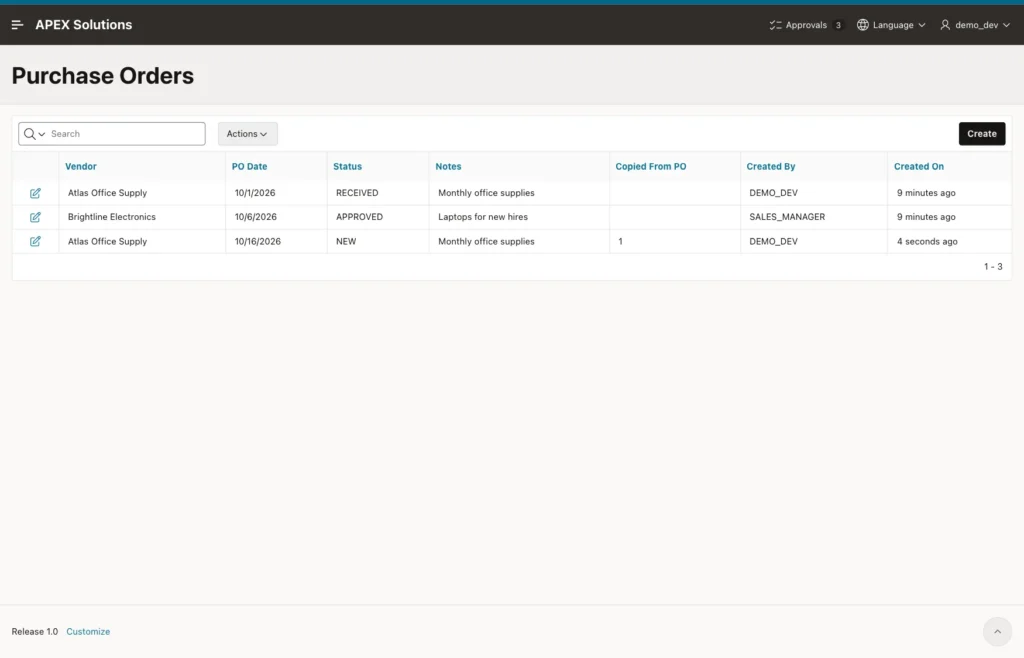
Back in the report, the new row shows its source in Copied From PO:
The tables confirm that the original is unchanged and the totals match:
Example:
alter session set nls_date_format = 'YYYY-MM-DD';

select po_id, vendor_id, po_date, status, notes, copied_from_po_id, created_by
from   purchase_orders
order  by po_id;

select po_id, count(*) as lines, sum(line_amount) as total
from   purchase_order_lines
group  by po_id
order  by po_id;
Output:
Session altered.

   PO_ID    VENDOR_ID PO_DATE       STATUS      NOTES                         COPIED_FROM_PO_ID CREATED_BY
________ ____________ _____________ ___________ __________________________ ____________________ ________________
       1            1 2026-10-01    RECEIVED    Monthly office supplies                         DEMO_DEV
       2            2 2026-10-06    APPROVED    Laptops for new hires                           SALES_MANAGER
      23            1 2026-10-16    NEW         Monthly office supplies                       1 DEMO_DEV

   PO_ID    LINES    TOTAL
________ ________ ________
       1        3    659.5
       2        2     4017
      23        3    659.5
The copy got the ID 23, not 3. ID 21 belonged to an earlier test copy that was deleted again, and ID 22 was used by the failed copy in the last test below. Identity values are never reused, so do not expect IDs without gaps.
Unsaved Changes Are Not Copied
In another test, the notes of purchase order 1 were changed on the form to a new text, and Copy with Lines was clicked without saving first. The copy got the stored notes Monthly office supplies, and purchase order 1 kept its old notes.
The form's Automatic Row Processing did not save the edited notes on the COPY request, and the process reads the source from the table, not from the page items. Tell users to save their changes before they copy.
A Reader Cannot Copy
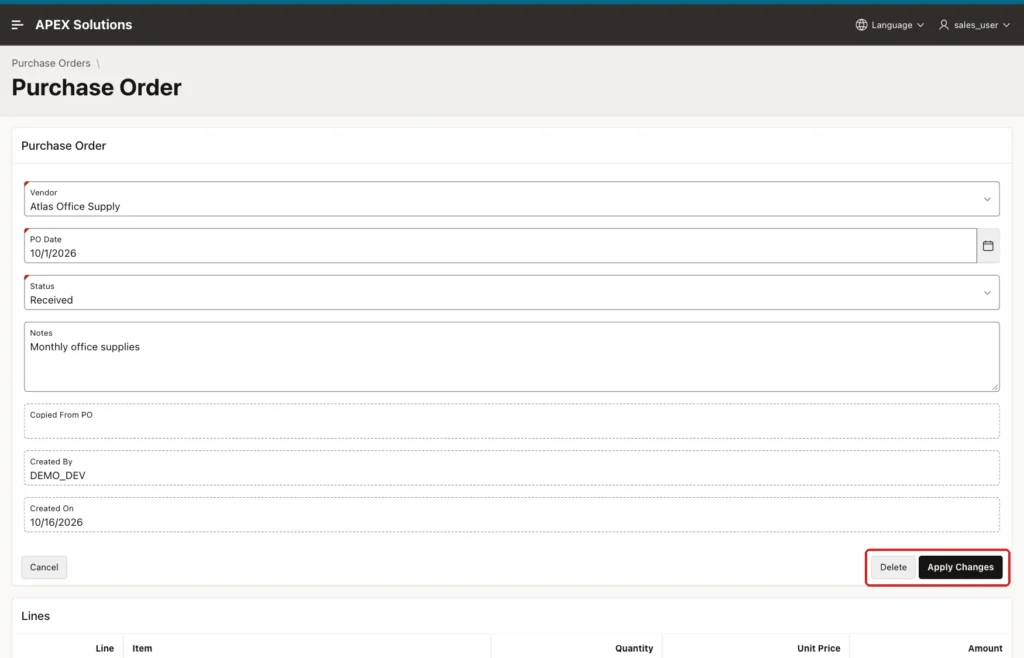
Log in as SALES_USER, who has only the Reader role. The form shows no Copy with Lines button:
Next, the request was sent without the button, from the browser console:
Example:
apex.page.submit({ request: 'COPY', validate: false });The page was submitted, but the process did not run, because SALES_USER fails the Can Edit check. No row was added: the tables still had three purchase orders and eight lines.
The Copy Is All or Nothing
A copy must never end with a master row and only some of its lines. To test this, a temporary check constraint quantity < 15 was added to PURCHASE_ORDER_LINES with ENABLE NOVALIDATE, so the existing rows stayed valid.
Copying purchase order 1 then failed on the line with quantity 20. The page showed ORA-02290: check constraint (APXSOL.ZZ_TEST_QTY_CK) violated. APEX rolled back the whole page submit, so the new master row was removed too, and the tables still had three purchase orders. The test constraint was dropped afterwards.
Things to Know
- List the columns to copy in both INSERT statements. Leave out the primary keys, virtual columns, status and audit columns, and let the column defaults fill them.
- INSERT ... SELECT cannot have a RETURNING clause (ORA-03049 in the test). Read the source row first, then insert with VALUES and RETURNING.
- Put the authorization scheme on the process as well as on the button. The forced request in the test reached the server and was stopped only by the process check.
- The wizard buttons Delete and Apply Changes have no authorization scheme, and SALES_USER still saw them. Protect them the same way in a real application.
Related Guides
- How to Copy an Existing Record into a New Form in Oracle APEX
- How to Build an Orders and Order Lines Master-Detail Page in Oracle APEX
Conclusion
To copy a master record with all its detail rows in Oracle APEX, add a button that submits the form and a PL/SQL process for that button. The process reads the source row, inserts the new master row with RETURNING, and copies the lines with INSERT ... SELECT using the new ID.
A branch then opens the copy with a success message. Column defaults set the status, date and user of the copy, a self-referencing foreign key records its source, and the authorization scheme on the process keeps readers from copying.
