
Colored status badges make a report easy to scan: users see at a glance which rows are open, blocked or done. When the colors are written into CSS, every color change needs a developer and a new deployment.
This guide stores the badge color in a lookup table instead. An Oracle APEX Color Picker item lets users choose the color, a virtual column picks black or white text, and an HTML Expression shows the badges in an interactive report and a classic report.
The guide uses task stages and team tasks as the example; the same steps work for any status or category table.
The older post How to Create Your Own Template Component in Oracle APEX builds a badge plug-in with fixed CSS classes per status. Here the colors live in the data, so a user changes them in a form and no code changes.
Step 1: Create the Tables
The example uses two tables. TASK_STAGES is the lookup table with one row per stage and its badge color. TEAM_TASKS holds the tasks, and each task points to one stage.
BADGE_COLOR has a check constraint that allows only a # and six hex digits. TEXT_COLOR is a virtual column that returns black for light badge colors and white for dark ones. Create the tables, the index and the sample data:
Example:
create table task_stages (
  stage_id     number generated by default on null as identity,
  stage_name   varchar2(50 char)  not null,
  badge_color  varchar2(7 char)   default on null '#6B7280' not null,
  text_color   varchar2(7 char) generated always as (
                 case
                   when 0.299 * to_number(substr(badge_color, 2, 2), 'XX')
                      + 0.587 * to_number(substr(badge_color, 4, 2), 'XX')
                      + 0.114 * to_number(substr(badge_color, 6, 2), 'XX') > 150
                   then '#000000'
                   else '#FFFFFF'
                 end) virtual,
  sort_order   number(3)          default on null 10 not null,
  constraint task_stages_pk primary key (stage_id),
  constraint task_stages_name_uk unique (stage_name),
  constraint task_stages_color_ck check (regexp_like(badge_color, '^#[0-9A-Fa-f]{6}$'))
);

create table team_tasks (
  task_id      number generated by default on null as identity,
  task_title   varchar2(200 char) not null,
  stage_id     number             not null,
  assigned_to  varchar2(100 char),
  due_date     date,
  constraint team_tasks_pk primary key (task_id),
  constraint team_tasks_stage_fk foreign key (stage_id)
    references task_stages (stage_id)
);

create index team_tasks_stage_ix on team_tasks (stage_id);

insert into task_stages (stage_name, badge_color, sort_order) values ('Open', '#2563EB', 10);
insert into task_stages (stage_name, badge_color, sort_order) values ('In Progress', '#F59E0B', 20);
insert into task_stages (stage_name, badge_color, sort_order) values ('On Hold', '#9CA3AF', 30);
insert into task_stages (stage_name, badge_color, sort_order) values ('Done', '#16A34A', 40);

insert into team_tasks (task_title, stage_id, assigned_to, due_date)
values ('Prepare quarterly budget', 1, 'Anita', date '2026-10-20');
insert into team_tasks (task_title, stage_id, assigned_to, due_date)
values ('Migrate file server', 2, 'Rahul', date '2026-10-25');
insert into team_tasks (task_title, stage_id, assigned_to, due_date)
values ('Renew software licenses', 3, 'Meera', date '2026-11-02');
insert into team_tasks (task_title, stage_id, assigned_to, due_date)
values ('Update onboarding guide', 4, 'Anita', date '2026-10-10');
insert into team_tasks (task_title, stage_id, assigned_to, due_date)
values ('Review vendor contracts', 2, 'Vikram', date '2026-10-28');
commit;

select stage_id, stage_name, badge_color, text_color, sort_order
from   task_stages
order  by sort_order;
Output:
Table TASK_STAGES created.

Table TEAM_TASKS created.

Index TEAM_TASKS_STAGE_IX created.

1 row inserted.

1 row inserted.

1 row inserted.

1 row inserted.

1 row inserted.

1 row inserted.

1 row inserted.

1 row inserted.

1 row inserted.

Commit complete.

   STAGE_ID STAGE_NAME     BADGE_COLOR    TEXT_COLOR       SORT_ORDER
___________ ______________ ______________ _____________ _____________
          1 Open           #2563EB        #FFFFFF                  10
          2 In Progress    #F59E0B        #000000                  20
          3 On Hold        #9CA3AF        #000000                  30
4 Done #16A34A #FFFFFF 40- TASK_STAGES_COLOR_CK uses REGEXP_LIKE with ^#[0-9A-Fa-f]{6}$. It accepts upper and lower case hex digits.
- TEXT_COLOR reads the red, green and blue parts with TO_NUMBER(..., 'XX') and weighs them by brightness. No trigger or process has to fill it.
- BADGE_COLOR uses DEFAULT ON NULL, so a new stage without a color gets the gray #6B7280.
Step 2: Create the Report and Form Pages for the Stages
In App Builder, open the application and click Create Page. On the Component tab, click Interactive Report:

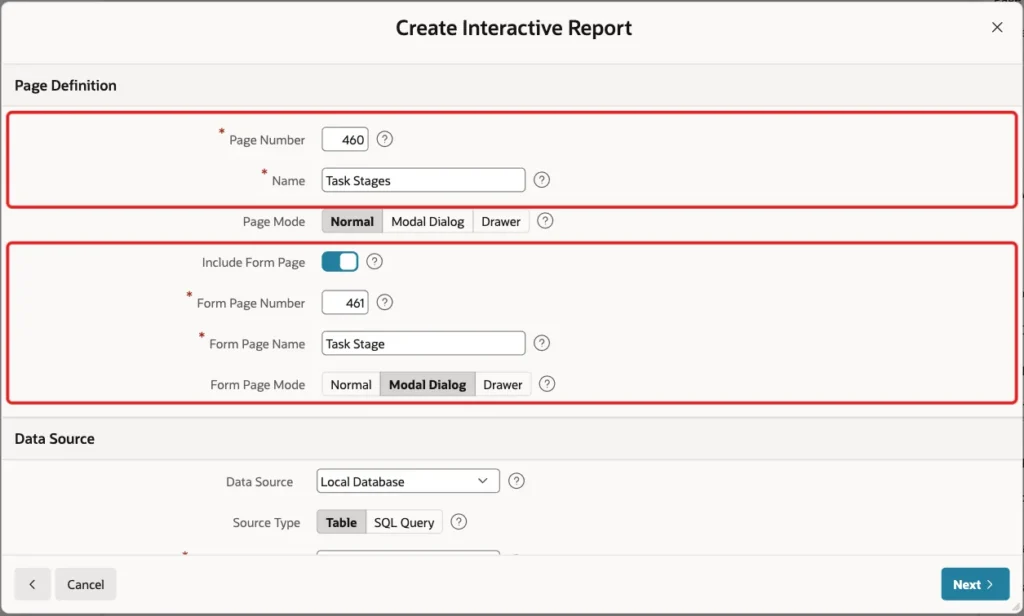
Enter Page Number 460 and Name Task Stages. Turn on Include Form Page, enter Form Page Number 461 and Form Page Name Task Stage, and select Form Page Mode Modal Dialog:
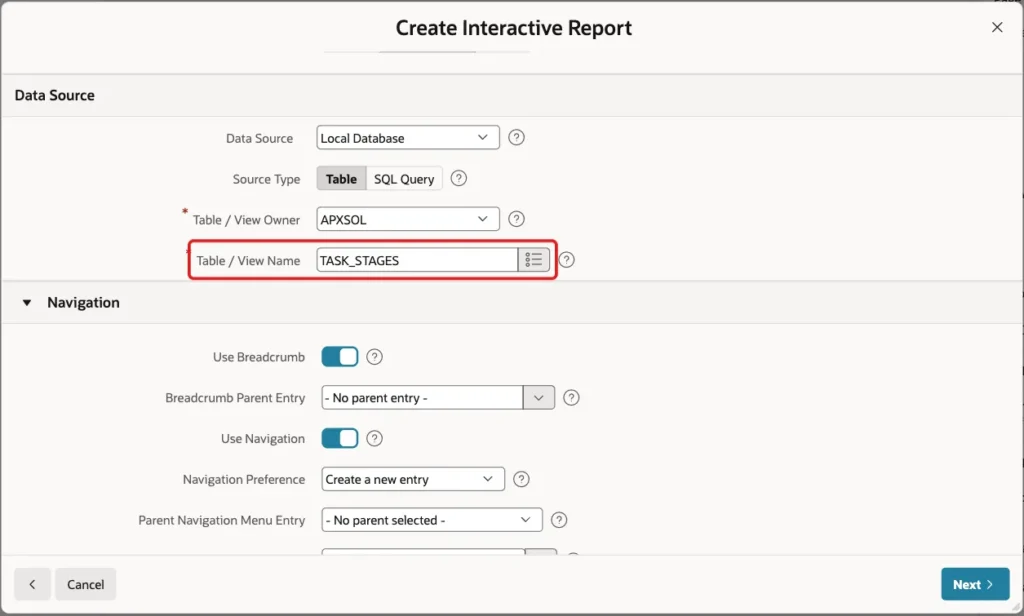
In the Data Source section, keep Local Database and Table, and enter TASK_STAGES as the Table / View Name:
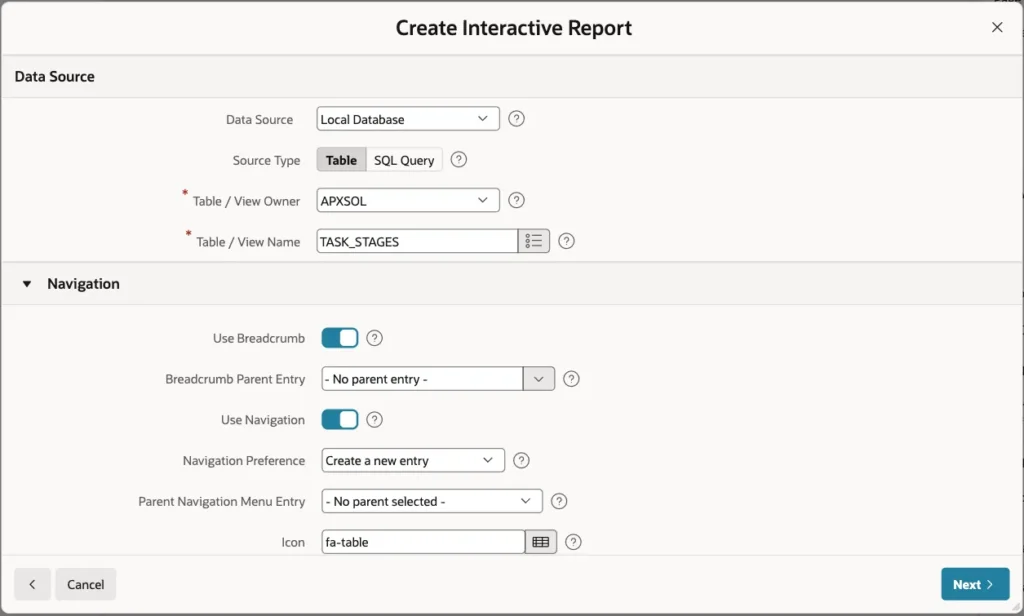
Keep the Navigation settings, so the wizard adds a breadcrumb and a navigation menu entry. Click Next:
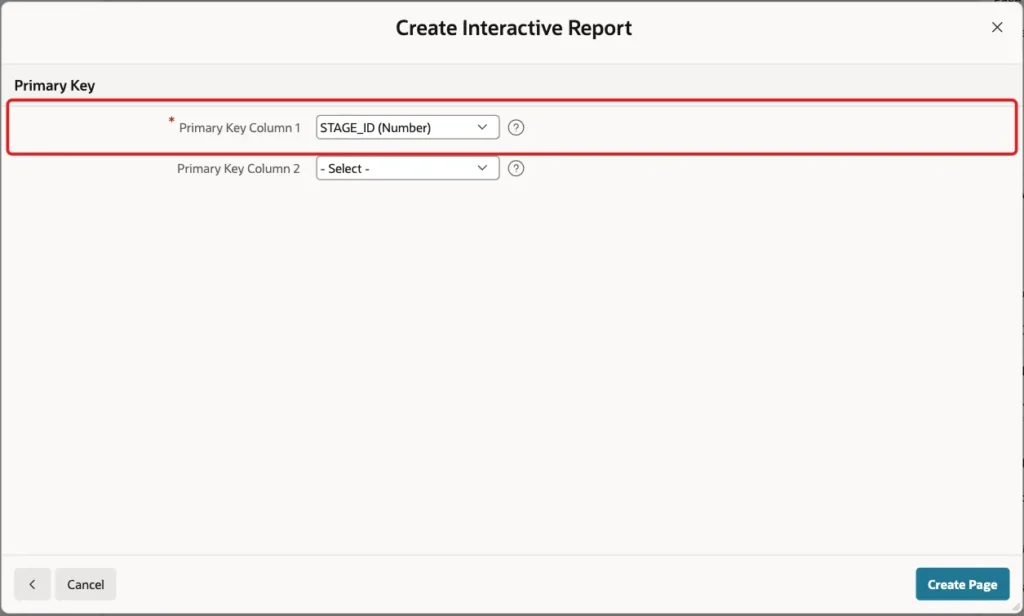
On the Primary Key screen, select STAGE_ID (Number) as Primary Key Column 1 and click Create Page:
The wizard creates page 460 with the interactive report and page 461 with the form. The form has a text field for every column, including P461_BADGE_COLOR and P461_TEXT_COLOR.
Step 3: Turn the Badge Color into a Color Picker
Open page 461 in Page Designer and select P461_BADGE_COLOR. Set these properties:
- Identification > Type: Color Picker
- Settings > Use Defaults: off
- Display As: Popup, so users can type a color or pick one
- Mode: Full
- Color Preset: Custom Colors
- Colors: #2563EB;#F59E0B;#9CA3AF;#16A34A;#DC2626;#7C3AED (separate colors with semicolons)
- Contrast With: Page Item, and Contrast Item: P461_TEXT_COLOR
- Return Value As: Hex
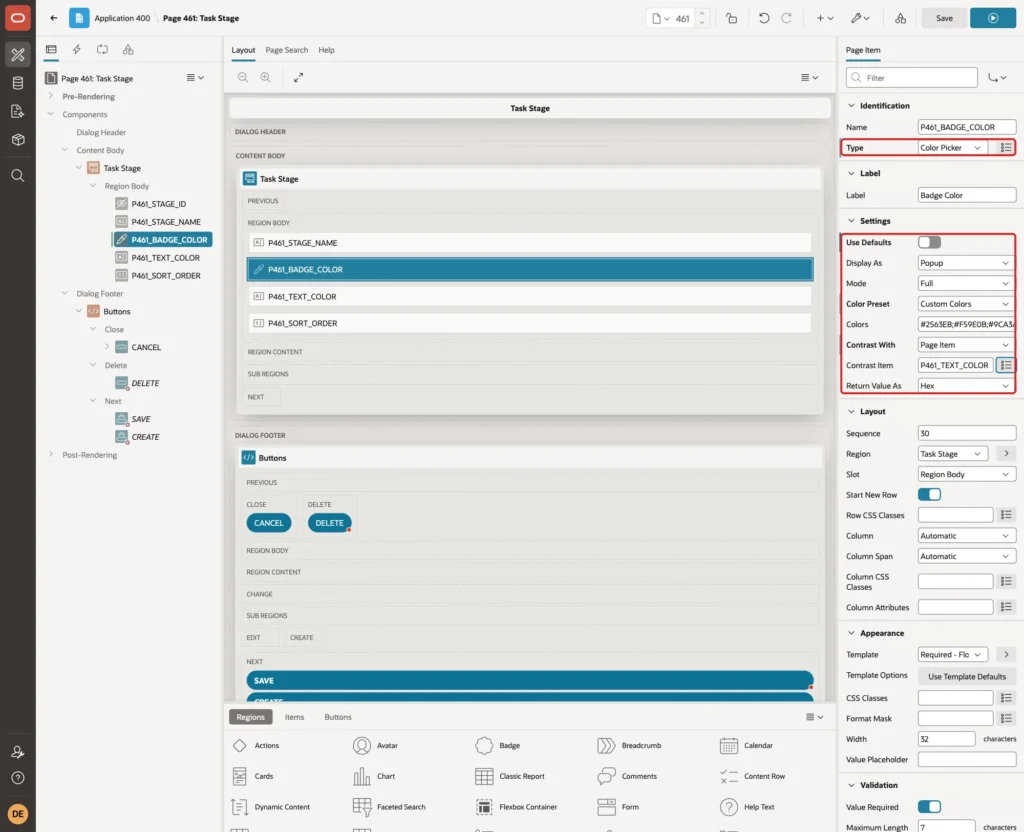
The preset colors give users a short list of approved colors. Contrast With shows the contrast ratio between the chosen badge color and the text color, so users can see whether the badge text stays readable.
Step 4: Show the Text Color as Read-Only
TEXT_COLOR is a virtual column, so the form must never write it. Select P461_TEXT_COLOR and set Identification > Type to Display Only:
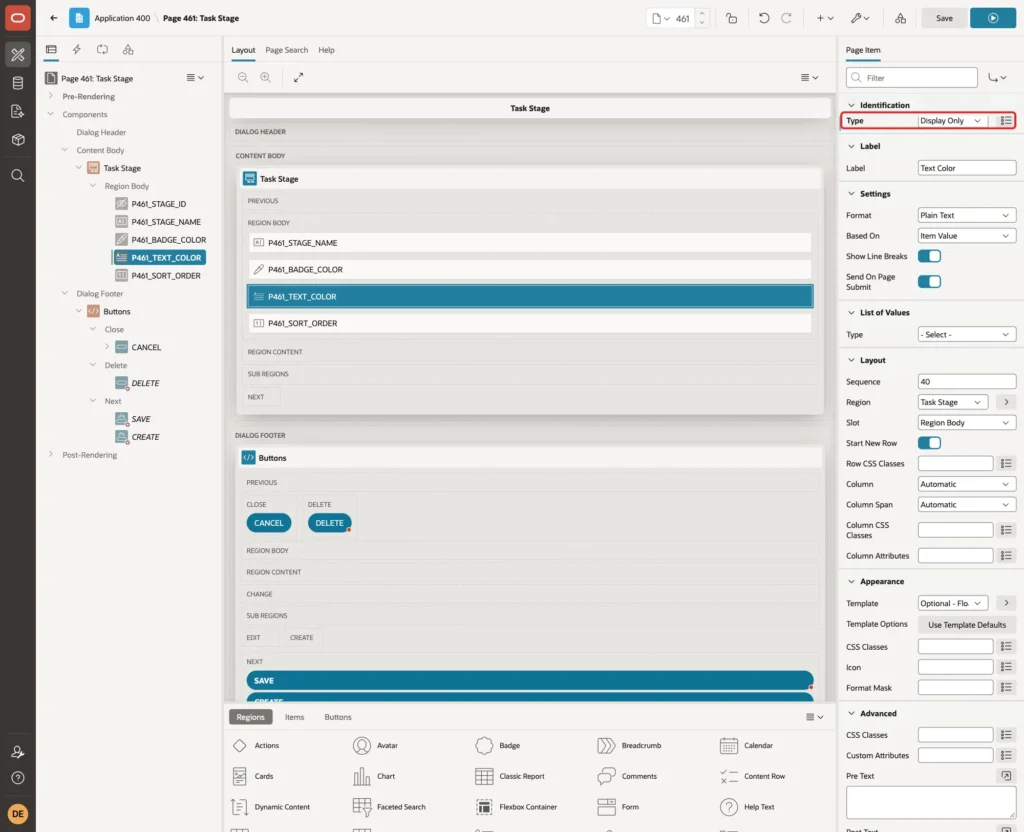
Then turn on Source > Query Only, and enter this Inline Help Text: Set by the database from the badge color: black on light colors, white on dark colors.
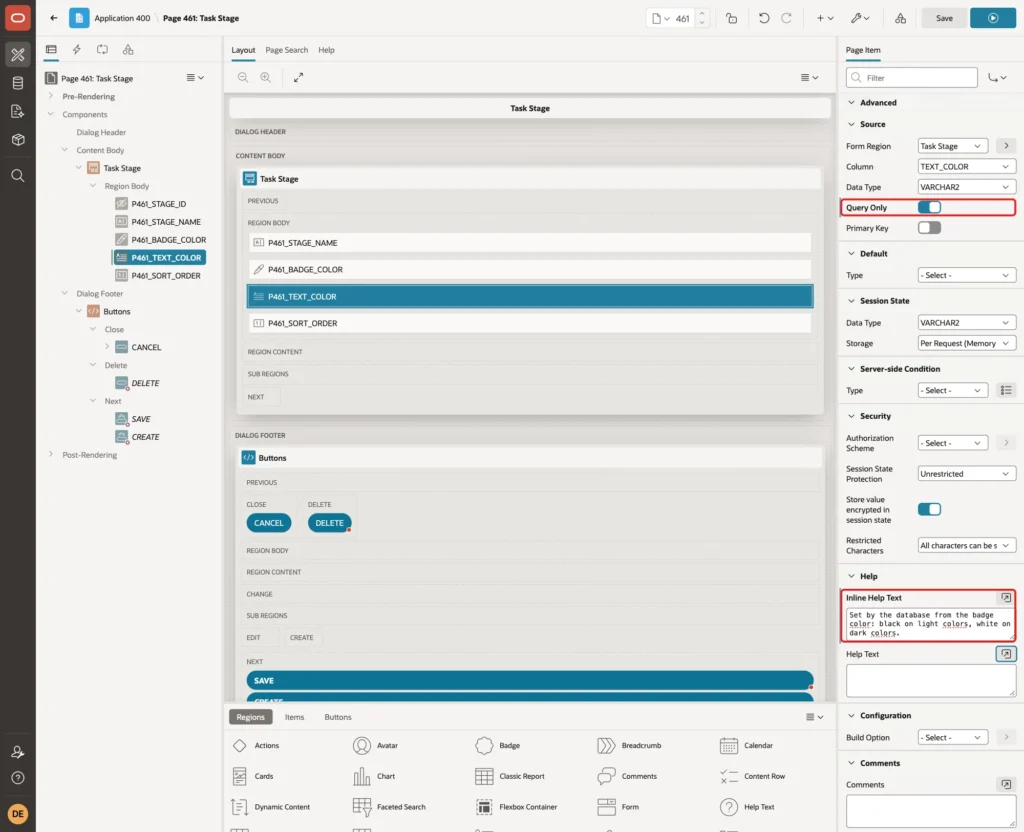
Query Only tells the form to read the column but leave it out of the INSERT and UPDATE statements. Click Save.
Step 5: Show the Stage as a Badge in the Interactive Report
Open page 460. Under the Task Stages region, expand Columns and select TEXT_COLOR. Set Identification > Type to Hidden:
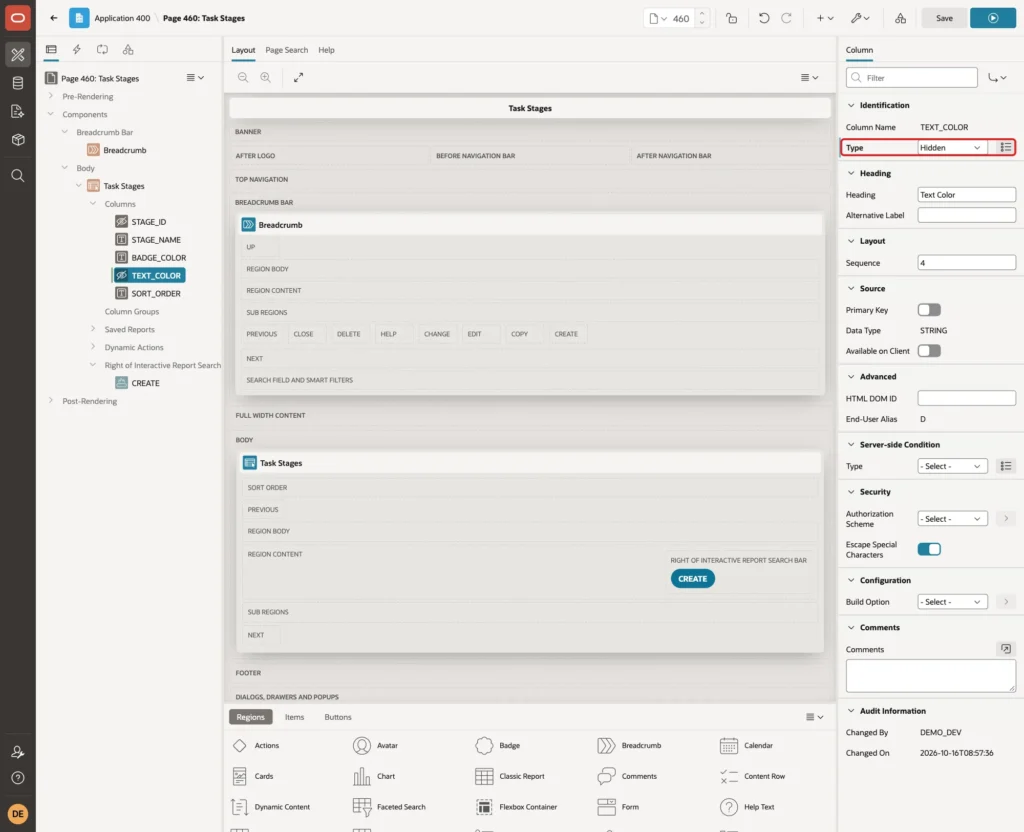
Select the STAGE_NAME column, enter Heading Stage, and enter this HTML Expression under Column Formatting:
Example:
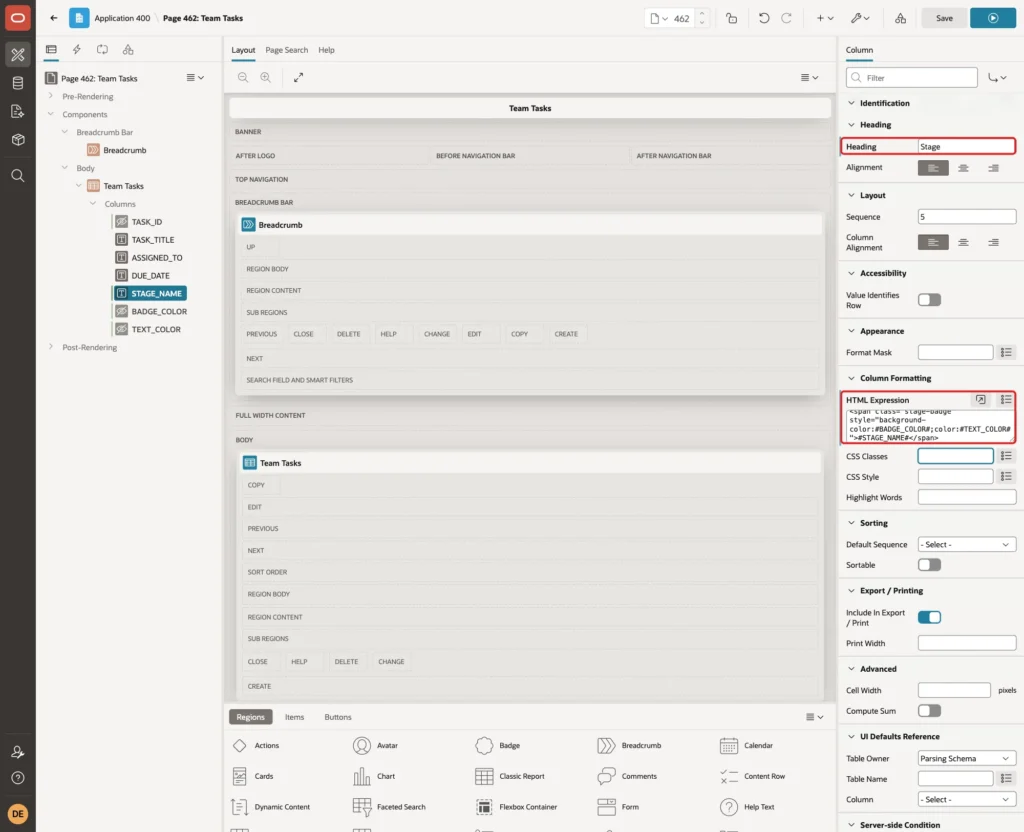
<span class="stage-badge" style="background-color:#BADGE_COLOR#;color:#TEXT_COLOR#">#STAGE_NAME#</span>
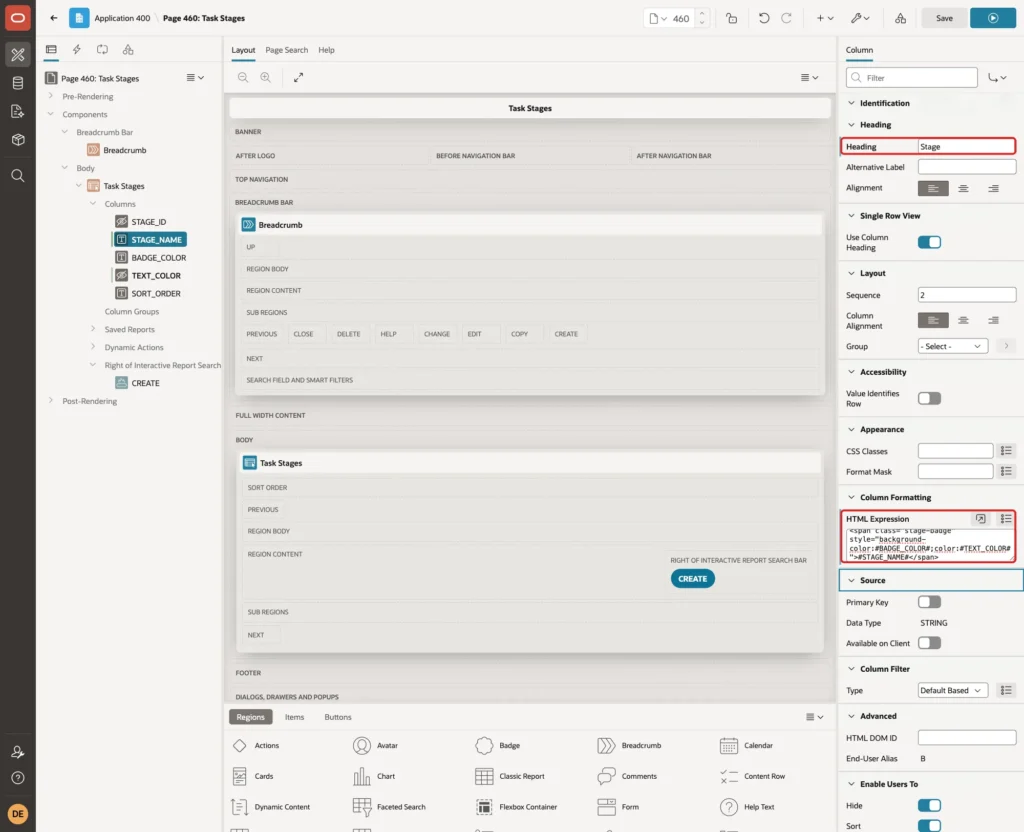
#BADGE_COLOR#, #TEXT_COLOR# and #STAGE_NAME# are replaced with the column values of each row. A hidden column can still be used in an HTML Expression.
Select the page node Page 460: Task Stages and enter this CSS under CSS > Inline:
Example:
.stage-badge {
  display: inline-block;
  padding: 2px 10px;
  border-radius: 999px;
  font-size: 12px;
  font-weight: 600;
}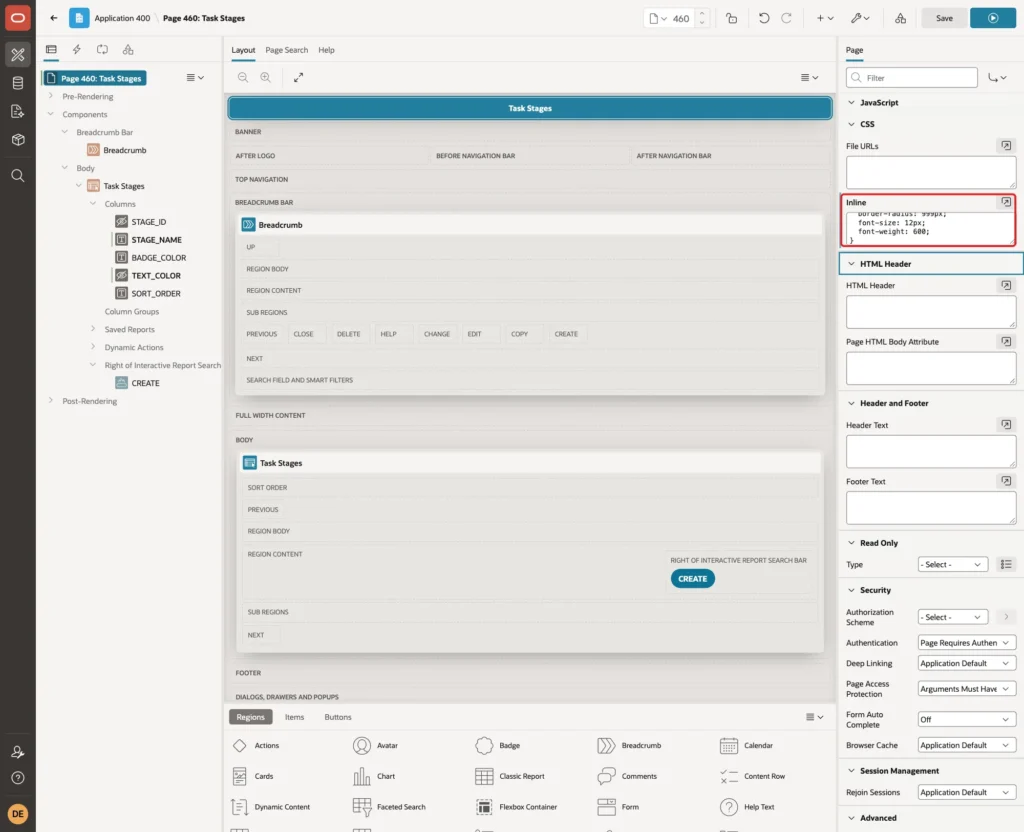
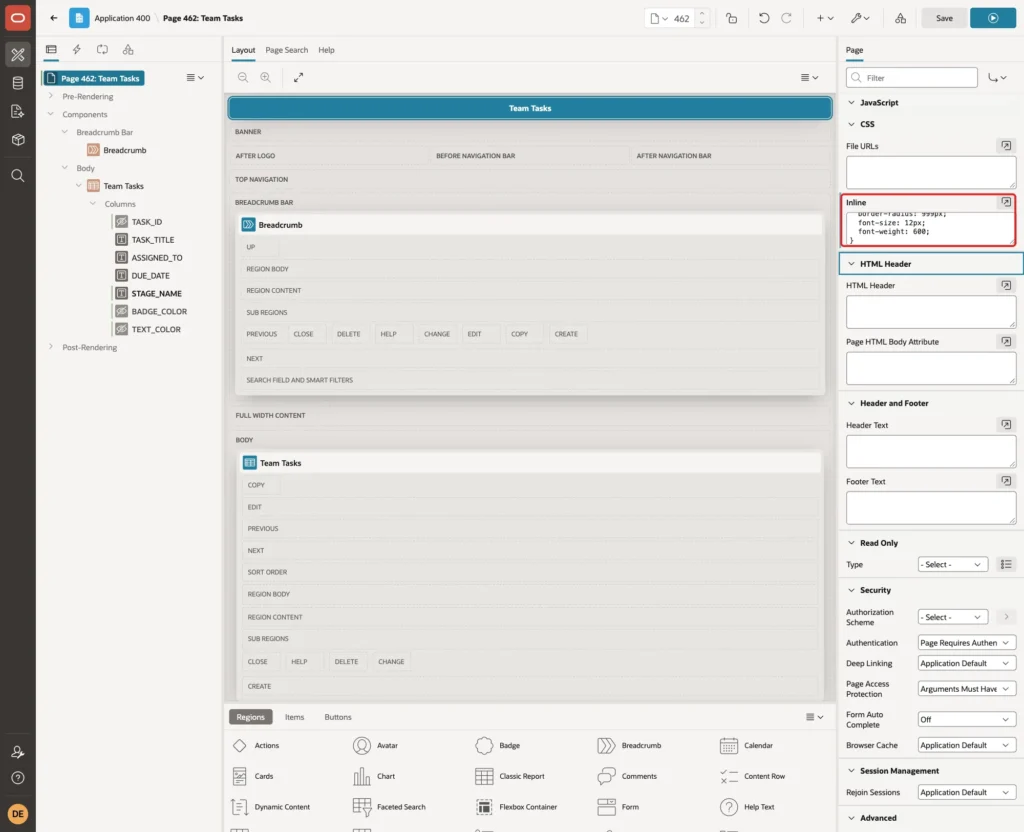
Click Save. The CSS sets only the shape and the font. The colors come from the style attribute of each badge.
Step 6: Create a Classic Report with Badges
The badges are most useful in the reports that list the tasks. Click Create Page and, on the Component tab, click Classic Report:

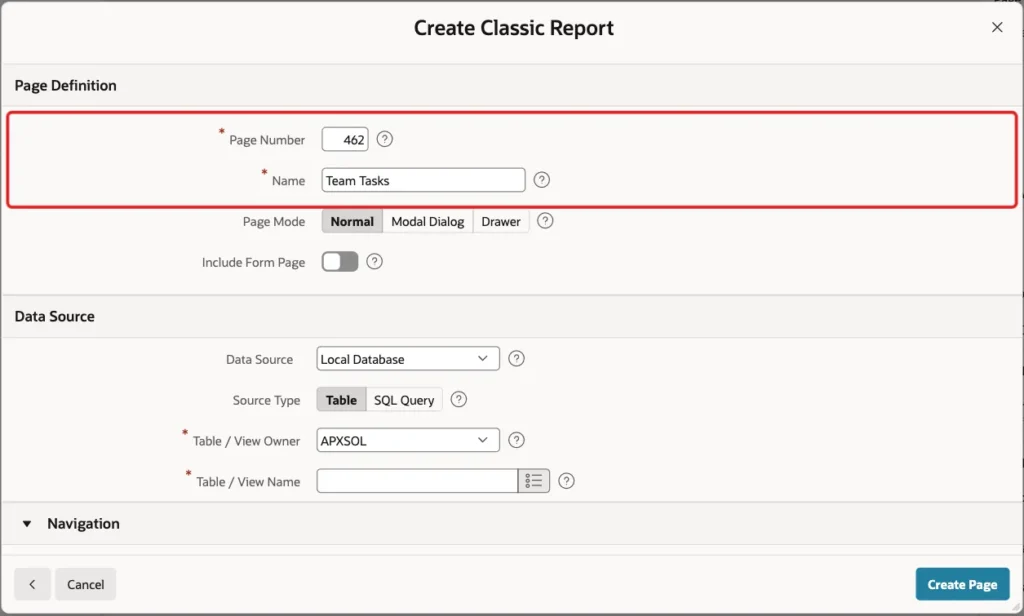
Enter Page Number 462 and Name Team Tasks, and keep Include Form Page off:
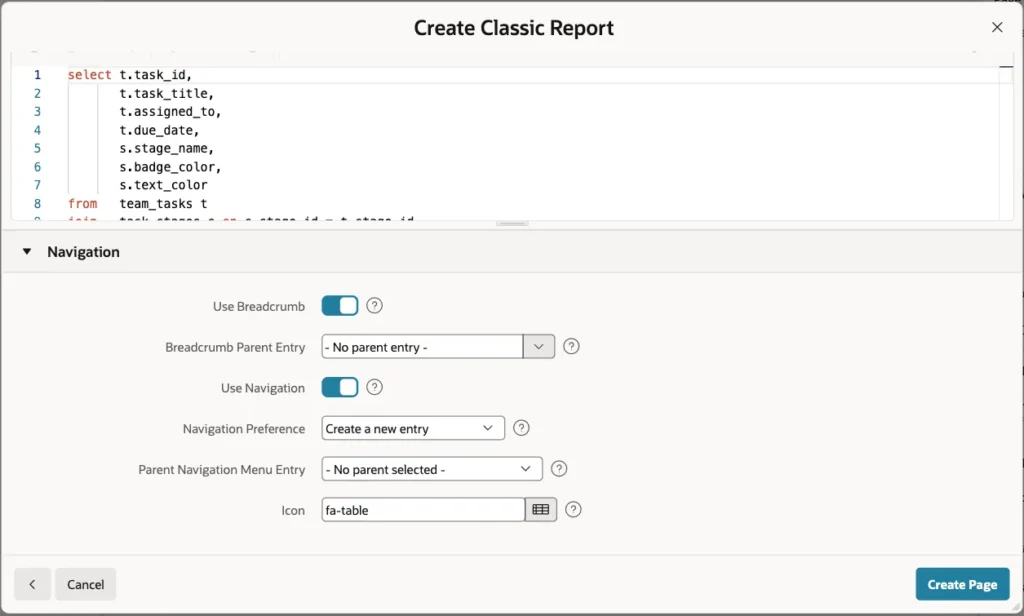
Select Source Type SQL Query and enter this query, which joins each task to its stage:
Example:
select t.task_id,
       t.task_title,
       t.assigned_to,
       t.due_date,
       s.stage_name,
       s.badge_color,
       s.text_color
from   team_tasks t
join   task_stages s on s.stage_id = t.stage_id
order  by s.sort_order, t.due_date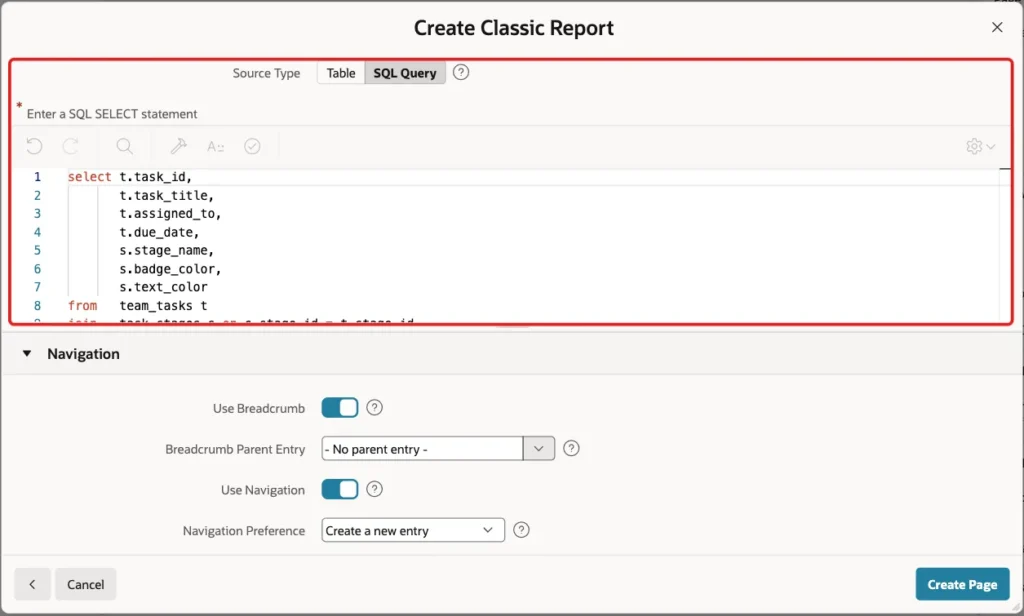
Keep the Navigation settings and click Create Page:
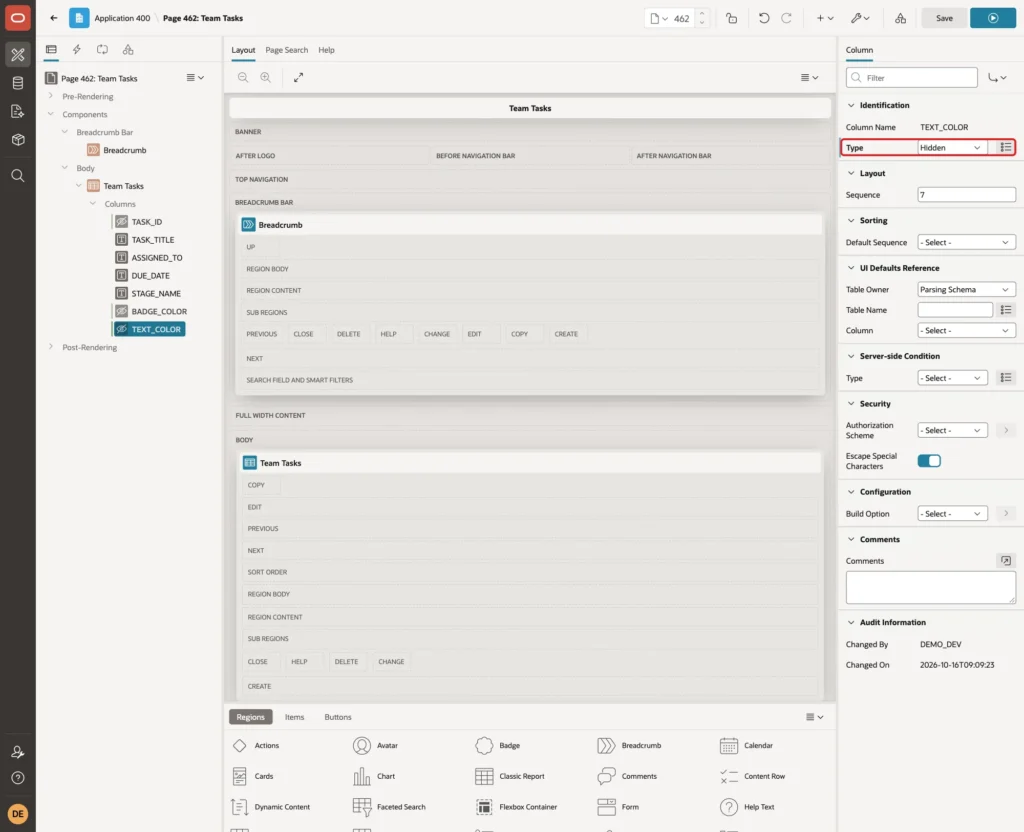
Open page 462 in Page Designer. Set the Type of the columns TASK_ID, BADGE_COLOR and TEXT_COLOR to Hidden:
Select STAGE_NAME, enter Heading Stage and the same HTML Expression as on page 460:
Select Page 462: Team Tasks, enter the same stage-badge CSS under CSS > Inline, and click Save:
Step 7: Test the Color Picker and the Badges
Run page 460 as DEMO_DEV. Each stage shows as a badge in its stored color, with white text on blue and green and black text on amber and gray:

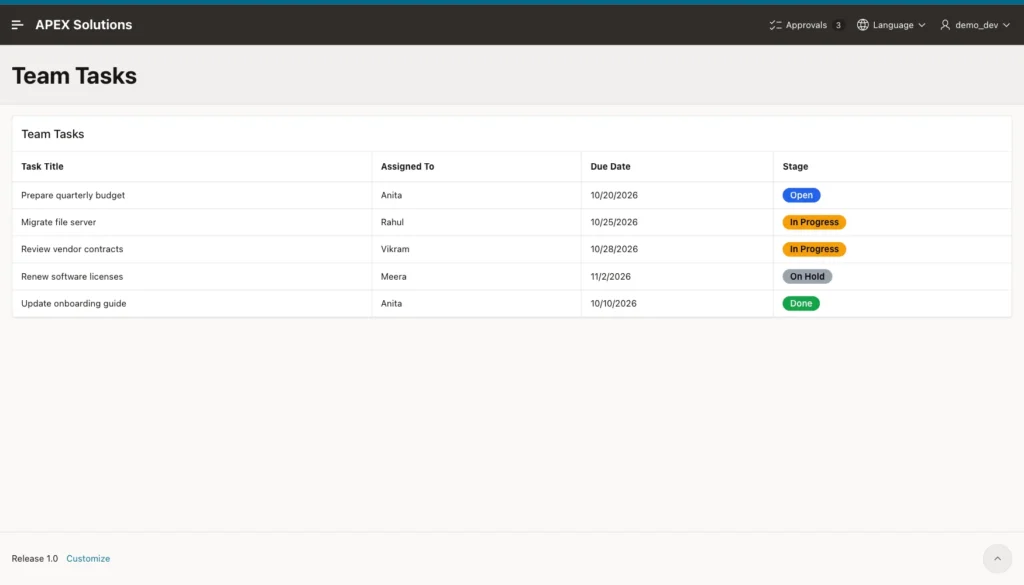
Page 462 shows the same badges next to the tasks:
On page 460, click the edit icon of On Hold. The Color Picker shows a color dot, the value #9ca3af and a button that opens the picker:
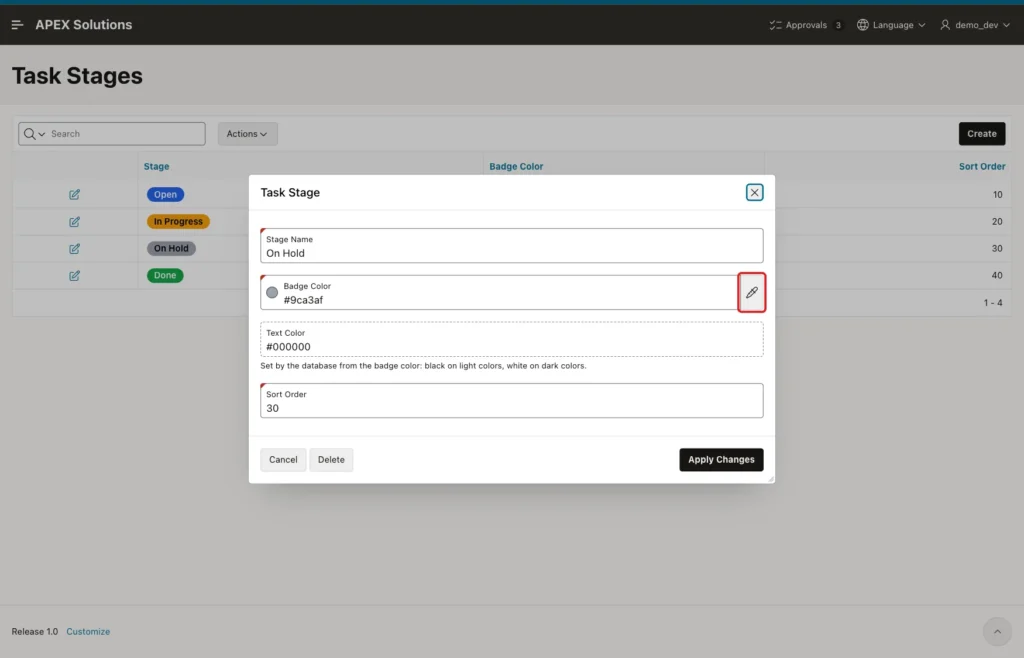
The stored value is #9CA3AF in upper case. With Return Value As Hex, the picker shows and returns hex values in lower case.
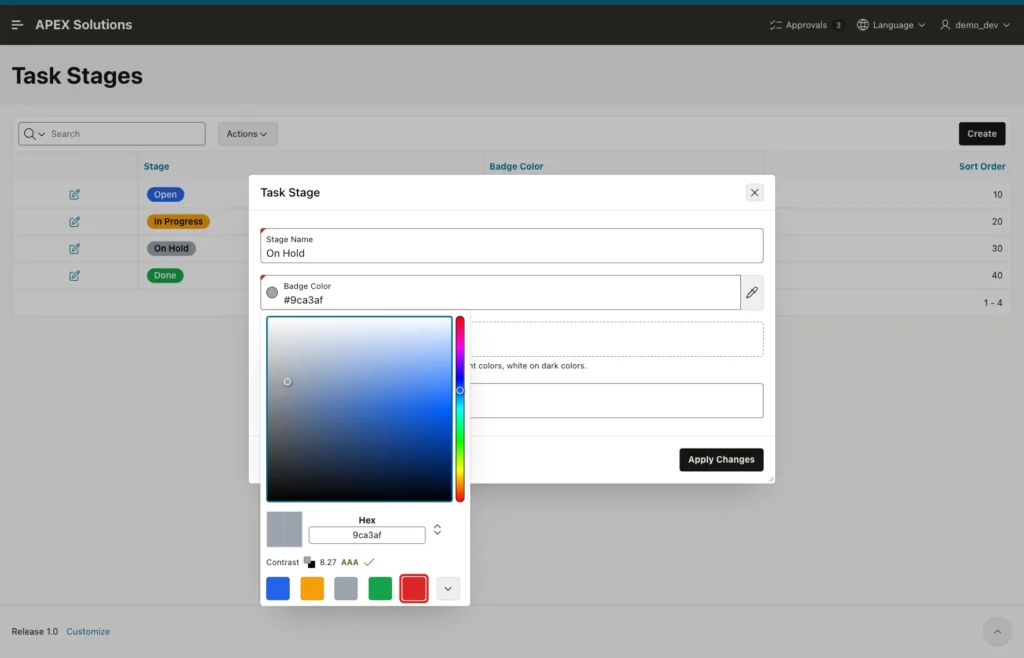
Click the picker button. The popup shows the color area, the hex value, the contrast with the current text color (8.27 AAA against black) and the preset colors. Click the red preset:
The value changes to #dc2626. The contrast against the current black text drops to 4.35 and the picker shows a warning sign:
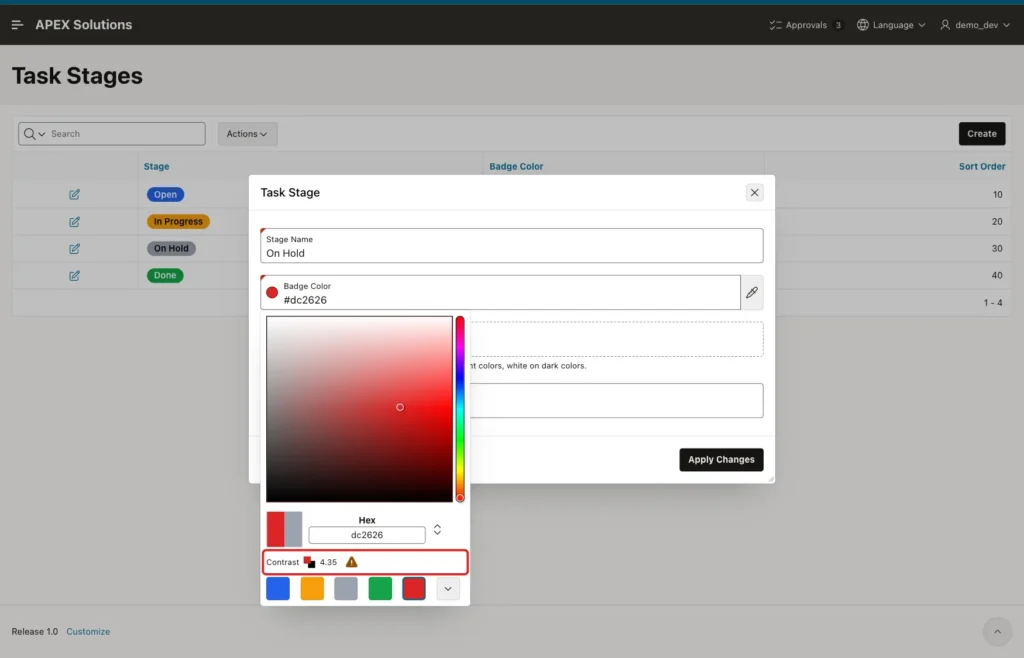
The warning is about the old text color. When the row is saved, the virtual column switches the text to white. Press Escape to close the popup; the new color stays in the item:
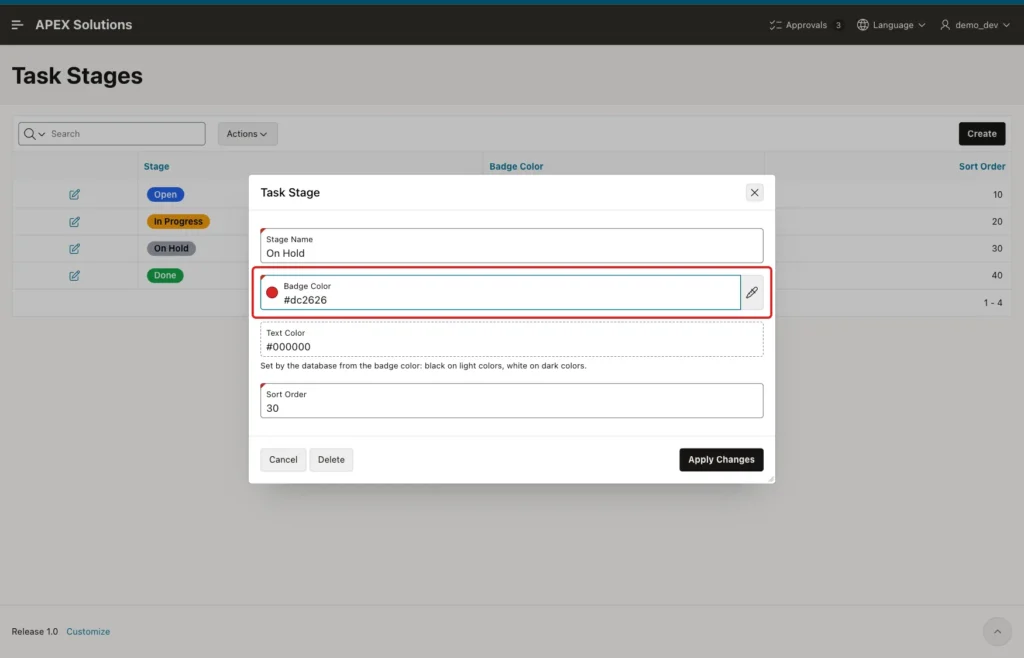
Click Apply Changes. The dialog closes and the On Hold badge on page 460 is now red with white text:

Page 462 shows the new color too, without any change to the page:
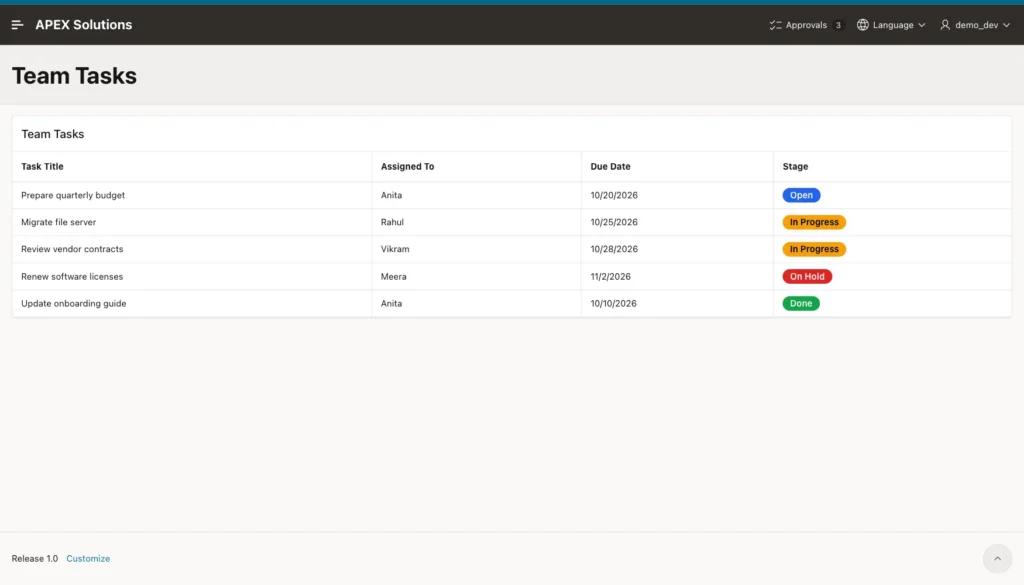
The table confirms the new value and the new text color:
Example:
select stage_name, badge_color, text_color
from   task_stages
order  by sort_order;
Output:
STAGE_NAME     BADGE_COLOR    TEXT_COLOR
______________ ______________ _____________
Open           #2563EB        #FFFFFF
In Progress    #F59E0B        #000000
On Hold        #dc2626        #FFFFFF
Done           #16A34A        #FFFFFF
Step 8: Test Invalid Colors
The Popup display lets users type a color. In a test, red became #ff0000, #ABC became #aabbcc and rgb(124,58,237) became #7c3aed as soon as the field lost focus.
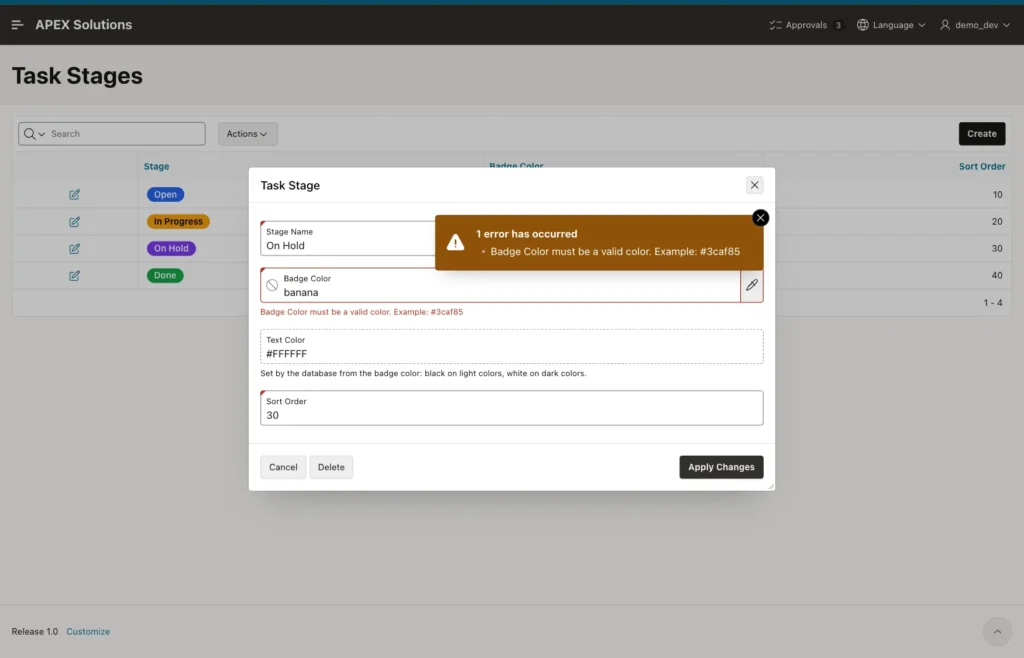
A value that is not a color stays as typed. Type banana in Badge Color and click Apply Changes. The browser shows the error "Badge Color must be a valid color. Example: #3caf85" and sends no request:
Next, skip the browser check. In the browser console of the dialog, this code puts banana into the field and submits the page without client-side validation:
Example:
document.getElementById('P461_BADGE_COLOR_input').value = 'banana';
apex.page.submit({ request: 'SAVE', validate: false });
The request reached the server, and the server returned the same error. Nothing was saved:
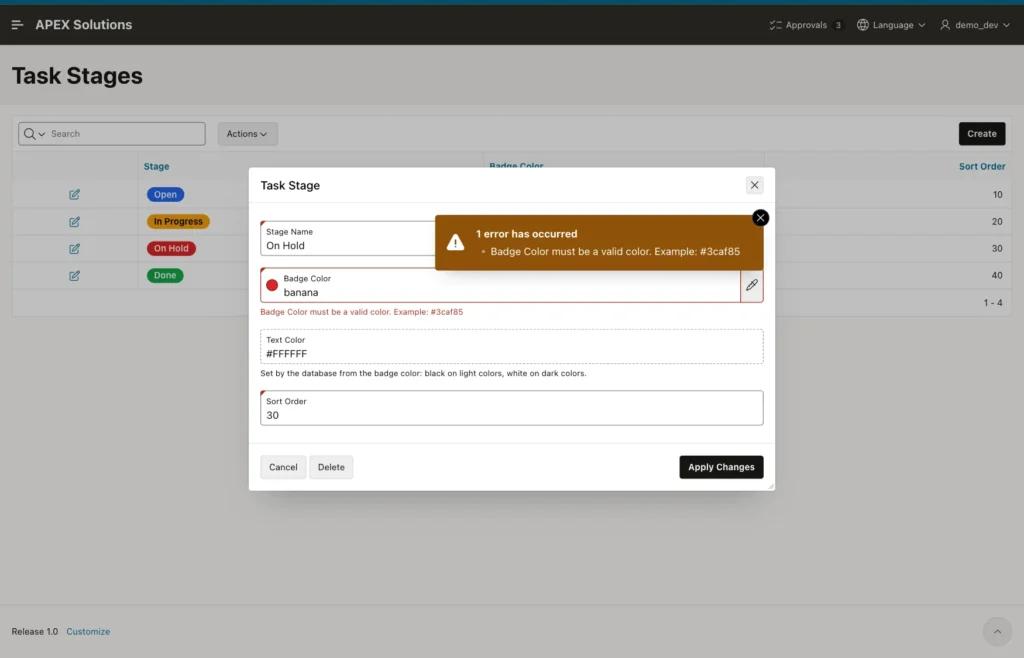
The forced submit was also rejected for red, #ABC, rgb(1,2,3) and #12345G. The server accepted only a full six-digit hex value; #7C3AED in upper case was saved.
The check constraint protects the table from every other path, such as SQL scripts or other pages:
Example:
update task_stages
set    badge_color = 'red'
where  stage_name = 'Open';

update task_stages
set    badge_color = '#12345G'
where  stage_name = 'Open';
Output:
Error starting at line : 1 File @ b49/20-bad-color.sql
In command -
update task_stages
set    badge_color = 'red'
where  stage_name = 'Open'
Error report -
ORA-02290: check constraint (APXSOL.TASK_STAGES_COLOR_CK) violated
Help: https://docs.oracle.com/error-help/db/ora-02290/

Error starting at line : 5 File @ b49/20-bad-color.sql
In command -
update task_stages
set    badge_color = '#12345G'
where  stage_name = 'Open'
Error report -
ORA-02290: check constraint (APXSOL.TASK_STAGES_COLOR_CK) violated
Help: https://docs.oracle.com/error-help/db/ora-02290/
Things to Know
- With Return Value As Hex, the picker saves lower case hex values (#dc2626). Write check constraints and comparisons so that both cases work, for example with LOWER().
- Keep the check constraint even though the item checks the value. HTML escaping does not remove ; or : from a value inside a style attribute; the constraint allows only # and six hex digits.
- HTML Expression substitutions are escaped. A test stage named <b>Blocked</b> showed the tags as text, not as bold. The test row was deleted afterwards.
- The contrast ratio compares with the value of the contrast item when the form opens. TEXT_COLOR changes only after the row is saved.
- The TEXT_COLOR formula is a simple brightness rule, not the full WCAG contrast formula. For red #dc2626 the picker rated black text at 4.35 with a warning, and the database picked white.
Related Guides
- How to Create Your Own Template Component in Oracle APEX
- Oracle APEX Classic Report: A Complete Tutorial
Conclusion
To show colored status badges in Oracle APEX, store the color in the status table and edit it with a Color Picker item. Custom preset colors give users an approved palette, Contrast With shows readability, and Return Value As Hex keeps the stored values in one format.
A virtual column chooses black or white text, and one HTML Expression with a small CSS class turns any report column into a badge. The check constraint keeps the color safe to place in a style attribute, and a color change shows in every report at once.
