
A change history answers three questions about a record: who changed it, when, and what the old and new values were. Shown as a timeline, newest first, with one entry per save, users can read the story of a record at a glance instead of scanning rows of a log table.
The guide How to Track Who Changed What in Oracle APEX: A Change History for Any Table records changes with a generated trigger and lists them in a report. This guide needs no trigger. Flashback Data Archive keeps every version of each row, a view compares the versions, and the Timeline report template shows them, including deleted records.
Step 1: Create the Table
The timeline shows the history of rows in a PRODUCTS table. If you start from scratch, create it with a few sample rows:
Example:
create table products (
    product_id number generated by default as identity
               constraint products_pk primary key,
    name       varchar2(60)  not null,
    category   varchar2(30)  not null,
    price      number(10, 2) not null
               constraint products_price_ck check (price >= 0)
);

insert into products (name, category, price) values ('Laptop Pro 14', 'Computers', 1450);
insert into products (name, category, price) values ('Laptop Air 13', 'Computers', 990);
insert into products (name, category, price) values ('Monitor 27', 'Displays', 320);
insert into products (name, category, price) values ('Monitor 32', 'Displays', 480);
insert into products (name, category, price) values ('Keyboard', 'Accessories', 45);
insert into products (name, category, price) values ('Mouse', 'Accessories', 25);
insert into products (name, category, price) values ('Docking Station', 'Accessories', 180);
insert into products (name, category, price) values ('Headset', 'Audio', 95);
commit;
The table needs no history table, no audit columns and no trigger. The database keeps the history for it, as the next two steps set up.
Step 2: Create a Flashback Archive
A flashback archive is a storage area in a tablespace where the database keeps old row versions of the tables you assign to it. Creating one needs DBA rights, so run this script as SYS or another DBA user. Replace APXSOL with the parsing schema of your application:
Example:
create flashback archive product_archive
    tablespace users
    quota 100m
    retention 1 year;

grant flashback archive on product_archive to apxsol;

grant execute on dbms_flashback_archive to apxsol;

begin
    dbms_flashback_archive.set_context_level('ALL');
end;
/
Output:
Flashback archive created.

Grant succeeded.

Grant succeeded.

PL/SQL procedure successfully completed.
- PRODUCT_ARCHIVE stores its data in the USERS tablespace, uses at most 100 MB there, and keeps each row version for one year.
- The FLASHBACK ARCHIVE grant lets the schema put its own tables into this archive.
- The EXECUTE grant on DBMS_FLASHBACK_ARCHIVE lets the history view call GET_SYS_CONTEXT in Step 4.
- SET_CONTEXT_LEVEL('ALL') saves the session context of every transaction on an archived table. That includes the APEX user name, which is how the timeline knows who made each change.
Step 3: Turn On the Archive for the Table
Connect as the application schema and assign PRODUCTS to the archive:
Example:
alter table products flashback archive product_archive;

select table_name, flashback_archive_name, status
from   user_flashback_archive_tables;
Output:
Table PRODUCTS altered.

TABLE_NAME    FLASHBACK_ARCHIVE_NAME    STATUS
_____________ _________________________ __________
PRODUCTS      PRODUCT_ARCHIVE           ENABLED
From now on, every insert, update and delete on PRODUCTS is kept. Changes made before this statement are not in the archive.
Step 4: Create the History View
A flashback versions query returns every version of a row, with the operation that created it. This view turns those versions into one row per change, with readable text for the timeline:
Example:
create or replace view product_history_v as
with versions as (
    select versions_xid        as xid,
           versions_startscn   as scn,
           versions_starttime  as changed_on,
           versions_operation  as operation,
           product_id,
           name,
           category,
           price,
           lag(name)     over (partition by product_id order by versions_startscn nulls first) as old_name,
           lag(category) over (partition by product_id order by versions_startscn nulls first) as old_category,
           lag(price)    over (partition by product_id order by versions_startscn nulls first) as old_price
    from   products versions between scn minvalue and maxvalue
),
changes as (
    select v.*,
           case operation
               when 'I' then 'Name: ' || name || chr(10)
                          || 'Category: ' || category || chr(10)
                          || 'Price: ' || to_char(price, 'FM999G990D00')
               when 'U' then ltrim(
                             case when decode(name, old_name, 0, 1) = 1
                                  then chr(10) || 'Name changed from ' || old_name || ' to ' || name end
                          || case when decode(category, old_category, 0, 1) = 1
                                  then chr(10) || 'Category changed from ' || old_category || ' to ' || category end
                          || case when decode(price, old_price, 0, 1) = 1
                                  then chr(10) || 'Price changed from ' || to_char(old_price, 'FM999G990D00')
                                       || ' to ' || to_char(price, 'FM999G990D00') end,
                             chr(10))
               when 'D' then 'Deleted with price ' || to_char(price, 'FM999G990D00')
           end as change_text
    from   versions v
    where  operation is not null
)
select product_id,
       scn,
       changed_on,
       coalesce(dbms_flashback_archive.get_sys_context(xid, 'APEX$SESSION', 'APP_USER'),
                dbms_flashback_archive.get_sys_context(xid, 'USERENV', 'SESSION_USER')) as changed_by,
       case operation when 'I' then 'Created' when 'U' then 'Updated' else 'Deleted' end as operation,
       name,
       change_text
from   changes
where  change_text is not null;
Output:
View PRODUCT_HISTORY_V created.
- VERSIONS BETWEEN SCN MINVALUE AND MAXVALUE reads all versions the database still has. VERSIONS_OPERATION is I for an insert, U for an update and D for a delete.
- LAG reads the previous version of the same product, so each update can show the old value next to the new one.
- Rows that existed before Step 3 come back once with an empty operation. The view uses them only as the old values for the first change.
- DECODE compares two values and treats two nulls as equal, so a column that stays empty is not reported as changed.
- GET_SYS_CONTEXT reads the APEX user that was saved with the transaction. Outside APEX, for example in SQL*Plus, the view falls back to the database user.
- An update that changes none of the three columns gets no change text and is left out.
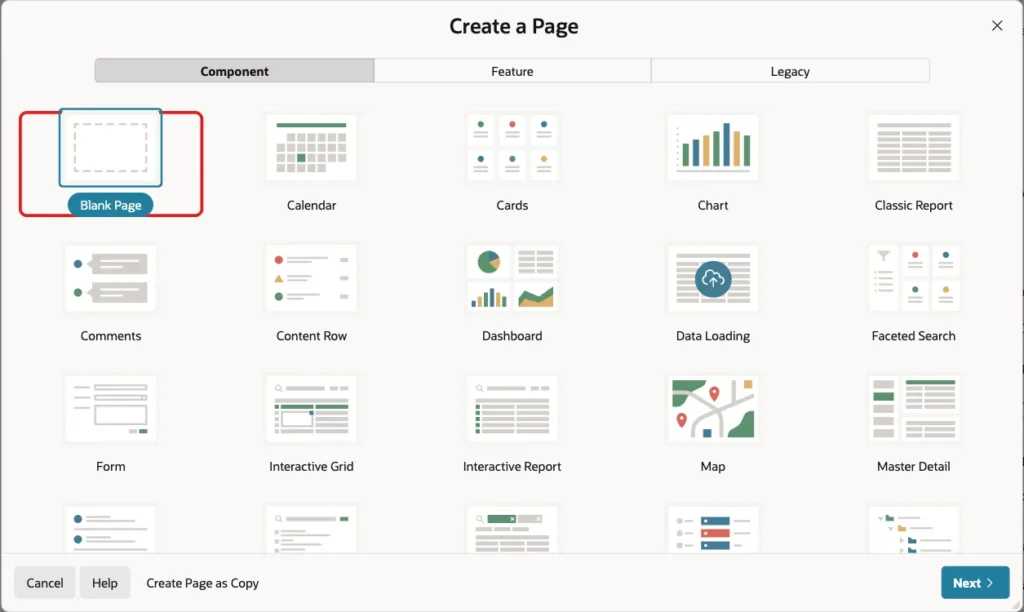
Step 5: Create a Blank Page
In App Builder, open the application and click Create Page. On the Component tab, click Blank Page:
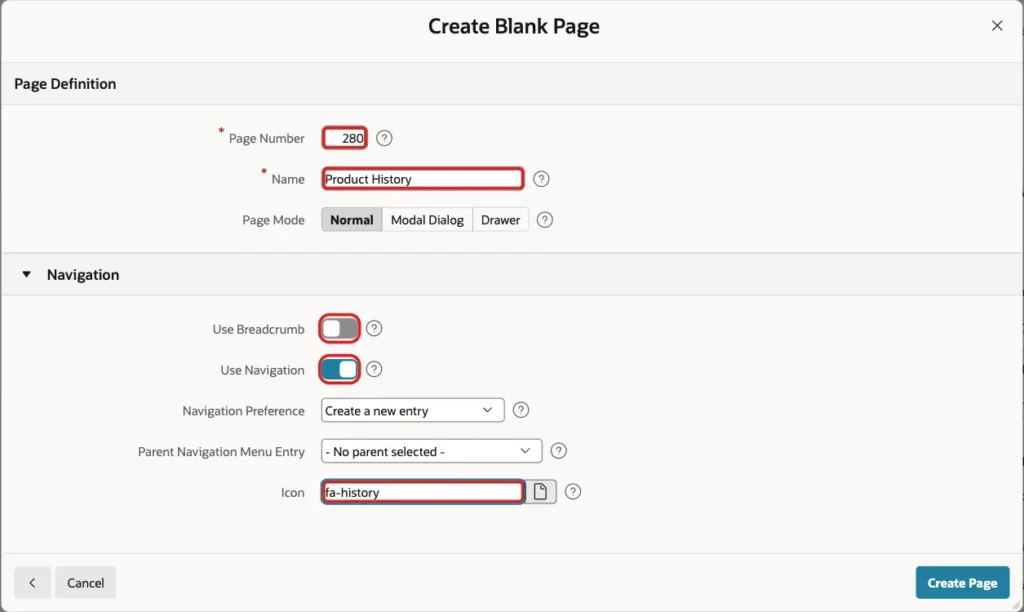
Enter Page Number 280 and Name Product History. In the Navigation section, turn off Use Breadcrumb, keep Use Navigation on, and set Icon to fa-history. Click Create Page:
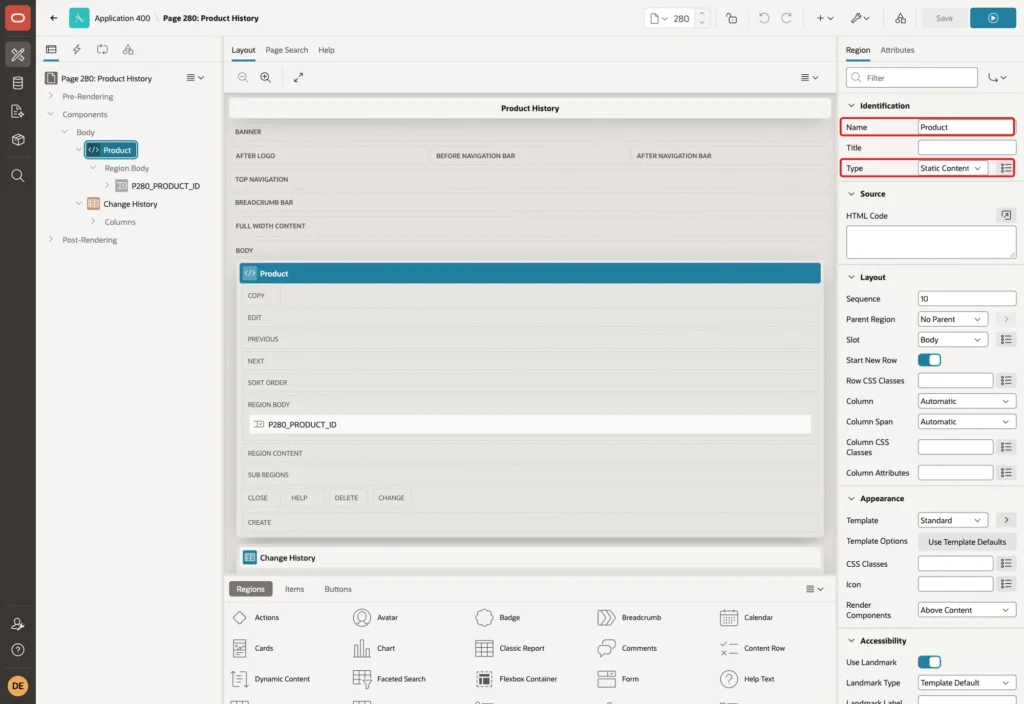
Step 6: Add the Product Select List
In Page Designer, right-click Body and choose Create Region. Set Name to Product and keep Type Static Content:
Right-click the Product region and choose Create Page Item. Set Name to P280_PRODUCT_ID, Type to Select List and Label to Product:
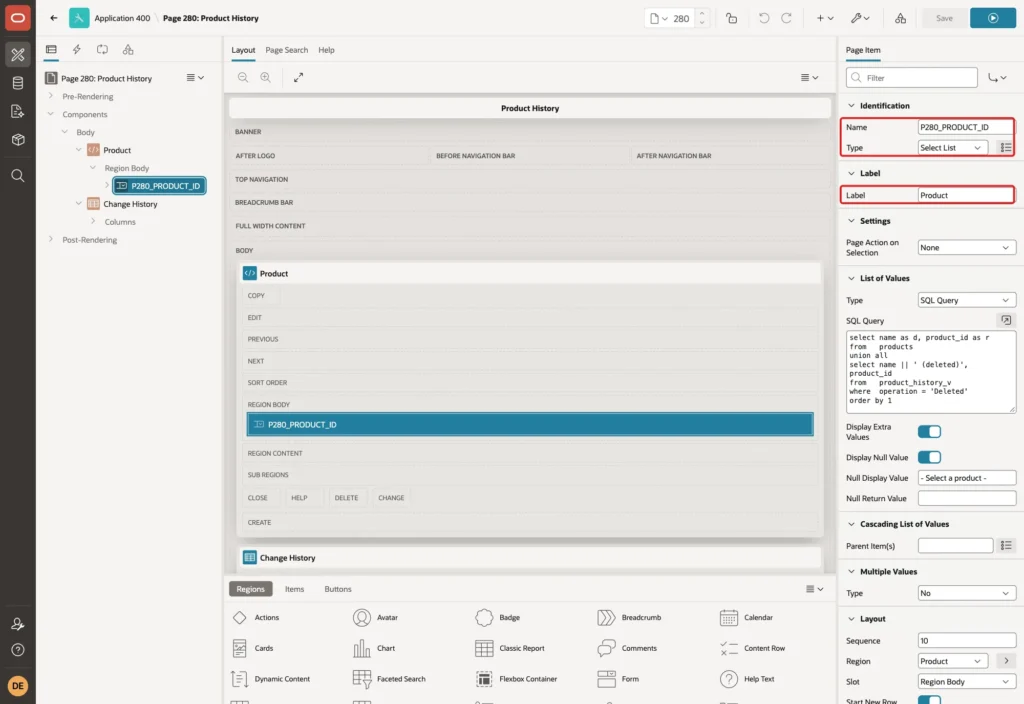
In the List of Values group, set Type to SQL Query and enter this query. Turn on Display Null Value and set Null Display Value to - Select a product -:
Example:
select name as d, product_id as r
from   products
union all
select name || ' (deleted)', product_id
from   product_history_v
where  operation = 'Deleted'
order by 1
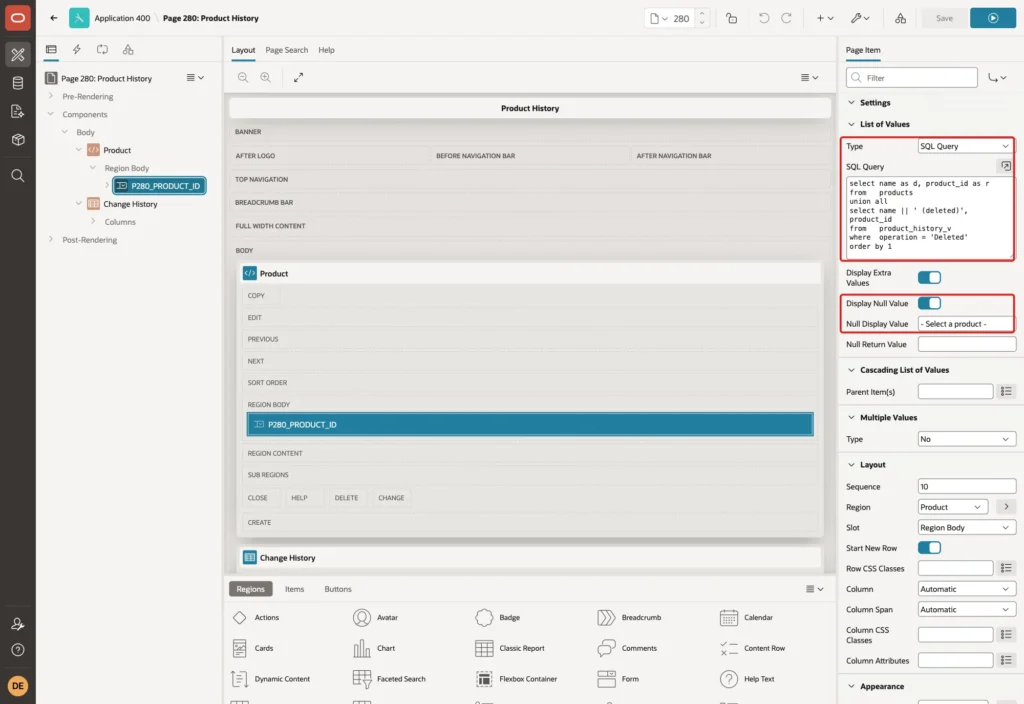
The second part of the query adds deleted products from the history view, with (deleted) after the name. Their history stays readable after the row is gone.
Step 7: Add the Timeline Region
Right-click Body and choose Create Region again. Set Name to Change History and Type to Classic Report. In the Source group, set Type to SQL Query, enter this query, and set Page Items to Submit to P280_PRODUCT_ID:
Example:
select h.changed_by as user_name,
       apex_string.get_initials(h.changed_by) as user_avatar,
       'u-color-' || (ora_hash(h.changed_by, 44) + 1) as user_color,
       to_char(h.changed_on, 'DD-MON-YYYY HH24:MI:SS') as event_date,
       h.operation as event_type,
       case h.operation
           when 'Created' then 'is-new'
           when 'Updated' then 'is-updated'
           else 'is-removed'
       end as event_status,
       case h.operation
           when 'Created' then 'fa fa-plus'
           when 'Updated' then 'fa fa-pencil'
           else 'fa fa-trash-o'
       end as event_icon,
       h.name as event_title,
       replace(apex_escape.html(h.change_text), chr(10), '<br>') as event_desc
from   product_history_v h
where  h.product_id = :P280_PRODUCT_ID
order by h.scn desc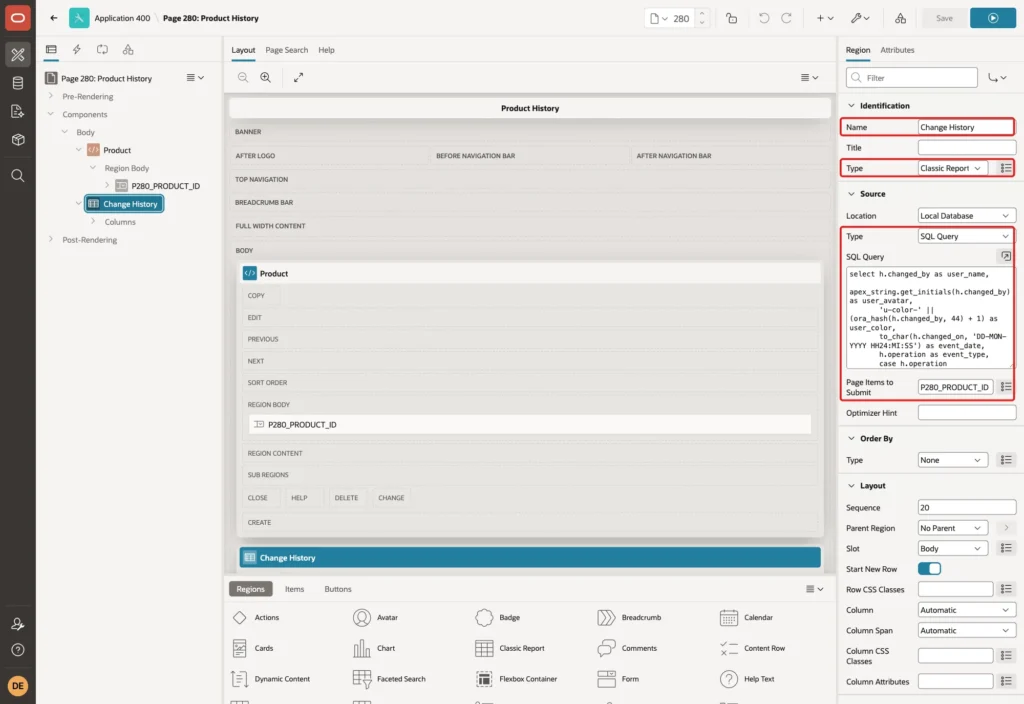
Click the Attributes tab. Set Template to Timeline, and enter No changes recorded for this product. in When No Data Found:
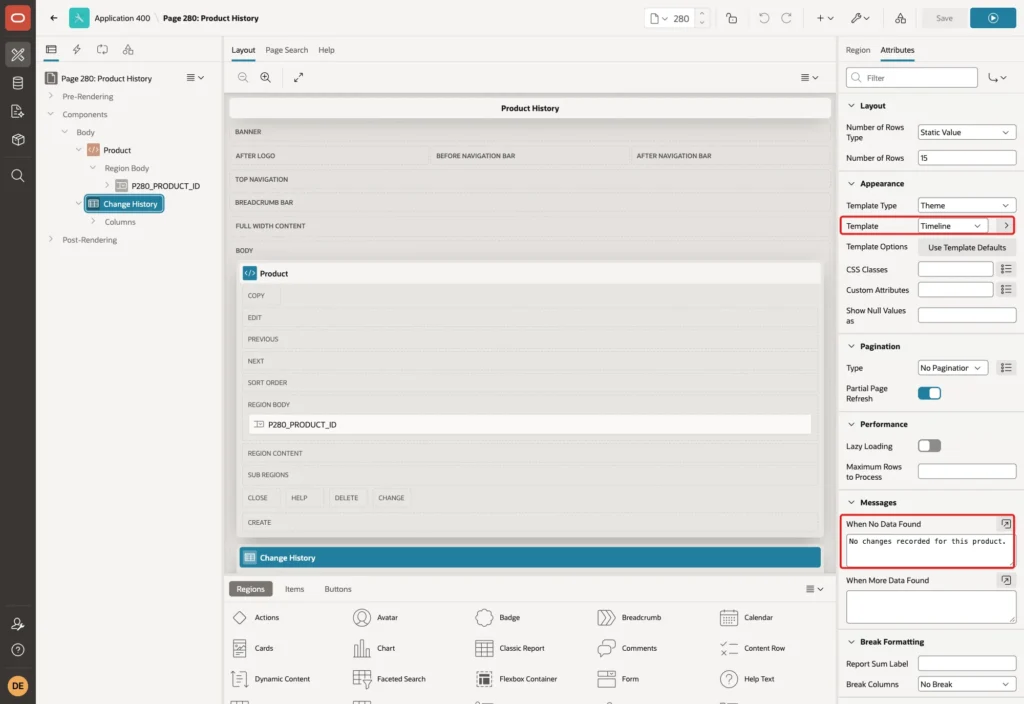
The Timeline template has no column layout. It places each column of the query in the HTML of a timeline entry by its alias, so the aliases must match its placeholders:
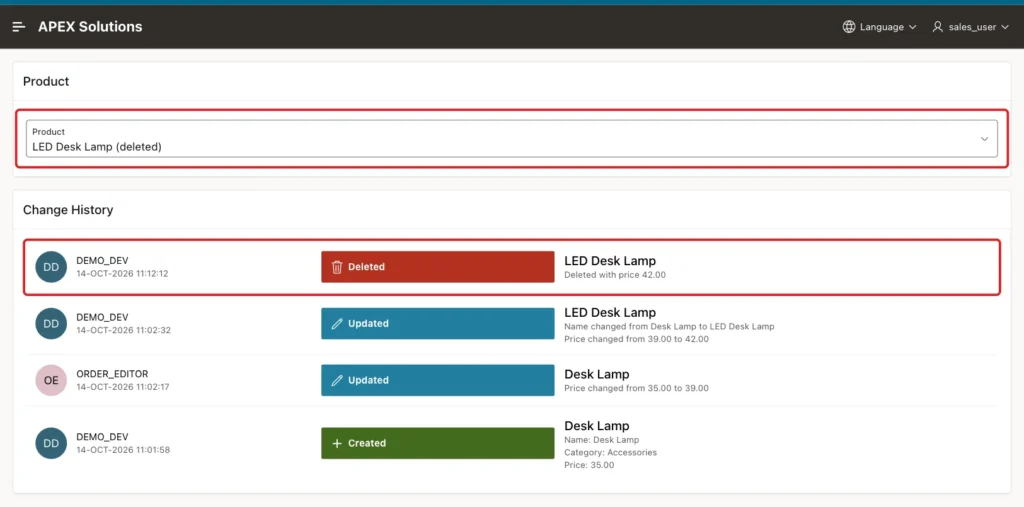
- USER_NAME, USER_AVATAR and USER_COLOR fill the user part on the left. APEX_STRING.GET_INITIALS turns DEMO_DEV into DD, and ORA_HASH gives each user one of the u-color classes, so the same user always gets the same color.
- EVENT_DATE is the date under the user name.
- EVENT_TYPE, EVENT_STATUS and EVENT_ICON fill the colored label. The classes is-new, is-updated and is-removed color it green, blue and red.
- EVENT_TITLE is the heading of the entry, the product name in that version. EVENT_DESC is the text under it.
In a first test, every entry showed the same default icon. The icon class needs the base class fa as well, for example fa fa-pencil, not just fa-pencil.
Step 8: Set the Report Columns
Expand Columns under Change History and click EVENT_DESC. Turn off Escape Special Characters in the Security group. The query already escapes the change text with APEX_ESCAPE.HTML and then adds the <br> tags, so only the line breaks are HTML.
In the Sorting group, turn off Sortable. Do the same for every other column of the report:
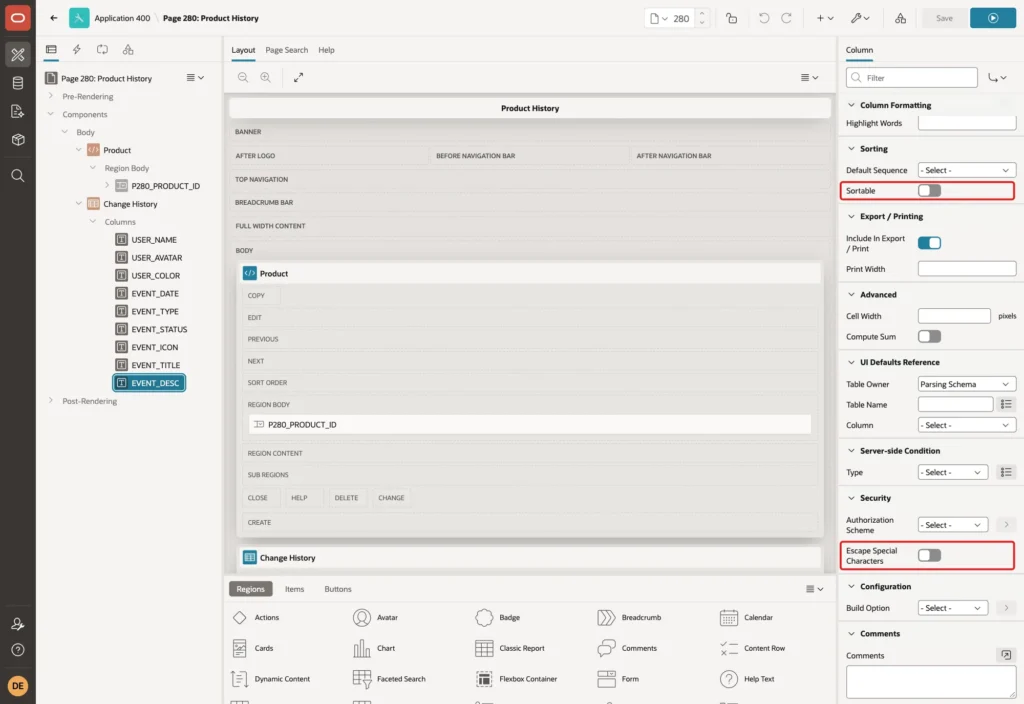
New Classic Report columns are sortable by default. In a first test with sortable columns, the timeline came out sorted by user name instead of by the ORDER BY of the query. With Sortable off for all columns, the newest change is always on top.
Step 9: Refresh the Timeline When the Product Changes
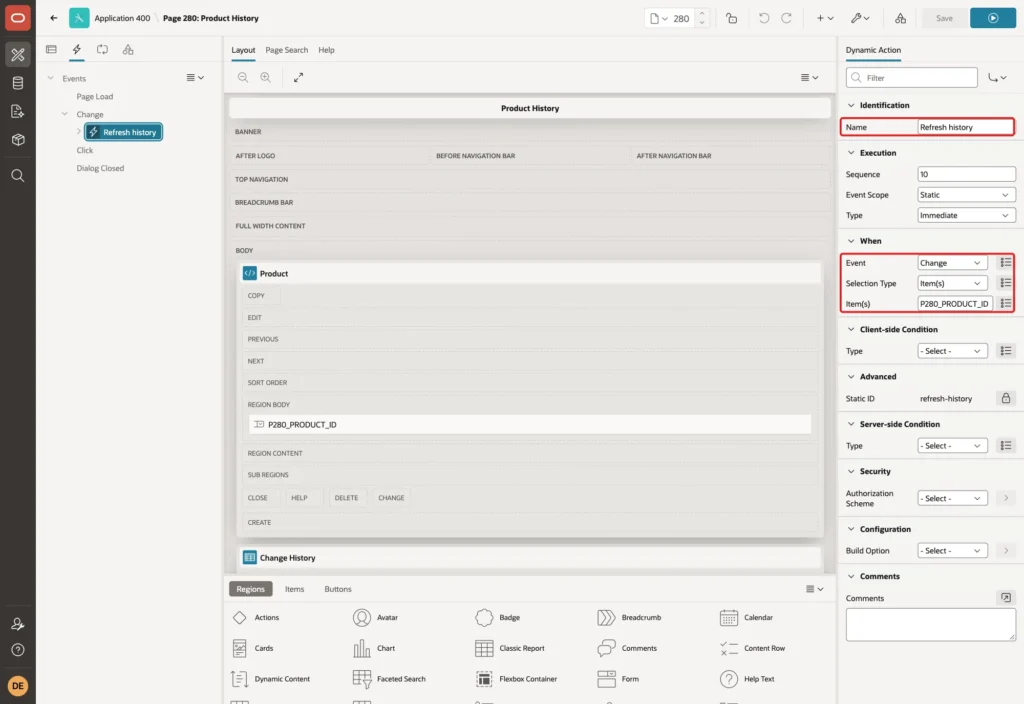
Open the Dynamic Actions tab, right-click Change and choose Create Dynamic Action. Set Name to Refresh history, Selection Type to Item(s) and Item(s) to P280_PRODUCT_ID:
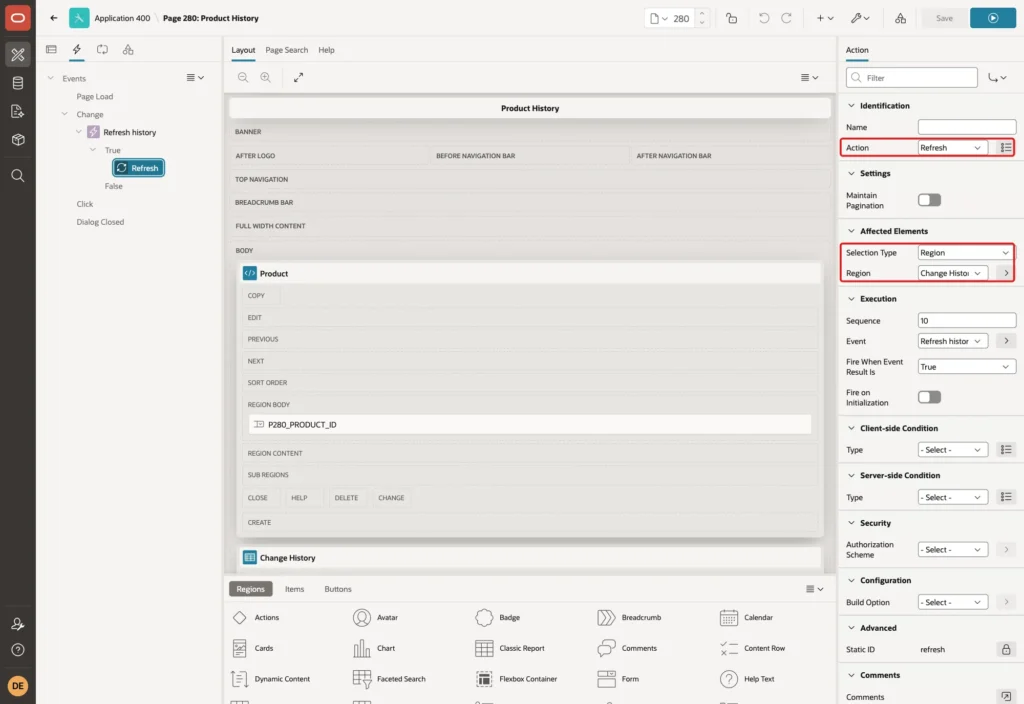
Click the True action under it. Set Action to Refresh, Selection Type to Region and Region to Change History. Click Save:
Step 10: Test the Timeline
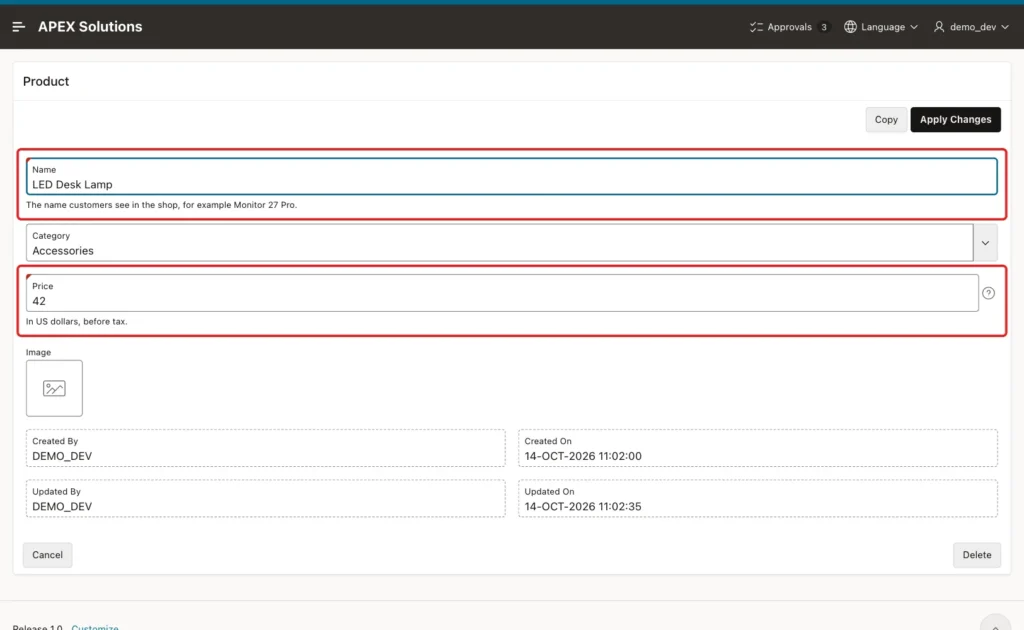
Make a few changes in the normal product form of the application. In this example, DEMO_DEV created the product Desk Lamp in Accessories for 35.00. Then ORDER_EDITOR changed its price to 39. Finally, DEMO_DEV changed the name to LED Desk Lamp and the price to 42 in one save:
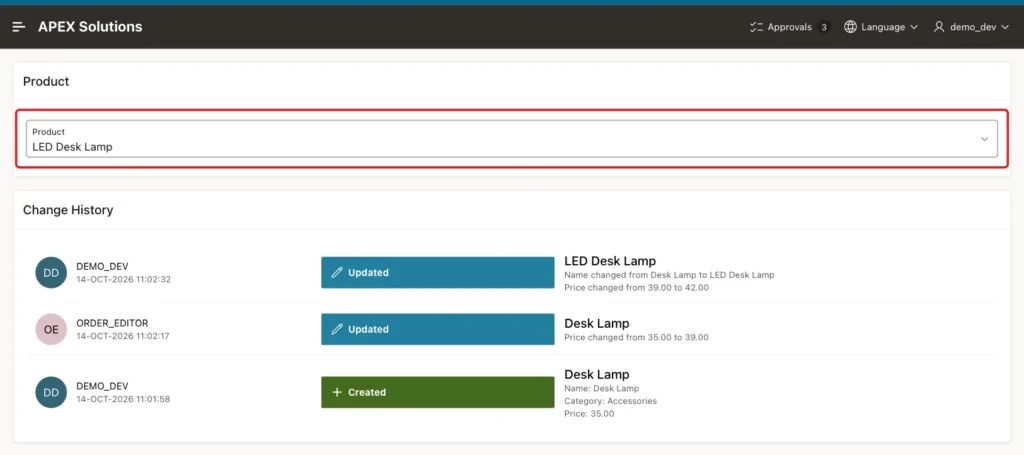
Run page 280 and pick LED Desk Lamp. The timeline shows three entries, newest first. The last save shows both fields that changed in it:
Now delete LED Desk Lamp in the product form as DEMO_DEV. The product is gone from PRODUCTS, but the select list now offers LED Desk Lamp (deleted). Here SALES_USER, a user with the Reader role, opens its history. A red Deleted entry is on top:
Check the same history in SQL:
Example:
set linesize 200
column changed_by format a12
column change_text format a45

select changed_on, operation, changed_by, change_text
from   product_history_v
where  product_id = 121
order by scn;
Output:
CHANGED_ON                        OPERATION    CHANGED_BY      CHANGE_TEXT
_________________________________ ____________ _______________ _______________________________________________
14-10-26 11:01:58.000000000 AM    Created      DEMO_DEV        Name: Desk Lamp
                                                               Category: Accessories
                                                               Price: 35.00
14-10-26 11:02:17.000000000 AM    Updated      ORDER_EDITOR    Price changed from 35.00 to 39.00
14-10-26 11:02:32.000000000 AM    Updated      DEMO_DEV        Name changed from Desk Lamp to LED Desk Lamp
                                                               Price changed from 39.00 to 42.00
14-10-26 11:12:12.000000000 AM    Deleted      DEMO_DEV        Deleted with price 42.00
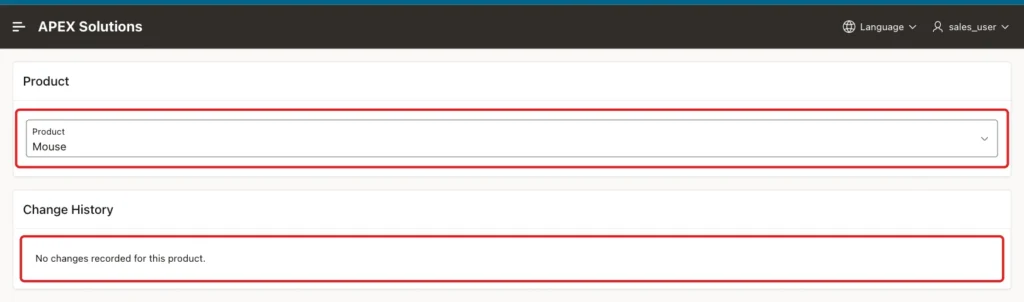
Pick Mouse, a product that nobody changed since Step 3. The timeline shows the No Data Found message:
Changes made outside APEX are kept too. This script adds and updates a product in SQL as the schema owner:
Example:
set linesize 200
column changed_by format a12
column change_text format a45

insert into products (name, category, price)
values ('USB Cable', 'Accessories', 15);
commit;

update products set price = 18 where name = 'USB Cable';
commit;

select operation, changed_by, change_text
from   product_history_v
where  name = 'USB Cable'
order by scn;
Output:
1 row inserted.

Commit complete.

1 row updated.

Commit complete.

OPERATION    CHANGED_BY    CHANGE_TEXT
____________ _____________ ____________________________________
Created      APXSOL        Name: USB Cable
                           Category: Accessories
                           Price: 15.00
Updated      APXSOL        Price changed from 15.00 to 18.00
There is no APEX session, so CHANGED_BY falls back to the database user, APXSOL.
Finally, try to remove history as the application schema. The archive keeps its rows in an internal table named SYS_FBA_HIST_ followed by the object number of PRODUCTS. USER_FLASHBACK_ARCHIVE_TABLES shows the name in ARCHIVE_TABLE_NAME:
Example:
delete from sys_fba_hist_101214;

alter table products no flashback archive;
Output:
Error starting at line : 1 File @ b30/06-tamper.sql
In command -
delete from sys_fba_hist_101214
Error at Command Line : 1 Column : 13 File @ b30/06-tamper.sql
Error report -
SQL Error: ORA-55622: DML, ALTER and CREATE UNIQUE INDEX operations are not allowed on
table "APXSOL"."SYS_FBA_HIST_101214"
Help: https://docs.oracle.com/error-help/db/ora-55622/

Error starting at line : 3 File @ b30/06-tamper.sql
In command -
alter table products no flashback archive
Error report -
ORA-55620: No privilege to use Flashback Archive
Help: https://docs.oracle.com/error-help/db/ora-55620/
The schema can neither delete history rows nor turn the archive off. Taking a table out of the archive is a DBA task, like creating the archive in Step 2.
Things to Know
- History starts when you run ALTER TABLE ... FLASHBACK ARCHIVE. Changes made before that are not in the timeline.
- VERSIONS_STARTTIME is derived from the SCN of the change and can be a few seconds early. In this example, the form showed Updated On 11:02:35 for the third change, while the timeline shows 11:02:32. For exact order, sort by the SCN, as the region query does.
- The times are in the database time zone, the same as SYSDATE.
- SET_CONTEXT_LEVEL('ALL') is a database-wide setting. It stores the session context for every transaction on every archived table, so the archive holds more data per change.
- A table in an archive cannot be dropped. In a test with a scratch table, DROP TABLE failed with ORA-55610: Invalid DDL statement on history-tracked table. Adding and dropping a column worked.
- The view lists three columns. To track another column, add it to the versions query, to LAG and to the change text.
- For a single moment in the past instead of the full history, see How to Query Past Data with Flashback Query in Oracle.
Related Guides
- How to Track Who Changed What in Oracle APEX: A Change History for Any Table
- How to Add Audit Columns (Created By, Updated By) Automatically in Oracle APEX
Conclusion
To show a record's change history as a timeline in Oracle APEX, put the table in a flashback archive and let the database keep every row version. A view with a versions query and LAG turns the versions into readable changes, with the APEX user saved in the transaction context.
A Classic Report with the Timeline template then shows the changes per record, newest first, with a colored label for created, updated and deleted rows. No trigger is needed, and the application schema cannot change or remove the history.
