
Oracle AI Database 26ai has a real SQL BOOLEAN data type. A column can store TRUE, FALSE or NULL, and a query can use it directly in a WHERE clause. There is no need for a VARCHAR2(1) column with Y and N values and a check constraint any more.
Oracle APEX 26.1 understands BOOLEAN columns. The Create Page wizard turns them into Switch items and shows Yes or No in reports. This guide shows what the wizard creates, two traps found while testing it, and how to fix them with declarative settings.
The example uses hotel rooms; the same steps work for any table with BOOLEAN columns. The older posts Oracle Apex 19.1 - Create Switch Example and Oracle Apex 19.1 - Create Checkbox of Yes/No Type use Y/N text columns. This article uses the BOOLEAN type itself.
Step 1: Create the Tables
HOTELS holds the hotels and HOTEL_ROOMS the rooms. HOTEL_ROOMS has three BOOLEAN columns, and each one shows a different case:
- IS_AVAILABLE is NOT NULL with DEFAULT ON NULL TRUE. A new room is available unless someone says otherwise.
- HAS_SEA_VIEW is NOT NULL with DEFAULT ON NULL FALSE.
- PETS_ALLOWED allows NULL. NULL means the hotel has not told us yet, which is different from FALSE.
The keys, the unique room number per hotel and the check constraints are declared in the tables, so no trigger is needed.
Example:
create table hotels (
  hotel_id    number generated by default on null as identity,
  hotel_name  varchar2(100 char) not null,
  city        varchar2(60 char) not null,
  constraint hotels_pk primary key (hotel_id),
  constraint hotels_name_uk unique (hotel_name)
);

create table hotel_rooms (
  room_id       number generated by default on null as identity,
  hotel_id      number not null,
  room_no       varchar2(10 char) not null,
  room_type     varchar2(10 char) not null,
  nightly_rate  number(8,2) not null,
  is_available  boolean default on null true not null,
  has_sea_view  boolean default on null false not null,
  pets_allowed  boolean,
  constraint hotel_rooms_pk primary key (room_id),
  constraint hotel_rooms_hotel_fk foreign key (hotel_id)
    references hotels (hotel_id),
  constraint hotel_rooms_no_uk unique (hotel_id, room_no),
  constraint hotel_rooms_type_ck
    check (room_type in ('SINGLE', 'DOUBLE', 'SUITE')),
  constraint hotel_rooms_rate_ck check (nightly_rate > 0)
);

create index hotel_rooms_hotel_ix on hotel_rooms (hotel_id);

insert into hotels (hotel_name, city) values ('Harbor View Hotel', 'Lisbon');
insert into hotels (hotel_name, city) values ('Pine Lodge', 'Oslo');

insert into hotel_rooms (hotel_id, room_no, room_type, nightly_rate, is_available, has_sea_view, pets_allowed)
values (1, '101', 'SINGLE', 95, true, false, false);
insert into hotel_rooms (hotel_id, room_no, room_type, nightly_rate, is_available, has_sea_view, pets_allowed)
values (1, '102', 'DOUBLE', 140, true, true, true);
insert into hotel_rooms (hotel_id, room_no, room_type, nightly_rate, is_available, has_sea_view, pets_allowed)
values (1, '201', 'SUITE', 260, false, true, null);
insert into hotel_rooms (hotel_id, room_no, room_type, nightly_rate)
values (2, '1', 'DOUBLE', 120);
insert into hotel_rooms (hotel_id, room_no, room_type, nightly_rate, is_available, pets_allowed)
values (2, '2', 'SINGLE', 80, 'no', 'yes');

commit;

select room_no, room_type, is_available, has_sea_view, pets_allowed
from hotel_rooms
order by room_id;
Output:
Table HOTELS created.

Table HOTEL_ROOMS created.

Index HOTEL_ROOMS_HOTEL_IX created.

1 row inserted.

1 row inserted.

1 row inserted.

1 row inserted.

1 row inserted.

1 row inserted.

1 row inserted.

Commit complete.

ROOM_NO    ROOM_TYPE    IS_AVAILABLE    HAS_SEA_VIEW    PETS_ALLOWED
__________ ____________ _______________ _______________ _______________
101        SINGLE       true            false           false
102        DOUBLE       true            true            true
201        SUITE        false           true
1          DOUBLE       true            false
2          SINGLE       false           false           true
The inserts use the literals true and false. Room 2 uses the strings 'no' and 'yes', and the database converted them to false and true. Room 1 of Pine Lodge gave no values, so the defaults set IS_AVAILABLE to true and HAS_SEA_VIEW to false, and PETS_ALLOWED stayed NULL.
Step 2: Create the Report and Form Pages
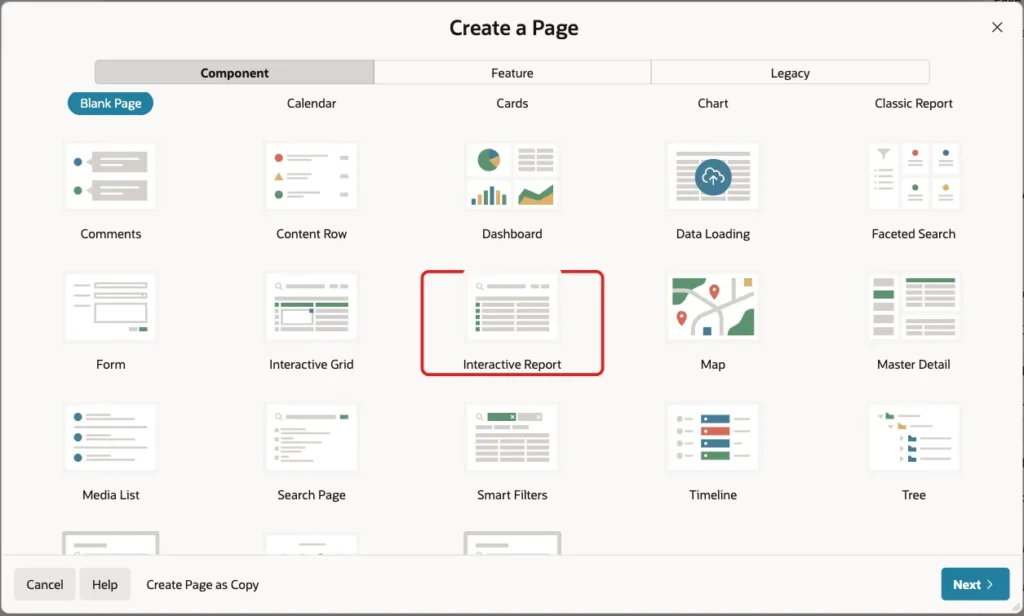
In App Builder, open the application and click Create Page. Select Interactive Report:
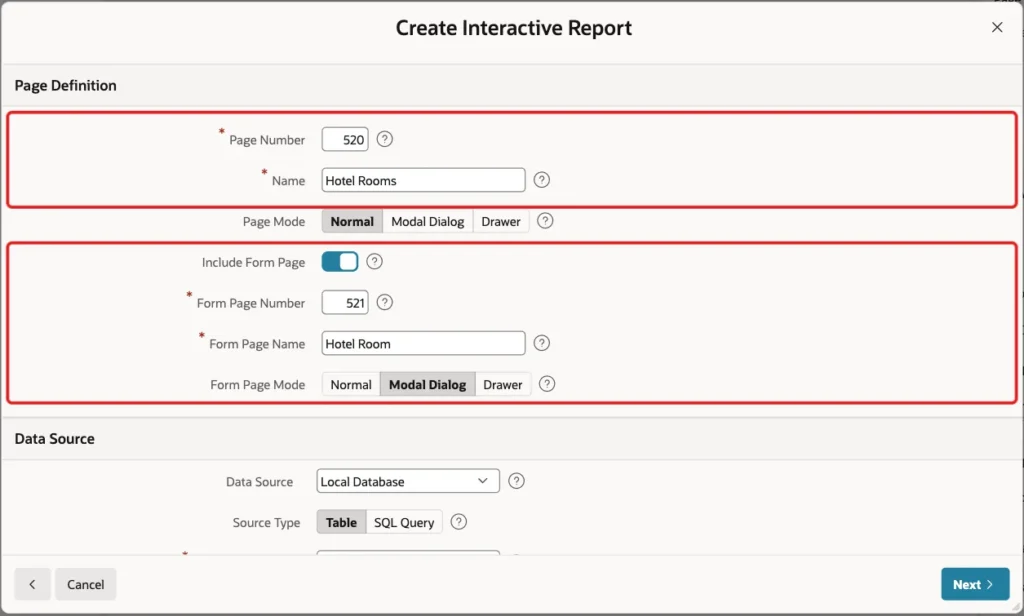
Enter 520 as the Page Number and Hotel Rooms as the Name. Turn on Include Form Page, enter 521 and Hotel Room for the form page, and select Modal Dialog as its page mode:
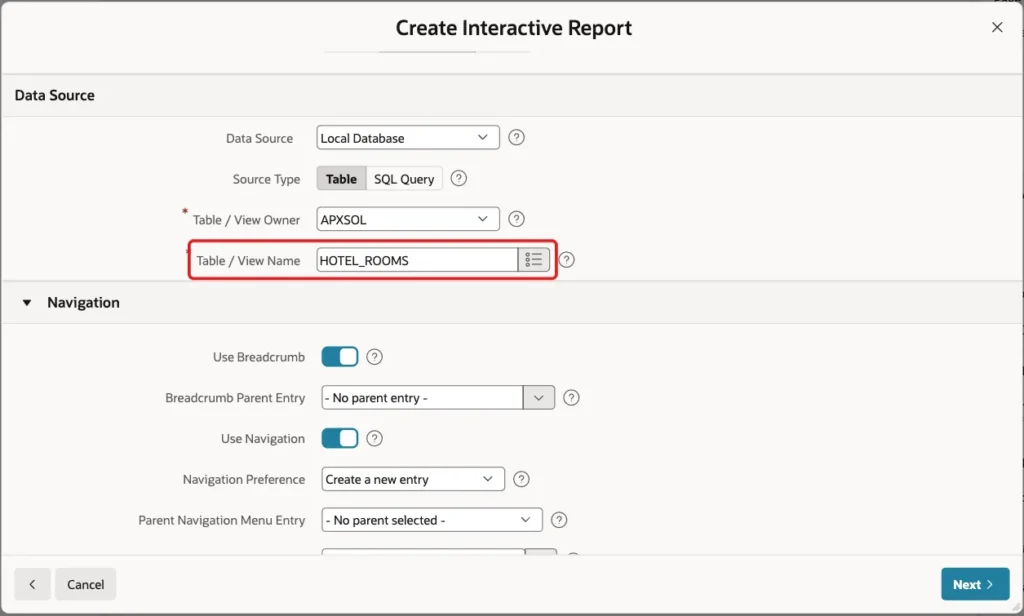
In the Data Source section, keep Local Database and Table, and enter HOTEL_ROOMS as the Table / View Name:
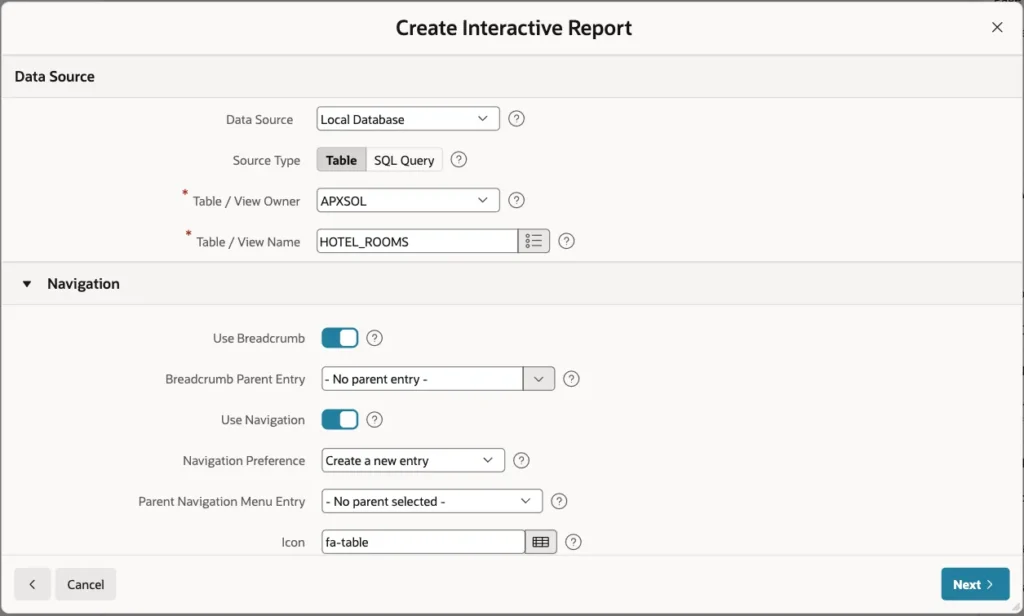
Keep the Navigation settings as they are and click Next:
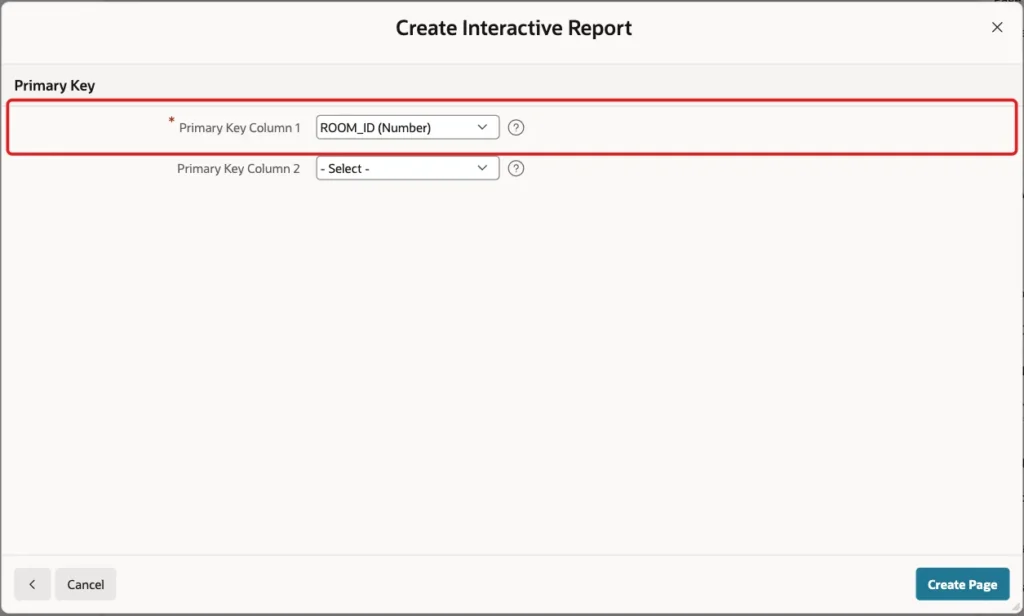
On the Primary Key screen, select ROOM_ID as Primary Key Column 1 and click Create Page:
Step 3: Check What the Wizard Created
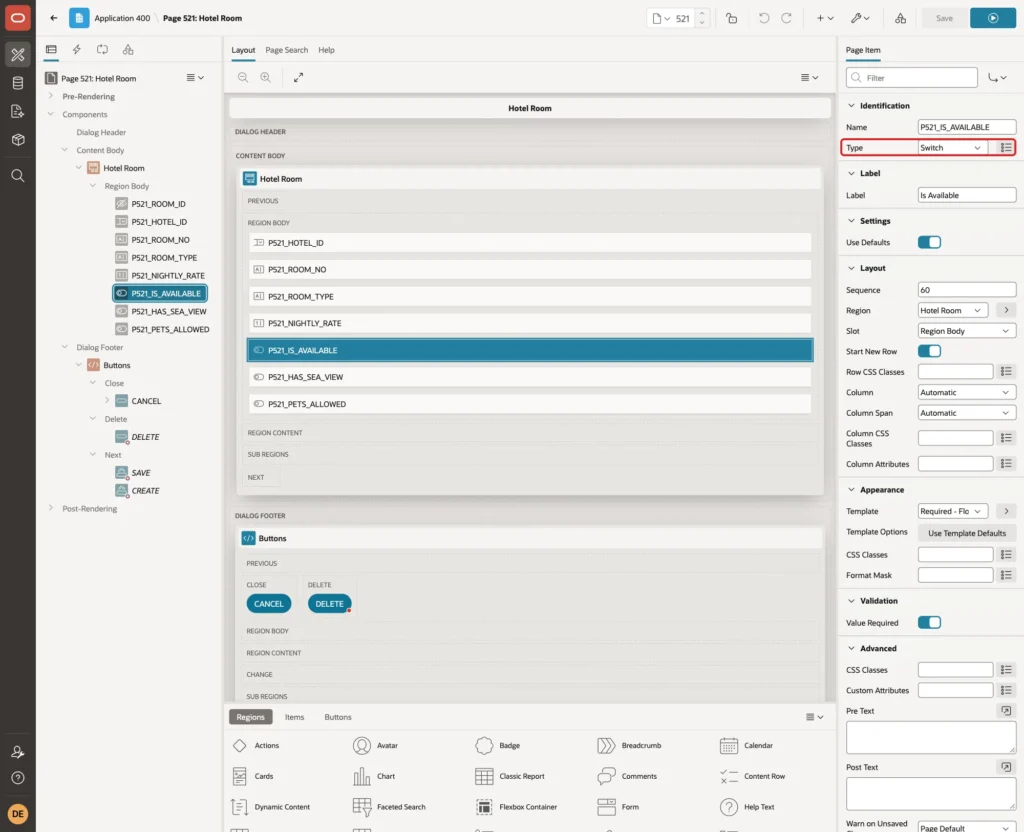
Open page 521 in Page Designer and select P521_IS_AVAILABLE. The wizard made it a Switch:
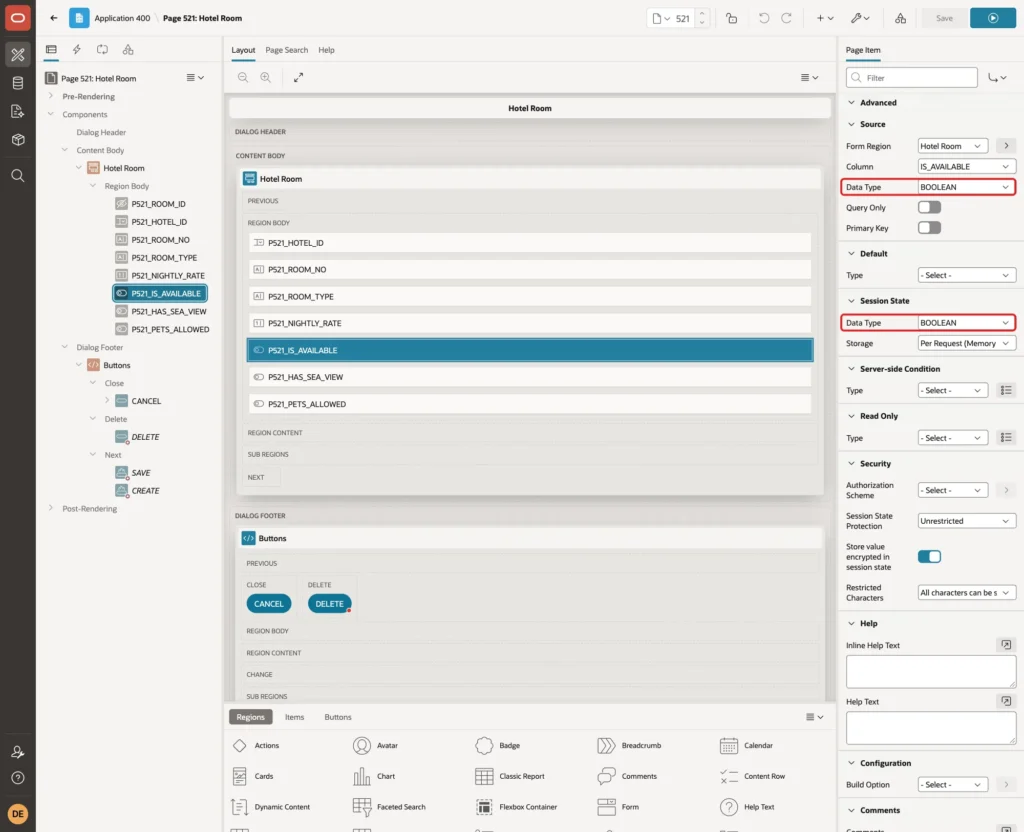
In the Source group, Data Type is BOOLEAN. In the Session State group, Data Type is BOOLEAN too. P521_HAS_SEA_VIEW and P521_PETS_ALLOWED got the same settings:
Now open page 520 and select the IS_AVAILABLE column of the report. Its Type is Plain Text (based on List of Values):
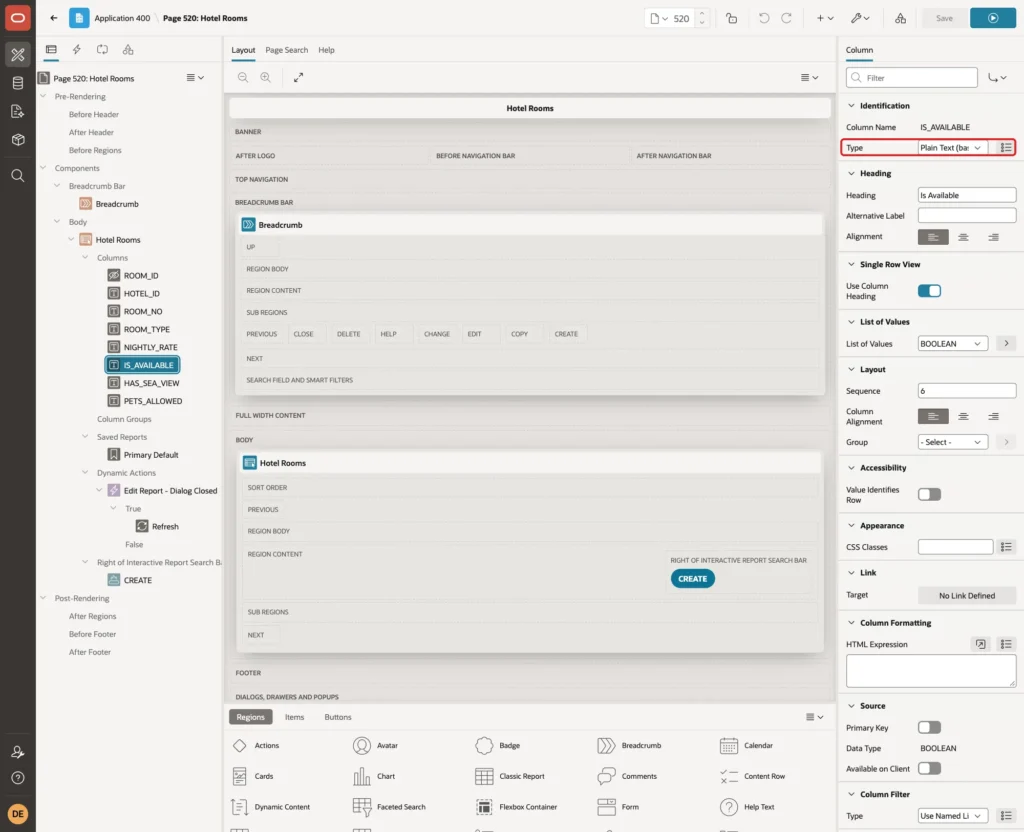
The column uses the shared list of values BOOLEAN, its Source Data Type is BOOLEAN, and the Column Filter Type uses that list for exact matches:
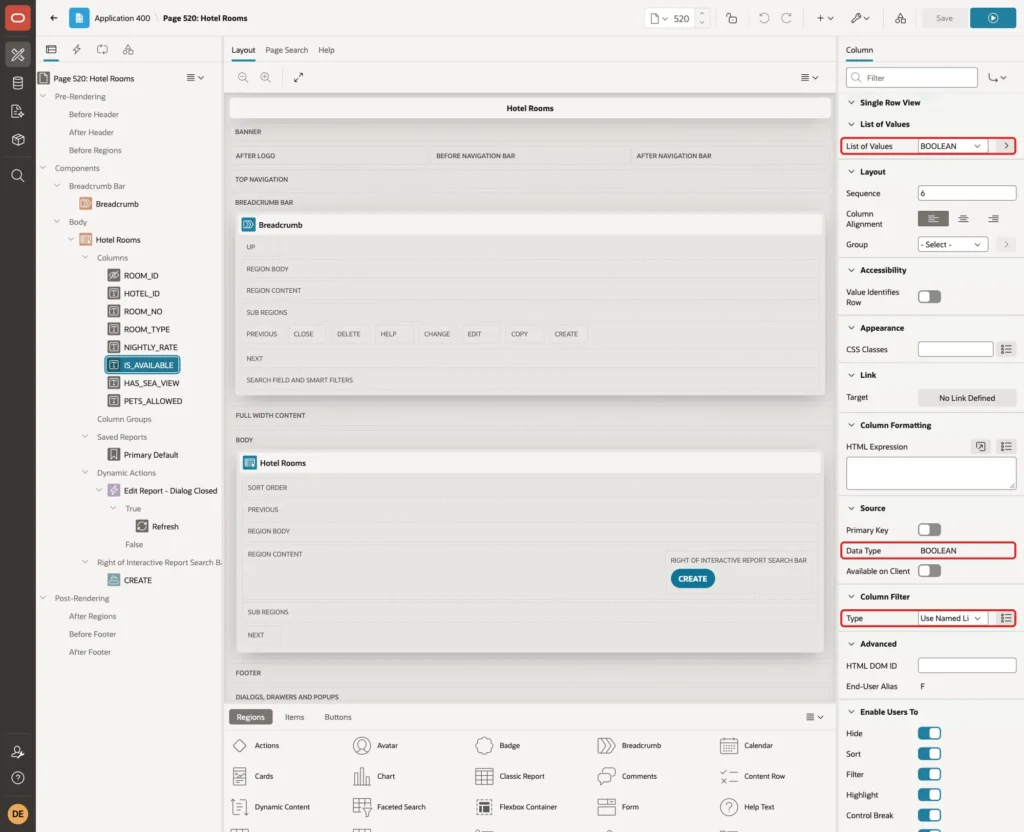
BOOLEAN is a static list of values in Shared Components with two entries: Yes returns TRUE and No returns FALSE. In this example application the list already existed from an earlier page, and the wizard used it for all three columns.
Step 4: Test the Generated Form
Run page 520 and open room 101. The browser sends the switch values to APEX as JSON booleans. The request for an Apply Changes contained these values:
Example:
{"n":"P521_IS_AVAILABLE","v":true},{"n":"P521_HAS_SEA_VIEW","v":false},{"n":"P521_PETS_ALLOWED","v":false}Saving changed switches works. The tests also showed two problems.
A NULL Value Becomes FALSE
Room 1 of Pine Lodge has no value in PETS_ALLOWED. A switch has only two states, so the form showed Pets Allowed as Off. Clicking Apply Changes without changing anything then saved FALSE:
Example:
select r.room_no, h.hotel_name, r.pets_allowed
from hotel_rooms r
join hotels h on h.hotel_id = r.hotel_id
where h.hotel_name = 'Pine Lodge' and r.room_no = '1';
Output:
ROOM_NO    HOTEL_NAME    PETS_ALLOWED
__________ _____________ _______________
1          Pine Lodge    false
The unknown value was lost without any message. A switch is only right for a NOT NULL BOOLEAN column. Step 6 fixes PETS_ALLOWED.
A New Record Ignores the Column Default
Click Create and add room 103 without touching the switches. The switches start Off, so the browser sends false for IS_AVAILABLE. The database default only applies when the value is NULL, so the new room was saved as not available:
Example:
select room_no, is_available, has_sea_view, pets_allowed
from hotel_rooms
where room_no = '103';
Output:
ROOM_NO    IS_AVAILABLE    HAS_SEA_VIEW    PETS_ALLOWED
__________ _______________ _______________ _______________
103        false           false
Before going on, set PETS_ALLOWED of room 1 back to NULL:
Example:
update hotel_rooms
set pets_allowed = null
where room_no = '1'
and hotel_id = (select hotel_id from hotels where hotel_name = 'Pine Lodge');

commit;
Output:
1 row updated.

Commit complete.
Step 5: Set a Default for the Switch
In Page Designer, select P521_IS_AVAILABLE. In the Default group, set Type to Static and enter TRUE as the Static Value. Click Save:
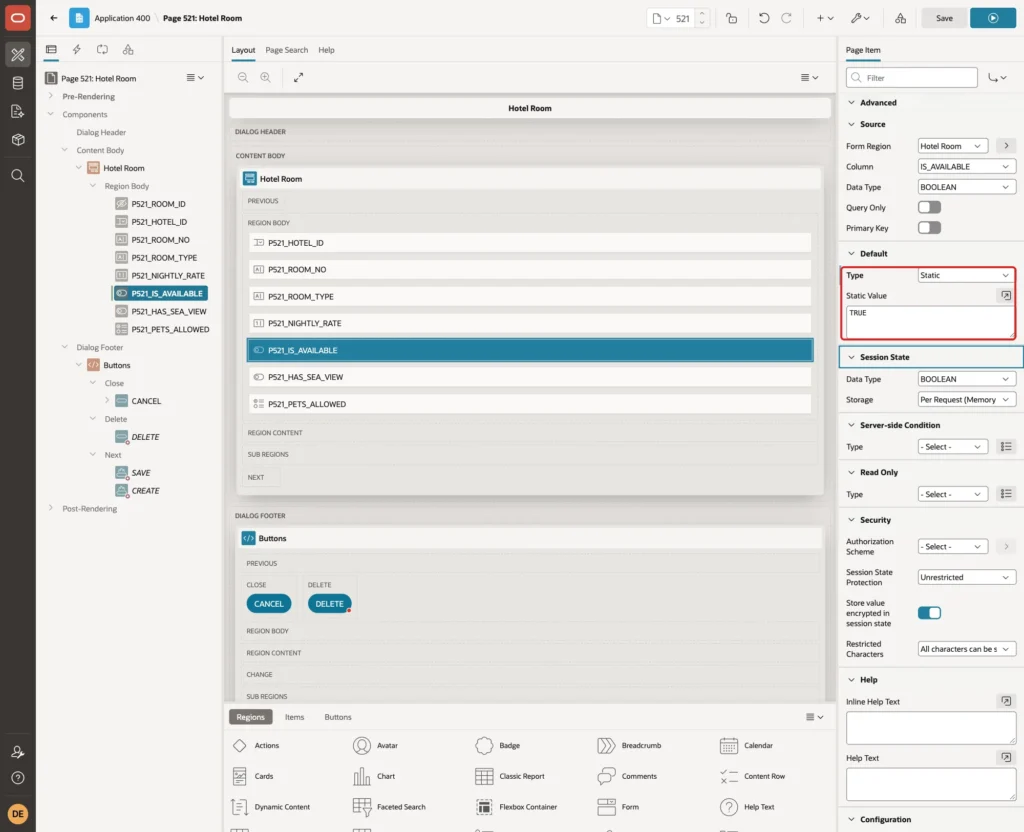
The item default only fills the form when it opens for a new record. Existing rooms still show their stored value. HAS_SEA_VIEW needs no default, because Off already matches its database default FALSE.
Step 6: Use a Radio Group for the Nullable Column
PETS_ALLOWED needs three choices: Yes, No and Not known. Select P521_PETS_ALLOWED, change Type to Radio Group and enter 3 in Number of Columns, so the three options appear in one row:
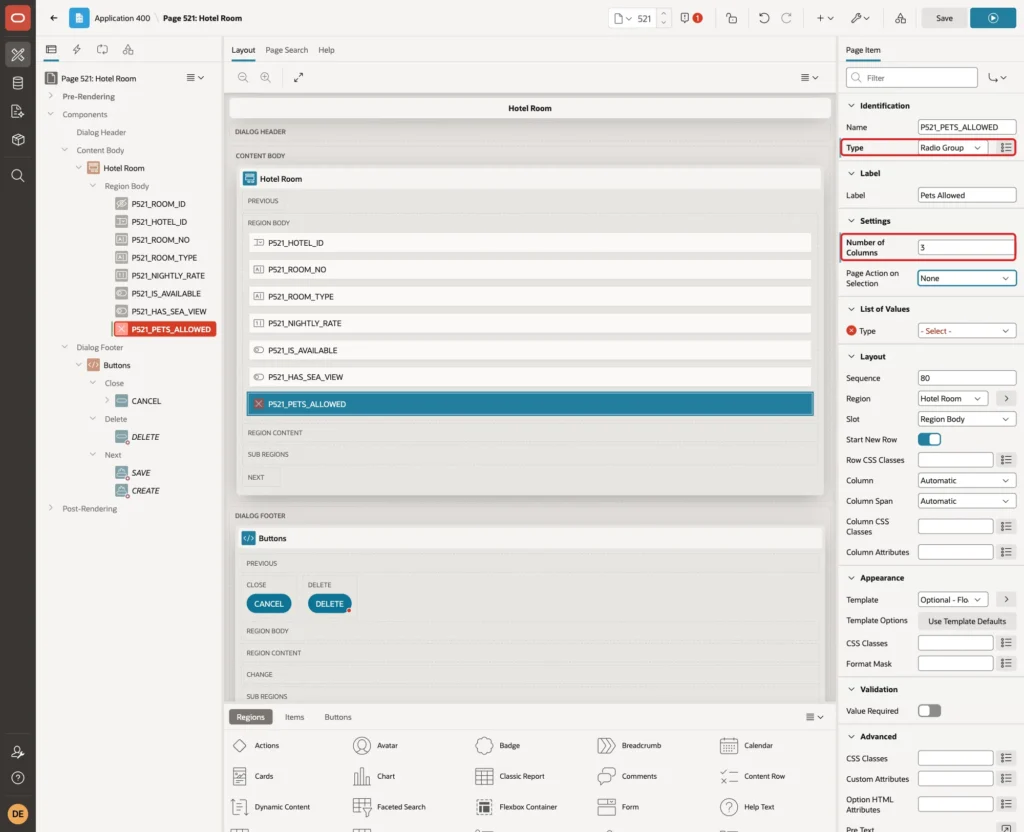
Page Designer marks the item with an error until it has a list of values. In the List of Values group, set Type to Shared Component and select BOOLEAN. Turn off Display Extra Values, turn on Display Null Value, and enter Not known as the Null Display Value. Leave Null Return Value empty:
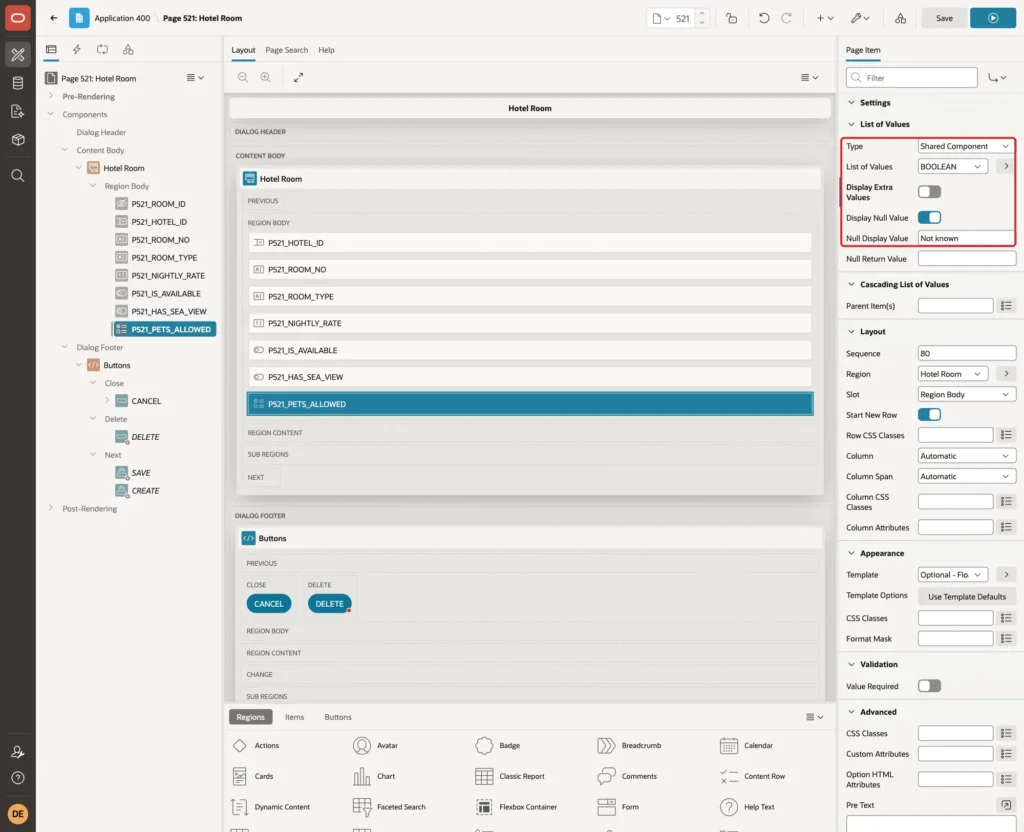
The radio group sends the strings TRUE, FALSE or an empty value. The Session State Data Type list of a Radio Group offers only VARCHAR2, while the Source Data Type was still BOOLEAN.
In a first test with this mix, both Yes and No were saved as NULL. Room 102 lost its TRUE value when No was selected. With Source Data Type BOOLEAN, other return values such as true, Y and 1 also gave NULL.
The fix: in the Source group, change Data Type to VARCHAR2 and click Save. APEX then passes the text to the database, and the database converts 'TRUE' and 'FALSE' to BOOLEAN, as it did for 'yes' and 'no' in Step 1:
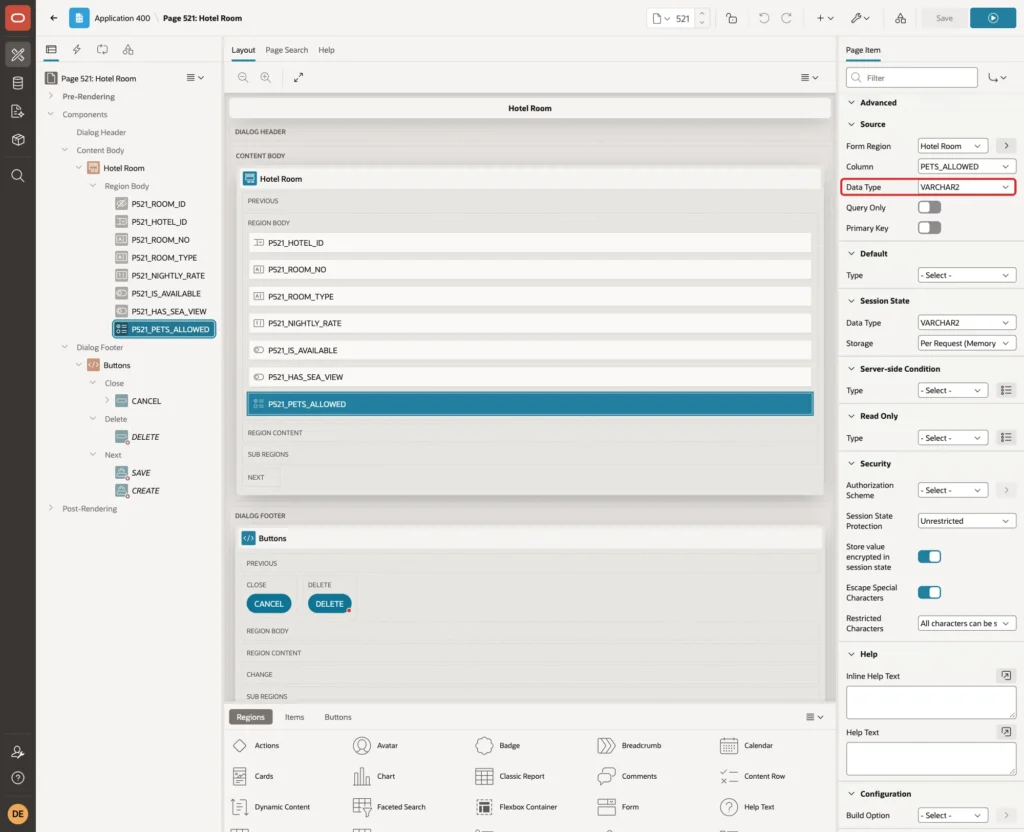
With this setting, Yes saved true, No saved false and Not known saved NULL. Reading works the other way: a stored true shows Yes selected, and NULL shows Not known.
Step 7: Add a Validation for the Radio Group
A user can change the submitted value in the browser developer tools. When the request sent MAYBE for P521_PETS_ALLOWED, APEX did not check it against the list of values, even with Display Extra Values off. The database rejected it with ORA-61800: invalid boolean literal: MAYBE, and the user saw that raw error.
Add a validation with a clear message. In Page Designer, open the Processing tab, right-click Validating and select Create Validation. Set these properties and click Save:
- Name: Pets Allowed must be Yes, No or Not known
- Type: Expression, Language PL/SQL
- PL/SQL Expression: the expression below
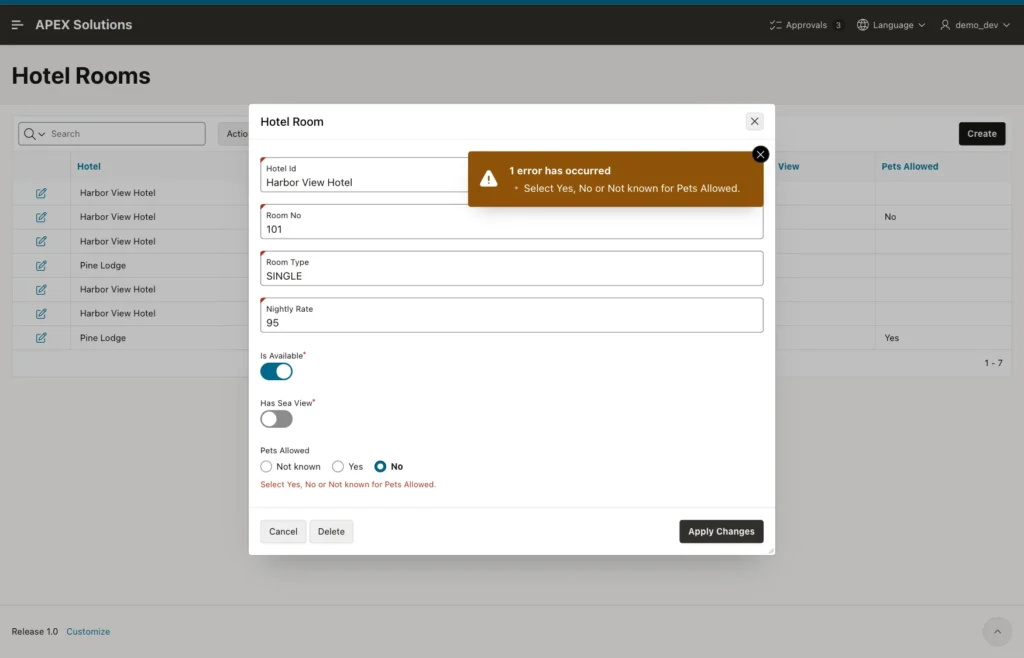
- Error Message: Select Yes, No or Not known for Pets Allowed.
- Associated Item: P521_PETS_ALLOWED
Example:
:P521_PETS_ALLOWED is null or :P521_PETS_ALLOWED in ('TRUE', 'FALSE')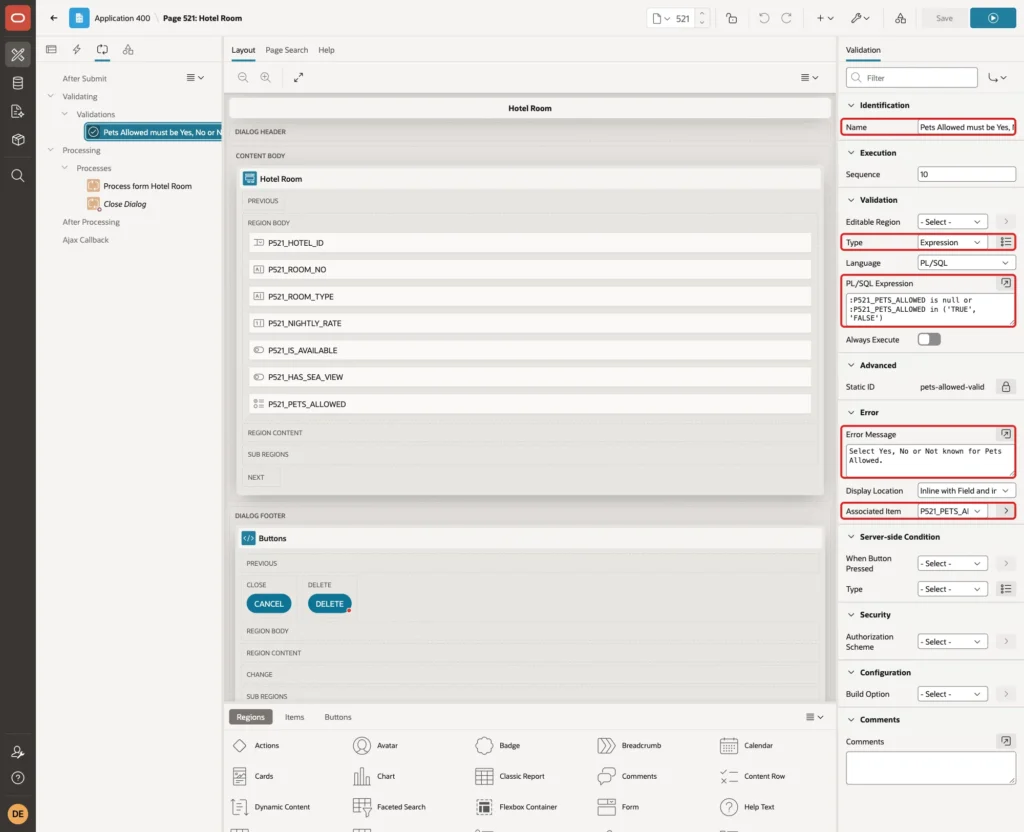
The switches need no validation. When the request sent MAYBE for P521_IS_AVAILABLE, APEX treated it as no value and showed Is Available must have some value, because the item has Value Required on.
Test the Pages
Create a Room
Run page 520 and click Create. Is Available now starts On:
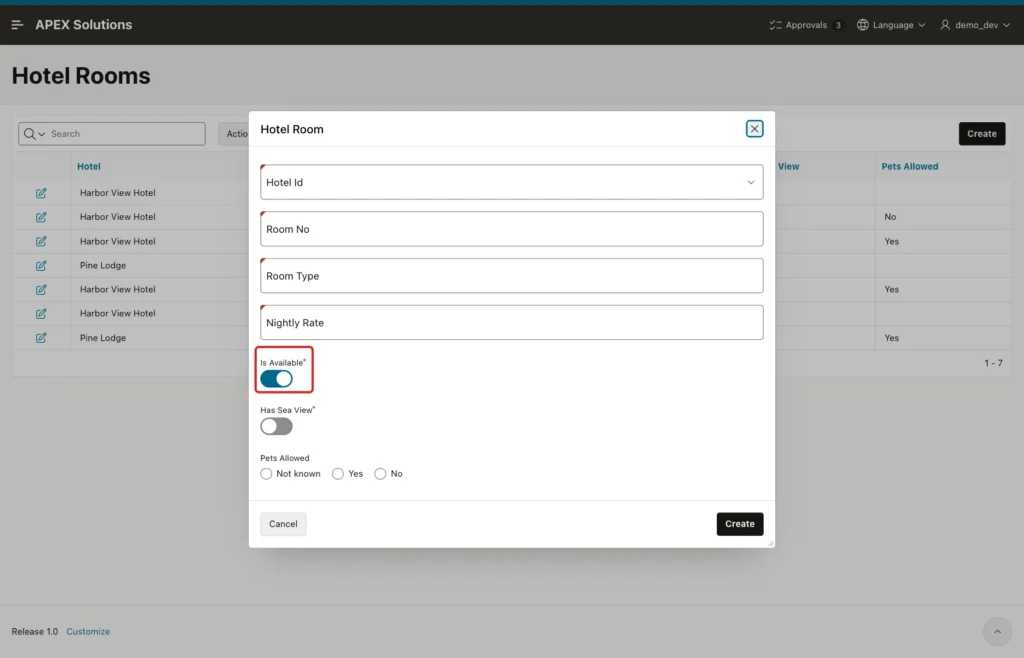
Room 104 was created with Harbor View Hotel, SINGLE and 90, without touching the switches. The request sent true for P521_IS_AVAILABLE and an empty value for P521_PETS_ALLOWED, and the row was saved as available with PETS_ALLOWED NULL.
Keep an Unknown Value
Open room 1 of Pine Lodge. Pets Allowed shows Not known. Click Apply Changes without changes:
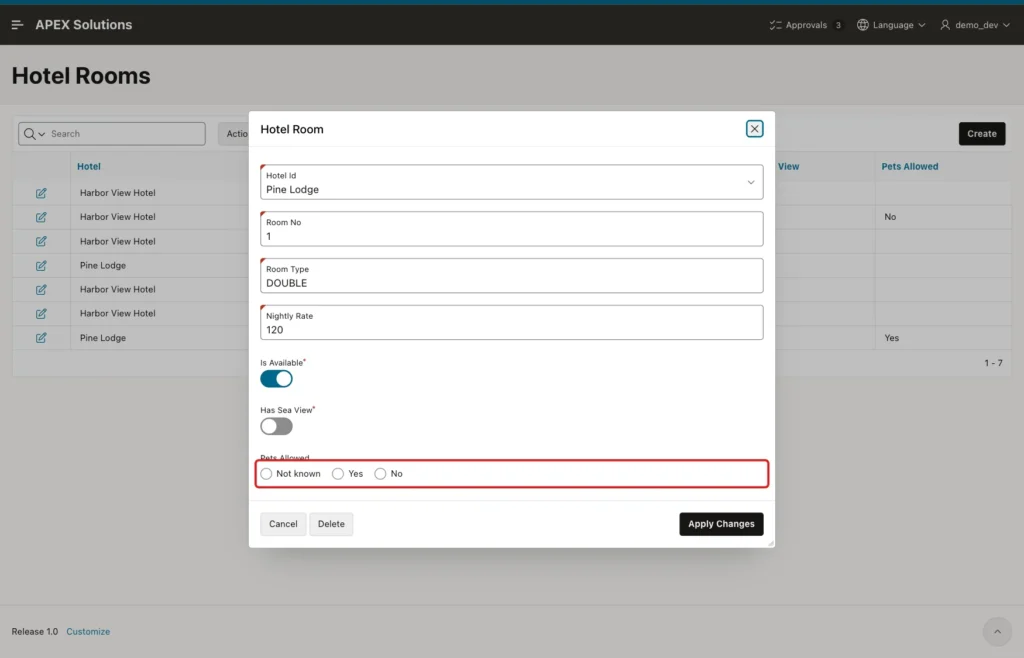
This time PETS_ALLOWED stays NULL, as the final query below shows.
Change the Values
Open room 103. Turn on Has Sea View, select Yes for Pets Allowed and click Apply Changes:
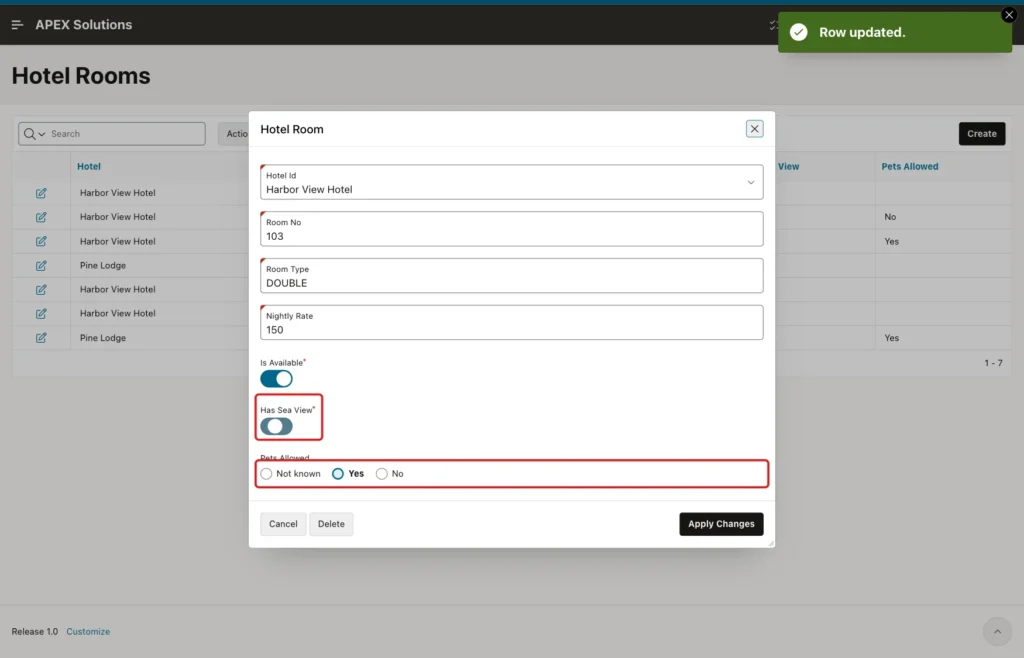
The request sent true for P521_HAS_SEA_VIEW and the string TRUE for P521_PETS_ALLOWED. Both were saved as true. Room 102 was also set back to Yes in the same way.
Send a Wrong Value
Open room 101 and change the submitted value of P521_PETS_ALLOWED to MAYBE in the browser developer tools before the request is sent. The validation stops the save:
Filter the Report
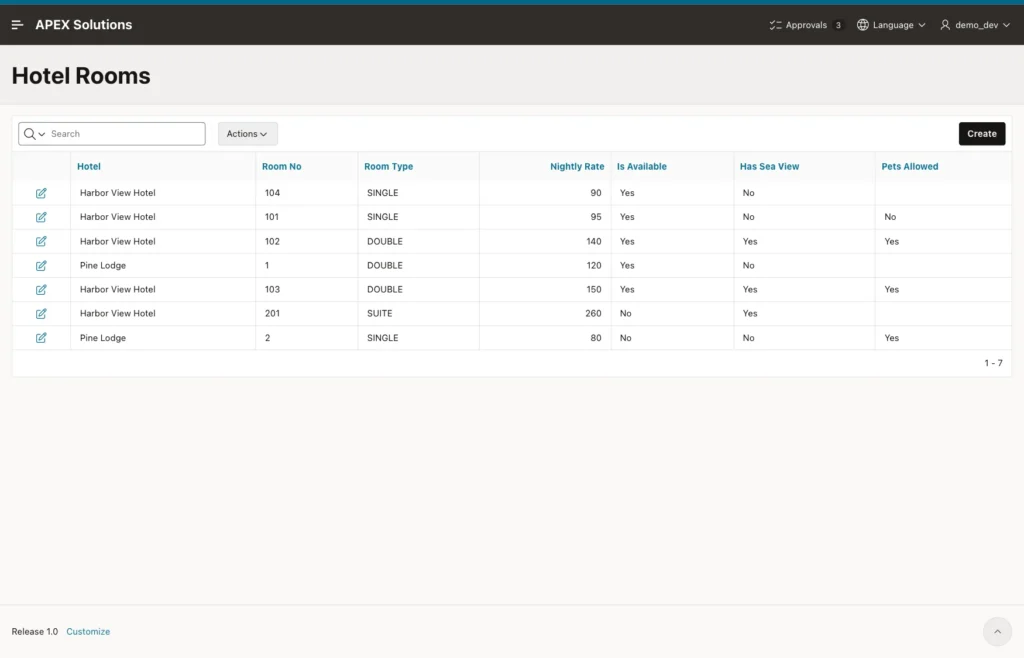
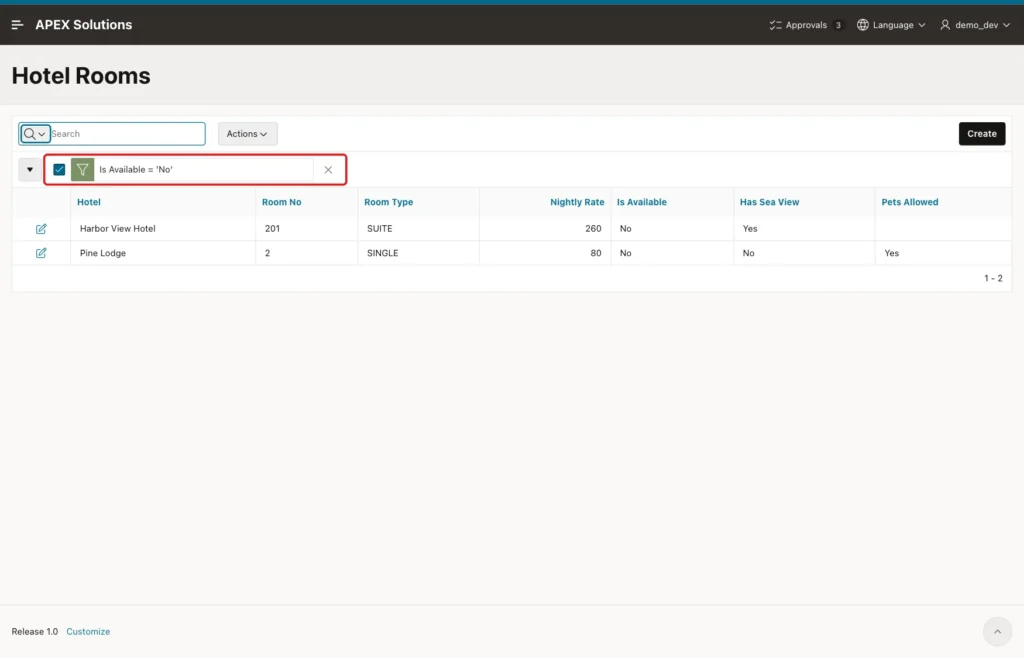
The report shows Yes and No for the BOOLEAN columns, and an empty cell for NULL:
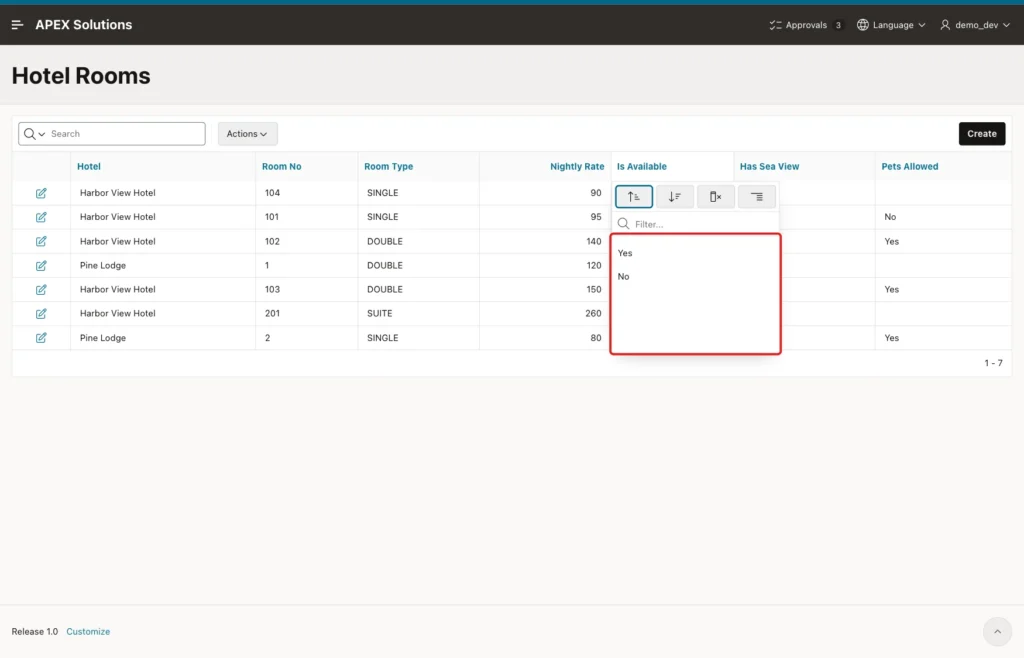
Click the Is Available heading. The column menu lists the values Yes and No:
Click No. The report adds the filter Is Available = 'No' and shows the two rooms that are not available:
Check the Table
The final rows, the number of available rooms and the rooms with an unknown pet rule. A BOOLEAN column can be the whole condition, as in where is_available:
Example:
select h.hotel_name, r.room_no, r.is_available, r.has_sea_view, r.pets_allowed
from hotel_rooms r
join hotels h on h.hotel_id = r.hotel_id
order by h.hotel_name, r.room_no;

select count(*) as available_rooms
from hotel_rooms
where is_available;

select room_no
from hotel_rooms
where pets_allowed is null
order by room_no;
Output:
HOTEL_NAME           ROOM_NO    IS_AVAILABLE    HAS_SEA_VIEW    PETS_ALLOWED
____________________ __________ _______________ _______________ _______________
Harbor View Hotel    101        true            false           false
Harbor View Hotel    102        true            true            true
Harbor View Hotel    103        true            true            true
Harbor View Hotel    104        true            false
Harbor View Hotel    201        false           true
Pine Lodge           1          true            false
Pine Lodge           2          false           false           true

7 rows selected.

   AVAILABLE_ROOMS
__________________
                 5

ROOM_NO
__________
1
104
201
Room 103 has true for HAS_SEA_VIEW and PETS_ALLOWED, room 104 is available, and rooms 1, 104 and 201 keep NULL in PETS_ALLOWED.
Things to Know
- The Create Page wizard creates a Switch for each BOOLEAN column, with Source and Session State Data Type BOOLEAN. Switch values travel to APEX as JSON true and false.
- A switch cannot show NULL. On a nullable BOOLEAN column it saves FALSE for an unknown value without any message. Use a Radio Group or a Select List with a null option.
- The column default DEFAULT ON NULL TRUE does not help a form, because the switch sends false, not NULL. Set the same default on the item.
- For a Radio Group on a BOOLEAN column, set the Source Data Type to VARCHAR2. With BOOLEAN, Yes and No were both saved as NULL.
- APEX did not check a Radio Group value against its list of values. Add a validation so a wrong value gives a clear message instead of ORA-61800.
- Reports show the BOOLEAN list of values as Yes and No, and the column filter works with those values. NULL appears as an empty cell.
- In SQL, a BOOLEAN column can be used alone in a WHERE clause, and the strings 'yes', 'no', 'true' and 'false' are converted on insert.
Related Guides
- Oracle Apex 19.1 - Create Switch Example
- How to Show or Hide Fields Based on Another Item's Value in Oracle APEX
Conclusion
To use the BOOLEAN data type in Oracle APEX, create the pages with the wizard and check the items it makes. Switches work well for NOT NULL columns once they get the same default as the column, and reports show Yes and No without extra work.
For a column that can be NULL, use a Radio Group with a Not known option, set its Source Data Type to VARCHAR2, and add a validation. Then TRUE, FALSE and NULL all keep their meaning from the form to the table.
