
A new report is often half ready on the day you want to release the rest of the application. A build option lets you keep that work in the application and switch it off for users. The component stays in your development, but at runtime it behaves as if it did not exist.
This guide creates one build option, applies it to a report region and to a menu entry, and tests both states. It uses orders as the example data; the same steps work for any region, page, button or item.
The guide Oracle APEX Application Logic: Items, Processes, Settings, and Build Options explains build options as part of the application logic. This guide is the hands-on version for one feature that is not finished.
Step 1: The Tables
The example needs two tables: CUSTOMERS and ORDERS. ORDERS has a primary key, a foreign key to CUSTOMERS and a check constraint on STATUS. The tables of the earlier guides are used, so nothing new is created for this feature:
Example:
create table customers (
    customer_id number generated by default as identity
                constraint customers_pk primary key,
    name        varchar2(100) not null,
    email       varchar2(120) not null
);

create table products (
    product_id number generated by default as identity
               constraint products_pk primary key,
    name       varchar2(60)  not null,
    category   varchar2(30)  not null,
    price      number(10, 2) not null
);

create table orders (
    order_id    number generated by default as identity
                constraint orders_pk primary key,
    customer_id number not null
                constraint orders_customer_fk references customers,
    order_date  date default sysdate not null,
    status      varchar2(12) default 'NEW' not null
                constraint orders_status_ck
                check (status in ('NEW', 'APPROVED', 'SHIPPED', 'CANCELLED')),
    approved_by varchar2(60),
    approved_on date
);

create table order_lines (
    line_id    number generated by default as identity
               constraint order_lines_pk primary key,
    order_id   number not null
               constraint order_lines_order_fk references orders on delete cascade,
    product_id number not null
               constraint order_lines_product_fk references products,
    quantity   number not null
               constraint order_lines_qty_ck check (quantity > 0),
    unit_price number(10, 2) not null,
    constraint order_lines_product_uk unique (order_id, product_id)
);

create index order_lines_order_ix on order_lines (order_id);
create index order_lines_product_ix on order_lines (product_id);
The orders per status are the numbers that the new report will show:
Example:
select status, count(*) as orders
from   orders
group  by status
order  by status;
Output:
STATUS          ORDERS
____________ _________
APPROVED            51
CANCELLED           16
NEW                 36
SHIPPED             47
Step 2: Create the Build Option
Go to Shared Components and open Build Options. Click Create. Enter the name New Reports and keep Status on Exclude, so the feature is off from the start:
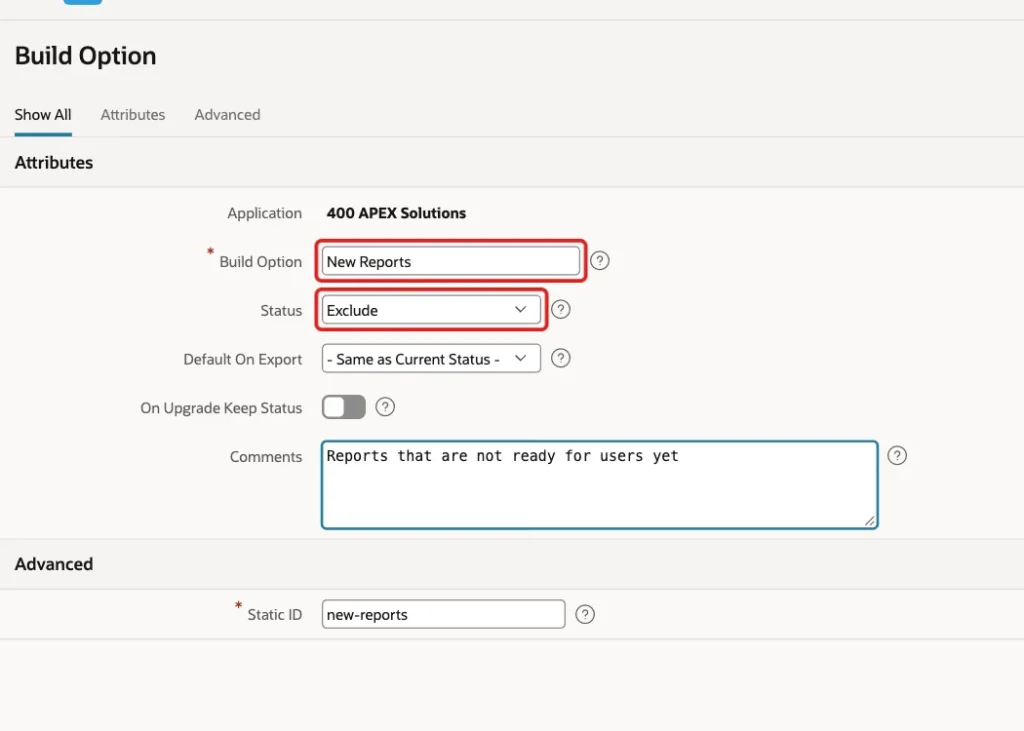
APEX fills the Static ID from the name while you type, so you do not need to enter it. In a first test I typed it as well and got the value new-reportsnew-reports. Click Create Build Option. The list shows the option with the status Exclude:

Include means the components of this option are part of the application. Exclude means they are not.
Step 3: Create the Page
In App Builder, click Create Page. On the Component tab, click Blank Page:
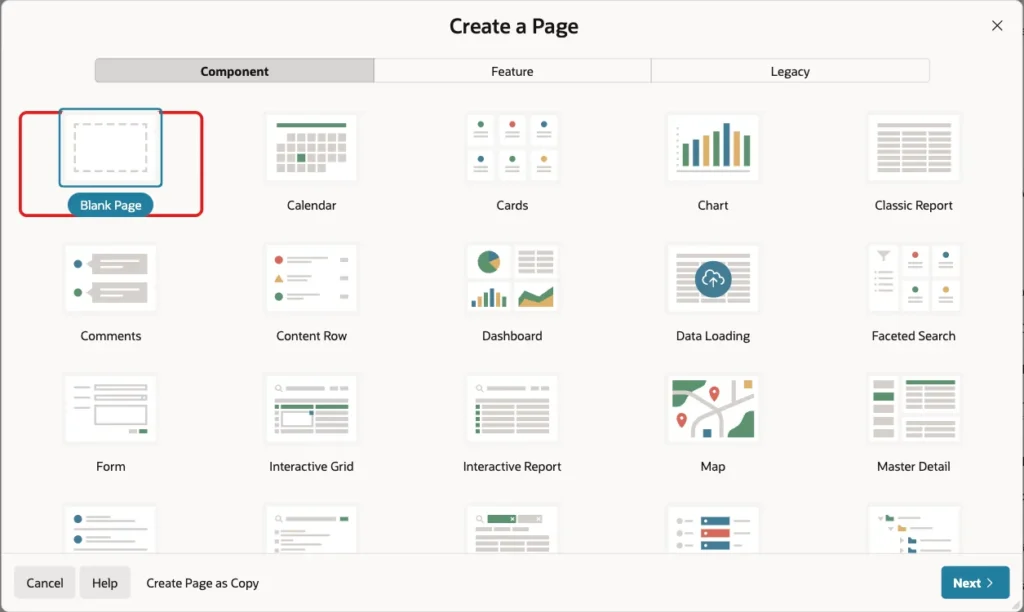
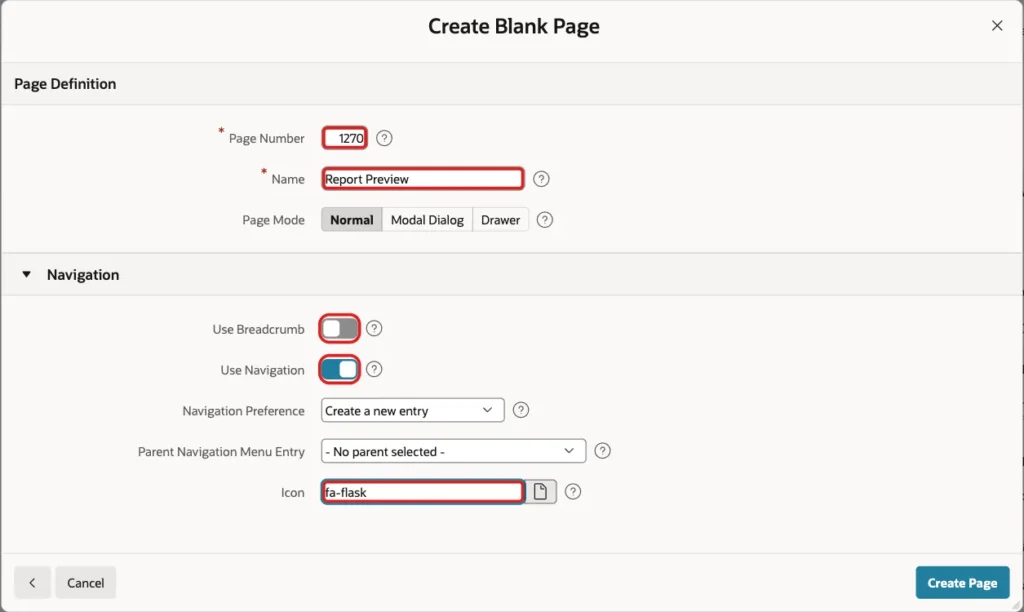
Enter Page Number 1270 and Name Report Preview. Turn off Use Breadcrumb, keep Use Navigation on with Create a new entry, set Icon to fa-flask and click Create Page:
Step 4: Add the Two Regions
In Page Designer, add two Classic Report regions to the page body. The first one, Recent Orders, is the finished part of the page and always shows. It has this query:
Example:
select o.order_id,
       c.name as customer,
       o.order_date,
       o.status
from   orders o
join   customers c on c.customer_id = o.customer_id
order  by o.order_id desc
fetch  first 5 rows only
The second region, Orders by Status, is the unfinished report. Give it the query below and place it under the first region:
Example:
select status,
       count(*) as orders
from   orders
group  by status
order  by status
Step 5: Apply the Build Option to the Region
Select the region Orders by Status. In the Property Editor, scroll to the Configuration group and set Build Option to New Reports:
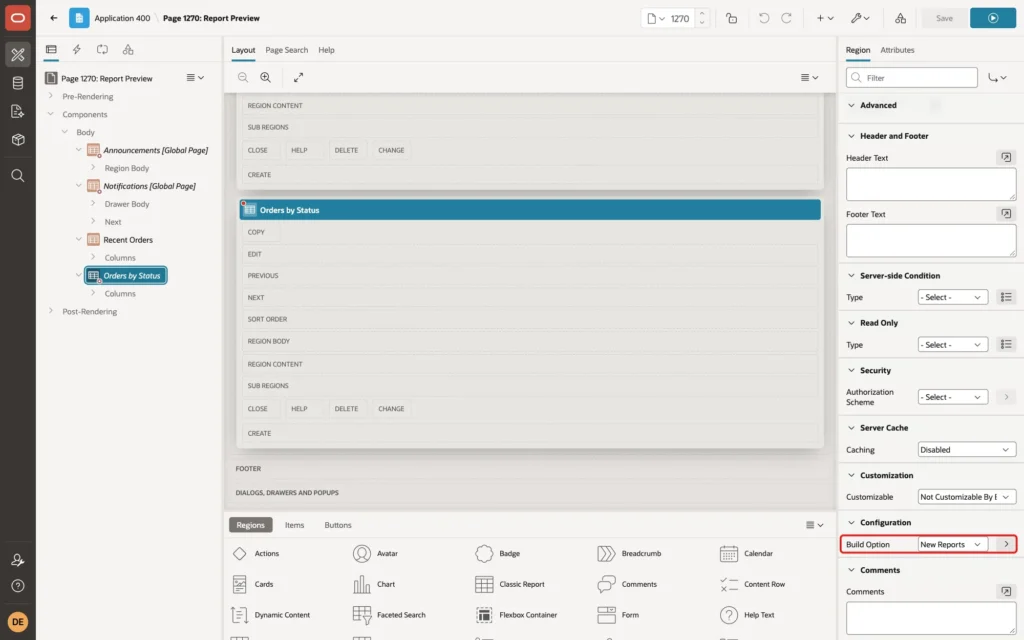
Click Save. The same Build Option property exists on pages, buttons, items, processes and other components, so one option can switch off a whole feature at once.
Step 6: Apply the Build Option to the Menu Entry
A hidden region is not enough when the menu still points to the page. Go to Shared Components, open Navigation Menu and edit the entry Report Preview. In the Configuration section, set Build Option to New Reports and click Apply Changes:
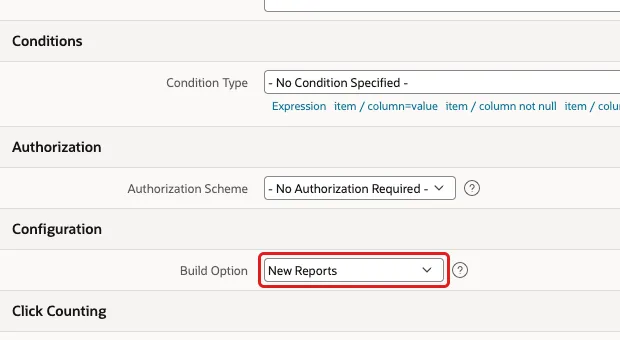
The list itself also has a Build Option field. Leave it empty, because it would switch off the whole menu.
Step 7: Test the Excluded State
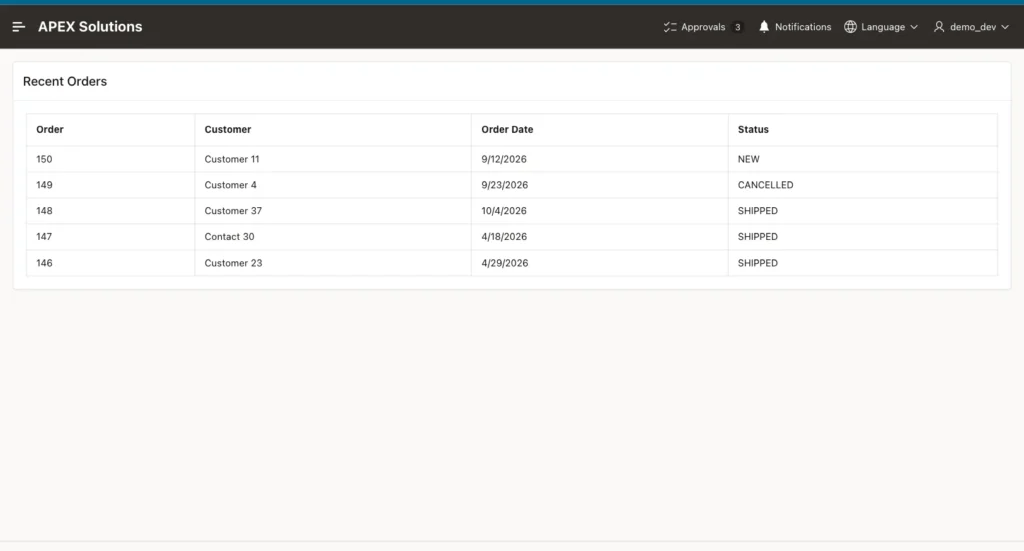
The option is still on Exclude. Sign in as DEMO_DEV and open the page. Only the Recent Orders region appears:
Open the navigation menu and scroll to the end. The last entry is Change Password and there is no Report Preview:
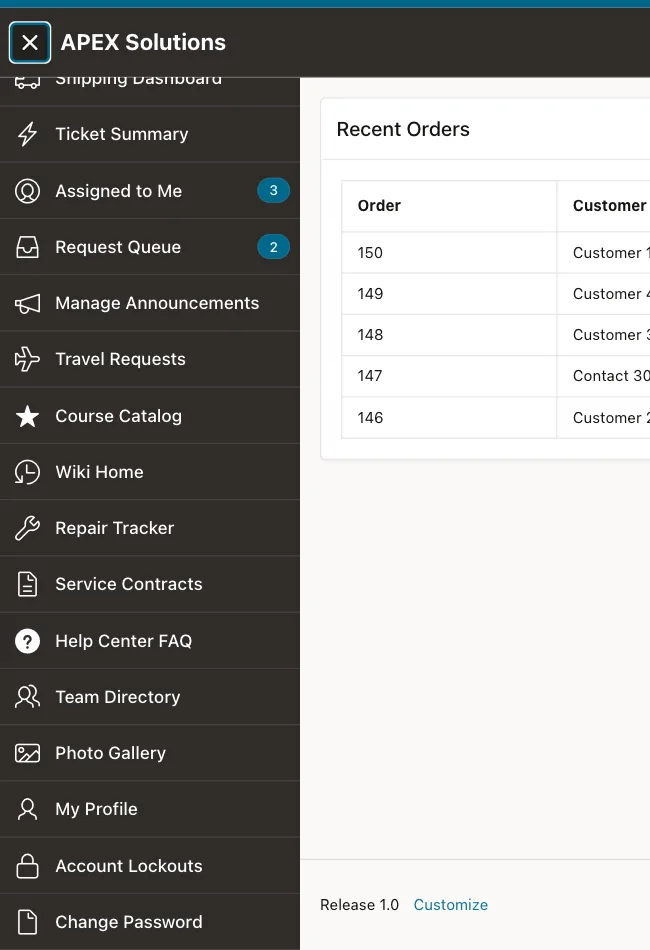
A script that read the region titles of the page found only Recent Orders, and the menu had no Report Preview link.
Step 8: Switch the Feature On
Changing the status in the builder is one way. For a test you can also call the API in PL/SQL. APEX_UTIL.GET_BUILD_OPTION_STATUS reads the status by name. APEX_UTIL.SET_BUILD_OPTION_STATUS changes it, and it needs the numeric ID of the option, which comes from the view APEX_APPLICATION_BUILD_OPTIONS. Outside APEX, call APEX_UTIL.SET_WORKSPACE first:
Example:
begin
    apex_util.set_workspace('SOLUTIONS');
end;
/

select 'before' as step,
       apex_util.get_build_option_status(400, 'New Reports') as status
from   dual;

begin
    for r in (select build_option_id
              from   apex_application_build_options
              where  application_id = 400
              and    build_option_name = 'New Reports')
    loop
        apex_util.set_build_option_status(400, r.build_option_id, 'INCLUDE');
    end loop;
    commit;
end;
/

select 'after include' as step,
       apex_util.get_build_option_status(400, 'New Reports') as status
from   dual;

begin
    for r in (select build_option_id
              from   apex_application_build_options
              where  application_id = 400
              and    build_option_name = 'New Reports')
    loop
        apex_util.set_build_option_status(400, r.build_option_id, 'EXCLUDE');
    end loop;
    commit;
end;
/

select 'after exclude' as step,
       apex_util.get_build_option_status(400, 'New Reports') as status
from   dual;
Output:
PL/SQL procedure successfully completed.

STEP      STATUS
_________ __________
before    EXCLUDE

PL/SQL procedure successfully completed.

STEP             STATUS
________________ __________
after include    INCLUDE

PL/SQL procedure successfully completed.

STEP             STATUS
________________ __________
after exclude    EXCLUDE
The change takes effect for the next page view, with no new import. After the INCLUDE call, the page shows both regions:
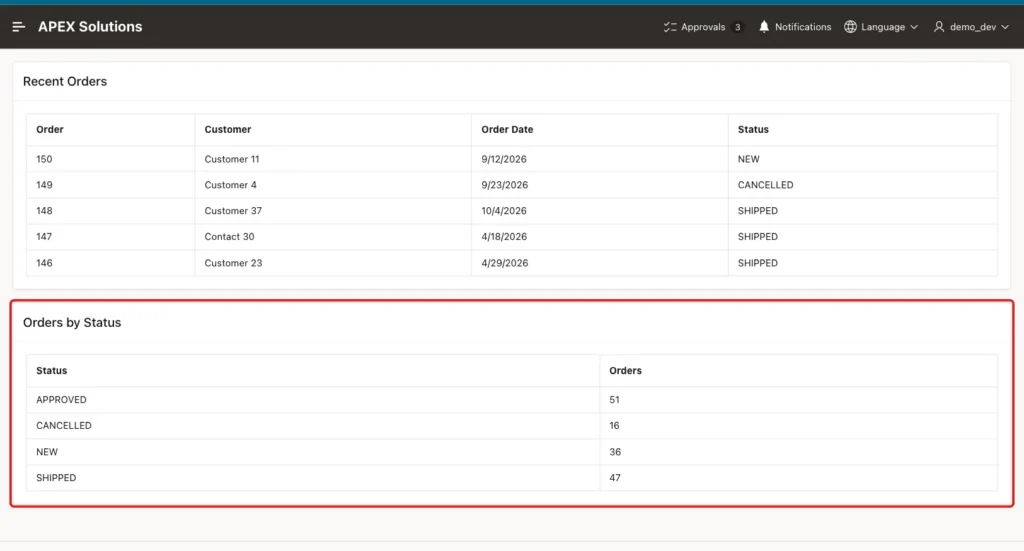
The menu now ends with the entry Report Preview:
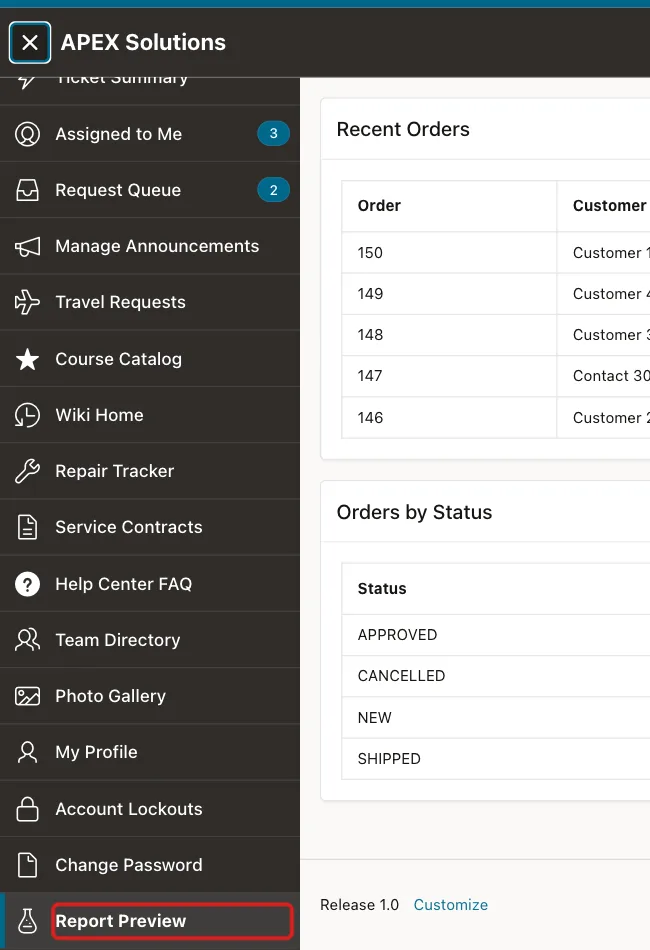
The last call in the script set the status back to EXCLUDE, so the feature is hidden again. You can check which components use the option with these queries:
Example:
select build_option_name, build_option_status
from   apex_application_build_options
where  application_id = 400
order  by build_option_name;

select page_id, region_name, build_option
from   apex_application_page_regions
where  application_id = 400
and    page_id = 1270
order  by display_sequence;
Output:
BUILD_OPTION_NAME    BUILD_OPTION_STATUS
____________________ ______________________
Commented Out        Exclude
New Reports          Exclude

   PAGE_ID REGION_NAME         BUILD_OPTION
__________ ___________________ _______________
      1270 Recent Orders
      1270 Orders by Status    New Reports
Things to Know
- An excluded component is not rendered at all. It is not hidden with CSS; the page simply has no such region.
- Exporting the application to files, the status of New Reports appeared as an include block only while the status was Include. With Exclude the block was absent.
- GET_BUILD_OPTION_STATUS returned nothing in a SQL session until APEX_UTIL.SET_WORKSPACE was called.
- SET_BUILD_OPTION_STATUS takes the numeric ID of the option, not its name.
- A build option hides components, it does not secure them. For access rules by user, use an authorization scheme.
- Apply the same option to every part of a feature: the region, the menu entry and any button that points to it.
Related Guides
- Oracle APEX Application Logic: Items, Processes, Settings, and Build Options
- How to Export and Import APEX Applications with SQLcl
Conclusion
A build option is one switch for a whole unfinished feature. You tie the region and the menu entry to it, keep it on Exclude while you work, and change it to Include on release day.
Name the option after the feature, so that you can find every component that uses it later and remove the option when the feature is final.
See my articles more often when you search Google.
