
Some applications should be open only while the office is open, for example an internal order desk or a payroll tool. In Oracle APEX you can enforce this with an authorization scheme. The scheme runs on every page request, so a user who stays signed in after closing time is stopped on the next click.
This guide stores the opening hours in a table, checks them with a small PL/SQL package and lets administrators in at any time. It uses the sample application of this series as the example, and the same steps work for any application.
The guide How to Give Users Roles (Admin, Editor, Reader) with Access Control in Oracle APEX decides who may see a page. This guide decides when the application may be used at all, and it only borrows the Administrator role for the exception.
Step 1: Create the Tables
BUSINESS_HOURS holds one row for each day the application is open. A day without a row, such as Saturday and Sunday, is closed. ACCESS_SETTINGS holds the time zone and an optional test time, so you can check the rule without waiting for the clock.
Example:
create table business_hours (
  day_code   varchar2(3 char) not null,
  open_time  varchar2(5 char) not null,
  close_time varchar2(5 char) not null,
  constraint business_hours_pk primary key (day_code),
  constraint business_hours_day_ck check (day_code in ('MON','TUE','WED','THU','FRI','SAT','SUN')),
  constraint business_hours_open_ck check (regexp_like(open_time, '^([01][0-9]|2[0-3]):[0-5][0-9]$')),
  constraint business_hours_close_ck check (regexp_like(close_time, '^([01][0-9]|2[0-3]):[0-5][0-9]$') and close_time > open_time)
);

create table access_settings (
  setting_id integer default on null 1 not null,
  time_zone  varchar2(64 char) default on null 'Asia/Kolkata' not null,
  test_now   timestamp,
  constraint access_settings_pk primary key (setting_id),
  constraint access_settings_one_row_ck check (setting_id = 1)
);

insert into business_hours (day_code, open_time, close_time) values ('MON', '09:00', '18:00');
insert into business_hours (day_code, open_time, close_time) values ('TUE', '09:00', '18:00');
insert into business_hours (day_code, open_time, close_time) values ('WED', '09:00', '18:00');
insert into business_hours (day_code, open_time, close_time) values ('THU', '09:00', '18:00');
insert into business_hours (day_code, open_time, close_time) values ('FRI', '09:00', '17:00');
insert into access_settings (setting_id) values (1);
commit;

select day_code, open_time, close_time from business_hours order by decode(day_code,'MON',1,'TUE',2,'WED',3,'THU',4,'FRI',5,'SAT',6,7);
select setting_id, time_zone, test_now from access_settings;
Output:
Table BUSINESS_HOURS created.

Table ACCESS_SETTINGS created.

1 row inserted.

1 row inserted.

1 row inserted.

1 row inserted.

1 row inserted.

1 row inserted.

Commit complete.

DAY_CODE    OPEN_TIME    CLOSE_TIME
___________ ____________ _____________
MON         09:00        18:00
TUE         09:00        18:00
WED         09:00        18:00
THU         09:00        18:00
FRI         09:00        17:00

   SETTING_ID TIME_ZONE       TEST_NOW
_____________ _______________ ___________
            1 Asia/Kolkata
A few details in the tables:
- Times are stored as text in the form HH24:MI. A check constraint accepts only valid times, and a second check makes sure the closing time is later than the opening time.
- The day code is MON to SUN in English. It does not depend on the language or territory of the database session.
- ACCESS_SETTINGS can hold only one row, because the check constraint forces the key to be 1. The time zone uses DEFAULT ON NULL.
- Friday closes one hour earlier than the other days in this example.
Step 2: Create the Package
IS_OPEN says whether the application is open at a given moment. It uses the test time when one is set, and otherwise the current time in the time zone of the settings row. CAN_ACCESS returns true during opening hours, and outside them only for administrators.
Example:
create or replace package business_hours_access as
  function is_open (p_now in timestamp default null) return boolean;
  function can_access (p_user in varchar2) return boolean;
end business_hours_access;
/
create or replace package body business_hours_access as

  function is_open (p_now in timestamp default null) return boolean is
    l_zone  access_settings.time_zone%type;
    l_test  access_settings.test_now%type;
    l_now   timestamp;
    l_count pls_integer;
  begin
    select time_zone, test_now
    into   l_zone, l_test
    from   access_settings
    where  setting_id = 1;

    l_now := coalesce(p_now, l_test,
                      cast(systimestamp at time zone l_zone as timestamp));

    select count(*)
    into   l_count
    from   business_hours
    where  day_code = to_char(l_now, 'DY', 'nls_date_language=english')
    and    to_char(l_now, 'HH24:MI') >= open_time
    and    to_char(l_now, 'HH24:MI') <  close_time;

    return l_count > 0;
  end is_open;

  function can_access (p_user in varchar2) return boolean is
    l_admin pls_integer;
  begin
    if is_open then
      return true;
    end if;

    select count(*)
    into   l_admin
    from   apex_appl_acl_user_roles
    where  application_id = to_number(v('APP_ID'))
    and    user_name      = upper(p_user)
    and    role_static_id = 'administrator';

    return l_admin > 0;
  end can_access;

end business_hours_access;
/
show errors
Output:
Package BUSINESS_HOURS_ACCESS compiled

Package Body BUSINESS_HOURS_ACCESS compiled

No errors.
How the package works:
- The closing minute is not part of the opening hours. At 18:00 the application is already closed.
- The administrator check reads APEX_APPL_ACL_USER_ROLES for the current application. The user name is converted to upper case, because the application user is shown in lower case and the roles are stored in upper case.
- A PL/SQL function is needed here because the rule depends on the clock. Roles and the built-in scheme types cannot express it.
In a first version, the administrator check used APEX_ACL.HAS_USER_ROLE. It returned false for every user, including administrators, even inside a real APEX session, so administrators were locked out on Saturday. The query on the view shown above fixed it.
Step 3: Test the Rule in SQL
Before you connect the rule to the application, call IS_OPEN with fixed times. The test below checks a time inside the hours, a minute before opening, the closing minute, a late Friday time and a Saturday.
Example:
set serveroutput on

declare
  procedure check_time (p_label in varchar2, p_time in timestamp) is
  begin
    dbms_output.put_line(rpad(p_label, 34) || case when business_hours_access.is_open(p_time) then 'OPEN' else 'CLOSED' end);
  end;
begin
  check_time('Wednesday 10:30', timestamp '2026-10-28 10:30:00');
  check_time('Wednesday 08:59', timestamp '2026-10-28 08:59:00');
  check_time('Wednesday 18:00 (closing minute)', timestamp '2026-10-28 18:00:00');
  check_time('Friday 17:30', timestamp '2026-10-30 17:30:00');
  check_time('Saturday 11:00', timestamp '2026-10-31 11:00:00');
end;
/

select user_name, role_static_id
from   apex_appl_acl_user_roles
where  application_id = 400
order  by user_name, role_static_id;
Output:
Wednesday 10:30                   OPEN
Wednesday 08:59                   CLOSED
Wednesday 18:00 (closing minute)  CLOSED
Friday 17:30                      CLOSED
Saturday 11:00                    CLOSED

PL/SQL procedure successfully completed.

USER_NAME        ROLE_STATIC_ID
________________ _________________
DEMO_DEV         administrator
ORDER_EDITOR     editor
SALES_MANAGER    administrator
SALES_USER       reader
Only the first time is open. Friday at 17:30 is closed because Friday ends at 17:00 in this example.
Step 4: Create the Authorization Scheme
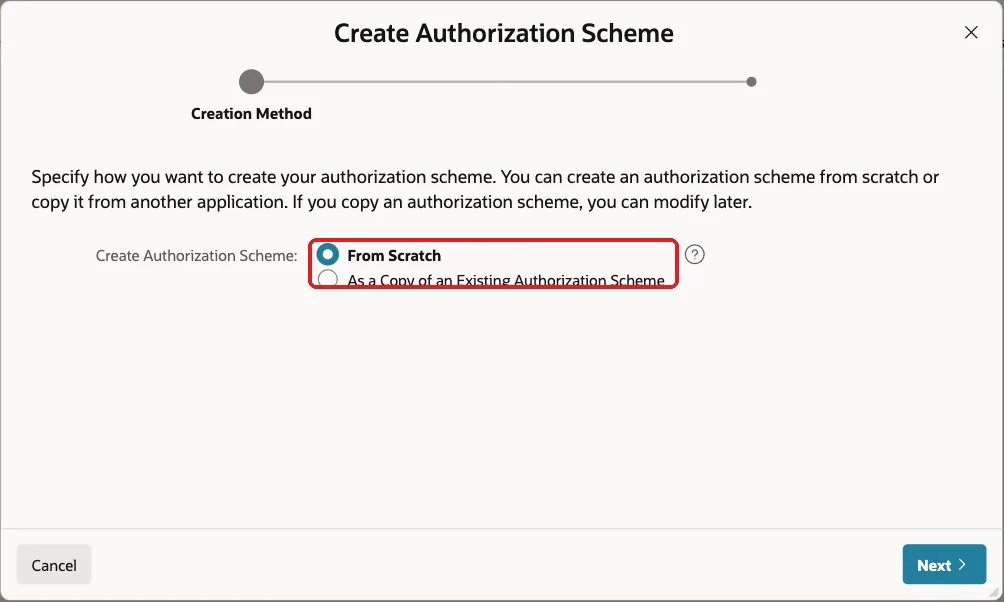
Open the application, click Shared Components and, under Security, click Authorization Schemes. Click Create. Keep From Scratch and click Next:
Enter the Name Within Business Hours and select PL/SQL Function Returning Boolean as the Scheme Type:
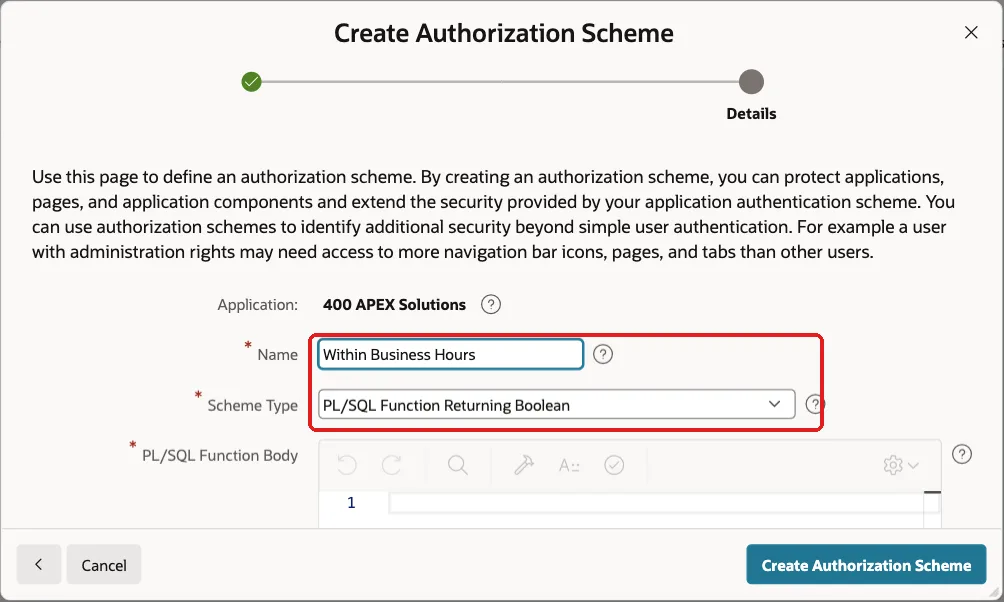
In PL/SQL Function Body, enter the call to the package. Enter a message for users who are refused, and set Validate authorization scheme to Always (No Caching). Click Create Authorization Scheme:
Example:
return business_hours_access.can_access(:APP_USER);
The saved scheme looks like this:
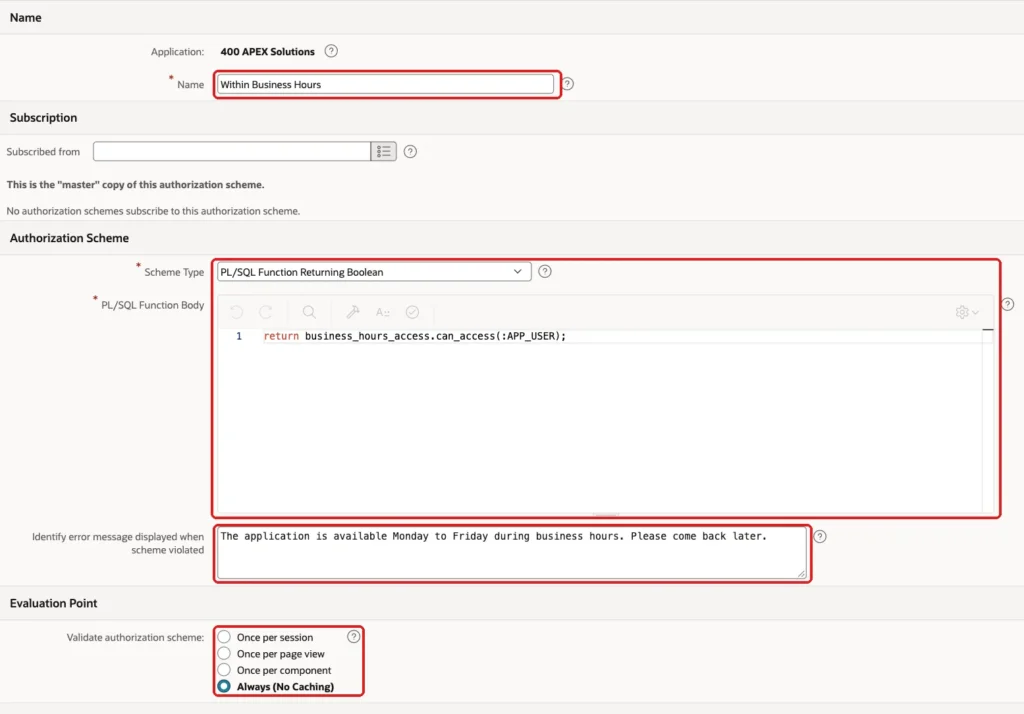
The evaluation point matters. With Once per session, Oracle APEX would remember the first answer, and a user who signed in at 17:55 would never be stopped at 18:00. Always runs the function on every request.
Step 5: Apply the Scheme to the Whole Application
An authorization scheme set on the application protects every page, every Ajax call and every process, so you do not have to touch each page. Click Shared Components, Security Attributes and, in the section Authorization, select Within Business Hours as the Authorization Scheme:

Keep Run on Public Pages switched off. The sign-in page is public, and the users must still be able to reach it.
In this test, clicking Apply Changes returned to Shared Components without an error, but the application had no scheme afterwards. A query on APEX_APPLICATIONS showed an empty AUTHORIZATION_SCHEME column, and the exported application file had no authorization section.
The scheme was then set in the APEXlang file of the application, in the same way as other settings of this series. Add this block to application.apx, validate and import the application:
Example:
authorization {
    scheme: @within-business-hours
}
After the import, this query shows the scheme:
Example:
select application_id, authorization_scheme from apex_applications where application_id = 400;
If the column is empty on your instance after you press Apply Changes, use the same check.
Step 6: Test in the Application
The test time in ACCESS_SETTINGS was used to move the clock. First, the time was set to Wednesday 10:30 and SALES_USER signed in. The application opened as usual:
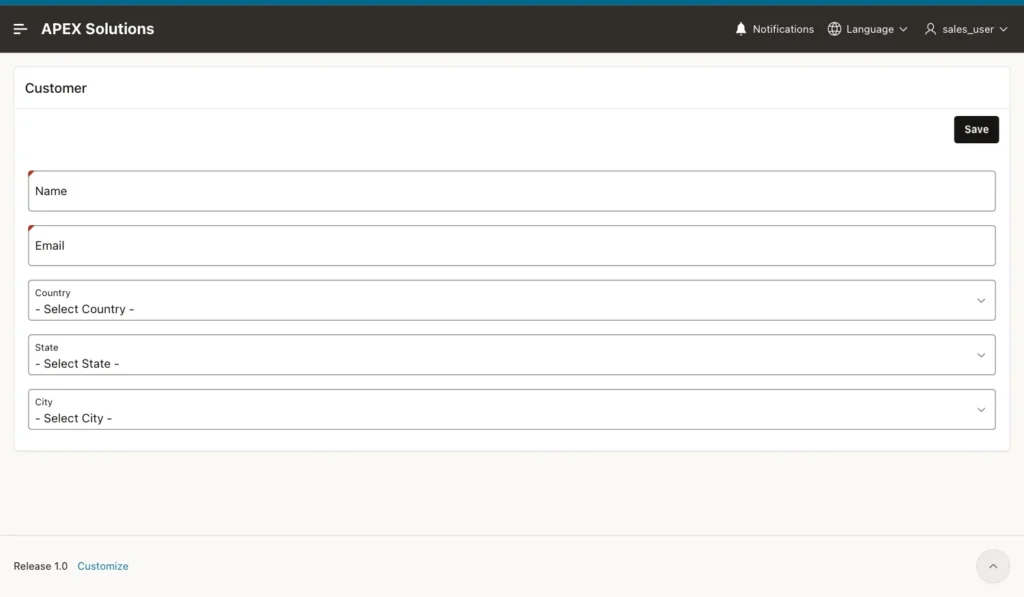
Next, the test time was set to Saturday 11:00:
Example:
update access_settings
set    test_now = timestamp '2026-10-31 11:00:00'
where  setting_id = 1;

commit;

select to_char(test_now, 'DY DD-MON-YYYY HH24:MI', 'nls_date_language=english') as test_now
from   access_settings;
Output:
1 row updated.

Commit complete.

TEST_NOW
________________________
SAT 31-OCT-2026 11:00
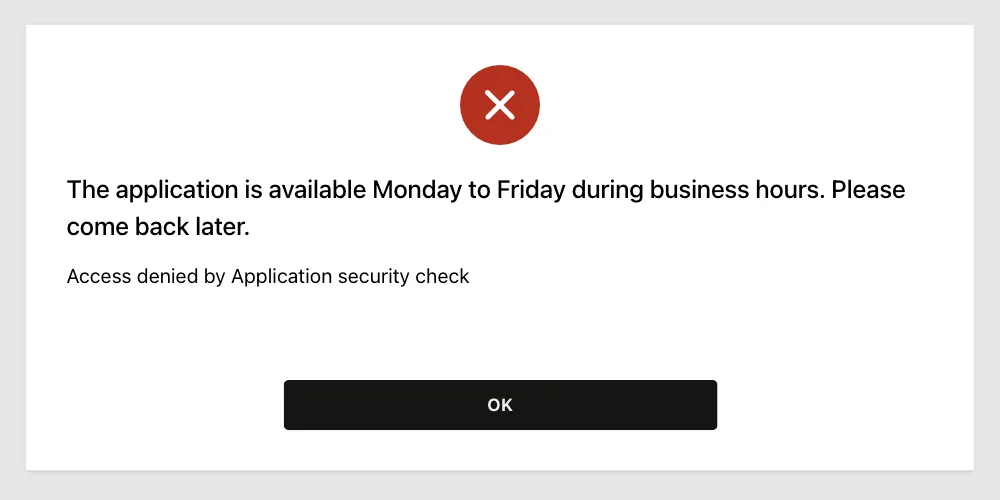
SALES_USER, who is a Reader, and ORDER_EDITOR, who is an Editor, could sign in but were stopped on the first page with the message of the scheme:
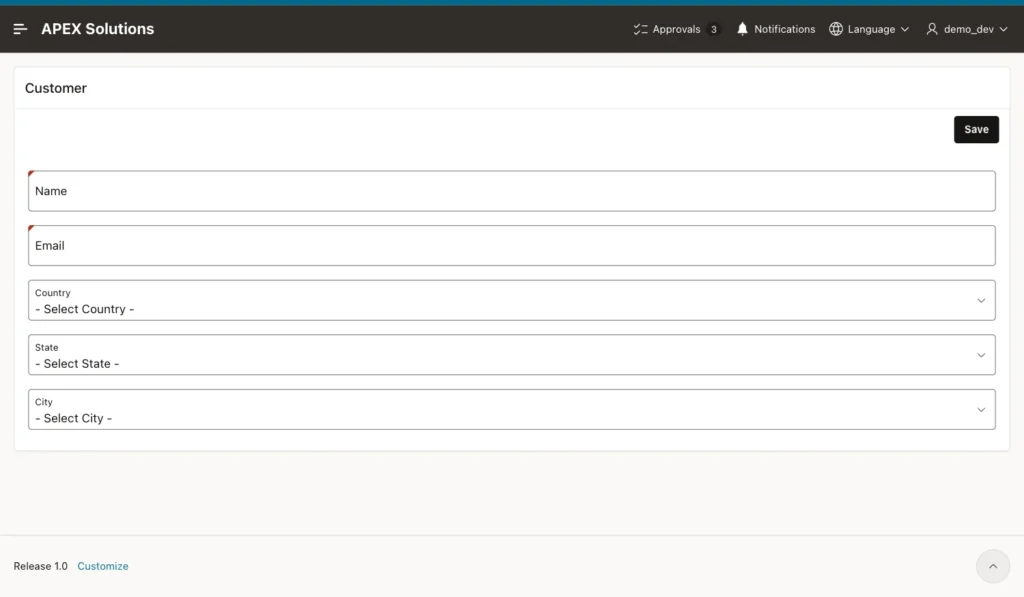
DEMO_DEV and SALES_MANAGER are administrators. At the same Saturday time they opened the application without any problem:
The other cases gave the results you expect:
- Wednesday 08:59: SALES_USER was refused. Wednesday 18:00: ORDER_EDITOR was refused.
- Friday 17:30: ORDER_EDITOR was refused, because Friday closes at 17:00.
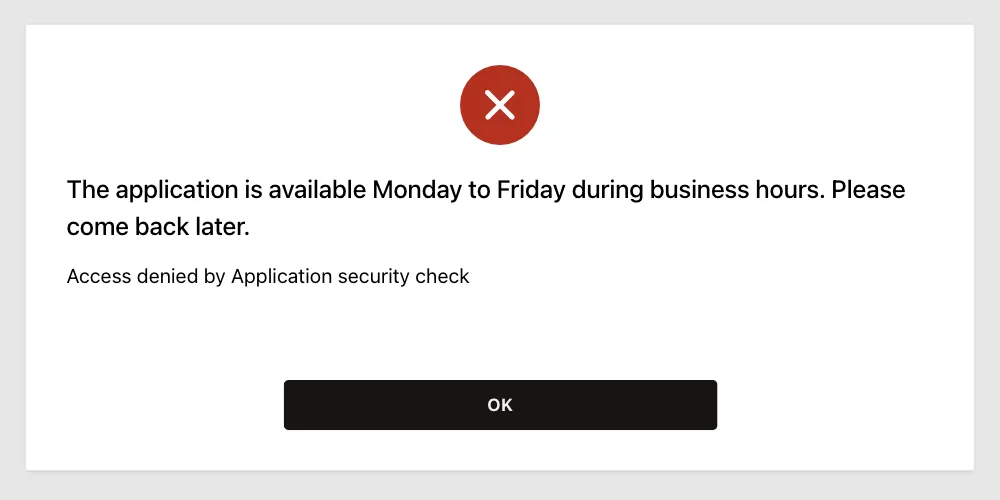
The last test shows the main reason for the evaluation point Always. SALES_USER signed in on Wednesday at 10:30. Then the clock was moved to 18:05, and the user opened another page with the same session. The page was refused:
Things to Know
- The refused user sees only the message and an OK button, with no sign-out link. Keep the message short and clear, and tell users where to get help.
- Remove or empty TEST_NOW when you are done testing. With a test time set, the rule uses that time for every user and ignores the clock.
- A different rule for a group of users needs a table column, for example a hours profile per role. The package is the only place that would change.
- Holidays can be handled with one more table of dates that CAN_ACCESS checks before the opening hours.
- After the tests, the scheme was removed from the application again. The scheme, the package and the tables stay for the next application that needs them.
Related Guides
- How to Give Users Roles (Admin, Editor, Reader) with Access Control in Oracle APEX
- How to Hide Buttons and Regions Based on the User's Role in Oracle APEX
Conclusion
An authorization scheme on the application is the simplest way to close an application outside working hours. The hours live in a table, the rule lives in one package, and the scheme checks them on every request, so a user who stays signed in is stopped at closing time.
The tests showed that users were let in during the hours, refused before opening, at closing time and on Saturday, and that administrators were never refused. Check the application setting in APEX_APPLICATIONS after you save it.
See my articles more often when you search Google.
