
An avatar is a small picture, a set of initials or an icon that stands for a person or an item. A badge is a short label with a value, such as a status or a count, drawn in a color that tells the state at a glance. Together they make lists easier to read.
Oracle APEX ships both as template components of Universal Theme. You do not write HTML or CSS for them. You point them at the columns of a query, and the theme draws them, including colors, sizes and accessible labels.
The earlier guide Oracle APEX Cards, Content Rows, and Template Components lists the whole family of template components. This guide goes deeper into two of them. It uses them inside a Content Row, as regions of their own, and as a single badge.
If you want to build a template component of your own instead, read How to Create Your Own Template Component in Oracle APEX. This guide uses team members as the example, and the same steps work for any table with people, products or tickets.
Step 1: Create the Tables
The example needs two tables. TEAM_STATUSES holds the statuses with the badge state of each one, and TEAM_MEMBERS holds the people:
Example:
create table team_statuses (
    status_code  varchar2(10)  not null,
    status_label varchar2(30)  not null,
    badge_state  varchar2(10)  not null,
    sort_seq     number        not null,
    constraint team_statuses_pk primary key (status_code),
    constraint team_statuses_seq_uk unique (sort_seq),
    constraint team_statuses_state_ck check (badge_state in ('success', 'warning', 'danger', 'info'))
);

create table team_members (
    member_id    number generated by default on null as identity,
    full_name    varchar2(100) not null,
    email        varchar2(150) not null,
    job_title    varchar2(100) not null,
    status_code  varchar2(10)  default on null 'OFFLINE' not null,
    open_tasks   number        default on null 0 not null,
    photo_file   varchar2(200),
    initials     varchar2(10) generated always as (
                     upper(substr(full_name, 1, 1) || substr(full_name, instr(full_name, ' ') + 1, 1))
                 ) virtual,
    constraint team_members_pk primary key (member_id),
    constraint team_members_email_uk unique (email),
    constraint team_members_status_fk foreign key (status_code)
        references team_statuses (status_code),
    constraint team_members_tasks_ck check (open_tasks >= 0)
);

create index team_members_status_ix on team_members (status_code);

insert into team_statuses (status_code, status_label, badge_state, sort_seq) values ('ACTIVE', 'Active', 'success', 10);
insert into team_statuses (status_code, status_label, badge_state, sort_seq) values ('AWAY', 'Away', 'warning', 20);
insert into team_statuses (status_code, status_label, badge_state, sort_seq) values ('ON_LEAVE', 'On Leave', 'info', 30);
insert into team_statuses (status_code, status_label, badge_state, sort_seq) values ('OFFLINE', 'Offline', 'danger', 40);

insert into team_members (full_name, email, job_title, status_code, open_tasks, photo_file)
values ('Priya Sharma', 'priya.sharma@example.com', 'Project Manager', 'ACTIVE', 12, 'photos/priya.png');
insert into team_members (full_name, email, job_title, status_code, open_tasks, photo_file)
values ('Marcus Weber', 'marcus.weber@example.com', 'Senior Developer', 'ACTIVE', 7, null);
insert into team_members (full_name, email, job_title, status_code, open_tasks, photo_file)
values ('Aiko Tanaka', 'aiko.tanaka@example.com', 'UX Designer', 'AWAY', 4, 'photos/aiko.png');
insert into team_members (full_name, email, job_title, status_code, open_tasks, photo_file)
values ('Liam O''Connor', 'liam.oconnor@example.com', 'QA Engineer', 'OFFLINE', 0, null);
insert into team_members (full_name, email, job_title, status_code, open_tasks, photo_file)
values ('Sofia Rossi', 'sofia.rossi@example.com', 'Business Analyst', 'ON_LEAVE', 3, null);
insert into team_members (full_name, email, job_title, status_code, open_tasks, photo_file)
values ('Daniel Okafor', 'daniel.okafor@example.com', 'Database Administrator', 'ACTIVE', 9, null);

commit;

select m.member_id, m.full_name, m.initials, m.job_title, s.status_label, s.badge_state, m.open_tasks, m.photo_file
from   team_members m
join   team_statuses s on s.status_code = m.status_code
order  by m.member_id;
Output:
Table TEAM_STATUSES created.

Table TEAM_MEMBERS created.

Index TEAM_MEMBERS_STATUS_IX created.

1 row inserted.

1 row inserted.

1 row inserted.

1 row inserted.

1 row inserted.

1 row inserted.

1 row inserted.

1 row inserted.

1 row inserted.

1 row inserted.

Commit complete.

   MEMBER_ID FULL_NAME        INITIALS    JOB_TITLE                 STATUS_LABEL    BADGE_STATE       OPEN_TASKS PHOTO_FILE
____________ ________________ ___________ _________________________ _______________ ______________ _____________ ___________________
           1 Priya Sharma     PS          Project Manager           Active          success                   12 photos/priya.png
           2 Marcus Weber     MW          Senior Developer          Active          success                    7
           3 Aiko Tanaka      AT          UX Designer               Away            warning                    4 photos/aiko.png
           4 Liam O'Connor    LO          QA Engineer               Offline         danger                     0
           5 Sofia Rossi      SR          Business Analyst          On Leave        info                       3
           6 Daniel Okafor    DO          Database Administrator    Active          success                    9

6 rows selected.
A few details in the tables:
- BADGE_STATE stores the color name of the badge. The check constraint TEAM_STATUSES_STATE_CK allows only success, warning, danger and info, so a mistyped state can never reach the page.
- INITIALS is a virtual column that takes the first letter of the first name and the first letter after the first space. The query does not need to calculate it.
- PHOTO_FILE holds the path of a photo in the static files of the application. Only two members have a photo.
- STATUS_CODE and OPEN_TASKS use DEFAULT ON NULL, so a new member starts offline with no open tasks.
Step 2: Upload the Photos as Static Application Files
The photo avatars read their pictures from the static files of the application. This example uses two small sample photos and one default picture for members without a photo. The files are priya.png, aiko.png and default.png.
In App Builder, open the application and click Shared Components. Under Files and Reports, click Static Application Files:
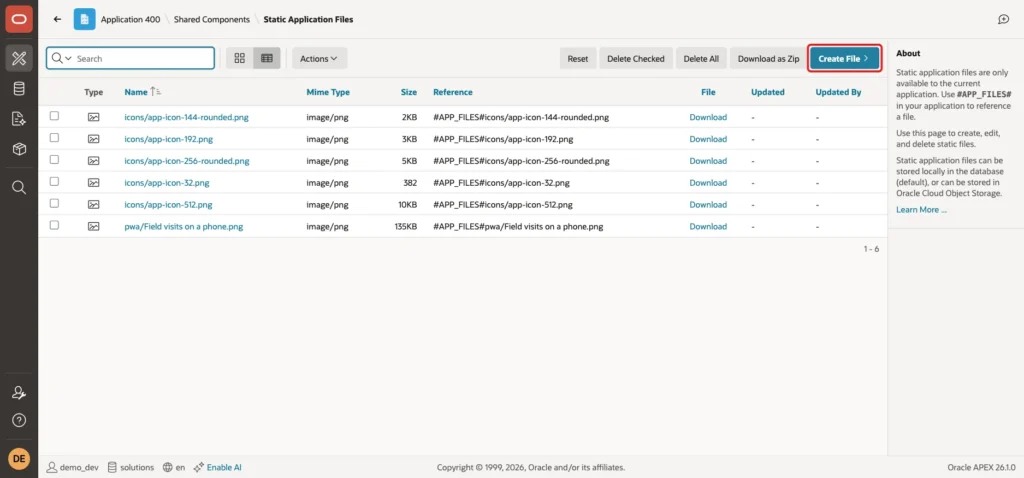
Click Create File. Enter photos in the Directory field and drop the image file on the Content area. The File Name fills in from the file. Click Create, and repeat for each of the three files:
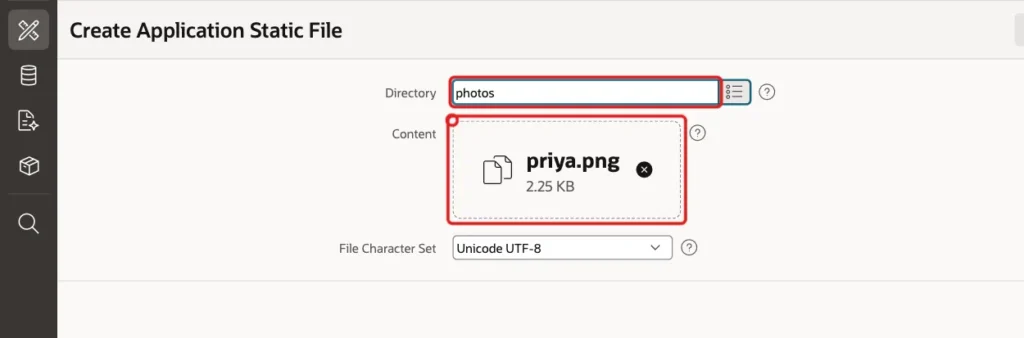
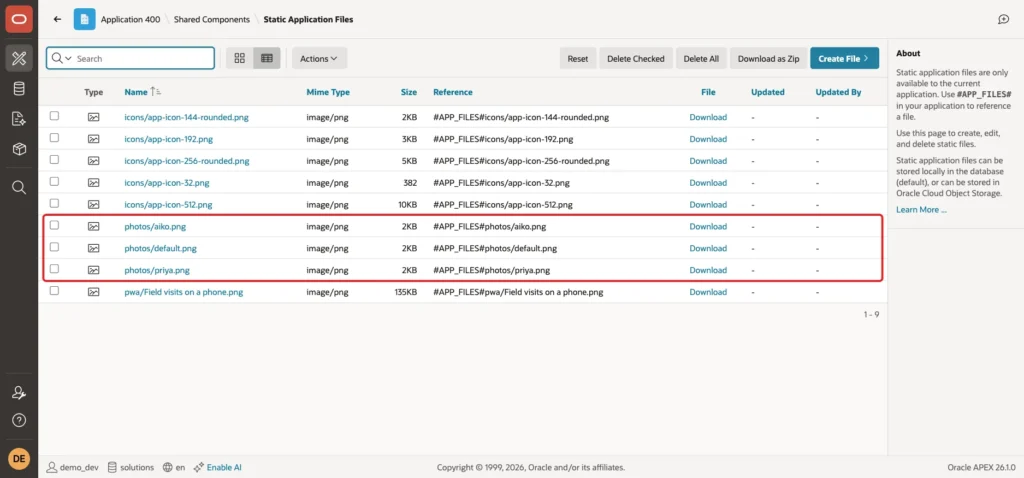
The list now shows the three files. The Reference column shows how to address them, for example #APP_FILES#photos/priya.png:
Step 3: Create the Team Directory Page
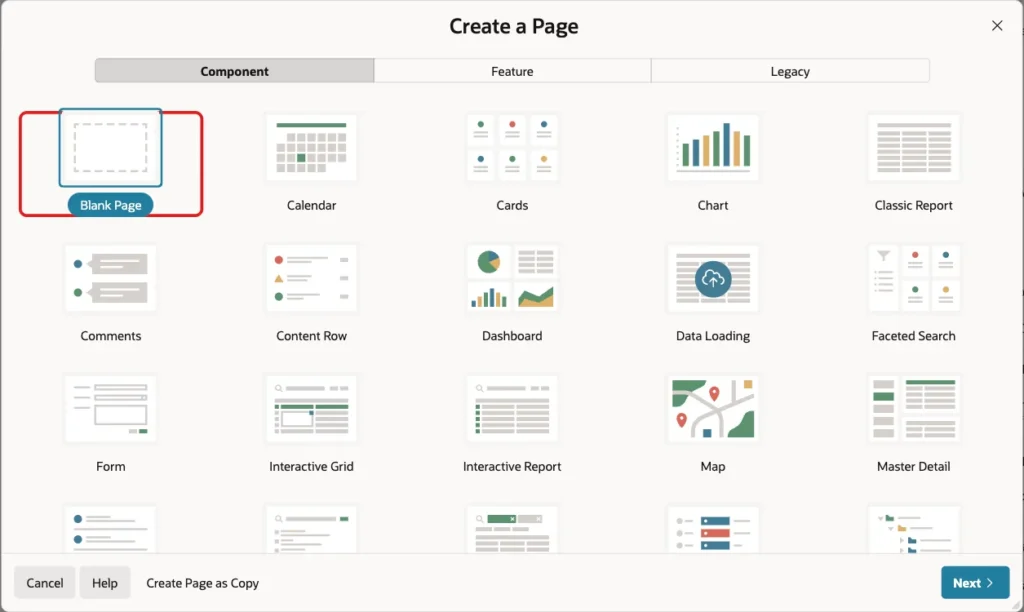
In App Builder, open the application and click Create Page. On the Component tab, select Blank Page:
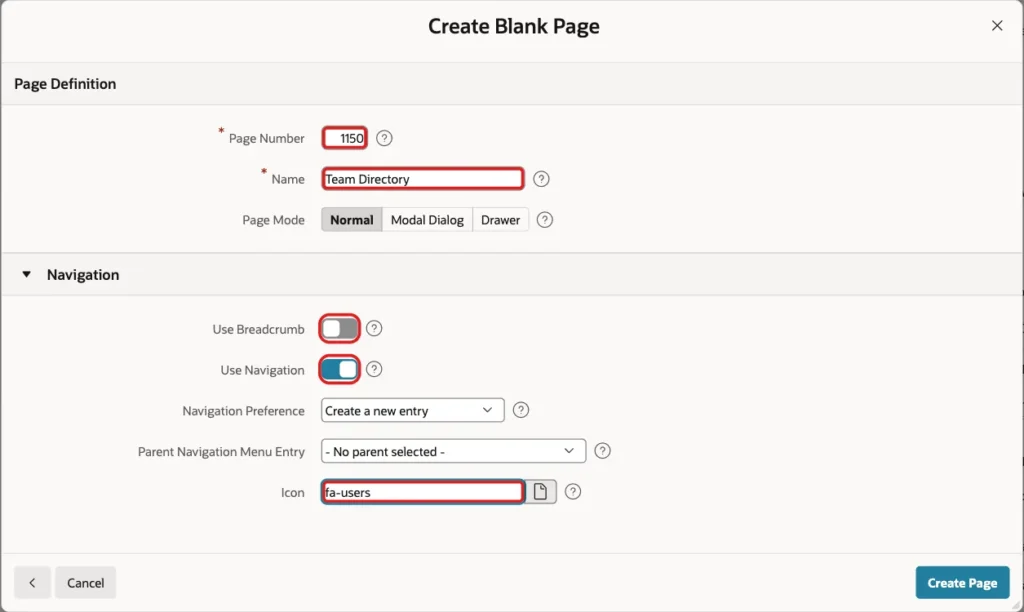
On the next screen, enter Page Number 1150 and Name Team Directory. Turn off Use Breadcrumb, keep Use Navigation on and enter the Icon fa-users. Then click Create Page:
Step 4: Show Avatars and Badges in a Content Row
A Content Row region shows one row per record and has avatar and badge slots built in. It is the quickest way to use both components together.
In Page Designer, drag a Content Row region into the Body. Set Name and Title to Team Members, set Source Type to SQL Query, and enter this query:
Example:
select m.member_id,
       m.full_name,
       m.job_title,
       m.email,
       m.initials,
       m.open_tasks,
       s.status_label,
       s.badge_state
from   team_members m
join   team_statuses s on s.status_code = m.status_code
Output:
   MEMBER_ID FULL_NAME        JOB_TITLE                 EMAIL                        INITIALS       OPEN_TASKS STATUS_LABEL    BADGE_STATE
____________ ________________ _________________________ ____________________________ ___________ _____________ _______________ ______________
           1 Priya Sharma     Project Manager           priya.sharma@example.com     PS                     12 Active          success
           2 Marcus Weber     Senior Developer          marcus.weber@example.com     MW                      7 Active          success
           3 Aiko Tanaka      UX Designer               aiko.tanaka@example.com      AT                      4 Away            warning
           4 Liam O'Connor    QA Engineer               liam.oconnor@example.com     LO                      0 Offline         danger
           5 Sofia Rossi      Business Analyst          sofia.rossi@example.com      SR                      3 On Leave        info
           6 Daniel Okafor    Database Administrator    daniel.okafor@example.com    DO                      9 Active          success

6 rows selected.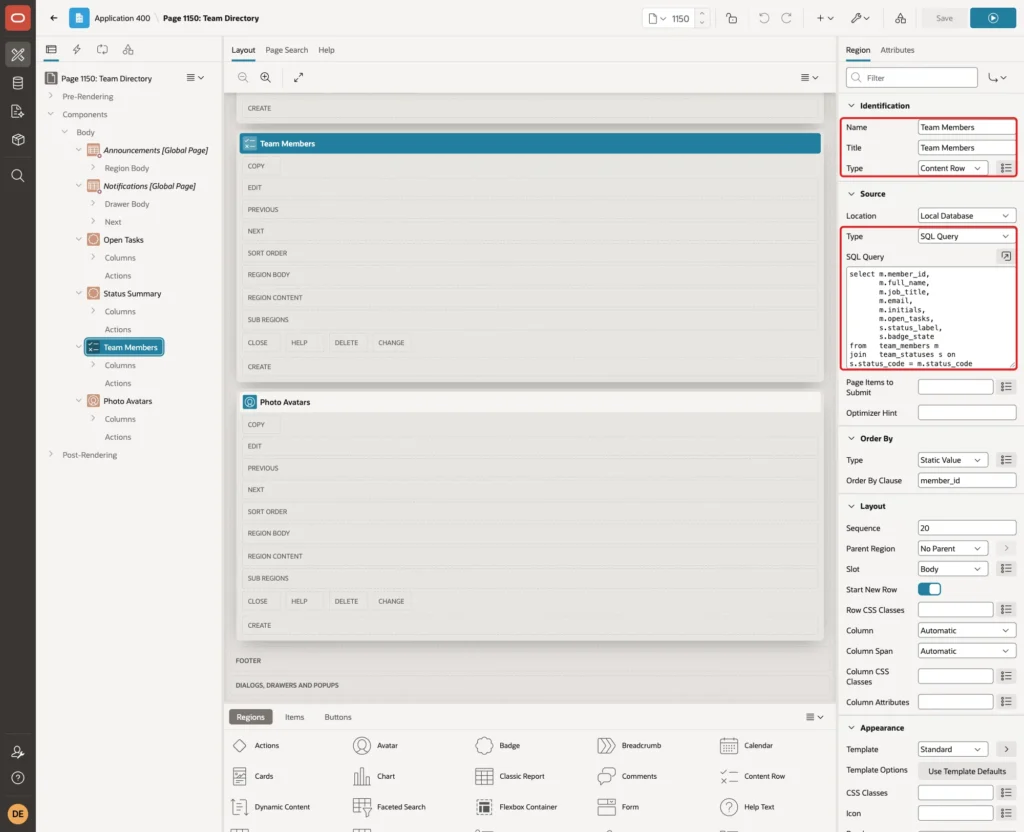
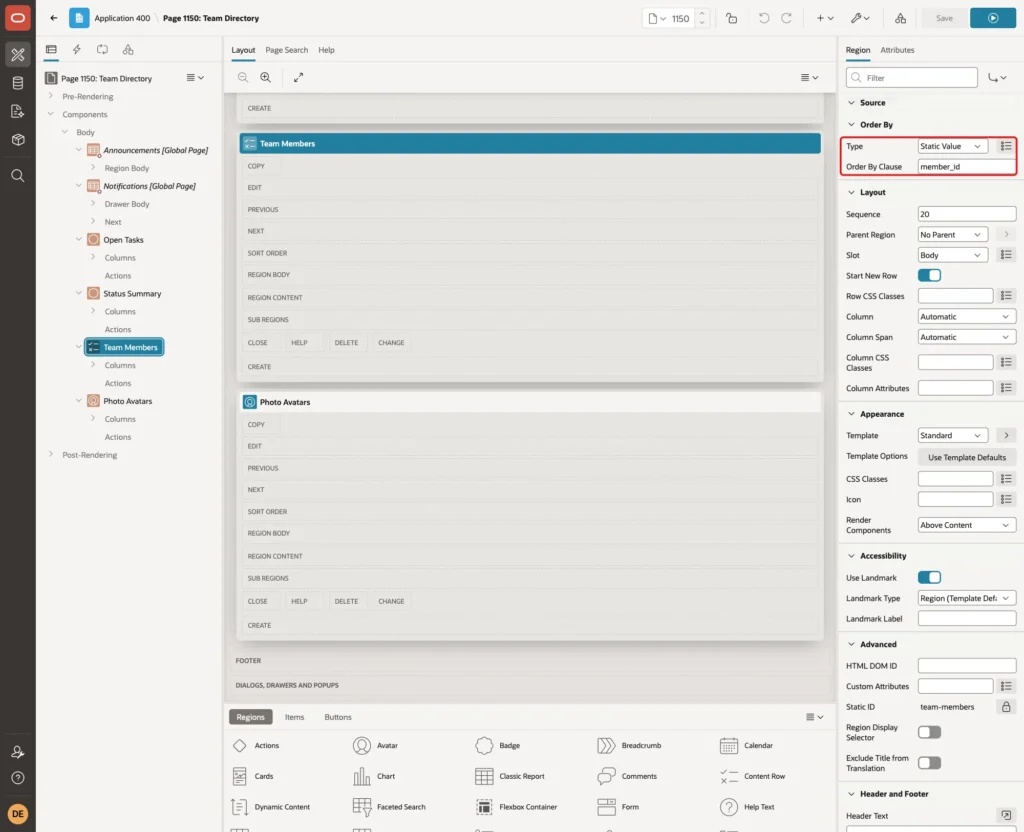
In a first test, the query ended with ORDER BY member_id. Page Designer marked the SQL Query property with an error and would not save the region. Remove the ORDER BY from the query and use the Order By group of the region instead. Set Type to Static Value and Order By Clause to member_id:
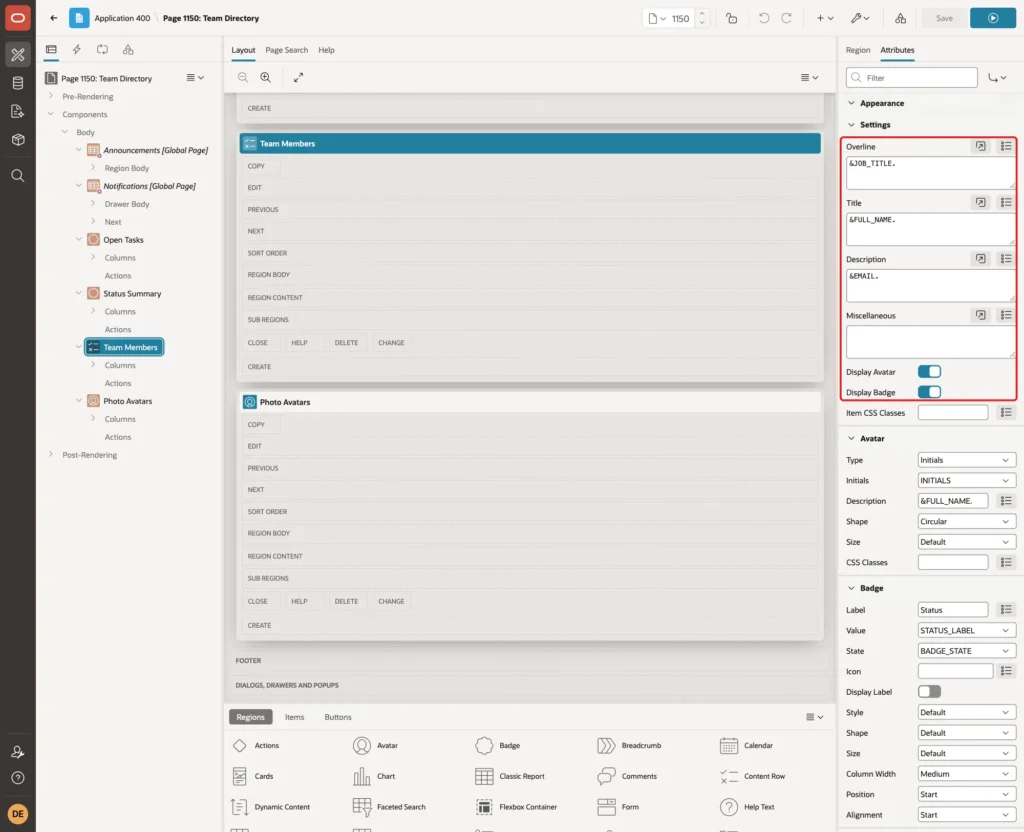
Click the Attributes tab. In the Settings group, enter these values. Turn on Display Avatar and Display Badge, which adds the Avatar and Badge groups:
- Overline: &JOB_TITLE.
- Title: &FULL_NAME.
- Description: &EMAIL.
In the Avatar group, set Type to Initials and Initials to the INITIALS column. Enter &FULL_NAME. as Description, so screen readers announce the name. Set Shape to Circular:

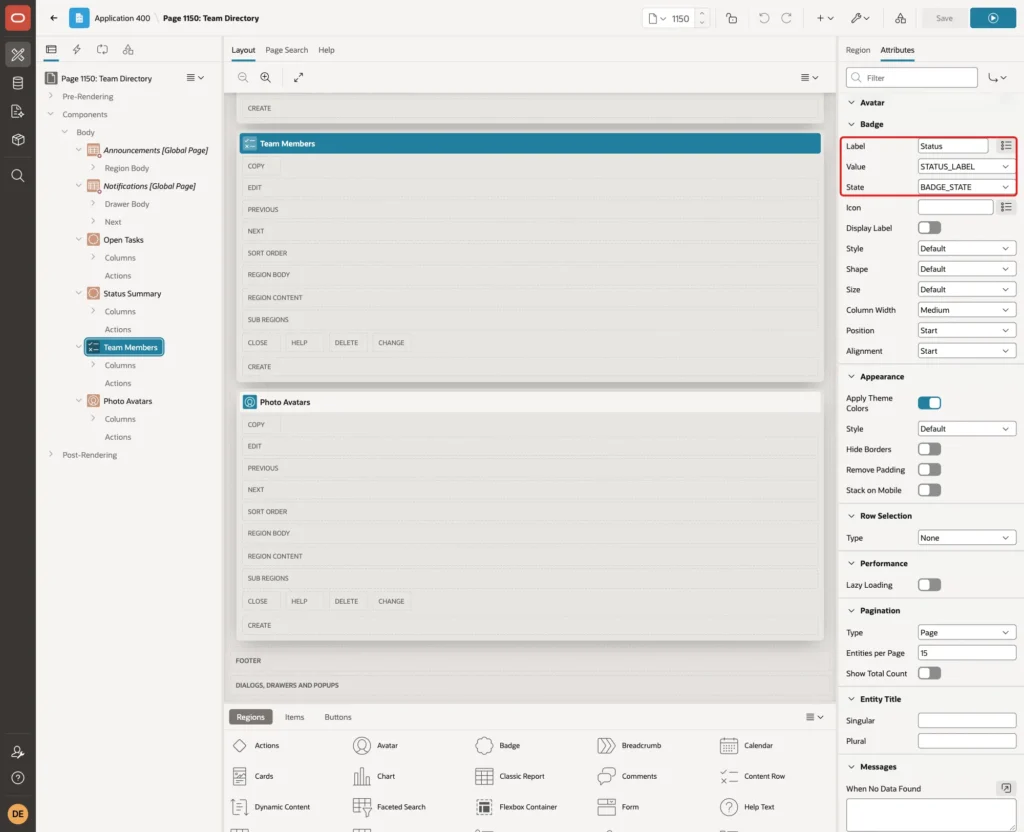
In the Badge group, enter Status as Label, select STATUS_LABEL as Value and BADGE_STATE as State. The Label is required even though the badge does not show it here, because Display Label is off:
Save the page and run it. Every member has an avatar with initials and a badge in the color of the status:
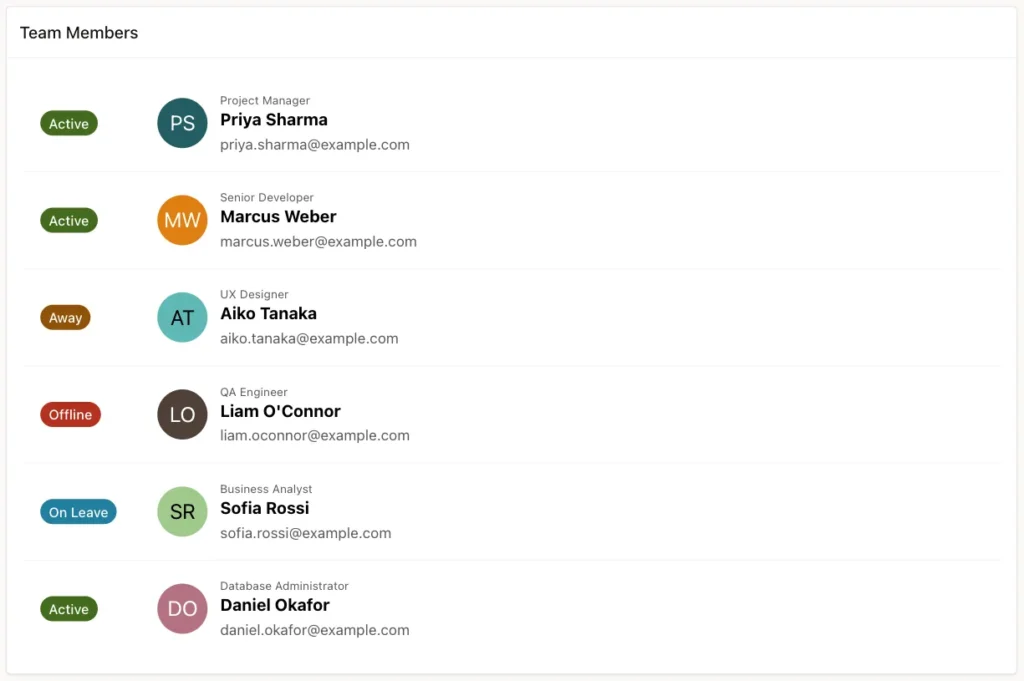
The avatar colors differ from row to row. The theme picks them, and you do not set them. The state colors follow the BADGE_STATE column: green for success, orange for warning, red for danger and blue for info.
Step 5: Show Photos with an Avatar Region
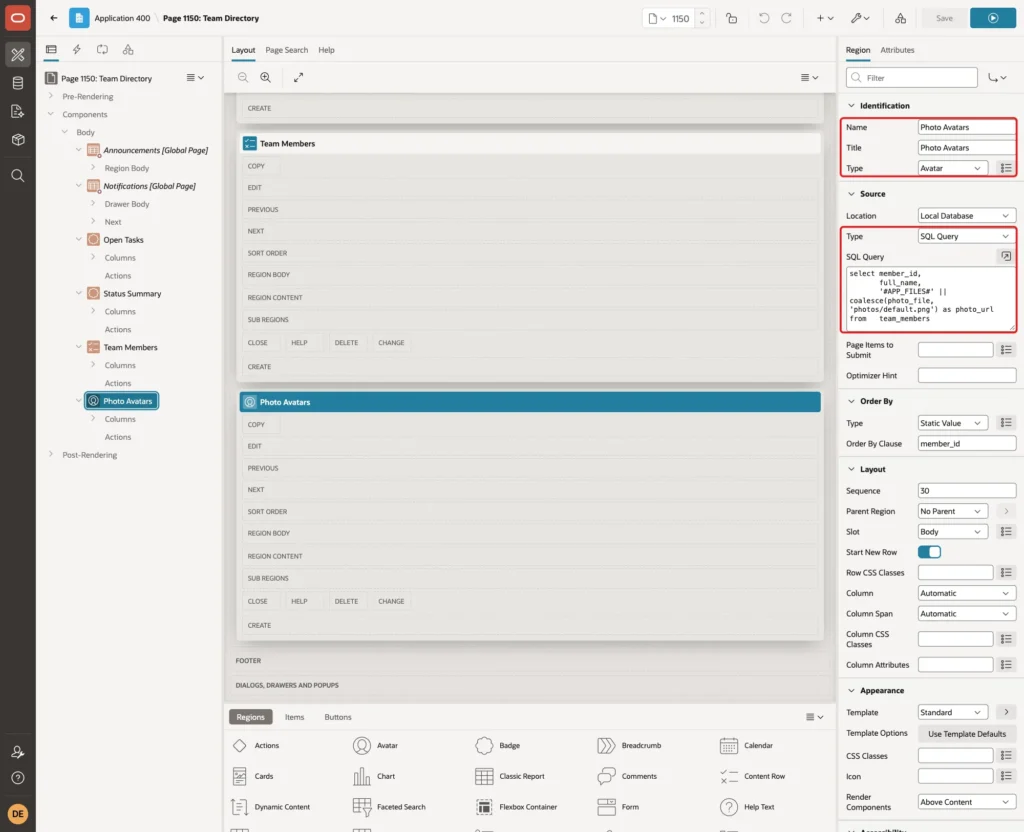
The Avatar template component is also a region type of its own. It draws one avatar per row and is useful for a row of team photos, or the people on a task.
Drag an Avatar region into the Body. Set Name and Title to Photo Avatars, set Source Type to SQL Query, and enter this query:
Example:
select member_id,
       full_name,
       '#APP_FILES#' || coalesce(photo_file, 'photos/default.png') as photo_url
from   team_members
Output:
   MEMBER_ID FULL_NAME        PHOTO_URL
____________ ________________ ________________________________
           1 Priya Sharma     #APP_FILES#photos/priya.png
           2 Marcus Weber     #APP_FILES#photos/default.png
           3 Aiko Tanaka      #APP_FILES#photos/aiko.png
           4 Liam O'Connor    #APP_FILES#photos/default.png
           5 Sofia Rossi      #APP_FILES#photos/default.png
           6 Daniel Okafor    #APP_FILES#photos/default.png

6 rows selected.
The output shows the text #APP_FILES# because the substitution runs when the page renders, not in SQL. Members without a photo get photos/default.png. The reason is explained in the test section below. Set the Order By group to Static Value with member_id:
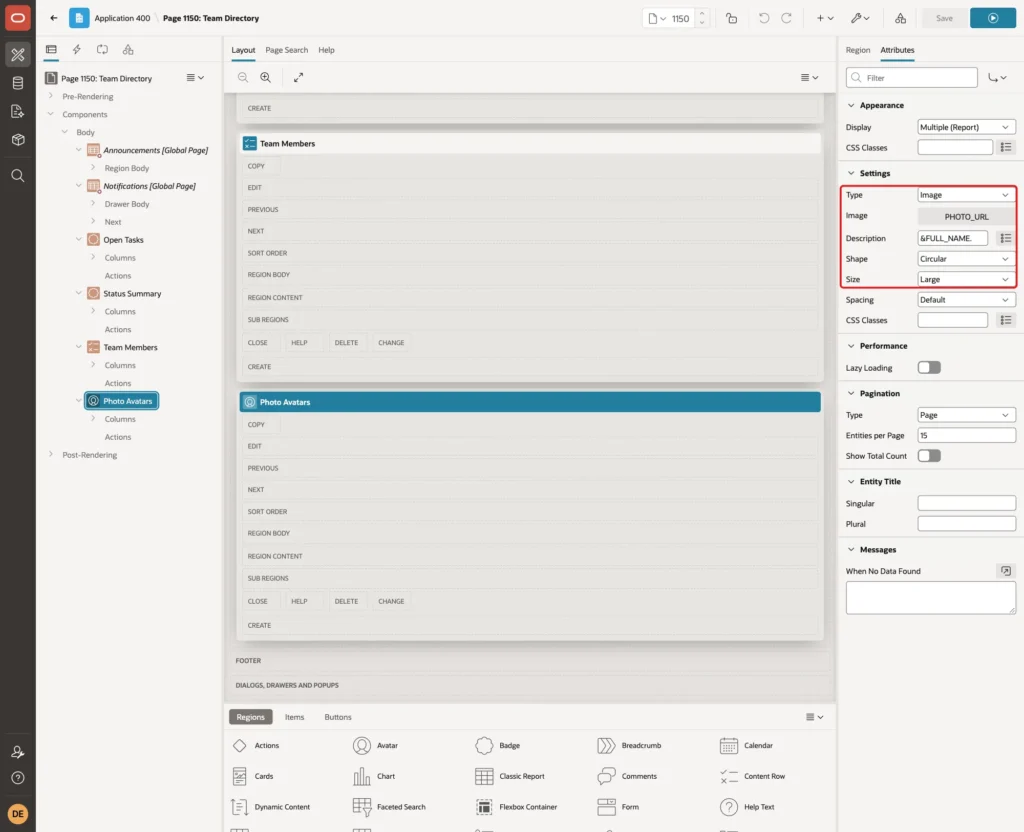
On the Attributes tab, set Type to Image. Click the Image property to open the Media dialog:
In the Media dialog, set Source to URL Column and select PHOTO_URL as the URL Column. The other sources are a fixed URL and a BLOB column. Click OK:

Enter &FULL_NAME. as Description, set Shape to Circular and Size to Large. Save the page. Each member now has a round photo:

Step 6: Show Counts with a Badge Region
The Badge template component is a region type too. It draws one badge per row, which suits a summary of counts. Drag a Badge region into the Body, set Name and Title to Status Summary and enter this query:
Example:
select s.status_code,
       s.status_label,
       s.badge_state,
       s.sort_seq,
       count(m.member_id) as member_count
from   team_statuses s
left   join team_members m on m.status_code = s.status_code
group  by s.status_code, s.status_label, s.badge_state, s.sort_seq
Output:
STATUS_CODE    STATUS_LABEL    BADGE_STATE       SORT_SEQ    MEMBER_COUNT
______________ _______________ ______________ ___________ _______________
ACTIVE         Active          success                 10               3
AWAY           Away            warning                 20               1
OFFLINE        Offline         danger                  40               1
ON_LEAVE       On Leave        info                    30               1
The left join keeps a status in the summary even when no member has it. Set the Order By group to Static Value with sort_seq:
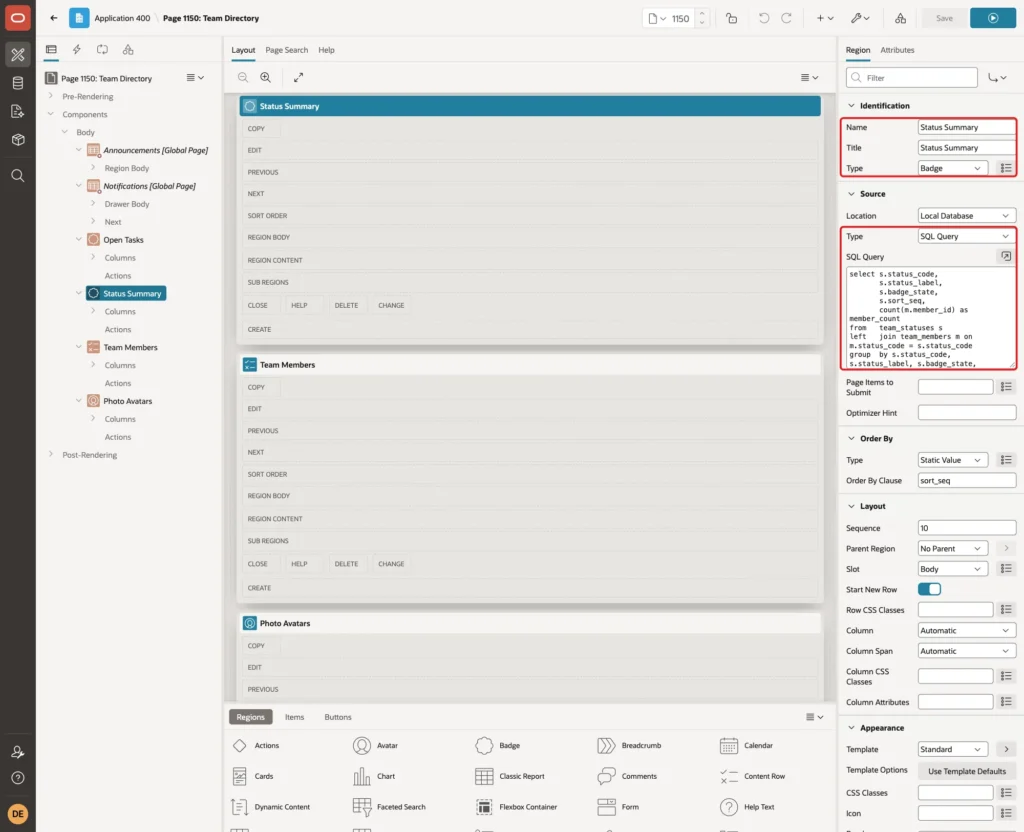
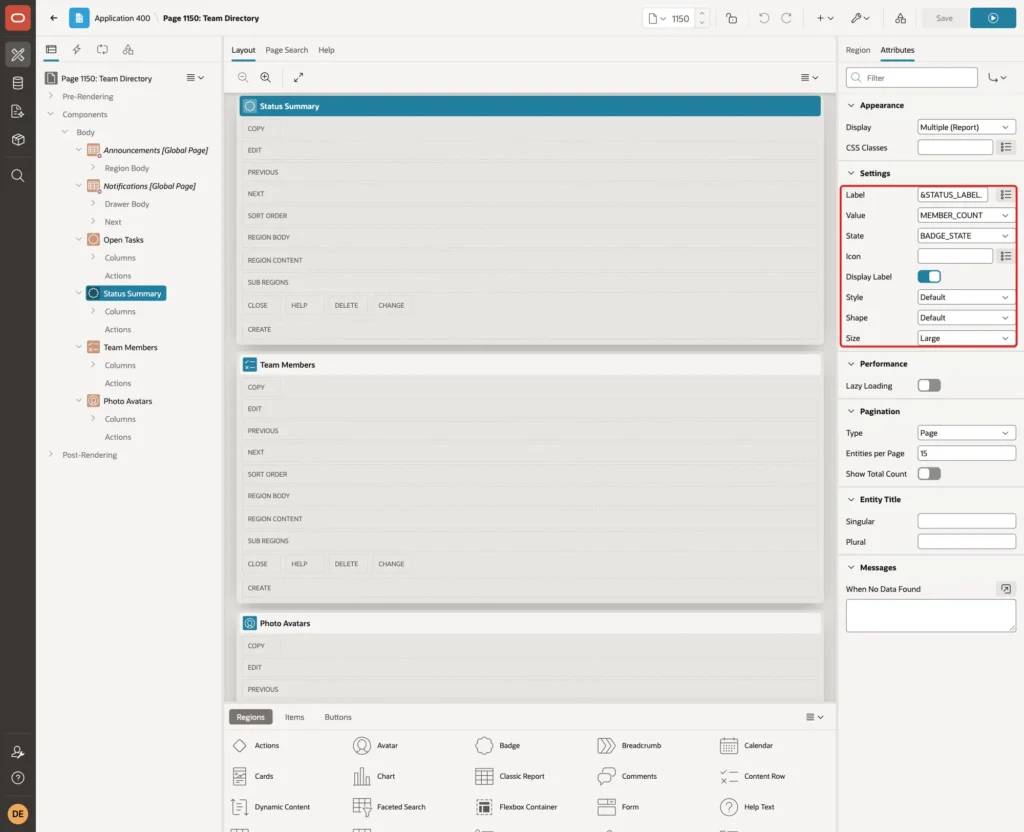
On the Attributes tab, enter &STATUS_LABEL. as Label, select MEMBER_COUNT as Value and BADGE_STATE as State. Turn on Display Label and set Size to Large:
Run the page. The summary shows one badge per status, with the same colors as in the Content Row:

Step 7: Show One Badge with the Single Display
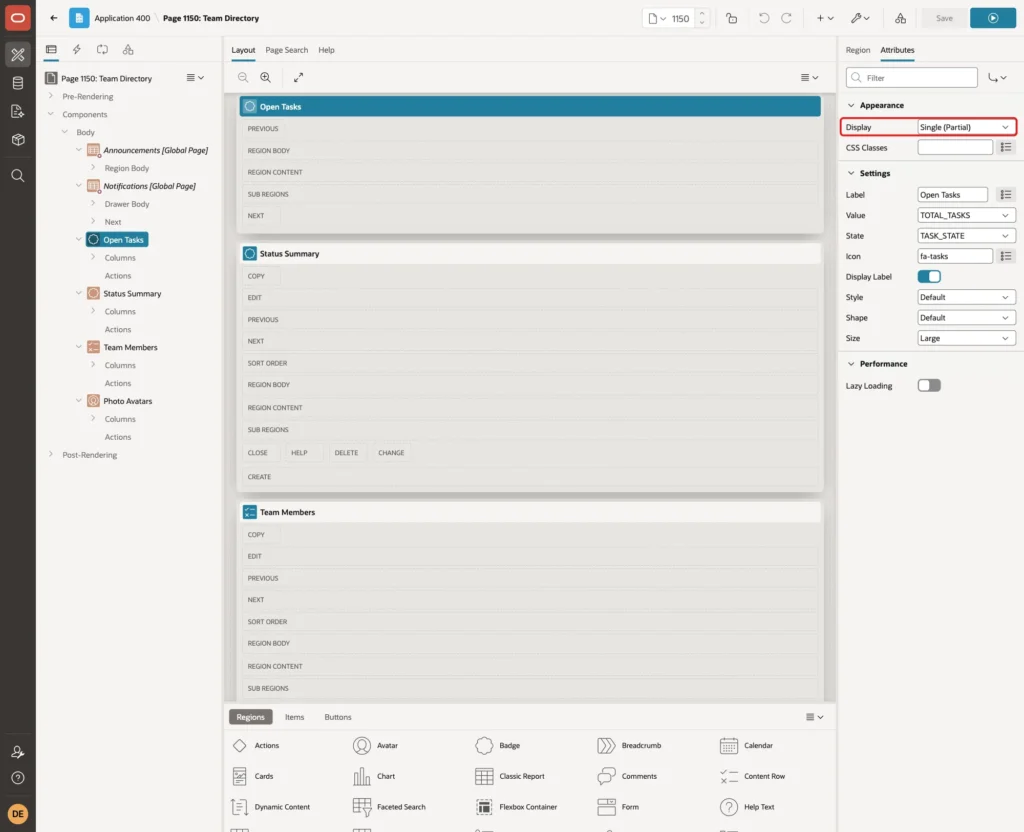
A template component region has a Display setting. Multiple (Report) draws one component per row. Single (Partial) draws one component from one row, which is right for a single figure such as a total.
Drag another Badge region into the Body, above the others. Set Name to Open Tasks and enter this query:
Example:
select sum(open_tasks) as total_tasks,
       'warning'       as task_state
from   team_members
Output:
   TOTAL_TASKS TASK_STATE
______________ _____________
            35 warning
The state comes from a column, so the query returns the word warning as TASK_STATE. On the Attributes tab, set Display to Single (Partial):
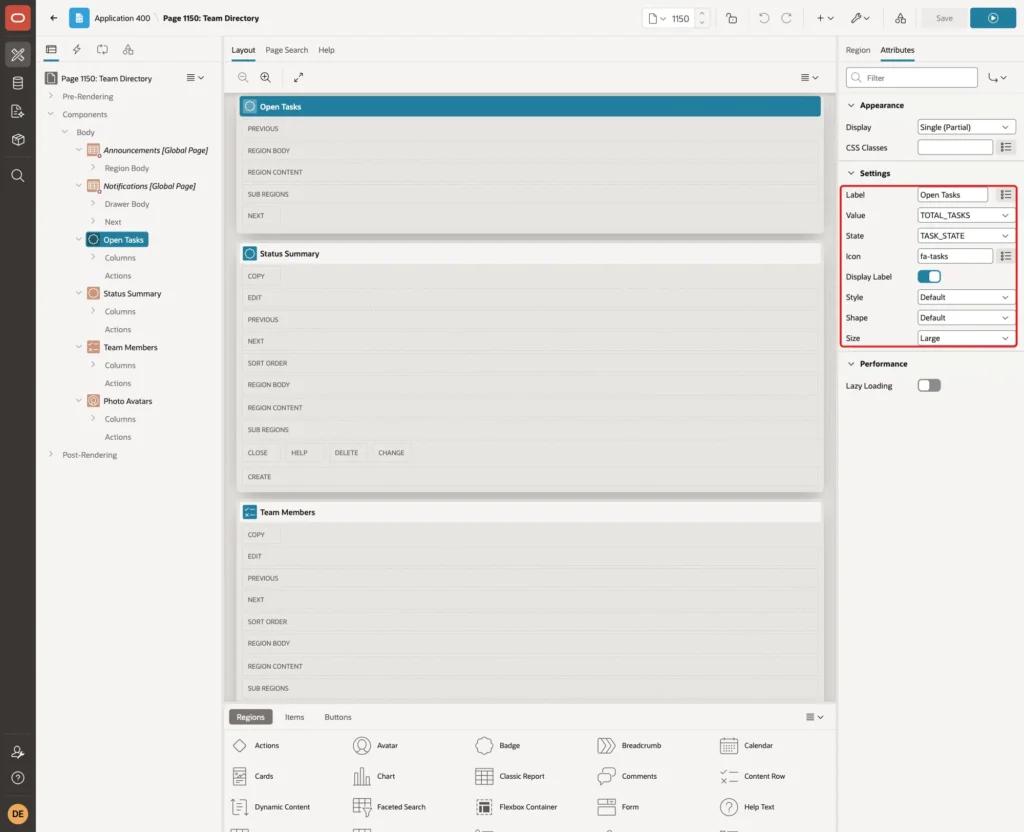
Enter Open Tasks as Label, select TOTAL_TASKS as Value and TASK_STATE as State. Enter fa-tasks as Icon, turn on Display Label and set Size to Large:
The badge shows the total of all open tasks:
Test the Page
Run the whole page. It shows the Open Tasks badge, the Status Summary, the Team Members rows and the Photo Avatars:
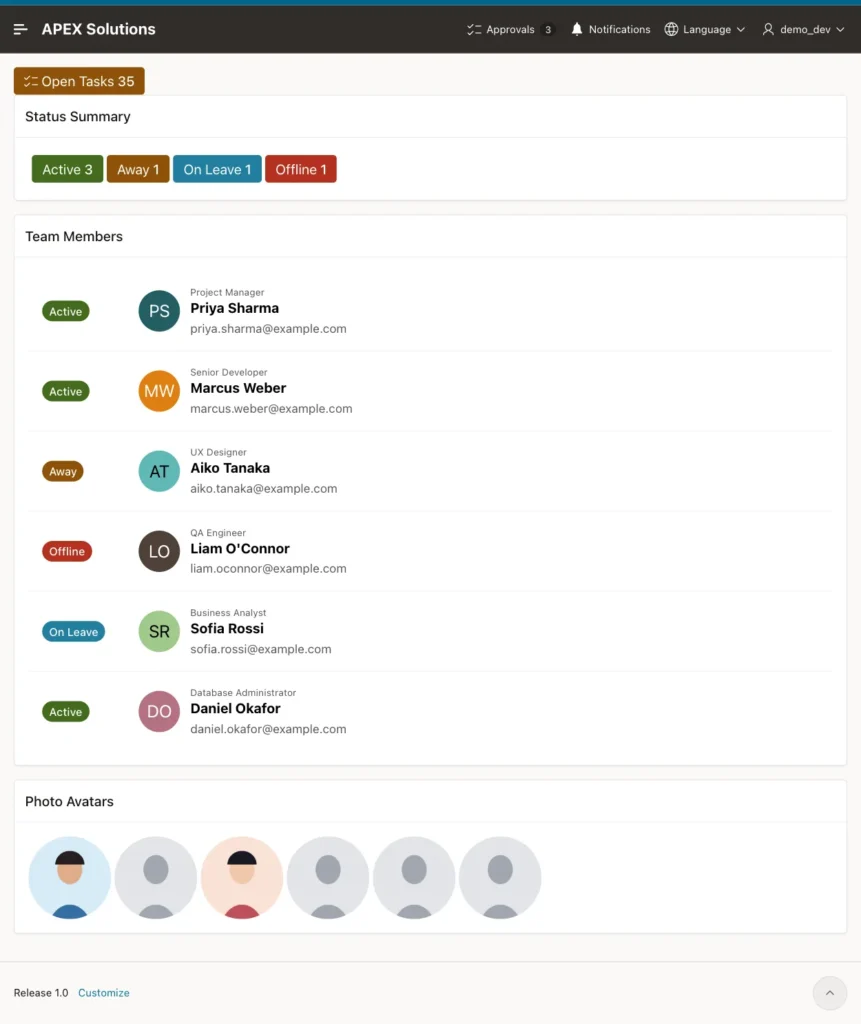
The avatars and badges carry text for screen readers. In the test, the badge of Marcus Weber had the label "Status Active", and the avatar of Priya Sharma had the label "Priya Sharma". The first comes from the Label and Value of the badge, and the second from the Description of the avatar.
Members without a photo
The Image type of the avatar has no fallback. In a first test, the query used '#APP_FILES#' || photo_file without the default. The four members without a photo got an image with an empty file name, and the browser showed broken images:

The fix is in the query. COALESCE(photo_file, 'photos/default.png') gives every member a picture. If you want initials instead of a silhouette, use the Initials type, as in the Content Row, for everyone. One avatar region cannot show a photo for some rows and initials for others.
Change the data
The page reads the tables every time it renders, so a change shows at once. This test sets Marcus Weber to Away and adds five open tasks to Liam O'Connor:
Example:
update team_members set status_code = 'AWAY' where member_id = 2;
update team_members set open_tasks = open_tasks + 5 where member_id = 4;
commit;

select m.full_name, s.status_label, m.open_tasks
from   team_members m
join   team_statuses s on s.status_code = m.status_code
where  m.member_id in (2, 4)
order  by m.member_id;

select s.status_label, count(m.member_id) as member_count
from   team_statuses s
left   join team_members m on m.status_code = s.status_code
group  by s.status_label, s.sort_seq
order  by s.sort_seq;

select sum(open_tasks) as total_tasks from team_members;
Output:
1 row updated.

1 row updated.

Commit complete.

FULL_NAME        STATUS_LABEL       OPEN_TASKS
________________ _______________ _____________
Marcus Weber     Away                        7
Liam O'Connor    Offline                     5

STATUS_LABEL       MEMBER_COUNT
_______________ _______________
Active                        2
Away                          2
On Leave                      1
Offline                       1

   TOTAL_TASKS
______________
            40
After a page refresh, the summary shows Active 2 and Away 2, the Open Tasks badge shows 40, and Marcus Weber has an orange Away badge:

This script puts the data back:
Example:
update team_members set status_code = 'ACTIVE' where member_id = 2;
update team_members set open_tasks = 0 where member_id = 4;
commit;

select m.full_name, s.status_label, m.open_tasks
from   team_members m
join   team_statuses s on s.status_code = m.status_code
where  m.member_id in (2, 4)
order  by m.member_id;
Output:
1 row updated.

1 row updated.

Commit complete.

FULL_NAME        STATUS_LABEL       OPEN_TASKS
________________ _______________ _____________
Marcus Weber     Active                      7
Liam O'Connor    Offline                     0
Invalid states and statuses
The state of a badge comes from the data, so the data must stay valid. Both tests below fail because of the constraints from Step 1:
Example:
update team_statuses set badge_state = 'purple' where status_code = 'AWAY';

insert into team_members (full_name, email, job_title, status_code)
values ('Test Person', 'test.person@example.com', 'Tester', 'HOLIDAY');
Output:
Error starting at line : 1 File @ b118/12-negative.sql
In command -
update team_statuses set badge_state = 'purple' where status_code = 'AWAY'
Error report -
ORA-02290: check constraint (APXSOL.TEAM_STATUSES_STATE_CK) violated
Help: https://docs.oracle.com/error-help/db/ora-02290/

Error starting at line : 3 File @ b118/12-negative.sql
In command -
insert into team_members (full_name, email, job_title, status_code)
values ('Test Person', 'test.person@example.com', 'Tester', 'HOLIDAY')
Error report -
ORA-02291: integrity constraint (APXSOL.TEAM_MEMBERS_STATUS_FK) violated -
parent key not found
Help: https://docs.oracle.com/error-help/db/ora-02291/
A state outside the four colors cannot be saved, and a member cannot get a status that does not exist.
Things to Know
- Both components take a color from a column named in State. The values used here are success, warning, danger and info. The theme turns the value into a CSS class such as t-Badge--success.
- Keep the state values in a lookup table with a check constraint, as in TEAM_STATUSES. A CASE expression in every query works, but then each page repeats the mapping.
- In the Content Row, the Badge Label must have a value even when Display Label is off.
- Do not put ORDER BY in the query of these regions. Use the Order By group, or the region shows an error.
- The Image type needs a real URL in every row, because there is no fallback. Return a default picture from the query for rows without a photo.
- Always fill the Description of an avatar. It becomes the label that screen readers read, and an avatar without it is skipped as decoration.
Related Guides
- Oracle APEX Cards, Content Rows, and Template Components
- How to Create Your Own Template Component in Oracle APEX
Conclusion
The Avatar and Badge template components turn columns into avatars with initials, icons or photos, and into colored badges with a label and a value. A Content Row uses both together, and the Avatar and Badge regions use each one alone, as one component per row or as a single figure.
The tests showed that the colors follow the data, that a missing photo needs a default picture in the query, and that a lookup table with a check constraint keeps the badge states valid. Keep the logic in the data and let the theme draw the components.
See my articles more often when you search Google.
