
A row action menu is the small "more" button at the end of each row of a list. Clicking it opens a menu with the things a user can do with that one record, such as activate it, put it on hold or delete it.
It keeps the row clean and puts every action next to the record it changes.
Oracle APEX builds such menus declaratively with template component actions. This guide adds an Actions menu to every row of a Content Row report. Entries appear only for the right status and the right role, run PL/SQL without reloading the page, and ask for confirmation before closing or deleting.
The guide uses service contracts as the example; the same steps work for any table. It differs from How to Hide Buttons and Regions Based on the User's Role in Oracle APEX, which hides page buttons and regions. Here, the actions belong to each row, and they also depend on the row's own data.
Step 1: Create the Tables
The example needs two tables. CONTRACT_VENDORS holds the vendors and their contact e-mail, and SERVICE_CONTRACTS holds the contracts with their status:
Example:
create table contract_vendors (
    vendor_id     number generated by default on null as identity,
    vendor_name   varchar2(100) not null,
    contact_email varchar2(255) not null,
    constraint contract_vendors_pk primary key (vendor_id),
    constraint contract_vendors_name_uk unique (vendor_name)
);

create table service_contracts (
    contract_id  number generated by default on null as identity,
    contract_no  varchar2(20)  not null,
    title        varchar2(200) not null,
    vendor_id    number        not null,
    status       varchar2(20)  default on null 'DRAFT' not null,
    start_date   date          not null,
    end_date     date          not null,
    annual_value number(12,2)  not null,
    created_by   varchar2(255) default on null
                     coalesce(sys_context('APEX$SESSION', 'APP_USER'),
                              sys_context('USERENV', 'SESSION_USER')) not null,
    created_on   date          default on null sysdate not null,
    constraint service_contracts_pk primary key (contract_id),
    constraint service_contracts_no_uk unique (contract_no),
    constraint service_contracts_vendor_fk foreign key (vendor_id)
        references contract_vendors (vendor_id),
    constraint service_contracts_status_ck
        check (status in ('DRAFT', 'ACTIVE', 'ON_HOLD', 'CLOSED')),
    constraint service_contracts_dates_ck check (end_date >= start_date),
    constraint service_contracts_value_ck check (annual_value >= 0)
);

create index service_contracts_vendor_ix on service_contracts (vendor_id);
create index service_contracts_status_ix on service_contracts (status);

insert into contract_vendors (vendor_name, contact_email)
values ('BrightClean Facility Services', 'accounts@brightclean.example.com');

insert into contract_vendors (vendor_name, contact_email)
values ('NorthGrid IT Support', 'contracts@northgrid.example.com');

insert into contract_vendors (vendor_name, contact_email)
values ('SafeGuard Security', 'office@safeguard.example.com');

insert into service_contracts
    (contract_no, title, vendor_id, status, start_date, end_date, annual_value)
values
    ('SC-1001', 'Office cleaning, head office', 1, 'ACTIVE',
     date '2026-01-01', date '2026-12-31', 48000);

insert into service_contracts
    (contract_no, title, vendor_id, status, start_date, end_date, annual_value)
values
    ('SC-1002', 'Helpdesk and laptop support', 2, 'DRAFT',
     date '2026-11-01', date '2027-10-31', 96000);

insert into service_contracts
    (contract_no, title, vendor_id, status, start_date, end_date, annual_value)
values
    ('SC-1003', 'Night security, warehouse', 3, 'ON_HOLD',
     date '2026-03-01', date '2027-02-28', 60000);

insert into service_contracts
    (contract_no, title, vendor_id, status, start_date, end_date, annual_value)
values
    ('SC-1004', 'Network monitoring', 2, 'CLOSED',
     date '2025-01-01', date '2025-12-31', 24000);

insert into service_contracts
    (contract_no, title, vendor_id, start_date, end_date, annual_value)
values
    ('SC-1005', 'Window cleaning, branch offices', 1,
     date '2026-12-01', date '2027-11-30', 12000);

commit;

column contract_no format a8
column title format a32
column vendor_name format a30
column status format a8

select c.contract_no, c.title, v.vendor_name, c.status
from   service_contracts c
join   contract_vendors v on v.vendor_id = c.vendor_id
order by c.contract_no;
Output:
Table CONTRACT_VENDORS created.

Table SERVICE_CONTRACTS created.

Index SERVICE_CONTRACTS_VENDOR_IX created.

Index SERVICE_CONTRACTS_STATUS_IX created.

1 row inserted.

1 row inserted.

1 row inserted.

1 row inserted.

1 row inserted.

1 row inserted.

1 row inserted.

1 row inserted.

Commit complete.

CONTRACT_NO    TITLE                              VENDOR_NAME                      STATUS
______________ __________________________________ ________________________________ __________
SC-1001        Office cleaning, head office       BrightClean Facility Services    ACTIVE
SC-1002        Helpdesk and laptop support        NorthGrid IT Support             DRAFT
SC-1003        Night security, warehouse          SafeGuard Security               ON_HOLD
SC-1004        Network monitoring                 NorthGrid IT Support             CLOSED
SC-1005        Window cleaning, branch offices    BrightClean Facility Services    DRAFT
A few details in the tables:
- The check constraint SERVICE_CONTRACTS_STATUS_CK allows only DRAFT, ACTIVE, ON_HOLD and CLOSED. DEFAULT ON NULL 'DRAFT' gives every new contract the first status, as SC-1005 shows.
- CREATED_BY and CREATED_ON use DEFAULT ON NULL, so the APEX user and the date are filled in without a trigger.
- The unique constraint SERVICE_CONTRACTS_NO_UK stops two contracts from sharing a number, and the foreign key links every contract to a vendor.
Step 2: Create the Procedure That Changes the Status
The menu entries should not hold the business rules. One procedure decides which status change is allowed from which status, and the menu entries only call it:
Example:
create or replace procedure set_contract_status (
    p_contract_id in number,
    p_action      in varchar2
) as
    l_status service_contracts.status%type;
    l_new    service_contracts.status%type;
begin
    select status
      into l_status
      from service_contracts
     where contract_id = p_contract_id
       for update;

    l_new := case
                 when p_action = 'ACTIVATE' and l_status = 'DRAFT'   then 'ACTIVE'
                 when p_action = 'HOLD'     and l_status = 'ACTIVE'  then 'ON_HOLD'
                 when p_action = 'RESUME'   and l_status = 'ON_HOLD' then 'ACTIVE'
                 when p_action = 'CLOSE'    and l_status in ('ACTIVE', 'ON_HOLD') then 'CLOSED'
             end;

    if p_action = 'DELETE' and l_status = 'DRAFT' then
        delete from service_contracts
         where contract_id = p_contract_id;
    elsif l_new is not null then
        update service_contracts
           set status = l_new
         where contract_id = p_contract_id;
    else
        raise_application_error(-20002,
            'This action is not allowed for a contract with status ' || l_status || '.');
    end if;
exception
    when no_data_found then
        raise_application_error(-20001, 'This contract does not exist.');
end set_contract_status;
/

show errors
Output:
Procedure SET_CONTRACT_STATUS compiled

No errors.
The SELECT locks the row with FOR UPDATE, so two users cannot change the same contract at the same moment. The CASE expression returns the new status only for an allowed change. Activate works on a draft, Put on Hold on an active contract, Resume on a contract on hold, and Close on an active or held contract.
DELETE is allowed only for a draft. Every other request raises ORA-20002 with the current status, and an unknown contract raises ORA-20001.
A quick test in SQL activates contract 2, tries to activate it again, deletes a closed contract and changes a contract that does not exist, then rolls everything back:
Example:
exec set_contract_status(2, 'ACTIVATE')
exec set_contract_status(2, 'ACTIVATE')
exec set_contract_status(4, 'DELETE')
exec set_contract_status(999, 'CLOSE')
select contract_no, status from service_contracts where contract_id in (2, 4);
rollback;
select contract_no, status from service_contracts where contract_id in (2, 4);
Output:
PL/SQL procedure successfully completed.

BEGIN set_contract_status(2, 'ACTIVATE'); END;
*
ERROR at line 1:
ORA-20002: This action is not allowed for a contract with status ACTIVE.
ORA-06512: at "APXSOL.SET_CONTRACT_STATUS", line 29
ORA-06512: at line 1
Help: https://docs.oracle.com/error-help/db/ora-20002/

BEGIN set_contract_status(4, 'DELETE'); END;
*
ERROR at line 1:
ORA-20002: This action is not allowed for a contract with status CLOSED.
ORA-06512: at "APXSOL.SET_CONTRACT_STATUS", line 29
ORA-06512: at line 1
Help: https://docs.oracle.com/error-help/db/ora-20002/

BEGIN set_contract_status(999, 'CLOSE'); END;
*
ERROR at line 1:
ORA-20001: This contract does not exist.
ORA-06512: at "APXSOL.SET_CONTRACT_STATUS", line 34
ORA-06512: at line 1
Help: https://docs.oracle.com/error-help/db/ora-20001/

CONTRACT_NO    STATUS
______________ _________
SC-1002        ACTIVE
SC-1004        CLOSED

Rollback complete.

CONTRACT_NO    STATUS
______________ _________
SC-1002        DRAFT
SC-1004        CLOSED
Step 3: Create the Service Contracts Page
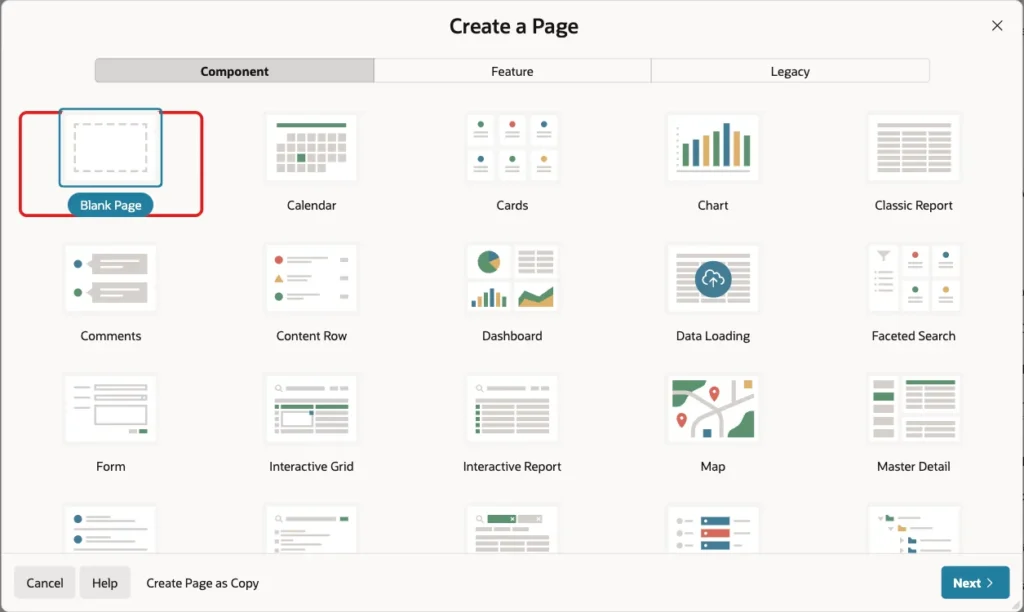
In App Builder, open the application and click Create Page. On the Component tab, select Blank Page:
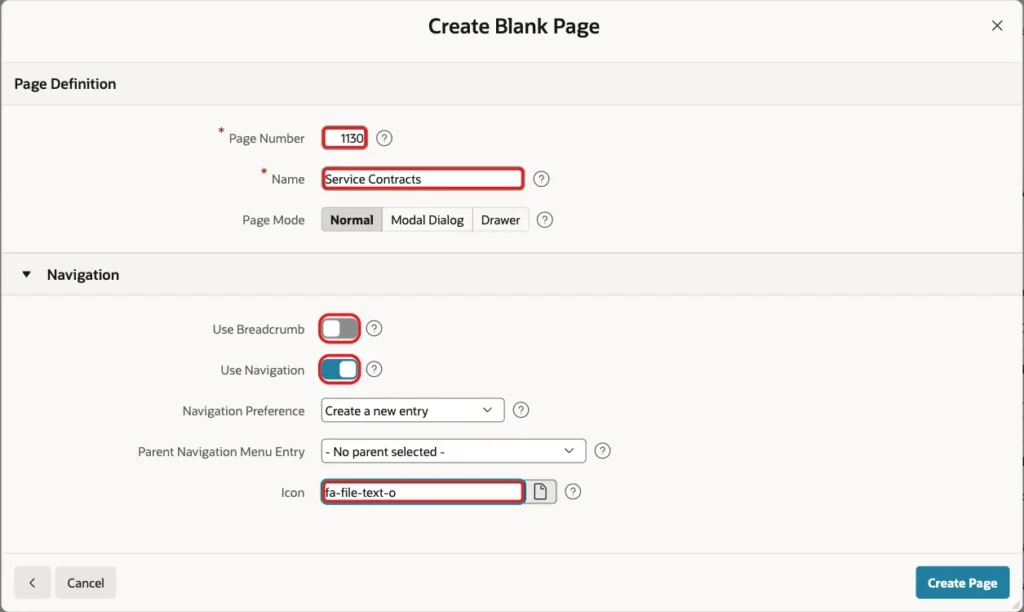
Set Page Number to 1130 and Name to Service Contracts. Turn Use Breadcrumb off, keep Use Navigation on with Create a new entry, set Icon to fa-file-text-o and click Create Page:
Step 4: Add the Content Row Region
In Page Designer, right-click Body and click Create Region. Set Name to Contracts and Type to Content Row. Set Source Type to SQL Query and enter this query:
Example:
select c.contract_id,
       c.contract_no,
       c.title,
       c.status,
       initcap(replace(c.status, '_', ' ')) as status_label,
       case c.status
           when 'ACTIVE'  then 'success'
           when 'DRAFT'   then 'info'
           when 'ON_HOLD' then 'warning'
           else 'danger'
       end as status_state,
       v.vendor_name,
       v.contact_email,
       c.start_date,
       c.end_date,
       c.annual_value
from   service_contracts c
join   contract_vendors v on v.vendor_id = c.vendor_id
order by c.contract_no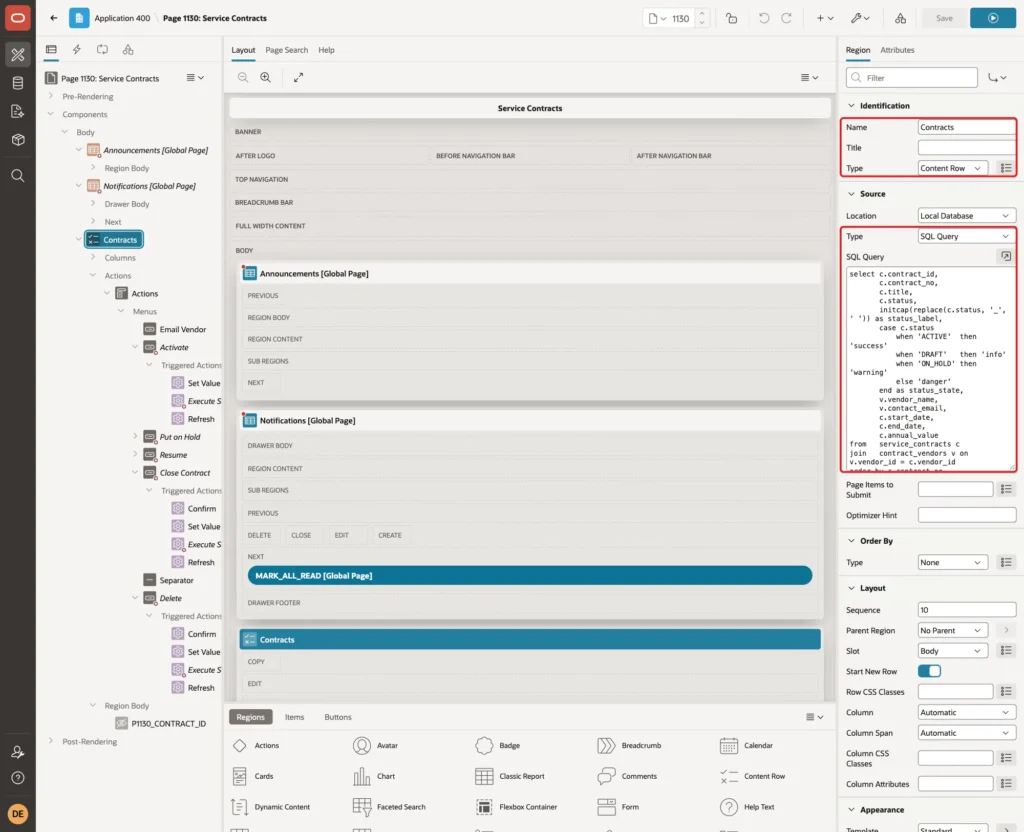
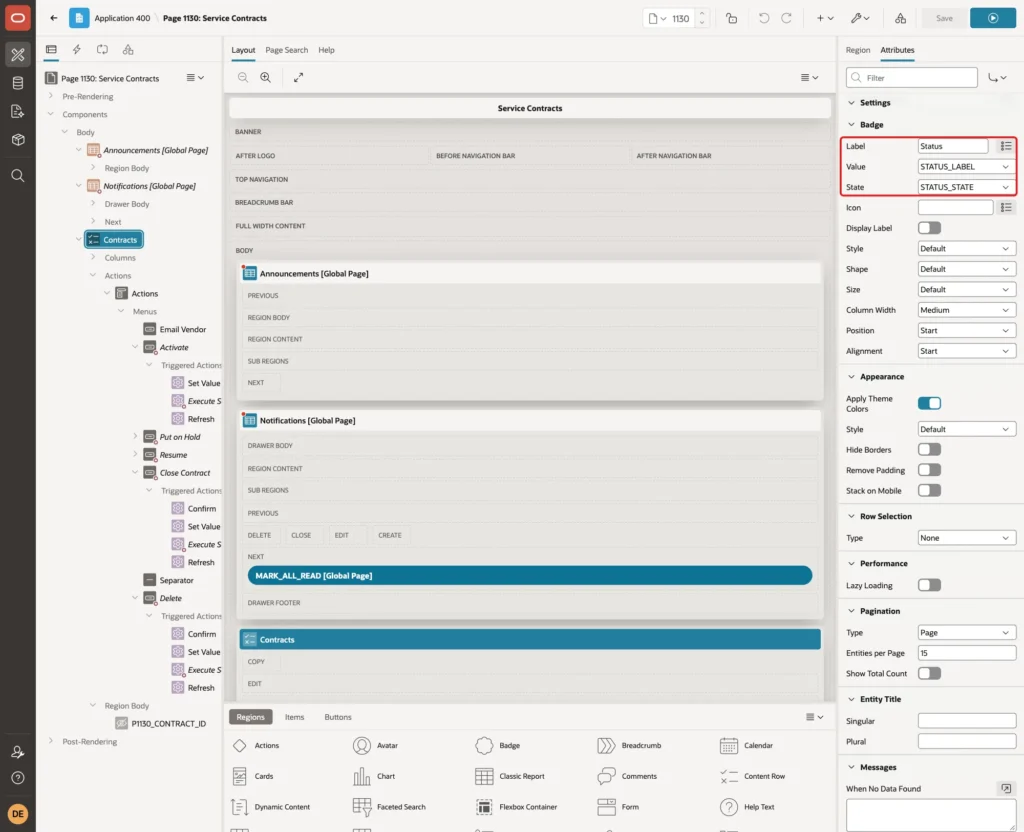
STATUS_LABEL turns ON_HOLD into "On Hold" for display. STATUS_STATE maps each status to a Universal Theme state (success, info, warning or danger), which colors the badge. STATUS itself stays in the query because the menu entries test it later.
Under Advanced, set HTML DOM ID to contract-rows. Then open the Attributes tab of the region. Keep Display at Multiple (Report) and set the Settings:
- Title: &CONTRACT_NO. - &TITLE.
- Description: &VENDOR_NAME. · &START_DATE. to &END_DATE.
- Miscellaneous: &ANNUAL_VALUE. a year
- Display Badge: on
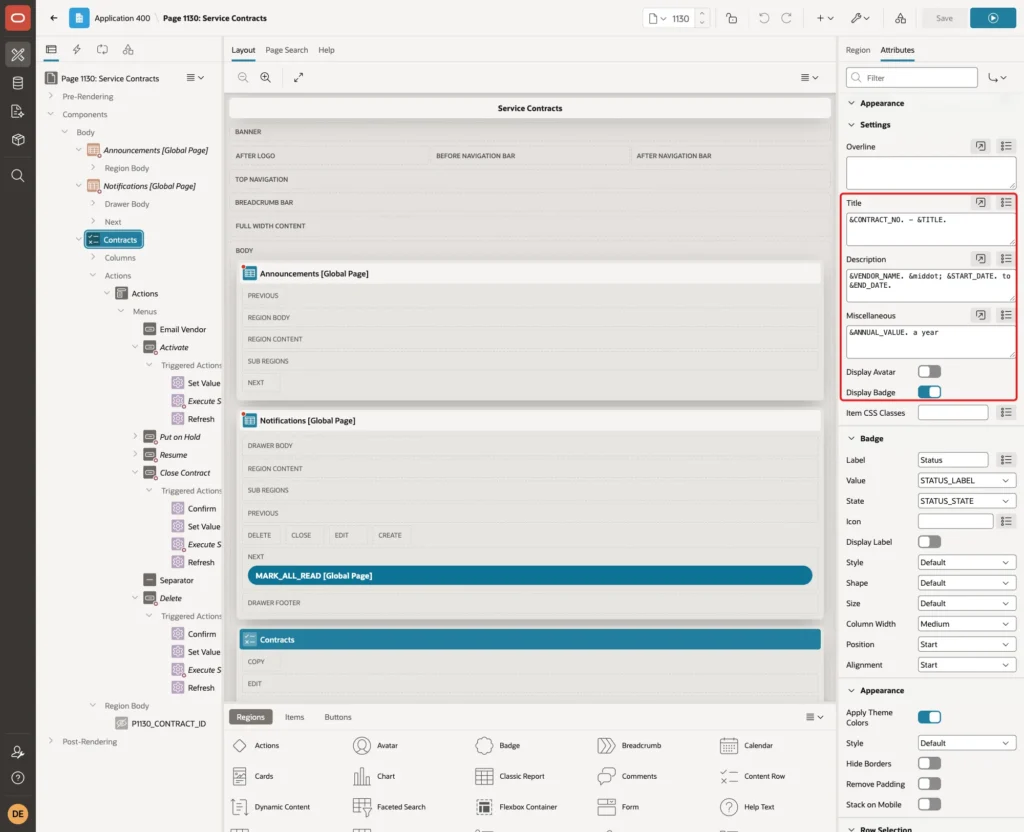
In the Badge group, set Label to Status, Value to STATUS_LABEL and State to STATUS_STATE:
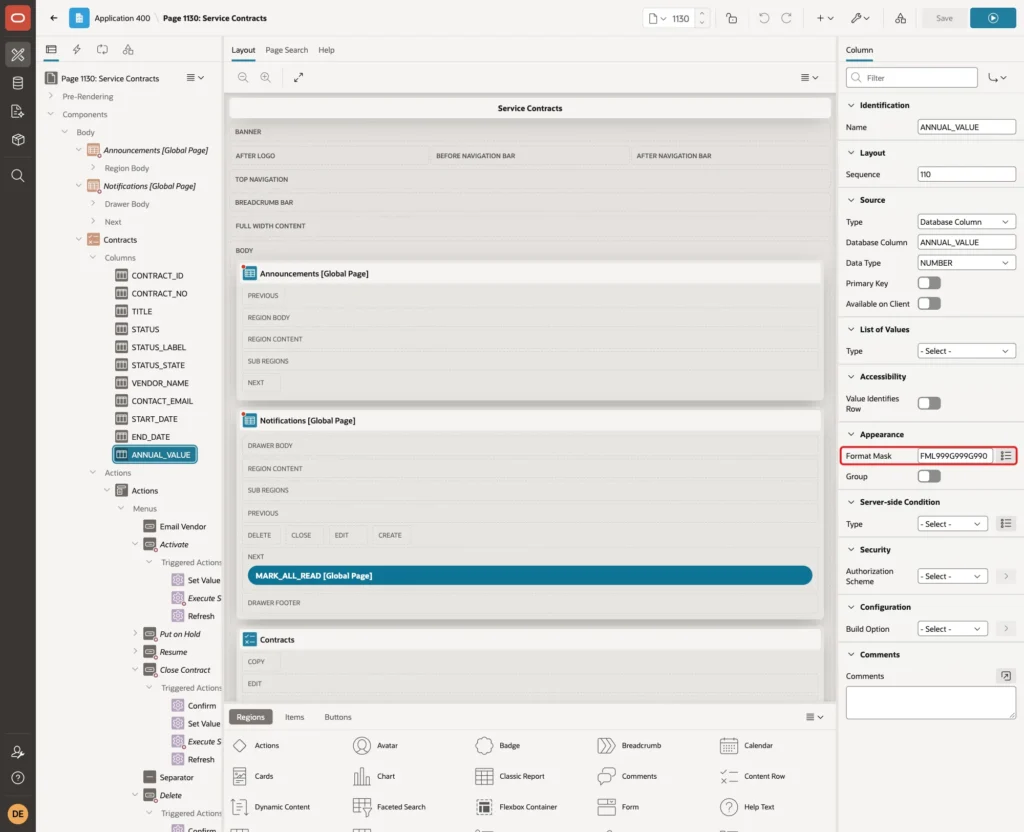
Expand Columns under the region. Select ANNUAL_VALUE and set Format Mask to FML999G999G990. Set the Format Mask of START_DATE and END_DATE to DD-MON-YYYY in the same way:
Step 5: Add a Hidden Item for the Row ID
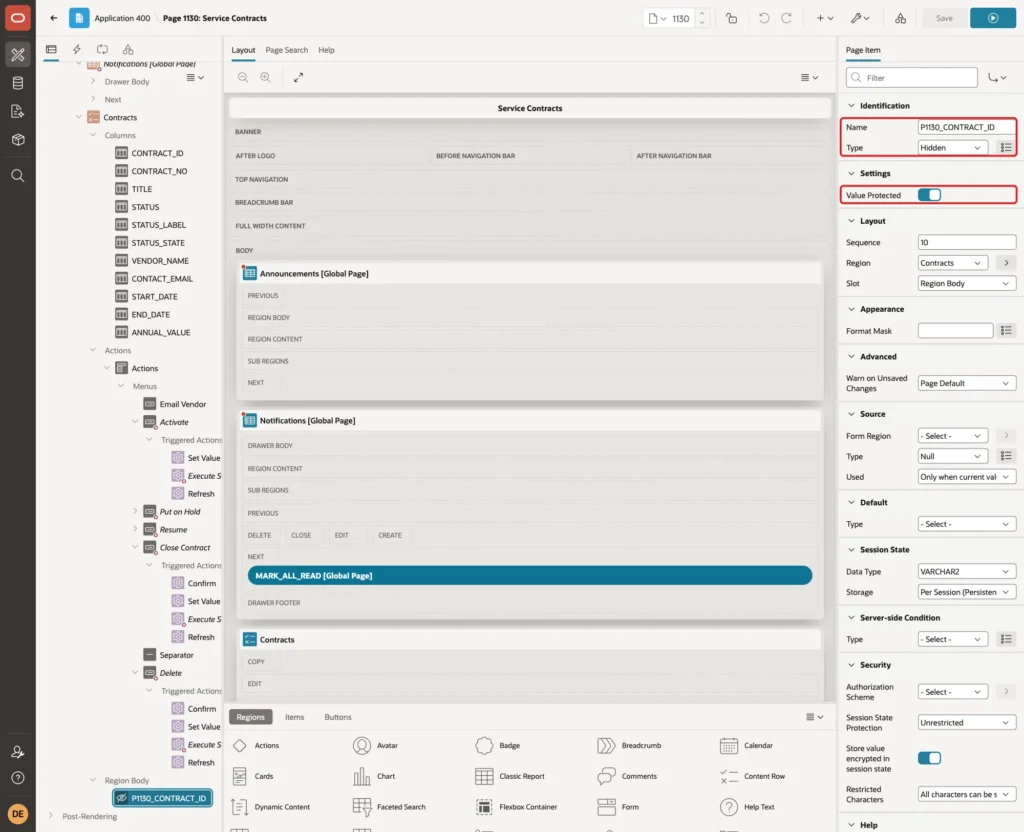
The menu entries need a page item that carries the ID of the clicked row to the server. Right-click the Contracts region and click Create Page Item. Set Name to P1130_CONTRACT_ID and Type to Hidden. Keep Value Protected on:
Step 6: Add the Actions Menu
Expand the Contracts region in the Rendering tree. Right-click Actions and click Create Action. Set the properties:
- Position: Primary Actions
- Template: Menu
- Label: Actions
- Display Type: Icon
- Icon: fa-ellipsis-v
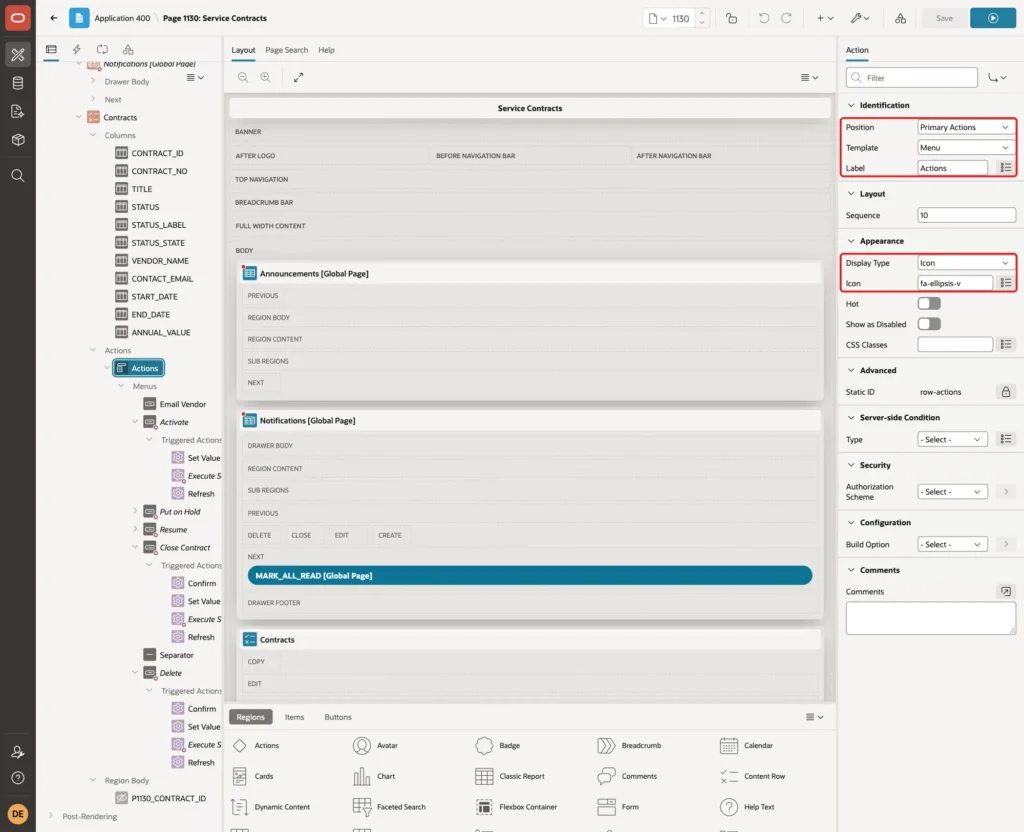
The Label is not shown on the button, but APEX uses it as the button's title, so screen readers and the mouse tooltip still say "Actions".
Step 7: Add a Link Entry
Under the new action, right-click Menus and click Create Menu. Set Type to Menu Entry and Label to Email Vendor. Set Behavior Type to Redirect to URL, Target URL to mailto:&CONTACT_EMAIL.?subject=&CONTRACT_NO. and Icon to fa-envelope-o:
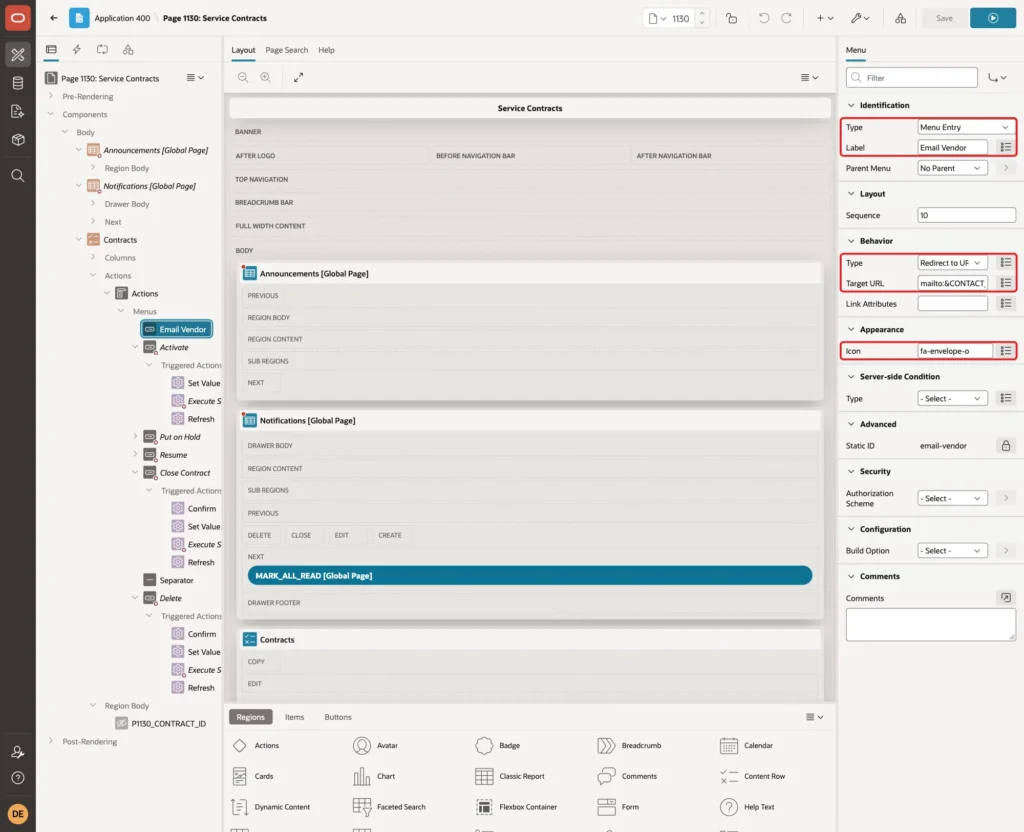
The substitution strings use the columns of each row. In the test, the entry of SC-1001 linked to the BrightClean address with subject SC-1001, and the entry of SC-1003 to the SafeGuard address. This entry has no condition, so every user sees it.
Step 8: Add the Activate Entry
Create a second menu entry with Label Activate, Behavior Type Trigger Action and Icon fa-play:
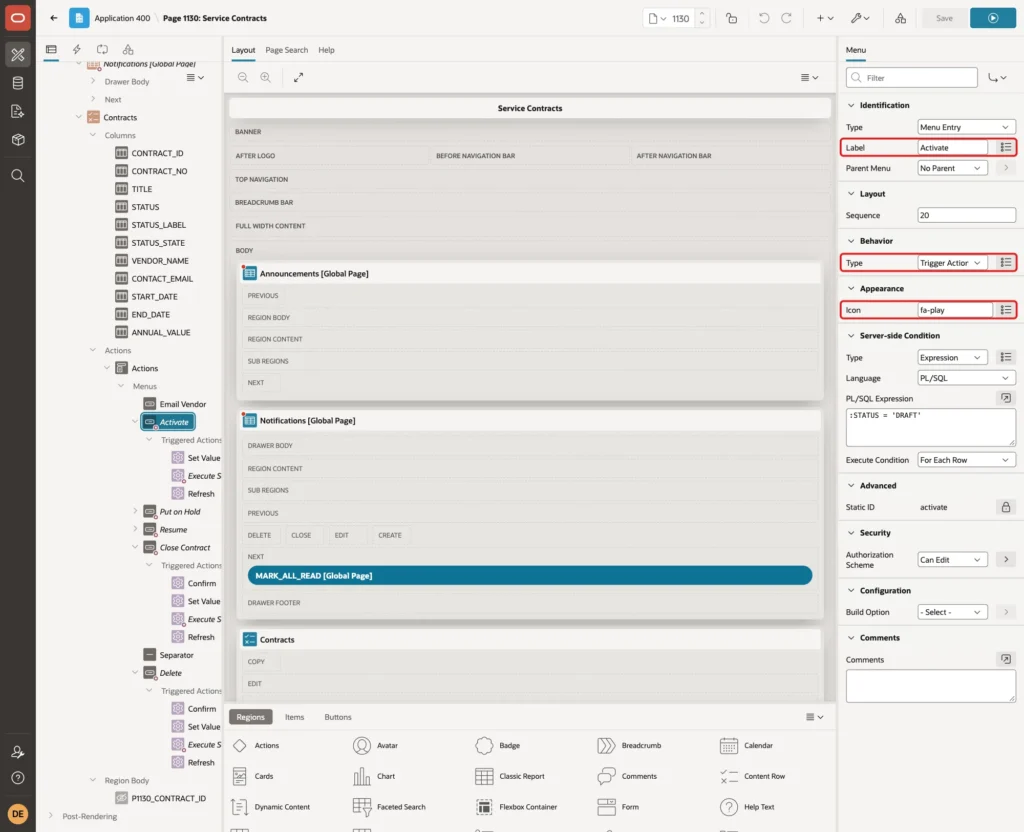
Activate makes sense only for a draft and only for users who may edit contracts. Under Server-side Condition, set Type to Expression, PL/SQL Expression to :STATUS = 'DRAFT' and Execute Condition to For Each Row. Under Security, set Authorization Scheme to Can Edit:
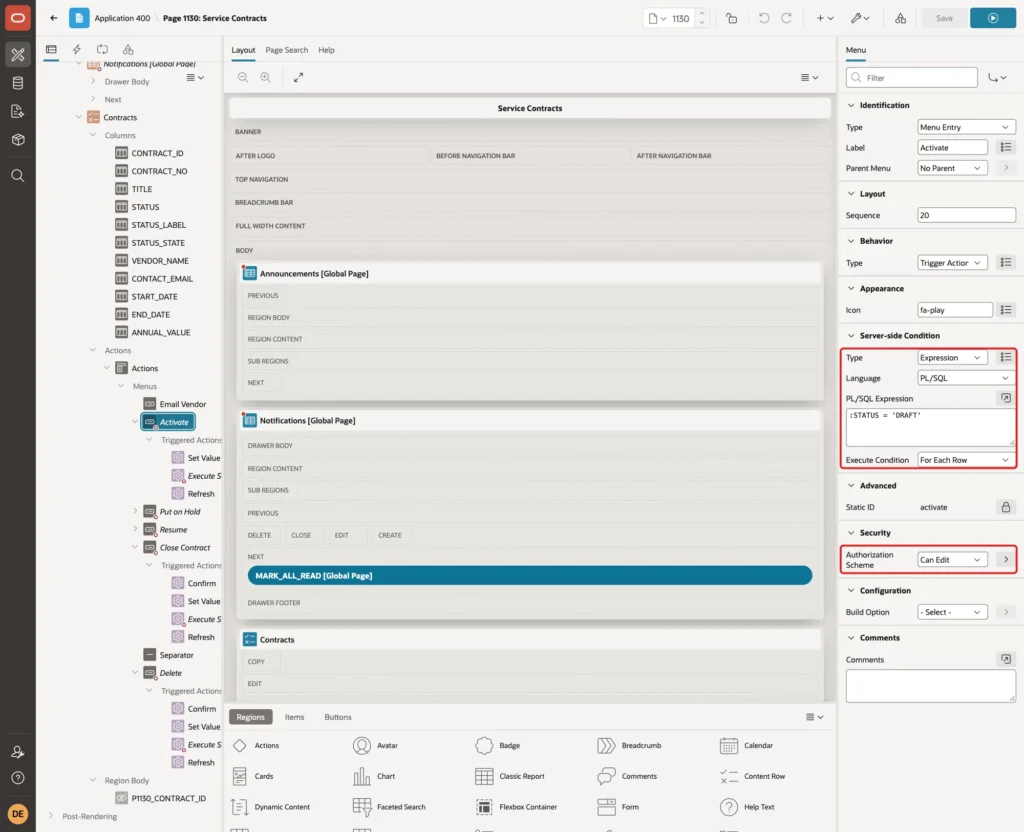
For Each Row is the key setting. APEX checks the expression once for every row, and :STATUS refers to the STATUS column of that row.
Can Edit and Is Administrator are the authorization schemes of the sample application, based on the roles Administrator, Editor and Reader. Use the schemes of your own application.
Step 9: Add the Triggered Actions
The entry now needs the actions it runs. Right-click Activate and click Create Trigger Action. Set Action to Set Value, Set Type to JavaScript Expression and JavaScript Expression to this.recordId. Set Affected Elements Selection Type to Item(s) and Item(s) to P1130_CONTRACT_ID:
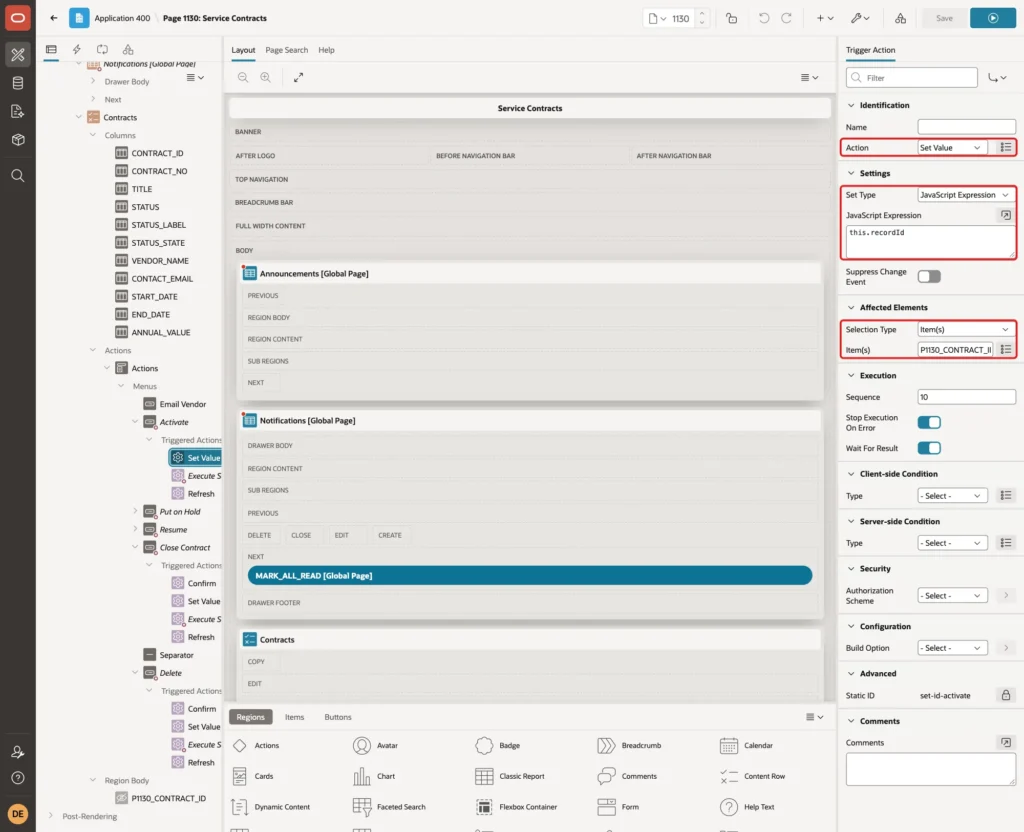
this.recordId holds the primary key of the row whose menu was clicked. It comes from the column marked as Primary Key in the region's columns, here CONTRACT_ID.
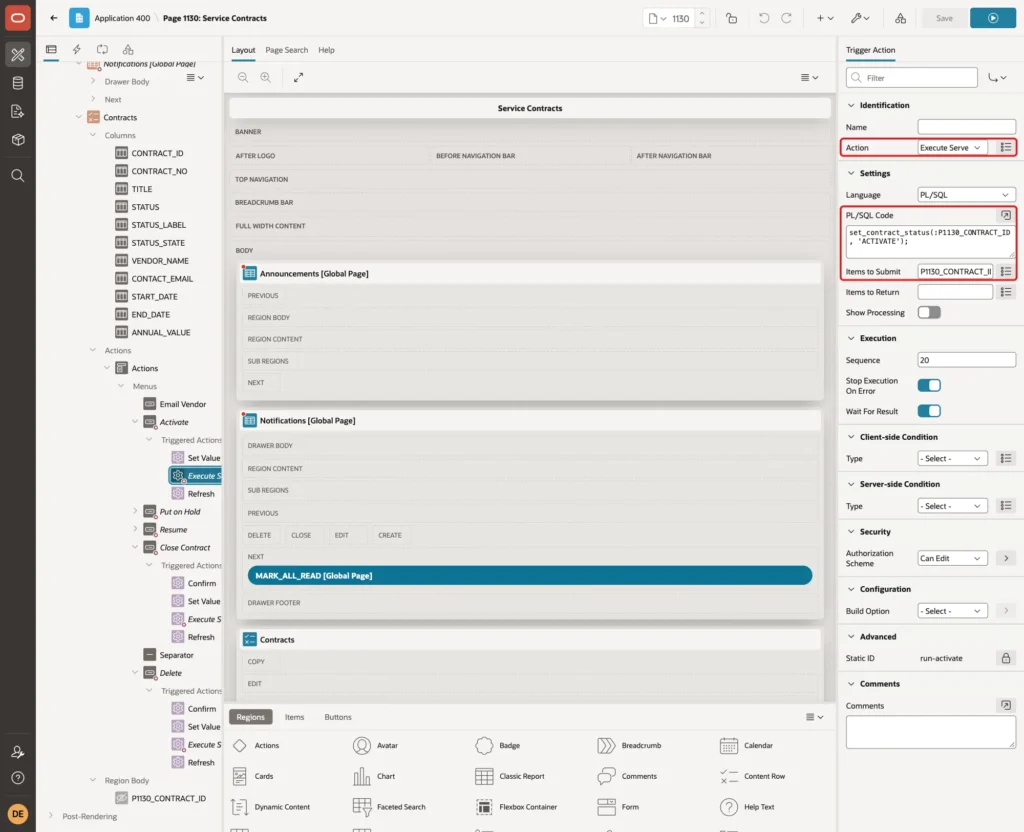
Create a second trigger action under Activate. Set Action to Execute Server-side Code, PL/SQL Code to set_contract_status(:P1130_CONTRACT_ID, 'ACTIVATE'); and Items to Submit to P1130_CONTRACT_ID:
Keep Wait For Result on, so the next action waits for the database. Then set Authorization Scheme to Can Edit on this action too:
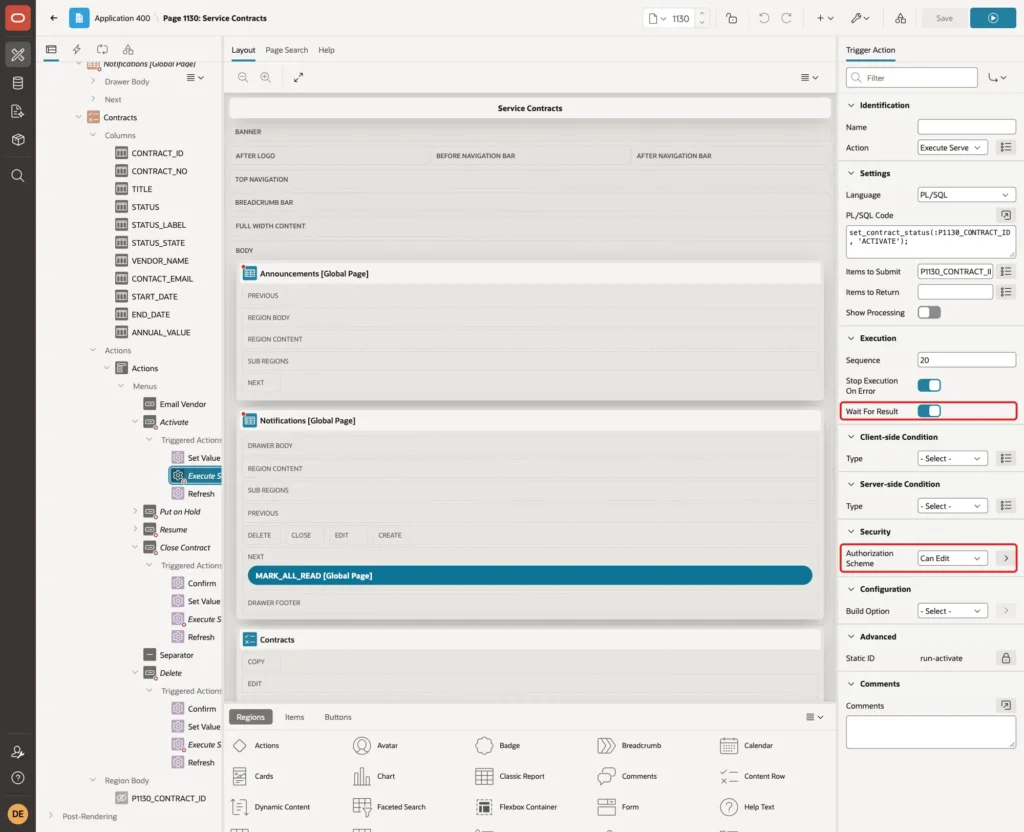
This second authorization is not optional. In a first build, only the menu entries had an authorization scheme. A Reader did not see the entries, but the page still contained their server-side actions.
Called from the browser console, those actions changed contract SC-1005 from Draft to Closed for the Reader. With Can Edit on the action, APEX no longer sends it to a Reader's page at all, and the same test changed nothing.
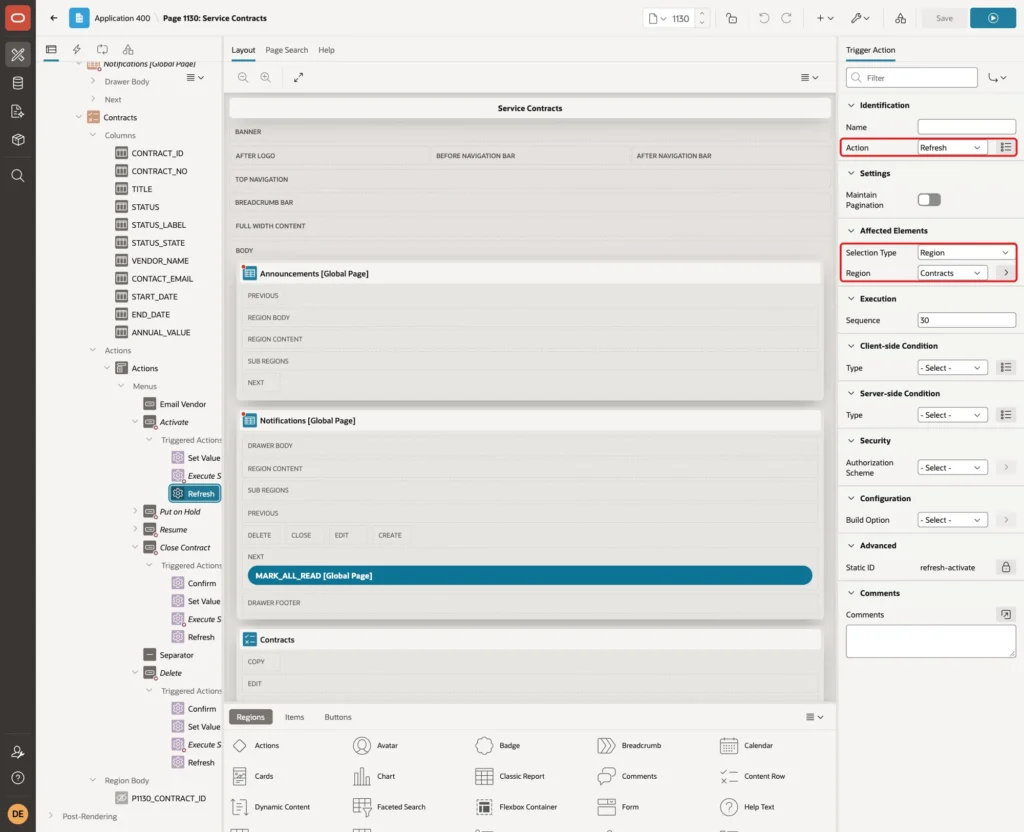
Create a third trigger action with Action Refresh, Selection Type Region and Region Contracts:
Step 10: Add the Other Status Entries
Create the next entries the same way: a menu entry with Behavior Type Trigger Action, a For Each Row condition, Authorization Scheme Can Edit, and the three trigger actions. Only the label, icon, condition and the action code in the PL/SQL call change:
- Put on Hold: Icon fa-pause, expression :STATUS = 'ACTIVE', PL/SQL Code set_contract_status(:P1130_CONTRACT_ID, 'HOLD');
- Resume: Icon fa-play-circle, expression :STATUS = 'ON_HOLD', PL/SQL Code set_contract_status(:P1130_CONTRACT_ID, 'RESUME');
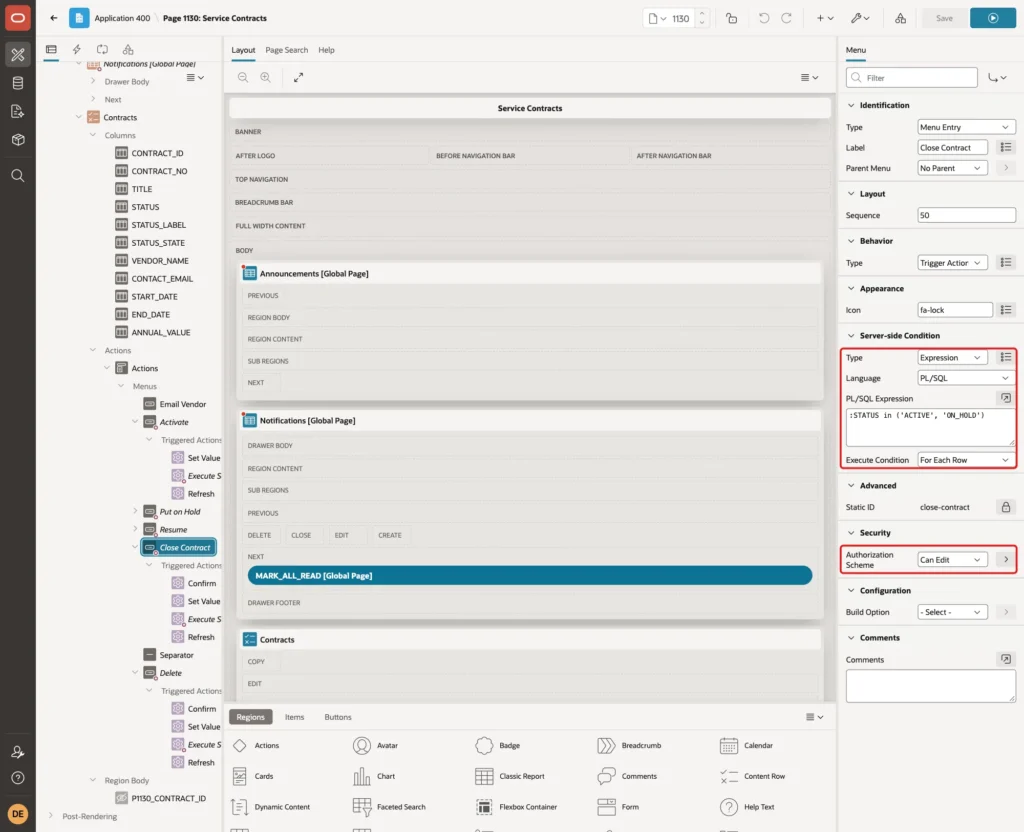
- Close Contract: Icon fa-lock, expression :STATUS in ('ACTIVE', 'ON_HOLD'), PL/SQL Code set_contract_status(:P1130_CONTRACT_ID, 'CLOSE');
Set the Sequence of the entries to 10 (Email Vendor), 20 (Activate), 30 (Put on Hold), 40 (Resume) and 50 (Close Contract). The settings of Close Contract:
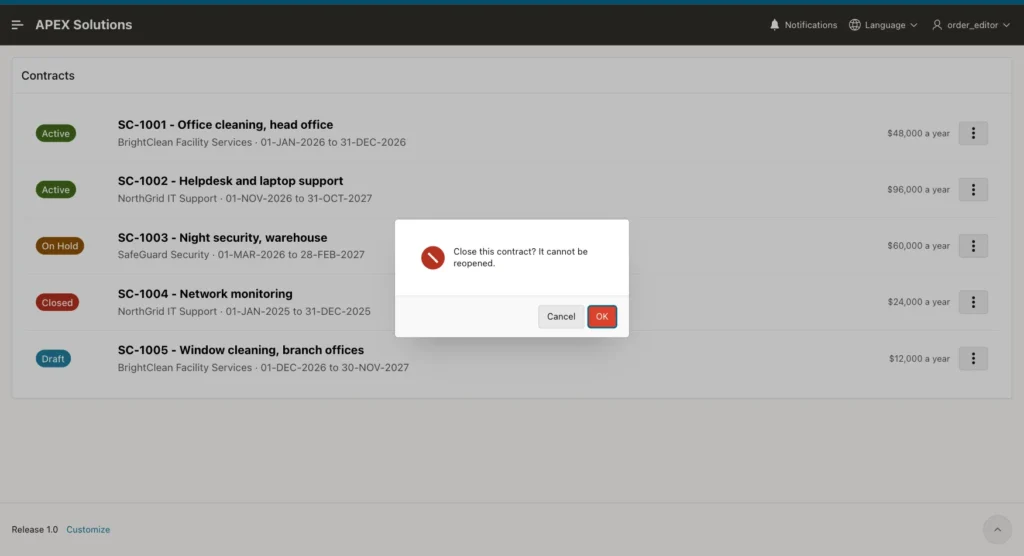
Closing cannot be undone, so Close Contract gets one more trigger action before the others. Create it with Action Confirm, Message "Close this contract? It cannot be reopened." and Style Danger. Give it Sequence 10 and move Set Value, Execute Server-side Code and Refresh to 20, 30 and 40:
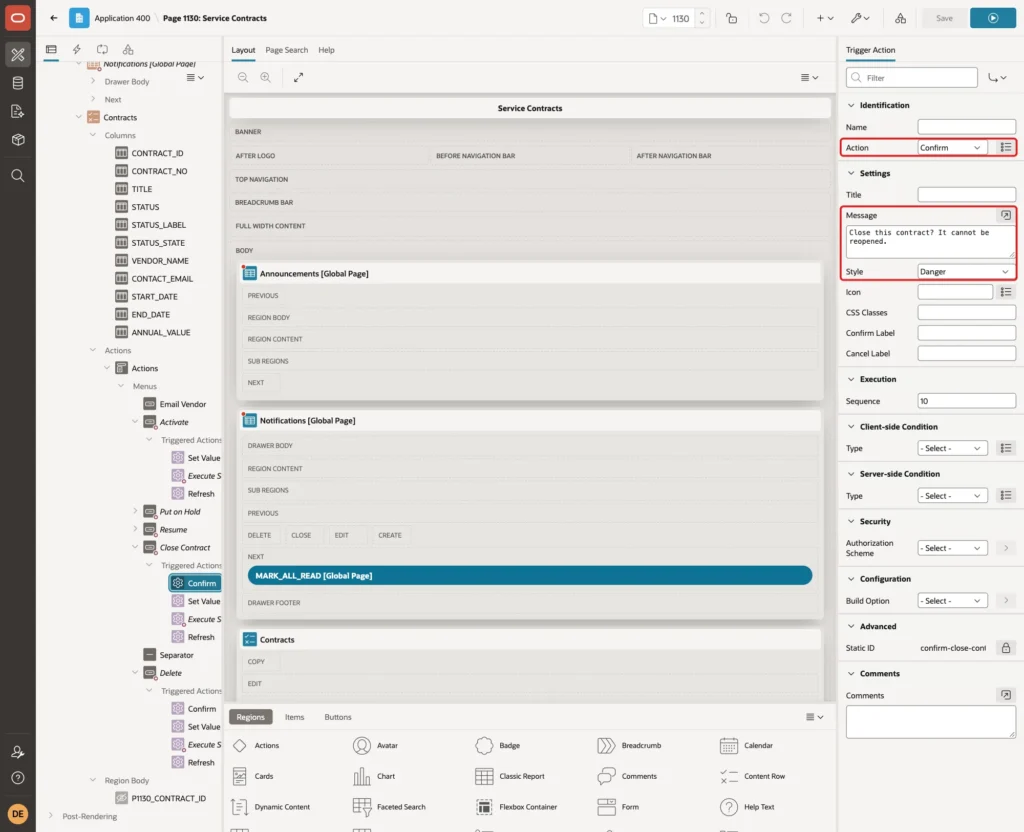
When the user clicks Cancel in the dialog, the actions after Confirm do not run. In the test, Cancel on Close Contract left SC-1001 on hold.
Step 11: Add a Separator and the Delete Entry
Right-click Menus and click Create Menu. Set Type to Separator and Sequence to 60. A line in the menu now divides the normal actions from Delete:
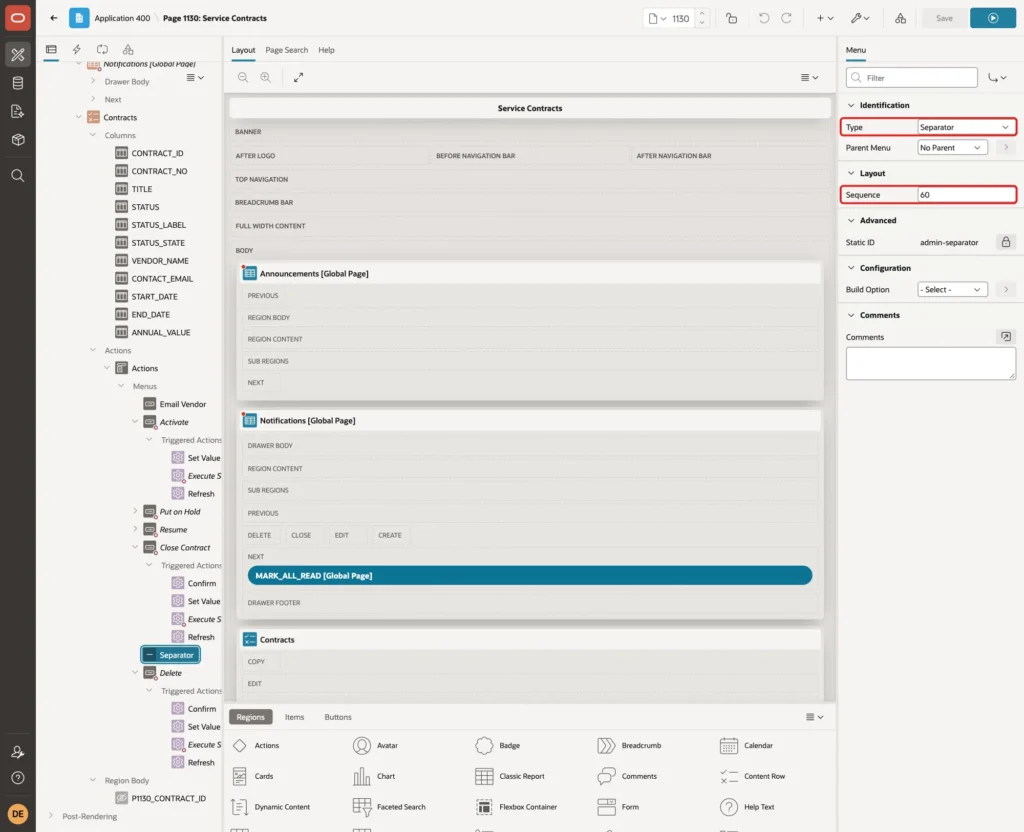
A separator has no Server-side Condition or Authorization Scheme. That caused no problem in the tests: when no entry followed it, APEX did not show it.
Create the last menu entry with Label Delete, Icon fa-trash-o and Sequence 70. Set the expression to :STATUS = 'DRAFT' with For Each Row and the Authorization Scheme to Is Administrator:
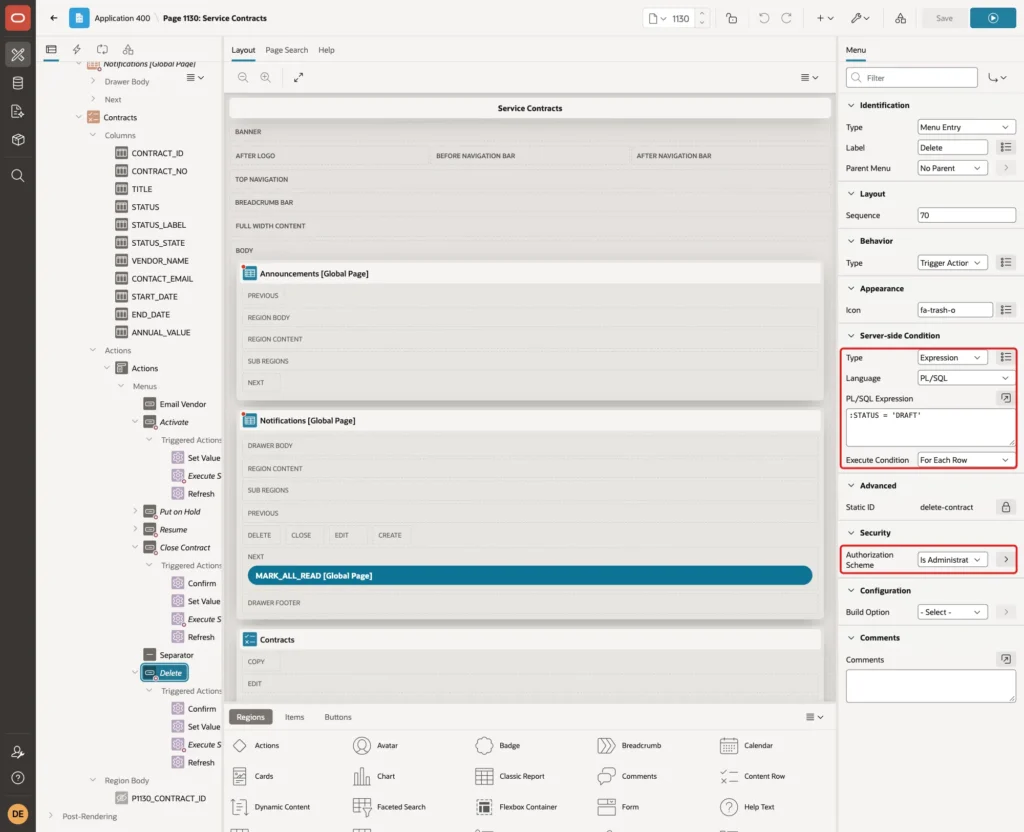
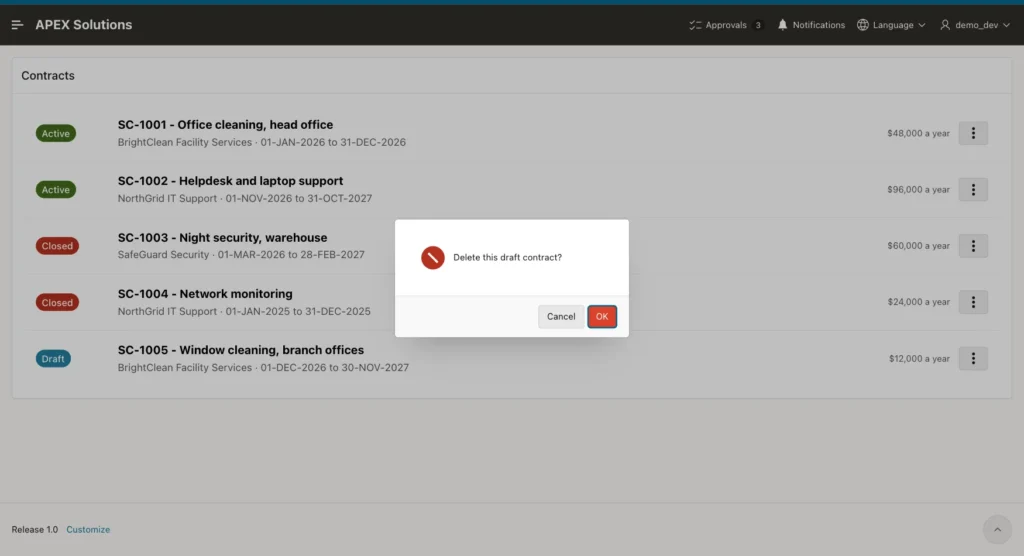
Add the four trigger actions as for Close Contract: Confirm with Message "Delete this draft contract?" and Style Danger, Set Value, Execute Server-side Code with set_contract_status(:P1130_CONTRACT_ID, 'DELETE'); and Authorization Scheme Is Administrator, and Refresh. Click Save.
Step 12: Test the Menus
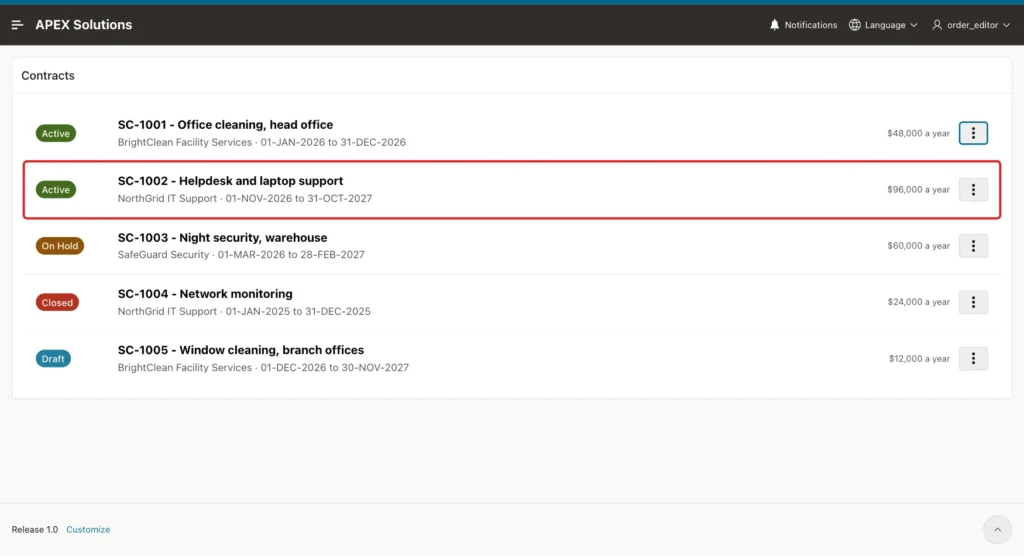
Sign in as an editor (role Editor) and open Service Contracts. Click the menu button of SC-1002, a draft. The editor sees Email Vendor and Activate, but not Delete:
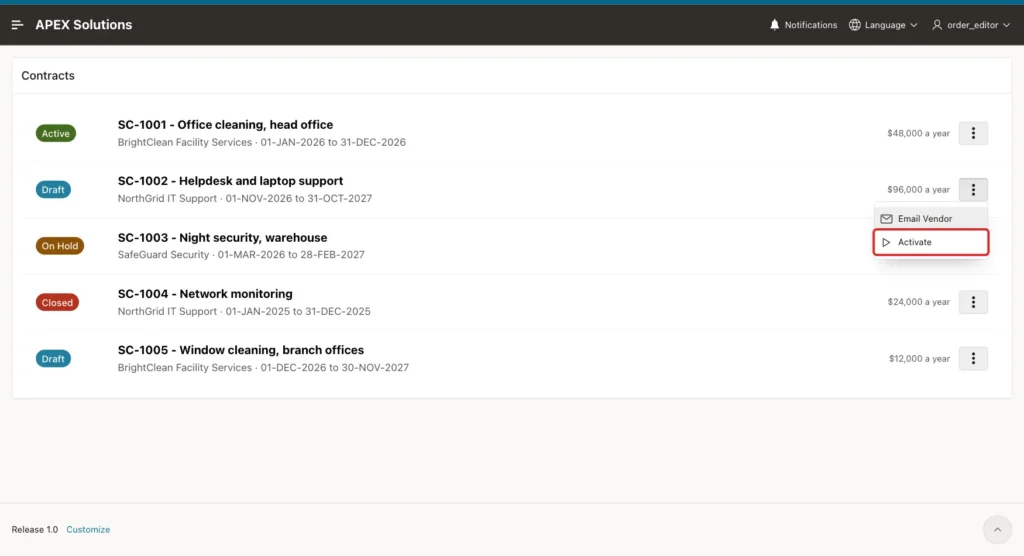
Clicking Activate changed the badge of SC-1002 to Active. The page did not reload: the browser sent three Ajax requests and only the Contracts region was redrawn:
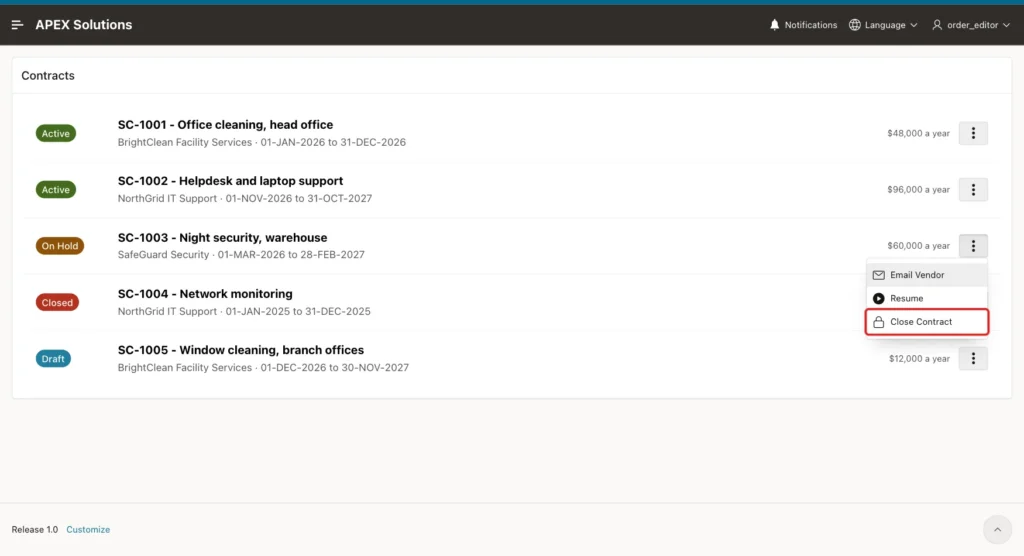
The menu of SC-1003, which is on hold, offers Resume and Close Contract instead:
Close Contract first opens the confirmation dialog:
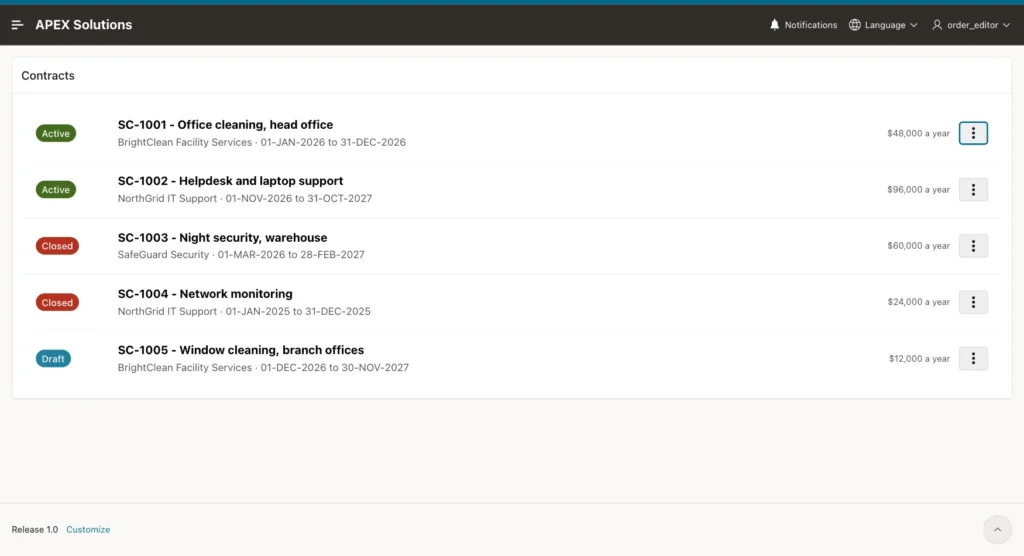
After OK, SC-1003 shows Closed. Its menu now holds only Email Vendor, because no condition matches a closed contract:
Next, sign in as an administrator. The menu of the draft SC-1005 now also shows the separator and Delete:
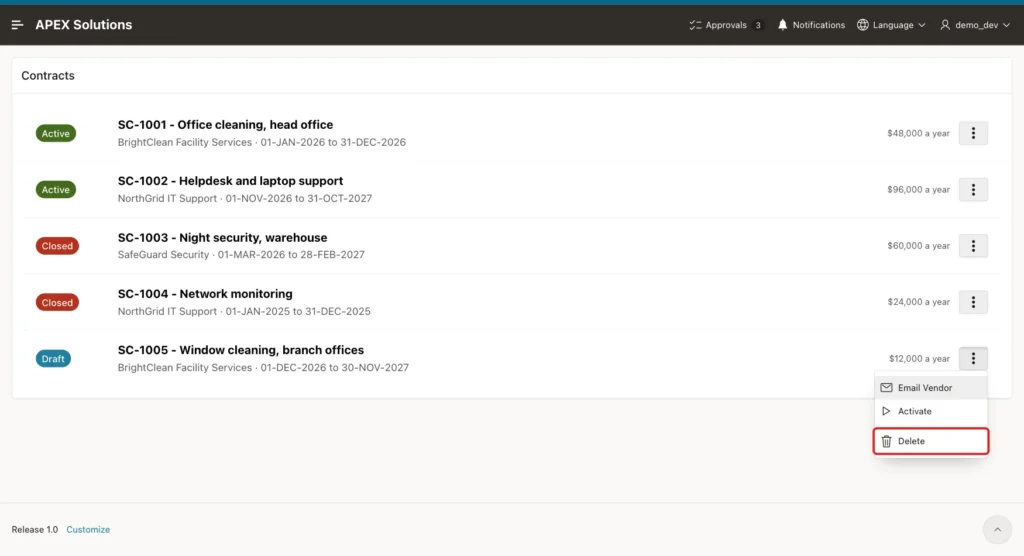
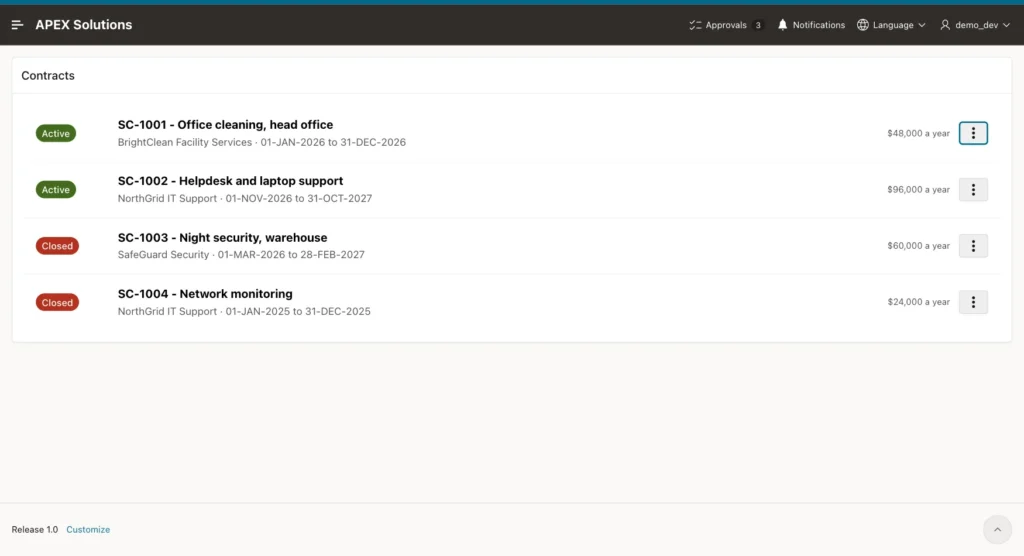
Delete asks first, then removes the row without a page reload:
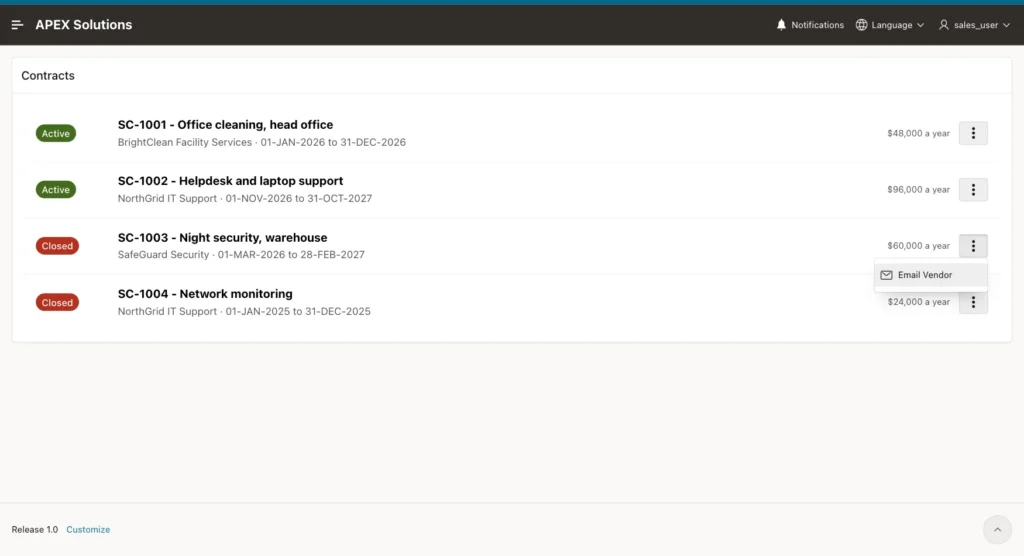
Finally, sign in as a Reader. Every menu holds only Email Vendor:
Step 13: Test a Menu That Is Out of Date
The conditions are checked when the rows are drawn. To test an old menu, an editor opened the page, and then an administrator put SC-1001 on hold in a second session. The editor's page still showed SC-1001 as Active, with Put on Hold in the menu.
When the editor clicked Put on Hold, the procedure refused the change and APEX showed its message in a dialog:
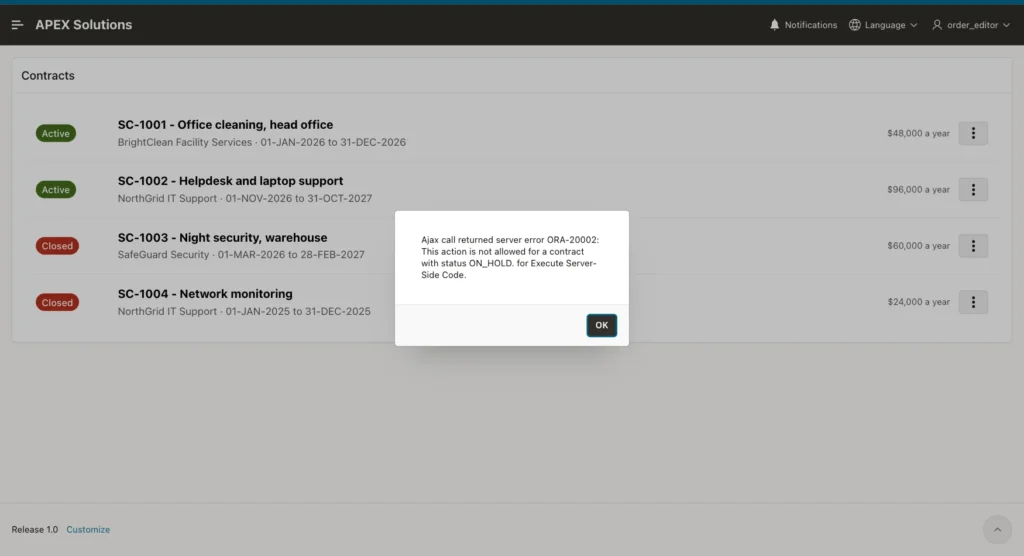
The Refresh action did not run after the error, so the row still showed Active until the page was reloaded. The rule in the procedure, not the hidden menu entry, is what keeps the data correct.
An attempt to show a shorter message with APEX_ERROR.ADD_ERROR in the Execute Server-side Code action failed: the Ajax response came back empty, no message appeared, and the Refresh ran as if all was well. The plain RAISE_APPLICATION_ERROR in the procedure is the version that tells the user what happened.
The contracts after all these tests:
Example:
column contract_no format a8
column title format a32
column status format a8

select contract_no, title, status
from   service_contracts
order by contract_no;
Output:
CONTRACT_NO    TITLE                           STATUS
______________ _______________________________ __________
SC-1001        Office cleaning, head office    ON_HOLD
SC-1002        Helpdesk and laptop support     ACTIVE
SC-1003        Night security, warehouse       CLOSED
SC-1004        Network monitoring              CLOSED
Things to Know
- The Cards region has no menu actions. In Page Designer, the Type of a Cards action offers only Button, Full Card, Title, Subtitle and Media. For a list with a menu on every record, use a Content Row region as in this guide.
- Classic report columns cannot use the Actions template component: their Type list offered only native types such as Plain Text, Link and Hidden.
- Interactive report columns can be of type Actions, but they behaved differently in the tests. Row values were available only for columns shown in the report: &CONTACT_EMAIL. was empty for a hidden column, and :STATUS was NULL until STATUS was displayed.
- In the interactive report, this.recordId was also empty, so a Trigger Action entry could not find its row. Use a Content Row region when the entries must act on the row.
- Every Execute Server-side Code action under an entry needs its own Authorization Scheme. The scheme on the menu entry only hides the entry.
Related Guides
- How to Hide Buttons and Regions Based on the User's Role in Oracle APEX
- Oracle APEX Cards, Content Rows, and Template Components
Conclusion
A row action menu in Oracle APEX is a menu action on a Content Row region. Its entries either open a link built from the row or run trigger actions. For Each Row conditions show each entry only for the right status, and authorization schemes show it only for the right role.
The tests showed status changes without a page reload, confirmation before closing and deleting, a Reader with only the e-mail entry, and an old menu blocked by the procedure. The most important lesson: put the authorization scheme on the server-side action as well, not only on the menu entry.
See my articles more often when you search Google.
