
A badge count next to a menu entry tells users how much work waits for them before they open the page. "Assigned to Me 3" or "Request Queue 4" in the side menu saves a click on every visit and makes new work visible at once.
The Side Navigation Menu of the Universal Theme has no Badge Value attribute, but its JavaScript turns text in square brackets inside a menu label into a badge. This guide fills those brackets from application items, hides the badge when the count is zero, and tests how the numbers change after users take and resolve work.
The guide How to Show "My Pending Approvals" with the Unified Task List in Oracle APEX puts a count on a Navigation Bar entry at the top of the page, which has its own Badge Value attribute. This guide puts counts on the entries of the side navigation menu, where that attribute does not exist.
The guide How to Build the Navigation Menu from a Table in Oracle APEX builds the menu itself from a table. Here the menu stays a normal static list, and only the counts come from the database.
The example uses IT help requests that are assigned to users or wait unassigned in a queue. The same steps work for any table with records waiting for a user, such as tasks, tickets or approvals.
Step 1: Create the Tables
The example needs two tables. IT_REQUEST_TYPES holds four request types, and IT_REQUESTS holds nine requests, some assigned to users and some unassigned:
Example:
create table it_request_types (
  type_id      number generated by default on null as identity
               constraint it_request_types_pk primary key,
  type_name    varchar2(40) not null
               constraint it_request_types_name_uk unique
);

create table it_requests (
  request_id   number generated by default on null as identity
               constraint it_requests_pk primary key,
  type_id      number not null
               constraint it_requests_type_fk references it_request_types,
  title        varchar2(100) not null,
  status       varchar2(11) default on null 'NEW' not null
               constraint it_requests_status_ck check (status in ('NEW', 'IN_PROGRESS', 'RESOLVED')),
  assigned_to  varchar2(255),
  created_on   date default on null sysdate not null,
  constraint it_requests_assigned_ck check (status = 'NEW' or assigned_to is not null)
);

create index it_requests_type_ix on it_requests (type_id);
create index it_requests_assigned_ix on it_requests (assigned_to, status);

insert into it_request_types (type_name)
values ('Hardware'), ('Software'), ('Access'), ('Network');

insert into it_requests (type_id, title, status, assigned_to, created_on)
select t.type_id, r.title, r.status, r.assigned_to, sysdate - r.days_ago
from (
  select 'Hardware' as type_name, 'Laptop battery does not charge' as title, 'IN_PROGRESS' as status, 'DEMO_DEV' as assigned_to, 3 as days_ago from dual union all
  select 'Software', 'Install SQL Developer', 'NEW', 'DEMO_DEV', 2 from dual union all
  select 'Access', 'Reset VPN token', 'IN_PROGRESS', 'DEMO_DEV', 1 from dual union all
  select 'Network', 'Slow Wi-Fi in meeting room 2', 'RESOLVED', 'DEMO_DEV', 6 from dual union all
  select 'Access', 'Shared drive access for new hire', 'NEW', 'ORDER_EDITOR', 2 from dual union all
  select 'Hardware', 'Second monitor request', 'NEW', null, 1 from dual union all
  select 'Software', 'Excel add-in crashes', 'NEW', null, 1 from dual union all
  select 'Network', 'Printer offline on floor 3', 'NEW', null, 0 from dual union all
  select 'Access', 'Unlock locked account', 'NEW', null, 0 from dual
) r
join it_request_types t on t.type_name = r.type_name;

commit;

select nvl(assigned_to, '(unassigned)') as assigned_to,
       count(case when status = 'NEW' then 1 end) as new_requests,
       count(case when status = 'IN_PROGRESS' then 1 end) as in_progress,
       count(case when status = 'RESOLVED' then 1 end) as resolved
from it_requests
group by assigned_to
order by assigned_to nulls last;
Output:
Table IT_REQUEST_TYPES created.

Table IT_REQUESTS created.

Index IT_REQUESTS_TYPE_IX created.

Index IT_REQUESTS_ASSIGNED_IX created.

4 rows inserted.

9 rows inserted.

Commit complete.

ASSIGNED_TO        NEW_REQUESTS    IN_PROGRESS    RESOLVED
_______________ _______________ ______________ ___________
(unassigned)                  4              0           0
DEMO_DEV                      1              2           1
ORDER_EDITOR                  1              0           0
A few details in the tables:
- IT_REQUESTS_STATUS_CK allows only NEW, IN_PROGRESS and RESOLVED. STATUS and CREATED_ON use DEFAULT ON NULL, so new requests need no trigger.
- IT_REQUESTS_ASSIGNED_CK requires an assigned user for every request that is not NEW. A request in progress always has an owner.
- ASSIGNED_TO holds the APEX user name. The index on ASSIGNED_TO and STATUS supports both count queries, which run on every page view.
DEMO_DEV has three open requests and one resolved request. ORDER_EDITOR has one open request, and four requests wait in the queue without an owner.
Step 2: Create the Assigned to Me Page
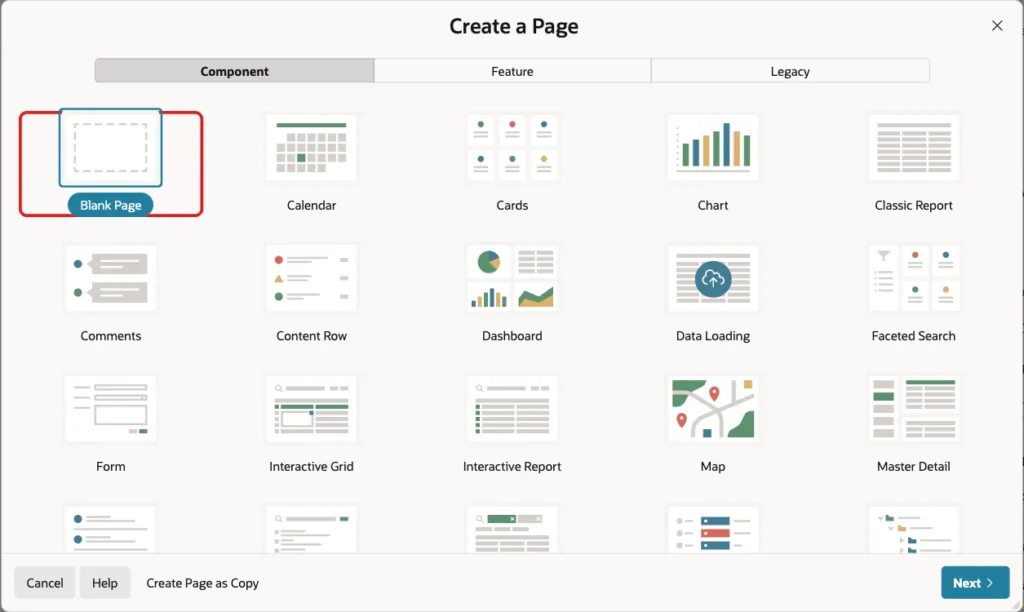
In App Builder, open the application and click Create Page. On the Component tab, select Blank Page:
Set Page Number to 1070 and Name to Assigned to Me. Turn Use Breadcrumb off, keep Use Navigation on, set Icon to fa-user-circle-o and click Create Page:
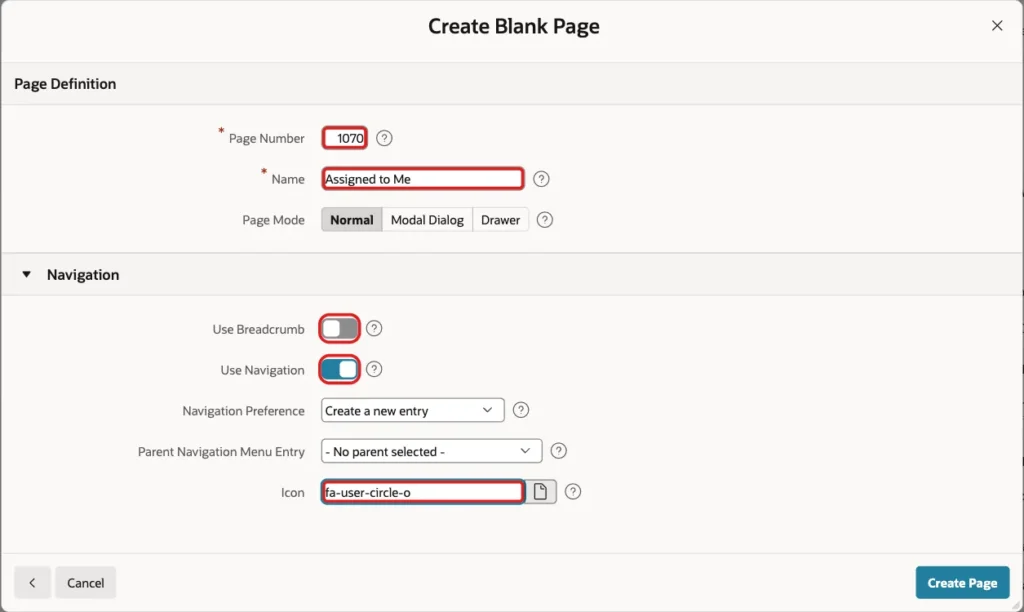
With Use Navigation on, the wizard also adds an Assigned to Me entry to the Navigation Menu list. Step 9 adds the badge to this entry.
Step 3: Add the My Open Requests Region
In Page Designer, right-click Body and choose Create Region. Set Name to My Open Requests and Type to Classic Report. Under Source, keep Type SQL Query and enter this query:
Example:
select r.request_id,
       r.title,
       t.type_name,
       initcap(replace(r.status, '_', ' ')) as status_label,
       r.created_on,
       'Resolve' as resolve_label
from   it_requests r
join   it_request_types t on t.type_id = r.type_id
where  r.assigned_to = :APP_USER
and    r.status <> 'RESOLVED'
order  by r.created_on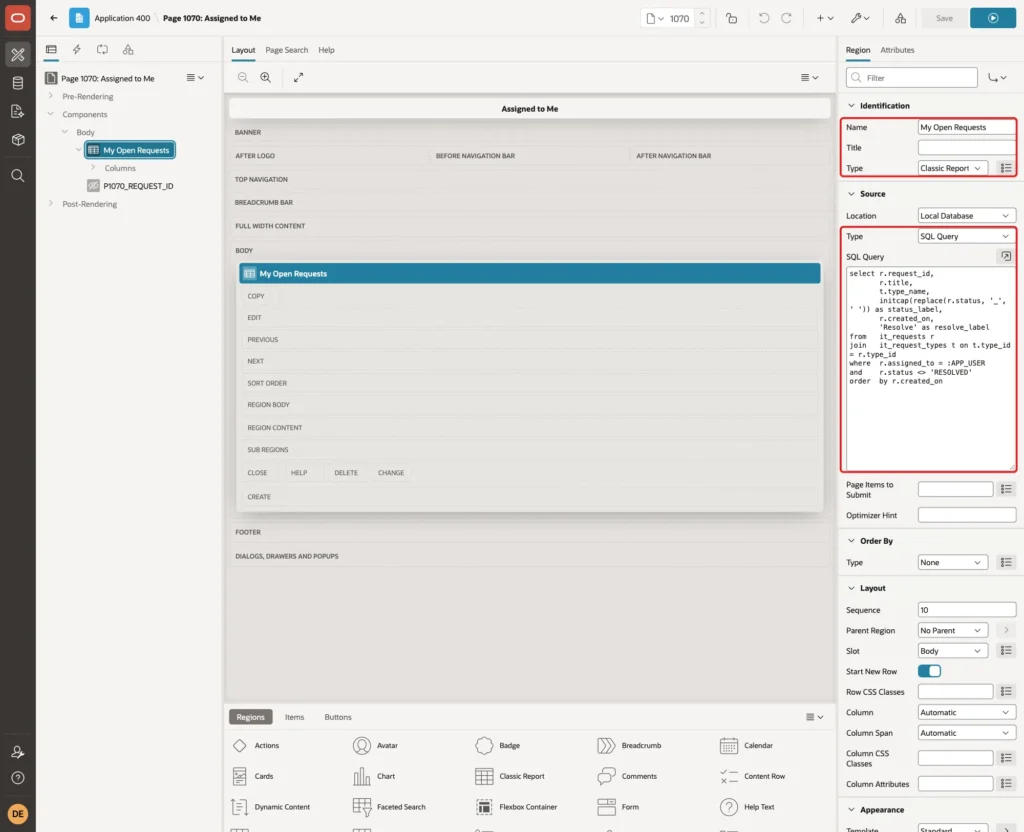
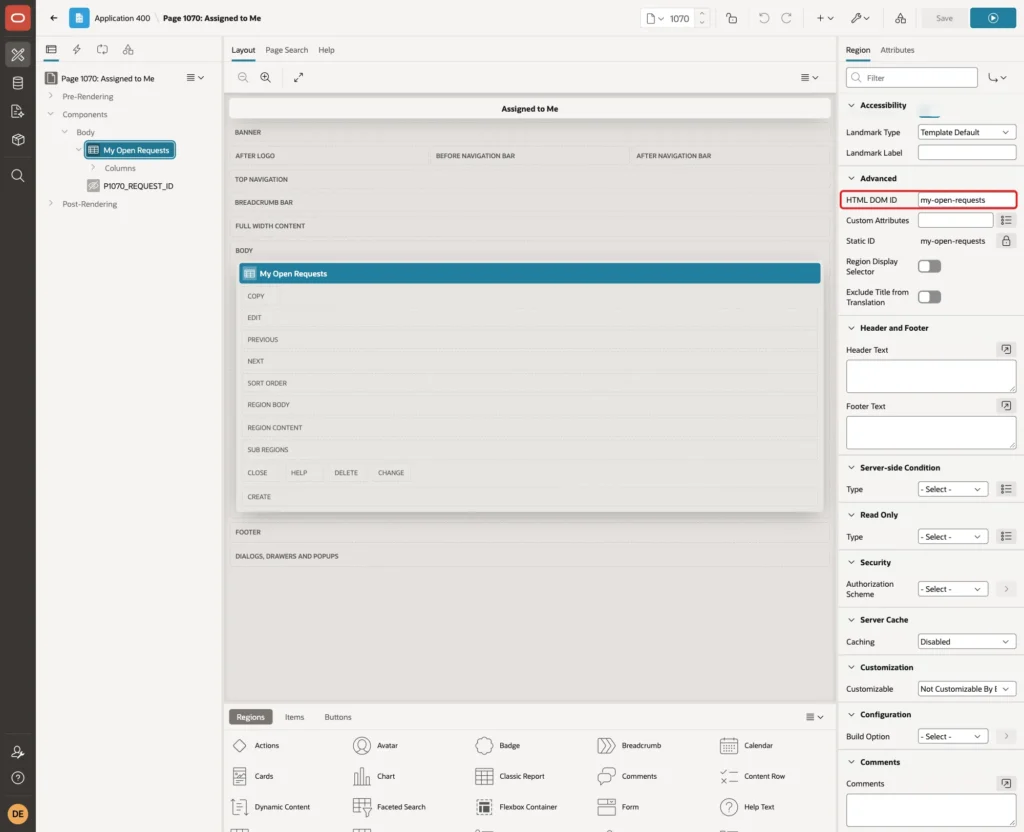
Under Advanced, set HTML DOM ID to my-open-requests:
In the region attributes, set the No Data Found message to "No open requests are assigned to you." Then expand the region's Columns in the Rendering tree:
- REQUEST_ID: Type Hidden.
- TITLE, TYPE_NAME, STATUS_LABEL and CREATED_ON: Headings Request, Type, Status and Created. Set the Format Mask of CREATED_ON to DD-MON-YYYY.
- RESOLVE_LABEL: Heading Action.
Step 4: Add the Resolve Link and the Hidden Item
Select the RESOLVE_LABEL column and set Type to Link. Under Link, click Target, set Type to URL and enter this URL. Set Link Text to #RESOLVE_LABEL#:
Example:
javascript:apex.page.submit({request: 'RESOLVE', set: {'P1070_REQUEST_ID': '#REQUEST_ID#'}});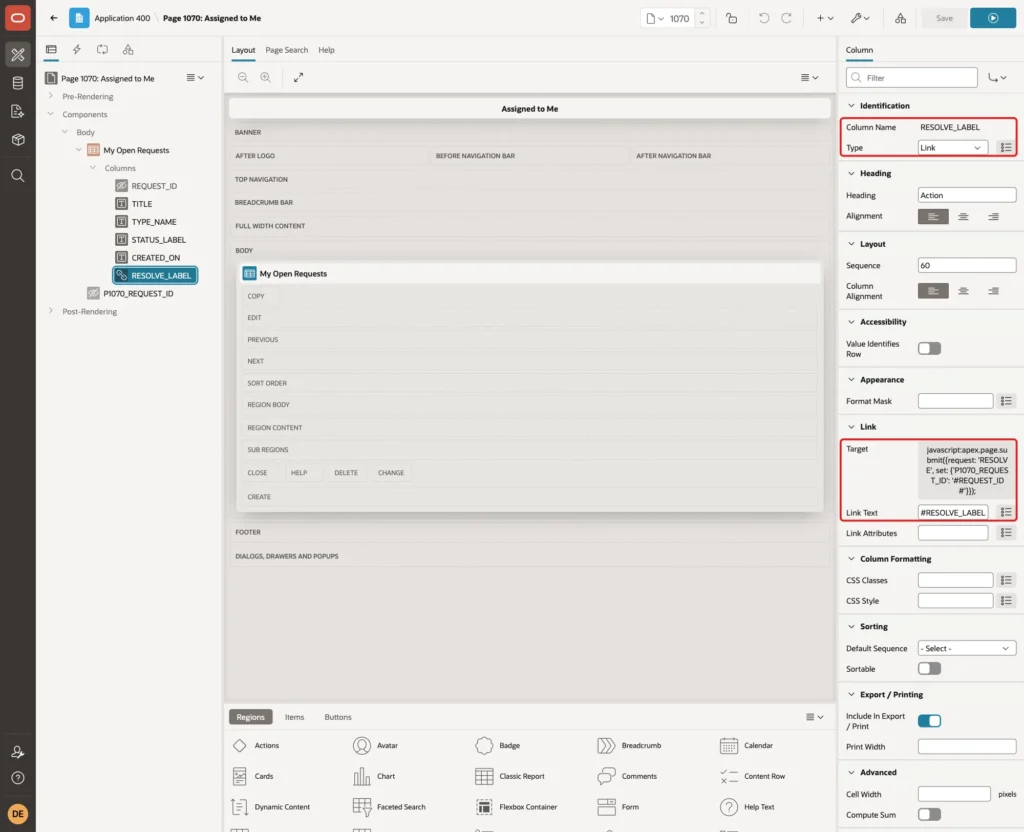
The link submits the page with the request RESOLVE and puts the request ID into a hidden item. A submit sends a POST request, so the change does not happen through a plain URL.
Right-click Body and choose Create Page Item. Set Name to P1070_REQUEST_ID and Type to Hidden. Turn Value Protected off, because the link sets the value in the browser. Under Session State, set Storage to Per Request (Memory Only):
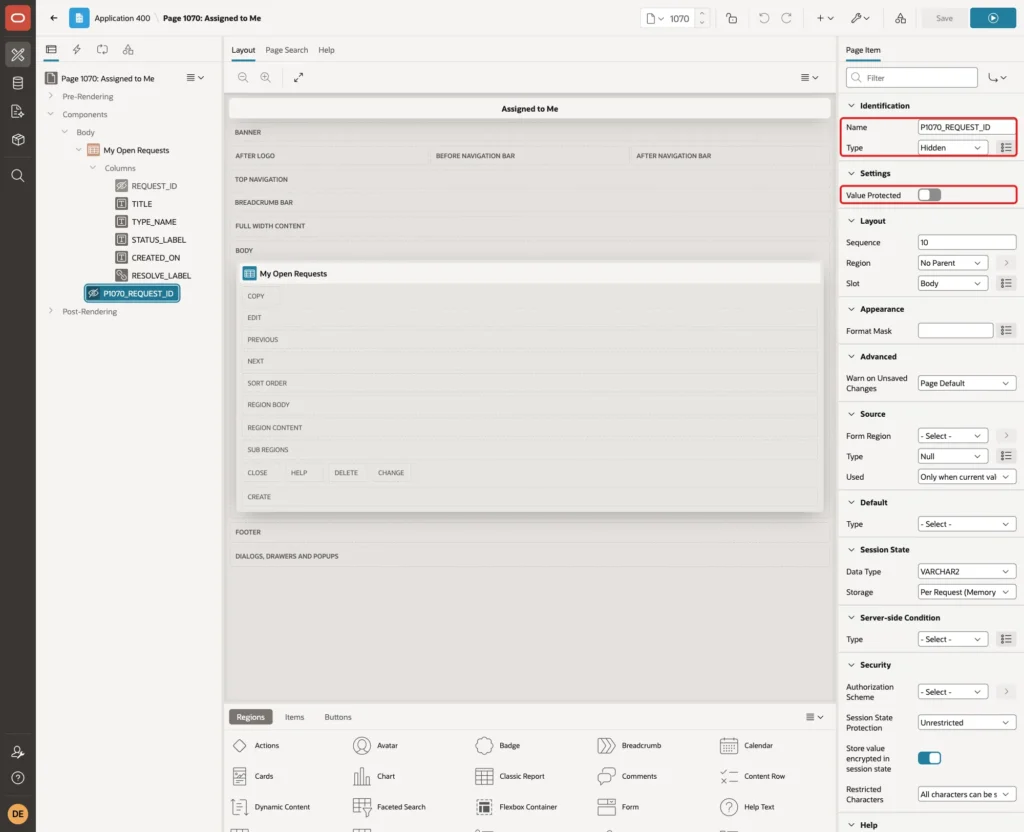
With Value Protected off, a user can send any request ID. The process in the next step checks the owner, so a changed ID cannot resolve another user's request.
Step 5: Add the Resolve Process and the Branch
Open the Processing tab. Right-click Processing and choose Create Process. Set Name to Resolve Request, Type to Execute Code, and enter this PL/SQL Code:
Example:
begin
    update it_requests
    set    status = 'RESOLVED'
    where  request_id = :P1070_REQUEST_ID
    and    assigned_to = :APP_USER
    and    status <> 'RESOLVED';

    if sql%rowcount = 0 then
        raise_application_error(-20001, 'This request is not open in your list.');
    end if;
end;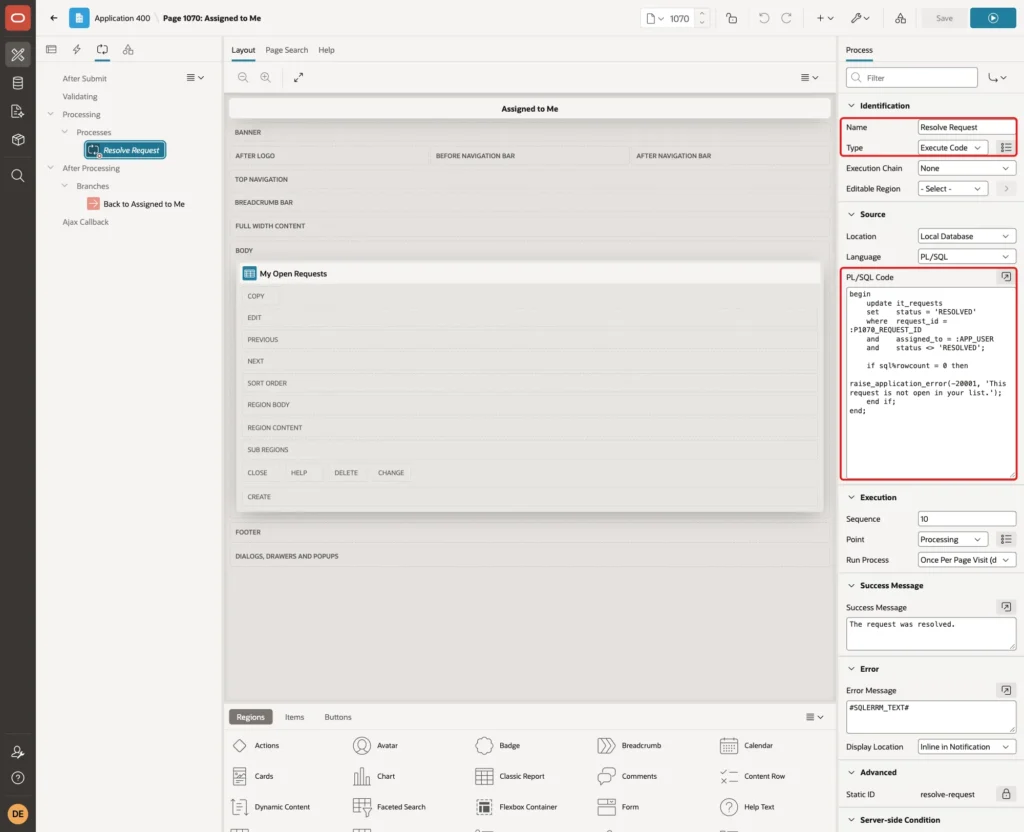
The WHERE clause updates the row only when it belongs to the signed-in user and is still open. If no row matches, the process raises an error.
Set Success Message to "The request was resolved." and Error Message to #SQLERRM_TEXT#. Under Server-side Condition, set Type to Request = Value and Value to RESOLVE:

Right-click After Processing and choose Create Branch. Name it Back to Assigned to Me and set its target to page 1070. Click Save.
Step 6: Create the Request Queue Page
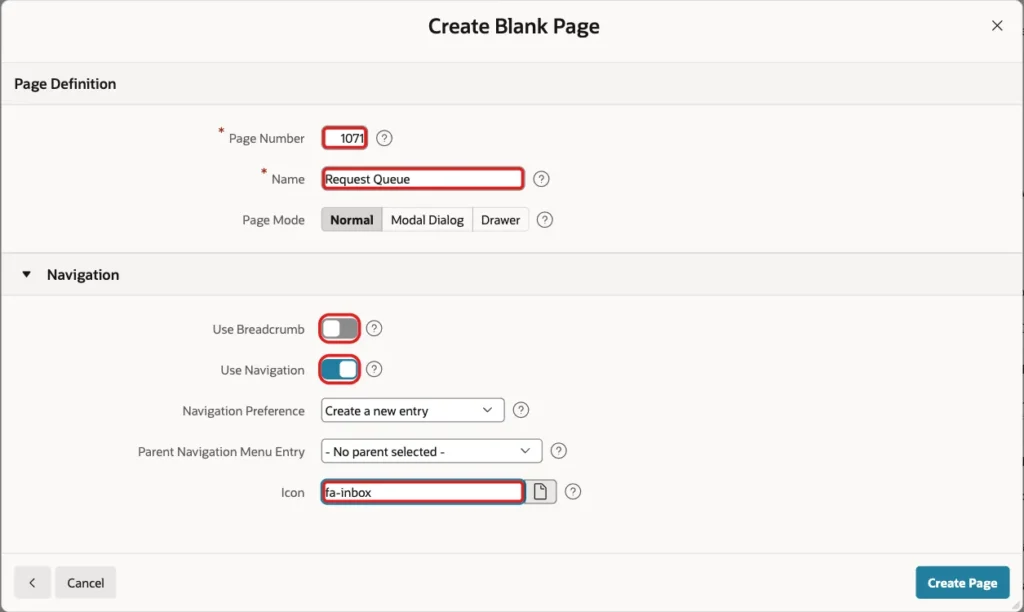
Create a second Blank Page in the same way. Set Page Number to 1071 and Name to Request Queue. Turn Use Breadcrumb off, keep Use Navigation on, set Icon to fa-inbox and click Create Page:
Add a Classic Report region named Unassigned Requests with HTML DOM ID unassigned-requests and this query:
Example:
select r.request_id,
       r.title,
       t.type_name,
       r.created_on,
       'Take' as take_label
from   it_requests r
join   it_request_types t on t.type_id = r.type_id
where  r.assigned_to is null
order  by r.created_on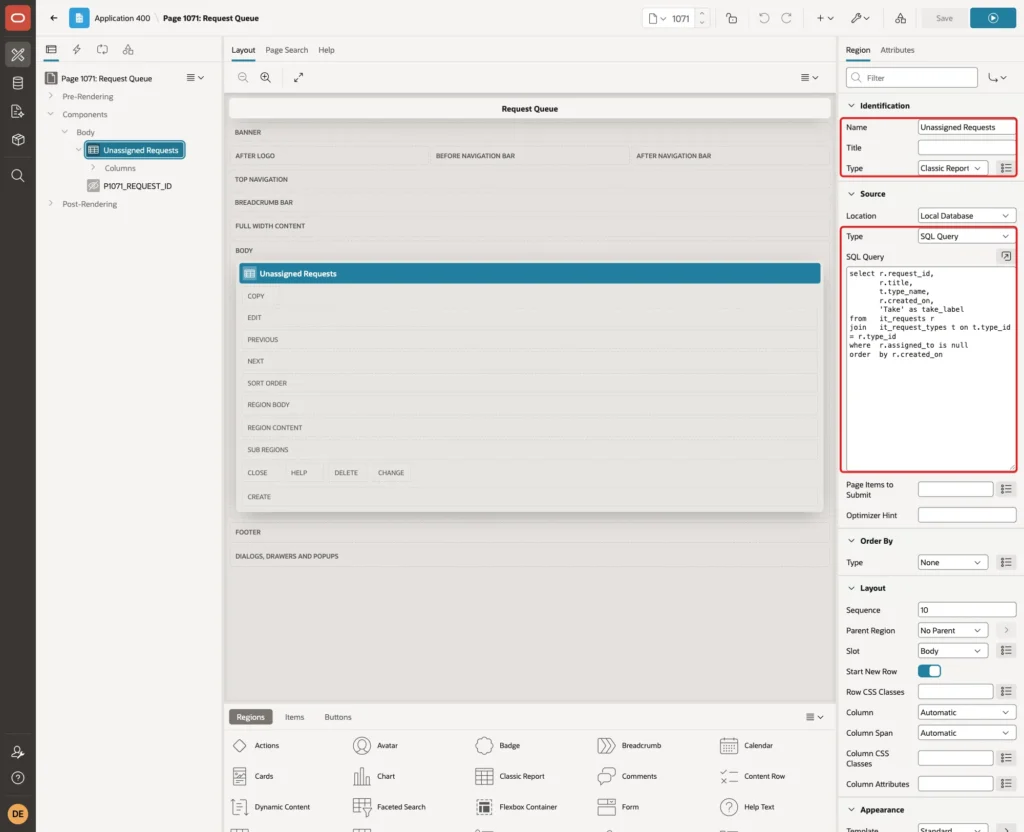
Set the No Data Found message to "The queue is empty." Make REQUEST_ID hidden and set the headings Request, Type, Created and Action, as on page 1070.
Step 7: Add the Take Link and Process
Set the TAKE_LABEL column to Type Link, with Link Text #TAKE_LABEL# and this Target URL:
Example:
javascript:apex.page.submit({request: 'TAKE', set: {'P1071_REQUEST_ID': '#REQUEST_ID#'}});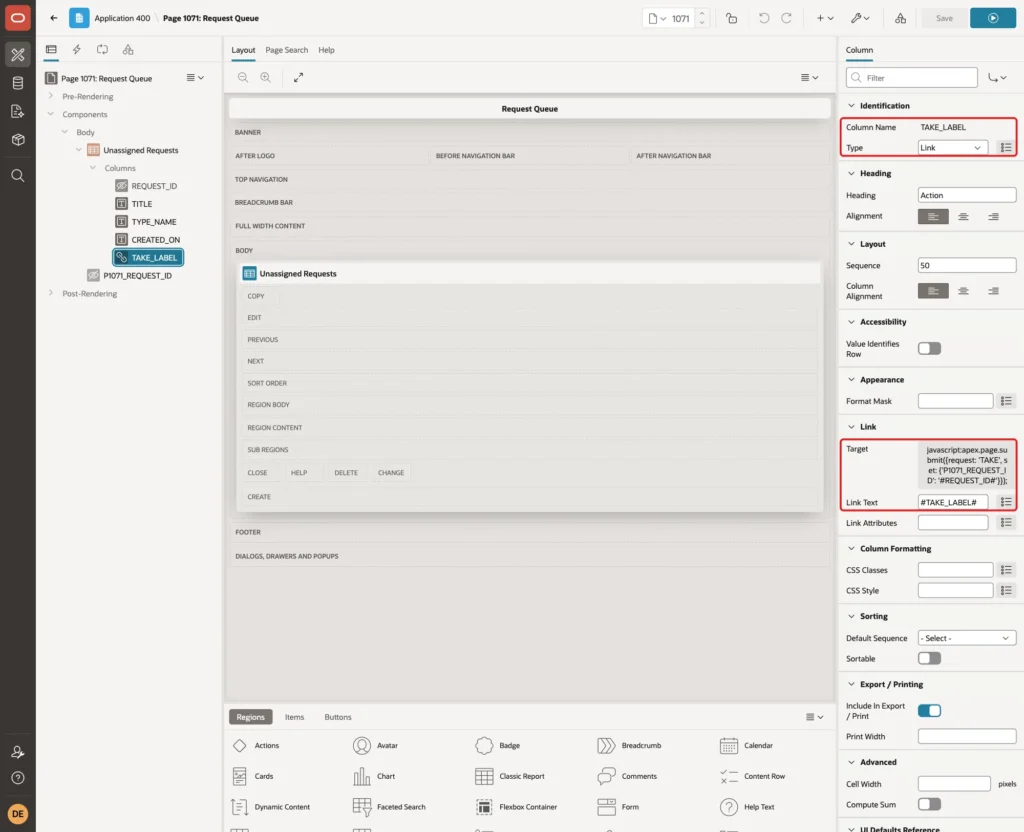
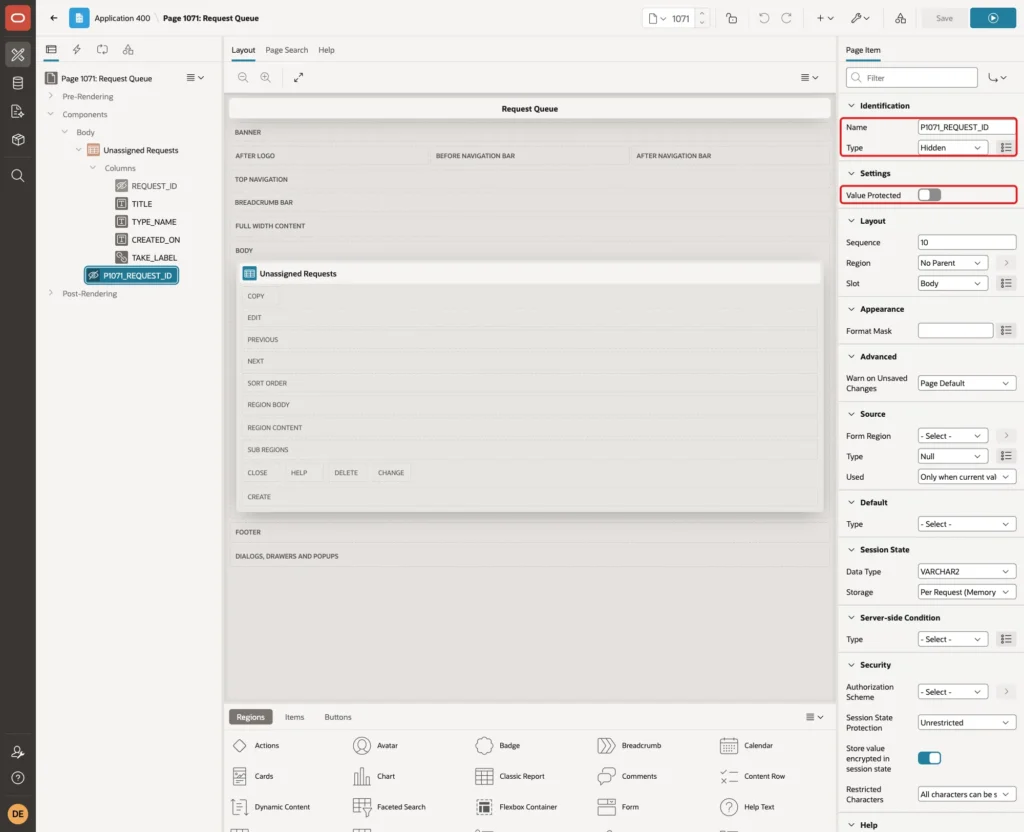
Create the hidden item P1071_REQUEST_ID with Value Protected off and Storage Per Request (Memory Only):
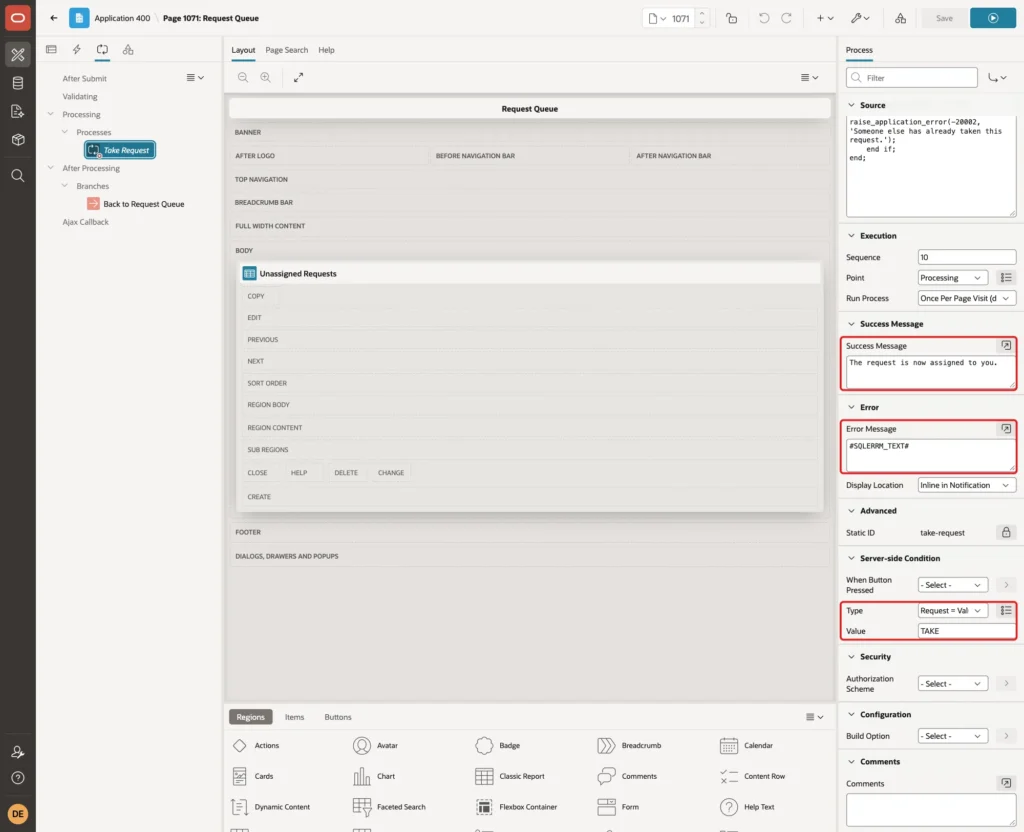
Create a process named Take Request of Type Execute Code with this PL/SQL Code:
Example:
begin
    update it_requests
    set    assigned_to = :APP_USER,
           status      = 'IN_PROGRESS'
    where  request_id = :P1071_REQUEST_ID
    and    assigned_to is null;

    if sql%rowcount = 0 then
        raise_application_error(-20002, 'Someone else has already taken this request.');
    end if;
end;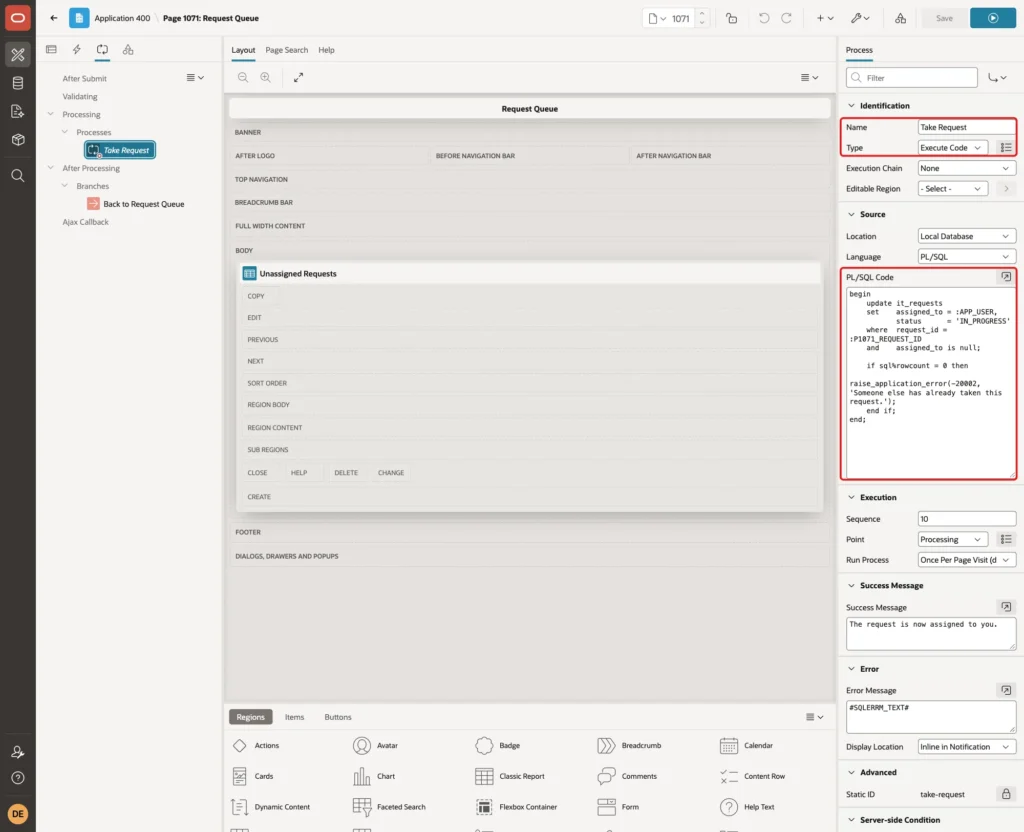
The condition assigned_to is null makes Take safe when two users click at the same time. Only the first update finds the row; the second one updates nothing and gets the error.
Set Success Message to "The request is now assigned to you.", Error Message to #SQLERRM_TEXT#, and Server-side Condition to Request = Value with Value TAKE:
Add a branch named Back to Request Queue with target page 1071 and click Save.
Step 8: Create the Application Items and Computations
The badge numbers live in two application items. In Shared Components, click Application Items, then Create. Enter Name MY_OPEN_REQUESTS, Scope Application, and Session State Protection Restricted - May not be set from browser:
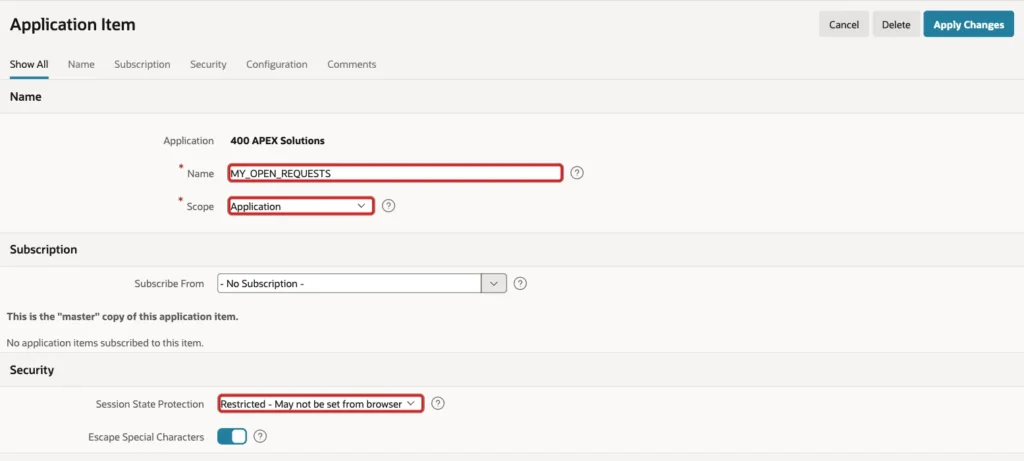
Create a second application item named QUEUE_REQUESTS with the same settings. Restricted means that no URL or form submit can change the values; only the computations below set them.
In Shared Components, click Application Computations, then Create. Set Sequence to 20, Computation Item to MY_OPEN_REQUESTS, Computation Point to Before Header, Computation Type to SQL Query (return single value), and enter this query:
Example:
select nullif(count(*), 0)
from   it_requests
where  assigned_to = :APP_USER
and    status <> 'RESOLVED'
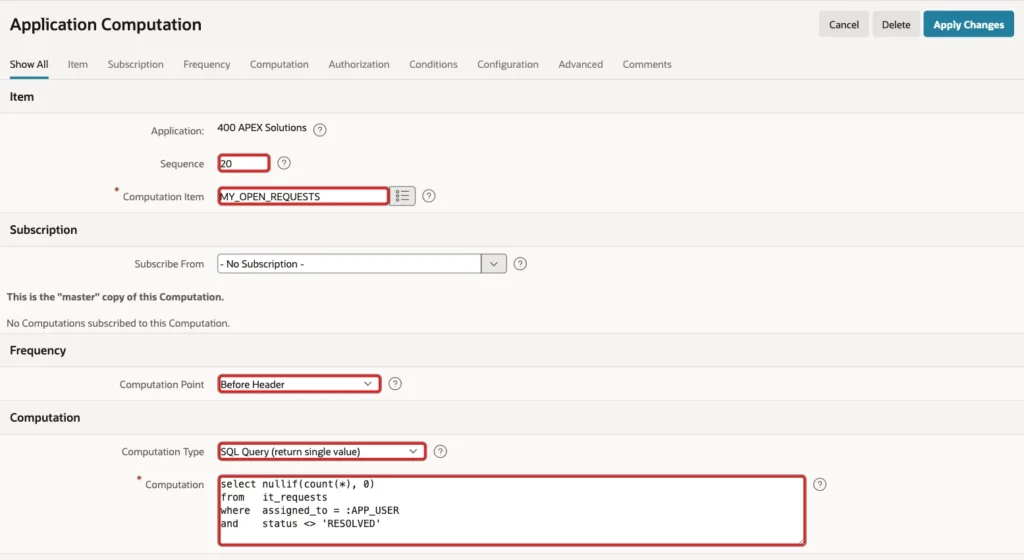
NULLIF turns a count of 0 into NULL. The label then ends with empty brackets, and the theme removes them, so users with no work see no badge at all.
Create a second computation with Sequence 30 for QUEUE_REQUESTS:
Example:
select nullif(count(*), 0)
from   it_requests
where  assigned_to is null
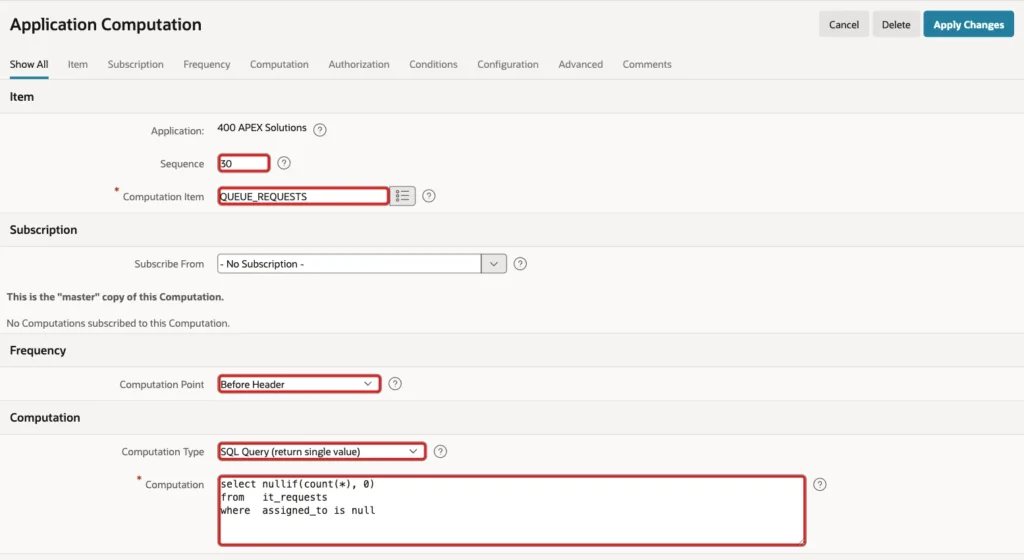
Before Header runs the computations on every page view, so the numbers are fresh after every navigation. Both queries use the index on ASSIGNED_TO and STATUS.
Step 9: Add the Counts to the Menu Labels
In Shared Components, click Navigation Menu, open the Navigation Menu list and edit the Assigned to Me entry. Change List Entry Label to this value and click Apply Changes:
Example:
Assigned to Me [&MY_OPEN_REQUESTS.]
![List Entry page with List Entry Label Assigned to Me [&MY_OPEN_REQUESTS.] marked with a red box](https://vinish.dev/wp-content/uploads/2026/10/apxnavbadge-apex-navbadge-entry-my-1024x494.webp)
Edit the Request Queue entry in the same way:
Example:
Request Queue [&QUEUE_REQUESTS.]
![List Entry page with List Entry Label Request Queue [&QUEUE_REQUESTS.] marked with a red box](https://vinish.dev/wp-content/uploads/2026/10/apxnavbadge-apex-navbadge-entry-queue-1024x494.webp)
APEX replaces &MY_OPEN_REQUESTS. with the item value when it renders the menu. The Universal Theme then finds the text in square brackets, removes it from the label and shows it as a badge.
Scroll down to User Defined Attributes on the same page. For the Side Navigation Menu template, attribute 1 is ID Attribute, 2 is Disabled and 3 has no use:
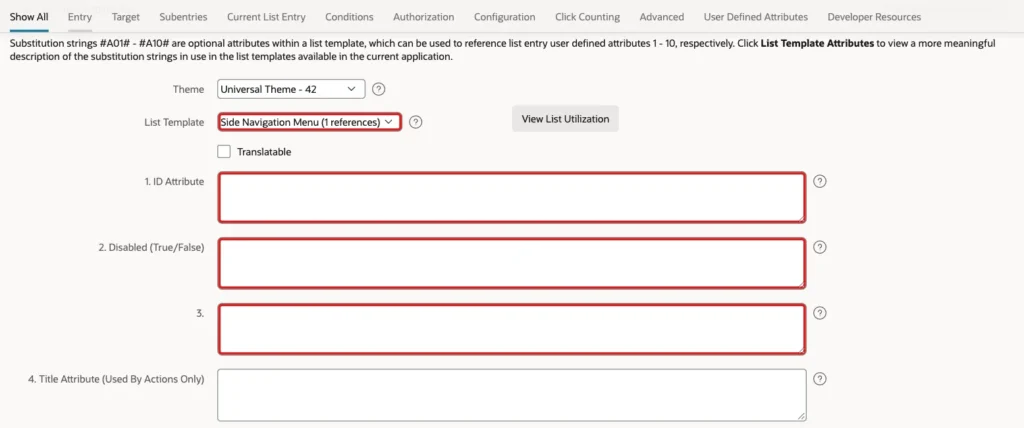
A query on APEX_APPLICATION_TEMP_LIST confirmed this: Navigation Bar and Top Navigation Mega Menu have a Badge Value attribute, but Side Navigation Menu does not. That is why the count goes into the label.
Step 10: Test the Badges for Two Users
DEMO_DEV signed in and opened Assigned to Me. The menu showed the badge 3 for the three open requests and 4 for the queue:
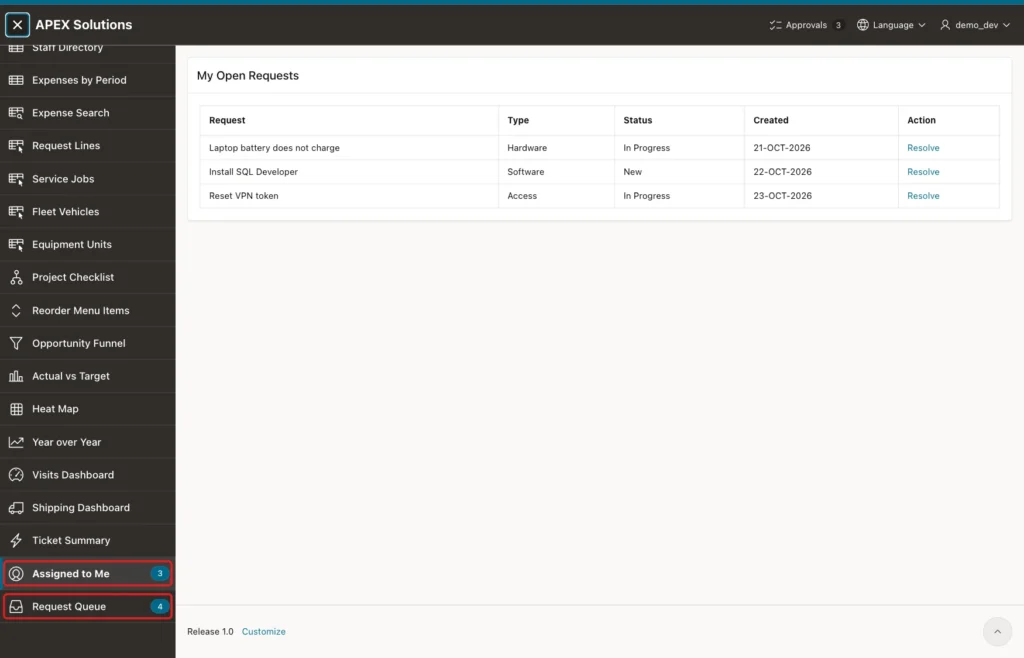
The resolved request "Slow Wi-Fi in meeting room 2" is not counted, because the query excludes RESOLVED. The Approvals 3 badge in the top bar comes from the older approvals example and counts approval tasks, not these requests.
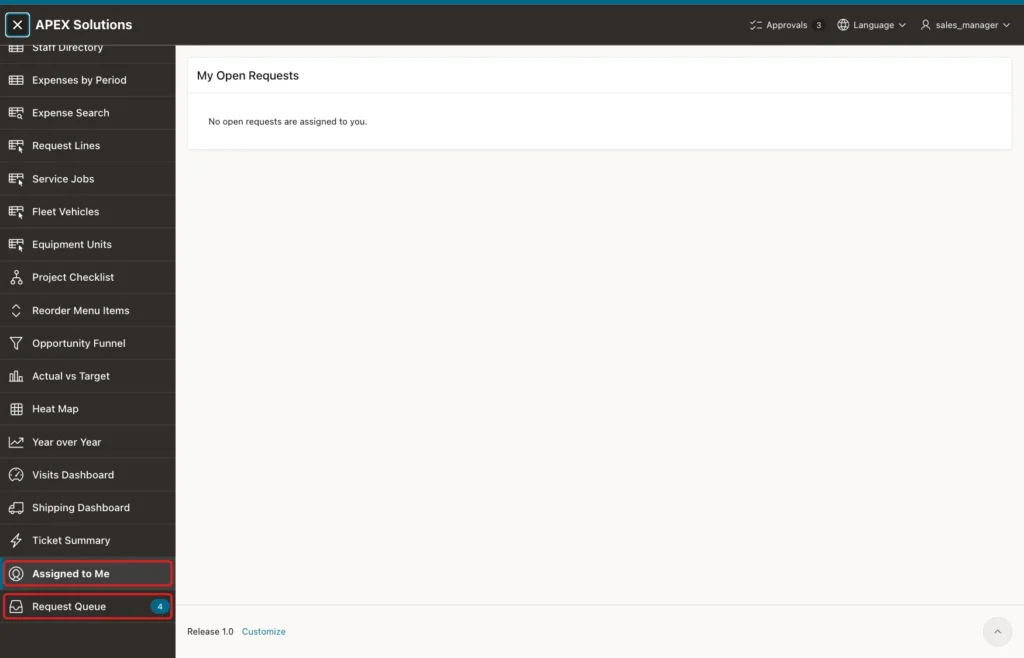
SALES_MANAGER has no requests. The Assigned to Me entry showed no badge, and the page showed the No Data Found message. The queue badge still showed 4, because the queue is shared by all users:
Step 11: Test the Counts After Changes
DEMO_DEV clicked Resolve on "Install SQL Developer". APEX showed the success message, and the Assigned to Me badge dropped from 3 to 2 on the same page view:
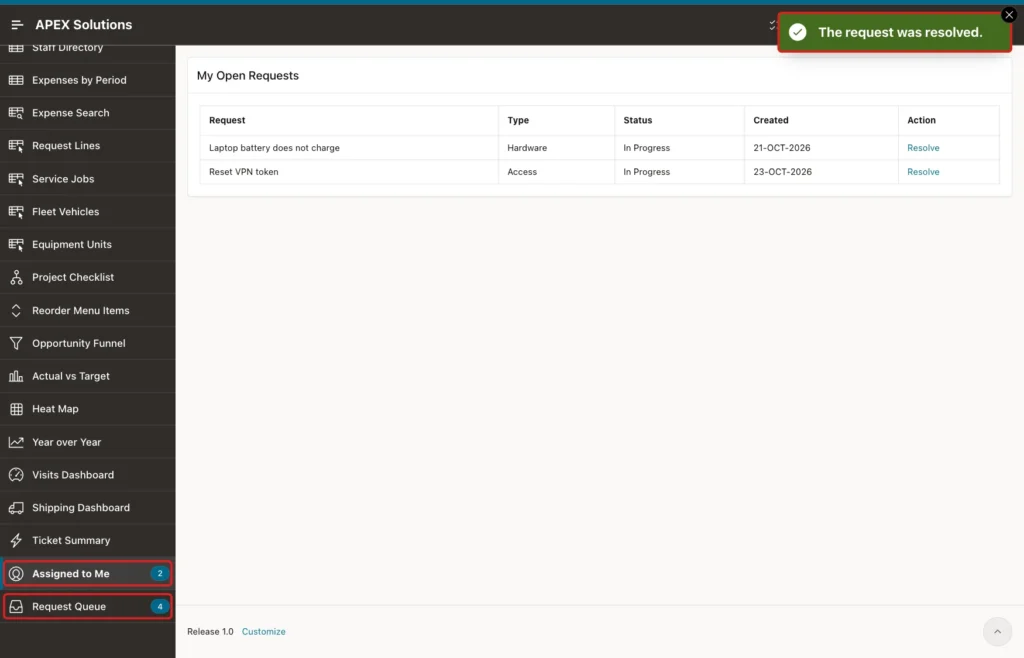
The process runs after submit, and the branch loads the page again. The Before Header computation then counts the new state, so the badge never lags behind a successful action.
DEMO_DEV then opened Request Queue and clicked Take on "Unlock locked account". Assigned to Me went back to 3 and the queue went down to 3:
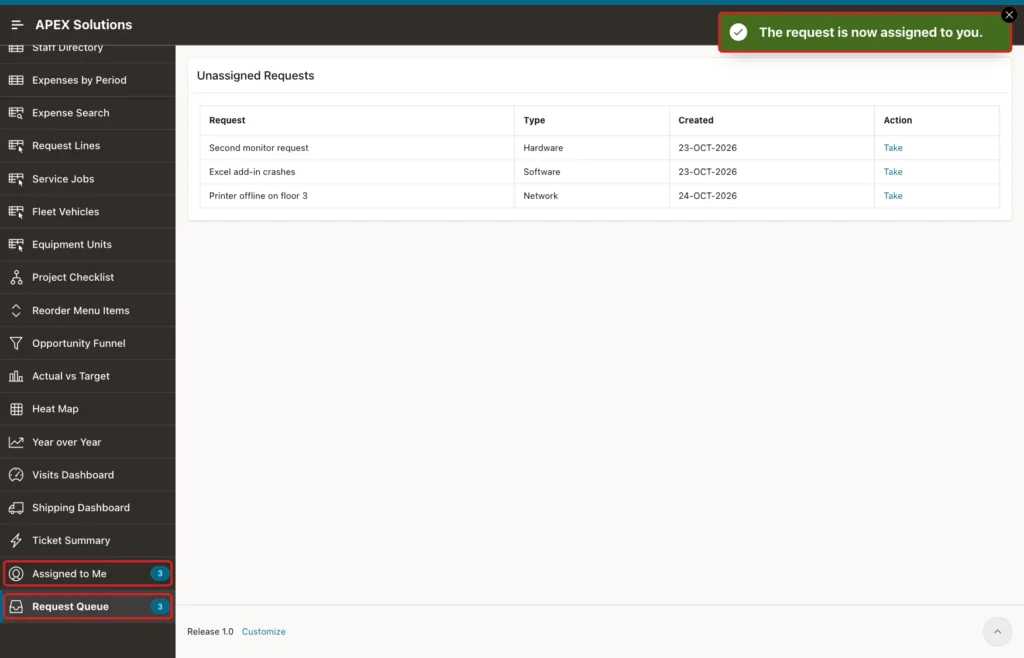
Step 12: Test Two Users Taking the Same Request
SALES_MANAGER and DEMO_DEV both had the Request Queue page open with three requests. SALES_MANAGER clicked Take on "Printer offline on floor 3" first, and the badges changed to Assigned to Me 1 and Request Queue 2.
DEMO_DEV, still looking at the old list, clicked Take on the same request. The update found no unassigned row, and APEX showed the error from the process:
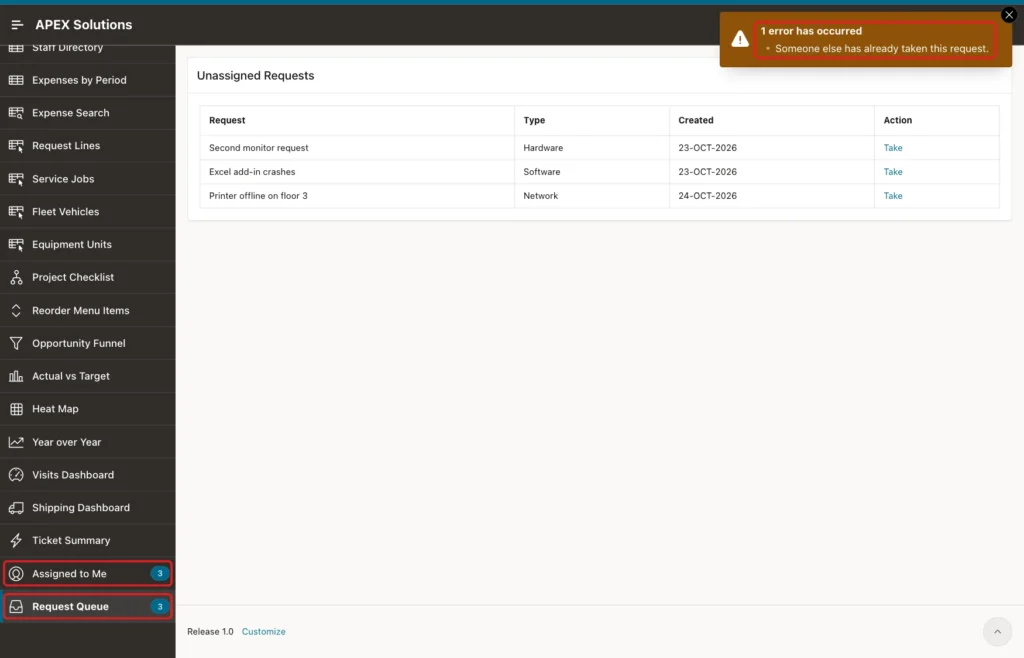
The request list and the queue badge still showed 3 in this view. APEX returned the process error without loading the page again, so the computations did not run. On the next page view, the queue badge showed 2.
Step 13: Test Forged Requests
On Assigned to Me, DEMO_DEV ran this in the browser console to resolve request 5, which belongs to ORDER_EDITOR:
Example:
apex.page.submit({ request: 'RESOLVE', set: { 'P1070_REQUEST_ID': '5' } });Output:
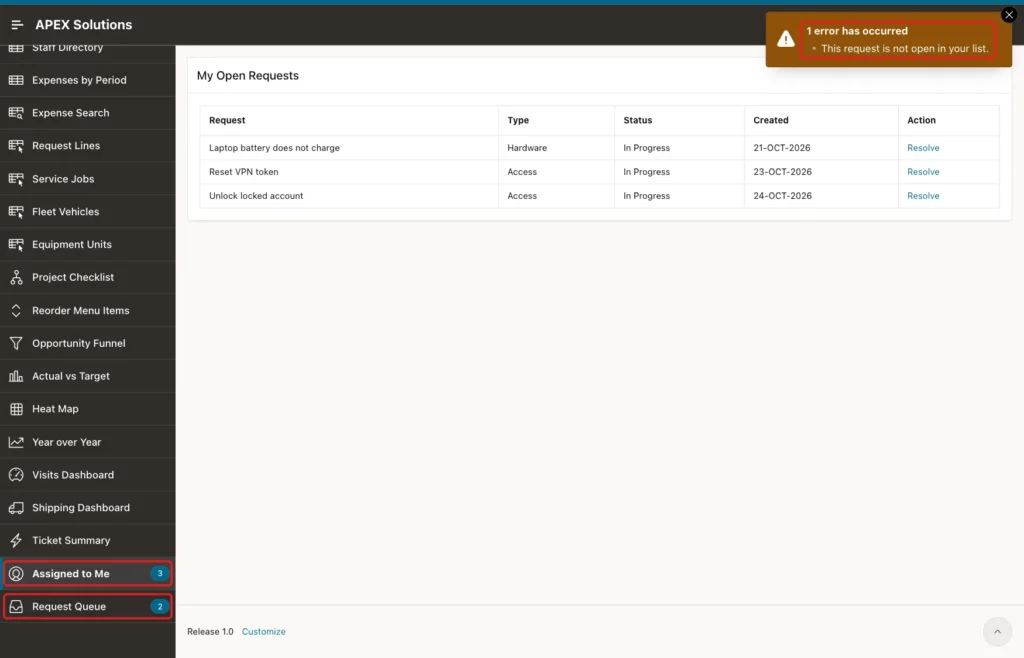
The process refused the change, and request 5 stayed NEW for ORDER_EDITOR. The badges kept their values.
Next, DEMO_DEV tried to set the badge value from a URL, with MY_OPEN_REQUESTS set to 99 in an f?p link to page 10, a page of the app without page access protection:
Example:
https://localhost:8443/ords/f?p=400:10:<session>::NO::MY_OPEN_REQUESTS:99
Output:
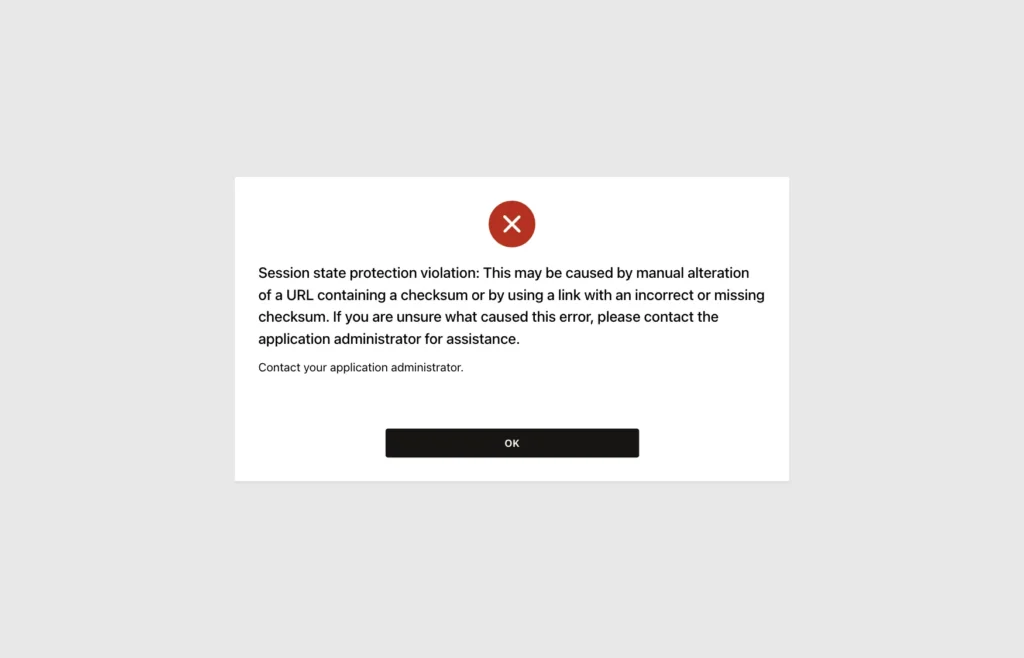
APEX stopped the request with a session state protection violation. When DEMO_DEV opened Assigned to Me again, the badge still showed 3.
Step 14: Check the Counts in SQL
This query runs the same counts for each test user and lists the final state of the requests:
Example:
select u.user_name,
       (select nullif(count(*), 0)
          from it_requests
         where assigned_to = u.user_name
           and status <> 'RESOLVED') as my_open_requests,
       (select nullif(count(*), 0)
          from it_requests
         where assigned_to is null) as queue_requests
from (select 'DEMO_DEV' as user_name from dual union all
      select 'SALES_MANAGER' from dual union all
      select 'ORDER_EDITOR' from dual union all
      select 'SALES_USER' from dual) u;

select request_id, title, status, nvl(assigned_to, '(unassigned)') as assigned_to
from it_requests
order by request_id;
Output:
USER_NAME           MY_OPEN_REQUESTS    QUEUE_REQUESTS
________________ ___________________ _________________
DEMO_DEV                           3                 2
SALES_MANAGER                      1                 2
ORDER_EDITOR                       1                 2
SALES_USER                                           2

   REQUEST_ID TITLE                               STATUS         ASSIGNED_TO
_____________ ___________________________________ ______________ ________________
            1 Laptop battery does not charge      IN_PROGRESS    DEMO_DEV
            2 Install SQL Developer               RESOLVED       DEMO_DEV
            3 Reset VPN token                     IN_PROGRESS    DEMO_DEV
            4 Slow Wi-Fi in meeting room 2        RESOLVED       DEMO_DEV
            5 Shared drive access for new hire    NEW            ORDER_EDITOR
            6 Second monitor request              NEW            (unassigned)
            7 Excel add-in crashes                NEW            (unassigned)
            8 Printer offline on floor 3          IN_PROGRESS    SALES_MANAGER
            9 Unlock locked account               IN_PROGRESS    DEMO_DEV

9 rows selected.
The numbers match the badges at the end of the tests: DEMO_DEV 3, SALES_MANAGER 1, and 2 requests left in the queue. SALES_USER has no open requests, so the count is NULL and that user sees no badge.
Things to Know
- The Side Navigation Menu template has no Badge Value attribute. The Universal Theme shows text in square brackets in a label as a badge, and removes empty brackets.
- Do not use square brackets for anything else in menu labels, because the theme treats them as a badge.
- Return NULL instead of 0 (NULLIF) to hide the badge when there is nothing to do.
- Before Header computations run on every page view, so keep the count queries small and indexed.
- Set the application items to Restricted, so users cannot change the numbers from a URL or a form submit.
- After a process error that APEX shows without reloading the page, the badges keep their old values until the next page view.
- Navigation Bar entries have their own Badge Value attribute (user-defined attribute 1), as used in the approvals guide.
Related Guides
- How to Show "My Pending Approvals" with the Unified Task List in Oracle APEX
- How to Build the Navigation Menu from a Table in Oracle APEX
Conclusion
Badge counts on navigation menu entries in Oracle APEX need no plugin and no custom JavaScript. Two restricted application items, two Before Header computations, and a label like "Assigned to Me [&MY_OPEN_REQUESTS.]" were enough for the side menu to show live counts.
The counts followed every successful action at once, because the branch reloads the page. Protect the processes behind the menu with owner checks, as the forged and parallel tests showed, and return NULL to hide badges with nothing to count.
See my articles more often when you search Google.
