
A dashboard is only as fast as its slowest region. When one report runs a heavy query, APEX normally waits for that query before it sends the page to the browser. The user stares at an empty screen, even though the other regions were ready long ago.
Oracle APEX solves this with Lazy Loading: the page is sent at once, and the slow region loads its data with a separate request. This guide builds such a dashboard, measures the load time before and after, and shows what happens when a lazy region fails.
The guide How to Auto-Refresh a Dashboard Region Without Reloading the Page in Oracle APEX refreshes regions again and again while the page is open. This one is about the first page load: how to stop one slow region from delaying the whole page.
The example uses shipments from four warehouses. The same steps work for any dashboard with a slow region, such as sales figures, ticket statistics or stock levels.
Step 1: Create the Tables
The example needs two tables. WAREHOUSES holds the four warehouses, and SHIPMENTS holds 60 days of shipments, from 26 August to 24 October 2026:
Example:
create table warehouses (
  warehouse_id    number generated by default on null as identity
                  constraint warehouses_pk primary key,
  warehouse_name  varchar2(40) not null
                  constraint warehouses_name_uk unique,
  city            varchar2(40) not null
);

create table shipments (
  shipment_id     number generated by default on null as identity
                  constraint shipments_pk primary key,
  warehouse_id    number not null
                  constraint shipments_warehouse_fk references warehouses,
  shipped_on      date not null,
  status          varchar2(12) default on null 'IN_TRANSIT' not null
                  constraint shipments_status_ck check (status in ('IN_TRANSIT', 'DELIVERED', 'DELAYED')),
  weight_kg       number(8,2) not null
                  constraint shipments_weight_ck check (weight_kg > 0),
  delivered_on    date,
  constraint shipments_delivered_ck check (
    (status = 'DELIVERED' and delivered_on >= shipped_on)
    or (status <> 'DELIVERED' and delivered_on is null))
);

create index shipments_warehouse_ix on shipments (warehouse_id);
create index shipments_shipped_ix on shipments (shipped_on);

insert into warehouses (warehouse_name, city)
values ('North Hub', 'Leeds'), ('South Hub', 'Bristol'), ('East Hub', 'Norwich'), ('West Hub', 'Cardiff');

insert into shipments (warehouse_id, shipped_on, status, weight_kg, delivered_on)
select warehouse_id,
       shipped_on,
       status,
       weight_kg,
       case when status = 'DELIVERED' then shipped_on + 1 + mod(n, 3) end
from (
  select w.warehouse_id,
         d.shipped_on,
         s.n,
         round(2 + mod(ora_hash(w.warehouse_id || '-' || s.n || '-' || to_char(d.shipped_on, 'YYYYMMDD')), 4800) / 100, 2) as weight_kg,
         case
           when d.shipped_on >= date '2026-10-21' then 'IN_TRANSIT'
           when mod(ora_hash(s.n || to_char(d.shipped_on, 'DDD') || w.warehouse_id), 20) = 0 then 'DELAYED'
           else 'DELIVERED'
         end as status
  from warehouses w
  cross join (
    select date '2026-08-26' + level - 1 as shipped_on
    from dual
    connect by level <= 60
  ) d
  cross join (
    select level as n
    from dual
    connect by level <= 5
  ) s
  where s.n <= 2 + mod(ora_hash(w.warehouse_id || to_char(d.shipped_on, 'YYYYMMDD')), 4)
);

commit;

select w.warehouse_name,
       count(*) as shipments,
       sum(case when s.status = 'DELIVERED' then 1 else 0 end) as delivered,
       sum(case when s.status = 'IN_TRANSIT' then 1 else 0 end) as in_transit,
       sum(case when s.status = 'DELAYED' then 1 else 0 end) as delayed,
       to_char(min(s.shipped_on), 'YYYY-MM-DD') as first_day,
       to_char(max(s.shipped_on), 'YYYY-MM-DD') as last_day
from warehouses w
join shipments s on s.warehouse_id = w.warehouse_id
group by w.warehouse_name
order by w.warehouse_name;
Output:
Table WAREHOUSES created.

Table SHIPMENTS created.

Index SHIPMENTS_WAREHOUSE_IX created.

Index SHIPMENTS_SHIPPED_IX created.

4 rows inserted.

821 rows inserted.

Commit complete.

WAREHOUSE_NAME       SHIPMENTS    DELIVERED    IN_TRANSIT    DELAYED FIRST_DAY     LAST_DAY
_________________ ____________ ____________ _____________ __________ _____________ _____________
East Hub                   202          178            14         10 2026-08-26    2026-10-24
North Hub                  203          184            13          6 2026-08-26    2026-10-24
South Hub                  222          196            15         11 2026-08-26    2026-10-24
West Hub                   194          172            13          9 2026-08-26    2026-10-24
A few details in the tables:
- SHIPMENTS_STATUS_CK allows only the statuses IN_TRANSIT, DELIVERED and DELAYED. STATUS uses DEFAULT ON NULL 'IN_TRANSIT', so no trigger is needed for new rows.
- SHIPMENTS_DELIVERED_CK requires a delivery date for delivered shipments, on or after the ship date, and no delivery date for the others.
- The indexes on WAREHOUSE_ID and SHIPPED_ON support the joins and the date filter of the dashboard.
Step 2: Create a Function That Simulates a Slow Query
The sample tables are small, so every query on them is fast. To show the effect of Lazy Loading, the dashboard needs a query that takes a few seconds. This demo function waits for the given number of seconds and returns the same number:
Example:
create or replace function demo_delay (
  p_seconds in number
) return number
is
begin
  dbms_session.sleep(p_seconds);
  return p_seconds;
end demo_delay;
/

set timing on

select demo_delay(2) as waited from dual;
Output:
Function DEMO_DELAY compiled

   WAITED
_________
        2

Elapsed: 00:00:02.073
DBMS_SESSION.SLEEP pauses the session. The call took 2.07 seconds. Use this function only for the demo. In a real application, the slow part is a big table, a complex join or a remote call.
Step 3: Write the Region Queries
The dashboard has three regions. The Key Figures region counts all shipments with this query:
Example:
select count(*) as shipments,
       sum(case when status = 'IN_TRANSIT' then 1 else 0 end) as in_transit,
       sum(case when status = 'DELAYED' then 1 else 0 end) as delayed,
       round(sum(weight_kg)) as total_kg
from shipments
The Shipments by Warehouse region sums the shipments per warehouse. The scalar subquery with DEMO_DELAY(3) makes the query 3 seconds slower:
Example:
select w.warehouse_name,
       w.city,
       count(s.shipment_id) as shipments,
       sum(case when s.status = 'DELIVERED' then 1 else 0 end) as delivered,
       round(avg(s.delivered_on - s.shipped_on), 1) as avg_days,
       round(sum(s.weight_kg)) as total_kg
from warehouses w
left join shipments s on s.warehouse_id = w.warehouse_id
where (select demo_delay(3) from dual) = 3
group by w.warehouse_name, w.city
order by w.warehouse_name
The subquery select demo_delay(3) from dual does not depend on any row, so Oracle runs it once per query, not once per row. Run both queries with SET TIMING ON in SQLcl:
Output:
   SHIPMENTS    IN_TRANSIT    DELAYED    TOTAL_KG
____________ _____________ __________ ___________
         821            55         36       21785

Elapsed: 00:00:00.048

WAREHOUSE_NAME    CITY          SHIPMENTS    DELIVERED    AVG_DAYS    TOTAL_KG
_________________ __________ ____________ ____________ ___________ ___________
East Hub          Norwich             202          178         2.2        5063
North Hub         Leeds               203          184         2.1        5306
South Hub         Bristol             222          196         2.1        6195
West Hub          Cardiff             194          172         2.2        5221

Elapsed: 00:00:03.048
The key figures take 0.05 seconds, the warehouse report 3.05 seconds. The chart query for the Daily Shipments region counts the shipments of the last 30 days and waits 2 seconds:
Example:
select s.shipped_on as label,
       count(*) as value
from shipments s
where s.shipped_on >= (select max(shipped_on) - 29 from shipments)
and (select demo_delay(2) from dual) = 2
group by s.shipped_on
order by s.shipped_on
The query returned 30 rows in 2.10 seconds, one per day from 25 September to 24 October 2026.
Step 4: Create a Blank Page
In App Builder, open the application and click Create Page. On the Component tab, select Blank Page:

Set Page Number to 1050 and Name to Shipping Dashboard. Turn Use Breadcrumb off, keep Use Navigation on, set Icon to fa-truck and click Create Page:

APEX opens the new page in Page Designer.
Step 5: Add the Key Figures Region
In the Rendering tree, right-click Body and choose Create Region. Set Name to Key Figures and Type to Classic Report. Under Source, keep Type SQL Query and enter the key figures query from Step 3:

This region stays as it is. Its query is fast, so it is rendered with the page.
Step 6: Add the Slow Report Region
Right-click the Key Figures region and choose Create Region Below. Set Name to Shipments by Warehouse and Type to Classic Report. Under Source, keep Type SQL Query and enter the warehouse query from Step 3:
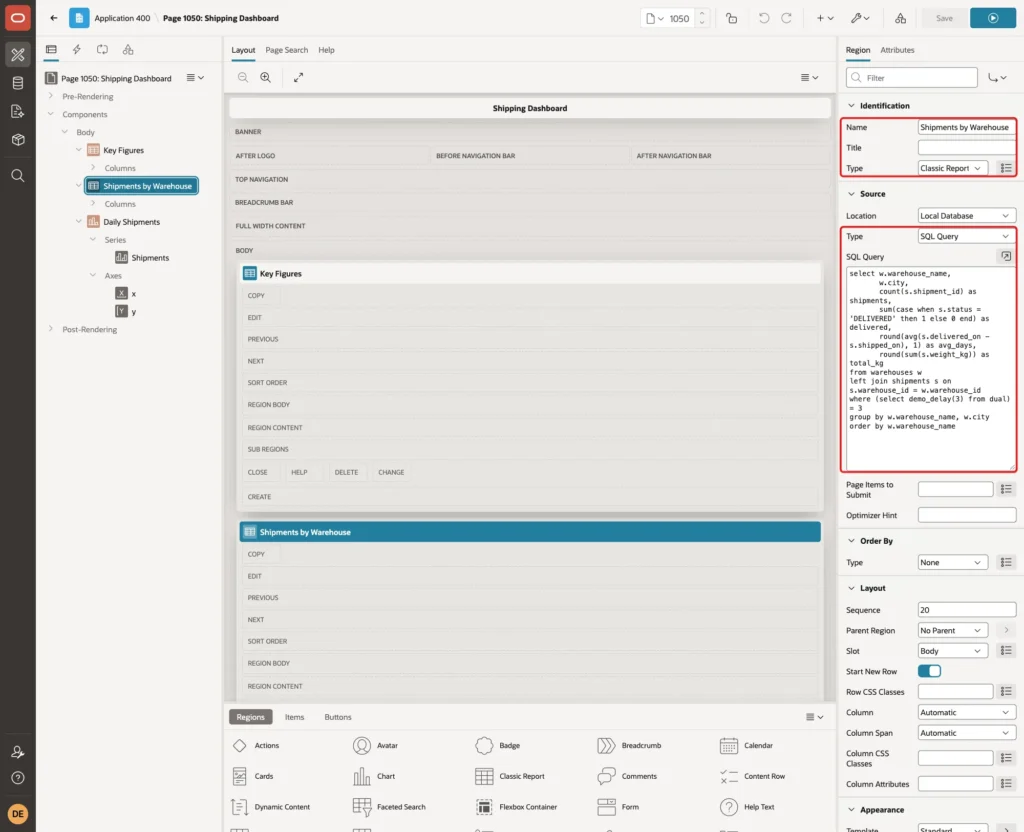
Leave Lazy Loading off for now. Step 8 measures the page in this state first.
Step 7: Add the Chart Region
Right-click the Shipments by Warehouse region and choose Create Region Below. Set Name to Daily Shipments and Type to Chart:
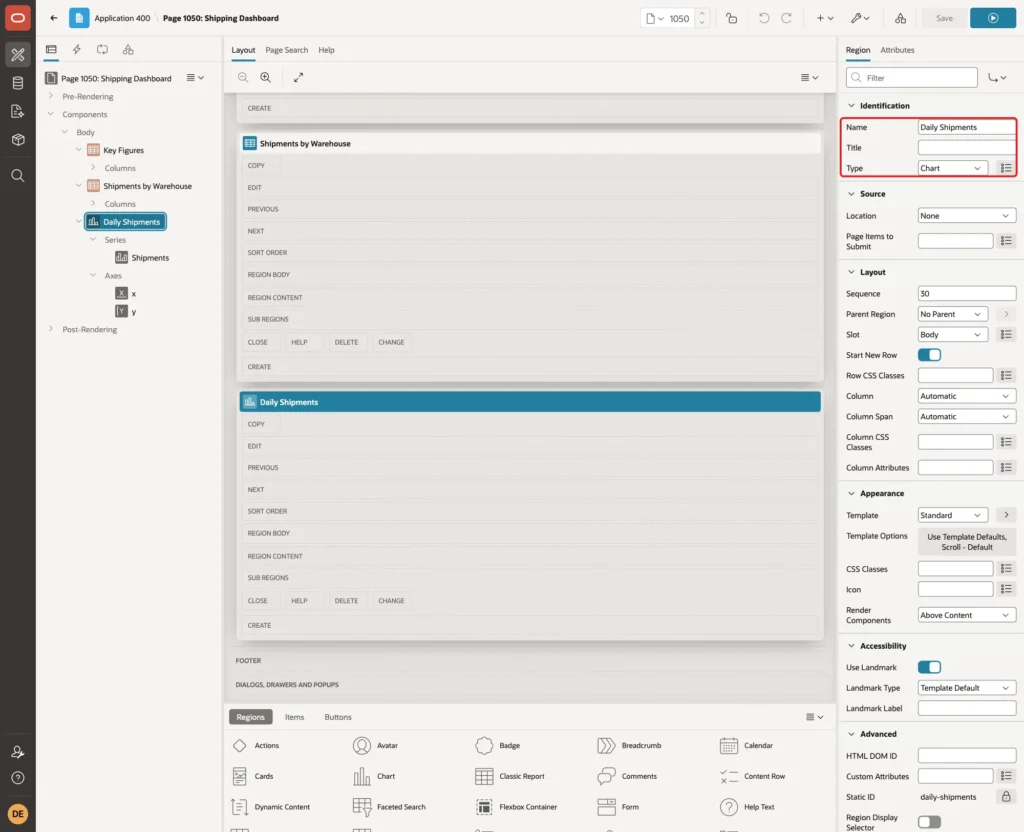
Click the Attributes tab. Set Type under Chart to Bar, and under Settings set Time Axis Type to Enabled. The time axis prints the day numbers and shows the month only where it changes:

In the Rendering tree, select the series under Daily Shipments. Set Name to Shipments, Source Type to SQL Query, and enter the chart query from Step 3. Under Column Mapping, set Label to LABEL and Value to VALUE. Click Save:

Step 8: Measure the Page Without Lazy Loading
Run the page as a user with read-only access. For a while nothing happens. The browser waits, because APEX runs the slow warehouse query before it sends the page.
The page load was timed with a browser script. The first byte of the page arrived after 3.1 seconds. The warehouse report was visible at 3.6 seconds, and the chart was drawn at 5.3 seconds. The chart is always loaded with its own request after the page, so its 2 seconds came on top of the 3 seconds.
APEX also records every request in the activity log. Step 10 shows the log for both runs.
Step 9: Turn On Lazy Loading
Select the Shipments by Warehouse region and click the Attributes tab. Under Performance, turn Lazy Loading on and click Save:

With Lazy Loading on, APEX renders the page right away with an empty region. The data comes with a second request. The help text of the attribute warns that Lazy Loading adds work for the database, so use it only for regions that take a significant time to load.
The chart region has no Lazy Loading attribute. Its Attributes tab has no Performance group, because a chart always fetches its data after the page is shown.
Step 10: Test the Page Again
Run the page again. This time the page appears at once. Key Figures shows its numbers, while the report and the chart show a spinner:
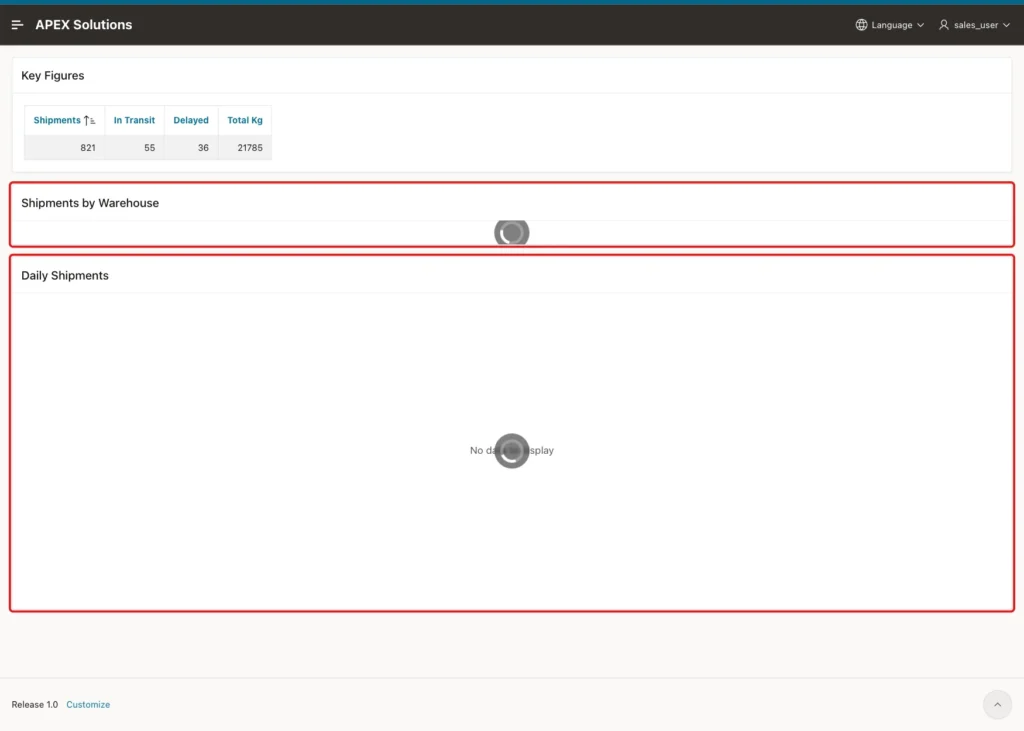
A moment later both regions are filled:
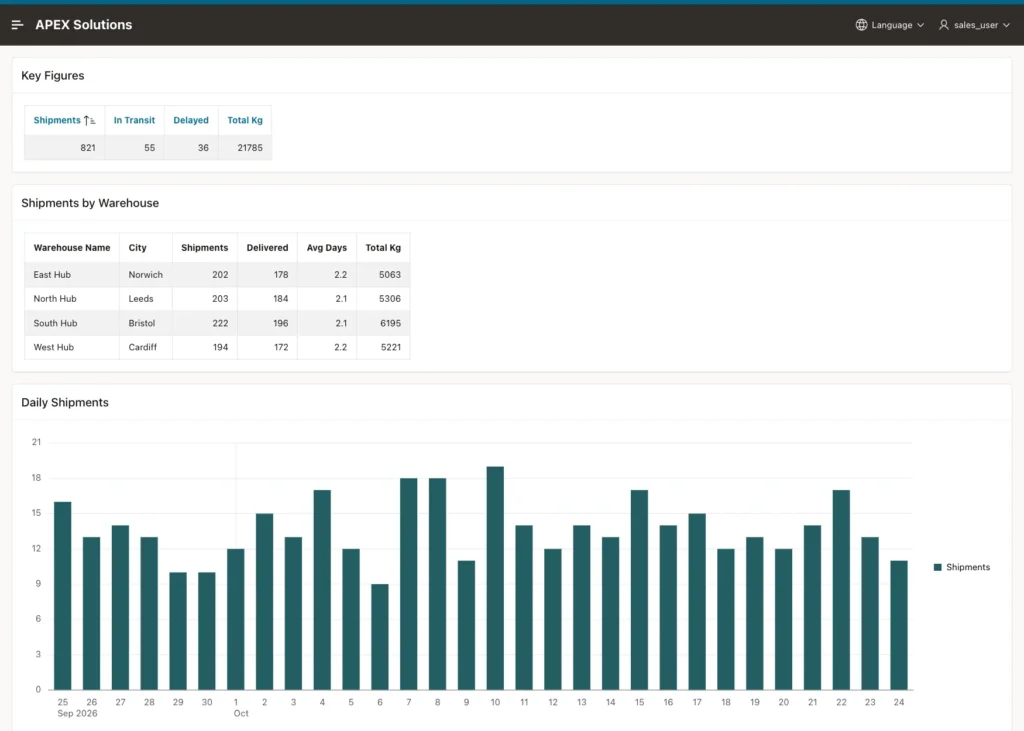
The same browser script timed this run. The first byte arrived after 0.09 seconds, the chart was drawn at 2.3 seconds, and the report was visible at 3.3 seconds. The full dashboard was ready 2 seconds earlier than before, because the report and the chart now load at the same time.
The bars match the chart query from Step 3, for example 16 on 25 September, 19 on 10 October and 11 on 24 October. The report shows the same numbers as the SQL output in Step 3.
This query reads both runs from the activity log. APEX_UTIL.SET_WORKSPACE is needed only outside SQL Workshop:
Example:
exec apex_util.set_workspace('SOLUTIONS')

select to_char(view_timestamp, 'HH24:MI:SS.FF2') as viewed_at,
       page_view_type,
       request_value,
       round(elapsed_time, 2) as seconds
from apex_workspace_activity_log
where application_id = 400
and page_id = 1050
and apex_user = 'SALES_USER'
and seconds_ago < 88
order by view_timestamp;
Output:
PL/SQL procedure successfully completed.

VIEWED_AT      PAGE_VIEW_TYPE    REQUEST_VALUE                   SECONDS
______________ _________________ ____________________________ __________
07:14:20.16    Rendering                                            3.07
07:14:23.38    Ajax              PLUGIN                             2.03
07:15:35.07    Rendering                                            0.07
07:15:35.28    Rendering         reset_R_92970175517729906          3.03
07:15:35.29    Ajax              PLUGIN                             2.02
The first two rows are the run without Lazy Loading. The page took 3.07 seconds, and the chart request of 2.03 seconds started only after it. The last three rows are the run with Lazy Loading: the page took 0.07 seconds, and the report and the chart requests started almost together.
The lazy report request is logged as Rendering with the request reset_R_ and the region ID. The chart request is logged as Ajax with the request PLUGIN.
Step 11: Test a Region That Fails
A slow query can also fail, for example when a remote source is down. To test this, DEMO_DELAY was changed for a moment so that the 3-second call raises an error:
Example:
create or replace function demo_delay (
  p_seconds in number
) return number
is
begin
  if p_seconds = 3 then
    raise_application_error(-20001, 'Warehouse figures are not available.');
  end if;
  dbms_session.sleep(p_seconds);
  return p_seconds;
end demo_delay;
/
The page was opened again as the read-only user. The error appears only inside the Shipments by Warehouse region. Key Figures and the chart work as usual:
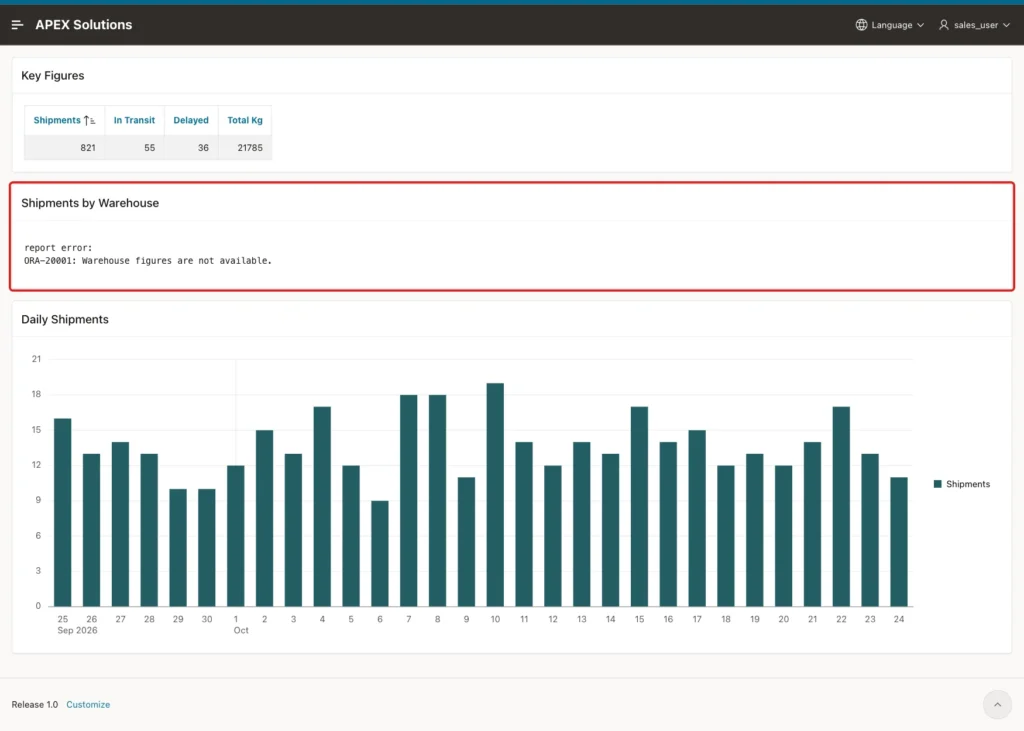
After the test, the script from Step 2 was run again to restore the original function. The error text is shown to every user, so a real query should raise a message that users can read, without technical details.
Things to Know
- Without Lazy Loading, the page waits for its slowest region before the browser gets anything.
- Turn Lazy Loading on only for slow regions. Fast regions are best rendered with the page, because each lazy region adds a request.
- Charts always load their data with a separate request after the page, so they have no Lazy Loading attribute.
- Lazy regions and charts load at the same time, so the total wait is close to the slowest region, not the sum of all regions.
- Lazy Loading does not make the query faster. The warehouse query still took 3 seconds; only the user does not wait for it to see the page.
- The activity log (APEX_WORKSPACE_ACTIVITY_LOG) shows the time of the page and of each region request.
- An error in a lazy region is shown inside that region only. Raise messages that users can read.
Related Guides
- How to Auto-Refresh a Dashboard Region Without Reloading the Page in Oracle APEX
- How to Build a Dashboard Page with KPI Cards and Charts in Oracle APEX
Conclusion
Lazy Loading in Oracle APEX is a single switch with a clear effect. In this example, the page appeared after 0.09 seconds instead of 3.1 seconds, and the full dashboard was ready 2 seconds earlier, because the slow report and the chart loaded at the same time.
Use it on the regions that are really slow, keep the fast ones as they are, and check the result in the activity log. Then tune the slow query itself, because Lazy Loading hides the wait but does not remove it.
See my articles more often when you search Google.
