
An actual vs target chart answers one question at a glance: are we on track? Bars show what really happened in each period, and a line shows the goal for the same period. Where a bar ends below the line, the period missed its target.
Oracle APEX draws this with a Combination chart, which mixes bar and line series in one region. This guide builds one with monthly targets, months without data shown as 0, bars colored green or red by result, a custom tooltip with the percentage of target, and filters for the year and the branch.
The guide Oracle APEX Charts: A Complete Guide touches on combination charts with a second y-axis for a different measure. This guide covers the actual vs target case in depth: both series share one axis, and it fixes three problems found while testing: an empty chart on the first visit, months sorted alphabetically, and a wrong legend color.
The example uses monthly revenue of two branches. The same steps work for any measure with a target, such as production units, support tickets or website visits.
Step 1: Create the Tables
The example needs three tables. BRANCHES holds the branches, BRANCH_TARGETS holds one target per branch and month, and BRANCH_REVENUE holds the individual revenue entries:
Example:
create table branches (
  branch_id    number generated by default on null as identity
               constraint branches_pk primary key,
  branch_name  varchar2(50) not null
               constraint branches_name_uk unique
);

create table branch_targets (
  target_id      number generated by default on null as identity
                 constraint branch_targets_pk primary key,
  branch_id      number not null
                 constraint branch_targets_branch_fk references branches,
  target_month   date not null
                 constraint branch_targets_month_ck check (target_month = trunc(target_month, 'MM')),
  target_amount  number(12,2) not null
                 constraint branch_targets_amount_ck check (target_amount >= 0),
  constraint branch_targets_uk unique (branch_id, target_month)
);

create table branch_revenue (
  revenue_id    number generated by default on null as identity
                constraint branch_revenue_pk primary key,
  branch_id     number not null
                constraint branch_revenue_branch_fk references branches,
  revenue_date  date not null,
  amount        number(12,2) not null
                constraint branch_revenue_amount_ck check (amount > 0)
);

create index branch_revenue_branch_date_ix on branch_revenue (branch_id, revenue_date);

insert into branches (branch_name)
values ('North'), ('South');

insert into branch_targets (branch_id, target_month, target_amount)
select b.branch_id, add_months(date '2026-01-01', m.n - 1), m.n * 1000 + case b.branch_name when 'North' then 40000 else 30000 end
from branches b
cross join (select level as n from dual connect by level <= 12) m;

insert into branch_revenue (branch_id, revenue_date, amount)
select b.branch_id, v.revenue_date, v.amount
from (values
  ('North', date '2026-01-09', 21000), ('North', date '2026-01-23', 22500),
  ('North', date '2026-02-06', 19000), ('North', date '2026-02-20', 20000),
  ('North', date '2026-03-06', 26000), ('North', date '2026-03-27', 24000),
  ('North', date '2026-05-08', 25000), ('North', date '2026-05-22', 23500),
  ('North', date '2026-06-05', 22000), ('North', date '2026-06-19', 21000),
  ('North', date '2026-07-10', 27000), ('North', date '2026-07-24', 25500),
  ('North', date '2026-08-07', 24000), ('North', date '2026-08-21', 26000),
  ('North', date '2026-09-04', 23000), ('North', date '2026-09-18', 22000),
  ('South', date '2026-01-16', 33000),
  ('South', date '2026-02-13', 30500),
  ('South', date '2026-03-13', 31000),
  ('South', date '2026-04-10', 36000),
  ('South', date '2026-05-15', 34500),
  ('South', date '2026-06-12', 33000),
  ('South', date '2026-07-17', 39000),
  ('South', date '2026-08-14', 36500),
  ('South', date '2026-09-11', 41000)
) v (branch_name, revenue_date, amount)
join branches b on b.branch_name = v.branch_name;

commit;

select b.branch_name,
       (select count(*) from branch_targets t where t.branch_id = b.branch_id) as target_months,
       (select count(*) from branch_revenue r where r.branch_id = b.branch_id) as revenue_rows,
       (select sum(r.amount) from branch_revenue r where r.branch_id = b.branch_id) as revenue_total
from branches b
order by b.branch_name;
Output:
Table BRANCHES created.

Table BRANCH_TARGETS created.

Table BRANCH_REVENUE created.

Index BRANCH_REVENUE_BRANCH_DATE_IX created.

2 rows inserted.

24 rows inserted.

25 rows inserted.

Commit complete.

BRANCH_NAME       TARGET_MONTHS    REVENUE_ROWS    REVENUE_TOTAL
______________ ________________ _______________ ________________
North                        12              16           371500
South                        12               9           314500
A few details matter for the chart:
- The check constraint BRANCH_TARGETS_MONTH_CK only accepts the first day of a month, so every target joins cleanly to a month of revenue.
- The unique constraint BRANCH_TARGETS_UK allows only one target per branch and month.
- Each branch has 12 monthly targets for 2026. The sample revenue stops in September, and the North branch has no revenue in April.
Step 2: Create a View with Monthly Actuals and Targets
The chart needs one row per branch and month with both numbers. This view sums the revenue per month and joins it to the targets:
Example:
create or replace view branch_monthly_v as
select t.branch_id,
       t.target_month,
       t.target_amount,
       nvl(r.actual_amount, 0) as actual_amount
from branch_targets t
left join (
  select branch_id,
         trunc(revenue_date, 'MM') as revenue_month,
         sum(amount) as actual_amount
  from branch_revenue
  group by branch_id, trunc(revenue_date, 'MM')
) r on r.branch_id = t.branch_id
   and r.revenue_month = t.target_month;

select b.branch_name, to_char(v.target_month, 'Mon') as month, v.target_amount, v.actual_amount
from branch_monthly_v v
join branches b on b.branch_id = v.branch_id
where v.target_month between date '2026-03-01' and date '2026-05-01'
order by b.branch_name, v.target_month;
Output:
View BRANCH_MONTHLY_V created.

BRANCH_NAME    MONTH       TARGET_AMOUNT    ACTUAL_AMOUNT
______________ ________ ________________ ________________
North          Mar                 43000            50000
North          Apr                 44000                0
North          May                 45000            48500
South          Mar                 33000            31000
South          Apr                 34000            36000
South          May                 35000            34500

6 rows selected.
The view starts from BRANCH_TARGETS and uses a left join, so the target table decides which months exist. A month without revenue still gets a row, and NVL turns its missing total into 0. North in April shows exactly that.
Step 3: Create a Blank Page
In App Builder, open the application and click Create Page. On the Component tab, select Blank Page:

Set Page Number to 1010 and Name to Actual vs Target. Turn Use Breadcrumb off, keep Use Navigation on, set Icon to fa-bar-chart and click Create Page:

APEX opens the new page in Page Designer.
Step 4: Add the Year and Branch Filters
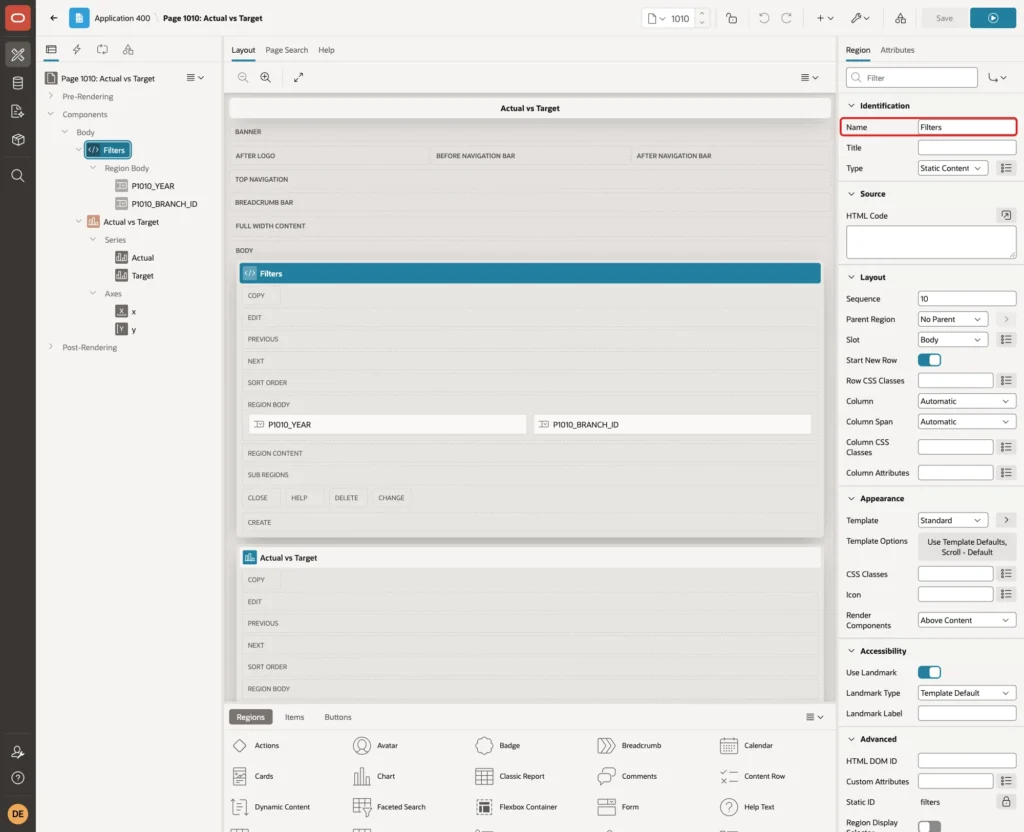
In the Rendering tree, right-click Body and choose Create Region. Set Name to Filters and keep the Type Static Content:
Right-click the Filters region and choose Create Page Item. Set Name to P1010_YEAR, Type to Select List and Label to Year. Under Settings, set Page Action on Selection to Submit Page, so the page reloads when the user picks a year:

Under List of Values, set Type to SQL Query and enter this query. It lists every year that has targets. Turn Display Null Value off, because the chart always needs a year:
Example:
select distinct to_char(target_month, 'YYYY') as d,
       to_char(target_month, 'YYYY') as r
from branch_targets
order by 1 desc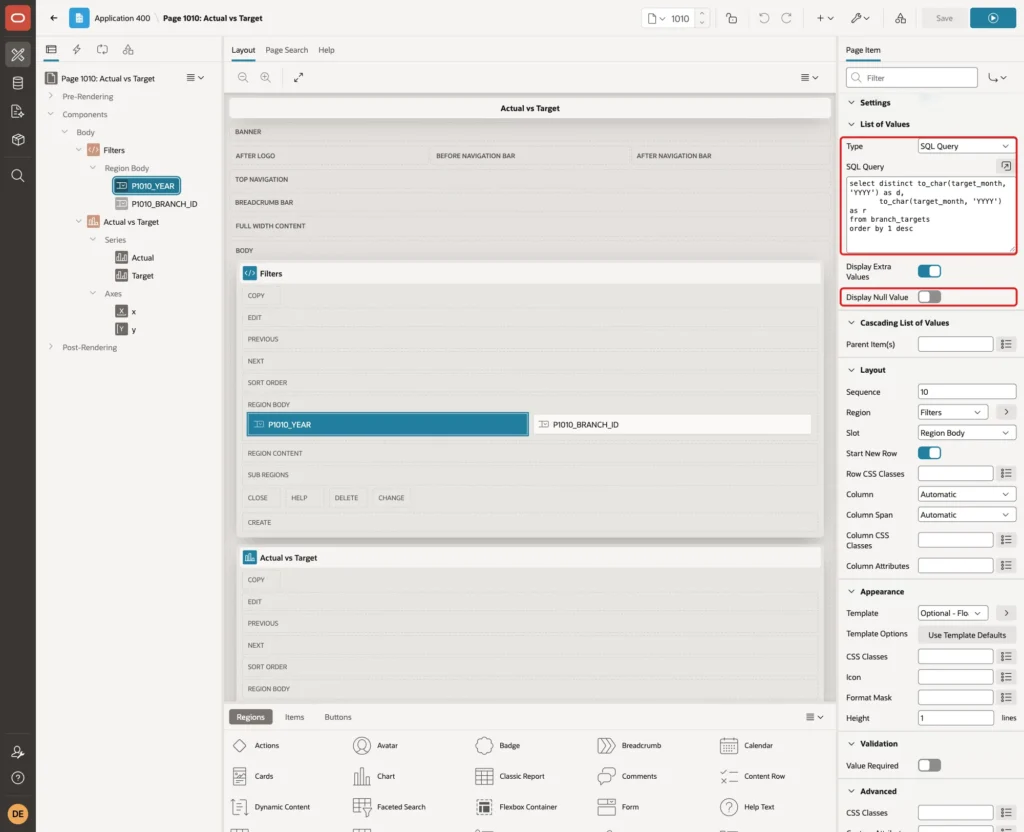
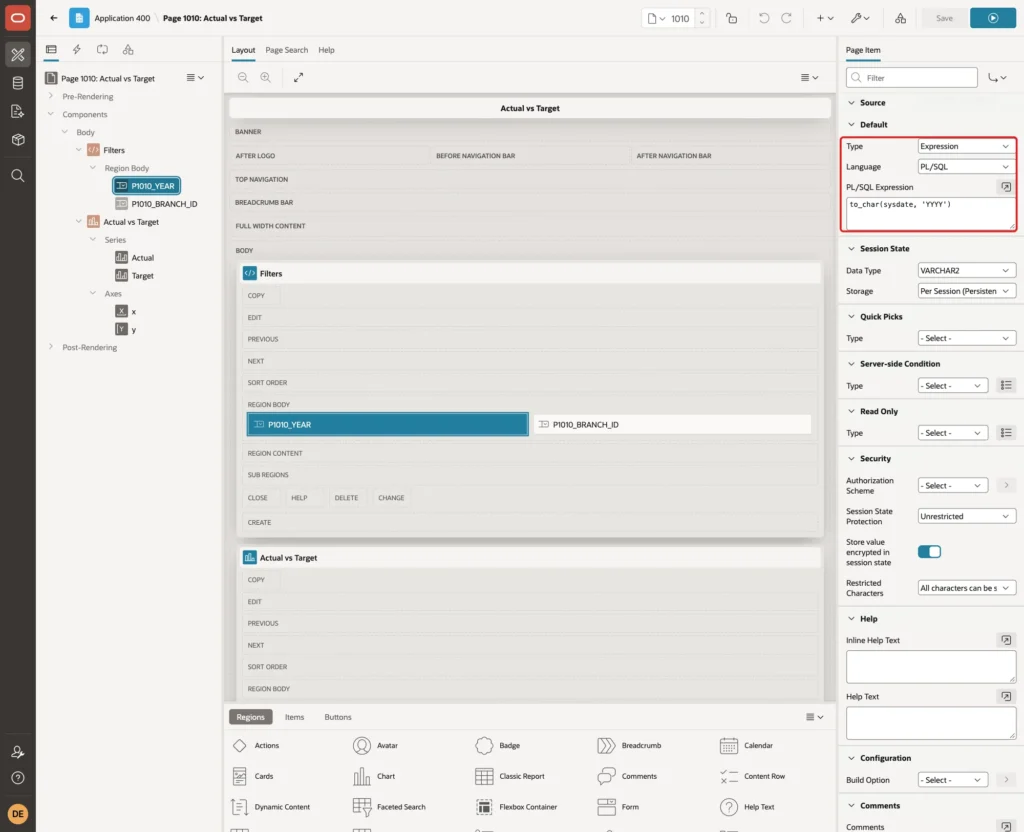
Under Default, set Type to Expression, Language to PL/SQL and PL/SQL Expression to to_char(sysdate, 'YYYY'). The page then opens on the current year:
Create a second item in the Filters region in the same way. Set Name to P1010_BRANCH_ID, Type to Select List, Label to Branch and Page Action on Selection to Submit Page:
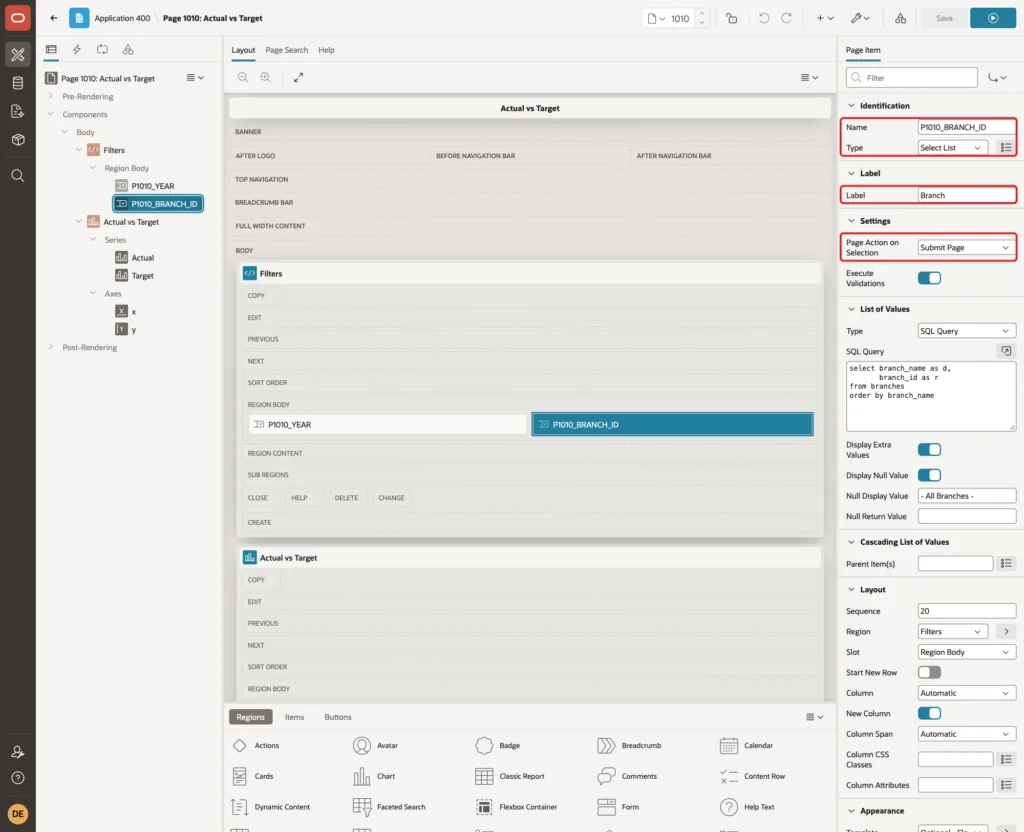
Under List of Values, set Type to SQL Query and enter the query below. Keep Display Null Value on and set Null Display Value to - All Branches -. An empty value will mean all branches together:
Example:
select branch_name as d,
       branch_id as r
from branches
order by branch_name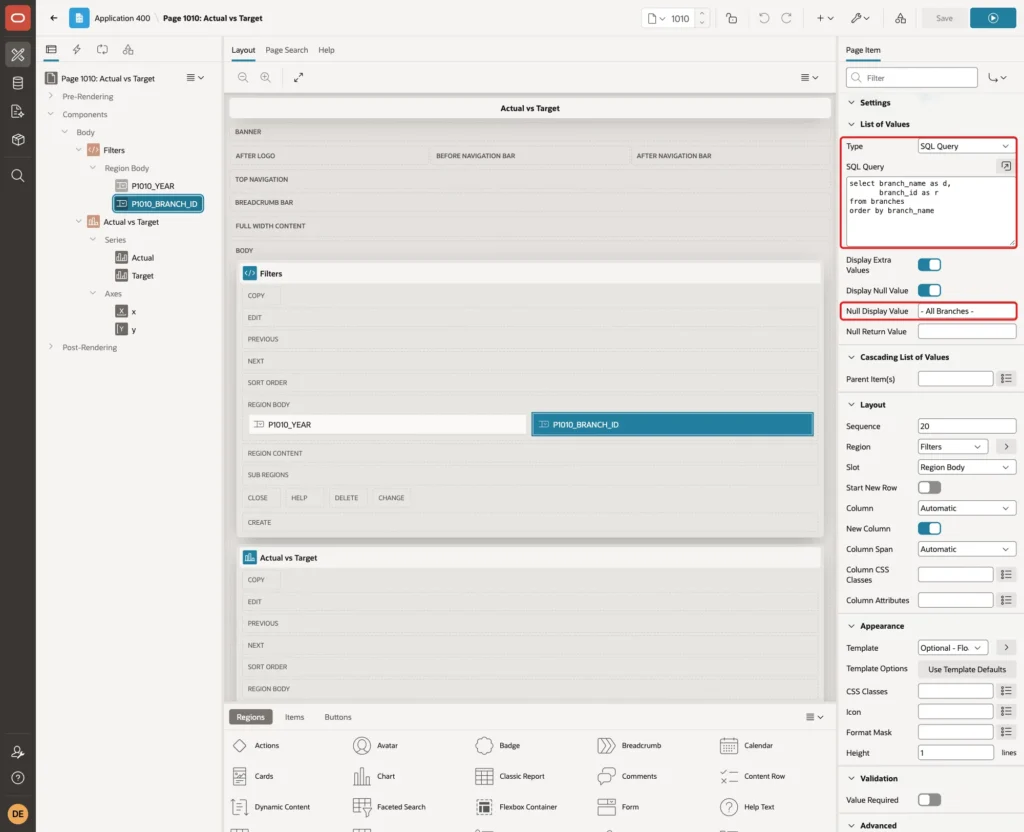
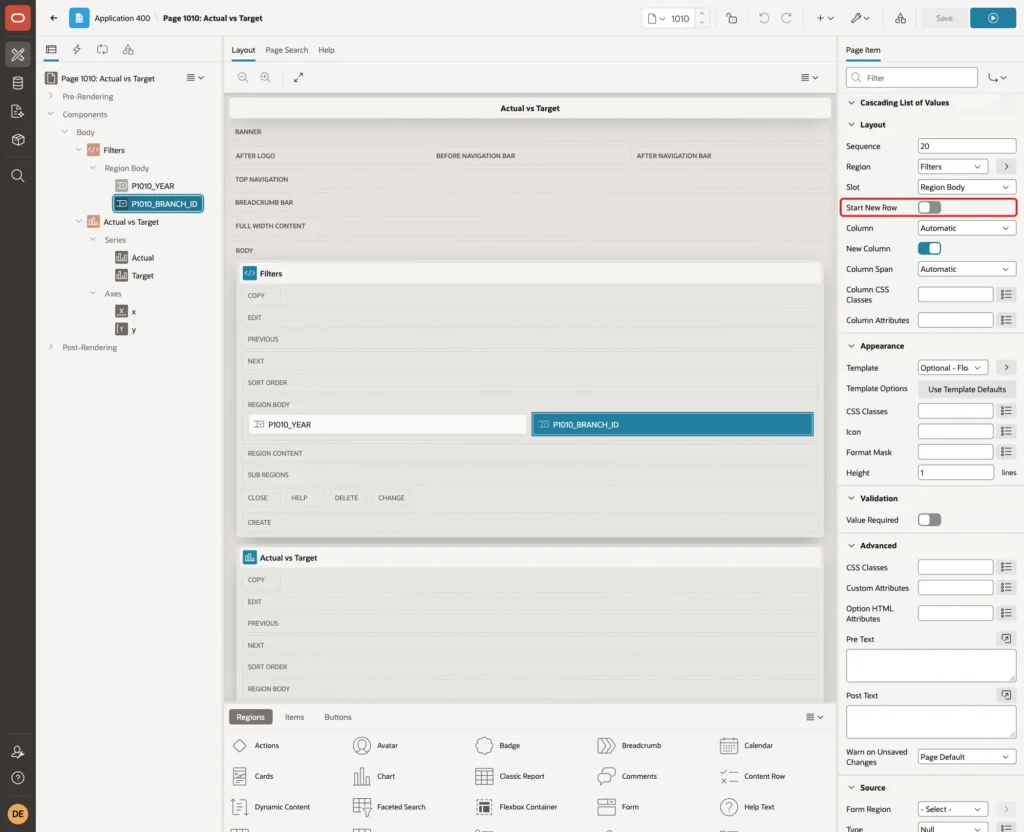
Under Layout, turn Start New Row off, so both filters sit side by side:
Step 5: Add the Combination Chart Region
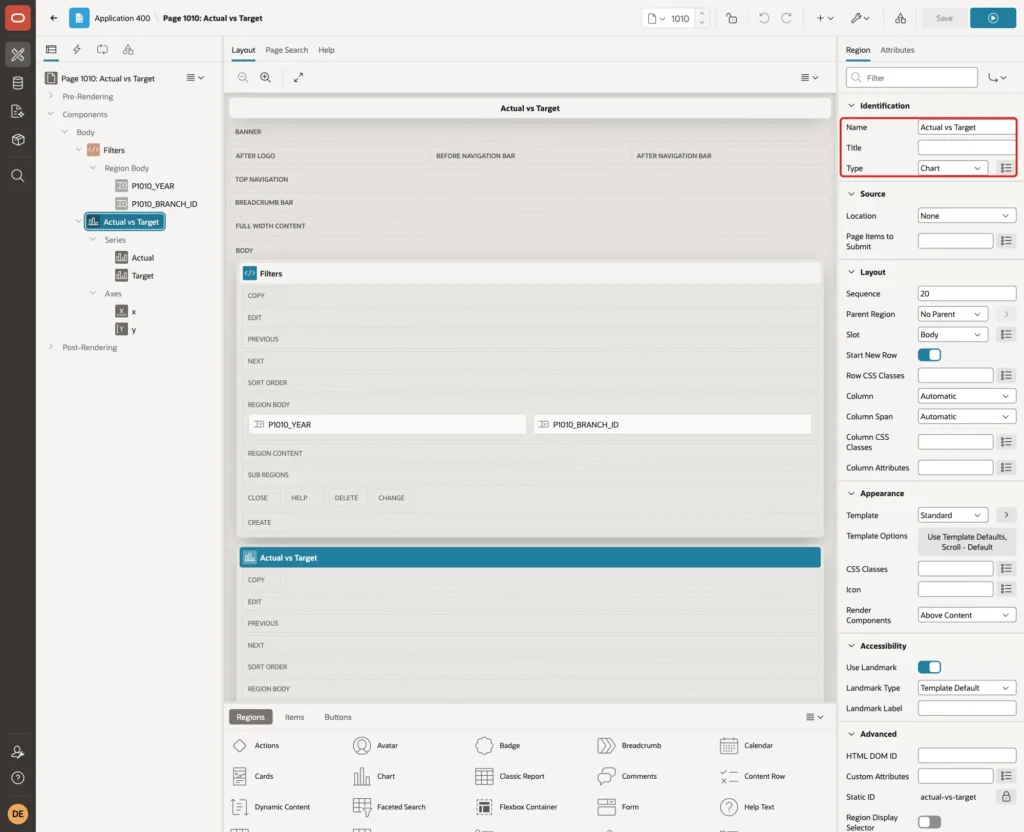
Right-click the Filters region and choose Create Region Below. Set Name to Actual vs Target and Type to Chart:
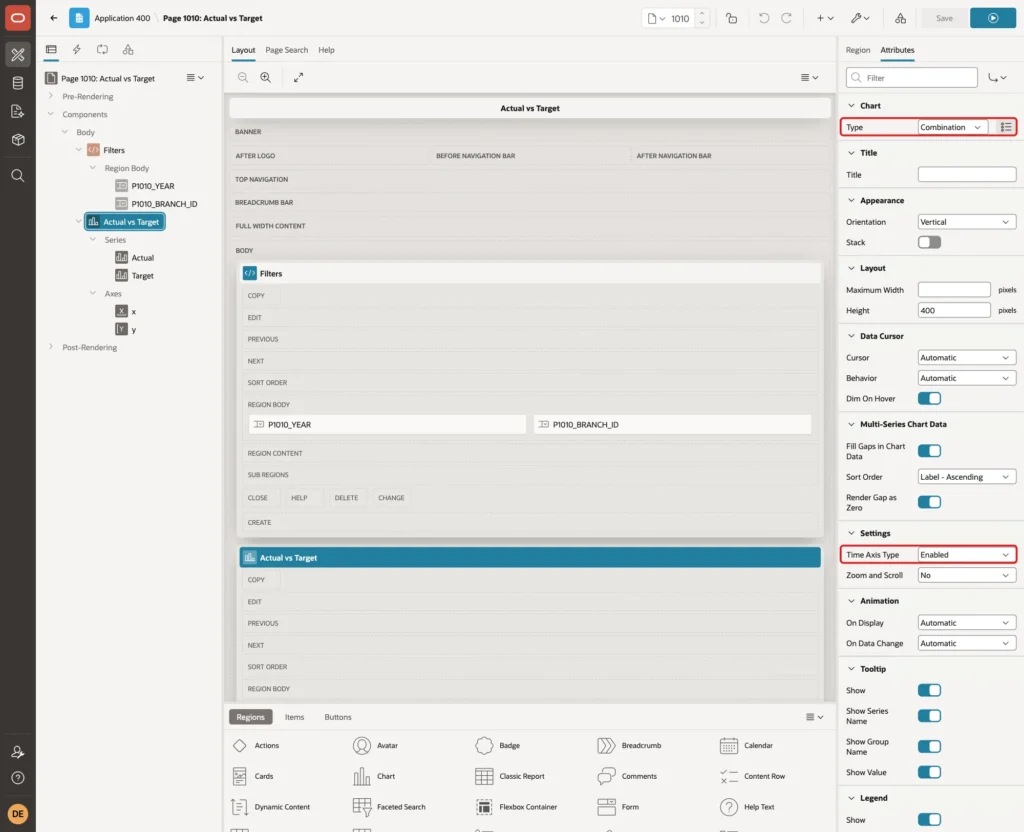
APEX creates a bar chart with one series named New and the axes x and y. Click the Attributes tab and set Type under Chart to Combination. Under Settings, set Time Axis Type to Enabled:
The time axis is needed for the month order. In a first test, the series used month names such as Jan and Feb as the label. With two series, APEX sorted the months by Sort Order Label - Ascending, and the x-axis showed Apr, Aug, Dec, Feb, Jan and so on.
The Sort Order list only offers value or label sorting, not the query order. With a DATE column as the label and the time axis enabled, the months appear in calendar order. The axis also prints them as short month names.
Step 6: Create the Actual Bar Series
Expand Series under the chart region and select New. Set Name to Actual and keep the Type Bar. Under Source, set Type to SQL Query and enter this query:
Example:
select target_month,
       month_label,
       target_amount,
       actual_amount,
       case when actual_amount >= target_amount then '#2e7d32'
            when actual_amount < target_amount then '#c62828'
       end as bar_color,
       case when actual_amount is not null then
         'Actual: ' || to_char(actual_amount, 'FM999G999G990') ||
         ', Target: ' || to_char(target_amount, 'FM999G999G990') ||
         ', ' || to_char(round(100 * actual_amount / nullif(target_amount, 0), 1), 'FM9990.0') || '% of target'
       end as tooltip
from (
  select to_char(target_month, 'Mon') as month_label,
         target_month,
         sum(target_amount) as target_amount,
         case when target_month <= trunc(sysdate, 'MM') then sum(actual_amount) end as actual_amount
  from branch_monthly_v
  where extract(year from target_month) = to_number(:P1010_YEAR default null on conversion error)
    and (:P1010_BRANCH_ID is null or branch_id = to_number(:P1010_BRANCH_ID default null on conversion error))
  group by target_month
)
order by target_month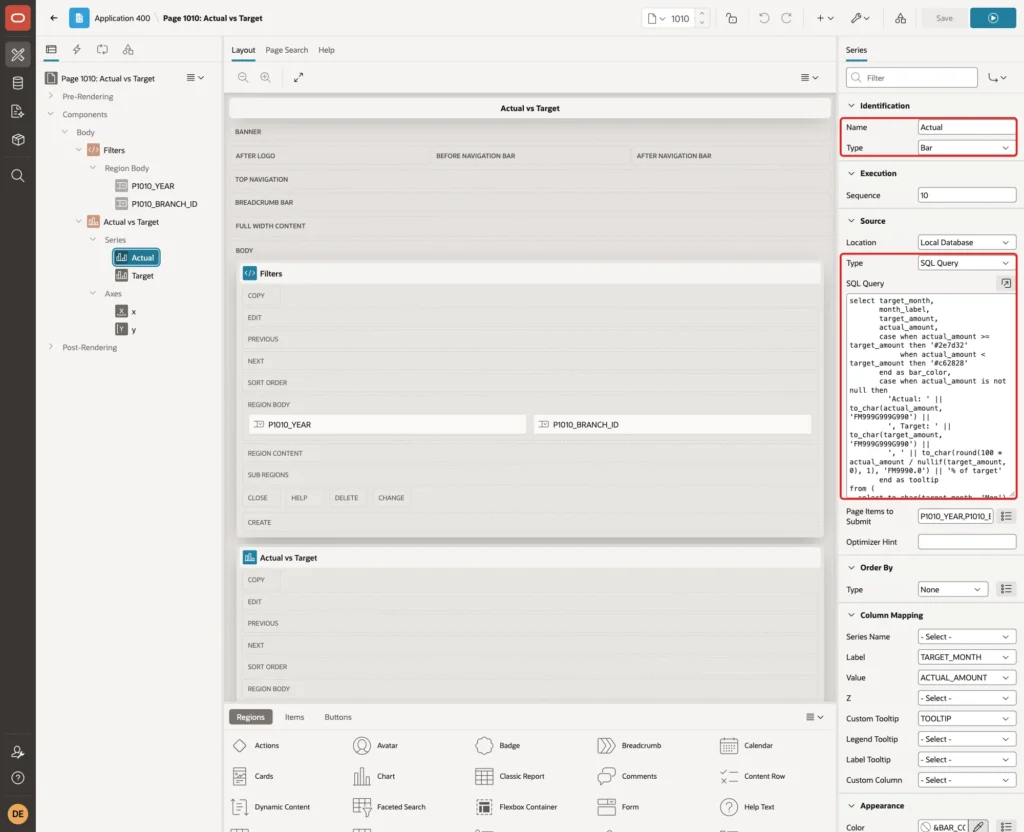
The inner query adds up the branches for each month, either for the selected branch or for all of them. The outer query adds the columns for the chart:
- TARGET_MONTH is a DATE and becomes the label on the time axis.
- ACTUAL_AMOUNT is NULL for months that have not started yet, so the chart draws no bar for them. Past months without revenue keep the 0 from the view.
- BAR_COLOR is green when the actual reached the target and red when it did not.
- TOOLTIP holds the text shown when the mouse is over a bar.
- to_number with DEFAULT NULL ON CONVERSION ERROR protects the query from item values that are not numbers. Step 10 tests this.
Run the same query in SQL with the bind variable P1010_YEAR set to 2026 and an empty P1010_BRANCH_ID. These are the label, value and color columns the chart will get:
Output:
PL/SQL procedure successfully completed.

MONTH_LABEL       TARGET_AMOUNT    ACTUAL_AMOUNT BAR_COLOR
______________ ________________ ________________ ____________
Jan                       72000            76500 #2e7d32
Feb                       74000            69500 #c62828
Mar                       76000            81000 #2e7d32
Apr                       78000            36000 #c62828
May                       80000            83000 #2e7d32
Jun                       82000            76000 #c62828
Jul                       84000            91500 #2e7d32
Aug                       86000            86500 #2e7d32
Sep                       88000            86000 #c62828
Oct                       90000                0 #c62828
Nov                       92000
Dec                       94000

12 rows selected.
The output was taken in October 2026, so October shows 0 and November and December stay empty.
Next, set Page Items to Submit to P1010_YEAR,P1010_BRANCH_ID:
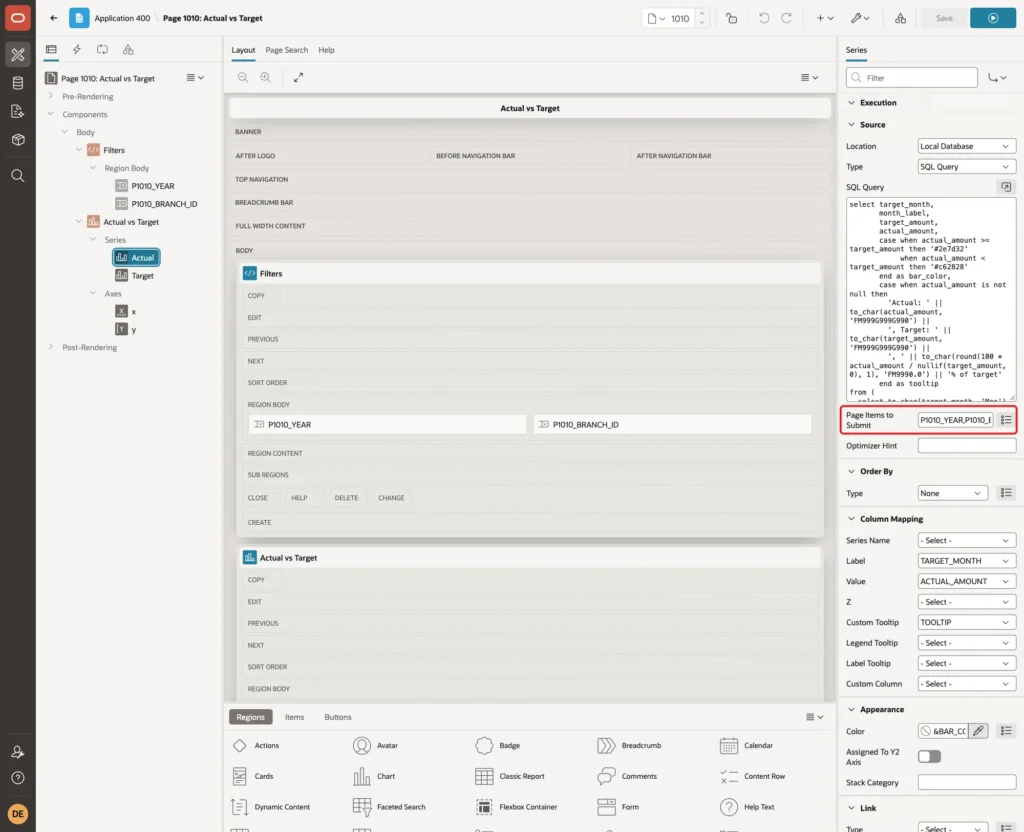
Do not skip this setting. In a first test without it, the chart showed No data to display on the first visit. The year item showed 2026 from its default, but the default value was not yet in session state when the chart loaded its data with a separate request.
Only after the user changed a filter and the page was submitted did the chart show bars. With Page Items to Submit, the chart sends the current values of both items with every data request.
Under Column Mapping, set Label to TARGET_MONTH, Value to ACTUAL_AMOUNT and Custom Tooltip to TOOLTIP. Under Appearance, set Color to &BAR_COLOR. including the final period:
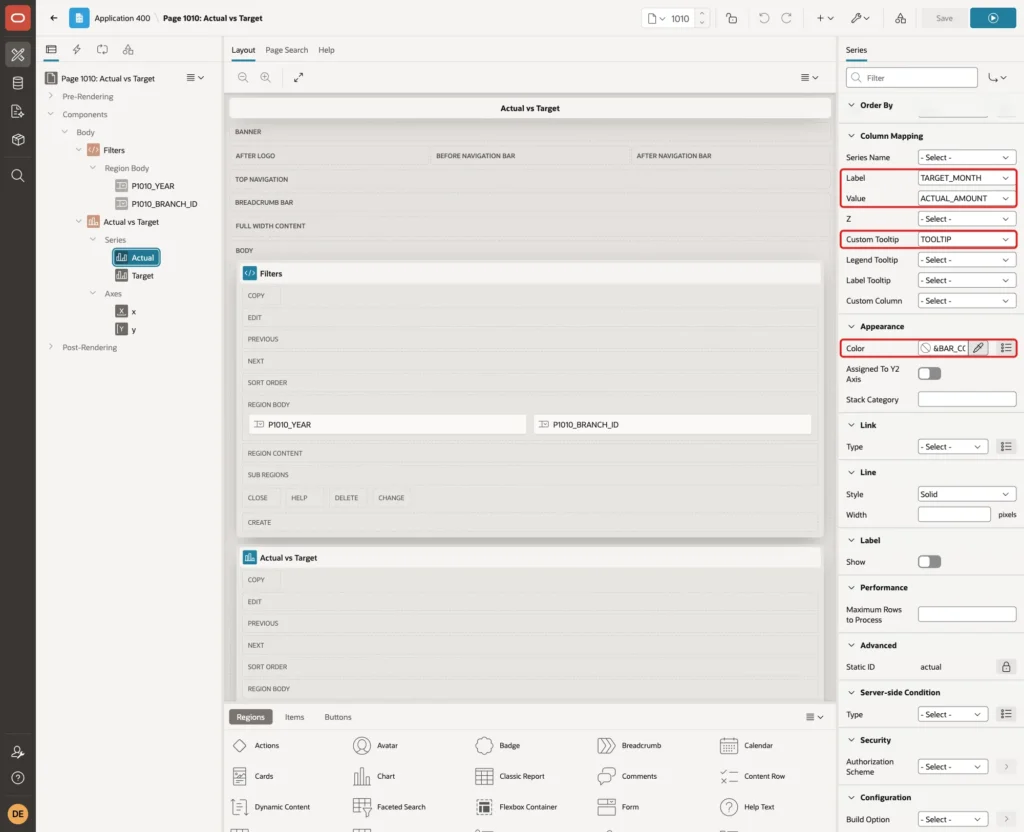
The &BAR_COLOR. substitution gives every bar the color from its own row.
Step 7: Add the Target Line Series
Right-click Series and choose Create Series. Set Name to Target and Type to Line. Under Source, set Type to SQL Query and enter the same query as for the Actual series. Set Page Items to Submit to P1010_YEAR,P1010_BRANCH_ID as well:
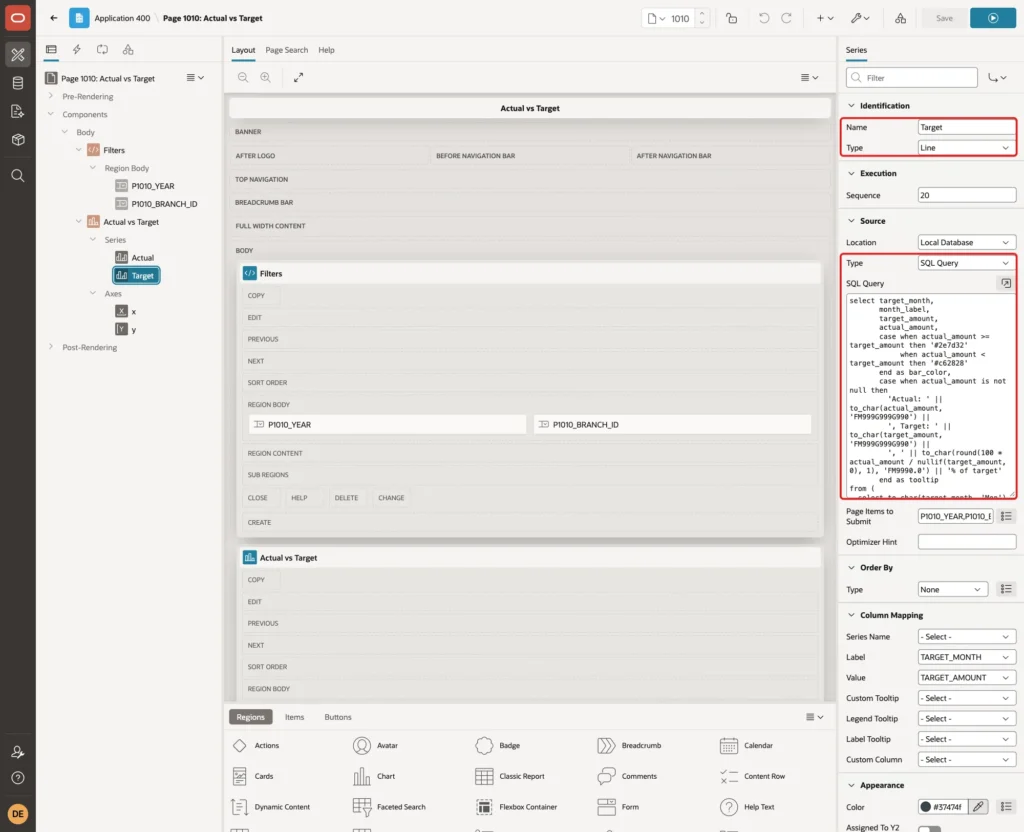
Under Column Mapping, set Label to TARGET_MONTH and Value to TARGET_AMOUNT. Under Appearance, set Color to #37474f. Under Line, set Style to Dashed and Width to 3:
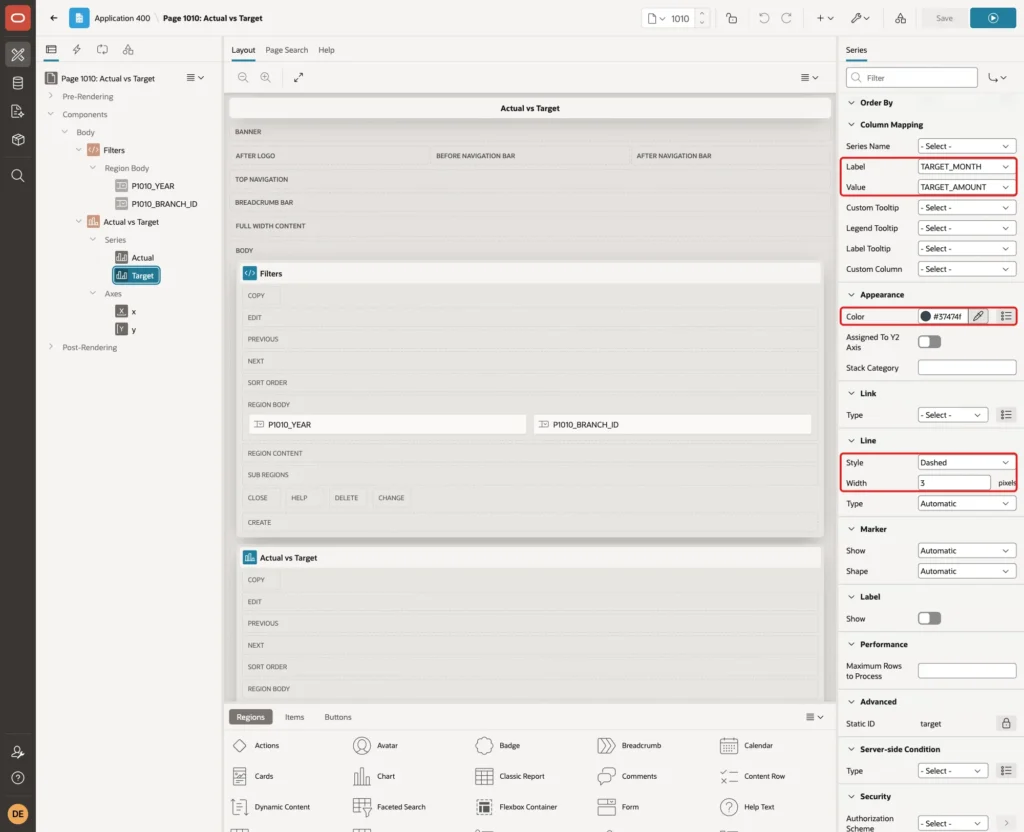
Both series use TARGET_MONTH as the label, so each target point sits above the bar of the same month. Leave Assigned To Y2 Axis off. Actual and target use the same unit, and only one shared axis makes the bar and the line directly comparable.
Step 8: Title the Value Axis
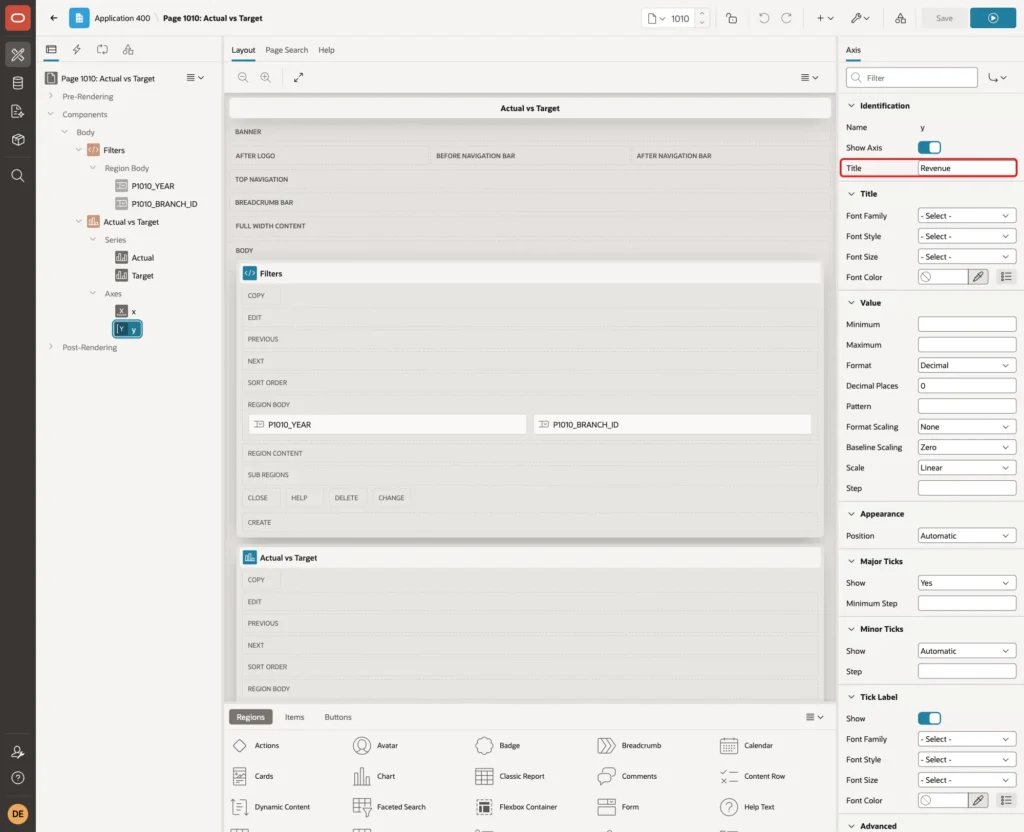
Expand Axes and select y. Set Title to Revenue:
Step 9: Fix the Legend Color
Run the page at this point and look at the legend. The Actual entry showed a red square, although most bars were green. APEX sets the color of the whole series from the &BAR_COLOR. substitution of one row, and the legend uses that color.
Select the chart region, click the Attributes tab and enter this function in Initialization JavaScript Function under Advanced:
Example:
function( options ) {
    options.dataFilter = function( data ) {
        if ( data.series && data.series.length ) {
            data.series[0].color = "#2e7d32";
        }
        return data;
    };
    return options;
}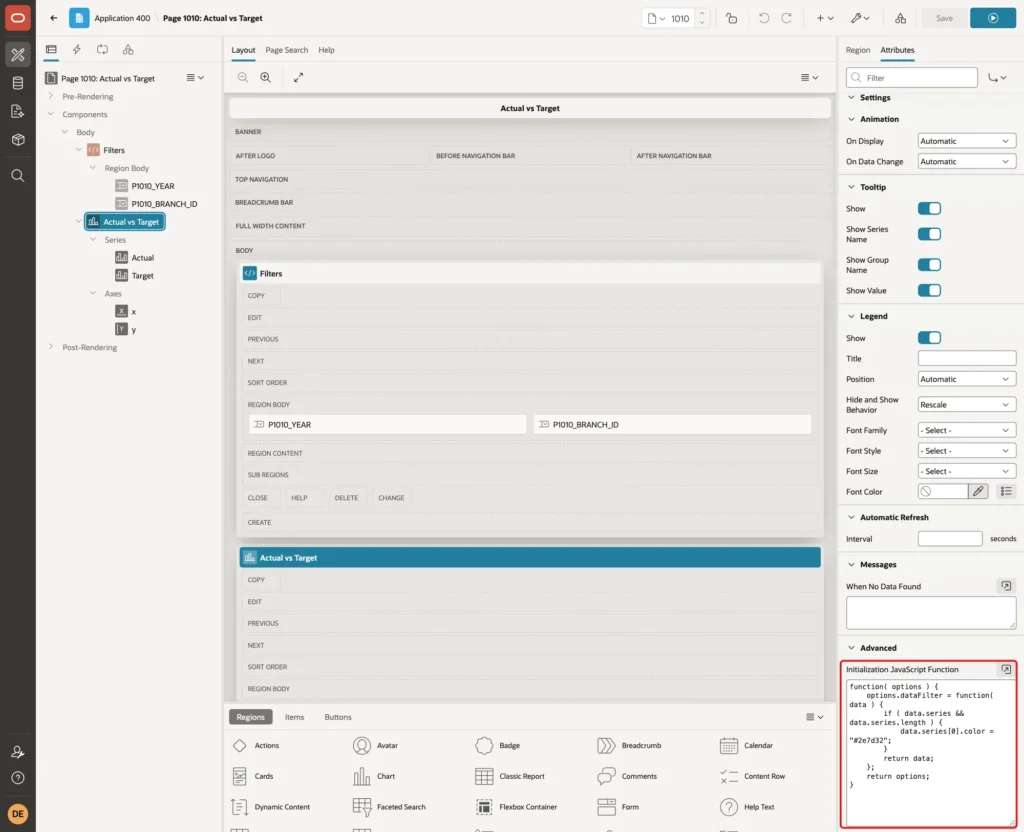
The dataFilter function runs each time the chart receives data. It sets the color of the first series, Actual, to green. The color of each bar still comes from its own row, so only the legend changes.
The IF check is needed. In a first version without it, a filter with no matching rows raised the error "Cannot set properties of undefined" in the browser, because the data then contains no series.
Click Save.
Step 10: Test the Chart
Run the page. It opens with the current year and all branches. The bars show the actual revenue per month, green or red, and the dashed line shows the target:
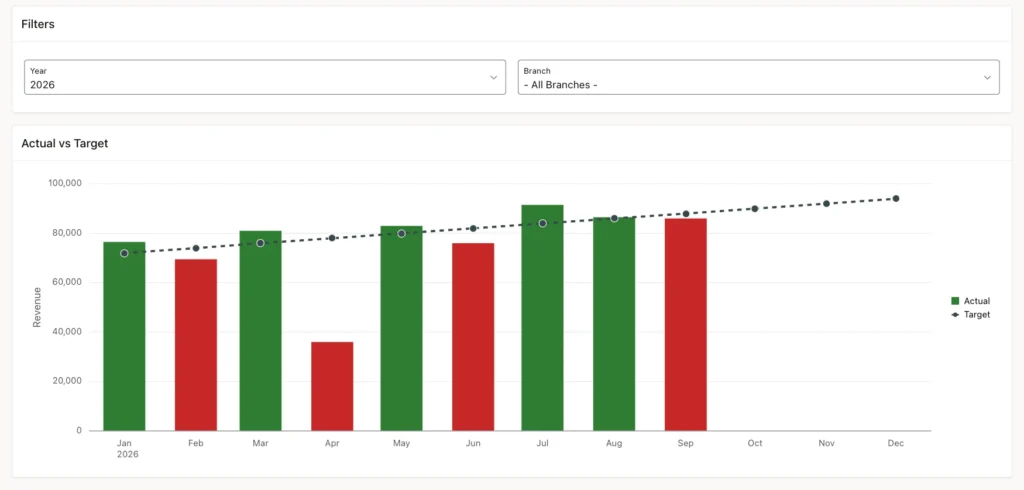
The bars match the SQL output of Step 6: January 76,500 against 72,000 in green, April 36,000 against 78,000 in red. October has the value 0, so no bar is visible, and November and December have only target points.
Select North in the Branch list. The page submits and the chart shows one branch:
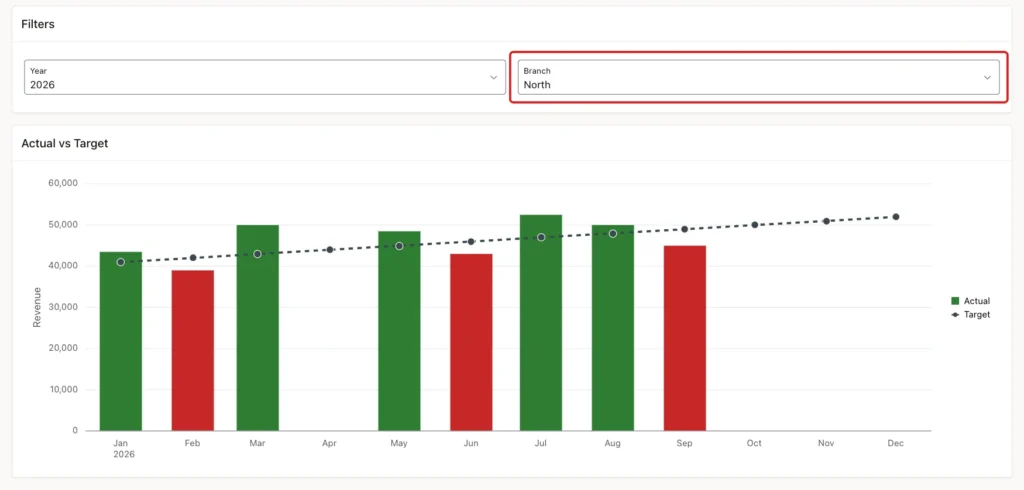
April has no bar, because North has no revenue in April. The view returned 0 for the month instead of leaving it out, so the target point for April is still drawn and the gap is easy to see.
Move the mouse over the July bar. The custom tooltip shows the actual, the target and the percentage:
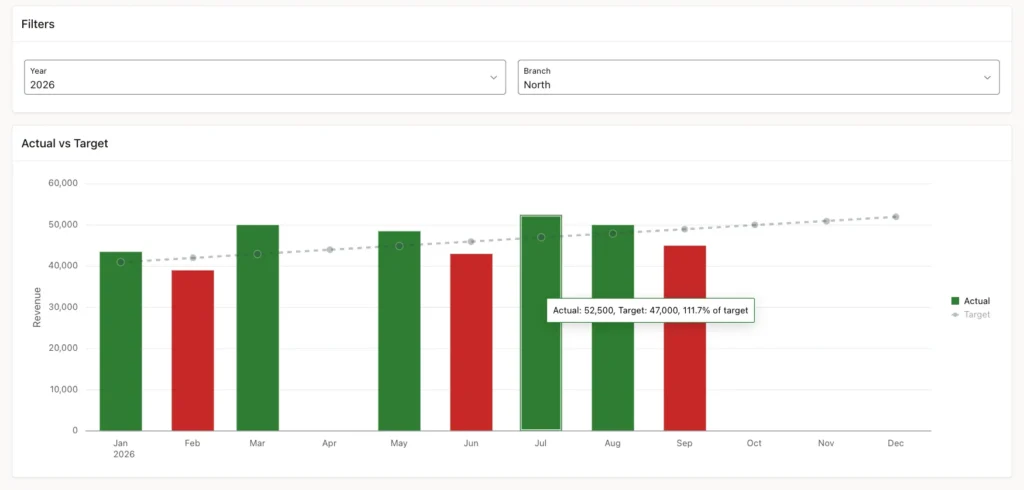
A red bar shows the same details for a missed month:
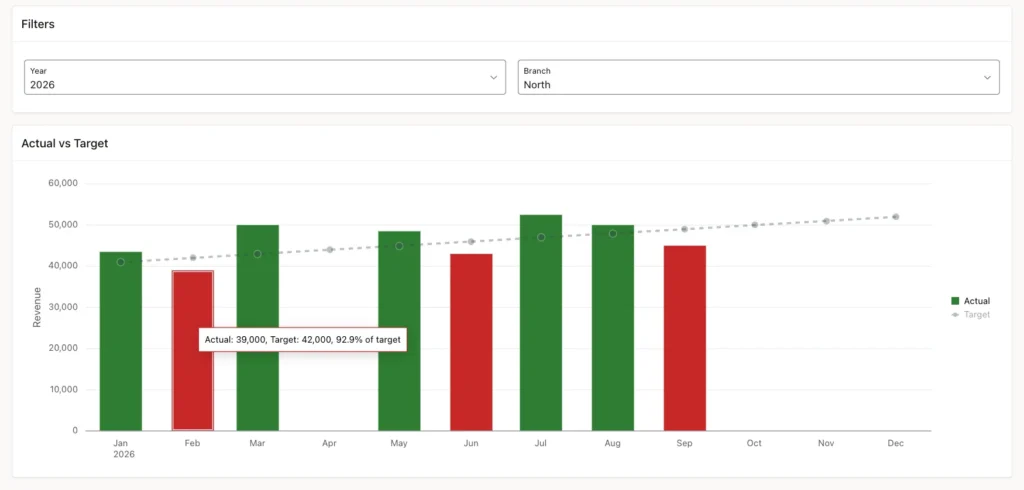
Now compare the chart with a query that reads the base tables directly, without the view:
Example:
select to_char(t.target_month, 'Mon') as month,
       t.target_amount,
       (select nvl(sum(r.amount), 0)
        from branch_revenue r
        where r.branch_id = t.branch_id
          and r.revenue_date >= t.target_month
          and r.revenue_date < add_months(t.target_month, 1)) as actual_amount
from branch_targets t
join branches b on b.branch_id = t.branch_id
where b.branch_name = 'North'
  and t.target_month < date '2026-10-01'
order by t.target_month;
Output:
MONTH       TARGET_AMOUNT    ACTUAL_AMOUNT
________ ________________ ________________
Jan                 41000            43500
Feb                 42000            39000
Mar                 43000            50000
Apr                 44000                0
May                 45000            48500
Jun                 46000            43000
Jul                 47000            52500
Aug                 48000            50000
Sep                 49000            45000

9 rows selected.
Every month matches the bars and points in the North chart, including the 0 for April.
Last, try a forged filter value. Signed in as a user with read-only access, a value was added to the Branch list from the browser console and the page was submitted with branch values abc, 999 and 1 or 1=1. APEX accepted the submitted values, and the chart showed No data to display each time:

The values are bind variables, so the text 1 or 1=1 is never run as SQL. Without to_number and DEFAULT NULL ON CONVERSION ERROR, a value such as abc breaks the query instead:
Example:
variable P1010_BRANCH_ID varchar2(20)
exec :P1010_BRANCH_ID := 'abc'
select count(*) from branch_monthly_v where branch_id = :P1010_BRANCH_ID;
select count(*) from branch_monthly_v where branch_id = to_number(:P1010_BRANCH_ID default null on conversion error);
Output:
PL/SQL procedure successfully completed.

Error starting at line : 3 File @ b104/50-forged.sql
In command -
select count(*) from branch_monthly_v where branch_id = :P1010_BRANCH_ID
Error at Command Line : 3 Column : 58 File @ b104/50-forged.sql
Error report -
SQL Error: ORA-01722: unable to convert string value containing 'a' to a number:
ORA-03302: (ORA-01722 details) invalid string value: abc
Help: https://docs.oracle.com/error-help/db/ora-01722/

   COUNT(*)
___________
          0
Things to Know
- Set Page Items to Submit on every series that uses page items. Item defaults are not in session state when the chart requests its data, and the chart stays empty.
- With more than one series, APEX sorts the x-axis by Sort Order. Use a DATE label with Time Axis Type Enabled for months, or a label that sorts correctly as text.
- Let the target table drive the months and left join the actuals. A month without data then shows 0 instead of disappearing. A month without a target, however, is missing from the chart.
- A bar with the value 0 is not visible and shows no tooltip. The target point of that month is still drawn.
- Return NULL for future months, so the chart does not show them as missed targets.
- A color substitution such as &BAR_COLOR. colors each bar, but the legend takes one row's color. Set the series color for the legend with a dataFilter function.
- Keep actual and target on the same y-axis. A second y-axis is for a different measure, such as a count next to an amount.
Related Guides
- Oracle APEX Charts: A Complete Guide
- How to Build a Dashboard Page with KPI Cards and Charts in Oracle APEX
Conclusion
An actual vs target chart in Oracle APEX is a Combination chart with a bar series for the actuals and a line series for the targets. A view that starts from the targets gives every month a row, so months without data appear as 0 instead of vanishing.
The details make the chart reliable: Page Items to Submit for the filters, a time axis for the month order, a color column for green and red bars, and a small dataFilter function for the legend. Users then see at a glance which months met the target and which did not.
See my articles more often when you search Google.
