
Editing the same column in many rows is a common chore. A planner assigns one technician to five jobs, or moves a group of tasks to the same date. Changing each cell by hand is slow, and it is easy to miss a row or pick a wrong value.
The Oracle APEX Interactive Grid has built-in tools for this: Fill, Copy Down, Clear, and Copy and Paste of cell ranges. This guide builds an editable grid that opens in cell selection mode, locks finished rows, and checks the result on the server. Then it uses each tool and saves the changes.
The guide Oracle APEX Interactive Grid: A Complete Guide mentions these menu entries in one paragraph. This article is the hands-on version: the page settings they need, how each one behaves, and what to watch out for.
The example uses service jobs and field technicians; the same steps work for any table.
Step 1: Create the Tables
Two tables hold the data:
- FIELD_TECHNICIANS lists the people who can do a job.
- SERVICE_JOBS has one row per job, with the technician, the visit date, the priority and the status.
Example:
set define off

create table field_technicians (
    technician_id    number generated by default on null as identity,
    technician_name  varchar2(60) not null,
    region           varchar2(30) not null,
    constraint field_technicians_pk primary key (technician_id),
    constraint field_technicians_name_uk unique (technician_name)
);

create table service_jobs (
    job_id         number generated by default on null as identity,
    job_ref        varchar2(20)  not null,
    site_name      varchar2(80)  not null,
    job_type       varchar2(30)  not null,
    technician_id  number,
    visit_date     date,
    priority       varchar2(10)  default on null 'NORMAL' not null,
    status         varchar2(10)  default on null 'OPEN' not null,
    constraint service_jobs_pk primary key (job_id),
    constraint service_jobs_ref_uk unique (job_ref),
    constraint service_jobs_tech_fk foreign key (technician_id)
        references field_technicians (technician_id),
    constraint service_jobs_priority_ck check (priority in ('LOW', 'NORMAL', 'HIGH')),
    constraint service_jobs_status_ck check (status in ('OPEN', 'SCHEDULED', 'DONE')),
    constraint service_jobs_scheduled_ck check (
        status = 'OPEN' or (technician_id is not null and visit_date is not null))
);

create index service_jobs_tech_ix on service_jobs (technician_id);

insert into field_technicians (technician_name, region) values ('Asha Menon', 'North');
insert into field_technicians (technician_name, region) values ('Brian Cole', 'North');
insert into field_technicians (technician_name, region) values ('Carla Diaz', 'South');
insert into field_technicians (technician_name, region) values ('Dev Patel', 'South');

insert into service_jobs (job_ref, site_name, job_type) values ('SJ-1001', 'Riverside Clinic', 'Boiler service');
insert into service_jobs (job_ref, site_name, job_type) values ('SJ-1002', 'Riverside Clinic', 'Air filter change');
insert into service_jobs (job_ref, site_name, job_type) values ('SJ-1003', 'Oakwood School', 'Boiler service');
insert into service_jobs (job_ref, site_name, job_type) values ('SJ-1004', 'Oakwood School', 'Fire alarm test');
insert into service_jobs (job_ref, site_name, job_type) values ('SJ-1005', 'Oakwood School', 'Air filter change');
insert into service_jobs (job_ref, site_name, job_type) values ('SJ-1006', 'Harbor Offices', 'Fire alarm test');
insert into service_jobs (job_ref, site_name, job_type) values ('SJ-1007', 'Harbor Offices', 'Boiler service');
insert into service_jobs (job_ref, site_name, job_type) values ('SJ-1008', 'Harbor Offices', 'Lift inspection');
insert into service_jobs (job_ref, site_name, job_type) values ('SJ-1009', 'Maple Library', 'Air filter change');
insert into service_jobs (job_ref, site_name, job_type) values ('SJ-1010', 'Maple Library', 'Lift inspection');
insert into service_jobs (job_ref, site_name, job_type, technician_id, visit_date, status)
select 'SJ-0998', 'Riverside Clinic', 'Lift inspection', technician_id, date '2026-10-12', 'DONE'
from field_technicians where technician_name = 'Asha Menon';
insert into service_jobs (job_ref, site_name, job_type, technician_id, visit_date, status)
select 'SJ-0999', 'Harbor Offices', 'Air filter change', technician_id, date '2026-10-14', 'DONE'
from field_technicians where technician_name = 'Carla Diaz';

commit;

select j.job_ref, j.site_name, j.job_type, t.technician_name,
       to_char(j.visit_date, 'YYYY-MM-DD') as visit_date, j.priority, j.status
from service_jobs j
left join field_technicians t on t.technician_id = j.technician_id
order by j.job_ref;
Output:
Table FIELD_TECHNICIANS created.

Table SERVICE_JOBS created.

Index SERVICE_JOBS_TECH_IX created.

1 row inserted.

1 row inserted.

1 row inserted.

1 row inserted.

1 row inserted.

1 row inserted.

1 row inserted.

1 row inserted.

1 row inserted.

1 row inserted.

1 row inserted.

1 row inserted.

1 row inserted.

1 row inserted.

1 row inserted.

1 row inserted.

Commit complete.

JOB_REF    SITE_NAME           JOB_TYPE             TECHNICIAN_NAME    VISIT_DATE    PRIORITY    STATUS
__________ ___________________ ____________________ __________________ _____________ ___________ _________
SJ-0998    Riverside Clinic    Lift inspection      Asha Menon         2026-10-12    NORMAL      DONE
SJ-0999    Harbor Offices      Air filter change    Carla Diaz         2026-10-14    NORMAL      DONE
SJ-1001    Riverside Clinic    Boiler service                                        NORMAL      OPEN
SJ-1002    Riverside Clinic    Air filter change                                     NORMAL      OPEN
SJ-1003    Oakwood School      Boiler service                                        NORMAL      OPEN
SJ-1004    Oakwood School      Fire alarm test                                       NORMAL      OPEN
SJ-1005    Oakwood School      Air filter change                                     NORMAL      OPEN
SJ-1006    Harbor Offices      Fire alarm test                                       NORMAL      OPEN
SJ-1007    Harbor Offices      Boiler service                                        NORMAL      OPEN
SJ-1008    Harbor Offices      Lift inspection                                       NORMAL      OPEN
SJ-1009    Maple Library       Air filter change                                     NORMAL      OPEN
SJ-1010    Maple Library       Lift inspection                                       NORMAL      OPEN

12 rows selected.
- SERVICE_JOBS_TECH_FK links each job to a technician, and SERVICE_JOBS_TECH_IX indexes that foreign key.
- SERVICE_JOBS_PRIORITY_CK and SERVICE_JOBS_STATUS_CK allow only known values. PRIORITY and STATUS use DEFAULT ON NULL, so new rows get NORMAL and OPEN without a trigger.
- SERVICE_JOBS_SCHEDULED_CK makes sure a scheduled or done job has a technician and a visit date.
- Ten jobs are open and unassigned. Two jobs (SJ-0998 and SJ-0999) are done; the grid will lock them.
Step 2: Create the Interactive Grid Page
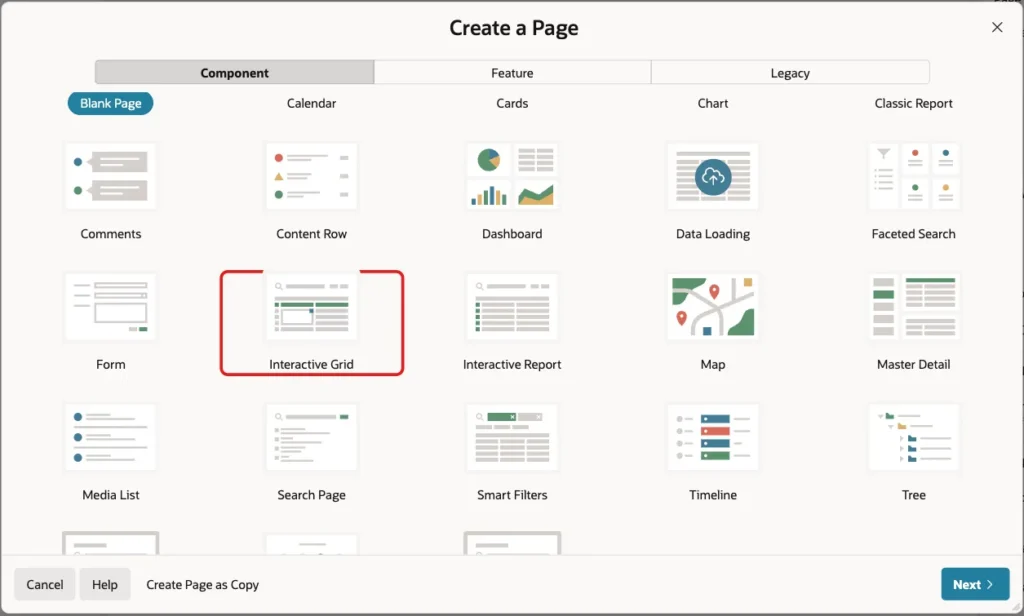
In App Builder, open the application and click Create Page. On the Component tab, select Interactive Grid:
Set Page Number to 940 and Name to Service Jobs. Keep Page Mode Normal:
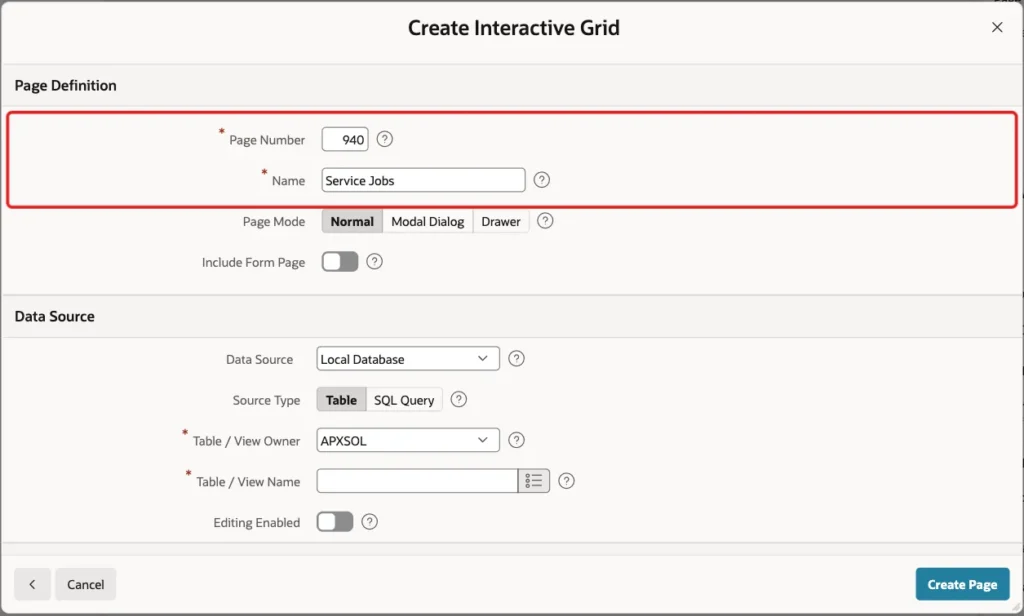
Under Data Source, keep Source Type Table, set Table / View Name to SERVICE_JOBS and turn on Editing Enabled. Fill, Copy Down and Clear appear only in an editable grid:

Keep the Navigation settings. The wizard adds a breadcrumb and a navigation menu entry:

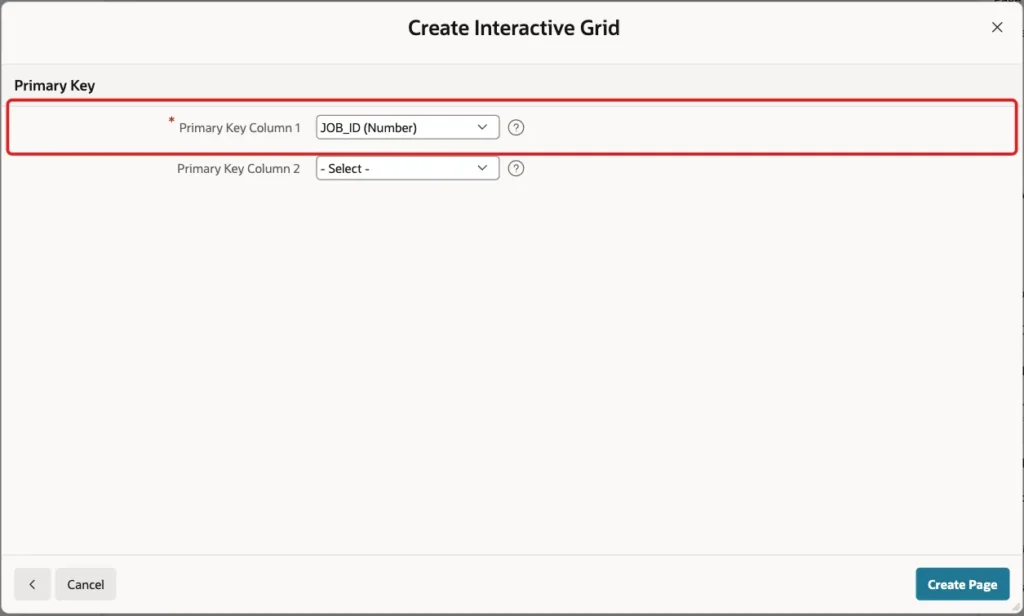
Click Next. On the Primary Key screen, select JOB_ID and click Create Page:
Step 3: Add a Column That Locks Finished Rows
Fill and Copy Down change many rows at once, so finished jobs need protection. The Interactive Grid can read the allowed operations for each row from a column. That column must come from the region query, so the source changes from a table to a SQL query.
In Page Designer, select the Service Jobs region. Under Source, set Type to SQL Query and enter this query:
Example:
select job_id,
       job_ref,
       site_name,
       job_type,
       technician_id,
       visit_date,
       priority,
       status,
       case when status <> 'DONE' then 'U' end as allowed_ops
from   service_jobs
ALLOWED_OPS is U for open and scheduled jobs and empty for done jobs. The query has no ORDER BY clause on purpose. In a first test, an ORDER BY inside the query did not keep the rows in job order after some rows were saved. Step 8 sets the sort the way the grid expects.
Step 4: Allow Updates Only
Open the Attributes tab of the region. Under Edit, keep Enabled on, tick only Update Row in Allowed Operations, and set Allowed Row Operations Column to ALLOWED_OPS:

The jobs are created elsewhere, so this page only schedules them. Rows with an empty ALLOWED_OPS are read-only in the grid. Step 13 shows that the server also refuses them.
Step 5: Set the Grid Columns
Expand Service Jobs and Columns. Select JOB_REF, set Type to Display Only and turn on Query Only under Source:

Do the same for SITE_NAME (set Heading to Site) and JOB_TYPE. In a test, Copy Down over a range that started in the Job Type column left Job Type unchanged and copied only the technician.
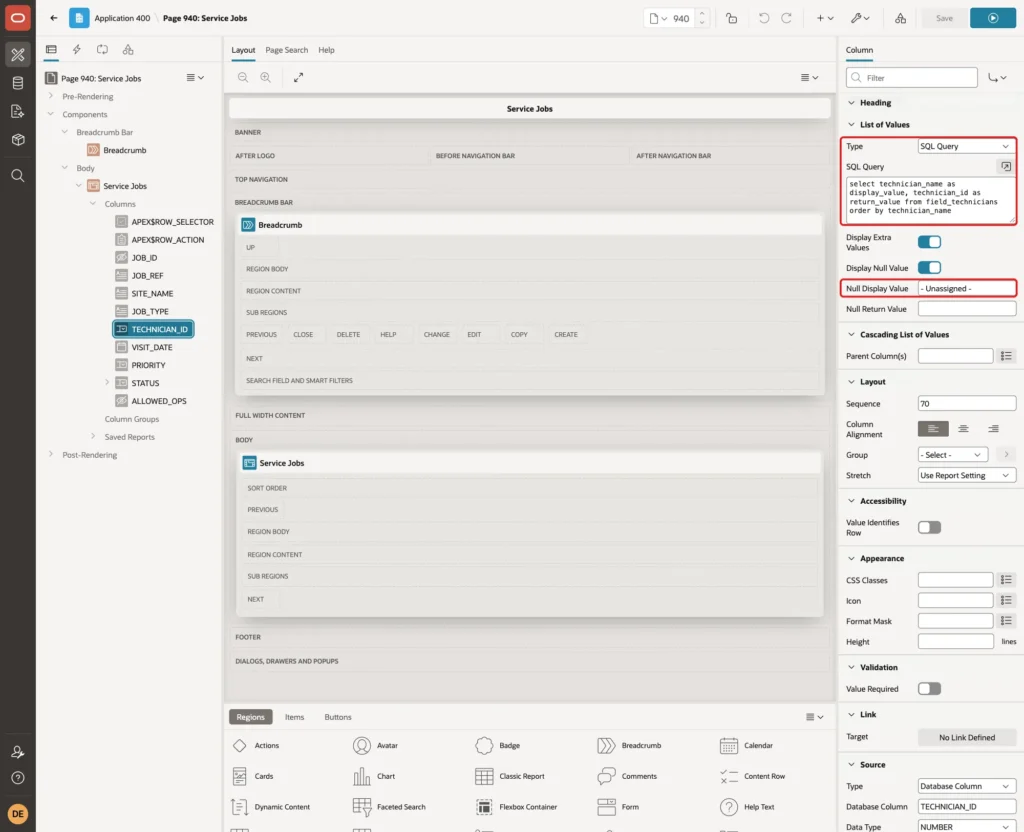
Select TECHNICIAN_ID. Set Type to Select List and Heading to Technician:
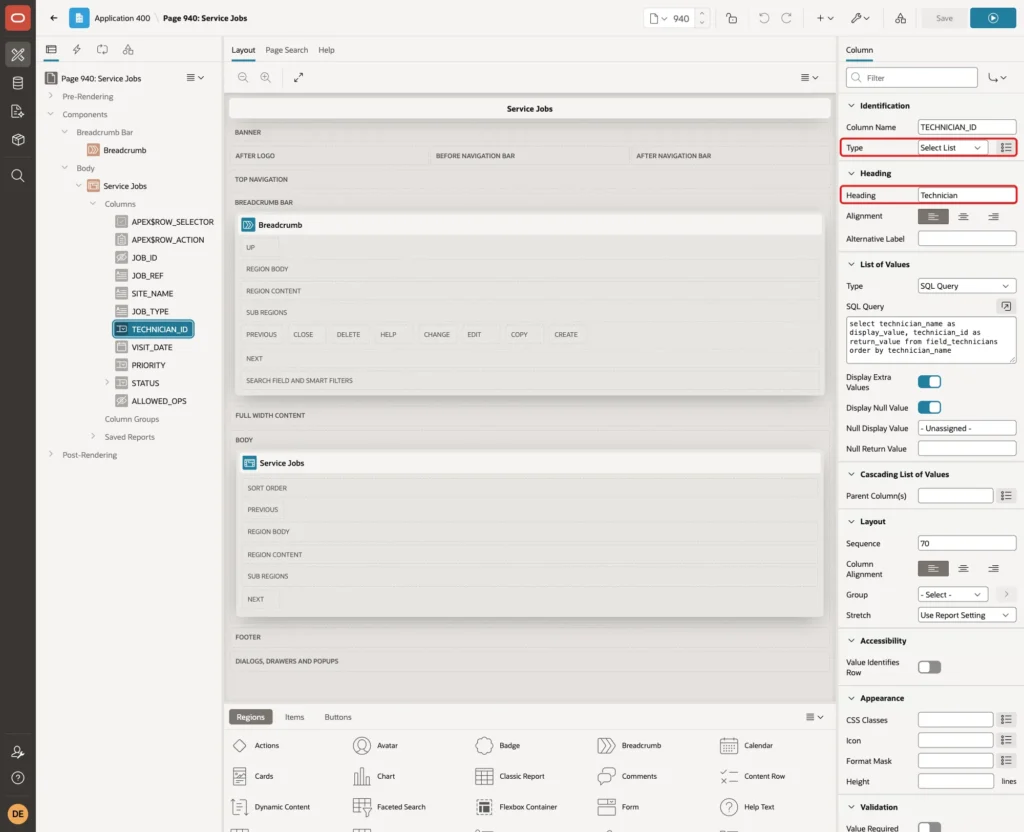
Under List of Values, set Type to SQL Query, enter this query, and set Null Display Value to - Unassigned -:
Example:
select technician_name as display_value, technician_id as return_value from field_technicians order by technician_name
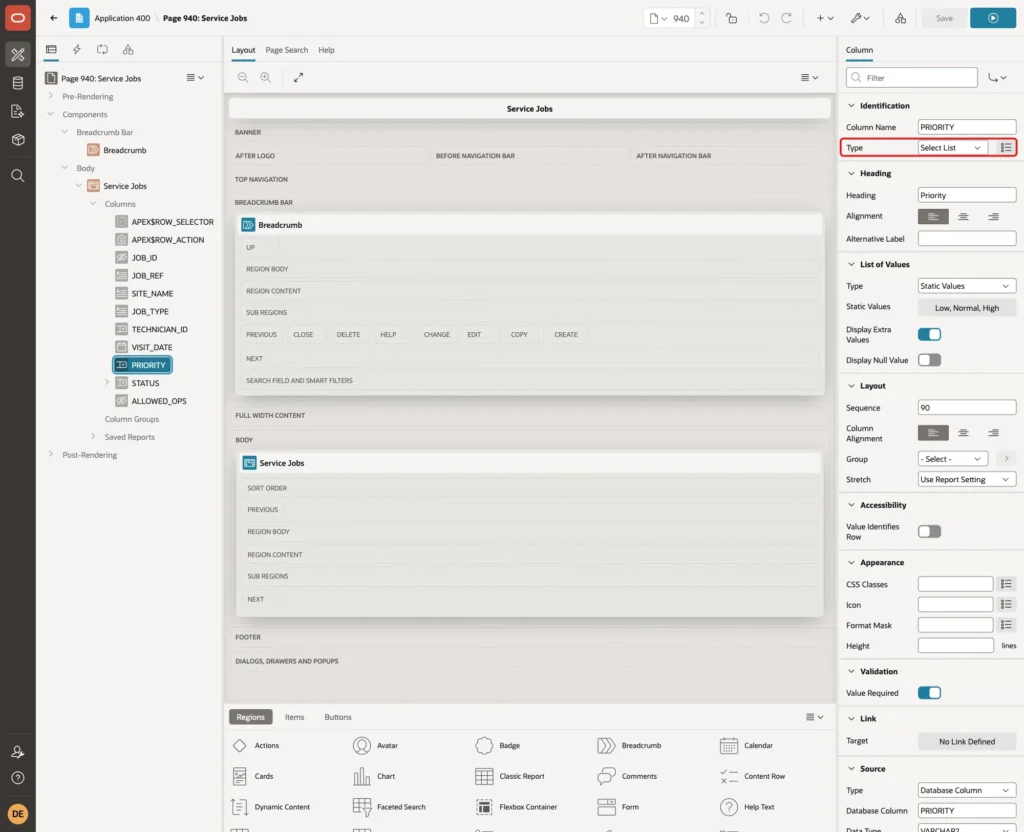
Select PRIORITY and set Type to Select List:
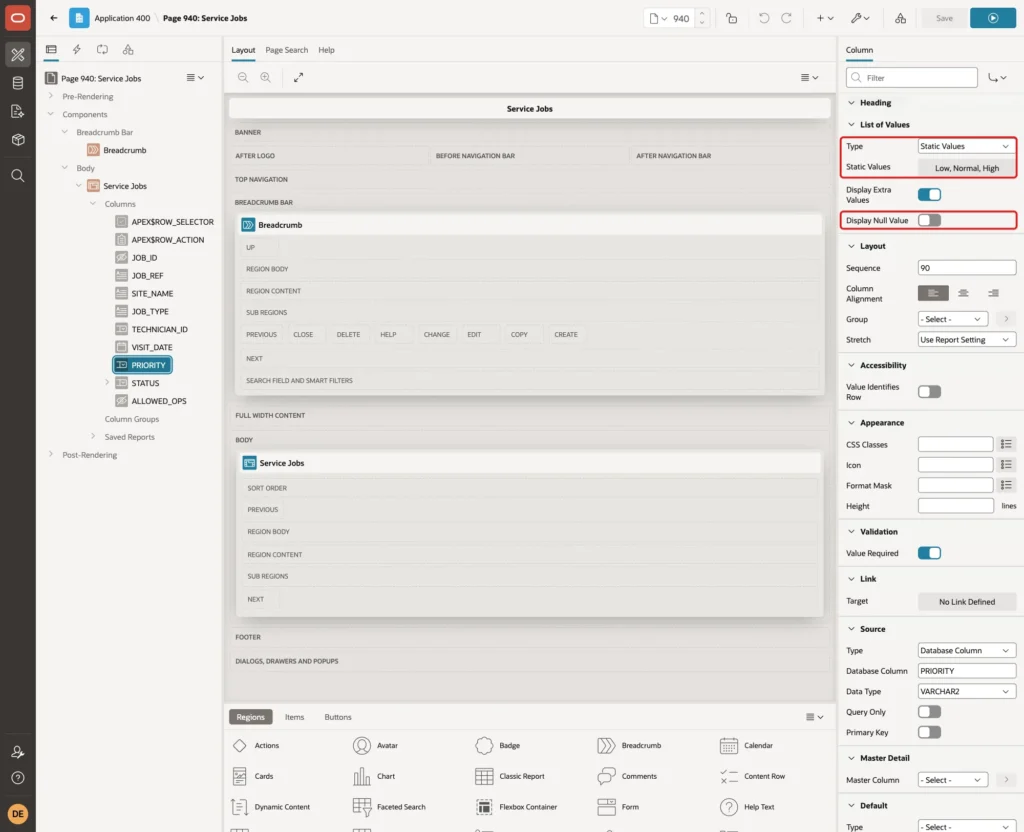
Under List of Values, set Type to Static Values. Enter Low, Normal and High as display values with LOW, NORMAL and HIGH as return values, and turn off Display Null Value:
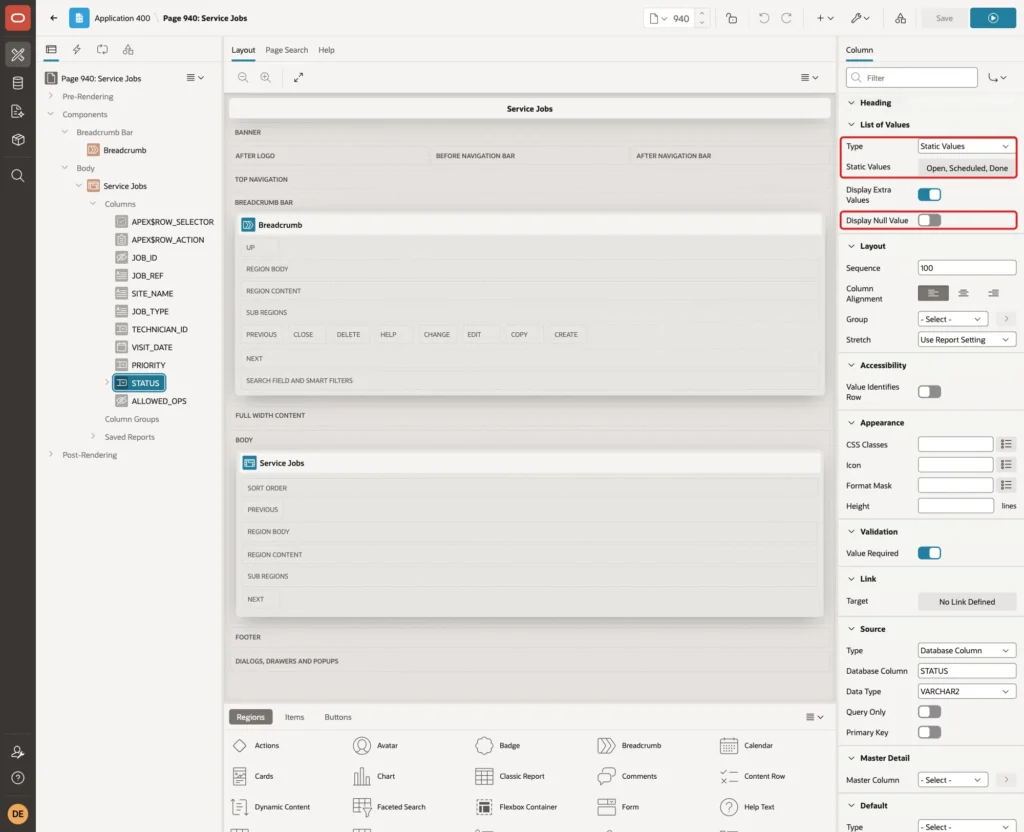
Select STATUS, set Type to Select List, and set its List of Values the same way with Open, Scheduled and Done (return values OPEN, SCHEDULED and DONE):
Keep VISIT_DATE as the Date Picker that the wizard created. Finally, select ALLOWED_OPS, set Type to Hidden and turn on Query Only:

Step 6: Open the Grid in Cell Selection Mode
By default, the grid selects whole rows. Fill and Copy Down work best on a range of cells in one or more columns. Users can switch with Actions, Selection, Cell Selection, but the page can also start in that mode.
On the Attributes tab, under Advanced, enter this Initialization JavaScript Function:
Example:
function( options ) {
    options.defaultGridViewOptions = {
        selectCells: true
    };
    return options;
}
Step 7: Add a Validation for Scheduled Jobs
Fill can set Scheduled on many rows in one move, including rows without a technician. The check constraint would stop such a save, but with a database error. A validation gives a clear message on the right cells.
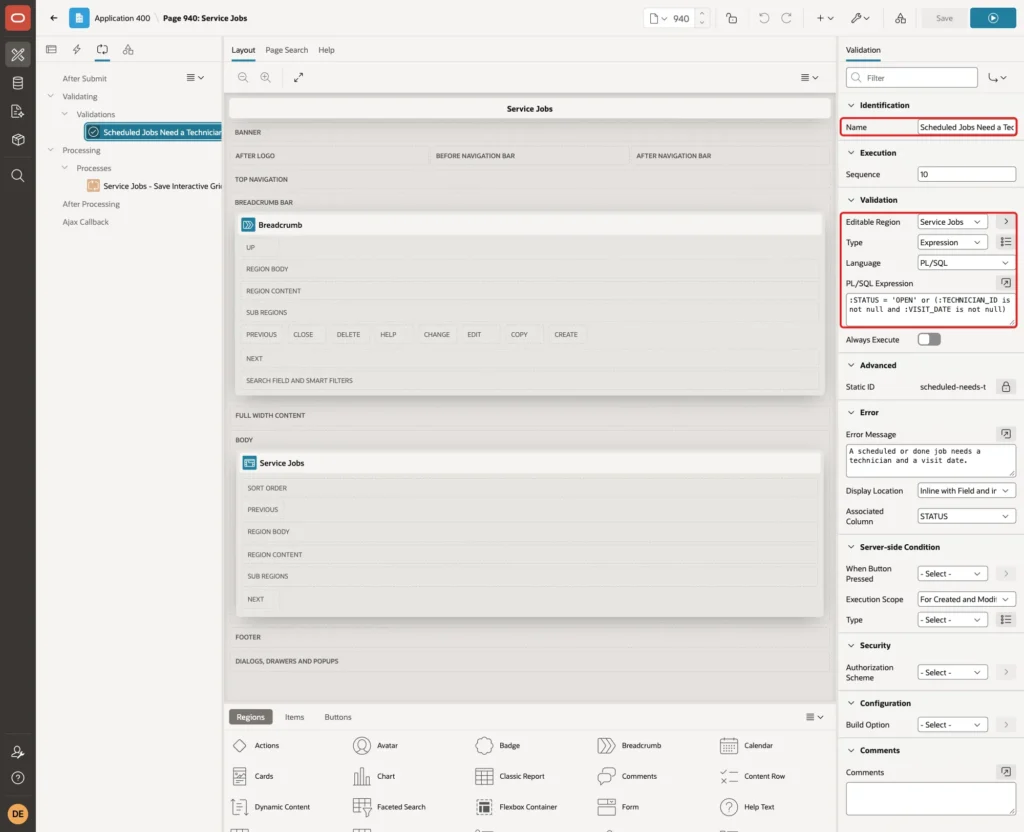
On the Processing tab, right-click Validations and click Create Validation. Set Name to Scheduled Jobs Need a Technician and Visit Date, Editable Region to Service Jobs, Type to Expression, Language to PL/SQL, and enter this PL/SQL Expression:
Example:
:STATUS = 'OPEN' or (:TECHNICIAN_ID is not null and :VISIT_DATE is not null)
Under Error, enter the Error Message A scheduled or done job needs a technician and a visit date. and set Associated Column to STATUS:
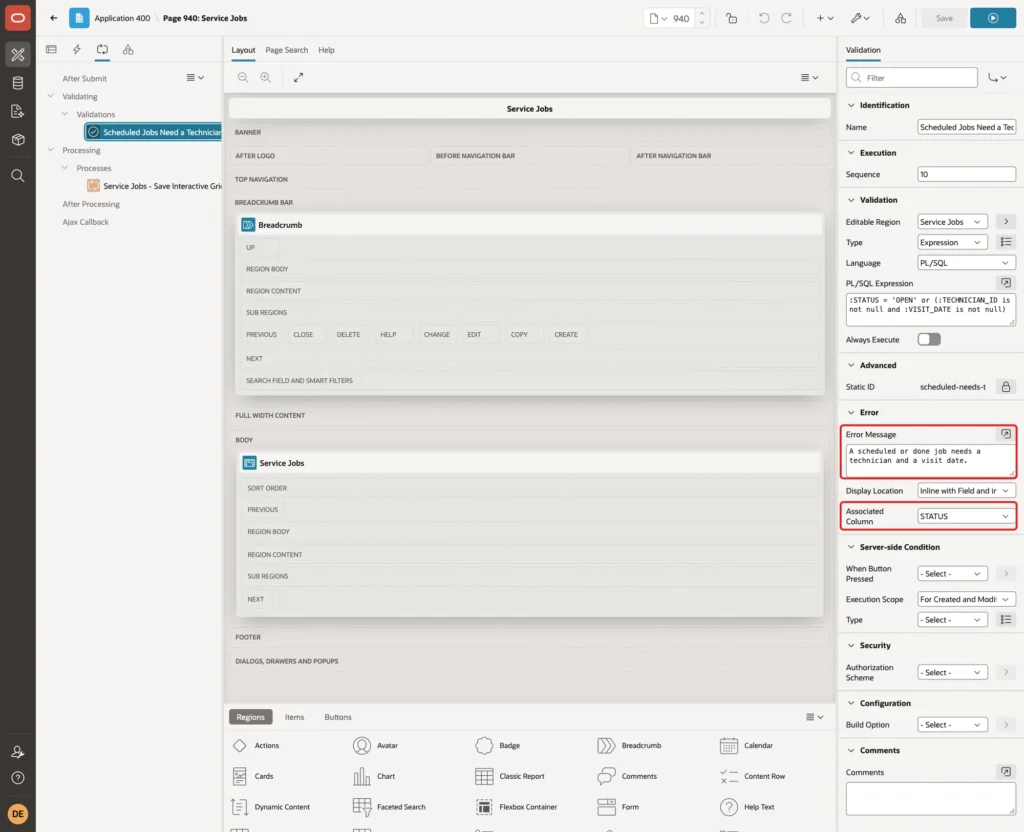
Click Save. The wizard already created the Service Jobs - Save Interactive Grid Data process, so no other process is needed.
Step 8: Sort the Grid by Job Ref
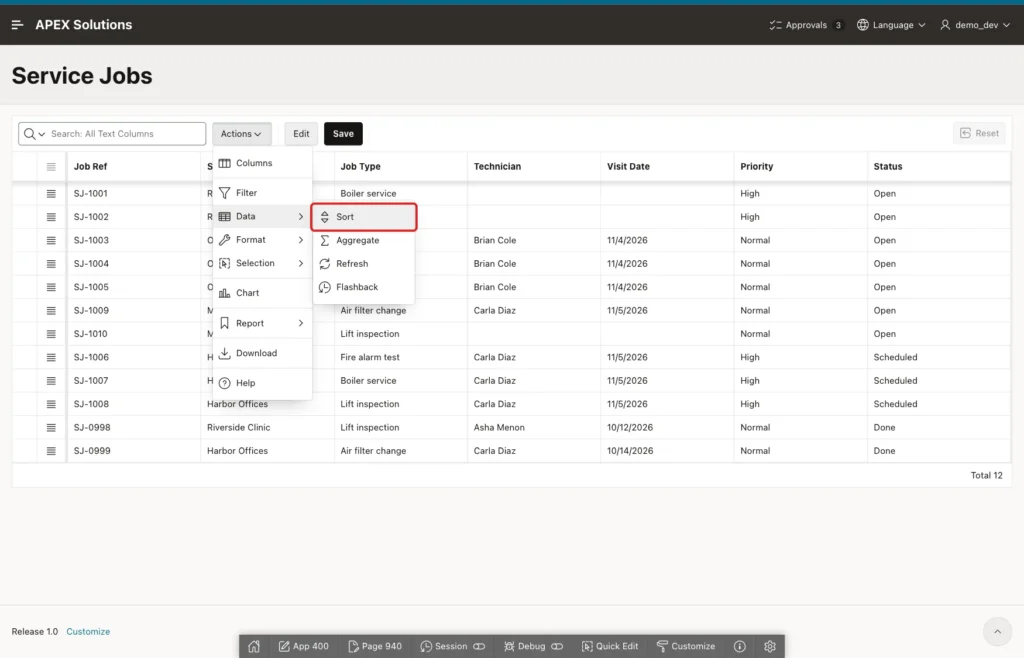
Run the page while you are logged in to App Builder. In Actions, open Data and click Sort:
Set Column to Job Ref and Direction to Ascending, then click Save:
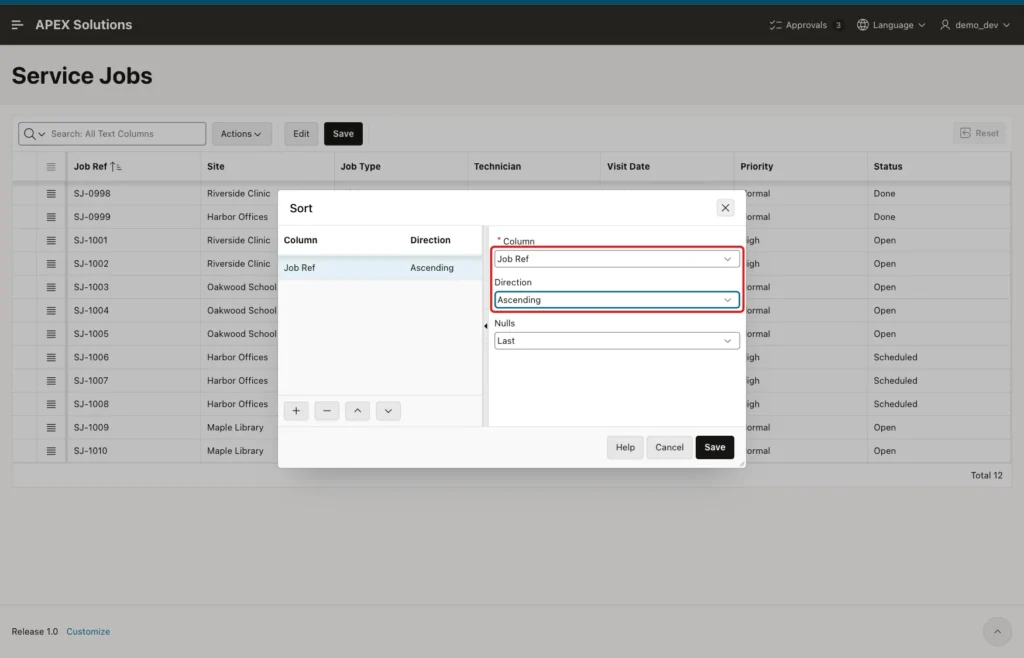
Then open Actions, Report and click Save. Because you run the page as a developer, APEX saves this as the default report and shows Default report saved for all users:

In a later test as another user, the grid opened sorted by Job Ref, SJ-0998 first and SJ-1010 last.
Step 9: Fill a Column with One Value
Run the page as an end user. The grid opens in cell selection mode, with the two done jobs at the top:

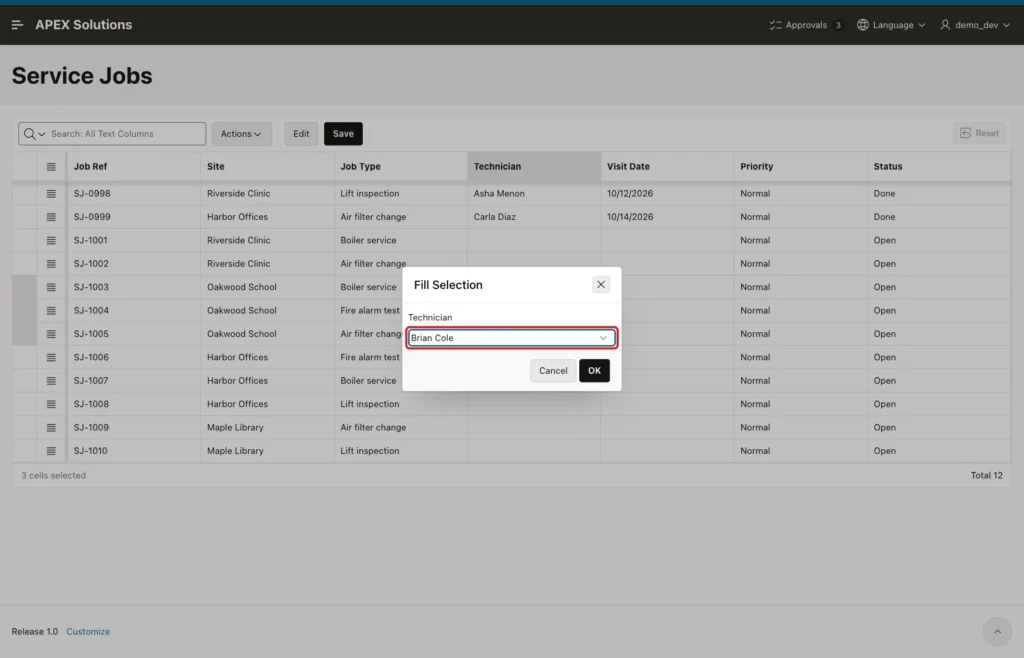
The three Oakwood School jobs need Brian Cole. Click the Technician cell of SJ-1003, then Shift+click the Technician cell of SJ-1005. The footer shows 3 cells selected.
Click the Selection Actions button in the header of the row menu column (the icon left of Job Ref) and click Fill:

The Fill Selection dialog shows the column's own select list, because only one column is selected. Choose Brian Cole and click OK:
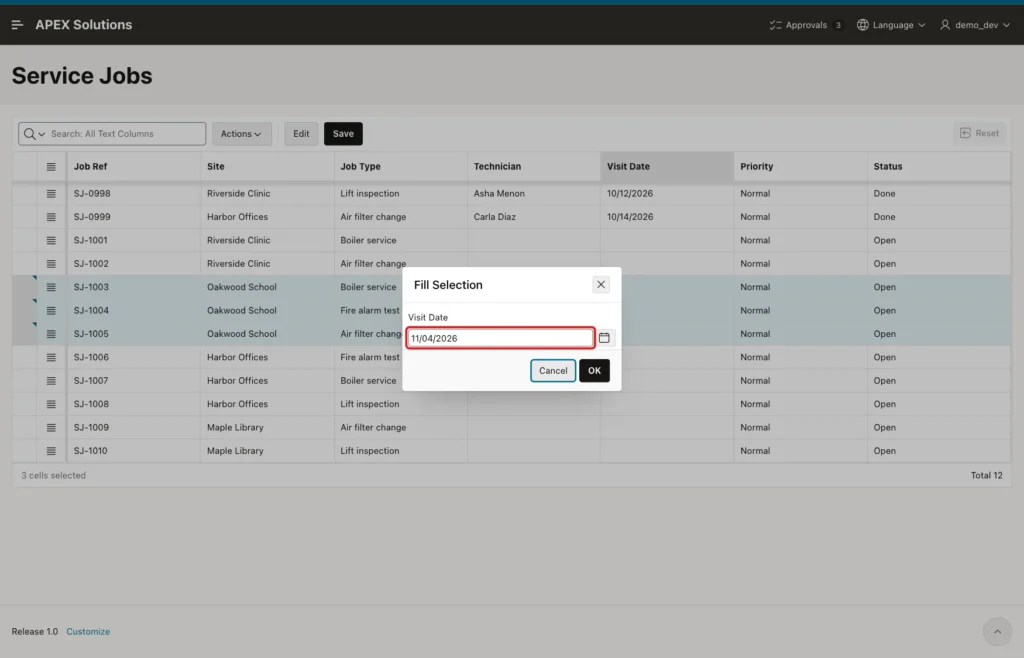
Now select the Visit Date cells of the same three rows and click Fill again. This time the dialog shows a date picker. Enter 11/04/2026 and click OK:
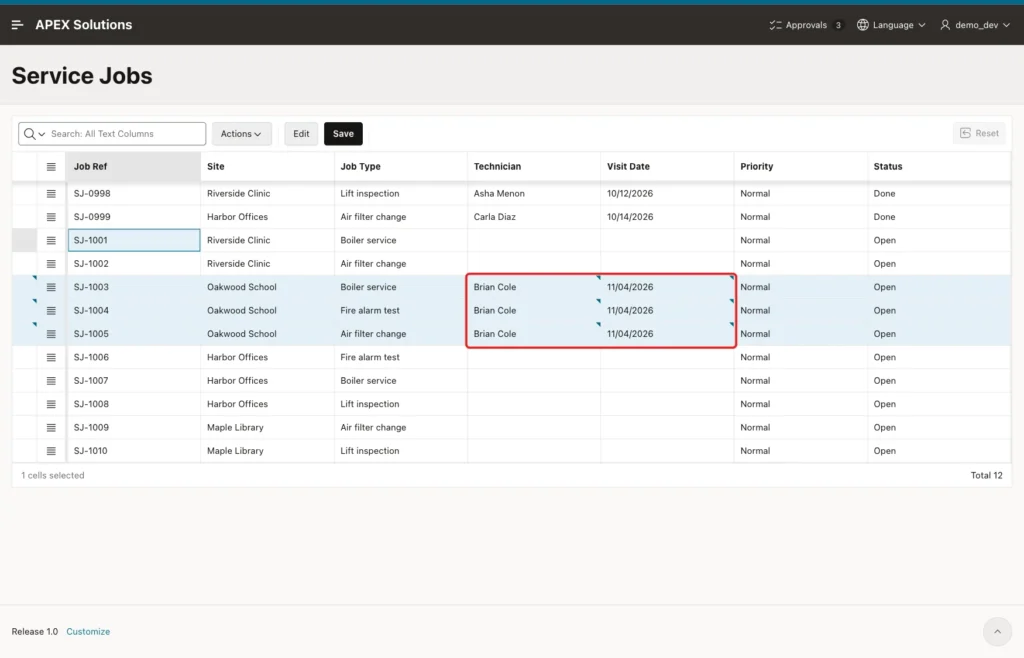
All three rows now have the same technician and visit date. The small triangles mark changed cells that are not saved yet:
Step 10: Copy the First Row Down
Copy Down takes the values of the first selected row and copies them into the other selected rows, column by column. It works across several columns at once.
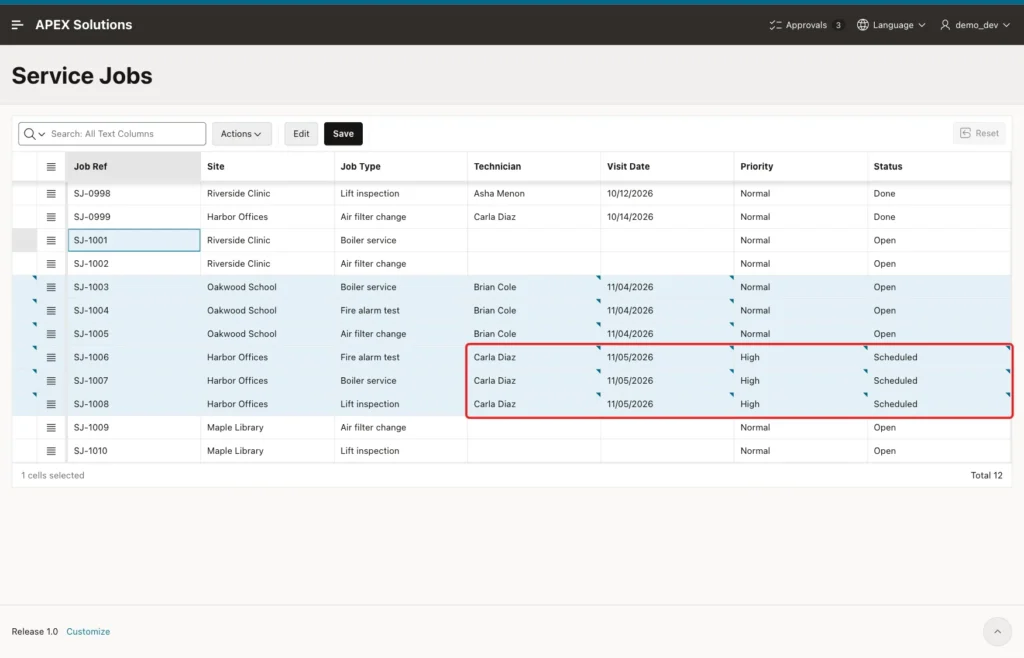
Edit the first row as usual. For SJ-1006, click the Technician cell, press Enter and choose Carla Diaz, then set Visit Date to 11/05/2026, Priority to High and Status to Scheduled. Press Escape to leave edit mode:
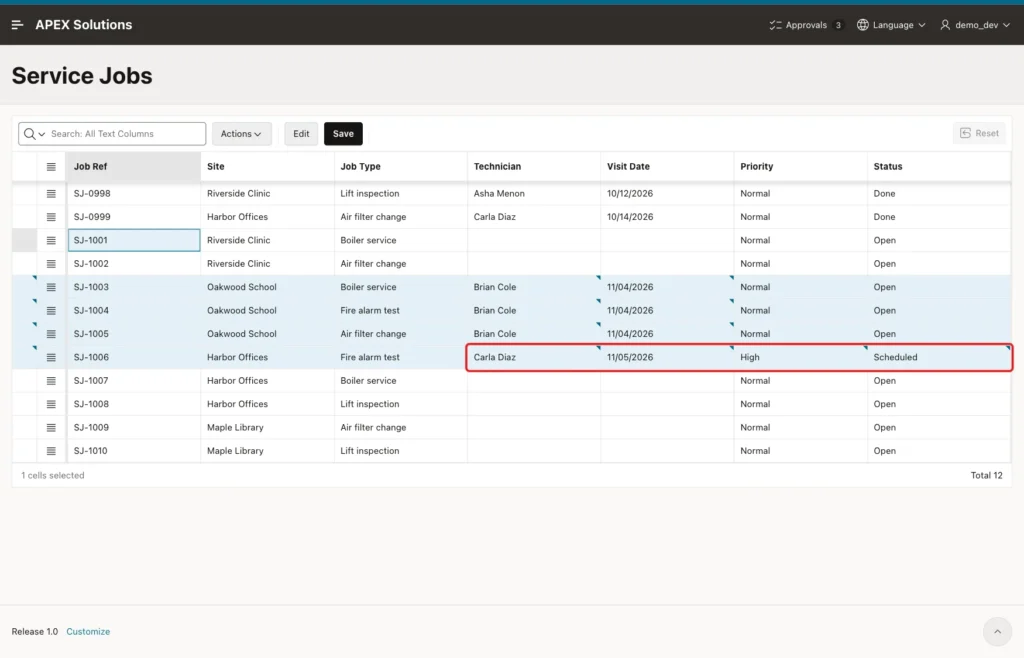
Click the Technician cell of SJ-1006 and Shift+click the Status cell of SJ-1008. That selects 12 cells in four columns. Open Selection Actions and click Copy Down:

SJ-1007 and SJ-1008 now match SJ-1006 in all four columns:
Step 11: Fill Skips Locked Rows
Select the Priority cells from SJ-0998 down to SJ-1002 and use Fill with High. The selection includes the two done jobs:

Fill wrote High only into the rows where ALLOWED_OPS allows an update. The done jobs were not marked as changed at all.
Step 12: Copy and Paste Cells
In APEX 26.1, the selection menu also has Copy, Cut, Paste and Paste Insert, with keyboard shortcuts. Select the Technician and Visit Date cells of SJ-1006 and press Cmd+C (macOS, as shown in the menu):
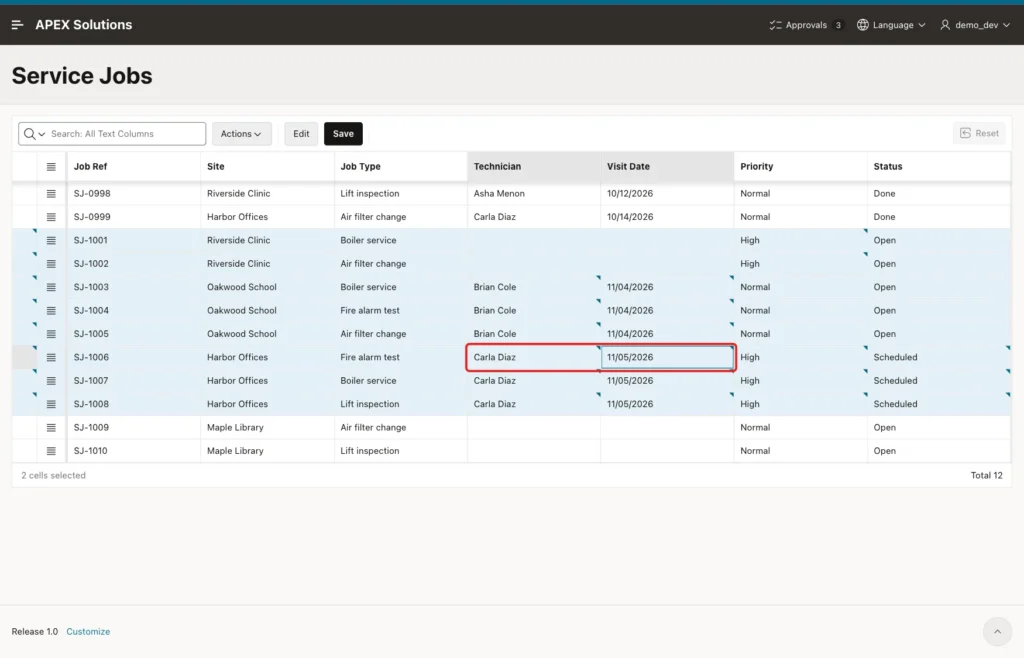
The clipboard now holds the display values separated by a tab: Carla Diaz and 11/05/2026. That is the same format a spreadsheet uses, so cells can also be copied to and from a spreadsheet.
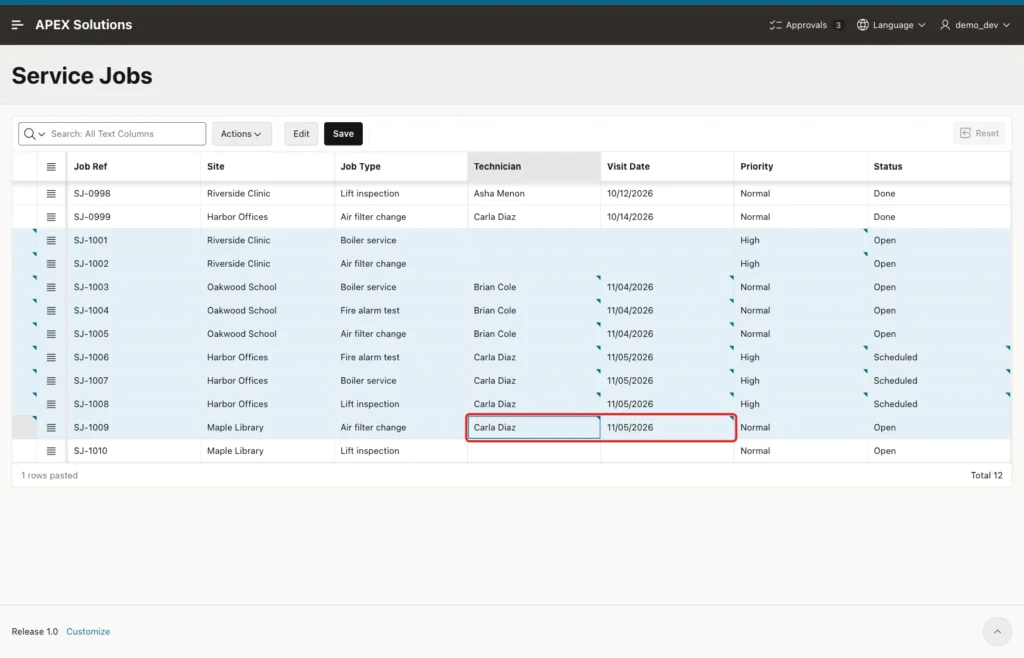
Click the Technician cell of SJ-1009 and press Cmd+V. The footer shows 1 rows pasted:
Step 13: Save and Check the Data
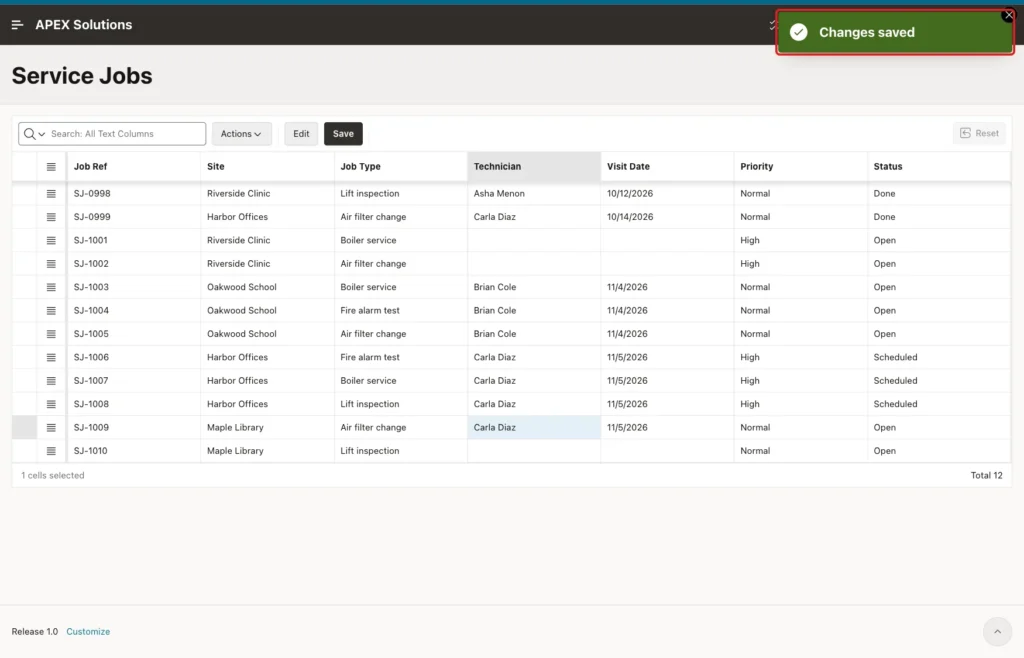
Click Save. The grid sends all changed rows in one request and shows Changes saved:
Check the table in SQL:
Example:
select j.job_ref, t.technician_name,
       to_char(j.visit_date, 'YYYY-MM-DD') as visit_date, j.priority, j.status
from service_jobs j
left join field_technicians t on t.technician_id = j.technician_id
order by j.job_ref;
Output:
JOB_REF    TECHNICIAN_NAME    VISIT_DATE    PRIORITY    STATUS
__________ __________________ _____________ ___________ ____________
SJ-0998    Asha Menon         2026-10-12    NORMAL      DONE
SJ-0999    Carla Diaz         2026-10-14    NORMAL      DONE
SJ-1001                                     HIGH        OPEN
SJ-1002                                     HIGH        OPEN
SJ-1003    Brian Cole         2026-11-04    NORMAL      OPEN
SJ-1004    Brian Cole         2026-11-04    NORMAL      OPEN
SJ-1005    Brian Cole         2026-11-04    NORMAL      OPEN
SJ-1006    Carla Diaz         2026-11-05    HIGH        SCHEDULED
SJ-1007    Carla Diaz         2026-11-05    HIGH        SCHEDULED
SJ-1008    Carla Diaz         2026-11-05    HIGH        SCHEDULED
SJ-1009    Carla Diaz         2026-11-05    NORMAL      OPEN
SJ-1010                                     NORMAL      OPEN

12 rows selected.
Every fill, copy down and paste reached the table. The done jobs SJ-0998 and SJ-0999 are unchanged.
Test the Rules
First, the validation. Select the Status cells of SJ-1001 and SJ-1002, which have no technician, and use Fill with Scheduled. Click Save:
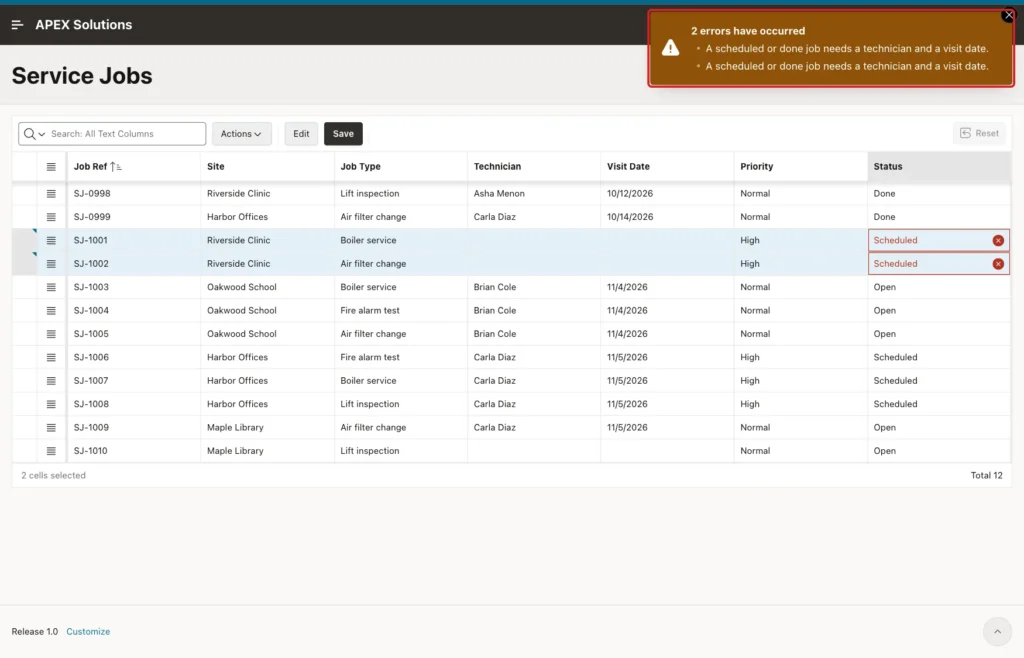
Nothing was saved. Reload the page to drop the unsaved changes.
Second, a forced request. The grid does not let you edit a done row, but someone could change the save request in the browser. In a test, the save request was changed to set Priority High on the done job SJ-0998, with its update flag switched to true:
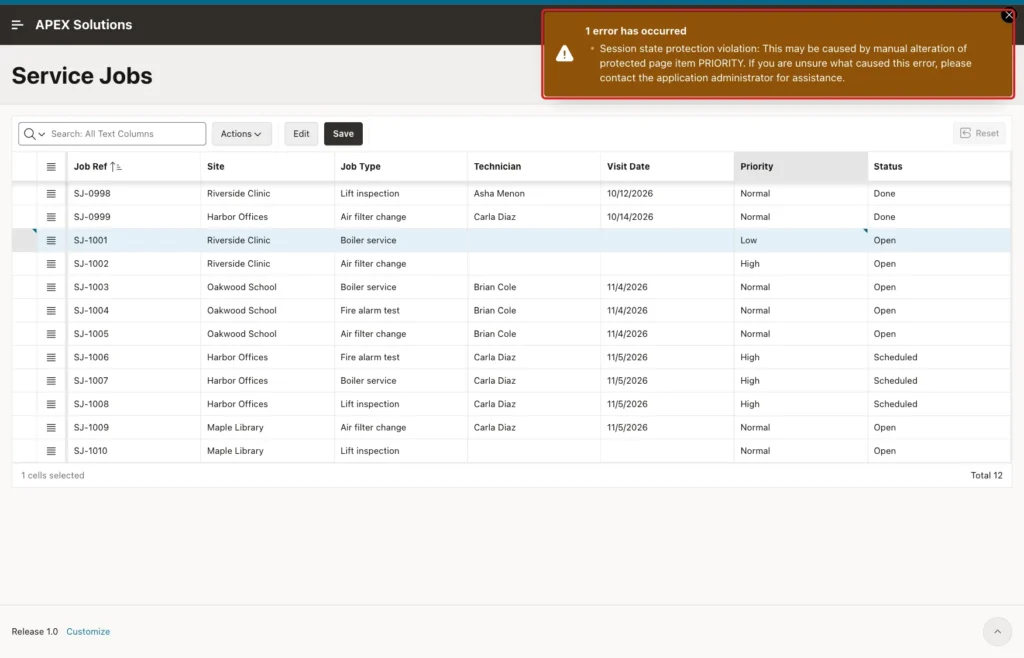
APEX answered with a session state protection violation for PRIORITY. The grid sends checksums for each row, so a request changed in the browser does not pass. The whole save was refused:
Example:
select job_ref, priority, status
from service_jobs
where job_ref in ('SJ-0998', 'SJ-1001')
order by job_ref;
Output:
JOB_REF    PRIORITY    STATUS
__________ ___________ _________
SJ-0998    NORMAL      DONE
SJ-1001    HIGH        OPEN
SJ-0998 is still NORMAL and DONE. SJ-1001 keeps its saved value, because its change was replaced by the forged row in the request.
Things to Know
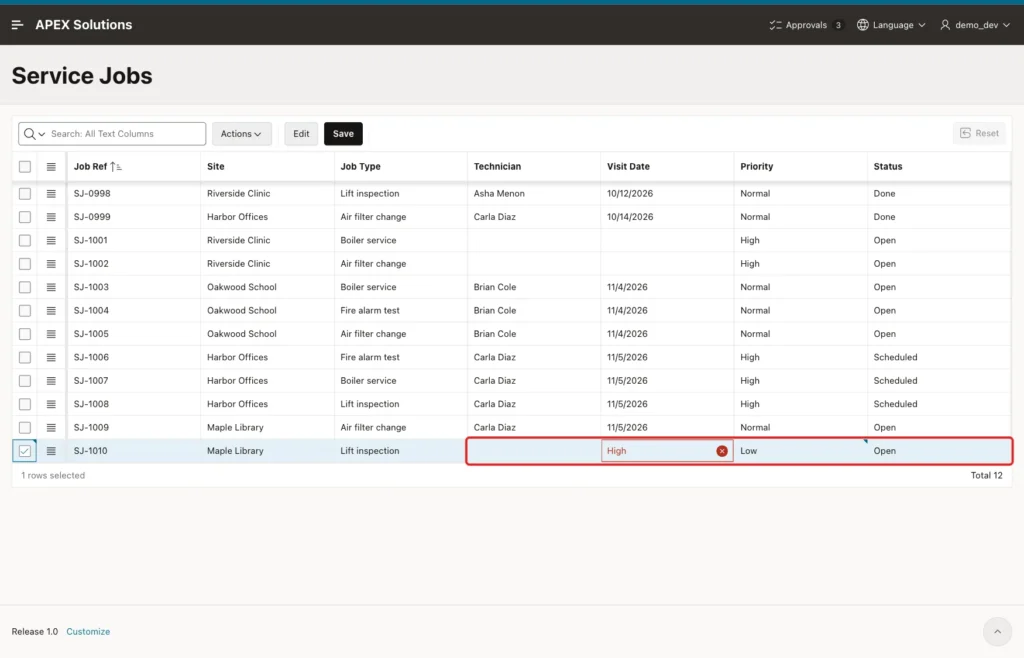
- Use cell selection for Fill. In row selection mode (Actions, Selection, Row Selection; the menu shows F8 as its shortcut), Fill shows a plain text box and writes the text into every editable column of the selected rows. The same menu entry then reads Cell Selection and switches back.
- In a test, filling one row with High in row selection mode put High into Visit Date (marked invalid) and turned Priority to Low, because High is a display value, not a return value:
- Clear empties the selected cells, but a select list without a null entry cannot be empty. Clearing Priority in SJ-1009 and SJ-1010 set both to Low, the first value in the list. Clearing the Technician cell made it empty, as expected.
- Paste matches text to the display values of a select list. When the clipboard held a name that is not in the list, the grid reported 1 rows pasted but left the Technician cell empty.
- An ORDER BY inside the region query was not kept after rows were saved. Set the default sort in the saved report instead (Step 8).
- The tools change only cells that can be edited. Fill skipped the rows locked through ALLOWED_OPS, Copy Down skipped the Display Only Job Type column, and the server checks the locked rows again on save.
Related Guides
- Oracle APEX Interactive Grid: A Complete Guide
- How to Control an Interactive Grid with JavaScript in Oracle APEX
Conclusion
To fill down and copy values in an Interactive Grid in Oracle APEX, make the grid editable, start it in cell selection mode, and use Fill, Copy Down and Paste from the selection menu. An Allowed Row Operations Column and a validation keep the bulk changes safe.
In this example, three fills, one Copy Down and one paste scheduled eight jobs in a few clicks and saved them in one request. Locked rows were skipped in the browser and refused on the server, and invalid statuses were stopped with a clear message.
See my articles more often when you search Google.
