
Many reports have a link that makes sense only for some rows. An Edit link should appear on records that can still be changed, and a Pay link only on unpaid bills. When the link shows on every row, users click it and then hit an error on the next page.
Oracle APEX can show the link only where it belongs. The report query builds the URL for the allowed rows and returns NULL for the others. A template directive in the column's HTML Expression then shows a link or plain text. This guide builds it in a classic report and in an interactive report.
Oracle Apex: Creating Link Column in Interactive Report adds the same link to every row. Here the link depends on the row's data, the URL keeps its checksum, and the target page checks the rule again on the server.
The example uses leave requests that can be edited only while their status is NEW. The same steps work for any table and any condition.
Step 1: Create the Tables
Two tables hold the data:
- LEAVE_TYPES lists the kinds of leave, such as Annual Leave and Training.
- LEAVE_REQUESTS has one row per request with the employee, the dates, the reason and the status.
Example:
set define off

create table leave_types (
    leave_type_id  number generated by default on null as identity,
    type_name      varchar2(40) not null,
    constraint leave_types_pk primary key (leave_type_id),
    constraint leave_types_name_uk unique (type_name)
);

create table leave_requests (
    request_id     number generated by default on null as identity,
    employee_name  varchar2(80) not null,
    leave_type_id  number not null,
    start_date     date not null,
    end_date       date not null,
    reason         varchar2(200),
    status         varchar2(10) default on null 'NEW' not null,
    created_on     date default on null sysdate not null,
    constraint leave_requests_pk primary key (request_id),
    constraint leave_requests_type_fk foreign key (leave_type_id)
        references leave_types (leave_type_id),
    constraint leave_requests_status_ck check (status in ('NEW', 'APPROVED', 'REJECTED', 'CANCELLED')),
    constraint leave_requests_dates_ck check (end_date >= start_date)
);

create index leave_requests_type_ix on leave_requests (leave_type_id);

insert into leave_types (type_name) values ('Annual Leave');
insert into leave_types (type_name) values ('Sick Leave');
insert into leave_types (type_name) values ('Training');

insert into leave_requests (employee_name, leave_type_id, start_date, end_date, reason, status)
select 'Anita Rao', leave_type_id, date '2026-11-02', date '2026-11-06', 'Family visit', 'NEW'
from leave_types where type_name = 'Annual Leave';
insert into leave_requests (employee_name, leave_type_id, start_date, end_date, reason, status)
select 'Brian Cole', leave_type_id, date '2026-10-12', date '2026-10-13', 'Flu', 'APPROVED'
from leave_types where type_name = 'Sick Leave';
insert into leave_requests (employee_name, leave_type_id, start_date, end_date, reason, status)
select 'Chen Wei', leave_type_id, date '2026-11-16', date '2026-11-18', 'Cloud certification course', 'NEW'
from leave_types where type_name = 'Training';
insert into leave_requests (employee_name, leave_type_id, start_date, end_date, reason, status)
select 'Divya Nair', leave_type_id, date '2026-12-21', date '2026-12-31', 'Year-end holiday', 'REJECTED'
from leave_types where type_name = 'Annual Leave';
insert into leave_requests (employee_name, leave_type_id, start_date, end_date, reason, status)
select 'Erik Hansen', leave_type_id, date '2026-11-09', date '2026-11-09', 'Dentist', 'NEW'
from leave_types where type_name = 'Sick Leave';
insert into leave_requests (employee_name, leave_type_id, start_date, end_date, reason, status)
select 'Fatima Khan', leave_type_id, date '2026-10-26', date '2026-10-30', 'Wedding', 'APPROVED'
from leave_types where type_name = 'Annual Leave';
insert into leave_requests (employee_name, leave_type_id, start_date, end_date, reason, status)
select 'George Mills', leave_type_id, date '2026-11-23', date '2026-11-24', 'Plans changed', 'CANCELLED'
from leave_types where type_name = 'Annual Leave';
insert into leave_requests (employee_name, leave_type_id, start_date, end_date, reason, status)
select 'Hana Sato', leave_type_id, date '2026-12-07', date '2026-12-08', 'Security workshop', 'NEW'
from leave_types where type_name = 'Training';

commit;

select r.request_id, r.employee_name, t.type_name,
       to_char(r.start_date, 'YYYY-MM-DD') as start_date,
       to_char(r.end_date, 'YYYY-MM-DD') as end_date, r.status
from leave_requests r
join leave_types t on t.leave_type_id = r.leave_type_id
order by r.request_id;
Output:
Table LEAVE_TYPES created.

Table LEAVE_REQUESTS created.

Index LEAVE_REQUESTS_TYPE_IX created.

1 row inserted.

1 row inserted.

1 row inserted.

1 row inserted.

1 row inserted.

1 row inserted.

1 row inserted.

1 row inserted.

1 row inserted.

1 row inserted.

1 row inserted.

Commit complete.

   REQUEST_ID EMPLOYEE_NAME    TYPE_NAME       START_DATE    END_DATE      STATUS
_____________ ________________ _______________ _____________ _____________ ____________
            1 Anita Rao        Annual Leave    2026-11-02    2026-11-06    NEW
            2 Brian Cole       Sick Leave      2026-10-12    2026-10-13    APPROVED
            3 Chen Wei         Training        2026-11-16    2026-11-18    NEW
            4 Divya Nair       Annual Leave    2026-12-21    2026-12-31    REJECTED
            5 Erik Hansen      Sick Leave      2026-11-09    2026-11-09    NEW
            6 Fatima Khan      Annual Leave    2026-10-26    2026-10-30    APPROVED
            7 George Mills     Annual Leave    2026-11-23    2026-11-24    CANCELLED
            8 Hana Sato        Training        2026-12-07    2026-12-08    NEW

8 rows selected.- LEAVE_REQUESTS_TYPE_FK links each request to its leave type, and LEAVE_REQUESTS_TYPE_IX indexes that foreign key.
- LEAVE_REQUESTS_STATUS_CK allows only the four status values. LEAVE_REQUESTS_DATES_CK rejects an end date before the start date.
- DEFAULT ON NULL sets STATUS to NEW and CREATED_ON to the current date for new rows, so no trigger is needed.
Four of the eight requests are NEW. Only those four should get a link.
Step 2: Write the Report Query
The query returns one extra column, EDIT_URL. It holds the link to the edit page for NEW requests and NULL for all other rows:
Example:
select r.request_id,
       r.employee_name,
       t.type_name,
       r.start_date,
       r.end_date,
       r.end_date - r.start_date + 1 as days,
       r.status,
       case when r.status = 'NEW' then
           apex_page.get_url(
               p_page   => 901,
               p_items  => 'P901_REQUEST_ID',
               p_values => r.request_id)
       end as edit_url
from leave_requests r
join leave_types t on t.leave_type_id = r.leave_type_id- APEX_PAGE.GET_URL builds the URL for page 901 and sets P901_REQUEST_ID to the request ID. It adds the checksum that the target page needs.
- The CASE expression is the rule. Only rows with status NEW get a URL. For any other condition, change the WHEN clause.
- Because the rule is in the query, the report and the link always agree with the data.
Page 901 does not exist yet. It is created in the next step.
Step 3: Create the Edit Form
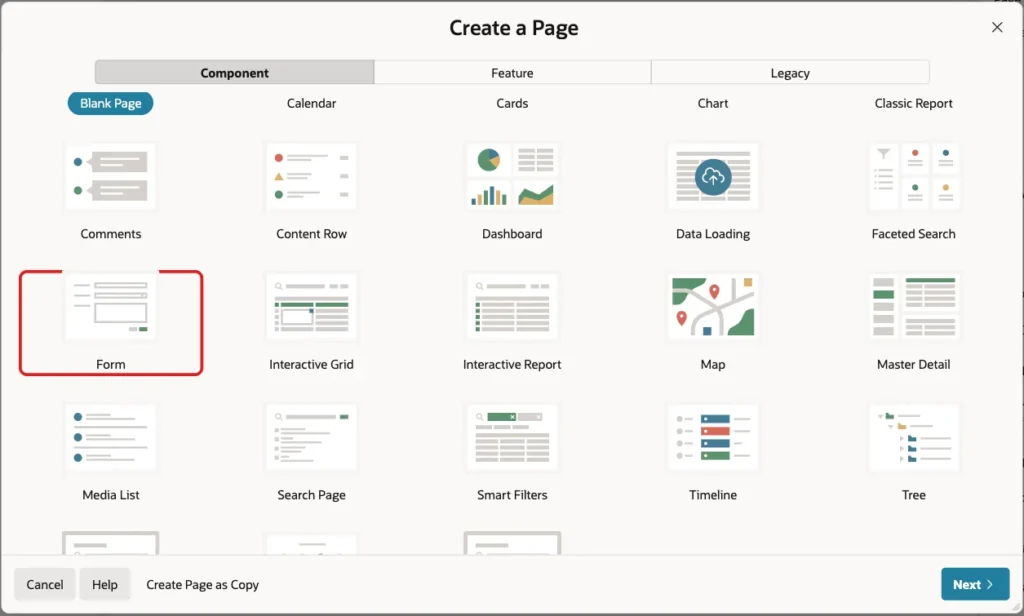
The link opens a modal form. In the application, click Create Page. On the Component tab, select Form:
Set Page Number to 901, Name to Leave Request and Page Mode to Modal Dialog:
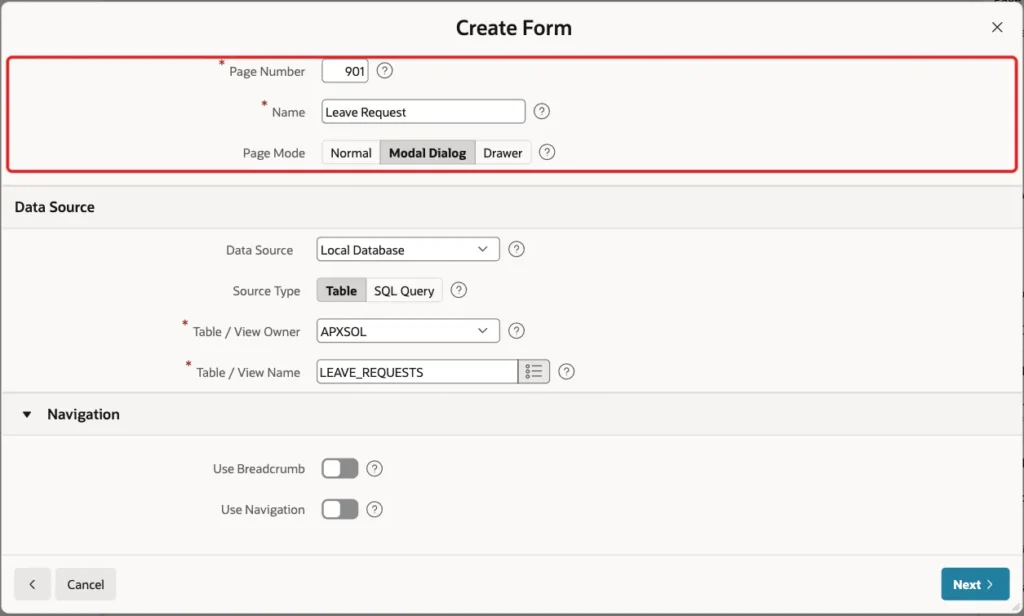
Under Data Source, set Table / View Name to LEAVE_REQUESTS. A modal page has no navigation entry, so the Navigation switches are off. Click Next:

Select REQUEST_ID as Primary Key Column 1 and click Create Page:
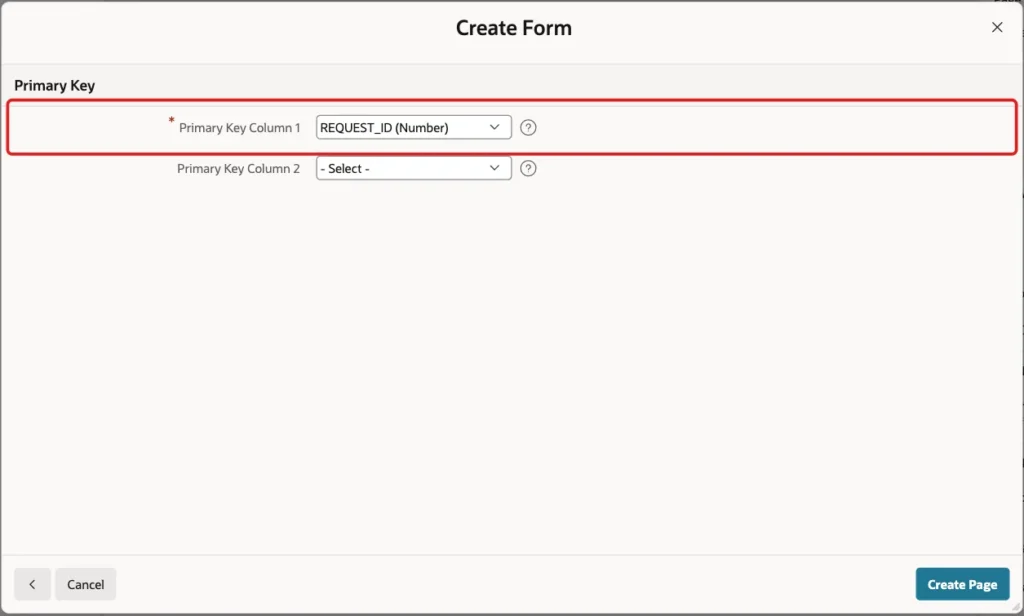
The wizard creates the items, the Cancel, Delete, Create and Apply Changes buttons, and the processes that load and save the row. The new page uses Page Access Protection "Arguments Must Have Checksum", so it accepts only URLs with a valid checksum.
Step 4: Make the Status Read-Only
The form edits a request, but it must not change the status. In Page Designer, select P901_STATUS and set Type to Display Only:
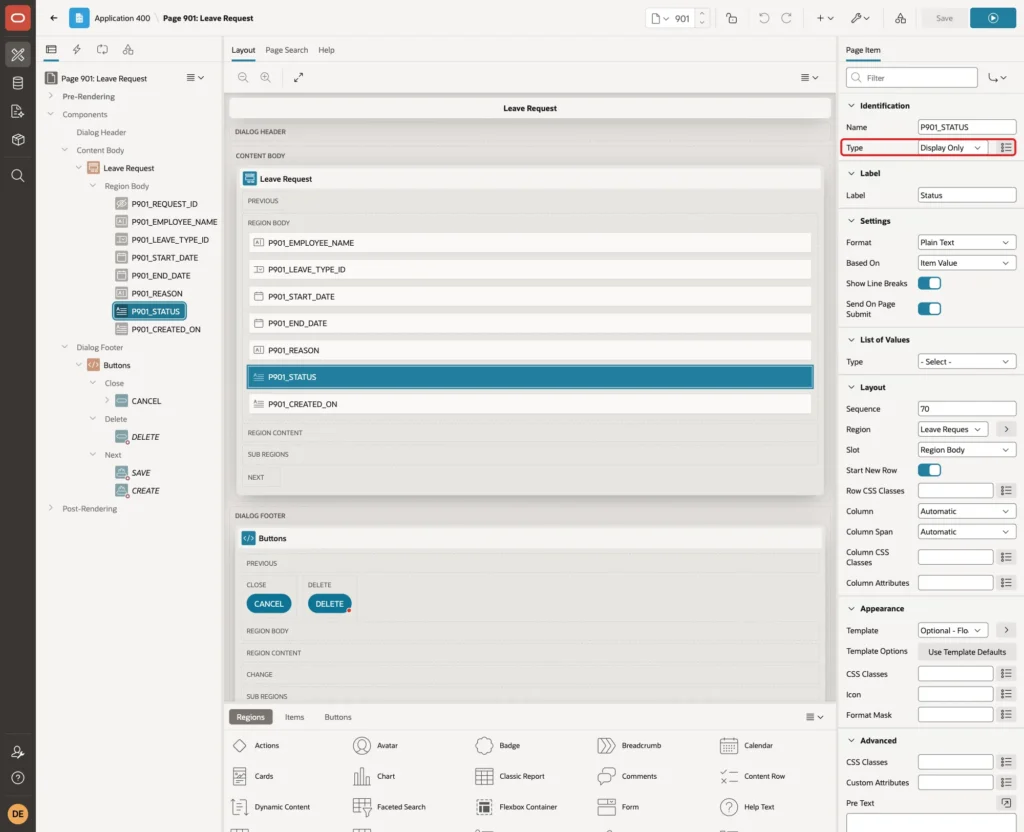
Under Source, turn on Query Only:
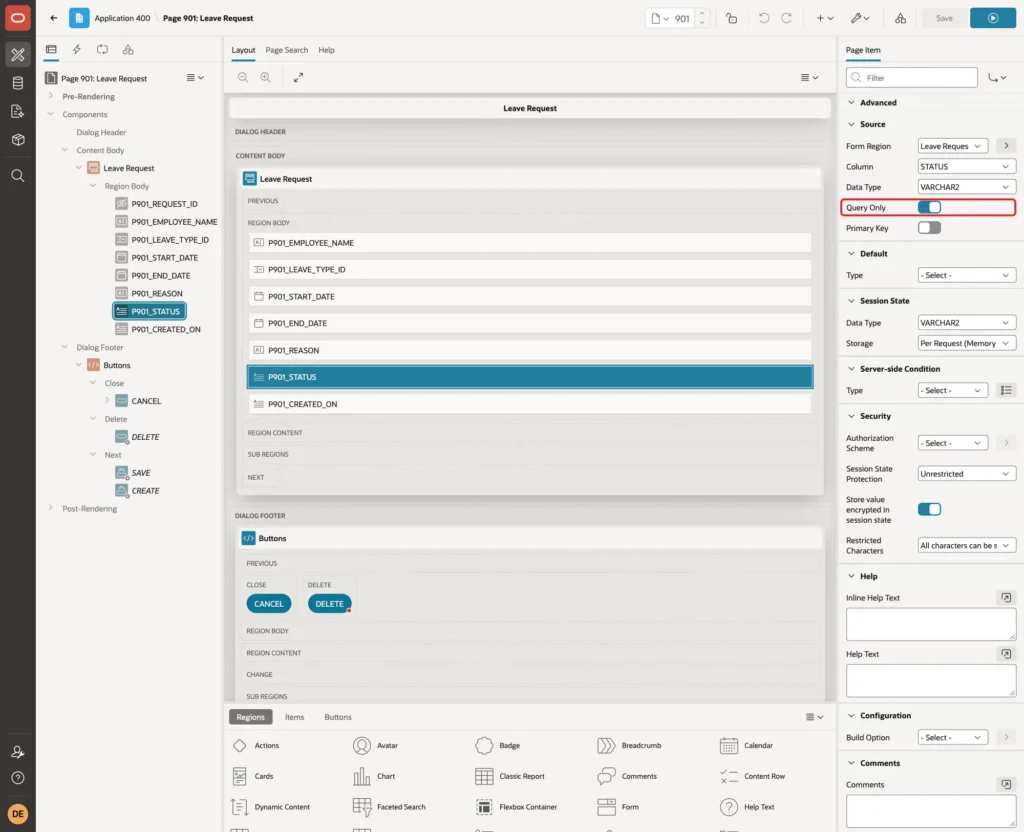
Do the same for P901_CREATED_ON. Also set the label of P901_EMPLOYEE_NAME to Employee and of P901_LEAVE_TYPE_ID to Leave Type.
In a test, a request was saved through this form. The status stayed NEW and no session state error came up.
Step 5: Check the Status Again on the Server
Hiding a link is not a security check. A user may keep the dialog open while someone else approves the request, or reuse an old link. The form itself must refuse changes to a request that is no longer NEW.
Click the Processing tab, right-click Validations and choose Create Validation. Set:
- Name: Request Is Still New
- Type: Rows returned
- SQL Query: the query below
- Always Execute: On
- Error Message: Only new requests can be changed. This request is no longer new.
- Server-side Condition Type: Request is contained in Value, Value: SAVE,DELETE
Example:
select 1
from leave_requests
where request_id = :P901_REQUEST_ID
and status = 'NEW'
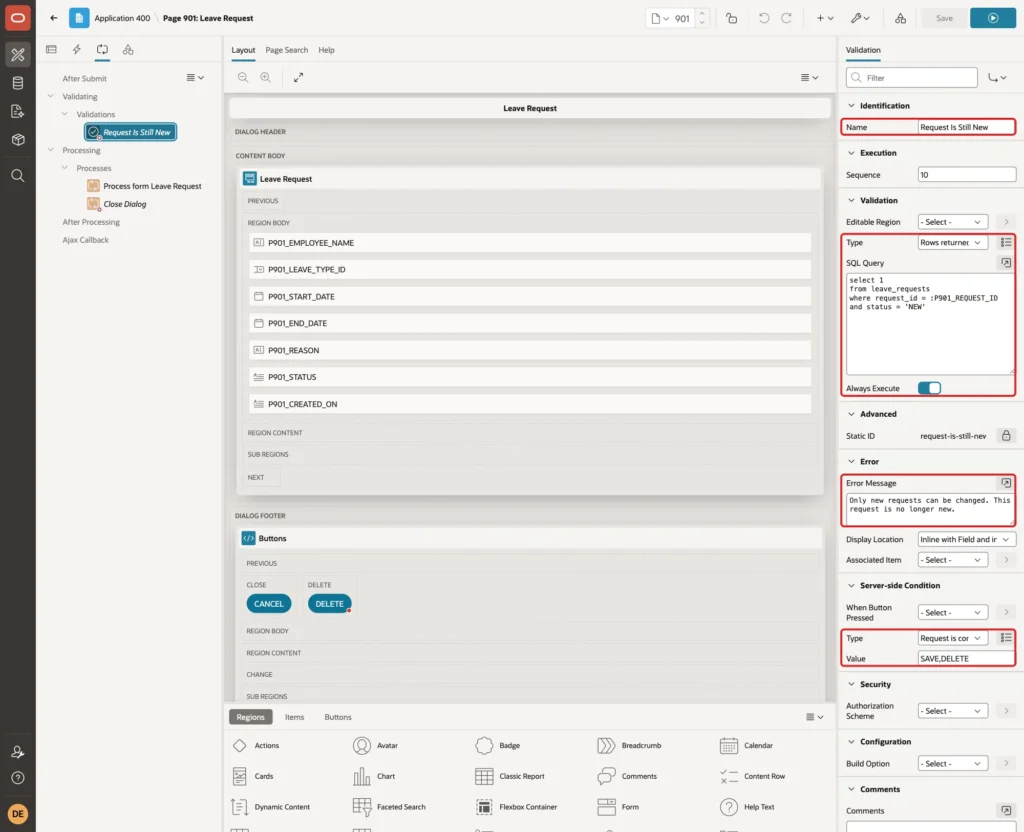
The validation passes only when the request still exists with status NEW. The condition limits it to the SAVE and DELETE requests, so it does not run when the dialog is cancelled.
Always Execute matters here. The Delete button that the wizard creates has Execute Validations set to No. Without Always Execute, the validation is skipped when Delete is clicked.
This was tested: with Always Execute off, a request approved after the dialog was opened could still be deleted. With it on, the same Delete was refused with the error message. Click Save.
Step 6: Create the Classic Report Page
Click Create Page again and select Classic Report:
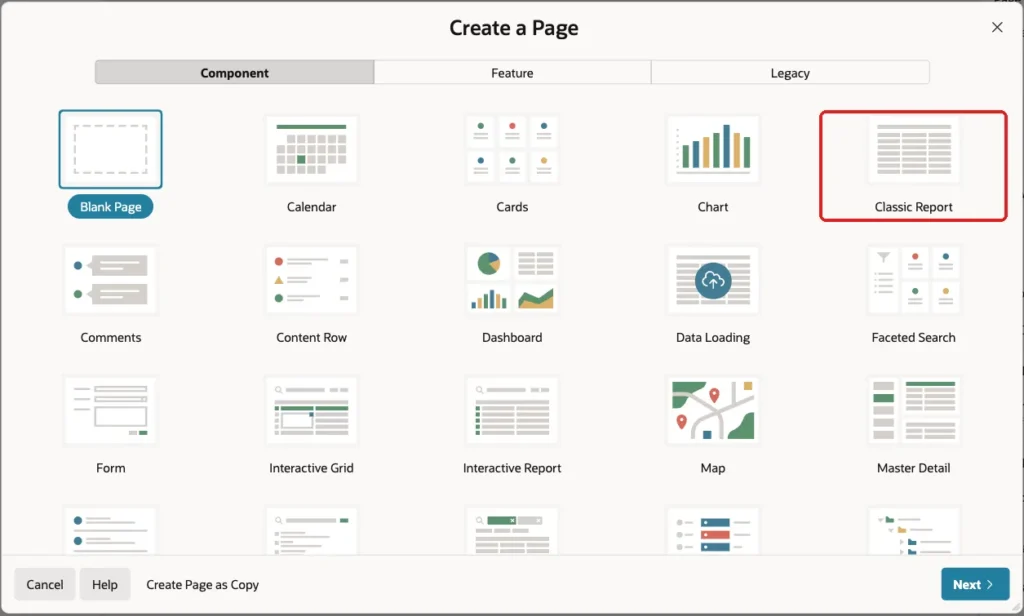
Set Page Number to 900 and Name to Leave Requests:
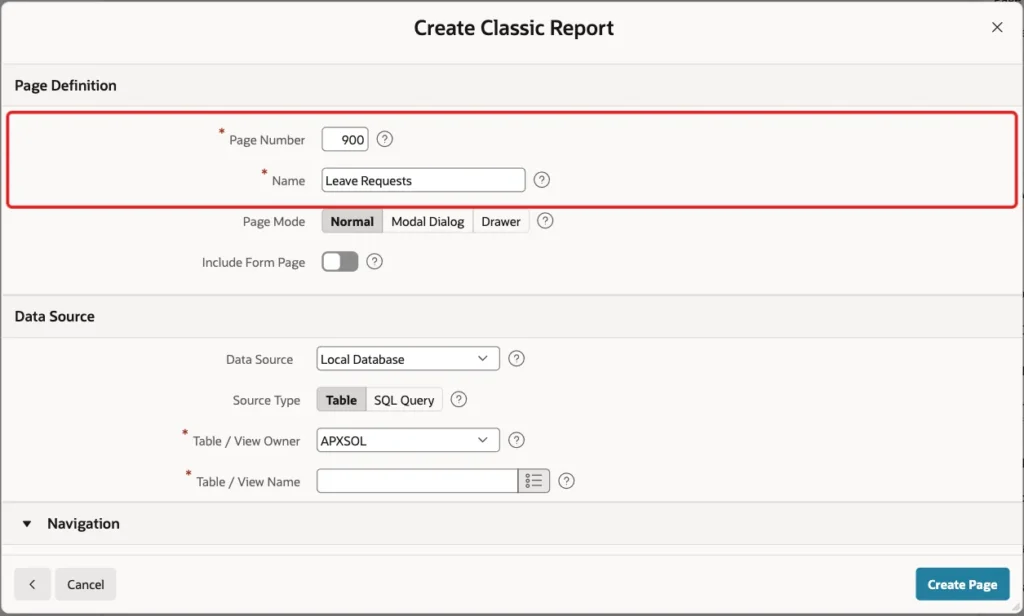
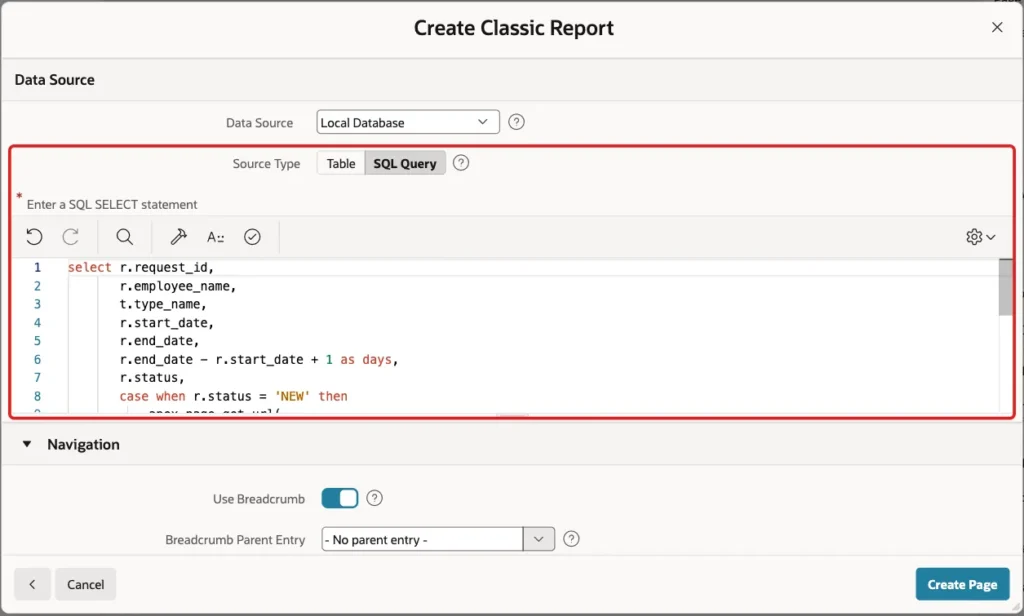
Under Data Source, set Source Type to SQL Query and paste the query from Step 2:
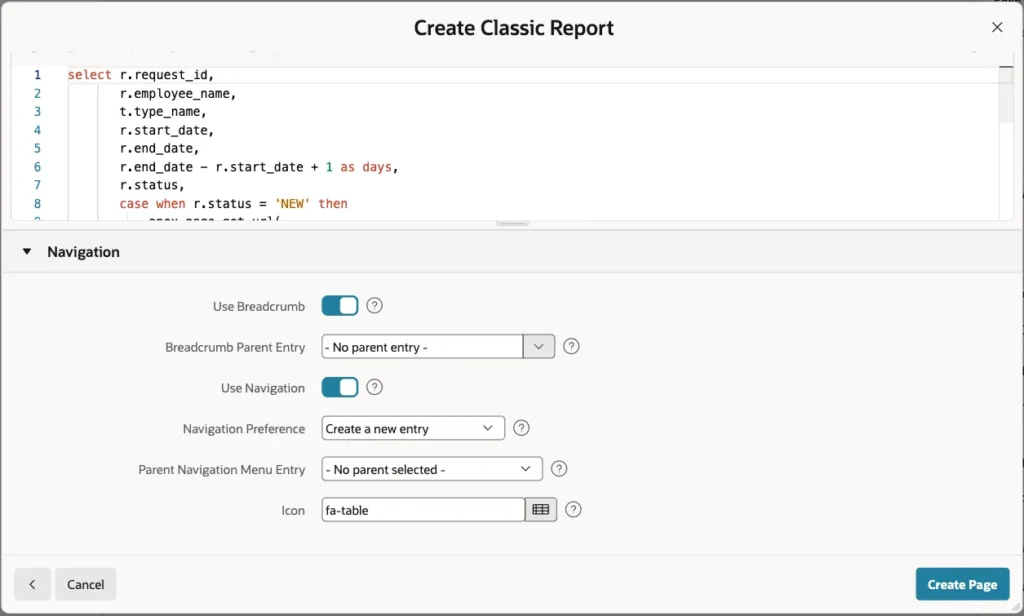
Leave the Navigation settings as they are, so the page gets a menu entry. Click Create Page:
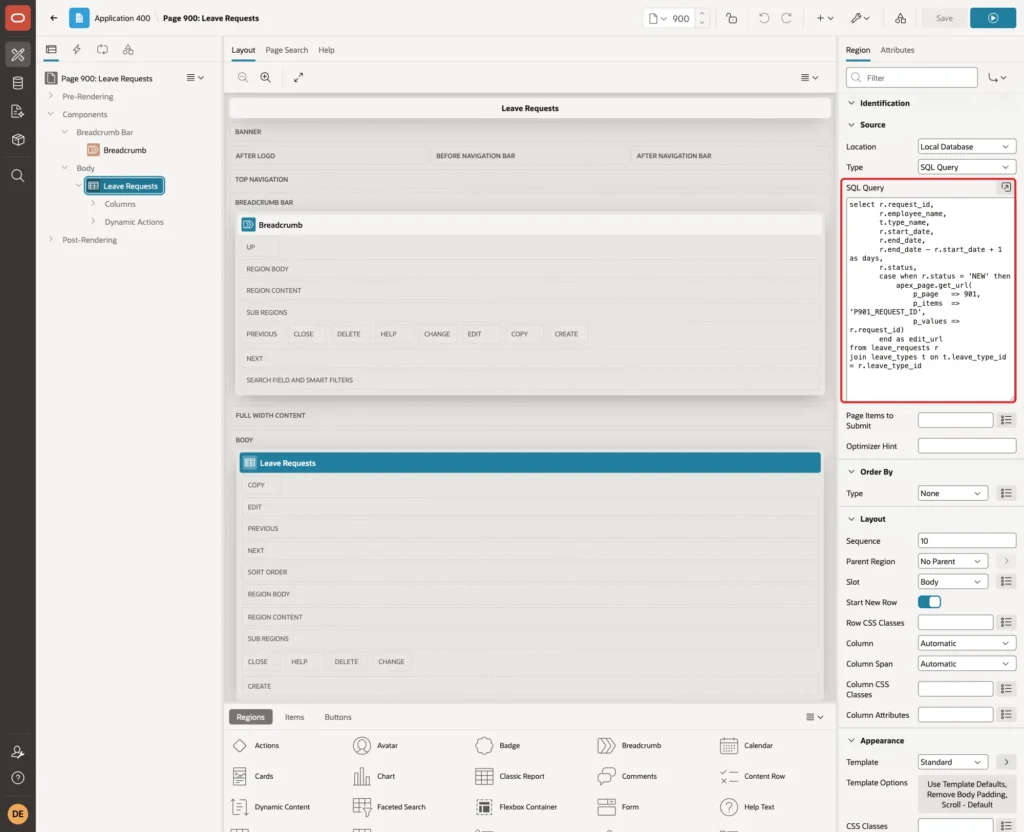
Page Designer opens page 900. The Leave Requests region is a classic report with the query as its source:
Step 7: Hide the Helper Columns
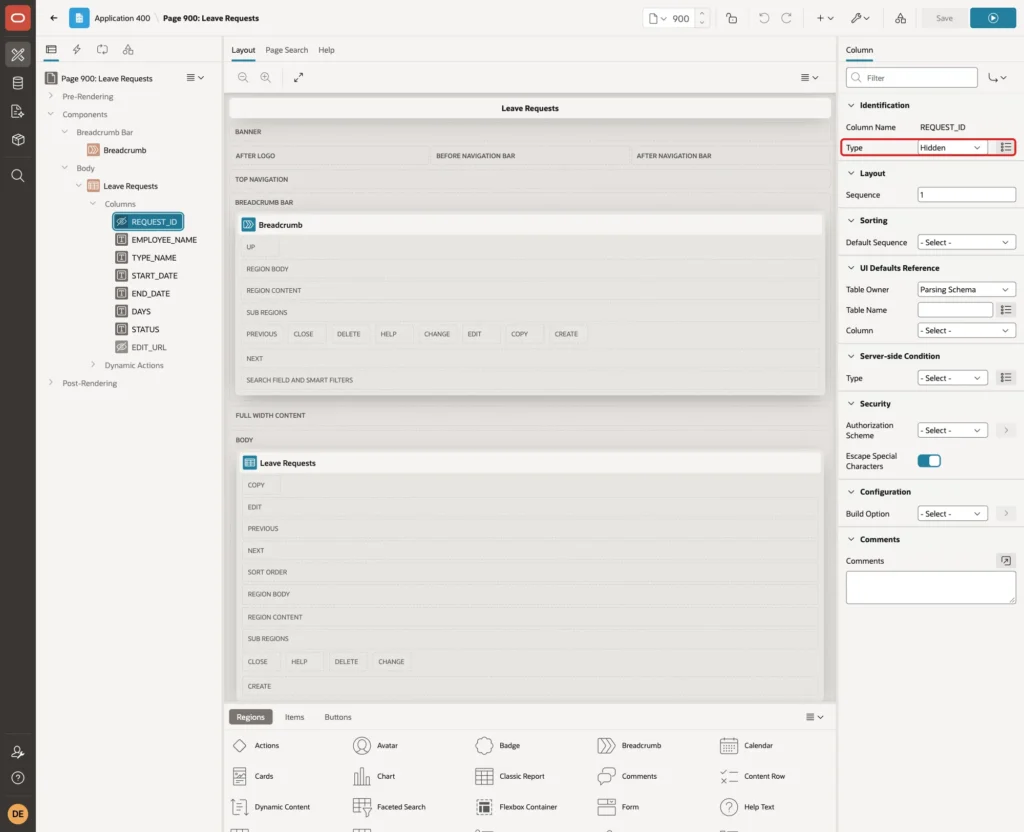
Expand Columns under the region. Select REQUEST_ID and set Type to Hidden:
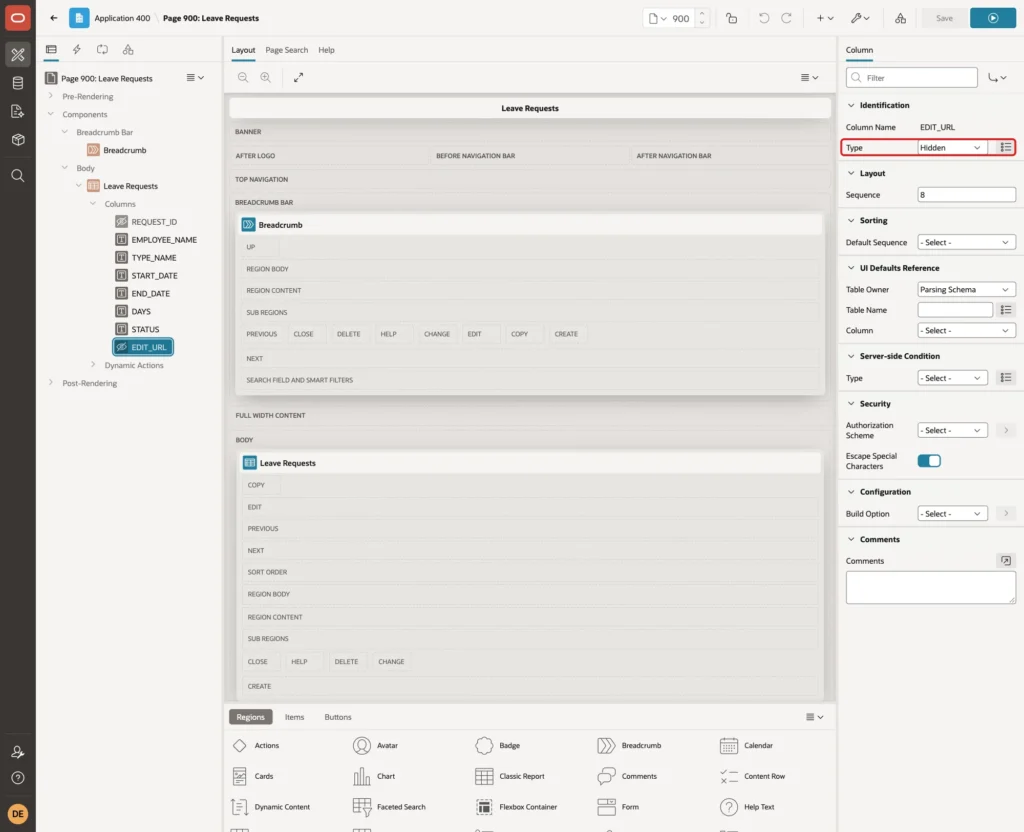
Select EDIT_URL and set Type to Hidden as well:
Step 8: Add the Conditional Link
Select EMPLOYEE_NAME. Set Heading to Employee and enter this HTML Expression under Column Formatting:
Example:
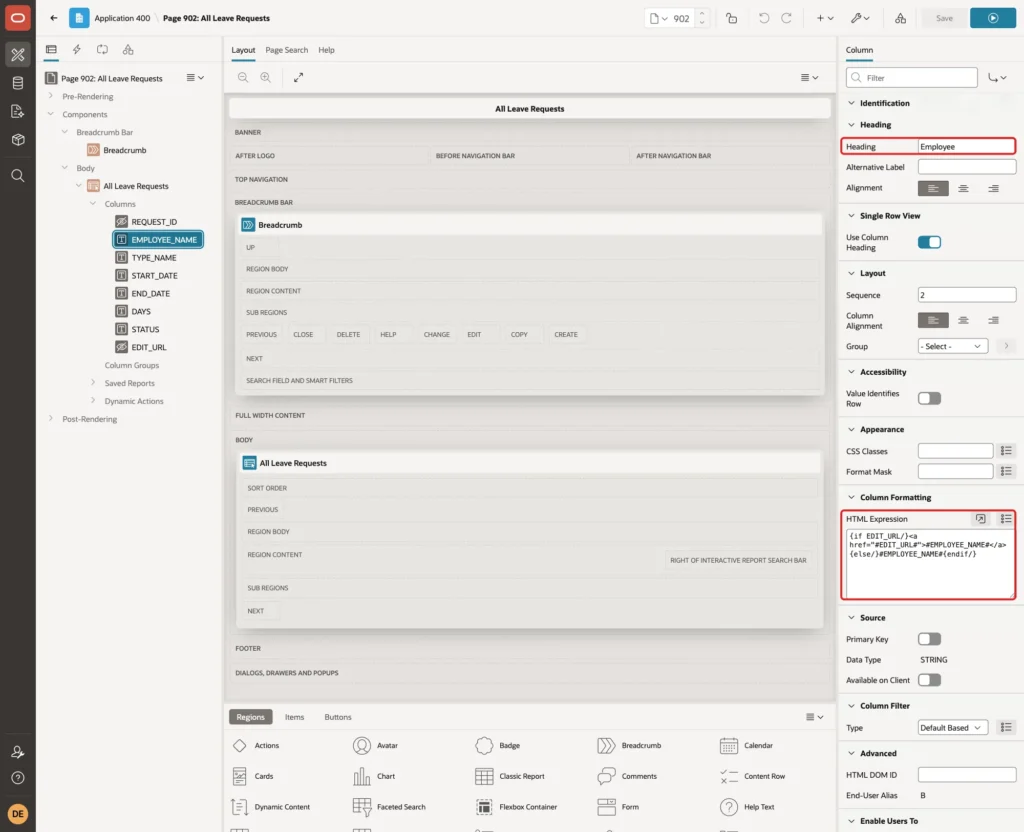
{if EDIT_URL/}<a href="#EDIT_URL#">#EMPLOYEE_NAME#</a>{else/}#EMPLOYEE_NAME#{endif/}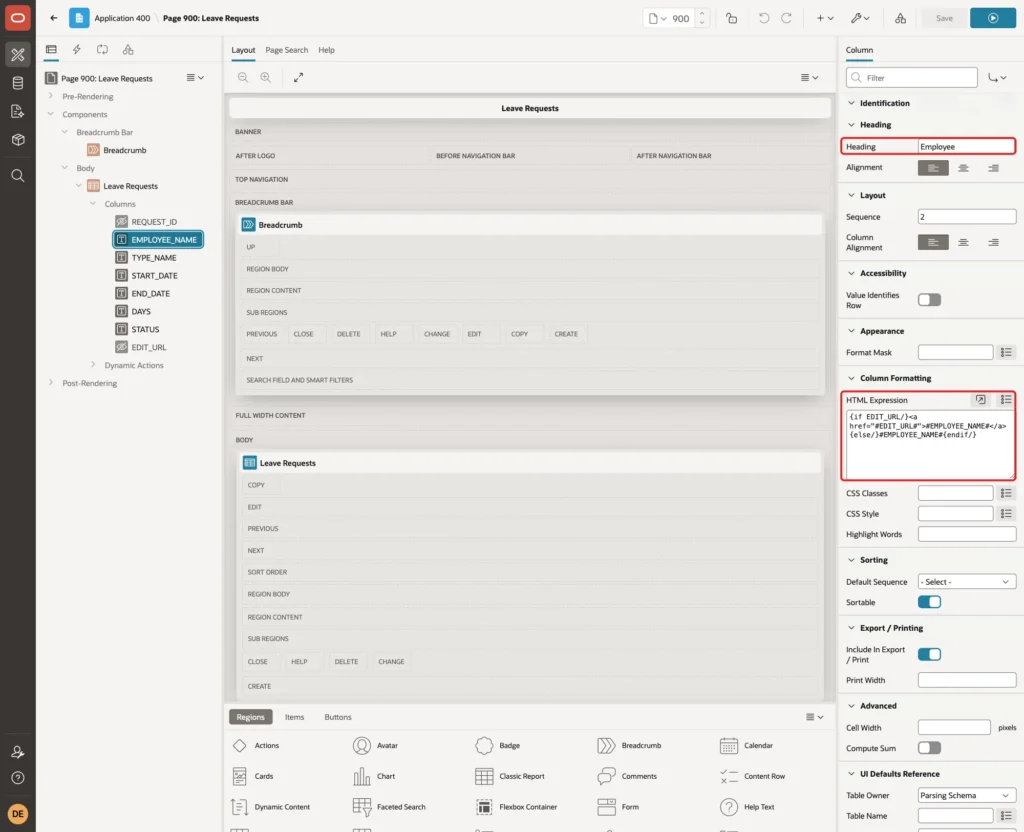
How it works:
- {if EDIT_URL/} is a template directive. It is true when the EDIT_URL column of the row has a value.
- For NEW rows, the cell becomes a link with the employee name as its text.
- The {else/} branch shows the name as plain text. Without it, the other rows would show an empty cell.
- {endif/} closes the directive.
Step 9: Set the Headings and Date Format
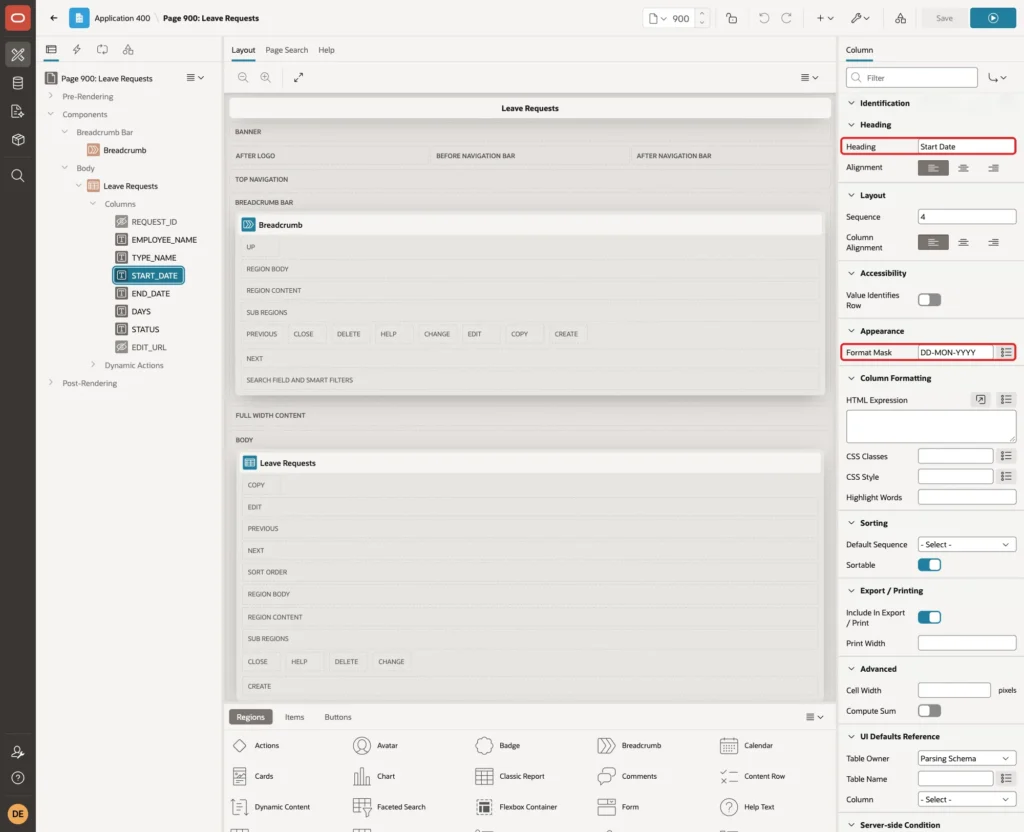
Select START_DATE. Set Heading to Start Date and Format Mask to DD-MON-YYYY:
Do the same for END_DATE with the heading End Date. Set the heading of TYPE_NAME to Leave Type.
Step 10: Refresh the Report After an Edit
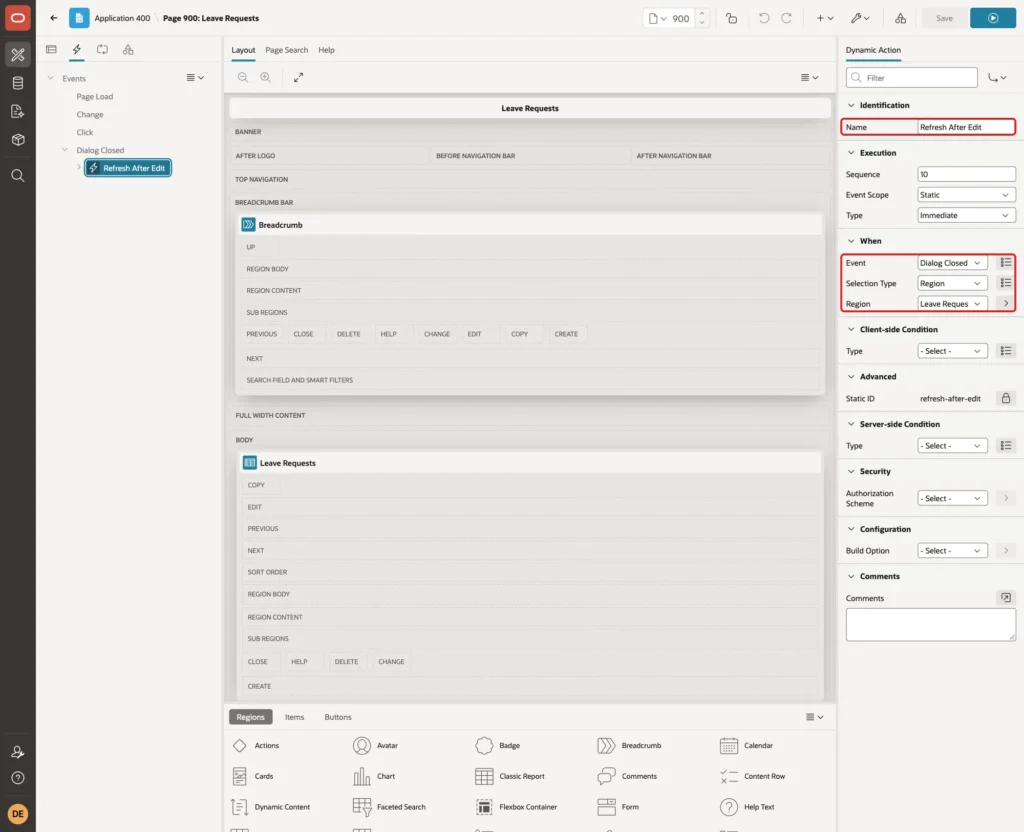
After a request is saved in the dialog, the report should show the new values. Click the Dynamic Actions tab, right-click Dialog Closed and choose Create Dynamic Action. Set Name to Refresh After Edit, Selection Type to Region and Region to Leave Requests:
Select the True action. Set Action to Refresh, Selection Type to Region and Region to Leave Requests:
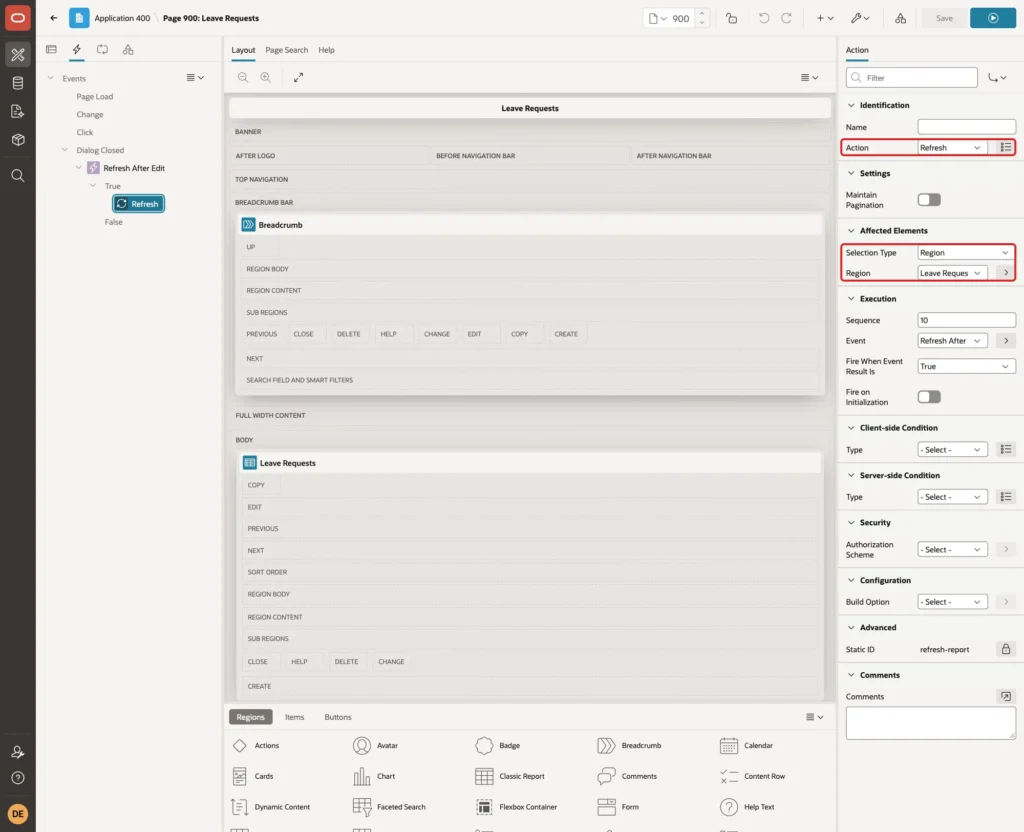
The dialog link that APEX builds names the report region as the triggering element, so the Dialog Closed event fires on this region. Click Save.
Step 11: Test the Links
Run page 900. Here it was opened as ORDER_EDITOR, a user with the Editor role:
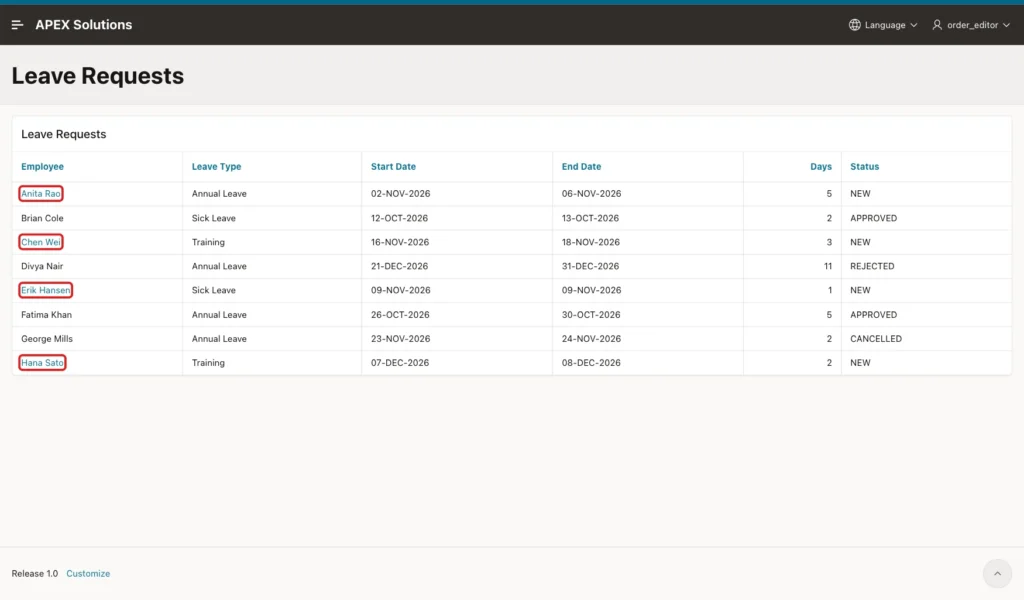
Anita Rao, Chen Wei, Erik Hansen and Hana Sato are links. The approved, rejected and cancelled requests show the name as plain text. This is the HTML of the first link:
Output:
<a href="#action$a-dialog-open?url=%2Fords%2Fr%2Fsolutions%2Fapex-solutions%2Fleave-request%3Fp901_request_id%3D1%26session%3D...%26cs%3D3xqVjbq...%26dialogCs%3D0e4rV1n...&appId=400&pageId=901&tmpl=modal-dialog&title=Leave%20Request&h=auto&w=720&mxw=960&isModal=true&dlgCls=&pageCls=&trgEl=%23R83983283885542722" aria-roledescription="dialog link">Anita Rao</a>
APEX_PAGE.GET_URL returned a dialog action URL, because page 901 is a modal page. The inner URL carries the cs checksum. APEX also added aria-roledescription="dialog link", so screen readers announce that the link opens a dialog.
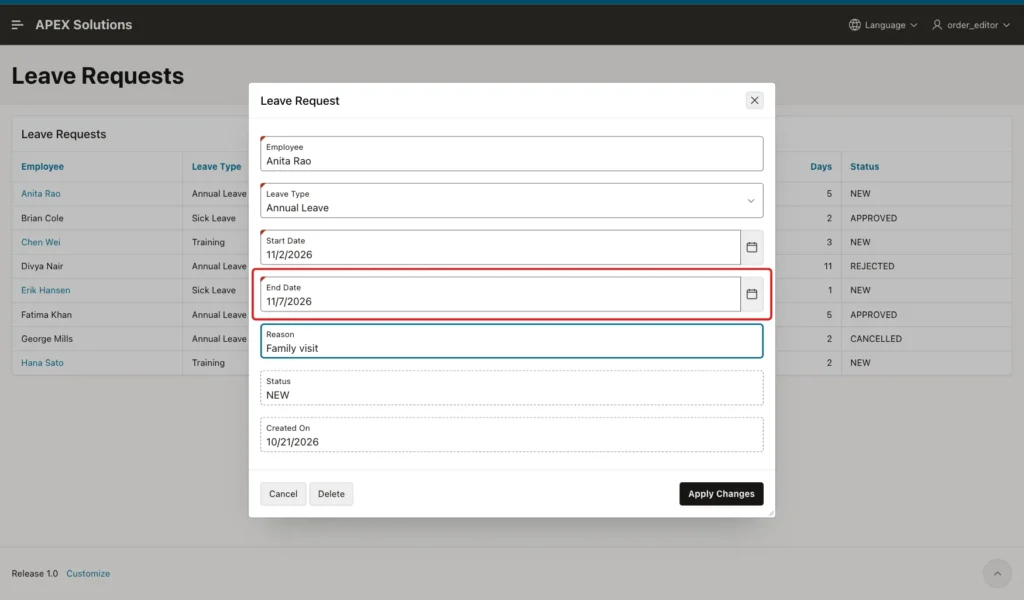
Click Anita Rao. The dialog opens with her request. Change End Date to 11/7/2026 and click Apply Changes:
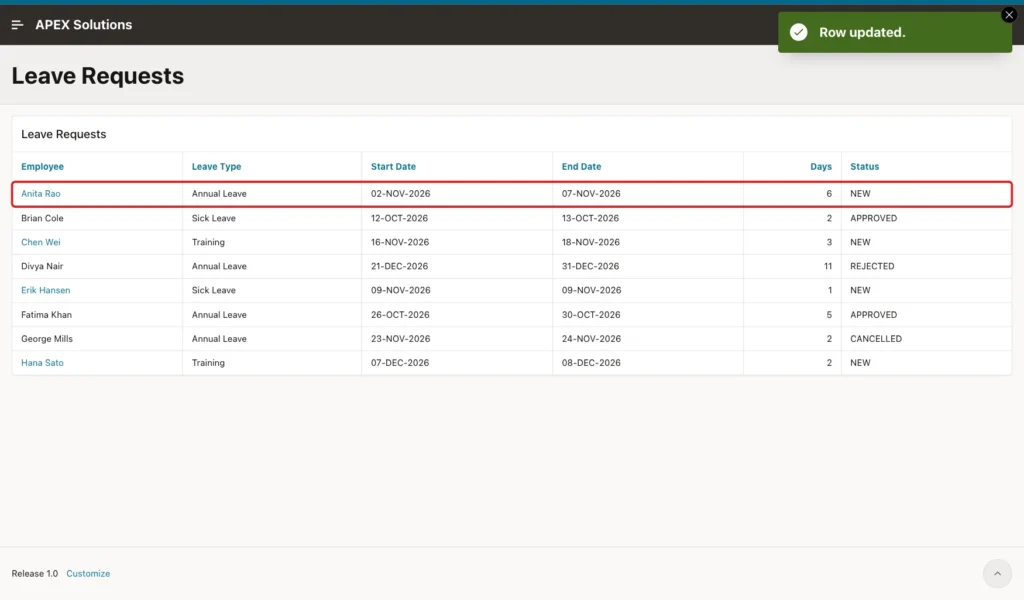
The dialog closes and the report refreshes. The row shows the new end date and 6 days:
Check the row in the database:
Example:
select request_id, employee_name, to_char(end_date, 'YYYY-MM-DD') as end_date, reason, status
from leave_requests
where request_id = 1;
Output:
   REQUEST_ID EMPLOYEE_NAME    END_DATE      REASON          STATUS
_____________ ________________ _____________ _______________ _________
            1 Anita Rao        2026-11-07    Family visit    NEW
The status is still NEW. After the refresh, the Hana Sato link opened the dialog again, so the links keep working after the report is redrawn.
Step 12: Test a Request That Is No Longer New
Open the dialog for Chen Wei. While it is open, approve the request in another session:
Example:
update leave_requests
set status = 'APPROVED'
where request_id = 3;

commit;
Output:
1 row updated.

Commit complete.
Now change the reason in the dialog and click Apply Changes:
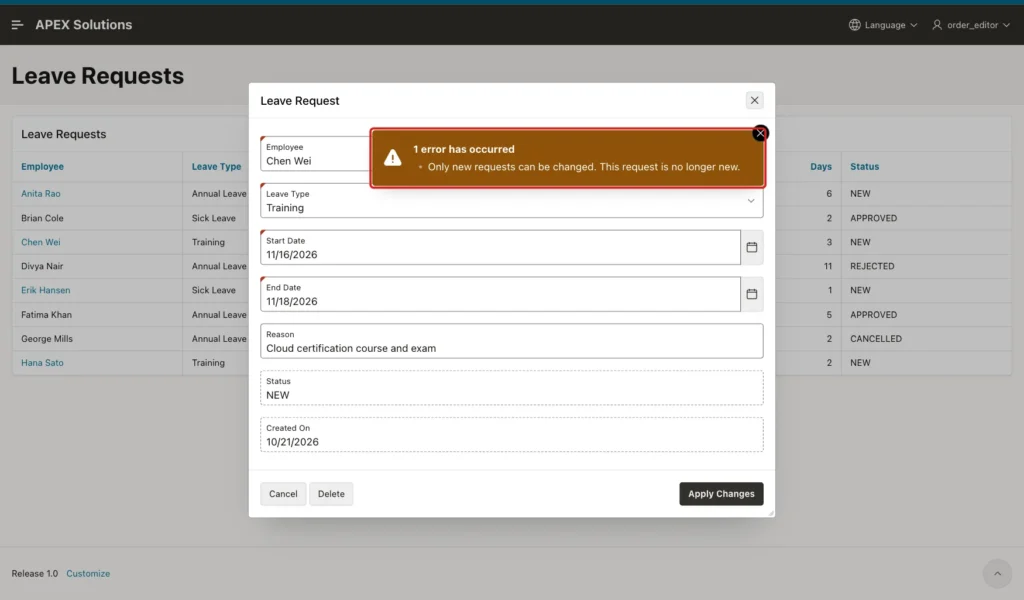
The dialog stays open with the error, and the reason in the table is not changed. Clicking Delete and confirming gave the same error, and the row was not deleted.
Set the request back to NEW for the next tests:
Example:
update leave_requests
set status = 'NEW'
where request_id = 3;

commit;
Output:
1 row updated.

Commit complete.
Step 13: Test a Hand-Made URL
Brian Cole's request is APPROVED, so the report shows no link for it. A user could still try to type the URL of the edit page with his request ID:
Example:
https://localhost:8443/ords/r/solutions/apex-solutions/leave-request?p901_request_id=2&session=...
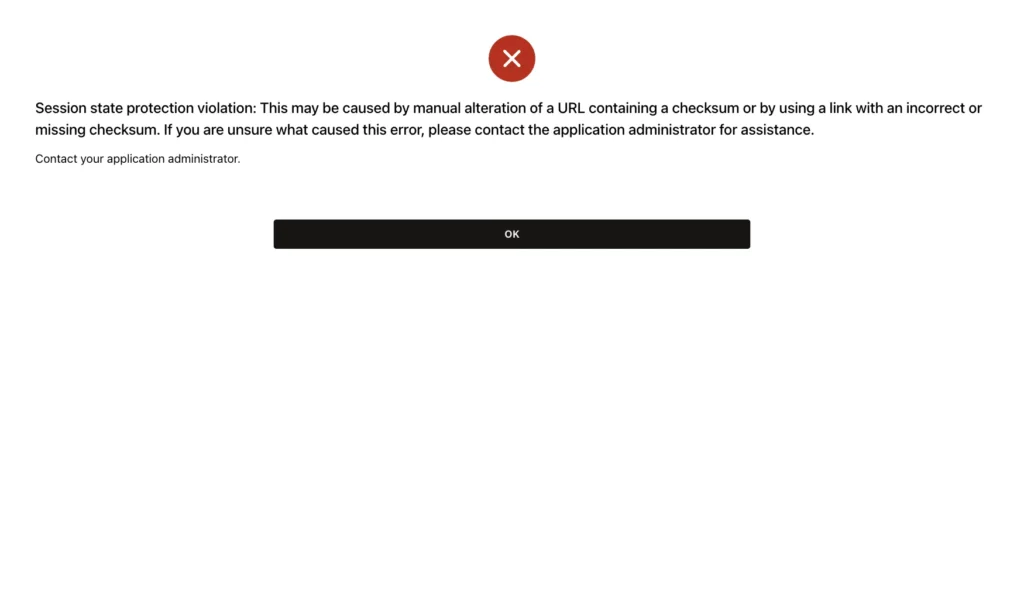
APEX stopped the request with a session state protection violation, because the URL had no checksum. Changing p901_request_id from 1 to 2 in Anita Rao's link, with its checksum, gave the same error.
So only the URLs that the report built can open the form, and the validation from Step 5 covers old links.
Step 14: Test Escaping
The employee name is the link text. To check that a name cannot add HTML to the page, insert two requests with tags in the name, one NEW and one APPROVED:
Example:
set define off

insert into leave_requests (employee_name, leave_type_id, start_date, end_date, reason, status)
values ('Ivy "Q" <b>Bold</b> <img src=x onerror=alert(1)>', 1, date '2026-12-14', date '2026-12-15', 'Escape test', 'NEW');

insert into leave_requests (employee_name, leave_type_id, start_date, end_date, reason, status)
values ('Jay <i>Italic</i>', 1, date '2026-12-16', date '2026-12-16', 'Escape test', 'APPROVED');

commit;
Output:
1 row inserted.

1 row inserted.

Commit complete.
Reload the report. The two cells contained this HTML:
Output:
<a href="..." aria-roledescription="dialog link">Ivy "Q" <b>Bold</b> <img src=x onerror=alert(1)></a> Jay <i>Italic</i>
APEX escaped the substitutions in the HTML Expression. The names showed as text in both branches, the page had no b, i or img element, and no alert opened. Delete the test rows:
Example:
delete from leave_requests
where reason = 'Escape test';

commit;
Output:
2 rows deleted.

Commit complete.
Step 15: The Same Link in an Interactive Report
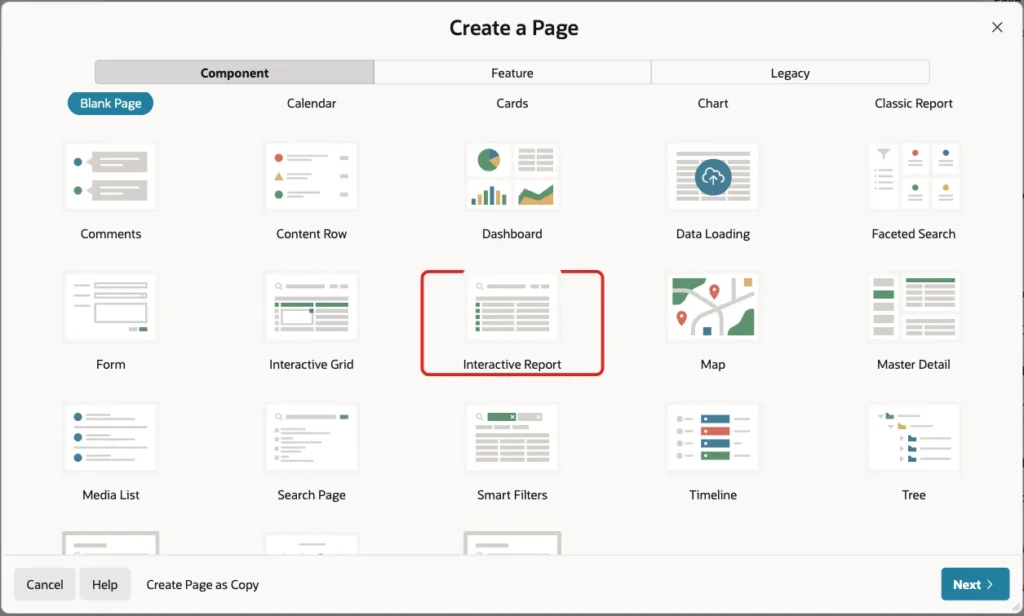
The technique works the same way in an interactive report. Click Create Page and select Interactive Report:
Set Page Number to 902 and Name to All Leave Requests:
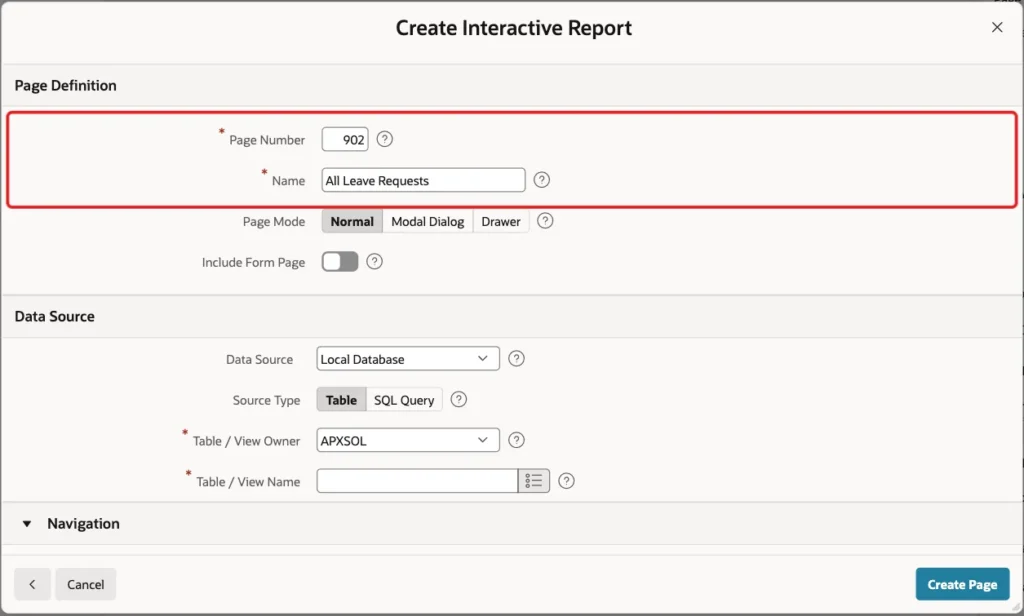
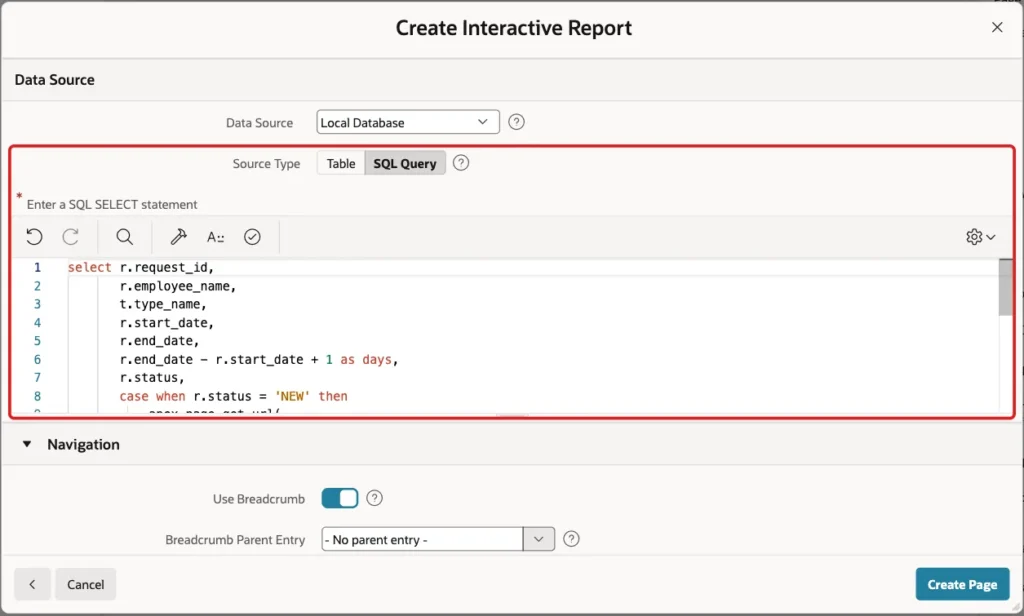
Set Source Type to SQL Query and paste the same query from Step 2:
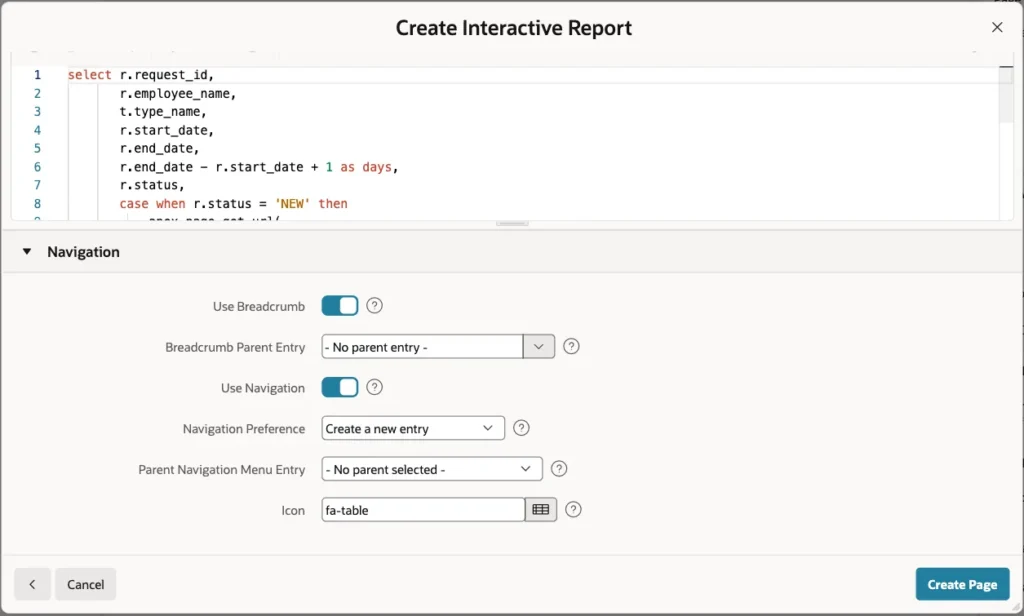
Leave the Navigation settings as they are and click Create Page:
In Page Designer, set Type to Hidden for REQUEST_ID and EDIT_URL. Select EMPLOYEE_NAME, set Heading to Employee and enter the same HTML Expression as in Step 8:
Set the headings and the DD-MON-YYYY format mask as in Step 9. Then add the Refresh After Edit dynamic action from Step 10 for the All Leave Requests region, and click Save.
Run page 902:
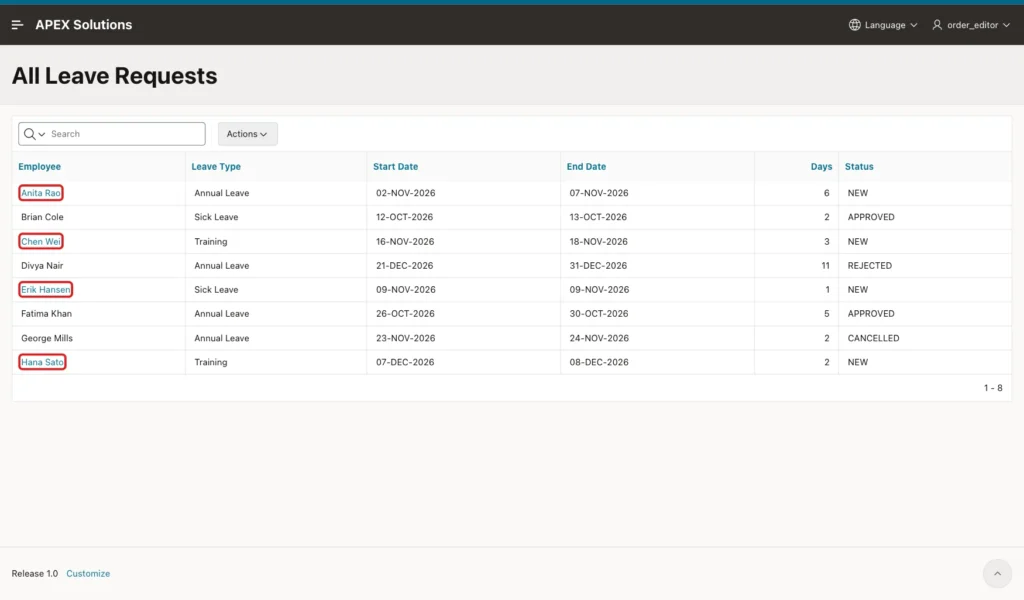
The interactive report features were tested with the links:
- Clicking Erik Hansen opened his request in the dialog.
- A search for Training returned Chen Wei and Hana Sato, both still with links.
- A search for leave-request or dialog returned no rows. The hidden EDIT_URL column is not searched.
Actions > Download as CSV gave this file:
Output:
Employee,Leave Type,Start Date,End Date,Days,Status
Anita Rao,Annual Leave,02-NOV-2026,07-NOV-2026,6,NEW
Brian Cole,Sick Leave,12-OCT-2026,13-OCT-2026,2,APPROVED
Chen Wei,Training,16-NOV-2026,18-NOV-2026,3,NEW
Divya Nair,Annual Leave,21-DEC-2026,31-DEC-2026,11,REJECTED
Erik Hansen,Sick Leave,09-NOV-2026,09-NOV-2026,1,NEW
Fatima Khan,Annual Leave,26-OCT-2026,30-OCT-2026,5,APPROVED
George Mills,Annual Leave,23-NOV-2026,24-NOV-2026,2,CANCELLED
Hana Sato,Training,07-DEC-2026,08-DEC-2026,2,NEW
The download contains the plain names and no HTML. The hidden REQUEST_ID and EDIT_URL columns are not included.
Things to Know
- Put the rule in the query. A column that is NULL for rows without a link keeps the HTML Expression simple and works in both report types.
- Build the URL with APEX_PAGE.GET_URL, not by joining strings. It adds the checksum, and for a modal page it returns the dialog link.
- Always add the {else/} branch, or the rows without a link show an empty cell.
- Hiding a link does not protect anything. Keep "Arguments Must Have Checksum" on the target page and check the rule again in a validation.
- The Delete button of a form page skips validations. Turn on Always Execute for a validation that must also stop deletes.
- Substitutions in the HTML Expression were escaped in both report types, so names with tags were shown as text.
Related Guides
- Oracle Apex: Creating Link Column in Interactive Report
- How to Show Progress Bars Inside Report Columns in Oracle APEX
Conclusion
To show a link only for some rows in Oracle APEX, return the URL from the query only for the allowed rows, hide that column, and use {if}/{else} in the HTML Expression of the visible column. The same steps work in a classic report and in an interactive report.
In this example, only the NEW requests had links, the links opened the dialog and refreshed the report, and the form refused requests that were no longer new. Hand-made URLs failed the checksum check, and names with tags were shown as text.
See my articles more often when you search Google.
