
Documents change over time. A policy gets new limits, a contract template gets new payment terms, and a form gets a new field. If a new upload simply replaces the old file, nobody can see what the document said last month, and a wrong upload cannot be undone.
A version history solves this. Every upload becomes a new numbered version, the old versions stay downloadable, and one version is marked as the current one. This guide builds that in Oracle APEX with two tables, a small PL/SQL package, a File Upload item and a classic report with download links.
The earlier guide How to Attach Files to Orders in Oracle APEX stores many different files for one record, and How to Upload Files in Oracle APEX: From Table Setup to Viewing Files covers the basics of storing one file.
This guide is about one document that changes: it keeps every version of the same file, numbers them safely, and lets editors switch the current version.
The example uses company documents such as a travel policy and an expense claim form. The same steps work for any table whose rows need versioned files, such as contracts, drawings or product sheets.
Step 1: Create the Tables
Two tables hold the data:
- DOCUMENTS has one row per document: its title, category, and the number of its current version.
- DOCUMENT_VERSIONS has one row per uploaded file, with the version number, the file as a BLOB, its name, type, size, a note, and who uploaded it when.
Create the tables with three sample documents and four versions:
Example:
create table documents (
  document_id          number generated by default on null as identity,
  title                varchar2(200)  not null,
  category             varchar2(30)   not null,
  current_version_no   number,
  created_by           varchar2(255)  default on null coalesce(sys_context('APEX$SESSION', 'APP_USER'), sys_context('USERENV', 'SESSION_USER')) not null,
  created_on           date           default on null sysdate not null,
  constraint documents_pk primary key (document_id),
  constraint documents_title_uk unique (title),
  constraint documents_category_ck check (category in ('POLICY', 'CONTRACT', 'MANUAL', 'FORM'))
);

create table document_versions (
  version_id      number generated by default on null as identity,
  document_id     number          not null,
  version_no      number          not null,
  file_name       varchar2(255)   not null,
  mime_type       varchar2(255)   not null,
  file_size       number          not null,
  file_content    blob            not null,
  version_note    varchar2(500),
  uploaded_by     varchar2(255)   default on null coalesce(sys_context('APEX$SESSION', 'APP_USER'), sys_context('USERENV', 'SESSION_USER')) not null,
  uploaded_on     date            default on null sysdate not null,
  constraint document_versions_pk primary key (version_id),
  constraint document_versions_doc_fk foreign key (document_id) references documents (document_id) on delete cascade,
  constraint document_versions_no_uk unique (document_id, version_no),
  constraint document_versions_no_ck check (version_no >= 1),
  constraint document_versions_size_ck check (file_size > 0)
);

alter table documents add constraint documents_current_fk
  foreign key (document_id, current_version_no)
  references document_versions (document_id, version_no);

insert into documents (title, category) values ('Travel Policy', 'POLICY');
insert into documents (title, category) values ('Supplier Contract Template', 'CONTRACT');
insert into documents (title, category) values ('Warehouse Safety Manual', 'MANUAL');

insert into document_versions (document_id, version_no, file_name, mime_type, file_size, file_content, version_note)
select d.document_id, s.version_no, s.file_name, 'text/plain',
       utl_raw.length(utl_raw.cast_to_raw(s.file_text)),
       utl_raw.cast_to_raw(s.file_text), s.version_note
from   documents d
join  (select 'Travel Policy' as title, 1 as version_no, 'travel-policy.txt' as file_name,
              'Travel Policy, version 1' as file_text, 'First release' as version_note from dual
       union all
       select 'Supplier Contract Template', 1, 'supplier-contract.txt',
              'Supplier Contract Template, version 1', 'First release' from dual
       union all
       select 'Supplier Contract Template', 2, 'supplier-contract.txt',
              'Supplier Contract Template, version 2', 'New payment terms' from dual
       union all
       select 'Warehouse Safety Manual', 1, 'safety-manual.txt',
              'Warehouse Safety Manual, version 1', 'First release' from dual) s
  on s.title = d.title;

update documents d
set    d.current_version_no = (select max(v.version_no)
                               from   document_versions v
                               where  v.document_id = d.document_id);

commit;

select d.document_id, d.title, d.current_version_no,
       v.version_no, v.file_name, v.file_size, v.version_note
from   documents d
left join document_versions v on v.document_id = d.document_id
order by d.document_id, v.version_no;
Output:
Table DOCUMENTS created.

Table DOCUMENT_VERSIONS created.

Table DOCUMENTS altered.

1 row inserted.

1 row inserted.

1 row inserted.

4 rows inserted.

3 rows updated.

Commit complete.

   DOCUMENT_ID TITLE                            CURRENT_VERSION_NO    VERSION_NO FILE_NAME                   FILE_SIZE VERSION_NOTE
______________ _____________________________ _____________________ _____________ ________________________ ____________ ____________________
             1 Travel Policy                                     1             1 travel-policy.txt                  24 First release
             2 Supplier Contract Template                        2             1 supplier-contract.txt              37 First release
             2 Supplier Contract Template                        2             2 supplier-contract.txt              37 New payment terms
             3 Warehouse Safety Manual                           1             1 safety-manual.txt                  34 First release
The constraints do most of the work:
- DOCUMENT_VERSIONS_NO_UK makes the pair DOCUMENT_ID and VERSION_NO unique, so a document can never have two versions with the same number. Because DOCUMENT_ID is its first column, its index also serves the foreign key, so no extra index is needed.
- DOCUMENTS_CURRENT_FK is a foreign key from DOCUMENTS to DOCUMENT_VERSIONS on two columns. The current version number must exist among the versions of the same document.
- The check constraints allow only known categories, version numbers from 1, and files that are not empty.
- UPLOADED_BY, UPLOADED_ON, CREATED_BY and CREATED_ON use DEFAULT ON NULL, so the database fills in the APEX user and the date. No trigger is needed.
The current version is stored once, as a number on the document, instead of a Yes/No flag on each version row. With a flag, two versions could both be marked current. With the two-column foreign key, the database itself makes sure the current version is a real version of that document.
The current version foreign key is added with ALTER TABLE after both tables exist, because the two tables reference each other. CURRENT_VERSION_NO is nullable: a new document row exists for a moment before its first version is saved.
Step 2: Create the Package That Saves Versions
Three things happen when a version is saved: the next version number is calculated, the file is inserted, and the document points to the new version. Put them in one package, so the page and any other code use the same rules:
Example:
create or replace package doc_pkg as
    function create_document (
        p_title      in documents.title%type,
        p_category   in documents.category%type,
        p_file_name  in document_versions.file_name%type,
        p_mime_type  in document_versions.mime_type%type,
        p_content    in blob,
        p_note       in document_versions.version_note%type default null)
        return documents.document_id%type;

    function add_version (
        p_document_id  in documents.document_id%type,
        p_file_name    in document_versions.file_name%type,
        p_mime_type    in document_versions.mime_type%type,
        p_content      in blob,
        p_note         in document_versions.version_note%type default null)
        return document_versions.version_no%type;

    procedure make_current (
        p_document_id  in documents.document_id%type,
        p_version_no   in document_versions.version_no%type);
end doc_pkg;
/

create or replace package body doc_pkg as
    function create_document (
        p_title      in documents.title%type,
        p_category   in documents.category%type,
        p_file_name  in document_versions.file_name%type,
        p_mime_type  in document_versions.mime_type%type,
        p_content    in blob,
        p_note       in document_versions.version_note%type default null)
        return documents.document_id%type
    is
        l_document_id  documents.document_id%type;
        l_version_no   document_versions.version_no%type;
    begin
        insert into documents (title, category)
        values (p_title, p_category)
        returning document_id into l_document_id;

        l_version_no := add_version(l_document_id, p_file_name, p_mime_type, p_content, p_note);
        return l_document_id;
    end create_document;

    function add_version (
        p_document_id  in documents.document_id%type,
        p_file_name    in document_versions.file_name%type,
        p_mime_type    in document_versions.mime_type%type,
        p_content      in blob,
        p_note         in document_versions.version_note%type default null)
        return document_versions.version_no%type
    is
        l_document_id  documents.document_id%type;
        l_version_no   document_versions.version_no%type;
    begin
        begin
            select document_id
            into   l_document_id
            from   documents
            where  document_id = p_document_id
            for update;
        exception
            when no_data_found then
                raise_application_error(-20001, 'Document not found.');
        end;

        select nvl(max(version_no), 0) + 1
        into   l_version_no
        from   document_versions
        where  document_id = p_document_id;

        insert into document_versions
               (document_id, version_no, file_name, mime_type, file_size, file_content, version_note)
        values (p_document_id, l_version_no, p_file_name, p_mime_type,
                dbms_lob.getlength(p_content), p_content, p_note);

        update documents
        set    current_version_no = l_version_no
        where  document_id = p_document_id;

        return l_version_no;
    end add_version;

    procedure make_current (
        p_document_id  in documents.document_id%type,
        p_version_no   in document_versions.version_no%type)
    is
    begin
        update documents d
        set    d.current_version_no = p_version_no
        where  d.document_id = p_document_id
        and    exists (select null
                       from   document_versions v
                       where  v.document_id = d.document_id
                       and    v.version_no  = p_version_no);

        if sql%rowcount = 0 then
            raise_application_error(-20002, 'This version does not belong to the document.');
        end if;
    end make_current;
end doc_pkg;
/

show errors
Output:
Package DOC_PKG compiled

Package Body DOC_PKG compiled

No errors.
- ADD_VERSION first locks the document row with SELECT ... FOR UPDATE. Two users who upload a version of the same document at the same moment are handled one after the other, so both get their own number. Step 3 shows why this lock is needed.
- The next number is the highest existing number plus one. Old versions are never changed or deleted.
- CREATE_DOCUMENT inserts the document and then calls ADD_VERSION, so every new document starts with version 1.
- MAKE_CURRENT updates the document only when the version belongs to it, and raises ORA-20002 with a readable message otherwise.
Test the package with a scratch document. It creates the document with three versions, makes version 1 current again, tries a version of another document, and finally changes the current version directly with an UPDATE that bypasses the package:
Example:
set serveroutput on
declare
    l_doc  number;
    l_ver  number;
begin
    l_doc := doc_pkg.create_document('ZZ Test Document', 'FORM', 'zz-test.txt', 'text/plain',
                                     utl_raw.cast_to_raw('first'), 'First release');
    l_ver := doc_pkg.add_version(l_doc, 'zz-test.txt', 'text/plain', utl_raw.cast_to_raw('second'), 'Second');
    l_ver := doc_pkg.add_version(l_doc, 'zz-test.txt', 'text/plain', utl_raw.cast_to_raw('third!'), 'Third');
    dbms_output.put_line('Document ' || l_doc || ', latest version ' || l_ver);
    doc_pkg.make_current(l_doc, 1);
    dbms_output.put_line('Current version is now 1');
end;
/

select v.version_no, v.file_size, utl_raw.cast_to_varchar2(v.file_content) as content,
       case when v.version_no = d.current_version_no then 'Yes' end as is_current
from   documents d
join   document_versions v on v.document_id = d.document_id
where  d.title = 'ZZ Test Document'
order by v.version_no;

begin
    doc_pkg.make_current(1, 3);
end;
/

update documents
set    current_version_no = 3
where  title = 'Travel Policy';

delete from documents where title = 'ZZ Test Document';

select count(*) as zz_versions_left
from   document_versions v
where  not exists (select null from documents d where d.document_id = v.document_id);

commit;
Output:
Document 4, latest version 3
Current version is now 1

PL/SQL procedure successfully completed.

   VERSION_NO    FILE_SIZE CONTENT    IS_CURRENT
_____________ ____________ __________ _____________
            1            5 first      Yes
            2            6 second
            3            6 third!

begin
*
ERROR at line 1:
ORA-20002: This version does not belong to the document.
ORA-06512: at "APXSOL.DOC_PKG", line 75
ORA-06512: at line 2
Help: https://docs.oracle.com/error-help/db/ora-20002/

Error starting at line : 28 File @ b81/20-test-pkg.sql
In command -
update documents
set    current_version_no = 3
where  title = 'Travel Policy'
Error report -
ORA-02291: integrity constraint (APXSOL.DOCUMENTS_CURRENT_FK) violated - parent
key not found
Help: https://docs.oracle.com/error-help/db/ora-02291/

1 row deleted.

   ZZ_VERSIONS_LEFT
___________________
                  0

Commit complete.
The three versions keep their own content. MAKE_CURRENT refused version 3 for Travel Policy, which has only version 1. The direct UPDATE failed with ORA-02291 from DOCUMENTS_CURRENT_FK, so even code that skips the package cannot point a document to a version that does not exist.
Deleting the scratch document also deleted its versions through ON DELETE CASCADE, even though the two tables reference each other; no orphan rows were left.
Step 3: Check Two Uploads at the Same Time
Run two sessions that add a version to Travel Policy at the same time. Session A saves its version and waits 5 seconds before COMMIT. Session B starts one second later:
Example:
set serveroutput on
declare
    l_ver number;
begin
    l_ver := doc_pkg.add_version(1, 'travel-policy.txt', 'text/plain', utl_raw.cast_to_raw('session A'), 'Session A');
    dbms_output.put_line('Session A saved version ' || l_ver || ' at ' || to_char(systimestamp, 'hh24:mi:ss'));
    dbms_session.sleep(5);
end;
/
commit;
Example:
set serveroutput on
declare
    l_ver number;
begin
    dbms_session.sleep(1);
    dbms_output.put_line('Session B starts at ' || to_char(systimestamp, 'hh24:mi:ss'));
    l_ver := doc_pkg.add_version(1, 'travel-policy.txt', 'text/plain', utl_raw.cast_to_raw('session B'), 'Session B');
    dbms_output.put_line('Session B saved version ' || l_ver || ' at ' || to_char(systimestamp, 'hh24:mi:ss'));
end;
/
commit;
Output:
Session A saved version 2 at 22:57:10

PL/SQL procedure successfully completed.

Commit complete.
Output:
Session B starts at 22:57:11
Session B saved version 3 at 22:57:15

PL/SQL procedure successfully completed.

Commit complete.
Session B waited at the lock until A committed, then saw version 2 and saved version 3. (The times come from the database server clock.)
Now the same test without the lock: both sessions read the highest number and insert the next one directly. At that point Travel Policy had versions 1 to 3:
Example:
set serveroutput on

declare
    l_ver number;
begin
    select nvl(max(version_no), 0) + 1 into l_ver from document_versions where document_id = 1;
    insert into document_versions (document_id, version_no, file_name, mime_type, file_size, file_content)
    values (1, l_ver, 'travel-policy.txt', 'text/plain', 9, utl_raw.cast_to_raw('session A'));
    dbms_output.put_line('Session A inserted version ' || l_ver);
    dbms_session.sleep(5);
end;
/
commit;
Example:
set serveroutput on

declare
    l_ver number;
begin
    dbms_session.sleep(1);
    select nvl(max(version_no), 0) + 1 into l_ver from document_versions where document_id = 1;
    insert into document_versions (document_id, version_no, file_name, mime_type, file_size, file_content)
    values (1, l_ver, 'travel-policy.txt', 'text/plain', 9, utl_raw.cast_to_raw('session B'));
    dbms_output.put_line('Session B inserted version ' || l_ver);
end;
/
commit;
Output:
declare
*
ERROR at line 1:
ORA-00001: unique constraint (APXSOL.DOCUMENT_VERSIONS_NO_UK) violated on table APXSOL.DOCUMENT_VERSIONS columns (DOCUMENT_ID, VERSION_NO)
ORA-03301: (ORA-00001 details) row with column values (DOCUMENT_ID:1, VERSION_NO:4) already exists
ORA-06512: at line 6
Help: https://docs.oracle.com/error-help/db/ora-00001/

Commit complete.
Session A inserted version 4. Session B could not see A's uncommitted row, also calculated 4, and failed with ORA-00001 on DOCUMENT_VERSIONS_NO_UK. The unique constraint protected the data, but the user would have lost the upload. With the lock in ADD_VERSION, both uploads succeed. The test versions were removed afterwards.
Step 4: Create the Page
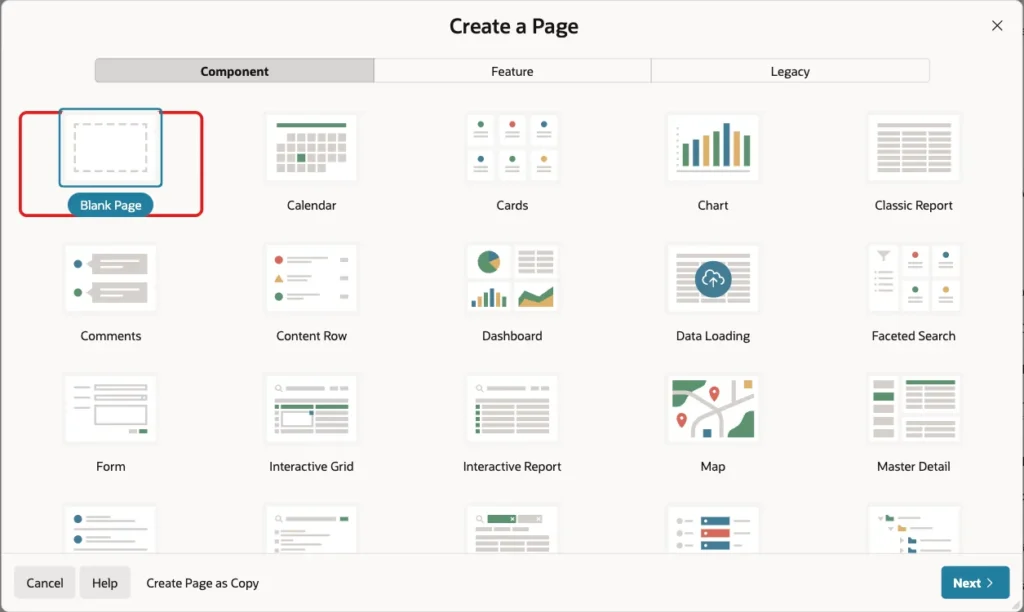
In App Builder, open the application, click Create Page, and select Blank Page:
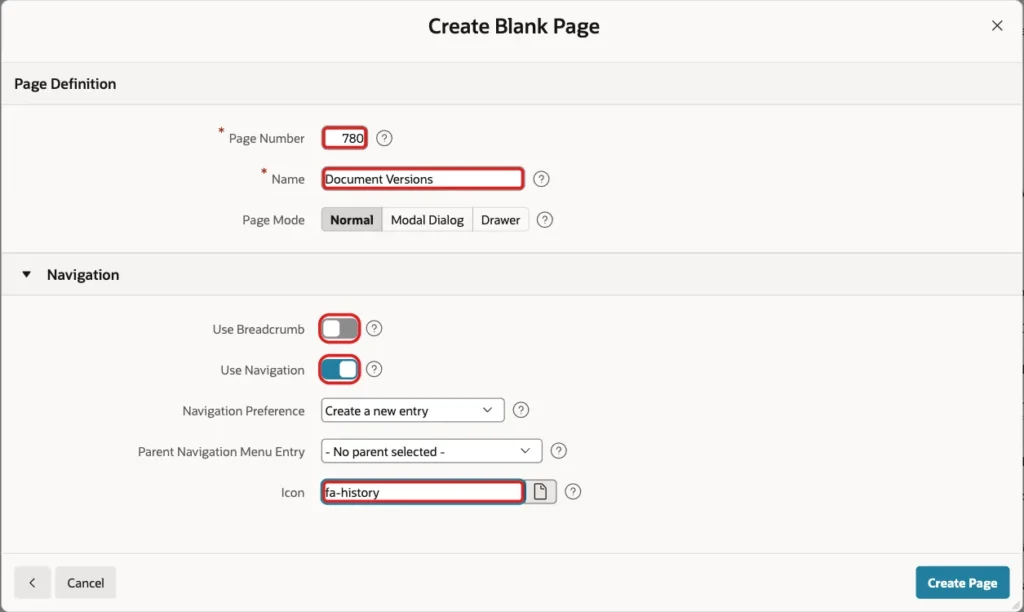
Enter Page Number 780 and Name Document Versions. Turn off Use Breadcrumb, keep Use Navigation on with Create a new entry, enter the icon fa-history, and click Create Page:
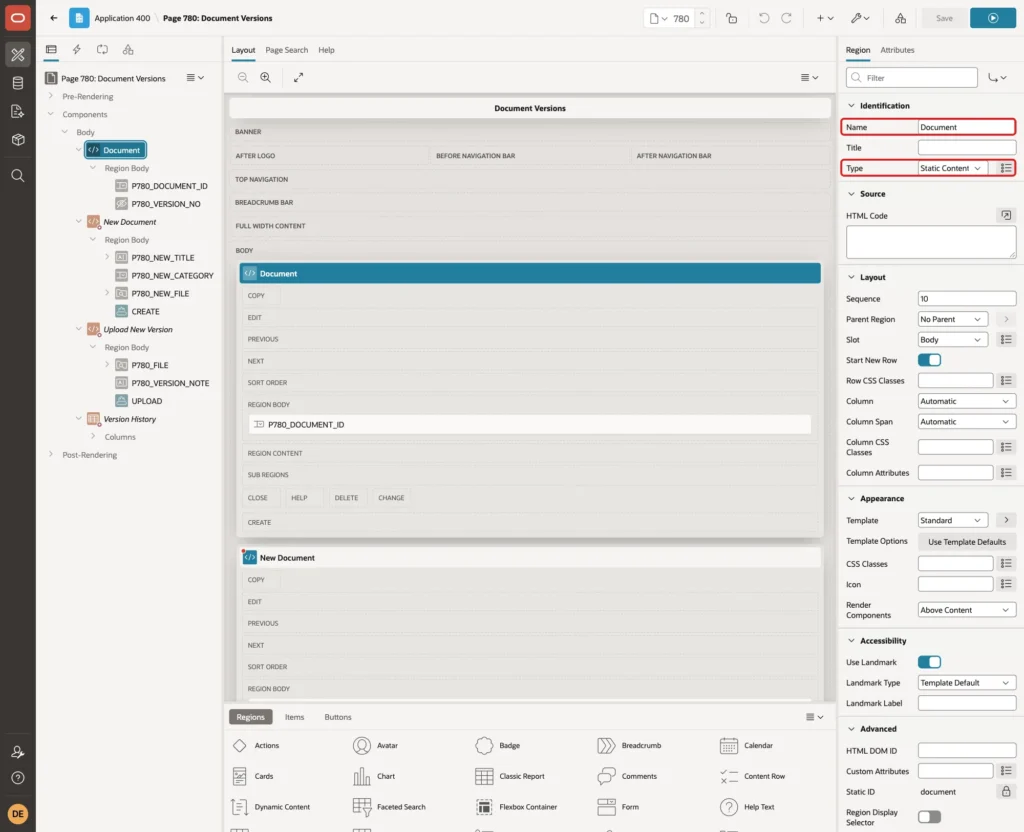
Page Designer opens with the empty page. The page gets four regions: Document (choose a document), New Document, Upload New Version, and Version History.
Step 5: Choose the Document
Create a region of Type Static Content named Document:
In it, create a page item P780_DOCUMENT_ID of Type Select List with Label Document. Set Page Action on Selection to Submit Page, so choosing a document reloads the page with its versions:
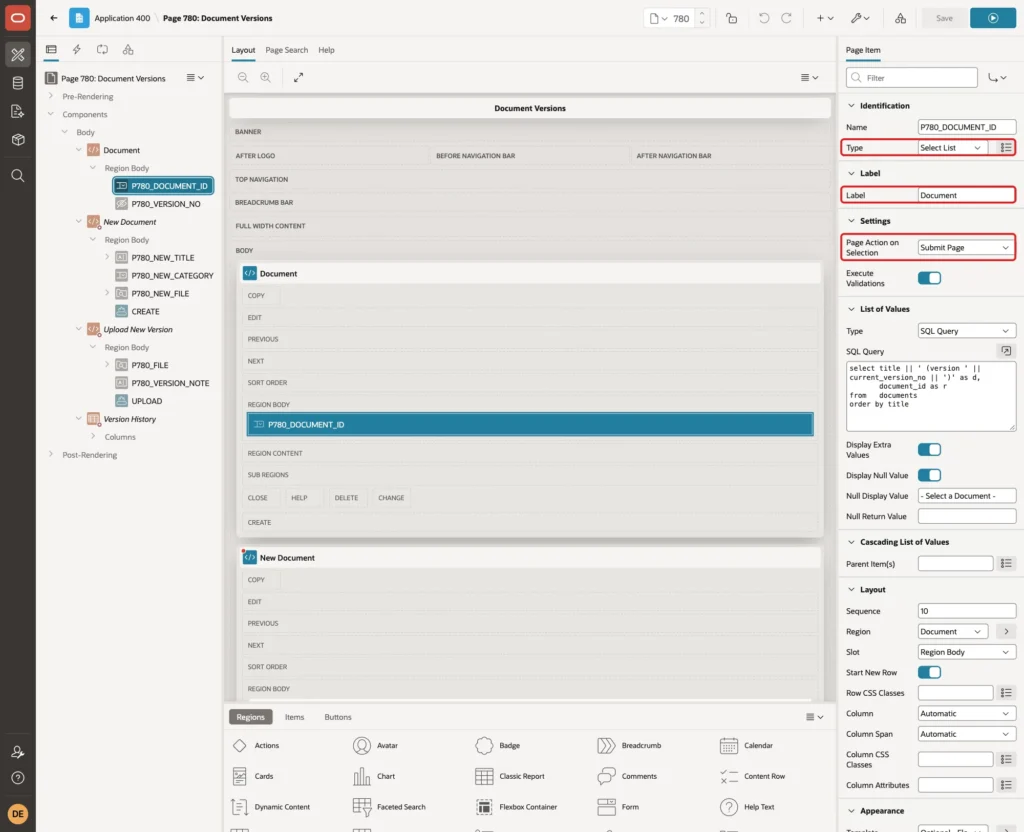
Set List of Values Type to SQL Query with this query, turn on Display Null Value, and enter - Select a Document - as Null Display Value:
Example:
select title || ' (version ' || current_version_no || ')' as d,
       document_id as r
from   documents
order by title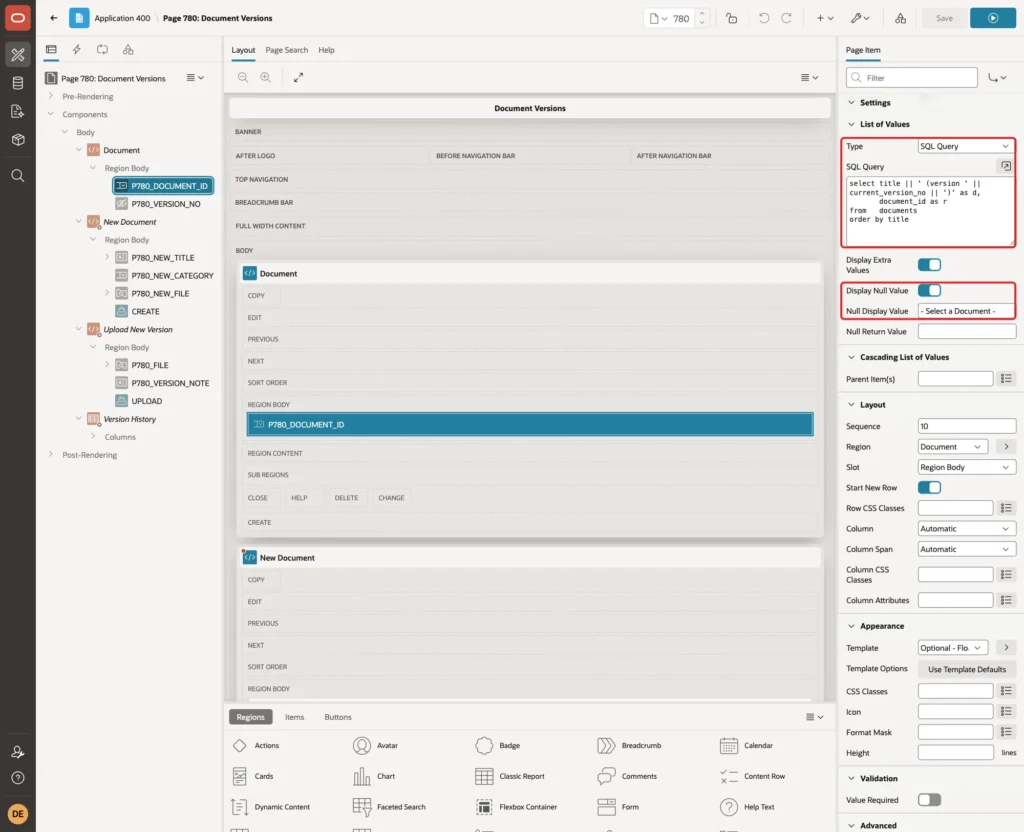
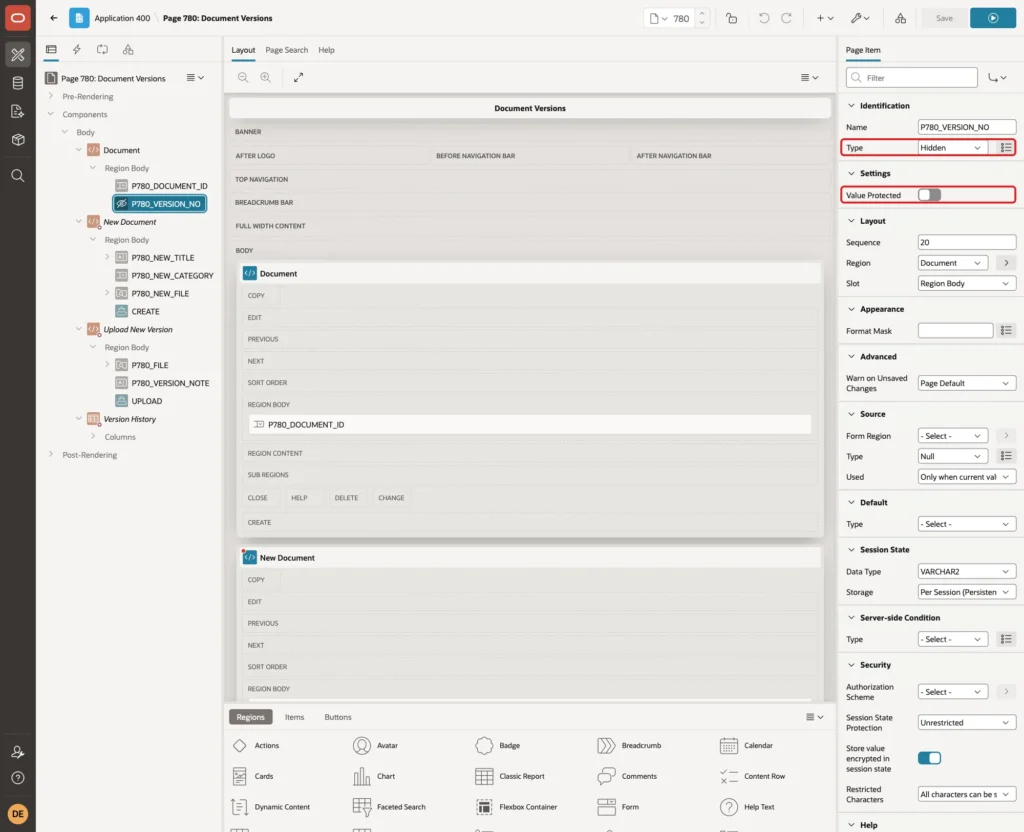
Add a second item to the Document region, P780_VERSION_NO, of Type Hidden, and turn off Value Protected. The Make Current link in Step 9 sets it from JavaScript:
Step 6: Create a New Document With Its First Version
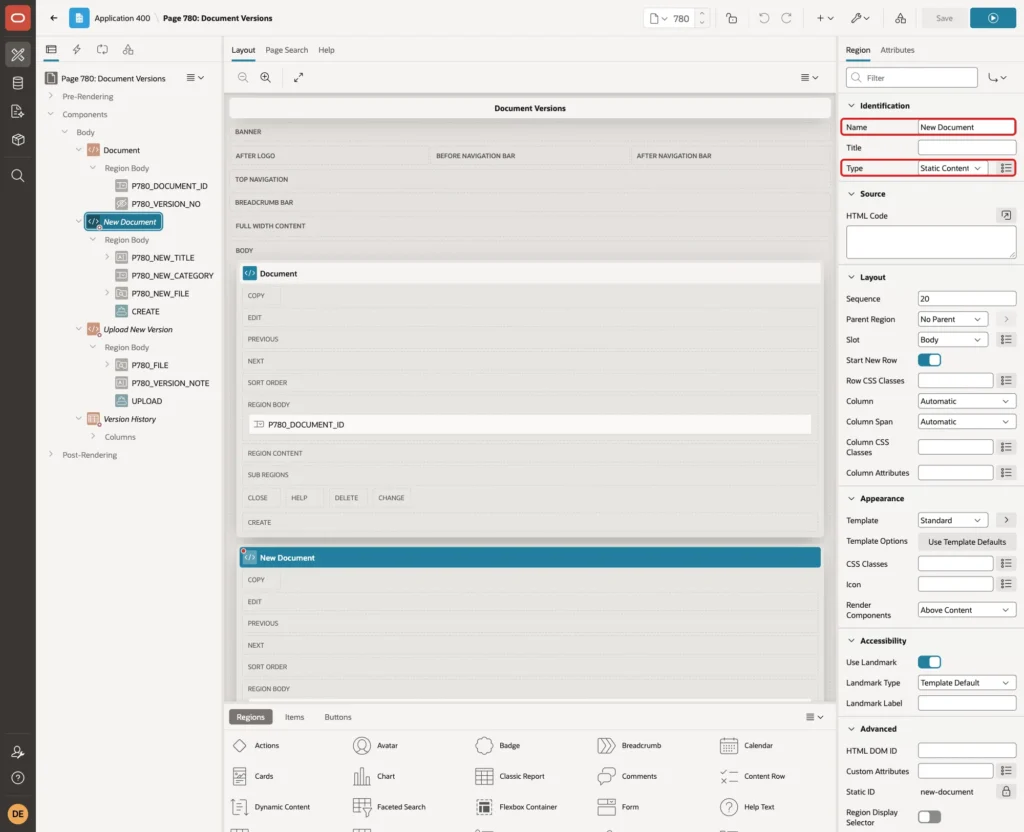
Create a second Static Content region named New Document:
Set its Server-side Condition to Type Item is NULL, Item P780_DOCUMENT_ID, so it appears only while no document is chosen. Set Security Authorization Scheme to Can Edit:
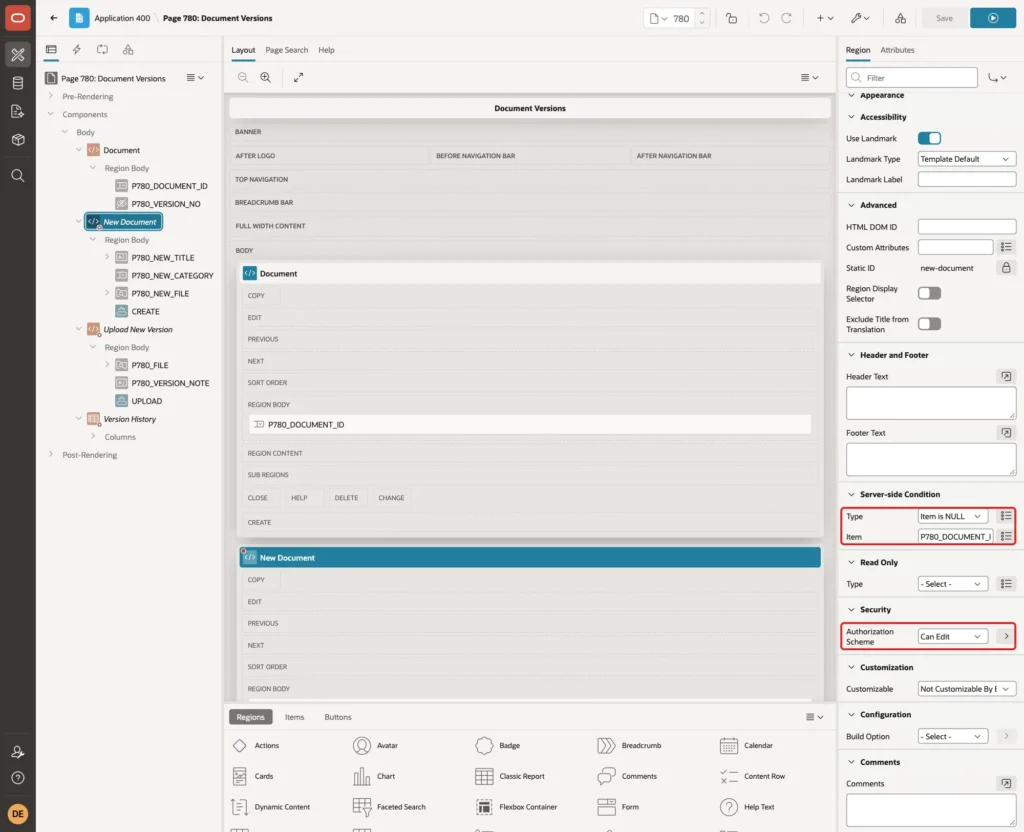
Can Edit is an authorization scheme of this application for the Administrator and Editor roles; use the scheme of your own application. Readers then do not see the region at all.
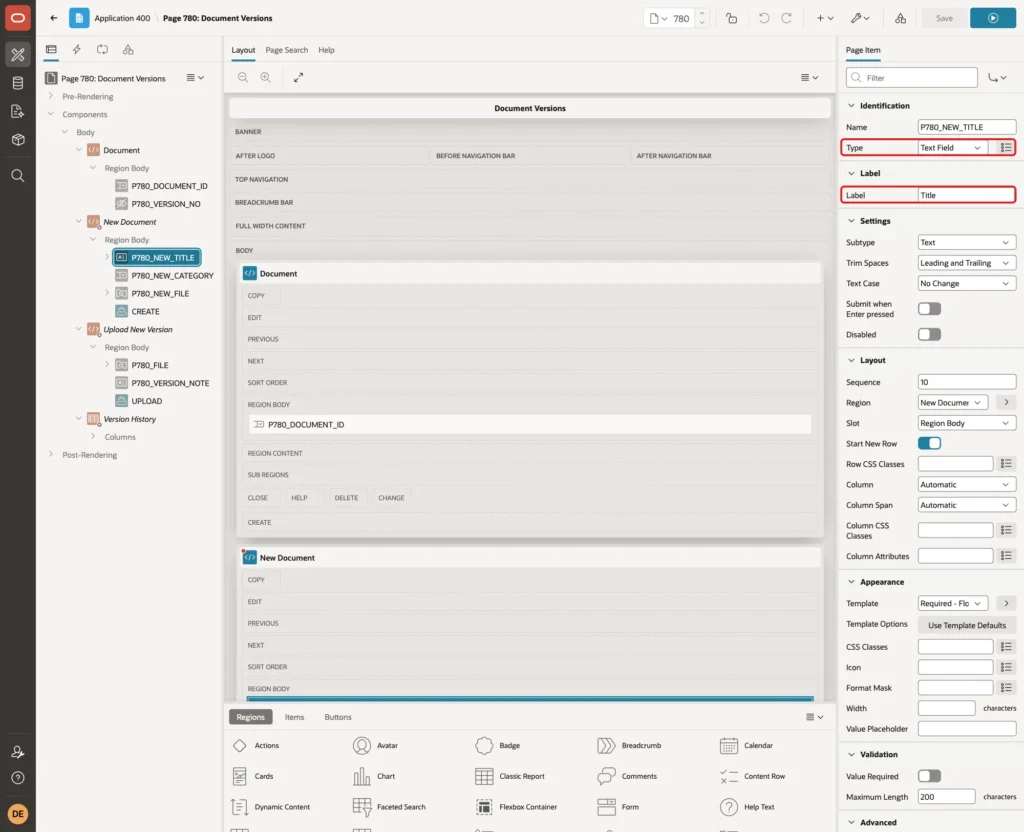
Add a Text Field P780_NEW_TITLE with Label Title:
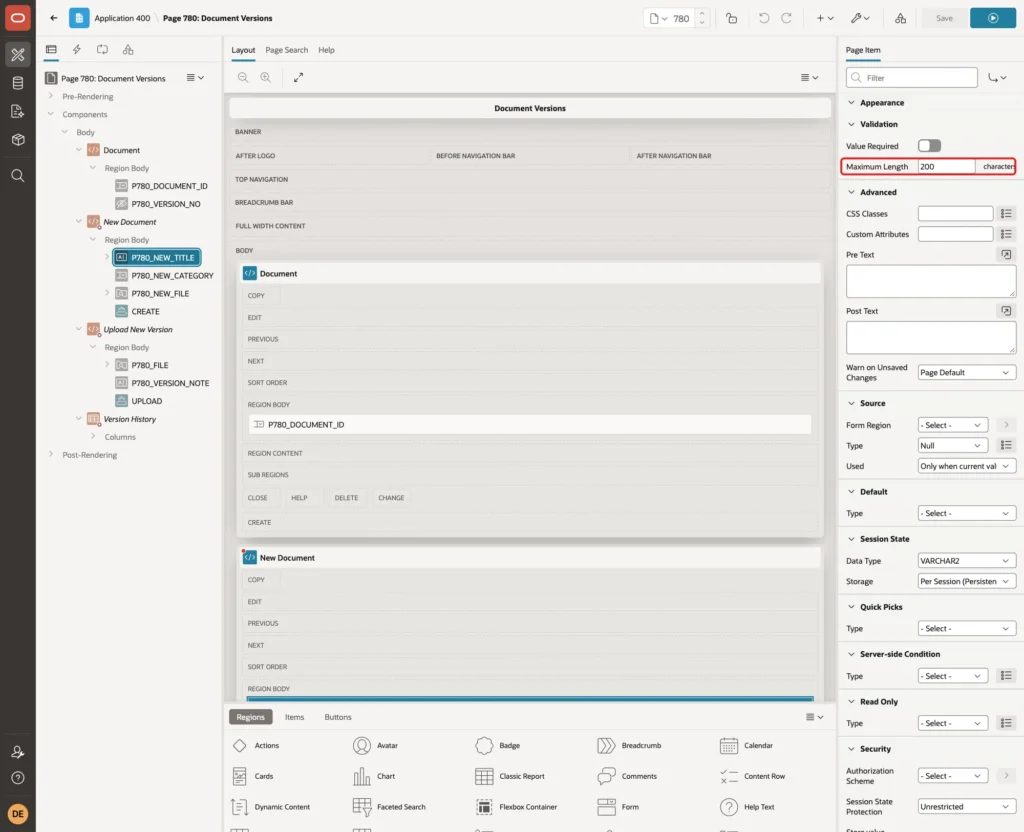
Set its Maximum Length to 200, the size of the TITLE column:
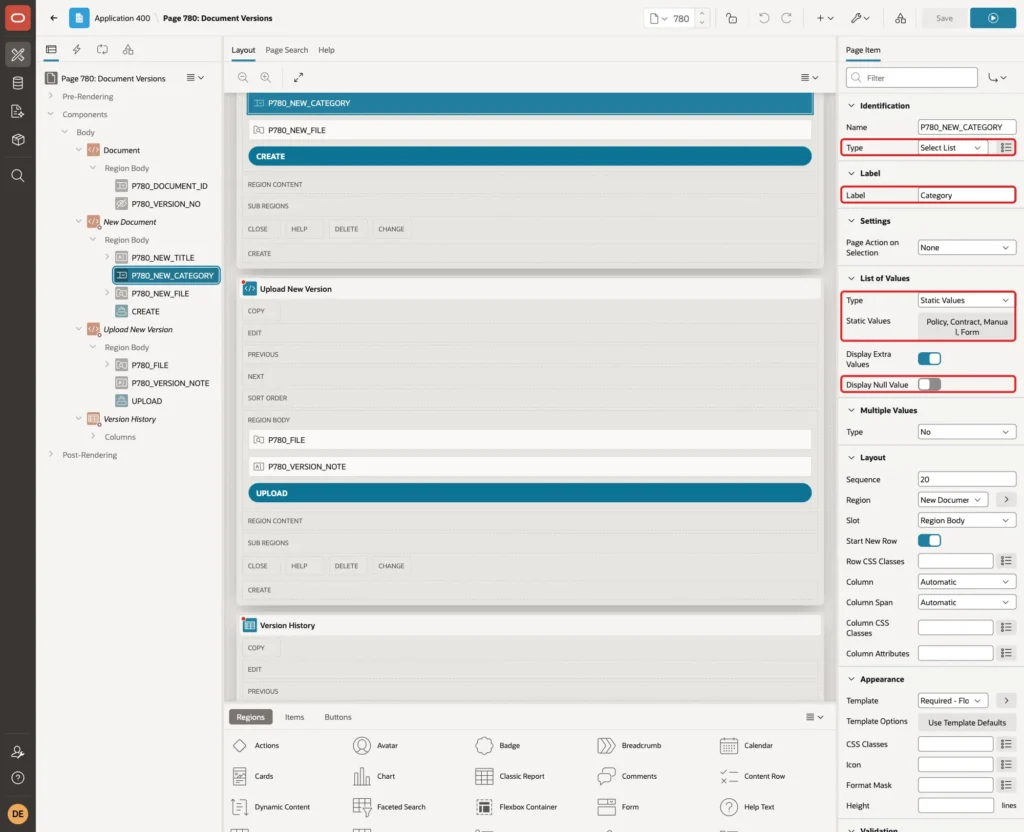
Add a Select List P780_NEW_CATEGORY with Label Category. Set List of Values Type to Static Values with the values Policy (POLICY), Contract (CONTRACT), Manual (MANUAL) and Form (FORM), and turn off Display Null Value. These are the values the check constraint allows:
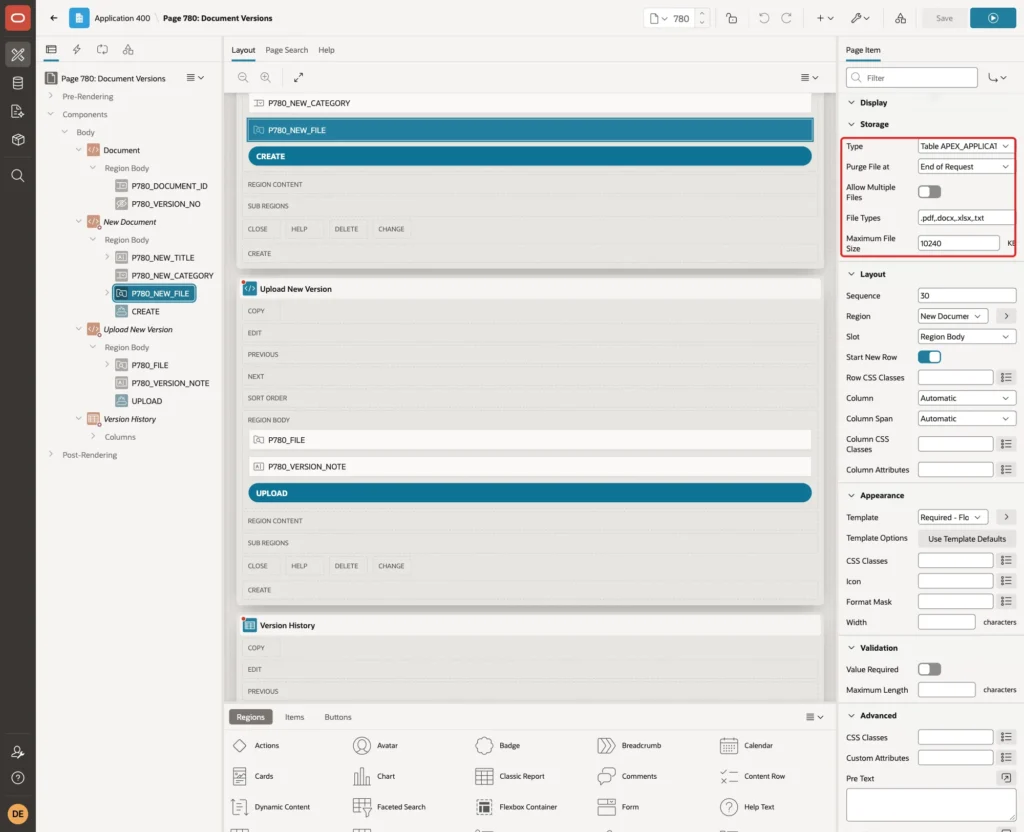
Add an item P780_NEW_FILE of Type File Upload with Label First Version. Set Display As to Block Dropzone, Dropzone Title to Drop the file here or click to choose, and Dropzone Description to PDF, DOCX, XLSX, or TXT, up to 10 MB:
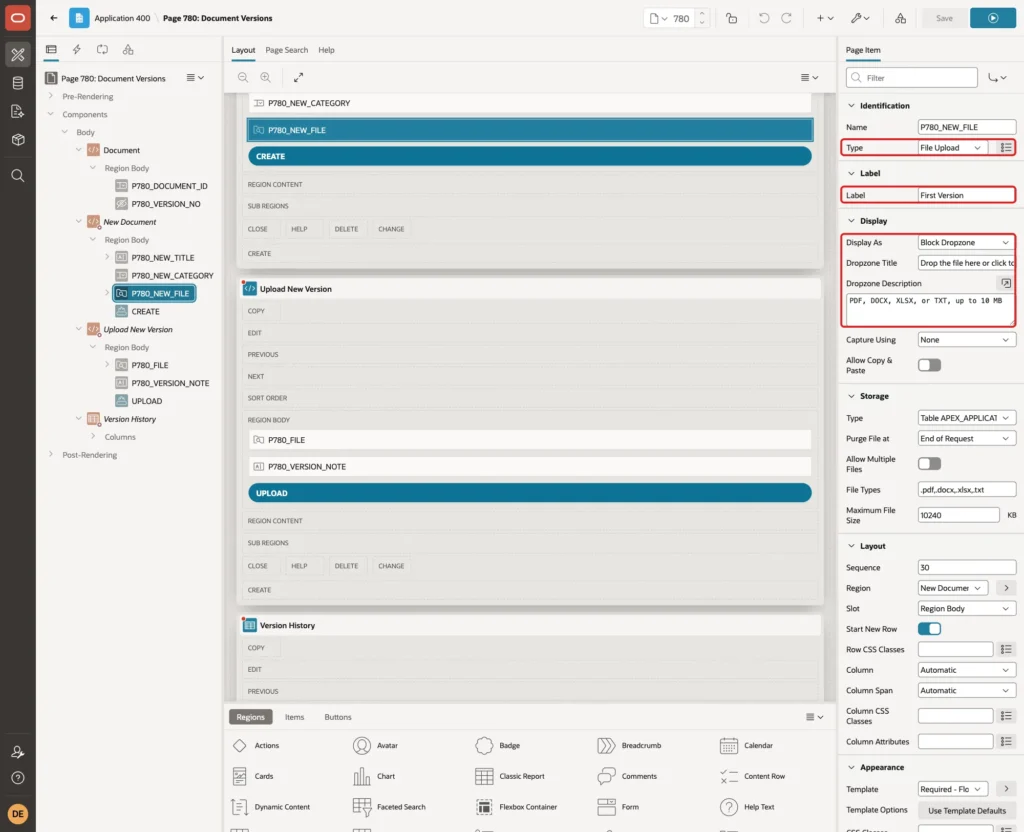
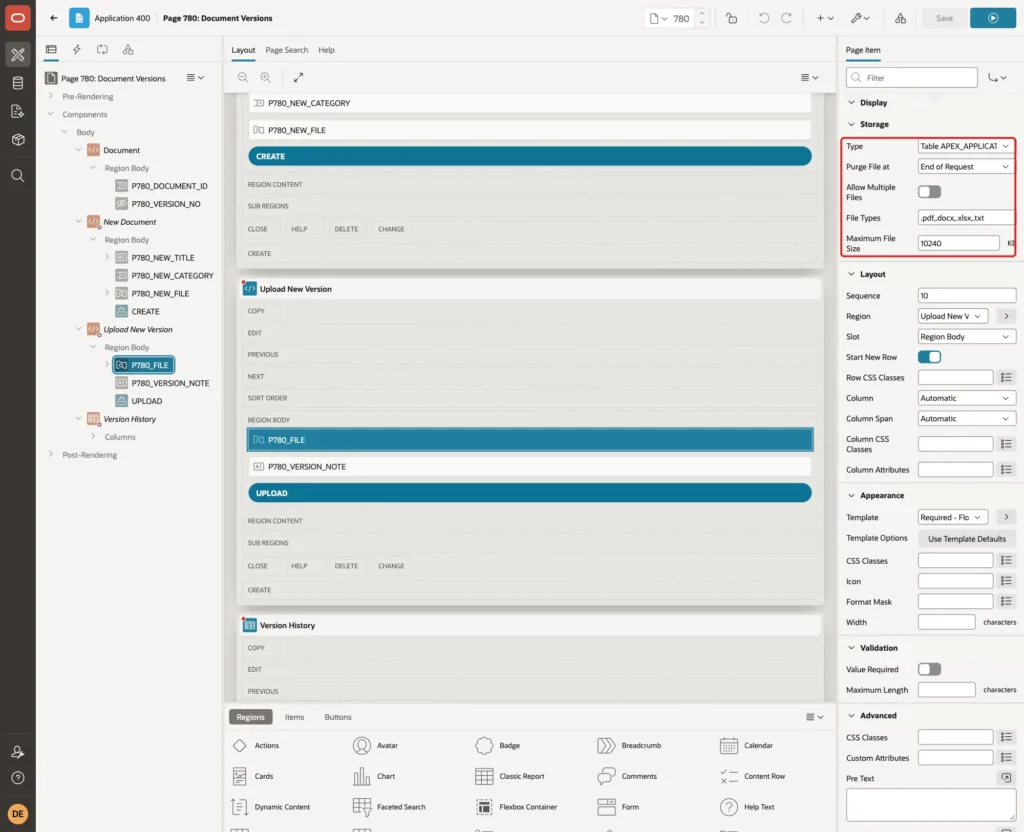
In the Storage group, set:
- Type: Table APEX_APPLICATION_TEMP_FILES. APEX keeps the file there until the page process copies it.
- Purge File at: End of Request.
- Allow Multiple Files: off. Each upload is one version.
- File Types: .pdf,.docx,.xlsx,.txt
- Maximum File Size: 10240 (in KB, so 10 MB).
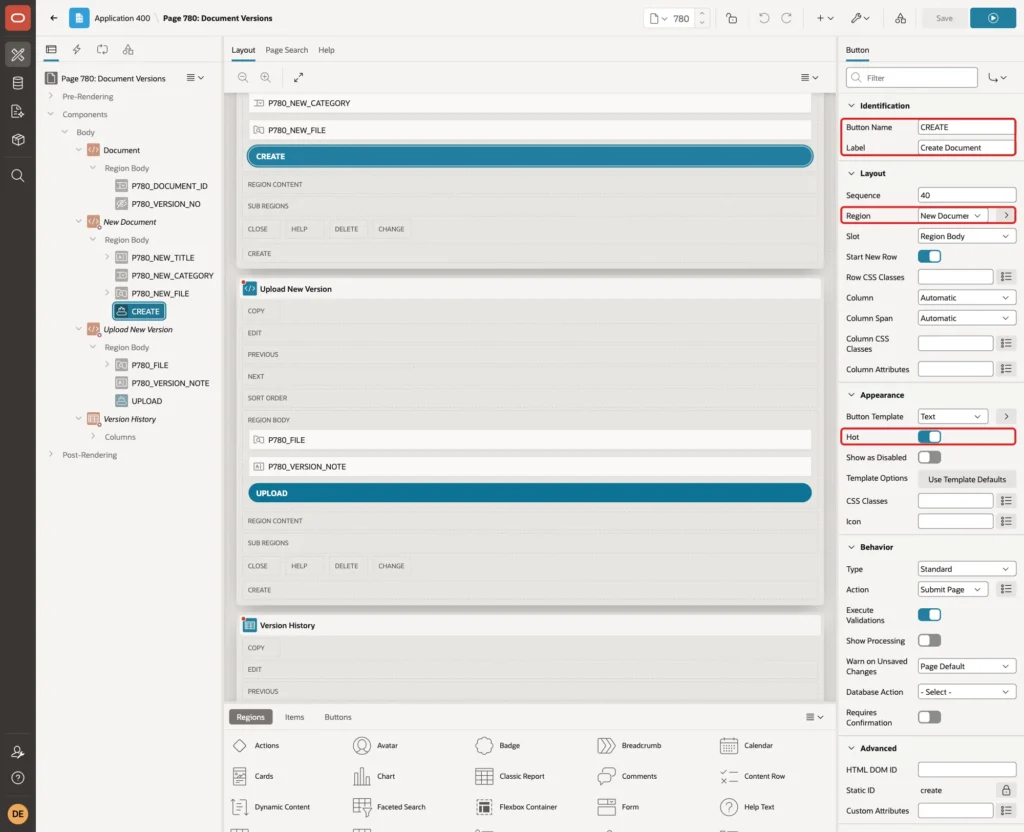
Add a button CREATE with Label Create Document in the New Document region, with Hot on and the default Action Submit Page:
Step 7: Upload a New Version
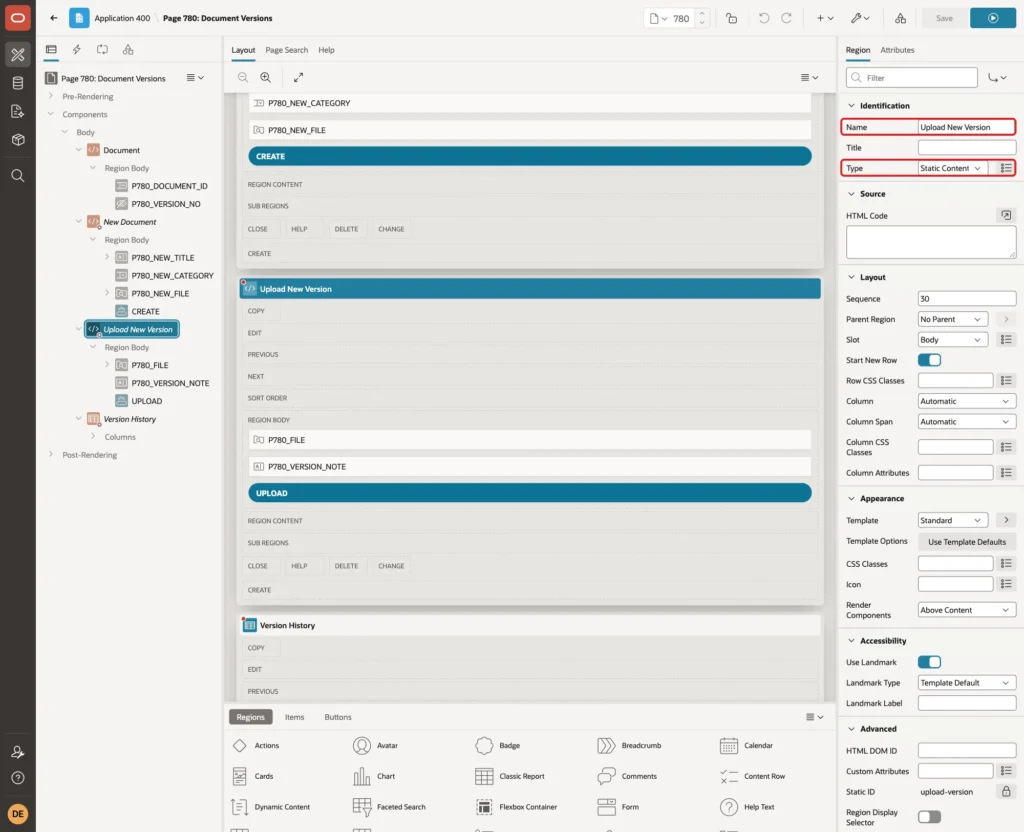
Create a third Static Content region named Upload New Version:
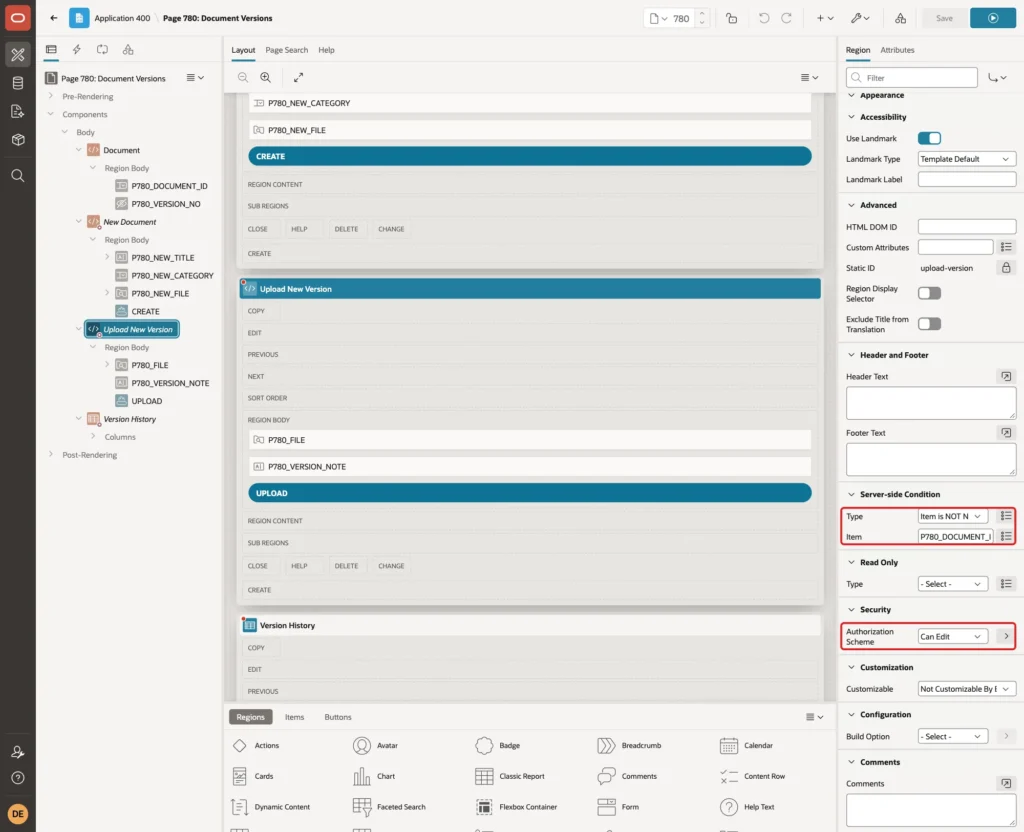
Set its Server-side Condition to Item is NOT NULL, Item P780_DOCUMENT_ID, and its Authorization Scheme to Can Edit:
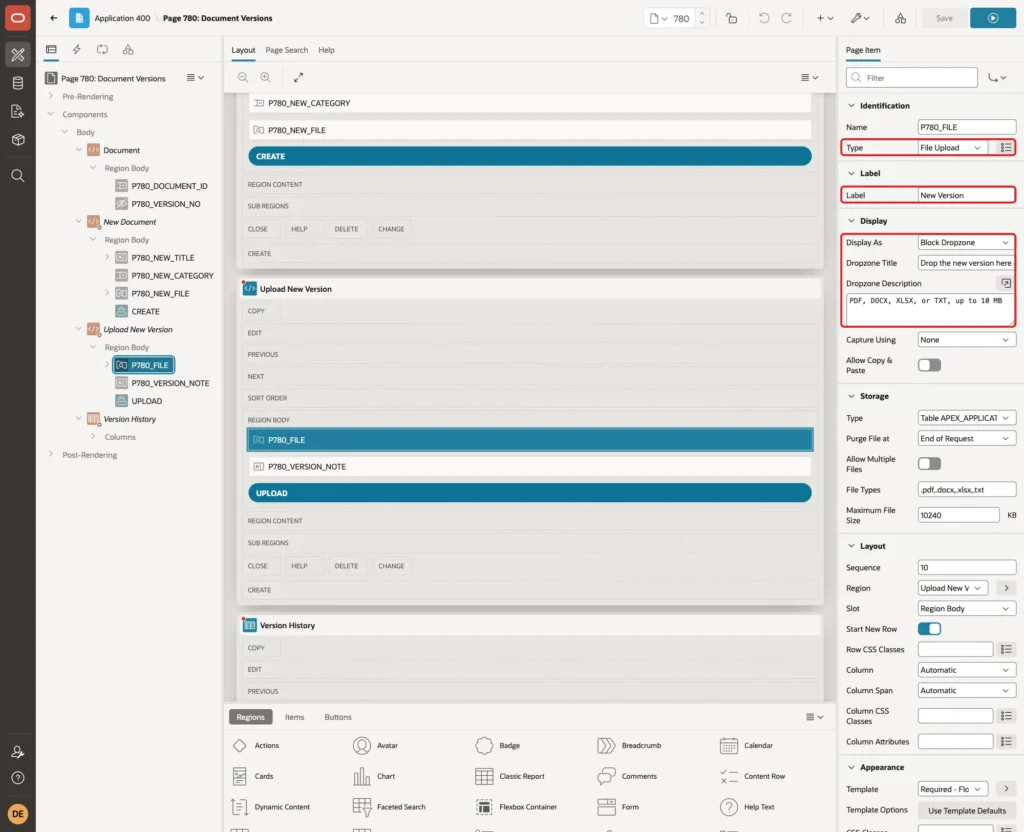
Add a File Upload item P780_FILE with Label New Version, Display As Block Dropzone, Dropzone Title Drop the new version here or click to choose, and the same Dropzone Description:
Give it the same Storage settings as P780_NEW_FILE:
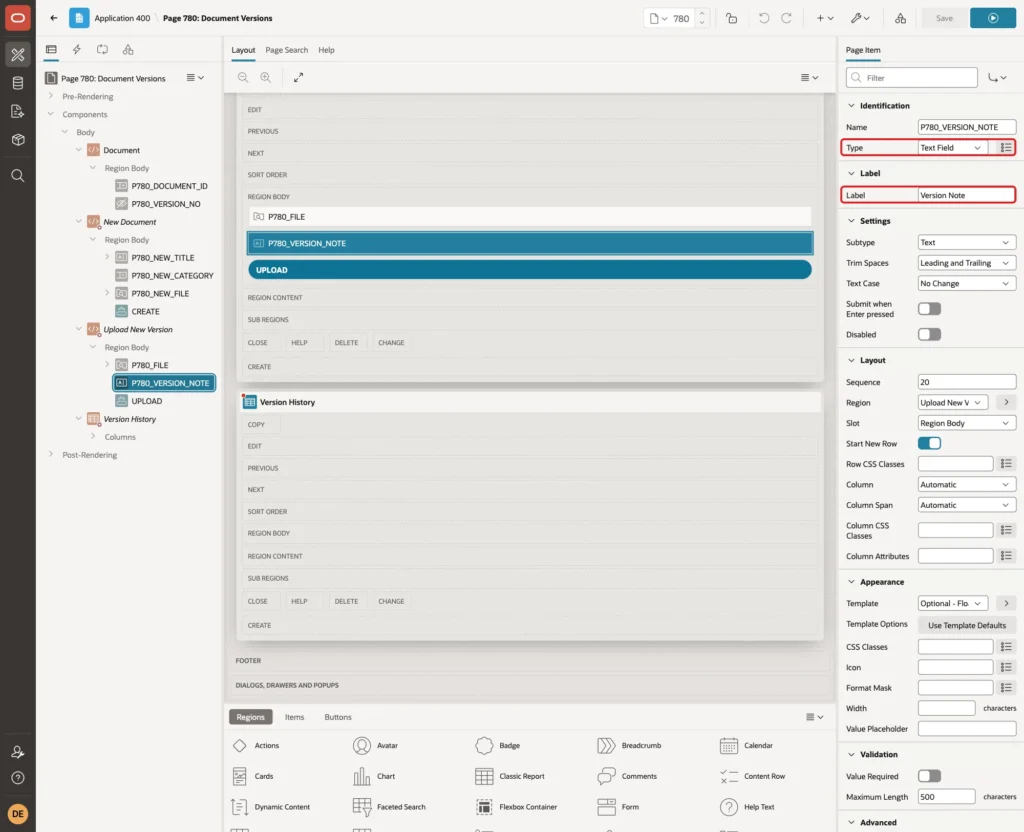
Add a Text Field P780_VERSION_NOTE with Label Version Note, so the uploader can say what changed:
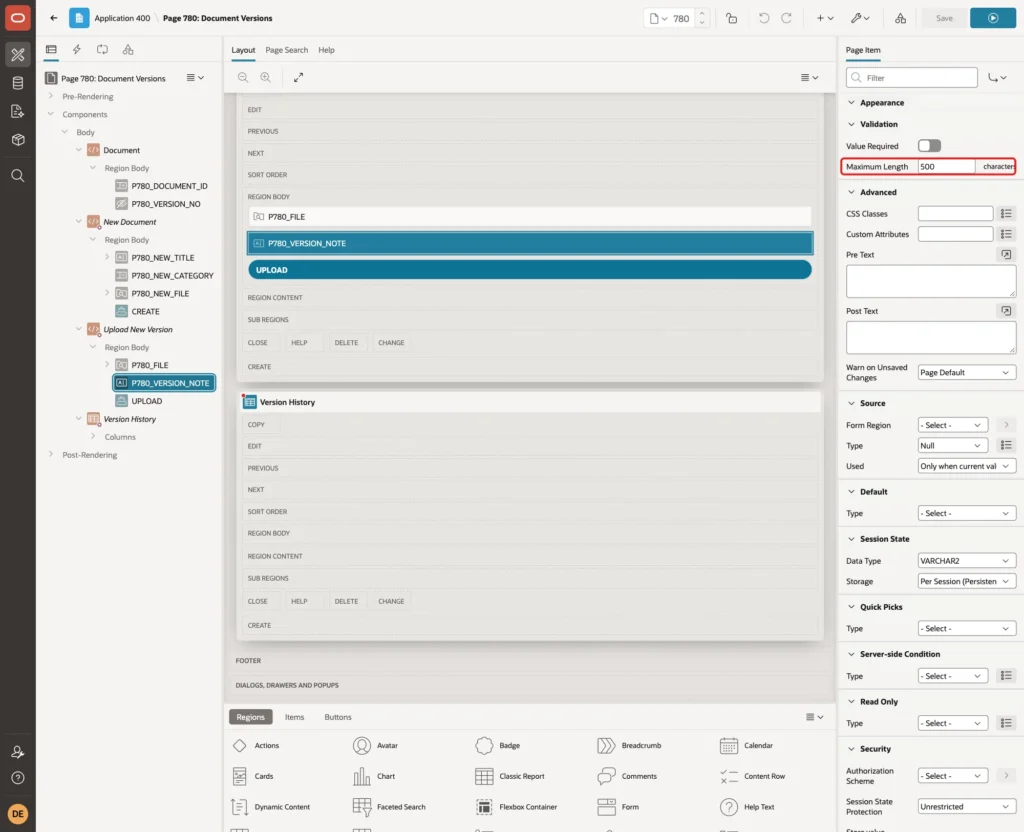
Set its Maximum Length to 500, the size of the VERSION_NOTE column:
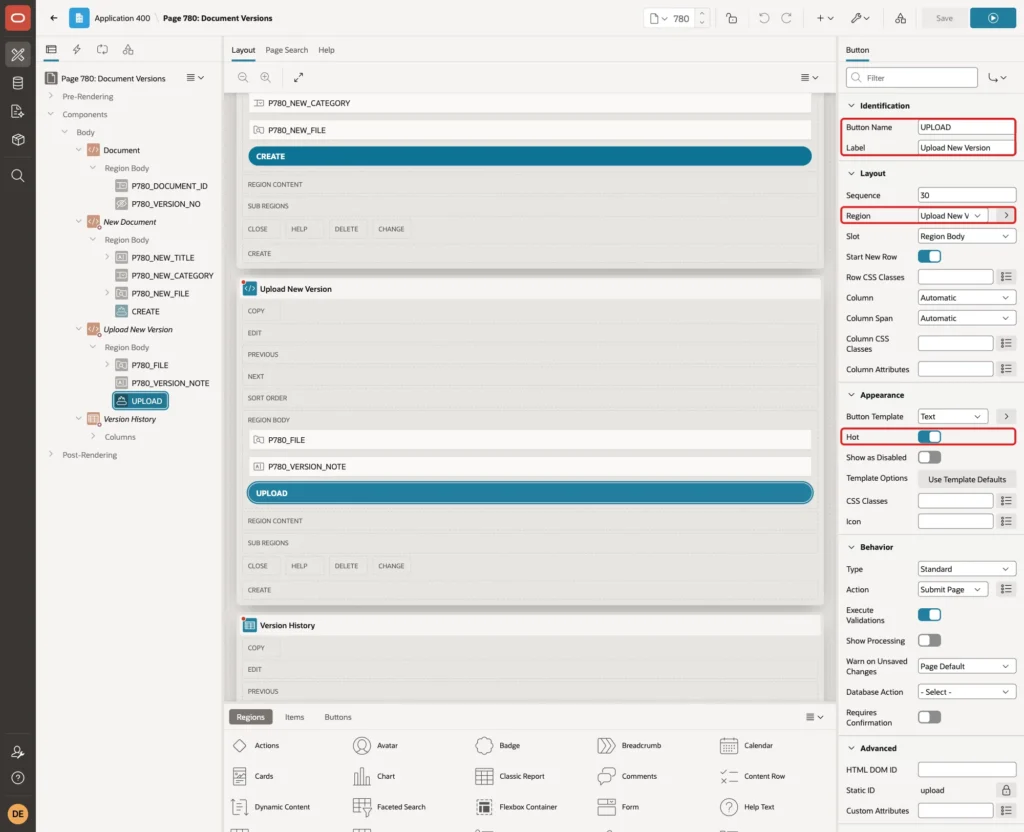
Add a button UPLOAD with Label Upload New Version and Hot on, in the Upload New Version region:
Step 8: List the Versions With Download Links
Create a region of Type Classic Report named Version History, with Source Type SQL Query, this query, and Page Items to Submit P780_DOCUMENT_ID:
Example:
select v.version_id,
       v.version_no,
       v.file_name,
       v.mime_type,
       v.file_size,
       v.version_note,
       v.uploaded_by,
       v.uploaded_on,
       case when v.version_no = d.current_version_no then 'Current' end as status,
       dbms_lob.getlength(v.file_content) as download,
       case when v.version_no <> d.current_version_no then 'Make Current' end as make_current
from   document_versions v
join   documents d on d.document_id = v.document_id
where  v.document_id = :P780_DOCUMENT_ID
order by v.version_no desc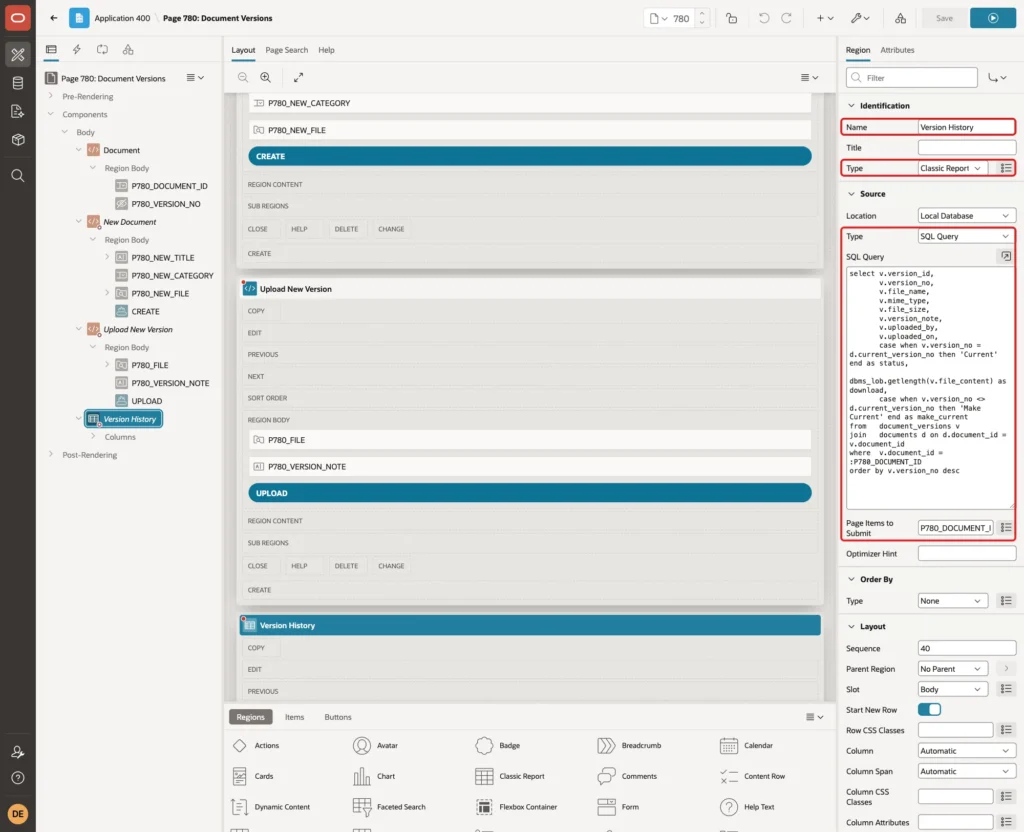
The query marks the version that the document points to as Current, and returns Make Current only for the other versions. DOWNLOAD returns the length of the BLOB, which APEX needs for a download column.
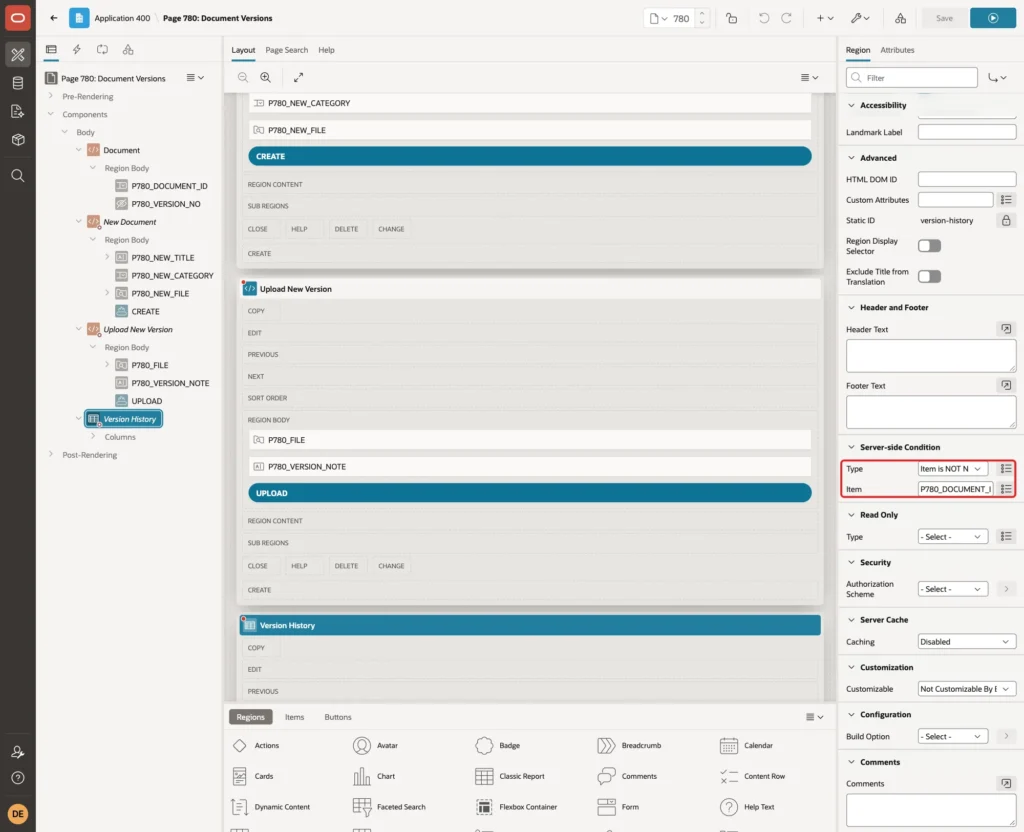
Set the Server-side Condition to Item is NOT NULL, Item P780_DOCUMENT_ID:
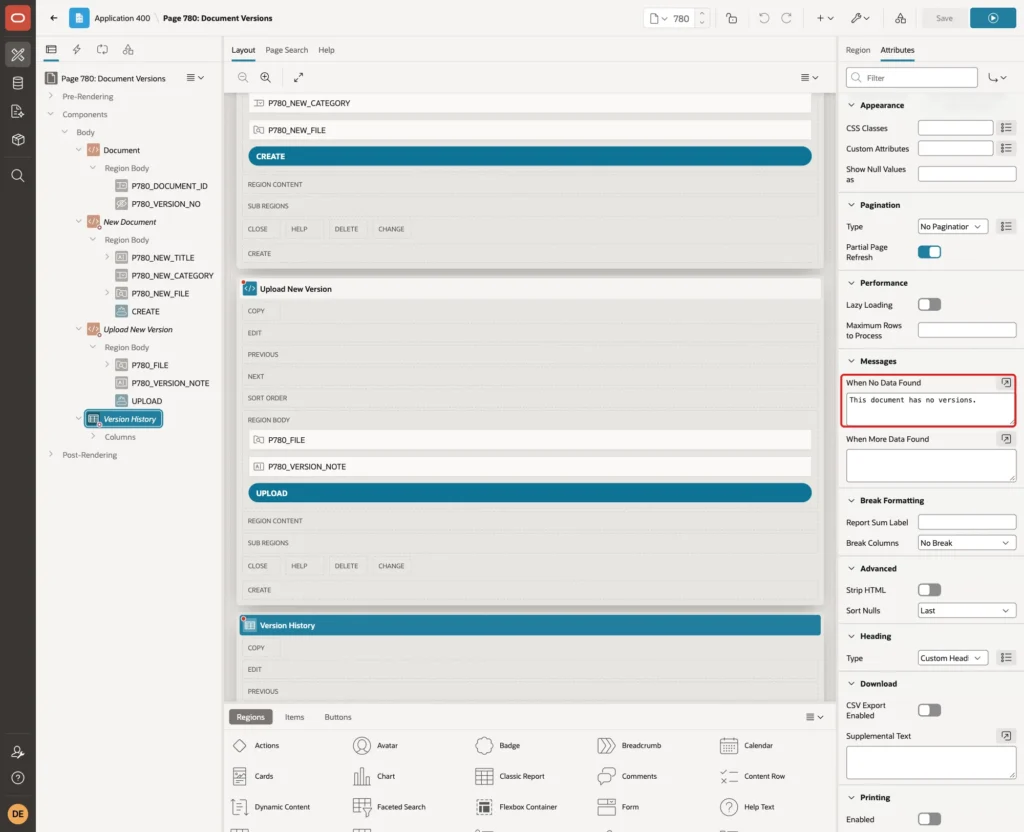
On the Attributes tab, set When No Data Found to This document has no versions.:
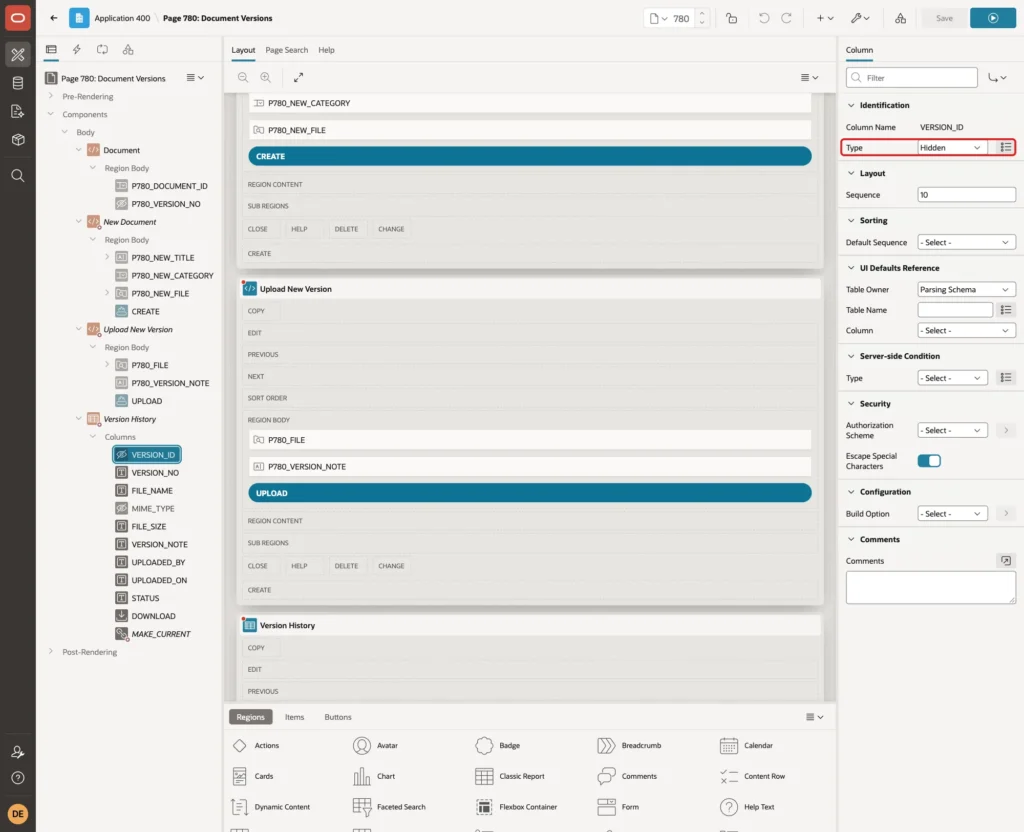
Now set the columns. VERSION_ID and MIME_TYPE are only needed by the download column; set their Type to Hidden:
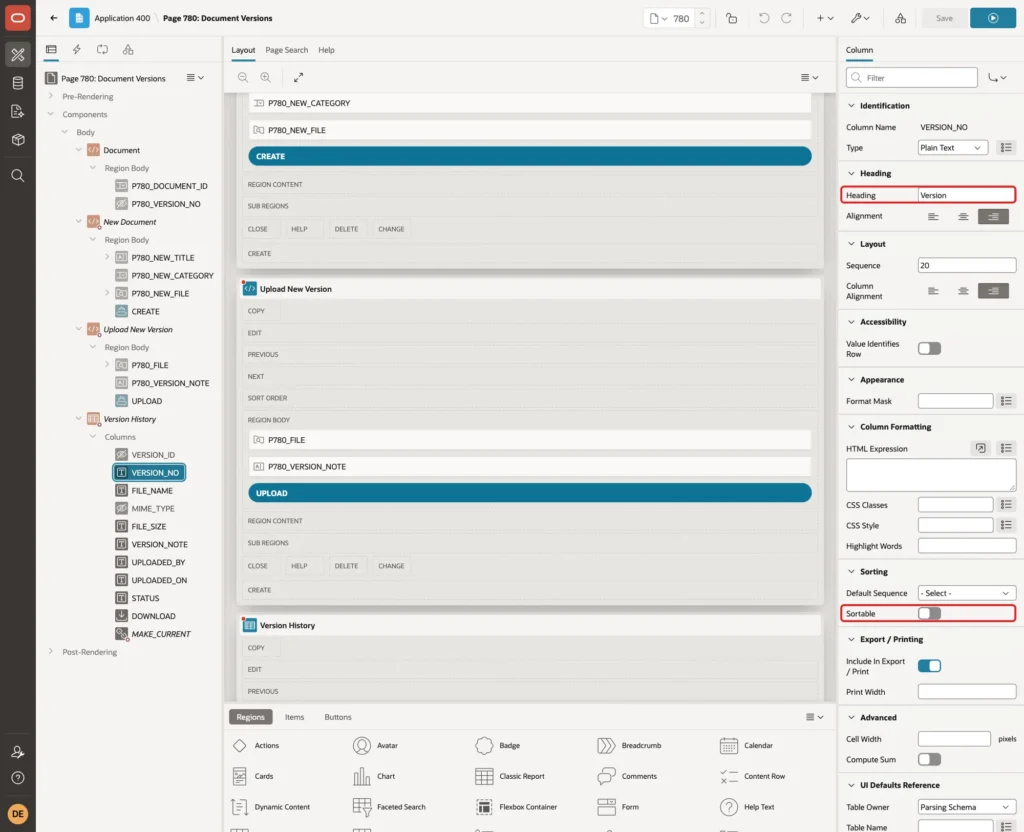
Give VERSION_NO the Heading Version, and turn off Sortable for every visible column. Users then cannot re-sort the list, and the newest version always stays on top:
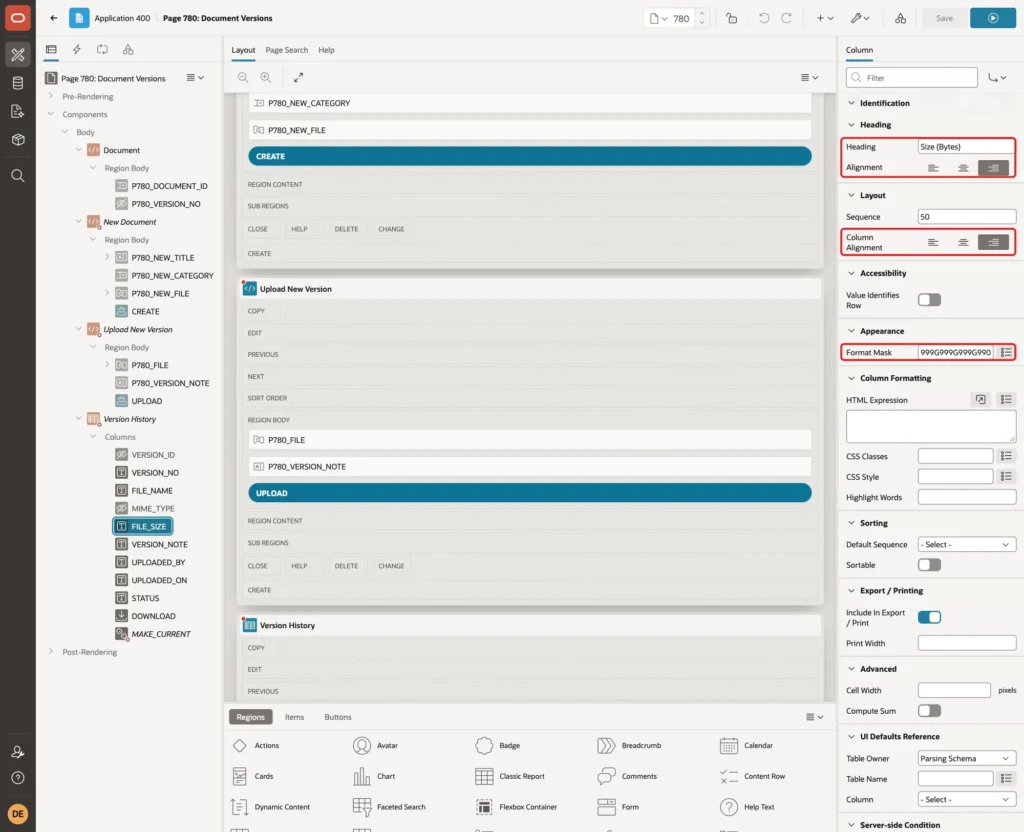
Give FILE_SIZE the Heading Size (Bytes), align heading and column to the end, and set Format Mask to 999G999G999G990:
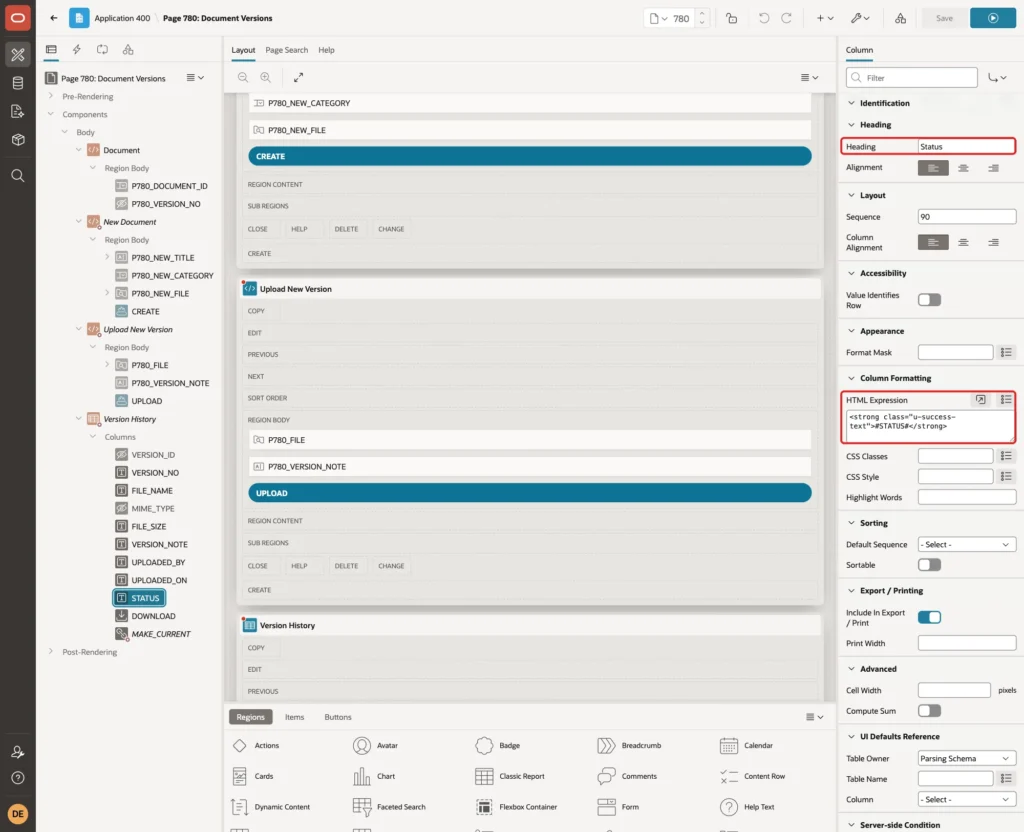
Give STATUS the Heading Status and this HTML Expression, so the current version stands out in green:
Example:
<strong class="u-success-text">#STATUS#</strong>
Set the Type of DOWNLOAD to Download BLOB, with Heading Download and Download Text Download:
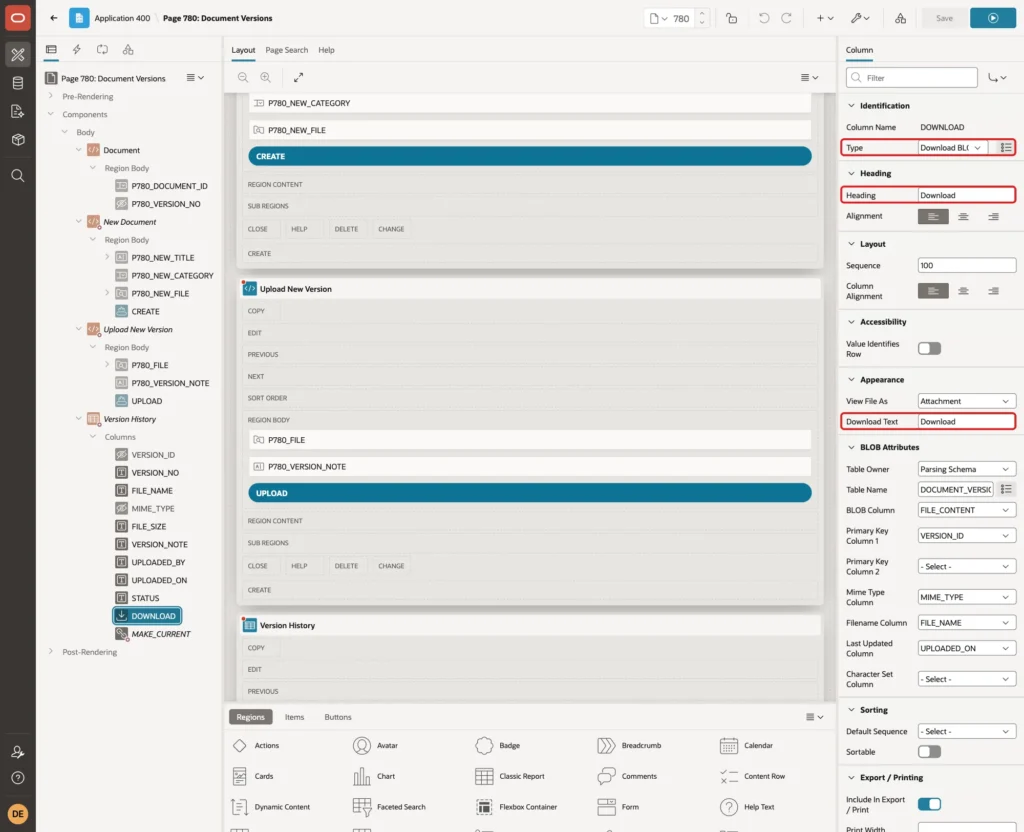
In its BLOB Attributes group, enter Table Name DOCUMENT_VERSIONS, BLOB Column FILE_CONTENT, Primary Key Column 1 VERSION_ID, Mime Type Column MIME_TYPE, Filename Column FILE_NAME, and Last Updated Column UPLOADED_ON:
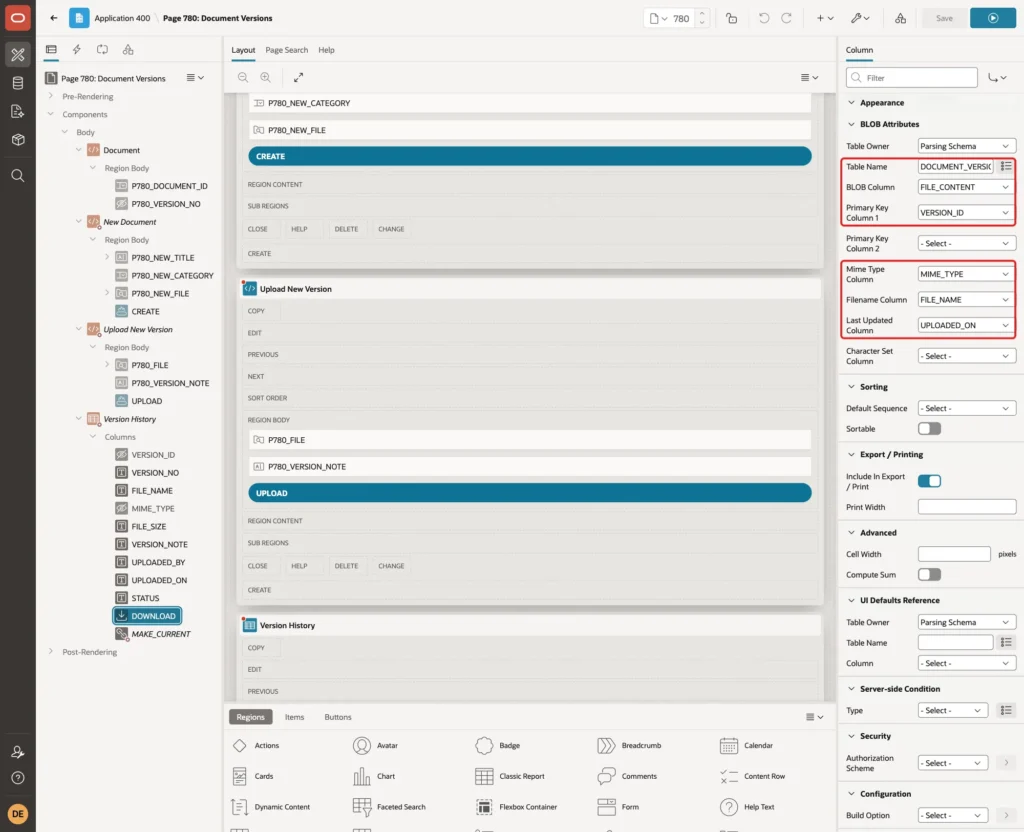
Because the primary key is VERSION_ID, the link of version 1 always downloads version 1, even after newer versions were uploaded.
Step 9: Make an Older Version Current
Sometimes the newest upload is wrong and the previous version should be used again. Set the Type of MAKE_CURRENT to Link, with Heading Make Current and Link Text #MAKE_CURRENT#. Set the link Target to Type URL with this URL:
Example:
javascript:apex.confirm('Make version #VERSION_NO# the current version?', {request: 'MAKE_CURRENT', set: {'P780_VERSION_NO': '#VERSION_NO#'}});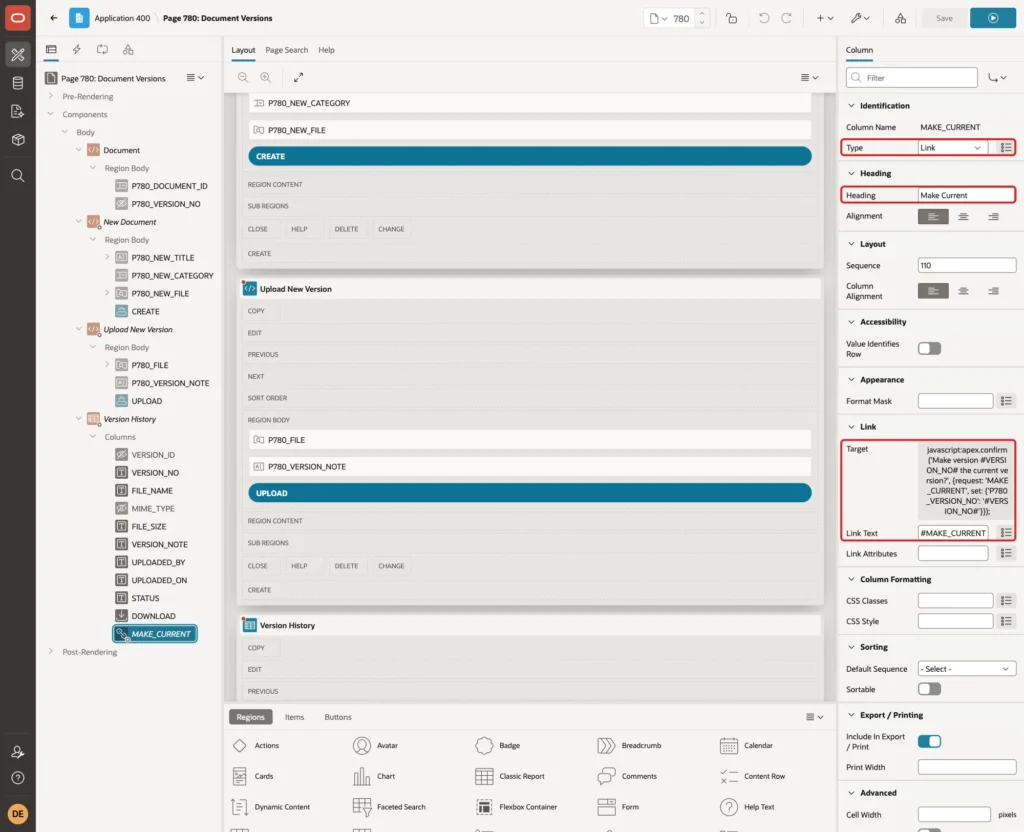
The query returns no text for the current version, so its row shows no link. apex.confirm shows the question in an APEX dialog; on OK it sets P780_VERSION_NO and submits the page with the request MAKE_CURRENT.
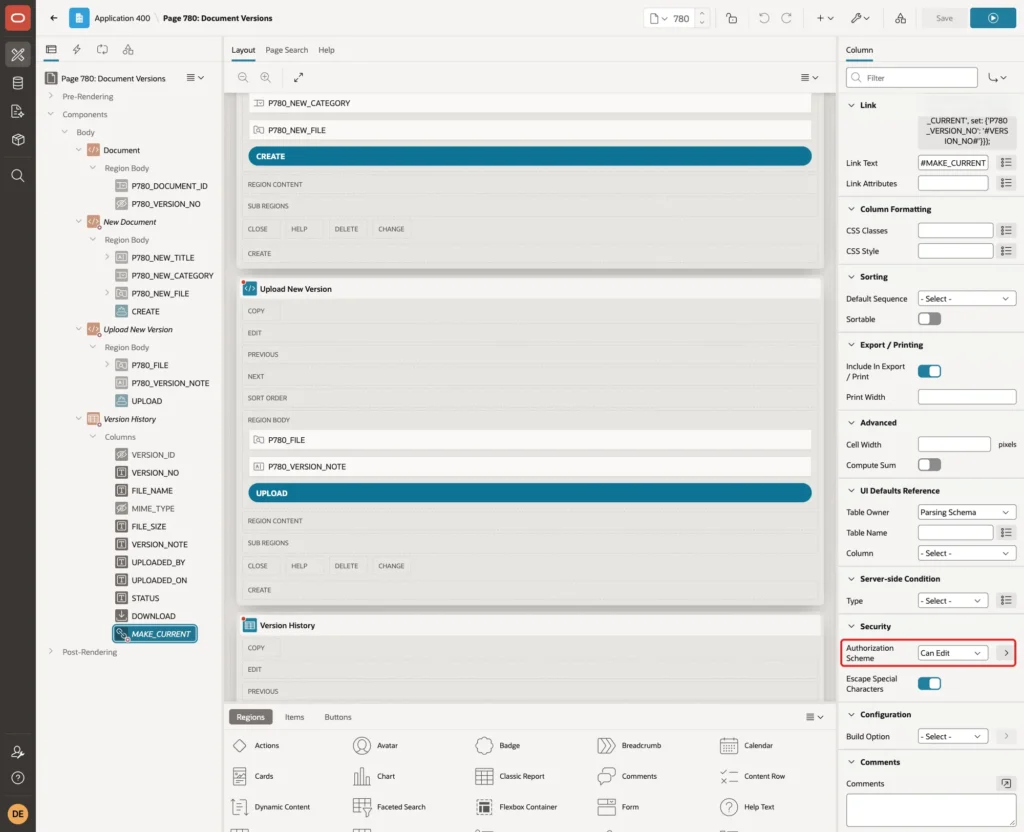
Set the column's Security Authorization Scheme to Can Edit, so readers do not see the column:
Step 10: Add the Validations
Open the Processing tab. Create a validation Title required of Type Item is NOT NULL on P780_NEW_TITLE, with the Error Message Enter a title for the document., Associated Item P780_NEW_TITLE, and When Button Pressed CREATE:
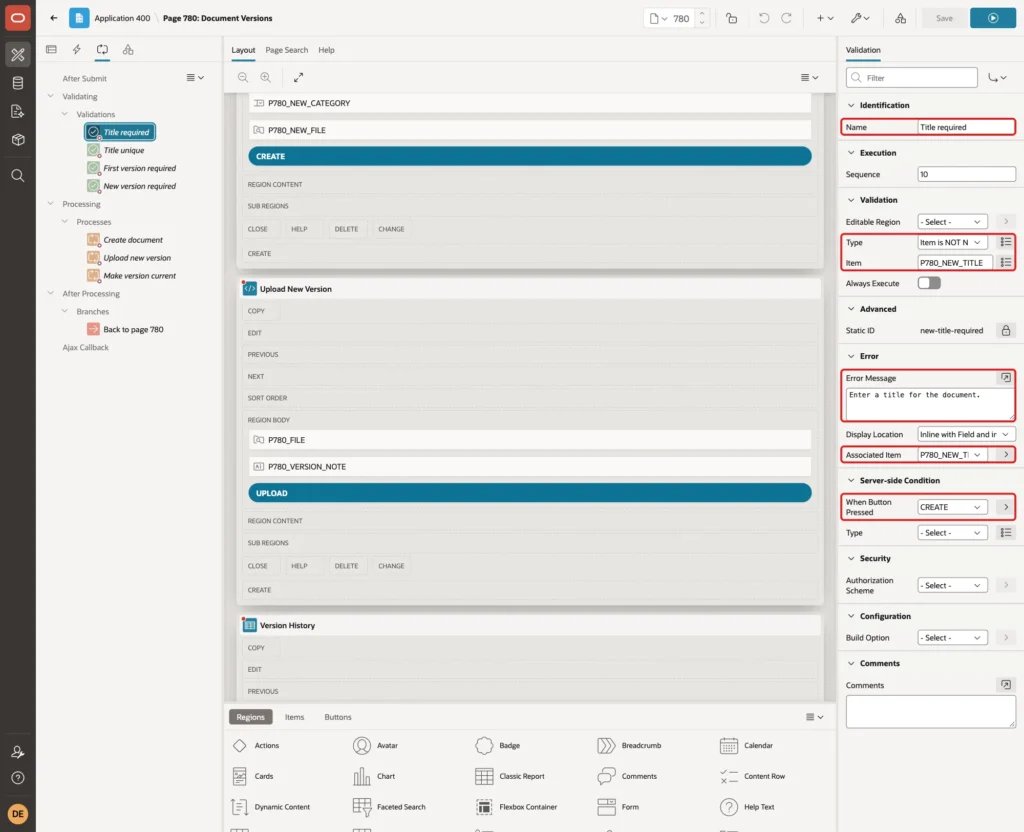
The validations use When Button Pressed instead of Value Required on the items. Choosing a document in the select list also submits the page, and these checks must not run for that submit.
Create a validation Title unique of Type No Rows Returned with this query, the Error Message A document with this title already exists., Associated Item P780_NEW_TITLE and When Button Pressed CREATE:
Example:
select null
from   documents
where  title = :P780_NEW_TITLE
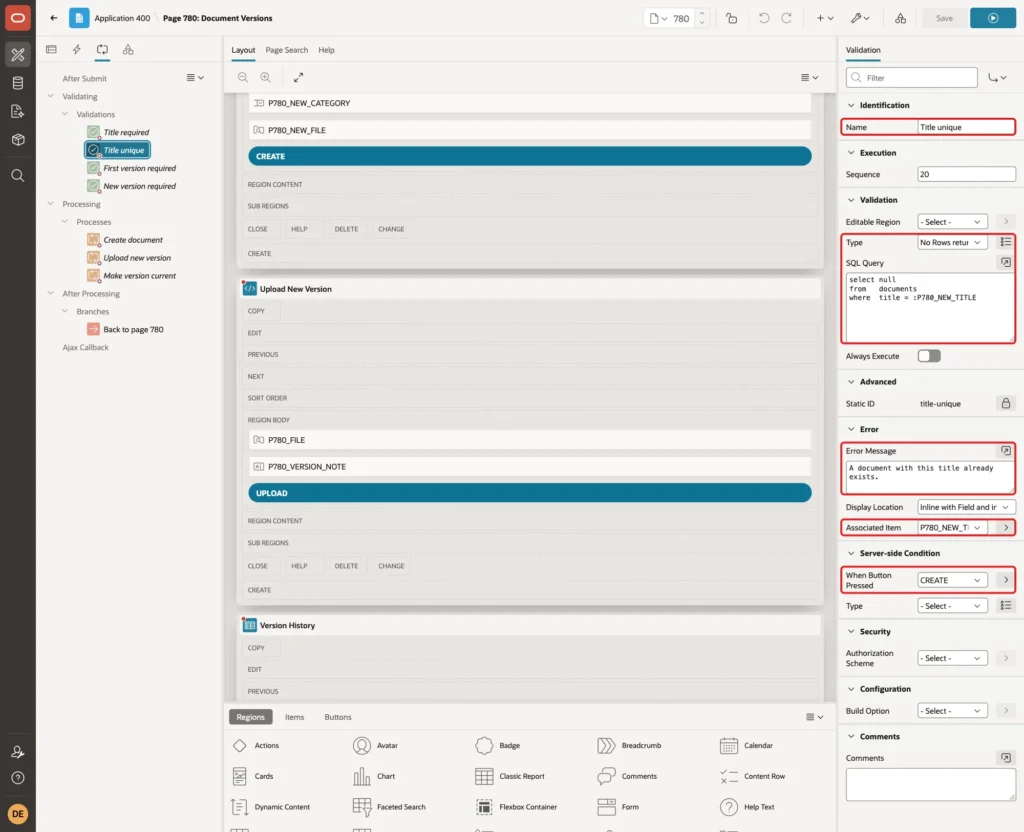
Without it, a duplicate title would still be stopped by DOCUMENTS_TITLE_UK, but with a database error instead of this message.
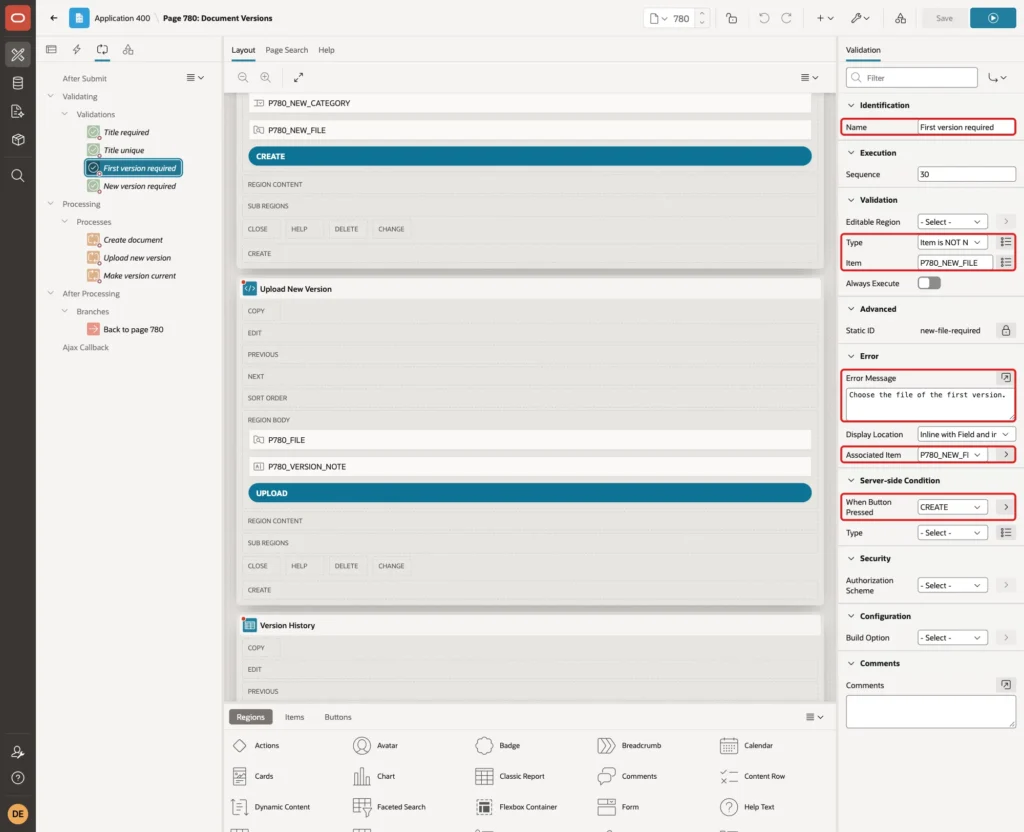
Create a validation First version required of Type Item is NOT NULL on P780_NEW_FILE, with the Error Message Choose the file of the first version. and When Button Pressed CREATE:
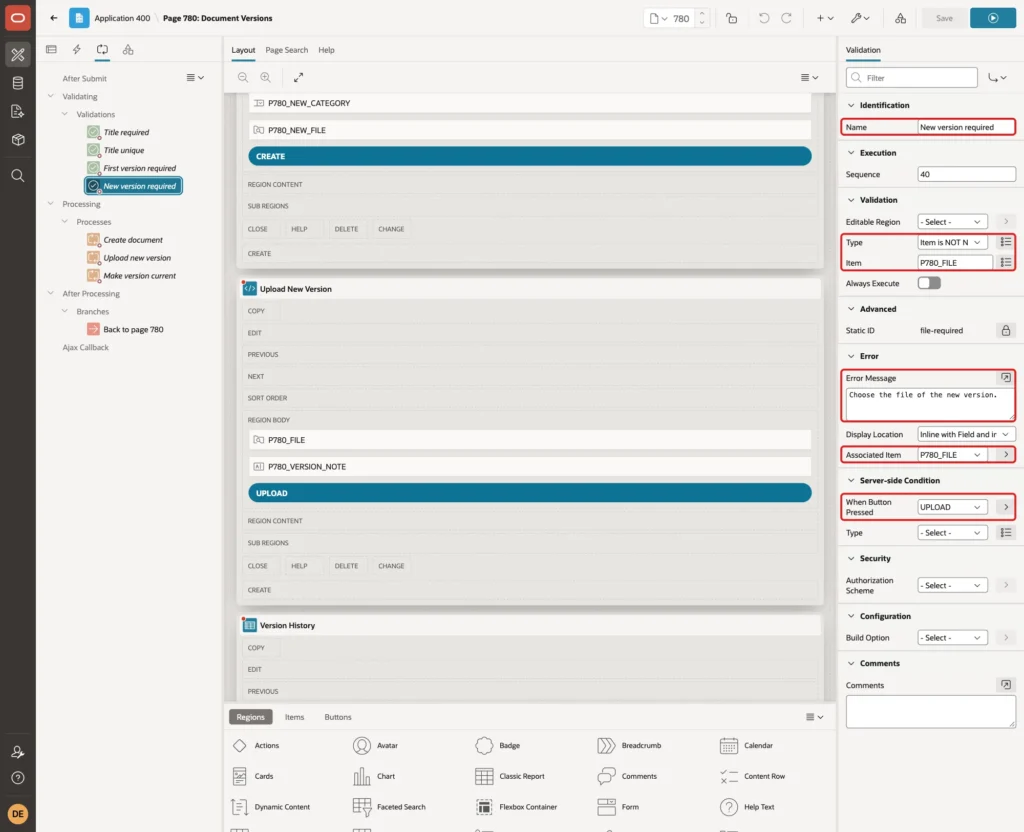
Create a validation New version required of Type Item is NOT NULL on P780_FILE, with the Error Message Choose the file of the new version. and When Button Pressed UPLOAD:
Step 11: Add the Processes
Create a process Create document of Type Execute Code with this PL/SQL code:
Example:
for f in (select filename, mime_type, blob_content
          from   apex_application_temp_files
          where  name = :P780_NEW_FILE)
loop
    :P780_DOCUMENT_ID := doc_pkg.create_document(
                             p_title     => :P780_NEW_TITLE,
                             p_category  => :P780_NEW_CATEGORY,
                             p_file_name => f.filename,
                             p_mime_type => f.mime_type,
                             p_content   => f.blob_content,
                             p_note      => 'First release');
end loop;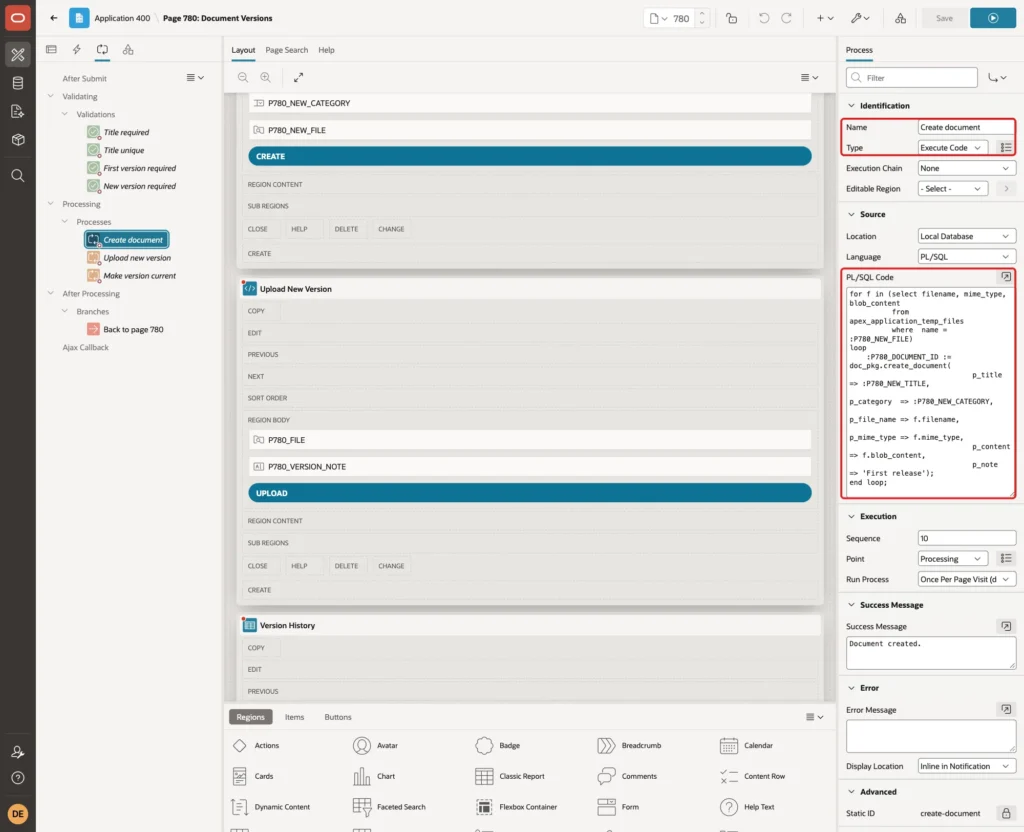
The File Upload item holds the name of the uploaded file in APEX_APPLICATION_TEMP_FILES. The process passes the file to CREATE_DOCUMENT and puts the new document ID into P780_DOCUMENT_ID, so the page shows the new document afterwards.
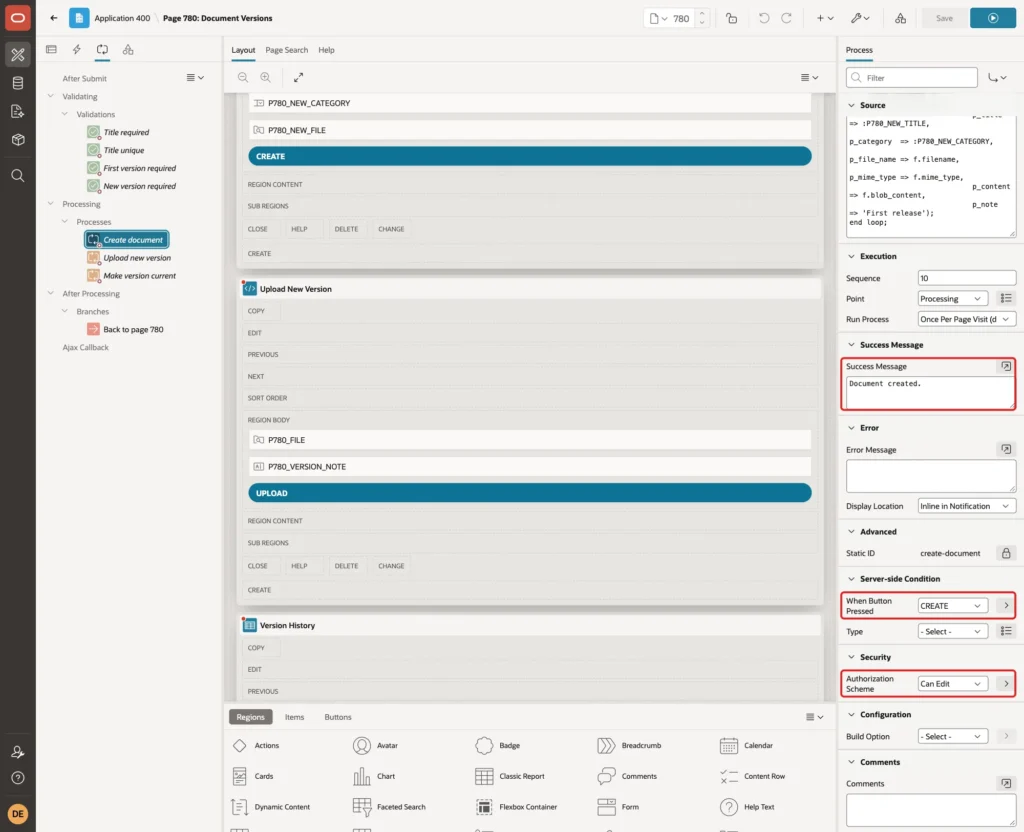
Set its Success Message to Document created., When Button Pressed to CREATE, and Authorization Scheme to Can Edit:
Create a process Upload new version of Type Execute Code with this code:
Example:
declare
    l_version_no  document_versions.version_no%type;
begin
    for f in (select filename, mime_type, blob_content
              from   apex_application_temp_files
              where  name = :P780_FILE)
    loop
        l_version_no := doc_pkg.add_version(
                            p_document_id => :P780_DOCUMENT_ID,
                            p_file_name   => f.filename,
                            p_mime_type   => f.mime_type,
                            p_content     => f.blob_content,
                            p_note        => :P780_VERSION_NOTE);
        apex_application.g_print_success_message := 'Version ' || l_version_no || ' saved.';
    end loop;
end;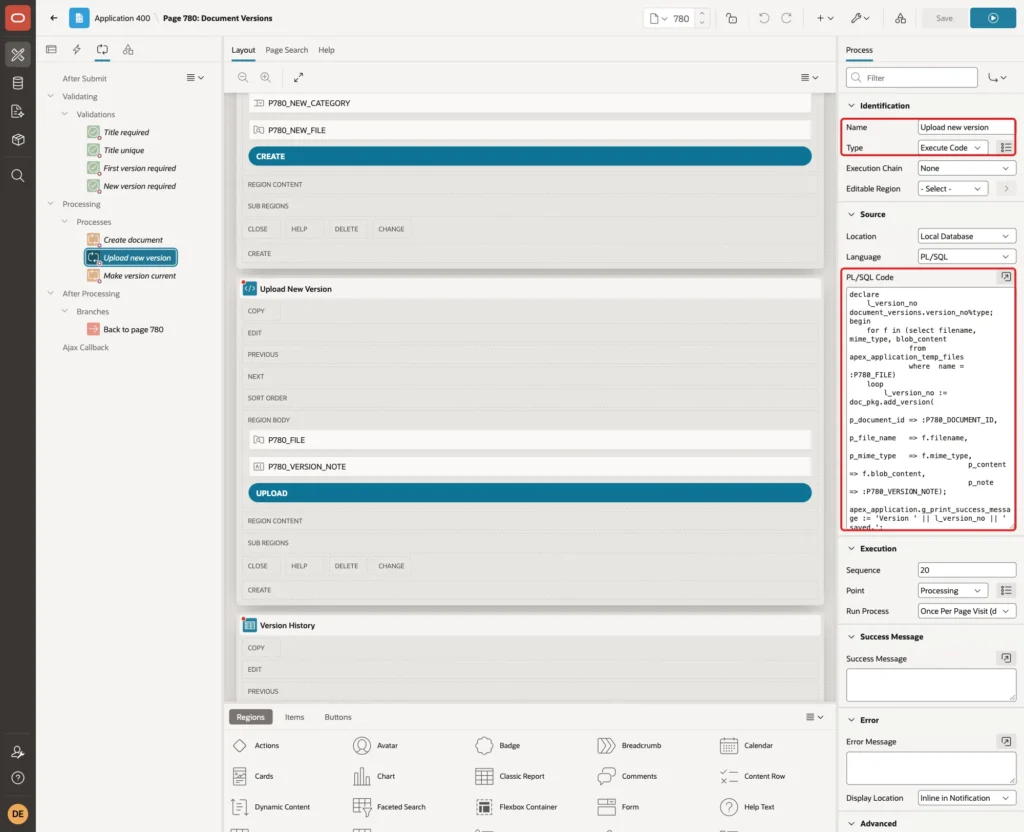
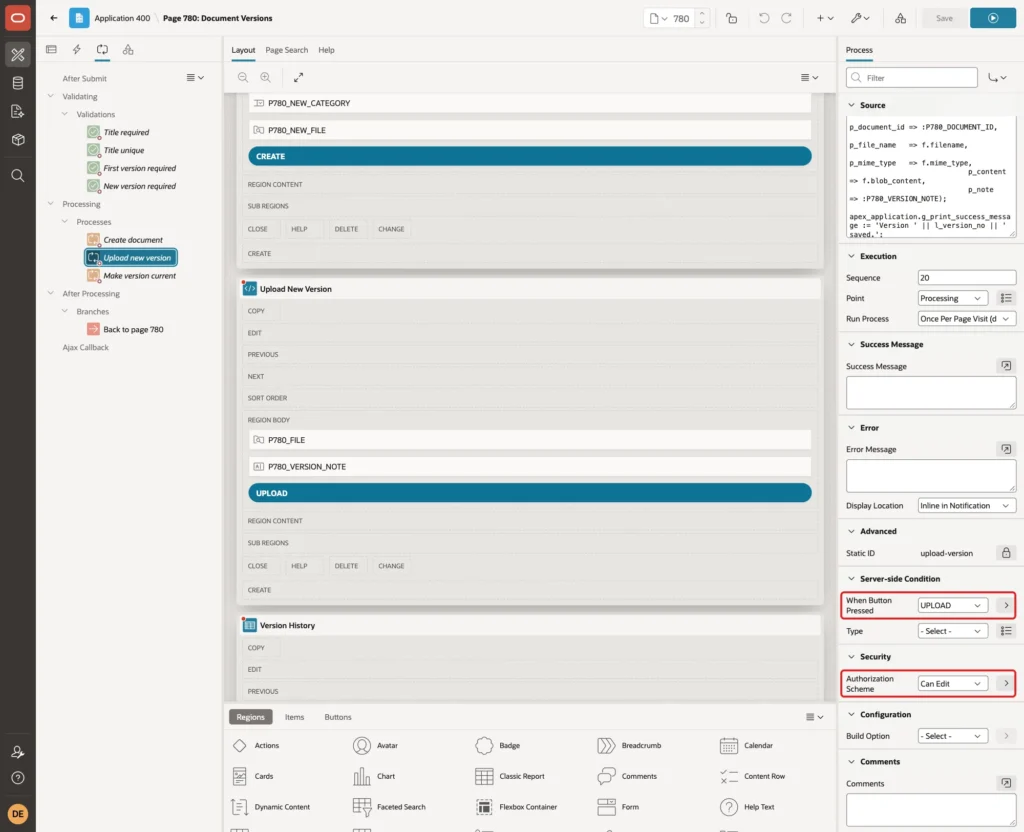
Setting apex_application.g_print_success_message shows the new version number in the success message, for example Version 2 saved. Leave the process's own Success Message empty. Set When Button Pressed to UPLOAD and Authorization Scheme to Can Edit:
Create a process Make version current of Type Execute Code with this code, Success Message Current version changed., and Error Message #SQLERRM_TEXT#:
Example:
doc_pkg.make_current(
    p_document_id => :P780_DOCUMENT_ID,
    p_version_no  => :P780_VERSION_NO);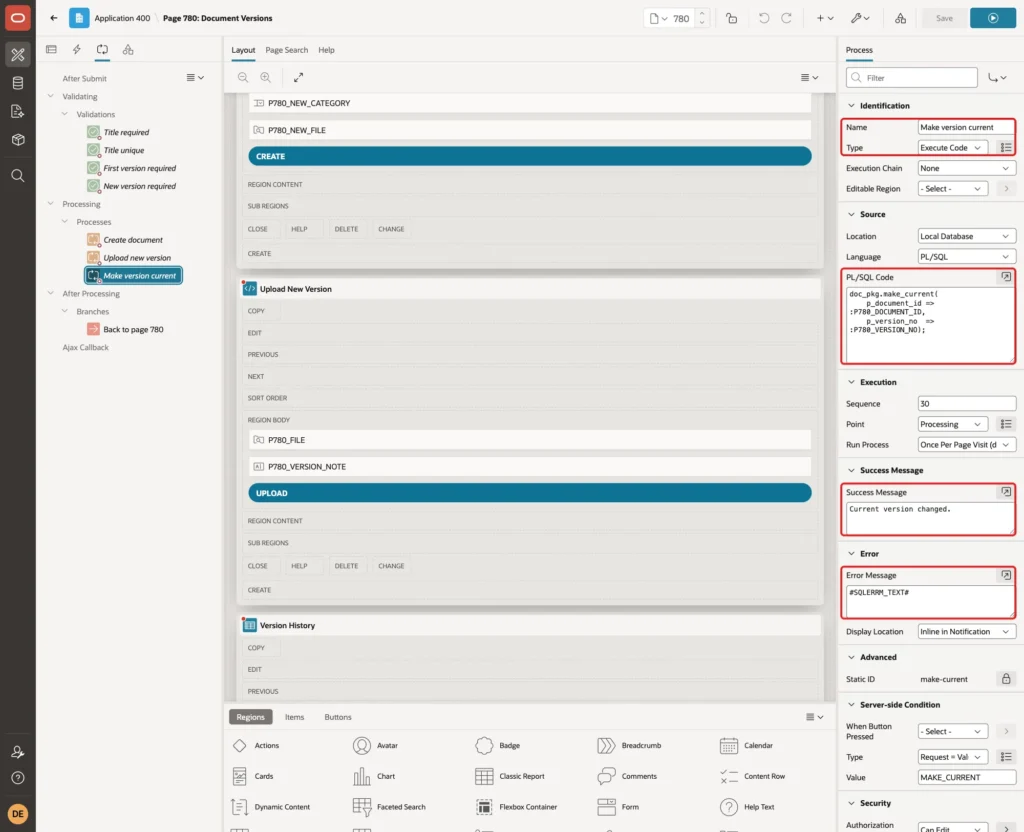
Set its Server-side Condition to Type Request = Value, Value MAKE_CURRENT, and its Authorization Scheme to Can Edit:
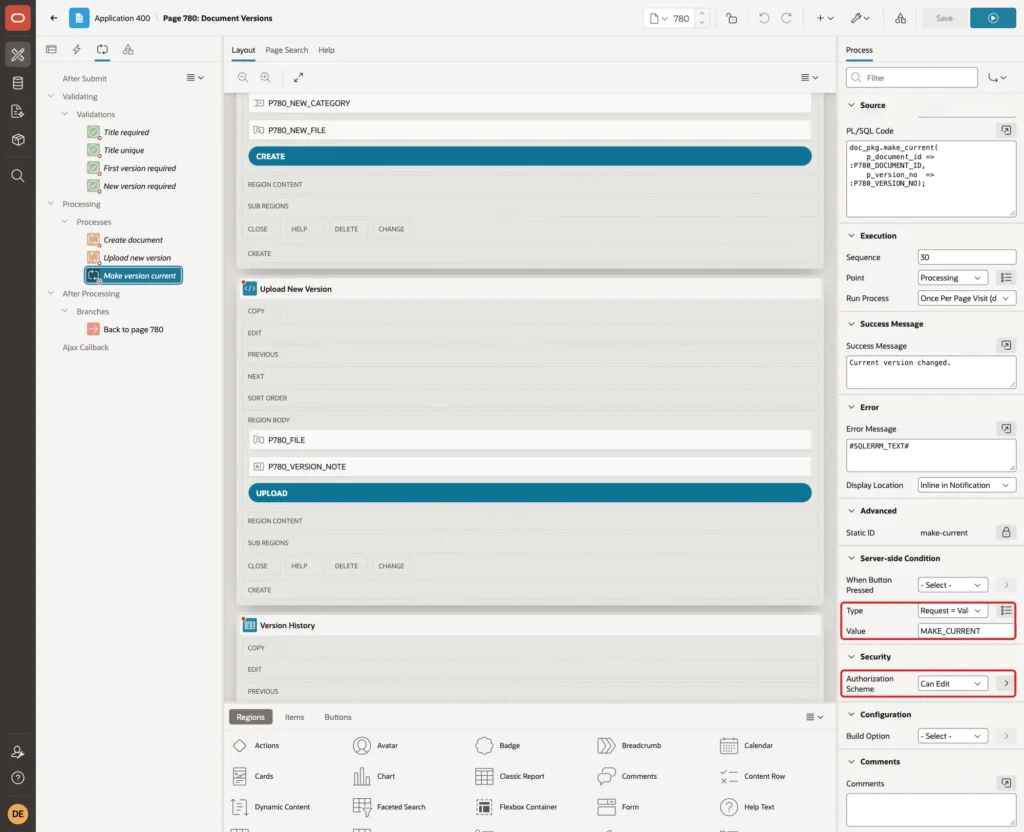
The authorization scheme on the processes matters. Hiding the regions and the link column only hides the controls; a user can still submit the page with any request from the browser console. Step 12 tests that.
Finally, create a branch Back to page 780, of Type Page or URL (Redirect), with Target page 780, item P780_DOCUMENT_ID set to &P780_DOCUMENT_ID. and Clear Cache 780:
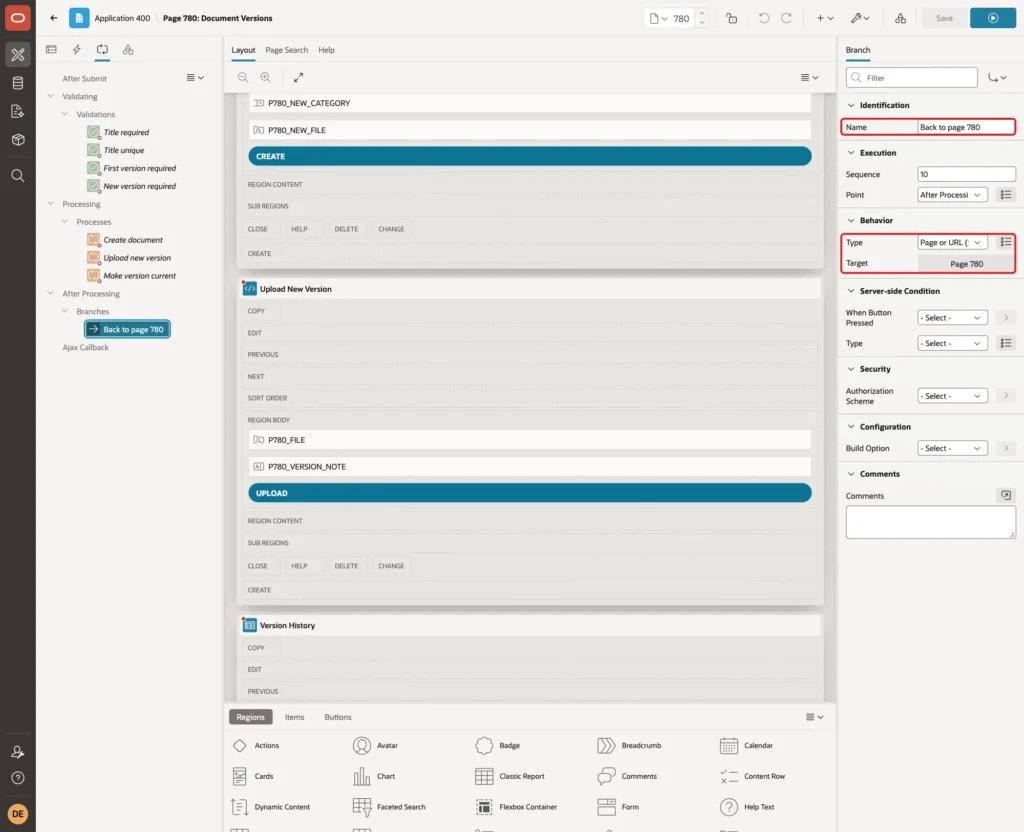
Save the page.
Step 12: Test It
Create a Document
Sign in as ORDER_EDITOR, a user with the Editor role, and open Document Versions. With no document chosen, the page shows the New Document region. Enter the title Expense Claim Form, choose Form, and drop expense-claim-form.pdf on the drop zone:
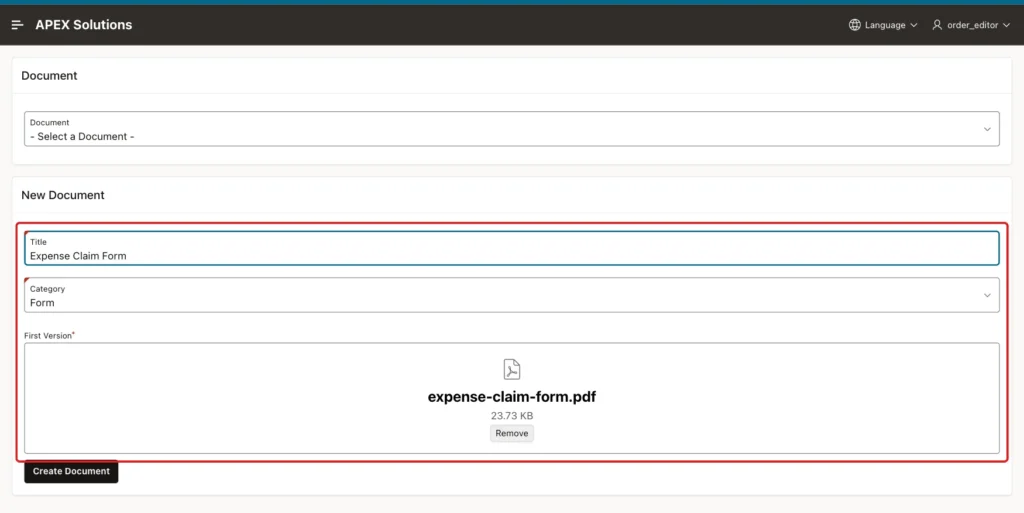
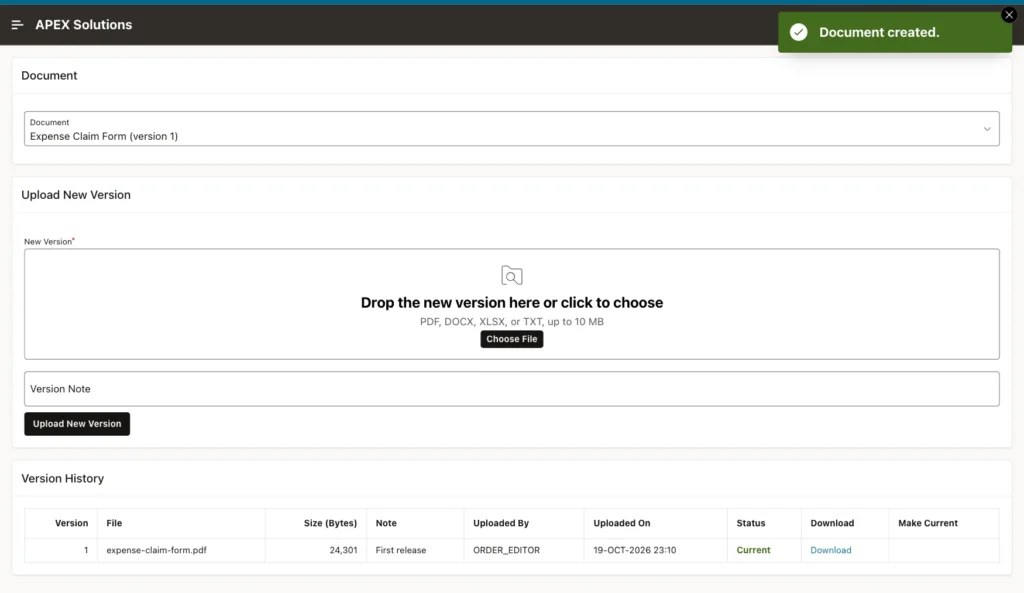
After Create Document, the page shows Document created., selects the new document, and lists version 1 as Current:
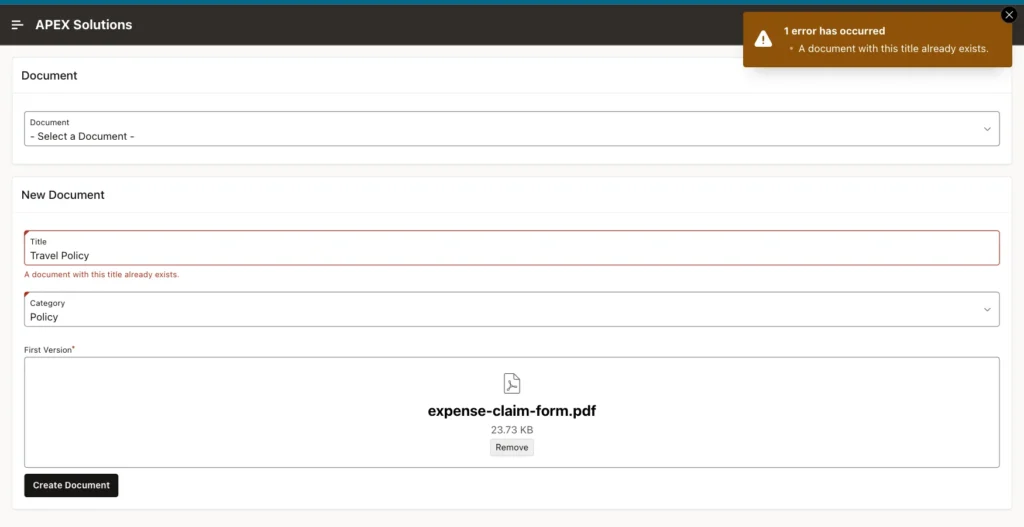
Choosing - Select a Document - and entering the existing title Travel Policy gave the validation message instead of a constraint error:
Upload Versions 2 and 3
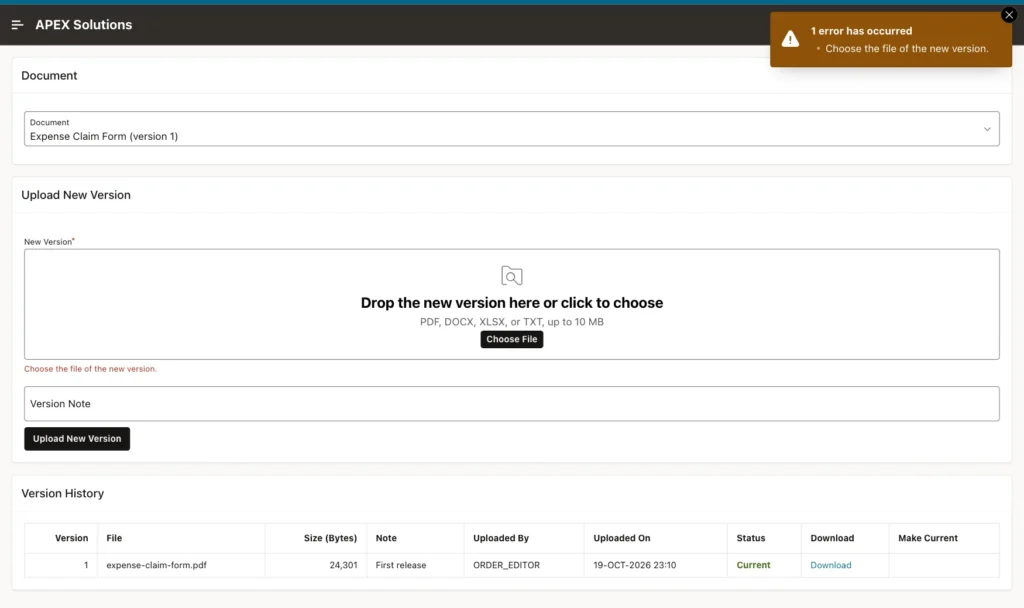
Clicking Upload New Version without a file showed Choose the file of the new version.:
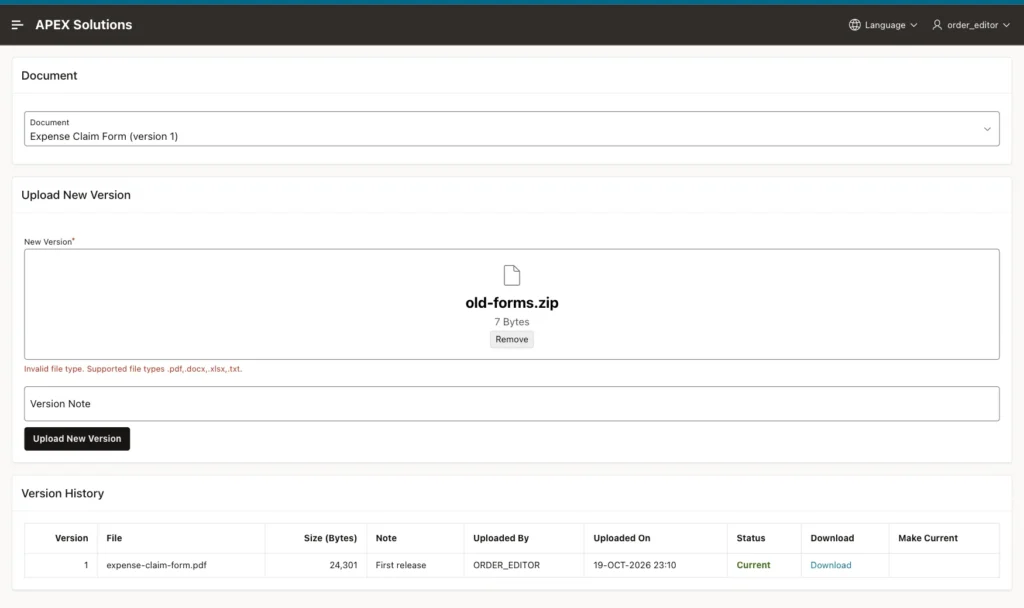
A ZIP file was rejected in the browser as soon as it was chosen. Clicking Upload New Version anyway returned the same message from the server, and no version was saved:
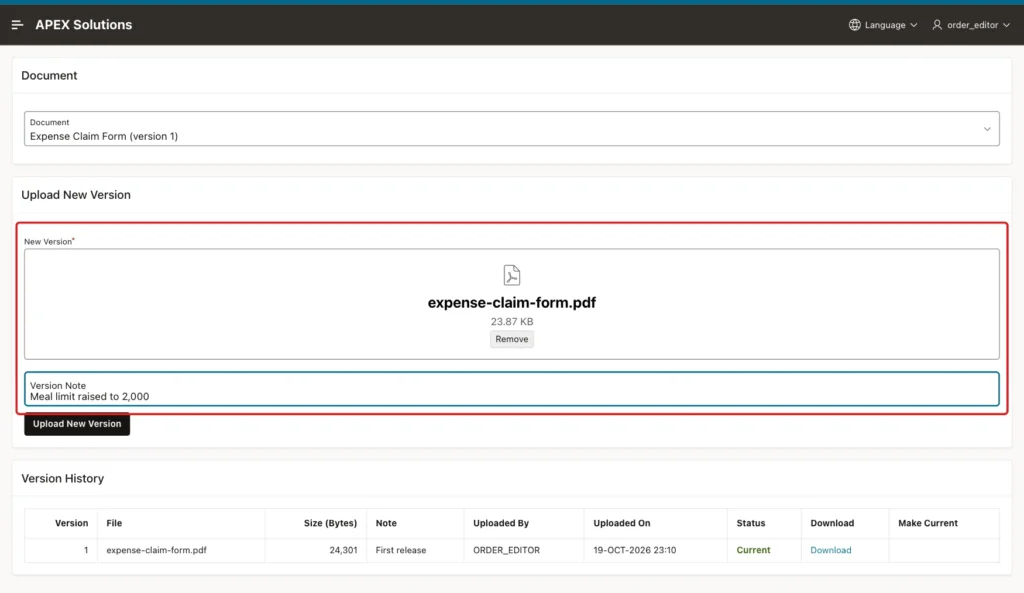
Next, choose the changed expense-claim-form.pdf and enter the note Meal limit raised to 2,000:
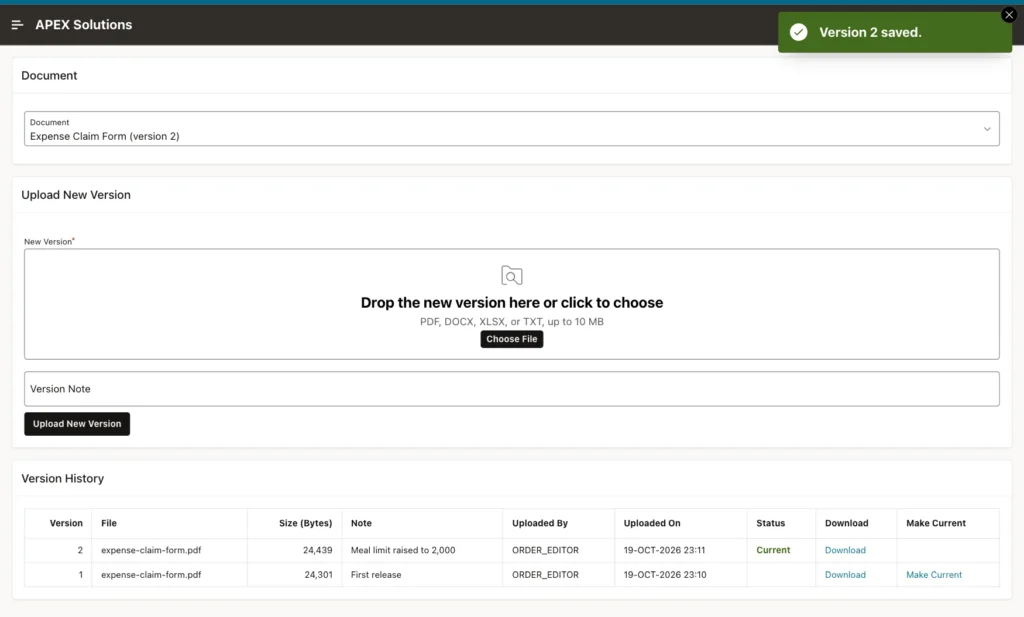
After the upload, the page shows Version 2 saved. Version 2 is now Current, and version 1 is still listed with its own size and download link:
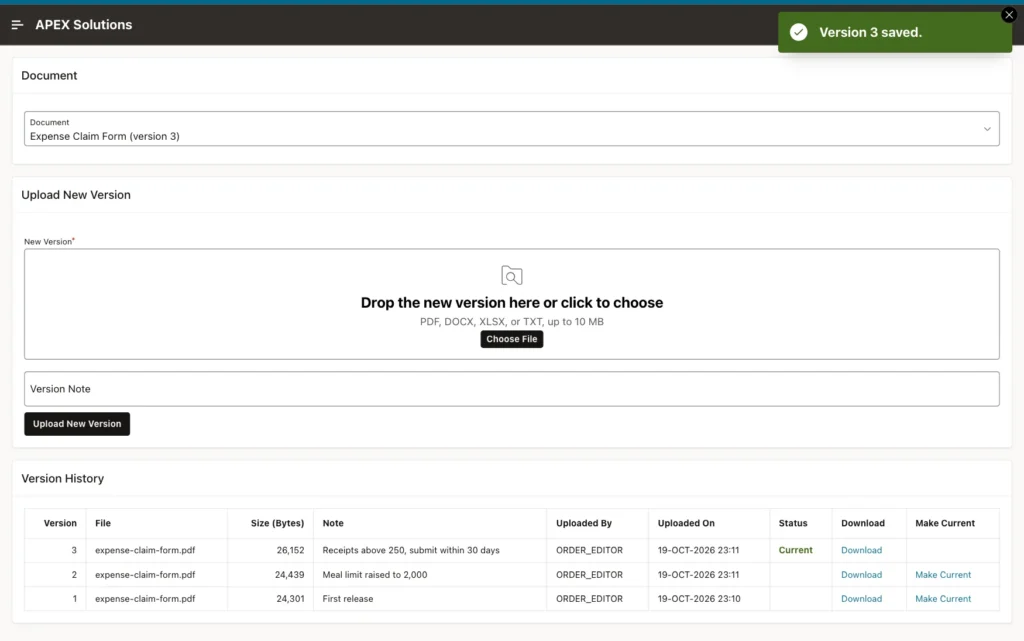
A third upload with the note Receipts above 250, submit within 30 days created version 3:
Download on version 1 downloaded expense-claim-form.pdf. Its MD5 checksum was the same as the original version 1 file and different from version 3, so the old version comes back byte for byte.
Switch Back to Version 2
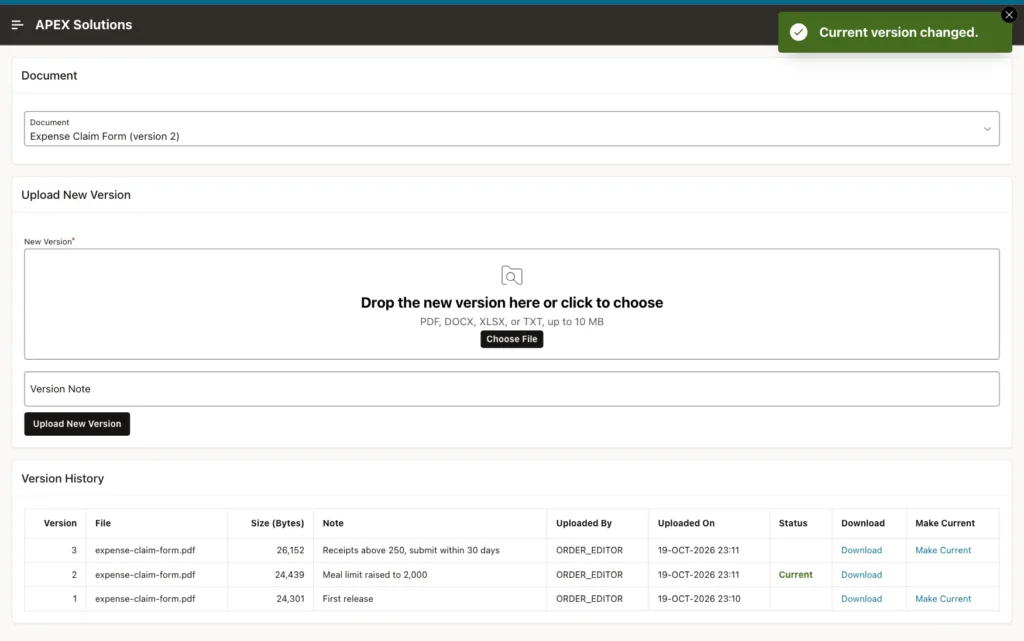
Make Current on version 2 asks for confirmation:
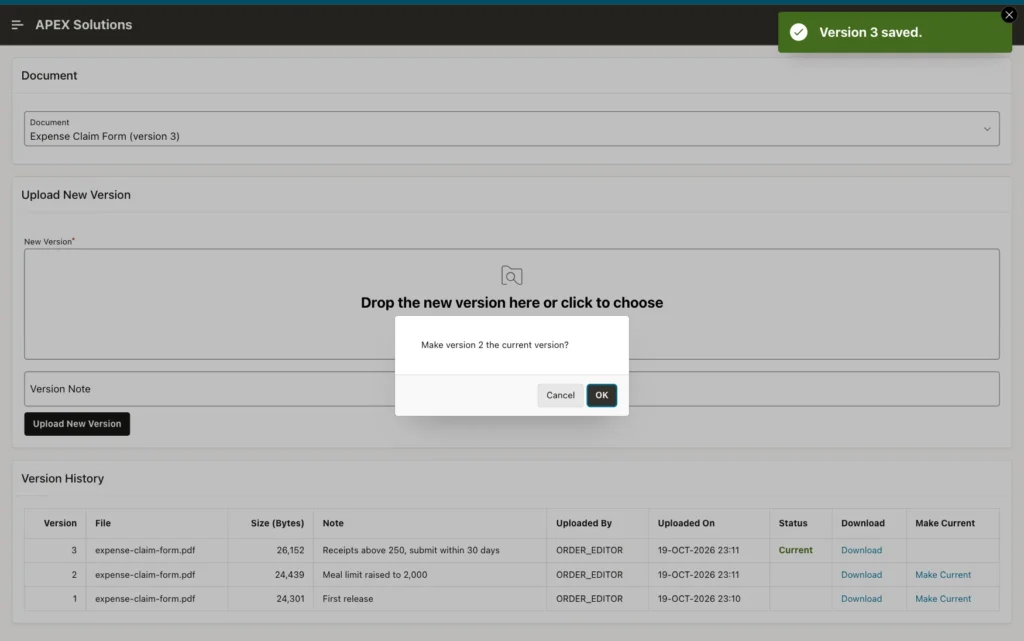
After OK, version 2 is Current, the select list shows (version 2), and versions 1 and 3 offer Make Current:
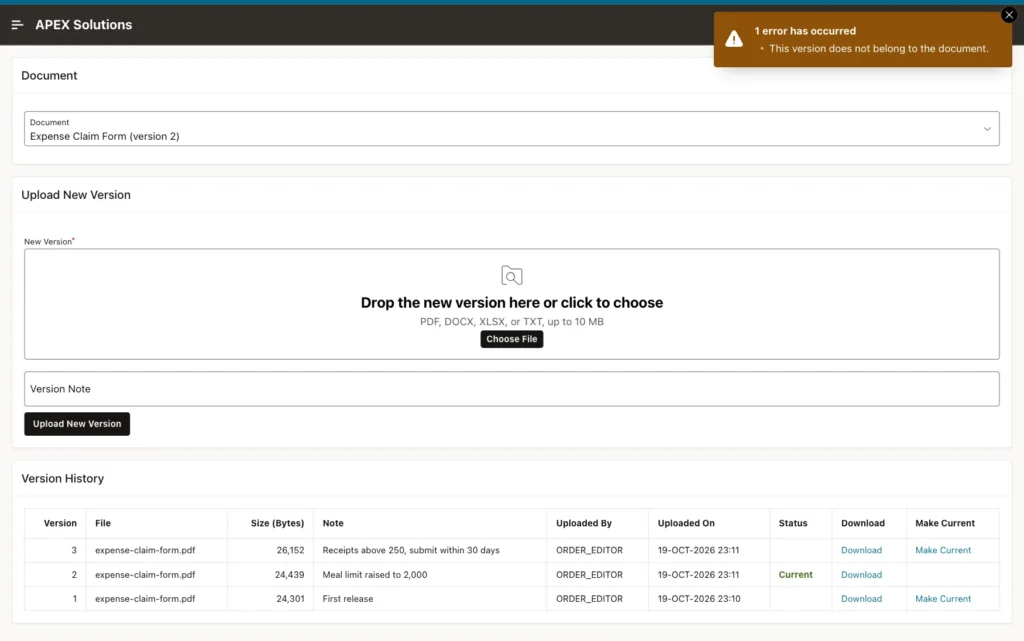
The browser console was then used to submit MAKE_CURRENT with version 9, which does not exist:
Example:
apex.page.submit({ request: 'MAKE_CURRENT', set: { P780_VERSION_NO: '9' } });The page answered with the package's message, and version 2 stayed current:
The tables show the same state:
Example:
select v.version_no,
       v.file_name,
       v.file_size,
       dbms_lob.getlength(v.file_content) as blob_bytes,
       v.version_note,
       v.uploaded_by,
       case when v.version_no = d.current_version_no then 'Yes' end as is_current
from   documents d
join   document_versions v on v.document_id = d.document_id
where  d.title = 'Expense Claim Form'
order by v.version_no;
Output:
   VERSION_NO FILE_NAME                    FILE_SIZE    BLOB_BYTES VERSION_NOTE                                 UPLOADED_BY     IS_CURRENT
_____________ _________________________ ____________ _____________ ____________________________________________ _______________ _____________
            1 expense-claim-form.pdf           24301         24301 First release                                ORDER_EDITOR
            2 expense-claim-form.pdf           24439         24439 Meal limit raised to 2,000                   ORDER_EDITOR    Yes
            3 expense-claim-form.pdf           26152         26152 Receipts above 250, submit within 30 days    ORDER_EDITOR
Test a Reader
SALES_USER has only the Reader role. The page showed the document list, and after choosing Expense Claim Form only the Version History, without the Make Current column. The New Document and Upload New Version regions were not rendered:
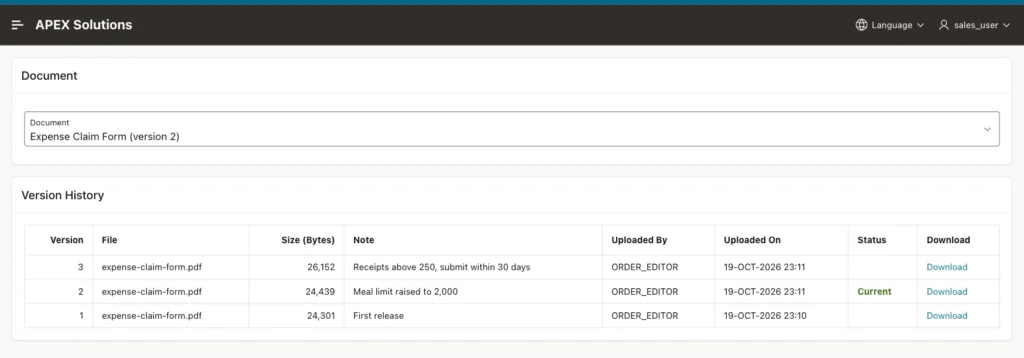
Download on version 1 worked for the reader and returned the original file.
In the browser console, the reader then submitted the requests MAKE_CURRENT (version 1), UPLOAD and CREATE with apex.page.submit. All three requests reached the server, but nothing was saved: version 2 stayed current and no version or document was added. The processes are protected by their authorization scheme.
Things to Know
- Store the current version as a number on the parent row, with a two-column foreign key to the versions. The database then refuses a current version that does not belong to the document (ORA-02291 in the test).
- Number versions under a row lock on the parent. Without it, two parallel uploads computed the same number and one failed with ORA-00001.
- Download BLOB columns use the version's own primary key, so every old version stays downloadable.
- Put Can Edit on the processes, not only on regions and columns. Forced requests from the browser reach the server.
- Use validations with When Button Pressed when the page is also submitted by a select list, so choosing a document does not run the upload checks.
- Every version is a full copy of the file in a BLOB column, so the table grows with each upload. Plan its size and backups.
Related Guides
- How to Attach Files to Orders in Oracle APEX
- How to Upload Files in Oracle APEX: From Table Setup to Viewing Files
Conclusion
A version history in Oracle APEX needs a document table, a versions table with a unique version number per document, and a package that locks the document, saves the next version and points the document to it. A File Upload item delivers the file through APEX_APPLICATION_TEMP_FILES.
A classic report with a Download BLOB column lists every version, and a confirmed Make Current link switches the current version without touching any file. Authorization on the regions, the link column and the processes keeps readers to viewing and downloading.
