
Many apps need events that repeat: a team meeting every Monday, a review every second Thursday, a report on the last day of each month. Typing each date by hand is slow, and a calendar region can only show rows that exist in a table.
The usual answer is a series table that stores the rule once, plus a table of generated occurrences that the calendar reads. Oracle APEX has no built-in recurrence feature, but the database already has a rule engine: DBMS_SCHEDULER.EVALUATE_CALENDAR_STRING.
This guide builds a series form that writes the occurrences, a calendar page, and an occurrence form to move or cancel a single date. When the series changes later, the edited dates are kept.
How to Build a Calendar Page with Drag-and-Drop Events in Oracle APEX covers single events that you drag to a new date. Here, every event comes from a repeating rule, and drag and drop stays off.
Step 1: Create the Tables
EVENT_SERIES holds one row per repeating event: its title, how often it repeats, the first start date and time, the length in minutes, and the last date. EVENT_OCCURRENCES holds one row per generated date.
Create the tables, the index and two sample series:
Example:
set lines 200 pages 100 feedback on
create table event_series (
  series_id     number generated by default on null as identity constraint event_series_pk primary key,
  title         varchar2(100) not null,
  frequency     varchar2(10)  not null,
  repeat_every  number(2)     default on null 1 not null,
  week_days     varchar2(30),
  month_day     varchar2(4),
  first_start   date          not null,
  duration_min  number(4)     not null,
  repeat_until  date          not null,
  created_by    varchar2(255) default on null
                  coalesce(sys_context('APEX$SESSION', 'APP_USER'), user) not null,
  calendar_rule varchar2(200) generated always as (
                  'FREQ=' || frequency || ';INTERVAL=' || repeat_every ||
                  case
                    when frequency = 'WEEKLY' and week_days is not null
                      then ';BYDAY=' || replace(week_days, ':', ',')
                    when frequency = 'MONTHLY' and month_day = 'LAST'
                      then ';BYMONTHDAY=-1'
                  end) virtual,
  constraint event_series_freq_ck check (frequency in ('DAILY', 'WEEKLY', 'MONTHLY')),
  constraint event_series_every_ck check (repeat_every between 1 and 12),
  constraint event_series_month_day_ck check (month_day in ('SAME', 'LAST')),
  constraint event_series_duration_ck check (duration_min between 5 and 1440),
  constraint event_series_until_ck check (repeat_until >= trunc(first_start)
                                      and repeat_until < first_start + 732)
);

create table event_occurrences (
  occurrence_id  number generated by default on null as identity constraint event_occurrences_pk primary key,
  series_id      number       not null,
  original_start date         not null,
  original_end   date         not null,
  start_time     date         not null,
  end_time       date         not null,
  status         varchar2(10) default on null 'SCHEDULED' not null,
  note           varchar2(200),
  is_modified    varchar2(1) generated always as (
                   case
                     when status = 'CANCELLED'
                       or start_time <> original_start
                       or end_time <> original_end
                       or note is not null
                     then 'Y' else 'N'
                   end) virtual,
  constraint event_occurrences_series_fk foreign key (series_id)
    references event_series (series_id) on delete cascade,
  constraint event_occurrences_slot_uk unique (series_id, original_start),
  constraint event_occurrences_times_ck check (end_time > start_time),
  constraint event_occurrences_status_ck check (status in ('SCHEDULED', 'CANCELLED'))
);

create index event_occurrences_start_ix on event_occurrences (start_time);

insert into event_series (title, frequency, repeat_every, week_days, first_start, duration_min, repeat_until, created_by)
values ('Weekly Team Meeting', 'WEEKLY', 1, 'MON',
        to_date('2026-11-02 09:00', 'yyyy-mm-dd hh24:mi'), 60, date '2026-12-21', 'DEMO_DEV');
insert into event_series (title, frequency, repeat_every, week_days, first_start, duration_min, repeat_until, created_by)
values ('Sprint Review', 'WEEKLY', 2, 'THU',
        to_date('2026-11-05 15:00', 'yyyy-mm-dd hh24:mi'), 90, date '2026-12-31', 'SALES_MANAGER');

commit;

column title format a20
column week_days format a9
column calendar_rule format a32
select series_id, title, to_char(first_start, 'DD-MON-YYYY HH24:MI') as first_start,
       duration_min, to_char(repeat_until, 'DD-MON-YYYY') as repeat_until, calendar_rule
  from event_series
 order by series_id;
Output:
Table EVENT_SERIES created.

Table EVENT_OCCURRENCES created.

Index EVENT_OCCURRENCES_START_IX created.

1 row inserted.

1 row inserted.

Commit complete.

   SERIES_ID TITLE                  FIRST_START             DURATION_MIN REPEAT_UNTIL    CALENDAR_RULE
____________ ______________________ ____________________ _______________ _______________ ___________________________________
           1 Weekly Team Meeting    02-NOV-2026 09:00                 60 21-DEC-2026     FREQ=WEEKLY;INTERVAL=1;BYDAY=MON
           2 Sprint Review          05-NOV-2026 15:00                 90 31-DEC-2026     FREQ=WEEKLY;INTERVAL=2;BYDAY=THU

2 rows selected.
What the columns and constraints do:
- FREQUENCY is DAILY, WEEKLY or MONTHLY, and REPEAT_EVERY sets the step: 2 with WEEKLY means every second week.
- WEEK_DAYS stores the chosen days for a weekly series, such as MON:WED. MONTH_DAY decides whether a monthly series uses the same day number or the last day of the month.
- CALENDAR_RULE is a virtual column. It builds the calendar string for DBMS_SCHEDULER from the other columns, so no trigger or process has to keep it in sync.
- EVENT_SERIES_UNTIL_CK keeps REPEAT_UNTIL on or after the first date and below two years, so one series cannot create thousands of rows.
- ORIGINAL_START and ORIGINAL_END keep the planned slot of each occurrence. EVENT_OCCURRENCES_SLOT_UK allows each slot only once per series.
- IS_MODIFIED is a virtual column too. It turns Y as soon as an occurrence is cancelled, gets a note, or gets a time that differs from its planned slot.
- The foreign key has ON DELETE CASCADE, so deleting a series also deletes its occurrences. CREATED_BY and STATUS are filled by DEFAULT ON NULL.
Step 2: Check the Calendar Rule
DBMS_SCHEDULER.EVALUATE_CALENDAR_STRING takes a calendar string, a start date and a "return date after" value. It returns the next date that matches the rule. Calling it in a loop, each time with the previous result, lists all dates of a series.
The block below shows why a monthly series needs the MONTH_DAY choice. Both rules start on 31 January 2027:
Example:
set serveroutput on
declare
  l_start timestamp with time zone := timestamp '2027-01-31 16:00:00 UTC';
  procedure show_dates (p_rule varchar2) is
    l_after timestamp with time zone := l_start - interval '1' second;
    l_next  timestamp with time zone;
  begin
    dbms_output.put_line(p_rule);
    for i in 1 .. 4 loop
      dbms_scheduler.evaluate_calendar_string(p_rule, l_start, l_after, l_next);
      dbms_output.put_line('  ' || to_char(l_next, 'DY DD-MON-YYYY HH24:MI'));
      l_after := l_next;
    end loop;
  end;
begin
  show_dates('FREQ=MONTHLY;INTERVAL=1');
  show_dates('FREQ=MONTHLY;INTERVAL=1;BYMONTHDAY=-1');
end;
/
Output:
FREQ=MONTHLY;INTERVAL=1
  SUN 31-JAN-2027 16:00
  WED 31-MAR-2027 16:00
  MON 31-MAY-2027 16:00
  SAT 31-JUL-2027 16:00
FREQ=MONTHLY;INTERVAL=1;BYMONTHDAY=-1
  SUN 31-JAN-2027 16:00
  SUN 28-FEB-2027 16:00
  WED 31-MAR-2027 16:00
  FRI 30-APR-2027 16:00

PL/SQL procedure successfully completed.
With the plain monthly rule, the scheduler skips every month that has no 31st day, so February and April are missing. BYMONTHDAY=-1 means the last day of the month and gives 28 February and 30 April. The CALENDAR_RULE column adds it when MONTH_DAY is LAST.
Step 3: Create the Generator Procedure
The procedure GENERATE_OCCURRENCES reads one series, removes its unmodified occurrences and inserts a row for every date the rule returns until REPEAT_UNTIL:
Example:
create or replace procedure generate_occurrences (p_series_id in number) is
  l_series event_series%rowtype;
  l_start  timestamp with time zone;
  l_after  timestamp with time zone;
  l_next   timestamp with time zone;
  l_slot   date;
  l_count  pls_integer := 0;
begin
  select * into l_series
    from event_series
   where series_id = p_series_id
     for update;

  delete from event_occurrences
   where series_id = p_series_id
     and is_modified = 'N';

  l_start := from_tz(cast(l_series.first_start as timestamp), 'UTC');
  l_after := l_start - interval '1' second;

  loop
    dbms_scheduler.evaluate_calendar_string(l_series.calendar_rule, l_start, l_after, l_next);
    l_slot := cast(l_next as date);
    exit when l_slot >= trunc(l_series.repeat_until) + 1;

    insert into event_occurrences (series_id, original_start, original_end, start_time, end_time)
    select p_series_id, l_slot, l_slot + l_series.duration_min / 1440,
           l_slot, l_slot + l_series.duration_min / 1440
      from dual
     where not exists (select null
                         from event_occurrences o
                        where o.series_id = p_series_id
                          and o.original_start = l_slot);

    l_count := l_count + 1;
    exit when l_count >= 500;
    l_after := l_next;
  end loop;
end generate_occurrences;
/
Output:
Procedure GENERATE_OCCURRENCES compiled
How it works:
- SELECT ... FOR UPDATE locks the series row until the commit, so a second call for the same series waits instead of generating in parallel.
- Only rows with IS_MODIFIED = 'N' are deleted. Moved, cancelled or annotated occurrences stay.
- The first start is converted to a TIMESTAMP WITH TIME ZONE in UTC. Starting one second before it makes the first date itself part of the result.
- The loop ends at the first date after REPEAT_UNTIL. The NOT EXISTS skips a slot that still has a modified occurrence, and the counter stops after 500 rows as a safety net.
Generate the occurrences of the two sample series:
Example:
set lines 200 pages 100 feedback on
begin
  generate_occurrences(1);
  generate_occurrences(2);
  commit;
end;
/

column title format a20
select s.title, to_char(o.start_time, 'DY DD-MON-YYYY HH24:MI') as starts,
       to_char(o.end_time, 'HH24:MI') as ends, o.status, o.is_modified
  from event_occurrences o
  join event_series s on s.series_id = o.series_id
 order by o.start_time;
Output:
PL/SQL procedure successfully completed.

TITLE                  STARTS                   ENDS     STATUS       IS_MODIFIED
______________________ ________________________ ________ ____________ ______________
Weekly Team Meeting    MON 02-NOV-2026 09:00    10:00    SCHEDULED    N
Sprint Review          THU 05-NOV-2026 15:00    16:30    SCHEDULED    N
Weekly Team Meeting    MON 09-NOV-2026 09:00    10:00    SCHEDULED    N
Weekly Team Meeting    MON 16-NOV-2026 09:00    10:00    SCHEDULED    N
Sprint Review          THU 19-NOV-2026 15:00    16:30    SCHEDULED    N
Weekly Team Meeting    MON 23-NOV-2026 09:00    10:00    SCHEDULED    N
Weekly Team Meeting    MON 30-NOV-2026 09:00    10:00    SCHEDULED    N
Sprint Review          THU 03-DEC-2026 15:00    16:30    SCHEDULED    N
Weekly Team Meeting    MON 07-DEC-2026 09:00    10:00    SCHEDULED    N
Weekly Team Meeting    MON 14-DEC-2026 09:00    10:00    SCHEDULED    N
Sprint Review          THU 17-DEC-2026 15:00    16:30    SCHEDULED    N
Weekly Team Meeting    MON 21-DEC-2026 09:00    10:00    SCHEDULED    N
Sprint Review          THU 31-DEC-2026 15:00    16:30    SCHEDULED    N

13 rows selected.
The weekly series has 8 Mondays from 2 November to 21 December. The Sprint Review falls on every second Thursday, starting on 5 November.
Step 4: Create the Series Report and Form Pages
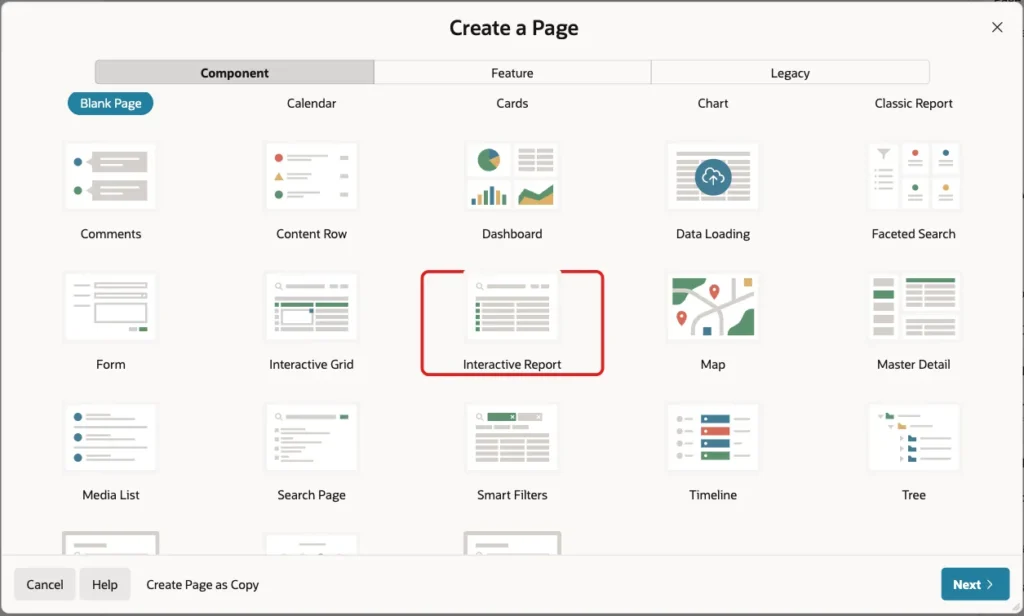
In App Builder, open the application and click Create Page. On the Component tab, click Interactive Report:
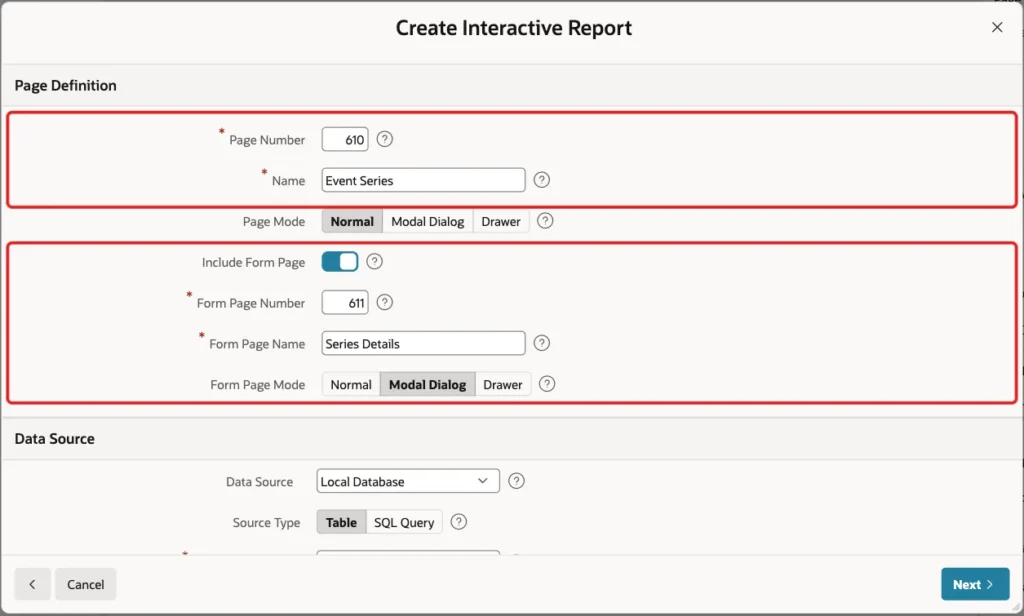
Enter Page Number 610 and Name Event Series. Turn on Include Form Page, enter Form Page Number 611 and Form Page Name Series Details, and keep Form Page Mode Modal Dialog:
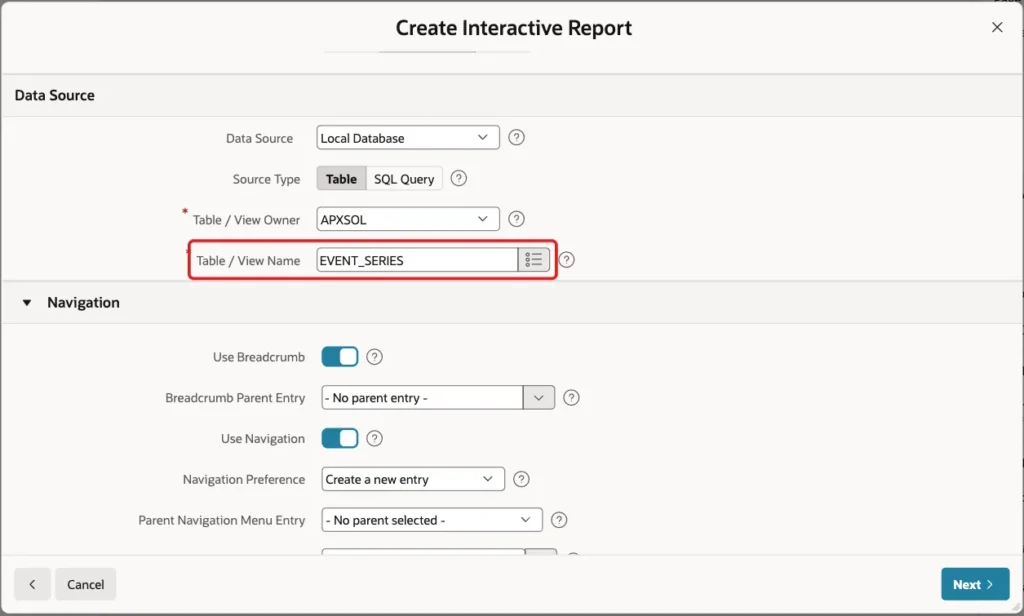
Under Data Source, keep Local Database and Source Type Table, and enter Table / View Name EVENT_SERIES:
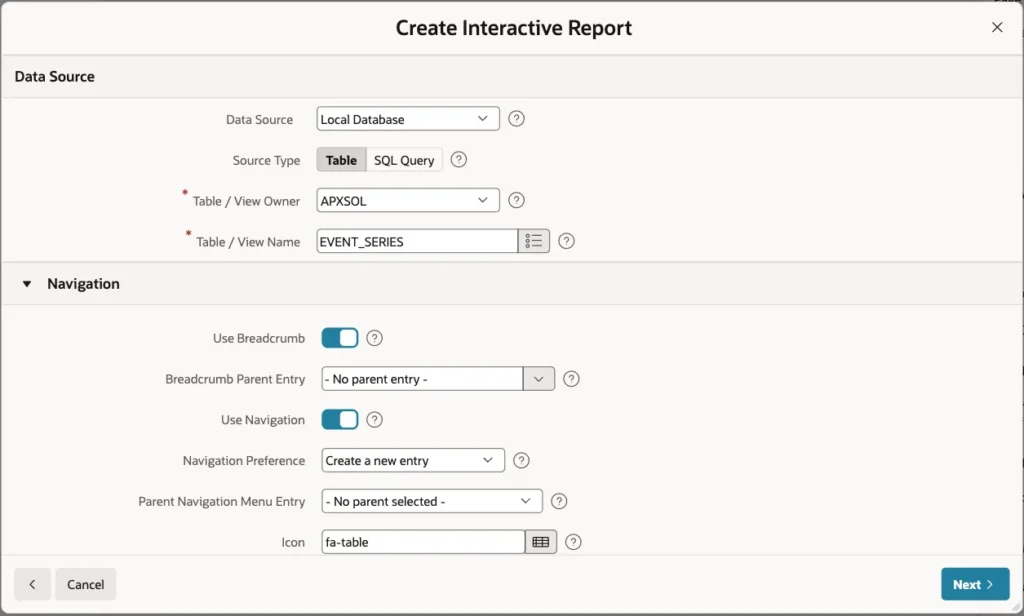
Keep Use Breadcrumb and Use Navigation on, so the report gets a menu entry, and click Next:
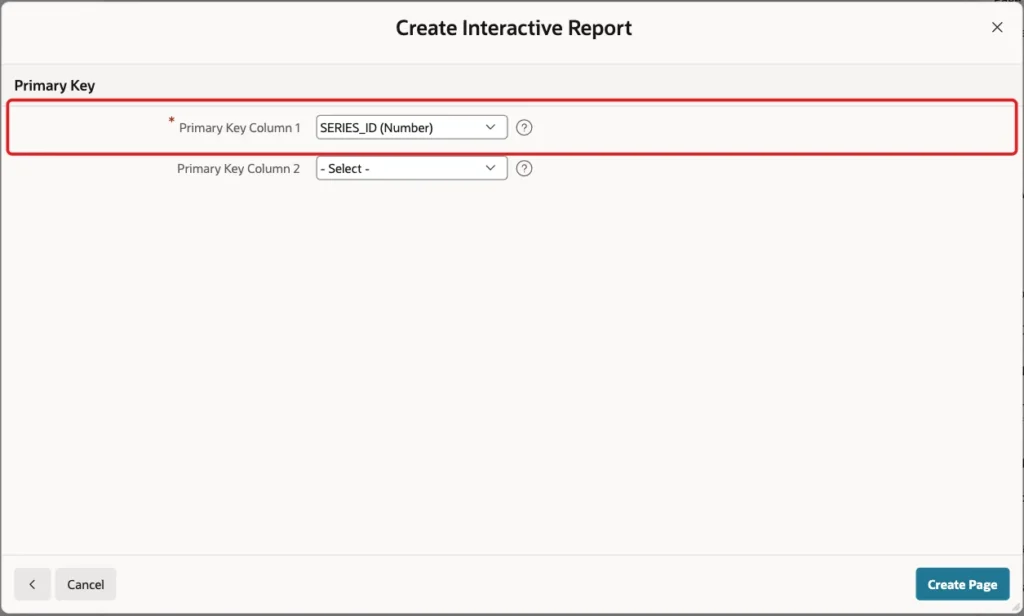
On the Primary Key screen, select SERIES_ID (Number) as Primary Key Column 1 and click Create Page:
Step 5: Configure the Series Form Items
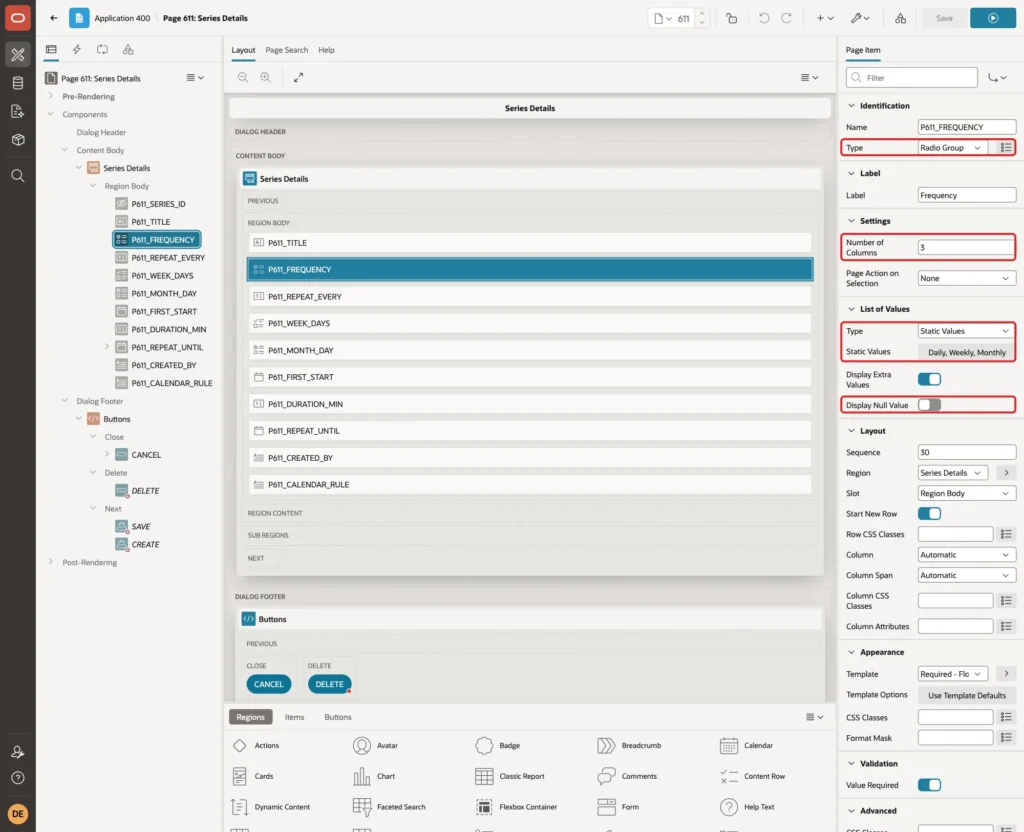
The wizard creates a text field for most columns. Open page 611 in Page Designer and change the items one by one.
Select P611_FREQUENCY and set:
- Identification > Type: Radio Group
- Settings > Number of Columns: 3
- List of Values > Type: Static Values
- List of Values > Static Values: Daily (DAILY), Weekly (WEEKLY), Monthly (MONTHLY)
- List of Values > Display Null Value: Off
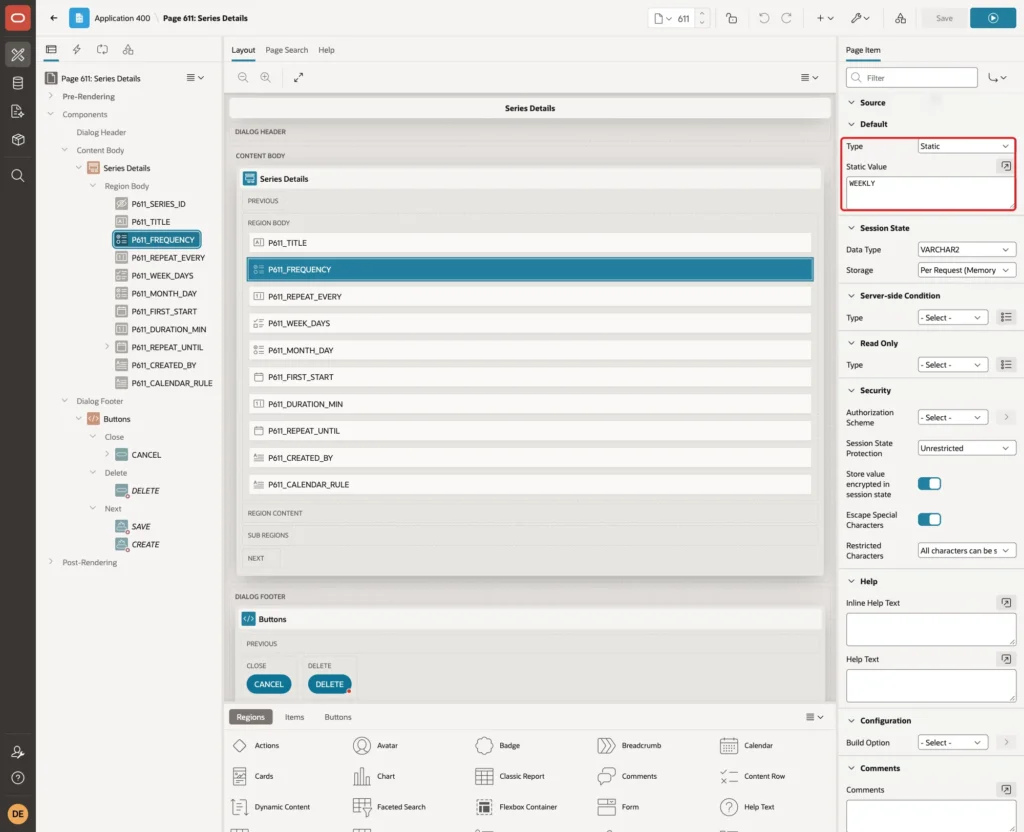
In the Default group of the same item, set Type to Static and Static Value to WEEKLY:
Select P611_WEEK_DAYS and set:
- Identification > Type: Checkbox Group
- Label > Label: Week Days (weekly)
- Settings > Number of Columns: 7
- List of Values > Type: Static Values, with Mon (MON), Tue (TUE), Wed (WED), Thu (THU), Fri (FRI), Sat (SAT) and Sun (SUN)
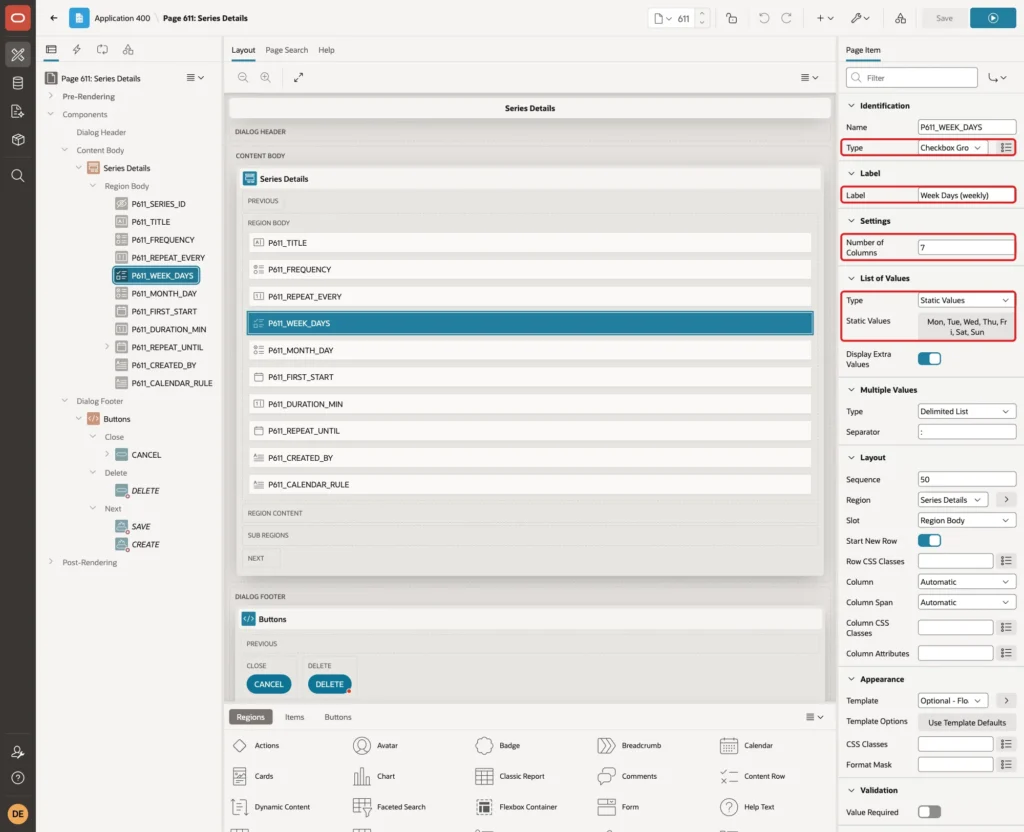
A checkbox group saves the chosen values as one string separated by colons, such as MON:WED. The CALENDAR_RULE column turns the colons into the commas that BYDAY expects.
Select P611_MONTH_DAY and set:
- Identification > Type: Radio Group
- Label > Label: Month Day (monthly)
- Settings > Number of Columns: 2
- List of Values > Type: Static Values, with Same day of month (SAME) and Last day of month (LAST)
- List of Values > Display Null Value: Off
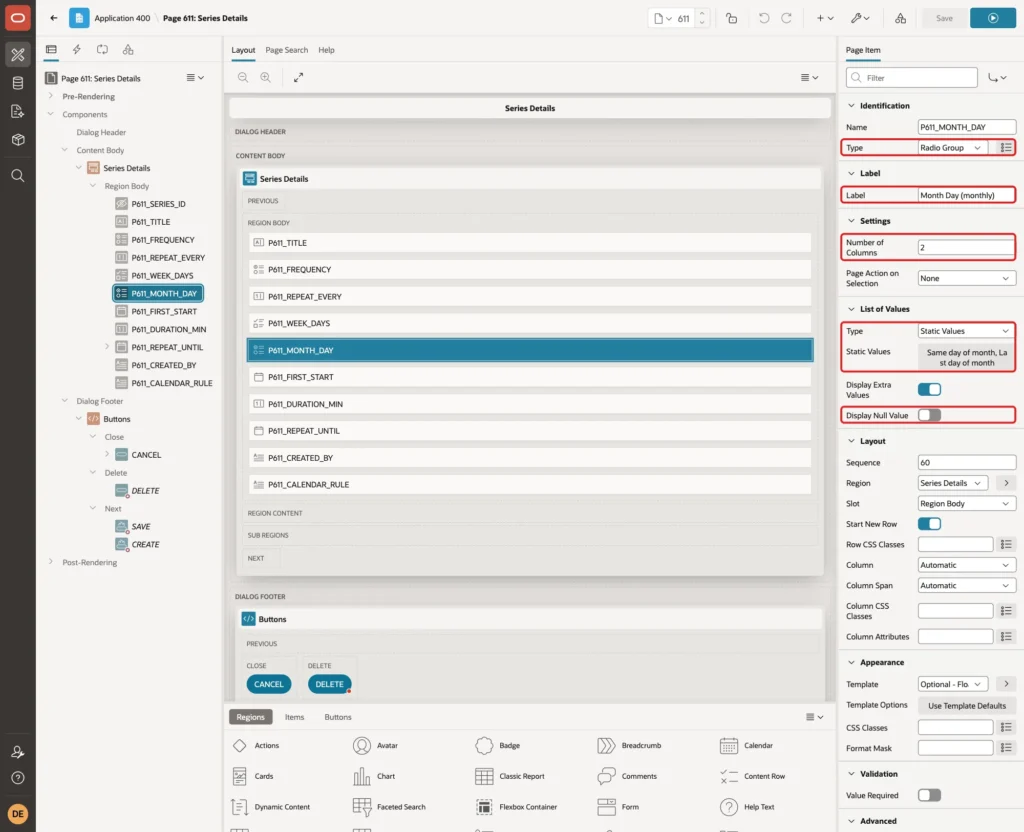
Set its Default to Static with the value SAME, the same way as for P611_FREQUENCY.
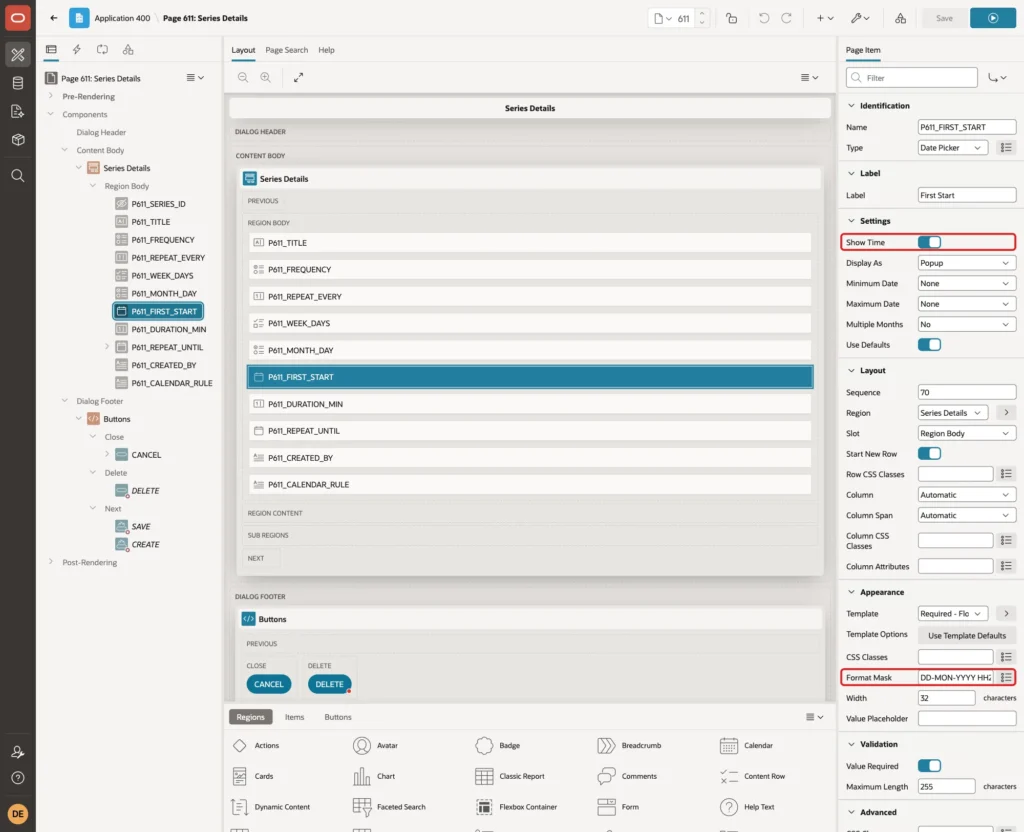
Select P611_FIRST_START, turn on Settings > Show Time and enter Appearance > Format Mask DD-MON-YYYY HH24:MI:
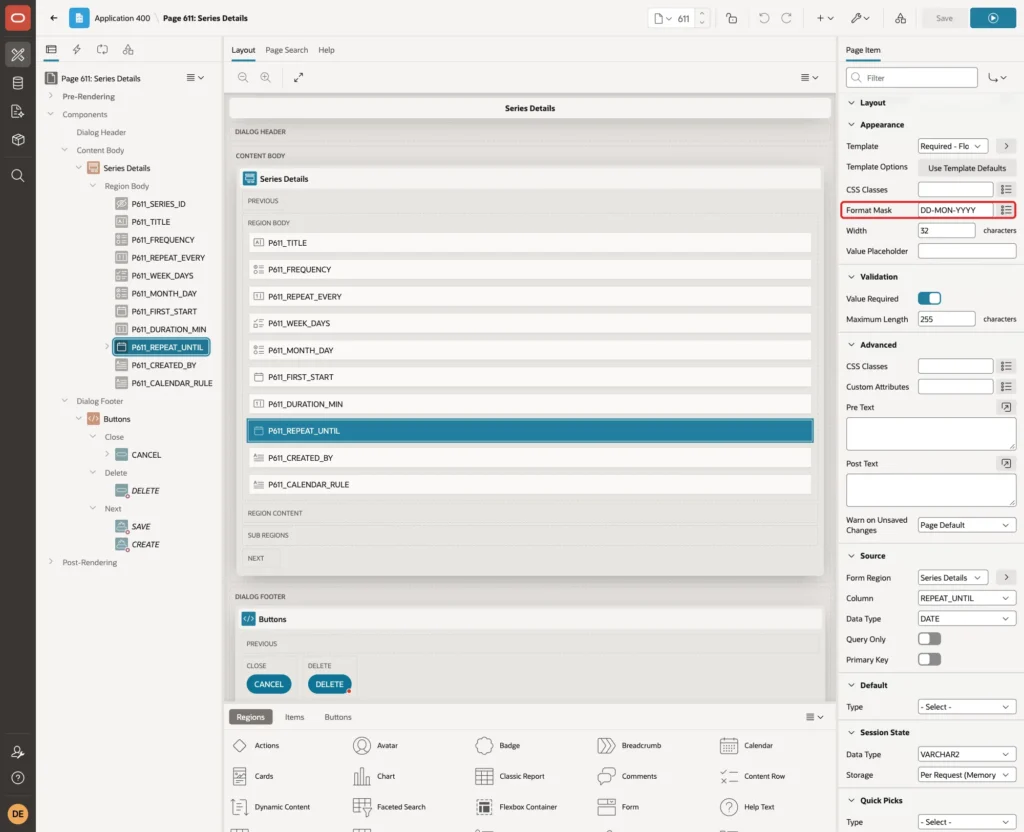
Select P611_REPEAT_UNTIL and enter Format Mask DD-MON-YYYY. This item needs only a date:
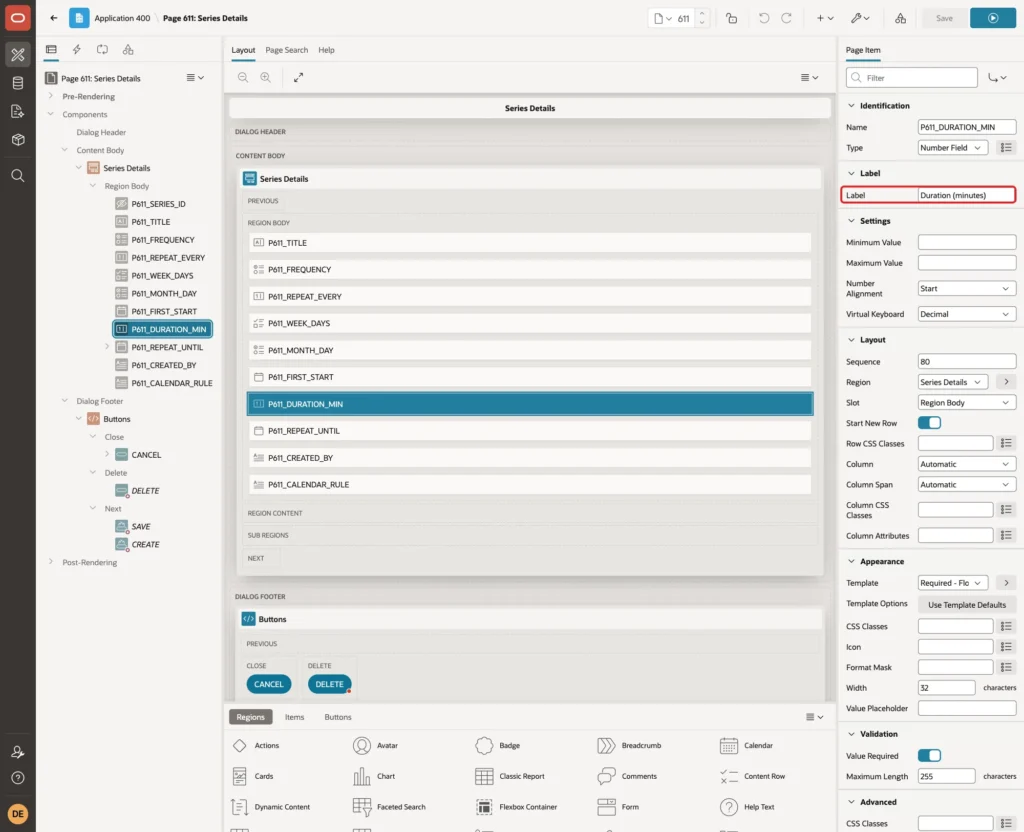
Select P611_DURATION_MIN and change Label > Label to Duration (minutes):
In its Default group, set Type Static and Static Value 60:
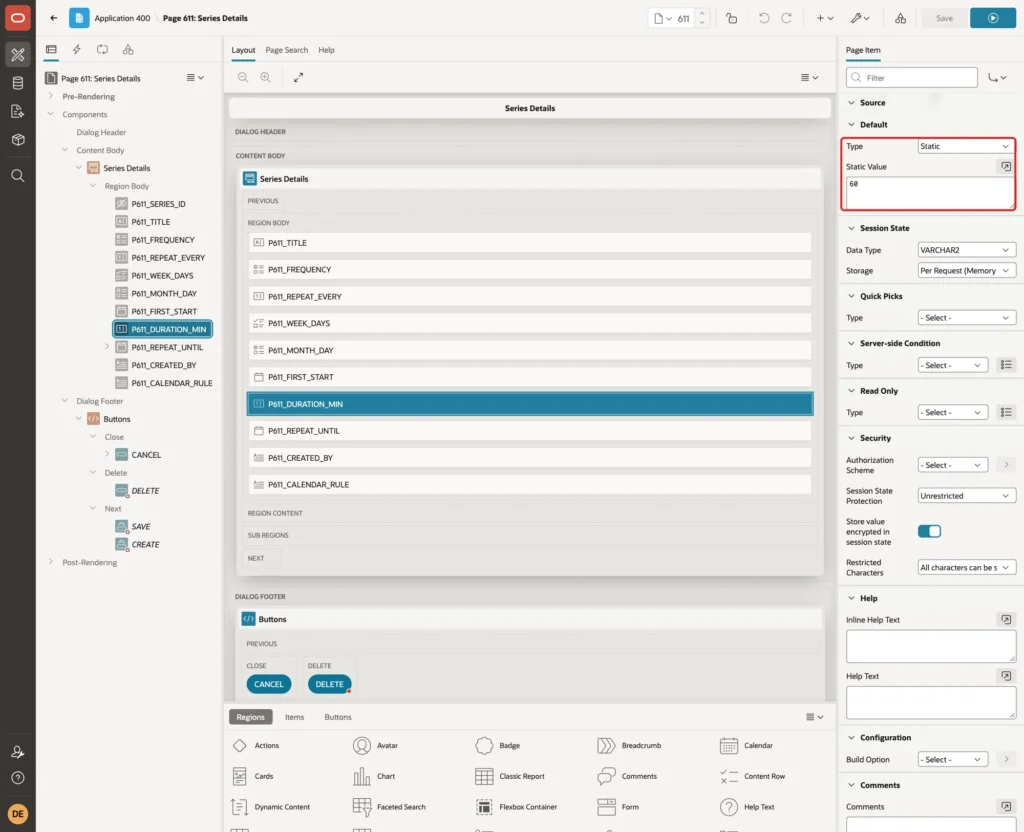
Give P611_REPEAT_EVERY a Static default of 1 in the same way. The column has DEFAULT ON NULL 1 as well, but an item default shows the value in the form.
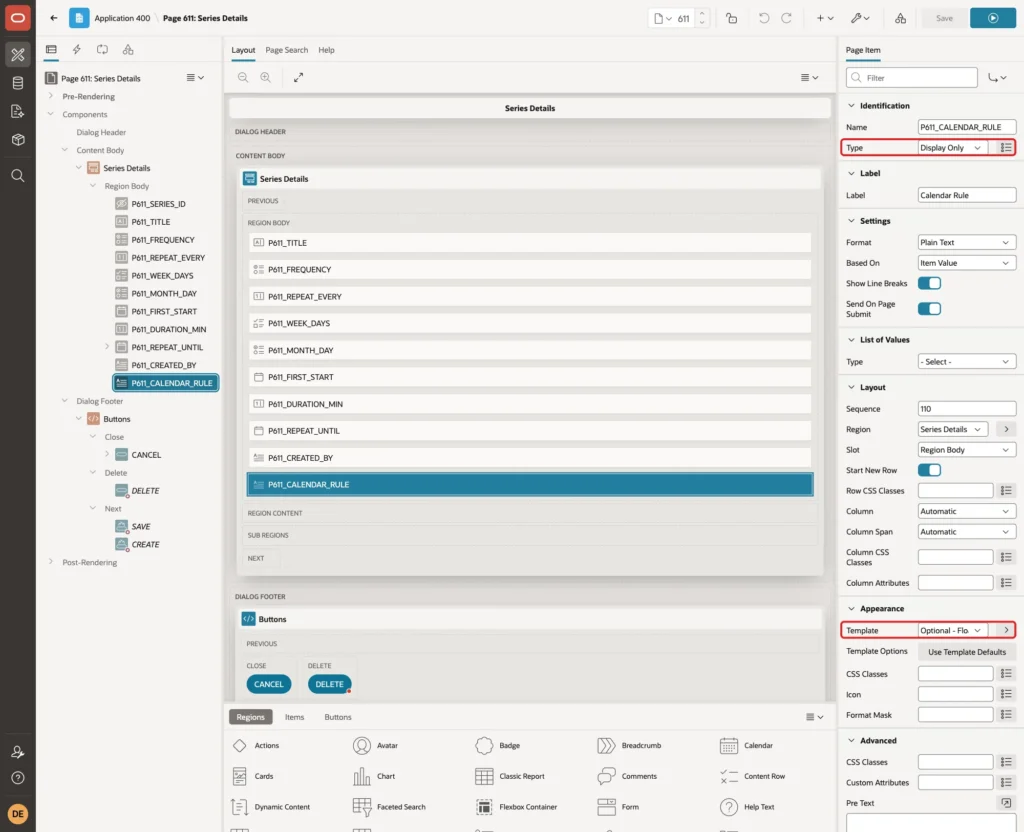
P611_CALENDAR_RULE is a virtual column. An UPDATE that sets it fails with ORA-54017. Select it and set Identification > Type to Display Only and Appearance > Template to Optional - Floating:
Scroll to the Source group and turn on Query Only, so the form never includes the column in its insert or update:
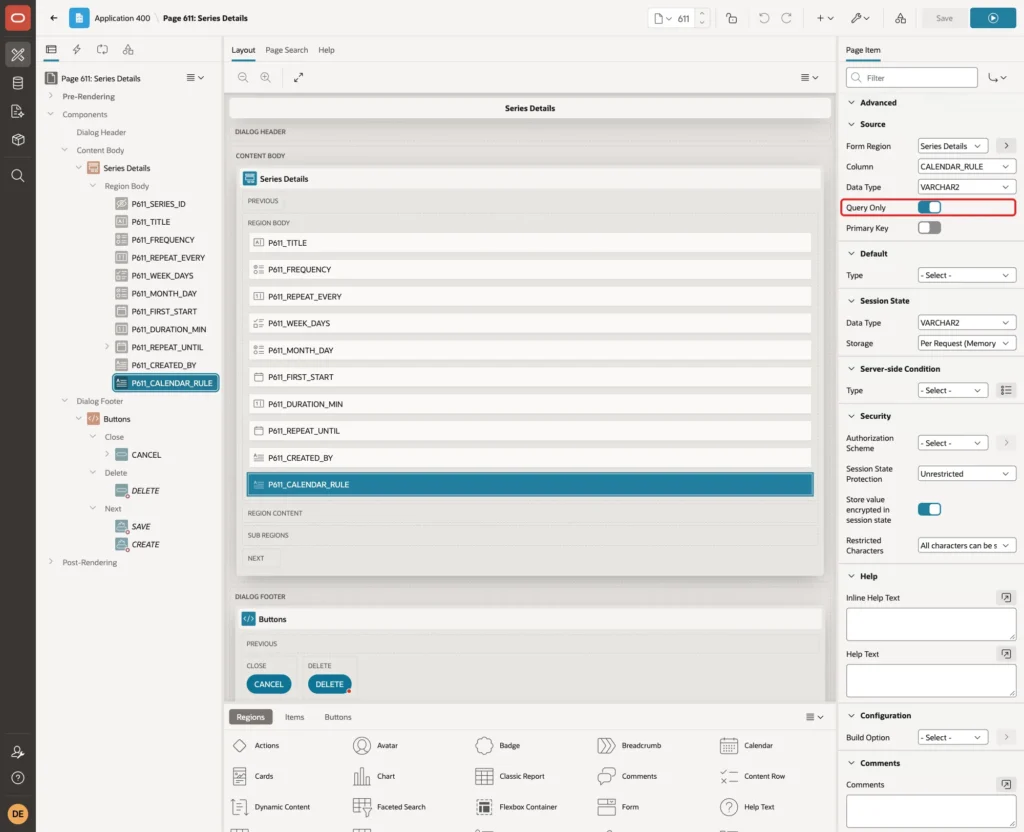
Make the same three changes on P611_CREATED_BY: Display Only, Optional - Floating and Query Only. DEFAULT ON NULL then stores the APEX user on insert.
Step 6: Add the Validation and the Generate Process
The check constraint would reject a Repeat Until before the first date with a raw ORA error. A validation gives a friendly message first. Right-click P611_REPEAT_UNTIL, choose Create Validation and set:
- Identification > Name: Until After First Start
- Validation > Type: Expression
- Validation > Language: PL/SQL
- Error > Error Message: Repeat Until must be on or after the first start date.
- Error > Associated Item: P611_REPEAT_UNTIL
Enter this PL/SQL Expression:
Example:
to_date(:P611_REPEAT_UNTIL, 'DD-MON-YYYY') >= trunc(to_date(:P611_FIRST_START, 'DD-MON-YYYY HH24:MI'))
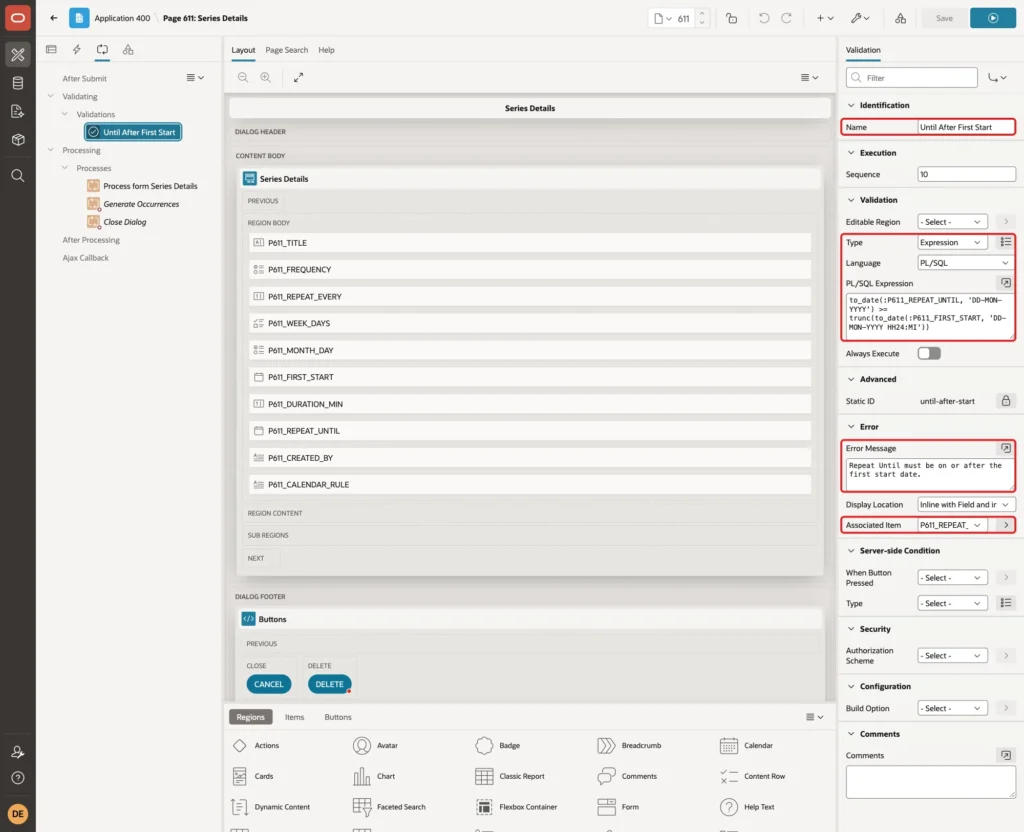
Item values reach PL/SQL as text, so the expression converts them with the format masks of Step 5.
Next, open the Processing tab. Right-click Processes, choose Create Process and set:
- Identification > Name: Generate Occurrences
- Identification > Type: Execute Code
- Source > Language: PL/SQL
- Execution > Sequence: 20, so it runs after Process form Series Details (10) and before Close Dialog
Enter this PL/SQL Code:
Example:
generate_occurrences(p_series_id => :P611_SERIES_ID);
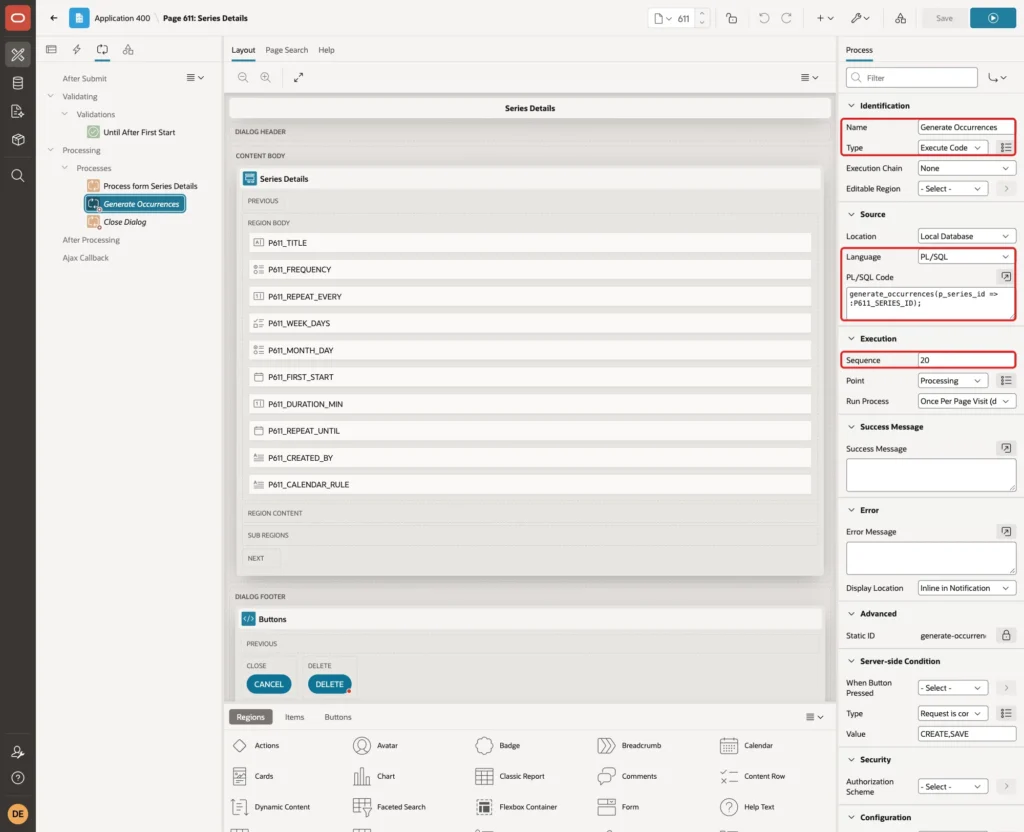
After an insert, the form process returns the new SERIES_ID into P611_SERIES_ID, so the procedure finds the new row. Under Server-side Condition, set Type to Request is contained in Value and Value to CREATE,SAVE:
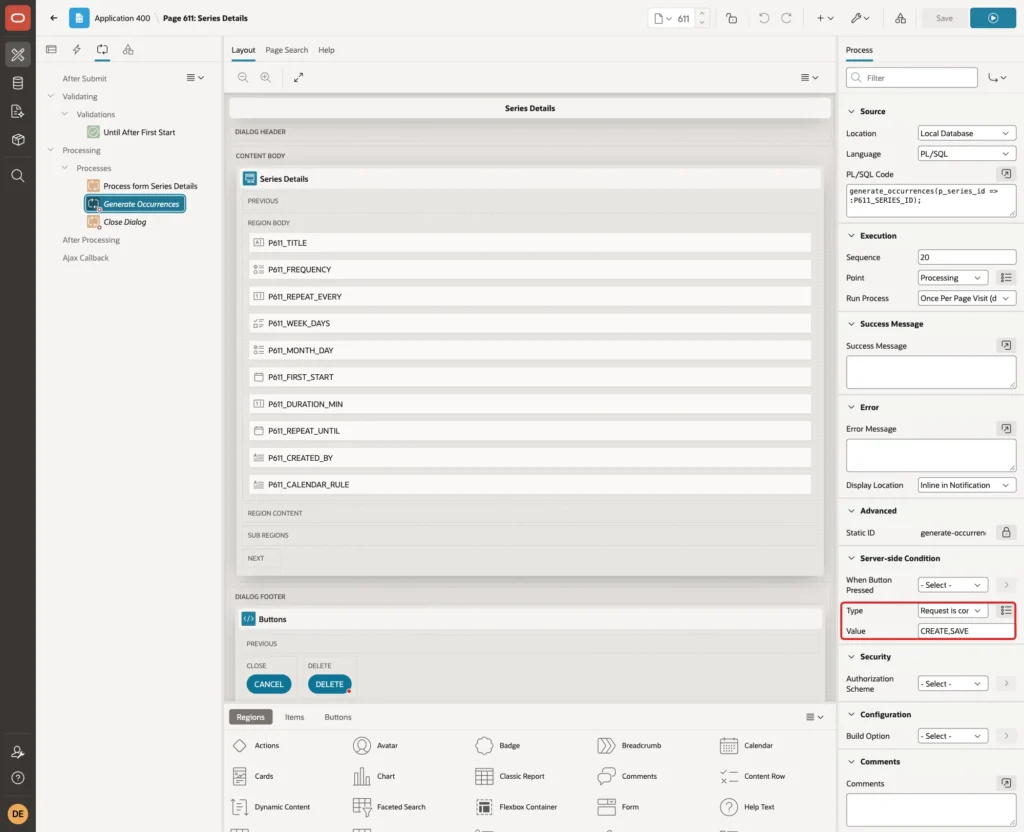
A delete needs no process, because the foreign key cascades to the occurrences. Click Save.
Step 7: Format the Report Dates
Open page 610. In the Rendering tree, expand Event Series > Columns and select FIRST_START. Enter Appearance > Format Mask DD-MON-YYYY HH24:MI:
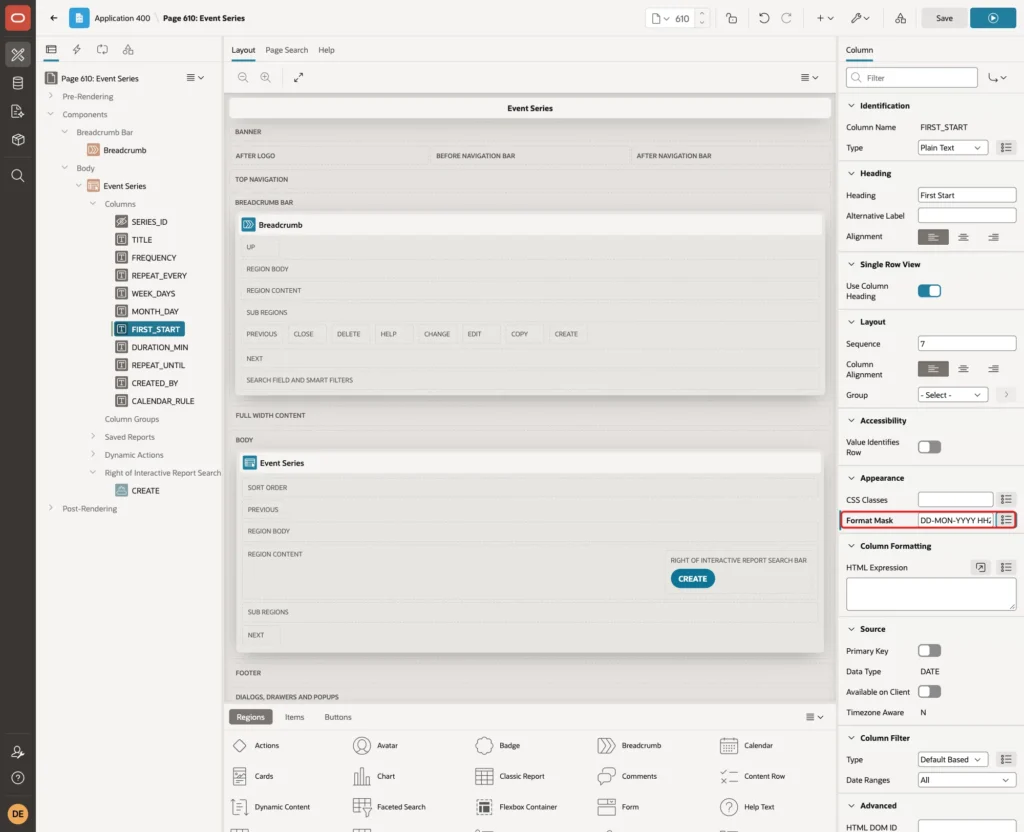
Select REPEAT_UNTIL, enter Format Mask DD-MON-YYYY and click Save.
Step 8: Create the Calendar Page
Click Create Page again. On the Component tab, click Calendar:
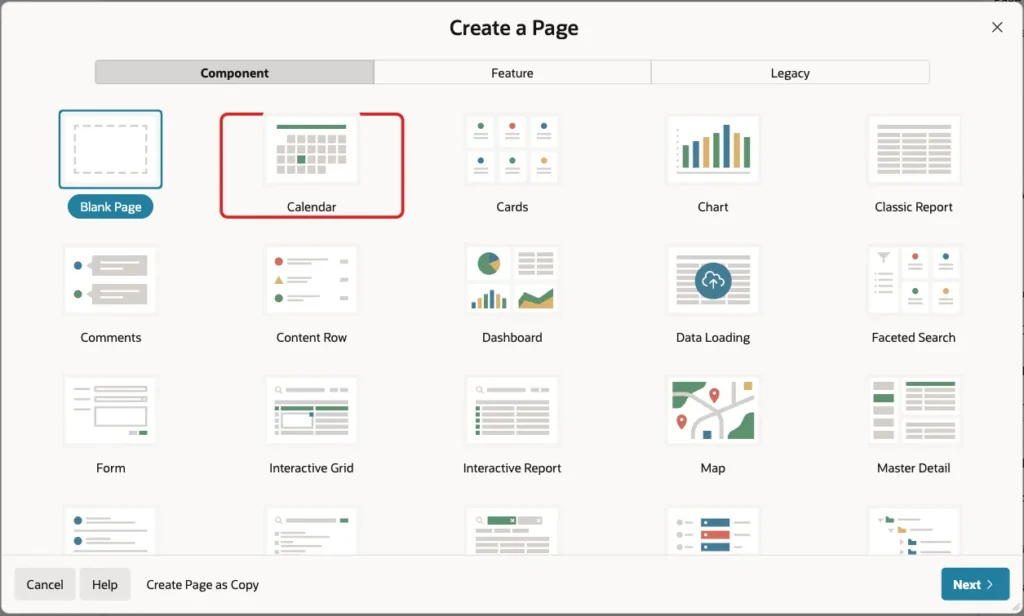
Enter Page Number 612 and Name Event Calendar:
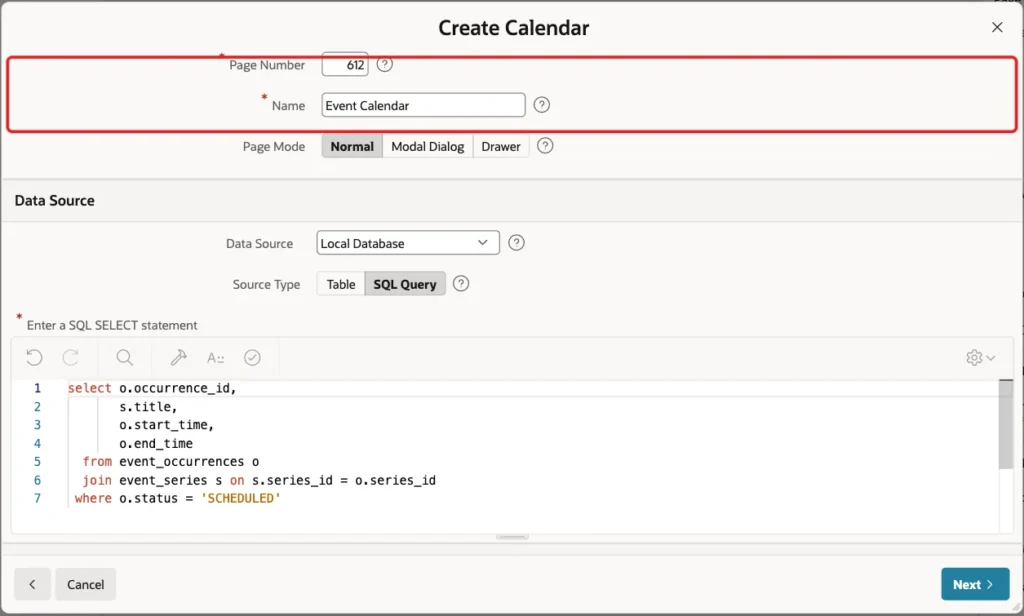
Under Data Source, select Source Type SQL Query and enter this query. It joins the series title and leaves out cancelled occurrences:
Example:
select o.occurrence_id,
       s.title,
       o.start_time,
       o.end_time
  from event_occurrences o
  join event_series s on s.series_id = o.series_id
 where o.status = 'SCHEDULED'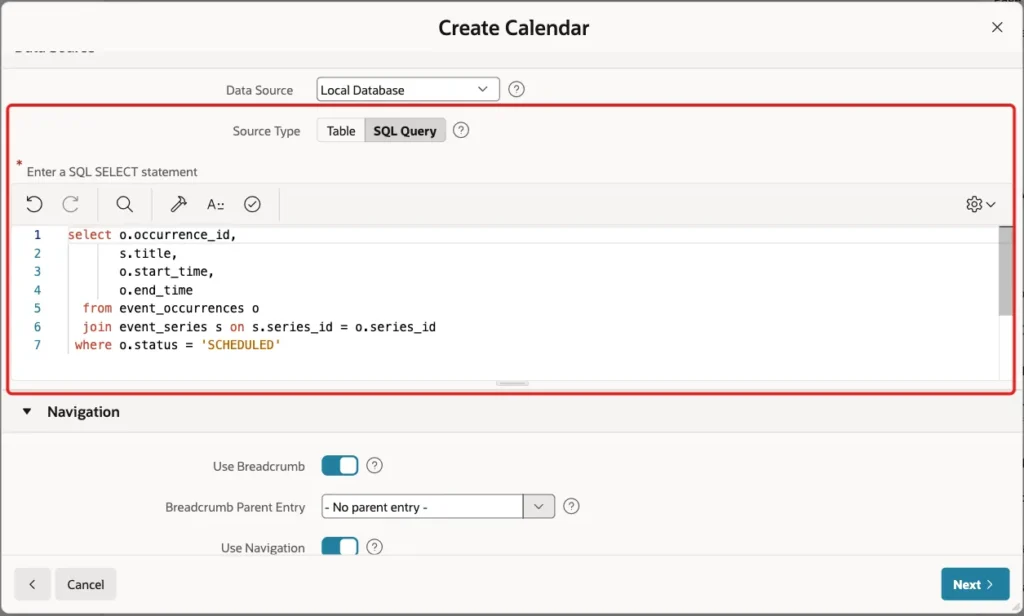
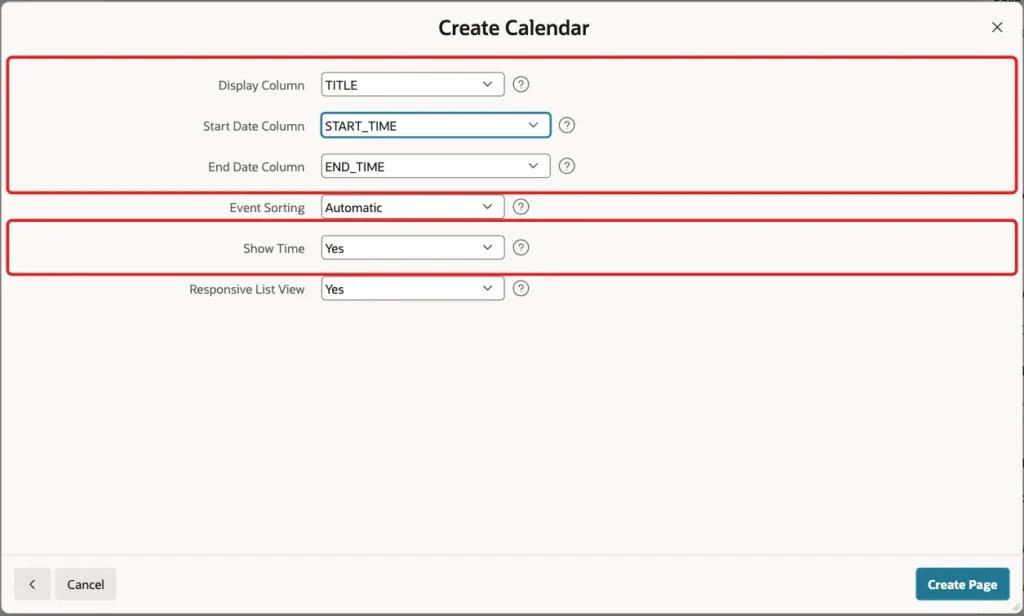
Keep the navigation settings and click Next. Select Display Column TITLE, Start Date Column START_TIME and End Date Column END_TIME, set Show Time to Yes and click Create Page:
Step 9: Create the Occurrence Form
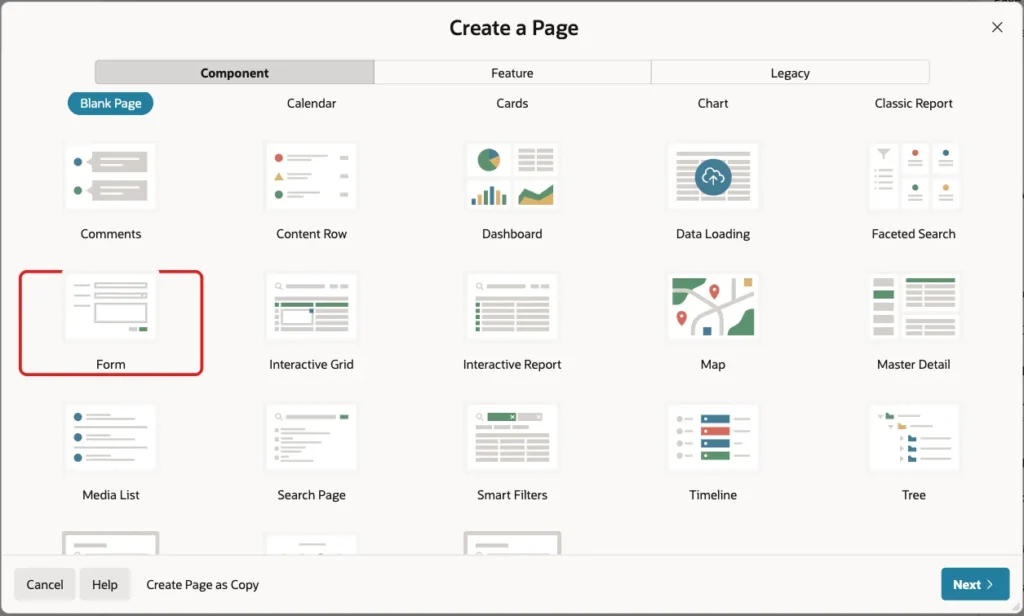
A form on EVENT_OCCURRENCES lets users change one date. Click Create Page and choose Form on the Component tab:
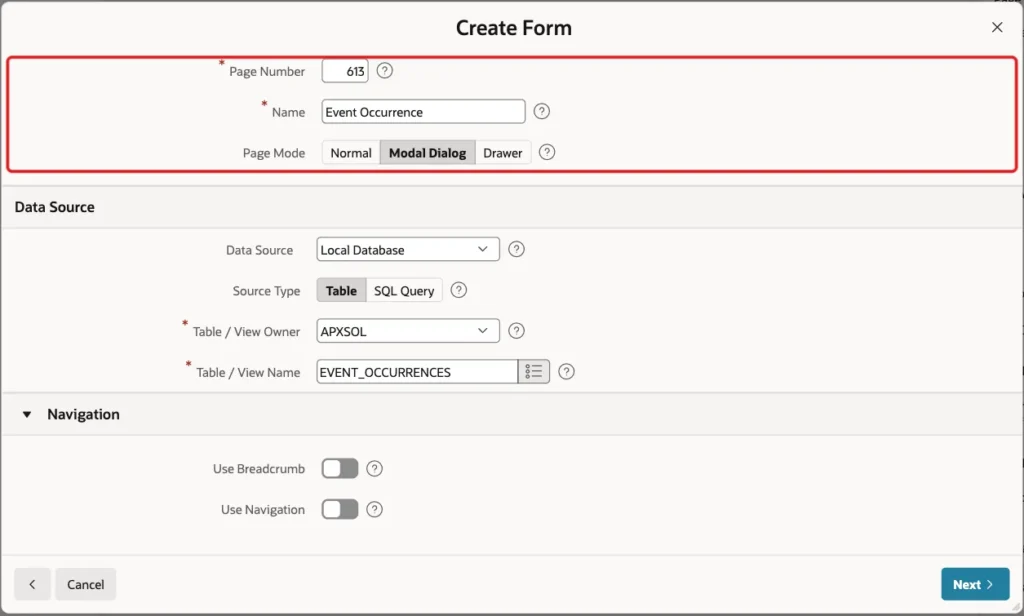
Enter Page Number 613 and Name Event Occurrence, and select Page Mode Modal Dialog. For a modal page, the wizard turns breadcrumb and navigation off:
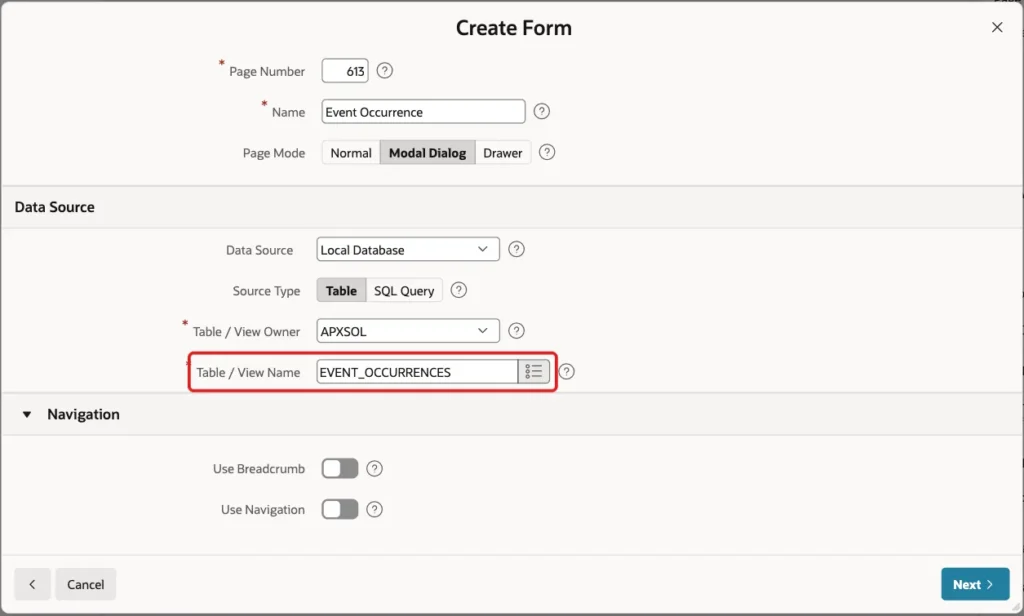
Enter Table / View Name EVENT_OCCURRENCES and click Next:
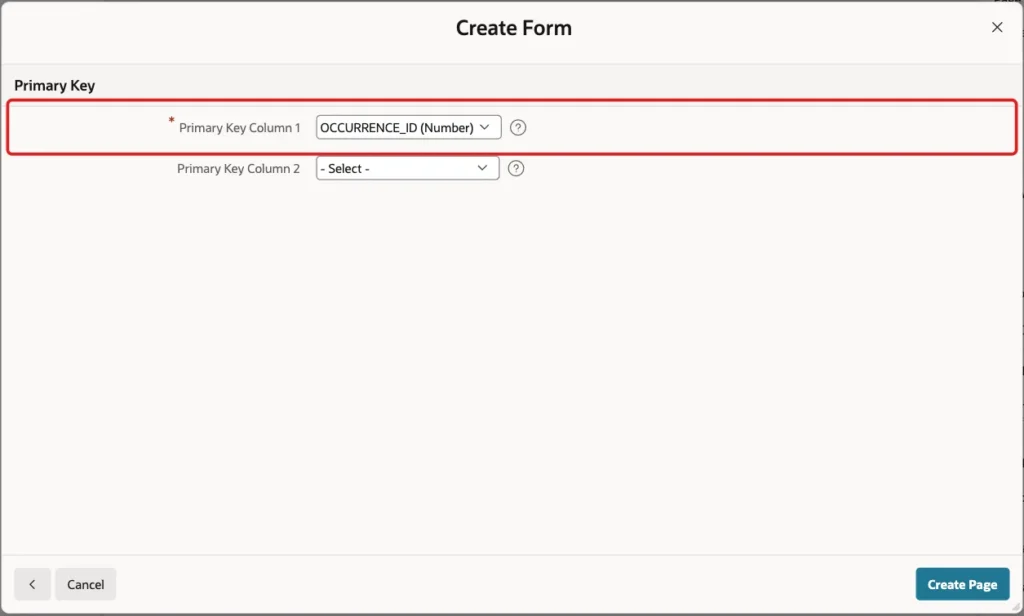
Select OCCURRENCE_ID (Number) as Primary Key Column 1 and click Create Page:
Step 10: Configure the Occurrence Form
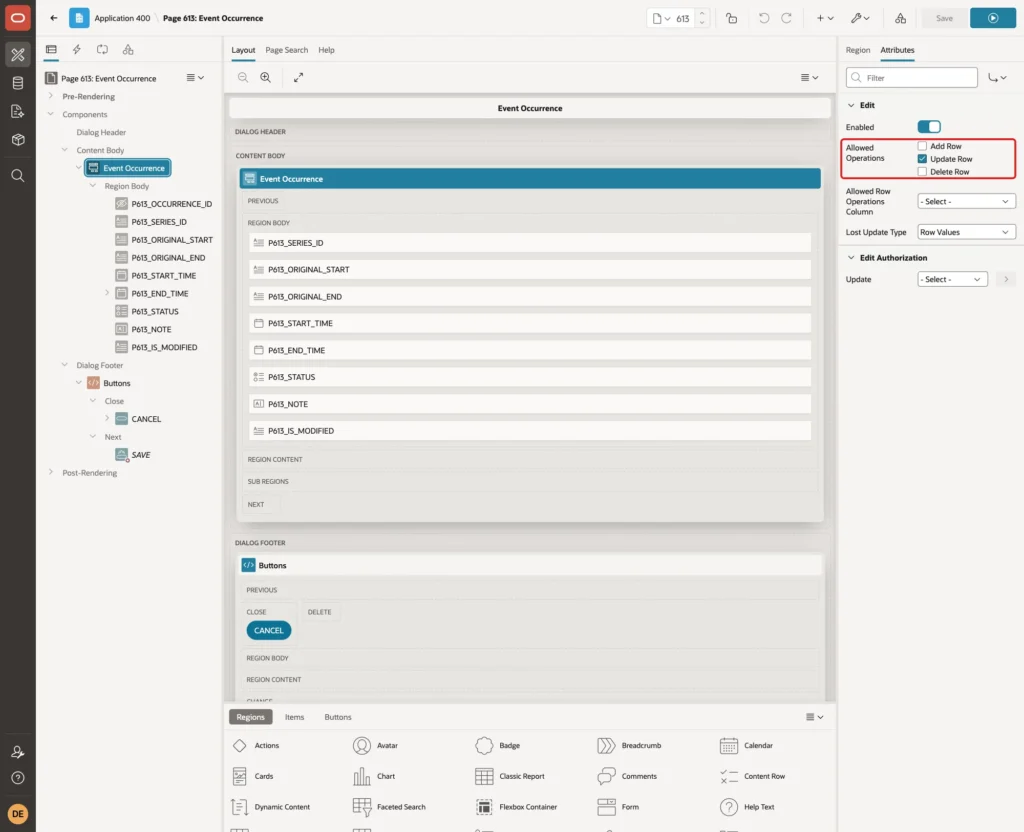
Occurrences are created only by the generator. Deleting one is not useful either, because the next save of the series would generate the slot again. Cancelling it keeps the slot and hides it from the calendar.
Open page 613, delete the CREATE and DELETE buttons (right-click, Delete), and select the Event Occurrence region. On the Attributes tab, keep only Update Row under Edit > Allowed Operations:
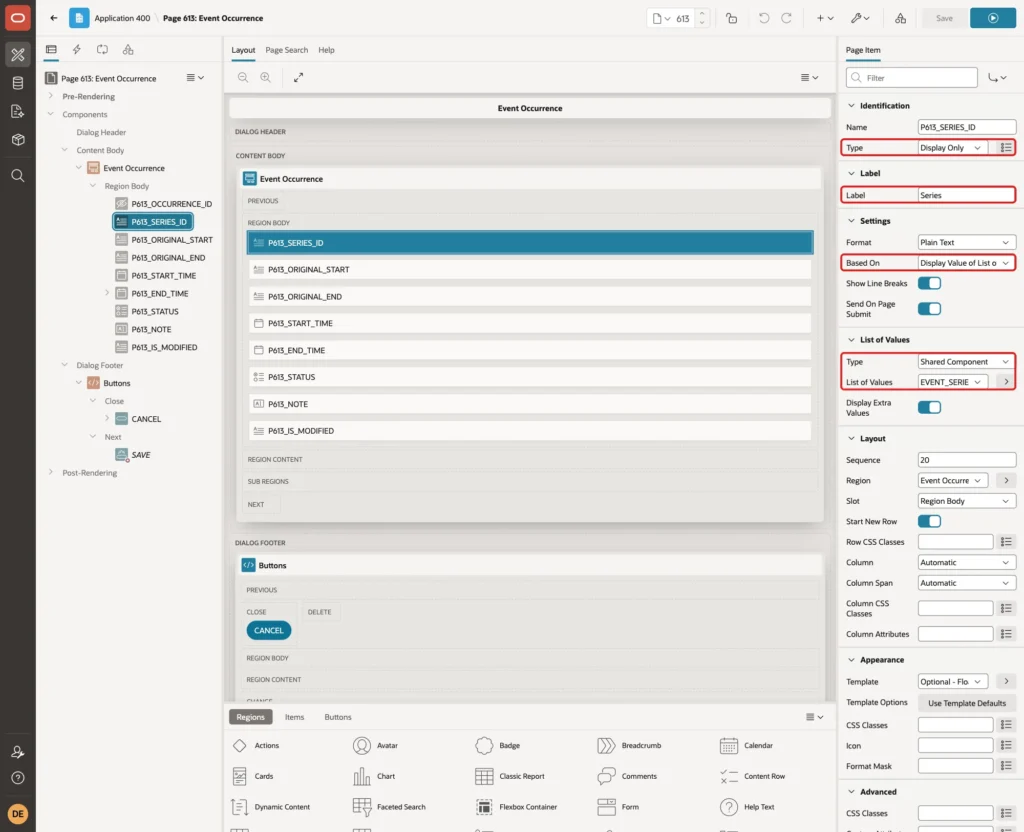
Select P613_SERIES_ID and set:
- Identification > Type: Display Only
- Label > Label: Series
- Settings > Based On: Display Value of List of Values
- List of Values: keep Shared Component EVENT_SERIES.TITLE, which the wizard created for the foreign key
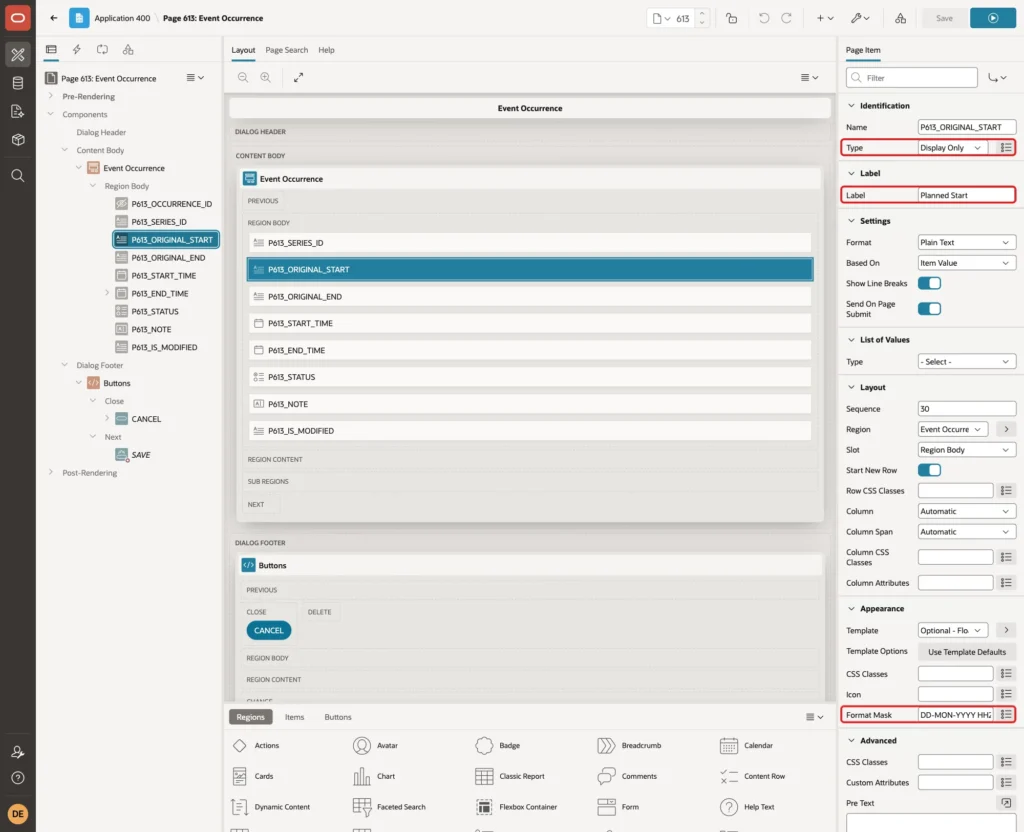
Select P613_ORIGINAL_START and set Type Display Only, Label Planned Start and Format Mask DD-MON-YYYY HH24:MI:
Do the same for P613_ORIGINAL_END, and set its Label to Planned End. Turn on Source > Query Only for P613_SERIES_ID, P613_ORIGINAL_START and P613_ORIGINAL_END, so the form never changes them.
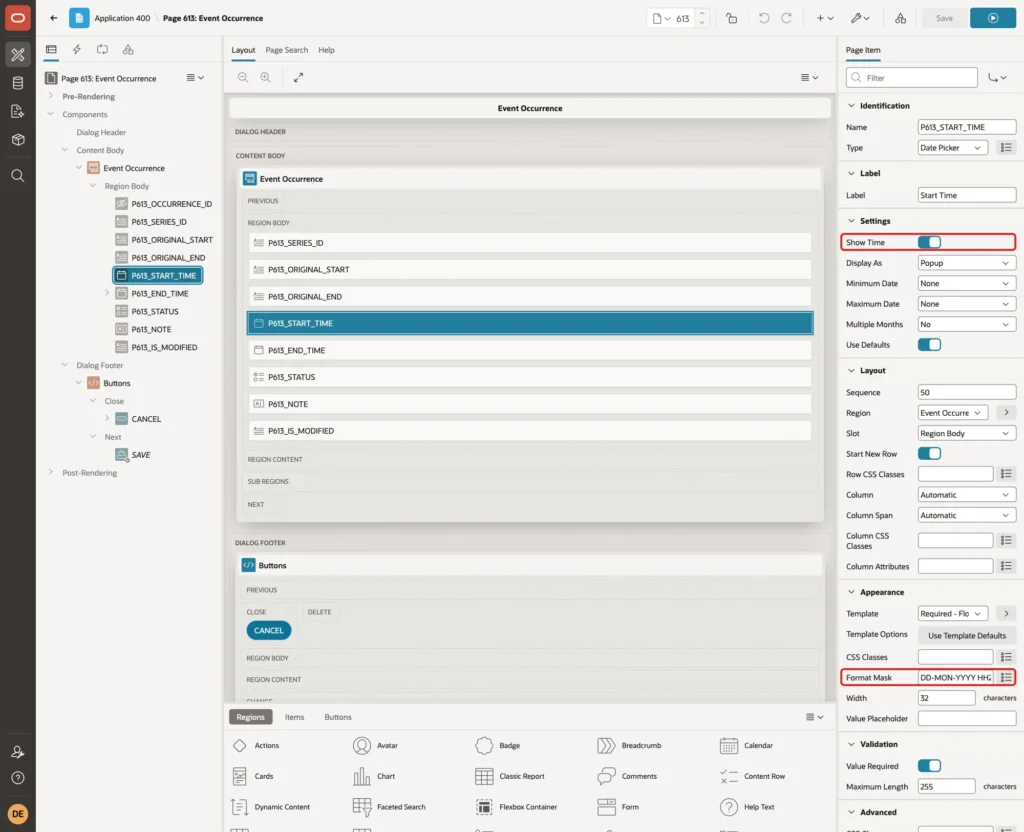
Select P613_START_TIME, turn on Show Time and enter Format Mask DD-MON-YYYY HH24:MI. Repeat this for P613_END_TIME:
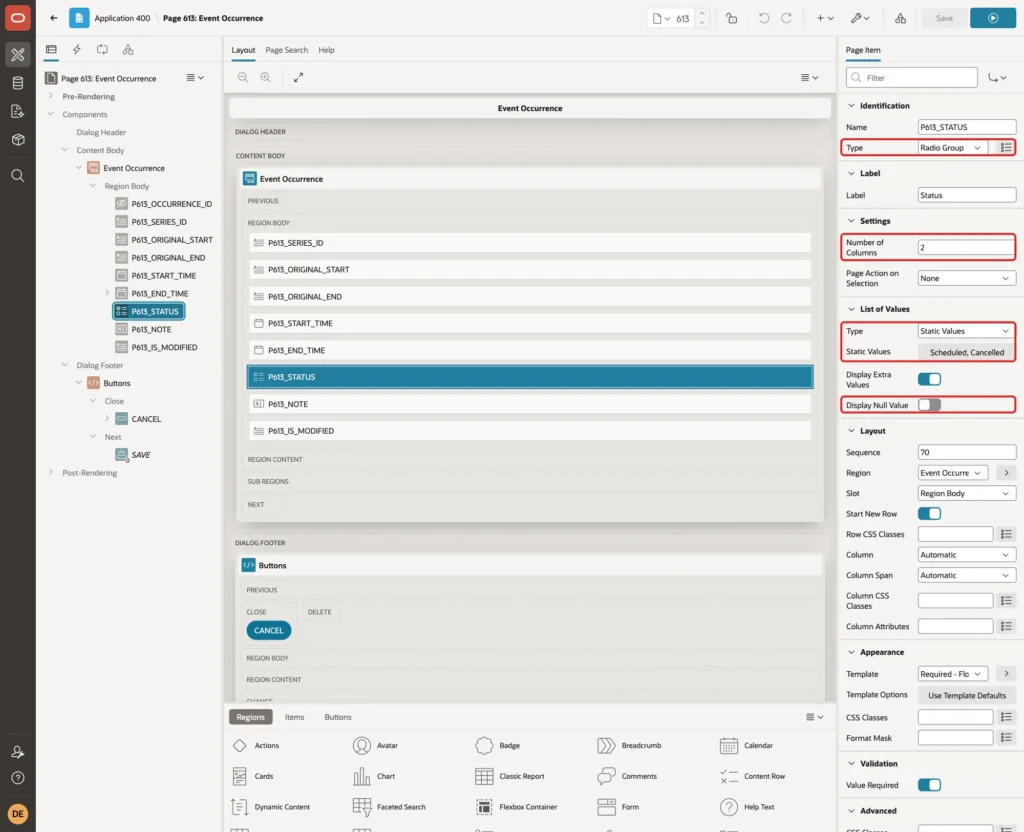
Select P613_STATUS and set Type Radio Group, Number of Columns 2, Static Values Scheduled (SCHEDULED) and Cancelled (CANCELLED), and Display Null Value Off:
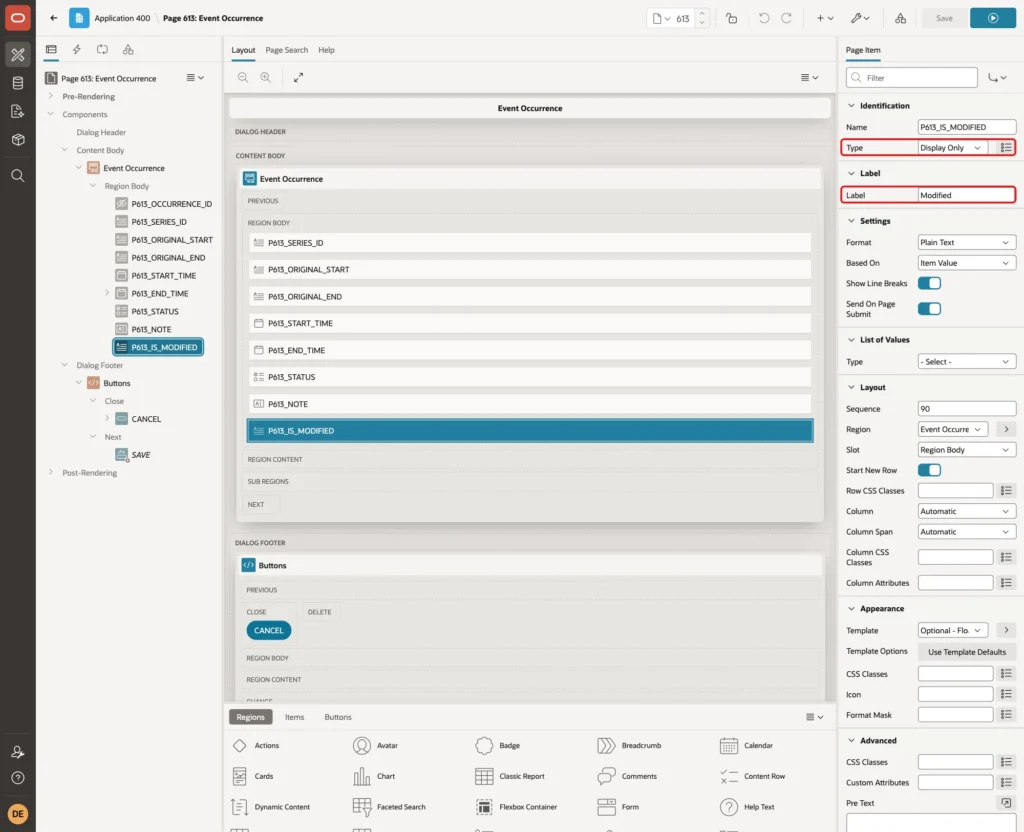
P613_IS_MODIFIED is the virtual column. Set Type Display Only, Label Modified, Template Optional - Floating and Query Only:
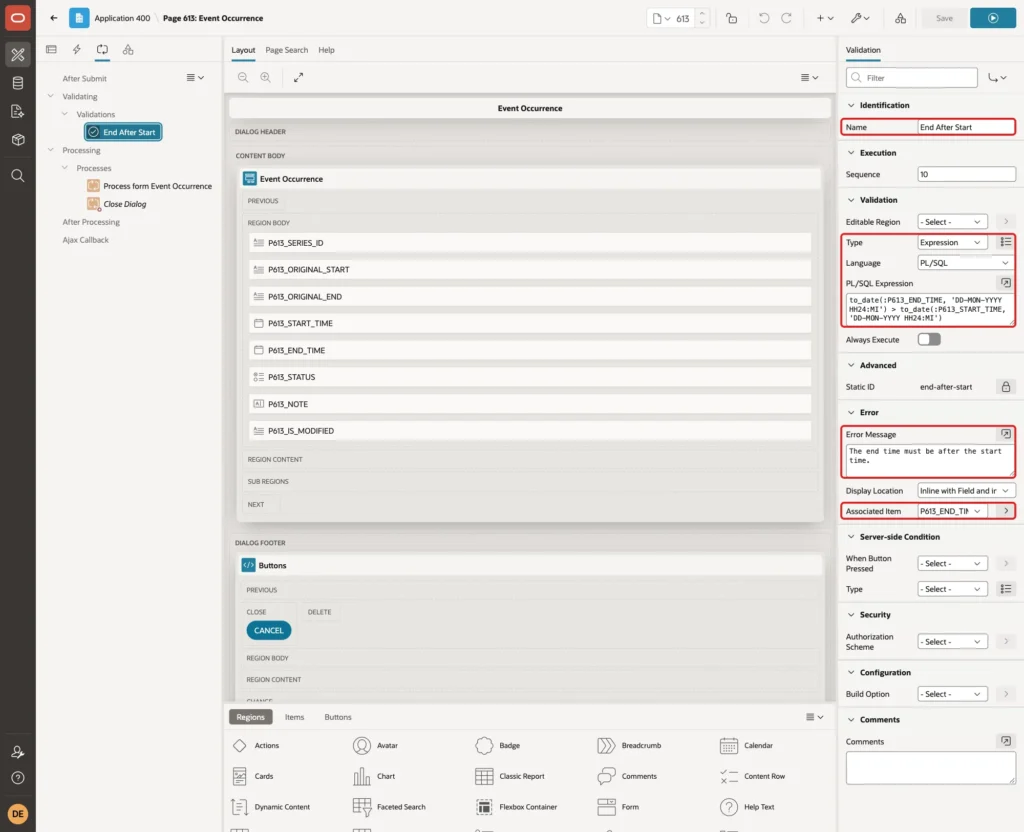
Finally, right-click P613_END_TIME and create a validation named End After Start. Use Type Expression, Language PL/SQL, the Error Message "The end time must be after the start time." and Associated Item P613_END_TIME, with this expression:
Example:
to_date(:P613_END_TIME, 'DD-MON-YYYY HH24:MI') > to_date(:P613_START_TIME, 'DD-MON-YYYY HH24:MI')
Click Save.
Step 11: Link the Calendar to the Occurrence Form
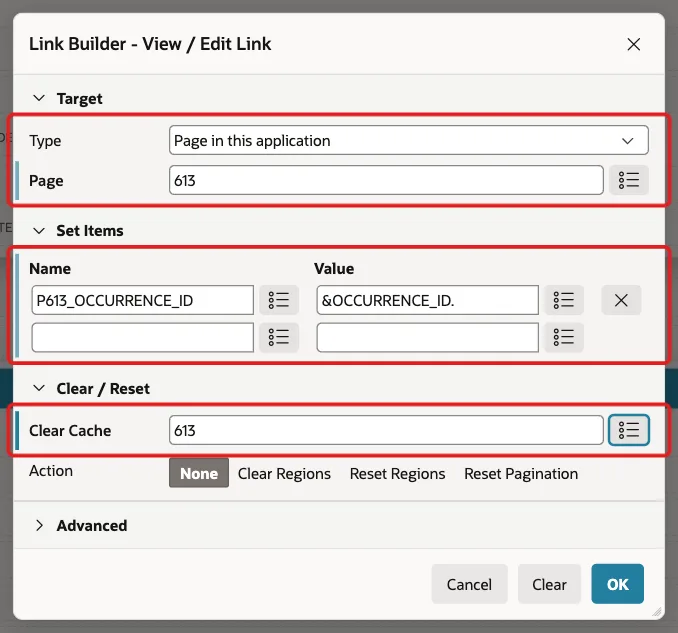
Open page 612 and select the Event Calendar region. On the Attributes tab, click the View / Edit Link button. Set Target Type Page in this application and Page 613. Under Set Items, enter Name P613_OCCURRENCE_ID and Value &OCCURRENCE_ID., set Clear Cache to 613 and click OK:
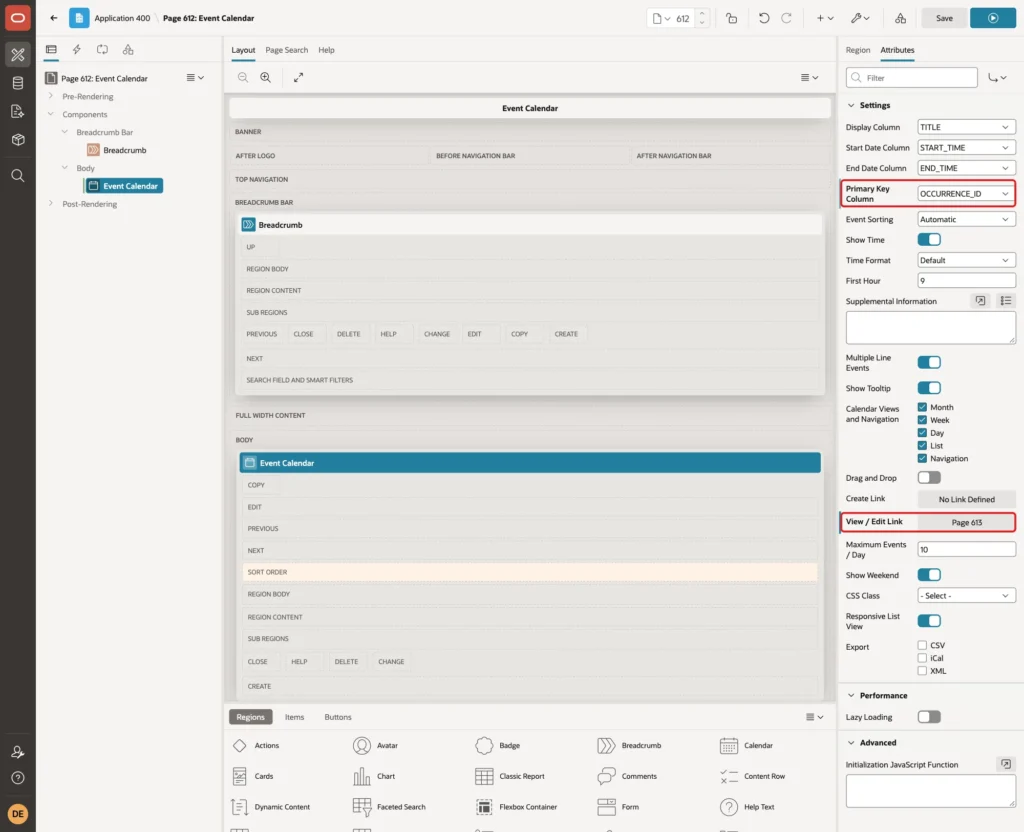
Also select Settings > Primary Key Column OCCURRENCE_ID. The region now shows Page 613 as its View / Edit Link:
Click Save.
Step 12: Test the Recurring Events
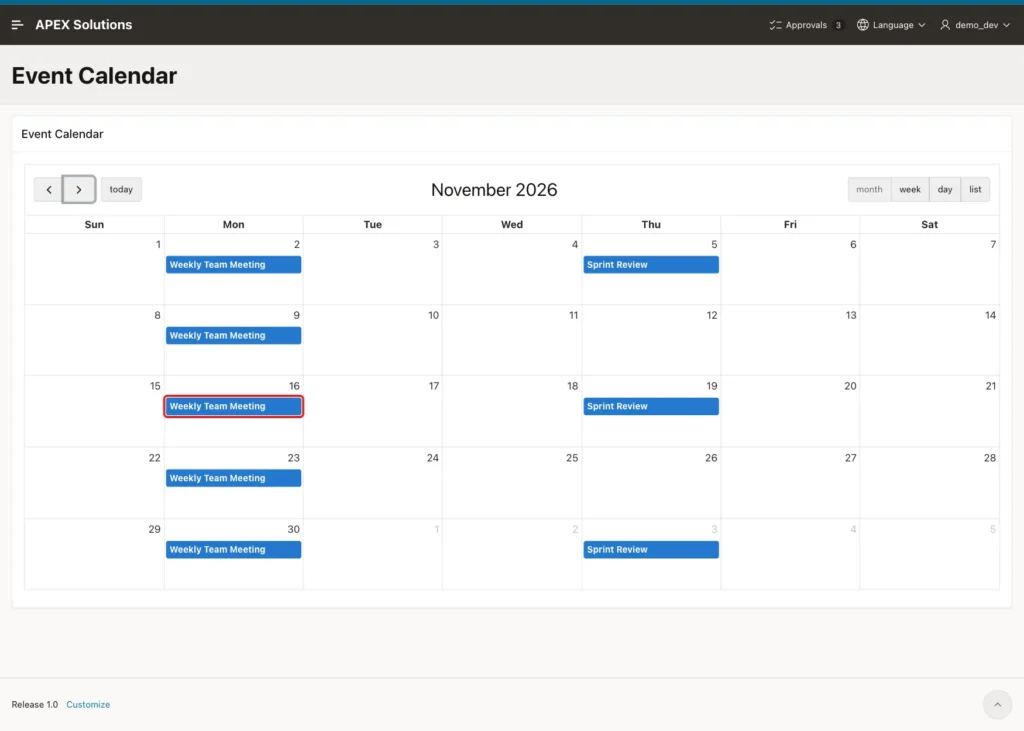
Run page 612 and click the next-month arrow to open November 2026. The calendar shows the 5 Weekly Team Meeting Mondays and the Sprint Review on every second Thursday. Click the meeting on Monday, 16 November:
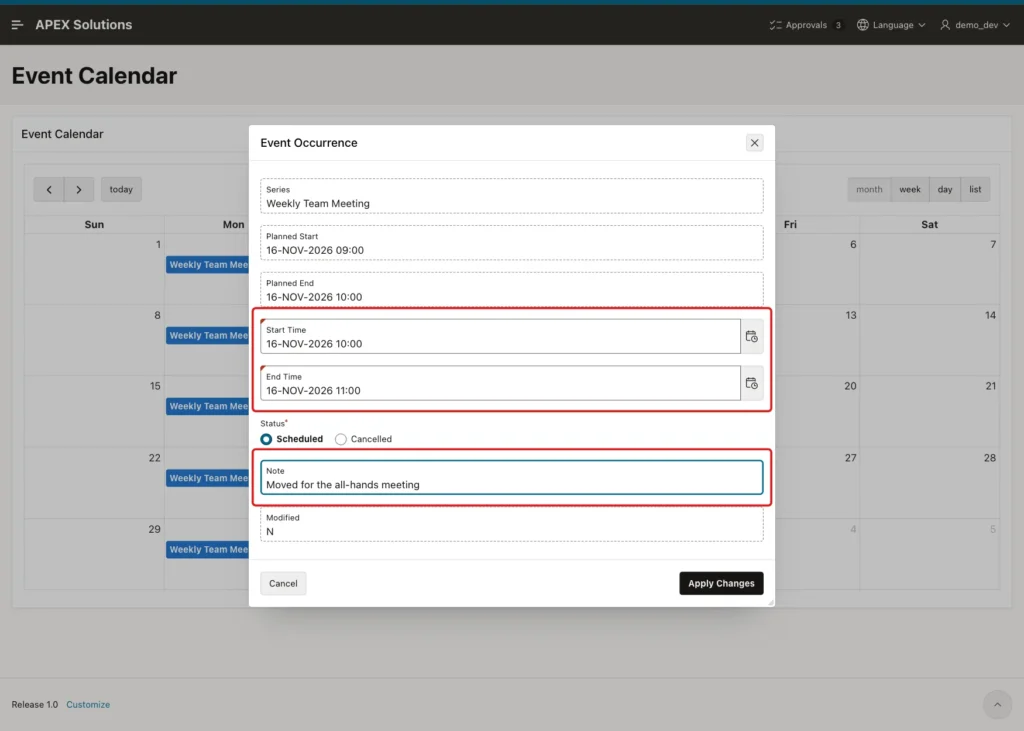
The Event Occurrence dialog opens. Change Start Time to 16-NOV-2026 10:00 and End Time to 16-NOV-2026 11:00, enter the Note "Moved for the all-hands meeting" and click Apply Changes:
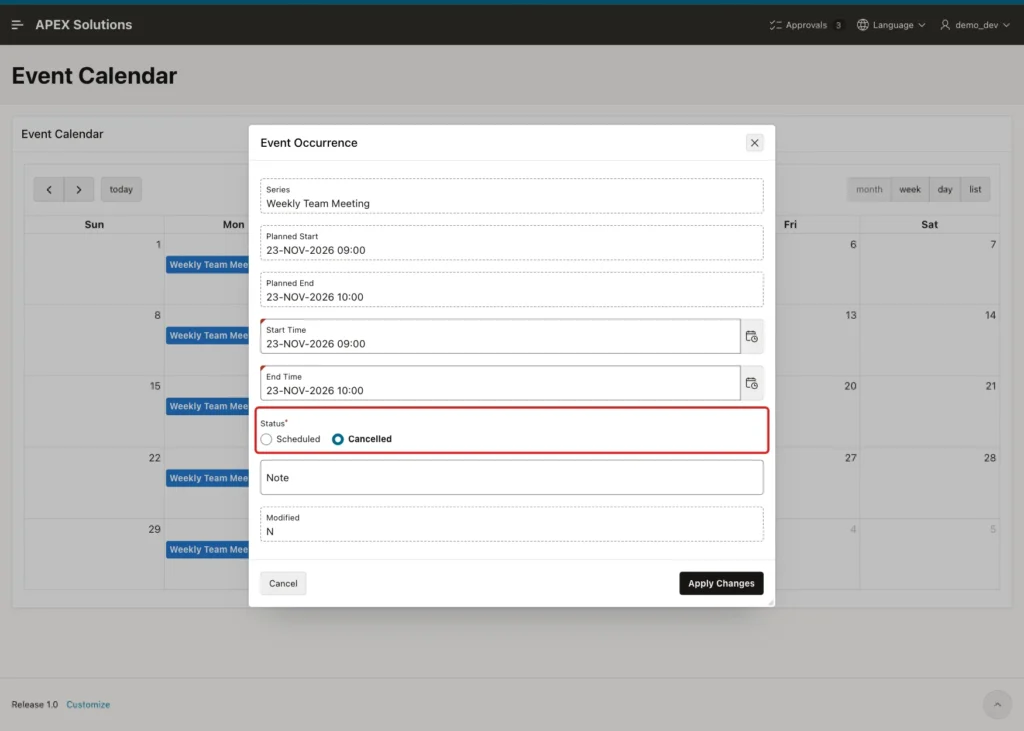
Next, click the meeting on Monday, 23 November, select Status Cancelled and click Apply Changes:
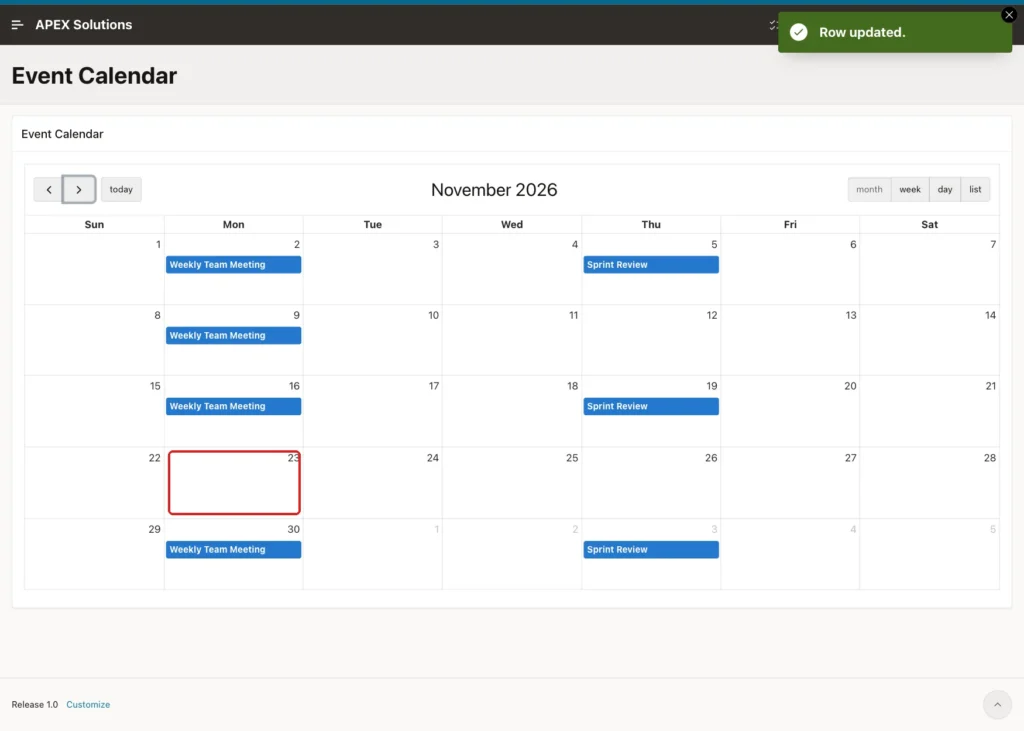
The dialog closes, and the calendar refreshes itself without a page reload. 23 November is now empty:
Click list in the calendar toolbar to see the times. The meeting on 16 November now runs from 10:00 to 11:00:
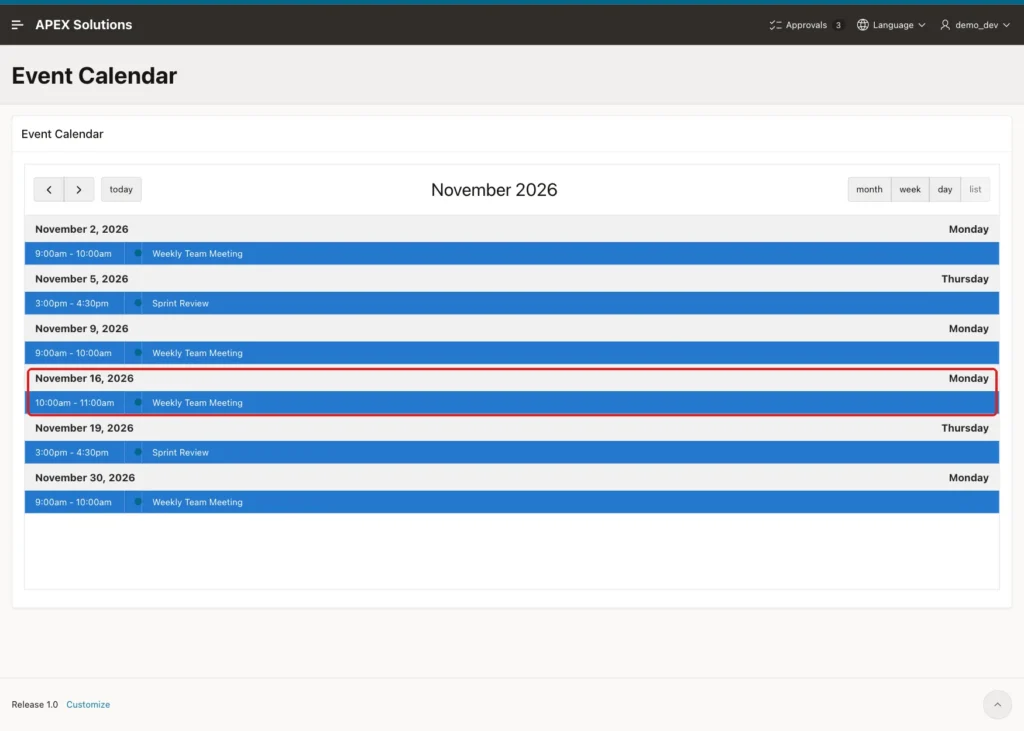
In SQL, both rows now have IS_MODIFIED = Y:
Example:
set lines 200 pages 100 feedback on
column note format a32
select occurrence_id, to_char(original_start, 'DY DD-MON HH24:MI') as planned,
       to_char(start_time, 'DY DD-MON HH24:MI') as starts, to_char(end_time, 'HH24:MI') as ends,
       status, note, is_modified
  from event_occurrences
 where series_id = 1
 order by original_start;
Output:
   OCCURRENCE_ID PLANNED             STARTS              ENDS     STATUS       NOTE                               IS_MODIFIED
________________ ___________________ ___________________ ________ ____________ __________________________________ ______________
               1 MON 02-NOV 09:00    MON 02-NOV 09:00    10:00    SCHEDULED                                       N
               2 MON 09-NOV 09:00    MON 09-NOV 09:00    10:00    SCHEDULED                                       N
               3 MON 16-NOV 09:00    MON 16-NOV 10:00    11:00    SCHEDULED    Moved for the all-hands meeting    Y
               4 MON 23-NOV 09:00    MON 23-NOV 09:00    10:00    CANCELLED                                       Y
               5 MON 30-NOV 09:00    MON 30-NOV 09:00    10:00    SCHEDULED                                       N
               6 MON 07-DEC 09:00    MON 07-DEC 09:00    10:00    SCHEDULED                                       N
               7 MON 14-DEC 09:00    MON 14-DEC 09:00    10:00    SCHEDULED                                       N
               8 MON 21-DEC 09:00    MON 21-DEC 09:00    10:00    SCHEDULED                                       N

8 rows selected.
Now change the whole series. Run page 610, click the edit icon of Weekly Team Meeting, change Duration (minutes) to 45 and Repeat Until to 28-DEC-2026, and click Apply Changes:
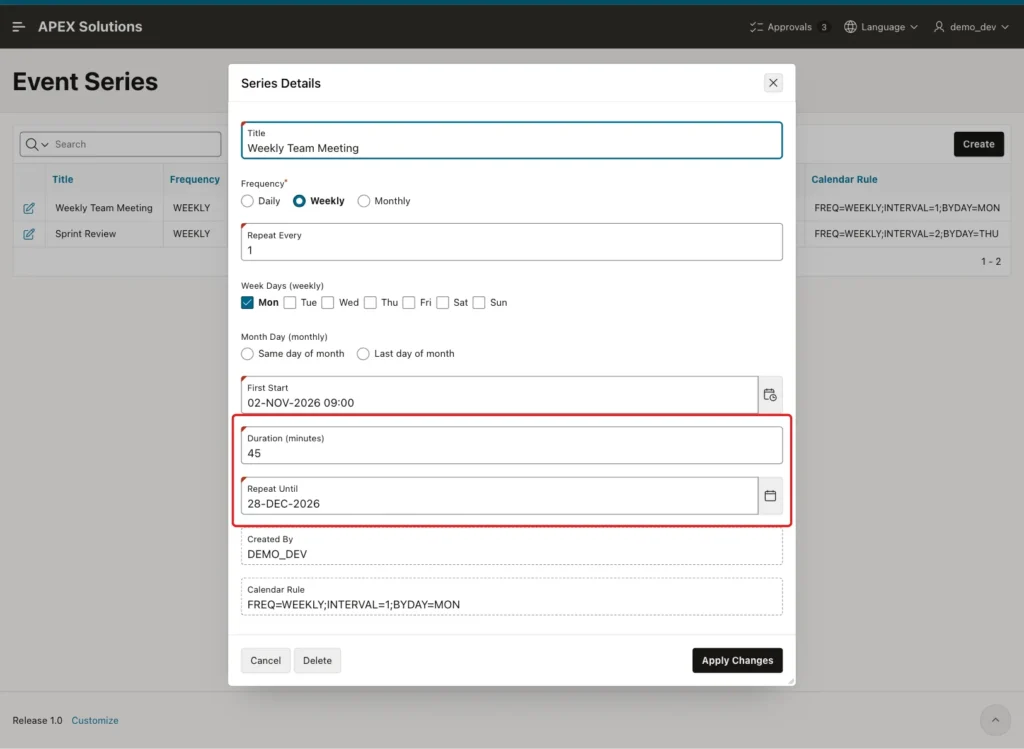
The Generate Occurrences process rebuilt the series:
Example:
set lines 200 pages 100 feedback on
column note format a32
select occurrence_id, to_char(original_start, 'DY DD-MON HH24:MI') as planned,
       to_char(start_time, 'DY DD-MON HH24:MI') as starts, to_char(end_time, 'HH24:MI') as ends,
       status, note, is_modified
  from event_occurrences
 where series_id = 1
 order by original_start;
Output:
   OCCURRENCE_ID PLANNED             STARTS              ENDS     STATUS       NOTE                               IS_MODIFIED
________________ ___________________ ___________________ ________ ____________ __________________________________ ______________
              41 MON 02-NOV 09:00    MON 02-NOV 09:00    09:45    SCHEDULED                                       N
              42 MON 09-NOV 09:00    MON 09-NOV 09:00    09:45    SCHEDULED                                       N
               3 MON 16-NOV 09:00    MON 16-NOV 10:00    11:00    SCHEDULED    Moved for the all-hands meeting    Y
               4 MON 23-NOV 09:00    MON 23-NOV 09:00    10:00    CANCELLED                                       Y
              43 MON 30-NOV 09:00    MON 30-NOV 09:00    09:45    SCHEDULED                                       N
              44 MON 07-DEC 09:00    MON 07-DEC 09:00    09:45    SCHEDULED                                       N
              45 MON 14-DEC 09:00    MON 14-DEC 09:00    09:45    SCHEDULED                                       N
              46 MON 21-DEC 09:00    MON 21-DEC 09:00    09:45    SCHEDULED                                       N
              47 MON 28-DEC 09:00    MON 28-DEC 09:00    09:45    SCHEDULED                                       N

9 rows selected.- The unmodified dates now end at 09:45 and have new OCCURRENCE_ID values, because they were deleted and inserted again.
- The moved meeting (ID 3) keeps 10:00 to 11:00 and its note. The cancelled one (ID 4) stays cancelled.
- A ninth meeting was added on 28 December.
The December calendar shows the new date:
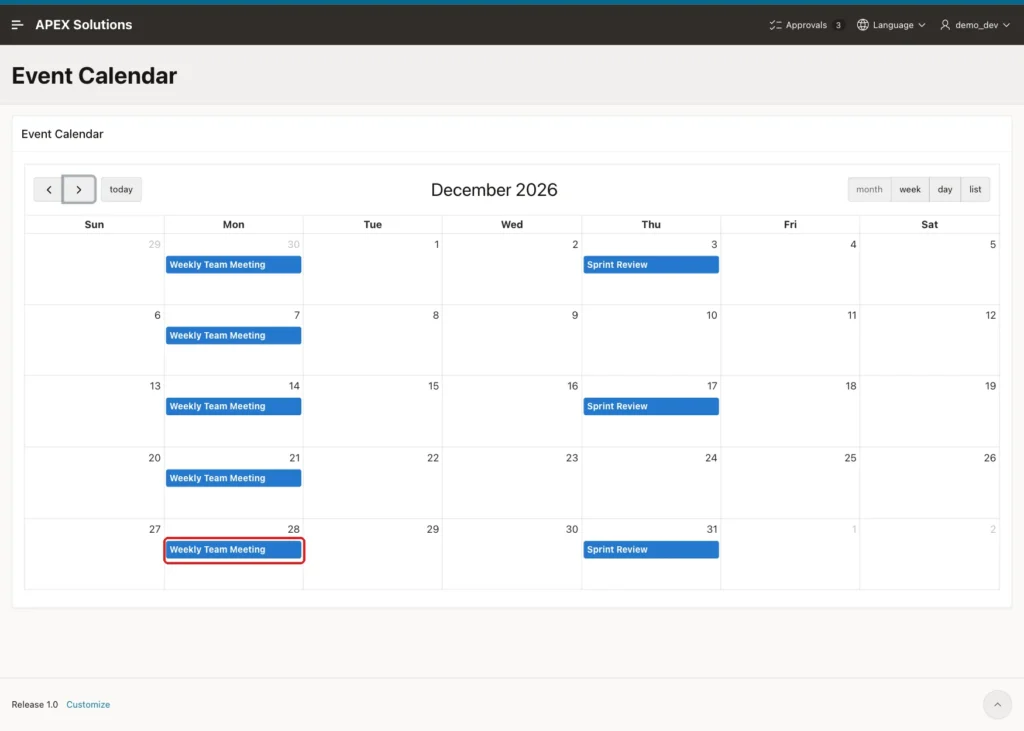
Next, create a month-end series. On page 610, click Create and enter Title Month-End Close Review. Select Frequency Monthly and Month Day Last day of month. Enter First Start 31-JAN-2027 16:00, Duration 45 and Repeat Until 31-DEC-2027, and click Create:
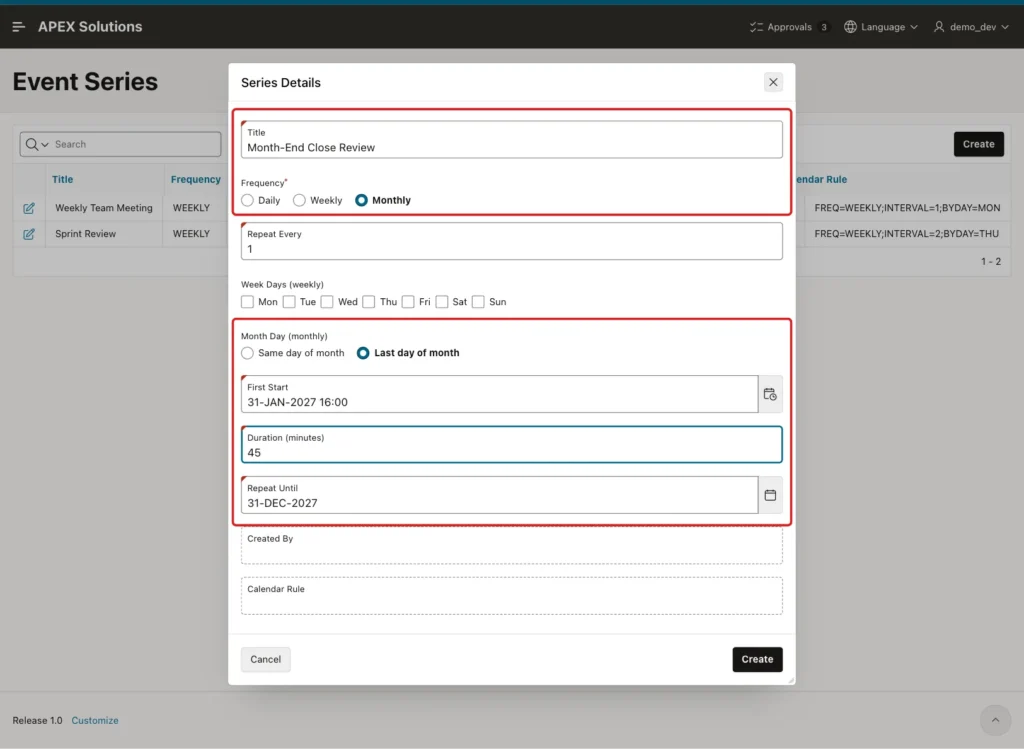
The report lists the new series with its calendar rule:
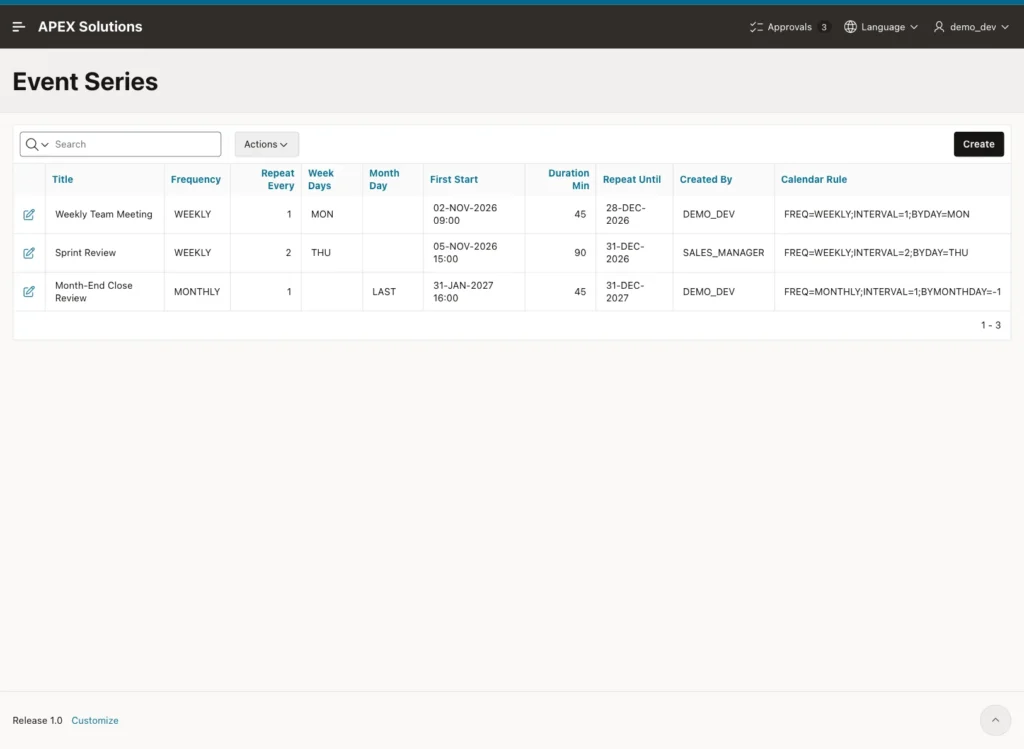
The series got one occurrence for each month, always on the last day:
Example:
set lines 200 pages 100 feedback on
select to_char(o.start_time, 'DY DD-MON-YYYY HH24:MI') as starts,
       to_char(o.end_time, 'HH24:MI') as ends
  from event_occurrences o
  join event_series s on s.series_id = o.series_id
 where s.title = 'Month-End Close Review'
 order by o.start_time;
Output:
STARTS                   ENDS
________________________ ________
SUN 31-JAN-2027 16:00    16:45
SUN 28-FEB-2027 16:00    16:45
WED 31-MAR-2027 16:00    16:45
FRI 30-APR-2027 16:00    16:45
MON 31-MAY-2027 16:00    16:45
WED 30-JUN-2027 16:00    16:45
SAT 31-JUL-2027 16:00    16:45
TUE 31-AUG-2027 16:00    16:45
THU 30-SEP-2027 16:00    16:45
SUN 31-OCT-2027 16:00    16:45
TUE 30-NOV-2027 16:00    16:45
FRI 31-DEC-2027 16:00    16:45

12 rows selected.
Open February 2027 in the calendar. The review appears on Sunday, 28 February:
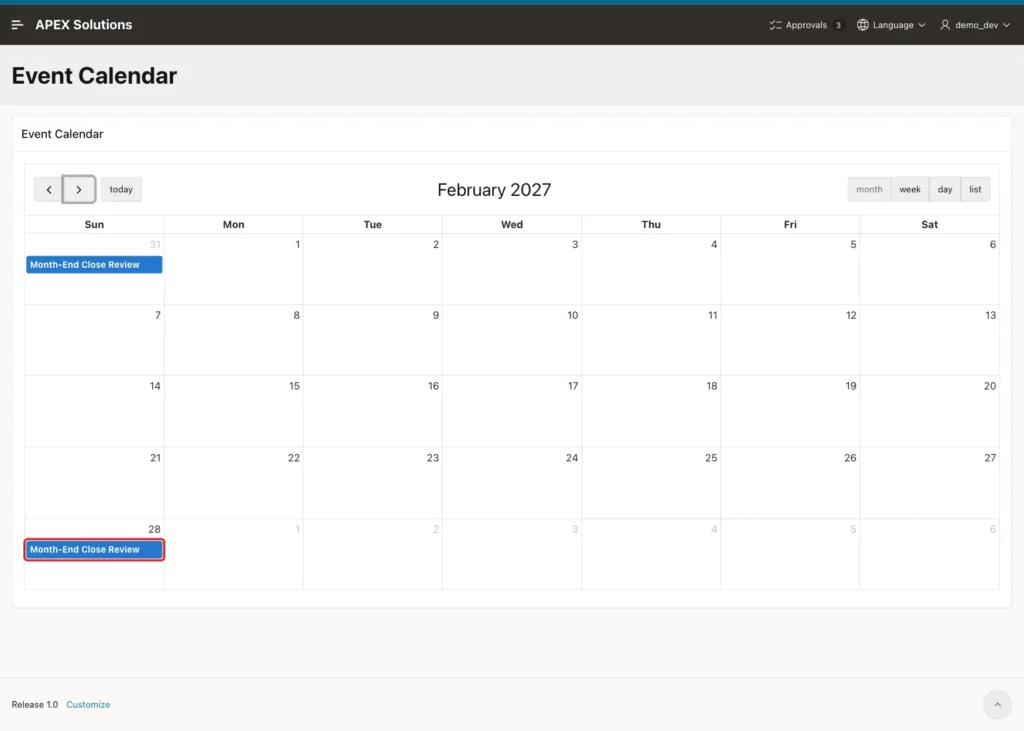
Now test the validation. Click Create, enter Title Quarterly Planning, Frequency Monthly, Repeat Every 3, First Start 15-JAN-2027 10:00 and Repeat Until 31-DEC-2026, and click Create:
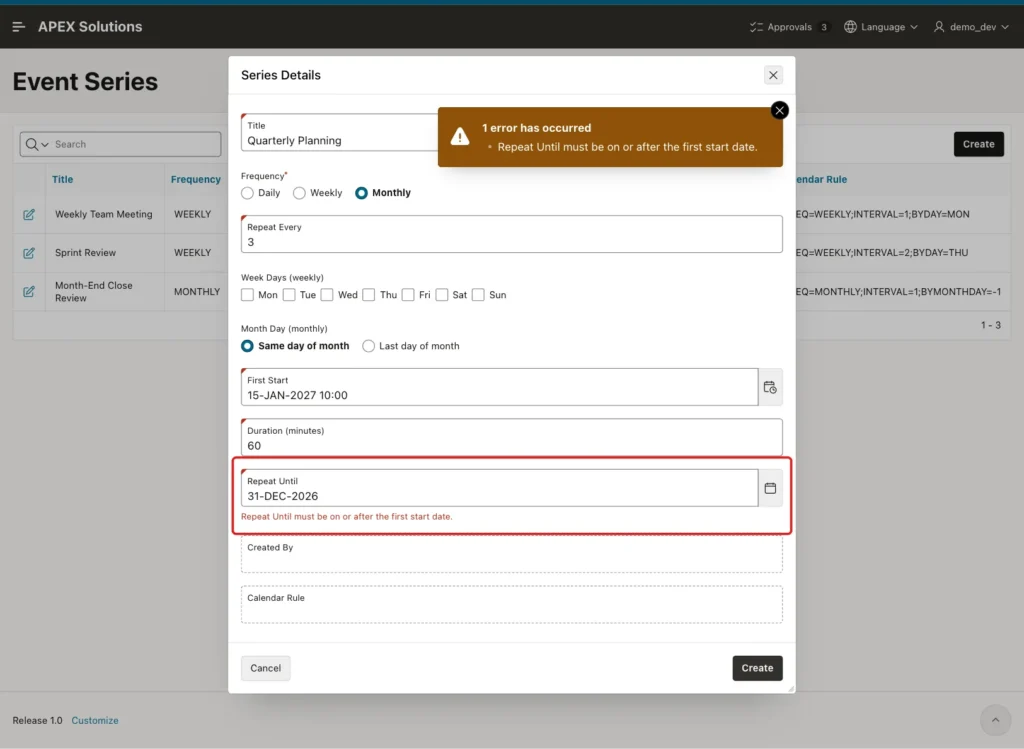
Nothing was saved. The check constraints also protect the table when rows come from outside the form:
Example:
insert into event_series (title, frequency, first_start, duration_min, repeat_until)
values ('Yearly Audit', 'YEARLY', date '2027-01-04', 60, date '2027-12-31');

insert into event_series (title, frequency, first_start, duration_min, repeat_until)
values ('Daily Check-in', 'DAILY', date '2027-01-04', 15, date '2030-01-04');
Output:
Error starting at line : 1 File @ b64/08-negative.sql
In command -
insert into event_series (title, frequency, first_start, duration_min, repeat_until)
values ('Yearly Audit', 'YEARLY', date '2027-01-04', 60, date '2027-12-31')
Error report -
ORA-02290: check constraint (APXSOL.EVENT_SERIES_FREQ_CK) violated
Help: https://docs.oracle.com/error-help/db/ora-02290/

Error starting at line : 4 File @ b64/08-negative.sql
In command -
insert into event_series (title, frequency, first_start, duration_min, repeat_until)
values ('Daily Check-in', 'DAILY', date '2027-01-04', 15, date '2030-01-04')
Error report -
ORA-02290: check constraint (APXSOL.EVENT_SERIES_UNTIL_CK) violated
Help: https://docs.oracle.com/error-help/db/ora-02290/
The state of all series after the tests:
Example:
set lines 200 pages 100 feedback on
column title format a24
select s.title, s.calendar_rule,
       count(o.occurrence_id) as occurrences,
       count(case when o.is_modified = 'Y' then 1 end) as modified
  from event_series s
  left join event_occurrences o on o.series_id = s.series_id
 group by s.series_id, s.title, s.calendar_rule
 order by s.series_id;
Output:
TITLE                     CALENDAR_RULE                               OCCURRENCES    MODIFIED
_________________________ ________________________________________ ______________ ___________
Weekly Team Meeting       FREQ=WEEKLY;INTERVAL=1;BYDAY=MON                      9           2
Sprint Review             FREQ=WEEKLY;INTERVAL=2;BYDAY=THU                      5           0
Month-End Close Review    FREQ=MONTHLY;INTERVAL=1;BYMONTHDAY=-1                12           0

3 rows selected.
Things to Know
- A monthly rule without BYMONTHDAY skips months that do not have the start day. Use BYMONTHDAY=-1 for the last day of the month, as in Step 2.
- A weekly series with several days was tested too: the checkbox group saved MON:WED, and the rule BYDAY=MON,WED produced Mondays and Wednesdays.
- The generator works in UTC, so the time of day never shifts. If your users span time zones, store the series time zone and pass it to FROM_TZ instead.
- Regenerating gives the unmodified occurrences new IDs. Do not keep links or foreign keys to them; reference the series, or the series and ORIGINAL_START.
- A modified occurrence outside a shortened date range is not deleted. Remove such rows by hand, or extend the procedure if your app needs that.
- Week Days only matters for weekly series and Month Day only for monthly ones. A Dynamic Action with Show and Hide on P611_FREQUENCY can hide the item that does not apply.
- The calendar link and the automatic refresh after the dialog closes worked without any extra Dynamic Action.
Related Guides
- How to Build a Calendar Page with Drag-and-Drop Events in Oracle APEX
- How to Prevent Overlapping Bookings in Oracle APEX
Conclusion
Recurring events in Oracle APEX need two tables: one series row with the rule and one row per generated date. DBMS_SCHEDULER.EVALUATE_CALENDAR_STRING turns the rule into dates, and a single process after the form save calls the generator.
Keeping the planned slot next to the actual times lets users move or cancel one date without losing it on the next regeneration. A virtual column marks those edits, so the series can change at any time and only the untouched dates follow the new rule.
