
Most business records move through a fixed set of statuses: New, Approved, Shipped, Delivered or Cancelled. A plain status select list lets any user pick any status, so an order can jump from New straight to Delivered, or a cancelled record can come back to life.
A transition table fixes this with data instead of code. Each row says which status may follow which, and for which role. The form then offers only the next allowed statuses, and a server-side validation rejects anything else, even a value changed in the browser.
This guide uses service orders as the example; the same steps work for any table with a status column. How to Build a Kanban Board for Order Status in Oracle APEX also checks allowed moves, but on a drag-and-drop board without roles. Here the rules depend on the user's role and work in an ordinary form select list.
Step 1: Create the Tables
The example needs three tables. WORK_STATUSES lists the statuses and their display order. STATUS_TRANSITIONS lists every allowed move and the application role that may make it. SERVICE_ORDERS holds the records whose status changes.
Create the tables, the indexes and the sample data:
Example:
set lines 200 pages 100 feedback on
create table work_statuses (
  status_code  varchar2(20) constraint work_statuses_pk primary key,
  status_name  varchar2(50) not null,
  sort_seq     number(3)    not null,
  constraint work_statuses_name_uk unique (status_name),
  constraint work_statuses_code_ck check (status_code = upper(status_code))
);

create table status_transitions (
  from_status     varchar2(20) not null,
  to_status       varchar2(20) not null,
  role_static_id  varchar2(30) not null,
  constraint status_transitions_pk primary key (from_status, to_status, role_static_id),
  constraint status_transitions_from_fk foreign key (from_status) references work_statuses (status_code),
  constraint status_transitions_to_fk foreign key (to_status) references work_statuses (status_code),
  constraint status_transitions_move_ck check (from_status <> to_status),
  constraint status_transitions_role_ck check (role_static_id in ('administrator', 'editor'))
);

create index status_transitions_to_ix on status_transitions (to_status);

create table service_orders (
  order_id     number generated by default on null as identity constraint service_orders_pk primary key,
  order_no     varchar2(20)  not null,
  client_name  varchar2(100) not null,
  order_total  number(10,2)  not null,
  status       varchar2(20)  default on null 'NEW' not null,
  constraint service_orders_no_uk unique (order_no),
  constraint service_orders_status_fk foreign key (status) references work_statuses (status_code),
  constraint service_orders_total_ck check (order_total >= 0)
);

create index service_orders_status_ix on service_orders (status);

insert into work_statuses values ('NEW', 'New', 10);
insert into work_statuses values ('APPROVED', 'Approved', 20);
insert into work_statuses values ('SHIPPED', 'Shipped', 30);
insert into work_statuses values ('DELIVERED', 'Delivered', 40);
insert into work_statuses values ('CANCELLED', 'Cancelled', 50);

insert into status_transitions values ('NEW', 'APPROVED', 'administrator');
insert into status_transitions values ('NEW', 'CANCELLED', 'administrator');
insert into status_transitions values ('NEW', 'CANCELLED', 'editor');
insert into status_transitions values ('APPROVED', 'SHIPPED', 'administrator');
insert into status_transitions values ('APPROVED', 'SHIPPED', 'editor');
insert into status_transitions values ('APPROVED', 'CANCELLED', 'administrator');
insert into status_transitions values ('SHIPPED', 'DELIVERED', 'administrator');
insert into status_transitions values ('SHIPPED', 'DELIVERED', 'editor');

insert into service_orders (order_no, client_name, order_total, status) values ('SO-1001', 'Harbor Cafe', 1250, 'NEW');
insert into service_orders (order_no, client_name, order_total, status) values ('SO-1002', 'Mill Street Clinic', 860, 'NEW');
insert into service_orders (order_no, client_name, order_total, status) values ('SO-1003', 'Green Valley School', 2300, 'APPROVED');
insert into service_orders (order_no, client_name, order_total, status) values ('SO-1004', 'Northgate Hotel', 4100, 'SHIPPED');
insert into service_orders (order_no, client_name, order_total, status) values ('SO-1005', 'Lakeside Bakery', 540, 'DELIVERED');

commit;

column from_status format a12
column to_status format a12
column role_static_id format a15
select from_status, to_status, role_static_id
  from status_transitions
 order by from_status, to_status, role_static_id;

column order_no format a8
column client_name format a20
column status format a10
select order_id, order_no, client_name, order_total, status
  from service_orders
 order by order_id;
Output:
Table WORK_STATUSES created.

Table STATUS_TRANSITIONS created.

Index STATUS_TRANSITIONS_TO_IX created.

Table SERVICE_ORDERS created.

Index SERVICE_ORDERS_STATUS_IX created.

1 row inserted.

1 row inserted.

1 row inserted.

1 row inserted.

1 row inserted.

1 row inserted.

1 row inserted.

1 row inserted.

1 row inserted.

1 row inserted.

1 row inserted.

1 row inserted.

1 row inserted.

1 row inserted.

1 row inserted.

1 row inserted.

1 row inserted.

1 row inserted.

Commit complete.

FROM_STATUS    TO_STATUS    ROLE_STATIC_ID
______________ ____________ _________________
APPROVED       CANCELLED    administrator
APPROVED       SHIPPED      administrator
APPROVED       SHIPPED      editor
NEW            APPROVED     administrator
NEW            CANCELLED    administrator
NEW            CANCELLED    editor
SHIPPED        DELIVERED    administrator
SHIPPED        DELIVERED    editor

8 rows selected.

   ORDER_ID ORDER_NO    CLIENT_NAME               ORDER_TOTAL STATUS
___________ ___________ ______________________ ______________ ____________
          1 SO-1001     Harbor Cafe                      1250 NEW
          2 SO-1002     Mill Street Clinic                860 NEW
          3 SO-1003     Green Valley School              2300 APPROVED
          4 SO-1004     Northgate Hotel                  4100 SHIPPED
          5 SO-1005     Lakeside Bakery                   540 DELIVERED

5 rows selected.- STATUS_TRANSITIONS_PK is a composite primary key, so the same move cannot be listed twice for one role.
- STATUS_TRANSITIONS_FROM_FK and STATUS_TRANSITIONS_TO_FK allow only statuses that exist in WORK_STATUSES.
- STATUS_TRANSITIONS_MOVE_CK stops a move from a status to itself, and STATUS_TRANSITIONS_ROLE_CK allows only the roles used by the application.
- SERVICE_ORDERS.STATUS has DEFAULT ON NULL 'NEW', so a new record starts as New without trigger code. SERVICE_ORDERS_STATUS_FK keeps the column inside the status list.
The rules in this example: an Administrator may approve or cancel a new order and may cancel an approved one. An Editor may only cancel a new order, ship an approved one and mark a shipped one as delivered. Delivered and Cancelled have no next status, so they are final.
Step 2: Create a View of the Current User's Moves
The role names in STATUS_TRANSITIONS are the static IDs of the application's Access Control roles: administrator, editor and reader. The APEX_APPL_ACL_USER_ROLES view lists which user has which role in which application.
A view joins the two and returns only the moves of the signed-in user. The APEX$SESSION context gives the current application ID and user name:
Example:
set lines 200 pages 100
create or replace view my_status_transitions as
select t.from_status,
       t.to_status
  from status_transitions t
 where t.role_static_id in (
         select r.role_static_id
           from apex_appl_acl_user_roles r
          where r.application_id = to_number(sys_context('APEX$SESSION', 'APP_ID'))
            and r.user_name = sys_context('APEX$SESSION', 'APP_USER')
       )
 group by t.from_status, t.to_status;
Output:
View MY_STATUS_TRANSITIONS created.
GROUP BY removes duplicates when a user has two roles that allow the same move. Both the list of values and the validation will read this view, so the role logic lives in one place.
To test the view outside APEX, create an APEX session for each test user and query it:
Example:
set lines 200 pages 100 serveroutput on
begin
  for u in (select column_value user_name from table(sys.odcivarchar2list('DEMO_DEV', 'ORDER_EDITOR', 'SALES_USER'))) loop
    apex_session.create_session(p_app_id => 400, p_page_id => 1, p_username => u.user_name);
    dbms_output.put_line(rpad(u.user_name, 14) || 'app_id=' || sys_context('APEX$SESSION', 'APP_ID'));
    for m in (select from_status, to_status from my_status_transitions order by from_status, to_status) loop
      dbms_output.put_line('  ' || rpad(m.from_status, 10) || '-> ' || m.to_status);
    end loop;
    apex_session.delete_session;
  end loop;
end;
/
Output:
DEMO_DEV      app_id=400
  APPROVED  -> CANCELLED
  APPROVED  -> SHIPPED
  NEW       -> APPROVED
  NEW       -> CANCELLED
  SHIPPED   -> DELIVERED
ORDER_EDITOR  app_id=400
  APPROVED  -> SHIPPED
  NEW       -> CANCELLED
  SHIPPED   -> DELIVERED
SALES_USER    app_id=400

PL/SQL procedure successfully completed.
DEMO_DEV (Administrator) gets five moves, ORDER_EDITOR (Editor) gets three, and SALES_USER (Reader) gets none.
Step 3: Create the Report and Form Pages
In App Builder, open the application and click Create Page. On the Component tab, click Interactive Report:

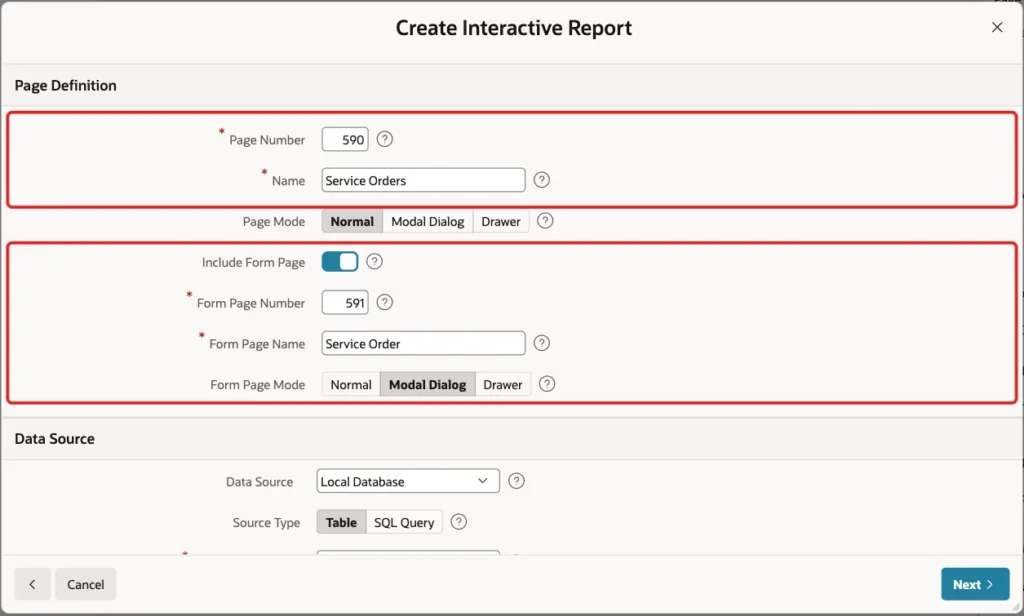
Enter Page Number 590 and Name Service Orders. Turn on Include Form Page, enter Form Page Number 591 and Form Page Name Service Order, and keep Form Page Mode Modal Dialog:
Under Data Source, keep Local Database and Source Type Table, and enter Table / View Name SERVICE_ORDERS:
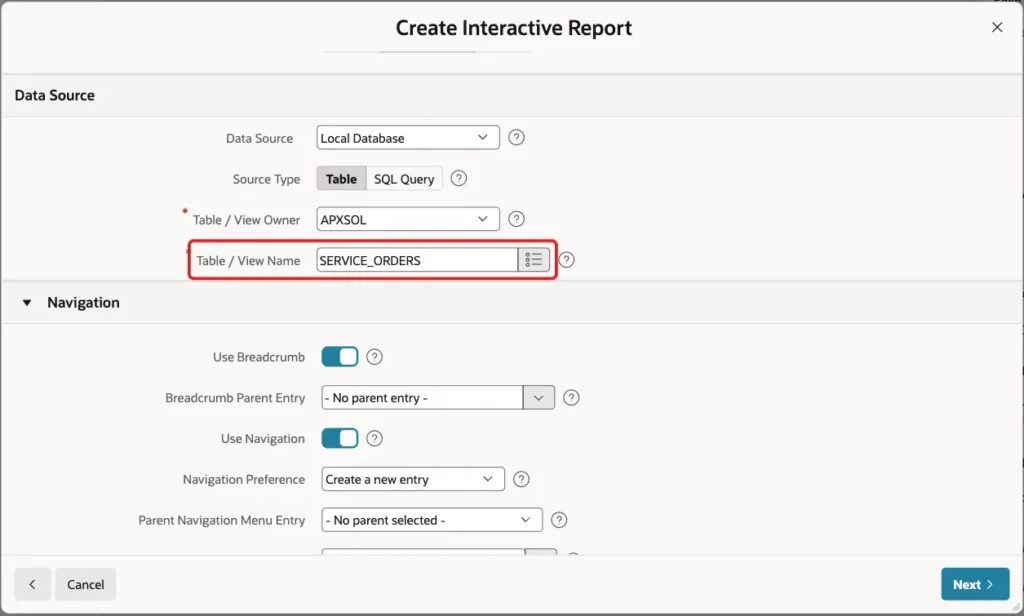
Keep Use Breadcrumb and Use Navigation on, so the report gets a menu entry, and click Next:

On the Primary Key screen, select ORDER_ID (Number) as Primary Key Column 1 and click Create Page:
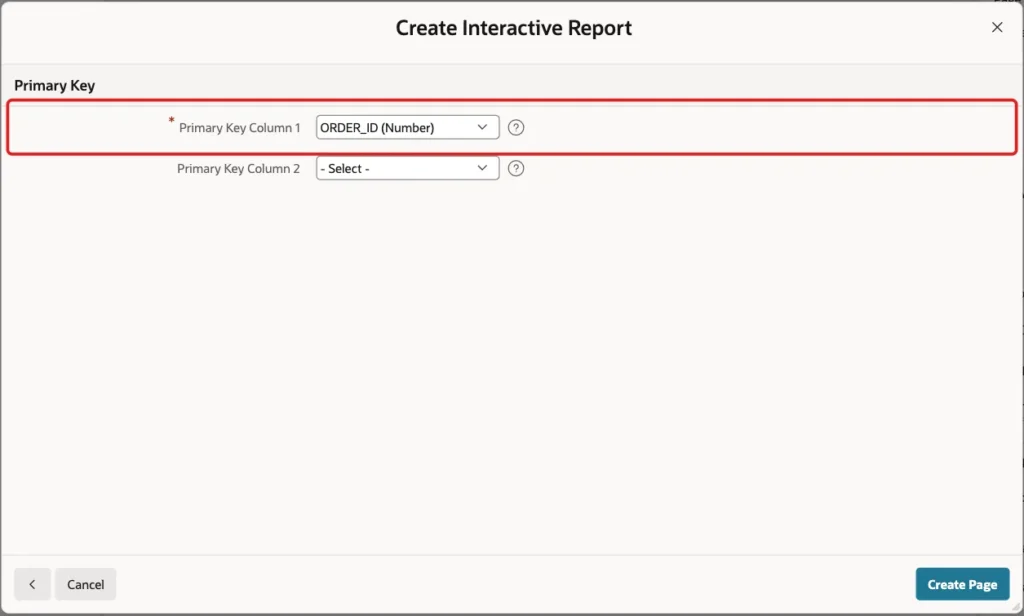
APEX creates the report on page 590 and the modal form on page 591. Because of the foreign key, it makes P591_STATUS a select list based on a new shared list, WORK_STATUSES.STATUS_NAME.
Step 4: See the Problem with the Default Select List
Run page 590 as ORDER_EDITOR and open SO-1001, a New order. The Status list offers every status, sorted by name, including Delivered and Approved:
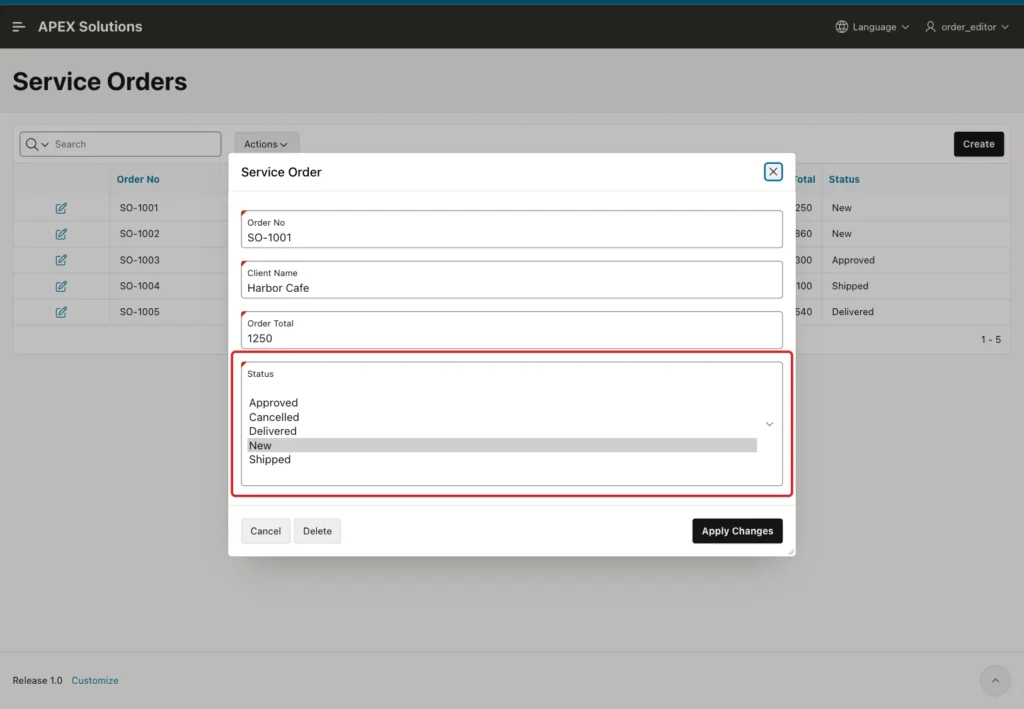
Nothing stops an Editor from approving the order or marking it as delivered. The next two steps replace the list and add a server-side check.
Step 5: Show Only the Allowed Next Statuses
Open page 591 in Page Designer and select P591_STATUS. In the List of Values group, set Type to SQL Query and enter this query:
Example:
select s.status_name
       || case when s.status_code = c.current_status then ' (current)' end as display_value,
       s.status_code as return_value
  from work_statuses s
 cross join (
         select nvl((select o.status
                       from service_orders o
                      where o.order_id = :P591_ORDER_ID), 'NEW') as current_status
           from dual
       ) c
 where s.status_code = c.current_status
    or exists (
         select 1
           from my_status_transitions m
          where m.from_status = c.current_status
            and m.to_status = s.status_code
            and :P591_ORDER_ID is not null
       )
 order by s.sort_seq
Turn off Display Null Value, and click Save:
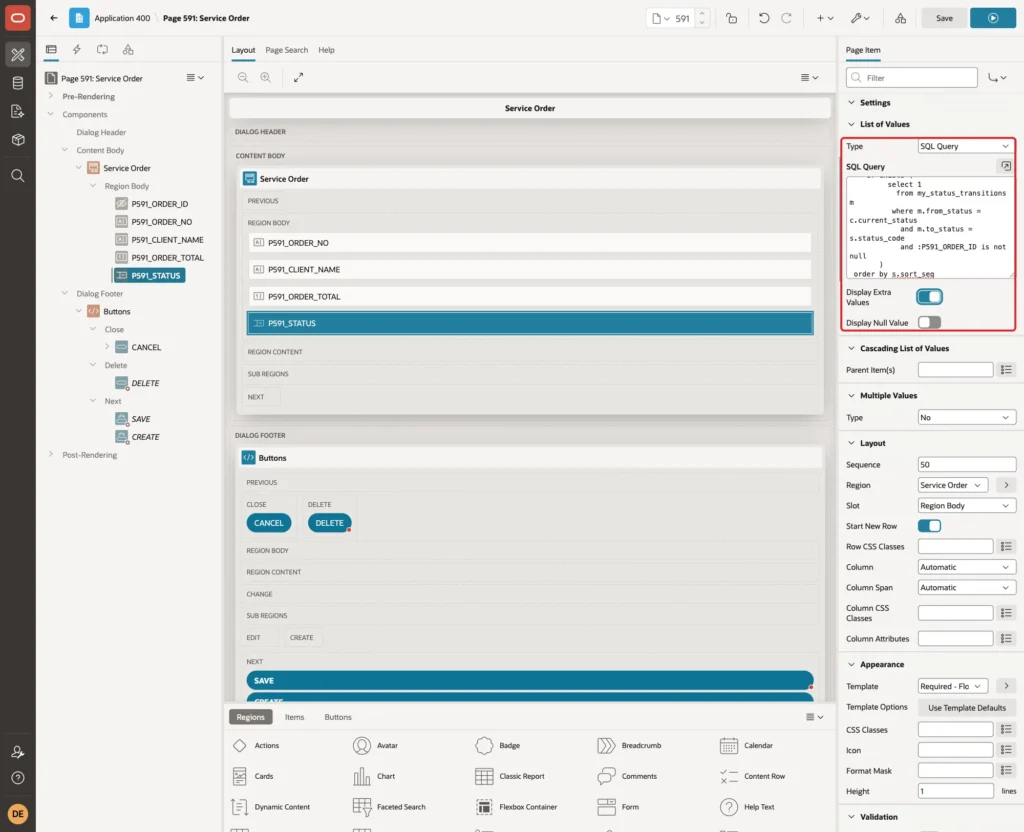
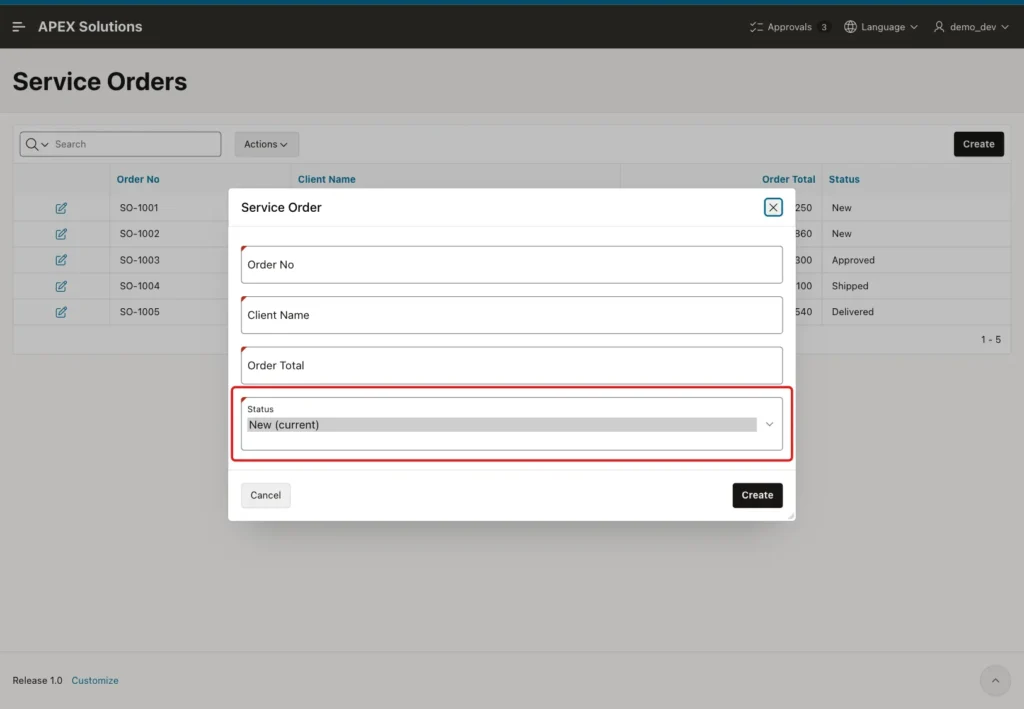
The query reads the saved status of the order from the table, not from the item. The list always contains the current status, marked "(current)", so a user can save other changes without moving the order.
The other options are the statuses that MY_STATUS_TRANSITIONS allows from the current status. For a new record, ORDER_ID is empty, so the list offers only New.
In a first version, the query had no ":P591_ORDER_ID is not null" condition. A new record was then treated like a saved New order, and the Administrator could create an order directly as Approved.
Step 6: Test the List for Each Role
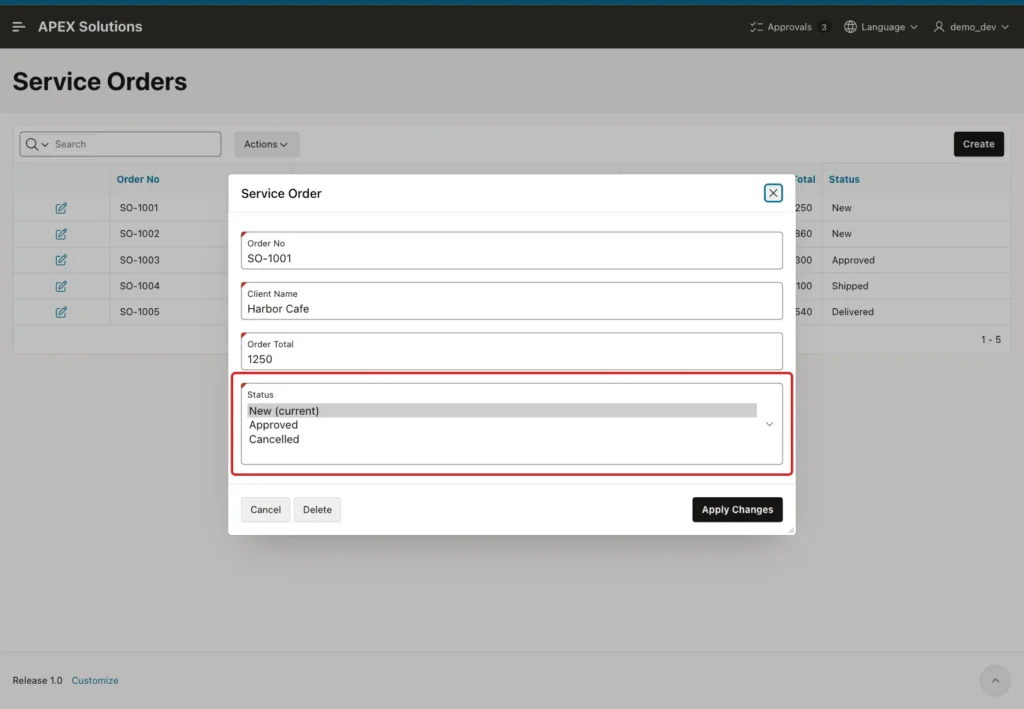
Run page 590 as DEMO_DEV, an Administrator, and open SO-1001. The list offers the current status and the two moves allowed from New:
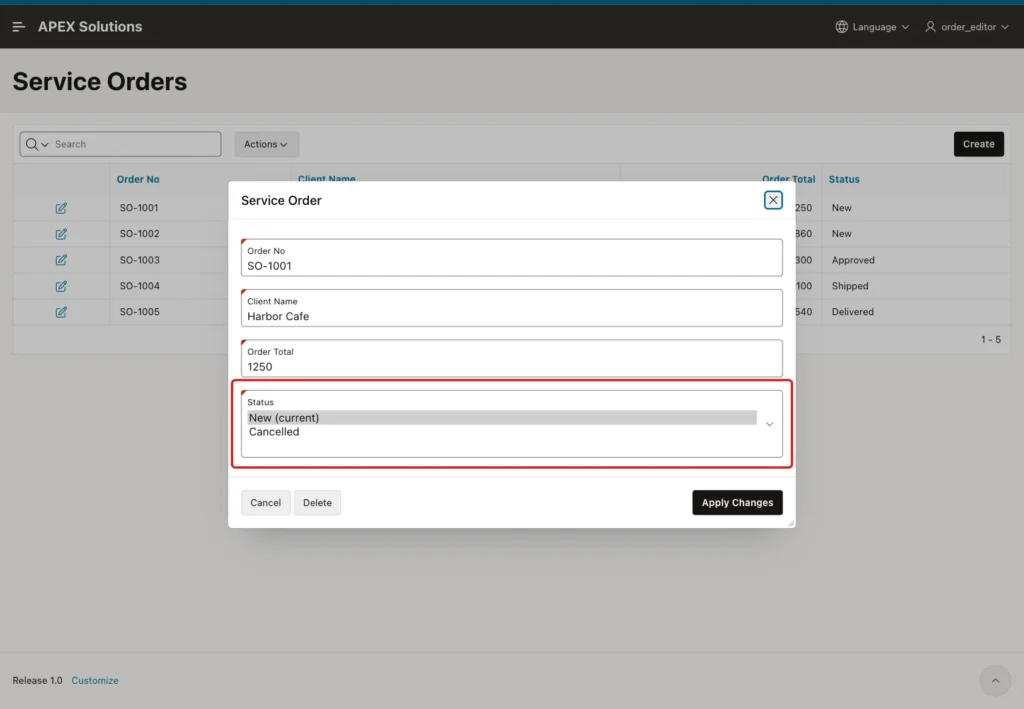
Sign in as ORDER_EDITOR and open the same order. Approved is gone, because only Administrators may approve:
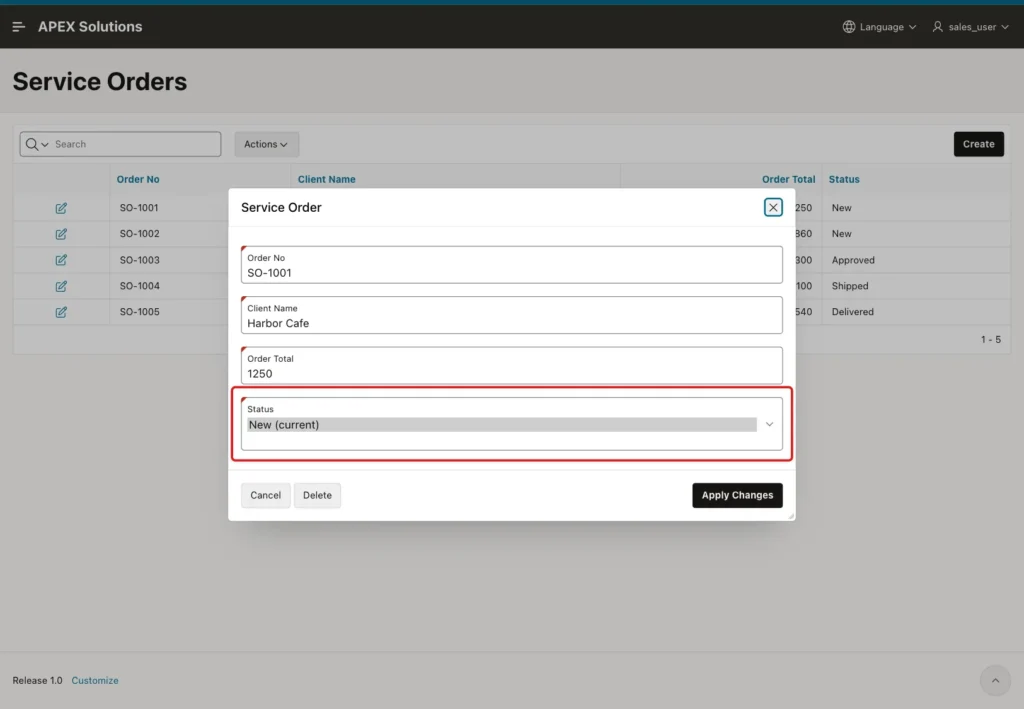
Sign in as SALES_USER, a Reader. The Reader role has no rows in STATUS_TRANSITIONS, so the list holds only the current status:
Two more checks gave the expected lists. For SO-1005, which is Delivered, even the Administrator saw only Delivered (current). When DEMO_DEV clicked Create, the list offered only New (current):
Step 7: Add a Server-Side Validation
The list only controls what the browser shows. To test this, the validation was left out at first, and a value was forced in the browser developer tools. An option SHIPPED was added to the select list of SO-1002, a New order, and selected.
Apply Changes saved it: SO-1002 changed from NEW to SHIPPED. APEX did not reject the value, although it was not in the list of values. That test row was then set back to NEW in SQL.
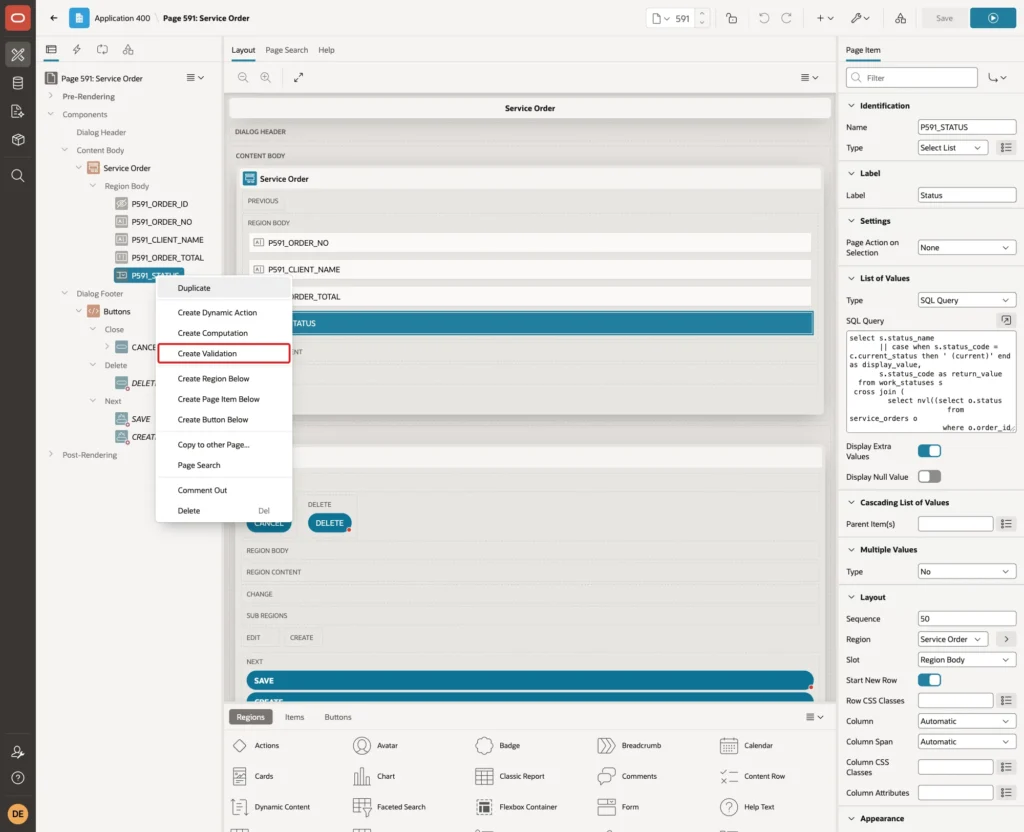
So the rule must also be checked on the server. In Page Designer, right-click P591_STATUS and click Create Validation:
Enter Name Status Change Is Allowed. Set Type to Rows returned and enter this SQL Query:
Example:
select 1
  from dual
 where :P591_STATUS = nvl((select o.status
                             from service_orders o
                            where o.order_id = :P591_ORDER_ID), 'NEW')
union all
select 1
  from service_orders o
  join my_status_transitions m
    on m.from_status = o.status
 where o.order_id = :P591_ORDER_ID
   and m.to_status = :P591_STATUS
Enter Error Message You are not allowed to move this order to the selected status. Keep Associated Item P591_STATUS, and click Save:
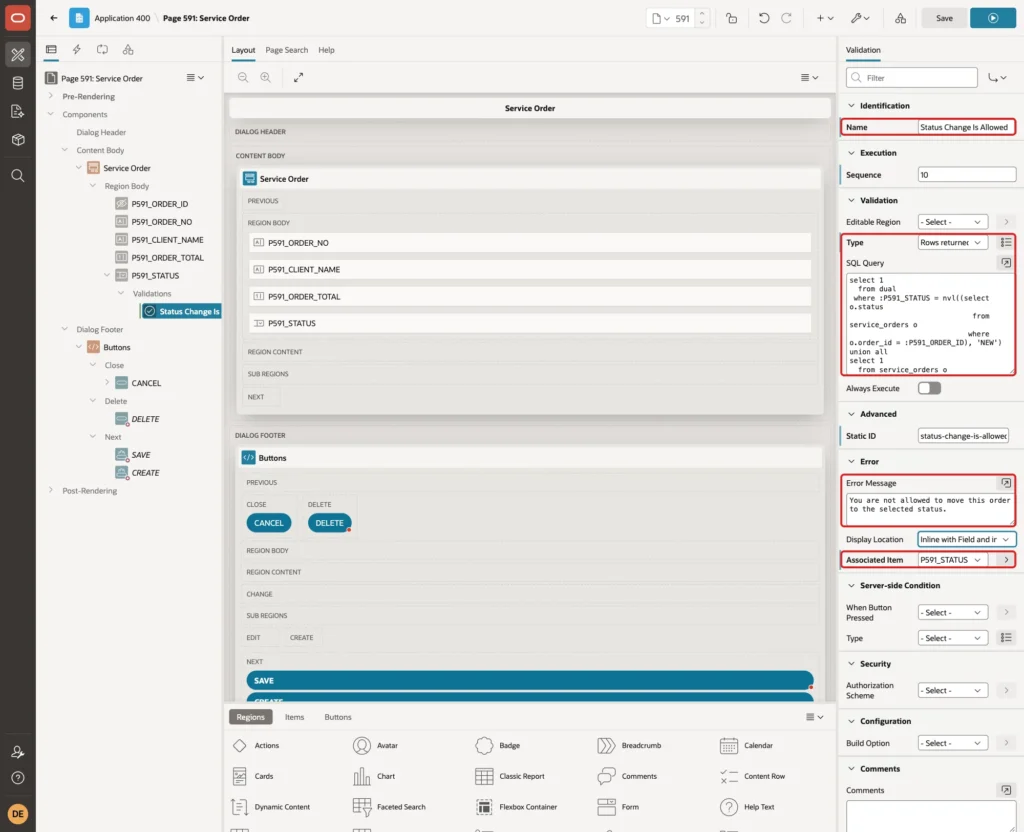
The query returns a row in two cases. The first part passes when the status is unchanged, or when a new record is saved as NEW. The second part passes when MY_STATUS_TRANSITIONS has the move from the saved status to the new one.
Any other value returns no rows, and the validation fails. Like the list, it reads the saved status from the table. There is no hidden "old status" item that a user could change in the browser.
The wizard's Delete button has Execute Validations turned off, so the validation does not block deletes.
Step 8: Test Allowed and Forced Changes
Repeat the forced test as DEMO_DEV: open SO-1002, add and select a SHIPPED option in the browser developer tools, and click Apply Changes. The validation stops it, and the dialog stays open:
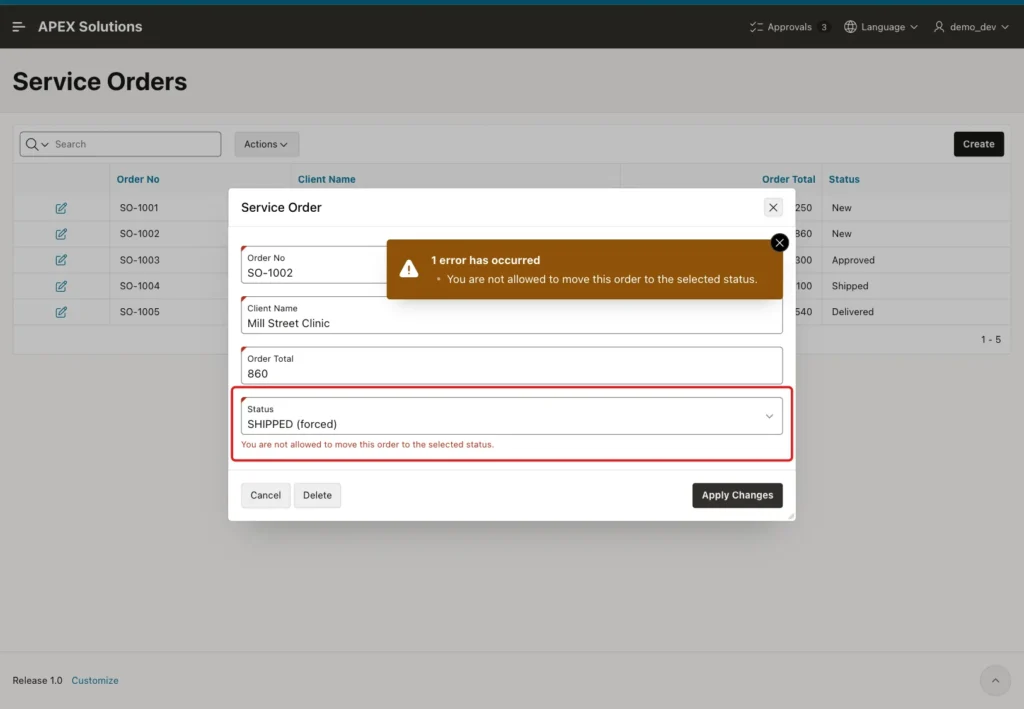
Two more forced tests failed the same way. ORDER_EDITOR forced Approved on SO-1001, a move only an Administrator may make. DEMO_DEV clicked Create, filled in a new order and forced Approved instead of New.
Now make allowed changes. As DEMO_DEV, open SO-1001, select Approved and click Apply Changes. The dialog closes and the order is saved:
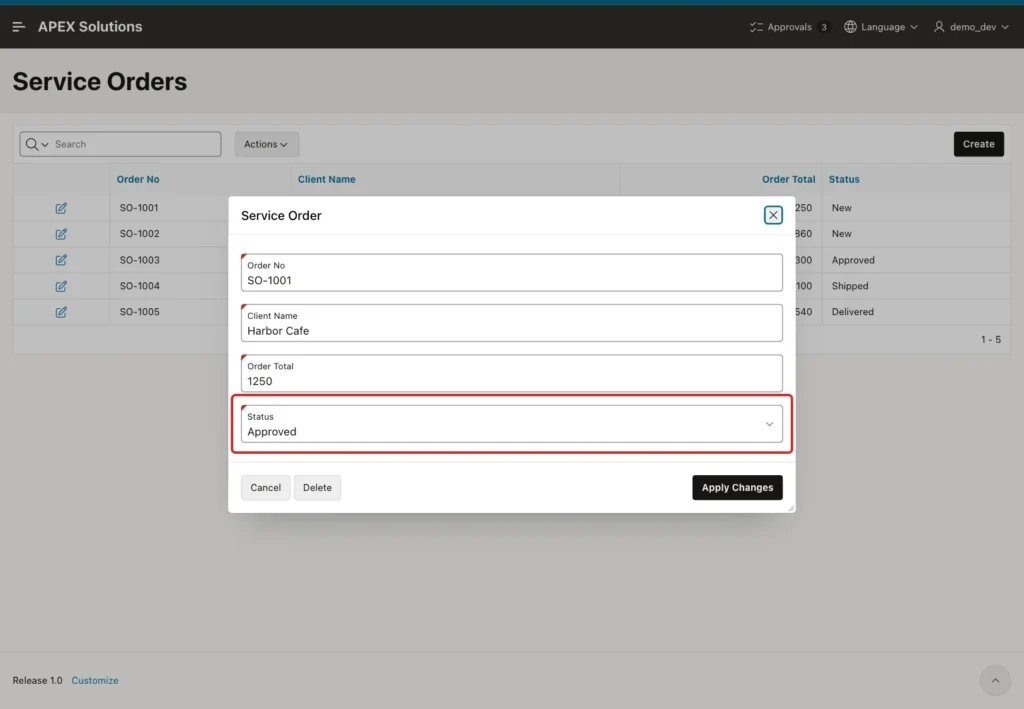
Sign in as ORDER_EDITOR and open SO-1001 again. The list now starts from Approved and offers only Shipped:
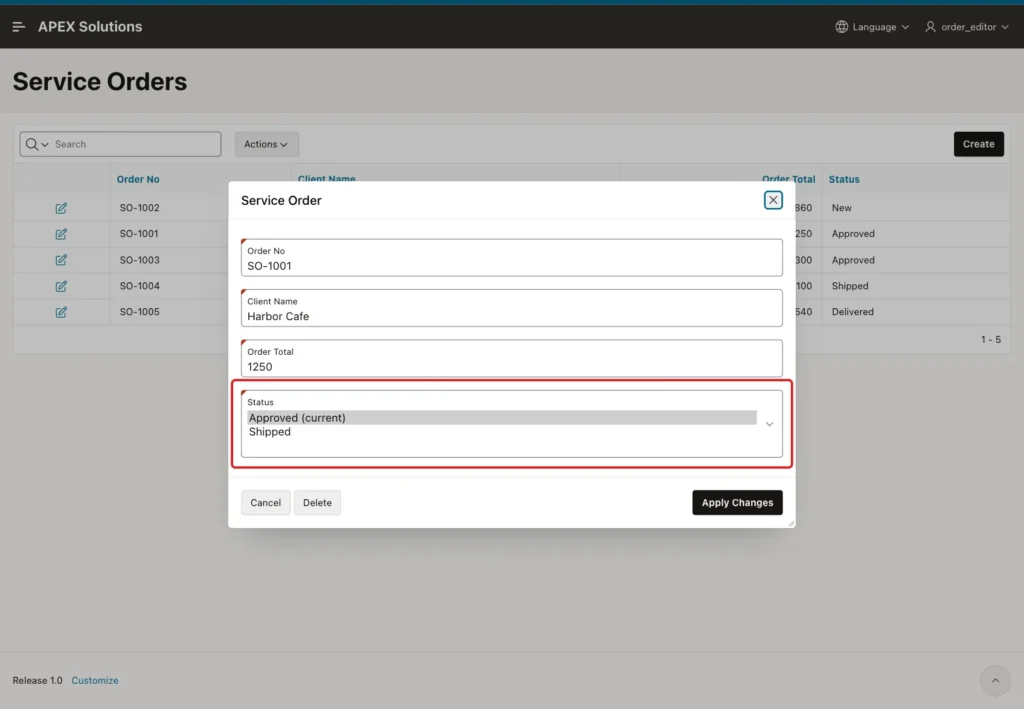
Select Shipped and click Apply Changes; the order is saved. Finally, as DEMO_DEV, click Create and add order SO-1006 for Riverside Gym with Order Total 980. It is saved with status New.
Step 9: Check the Data in SQL
Check the orders after the tests:
Example:
set lines 200 pages 100
column order_no format a8
column client_name format a20
column status format a10
select order_id, order_no, client_name, order_total, status
  from service_orders
 order by order_no;
Output:
   ORDER_ID ORDER_NO    CLIENT_NAME               ORDER_TOTAL STATUS
___________ ___________ ______________________ ______________ ____________
          1 SO-1001     Harbor Cafe                      1250 SHIPPED
          2 SO-1002     Mill Street Clinic                860 NEW
          3 SO-1003     Green Valley School              2300 APPROVED
          4 SO-1004     Northgate Hotel                  4100 SHIPPED
          5 SO-1005     Lakeside Bakery                   540 DELIVERED
         21 SO-1006     Riverside Gym                     980 NEW

6 rows selected.
SO-1001 went from New to Approved to Shipped through two allowed moves. SO-1002 is still New, because both forced attempts after Step 7 were rejected. SO-1006 is the new order; the jump to ORDER_ID 21 comes from the identity cache and is normal.
The constraints on STATUS_TRANSITIONS keep the rule table itself clean. This test tries three wrong rules:
Example:
set lines 200 pages 100
insert into status_transitions values ('NEW', 'NEW', 'editor');
insert into status_transitions values ('NEW', 'APPROVED', 'reader');
insert into status_transitions values ('NEW', 'ON_HOLD', 'administrator');
Output:
Error starting at line : 2 File @ b62/04-rule-checks.sql
In command -
insert into status_transitions values ('NEW', 'NEW', 'editor')
Error report -
ORA-02290: check constraint (APXSOL.STATUS_TRANSITIONS_MOVE_CK) violated
Help: https://docs.oracle.com/error-help/db/ora-02290/

Error starting at line : 3 File @ b62/04-rule-checks.sql
In command -
insert into status_transitions values ('NEW', 'APPROVED', 'reader')
Error report -
ORA-02290: check constraint (APXSOL.STATUS_TRANSITIONS_ROLE_CK) violated
Help: https://docs.oracle.com/error-help/db/ora-02290/

Error starting at line : 4 File @ b62/04-rule-checks.sql
In command -
insert into status_transitions values ('NEW', 'ON_HOLD', 'administrator')
Error report -
ORA-02291: integrity constraint (APXSOL.STATUS_TRANSITIONS_TO_FK) violated - parent key not found
Help: https://docs.oracle.com/error-help/db/ora-02291/
A move to the same status fails with ORA-02290 on STATUS_TRANSITIONS_MOVE_CK, an unknown role fails on STATUS_TRANSITIONS_ROLE_CK, and a status that does not exist fails with ORA-02291.
The APEX rules do not apply to SQL run outside the application. This update moves SO-1002 from New to Delivered and then rolls back:
Example:
set lines 200 pages 100
column order_no format a8
column status format a10
update service_orders
   set status = 'DELIVERED'
 where order_no = 'SO-1002';

select order_no, status
  from service_orders
 where order_no = 'SO-1002';

rollback;
Output:
1 row updated.

ORDER_NO    STATUS
___________ ____________
SO-1002     DELIVERED

Rollback complete.
The foreign key only checks that DELIVERED is a known status. If other programs update the table, they must check STATUS_TRANSITIONS too, or the check has to move into a database trigger, because a constraint cannot compare the old and the new value of a column.
Things to Know
- Changing the rules needs no code change. In a test, a new row NEW to SHIPPED for editor appeared at once in MY_STATUS_TRANSITIONS for ORDER_EDITOR; it was deleted again afterwards.
- The role values must match the static IDs of the Access Control roles, in the same case. In this application they are lowercase: administrator, editor and reader.
- Keep the server-side validation even when the list is filtered. In this test, a forced value that was not in the list of values was saved until the validation was added.
- The list and the validation both read the saved status from the table, not from a page item, so the starting point of the move comes from the database.
- Statuses without outgoing rows, such as Delivered and Cancelled here, are final: the list shows only the current value.
- The view MY_STATUS_TRANSITIONS works only inside an APEX session, because it reads APEX$SESSION. Outside APEX, create a session with APEX_SESSION.CREATE_SESSION, as in Step 2.
Related Guides
- How to Build a Kanban Board for Order Status in Oracle APEX
- How to Make a Whole Form Read-Only Based on the Record's Status in Oracle APEX
Conclusion
A transition table turns status rules into data in Oracle APEX. A SQL list of values shows each user only the current status and the next steps their role allows, and a Rows returned validation checks the same rule on the server.
The two parts work together: the list keeps the form simple, and the validation stops forced values. Constraints keep the rule table valid, and new rules need only a new row.
See my articles more often when you search Google.
