
Categories, departments, locations and account codes are often stored as a tree: each row points to its parent row. A plain select list on such a table shows a flat list of names. Users then cannot tell whether "Desks" is under Office or under Electronics, and two branches may even use the same name.
A hierarchical list of values solves this. APEX does not need a special item type for it: a CONNECT BY query gives every row its level and its full path.
This guide shows two ways to use that query. A select list with indented names suits short trees, and a Popup LOV with the full path suits large trees, because users can search by any parent name.
The guide uses catalog entries as the example; the same steps work for any table that points to a self-referencing category table. How to Show Hierarchical Data (Manager and Employees) in a Tree in Oracle APEX displays a hierarchy in a Tree region. Here the hierarchy is used inside a form field, to pick and save one value.
Step 1: Create the Tables
The example needs two tables. ITEM_CATEGORIES holds the category tree: PARENT_ID points to another row of the same table, and top-level categories have no parent. CATALOG_ENTRIES holds the entries, and each entry belongs to one category.
Create the tables, the indexes and the sample data:
Example:
create table item_categories (
  category_id    number generated by default on null as identity,
  parent_id      number,
  category_name  varchar2(60 char) not null,
  constraint item_categories_pk primary key (category_id),
  constraint item_categories_parent_fk foreign key (parent_id)
    references item_categories (category_id),
  constraint item_categories_self_ck check (parent_id <> category_id)
);

create unique index item_categories_name_uk
  on item_categories (nvl(parent_id, 0), upper(category_name));

create index item_categories_parent_ix on item_categories (parent_id);

create table catalog_entries (
  entry_id     number generated by default on null as identity,
  entry_name   varchar2(100 char) not null,
  category_id  number not null,
  unit_price   number(10,2) not null,
  constraint catalog_entries_pk primary key (entry_id),
  constraint catalog_entries_category_fk foreign key (category_id)
    references item_categories (category_id),
  constraint catalog_entries_price_ck check (unit_price >= 0)
);

create index catalog_entries_category_ix on catalog_entries (category_id);

insert into item_categories (category_id, parent_id, category_name) values (1, null, 'Electronics');
insert into item_categories (category_id, parent_id, category_name) values (2, 1, 'Computers');
insert into item_categories (category_id, parent_id, category_name) values (3, 2, 'Laptops');
insert into item_categories (category_id, parent_id, category_name) values (4, 2, 'Desktops');
insert into item_categories (category_id, parent_id, category_name) values (5, 1, 'Audio');
insert into item_categories (category_id, parent_id, category_name) values (6, 5, 'Headphones');
insert into item_categories (category_id, parent_id, category_name) values (7, 5, 'Speakers');
insert into item_categories (category_id, parent_id, category_name) values (8, null, 'Office');
insert into item_categories (category_id, parent_id, category_name) values (9, 8, 'Furniture');
insert into item_categories (category_id, parent_id, category_name) values (10, 9, 'Chairs');
insert into item_categories (category_id, parent_id, category_name) values (11, 9, 'Desks');
insert into item_categories (category_id, parent_id, category_name) values (12, 8, 'Supplies');
insert into item_categories (category_id, parent_id, category_name) values (13, 12, 'Paper');

insert into catalog_entries (entry_id, entry_name, category_id, unit_price) values (1, 'UltraBook 14', 3, 1150);
insert into catalog_entries (entry_id, entry_name, category_id, unit_price) values (2, 'Tower PC Pro', 4, 980);
insert into catalog_entries (entry_id, entry_name, category_id, unit_price) values (3, 'Noise Cancelling Headset', 6, 210);
insert into catalog_entries (entry_id, entry_name, category_id, unit_price) values (4, 'Ergonomic Chair', 10, 340);
insert into catalog_entries (entry_id, entry_name, category_id, unit_price) values (5, 'A4 Copy Paper Box', 13, 28);

commit;

alter table item_categories modify category_id generated by default on null as identity (start with limit value);
alter table catalog_entries modify entry_id generated by default on null as identity (start with limit value);

column category_name format a14
select category_id, parent_id, category_name
from   item_categories
order by category_id;
Output:
Table ITEM_CATEGORIES created.

Index ITEM_CATEGORIES_NAME_UK created.

Index ITEM_CATEGORIES_PARENT_IX created.

Table CATALOG_ENTRIES created.

Index CATALOG_ENTRIES_CATEGORY_IX created.

1 row inserted.

1 row inserted.

1 row inserted.

1 row inserted.

1 row inserted.

1 row inserted.

1 row inserted.

1 row inserted.

1 row inserted.

1 row inserted.

1 row inserted.

1 row inserted.

1 row inserted.

1 row inserted.

1 row inserted.

1 row inserted.

1 row inserted.

1 row inserted.

Commit complete.

Table ITEM_CATEGORIES altered.

Table CATALOG_ENTRIES altered.

   CATEGORY_ID    PARENT_ID CATEGORY_NAME
______________ ____________ ________________
             1              Electronics
             2            1 Computers
             3            2 Laptops
             4            2 Desktops
             5            1 Audio
             6            5 Headphones
             7            5 Speakers
             8              Office
             9            8 Furniture
            10            9 Chairs
            11            9 Desks
            12            8 Supplies
            13           12 Paper

13 rows selected.- ITEM_CATEGORIES_PARENT_FK is a self-referencing foreign key. A parent must be an existing category.
- ITEM_CATEGORIES_SELF_CK stops a category from being its own parent.
- ITEM_CATEGORIES_NAME_UK is a unique index on nvl(parent_id, 0) and upper(category_name). The same name cannot appear twice under one parent, but "Paper" could still exist under two different parents.
- CATALOG_ENTRIES_CATEGORY_FK links each entry to a category, and CATALOG_ENTRIES_CATEGORY_IX indexes that foreign key.
Step 2: Write the Hierarchical Queries
Both list types use a CONNECT BY query. START WITH picks the top-level rows, CONNECT BY PRIOR walks from each parent to its children, and ORDER SIBLINGS BY sorts the children inside each parent without breaking the tree order.
The first query indents each name by its level. It is the list of values for the select list:
Example:
column display_value format a20
select lpad(unistr('\00a0'), (level - 1) * 4, unistr('\00a0')) || category_name as display_value,
       category_id as return_value
from   item_categories
start with parent_id is null
connect by prior category_id = parent_id
order siblings by category_name;
Output:
DISPLAY_VALUE            RETURN_VALUE
_____________________ _______________
Electronics                         1
    Audio                           5
        Headphones                  6
        Speakers                    7
    Computers                       2
        Desktops                    4
        Laptops                     3
Office                              8
    Furniture                       9
        Chairs                     10
        Desks                      11
    Supplies                       12
        Paper                      13

13 rows selected.
The indent uses non-breaking spaces. A browser collapses normal leading spaces in a select list option, so the names would all start at the left edge.
In a first test, chr(160) gave no indent at all in this AL32UTF8 database, because chr(160) returns the single byte 160, which is not a valid UTF-8 character. unistr('\00a0') returns a real non-breaking space.
The second query builds the full path of each category with SYS_CONNECT_BY_PATH. SUBSTR removes the separator in front of the first name:
Example:
column category_path format a36
select substr(sys_connect_by_path(category_name, ' > '), 4) as category_path,
       category_id,
       connect_by_isleaf as is_leaf
from   item_categories
start with parent_id is null
connect by prior category_id = parent_id
order siblings by category_name;
Output:
CATEGORY_PATH                            CATEGORY_ID    IS_LEAF
_____________________________________ ______________ __________
Electronics                                        1          0
Electronics > Audio                                5          0
Electronics > Audio > Headphones                   6          1
Electronics > Audio > Speakers                     7          1
Electronics > Computers                            2          0
Electronics > Computers > Desktops                 4          1
Electronics > Computers > Laptops                  3          1
Office                                             8          0
Office > Furniture                                 9          0
Office > Furniture > Chairs                       10          1
Office > Furniture > Desks                        11          1
Office > Supplies                                 12          0
Office > Supplies > Paper                         13          1

13 rows selected.
Every path contains the names of all its parents. That is what makes the path searchable: a search for "Audio" matches Audio itself and every category under it. IS_LEAF is not used by the lists; it shows which categories have no children.
Step 3: Create a Shared List of Values for the Paths
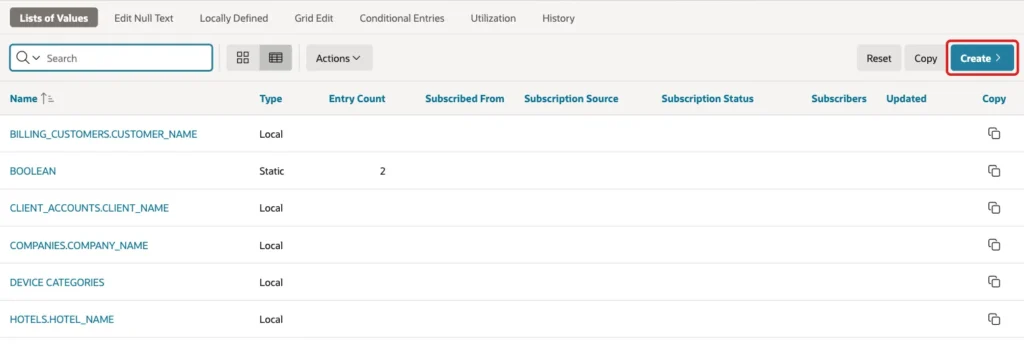
The path list will be used by the form and by the report, so create it once as a shared component. In Shared Components, under Other Components, click Lists of Values, then click Create:
Keep From Scratch and click Next:

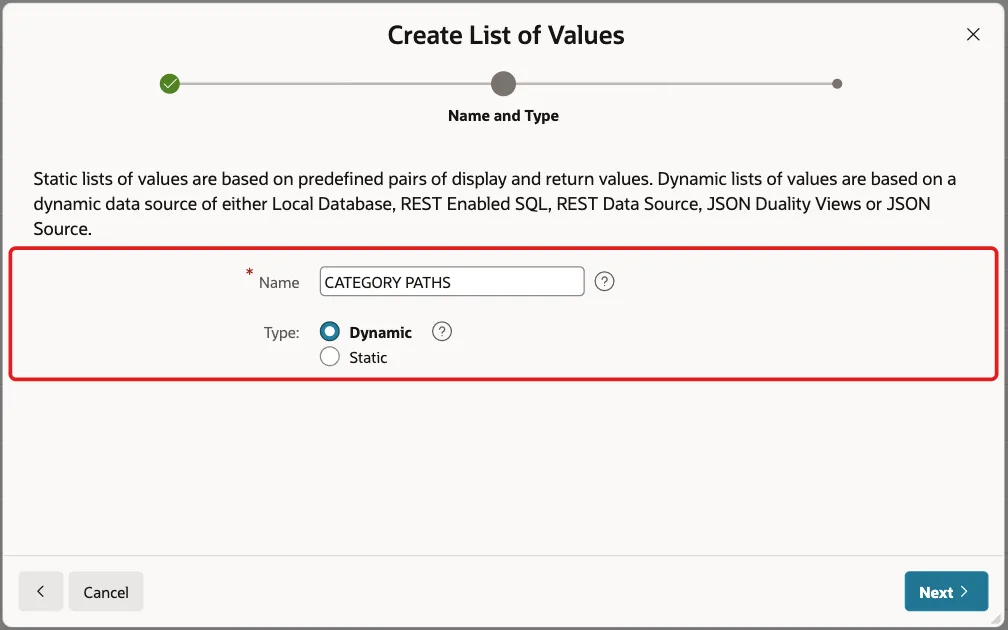
Enter Name CATEGORY PATHS, keep Type Dynamic, and click Next:
Keep Data Source Local Database, click SQL Query and enter this query. Click Next:
Example:
select category_id,
       substr(sys_connect_by_path(category_name, ' > '), 4) as category_path
from   item_categories
start with parent_id is null
connect by prior category_id = parent_id
order siblings by category_name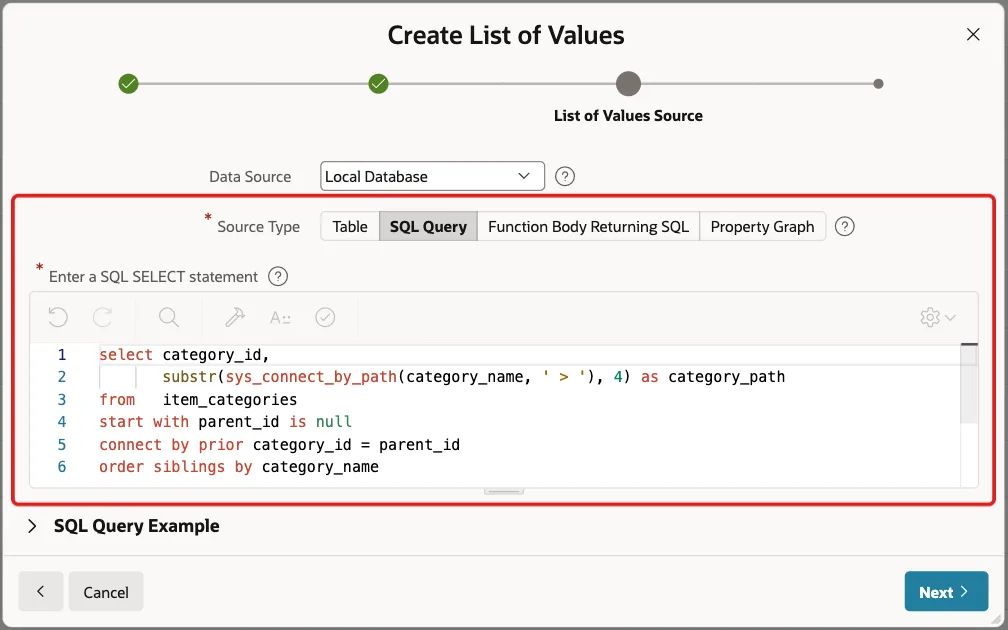
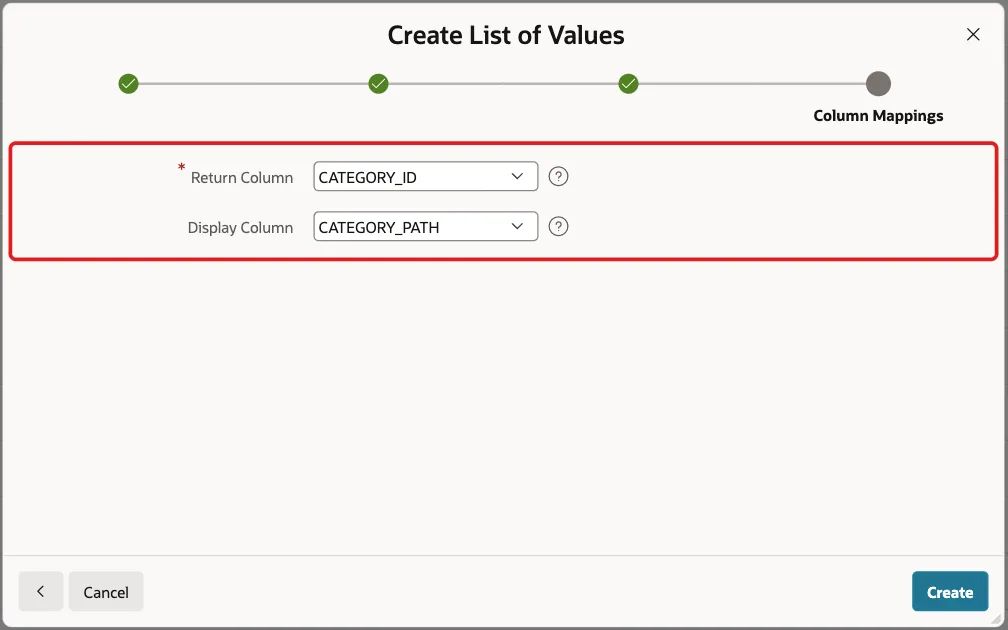
Select CATEGORY_ID as the Return Column and CATEGORY_PATH as the Display Column, then click Create:
Step 4: Create the Report and Form Pages
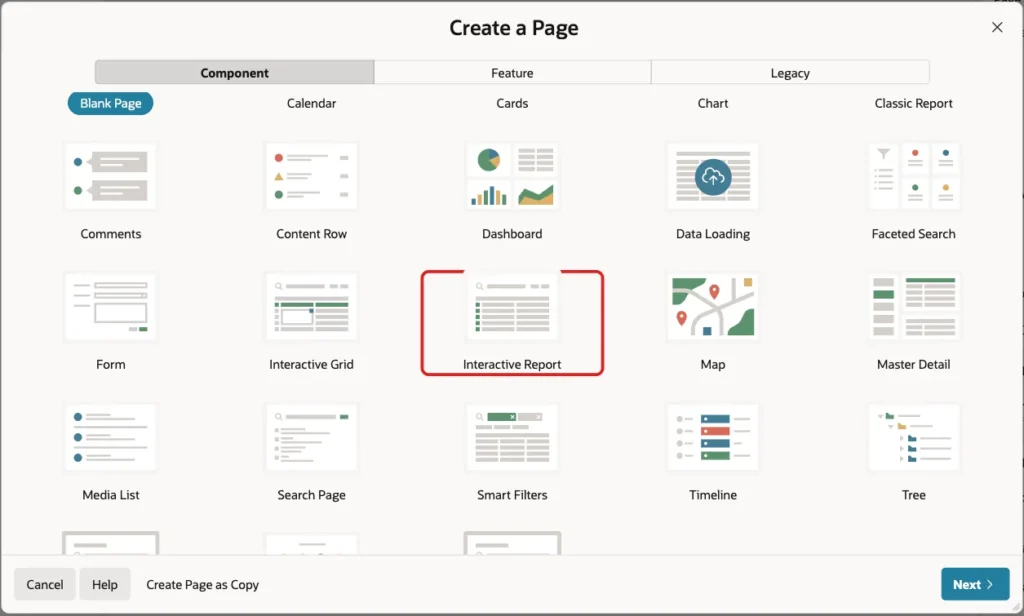
In App Builder, open the application and click Create Page. On the Component tab, click Interactive Report:
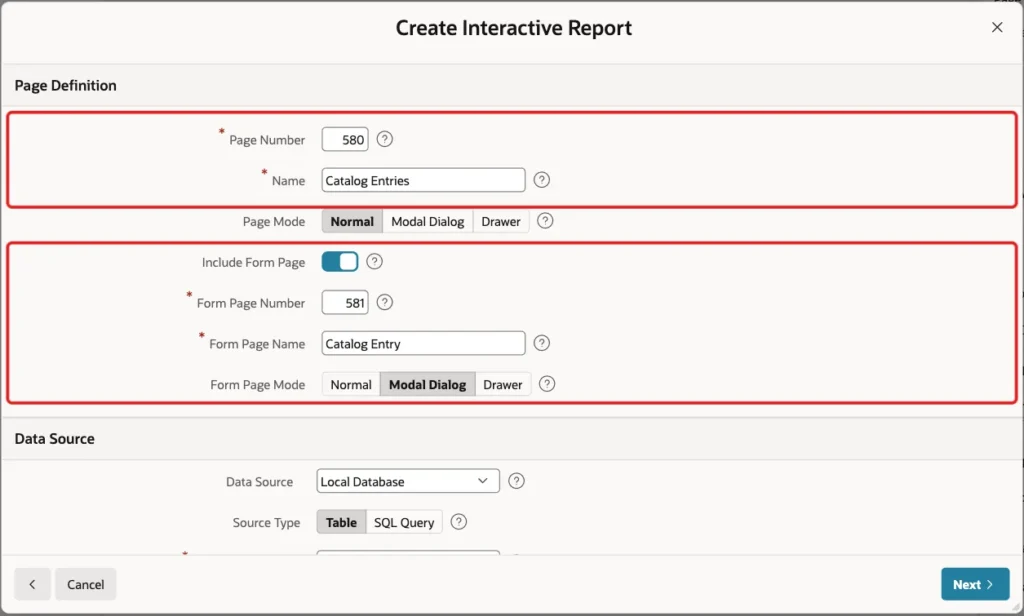
Enter Page Number 580 and Name Catalog Entries. Turn on Include Form Page, enter Form Page Number 581 and Form Page Name Catalog Entry, and keep Form Page Mode Modal Dialog:
Under Data Source, keep Local Database and Source Type Table, and enter Table / View Name CATALOG_ENTRIES:
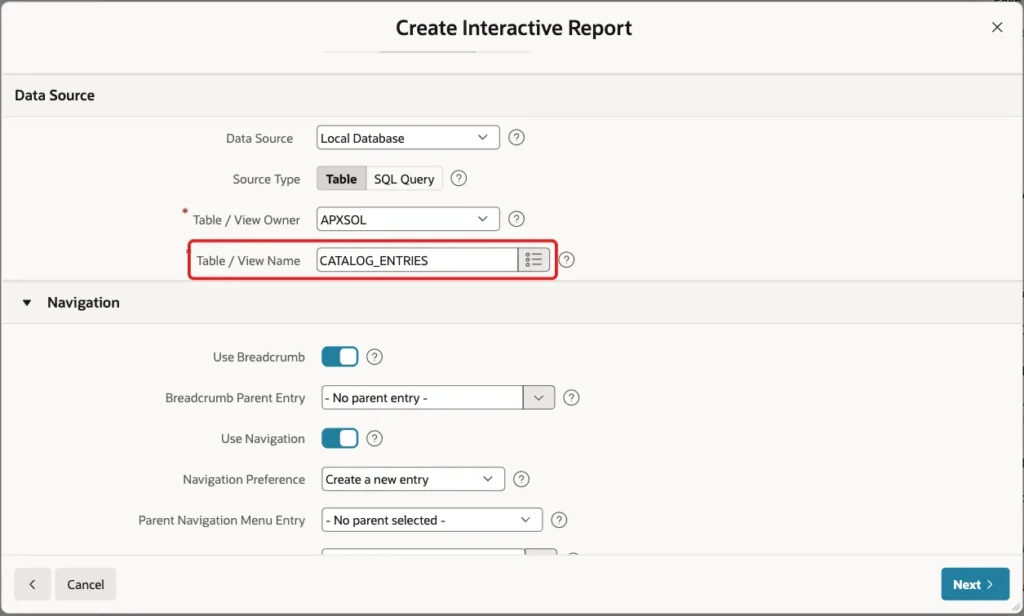
Keep Use Breadcrumb and Use Navigation on, so the report gets a menu entry, and click Next:

On the Primary Key screen, select ENTRY_ID (Number) as Primary Key Column 1 and click Create Page:
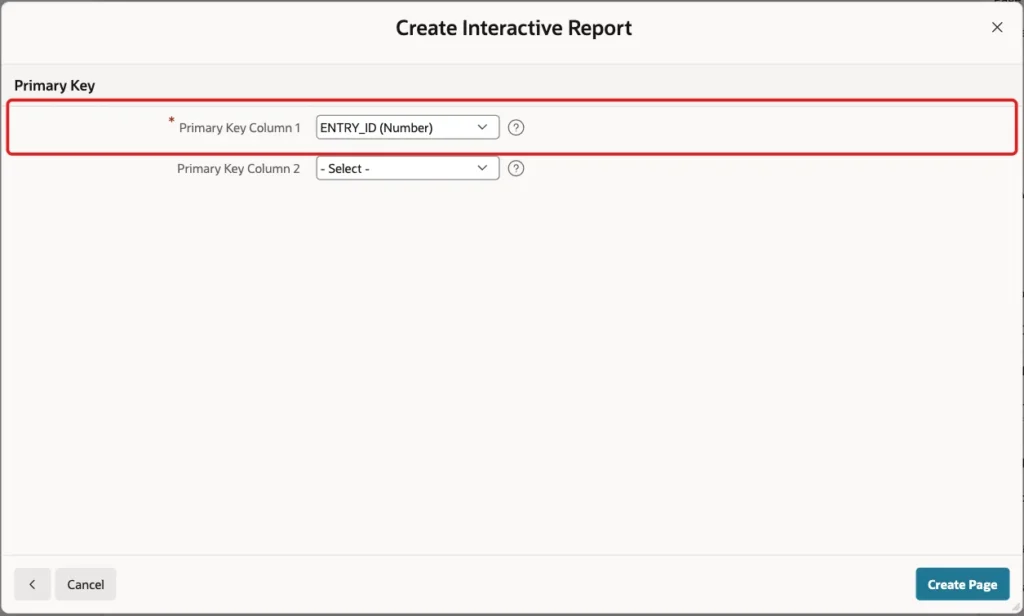
APEX creates the report on page 580 and the modal form on page 581. For CATEGORY_ID it creates a select list with a new shared list, ITEM_CATEGORIES.CATEGORY_NAME. That list shows only the flat category names.
Step 5: Show an Indented Select List
Open page 581 in Page Designer and select P581_CATEGORY_ID. Keep Type Select List and change Label to Category:

In the List of Values group, set Type to SQL Query and enter this query:
Example:
select lpad(unistr('\00a0'), (level - 1) * 4, unistr('\00a0')) || category_name as display_value,
       category_id as return_value
from   item_categories
start with parent_id is null
connect by prior category_id = parent_id
order siblings by category_name
Turn on Display Null Value and enter Null Display Value - Select Category -:

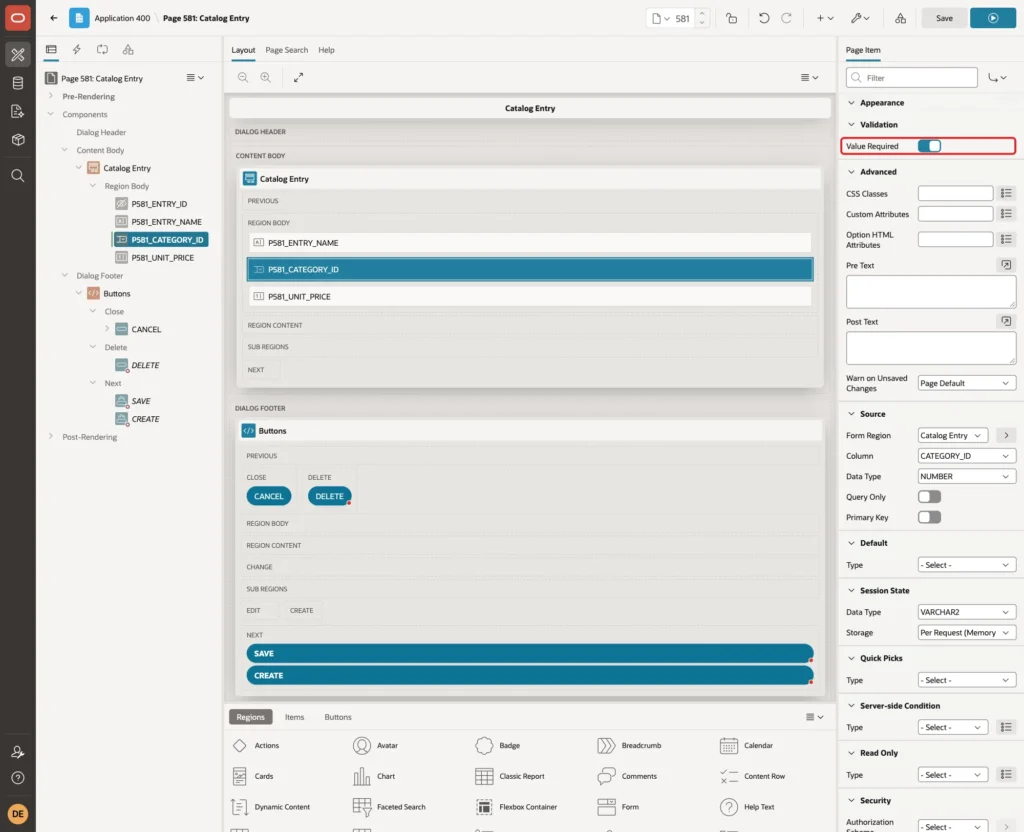
In the Validation group, turn on Value Required, and click Save:
Step 6: Test the Select List
Run page 580 and click Create. Enter Entry Name Gaming Laptop 16 and Unit Price 1490, then open the Category list. The categories appear in tree order, and each level is indented under its parent:

Select Laptops, the third level under Electronics and Computers:
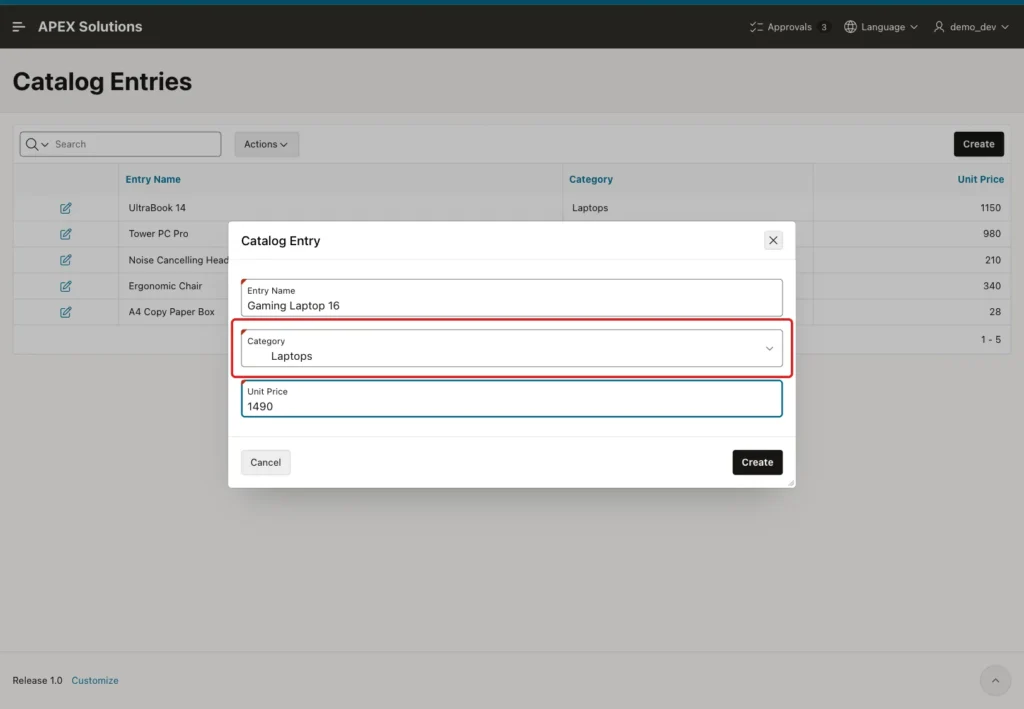
Click Create. The new entry is saved with CATEGORY_ID 3, the ID of Laptops, as the SQL check in Step 9 shows. The indent spaces exist only in the display value; the return value is the plain ID.
Step 7: Switch to a Popup LOV with Path Search
The indented list works well for a dozen categories. With hundreds of them, users scroll a long list and see only the last name of each row. A Popup LOV with the CATEGORY PATHS list shows the full path and has a search field.
On page 581, select P581_CATEGORY_ID and change Type to Popup LOV:

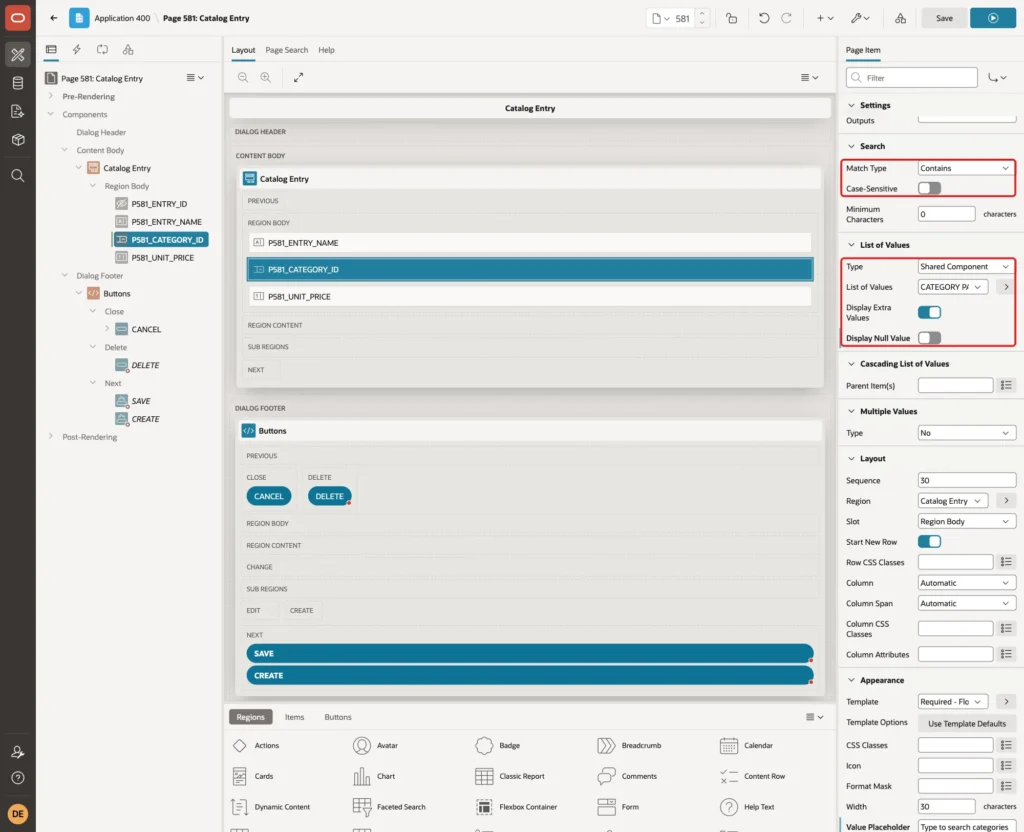
In the Search group, keep Match Type Contains and Case-Sensitive off. In the List of Values group, set Type to Shared Component and List of Values to CATEGORY PATHS. Turn off Display Null Value, because a Popup LOV shows a null entry as one more row in the results:
In the Appearance group, enter Value Placeholder Type to search categories, and click Save:
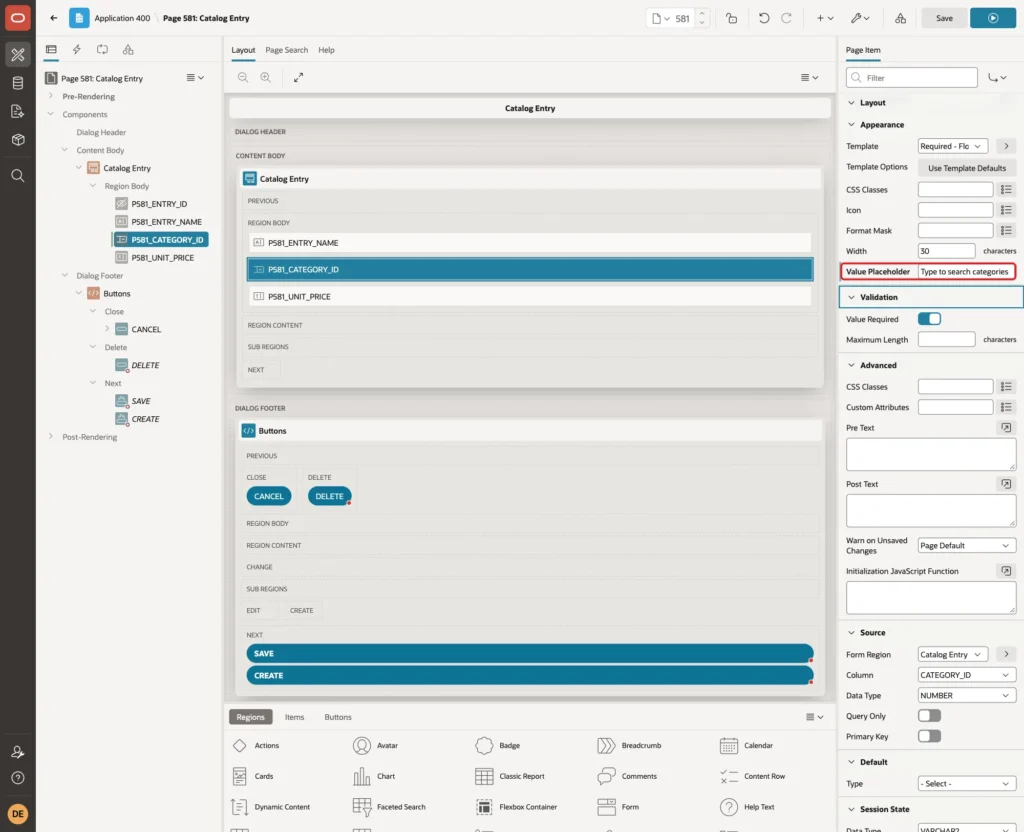
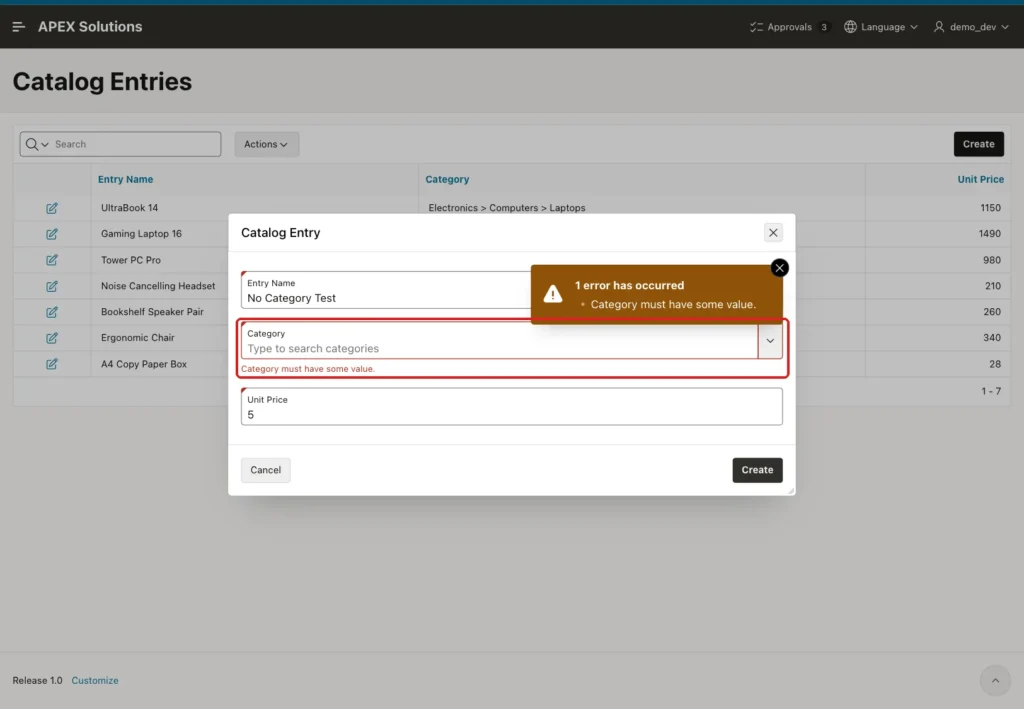
Value Required stays on from Step 5, so the field still cannot be left empty.
Step 8: Test the Search by Parent Name
Run page 580 and click Create. Enter Entry Name Bookshelf Speaker Pair and Unit Price 260. Click the Category field, type audio in the search field and press Enter. The results show Audio and both of its children, Headphones and Speakers, because each path contains the word Audio:
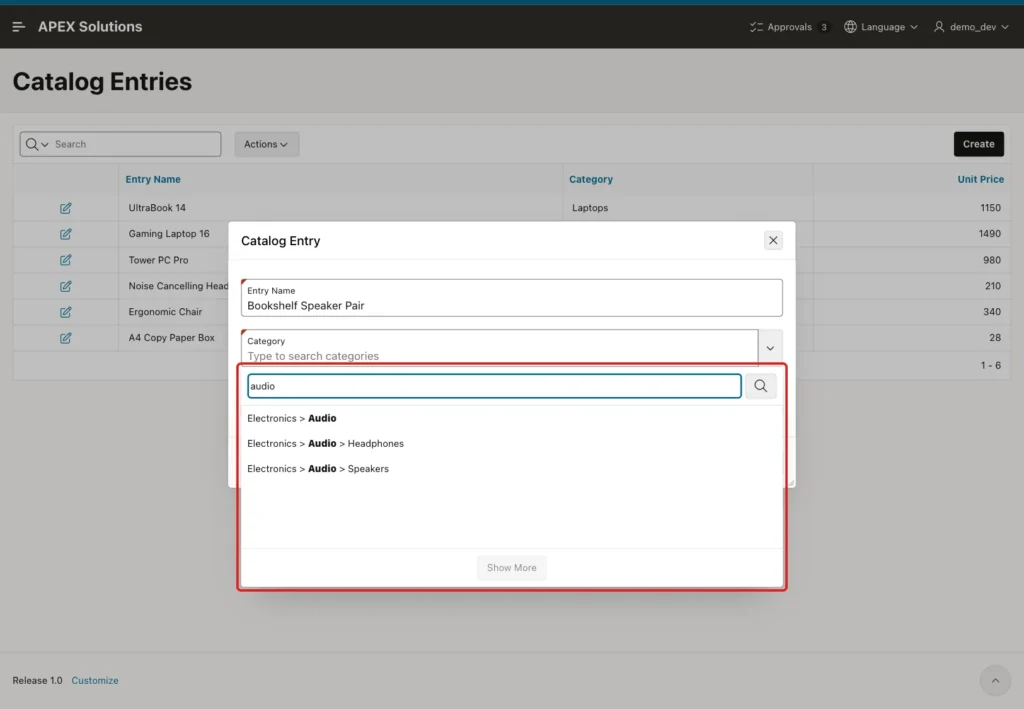
Other searches worked the same way. "office" returned the six categories under Office, and "lap" returned only Electronics > Computers > Laptops. In this test, the list filtered after Enter was pressed, not while typing.
Click Electronics > Audio > Speakers. The field shows the full path, so the user can see exactly where the category sits:
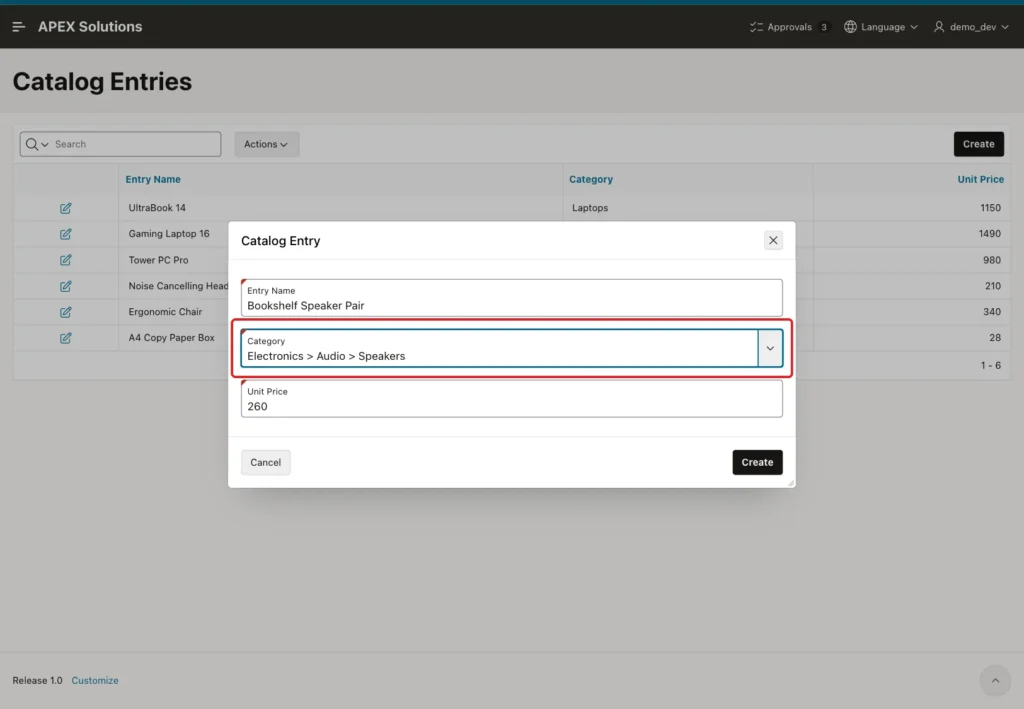
Click Create. The entry is saved with CATEGORY_ID 7, the ID of Speakers. When an existing entry is opened, the field shows its path too: Tower PC Pro opened with Electronics > Computers > Desktops.
Next, click Create again, enter only Entry Name and Unit Price, and click Create. Value Required stops the save:
Step 9: Show the Path in the Report and Check the Data
The report still uses the wizard's flat list. Open page 580 in Page Designer, expand Columns under the Catalog Entries region and select CATEGORY_ID. Keep Type Plain Text (based on List of Values) and change List of Values to CATEGORY PATHS. Click Save:

Run page 580. Each entry now shows its full category path:
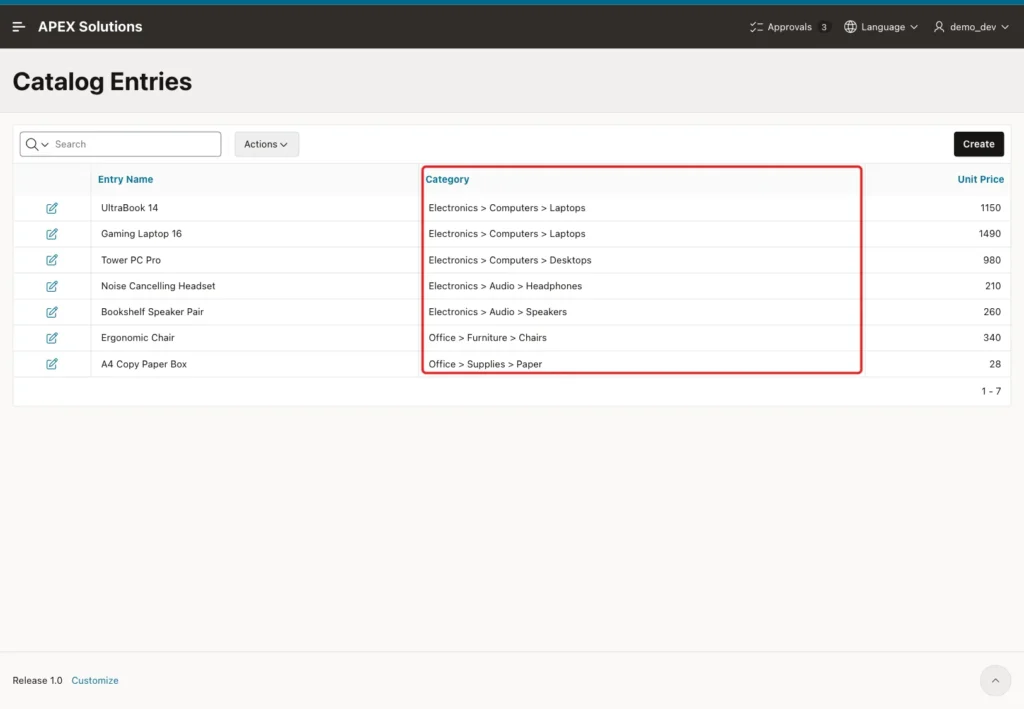
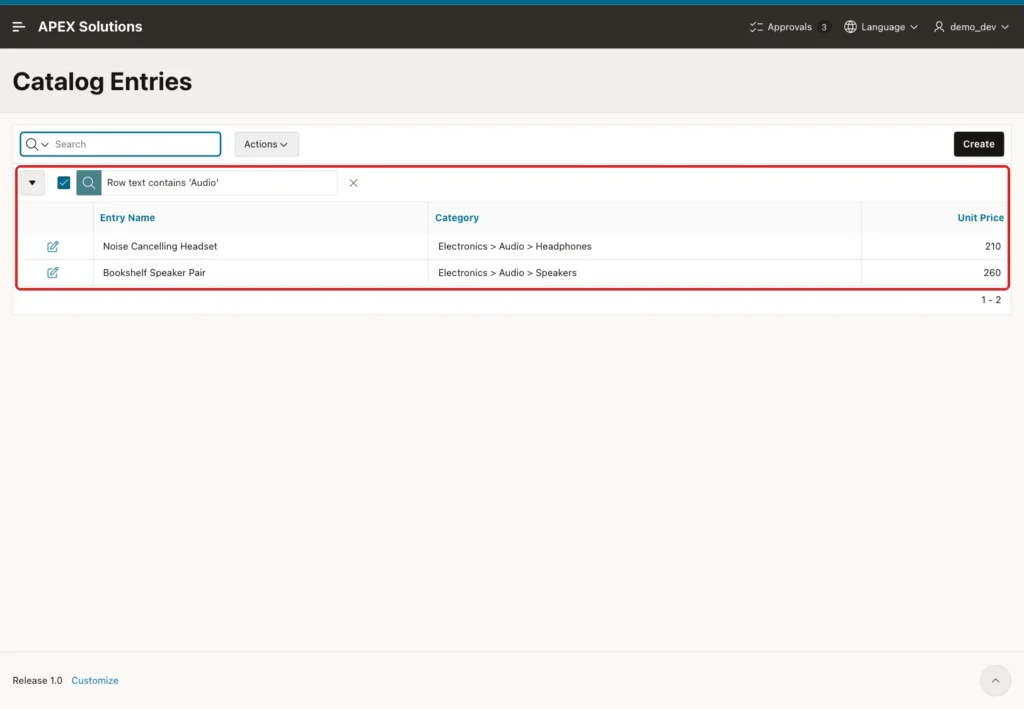
The report search uses the displayed text as well. A search for Audio returned the headset and the speaker pair, although neither row stores the word Audio:
In SQL, check what the form saved:
Example:
column entry_name format a24
column category_name format a14
select e.entry_id, e.entry_name, e.category_id, c.category_name
from   catalog_entries e
join   item_categories c on c.category_id = e.category_id
order by e.entry_id;
Output:
   ENTRY_ID ENTRY_NAME                     CATEGORY_ID CATEGORY_NAME
___________ ___________________________ ______________ ________________
          1 UltraBook 14                             3 Laptops
          2 Tower PC Pro                             4 Desktops
          3 Noise Cancelling Headset                 6 Headphones
          4 Ergonomic Chair                         10 Chairs
          5 A4 Copy Paper Box                       13 Paper
          6 Gaming Laptop 16                         3 Laptops
         26 Bookshelf Speaker Pair                   7 Speakers

7 rows selected.
Gaming Laptop 16 has CATEGORY_ID 3 (Laptops) and Bookshelf Speaker Pair has 7 (Speakers). Only the ID is stored; the path is built at display time, so renaming a parent category changes every path at once. In a test, renaming Audio to Sound changed the child paths to Electronics > Sound > Headphones and Electronics > Sound > Speakers.
The jump to ENTRY_ID 26 comes from the identity cache and the failed test inserts, and is normal.
Step 10: Protect the Tree from Loops
A CONNECT BY query fails if the data contains a loop. The check constraint stops the direct case, but a longer loop can still be saved. This test tries both and then rolls back:
Example:
update item_categories set parent_id = 3 where category_id = 3;

update item_categories set parent_id = 3 where category_id = 1;

select count(*)
from   item_categories
start with category_id = 1
connect by prior category_id = parent_id;

rollback;
Output:
Error starting at line : 1 File @ b61/04-loop.sql
In command -
update item_categories set parent_id = 3 where category_id = 3
Error report -
ORA-02290: check constraint (APXSOL.ITEM_CATEGORIES_SELF_CK) violated
Help: https://docs.oracle.com/error-help/db/ora-02290/

1 row updated.

Error starting at line : 5 File @ b61/04-loop.sql
In command -
select count(*)
from   item_categories
start with category_id = 1
connect by prior category_id = parent_id
Error at Command Line : 6 Column : 8 File @ b61/04-loop.sql
Error report -
SQL Error: ORA-01436: CONNECT BY loop in user data
Help: https://docs.oracle.com/error-help/db/ora-01436/

Rollback complete.
Making Laptops its own parent fails with ORA-02290. Making Electronics a child of Laptops is accepted, and then the hierarchy query fails with ORA-01436. If users can edit the category tree, add a check on that page that the new parent is not the category itself or one of its children.
Things to Know
- APEX did not reject a category ID that was not in the list. A forced value of 999, set in the browser, reached the table for both the select list and the Popup LOV, even with Display Extra Values turned off. The foreign key stopped it with ORA-02291, so keep the foreign key on the column.
- ORDER SIBLINGS BY keeps the tree order. A normal ORDER BY on the name would mix all levels together.
- Neither list re-sorted the rows. The select list and the Popup LOV both showed them in the order of the query.
- Use non-breaking spaces from unistr('\00a0') for the indent. Normal spaces are collapsed by the browser, and chr(160) is not a valid character in an AL32UTF8 database.
- To allow only the lowest level, add where connect_by_isleaf = 1 to the path query. In a test it returned the seven leaf categories, and their paths still contained the parent names, so the search by parent name keeps working.
Related Guides
- How to Show Hierarchical Data (Manager and Employees) in a Tree in Oracle APEX
- How to Query Hierarchies with CONNECT BY in Oracle
Conclusion
A hierarchical list of values in Oracle APEX is a CONNECT BY query in an ordinary item. An indented select list works for small trees, and a Popup LOV with SYS_CONNECT_BY_PATH paths works for large ones, because users can search by any parent name.
In both cases only the category ID is saved. The same shared path list also labels the report, and the foreign key and check constraint keep the data correct even when a request is changed in the browser.
See my articles more often when you search Google.
