
A survey with fixed page items needs a developer every time a question changes. A better design keeps the questions in tables. The page then reads them at runtime and shows a text box, a set of choices or a 1 to 5 rating for each one.
This guide builds that design in Oracle APEX. It creates the survey tables, renders the questions with a Dynamic Content region, saves the answers with one process, enforces required questions and one response per user, and shows the results in a report and a bar chart.
The example is a training course feedback survey; the same steps work for any questionnaire, poll or checklist. Questions, options and surveys are plain rows, so you can add a new survey without changing the pages.
Step 1: Create the Tables
Five tables hold the surveys, the questions and the answers:
- SURVEYS has one row per survey, with an active flag.
- SURVEY_QUESTIONS holds the questions of a survey, their order, a type (TEXT, CHOICE or RATING) and a required flag.
- SURVEY_OPTIONS holds the answer options of the CHOICE questions.
- SURVEY_RESPONSES has one row per user who answered a survey.
- SURVEY_ANSWERS holds one answer per response and question.
The rules are declared in the tables. A unique key on SURVEY_ID and RESPONDENT allows one response per user. RESPONDENT gets the APEX user through DEFAULT ON NULL, so the save process does not have to set it.
An answer stores an option, a rating or a text. A check constraint makes sure exactly one of the three is filled, and another limits ratings to 1 to 5. The foreign key on QUESTION_ID and OPTION_ID makes sure a chosen option belongs to the question it answers.
Example:
create table surveys (
  survey_id     number generated by default on null as identity,
  title         varchar2(100 char) not null,
  description   varchar2(400 char),
  is_active     varchar2(1 char) default on null 'Y' not null,
  created_on    date default on null sysdate not null,
  constraint surveys_pk primary key (survey_id),
  constraint surveys_title_uk unique (title),
  constraint surveys_active_ck check (is_active in ('Y', 'N'))
);

create table survey_questions (
  question_id    number generated by default on null as identity,
  survey_id      number not null,
  display_seq    number not null,
  question_text  varchar2(400 char) not null,
  question_type  varchar2(10 char) default on null 'TEXT' not null,
  is_required    varchar2(1 char) default on null 'Y' not null,
  constraint survey_questions_pk primary key (question_id),
  constraint survey_questions_seq_uk unique (survey_id, display_seq),
  constraint survey_questions_survey_fk foreign key (survey_id)
    references surveys (survey_id) on delete cascade,
  constraint survey_questions_type_ck check (question_type in ('TEXT', 'CHOICE', 'RATING')),
  constraint survey_questions_req_ck check (is_required in ('Y', 'N'))
);

create table survey_options (
  option_id     number generated by default on null as identity,
  question_id   number not null,
  display_seq   number not null,
  option_text   varchar2(200 char) not null,
  constraint survey_options_pk primary key (option_id),
  constraint survey_options_seq_uk unique (question_id, display_seq),
  constraint survey_options_q_uk unique (question_id, option_id),
  constraint survey_options_question_fk foreign key (question_id)
    references survey_questions (question_id) on delete cascade
);

create table survey_responses (
  response_id   number generated by default on null as identity,
  survey_id     number not null,
  respondent    varchar2(255 char)
                default on null coalesce(sys_context('APEX$SESSION', 'APP_USER'),
                                         sys_context('USERENV', 'SESSION_USER')) not null,
  submitted_on  date default on null sysdate not null,
  constraint survey_responses_pk primary key (response_id),
  constraint survey_responses_user_uk unique (survey_id, respondent),
  constraint survey_responses_survey_fk foreign key (survey_id)
    references surveys (survey_id)
);

create table survey_answers (
  answer_id     number generated by default on null as identity,
  response_id   number not null,
  question_id   number not null,
  option_id     number,
  rating_value  number(1),
  answer_text   varchar2(4000 char),
  constraint survey_answers_pk primary key (answer_id),
  constraint survey_answers_uk unique (response_id, question_id),
  constraint survey_answers_response_fk foreign key (response_id)
    references survey_responses (response_id) on delete cascade,
  constraint survey_answers_question_fk foreign key (question_id)
    references survey_questions (question_id),
  constraint survey_answers_option_fk foreign key (question_id, option_id)
    references survey_options (question_id, option_id),
  constraint survey_answers_rating_ck check (rating_value between 1 and 5),
  constraint survey_answers_one_value_ck check (nvl2(option_id, 1, 0) + nvl2(rating_value, 1, 0) + nvl2(answer_text, 1, 0) = 1)
);

create index survey_answers_question_ix on survey_answers (question_id, option_id);

insert into surveys (survey_id, title, description)
values (1, 'Training Course Feedback', 'Tell us what you thought of the Oracle APEX training course.');
insert into surveys (survey_id, title, description)
values (2, 'Team Lunch Poll', 'Help us pick a day for the monthly team lunch.');

insert into survey_questions (question_id, survey_id, display_seq, question_text, question_type, is_required)
values (1, 1, 10, 'How would you rate the course overall?', 'RATING', 'Y');
insert into survey_questions (question_id, survey_id, display_seq, question_text, question_type, is_required)
values (2, 1, 20, 'Which session was the most useful?', 'CHOICE', 'Y');
insert into survey_questions (question_id, survey_id, display_seq, question_text, question_type, is_required)
values (3, 1, 30, 'Would you recommend this course to a colleague?', 'CHOICE', 'Y');
insert into survey_questions (question_id, survey_id, display_seq, question_text, question_type, is_required)
values (4, 1, 40, 'What should we improve?', 'TEXT', 'N');
insert into survey_questions (question_id, survey_id, display_seq, question_text, question_type, is_required)
values (5, 2, 10, 'Which day suits you best?', 'CHOICE', 'Y');

insert into survey_options (option_id, question_id, display_seq, option_text) values (1, 2, 10, 'SQL Basics');
insert into survey_options (option_id, question_id, display_seq, option_text) values (2, 2, 20, 'Page Designer');
insert into survey_options (option_id, question_id, display_seq, option_text) values (3, 2, 30, 'Dynamic Actions');
insert into survey_options (option_id, question_id, display_seq, option_text) values (4, 2, 40, 'REST Data Sources');
insert into survey_options (option_id, question_id, display_seq, option_text) values (5, 3, 10, 'Yes');
insert into survey_options (option_id, question_id, display_seq, option_text) values (6, 3, 20, 'No');
insert into survey_options (option_id, question_id, display_seq, option_text) values (7, 3, 30, 'Not sure');
insert into survey_options (option_id, question_id, display_seq, option_text) values (8, 5, 10, 'Tuesday');
insert into survey_options (option_id, question_id, display_seq, option_text) values (9, 5, 20, 'Thursday');
insert into survey_options (option_id, question_id, display_seq, option_text) values (10, 5, 30, 'Friday');

insert into survey_responses (response_id, survey_id, respondent) values (1, 1, 'ANITA');
insert into survey_answers (response_id, question_id, rating_value) values (1, 1, 5);
insert into survey_answers (response_id, question_id, option_id) values (1, 2, 3);
insert into survey_answers (response_id, question_id, option_id) values (1, 3, 5);
insert into survey_answers (response_id, question_id, answer_text) values (1, 4, 'More time for the hands-on labs.');

insert into survey_responses (response_id, survey_id, respondent) values (2, 1, 'MARCO');
insert into survey_answers (response_id, question_id, rating_value) values (2, 1, 4);
insert into survey_answers (response_id, question_id, option_id) values (2, 2, 2);
insert into survey_answers (response_id, question_id, option_id) values (2, 3, 5);

commit;

alter table surveys modify survey_id generated by default on null as identity (start with limit value);
alter table survey_questions modify question_id generated by default on null as identity (start with limit value);
alter table survey_options modify option_id generated by default on null as identity (start with limit value);
alter table survey_responses modify response_id generated by default on null as identity (start with limit value);

column survey format a26
column question format a45
column answer format a30
select s.title as survey,
       q.display_seq as seq,
       q.question_text as question,
       q.question_type as type,
       (select count(*) from survey_options o where o.question_id = q.question_id) as options
from   surveys s
join   survey_questions q on q.survey_id = s.survey_id
order by s.survey_id, q.display_seq;
Output:
Table SURVEYS created.

Table SURVEY_QUESTIONS created.

Table SURVEY_OPTIONS created.

Table SURVEY_RESPONSES created.

Table SURVEY_ANSWERS created.

Index SURVEY_ANSWERS_QUESTION_IX created.

1 row inserted.

1 row inserted.

1 row inserted.

1 row inserted.

1 row inserted.

1 row inserted.

1 row inserted.

1 row inserted.

1 row inserted.

1 row inserted.

1 row inserted.

1 row inserted.

1 row inserted.

1 row inserted.

1 row inserted.

1 row inserted.

1 row inserted.

1 row inserted.

1 row inserted.

1 row inserted.

1 row inserted.

1 row inserted.

1 row inserted.

1 row inserted.

1 row inserted.

1 row inserted.

Commit complete.

Table SURVEYS altered.

Table SURVEY_QUESTIONS altered.

Table SURVEY_OPTIONS altered.

Table SURVEY_RESPONSES altered.

SURVEY                         SEQ QUESTION                                           TYPE         OPTIONS
___________________________ ______ __________________________________________________ _________ __________
Training Course Feedback        10 How would you rate the course overall?             RATING             0
Training Course Feedback        20 Which session was the most useful?                 CHOICE             4
Training Course Feedback        30 Would you recommend this course to a colleague?    CHOICE             3
Training Course Feedback        40 What should we improve?                            TEXT               0
Team Lunch Poll                 10 Which day suits you best?                          CHOICE             3
The sample data has two surveys. Training Course Feedback has a rating question, two choice questions and an optional text question. Two people, ANITA and MARCO, have already answered it.
In a first test, the "exactly one value" check used the NUM_NONNULLS function. Oracle rejected it with ORA-00904: "NUM_NONNULLS": invalid identifier, so the constraint adds up NVL2 results instead.
The constraints also stop bad rows that do not come from the page. An option of another survey, two values in one answer, a rating of 9 and a second response by the same user all fail:
Example:
insert into survey_answers (response_id, question_id, option_id) values (2, 4, 8);

insert into survey_answers (response_id, question_id, rating_value, answer_text) values (2, 4, 3, 'Shorter breaks.');

insert into survey_answers (response_id, question_id, rating_value) values (2, 1, 9);

insert into survey_responses (survey_id, respondent) values (1, 'MARCO');

rollback;
Output:
Error starting at line : 1 File @ b57/01-constraint-test.sql
In command -
insert into survey_answers (response_id, question_id, option_id) values (2, 4, 8)
Error report -
ORA-02291: integrity constraint (APXSOL.SURVEY_ANSWERS_OPTION_FK) violated -
parent key not found
Help: https://docs.oracle.com/error-help/db/ora-02291/

Error starting at line : 3 File @ b57/01-constraint-test.sql
In command -
insert into survey_answers (response_id, question_id, rating_value, answer_text) values (2, 4, 3, 'Shorter breaks.')
Error report -
ORA-02290: check constraint (APXSOL.SURVEY_ANSWERS_ONE_VALUE_CK) violated
Help: https://docs.oracle.com/error-help/db/ora-02290/

Error starting at line : 5 File @ b57/01-constraint-test.sql
In command -
insert into survey_answers (response_id, question_id, rating_value) values (2, 1, 9)
Error report -
ORA-02290: check constraint (APXSOL.SURVEY_ANSWERS_RATING_CK) violated
Help: https://docs.oracle.com/error-help/db/ora-02290/

Error starting at line : 7 File @ b57/01-constraint-test.sql
In command -
insert into survey_responses (survey_id, respondent) values (1, 'MARCO')
Error report -
ORA-00001: unique constraint (APXSOL.SURVEY_RESPONSES_USER_UK) violated on table
APXSOL.SURVEY_RESPONSES columns (SURVEY_ID, RESPONDENT)
ORA-03301: (ORA-00001 details) row with column values (SURVEY_ID:1,
RESPONDENT:'MARCO') already exists
Help: https://docs.oracle.com/error-help/db/ora-00001/

Rollback complete.
Step 2: Create the Take Survey Page
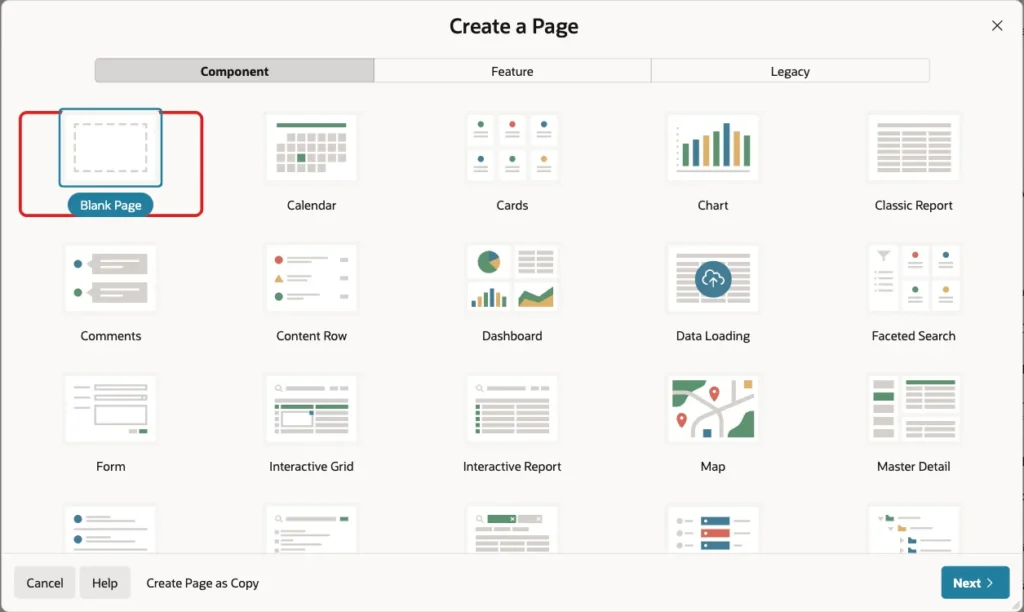
In App Builder, open the application, click Create Page and select Blank Page:
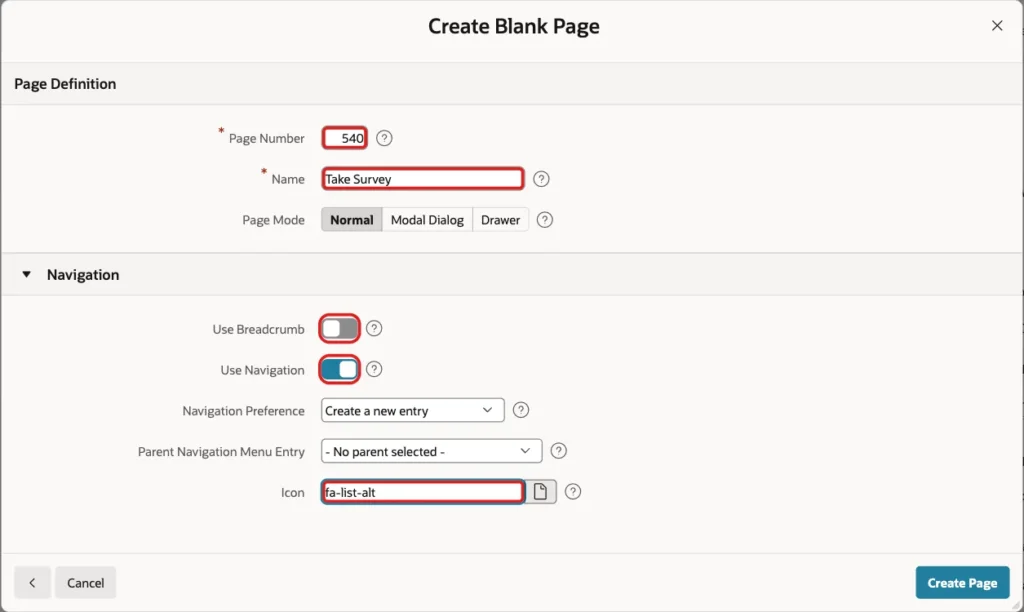
Enter 540 as the Page Number and Take Survey as the Name. Turn off Use Breadcrumb, keep Use Navigation on, enter fa-list-alt as the Icon and click Create Page:
Step 3: Add the Page JavaScript and CSS
The questions are plain HTML radio buttons and text areas, not page items. A small JavaScript function collects the answers into one JSON text and puts it into a hidden page item. The page submits that item, and the server reads the answers from it.
In Page Designer, select the page (Page 540: Take Survey). Enter this code in JavaScript > Function and Global Variable Declaration:
Example:
function collectAnswers() {
    var answers = {};
    document.querySelectorAll(".sv-question").forEach(function (q) {
        var id = q.dataset.qid, el;
        if (q.dataset.type === "TEXT") {
            el = q.querySelector("textarea");
            if (el.value.trim() !== "") {
                answers[id] = el.value.trim();
            }
        } else {
            el = q.querySelector("input:checked");
            if (el) {
                answers[id] = el.value;
            }
        }
    });
    apex.item("P540_ANSWERS").setValue(JSON.stringify(answers));
}
Each question is a fieldset with the question ID in data-qid and the question type in data-type. For a TEXT question the function reads the text area. For the other types it reads the checked radio button. Unanswered questions are left out of the JSON.
Enter this code in CSS > Inline to style the questions:
Example:
.sv-question { border: 1px solid #d6d9de; border-radius: 8px; padding: 12px 16px; margin: 0 0 16px; }
.sv-question legend { font-weight: 600; padding: 0 6px; }
.sv-req { color: #c62828; }
.sv-option, .sv-rating { display: inline-flex; align-items: center; gap: 6px; margin: 6px 20px 6px 0; }
.sv-question textarea { width: 100%; }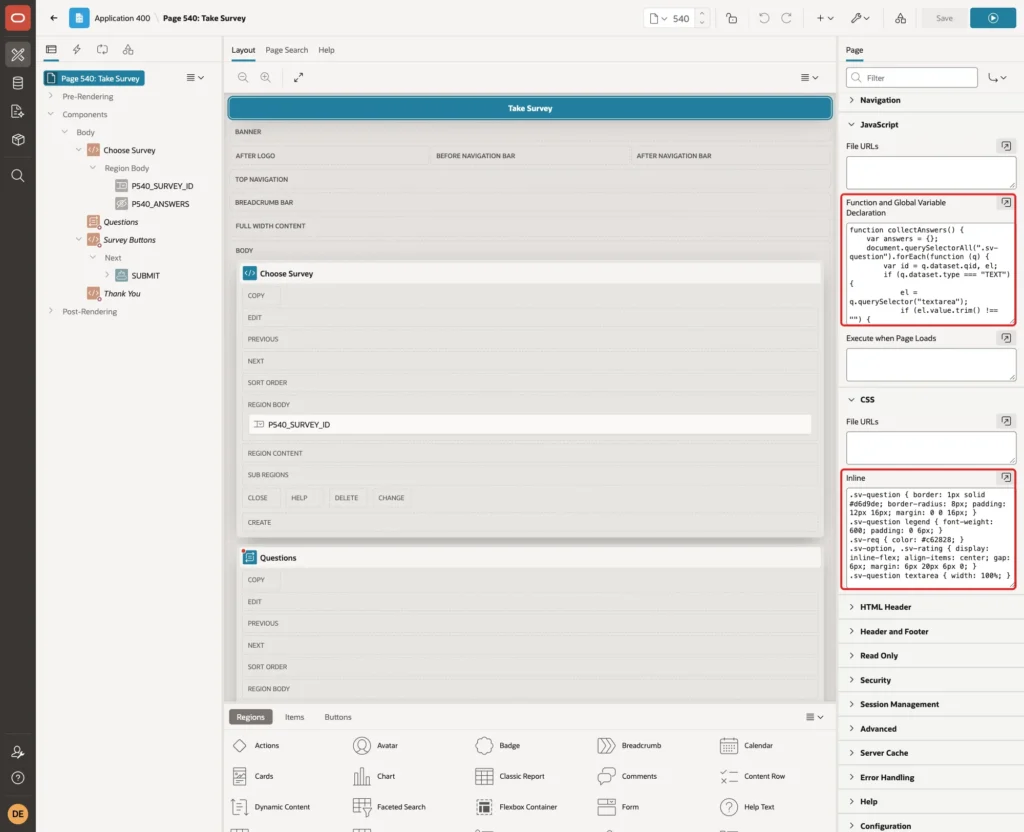
Step 4: Add the Survey Select List and the Hidden Item
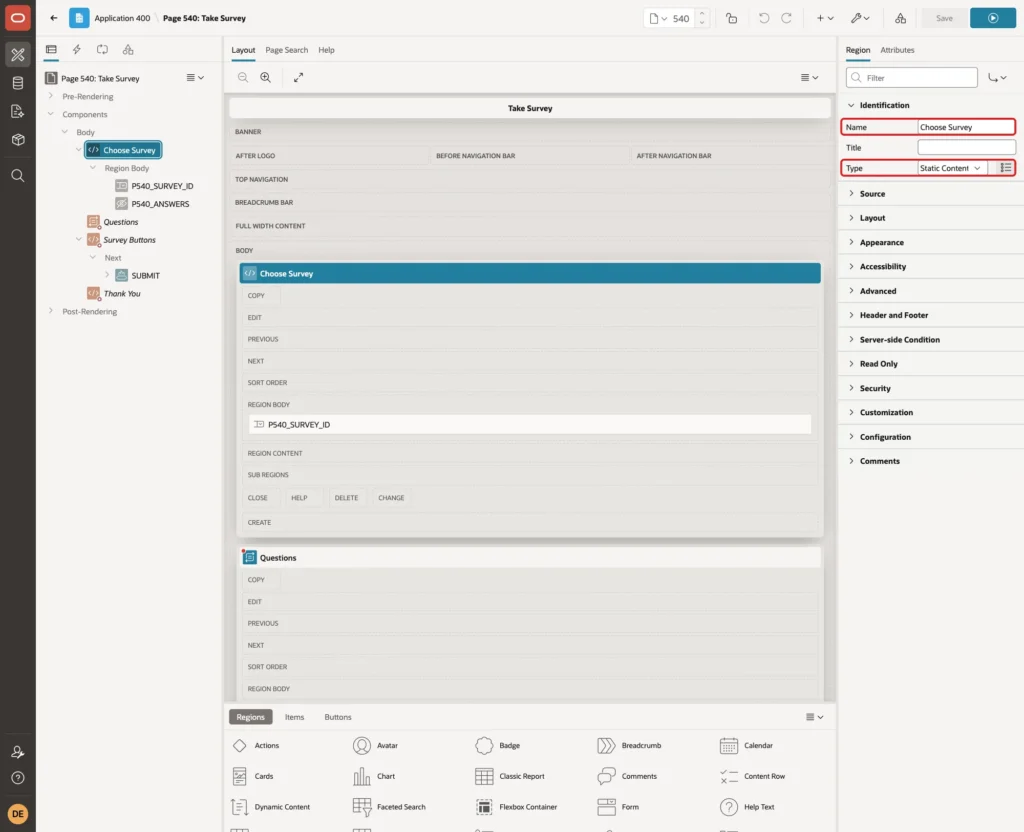
Right-click Body in the Rendering tree and select Create Region. Set Name to Choose Survey and keep the Type Static Content:
Right-click the Choose Survey region and select Create Page Item. Set these properties:
- Identification > Name: P540_SURVEY_ID
- Identification > Type: Select List
- Label > Label: Survey
- Settings > Page Action on Selection: Redirect and Set Value
- List of Values > Type: SQL Query, with the query below
- List of Values > Null Display Value: - Select Survey -
Example:
select title as display_value,
       survey_id as return_value
from   surveys
where  is_active = 'Y'
order by title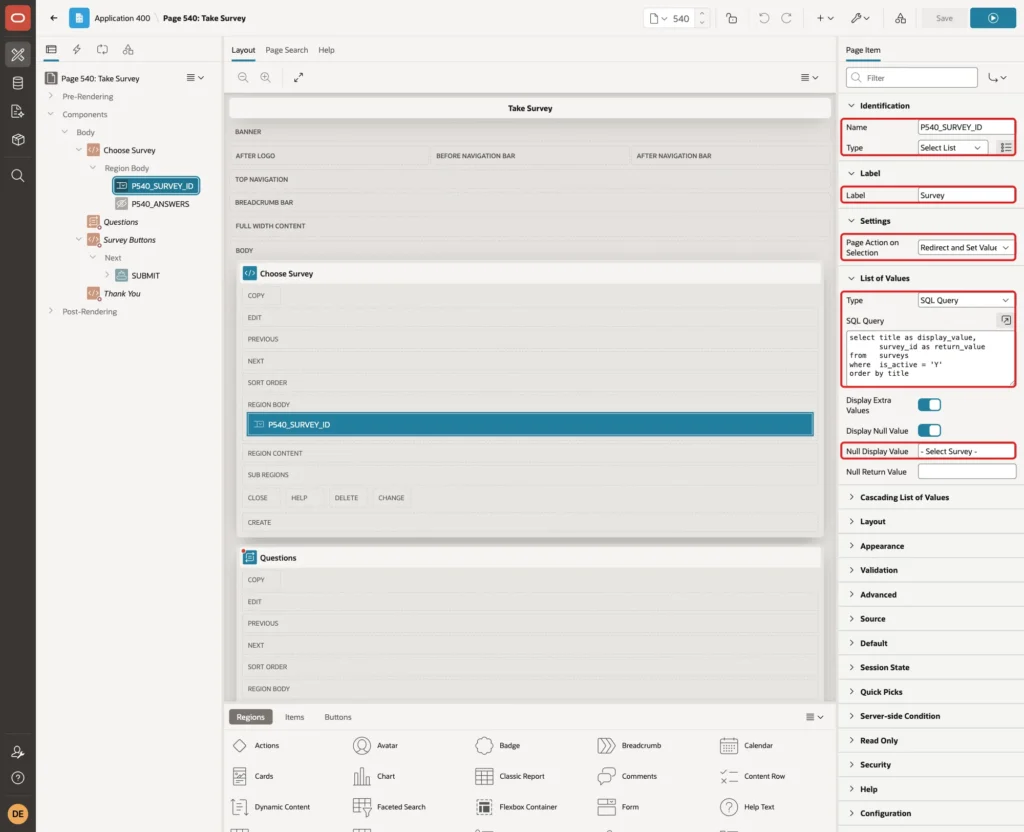
Redirect and Set Value reloads the page with the chosen survey in session state, so the questions region can read it.
Create a second item in the same region. Name it P540_ANSWERS, set Type to Hidden and turn off Settings > Value Protected:
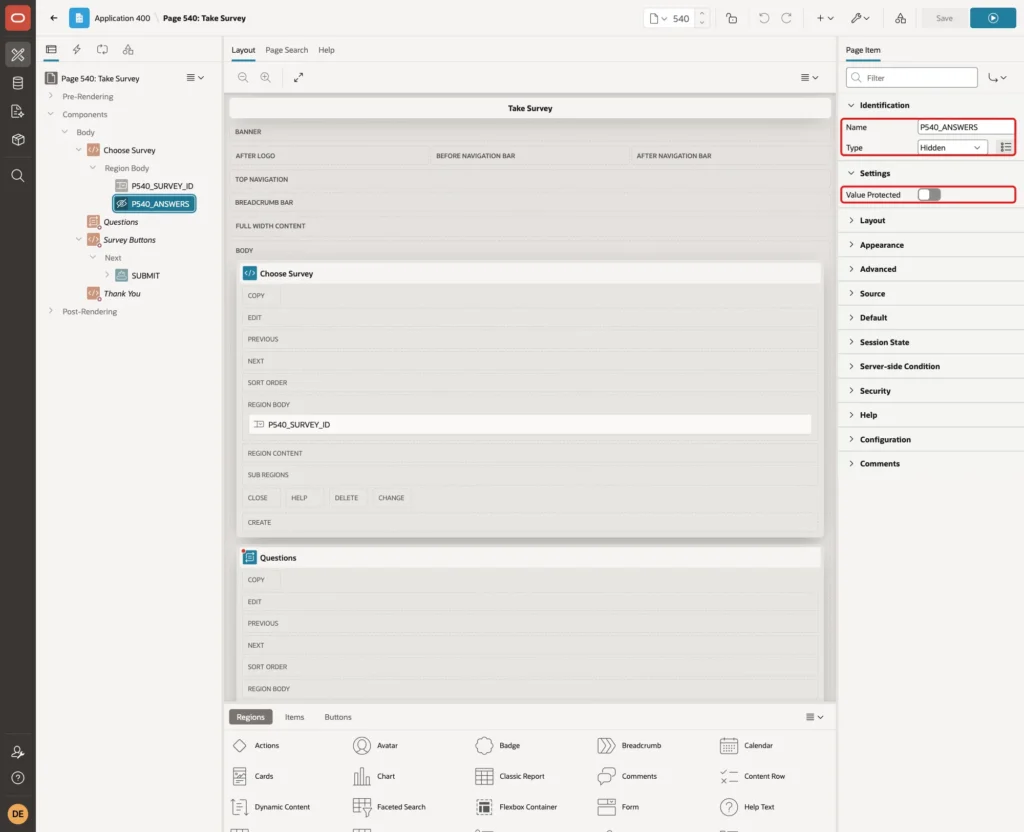
Value Protected must be off because JavaScript sets the value in the browser. The server checks the content in a validation instead (Step 9).
Step 5: Render the Questions with a Dynamic Content Region
Create a region below Choose Survey. Set Name to Questions and Type to Dynamic Content. Enter this code in Source > PL/SQL Function Body returning a CLOB:
Example:
declare
    l_html clob;
    l_name varchar2(30);
begin
    for q in (select question_id, question_text, question_type, is_required
              from   survey_questions
              where  survey_id = :P540_SURVEY_ID
              order by display_seq)
    loop
        l_name := 'q' || q.question_id;
        l_html := l_html
            || '<fieldset class="sv-question" data-qid="' || q.question_id
            || '" data-type="' || q.question_type || '">'
            || '<legend>' || apex_escape.html(q.question_text)
            || case when q.is_required = 'Y' then ' <span class="sv-req">*</span>' end
            || '</legend>';

        if q.question_type = 'CHOICE' then
            for o in (select option_id, option_text
                      from   survey_options
                      where  question_id = q.question_id
                      order by display_seq)
            loop
                l_html := l_html
                    || '<label class="sv-option"><input type="radio" name="' || l_name
                    || '" value="' || o.option_id || '">'
                    || apex_escape.html(o.option_text) || '</label>';
            end loop;
        elsif q.question_type = 'RATING' then
            for r in 1 .. 5 loop
                l_html := l_html
                    || '<label class="sv-rating"><input type="radio" name="' || l_name
                    || '" value="' || r || '">' || r || '</label>';
            end loop;
        else
            l_html := l_html
                || '<textarea name="' || l_name || '" rows="3" maxlength="4000"'
                || ' class="textarea"></textarea>';
        end if;

        l_html := l_html || '</fieldset>';
    end loop;

    return l_html;
end;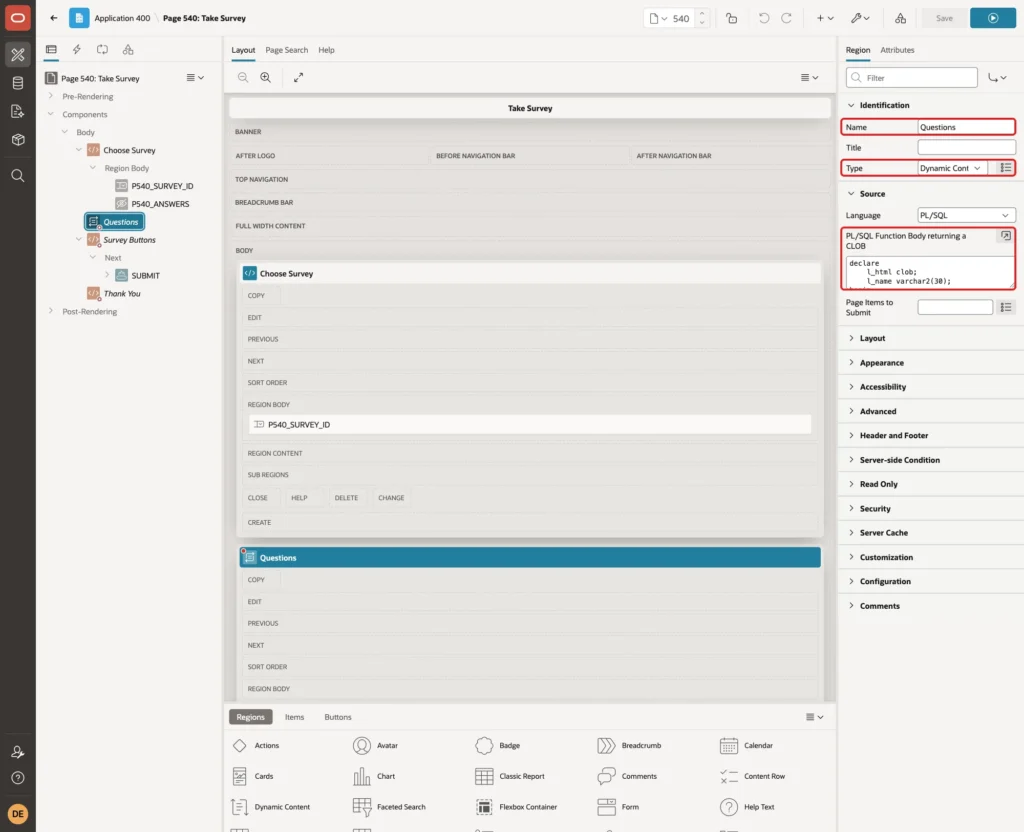
The function loops over the questions of the chosen survey. A CHOICE question gets one radio button per option, with the OPTION_ID as the value. A RATING question gets the values 1 to 5, and a TEXT question gets a text area. APEX_ESCAPE.HTML escapes the question and option texts.
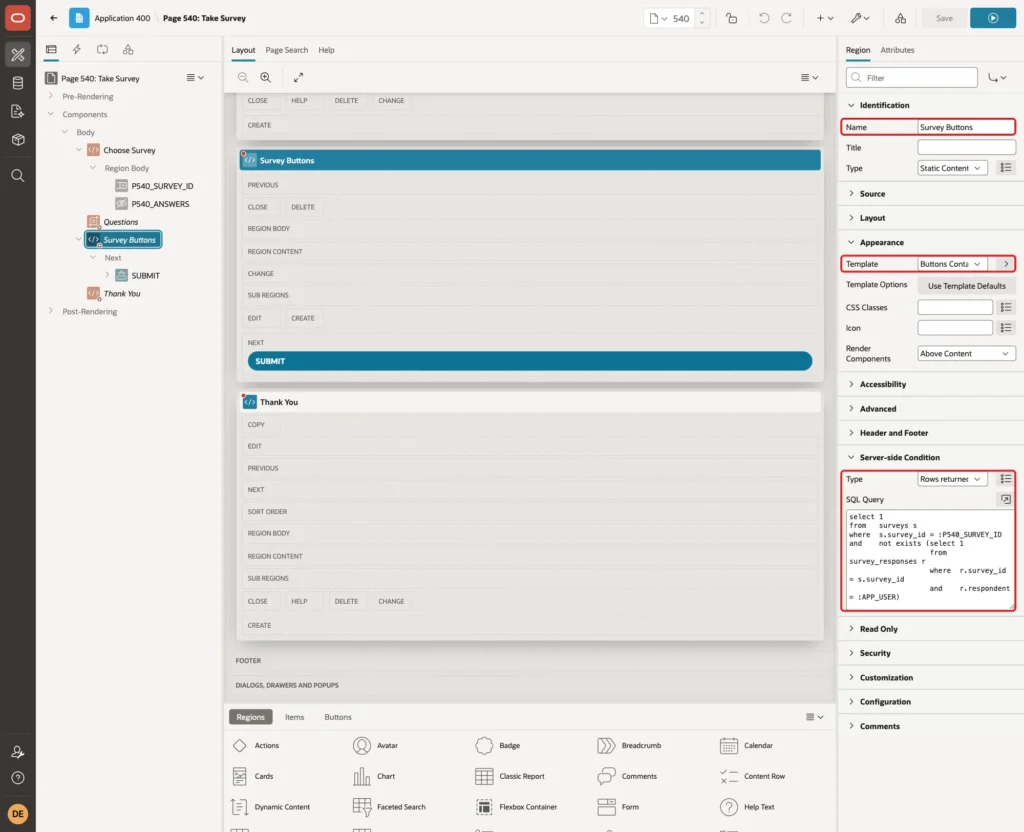
The form should show only when a survey is chosen and the user has not answered it yet. In Server-side Condition, set Type to Rows returned and enter this query:
Example:
select 1
from   surveys s
where  s.survey_id = :P540_SURVEY_ID
and    not exists (select 1
                   from   survey_responses r
                   where  r.survey_id  = s.survey_id
                   and    r.respondent = :APP_USER)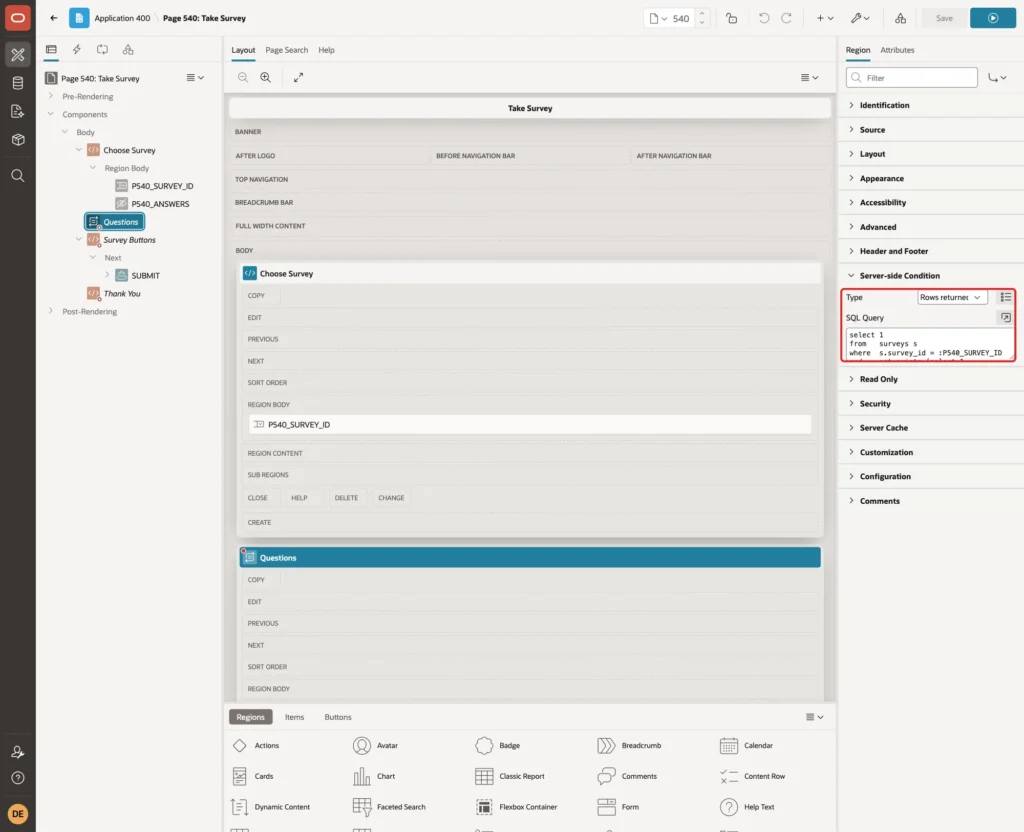
In a first test, this condition was a PL/SQL Expression with NOT EXISTS. The page failed with "Error processing condition." EXISTS works only inside SQL, so the condition uses the Rows returned type.
Step 6: Add the Submit Button
Create a region below Questions. Set Name to Survey Buttons and Appearance > Template to Buttons Container. Give it the same Server-side Condition as the Questions region (Rows returned, same query):
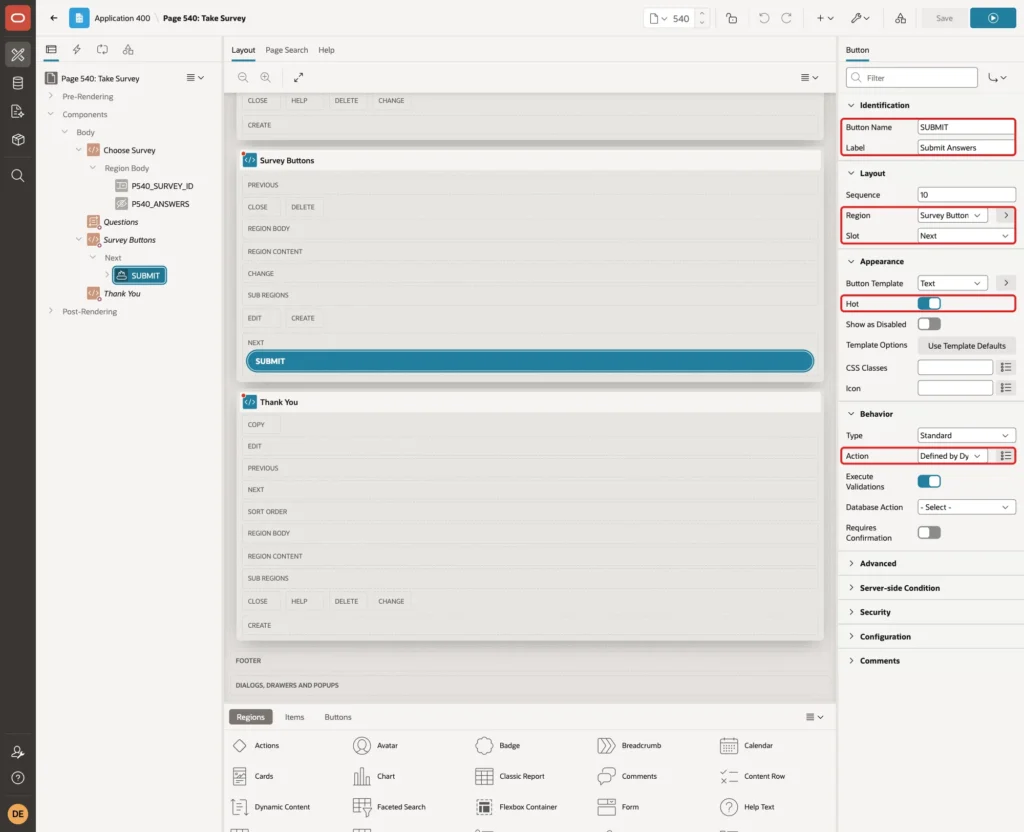
Right-click Survey Buttons and select Create Button. Set these properties:
- Identification > Button Name: SUBMIT
- Identification > Label: Submit Answers
- Layout > Region: Survey Buttons, Slot: Next
- Appearance > Hot: on
- Behavior > Action: Defined by Dynamic Action
Step 7: Add the Thank You Region
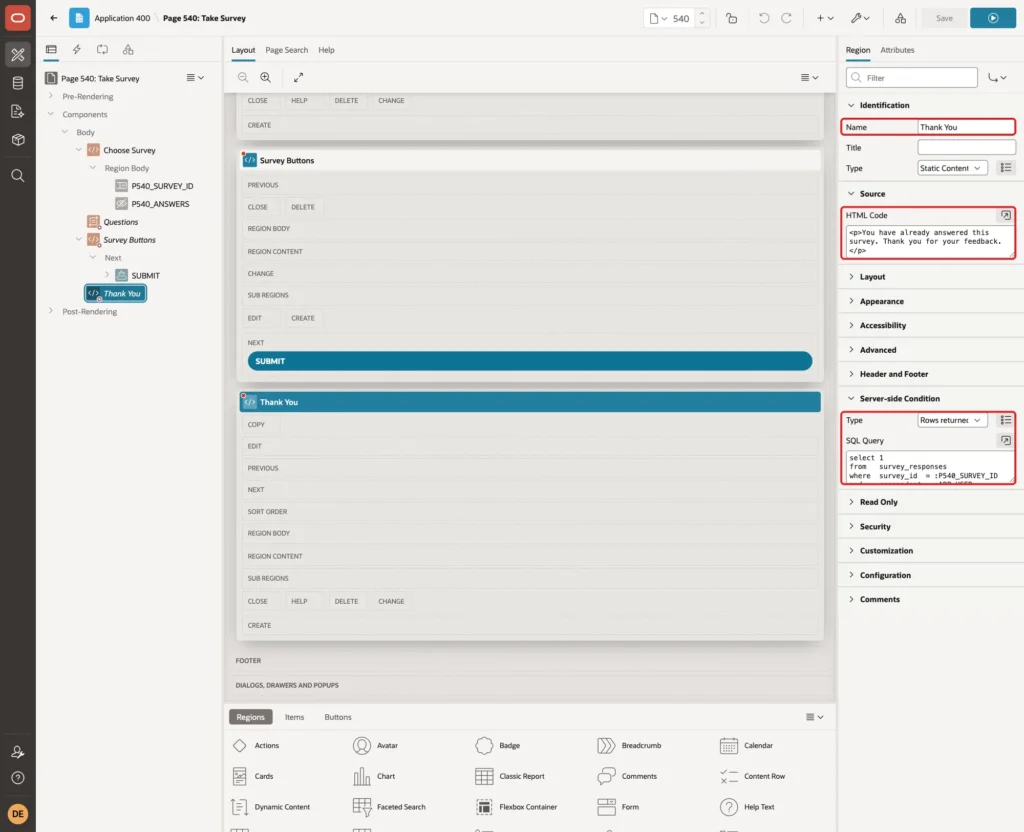
Create one more region. Set Name to Thank You, keep Type Static Content and enter this in Source > HTML Code:
Example:
<p>You have already answered this survey. Thank you for your feedback.</p>
Set Server-side Condition > Type to Rows returned with this query:
Example:
select 1
from   survey_responses
where  survey_id  = :P540_SURVEY_ID
and    respondent = :APP_USER
Step 8: Create the Dynamic Action
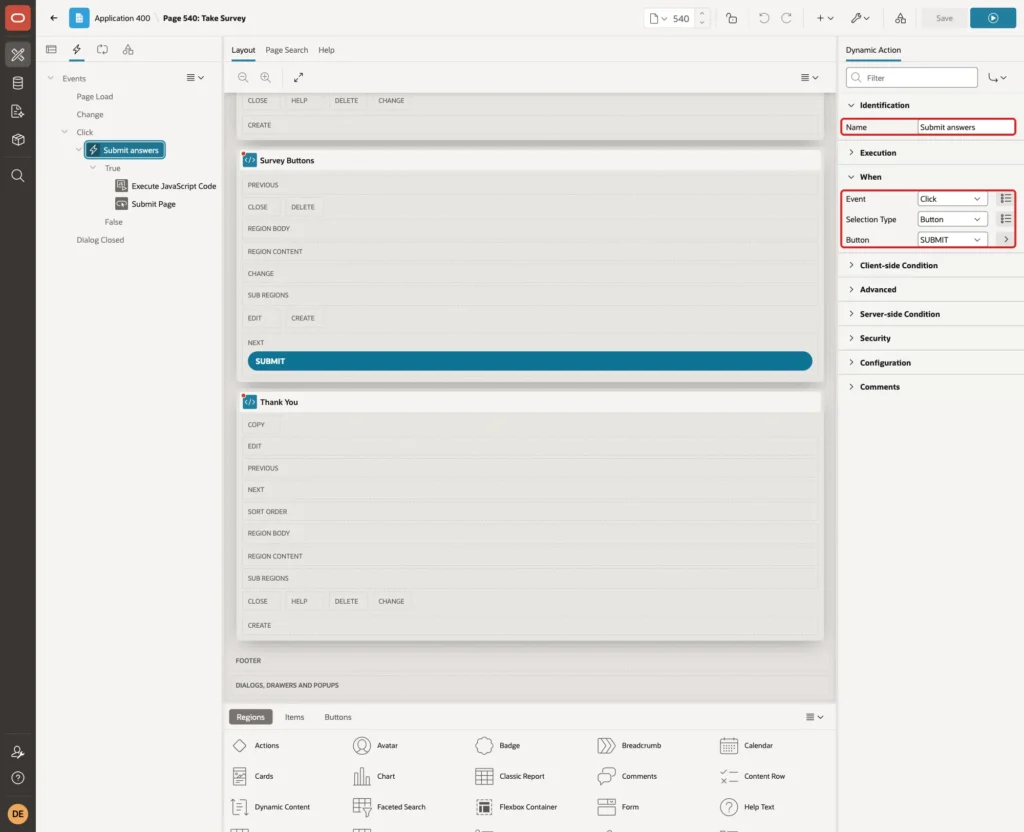
Right-click the SUBMIT button and select Create Dynamic Action. Set Name to Submit answers. The When settings are Event Click, Selection Type Button and Button SUBMIT:
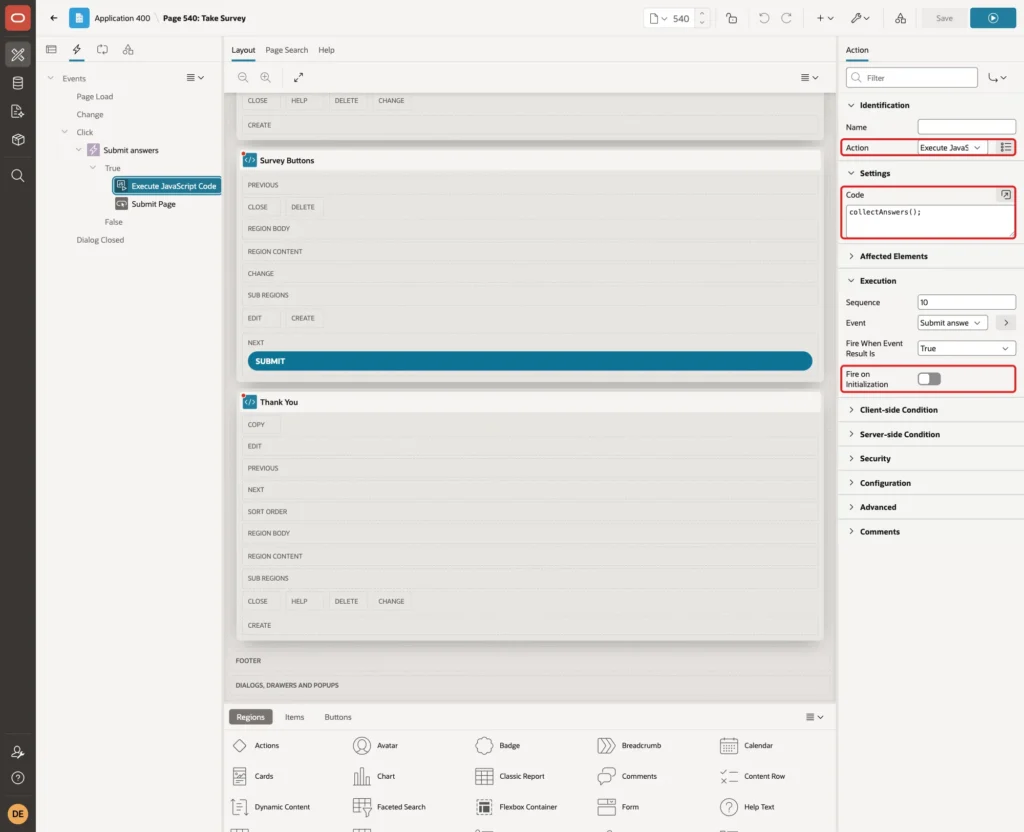
Select the first True action. Set Action to Execute JavaScript Code and enter this in Settings > Code. Fire on Initialization stays off:
Example:
collectAnswers();
Right-click True and select Create TRUE Action. Set Action to Submit Page, Request / Button Name to SUBMIT and turn on Show Processing:
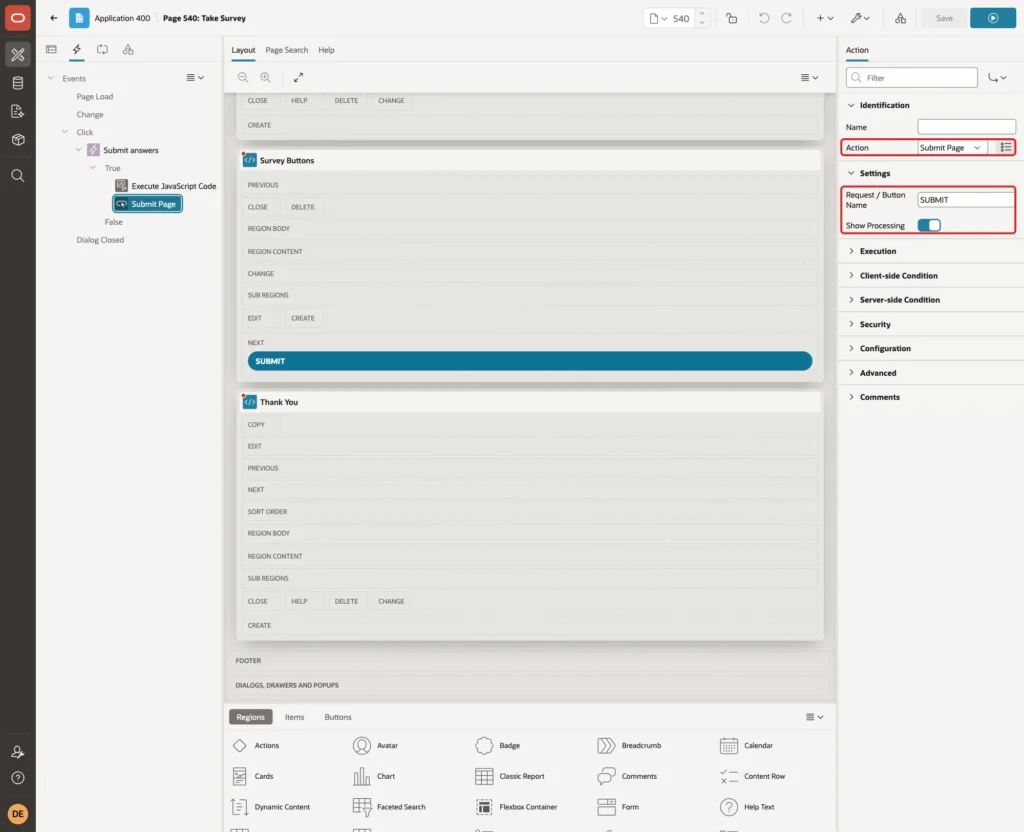
Because the request is SUBMIT, the validations and the process can use When Button Pressed: SUBMIT.
Step 9: Add the Validations
Open the Processing tab. Right-click Validations and select Create Validation. Set these properties:
- Identification > Name: One response per user
- Validation > Type: No Rows returned, with the query below
- Error > Error Message: You have already answered this survey.
- Server-side Condition > When Button Pressed: SUBMIT
Example:
select 1
from   survey_responses
where  survey_id  = :P540_SURVEY_ID
and    respondent = :APP_USER
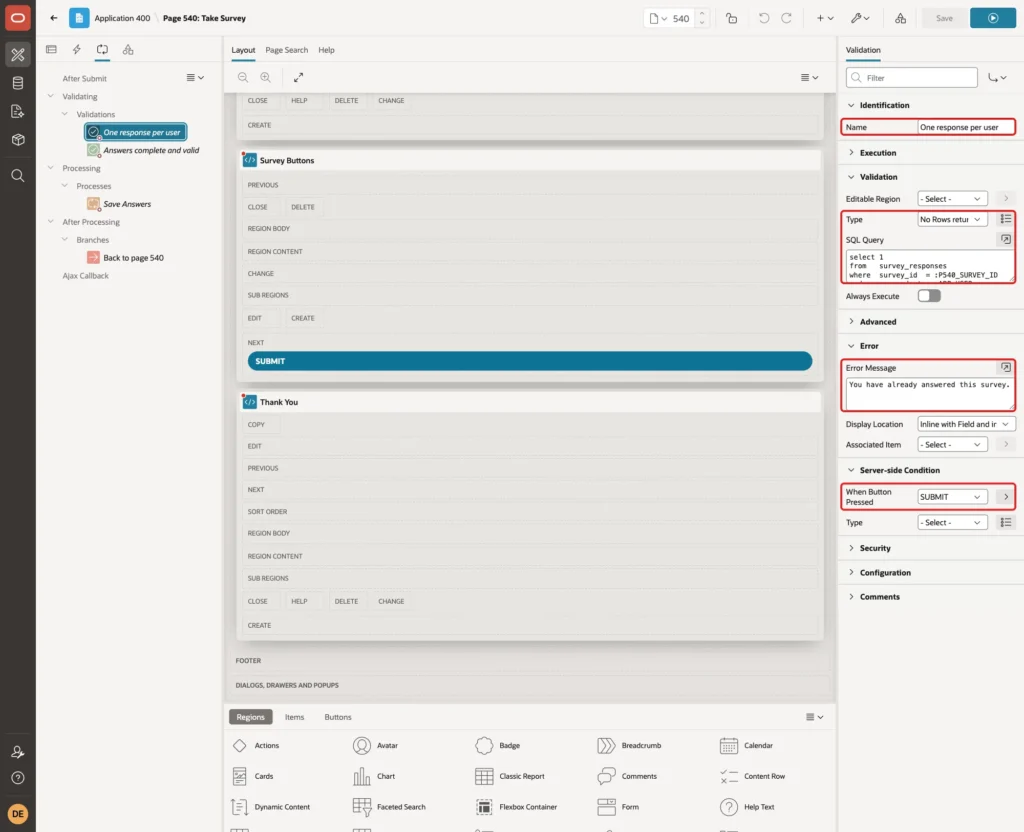
The unique key from Step 1 also blocks a second response. The validation runs first and shows a readable message.
Create a second validation named Answers complete and valid. Set Type to Function Body (returning Error Text), When Button Pressed to SUBMIT, and enter this code:
Example:
declare
    l_answers json_object_t;
    l_value   varchar2(4000);
    l_found   pls_integer;
    l_missing varchar2(4000);
begin
    begin
        l_answers := json_object_t.parse(:P540_ANSWERS);
    exception
        when others then
            l_answers := json_object_t();
    end;

    for q in (select question_id, question_text, question_type, is_required
              from   survey_questions
              where  survey_id = :P540_SURVEY_ID
              order by display_seq)
    loop
        l_value := trim(l_answers.get_string(to_char(q.question_id)));

        if l_value is null then
            if q.is_required = 'Y' then
                l_missing := l_missing
                    || case when l_missing is not null then ' ' end
                    || q.question_text;
            end if;
        elsif q.question_type = 'RATING'
              and l_value not in ('1', '2', '3', '4', '5') then
            return 'Choose a rating from 1 to 5 for: ' || q.question_text;
        elsif q.question_type = 'CHOICE' then
            select count(*)
            into   l_found
            from   survey_options
            where  question_id = q.question_id
            and    to_char(option_id) = l_value;

            if l_found = 0 then
                return 'Choose one of the listed answers for: ' || q.question_text;
            end if;
        end if;
    end loop;

    if l_missing is not null then
        return 'Please answer: ' || l_missing;
    end if;
    return null;
end;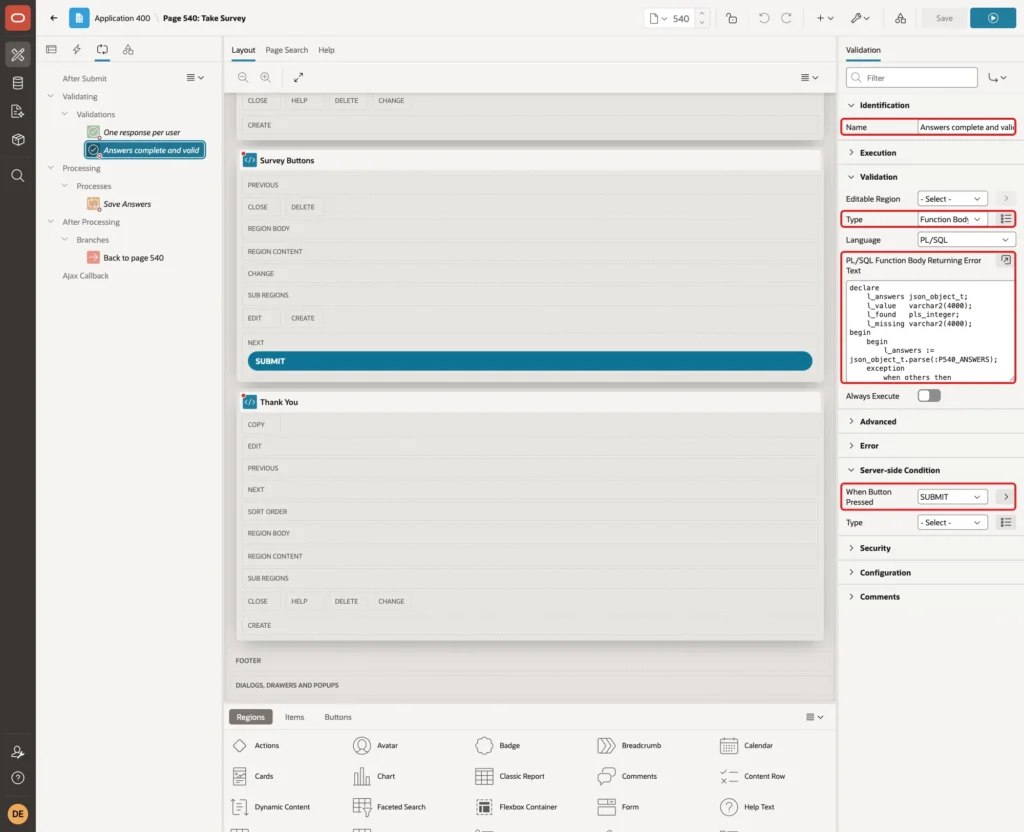
The function reads the JSON with JSON_OBJECT_T. It collects every required question without an answer and returns them in one message. It also rejects a rating outside 1 to 5 and an option that does not belong to the question, because a user can change the JSON in the browser.
In a first version, the value checks were in the save process with RAISE_APPLICATION_ERROR. The insert was rolled back, but the message showed as "ORA-20001: Choose one of the listed answers...". In the validation, the message is clean and nothing is inserted.
Step 10: Add the Save Process and the Branch
Right-click Processes and select Create Process. Set Name to Save Answers, keep Type Execute Code and enter this PL/SQL Code:
Example:
declare
    l_answers     json_object_t := json_object_t.parse(:P540_ANSWERS);
    l_response_id survey_responses.response_id%type;
    l_value       varchar2(4000);
begin
    insert into survey_responses (survey_id)
    values (:P540_SURVEY_ID)
    returning response_id into l_response_id;

    for q in (select question_id, question_type
              from   survey_questions
              where  survey_id = :P540_SURVEY_ID
              order by display_seq)
    loop
        l_value := trim(l_answers.get_string(to_char(q.question_id)));

        if l_value is null then
            continue;
        elsif q.question_type = 'CHOICE' then
            insert into survey_answers (response_id, question_id, option_id)
            values (l_response_id, q.question_id, to_number(l_value));
        elsif q.question_type = 'RATING' then
            insert into survey_answers (response_id, question_id, rating_value)
            values (l_response_id, q.question_id, to_number(l_value));
        else
            insert into survey_answers (response_id, question_id, answer_text)
            values (l_response_id, q.question_id, substr(l_value, 1, 4000));
        end if;
    end loop;

    :P540_ANSWERS := null;
end;
Set Success Message to Thank you! Your answers have been saved. and Server-side Condition > When Button Pressed to SUBMIT:
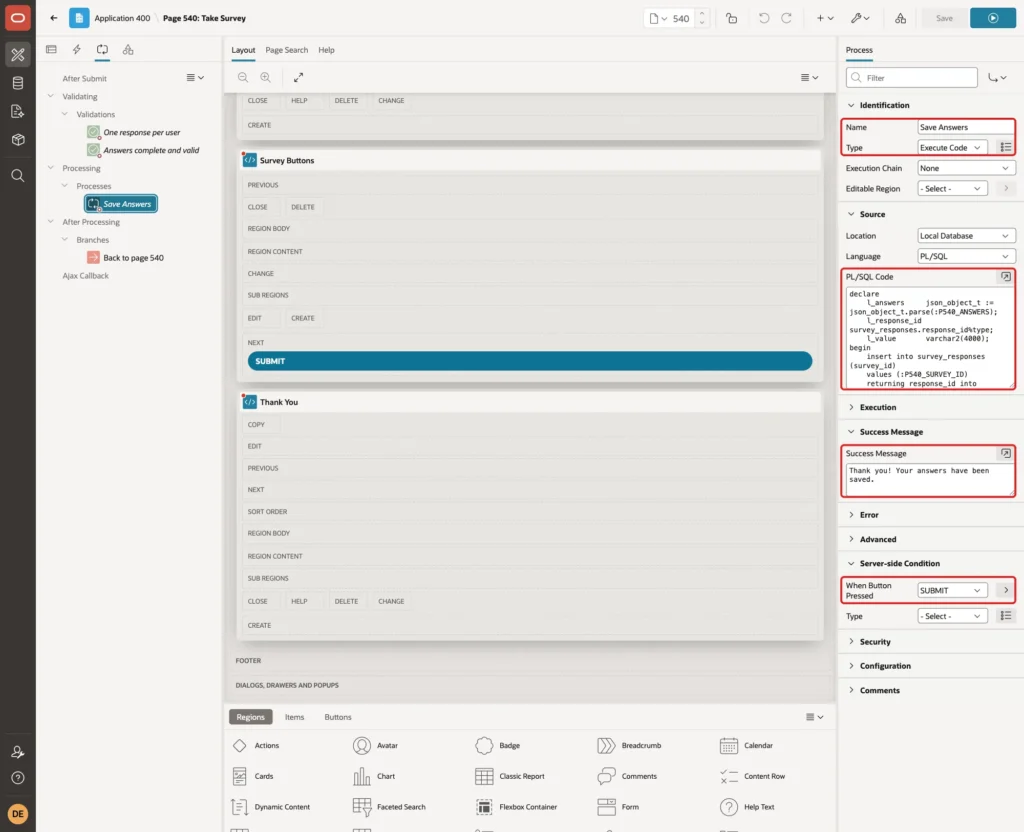
The process inserts the response first; the respondent comes from the DEFAULT ON NULL. It then loops over the questions of the survey and stores each answer in the matching column. The loop reads only this survey's questions, so other keys in the JSON are not used.
Right-click After Processing and select Create Branch. Set Name to Back to page 540, Type to Page or URL (Redirect) and Target to page 540:
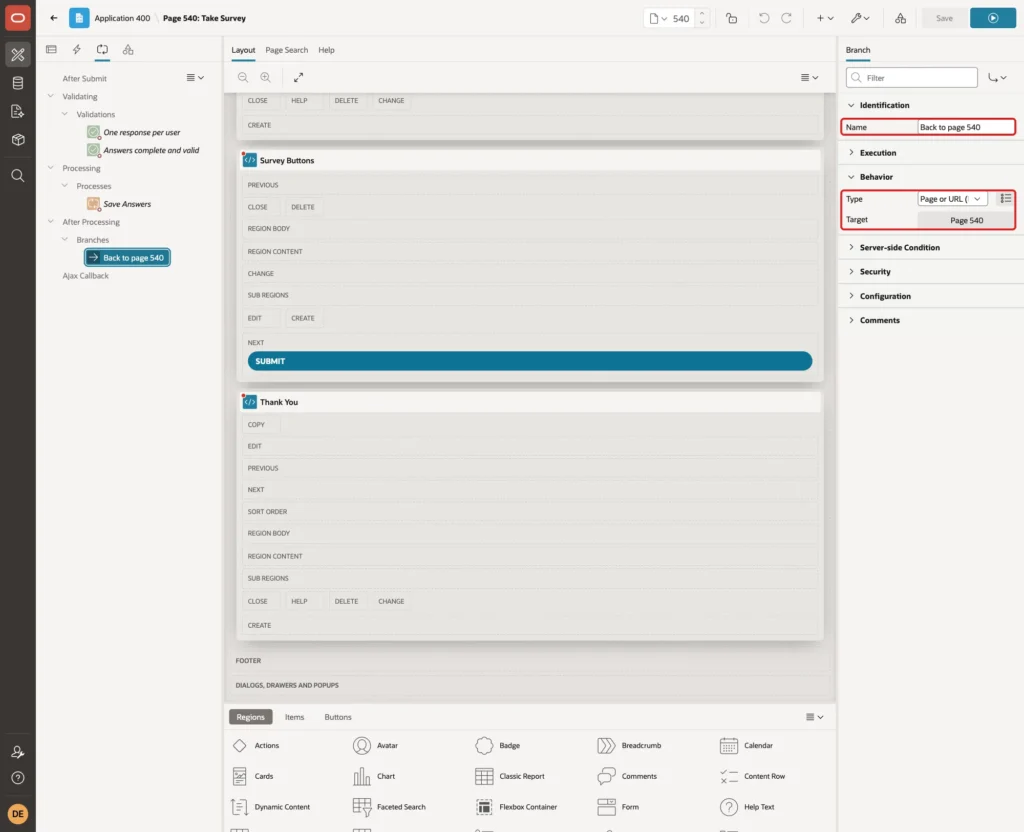
Step 11: Create the Survey Results Page
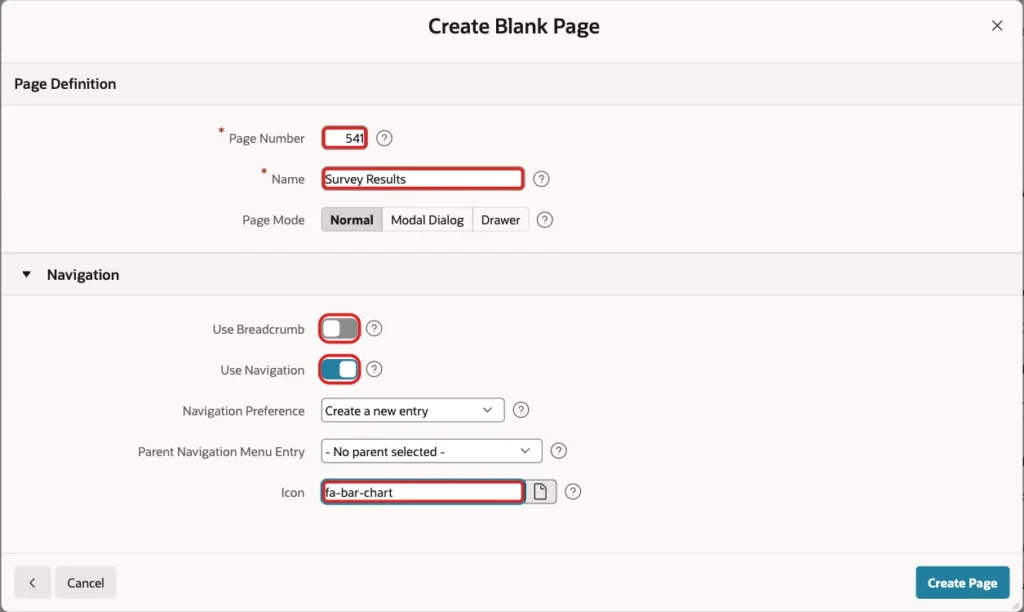
Create a second Blank Page with the same wizard. Enter 541 as the Page Number and Survey Results as the Name, turn off Use Breadcrumb, enter fa-bar-chart as the Icon and click Create Page:
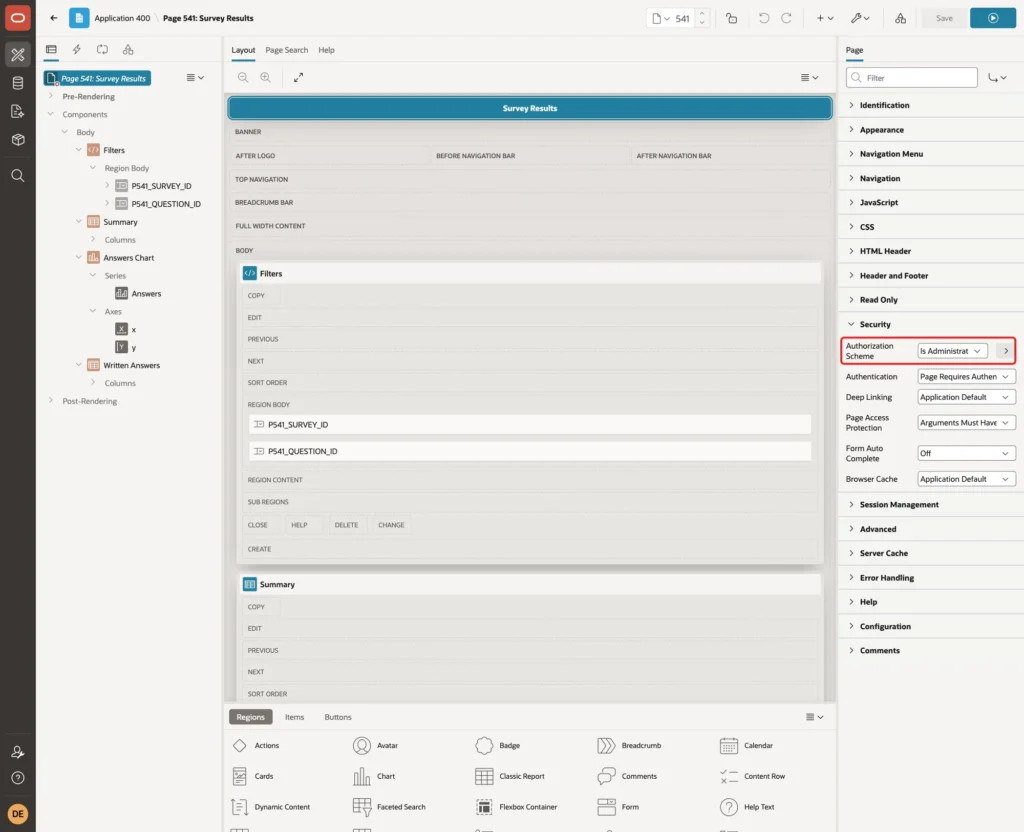
Results are for administrators. Select the page and set Security > Authorization Scheme to Is Administrator:
Step 12: Add the Filter Select Lists
Create a Static Content region named Filters. Add a select list P541_SURVEY_ID with the label Survey, Page Action on Selection Redirect and Set Value, Display Null Value off and this query:
Example:
select title as display_value,
       survey_id as return_value
from   surveys
order by title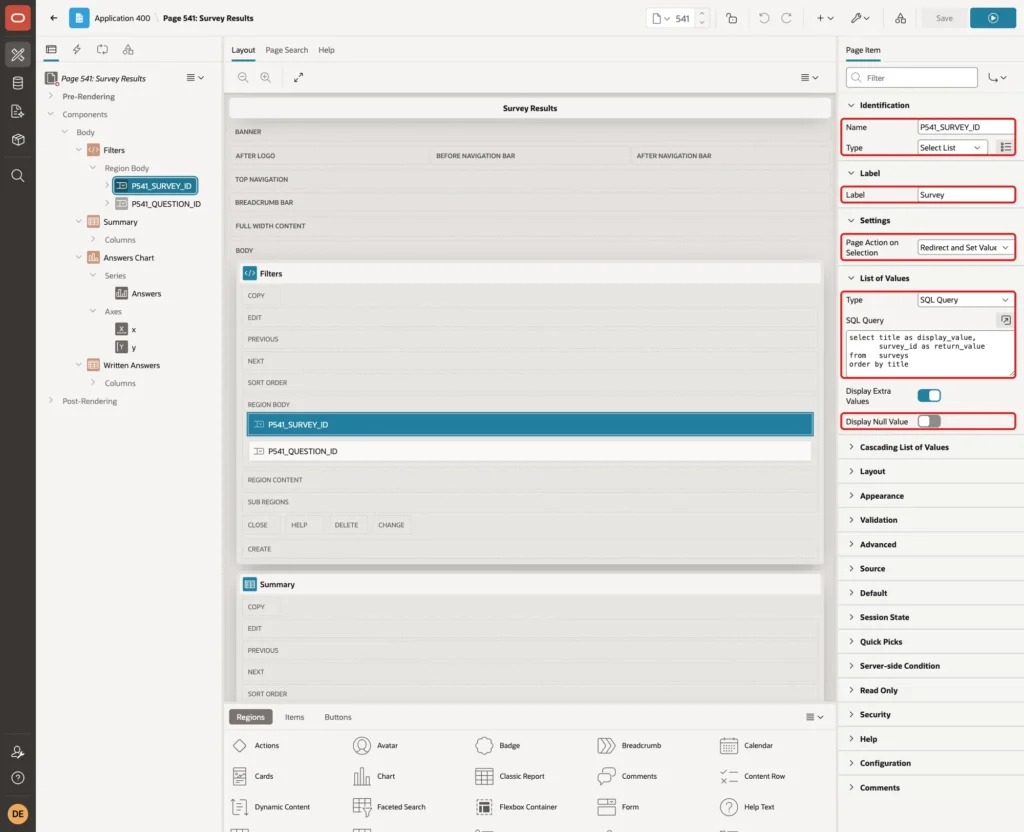
Add a second select list P541_QUESTION_ID with the label Chart Question and the same settings. Its query lists the CHOICE and RATING questions of the chosen survey:
Example:
select question_text as display_value,
       question_id as return_value
from   survey_questions
where  survey_id = :P541_SURVEY_ID
and    question_type in ('CHOICE', 'RATING')
order by display_seq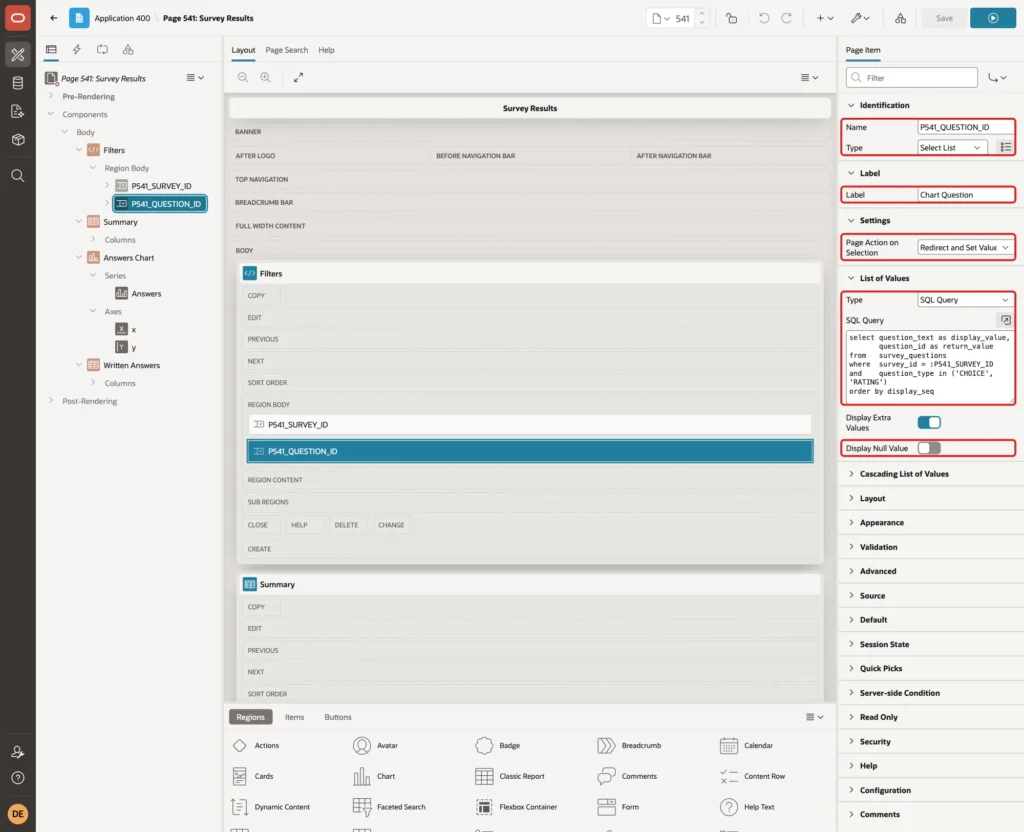
Two computations give the items a value when the page opens. Right-click Pre-Rendering > Before Header and select Create Computation. Set Item Name to P541_SURVEY_ID, Type to SQL Query (return single value) and enter this query:
Example:
select min(survey_id)
from   surveys
Set Server-side Condition > Type to Item is NULL with the item P541_SURVEY_ID, so the computation runs only when no survey is chosen yet:
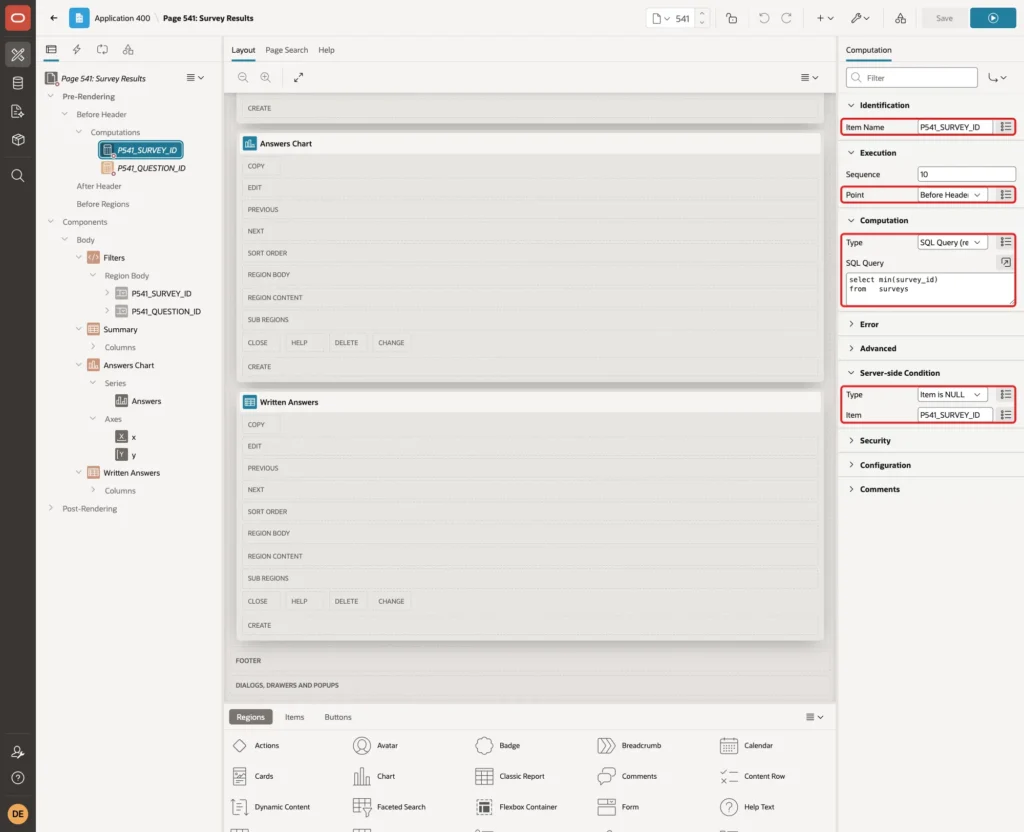
In a first test, the default took the first survey by title. That was the empty Team Lunch Poll, so the query now takes the lowest SURVEY_ID.
Create a second computation for P541_QUESTION_ID with this query:
Example:
select min(question_id) keep (dense_rank first order by display_seq)
from   survey_questions
where  survey_id = :P541_SURVEY_ID
and    question_type in ('CHOICE', 'RATING')
Set its Server-side Condition to No Rows returned with this query. It runs when no question is chosen, or when the chosen question belongs to another survey after the survey changed:
Example:
select 1
from   survey_questions
where  question_id = :P541_QUESTION_ID
and    survey_id   = :P541_SURVEY_ID
and    question_type in ('CHOICE', 'RATING')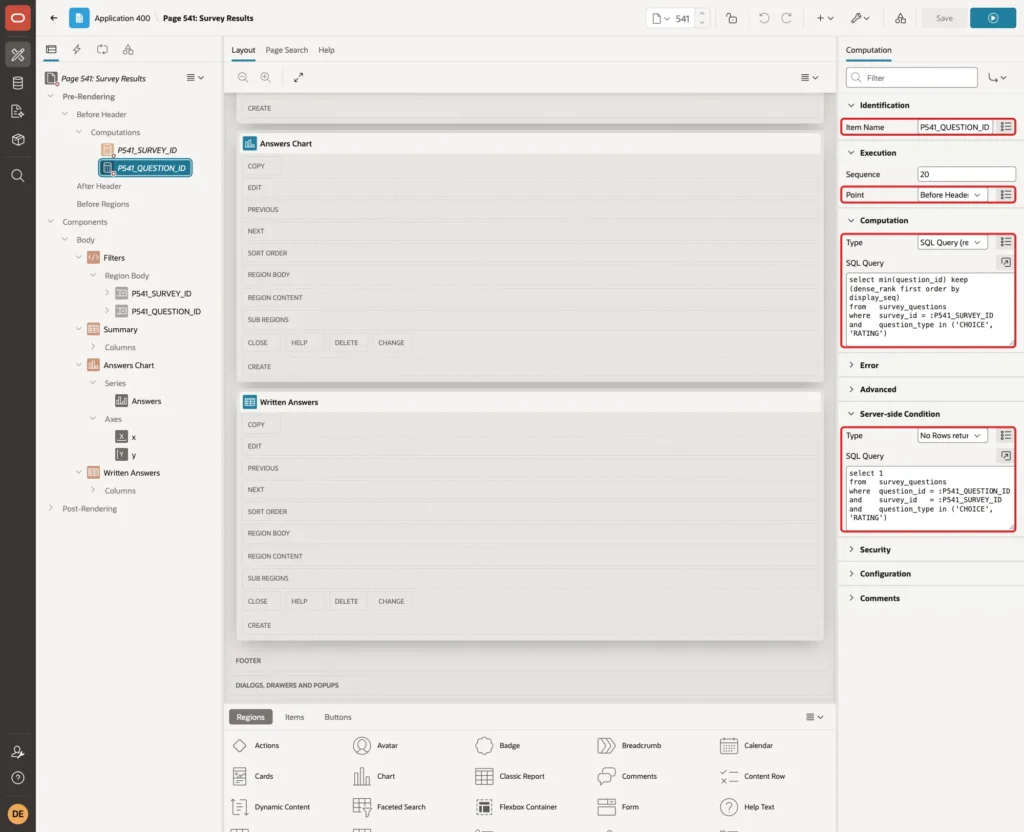
Step 13: Add the Summary Report
Create a region named Summary with Type Classic Report, Source Type SQL Query and this query:
Example:
select q.display_seq,
       q.question_text,
       initcap(q.question_type) as question_type,
       count(a.answer_id) as answers,
       round(avg(a.rating_value), 1) as average_rating
from   survey_questions q
left join survey_answers a on a.question_id = q.question_id
where  q.survey_id = :P541_SURVEY_ID
group by q.display_seq, q.question_text, q.question_type
order by q.display_seq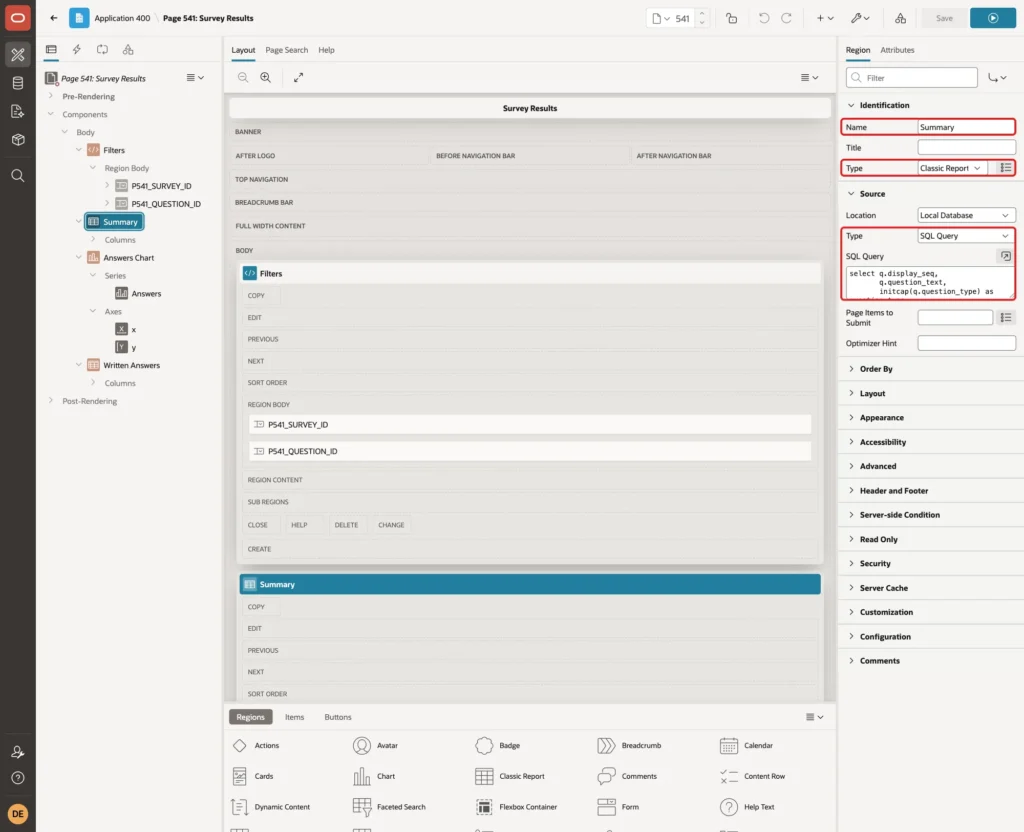
Expand Columns and set DISPLAY_SEQ to Type Hidden. It is only used for the order:
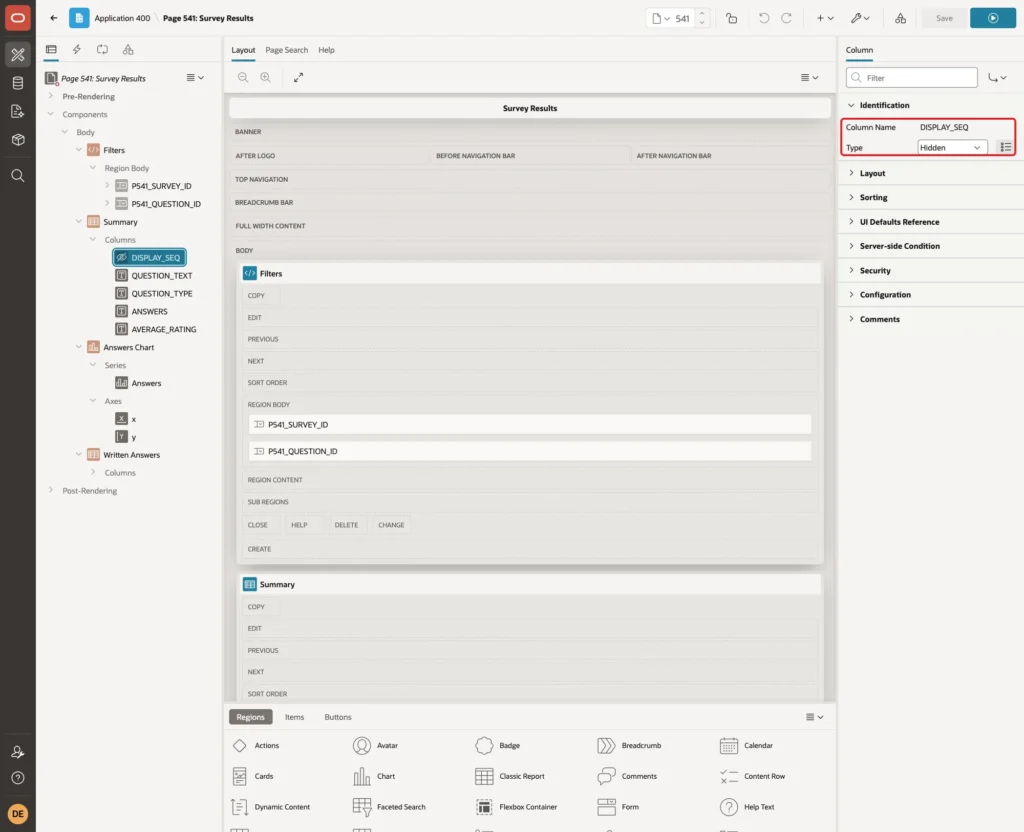
Set the headings of the other columns to Question, Type, Answers and Average Rating. Align Answers and Average Rating to the end.
Step 14: Add the Answers Chart
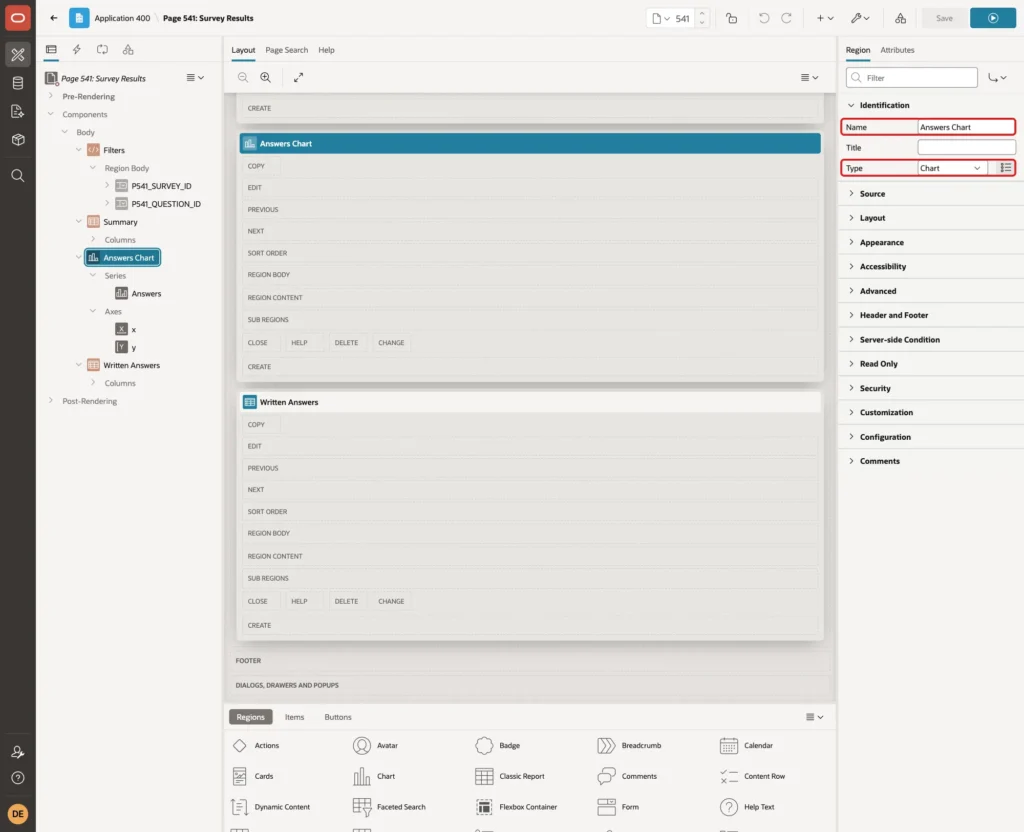
Create a region named Answers Chart and set its Type to Chart:
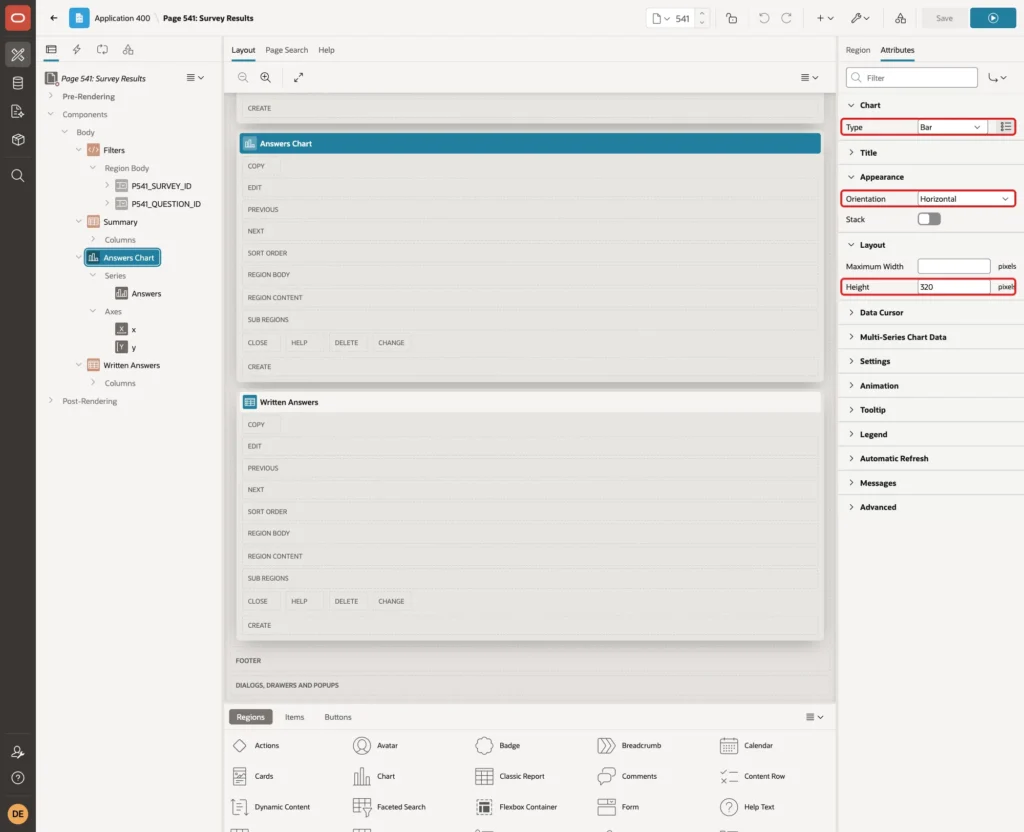
Open the Attributes tab. Keep the Type Bar, set Orientation to Horizontal and Height to 320:
Select the series under Series. Set Name to Answers, Source Type to SQL Query and enter this query:
Example:
select o.option_text as answer,
       count(a.answer_id) as answers,
       o.display_seq as seq
from   survey_options o
left join survey_answers a on a.option_id = o.option_id
where  o.question_id = :P541_QUESTION_ID
group by o.option_text, o.display_seq
union all
select r.rating || case when r.rating = 1 then ' star' else ' stars' end,
       count(a.answer_id),
       r.rating
from   (select level as rating from dual connect by level <= 5) r
join   survey_questions q
       on  q.question_id   = :P541_QUESTION_ID
       and q.question_type = 'RATING'
left join survey_answers a
       on  a.question_id  = q.question_id
       and a.rating_value = r.rating
group by r.rating
order by 3
Set Column Mapping > Label to ANSWER and Value to ANSWERS, and turn on Label > Show to print the count on each bar:
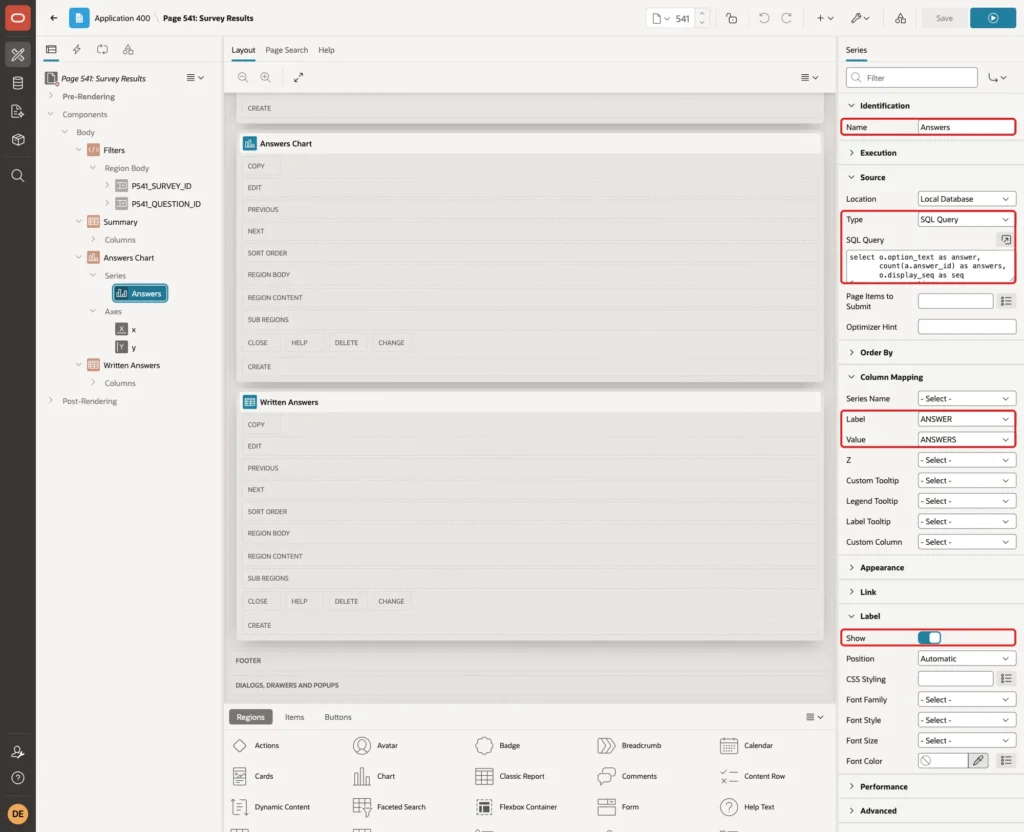
The first part of the query counts the answers per option of a CHOICE question. The second part runs only for a RATING question and lists 1 to 5 stars. The outer joins keep options and ratings with no answers at 0, and ORDER BY 3 keeps the display order.
Select the y axis under Axes. Set Value > Decimal Places to 0 and Major Ticks > Minimum Step to 1:
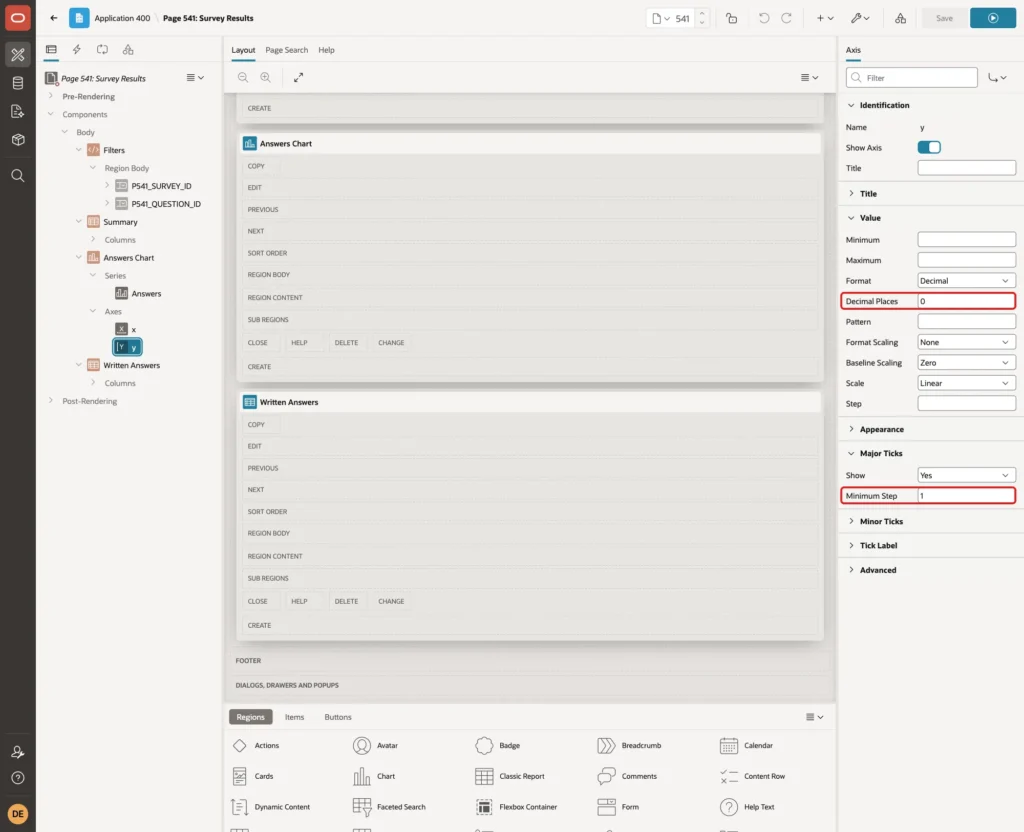
Without the minimum step, the chart used steps of 0.5 and, with 0 decimal places, showed the axis labels 0, 0, 1, 1, 2, 2.
Step 15: Add the Written Answers Report
Create a Classic Report region named Written Answers with this query. Set the column headings to Question, Answer, Respondent and Submitted On, and the format mask of SUBMITTED_ON to DD-MON-YYYY HH24:MI:
Example:
select q.question_text,
       a.answer_text,
       r.respondent,
       r.submitted_on
from   survey_answers a
join   survey_questions q on q.question_id = a.question_id
join   survey_responses r on r.response_id = a.response_id
where  q.survey_id     = :P541_SURVEY_ID
and    q.question_type = 'TEXT'
order by r.submitted_on desc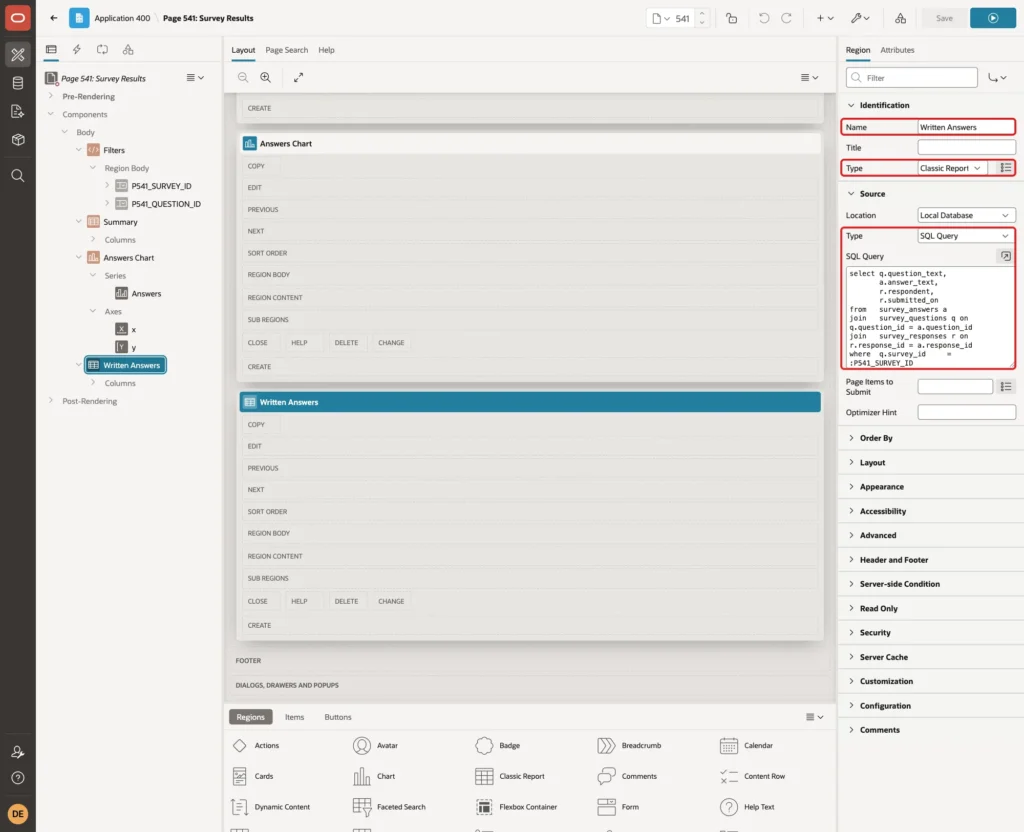
Test the Survey
A Required Question Is Missing
Run page 540, choose Training Course Feedback and pick only a rating of 4. Click Submit Answers. The validation lists both missing required questions:
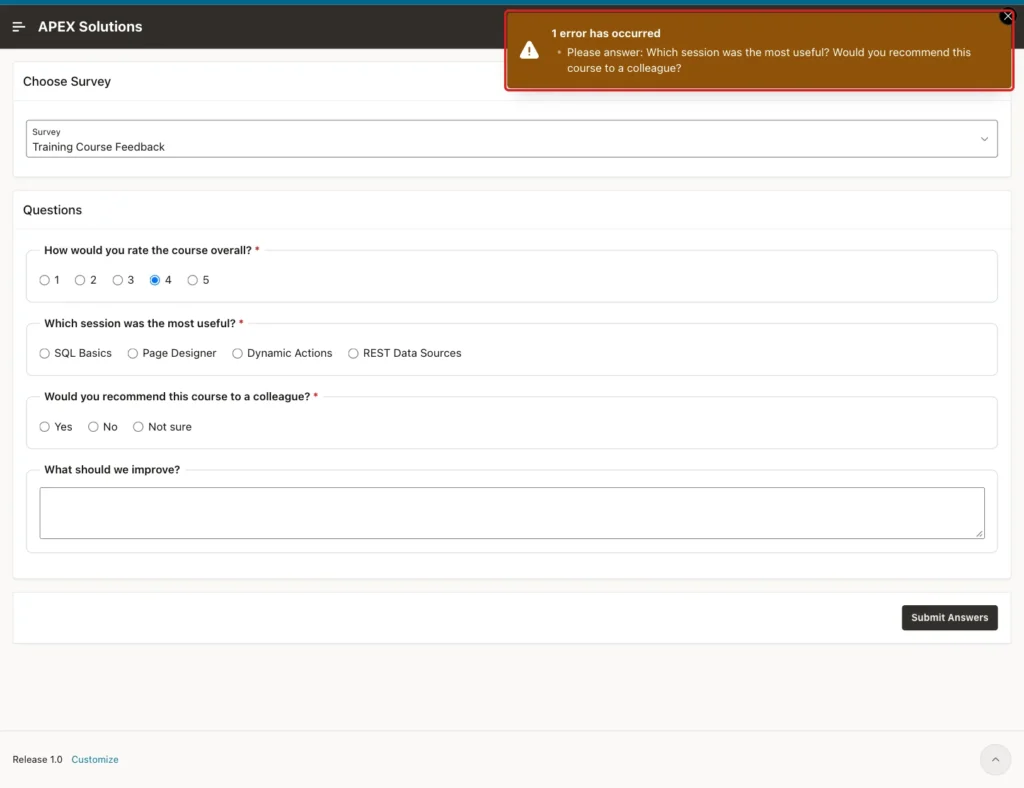
The rating of 4 is still selected. The page's Reload on Submit setting is Only for Success, so APEX shows validation errors without reloading the page.
Answer the Survey
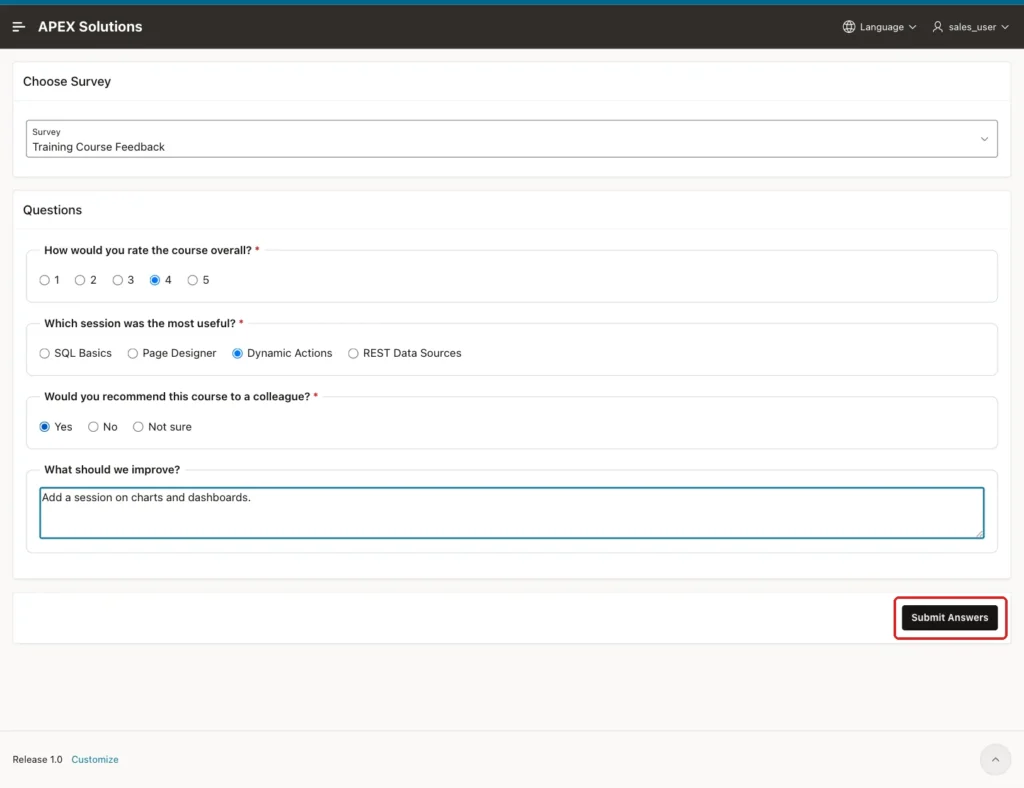
Sign in as SALES_USER, pick a rating of 4, Dynamic Actions and Yes, enter a suggestion and click Submit Answers:
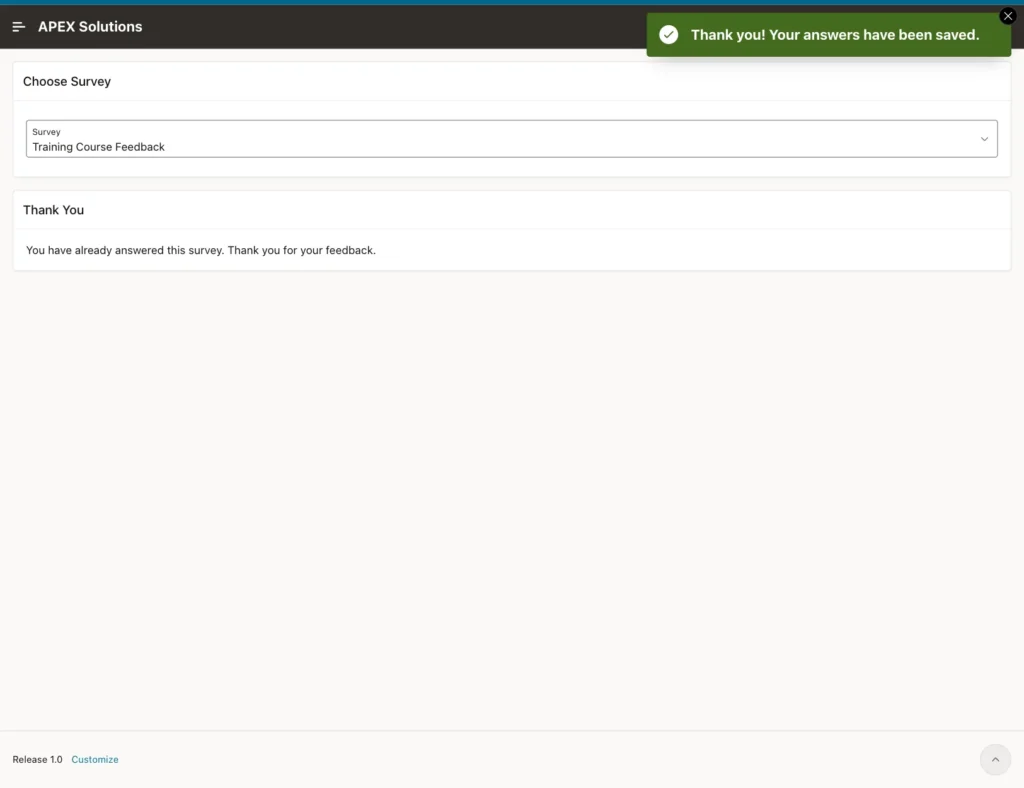
The success message appears and the Thank You region replaces the questions:
Sign in as ORDER_EDITOR and answer with a rating of 3, REST Data Sources and Not sure, without a suggestion. The optional text question can stay empty. The database now has four responses:
Example:
column respondent format a14
column question format a48
column answer format a42
select r.respondent,
       q.question_text as question,
       coalesce(o.option_text, to_char(a.rating_value), a.answer_text) as answer
from   survey_responses r
join   survey_answers a on a.response_id = r.response_id
join   survey_questions q on q.question_id = a.question_id
left join survey_options o on o.option_id = a.option_id
where  r.survey_id = 1
order by r.response_id, q.display_seq;
Output:
RESPONDENT      QUESTION                                           ANSWER
_______________ __________________________________________________ __________________________________________
ANITA           How would you rate the course overall?             5
ANITA           Which session was the most useful?                 Dynamic Actions
ANITA           Would you recommend this course to a colleague?    Yes
ANITA           What should we improve?                            More time for the hands-on labs.
MARCO           How would you rate the course overall?             4
MARCO           Which session was the most useful?                 Page Designer
MARCO           Would you recommend this course to a colleague?    Yes
SALES_USER      How would you rate the course overall?             4
SALES_USER      Which session was the most useful?                 Dynamic Actions
SALES_USER      Would you recommend this course to a colleague?    Yes
SALES_USER      What should we improve?                            Add a session on charts and dashboards.
ORDER_EDITOR    How would you rate the course overall?             3
ORDER_EDITOR    Which session was the most useful?                 REST Data Sources
ORDER_EDITOR    Would you recommend this course to a colleague?    Not sure

14 rows selected.
The RESPONDENT values came from DEFAULT ON NULL; the process never set them.
One Response per User
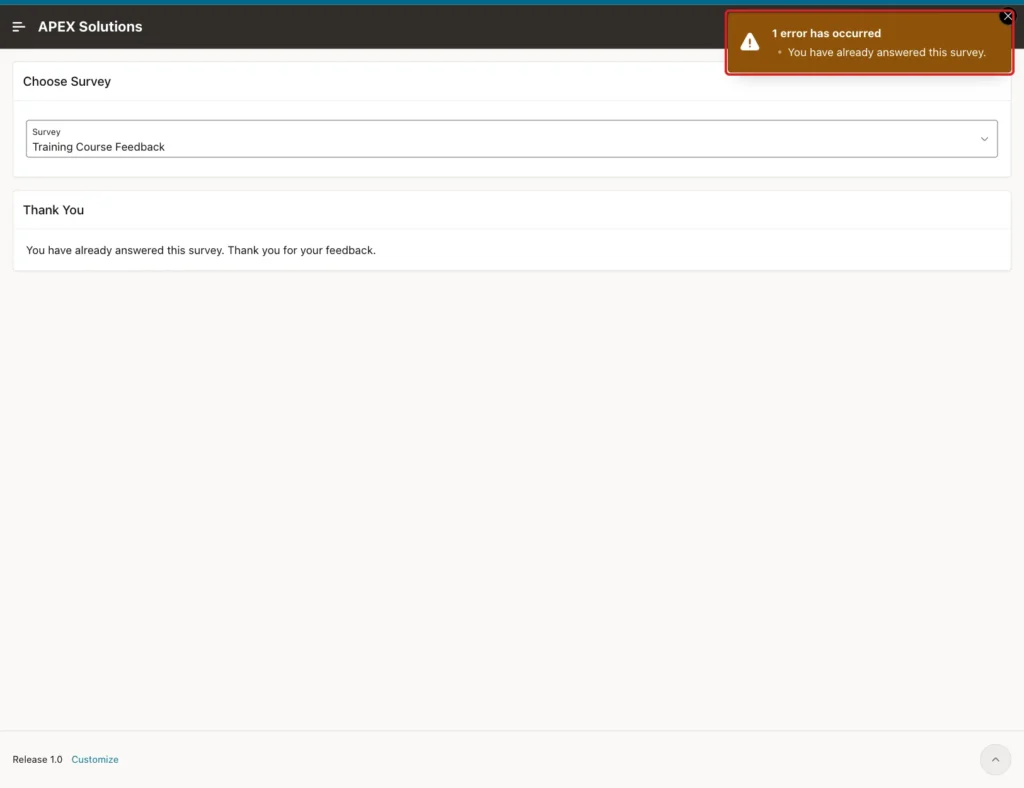
SALES_USER no longer sees the button. To test a forced second submit, run this in the browser console on page 540:
Example:
apex.page.submit({ request: "SUBMIT", set: { P540_ANSWERS: '{"1":"1","2":"1","3":"6"}' } });The validation rejects it:
A Tampered Answer
Sign in as DEMO_DEV and submit option 8 for the session question. Option 8 is Tuesday from the lunch poll:
Example:
apex.page.submit({ request: "SUBMIT", set: { P540_ANSWERS: '{"1":"5","2":"8","3":"5"}' } });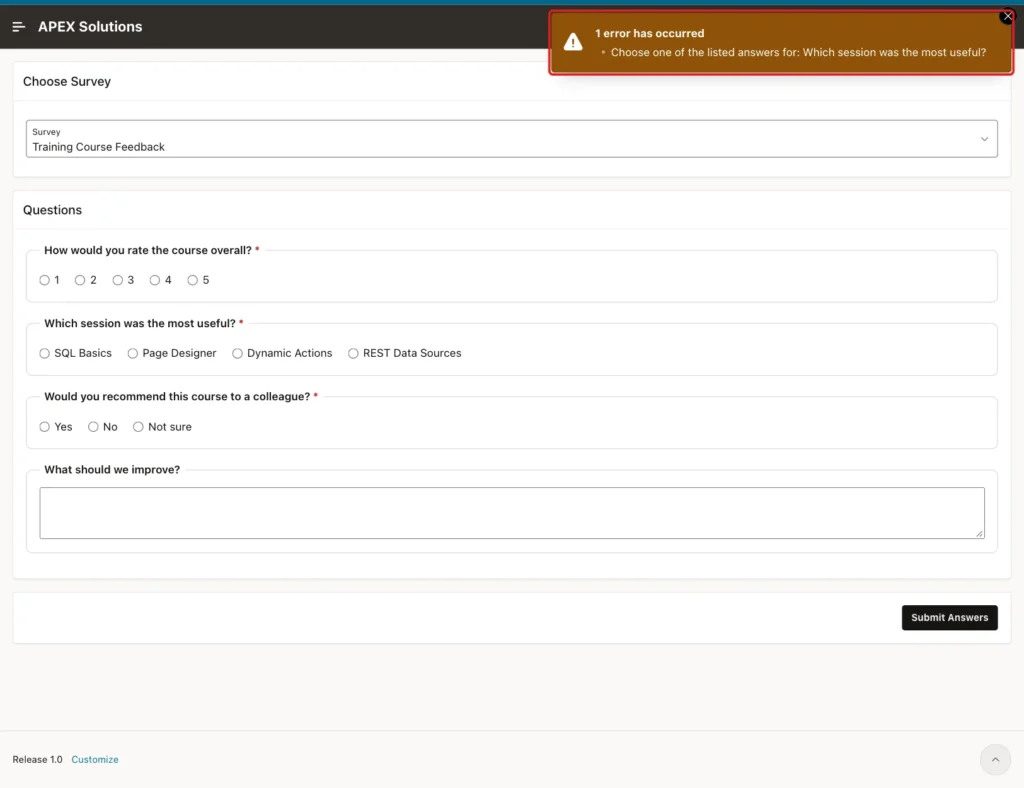
A rating of 9 was rejected with "Choose a rating from 1 to 5 for: How would you rate the course overall?". No response was saved for DEMO_DEV:
Example:
select respondent, count(*) over () as responses
from   survey_responses
where  survey_id = 1
order by response_id;
Output:
RESPONDENT         RESPONSES
_______________ ____________
ANITA                      4
MARCO                      4
SALES_USER                 4
ORDER_EDITOR               4
The Results
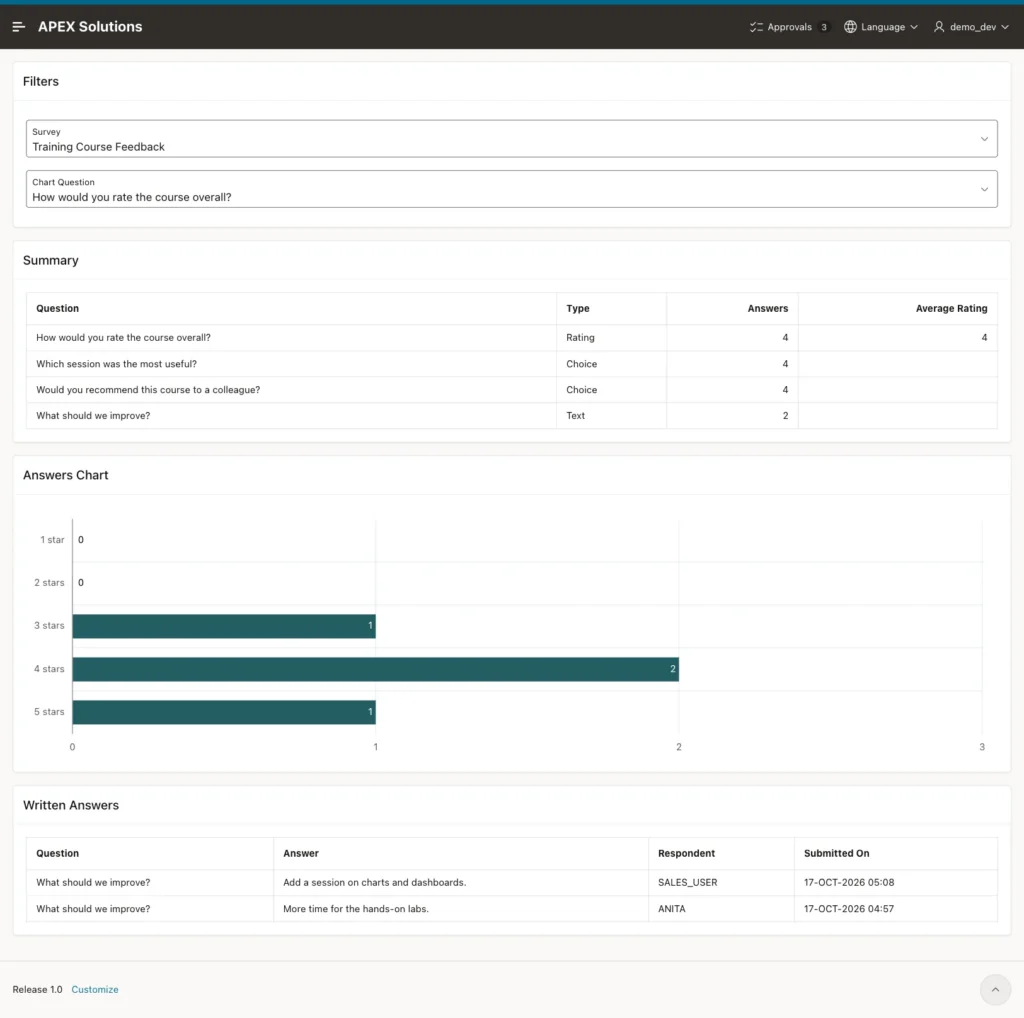
Sign in as an administrator and open page 541. The summary shows four answers per required question and an average rating of 4. The chart shows the rating question:
Choose Which session was the most useful? in Chart Question. The page reloads and the chart counts the sessions:
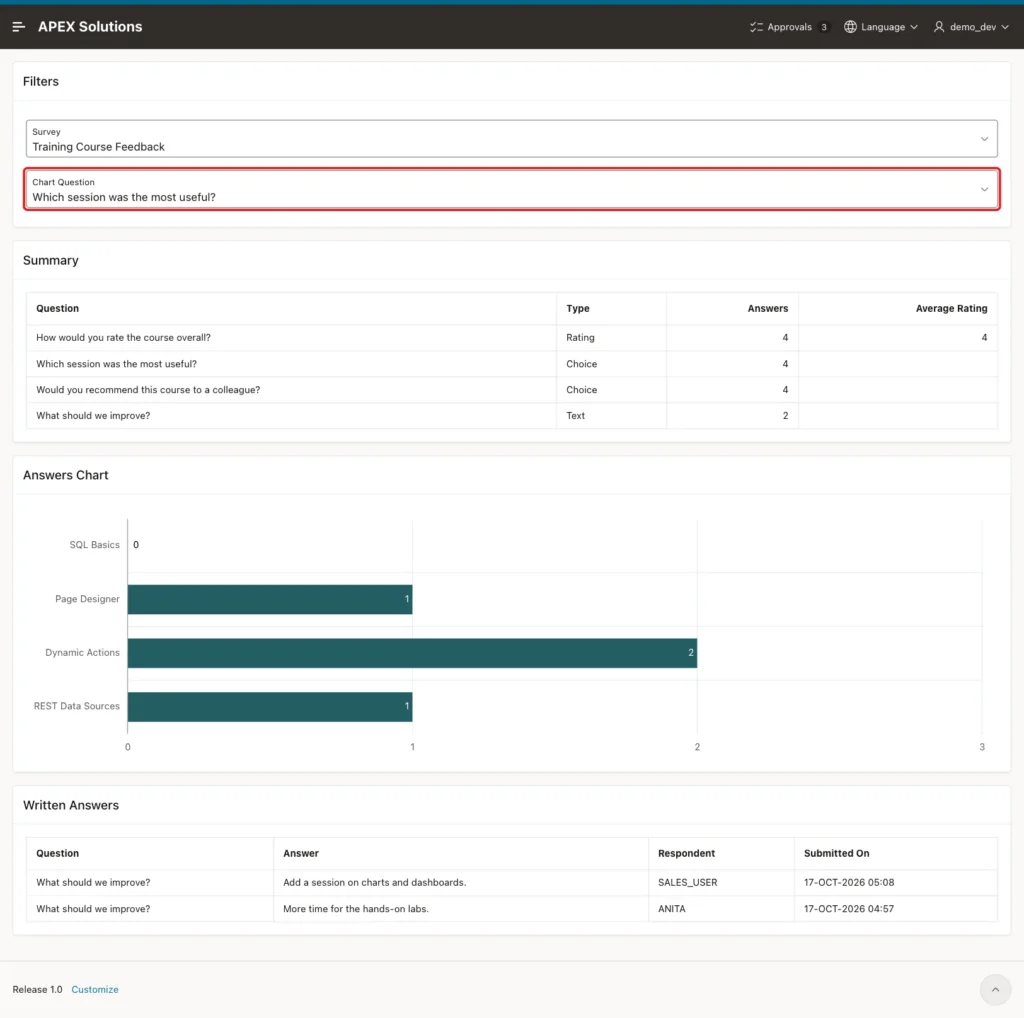
The same counts in SQL:
Example:
column question format a48
column answer format a20
select q.question_text as question,
       coalesce(o.option_text, to_char(a.rating_value)) as answer,
       count(*) as answers
from   survey_answers a
join   survey_questions q on q.question_id = a.question_id
left join survey_options o on o.option_id = a.option_id
where  q.survey_id = 1
and    q.question_type in ('CHOICE', 'RATING')
group by q.display_seq, q.question_text, coalesce(o.option_text, to_char(a.rating_value))
order by q.display_seq, answer;
Output:
QUESTION                                           ANSWER                  ANSWERS
__________________________________________________ ____________________ __________
How would you rate the course overall?             3                             1
How would you rate the course overall?             4                             2
How would you rate the course overall?             5                             1
Which session was the most useful?                 Dynamic Actions               2
Which session was the most useful?                 Page Designer                 1
Which session was the most useful?                 REST Data Sources             1
Would you recommend this course to a colleague?    Not sure                      1
Would you recommend this course to a colleague?    Yes                           3

8 rows selected.
When the survey changes to Team Lunch Poll, the chart question switches to that survey's question at once.
A Reader Opens the Results
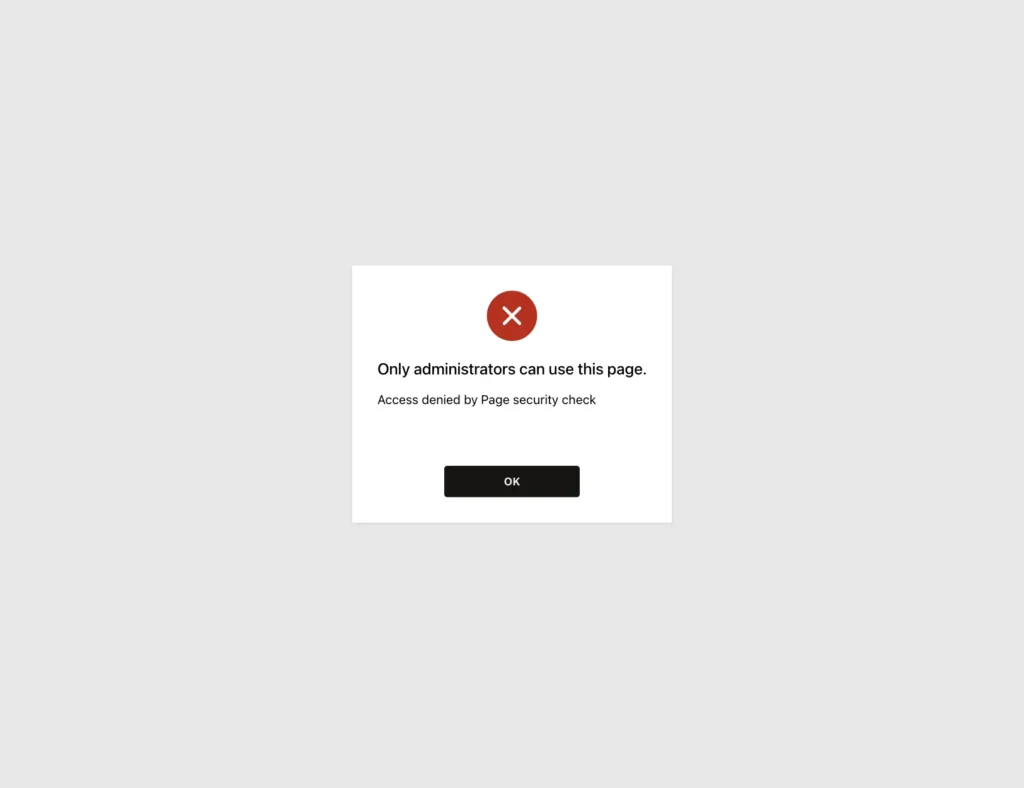
SALES_USER has the Reader role. Opening page 541 shows the error of the authorization scheme:
Things to Know
- The radio buttons and text areas are plain HTML. Only the hidden item P540_ANSWERS reaches the server, so the JavaScript must run before the submit.
- A hidden item that JavaScript changes needs Value Protected off. Check its content on the server, as the validation here does.
- Store choice answers by OPTION_ID with a foreign key on QUESTION_ID and OPTION_ID. It also blocks options of other questions when rows come from outside the page.
- A PL/SQL Expression condition cannot use EXISTS. Use the Rows returned or No Rows returned type with a query.
- NUM_NONNULLS is not allowed in a check constraint (ORA-00904). Add up NVL2 results instead.
- Put value checks in a validation. RAISE_APPLICATION_ERROR in a process shows the ORA-20001 prefix to the user.
- Changing questions after people have answered changes the meaning of old answers. Close a survey (IS_ACTIVE = N) and create a new one instead.
- The results page shows the respondent's name. For an anonymous survey, leave RESPONDENT out of the reports, or store a hash of the user name.
Related Guides
- Static Content, Dynamic Content, and Region Templates in Oracle APEX
- How to Drill Down from a Chart to the Matching Rows in Oracle APEX
Conclusion
With the questions in tables, an Oracle APEX survey needs no page change for a new question or a new survey. A Dynamic Content region draws the form, a few lines of JavaScript collect the answers, and one process stores them.
Constraints and validations keep the data clean. Required questions, one response per user and valid options are checked on the server. A summary report and a bar chart show the results to administrators only.
