
Many tables keep flexible details in a JSON column, such as the specifications of a device or the settings of a user. Each row can have different attributes, and new attributes need no table change. But end users should not edit raw JSON text in a text area.
Oracle APEX 26.1 can map the attributes of a JSON column to normal form items through a JSON Source. Users see text fields, number fields and a switch, and APEX writes their values back into the JSON document. This guide builds that form, shows what APEX writes for empty fields, and protects the document with a JSON schema.
The example is a small device catalog with a SPECS column. The same steps work for any table with a JSON column. If you need to read or build JSON in PL/SQL code instead, see the APEX_JSON guide linked at the end; this article is about a form on a JSON column.
Step 1: Create the Tables
DEVICE_CATEGORIES is a small lookup table. DEVICES has normal columns for the name and the category, and a SPECS column of the JSON data type, which Oracle AI Database 26ai stores in binary form.
The VALIDATE clause attaches a JSON schema to SPECS, and the database checks every document on insert and update. Brand and color must be strings, and weight and cable length numbers of zero or more.
The warranty must be a whole number from 0 to 120. Each type also allows null, for a reason that Step 9 shows.
Example:
create table device_categories (
  category_id    number generated by default on null as identity,
  category_name  varchar2(80 char) not null,
  constraint device_categories_pk primary key (category_id),
  constraint device_categories_name_uk unique (category_name)
);

create table devices (
  device_id    number generated by default on null as identity,
  device_name  varchar2(120 char) not null,
  category_id  number not null,
  specs        json validate '{
                 "type": "object",
                 "properties": {
                   "brand":           {"type": ["string", "null"], "maxLength": 40},
                   "color":           {"type": ["string", "null"], "maxLength": 30},
                   "weight_kg":       {"type": ["number", "null"], "minimum": 0},
                   "warranty_months": {"type": ["integer", "null"], "minimum": 0, "maximum": 120},
                   "wireless":        {"type": ["boolean", "null"]},
                   "cable_m":         {"type": ["number", "null"], "minimum": 0}
                 }
               }',
  created_on   date default on null sysdate not null,
  constraint devices_pk primary key (device_id),
  constraint devices_category_fk foreign key (category_id)
    references device_categories (category_id),
  constraint devices_name_uk unique (device_name)
);

create index devices_category_ix on devices (category_id);

insert into device_categories (category_name) values ('Laptops');
insert into device_categories (category_name) values ('Headphones');
insert into device_categories (category_name) values ('Monitors');

insert into devices (device_name, category_id, specs)
values ('ProBook 14', 1,
  '{"brand":"Acme","color":"Silver","weight_kg":1.4,"warranty_months":24,"wireless":true}');
insert into devices (device_name, category_id, specs)
values ('QuietSound X2', 2,
  '{"brand":"Sonora","color":"Black","weight_kg":0.25,"warranty_months":12,"wireless":true}');
insert into devices (device_name, category_id, specs)
values ('ViewMax 27', 3,
  '{"brand":"Pixelon","color":"Black","weight_kg":5.8,"wireless":false}');
insert into devices (device_name, category_id, specs)
values ('StudioWire 1', 2,
  '{"brand":"Sonora","weight_kg":0.31,"wireless":false,"cable_m":1.5}');

commit;

select d.device_id, d.device_name, c.category_name,
       json_serialize(d.specs) as specs
from   devices d
join   device_categories c on c.category_id = d.category_id
order  by d.device_id;
Output:
Table DEVICE_CATEGORIES created.

Table DEVICES created.

Index DEVICES_CATEGORY_IX created.

1 row inserted.

1 row inserted.

1 row inserted.

1 row inserted.

1 row inserted.

1 row inserted.

1 row inserted.

Commit complete.

   DEVICE_ID DEVICE_NAME      CATEGORY_NAME    SPECS
____________ ________________ ________________ ___________________________________________________________________________________________
           1 ProBook 14       Laptops          {"brand":"Acme","color":"Silver","weight_kg":1.4,"warranty_months":24,"wireless":true}
           2 QuietSound X2    Headphones       {"brand":"Sonora","color":"Black","weight_kg":0.25,"warranty_months":12,"wireless":true}
           3 ViewMax 27       Monitors         {"brand":"Pixelon","color":"Black","weight_kg":5.8,"wireless":false}
4 StudioWire 1 Headphones {"brand":"Sonora","weight_kg":0.31,"wireless":false,"cable_m":1.5}- The four documents do not all have the same attributes. ViewMax 27 has no warranty_months, and only StudioWire 1 has cable_m.
- CREATED_ON uses DEFAULT ON NULL, so the database fills it on insert without a trigger.
- No attribute is required by the schema, so a document can leave out any of them.
Test the JSON schema. The first insert sends a text weight, the second a warranty of 240 months, and the third leaves two attributes empty with null:
Example:
insert into devices (device_name, category_id, specs)
values ('Broken Scale', 1, '{"brand":"Acme","weight_kg":"heavy"}');

insert into devices (device_name, category_id, specs)
values ('Long Warranty', 1, '{"brand":"Acme","warranty_months":240}');

insert into devices (device_name, category_id, specs)
values ('Empty Specs', 1, '{"brand":"Acme","warranty_months":null,"cable_m":null}');

rollback;

select count(*) as device_count from devices;
Output:
Error starting at line : 1 File @ b53/01-schema-test.sql
In command -
insert into devices (device_name, category_id, specs)
values ('Broken Scale', 1, '{"brand":"Acme","weight_kg":"heavy"}')
Error report -
ORA-40875: JSON schema validation error
JZN-00501: JSON schema validation failed
Help: https://docs.oracle.com/error-help/db/ora-40875/

Error starting at line : 4 File @ b53/01-schema-test.sql
In command -
insert into devices (device_name, category_id, specs)
values ('Long Warranty', 1, '{"brand":"Acme","warranty_months":240}')
Error report -
ORA-40875: JSON schema validation error
JZN-00501: JSON schema validation failed
Help: https://docs.oracle.com/error-help/db/ora-40875/

1 row inserted.

Rollback complete.

   DEVICE_COUNT
_______________
              4
The database rejected the wrong type and the value out of range with ORA-40875. The document with null values was accepted. The rollback removed it again, so the table still has four devices.
Step 2: Open JSON Sources
A JSON Source is a shared component that tells APEX which table and JSON column to use. It also holds a data profile that maps each JSON attribute to a column that pages can use.
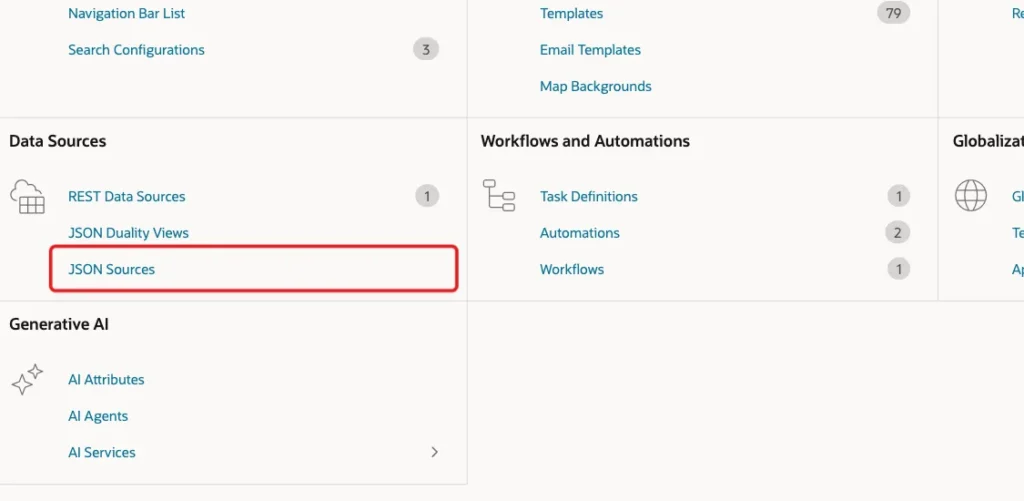
In App Builder, open the application and click Shared Components. Under Data Sources, click JSON Sources:
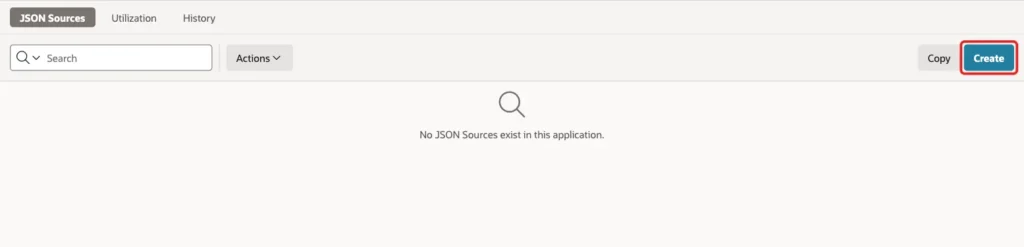
On the JSON Sources page, click Create:
Step 3: Create the JSON Source
On the General screen, enter Device Specs as the Name. Keep JSON Source Type Table with JSON Columns and Location Local Database. Keep the Owner, select DEVICES in Table with JSON Columns, and click Next:
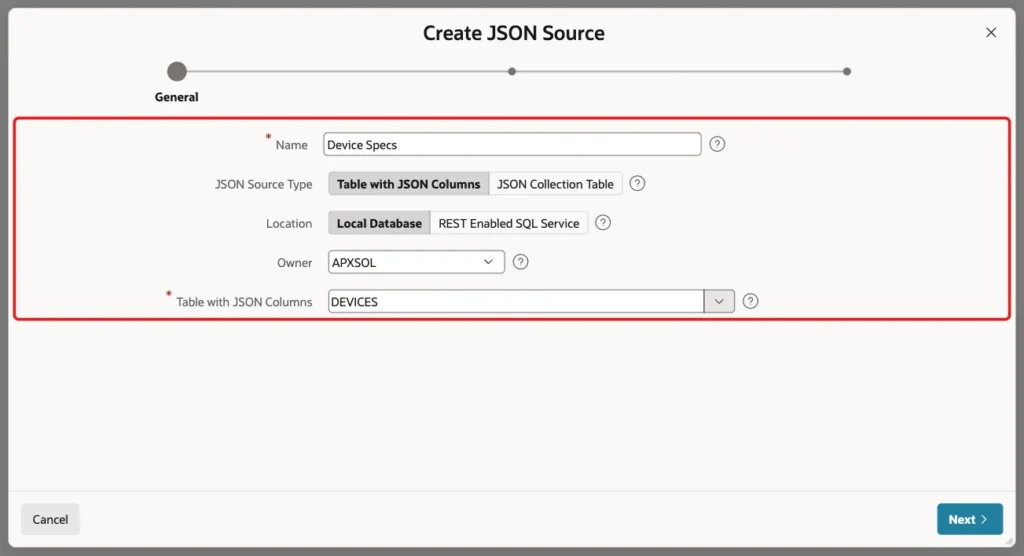
The other type, JSON Collection Table, is for tables that hold only JSON documents. DEVICES is a normal table with one JSON column, so Table with JSON Columns is right.
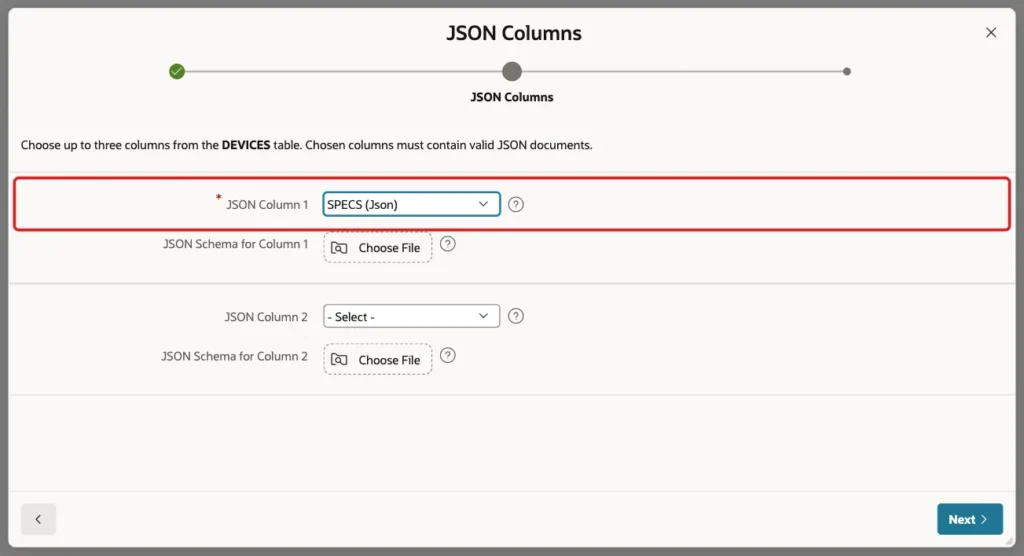
On the JSON Columns screen, select SPECS (Json) in JSON Column 1. The wizard first suggested DEVICE_NAME, so check this field. You can choose up to three JSON columns and optionally upload a JSON schema file for each. Leave the schema file empty and click Next:
APEX reads the documents in the table and computes the data profile. DEVICE_ID is checked as the primary key. SPECS itself is a JSON Document column, and BRAND, COLOR, CABLE_M, WIRELESS, WEIGHT_KG and WARRANTY_MONTHS are columns with SPECS as their Parent Column:
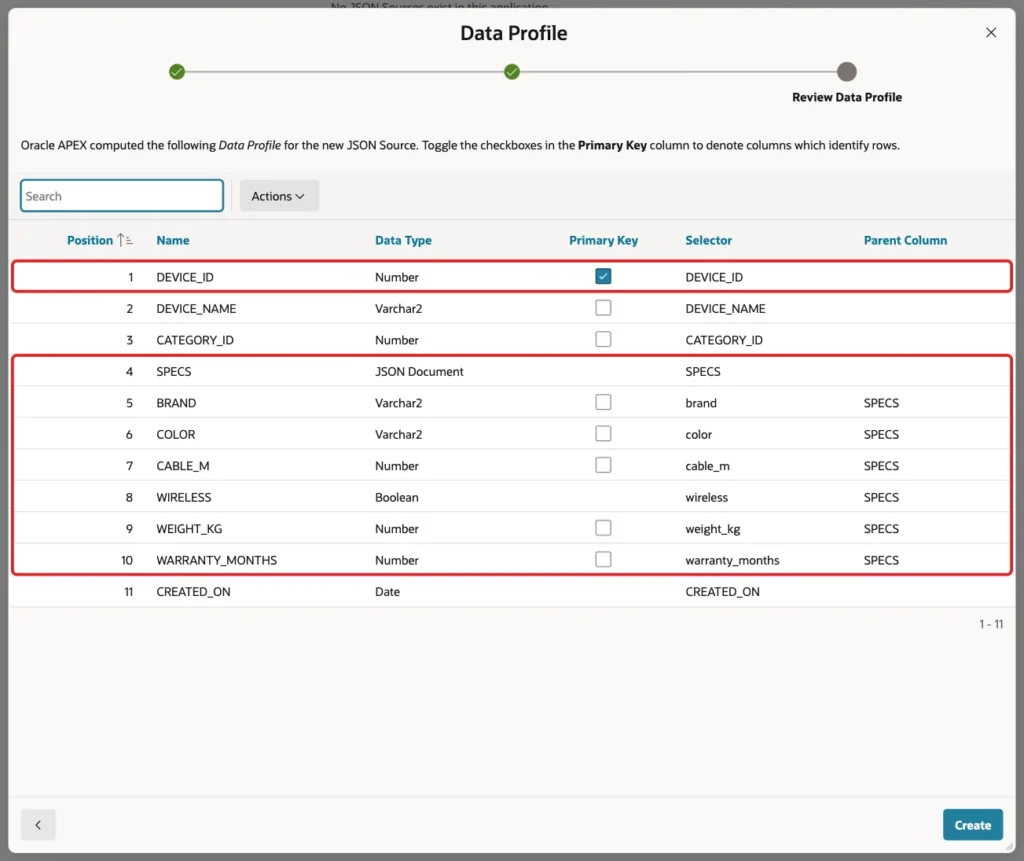
APEX found cable_m although only one document has it, and it typed wireless as Boolean. Click Create. APEX shows the message JSON Source created.
Step 4: Create the Report and Form Pages
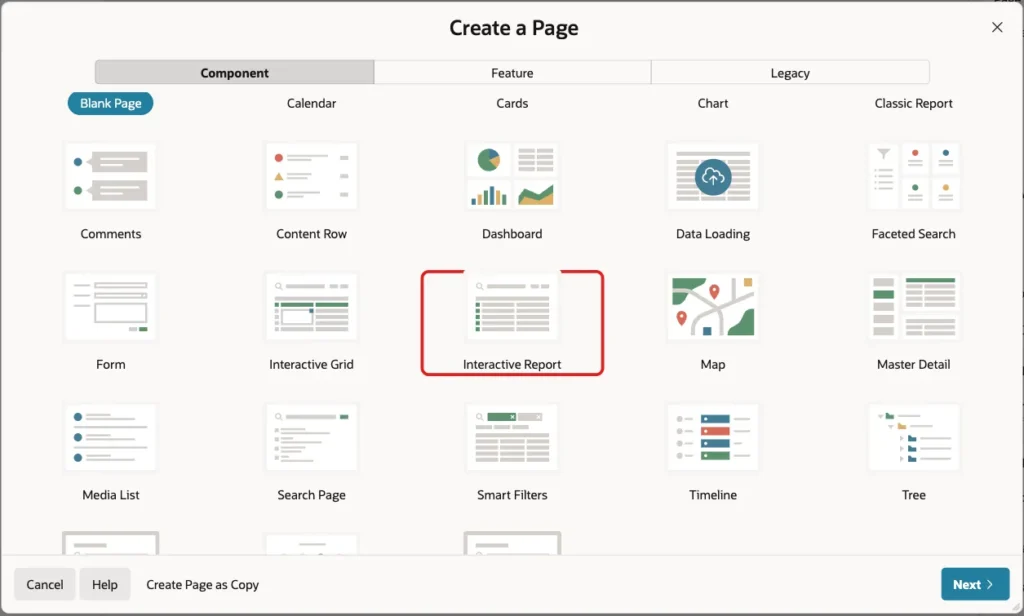
Open the application, click Create Page, and click Interactive Report on the Component tab:
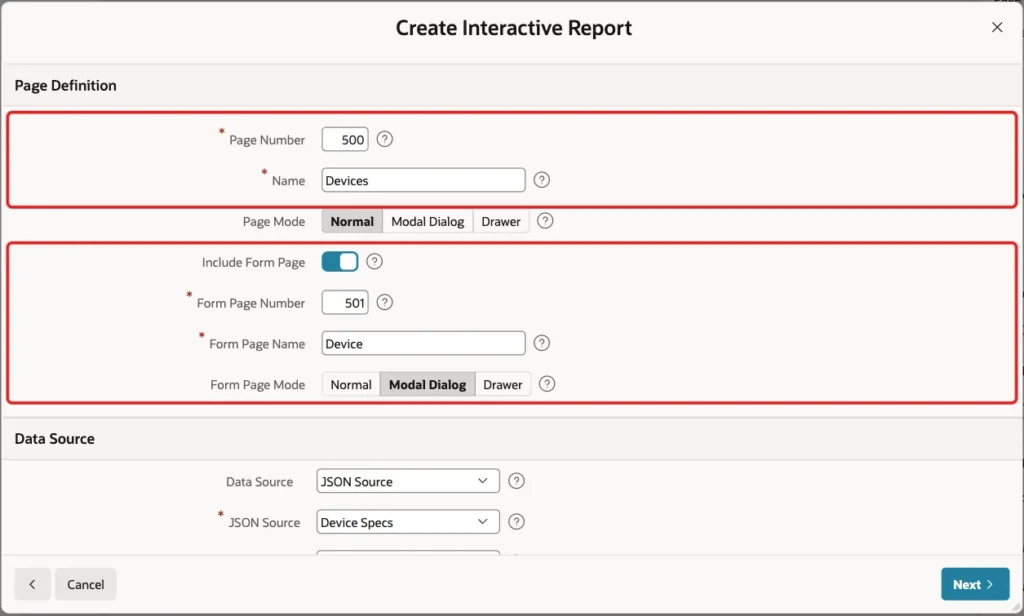
Enter Page Number 500 and Name Devices. Turn on Include Form Page, enter Form Page Number 501 and Form Page Name Device, and select Form Page Mode Modal Dialog:
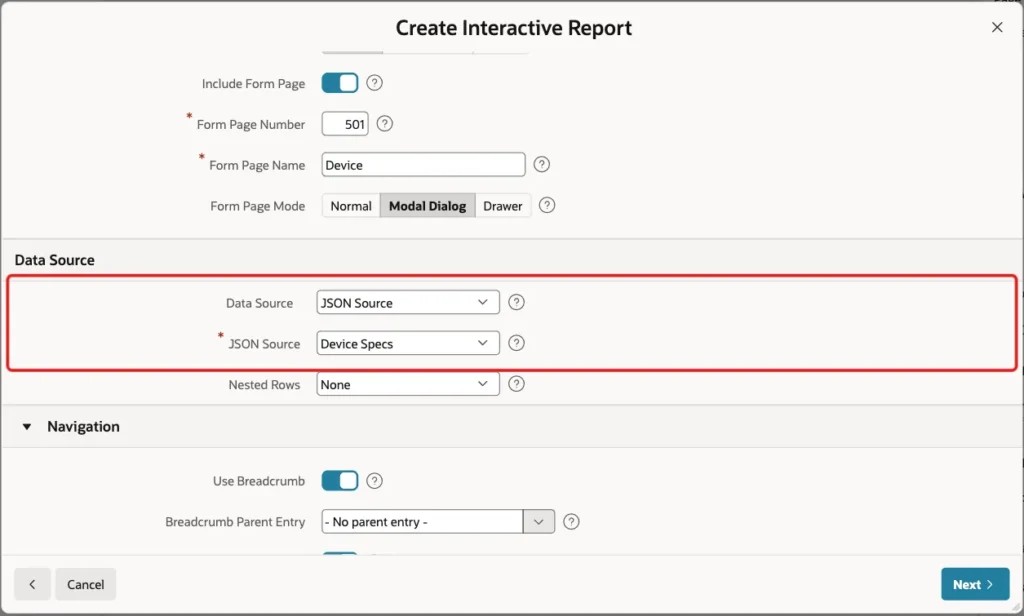
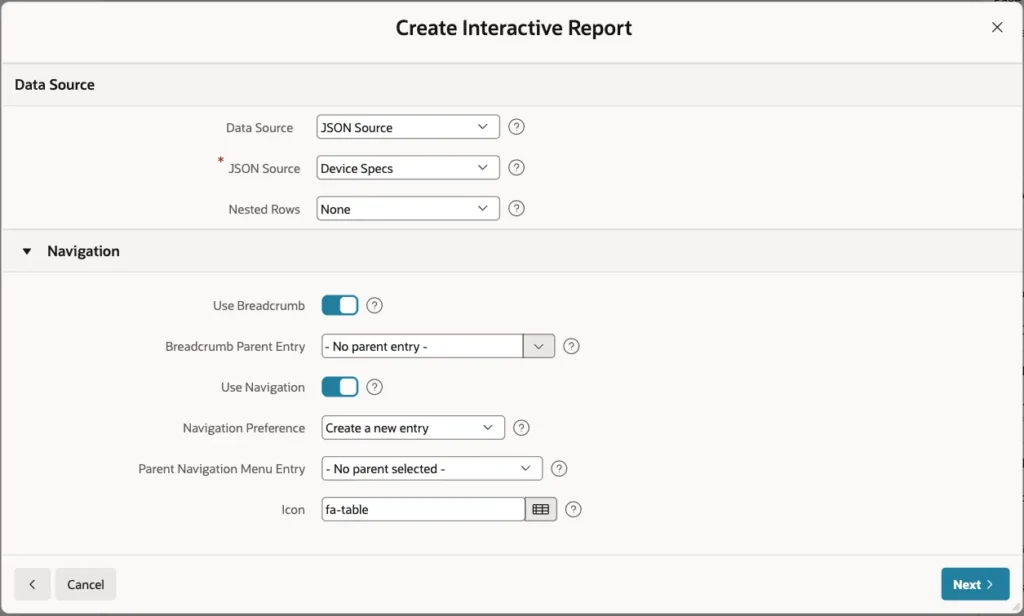
In the Data Source section, select JSON Source as the Data Source and Device Specs as the JSON Source. Keep Nested Rows at None:
Keep the Navigation settings, so the wizard adds a breadcrumb and a navigation menu entry, and click Next:
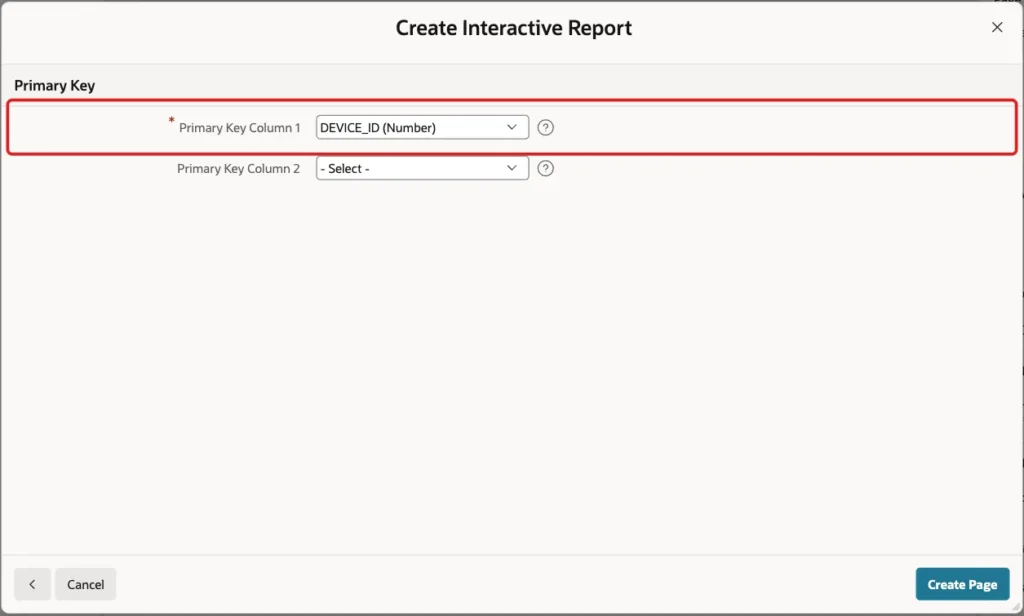
On the Primary Key screen, keep DEVICE_ID (Number) as Primary Key Column 1 and click Create Page:
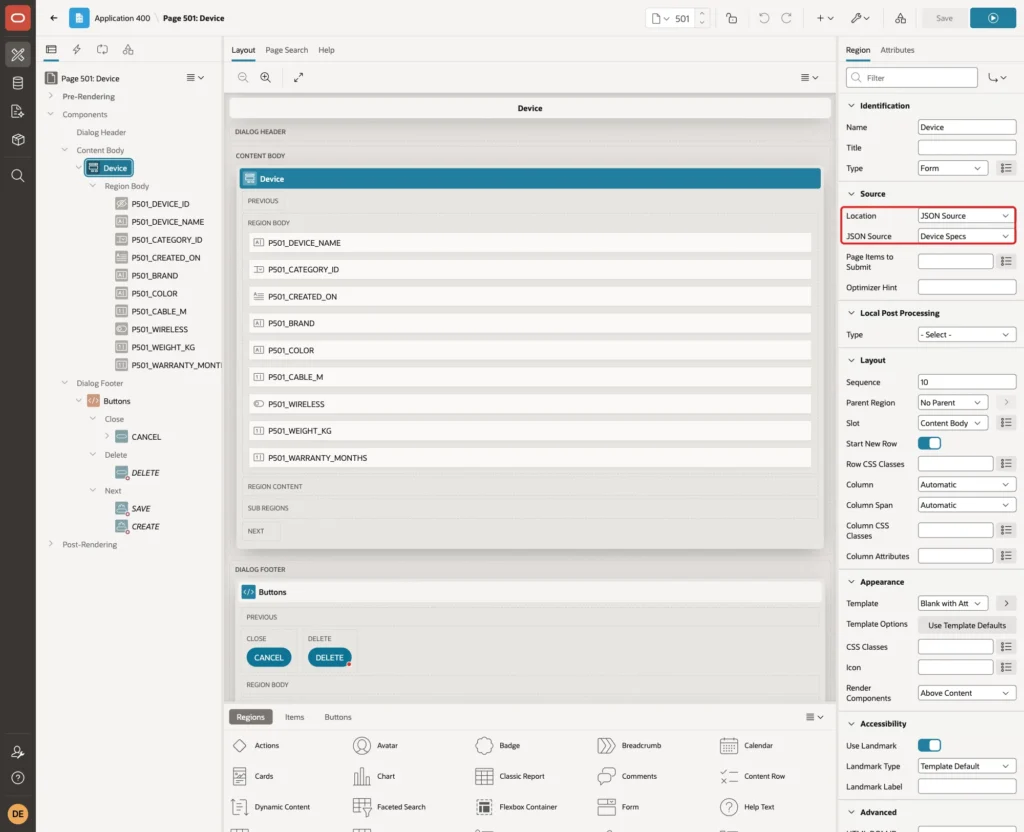
The wizard creates a form item for every column of the data profile except the SPECS document itself. P501_WIRELESS becomes a switch because the profile column is Boolean.
Step 5: Check the Form Region Source
Open page 501 in Page Designer and select the Device region. Under Source, Location is JSON Source and JSON Source is Device Specs. There is no table name and no SQL query: the region reads and writes through the JSON Source:
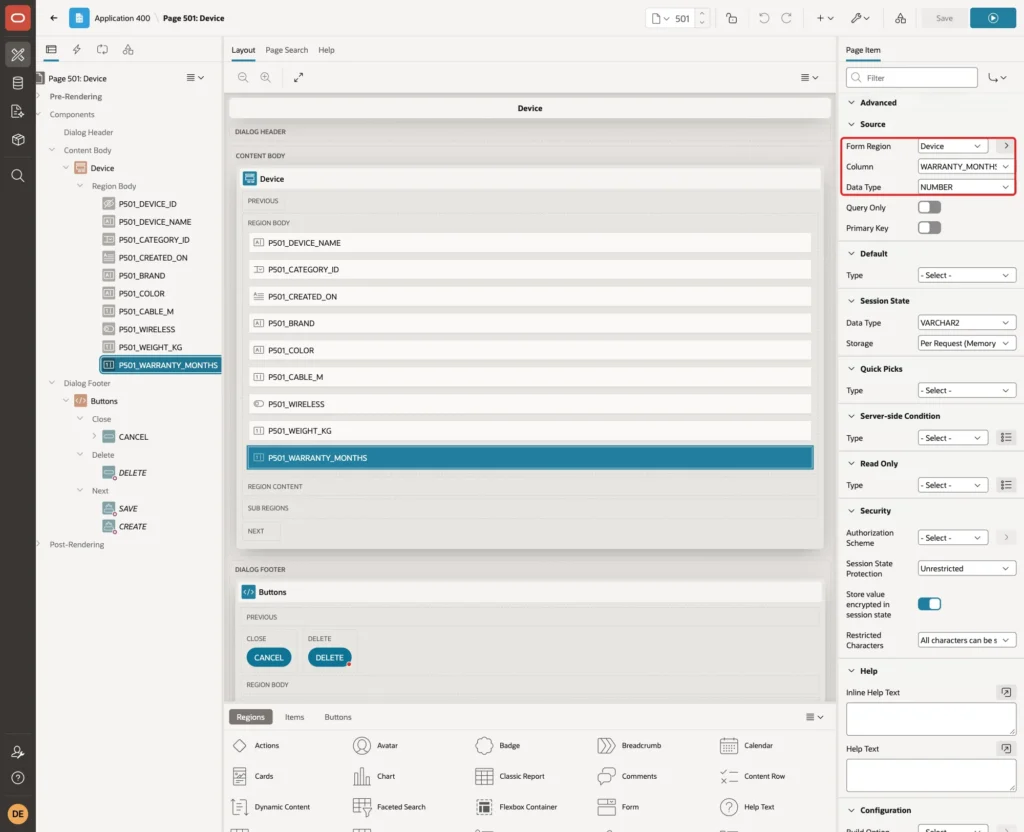
Select P501_WARRANTY_MONTHS. Under Source, Form Region is Device, Column is WARRANTY_MONTHS and Data Type is NUMBER. This column is the warranty_months attribute inside SPECS, but the item treats it like any table column:
Step 6: Create a List of Values for the Category
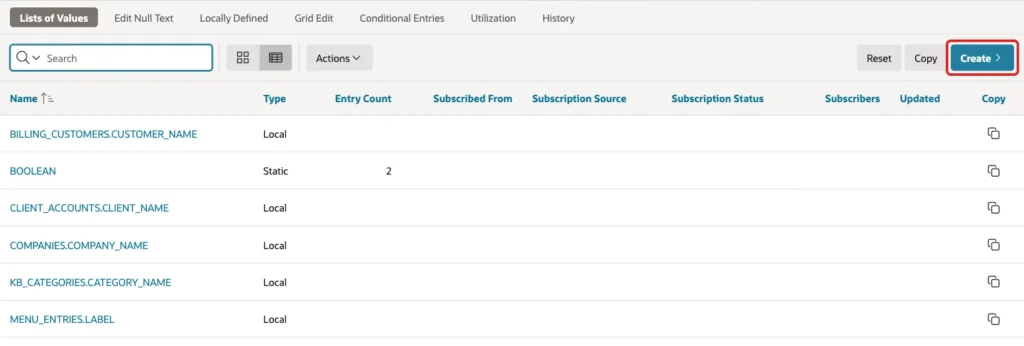
The wizard made CATEGORY_ID a number field. A select list with the category names is easier to use. First create a shared list of values: in Shared Components, under Other Components, click Lists of Values, then click Create:
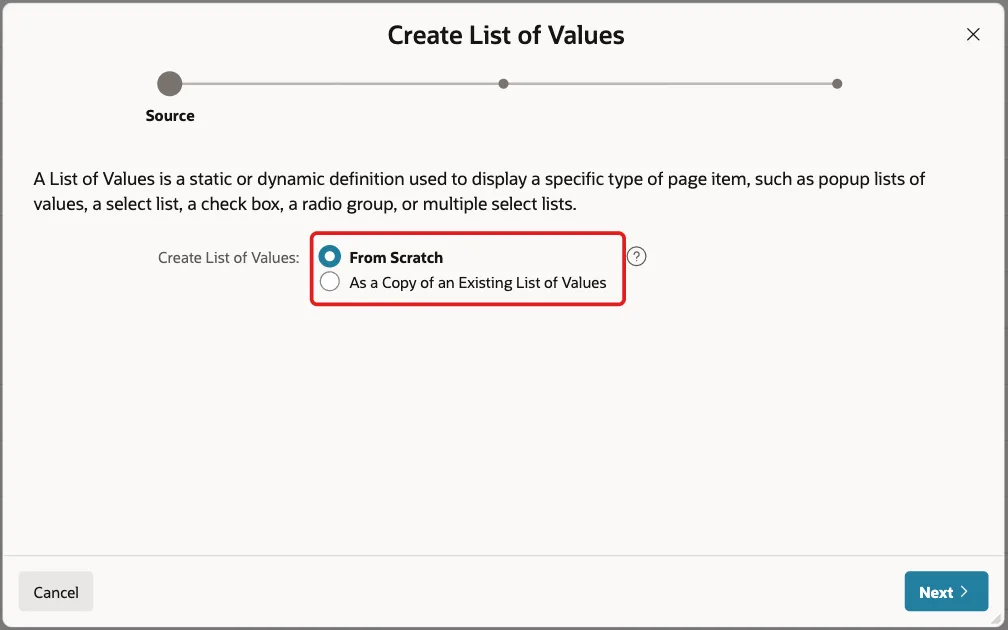
Keep From Scratch and click Next:
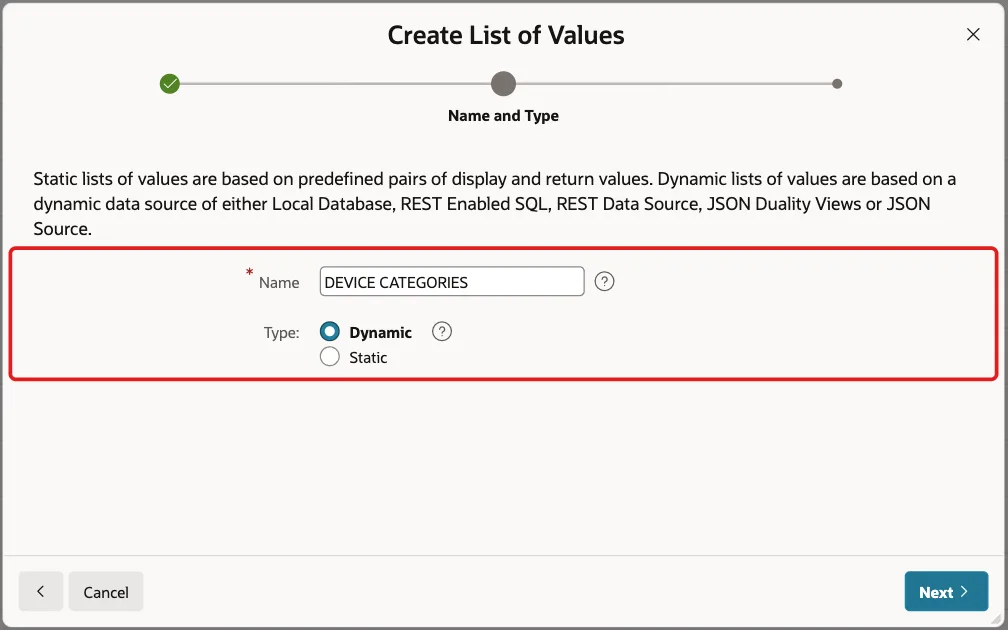
Enter DEVICE CATEGORIES as the Name, keep Type Dynamic, and click Next:
Keep Data Source Local Database, click SQL Query, and enter this query. Click Next:
Example:
select category_name as display_value,
       category_id   as return_value
from   device_categories
order  by category_name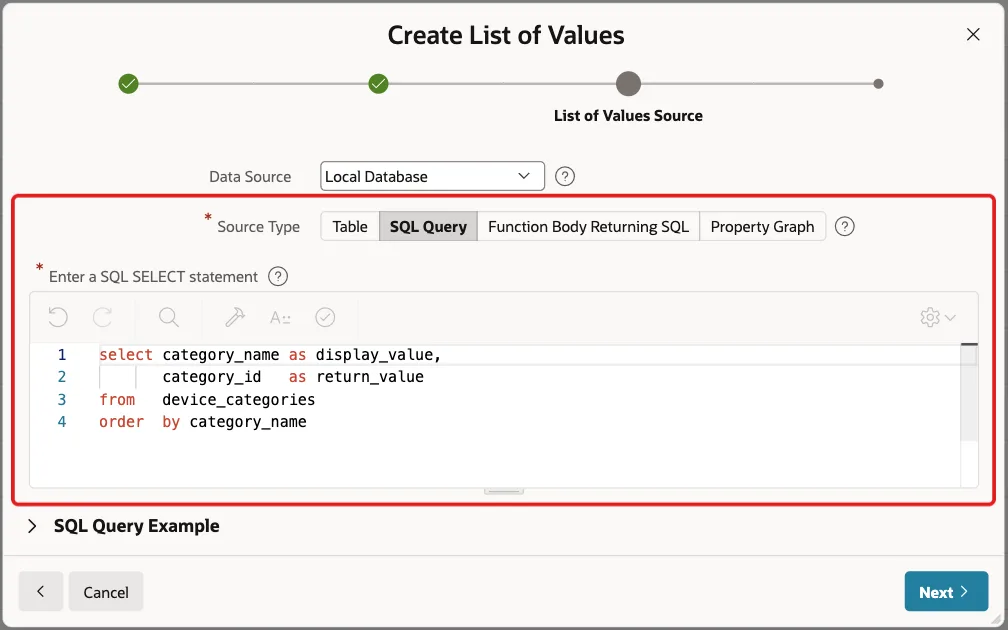
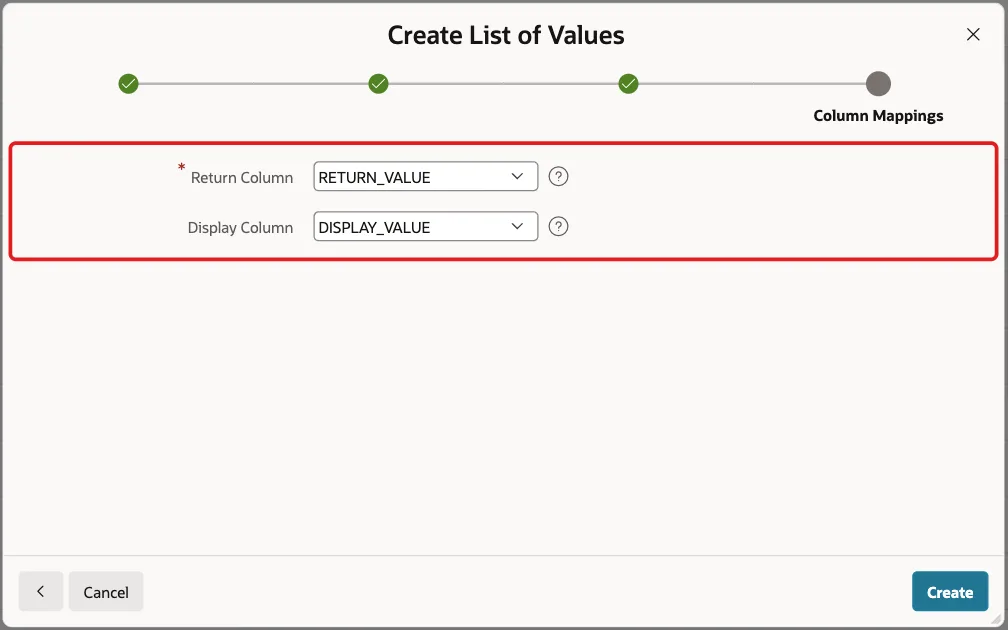
Select RETURN_VALUE as the Return Column and DISPLAY_VALUE as the Display Column, then click Create:
Step 7: Adjust the Form Items
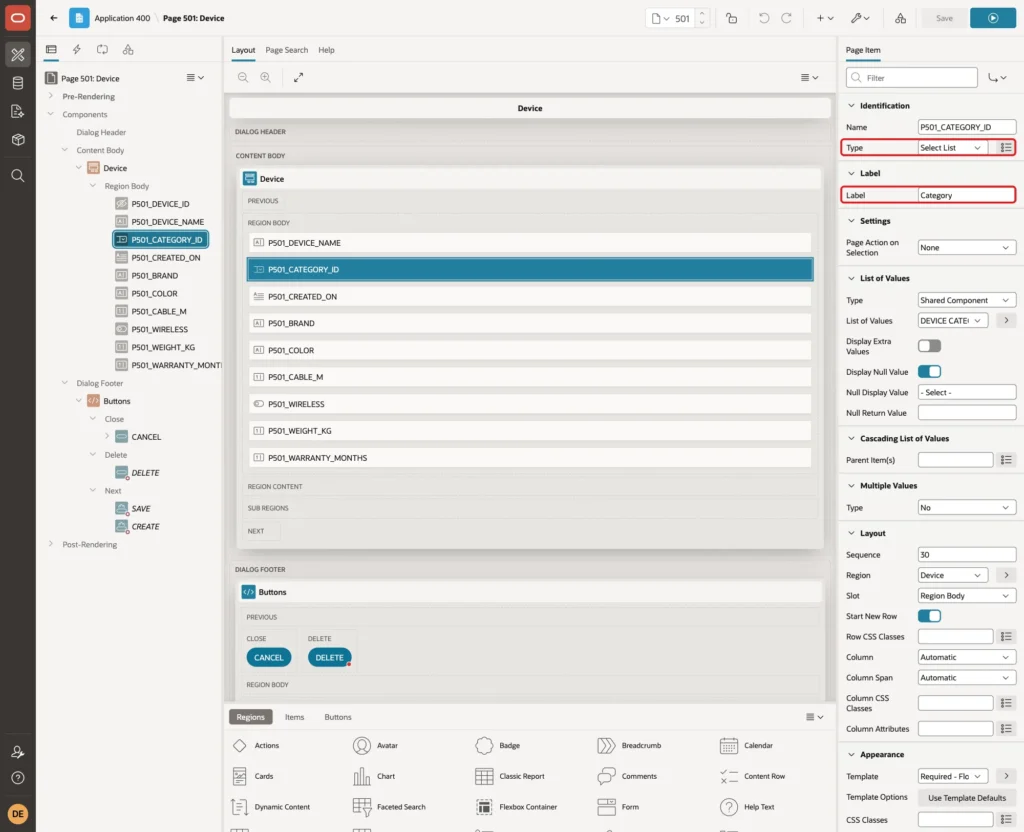
On page 501, select P501_CATEGORY_ID. Set Type to Select List and Label to Category:
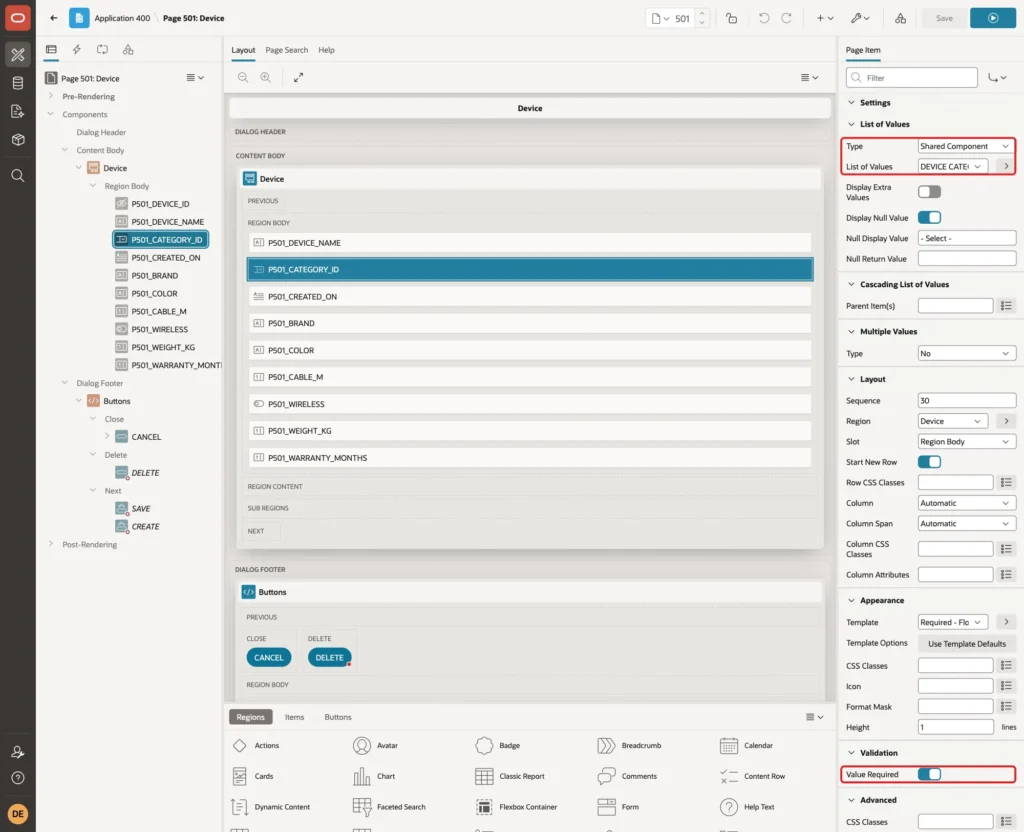
Under List of Values, set Type to Shared Component and List of Values to DEVICE CATEGORIES. Under Validation, turn on Value Required. Also set Template to Required - Floating under Appearance, so the field shows the required marker:
Do the same for P501_DEVICE_NAME: turn on Value Required, set Template to Required - Floating, and set Maximum Length to 120, the size of the column.
Select P501_CREATED_ON and set Type to Display Only. The database fills the date, so users should only see it:
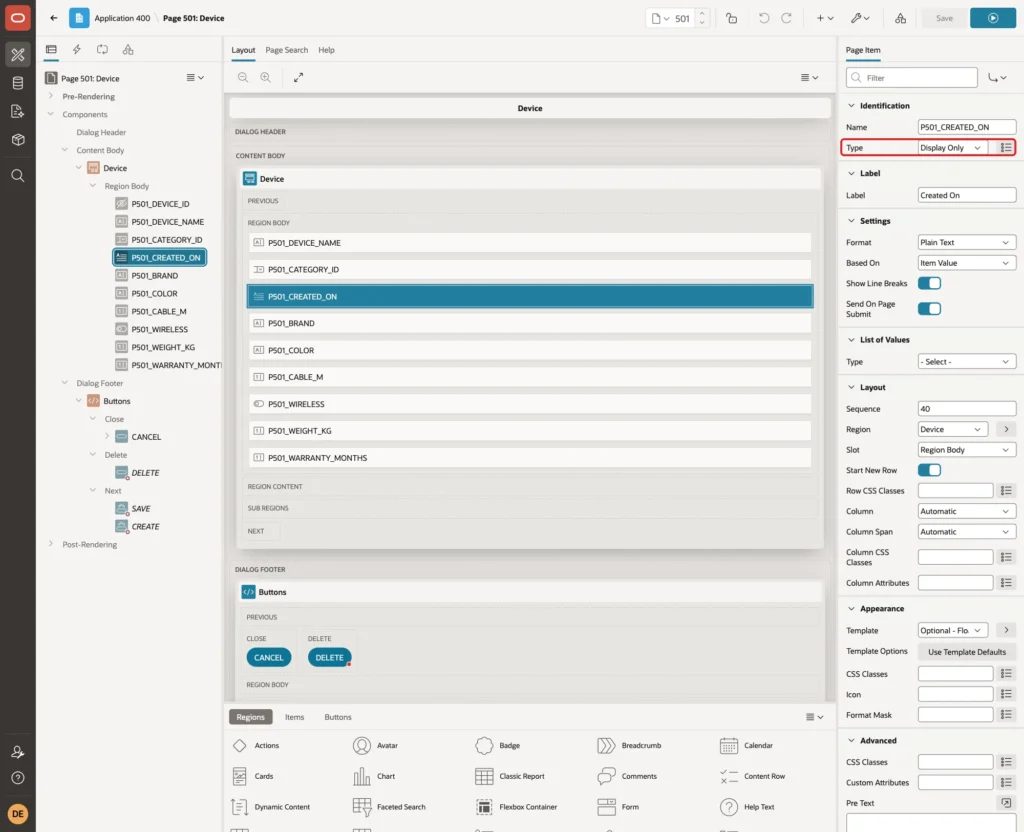
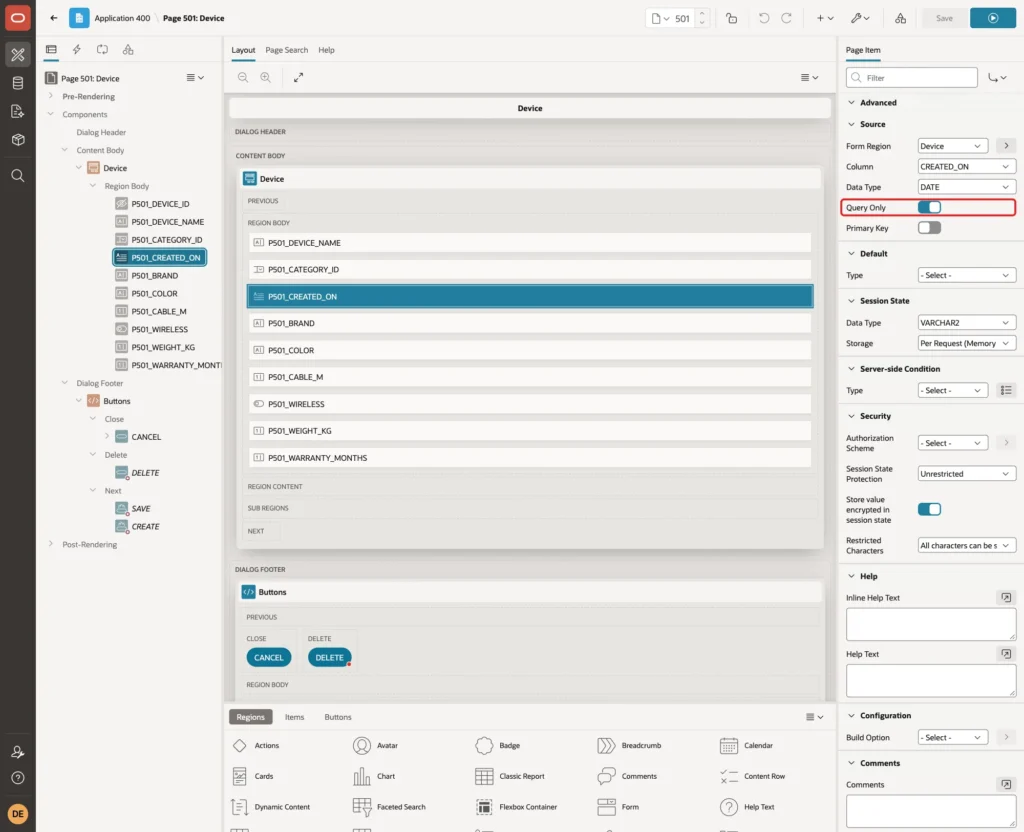
Under Source, turn on Query Only. APEX then leaves CREATED_ON out of the insert and the update, and DEFAULT ON NULL sets the date for new devices:
Select P501_WARRANTY_MONTHS. Under Settings, set Minimum Value to 0 and Maximum Value to 120, the same range as the JSON schema:
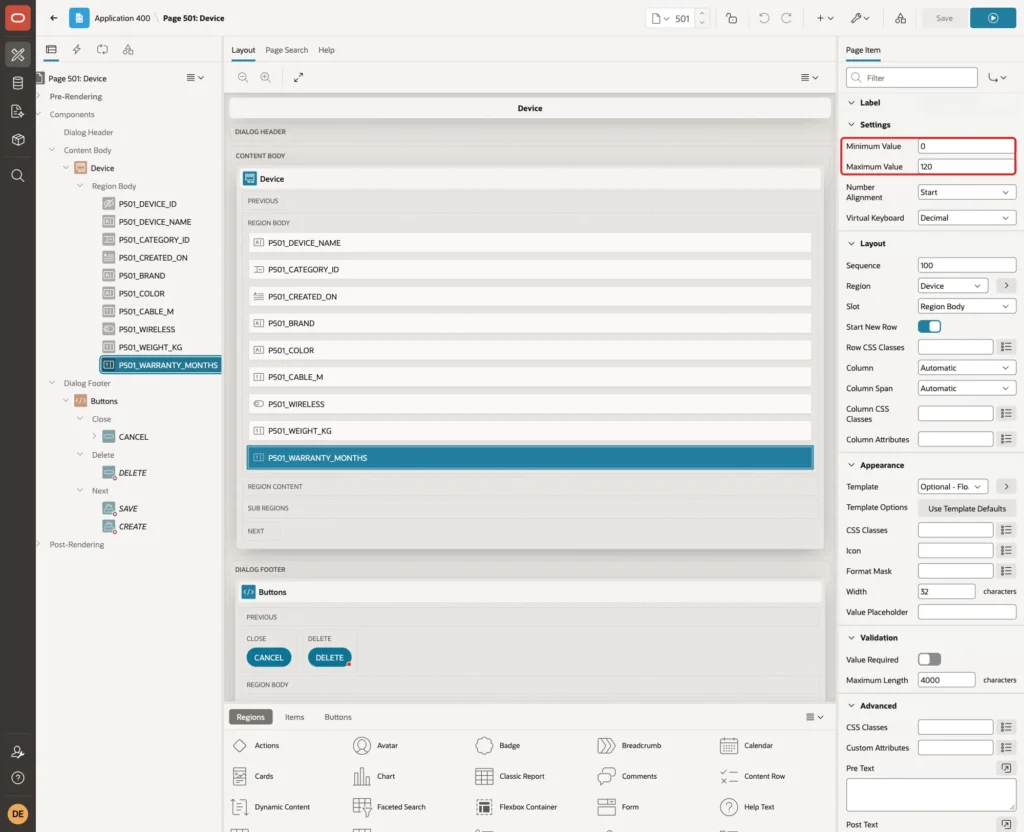
Set Minimum Value 0 on P501_WEIGHT_KG and P501_CABLE_M too. Finally, change the labels Weight Kg to Weight (kg) and Cable M to Cable Length (m). Click Save.
Step 8: Show the Category Name in the Report
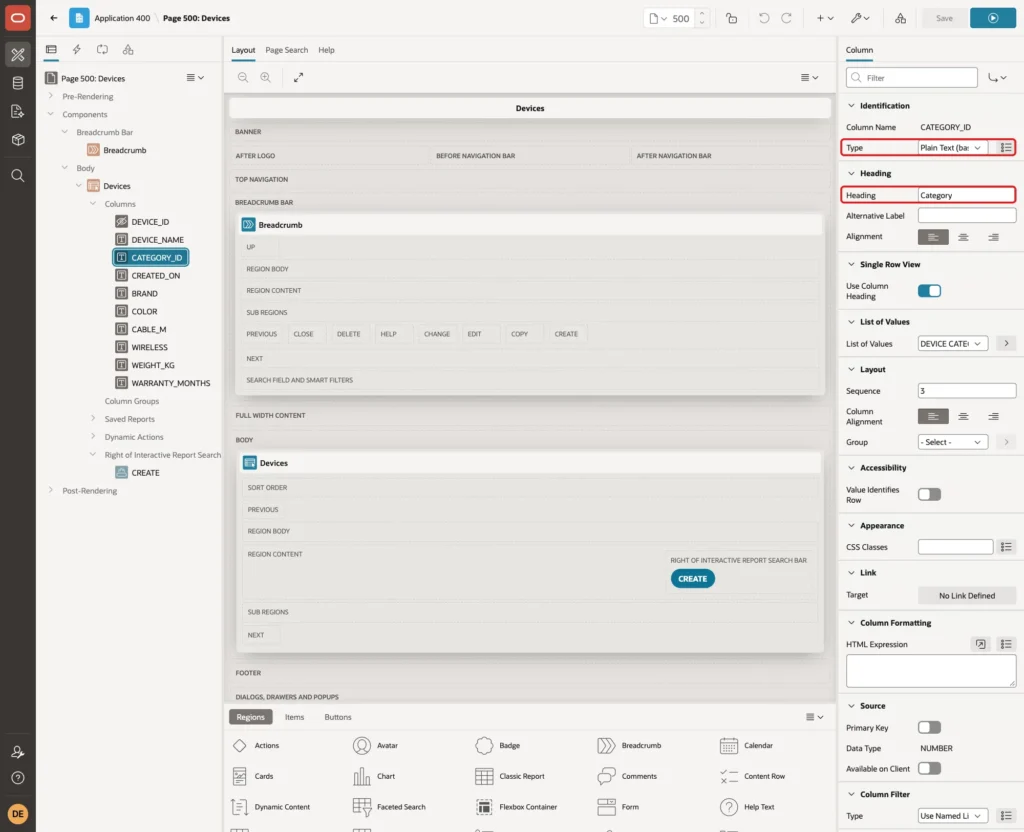
Open page 500. Under the Devices region, expand Columns and select CATEGORY_ID. Set Type to Plain Text (based on List of Values) and Heading to Category:
Under List of Values, select DEVICE CATEGORIES:
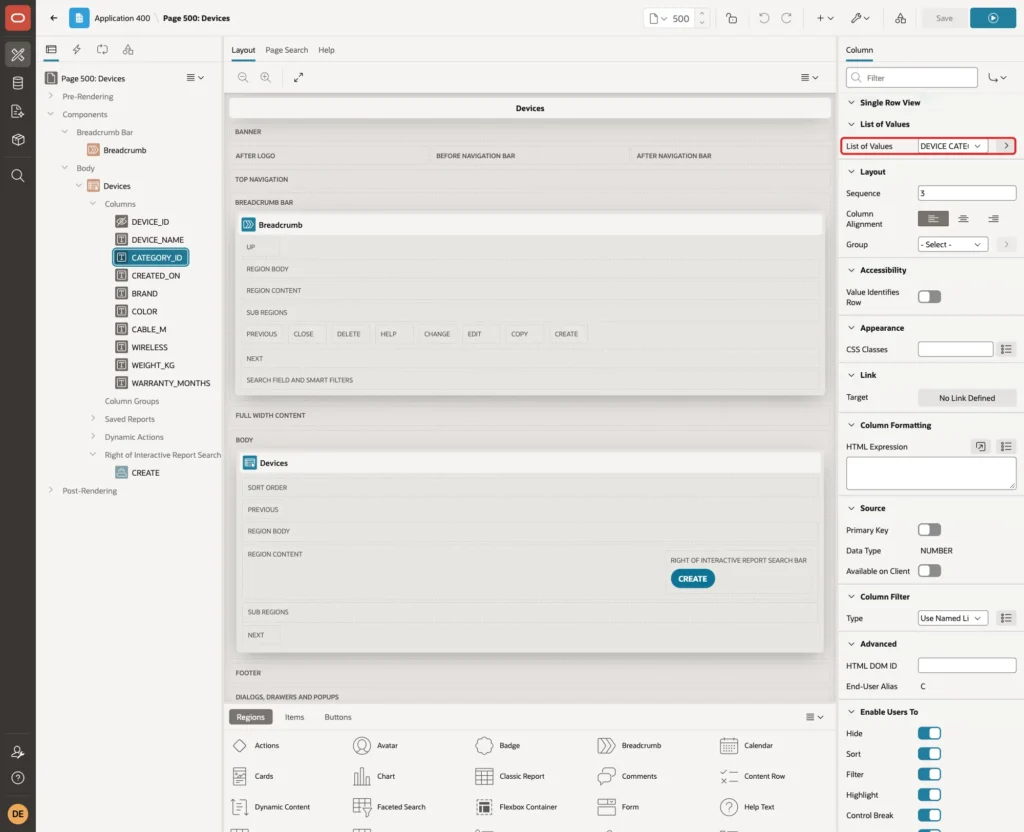
Also change the headings Weight Kg and Cable M to Weight (kg) and Cable Length (m), and click Save.
Step 9: Test the Form
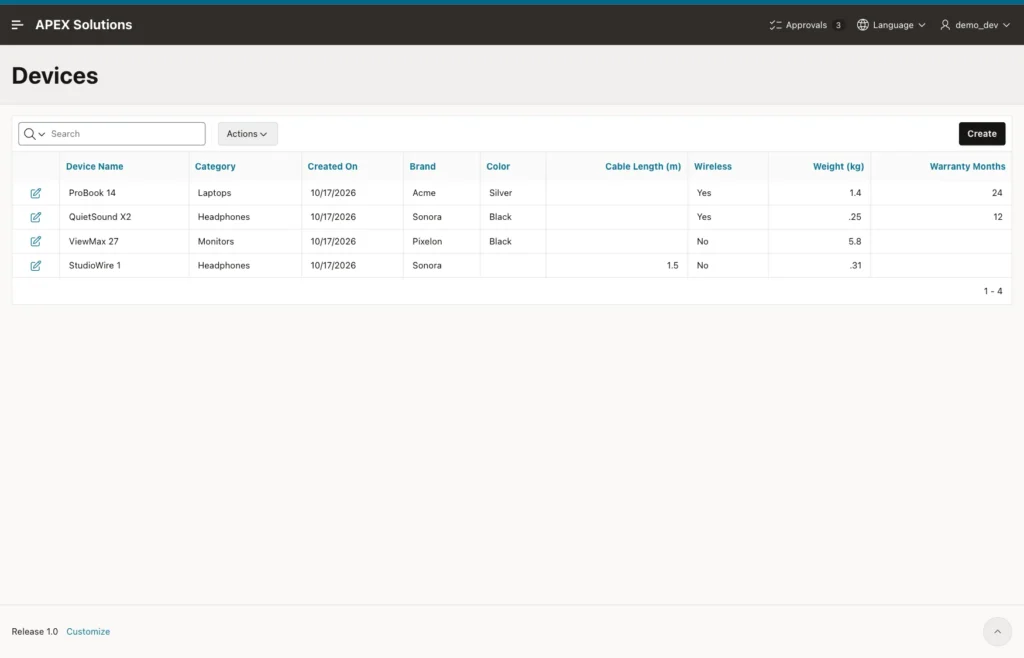
Run page 500. The report shows the JSON attributes as normal columns. Empty cells are attributes that a document does not have:
Add an Attribute Outside the Data Profile
Documents often get new attributes later, from other programs or imports. Add an sku attribute to ProBook 14 with JSON_TRANSFORM, which changes one attribute and keeps the rest of the document:
Example:
update devices
set    specs = json_transform(specs, set '$.sku' = 'PB14-SLV')
where  device_id = 1;

commit;

select json_serialize(specs pretty) as specs
from   devices
where  device_id = 1;
Output:
1 row updated.

Commit complete.

SPECS
____________________________
{
  "brand" : "Acme",
  "color" : "Silver",
  "weight_kg" : 1.4,
  "warranty_months" : 24,
  "wireless" : true,
  "sku" : "PB14-SLV"
}
The data profile from Step 3 has no SKU column, so the form does not show this attribute. The next test checks that saving the form keeps it.
Edit Attributes
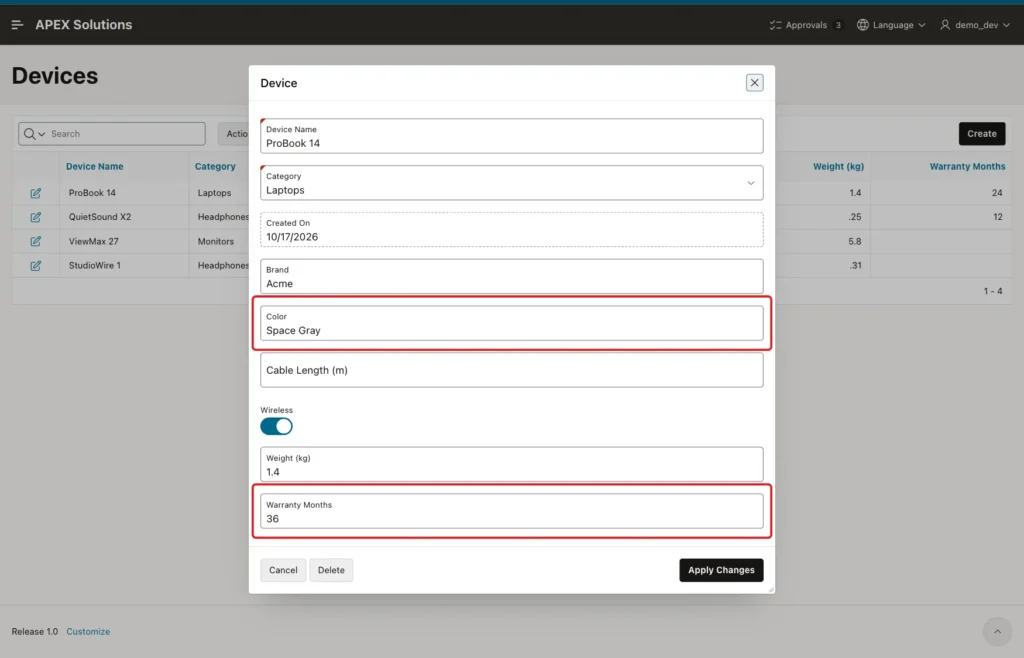
Click the edit icon of ProBook 14. Change Color to Space Gray and Warranty Months to 36, then click Apply Changes:
Open a Document with Missing Attributes
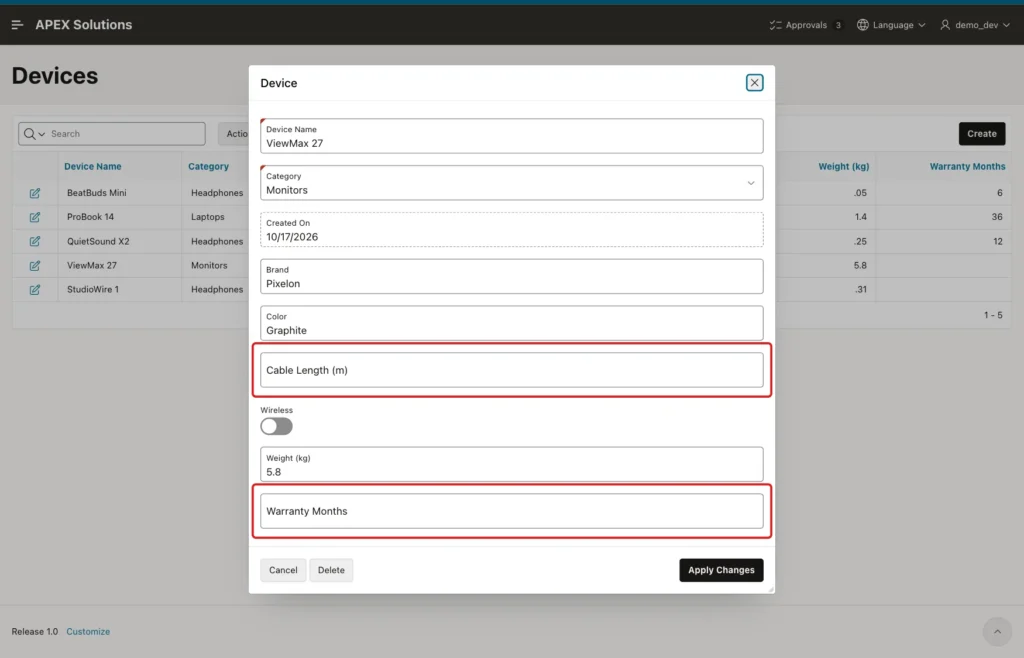
Open ViewMax 27. Its document has no cable_m and no warranty_months, so both fields are simply empty. Change Color to Graphite and click Apply Changes. APEX shows Row updated:
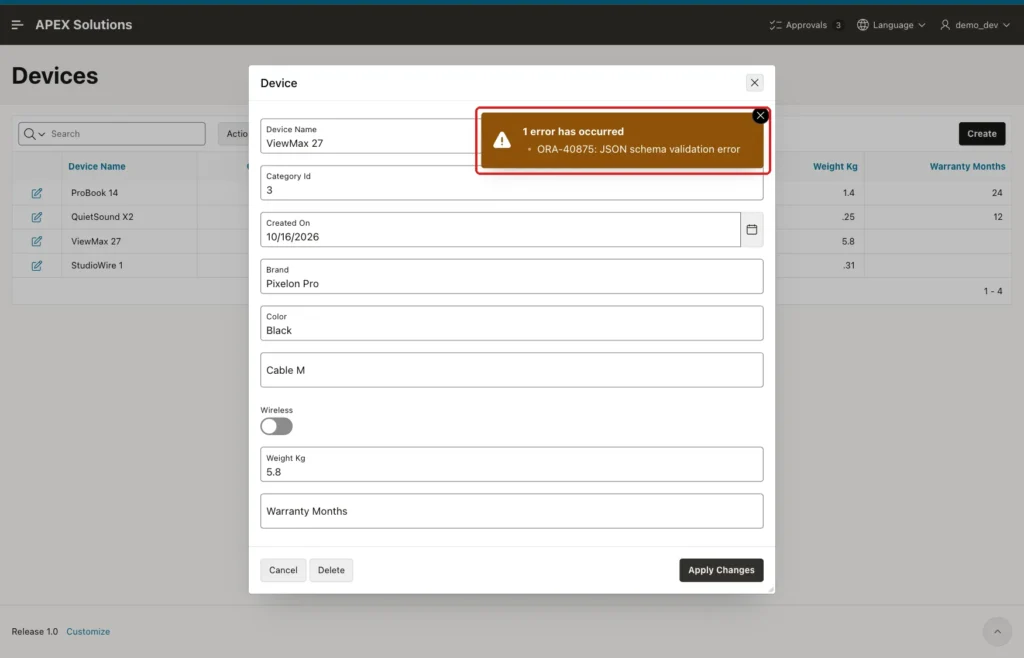
In a first test, the JSON schema did not allow null: warranty_months was {"type": "integer"}. Saving ViewMax 27 then failed with ORA-40875, because APEX wrote "warranty_months": null for the empty field and null is not an integer:
That is why the schema in Step 1 uses types like ["integer", "null"]. The range check still applies to real numbers.
Create a Device
Click Create. Enter BeatBuds Mini, select Headphones, enter Brand Sonora and Color White, turn on Wireless, enter Weight 0.05 and Warranty Months 240, and click Create. APEX stops the save and marks the field:
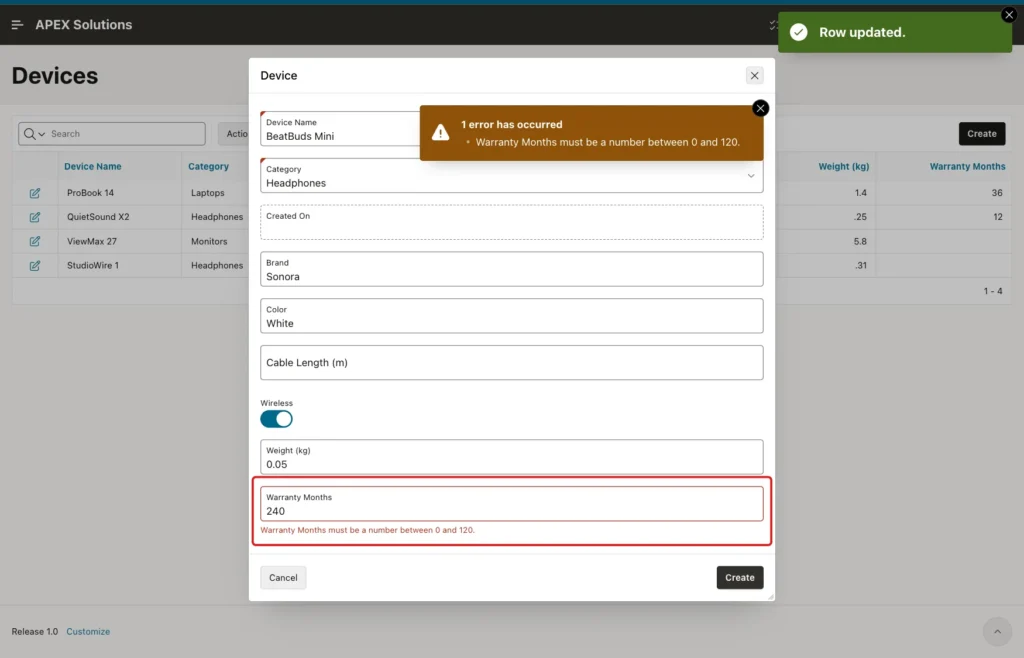
The browser check sent no request. A script then forced the save with apex.page.submit and validate set to false: the server also returned "Warranty Months must be a number between 0 and 120." and nothing changed. The JSON schema in the database is a third check behind both.
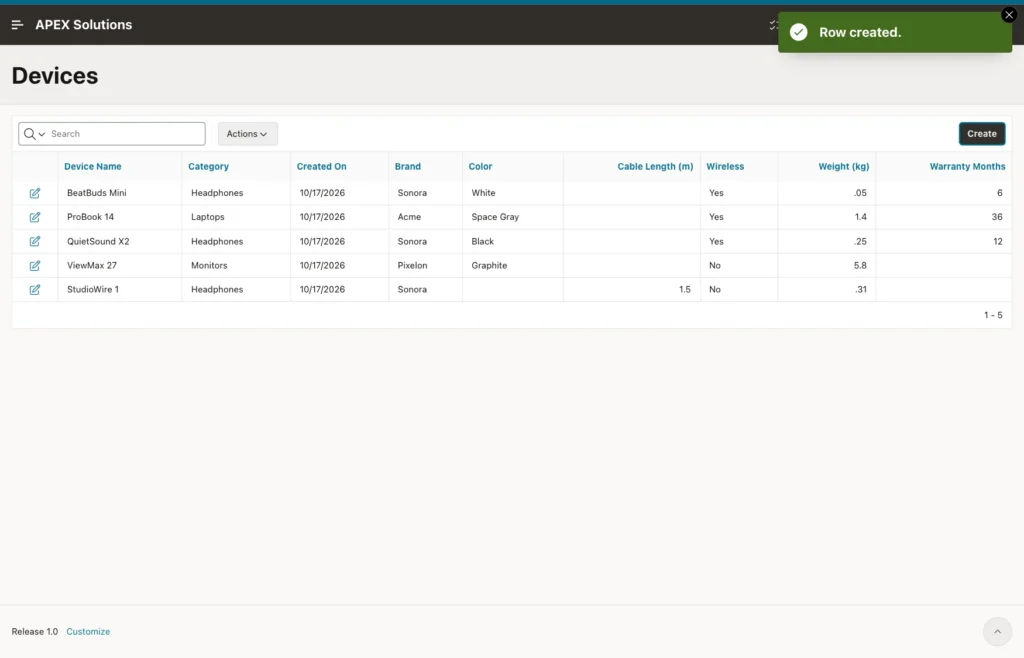
Change Warranty Months to 6 and click Create. The report now has five devices, and the new device has today's date from DEFAULT ON NULL:
Check the JSON Documents
Query the three changed documents with JSON_SERIALIZE and PRETTY:
Example:
select device_id, device_name, json_serialize(specs pretty) as specs
from   devices
where  device_name in ('ProBook 14', 'ViewMax 27', 'BeatBuds Mini')
order  by device_id;
Output:
   DEVICE_ID DEVICE_NAME      SPECS
____________ ________________ _____________________________
           1 ProBook 14       {
                                "brand" : "Acme",
                                "color" : "Space Gray",
                                "weight_kg" : 1.4,
                                "warranty_months" : 36,
                                "wireless" : true,
                                "sku" : "PB14-SLV",
                                "cable_m" : null
                              }
           3 ViewMax 27       {
                                "brand" : "Pixelon",
                                "color" : "Graphite",
                                "weight_kg" : 5.8,
                                "wireless" : false,
                                "cable_m" : null,
                                "warranty_months" : null
                              }
          21 BeatBuds Mini    {
                                "brand" : "Sonora",
                                "color" : "White",
                                "cable_m" : null,
                                "wireless" : true,
                                "weight_kg" : 0.05,
                                "warranty_months" : 6
}- ProBook 14 has the new color and warranty, and it still has "sku" : "PB14-SLV". APEX changed the mapped attributes and kept the attribute that is not in the data profile.
- Every save writes all mapped attributes. Empty fields become JSON null, so ProBook 14 and ViewMax 27 now have "cable_m" : null.
- BeatBuds Mini got a complete new document built from the form items.
For SQL queries, a missing attribute and a JSON null look the same through JSON_VALUE. Only JSON_EXISTS tells them apart:
Example:
select d.device_name,
       json_value(d.specs, '$.brand')                        as brand,
       json_value(d.specs, '$.warranty_months' returning number) as warranty_months,
       json_value(d.specs, '$.cable_m' returning number)     as cable_m,
       json_exists(d.specs, '$.cable_m')                     as has_cable_m
from   devices d
order  by d.device_id;
Output:
DEVICE_NAME      BRAND         WARRANTY_MONTHS    CABLE_M HAS_CABLE_M
________________ __________ __________________ __________ ______________
ProBook 14       Acme                       36            true
QuietSound X2    Sonora                     12            false
ViewMax 27       Pixelon                                  true
StudioWire 1     Sonora                               1.5 true
BeatBuds Mini    Sonora                      6            true
QuietSound X2 was never saved through the form, so it has no cable_m at all. The other devices have cable_m, either with null or, for StudioWire 1, with 1.5.
Things to Know
- A JSON Source of type Table with JSON Columns maps JSON attributes to columns. Forms, reports and lists of values can then use them like table columns.
- The data profile is computed from the documents in the table when you create the JSON Source. An attribute added later is not in the profile, but saves keep it in the document.
- APEX writes every mapped attribute on save, and an empty field becomes JSON null. If you use a JSON schema, allow null in each type, or saves of incomplete documents fail with ORA-40875.
- The JSON Columns wizard screen suggested a non-JSON column first. Check that JSON Column 1 is the JSON column.
- The Common setting of a data profile column only decides which columns the create page wizards use. It does not change how nulls are saved.
- Number field Minimum Value and Maximum Value are checked in the browser and again on the server. Keep them the same as the JSON schema, so users see a friendly message before the database error.
Related Guides
- How to Parse and Generate JSON in PL/SQL Using APEX_JSON
- Oracle APEX Data Sources: REST, Data Loads, and Duality Views
Conclusion
To edit JSON column data in a form in Oracle APEX, create a JSON Source on the table, let APEX compute the data profile, and build the report and form pages on that JSON Source. Each JSON attribute becomes a normal form item, and APEX writes the values back into the document.
Attributes outside the profile are kept, while empty fields are saved as JSON null. A JSON schema that allows null, together with Minimum and Maximum Values on the number items, keeps the documents valid from the browser to the database.
