
When two people open the same record at the same time, both can type changes, but only one save can win. Oracle APEX forms detect this at save time and reject the second save. That protects the data, but the second user finds out only after the work is done.
Record locking, also called checkout, stops the conflict before it starts. The first user who opens a record gets a lock. Everyone else sees the record read-only, with the name of the user who is editing it. The lock ends when the editor saves or cancels, or when it expires after 15 minutes.
This guide uses knowledge base articles as the example. The lock table stores the table name with the record ID, so the same table and package work for any table.
The older post Prevent Lost Updates in Oracle APEX: "Someone Else Changed This Record" covers the built-in check that runs when a form is saved. This guide adds a lock that is taken when the form opens. Both work together.
Step 1: Create the Tables
The example uses three tables. KB_CATEGORIES holds the categories and KB_ARTICLES holds the articles. RECORD_LOCKS holds one row for each record that is being edited.
The primary key of RECORD_LOCKS is TABLE_NAME plus RECORD_ID, so a record can have only one lock. Create the tables, the index and the sample data:
Example:
create table kb_categories (
  category_id    number generated by default on null as identity,
  category_name  varchar2(60 char) not null,
  constraint kb_categories_pk primary key (category_id),
  constraint kb_categories_name_uk unique (category_name)
);

create table kb_articles (
  article_id   number generated by default on null as identity,
  category_id  number              not null,
  title        varchar2(200 char)  not null,
  body         varchar2(4000 char),
  constraint kb_articles_pk primary key (article_id),
  constraint kb_articles_category_fk foreign key (category_id)
    references kb_categories (category_id)
);

create index kb_articles_category_ix on kb_articles (category_id);

create table record_locks (
  table_name  varchar2(128 char)  not null,
  record_id   number              not null,
  locked_by   varchar2(255 char)  not null,
  locked_on   date default on null sysdate not null,
  expires_on  date generated always as (locked_on + interval '15' minute) virtual,
  constraint record_locks_pk primary key (table_name, record_id)
);

insert into kb_categories (category_name) values ('Accounts');
insert into kb_categories (category_name) values ('Billing');
insert into kb_categories (category_name) values ('Shipping');

insert into kb_articles (category_id, title, body)
values (1, 'How to reset your password', 'Open the sign-in page and click Forgot Password.');
insert into kb_articles (category_id, title, body)
values (2, 'Download a copy of an invoice', 'Open Billing, select the invoice and click Download.');
insert into kb_articles (category_id, title, body)
values (3, 'Track a shipment', 'Open the order and click the tracking number.');
commit;

select a.article_id, c.category_name, a.title
from   kb_articles a
join   kb_categories c on c.category_id = a.category_id
order  by a.article_id;
Output:
Table KB_CATEGORIES created.

Table KB_ARTICLES created.

Index KB_ARTICLES_CATEGORY_IX created.

Table RECORD_LOCKS created.

1 row inserted.

1 row inserted.

1 row inserted.

1 row inserted.

1 row inserted.

1 row inserted.

Commit complete.

   ARTICLE_ID CATEGORY_NAME    TITLE
_____________ ________________ ________________________________
            1 Accounts         How to reset your password
            2 Billing          Download a copy of an invoice
3 Shipping Track a shipment- LOCKED_ON uses DEFAULT ON NULL SYSDATE, so a new lock gets the current time without any code.
- EXPIRES_ON is a virtual column: LOCKED_ON plus 15 minutes. Change the interval to change the lock time.
- No trigger is needed. The default, the virtual column and the primary key do all the work in the table.
Step 2: Create the Lock Package
A page request in Oracle APEX uses a database session only while the request runs. A row lock taken with SELECT FOR UPDATE ends when the request ends. So the checkout lock must be stored as a row in RECORD_LOCKS.
The package has two parts. ACQUIRE takes the lock or returns the name of the user who has it. RELEASE removes the lock of one user:
Example:
create or replace package record_lock_pkg as
  function acquire (
    p_table_name in varchar2,
    p_record_id  in number,
    p_user       in varchar2
  ) return varchar2;

  procedure release (
    p_table_name in varchar2,
    p_record_id  in number,
    p_user       in varchar2
  );
end record_lock_pkg;
/

create or replace package body record_lock_pkg as
  function acquire (
    p_table_name in varchar2,
    p_record_id  in number,
    p_user       in varchar2
  ) return varchar2
  is
    l_locked_by record_locks.locked_by%type;
  begin
    delete from record_locks
    where  table_name = p_table_name
    and    record_id  = p_record_id
    and    expires_on < sysdate;

    insert into record_locks (table_name, record_id, locked_by)
    values (p_table_name, p_record_id, p_user);
    return null;
  exception
    when dup_val_on_index then
      update record_locks
      set    locked_on  = sysdate
      where  table_name = p_table_name
      and    record_id  = p_record_id
      and    locked_by  = p_user;

      if sql%rowcount = 1 then
        return null;
      end if;

      select locked_by
      into   l_locked_by
      from   record_locks
      where  table_name = p_table_name
      and    record_id  = p_record_id;

      return l_locked_by;
  end acquire;

  procedure release (
    p_table_name in varchar2,
    p_record_id  in number,
    p_user       in varchar2
  )
  is
  begin
    delete from record_locks
    where  table_name = p_table_name
    and    record_id  = p_record_id
    and    locked_by  = p_user;
  end release;
end record_lock_pkg;
/

show errors
Output:
Package RECORD_LOCK_PKG compiled

Package Body RECORD_LOCK_PKG compiled

No errors.
ACQUIRE first deletes an expired lock for the record. Then it inserts a new lock. If the insert fails with DUP_VAL_ON_INDEX, another lock exists. When that lock belongs to the same user, its LOCKED_ON time is refreshed. Otherwise the function returns the name of the lock owner.
Test the package in SQL before using it in the app:
Example:
set serveroutput on
declare
  l_result varchar2(255);
begin
  l_result := record_lock_pkg.acquire('KB_ARTICLES', 1, 'DEMO_DEV');
  dbms_output.put_line('DEMO_DEV opens article 1: ' || nvl(l_result, 'lock acquired'));
  l_result := record_lock_pkg.acquire('KB_ARTICLES', 1, 'ORDER_EDITOR');
  dbms_output.put_line('ORDER_EDITOR opens article 1: ' || nvl(l_result, 'lock acquired'));
  l_result := record_lock_pkg.acquire('KB_ARTICLES', 1, 'DEMO_DEV');
  dbms_output.put_line('DEMO_DEV opens article 1 again: ' || nvl(l_result, 'lock acquired'));
  record_lock_pkg.release('KB_ARTICLES', 1, 'ORDER_EDITOR');
  l_result := record_lock_pkg.acquire('KB_ARTICLES', 1, 'ORDER_EDITOR');
  dbms_output.put_line('After ORDER_EDITOR release call: ' || nvl(l_result, 'lock acquired'));
  record_lock_pkg.release('KB_ARTICLES', 1, 'DEMO_DEV');
  l_result := record_lock_pkg.acquire('KB_ARTICLES', 1, 'ORDER_EDITOR');
  dbms_output.put_line('After DEMO_DEV release: ' || nvl(l_result, 'lock acquired'));
end;
/

select table_name, record_id, locked_by from record_locks;

rollback;
Output:
DEMO_DEV opens article 1: lock acquired
ORDER_EDITOR opens article 1: DEMO_DEV
DEMO_DEV opens article 1 again: lock acquired
After ORDER_EDITOR release call: DEMO_DEV
After DEMO_DEV release: lock acquired

PL/SQL procedure successfully completed.

TABLE_NAME        RECORD_ID LOCKED_BY
______________ ____________ _______________
KB_ARTICLES               1 ORDER_EDITOR

Rollback complete.
ORDER_EDITOR could not take the lock while DEMO_DEV had it, and the release call of ORDER_EDITOR did not remove the lock of DEMO_DEV. After DEMO_DEV released it, ORDER_EDITOR got the lock.
Now test the expiry. The script moves the lock time 20 minutes back, so the lock is older than 15 minutes:
Example:
set serveroutput on
declare
  l_result varchar2(255);
begin
  l_result := record_lock_pkg.acquire('KB_ARTICLES', 2, 'DEMO_DEV');
  update record_locks
  set    locked_on = sysdate - interval '20' minute
  where  table_name = 'KB_ARTICLES'
  and    record_id  = 2;
  l_result := record_lock_pkg.acquire('KB_ARTICLES', 2, 'ORDER_EDITOR');
  dbms_output.put_line('ORDER_EDITOR after 20 minutes: ' || nvl(l_result, 'lock acquired'));
end;
/

select table_name, record_id, locked_by from record_locks;

rollback;
Output:
ORDER_EDITOR after 20 minutes: lock acquired

PL/SQL procedure successfully completed.

TABLE_NAME        RECORD_ID LOCKED_BY
______________ ____________ _______________
KB_ARTICLES               2 ORDER_EDITOR

Rollback complete.
The expired lock of DEMO_DEV was removed, and ORDER_EDITOR got a new lock.
Step 3: Create the Report and Form Pages
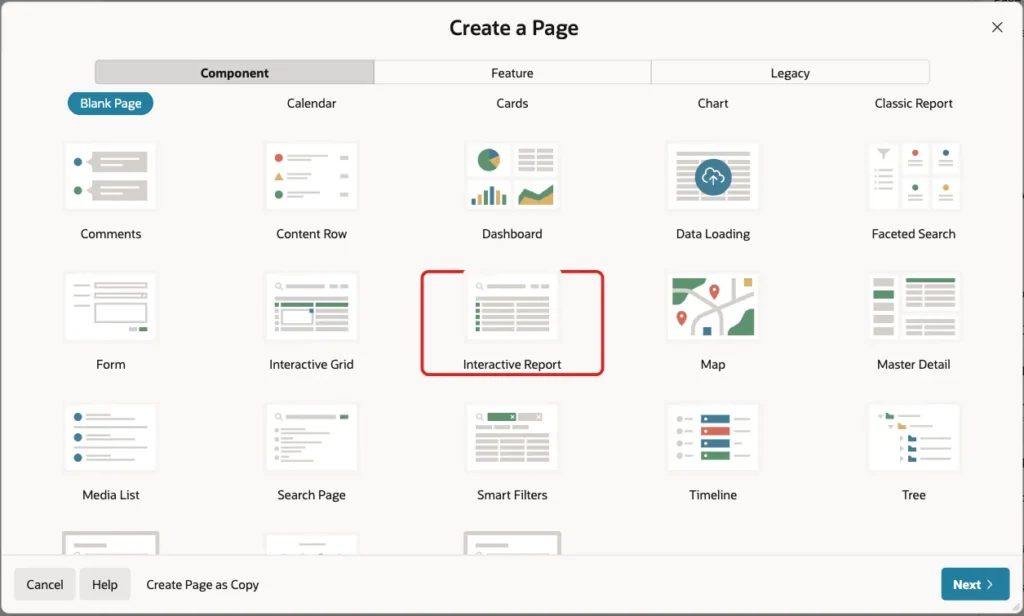
In App Builder, open the application and click Create Page. On the Component tab, click Interactive Report:
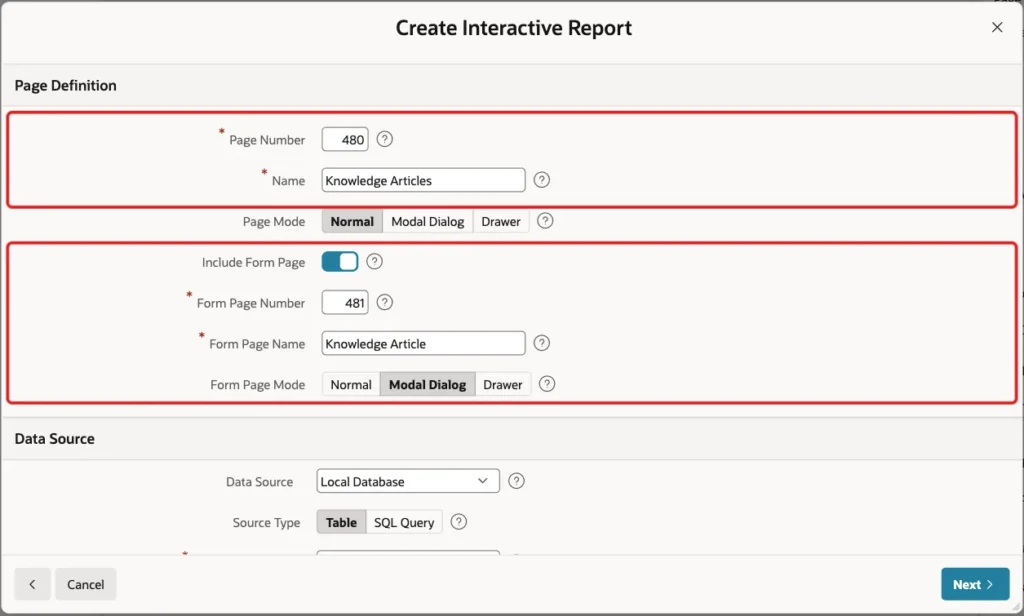
Enter Page Number 480 and Name Knowledge Articles. Turn on Include Form Page, enter Form Page Number 481 and Form Page Name Knowledge Article, and select Form Page Mode Modal Dialog:
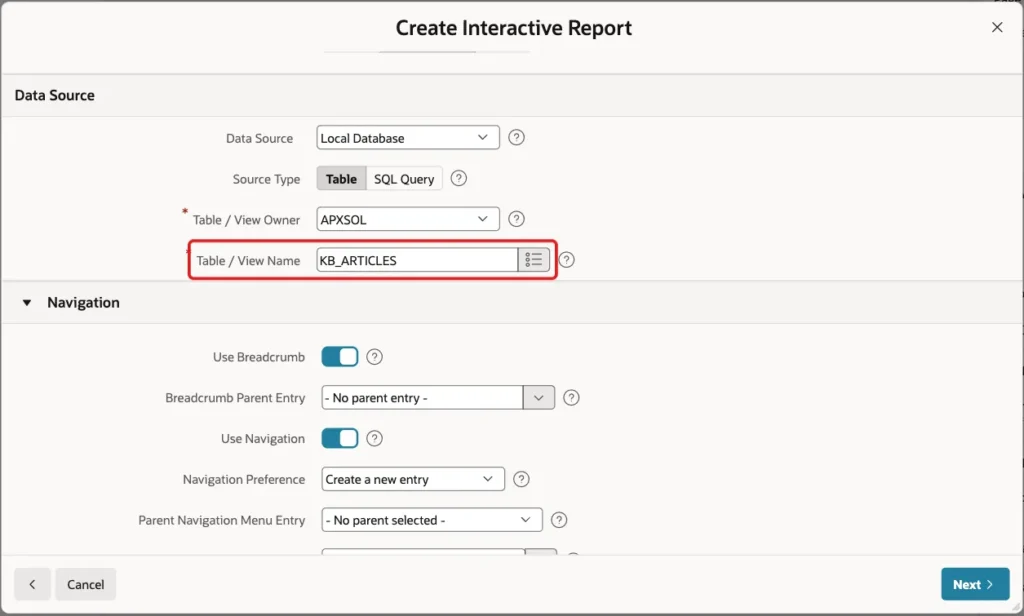
In the Data Source section, keep Local Database and Table, and enter KB_ARTICLES as the Table / View Name:
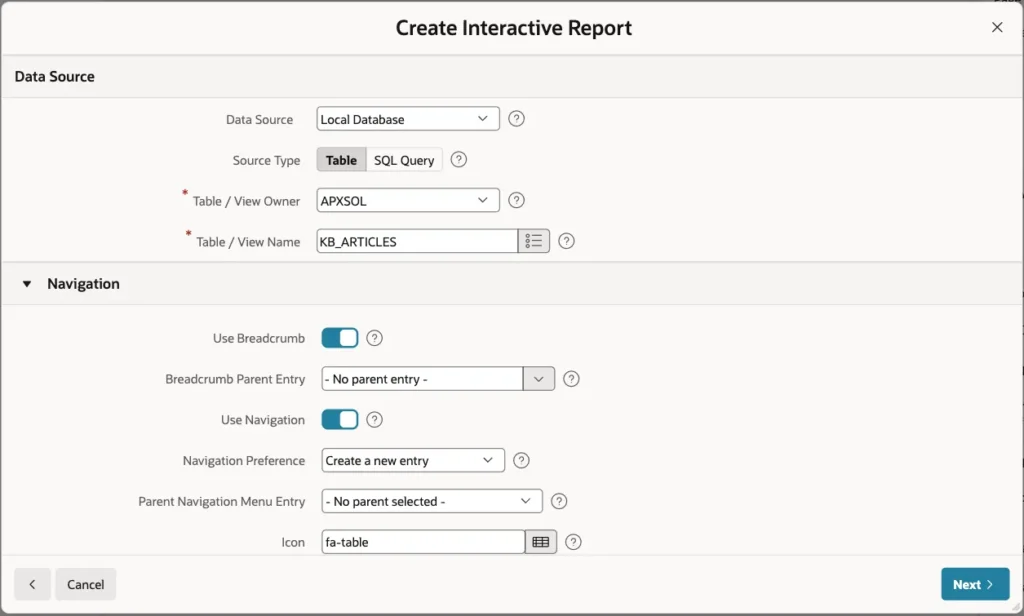
Keep the Navigation settings, so the wizard adds a breadcrumb and a navigation menu entry. Click Next:
On the Primary Key screen, select ARTICLE_ID (Number) as Primary Key Column 1 and click Create Page:
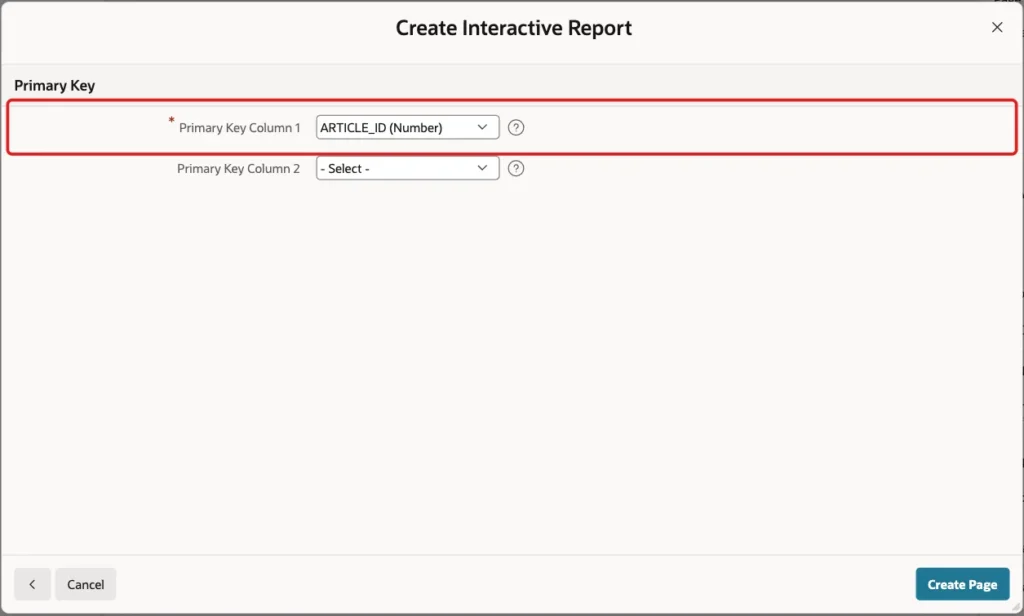
The wizard creates page 480 with the interactive report and page 481 with the form. Because CATEGORY_ID is a foreign key, it also creates a select list for it with a shared list of values on KB_CATEGORIES.
Step 4: Show Who Is Editing in the Report
Open page 480 in Page Designer and select the Knowledge Articles region. Under Source, set Type to SQL Query and enter this query:
Example:
select a.article_id,
       a.category_id,
       a.title,
       a.body,
       l.locked_by as being_edited_by
  from kb_articles a
  left join record_locks l
    on l.table_name = 'KB_ARTICLES'
   and l.record_id  = a.article_id
   and l.expires_on > sysdate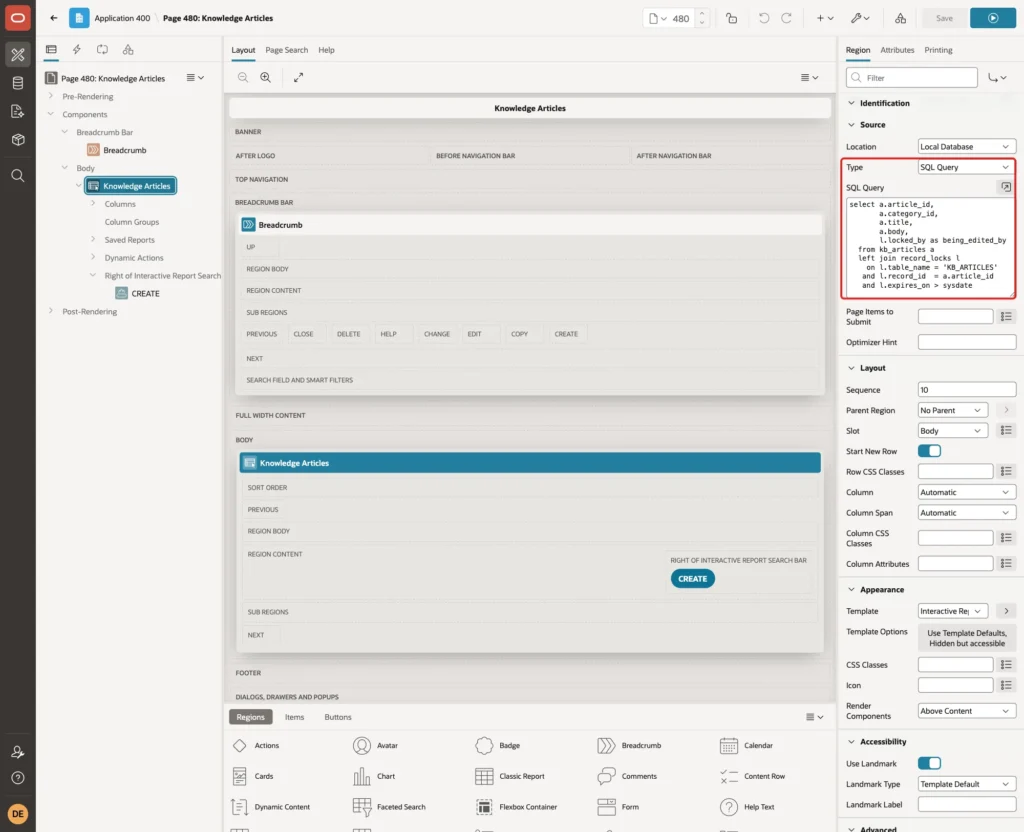
The outer join keeps every article. The condition on EXPIRES_ON hides locks that have expired. The report gets a new column, BEING_EDITED_BY, with the user who has the lock. Select the column and set its Heading to Being Edited By. Click Save.
Step 5: Add the Lock Items to the Form
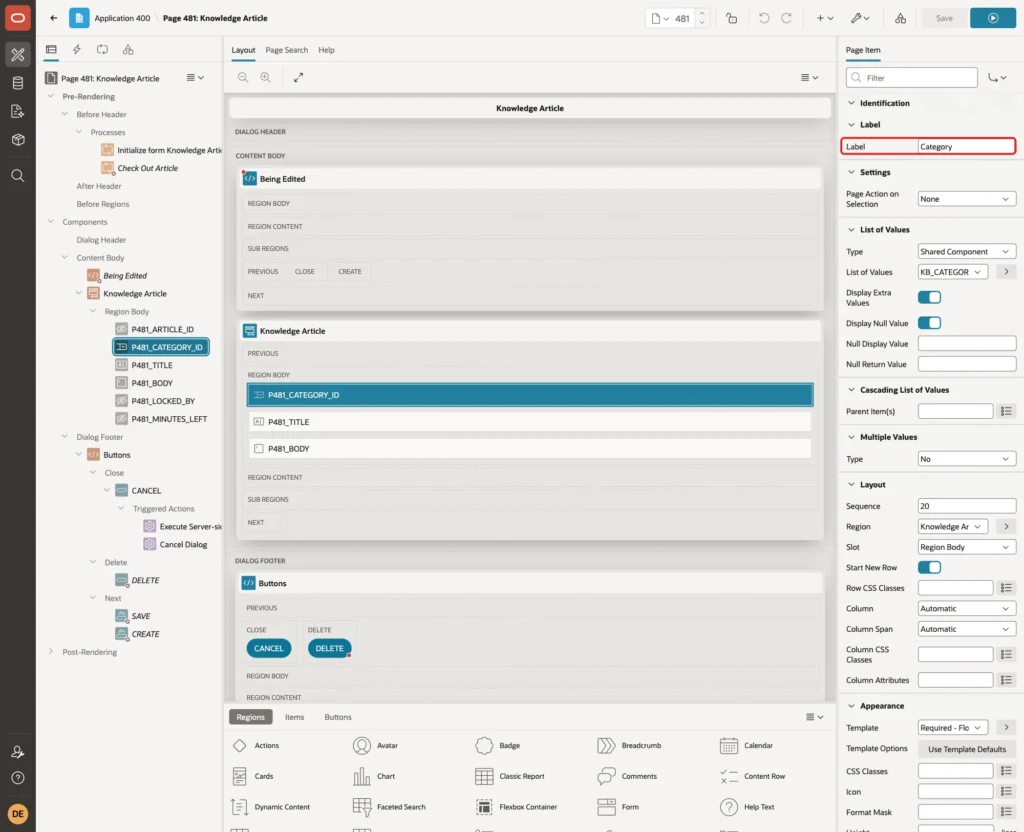
Open page 481 in Page Designer. Select P481_CATEGORY_ID and change its Label from Category Id to Category:
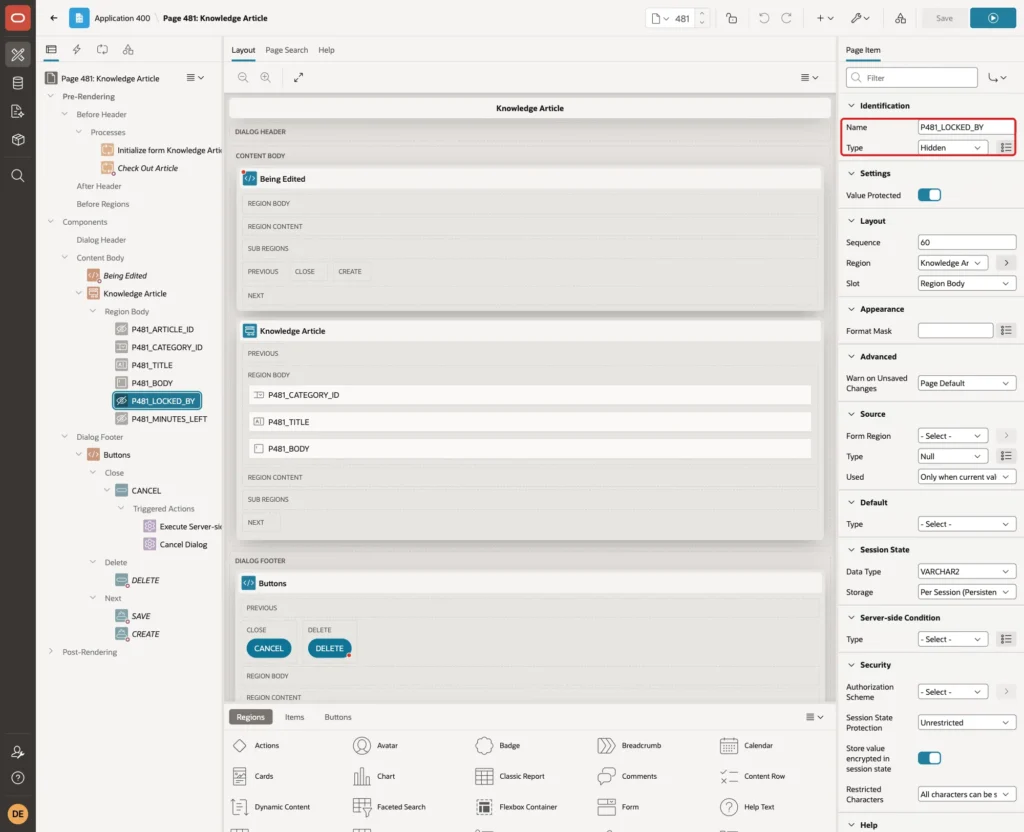
Right-click the Knowledge Article region and click Create Page Item. Set Name to P481_LOCKED_BY and Type to Hidden. Keep Value Protected on:
Create a second hidden item, P481_MINUTES_LEFT, in the same way. It holds the minutes until the lock expires:
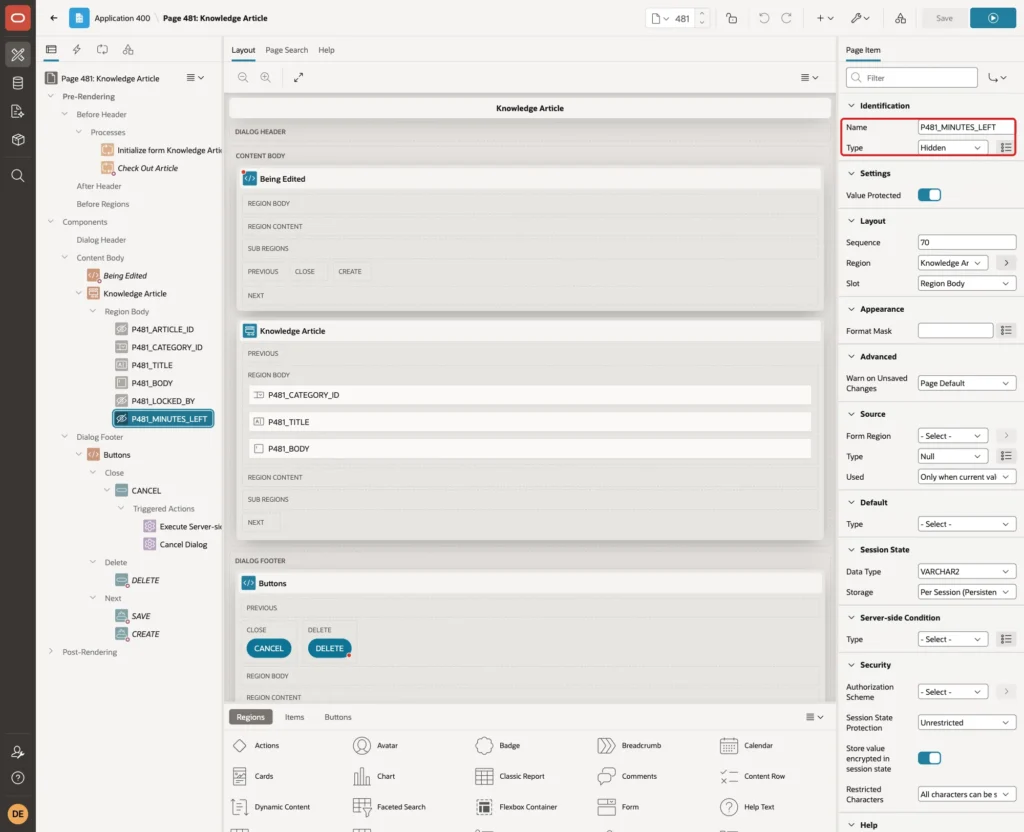
Both items stay empty when the current user has the lock. Click Save.
Step 6: Take the Lock When the Form Opens
In the Rendering tree, expand Pre-Rendering. Right-click Before Header and click Create Process. Set these properties:
- Identification > Name: Check Out Article
- Type: Execute Code
- Source > PL/SQL Code: the code below
- Execution > Sequence: 20, so it runs after the Initialize form process (sequence 10)
Example:
:P481_LOCKED_BY := record_lock_pkg.acquire('KB_ARTICLES', :P481_ARTICLE_ID, :APP_USER);

if :P481_LOCKED_BY is not null then
    select ceil((expires_on - sysdate) * 1440)
    into   :P481_MINUTES_LEFT
    from   record_locks
    where  table_name = 'KB_ARTICLES'
    and    record_id  = :P481_ARTICLE_ID;
end if;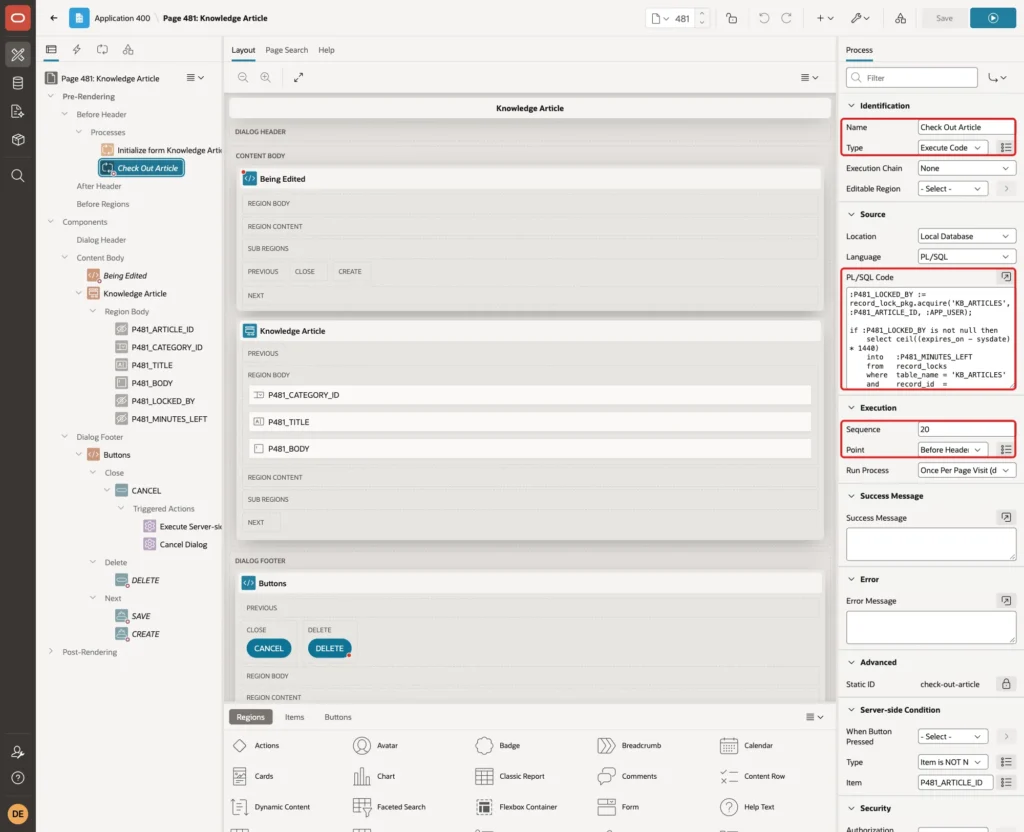
Under Server-side Condition, set Type to Item is NOT NULL and Item to P481_ARTICLE_ID. A new article has no ID yet, so it needs no lock:
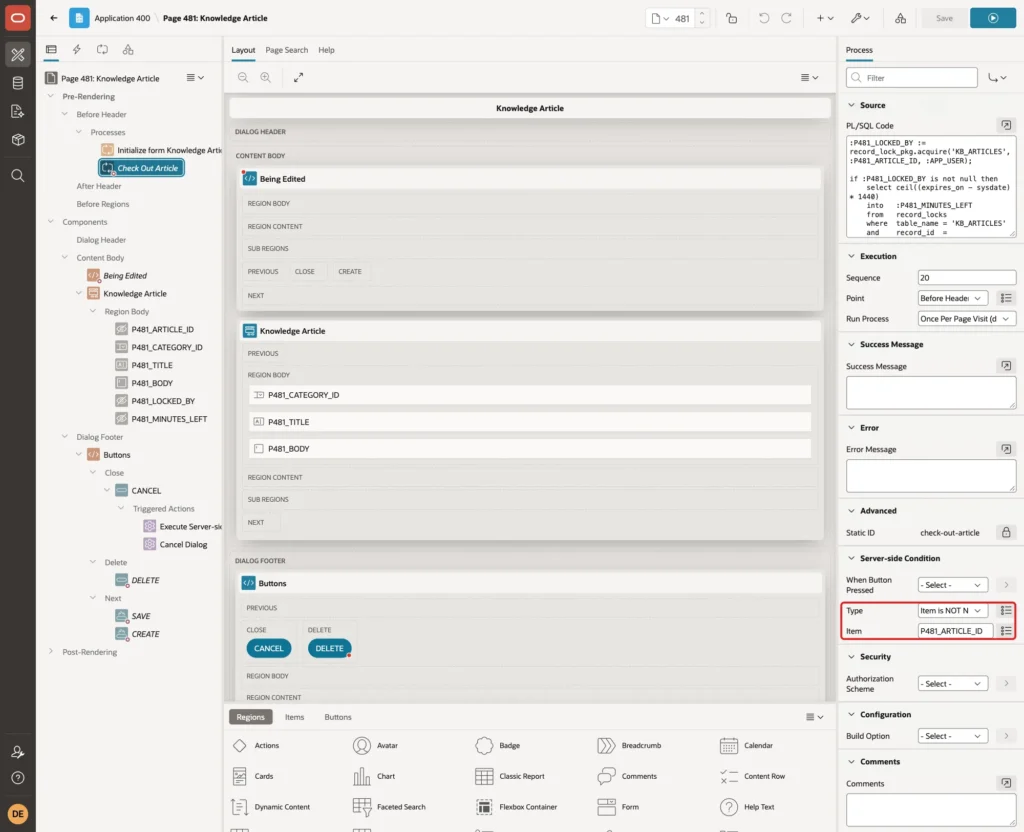
The process puts the result of ACQUIRE into P481_LOCKED_BY. When another user has the lock, it also reads the minutes left. Click Save.
Step 7: Make the Form Read-Only When Another User Has the Lock
Select the page node Page 481: Knowledge Article at the top of the tree. In the Read Only group, set Type to Item is NOT NULL and Item to P481_LOCKED_BY:
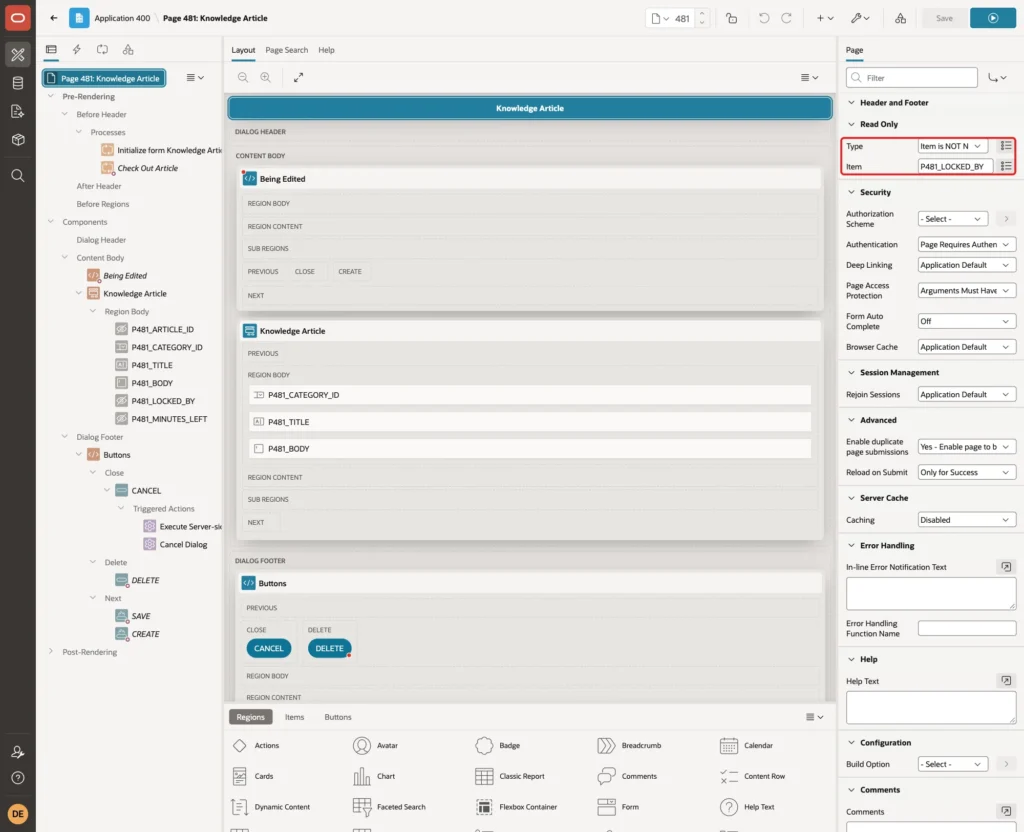
When the item has a value, Oracle APEX renders every item on the page as read-only. The Read Only condition does not hide the buttons, so the next step does that. Click Save.
Step 8: Hide the Save and Delete Buttons
The wizard shows Apply Changes (SAVE) and Delete (DELETE) when P481_ARTICLE_ID is not null. Select the SAVE button. Under Server-side Condition, set Type to Expression, Language to PL/SQL, and enter this PL/SQL Expression:
Example:
:P481_ARTICLE_ID is not null and :P481_LOCKED_BY is null
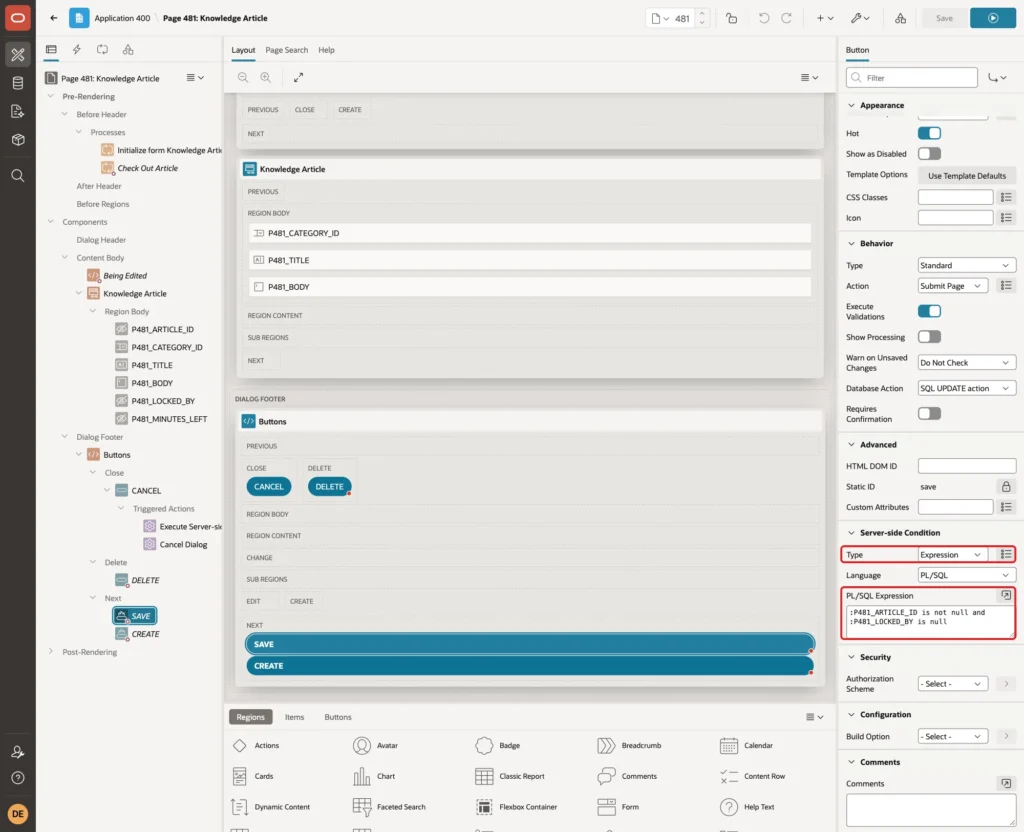
Select the DELETE button and set the same Server-side Condition:
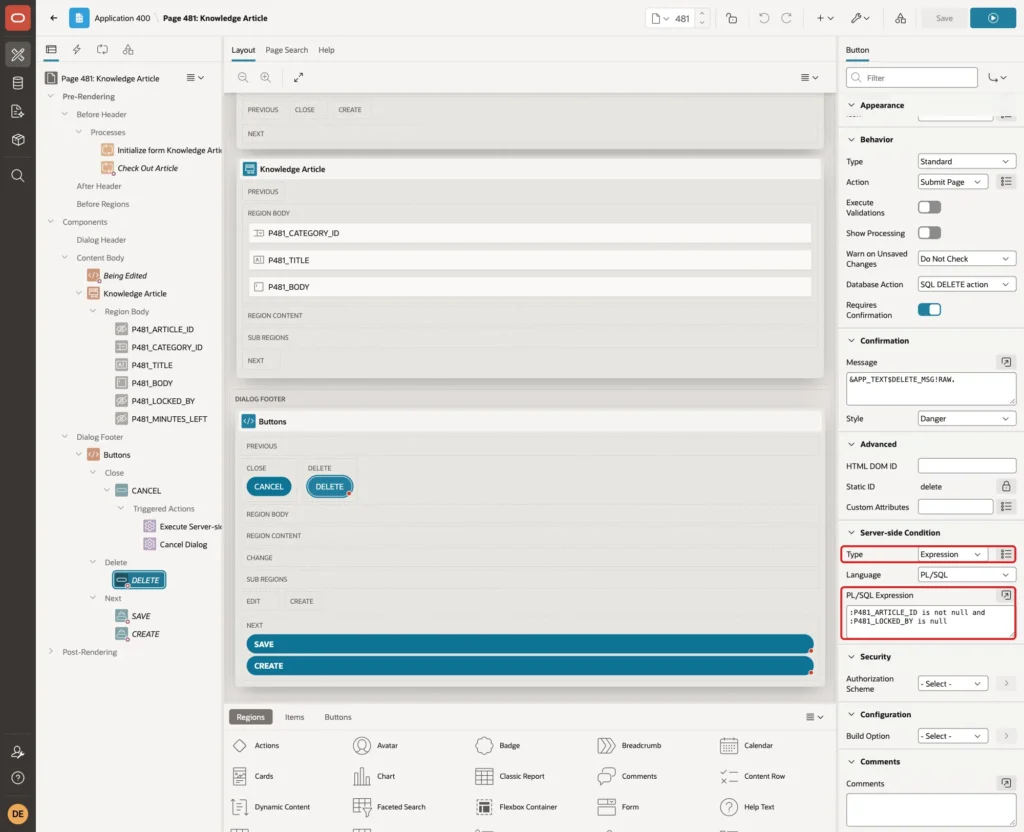
For a new article, P481_ARTICLE_ID is null, so both buttons stay hidden and only Create shows, as before. Click Save.
Step 9: Show Who Is Editing the Record
In the Rendering tree, right-click Content Body and click Create Region. Set these properties:
- Identification > Name: Being Edited
- Type: Static Content
- Source > HTML Code: the text below
- Layout > Sequence: 5, so the notice shows above the form region (sequence 10)
Example:
&P481_LOCKED_BY. is editing this article. You can read it, but you cannot change it until they save or cancel, or until their lock expires in &P481_MINUTES_LEFT. minutes.
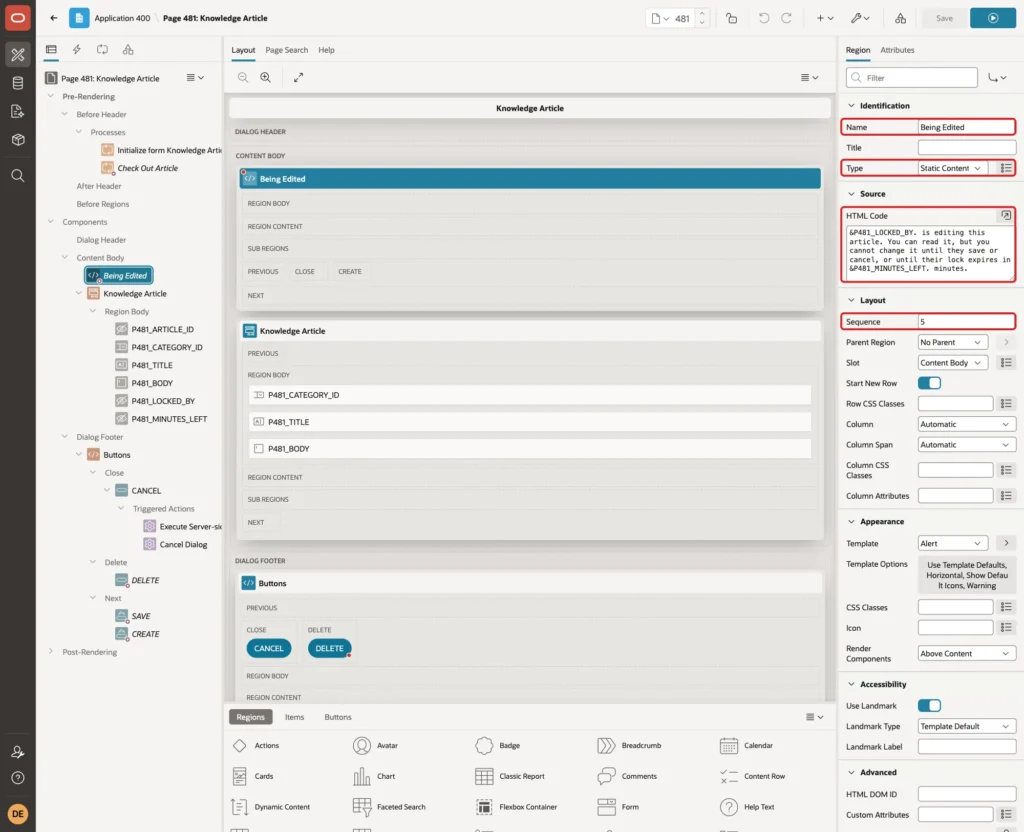
Under Appearance, set Template to Alert. In Template Options, select Horizontal, Show Default Icons and Warning. Then set Server-side Condition > Type to Item is NOT NULL and Item to P481_LOCKED_BY:
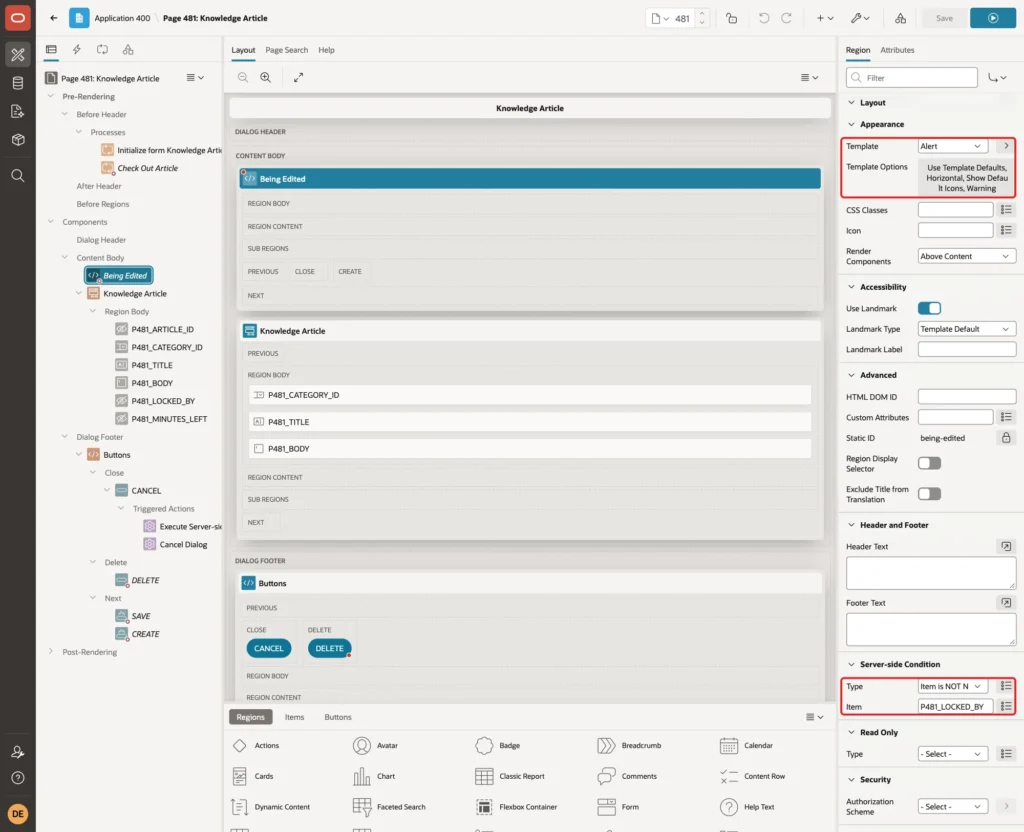
At runtime, &P481_LOCKED_BY. and &P481_MINUTES_LEFT. are replaced with the item values. Click Save.
Step 10: Check the Lock on the Server
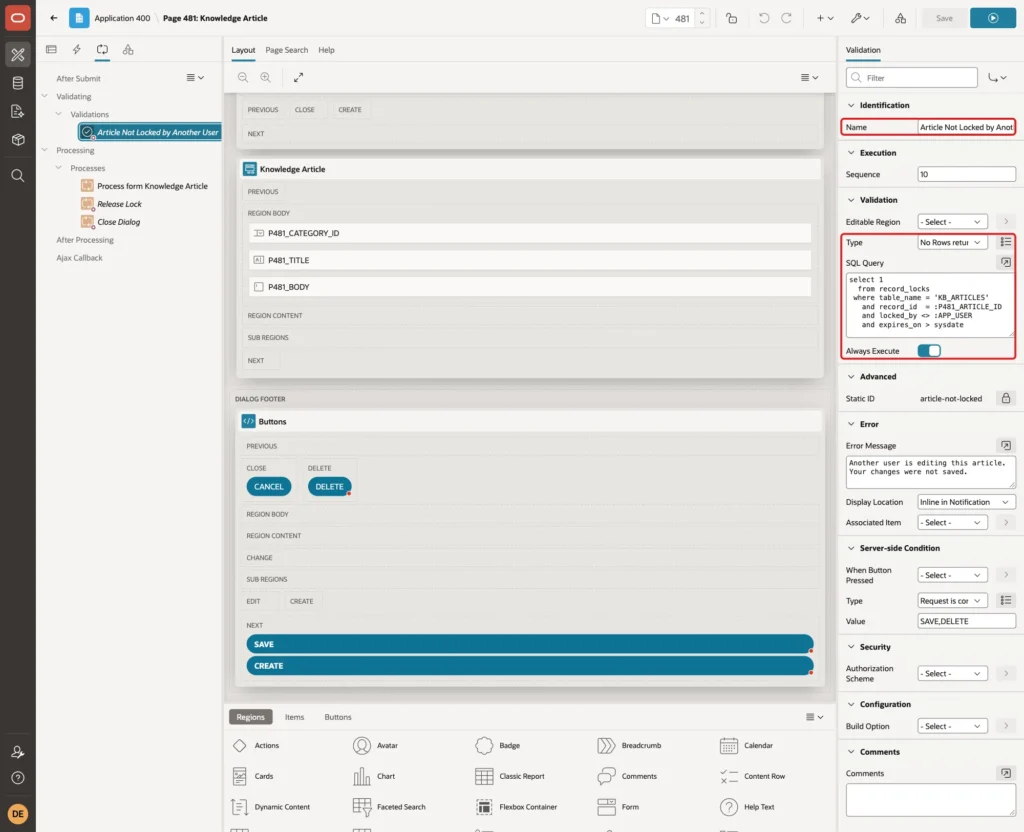
Hidden buttons stop normal users. They do not stop a page submit sent from the browser console. A user whose lock expired may also still have the form open. A validation checks the lock table again when the page is submitted.
Click the Processing tab. Right-click Validations and click Create Validation. Set Name to Article Not Locked by Another User, Type to No Rows returned, turn on Always Execute, and enter this SQL Query:
Example:
select 1
  from record_locks
 where table_name = 'KB_ARTICLES'
   and record_id  = :P481_ARTICLE_ID
   and locked_by <> :APP_USER
   and expires_on > sysdate
Then set the error and the condition:
- Error > Error Message: Another user is editing this article. Your changes were not saved.
- Display Location: Inline in Notification
- Server-side Condition > Type: Request is contained in Value, Value: SAVE,DELETE
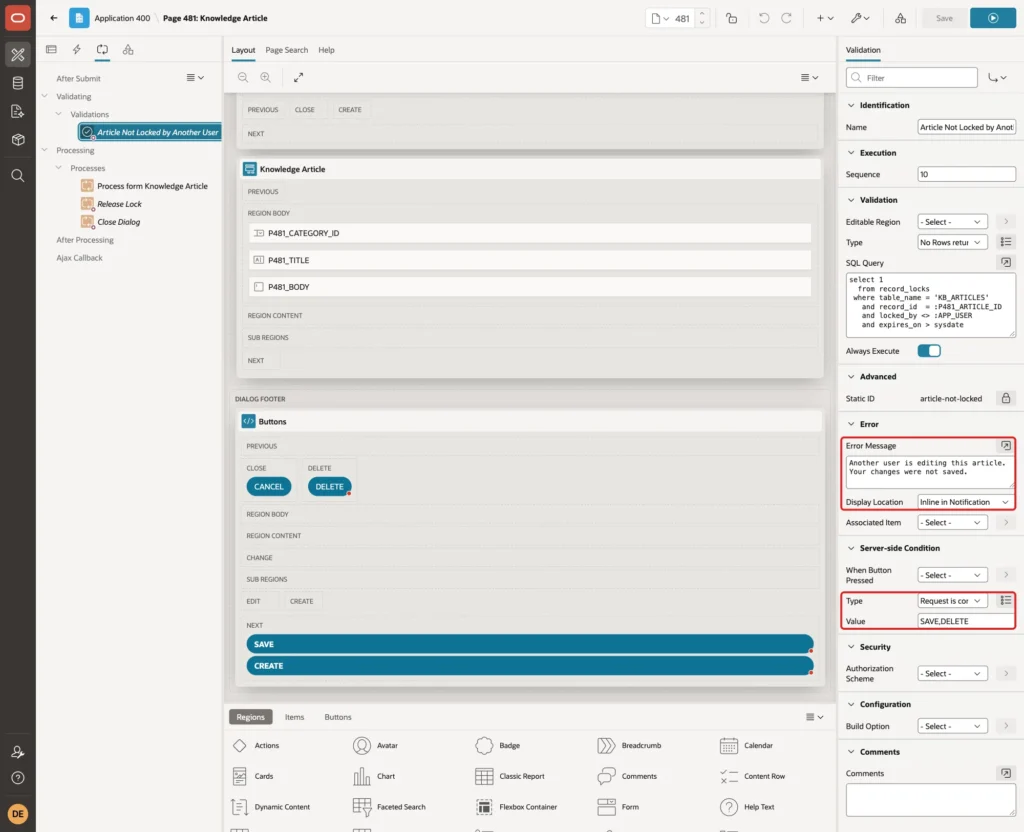
The wizard creates the DELETE button with Execute Validations off. Always Execute makes the validation run for DELETE too. Click Save.
Step 11: Release the Lock After Save and Delete
Under Processing, right-click Processes and click Create Process. Set Name to Release Lock, Type to Execute Code and Sequence to 20, so it runs after the form process (10) and before Close Dialog (50). Enter this PL/SQL Code:
Example:
record_lock_pkg.release('KB_ARTICLES', :P481_ARTICLE_ID, :APP_USER);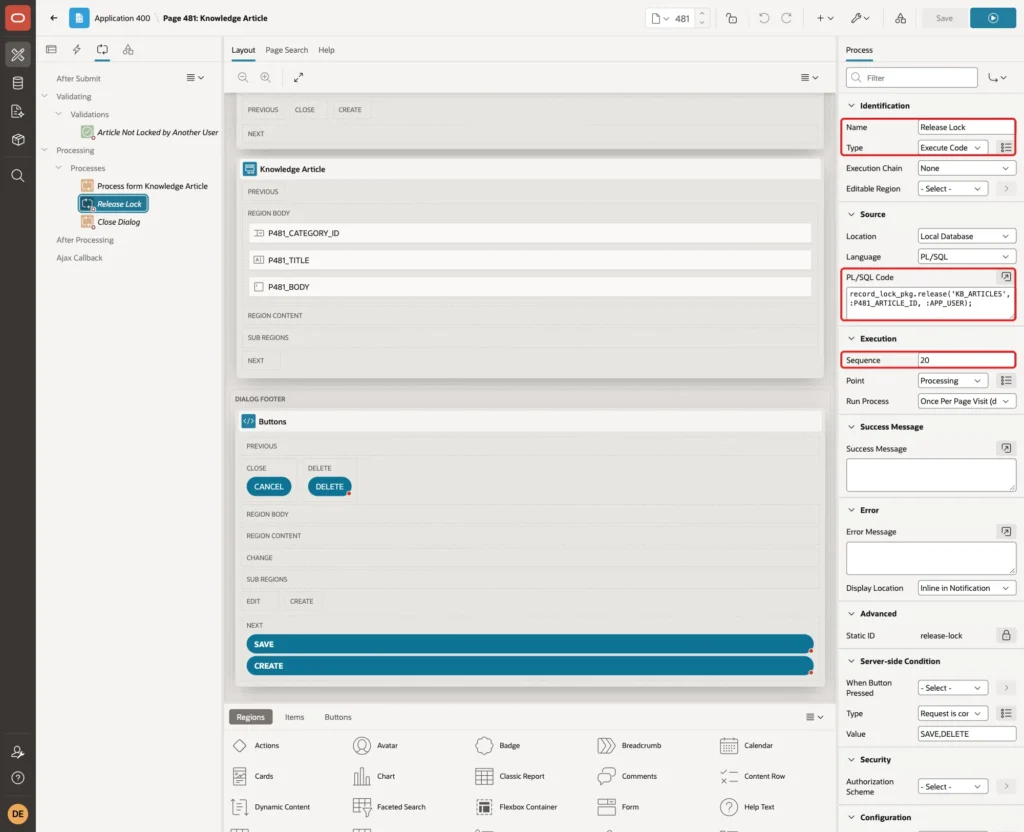
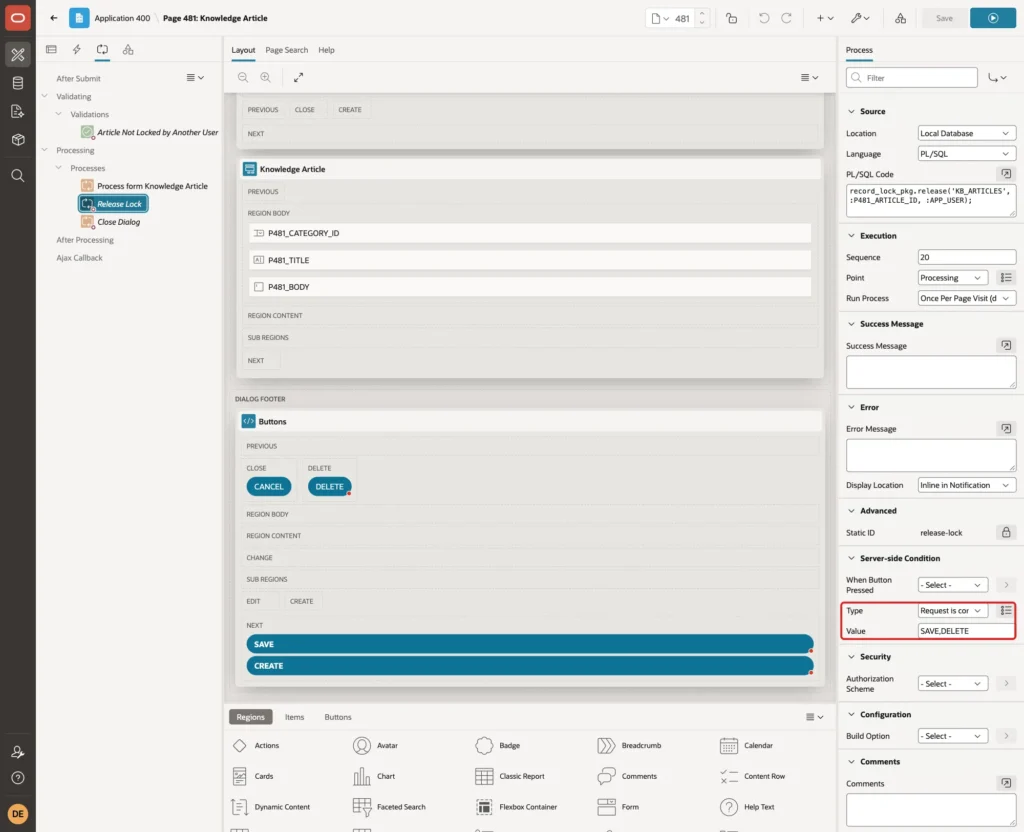
Under Server-side Condition, set Type to Request is contained in Value and Value to SAVE,DELETE:
Click Save.
Step 12: Release the Lock When the User Clicks Cancel
The wizard's CANCEL button closes the dialog in the browser with a Cancel Dialog action. It does not call the server, so the lock would stay until it expires.
In the Rendering tree, expand CANCEL and Triggered Actions. Right-click Triggered Actions and click Create Trigger Action. Set Action to Execute Server-side Code, Items to Submit to P481_ARTICLE_ID, and Sequence to 5, so it runs before Cancel Dialog. Enter the same PL/SQL Code as the Release Lock process:
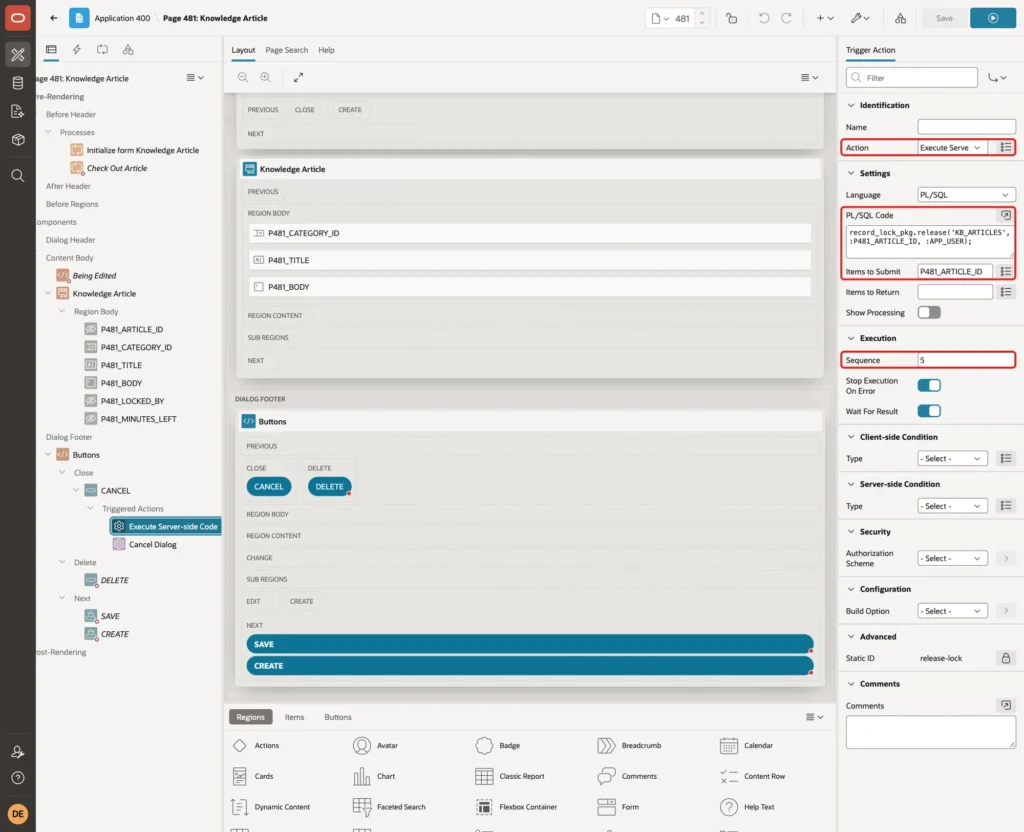
Items to Submit sends the article ID to the server with the call. Wait For Result is on by default, so the dialog closes after the lock is removed. Click Save.
Step 13: Test with Two Users
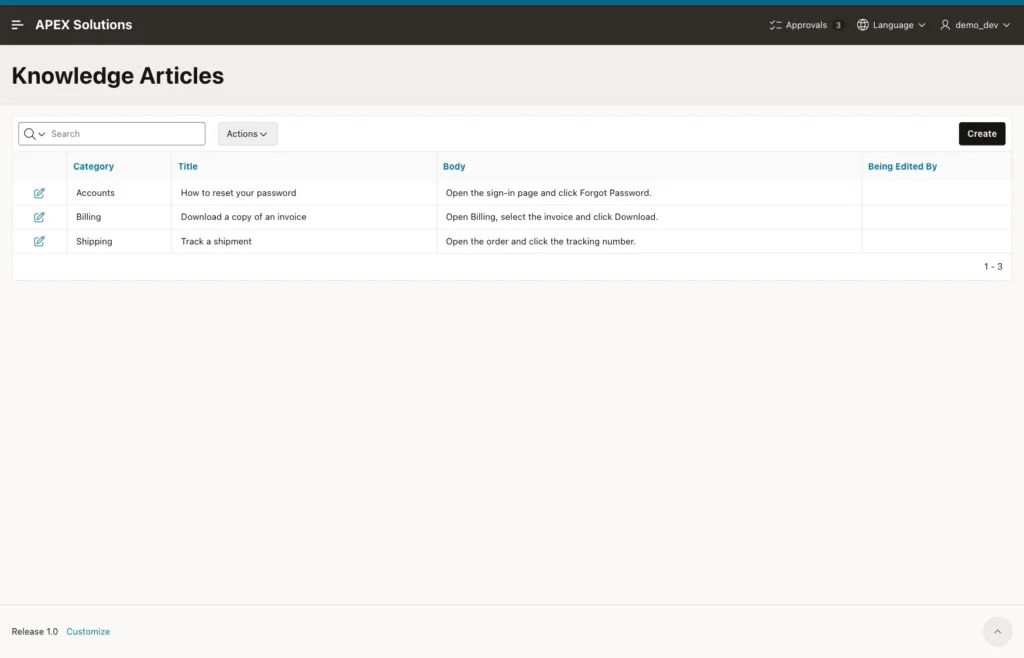
Run page 480 as DEMO_DEV. The report lists the three articles, and none is being edited:
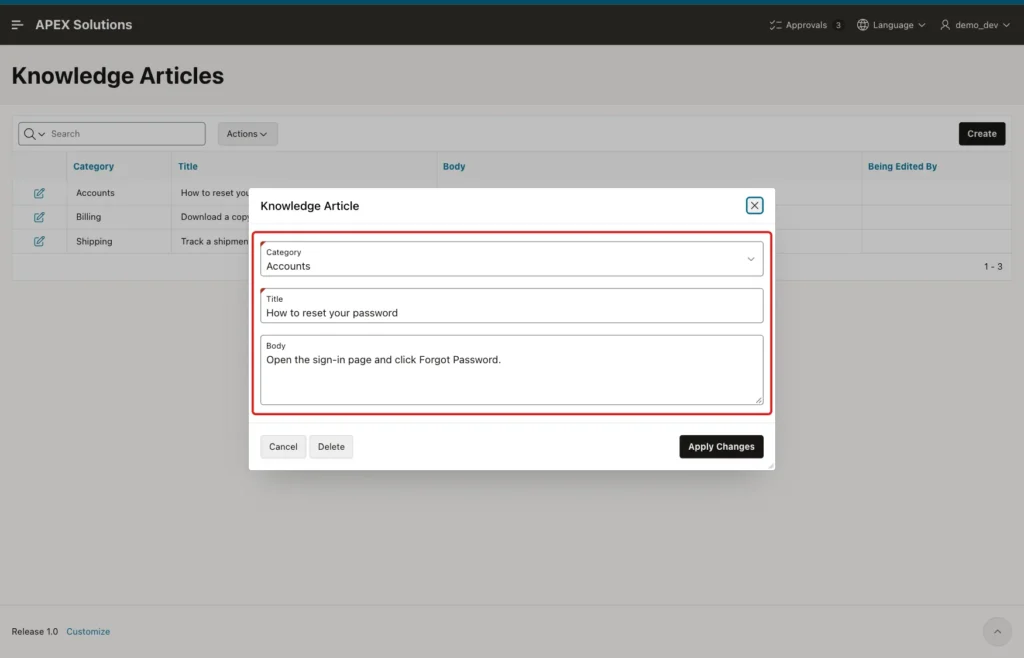
Open How to reset your password. DEMO_DEV gets the lock, so all fields can be edited, and Delete and Apply Changes are shown:
The lock row is in the table at once, because Oracle APEX commits at the end of the page request:
Example:
select record_id,
       locked_by,
       to_char(locked_on, 'HH24:MI:SS') as locked_on,
       to_char(expires_on, 'HH24:MI:SS') as expires_on
from   record_locks
where  table_name = 'KB_ARTICLES'
order  by record_id;
Output:
   RECORD_ID LOCKED_BY    LOCKED_ON    EXPIRES_ON
____________ ____________ ____________ _____________
           1 DEMO_DEV     13:00:42     13:15:42
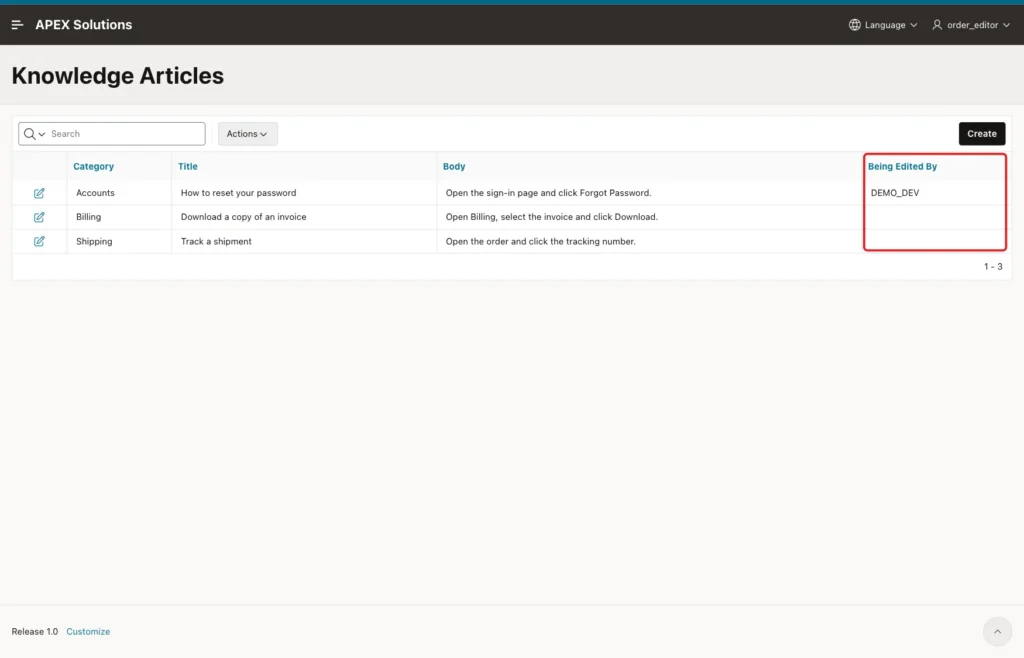
The times are the clock of the database server. Now sign in as ORDER_EDITOR in another browser and run page 480. The Being Edited By column shows DEMO_DEV:
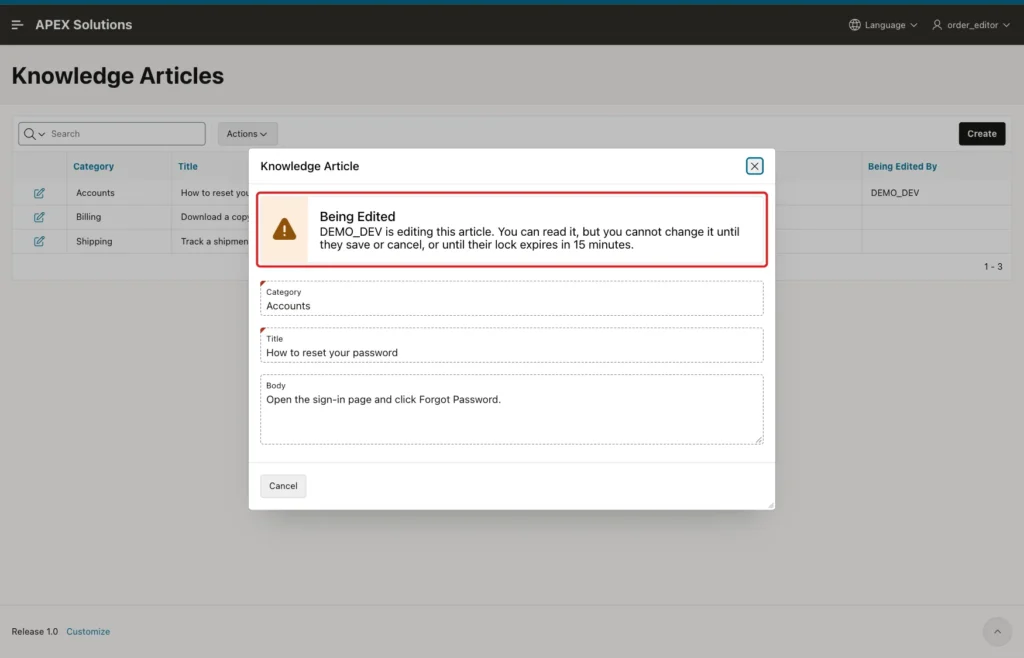
Open the same article. The notice shows at the top, every field is read-only, and only Cancel is left:
Step 14: Test a Forced Submit
As ORDER_EDITOR, run this code in the browser console of the dialog. It sends the SAVE request without the button:
Example:
apex.page.submit({ request: 'SAVE', validate: false });The request reached the server, and the validation stopped it:
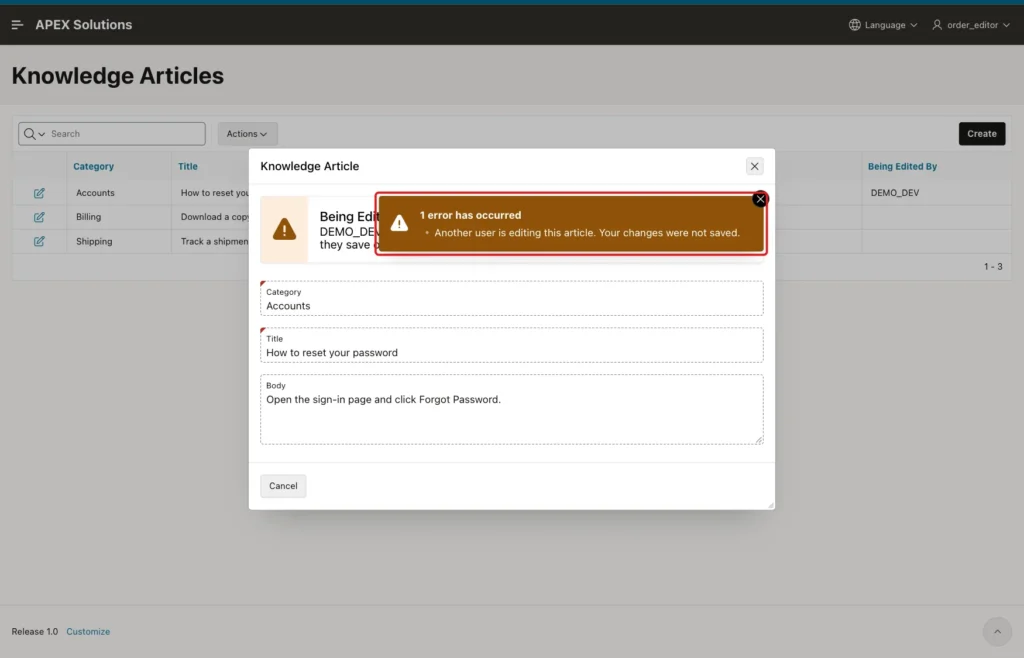
The same code with request DELETE returned the same error. The article was not changed or deleted.
Step 15: Save and Release the Lock
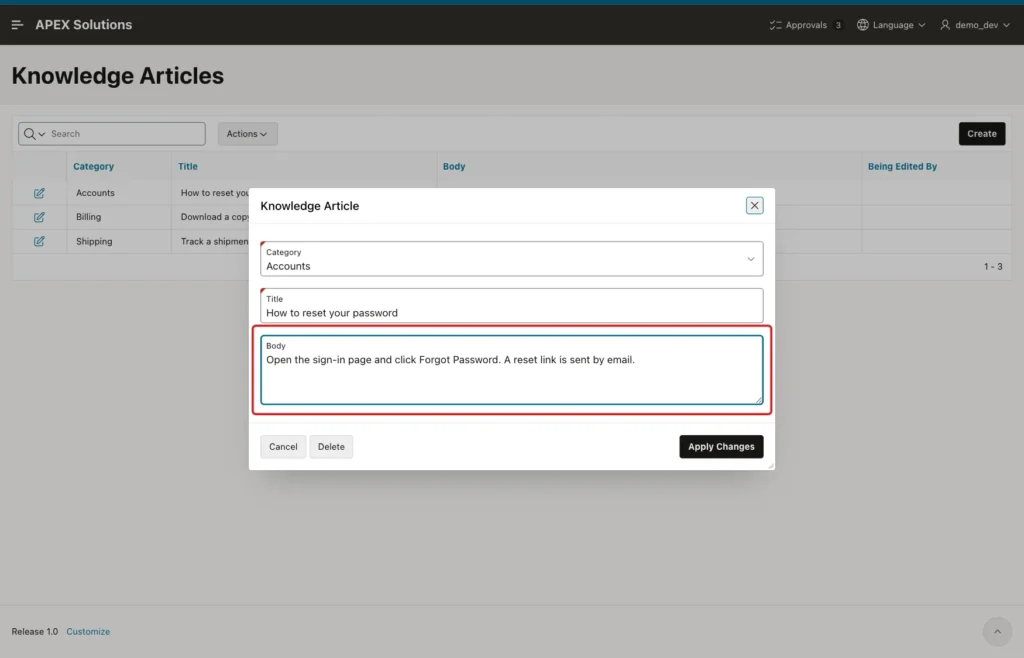
Back as DEMO_DEV, add a sentence to the Body and click Apply Changes:
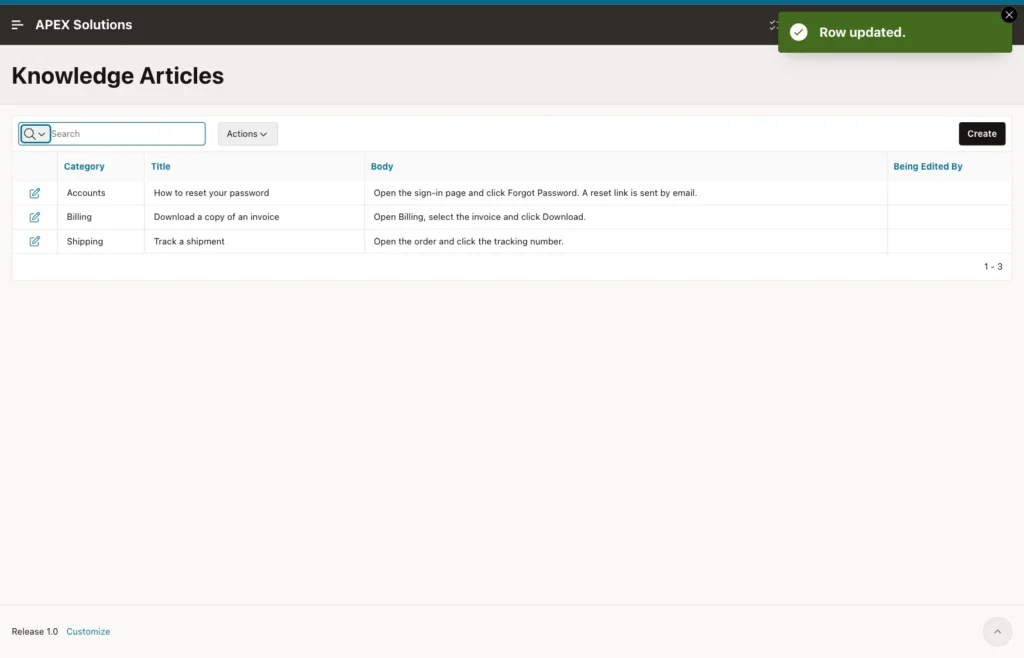
The dialog closes and the report shows the new text:
The Release Lock process removed the lock:
Output:
no rows selected
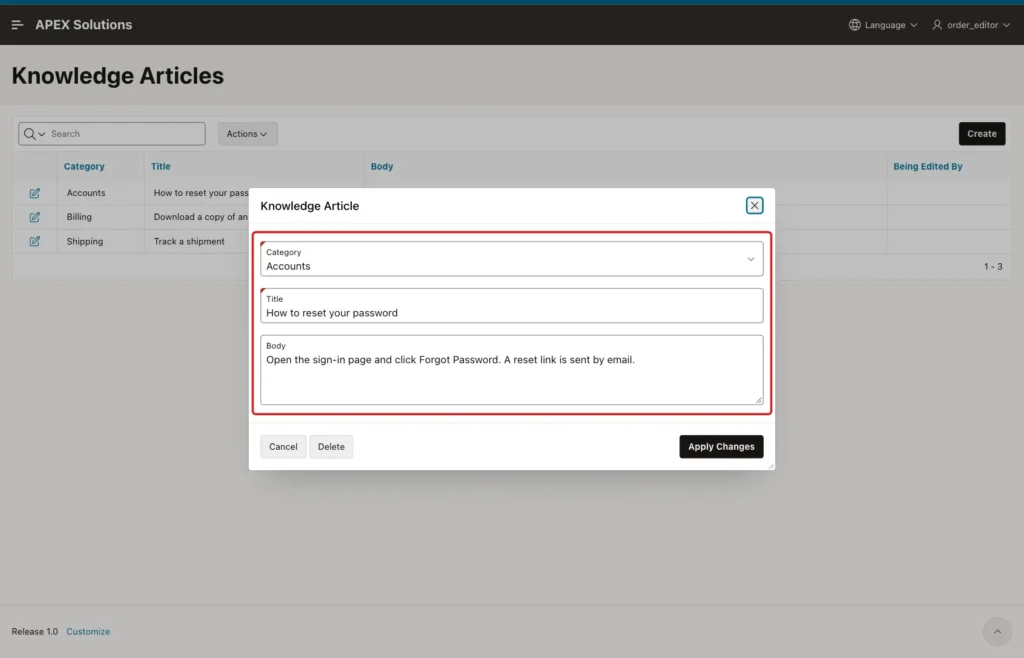
As ORDER_EDITOR, refresh page 480 and open the article again. It can be edited now, and it shows the text that DEMO_DEV saved:
Output:
   RECORD_ID LOCKED_BY       LOCKED_ON    EXPIRES_ON
____________ _______________ ____________ _____________
           1 ORDER_EDITOR    13:02:01     13:17:01
Click Cancel. The triggered action removed the lock before the dialog closed:
Output:
no rows selected
Step 16: Test the Lock Expiry
As DEMO_DEV, open Download a copy of an invoice and close the dialog with the Escape key instead of Cancel. The key closes the dialog in the browser only, so the lock stays:
Output:
   RECORD_ID LOCKED_BY    LOCKED_ON    EXPIRES_ON
____________ ____________ ____________ _____________
           2 DEMO_DEV     13:02:11     13:17:11
ORDER_EDITOR now sees this article read-only, with the notice "their lock expires in 14 minutes". To test the expiry without waiting, move the lock time 20 minutes back:
Example:
update record_locks
set    locked_on = sysdate - interval '20' minute
where  table_name = 'KB_ARTICLES'
and    record_id  = 2;
commit;
Output:
   RECORD_ID LOCKED_BY    LOCKED_ON    EXPIRES_ON
____________ ____________ ____________ _____________
           2 DEMO_DEV     12:43:56     12:58:56
ORDER_EDITOR opens the article again. The Check Out Article process deleted the expired lock and gave a new lock to ORDER_EDITOR, so the form was editable:
Output:
   RECORD_ID LOCKED_BY       LOCKED_ON    EXPIRES_ON
____________ _______________ ____________ _____________
           2 ORDER_EDITOR    13:03:58     13:18:58
Step 17: Test an Editor Whose Lock Expired
The last test covers a user who keeps the form open too long. DEMO_DEV opened Track a shipment and changed the Body without saving. The lock was moved 20 minutes back, and ORDER_EDITOR opened the article and got the lock:
Output:
   RECORD_ID LOCKED_BY       LOCKED_ON    EXPIRES_ON
____________ _______________ ____________ _____________
           3 ORDER_EDITOR    13:09:58     13:24:58
Then DEMO_DEV clicked Apply Changes. The validation found the lock of ORDER_EDITOR and stopped the save:
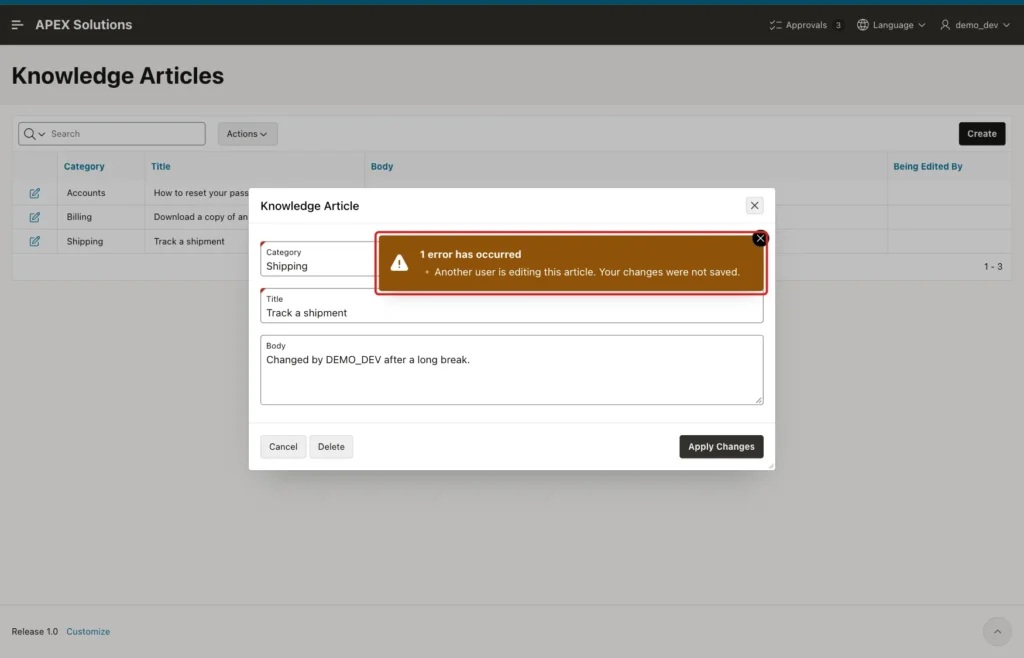
The table confirms that the change of DEMO_DEV was not saved:
Example:
select article_id, title, body
from   kb_articles
order  by article_id;
Output:
   ARTICLE_ID TITLE                            BODY
_____________ ________________________________ __________________________________________________________________________________
            1 How to reset your password       Open the sign-in page and click Forgot Password. A reset link is sent by email.
            2 Download a copy of an invoice    Open Billing, select the invoice and click Download.
            3 Track a shipment                 Open the order and click the tracking number.
Things to Know
- A database row lock (SELECT FOR UPDATE) does not last between Oracle APEX page requests. Store the checkout lock as a row in a table.
- The primary key on TABLE_NAME and RECORD_ID allows only one lock row for each record.
- The page Read Only condition makes items read-only but does not hide buttons. Hide Save and Delete with their own condition.
- Closing the dialog with the X icon or the Escape key does not release the lock (both were tested). The lock stays until its owner saves or cancels, or until it expires.
- A lock is refreshed each time its owner opens the record. After 15 minutes without saving, another user can take the lock, and the validation then stops the first user's save (Step 17).
- All lock times use SYSDATE, the clock of the database server. The notice shows minutes left instead of a clock time, so users in other time zones are not confused.
- The lock protects this form only. Other pages, scripts or REST services that update KB_ARTICLES should call the same package or check RECORD_LOCKS.
Related Guides
- Prevent Lost Updates in Oracle APEX: "Someone Else Changed This Record"
- How to Make a Whole Form Read-Only Based on the Record's Status in Oracle APEX
Conclusion
To lock a record while a user edits it in Oracle APEX, store the lock as a row in a table with a primary key on the table name and record ID. A Before Header process takes the lock, and the page Read Only condition, a notice and hidden buttons serve every other user.
A validation with Always Execute checks the lock again on SAVE and DELETE, so forced submits and expired editors cannot overwrite the record. Save, Delete and Cancel release the lock, and the 15-minute expiry cleans up dialogs that were closed another way.
