
Many records reach a point where they must not change any more: an order is shipped, an invoice is posted, a request is closed. The form that edits the record should then show the data but stop every change, including Save and Delete.
Oracle APEX has a Read Only condition on the page itself. This guide sets it from the stored status, hides the Save and Delete buttons, shows a notice, and adds a server-side validation that blocks changes even when someone submits the page by hand.
The guide uses store orders as the example; the same steps work for any table with a status column.
The older post How to Make an Item Read Only in Oracle APEX Without Losing Its Value switches one item with JavaScript in the browser. Here the whole page is made read-only on the server, so no item and no button can be used to change a locked record.
Step 1: Create the Tables
The example uses two tables. RETAIL_STORES holds the stores. STORE_ORDERS holds the orders, and each order belongs to one store.
STATUS has a check constraint that allows NEW, PACKED, SHIPPED and CANCELLED. Orders in SHIPPED or CANCELLED are the ones that must become read-only. Create the tables, the index and the sample data:
Example:
create table retail_stores (
  store_id     number generated by default on null as identity,
  store_name   varchar2(100 char) not null,
  city         varchar2(60 char),
  constraint retail_stores_pk primary key (store_id),
  constraint retail_stores_name_uk unique (store_name)
);

create table store_orders (
  order_id     number generated by default on null as identity,
  store_id     number             not null,
  order_date   date               default on null trunc(sysdate) not null,
  status       varchar2(20 char)  default on null 'NEW' not null,
  order_total  number(10,2)       not null,
  ship_note    varchar2(400 char),
  constraint store_orders_pk primary key (order_id),
  constraint store_orders_store_fk foreign key (store_id)
    references retail_stores (store_id),
  constraint store_orders_status_ck
    check (status in ('NEW', 'PACKED', 'SHIPPED', 'CANCELLED')),
  constraint store_orders_total_ck check (order_total >= 0)
);

create index store_orders_store_ix on store_orders (store_id);

insert into retail_stores (store_name, city) values ('Downtown Market', 'Pune');
insert into retail_stores (store_name, city) values ('Lakeside Corner', 'Bhopal');
insert into retail_stores (store_name, city) values ('Hilltop Supplies', 'Shimla');

insert into store_orders (store_id, order_date, status, order_total, ship_note)
values (1, date '2026-10-12', 'NEW', 1250, 'Deliver before noon');
insert into store_orders (store_id, order_date, status, order_total, ship_note)
values (2, date '2026-10-10', 'PACKED', 860.5, null);
insert into store_orders (store_id, order_date, status, order_total, ship_note)
values (3, date '2026-10-05', 'SHIPPED', 2310, 'Sent by road, 3 boxes');
insert into store_orders (store_id, order_date, status, order_total, ship_note)
values (1, date '2026-10-02', 'CANCELLED', 420, 'Store closed for renovation');
commit;

select o.order_id, s.store_name, o.order_date, o.status, o.order_total
from   store_orders o
join   retail_stores s on s.store_id = o.store_id
order  by o.order_id;
Output:
Table RETAIL_STORES created.

Table STORE_ORDERS created.

Index STORE_ORDERS_STORE_IX created.

1 row inserted.

1 row inserted.

1 row inserted.

1 row inserted.

1 row inserted.

1 row inserted.

1 row inserted.

Commit complete.

   ORDER_ID STORE_NAME          ORDER_DATE    STATUS          ORDER_TOTAL
___________ ___________________ _____________ ____________ ______________
          1 Downtown Market     12-10-26      NEW                    1250
          2 Lakeside Corner     10-10-26      PACKED                860.5
          3 Hilltop Supplies    05-10-26      SHIPPED                2310
4 Downtown Market 02-10-26 CANCELLED 420- ORDER_DATE and STATUS use DEFAULT ON NULL, so a new order gets today's date and the status NEW without any code.
- STORE_ORDERS_STATUS_CK keeps the status to the four allowed values.
- The sample data has one order in each status, so every case can be tested.
Step 2: Create the Report and Form Pages
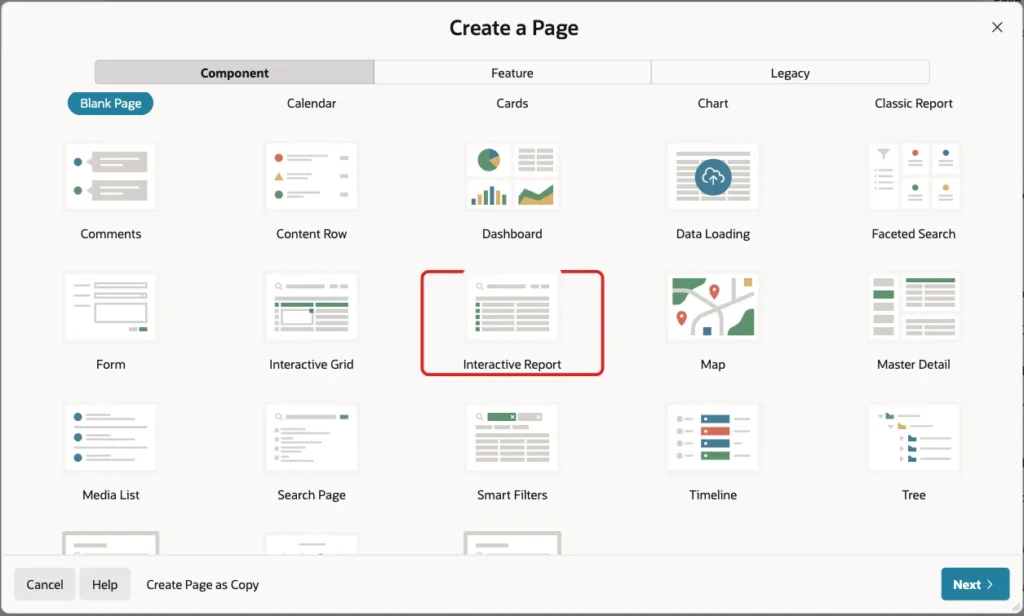
In App Builder, open the application and click Create Page. On the Component tab, click Interactive Report:
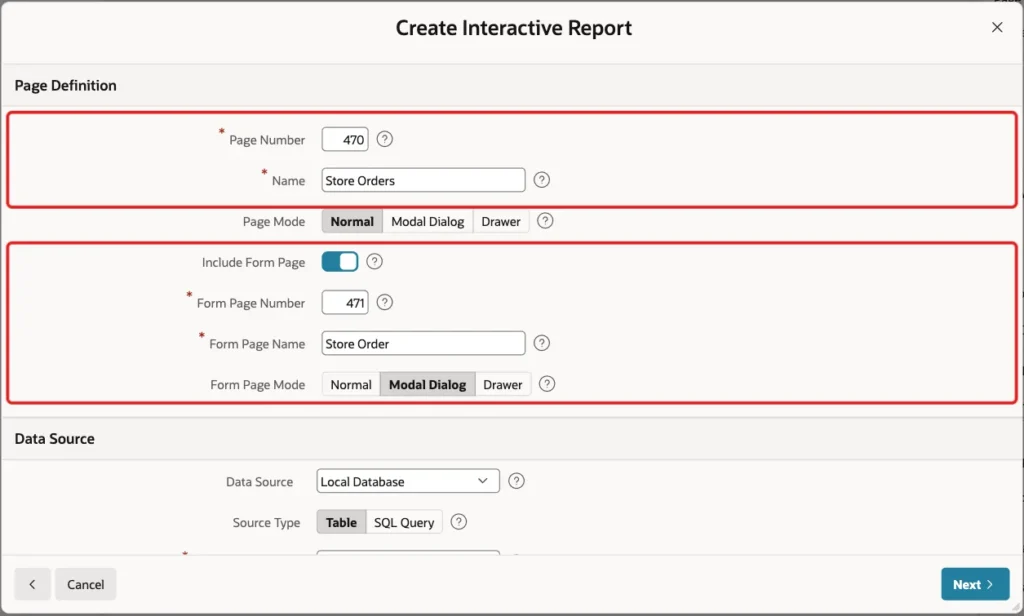
Enter Page Number 470 and Name Store Orders. Turn on Include Form Page, enter Form Page Number 471 and Form Page Name Store Order, and select Form Page Mode Modal Dialog:
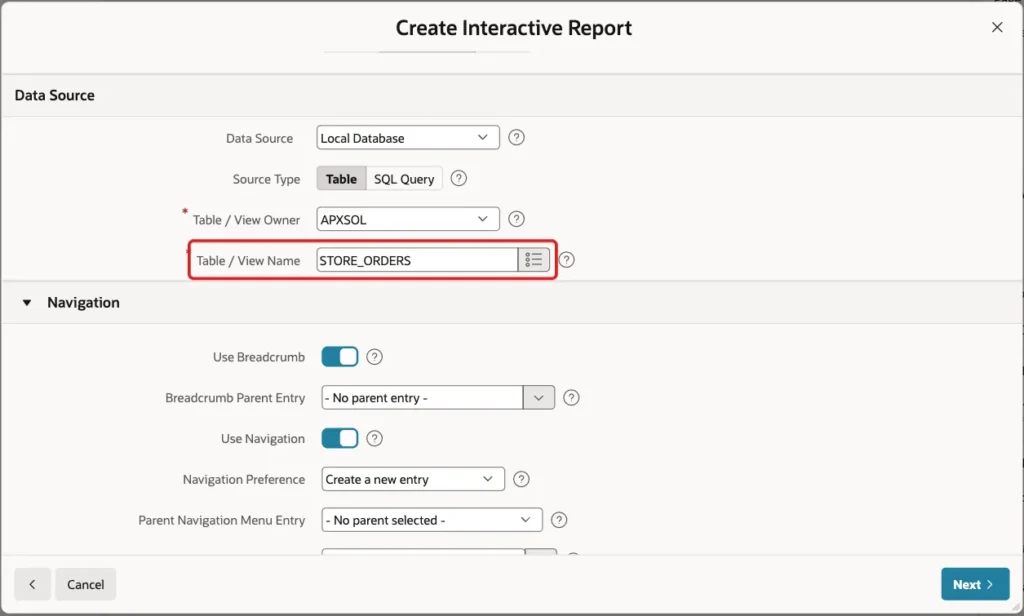
In the Data Source section, keep Local Database and Table, and enter STORE_ORDERS as the Table / View Name:
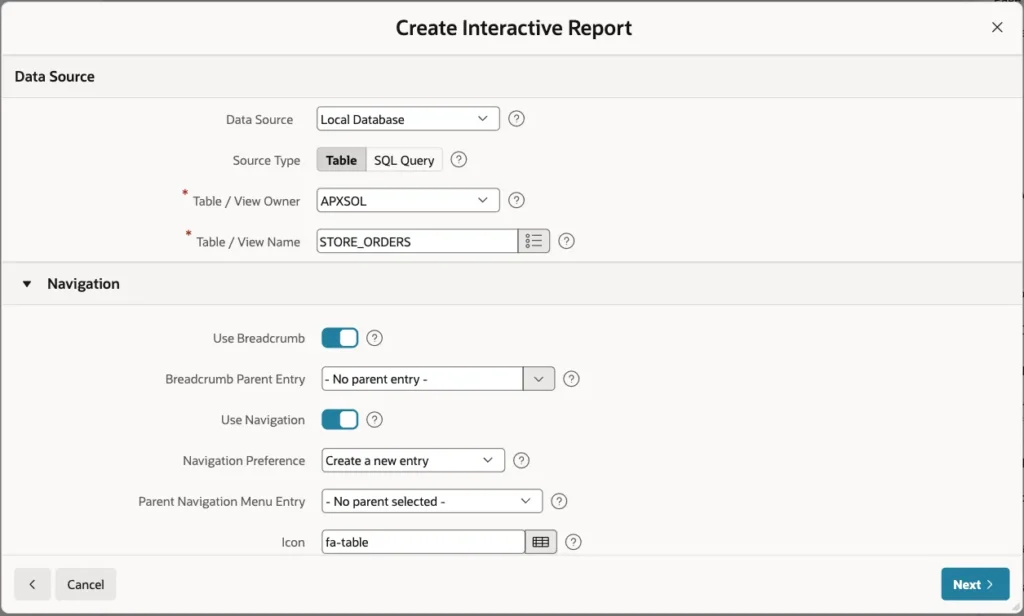
Keep the Navigation settings, so the wizard adds a breadcrumb and a navigation menu entry. Click Next:
On the Primary Key screen, select ORDER_ID (Number) as Primary Key Column 1 and click Create Page:
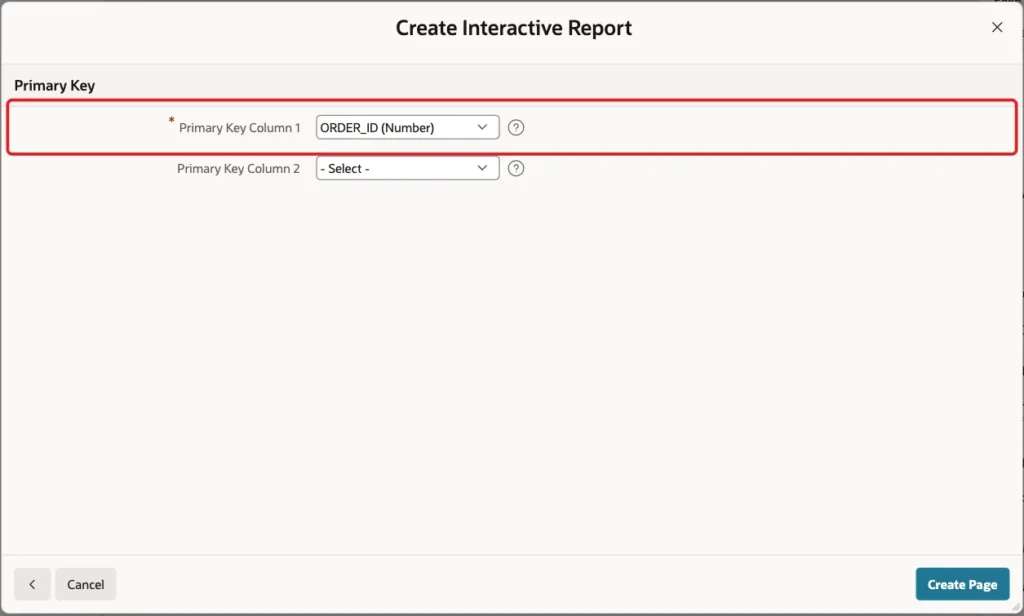
The wizard creates page 470 with the interactive report and page 471 with the form. Because STORE_ID is a foreign key, the wizard also creates a select list for it with a shared list of values on RETAIL_STORES.
Step 3: Turn the Status into a Select List
The wizard creates a text field for STATUS. Open page 471 in Page Designer, select P471_STATUS and set these properties:
- Identification > Type: Select List
- List of Values > Type: Static Values
- Static Values: New (NEW), Packed (PACKED), Shipped (SHIPPED), Cancelled (CANCELLED)
- Display Null Value: off
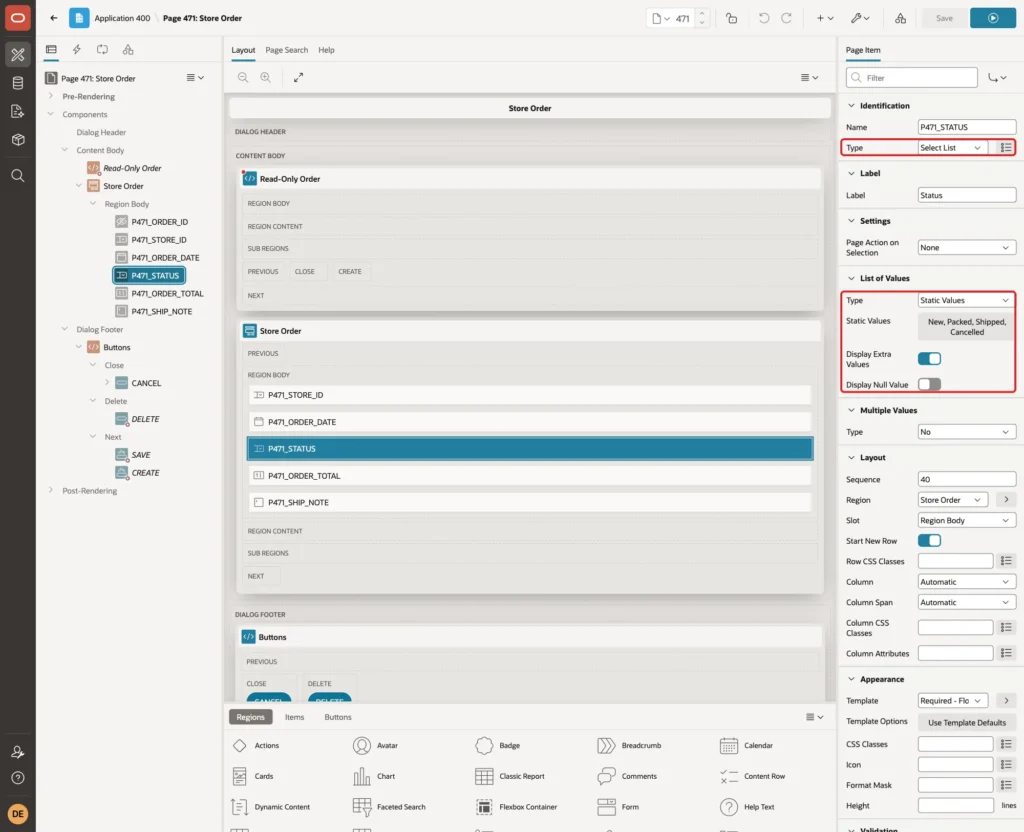
Also select P471_STORE_ID and change its Label from Store Id to Store. Click Save.
Step 4: Set the Read Only Condition of the Page
Select the page node Page 471: Store Order at the top of the tree. In the Read Only group, set Type to Rows returned and enter this SQL Query:
Example:
select 1
  from store_orders
 where order_id = :P471_ORDER_ID
   and status in ('SHIPPED', 'CANCELLED')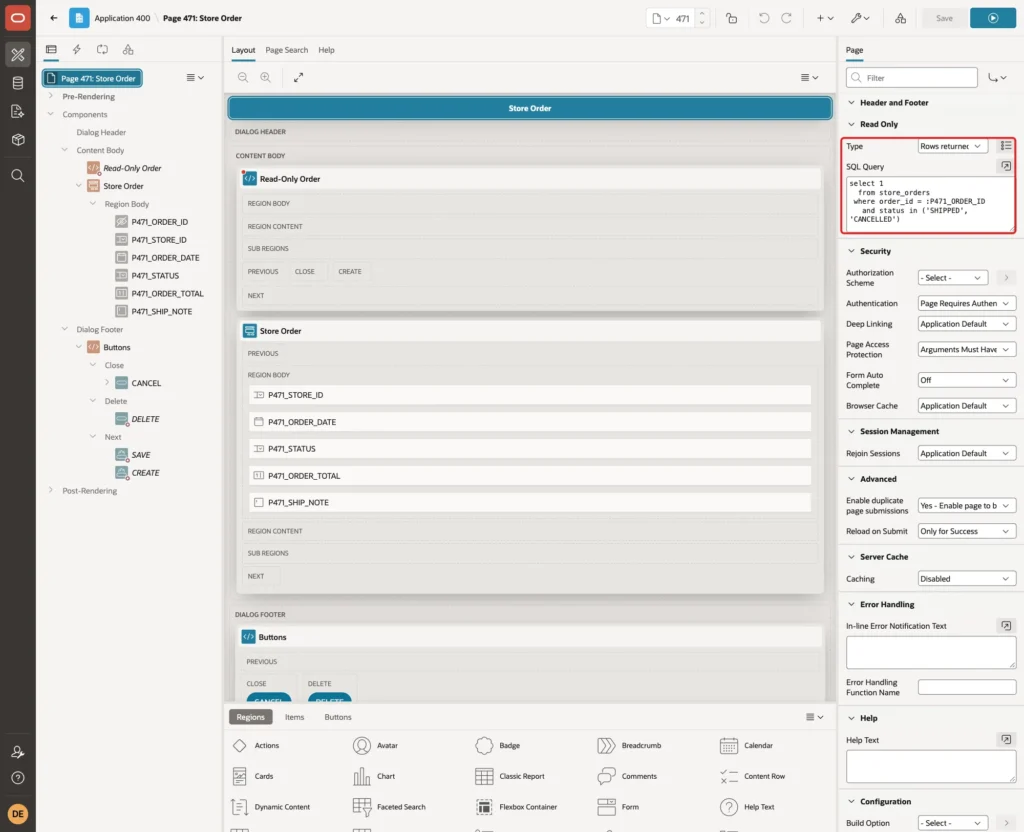
When the query returns a row, Oracle APEX renders every item of the page as read-only. The query reads the status from the table, not from the P471_STATUS item, so it always uses the saved status. Click Save.
Run page 470 and open the shipped order of Hilltop Supplies. All fields are read-only now, including the select lists and the date picker. But the Delete and Apply Changes buttons are still there:
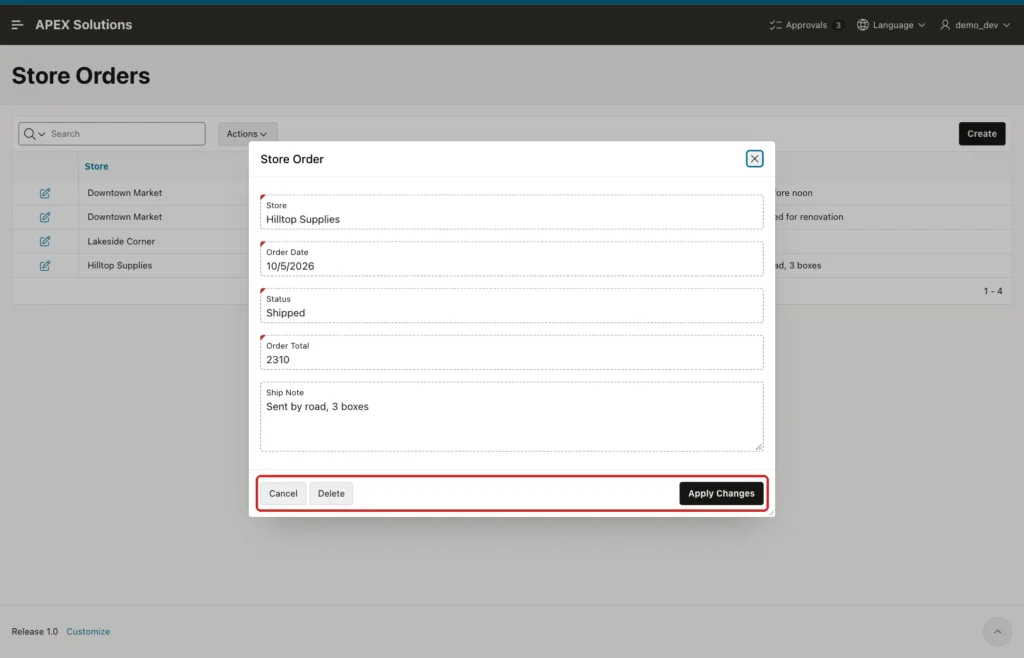
In a test at this point, Apply Changes saved the order again without changes. Delete removed the shipped order from the table. The order was inserted again for the rest of this guide.
Example:
insert into store_orders (order_id, store_id, order_date, status, order_total, ship_note)
values (3, 3, date '2026-10-05', 'SHIPPED', 2310, 'Sent by road, 3 boxes');
commit;
select order_id, status, order_total, ship_note from store_orders order by order_id;
Output:
1 row inserted.

Commit complete.

   ORDER_ID STATUS          ORDER_TOTAL SHIP_NOTE
___________ ____________ ______________ ______________________________
          1 NEW                    1250 Deliver before noon
          2 PACKED                860.5
          3 SHIPPED                2310 Sent by road, 3 boxes
          4 CANCELLED               420 Store closed for renovation
A read-only page still needs its buttons handled. The next steps hide them and add a check on the server.
Step 5: Hide the Save and Delete Buttons
The wizard shows Apply Changes (SAVE) and Delete (DELETE) when P471_ORDER_ID is not null. Replace this condition with one that also checks the status.
Select the SAVE button. Under Server-side Condition, set Type to Rows returned and enter this SQL Query:
Example:
select 1
  from store_orders
 where order_id = :P471_ORDER_ID
   and status not in ('SHIPPED', 'CANCELLED')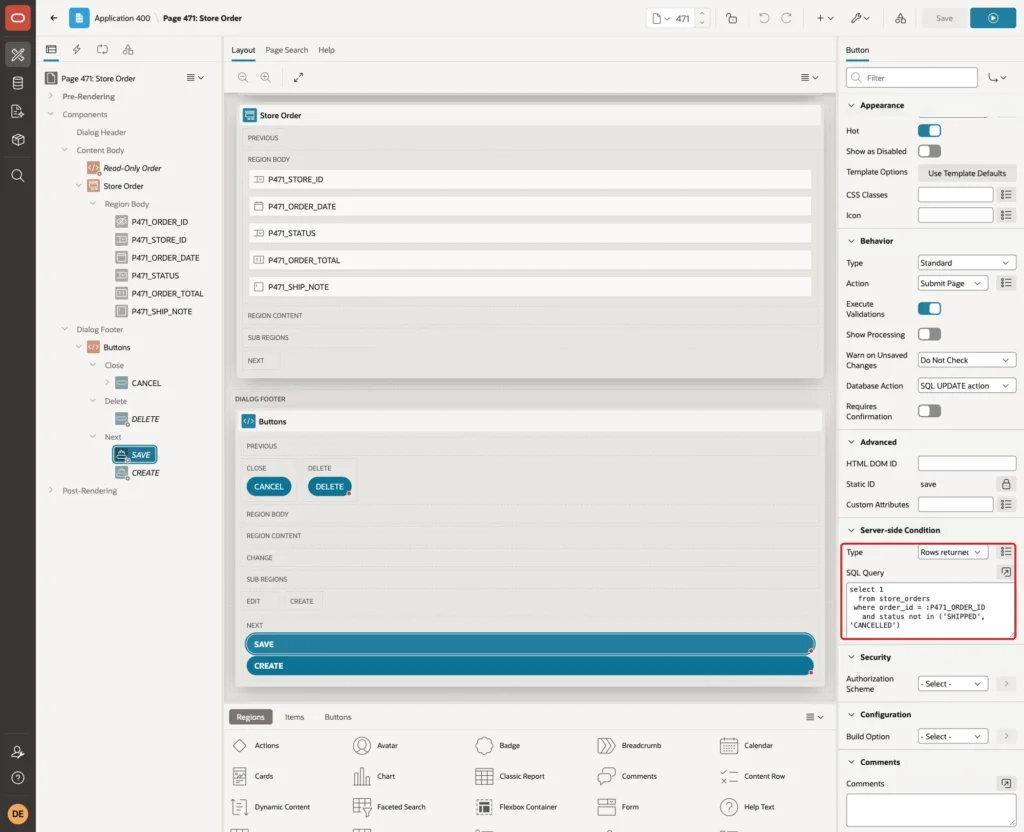
Select the DELETE button and set the same Server-side Condition:
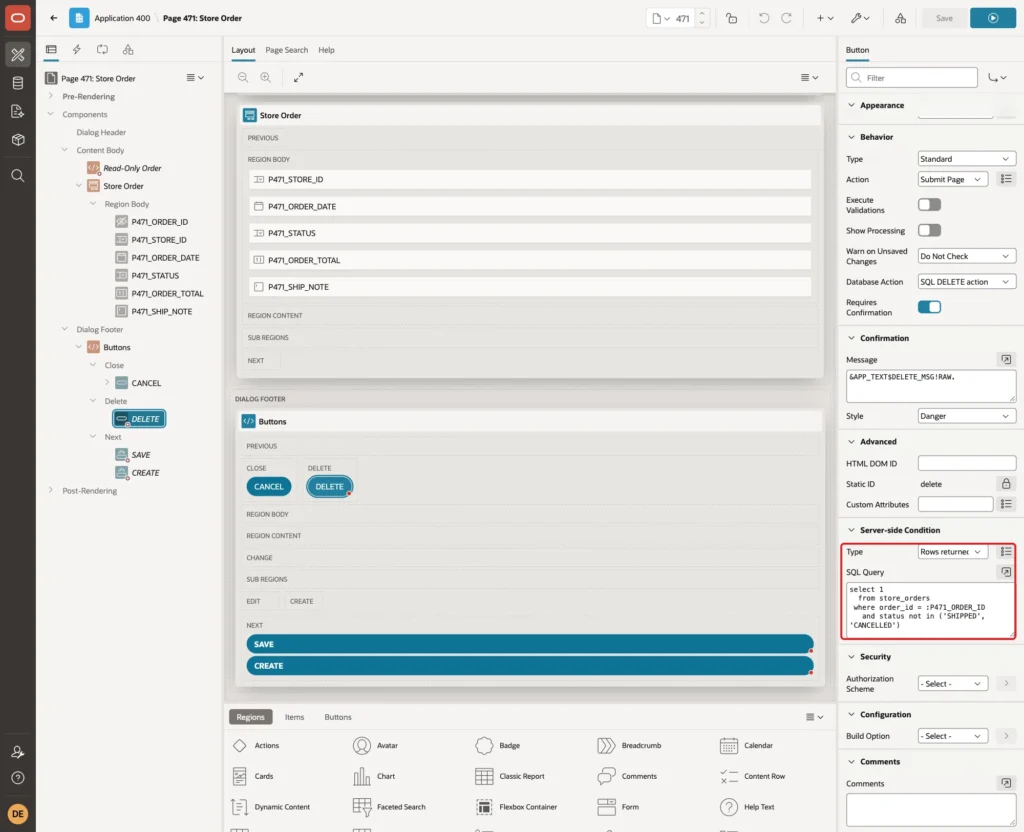
For a new order, P471_ORDER_ID is null and the query returns no row, so both buttons stay hidden and only Create shows. This is the same behavior the wizard's original condition had. Click Save.
Step 6: Show a Notice on Locked Orders
Users should see why they cannot edit the order. In the Rendering tree, right-click Content Body and click Create Region. Set these properties:
- Identification > Name: Read-Only Order
- Type: Static Content
- Source > HTML Code: This order is shipped or cancelled, so it can no longer be changed.
- Layout > Sequence: 5, so the notice shows above the form region (sequence 10)
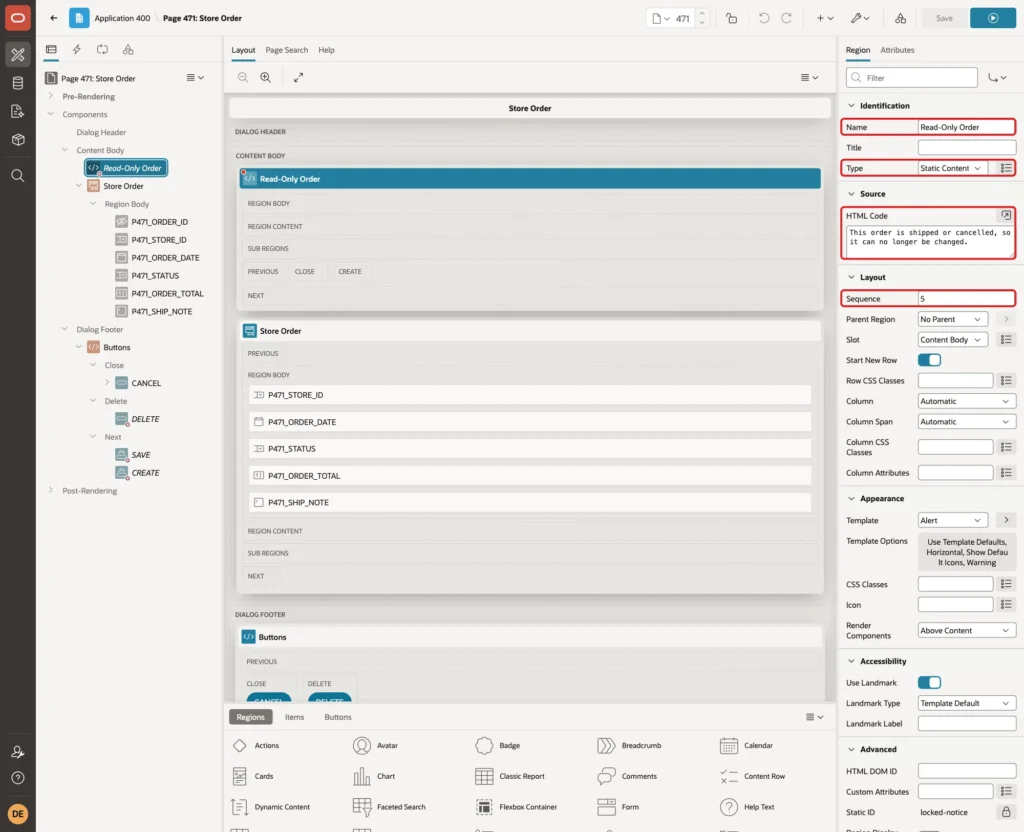
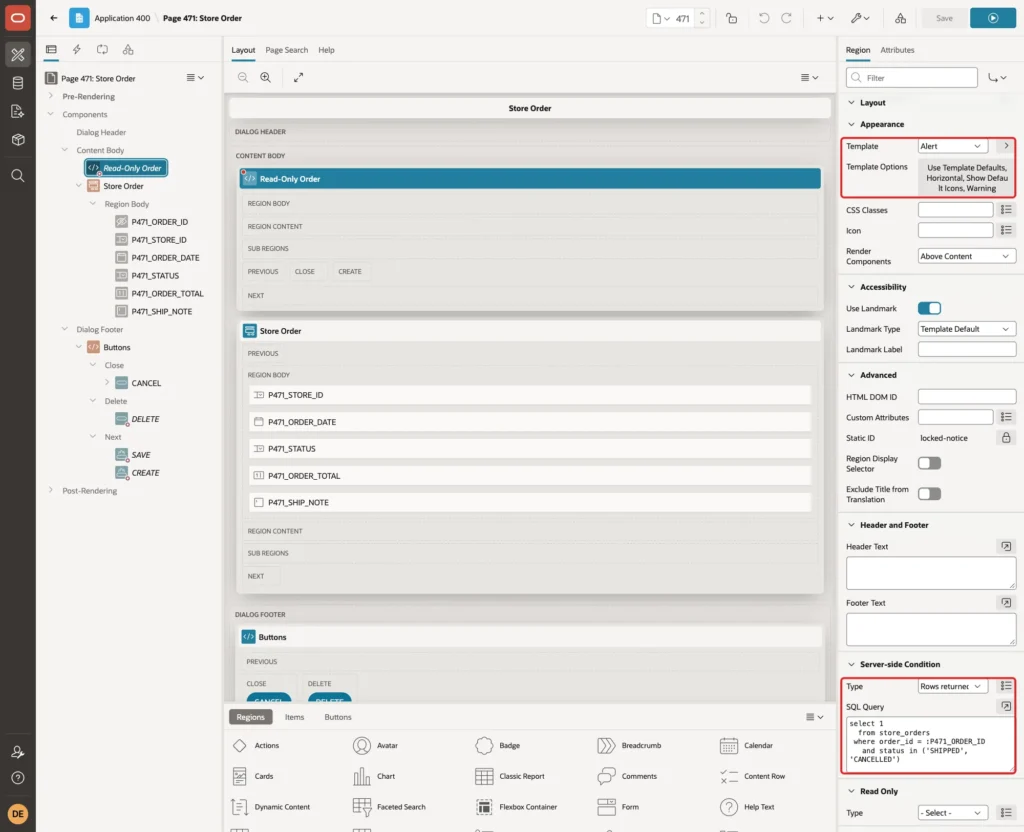
Under Appearance, set Template to Alert. In Template Options, select Horizontal, Show Default Icons and Warning. Then set Server-side Condition > Type to Rows returned with the same query as the page Read Only condition:
Click Save.
Step 7: Block Changes on the Server
Hidden buttons stop normal users. They do not stop a page submit sent from the browser console or a script. A validation checks the status again when the page is submitted.
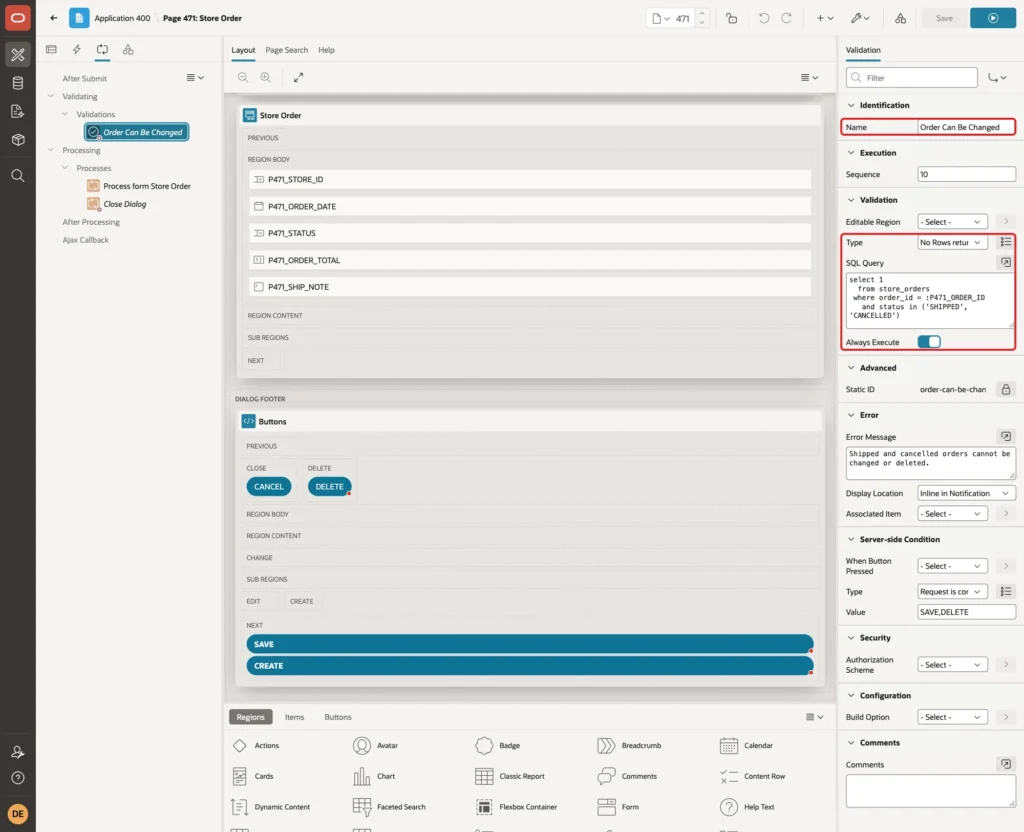
Click the Processing tab. Right-click Validations and click Create Validation. Set these properties:
- Identification > Name: Order Can Be Changed
- Validation > Type: No Rows returned
- SQL Query: the same query as the page Read Only condition
- Always Execute: on
Then set the error and the condition:
- Error > Error Message: Shipped and cancelled orders cannot be changed or deleted.
- Display Location: Inline in Notification
- Server-side Condition > Type: Request is contained in Value, Value: SAVE,DELETE
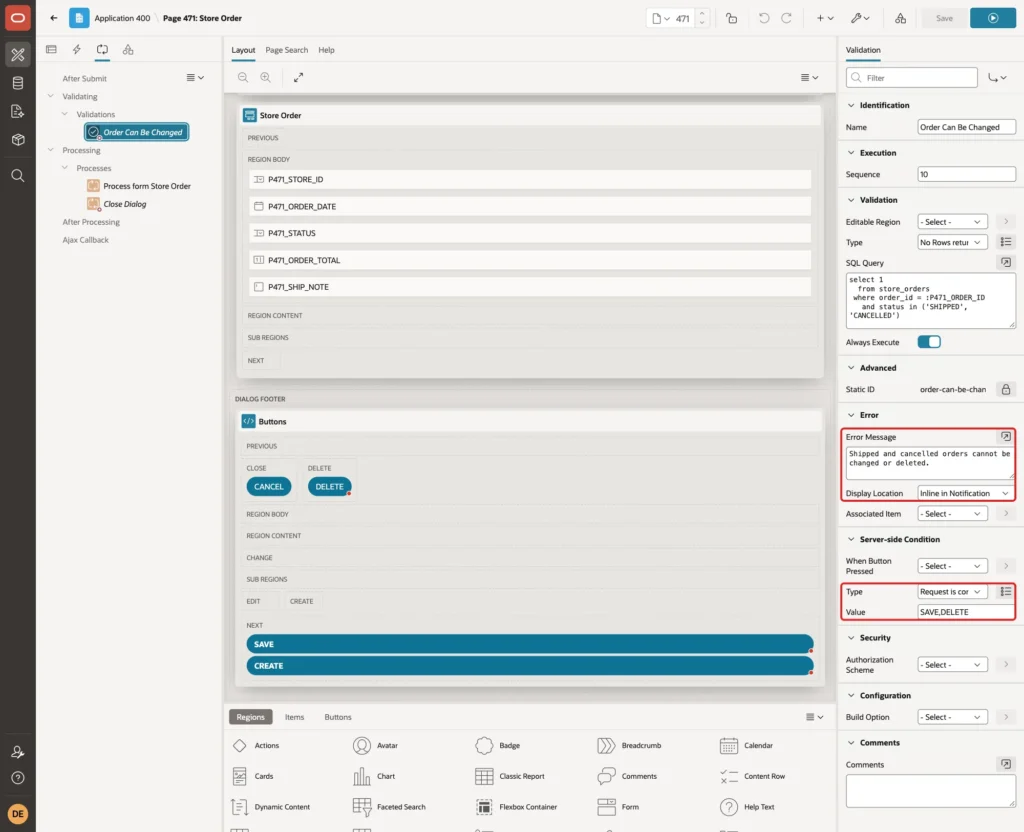
Always Execute matters here. The wizard creates the DELETE button with Execute Validations off. In a first test with Always Execute off, a forced DELETE request skipped the validation and deleted the shipped order. With Always Execute on, the validation runs for DELETE too. Click Save.
Step 8: Test the Form
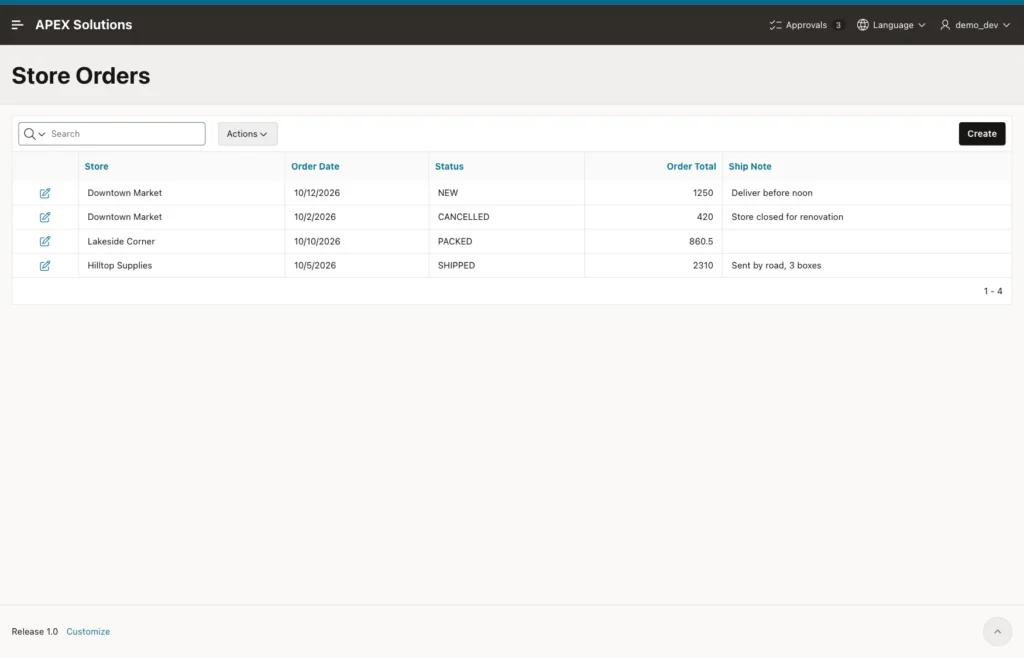
Run page 470 as DEMO_DEV. The report lists the four orders with their status:
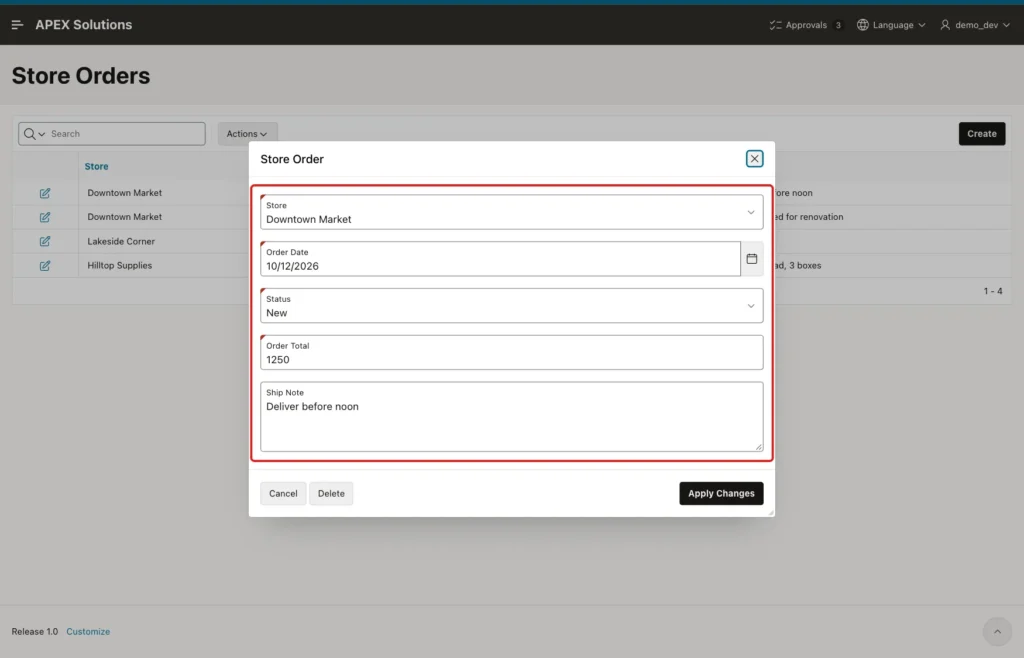
Open the NEW order of Downtown Market. All fields can be edited, and Delete and Apply Changes are shown:
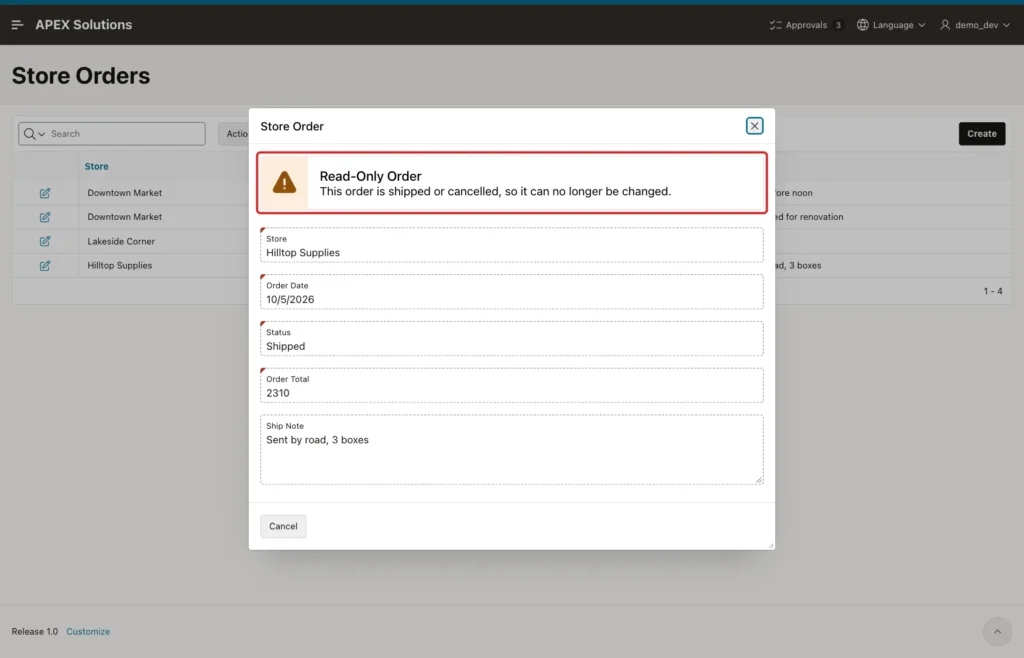
Open the shipped order of Hilltop Supplies. The notice shows at the top, every field is read-only, and only Cancel is left:
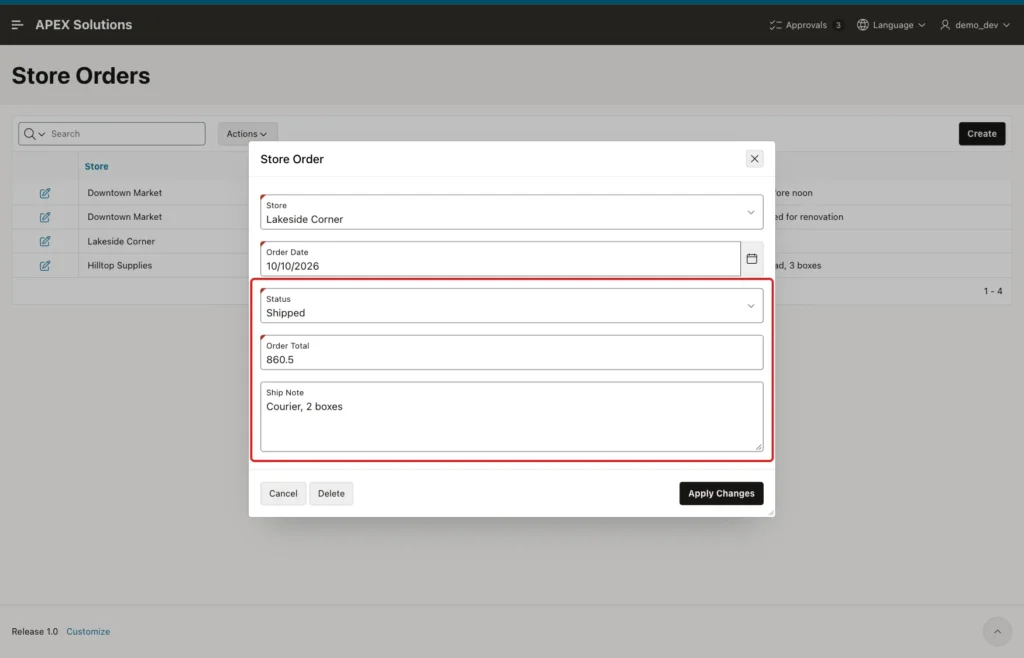
Now ship an order. Open the PACKED order of Lakeside Corner, select Status Shipped, enter Ship Note Courier, 2 boxes, and click Apply Changes:
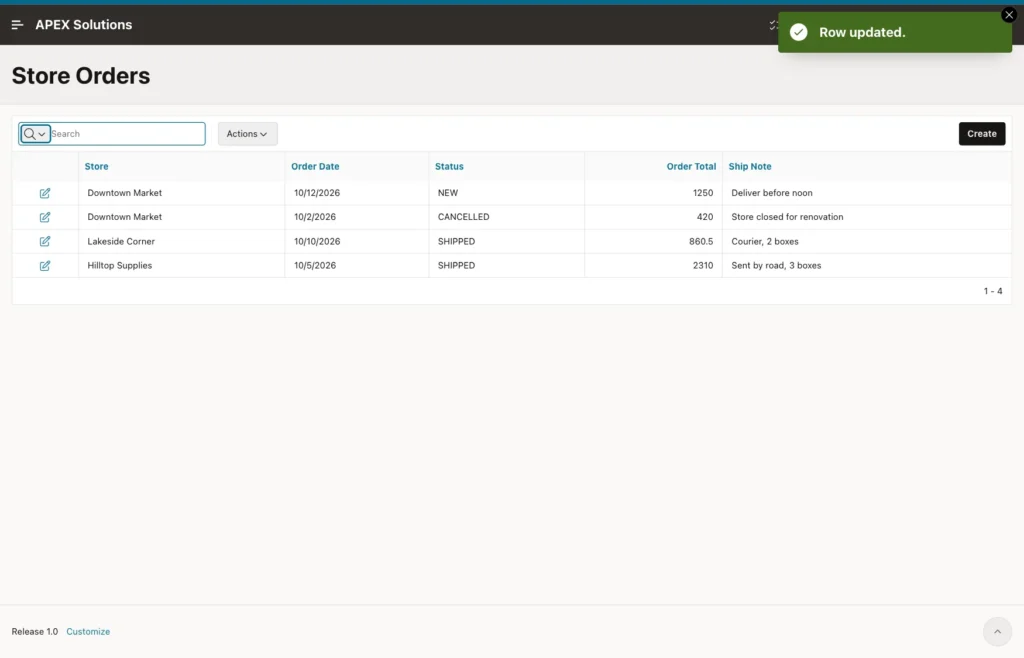
The save works, because the validation checks the stored status, which was still PACKED. The report shows the order as SHIPPED:
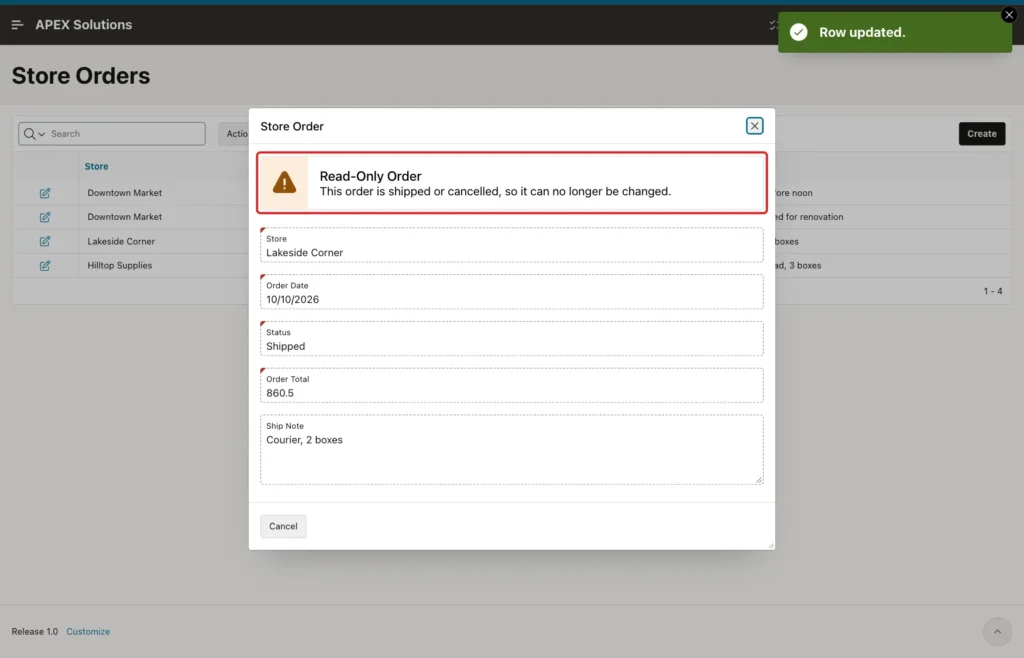
Open the same order again. It is read-only now:
Click Create on page 470. The new order form is editable and shows only Cancel and Create, so the status conditions do not affect new rows.
Step 9: Test a Forced Submit
Open a shipped order and run this code in the browser console of the dialog. It sends the DELETE request without the button:
Example:
apex.page.submit({ request: 'DELETE', validate: false });The request reached the server, and the validation stopped it. The dialog stays open with the error message:
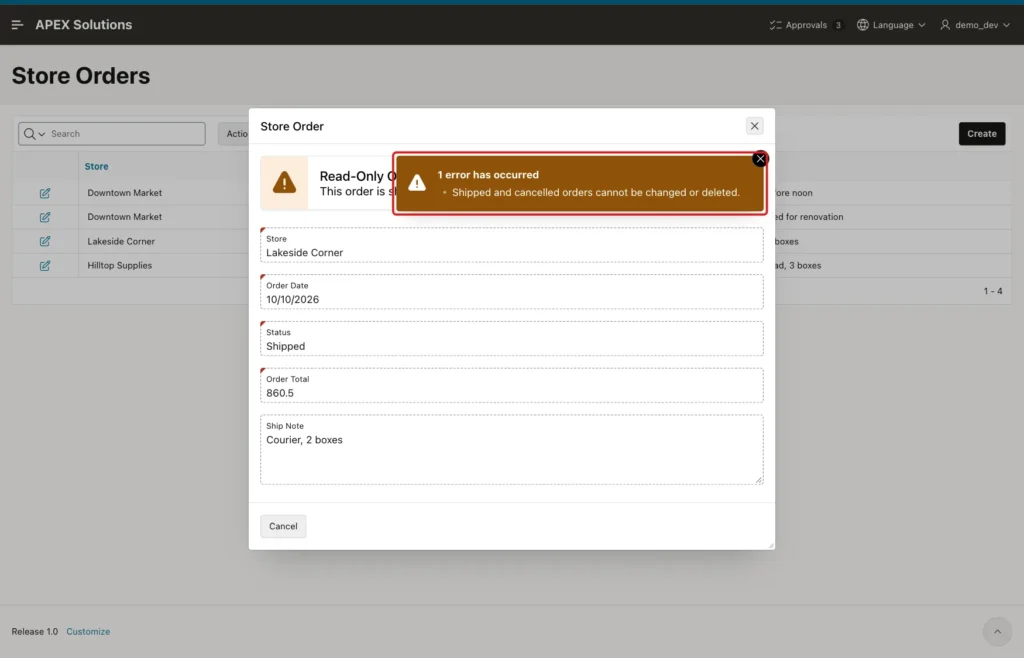
The same code with request SAVE on the cancelled order returned the same error. A forced SAVE on the NEW order was saved normally.
The table confirms that no locked order was changed or deleted:
Example:
select o.order_id, s.store_name, o.status, o.order_total, o.ship_note
from   store_orders o
join   retail_stores s on s.store_id = o.store_id
order  by o.order_id;
Output:
   ORDER_ID STORE_NAME          STATUS          ORDER_TOTAL SHIP_NOTE
___________ ___________________ ____________ ______________ ______________________________
          1 Downtown Market     NEW                    1250 Deliver before noon
          2 Lakeside Corner     SHIPPED               860.5 Courier, 2 boxes
          3 Hilltop Supplies    SHIPPED                2310 Sent by road, 3 boxes
          4 Downtown Market     CANCELLED               420 Store closed for renovation
Things to Know
- The page Read Only condition makes items read-only but does not hide or disable buttons. Always hide Save and Delete with their own condition.
- Read-only items are protected by a checksum. In a test, changing the value of a read-only field in the browser and submitting ended with "Session state protection violation" and nothing was saved.
- Use the stored status in all conditions, not the status item. A user who changes the status to Shipped can still save that change once; the form locks on the next load.
- Buttons with Execute Validations off skip normal validations. Turn on Always Execute for a validation that must also protect DELETE.
- The validation protects this form only. Other pages, scripts or REST services that update STORE_ORDERS need their own check.
- For read-only access by role instead of by status, use the Read Only condition of a region or page with an authorization check.
Related Guides
- How to Make an Item Read Only in Oracle APEX Without Losing Its Value
- How to Hide Buttons and Regions Based on the User's Role in Oracle APEX
Conclusion
To make a whole form read-only by status in Oracle APEX, set the page Read Only condition to a query on the stored status. Every item on the page becomes read-only, and a static Alert region tells users why.
The Read Only condition does not touch buttons, so hide Save and Delete with the opposite query. A No Rows returned validation with Always Execute on checks the status again on the server and stops forced SAVE and DELETE requests.
