
Every text column has a size limit, and users do not see it until something fails. A comment that is too long either gets cut off silently or ends in a database error after the user clicks Save. A visible counter such as "76 of 500" tells users how much room is left while they type.
Oracle APEX has this built in. The Maximum Length property stops typing at the limit, and the Textarea item has a Character Counter switch. This guide turns both on, adds a server-side validation for values that skip the browser, and builds a "characters left" message for a Text Field, which has no counter setting.
The guide uses training event feedback as the example; the same steps work for any table with text columns. The older post Oracle APEX Page Items: Types, Properties, and Lists of Values lists the item types and their properties. Here you set up one length limit from the table to the screen and test every layer.
Step 1: Create the Tables
The example needs two tables. TRAINING_EVENTS lists the events. EVENT_FEEDBACK stores one feedback entry per row, with a short HEADLINE of up to 80 characters and longer COMMENTS of up to 500 characters.
Both text columns use CHAR length semantics, so the limits count characters, not bytes. Create the tables, the index and the sample data:
Example:
create table training_events (
  event_id      number generated by default on null as identity,
  event_name    varchar2(100 char) not null,
  event_date    date               not null,
  constraint training_events_pk primary key (event_id),
  constraint training_events_name_uk unique (event_name)
);

create table event_feedback (
  feedback_id   number generated by default on null as identity,
  event_id      number             not null,
  rating        number(1)          not null,
  headline      varchar2(80 char)  not null,
  comments      varchar2(500 char),
  submitted_by  varchar2(255)      default on null
                  coalesce(sys_context('APEX$SESSION', 'APP_USER'), user) not null,
  submitted_on  date               default on null sysdate not null,
  constraint event_feedback_pk primary key (feedback_id),
  constraint event_feedback_event_fk foreign key (event_id)
    references training_events (event_id),
  constraint event_feedback_rating_ck check (rating between 1 and 5)
);

create index event_feedback_event_ix on event_feedback (event_id);

insert into training_events (event_name, event_date) values ('SQL Basics', date '2026-11-02');
insert into training_events (event_name, event_date) values ('APEX Workshop', date '2026-11-05');
insert into training_events (event_name, event_date) values ('PL/SQL Tuning', date '2026-11-12');

insert into event_feedback (event_id, rating, headline, comments, submitted_by)
values (1, 5, 'Clear and practical', 'The joins section was easy to follow and the exercises matched real work.', 'DEMO_DEV');
insert into event_feedback (event_id, rating, headline, comments, submitted_by)
values (2, 4, 'Good pace', 'More time for the page designer demo would help.', 'SALES_MANAGER');
insert into event_feedback (event_id, rating, headline, comments, submitted_by)
values (3, 3, 'Too much in one day', null, 'SALES_USER');
commit;

select f.feedback_id, e.event_name, f.rating, f.headline,
       length(f.comments) comment_chars
from   event_feedback f
join   training_events e on e.event_id = f.event_id
order  by f.feedback_id;
Output:
Table TRAINING_EVENTS created.

Table EVENT_FEEDBACK created.

Index EVENT_FEEDBACK_EVENT_IX created.

1 row inserted.

1 row inserted.

1 row inserted.

1 row inserted.

1 row inserted.

1 row inserted.

Commit complete.

   FEEDBACK_ID EVENT_NAME          RATING HEADLINE                  COMMENT_CHARS
______________ ________________ _________ ______________________ ________________
             1 SQL Basics               5 Clear and practical                  73
             2 APEX Workshop            4 Good pace                            48
3 PL/SQL Tuning 3 Too much in one day- EVENT_FEEDBACK_EVENT_FK links each entry to an event, and EVENT_FEEDBACK_EVENT_IX indexes that foreign key.
- EVENT_FEEDBACK_RATING_CK allows ratings from 1 to 5 only.
- SUBMITTED_BY and SUBMITTED_ON are filled by DEFAULT ON NULL with the APEX user and the current date, so the form does not need items or a trigger for them.
Step 2: Create the Report and Form Pages
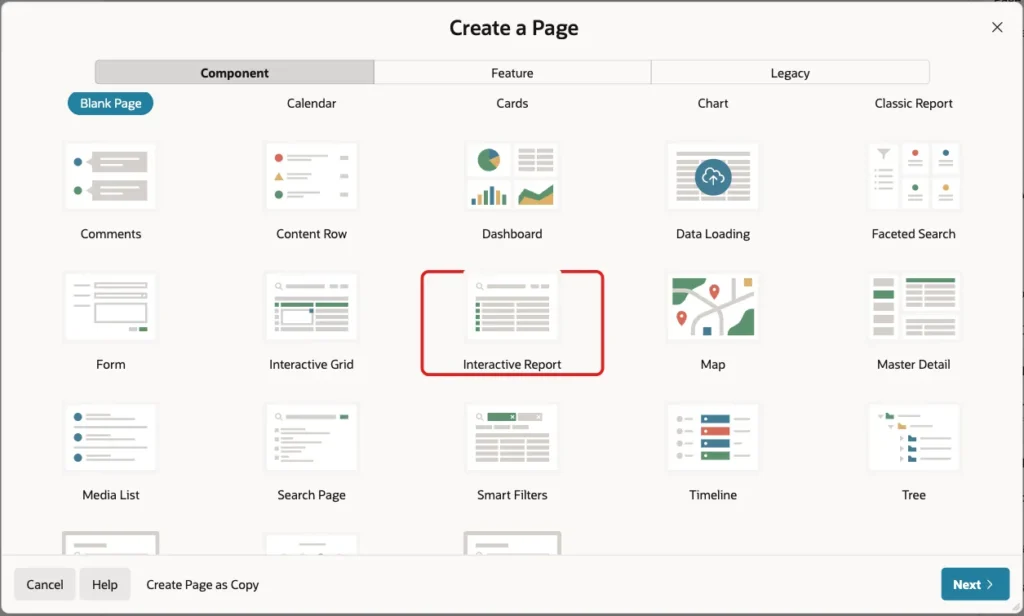
In App Builder, open the application and click Create Page. On the Component tab, click Interactive Report:
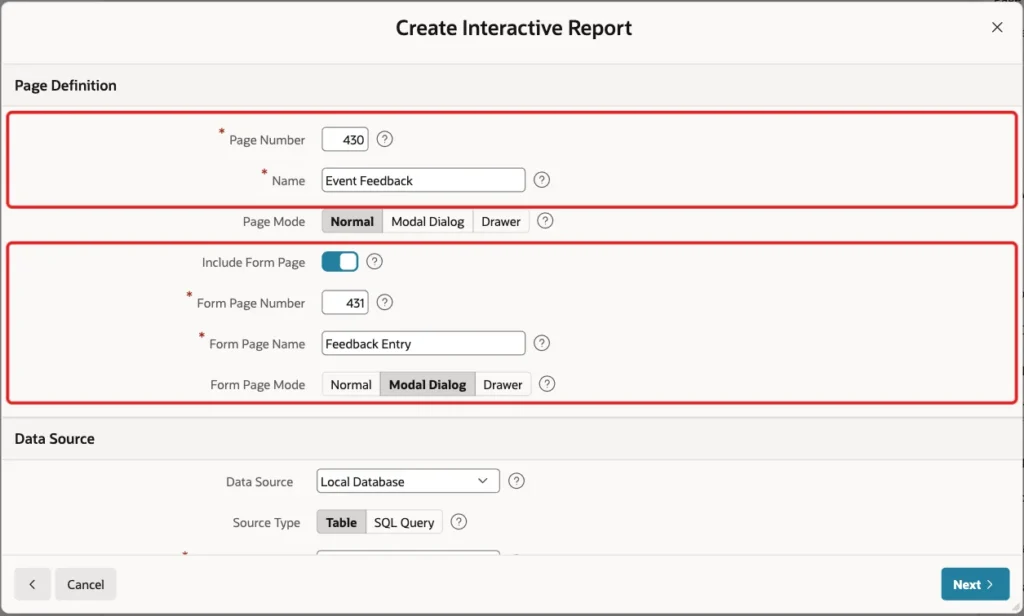
Enter Page Number 430 and Name Event Feedback. Turn on Include Form Page, enter Form Page Number 431 and Form Page Name Feedback Entry, and keep Form Page Mode Modal Dialog:
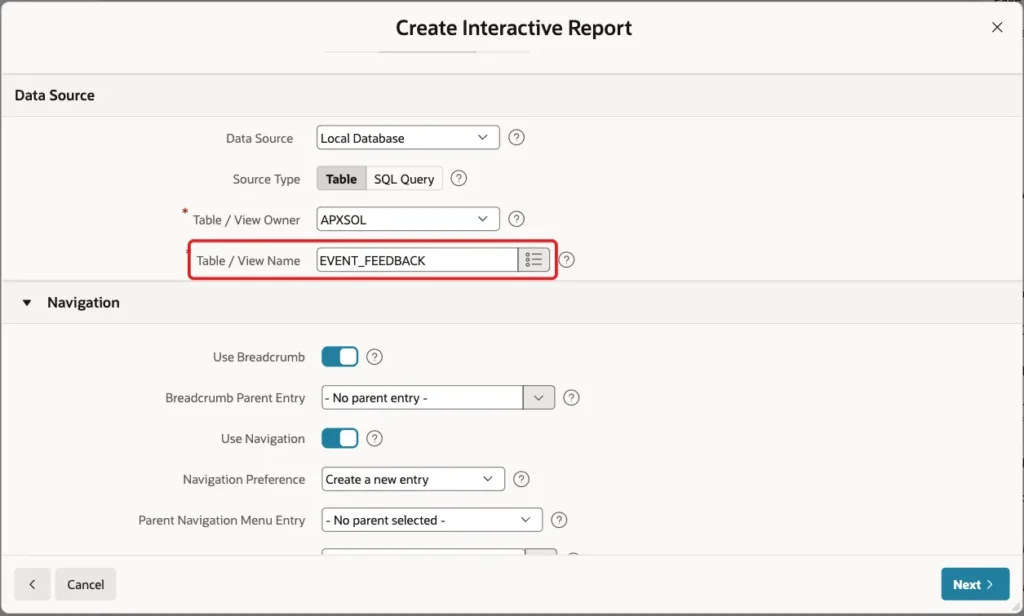
Under Data Source, keep Local Database and Source Type Table, and enter Table / View Name EVENT_FEEDBACK:
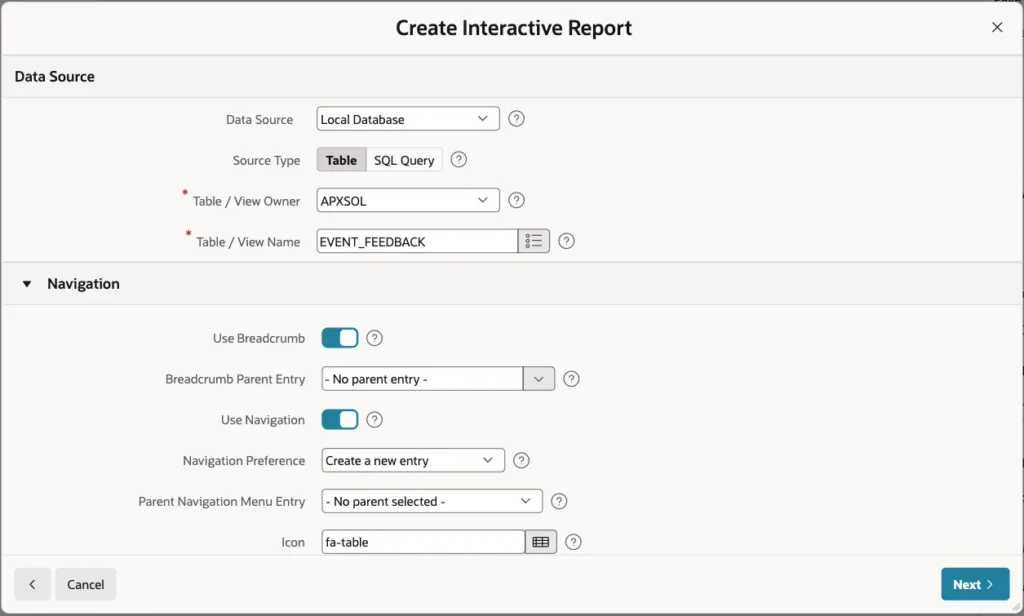
Keep Use Breadcrumb and Use Navigation on, so the report page gets a menu entry, and click Next:
On the Primary Key screen, select FEEDBACK_ID (Number) as Primary Key Column 1 and click Create Page:
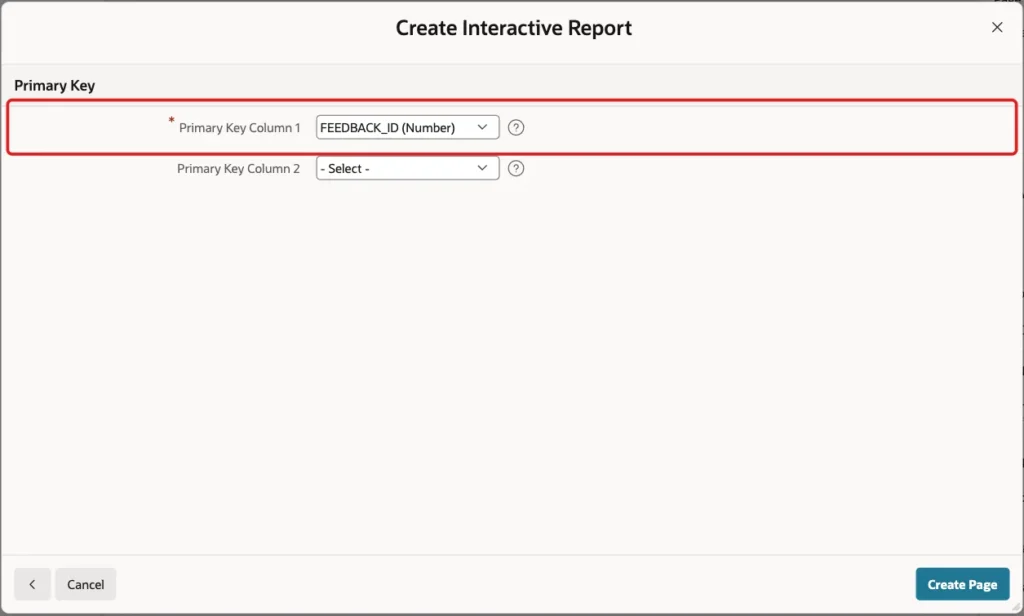
APEX creates the Event Feedback report on page 430 and the Feedback Entry modal form on page 431. The wizard already did part of the work: it copied the column sizes into the items. P431_HEADLINE got Maximum Length 80 and P431_COMMENTS got Maximum Length 500, and COMMENTS became a Textarea item.
Step 3: Remove the Audit Items
The wizard also created the items P431_SUBMITTED_BY and P431_SUBMITTED_ON. The table fills both columns with DEFAULT ON NULL, so users should not type them. Open page 431 in Page Designer, right-click P431_SUBMITTED_BY in the Rendering tree and choose Delete:
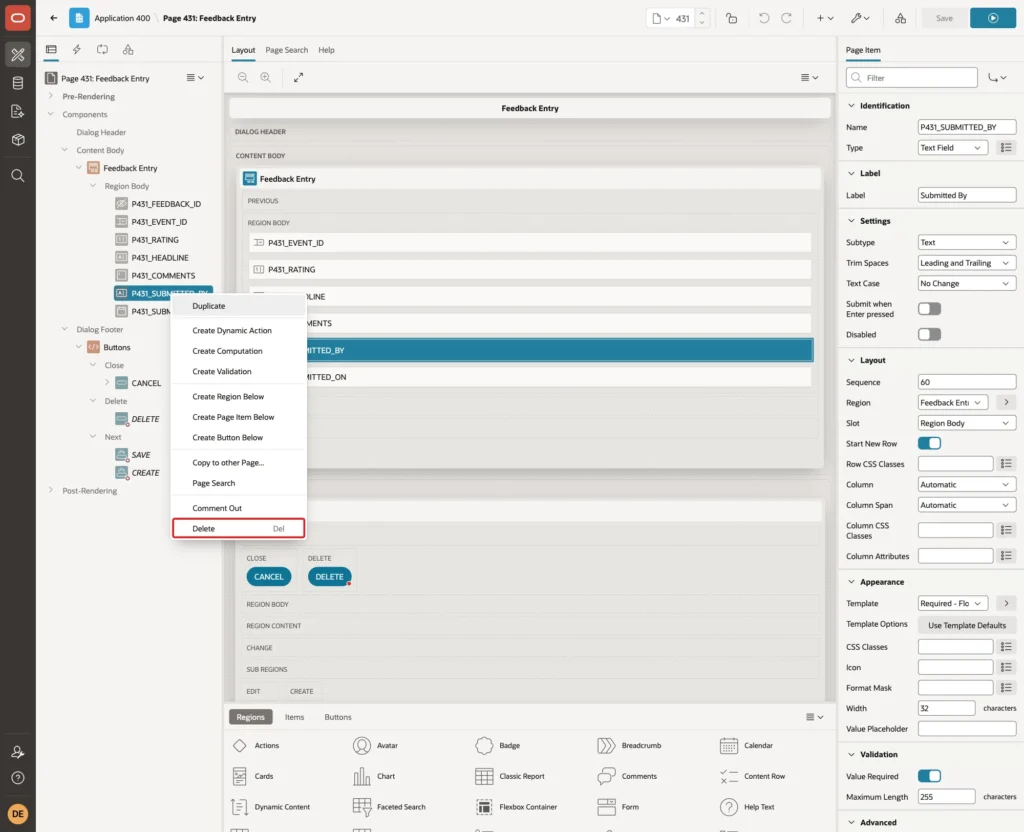
Delete P431_SUBMITTED_ON the same way and click Save.
Step 4: Turn On the Character Counter
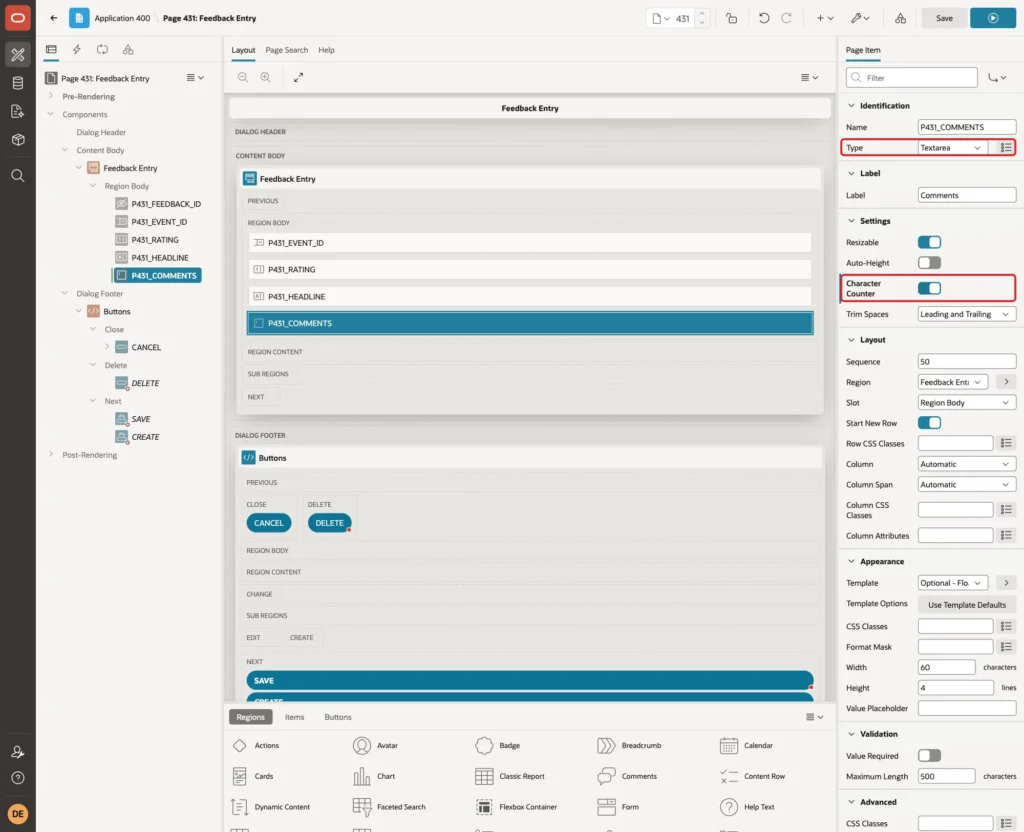
Select P431_COMMENTS in the Rendering tree. Check that Identification > Type is Textarea, then turn on Settings > Character Counter:
Scroll down to the Validation group. Maximum Length is 500, the size of the COMMENTS column. The counter uses this value as its limit, so keep the two in step. If you widen the column later, change Maximum Length too:
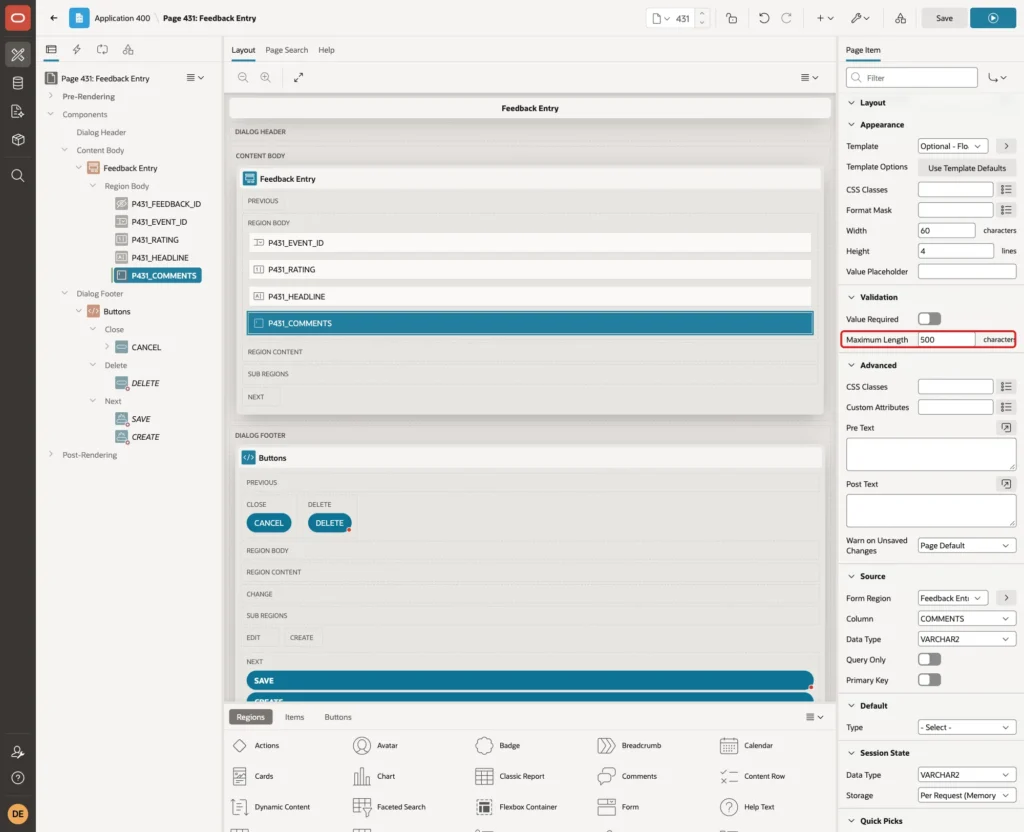
Click Save. APEX now renders the textarea with the HTML attribute maxlength="500" and a counter below it.
Step 5: Add a Server-Side Validation
Maximum Length is enforced only by the browser. To see what happens when a value gets past it, the value was set from the browser console before the validation existed:
Example:
document.getElementById('P431_COMMENTS').value = 'x'.repeat(600);A click on Create sent the 600 characters to the server. APEX did not check Maximum Length there, so the insert reached the table and failed:
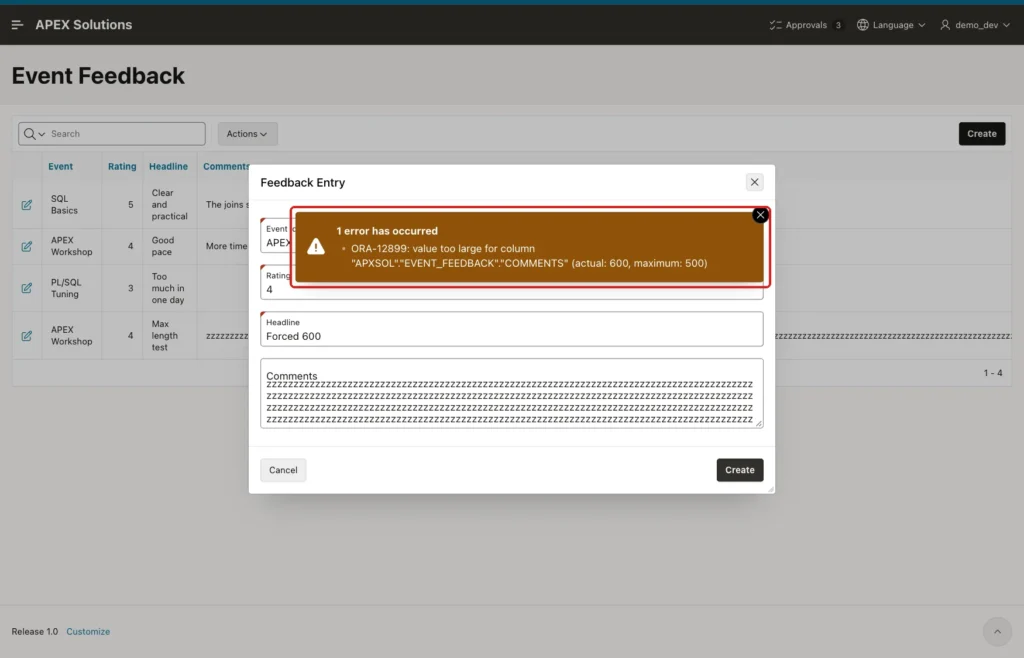
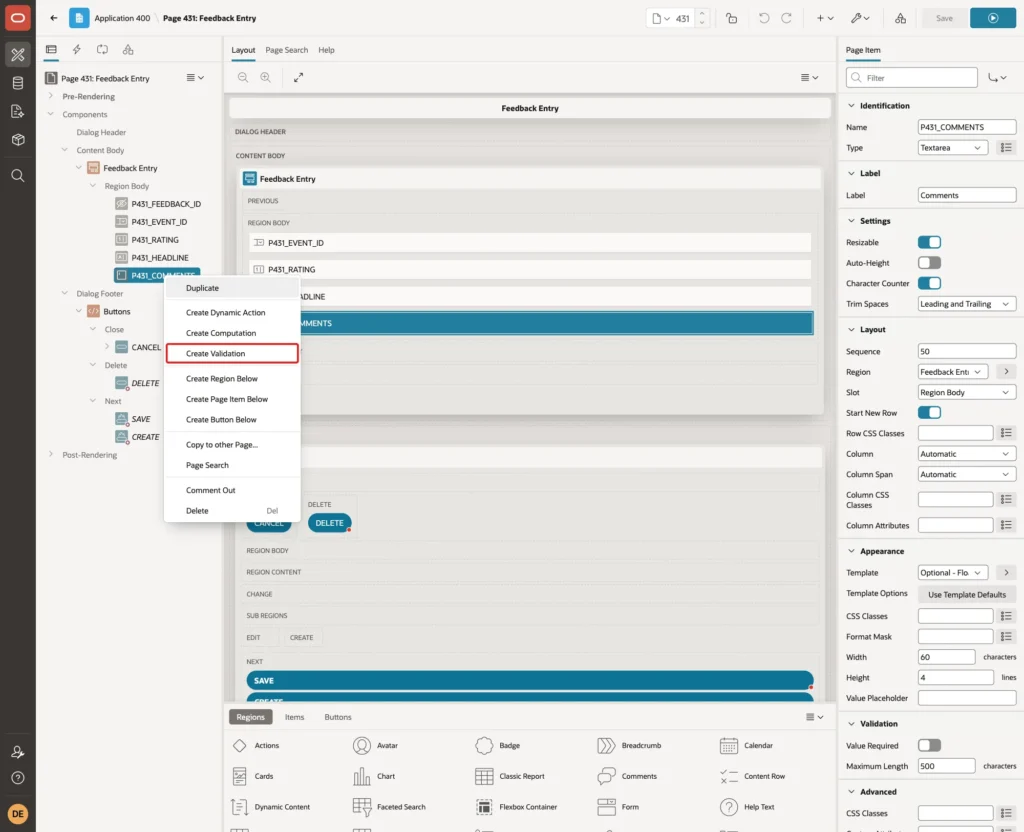
The column size protected the data, but the message is not meant for users. A validation catches the same case with a clear message. In Page Designer, right-click P431_COMMENTS and choose Create Validation:
Set Name Comments Length. Keep Type Expression and Language PL/SQL, and enter this PL/SQL Expression:
Example:
:P431_COMMENTS is null or length(:P431_COMMENTS) <= 500
The "is null or" part matters. Comments are optional, and LENGTH of an empty value is NULL. Without that check, NULL <= 500 is not true, and an empty comment would fail the validation.
Enter the Error Message #LABEL# can have at most 500 characters. APEX replaces #LABEL# with the item label, Comments. Associated Item is already P431_COMMENTS, so the message appears below the field:
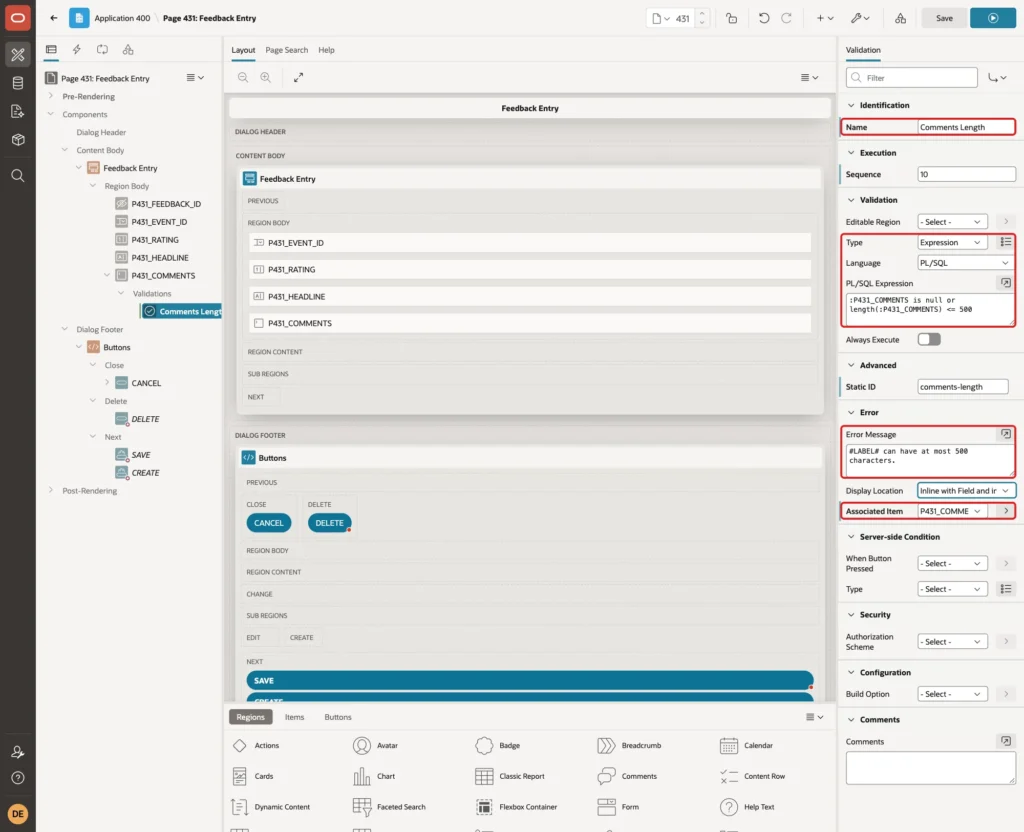
Click Save.
Step 6: Show Characters Left on a Text Field
The Character Counter switch exists only for the Textarea item type. A Text Field such as P431_HEADLINE has Maximum Length, but its Settings group has no counter. A small dynamic action can show the remaining characters instead.
Select P431_HEADLINE. In the Validation group, check that Maximum Length is 80:
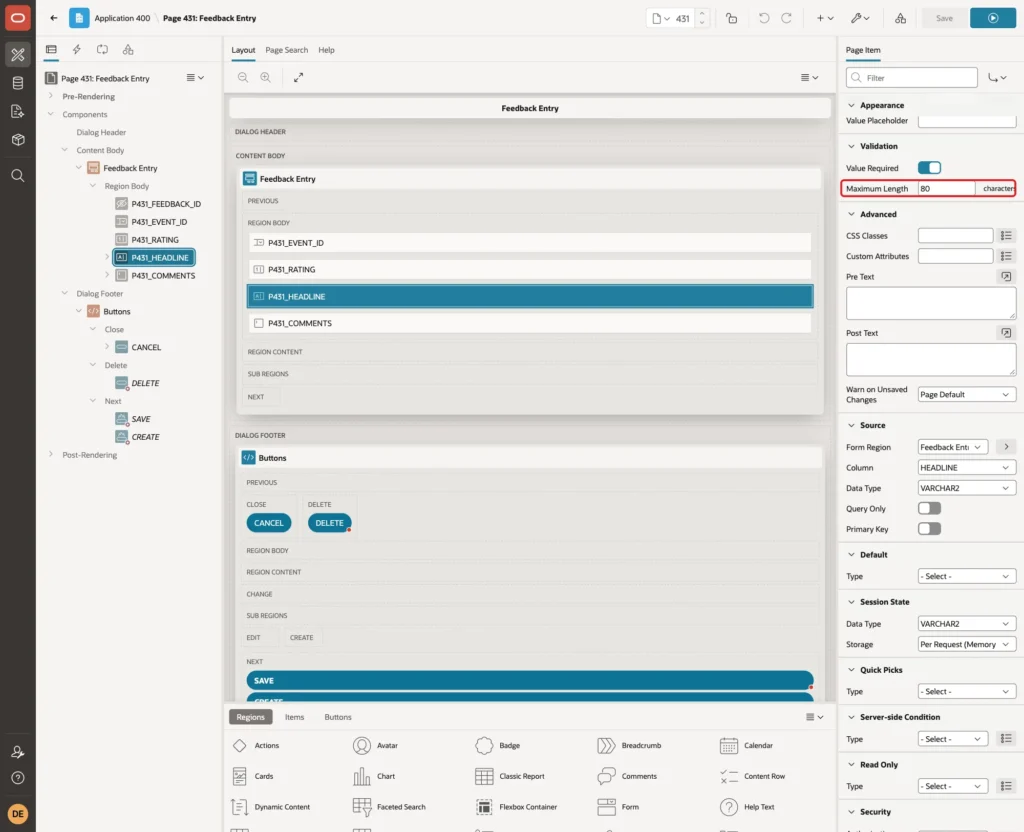
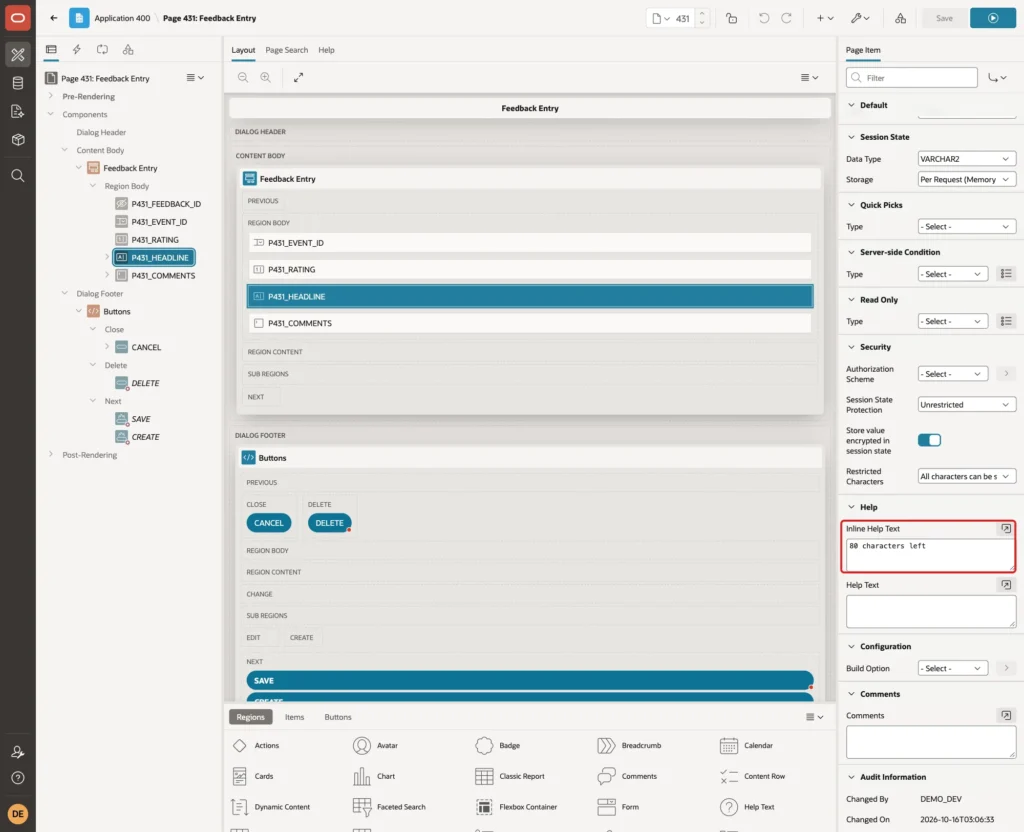
In the Help group, enter Inline Help Text 80 characters left. The text appears below the field when the page opens:
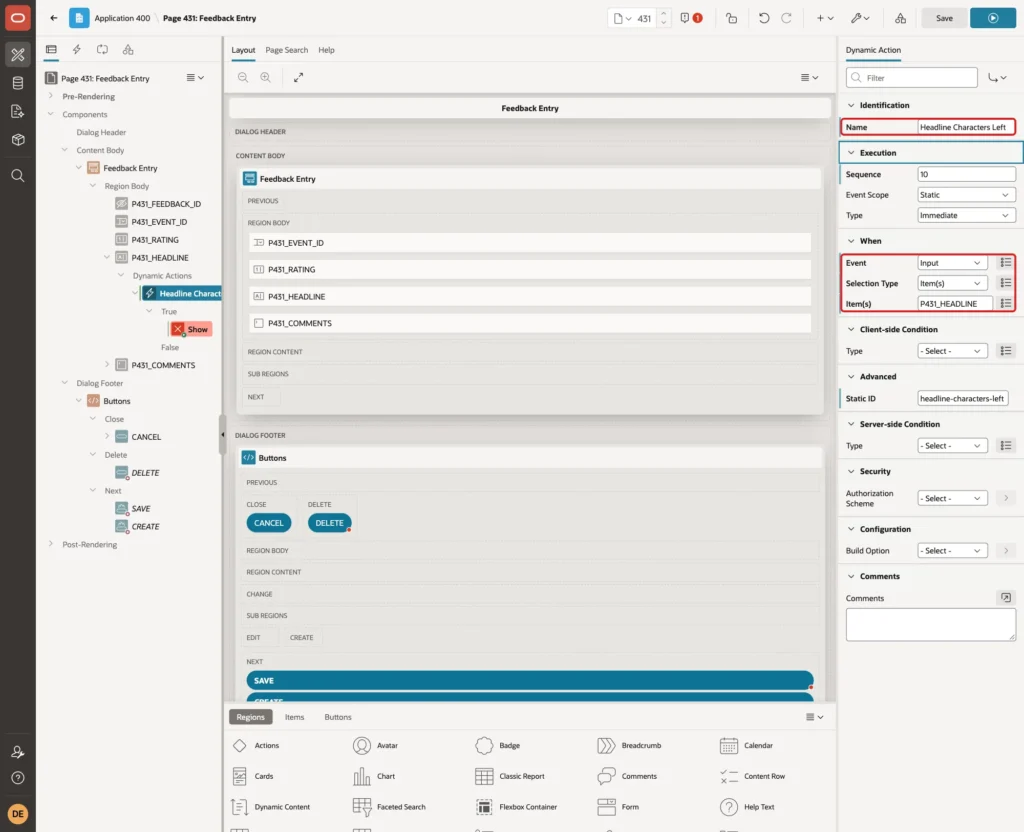
Right-click P431_HEADLINE and choose Create Dynamic Action. Set Name Headline Characters Left and When > Event Input. Selection Type Item(s) and Item(s) P431_HEADLINE are already filled in:
Select the Show action under True. Change Action to Execute JavaScript Code, enter the code below and turn on Fire on Initialization:
Example:
var item = this.triggeringElement;
var left = item.maxLength - item.value.length;
$('#P431_HEADLINE_inline_help').text(left + ' characters left');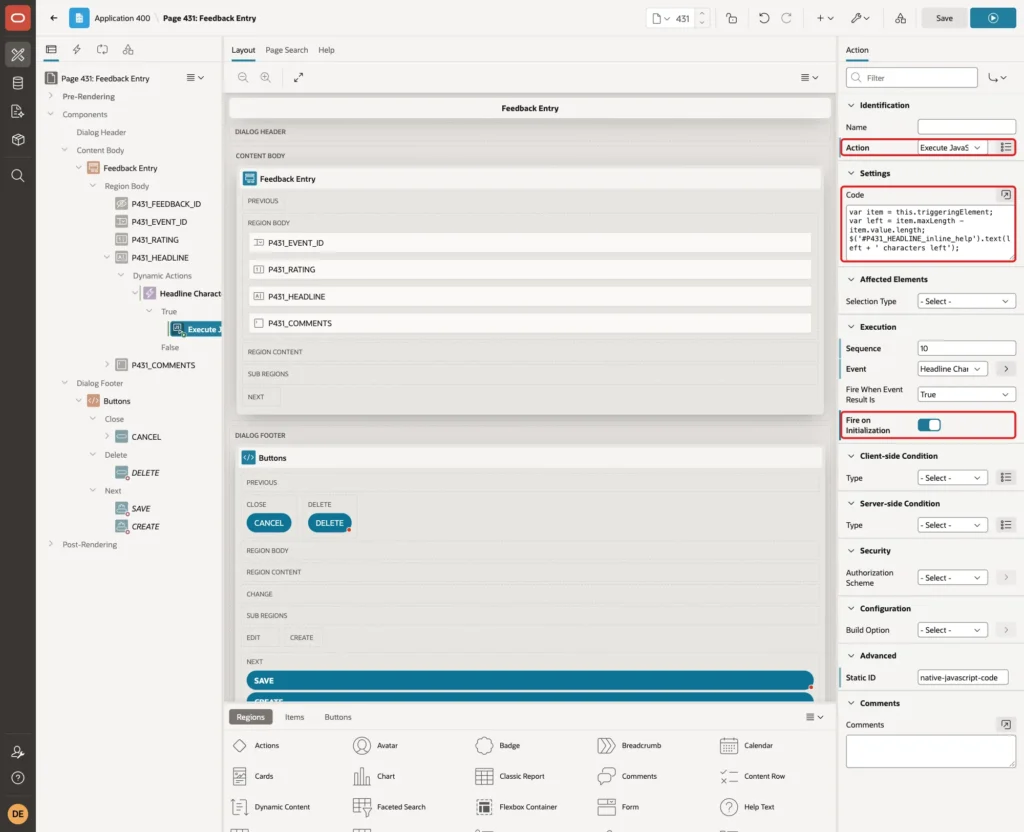
this.triggeringElement is the headline input. Its maxLength property holds the Maximum Length of 80, so the code does not repeat the limit. APEX gives the inline help text the ID P431_HEADLINE_inline_help, and the code replaces its text.
Fire on Initialization runs the code when the page opens, so an existing headline shows the right number at once. Click Save.
Step 7: Test the Counter and the Limits
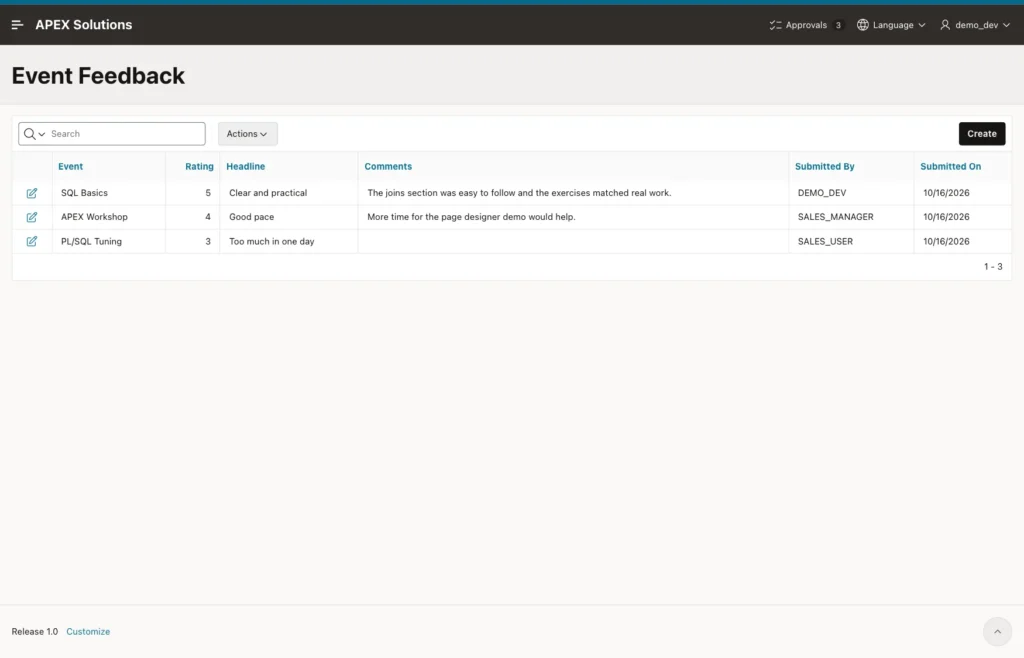
Run page 430. The report lists the three sample entries:
Click Create. The Headline field shows 80 characters left. The Comments counter is hidden while the field is empty:
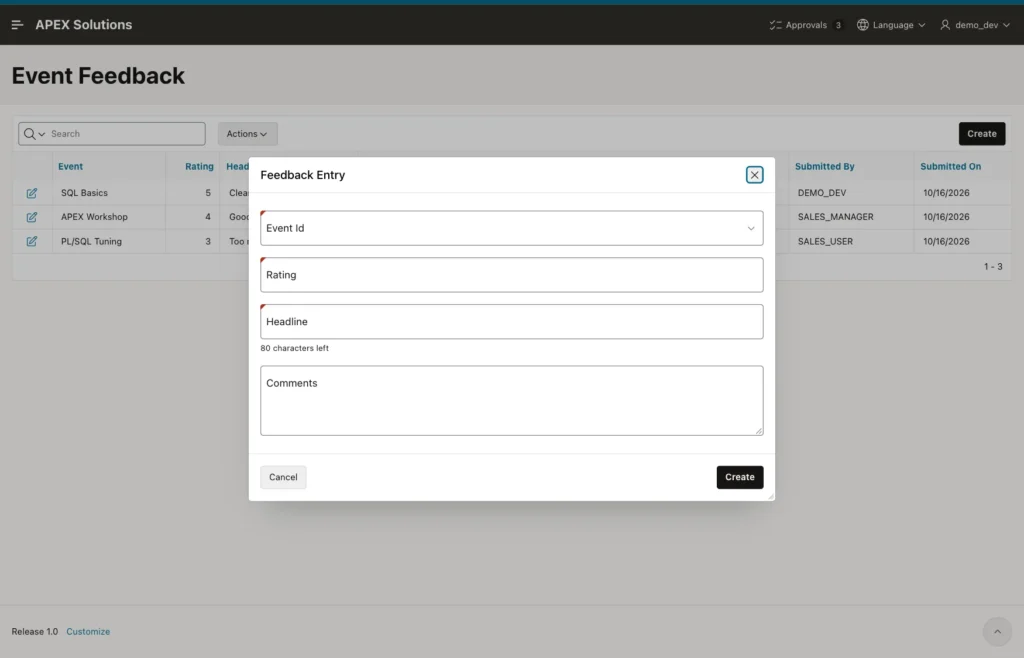
Typing
Select the APEX Workshop event, enter Rating 5, then type a headline and a comment. Both messages update with each keystroke:
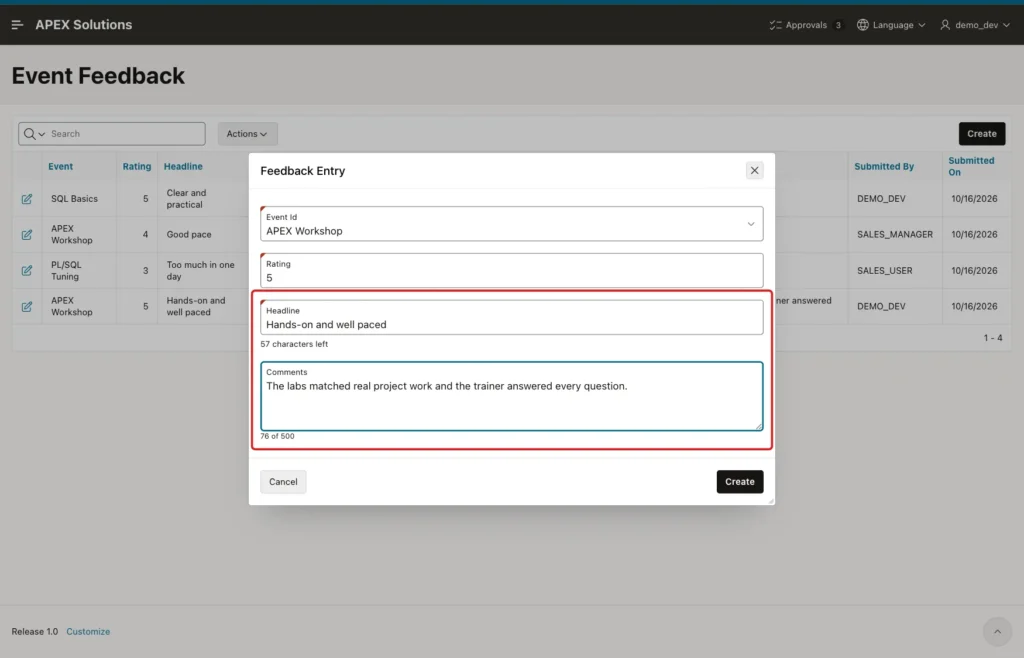
The 23-character headline leaves 57 characters, and the 76-character comment shows 76 of 500. In the test, typing sent no request to the server: both messages are computed in the browser.
Close to the Limit
The counter changes color as the text grows. In the test, it turned amber at 450 characters, 90% of the limit:
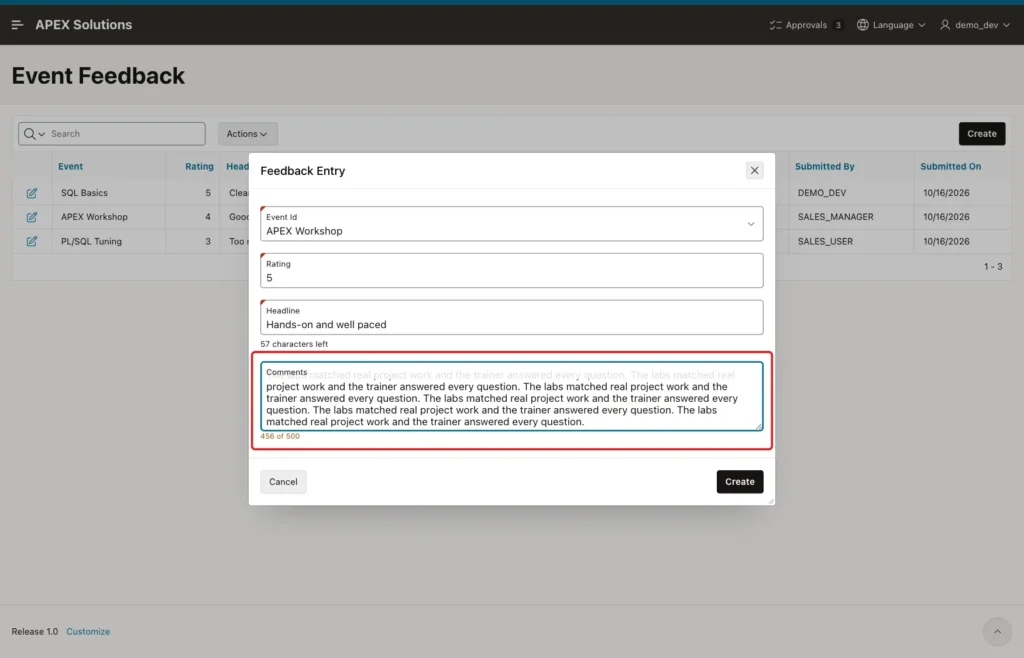
From 476 characters on, the counter was red. Then typing reaches the limit. In the test, the comment had 495 characters and "more words here" was typed after it:
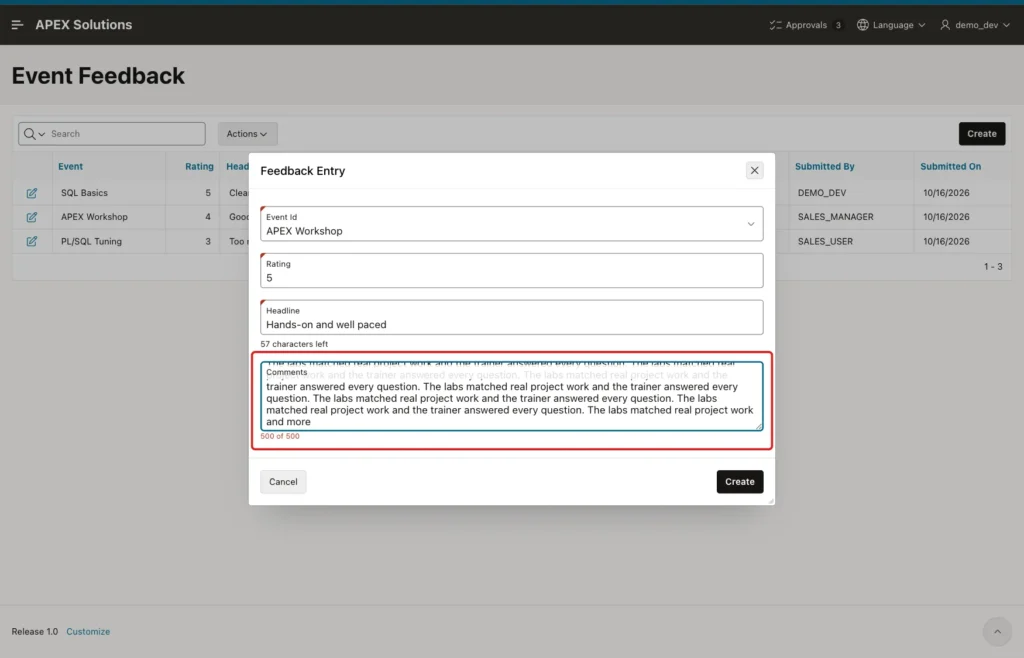
Only the first five characters, "more ", were added. The field stopped at exactly 500 characters, and the counter showed 500 of 500. Pasting 530 characters also kept only the first 500.
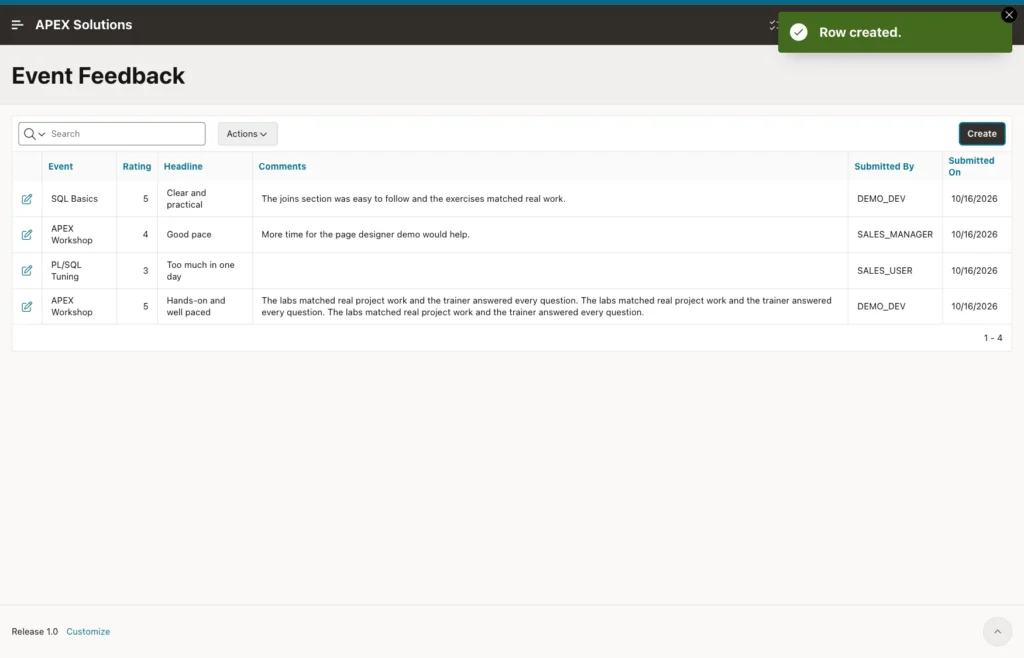
Shorten the comment and click Create. The dialog closes and the new entry is in the report:
A Forced Long Value (Negative Test)
Open the form again, fill in an event, a rating and a headline, and run the console command from Step 5 to put 600 characters into Comments. Click Create:
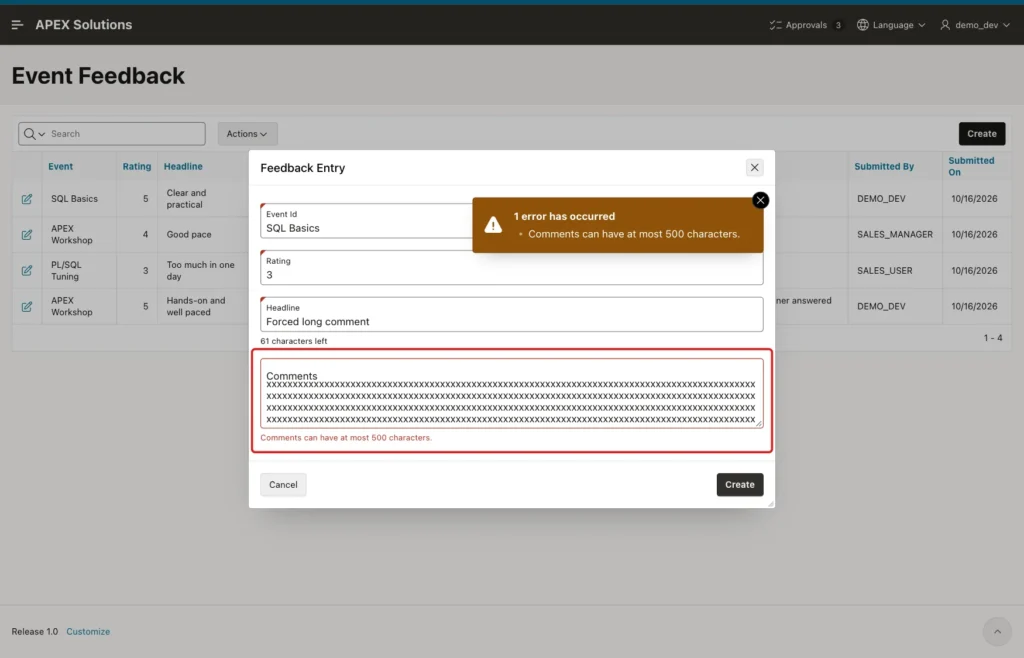
This time the validation stopped the request before the insert. The message Comments can have at most 500 characters. appears in the notification and below the field, and no row was saved. A form with an empty comment still saved, because of the "is null or" part.
Editing an Existing Entry
Click the edit icon of the first entry. Fire on Initialization has already updated the headline message for the stored value, and the Comments counter shows the current length:
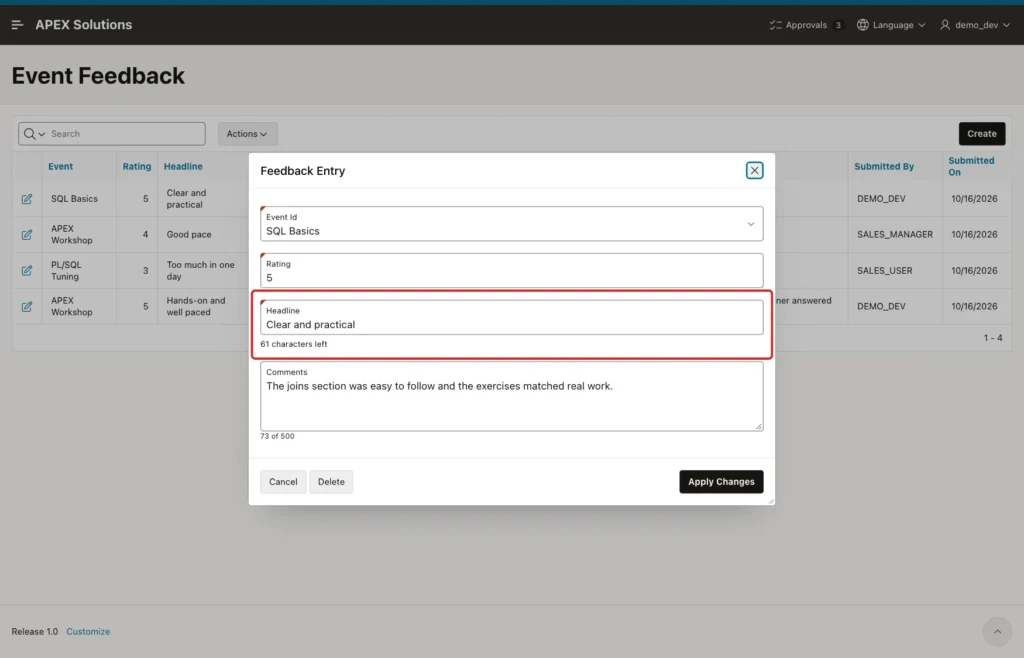
The headline Clear and practical has 19 characters, so 61 are left. The stored comment has 73 characters, matching the sample data. The table confirms the saved lengths:
Example:
select feedback_id, headline,
       length(headline) headline_chars,
       length(comments) comment_chars
from   event_feedback
order  by feedback_id;
Output:
   FEEDBACK_ID HEADLINE                      HEADLINE_CHARS    COMMENT_CHARS
______________ __________________________ _________________ ________________
             1 Clear and practical                       19               73
             2 Good pace                                  9               48
             3 Too much in one day                       19
            43 Hands-on and well paced                   23              227
Things to Know
- The counter counts what the browser sends. A line break counted as 2 characters in the test, because it is submitted as a carriage return plus a line feed. A comment with 9 line breaks was stored with 9 CR and 9 LF characters.
- An emoji counts as 2 in the counter but as 1 character in Oracle. "Loved it 😀" showed 11 of 500, while LENGTH returned 10. The counter is stricter than the column, so it never lets too much through.
- apex.item('P431_COMMENTS').setValue() with 600 characters stored only 500 in the field. Setting the DOM value directly skipped the limit, which is why the server-side validation is needed.
- Use CHAR semantics, as in VARCHAR2(500 CHAR). With BYTE semantics, accented text needs more bytes than characters: in a test, five é letters fit VARCHAR2(5 CHAR) but failed in VARCHAR2(5 BYTE) with ORA-12899 (actual: 10, maximum: 5).
- Keep Maximum Length equal to the column size. If you widen the column later, change the item as well.
Example:
select length('Loved it 😀') chars,
       lengthb('Loved it 😀') bytes
from   dual;
Output:
   CHARS    BYTES
________ ________
      10       13
Related Guides
- How to Fix ORA-12899: Value Too Large for Column in Oracle
- How to Validate Email and Phone Formats with Regular Expressions in Oracle APEX
Conclusion
A length limit in Oracle APEX works best in three layers. Maximum Length stops typing in the browser, the Character Counter of a Textarea shows how much room is left, and a short validation catches values that skip the browser. The column size stays as the final guard.
For Text Fields, which have no counter switch, a dynamic action on the Input event writes the remaining characters into the inline help text. Users see the limit while they type, and they never meet a raw database error.
