
A From/To date range is one of the most common filters in business apps. Users pick a start date and an end date, and the report shows only the rows inside that period. The weak spot is the order of the two dates: nothing stops a user from choosing a To date that comes before the From date.
Oracle APEX can guard the range at three levels. The date pickers can limit each other, so invalid days are greyed out. A server-side validation rejects a reversed range that gets past the browser. A check constraint protects the table itself. This guide builds all three and filters a report by the range.
The guide uses training room bookings as the example; the same steps work for any table with dates. The older post Oracle Apex: Working with Date Picker explains static Minimum and Maximum Date values such as +0d. Here the limit is another page item, so it moves as soon as the user picks the other date.
Step 1: Create the Tables
The example needs two tables. TRAINING_ROOMS lists the rooms. ROOM_BOOKINGS holds bookings that can last one or more days, with a START_DATE and an END_DATE. The check constraint ROOM_BOOKINGS_DATES_CK makes sure no booking ends before it starts.
Create the tables, the indexes and the sample data:
Example:
create table training_rooms (
  room_id       number generated by default on null as identity,
  room_name     varchar2(100)  not null,
  capacity      number(3)      not null,
  constraint training_rooms_pk primary key (room_id),
  constraint training_rooms_name_uk unique (room_name),
  constraint training_rooms_capacity_ck check (capacity > 0)
);

create table room_bookings (
  booking_id    number generated by default on null as identity,
  room_id       number         not null,
  course_name   varchar2(200)  not null,
  start_date    date           not null,
  end_date      date           not null,
  booked_by     varchar2(255)  default on null
                  coalesce(sys_context('APEX$SESSION', 'APP_USER'), user) not null,
  constraint room_bookings_pk primary key (booking_id),
  constraint room_bookings_room_fk foreign key (room_id)
    references training_rooms (room_id),
  constraint room_bookings_dates_ck check (end_date >= start_date)
);

create index room_bookings_room_ix on room_bookings (room_id);
create index room_bookings_dates_ix on room_bookings (start_date, end_date);

insert into training_rooms (room_name, capacity) values ('Orion', 12);
insert into training_rooms (room_name, capacity) values ('Vega', 20);
insert into training_rooms (room_name, capacity) values ('Lyra', 8);

insert into room_bookings (room_id, course_name, start_date, end_date, booked_by)
values (1, 'SQL Basics', date '2026-11-02', date '2026-11-04', 'DEMO_DEV');
insert into room_bookings (room_id, course_name, start_date, end_date, booked_by)
values (2, 'APEX Workshop', date '2026-11-05', date '2026-11-06', 'DEMO_DEV');
insert into room_bookings (room_id, course_name, start_date, end_date, booked_by)
values (3, 'Team Offsite', date '2026-11-09', date '2026-11-09', 'SALES_MANAGER');
insert into room_bookings (room_id, course_name, start_date, end_date, booked_by)
values (1, 'PL/SQL Tuning', date '2026-11-12', date '2026-11-16', 'DEMO_DEV');
insert into room_bookings (room_id, course_name, start_date, end_date, booked_by)
values (2, 'Security Awareness', date '2026-11-18', date '2026-11-18', 'SALES_MANAGER');
insert into room_bookings (room_id, course_name, start_date, end_date, booked_by)
values (3, 'Data Modeling', date '2026-11-23', date '2026-11-25', 'DEMO_DEV');
insert into room_bookings (room_id, course_name, start_date, end_date, booked_by)
values (1, 'REST APIs with ORDS', date '2026-11-30', date '2026-12-02', 'DEMO_DEV');
insert into room_bookings (room_id, course_name, start_date, end_date, booked_by)
values (2, 'Year-End Review', date '2026-12-07', date '2026-12-08', 'SALES_MANAGER');
commit;

select b.booking_id, r.room_name, b.course_name,
       to_char(b.start_date, 'DD-MON-YYYY') start_date,
       to_char(b.end_date, 'DD-MON-YYYY') end_date
from   room_bookings b
join   training_rooms r on r.room_id = b.room_id
order  by b.start_date;
Output:
Table TRAINING_ROOMS created.

Table ROOM_BOOKINGS created.

Index ROOM_BOOKINGS_ROOM_IX created.

Index ROOM_BOOKINGS_DATES_IX created.

1 row inserted.

1 row inserted.

1 row inserted.

1 row inserted.

1 row inserted.

1 row inserted.

1 row inserted.

1 row inserted.

1 row inserted.

1 row inserted.

1 row inserted.

Commit complete.

   BOOKING_ID ROOM_NAME    COURSE_NAME            START_DATE     END_DATE
_____________ ____________ ______________________ ______________ ______________
            1 Orion        SQL Basics             02-NOV-2026    04-NOV-2026
            2 Vega         APEX Workshop          05-NOV-2026    06-NOV-2026
            3 Lyra         Team Offsite           09-NOV-2026    09-NOV-2026
            4 Orion        PL/SQL Tuning          12-NOV-2026    16-NOV-2026
            5 Vega         Security Awareness     18-NOV-2026    18-NOV-2026
            6 Lyra         Data Modeling          23-NOV-2026    25-NOV-2026
            7 Orion        REST APIs with ORDS    30-NOV-2026    02-DEC-2026
            8 Vega         Year-End Review        07-DEC-2026    08-DEC-2026

8 rows selected.- ROOM_BOOKINGS_ROOM_FK links each booking to a room, and ROOM_BOOKINGS_ROOM_IX indexes that foreign key.
- ROOM_BOOKINGS_DATES_IX on START_DATE and END_DATE supports the range filter of the report.
- BOOKED_BY is filled by DEFAULT ON NULL with the APEX user, so no trigger is needed.
The check constraint is the last line of defence. A reversed booking fails even when it is inserted with plain SQL:
Example:
insert into room_bookings (room_id, course_name, start_date, end_date)
values (1, 'Backwards Booking', date '2026-11-20', date '2026-11-19');
Output:
Error starting at line : 1 File @ b45/11-check-constraint.sql
In command -
insert into room_bookings (room_id, course_name, start_date, end_date)
values (1, 'Backwards Booking', date '2026-11-20', date '2026-11-19')
Error report -
ORA-02290: check constraint (APXSOL.ROOM_BOOKINGS_DATES_CK) violated
Help: https://docs.oracle.com/error-help/db/ora-02290/
Step 2: Create the Report Page
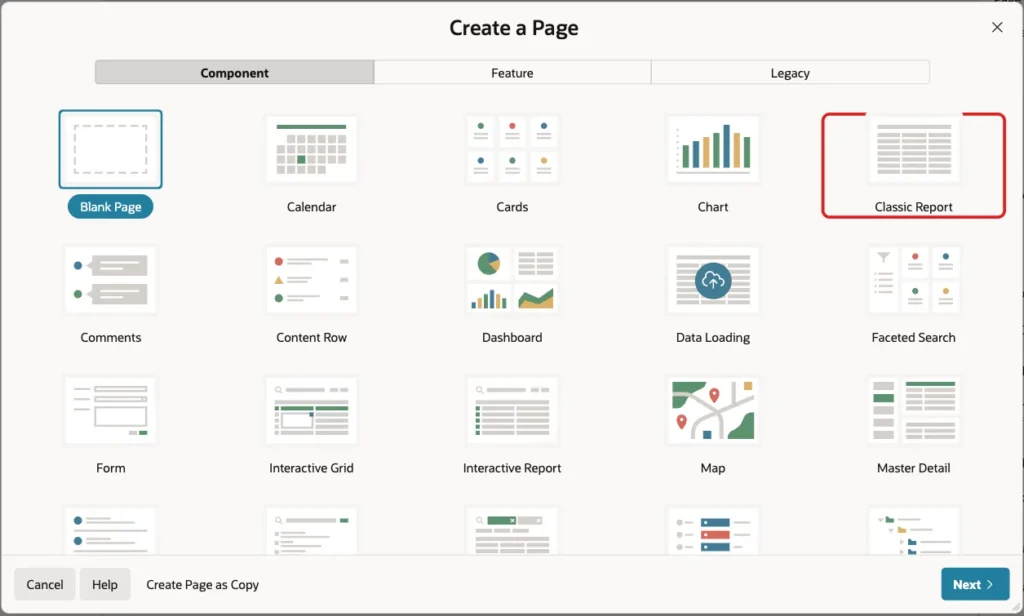
In App Builder, open the application and click Create Page. On the Component tab, click Classic Report:
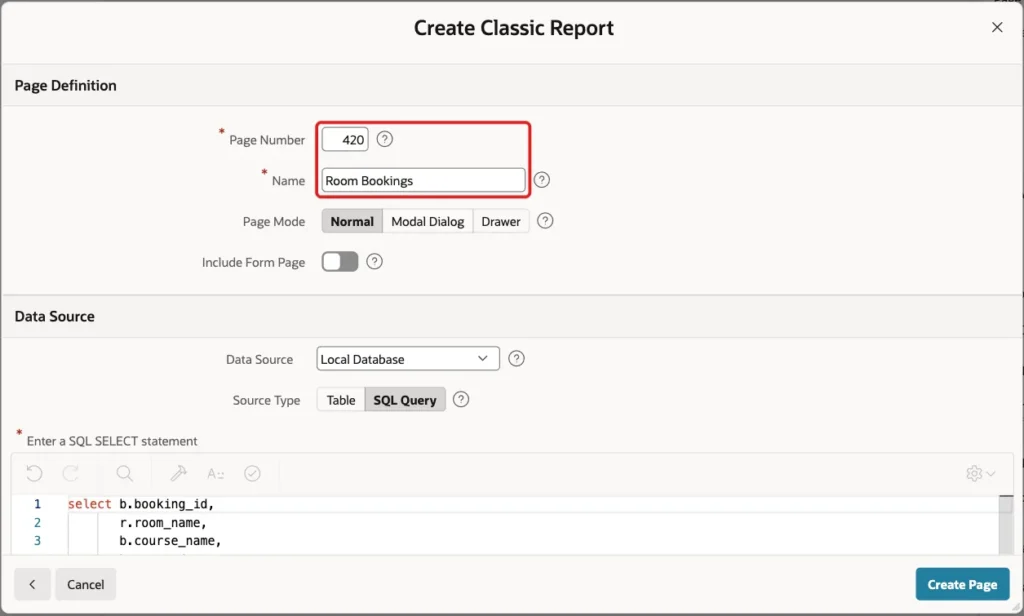
Enter Page Number 420 and Name Room Bookings. Keep Page Mode Normal and leave Include Form Page off:
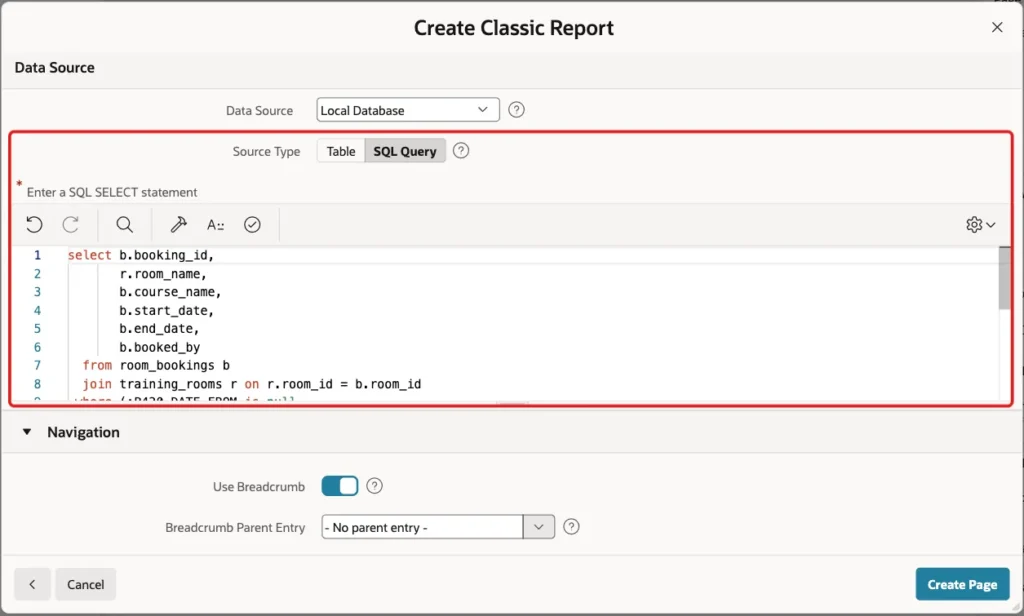
Under Data Source, keep Local Database, set Source Type to SQL Query and paste the query below:
Example:
select b.booking_id,
       r.room_name,
       b.course_name,
       b.start_date,
       b.end_date,
       b.booked_by
  from room_bookings b
  join training_rooms r on r.room_id = b.room_id
 where (:P420_DATE_FROM is null
        or b.end_date >= to_date(:P420_DATE_FROM, 'DD-MON-YYYY'))
   and (:P420_DATE_TO is null
        or b.start_date <= to_date(:P420_DATE_TO, 'DD-MON-YYYY'))
 order by b.start_date
The two page items P420_DATE_FROM and P420_DATE_TO do not exist yet; you create them in the next steps. A bind variable for an item that is not created yet does not stop the wizard.
The WHERE clause shows every booking that overlaps the range. A booking overlaps when it ends on or after the From date and starts on or before the To date. So a three-day course that starts before the range but ends inside it is still listed.
Each condition is skipped when its item is empty. With no dates, the report shows all bookings. With only a From date, it shows everything from that day on. TO_DATE uses DD-MON-YYYY, the same format mask the date items get in Step 4.
Scroll down to Navigation. Keep Use Breadcrumb and Use Navigation on, so the page gets a menu entry, and click Create Page:
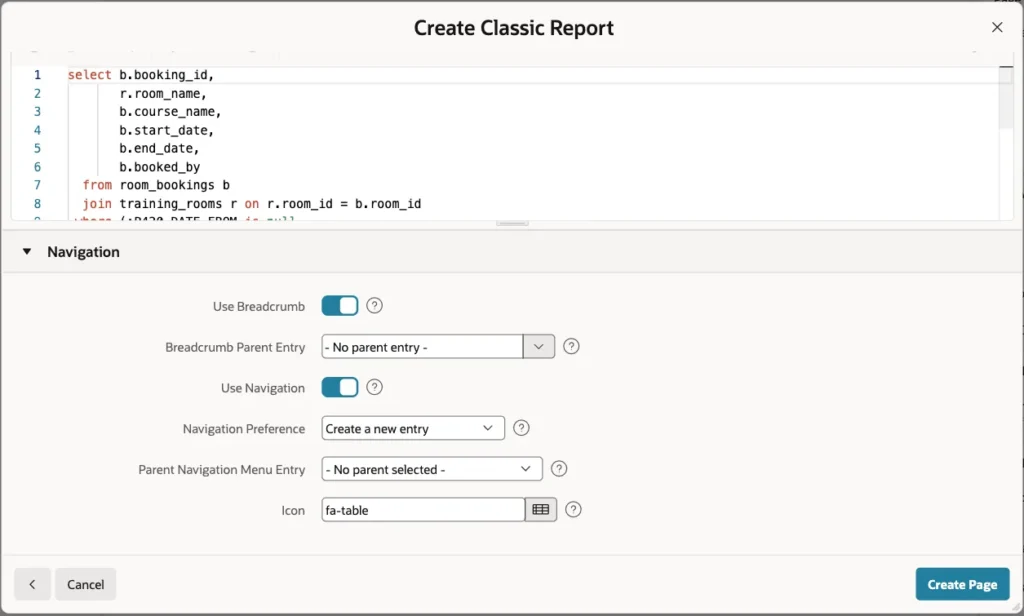
APEX creates page 420 with a breadcrumb and the Room Bookings classic report.
Step 3: Add the Date Range Region
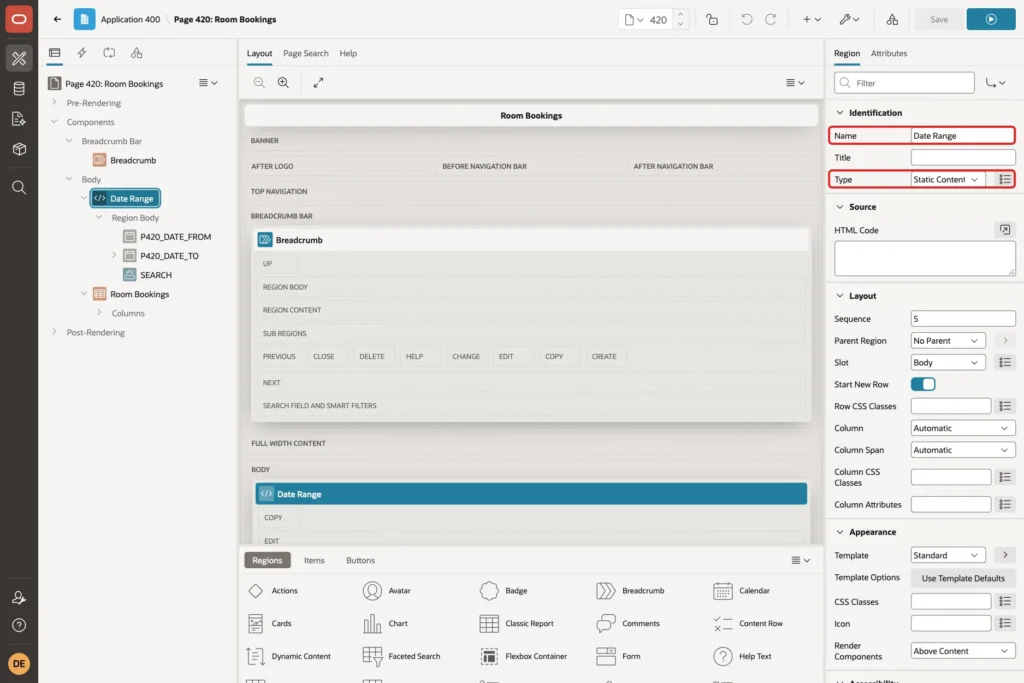
In Page Designer, right-click Body in the Rendering tree and choose Create Region. Drag the new region above the Room Bookings report, or set its Sequence lower than the report's. Set these properties:
- Identification > Name: Date Range
- Identification > Type: Static Content
Step 4: Add the From Date Picker
Right-click the Date Range region and choose Create Page Item. Set Name P420_DATE_FROM, Type Date Picker and Label From. Then go to the Settings group and set:
- Maximum Date: Item
- Maximum Item: P420_DATE_TO
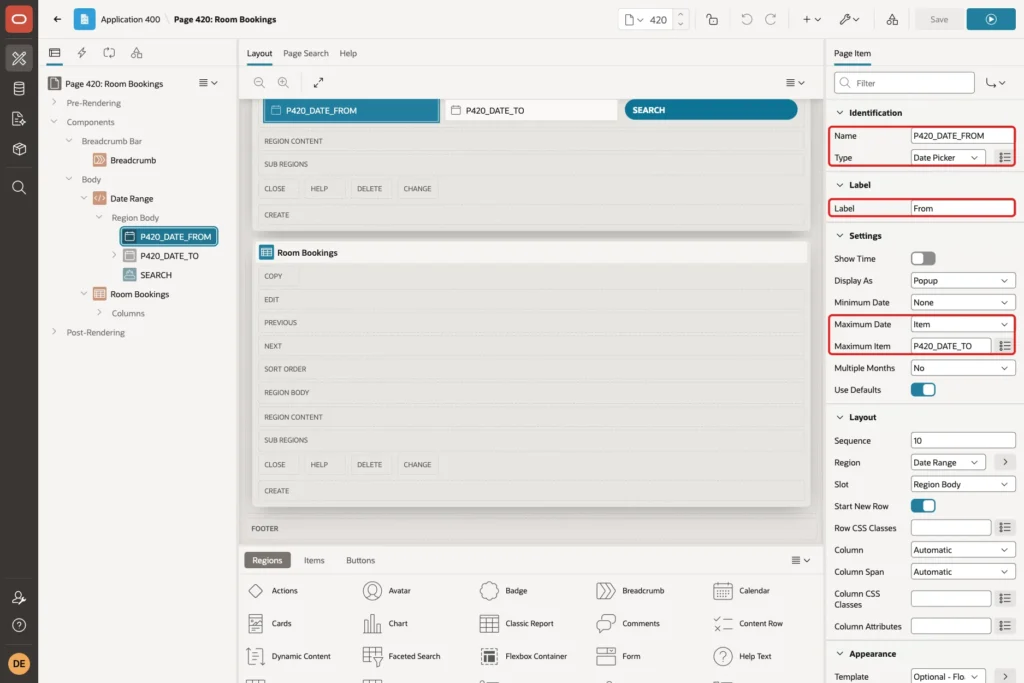
Maximum Date Item tells the picker to read its upper limit from another item. In this example, it reads the value of P420_DATE_TO, so days after the chosen To date are disabled.
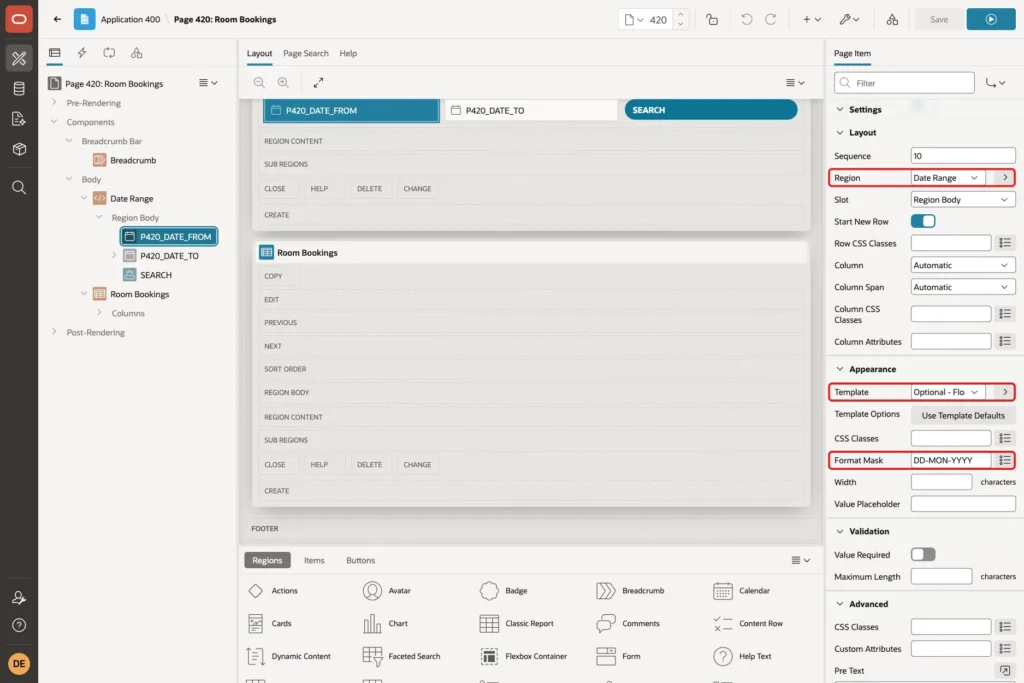
In the Layout and Appearance groups, check Region Date Range, choose Template Optional - Floating and enter Format Mask DD-MON-YYYY:
Step 5: Add the To Date Picker
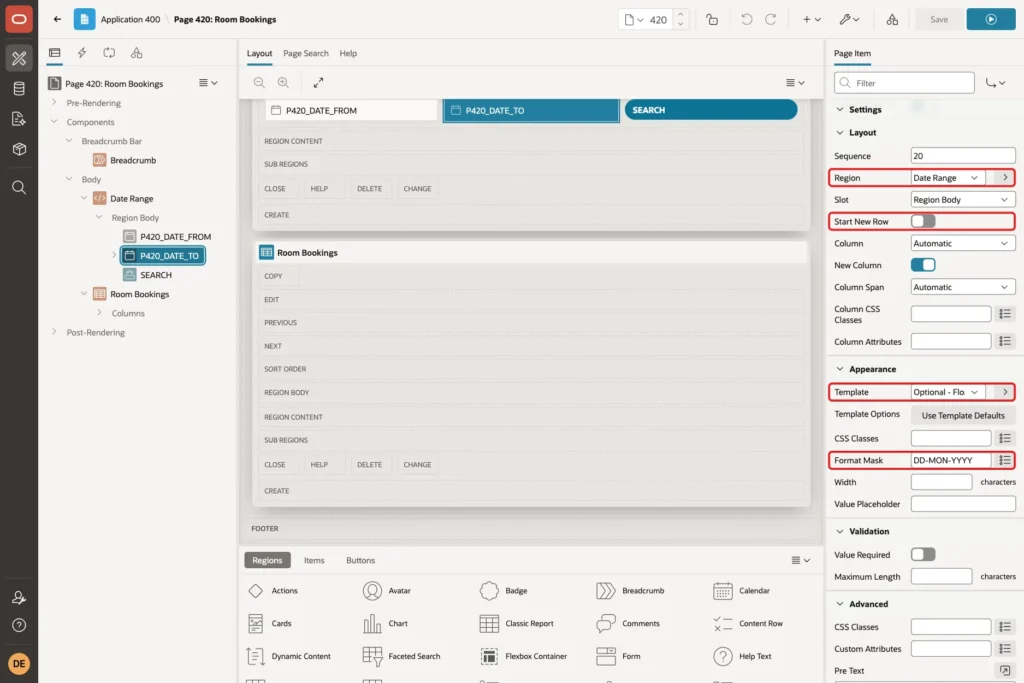
Create a second page item in the Date Range region. Set Name P420_DATE_TO, Type Date Picker and Label To. In the Settings group, set the lower limit this time:
- Minimum Date: Item
- Minimum Item: P420_DATE_FROM
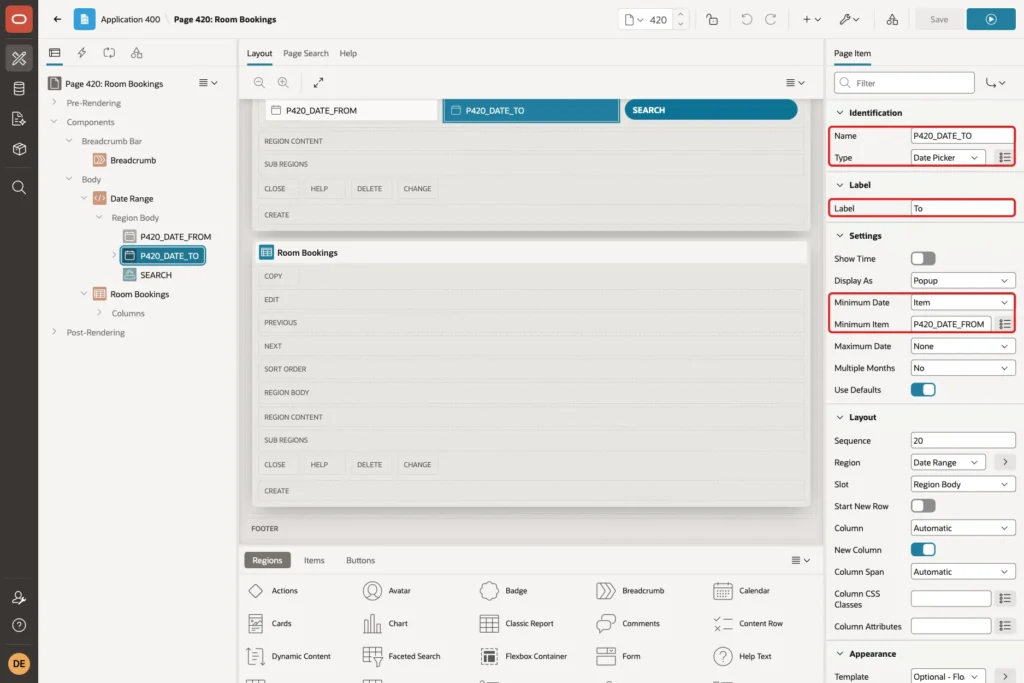
Turn off Layout > Start New Row, so the To field sits next to the From field. Use Template Optional - Floating and Format Mask DD-MON-YYYY again:
Step 6: Add the Search Button
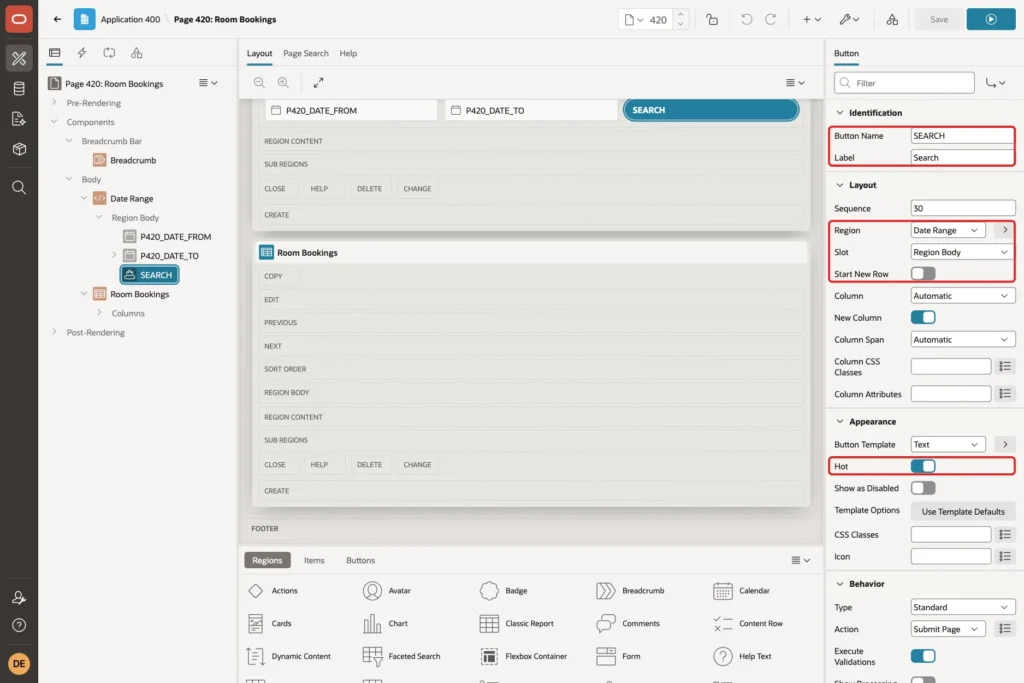
Right-click the Date Range region and choose Create Button. Set Button Name SEARCH and Label Search. Under Layout, keep Region Date Range, choose Slot Region Body and turn off Start New Row, so the button sits on the same row as the dates. Turn on Appearance > Hot:
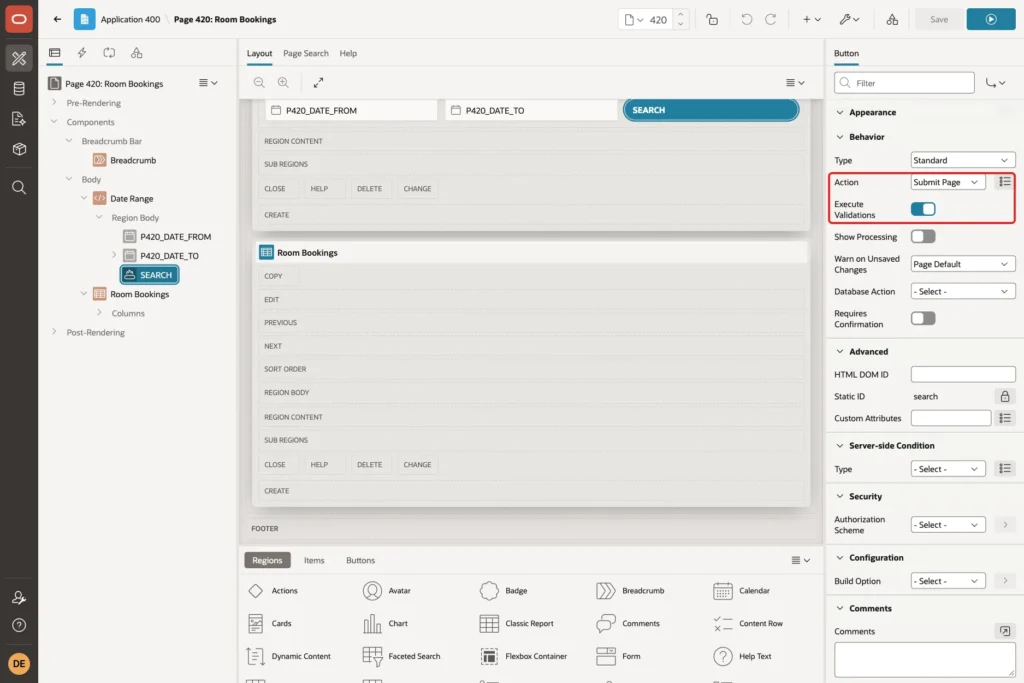
In the Behavior group, keep Action Submit Page and Execute Validations on. The submit stores the two dates in session state, runs the validation of the next step and reloads the report with the new range:
Step 7: Add the Server-Side Validation
The pickers only guard the browser. A user can still send a reversed range, for example from the browser console or a changed request. A validation checks the range again on the server.
Open the Processing tab, right-click Validating and choose Create Validation. Set Name To date on or after From date, Type Expression, Language PL/SQL, and this PL/SQL Expression:
Example:
to_date(:P420_DATE_TO, 'DD-MON-YYYY') >= to_date(:P420_DATE_FROM, 'DD-MON-YYYY')
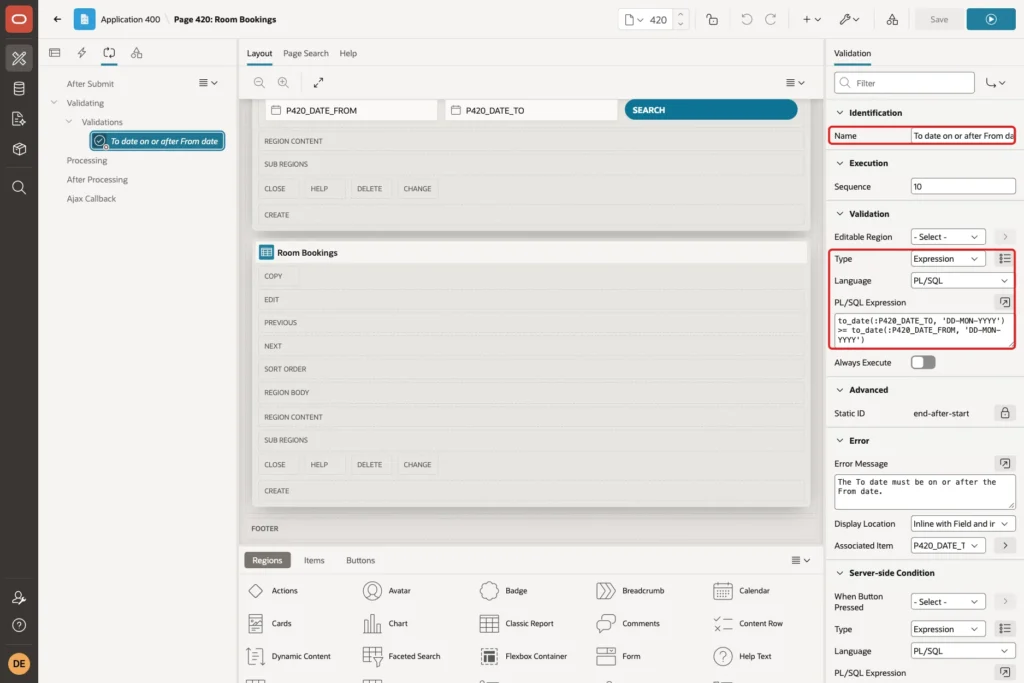
Item values reach PL/SQL as text, so the expression converts both with TO_DATE before it compares them. Comparing the strings would put 06-NOV-2026 before 18-OCT-2026.
Enter the Error Message The To date must be on or after the From date. and choose Associated Item P420_DATE_TO, so the message appears below the To field. Under Server-side Condition, choose Type Expression, Language PL/SQL and this PL/SQL Expression:
Example:
:P420_DATE_FROM is not null and :P420_DATE_TO is not null
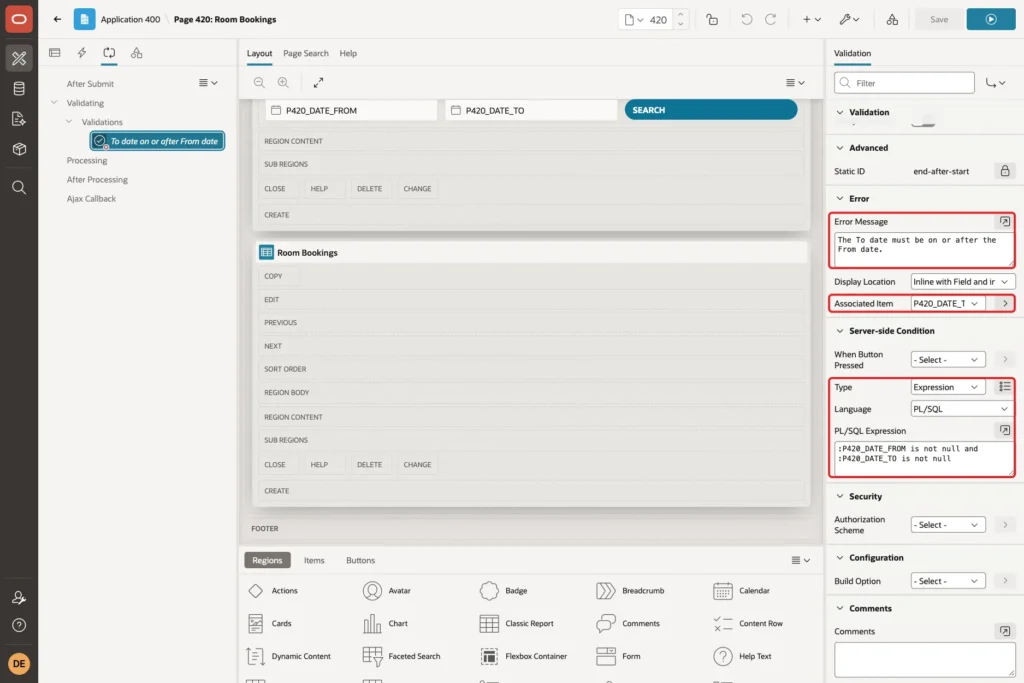
The condition keeps open ranges valid. A search with only a From date or only a To date skips the validation.
Step 8: Format the Report Dates
The report columns use the application date format by default, which may differ from the pickers. In the Rendering tree, expand Room Bookings > Columns, select START_DATE and enter Appearance > Format Mask DD-MON-YYYY. Do the same for END_DATE:
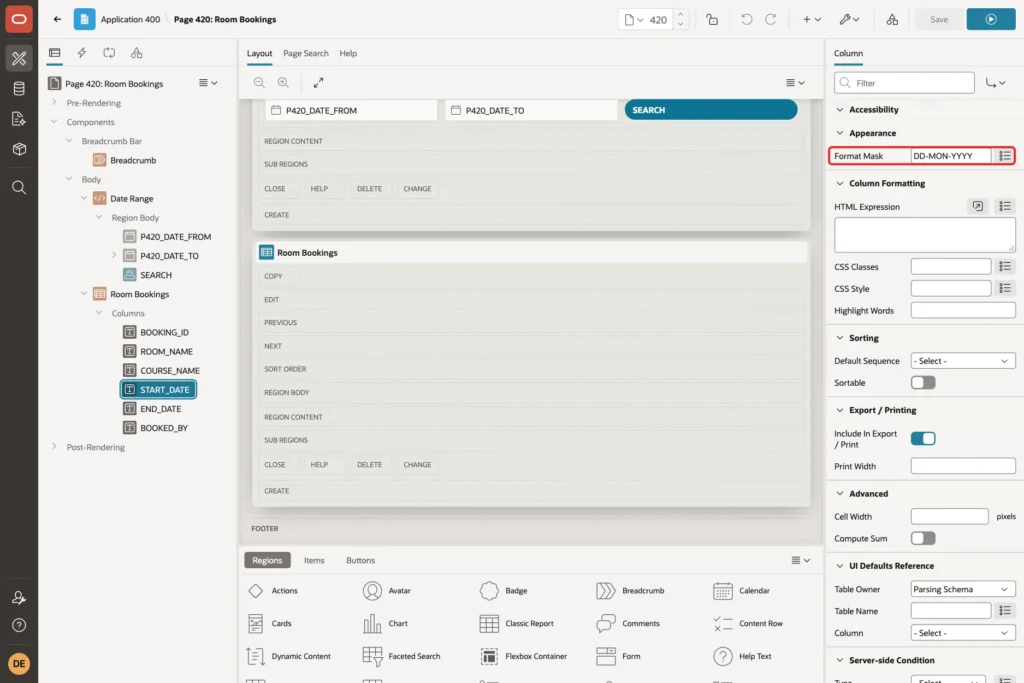
Optionally change the headings Booking Id, Room Name and Course Name to Booking ID, Room and Course. Click Save.
Step 9: Test the Date Range
Run page 420. With both dates empty, the report lists all eight bookings. Click the From field and pick 6 November 2026. Then open the To picker:
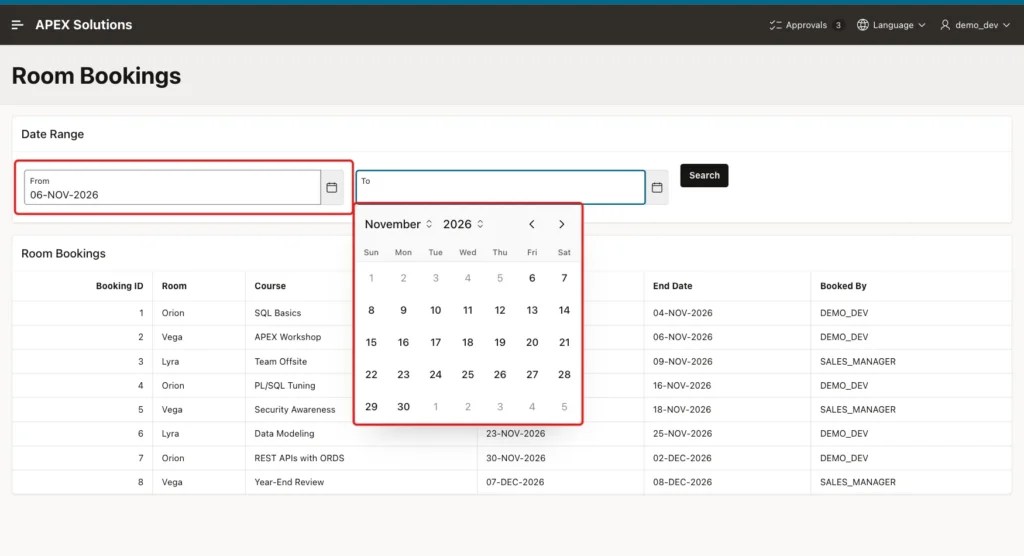
November 1 to 5 are greyed out and cannot be clicked. The limit changed in the browser right after the From date was picked, without a page reload. The To picker also opened on November, the month of its minimum date.
Pick 18 November as the To date and open the From picker again. Now the days after 18 November are disabled:
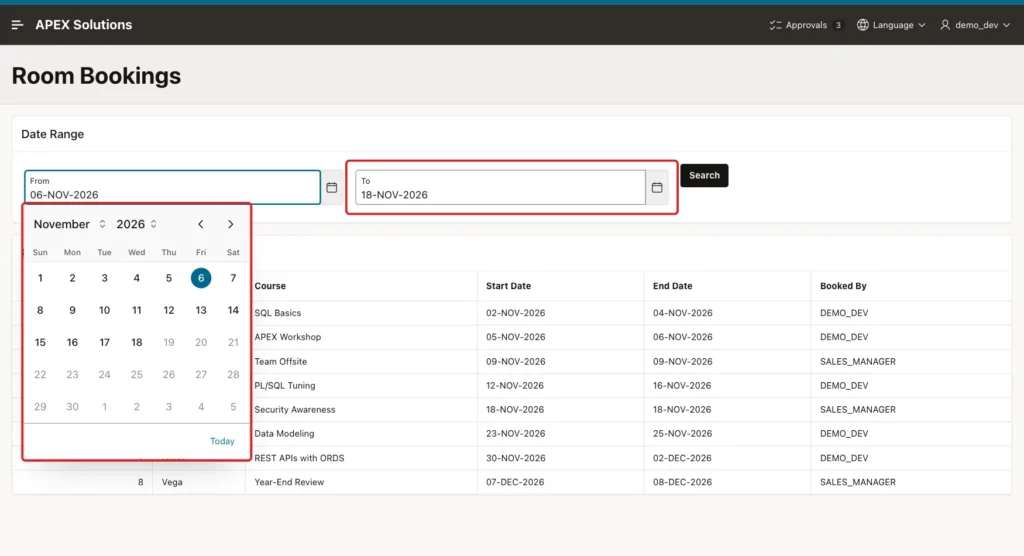
Click Search. The page is submitted and the report shows the four bookings that overlap 6 to 18 November:
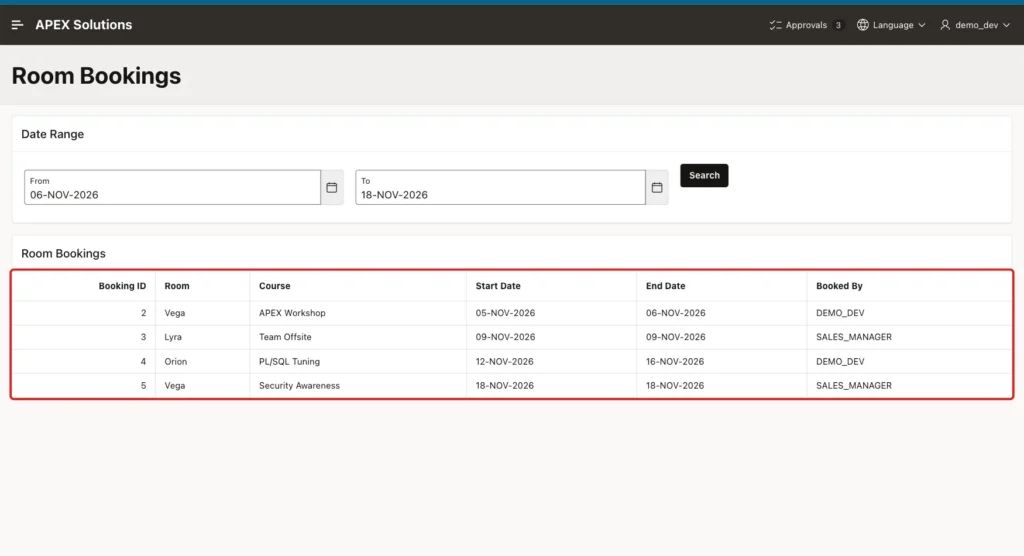
Booking 2, the APEX Workshop, starts on 5 November, before the range. It is listed because it ends on 6 November, inside the range. Booking 1 ends on 4 November and booking 6 starts on 23 November, so both are left out. The same query in SQL returns the same four rows:
Example:
variable P420_DATE_FROM varchar2(20)
variable P420_DATE_TO varchar2(20)
exec :P420_DATE_FROM := '06-NOV-2026'; :P420_DATE_TO := '18-NOV-2026';

select b.booking_id, b.course_name,
       to_char(b.start_date, 'DD-MON-YYYY') start_date,
       to_char(b.end_date, 'DD-MON-YYYY') end_date
  from room_bookings b
 where (:P420_DATE_FROM is null
        or b.end_date >= to_date(:P420_DATE_FROM, 'DD-MON-YYYY'))
   and (:P420_DATE_TO is null
        or b.start_date <= to_date(:P420_DATE_TO, 'DD-MON-YYYY'))
 order by b.start_date;
Output:
PL/SQL procedure successfully completed.

   BOOKING_ID COURSE_NAME           START_DATE     END_DATE
_____________ _____________________ ______________ ______________
            2 APEX Workshop         05-NOV-2026    06-NOV-2026
            3 Team Offsite          09-NOV-2026    09-NOV-2026
            4 PL/SQL Tuning         12-NOV-2026    16-NOV-2026
            5 Security Awareness    18-NOV-2026    18-NOV-2026
The dates stay in the fields after the search, because the items keep their values in session state.
Open-Ended Ranges
Clear the To date, enter 25-NOV-2026 as the From date and click Search. The validation is skipped and the report shows bookings 6, 7 and 8. Booking 6 is included because it ends on 25 November:
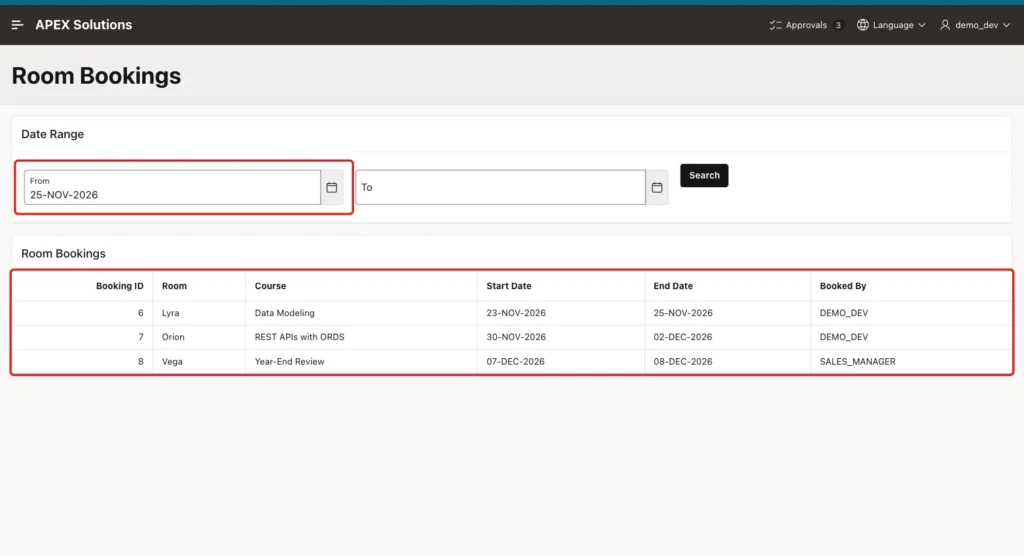
In the same way, a To date of 06-NOV-2026 alone listed bookings 1 and 2.
A Typed Reversed Range
The picker limits only apply to clicks in the calendar. Users can still type a date. Type 18-NOV-2026 in From and 06-NOV-2026 in To, then click Search:
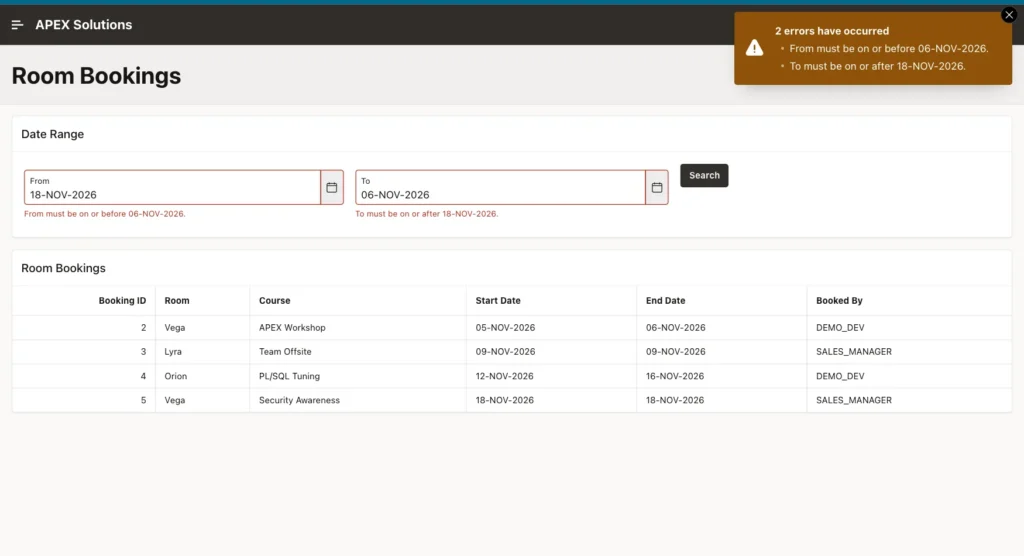
Both fields show an error: "From must be on or before 06-NOV-2026." and "To must be on or after 18-NOV-2026." These messages come from the date pickers themselves, because the Minimum and Maximum Item settings also check typed values.
The page was not submitted. In the test, clicking Search sent no request to the server, and the report kept its previous rows.
A Forced Submit (Negative Test)
Now skip the browser checks on purpose. With the same reversed dates, run this in the browser console. It submits the page with the request SEARCH and turns off client-side validation:
Example:
apex.page.submit({ request: 'SEARCH', validate: false });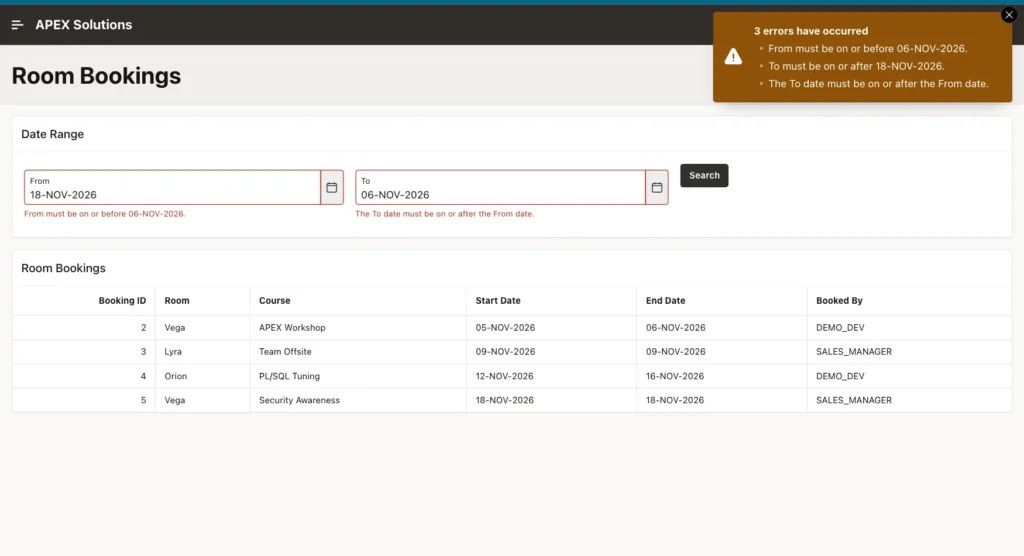
This time the request reached the server, and the validation from Step 7 stopped it. The message The To date must be on or after the From date. now shows below the To field and in the notification, next to the two browser messages. The report did not change.
An Invalid Date
Type 31-FEB-2026 in the From field and click Search. APEX checks the value against the format mask before anything is sent:
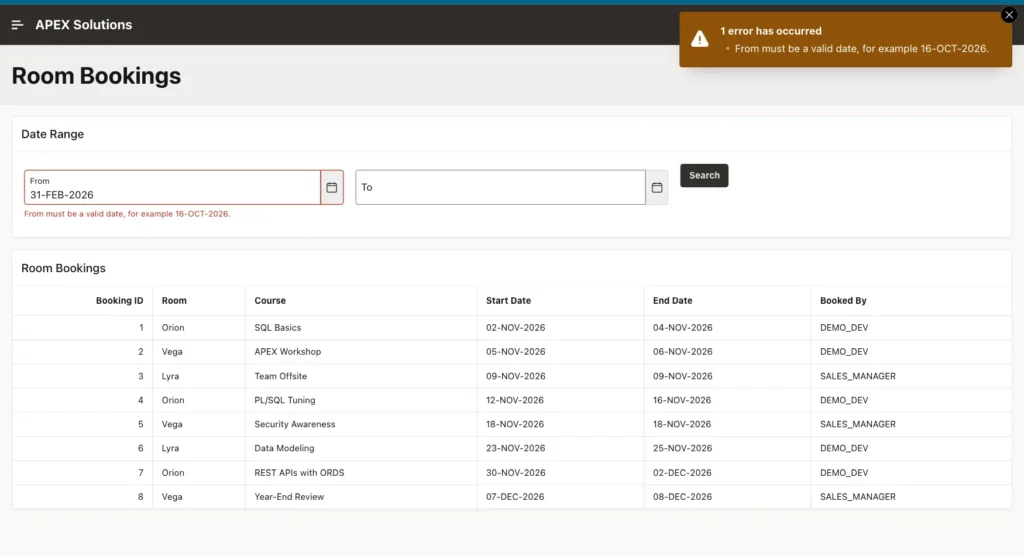
The error "From must be a valid date, for example 16-OCT-2026." appears, and again no request reached the server. The example date in the message is today's date in the item's format mask.
Things to Know
- Minimum Item and Maximum Item work in both directions only when you set both: Maximum on the From item and Minimum on the To item.
- Keep the server-side validation even though the pickers block reversed ranges. Browser checks can be skipped, as the forced submit showed.
- Use the same format mask on the items and in every TO_DATE call. In a test, TO_DATE('06-NOV-2026', 'YYYY-MM-DD') failed with ORA-01858.
- In a failed submit, APEX still stores the submitted values in session state. After the forced test, a page reload showed the reversed range again, and the report returned no rows for it.
- For a form that saves start and end dates, add the same check constraint as ROOM_BOOKINGS_DATES_CK. It also covers data loads and other apps.
Related Guides
Conclusion
A From/To date range in Oracle APEX needs two date pickers, one validation and a WHERE clause. Maximum Item on the From picker and Minimum Item on the To picker grey out invalid days and reject typed reversed ranges in the browser.
The server-side validation catches requests that skip the browser, and the check constraint protects the table. With the overlap condition in the query, the report lists every row that touches the chosen period, and empty dates keep the range open.
