
A template component is a plug-in made of an HTML template and a few attributes. Once you create it, it appears in Page Designer next to Cards, Content Row and Badge. You can use it as a region that lists many rows, or as a column type inside a report, without copying HTML from page to page.
This guide builds a Status Badge template component step by step. It uses template directives ({case}, {if}) to pick a color for each status, a Report template for the region, a Partial template for the report column, and a CSS file stored inside the plug-in.
The guide uses support tickets as the example; the same steps work for any table with a status or category column.
The overview article Oracle APEX Cards, Content Rows, and Template Components explains the built-in components, and Building Your First Oracle APEX Plug-in builds a single meter partial. This guide adds directives, the Multiple (Report) template, attribute settings, a plug-in CSS file and an escaping test.
Step 1: Create the Tables
The example needs two tables. TICKET_STATUSES holds the status codes with a display name, an optional Font APEX icon and a sort order. SUPPORT_TICKETS holds the tickets, and its STATUS_CODE column is a foreign key to TICKET_STATUSES.
Create the tables, the index and the sample data:
Example:
create table ticket_statuses (
  status_code  varchar2(20)  not null,
  status_name  varchar2(40)  not null,
  icon_css     varchar2(40),
  sort_seq     number(3)     not null,
  constraint ticket_statuses_pk primary key (status_code),
  constraint ticket_statuses_name_uk unique (status_name)
);

create table support_tickets (
  ticket_id    number generated by default on null as identity,
  title        varchar2(200) not null,
  requester    varchar2(60)  not null,
  status_code  varchar2(20)  default on null 'OPEN' not null,
  priority     varchar2(10)  default on null 'NORMAL' not null,
  created_on   date          default on null sysdate not null,
  constraint support_tickets_pk primary key (ticket_id),
  constraint support_tickets_status_fk foreign key (status_code)
    references ticket_statuses (status_code),
  constraint support_tickets_priority_ck check (priority in ('LOW', 'NORMAL', 'HIGH'))
);

create index support_tickets_status_ix on support_tickets (status_code);

insert into ticket_statuses values ('OPEN', 'Open', 'fa-circle-o', 10);
insert into ticket_statuses values ('IN_PROGRESS', 'In Progress', 'fa-spinner', 20);
insert into ticket_statuses values ('ON_HOLD', 'On Hold', 'fa-pause-circle-o', 30);
insert into ticket_statuses values ('CLOSED', 'Closed', null, 40);

insert into support_tickets (title, requester, status_code, priority, created_on)
values ('Printer on floor 2 is offline', 'Lena Fischer', 'OPEN', 'HIGH', date '2026-10-12');
insert into support_tickets (title, requester, status_code, priority, created_on)
values ('New laptop for onboarding', 'Raj Patel', 'IN_PROGRESS', 'NORMAL', date '2026-10-10');
insert into support_tickets (title, requester, status_code, priority, created_on)
values ('VPN drops every hour', 'Maria Lopez', 'IN_PROGRESS', 'HIGH', date '2026-10-09');
insert into support_tickets (title, requester, status_code, priority, created_on)
values ('Licence renewal for design tool', 'Tom Becker', 'ON_HOLD', 'LOW', date '2026-10-05');
insert into support_tickets (title, requester, status_code, priority, created_on)
values ('Password reset for shared mailbox', 'Aiko Tanaka', 'CLOSED', 'NORMAL', date '2026-10-02');
insert into support_tickets (title, requester, priority, created_on)
values ('Second monitor request', 'Lena Fischer', 'LOW', date '2026-10-13');
commit;

select t.ticket_id, t.title, t.status_code, s.status_name, s.icon_css
from   support_tickets t join ticket_statuses s on s.status_code = t.status_code
order  by t.ticket_id;
Output:
Table TICKET_STATUSES created.

Table SUPPORT_TICKETS created.

Index SUPPORT_TICKETS_STATUS_IX created.

1 row inserted.

1 row inserted.

1 row inserted.

1 row inserted.

1 row inserted.

1 row inserted.

1 row inserted.

1 row inserted.

1 row inserted.

1 row inserted.

Commit complete.

   TICKET_ID TITLE                                STATUS_CODE    STATUS_NAME    ICON_CSS
____________ ____________________________________ ______________ ______________ ____________________
           1 Printer on floor 2 is offline        OPEN           Open           fa-circle-o
           2 New laptop for onboarding            IN_PROGRESS    In Progress    fa-spinner
           3 VPN drops every hour                 IN_PROGRESS    In Progress    fa-spinner
           4 Licence renewal for design tool      ON_HOLD        On Hold        fa-pause-circle-o
           5 Password reset for shared mailbox    CLOSED         Closed
           6 Second monitor request               OPEN           Open           fa-circle-o

6 rows selected.- SUPPORT_TICKETS_STATUS_FK allows only known status codes. SUPPORT_TICKETS_PRIORITY_CK limits the priority to three values.
- STATUS_CODE, PRIORITY and CREATED_ON use DEFAULT ON NULL, so a new ticket gets OPEN, NORMAL and the current date without a trigger. Ticket 6 shows this: its insert has no status.
- The Closed status has no icon. The template shows the icon only when one is set.
Step 2: Create the Template Component Plug-in
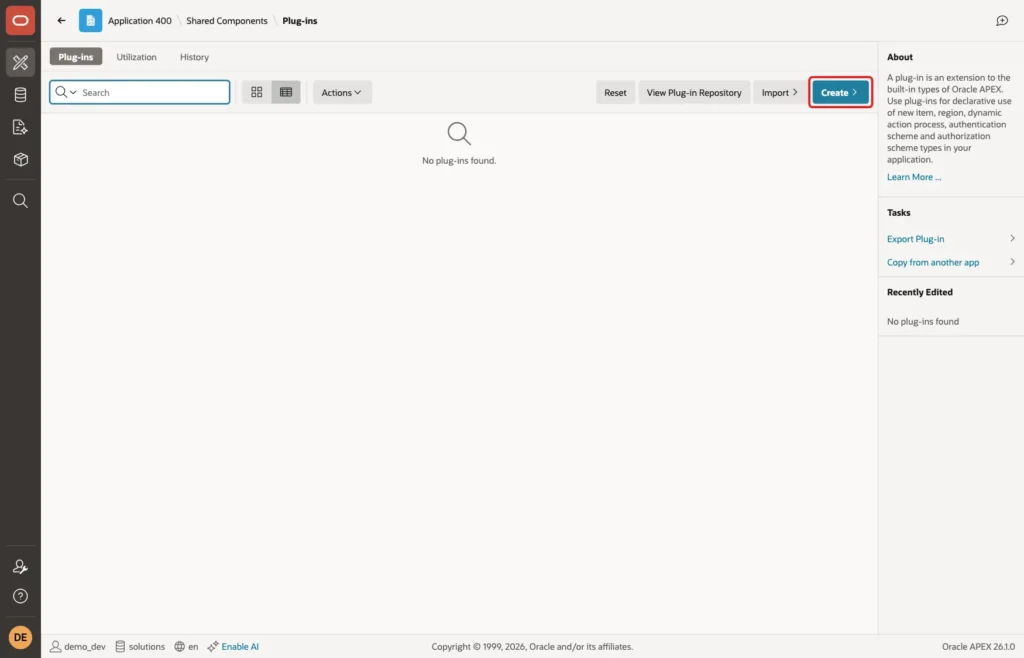
In App Builder, open the application, click Shared Components, and then click Plug-ins. Click Create:
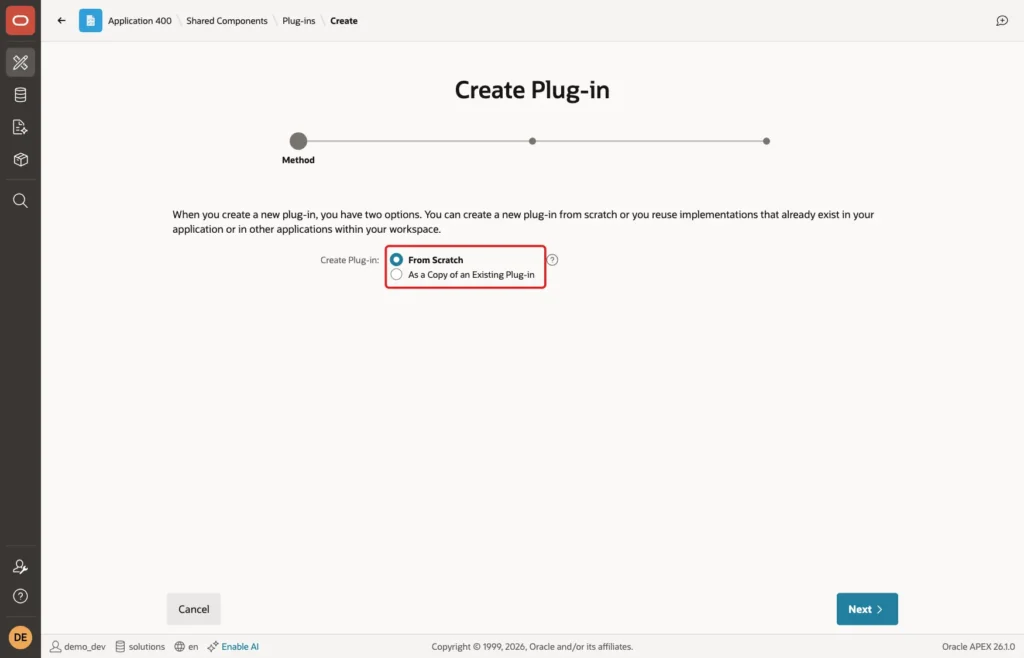
Keep Create Plug-in set to From Scratch and click Next:
The next screen is the plug-in form. Enter Name Status Badge. APEX fills APEXlang Name statusBadge and Static ID STATUS_BADGE from it. Set Type to Template Component, and under Available as check Single (Partial) and Multiple (Report):
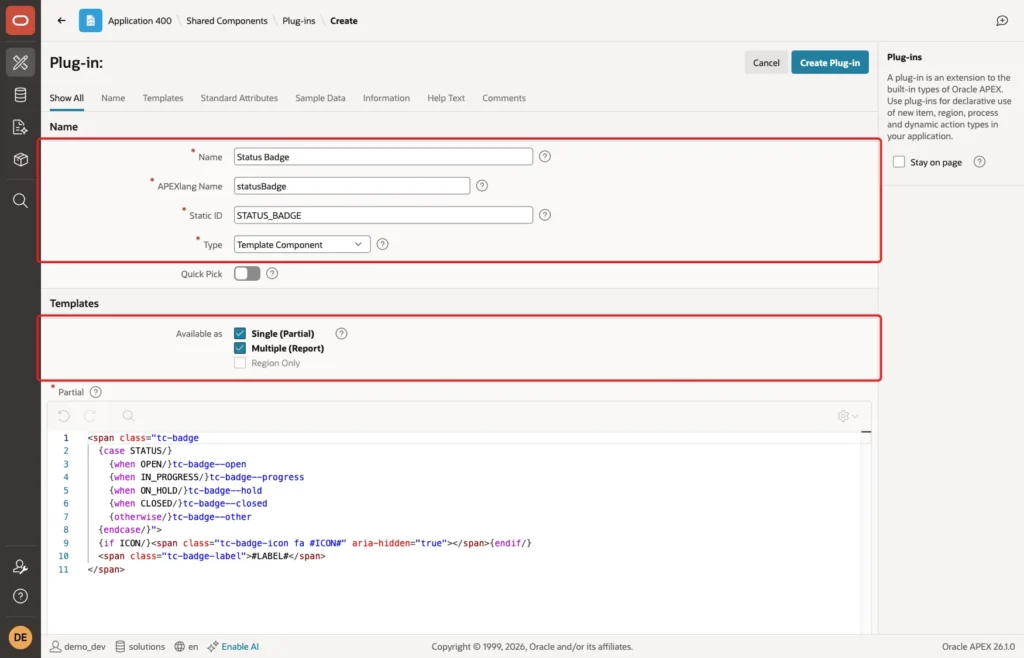
Single (Partial) renders one record. It is what a report column uses. Multiple (Report) renders a list of records, which is what a region uses. Checking both gives one plug-in for both places.
Replace the sample code in Partial with this template:
Example:
<span class="tc-badge
  {case STATUS/}
    {when OPEN/}tc-badge--open
    {when IN_PROGRESS/}tc-badge--progress
    {when ON_HOLD/}tc-badge--hold
    {when CLOSED/}tc-badge--closed
    {otherwise/}tc-badge--other
  {endcase/}">
  {if ICON/}<span class="tc-badge-icon fa #ICON#" aria-hidden="true"></span>{endif/}
  <span class="tc-badge-label">#LABEL#</span>
</span>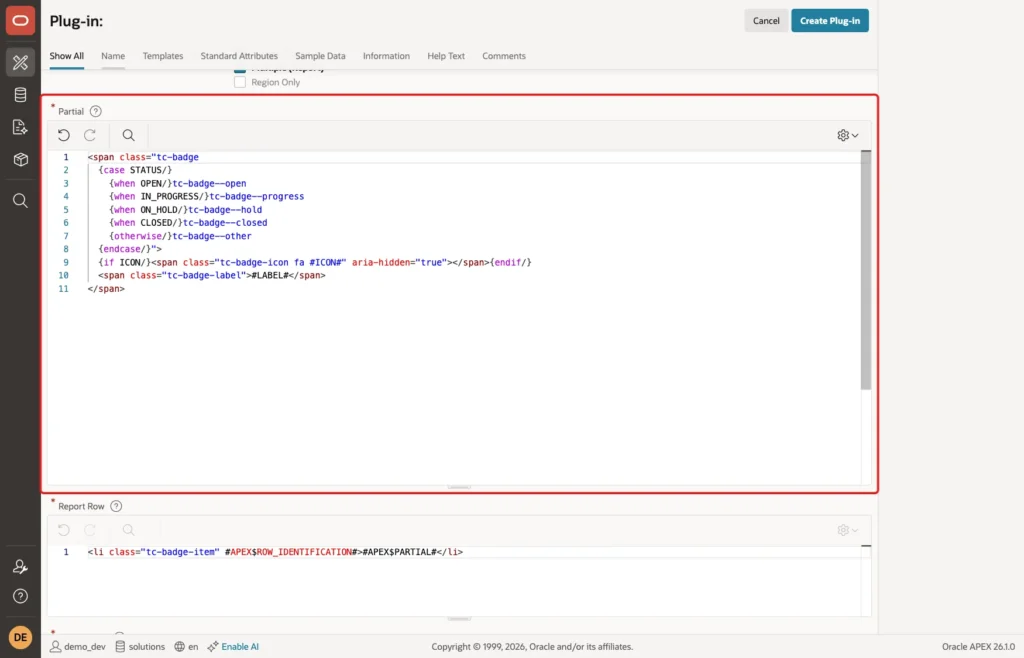
The template has three placeholders: STATUS, ICON and LABEL. Each becomes an attribute that a developer maps to a column later:
- {case STATUS/} compares the status value with each {when VALUE/} and outputs the matching CSS class. {otherwise/} covers any value that is not listed, so an unknown status gets a grey badge.
- {if ICON/} outputs the icon only when ICON has a value.
- #LABEL# is the visible text.
Because Multiple (Report) is checked, the form also shows the report templates. Set Report Row and Report Body to these values:
Example:
<li class="tc-badge-item" #APEX$ROW_IDENTIFICATION#>#APEX$PARTIAL#</li>
Example:
<ul class="tc-badge-list">#APEX$ROWS#</ul>
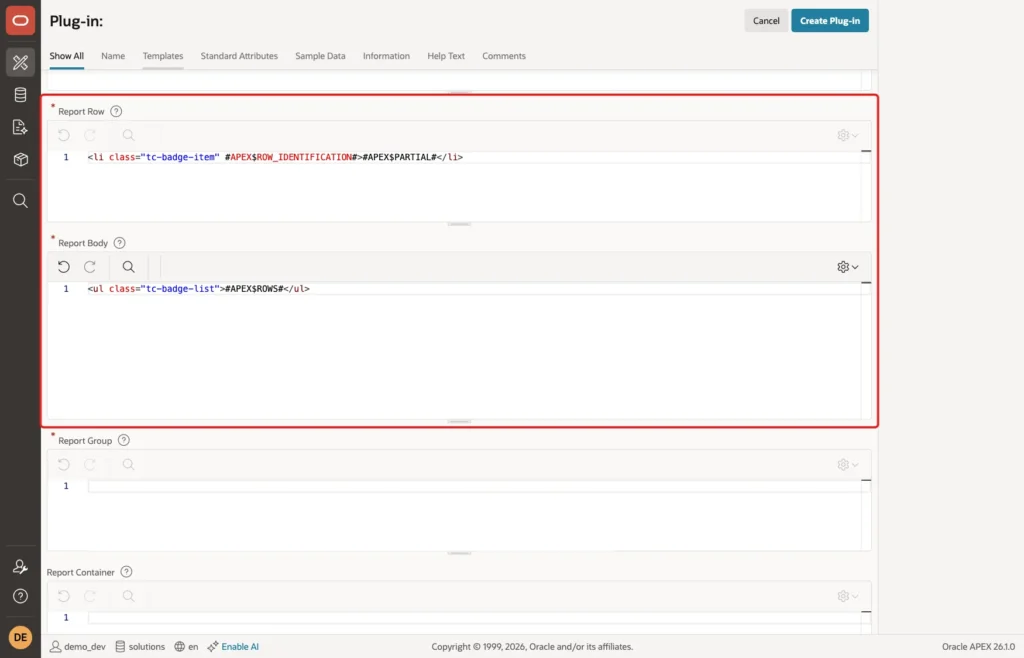
APEX replaces #APEX$PARTIAL# with the Partial template of the row and #APEX$ROWS# with all rendered rows. #APEX$ROW_IDENTIFICATION# adds data attributes that identify each row. Report Group and Report Container can stay empty.
Keep Default Escape Mode on HTML:
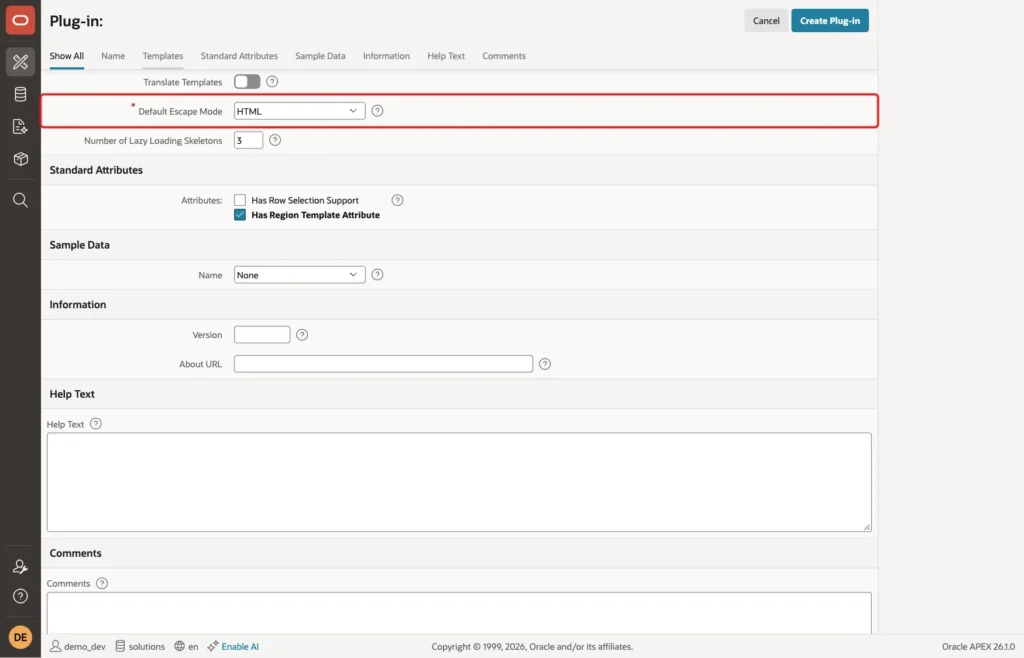
Leave the other settings as they are and click Create Plug-in.
Step 3: Check the Custom Attributes
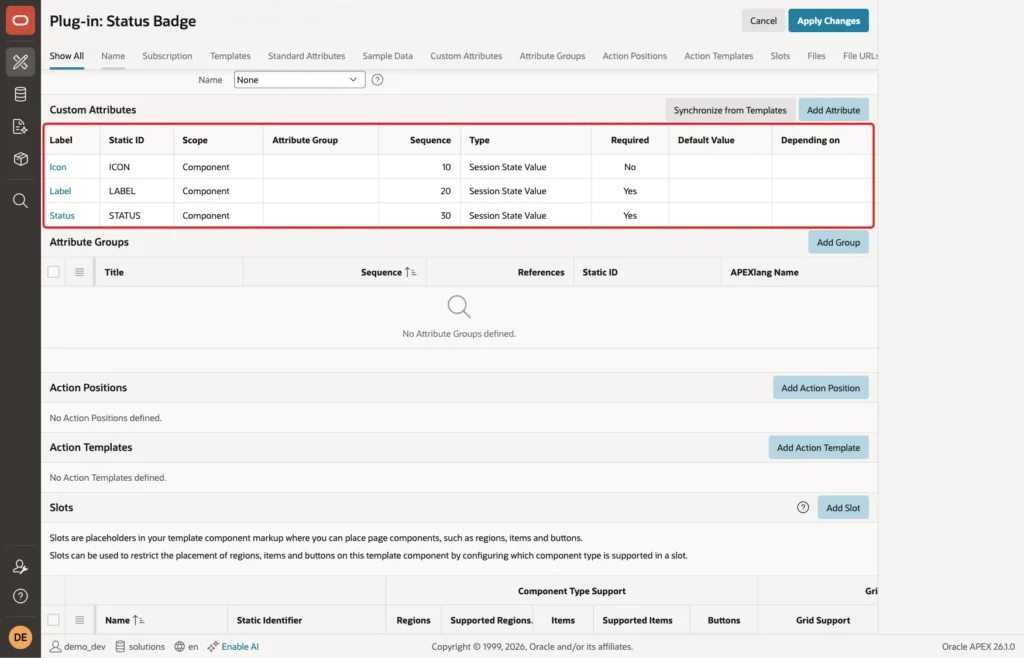
After the plug-in is created, APEX shows "Attributes synchronized". It read the placeholders of the templates and created one custom attribute for each: Icon, Label and Status. All three have the type Session State Value, which means they are mapped to query columns.
Click the Status attribute in the Custom Attributes list. Turn on Required and click Apply Changes:
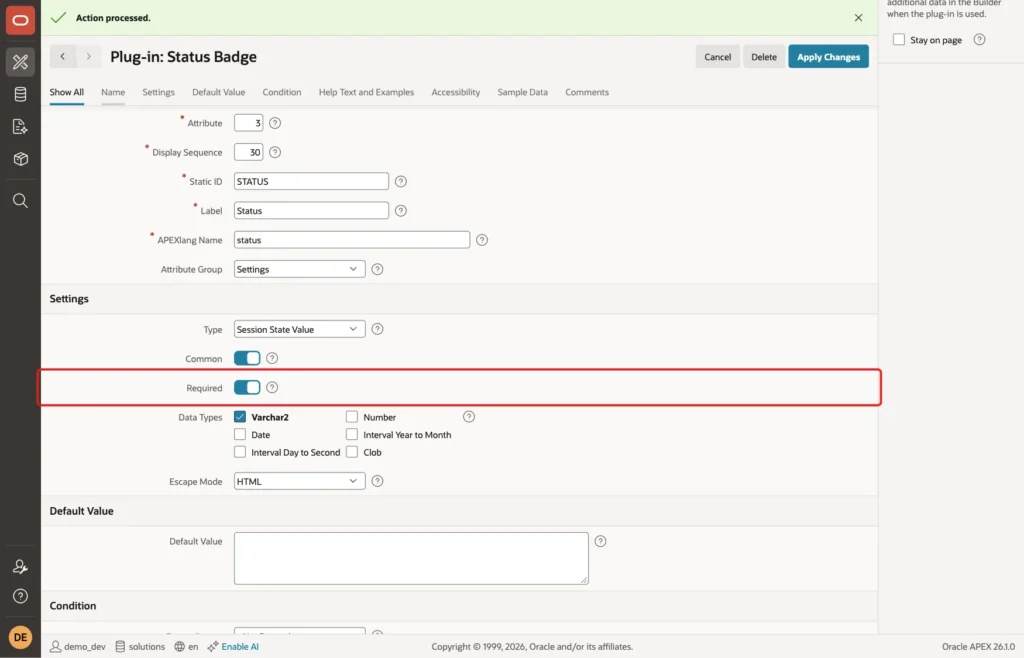
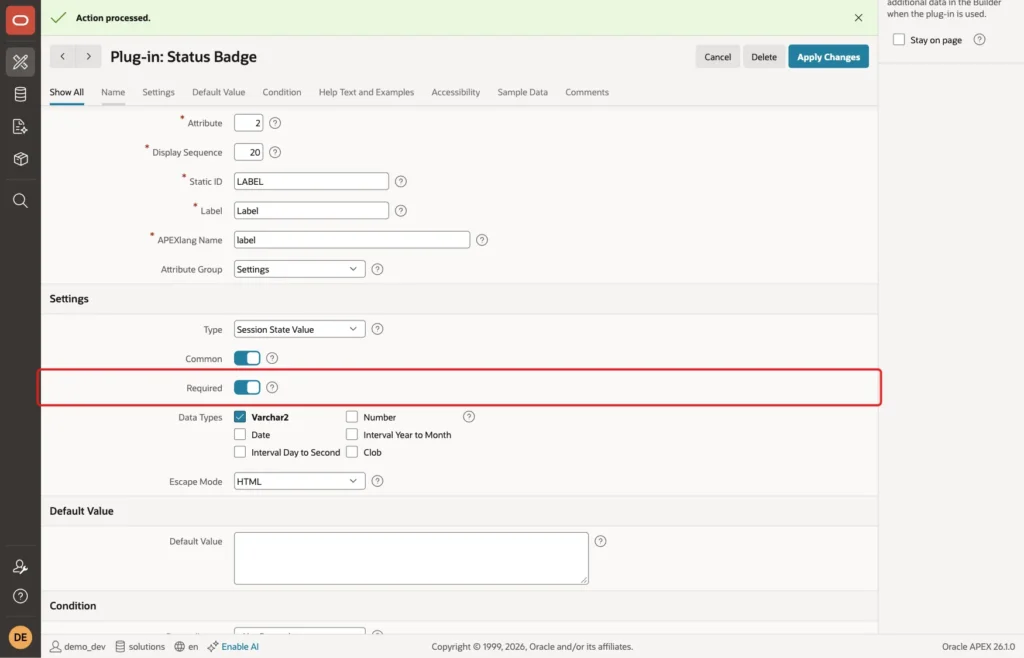
Do the same for Label:
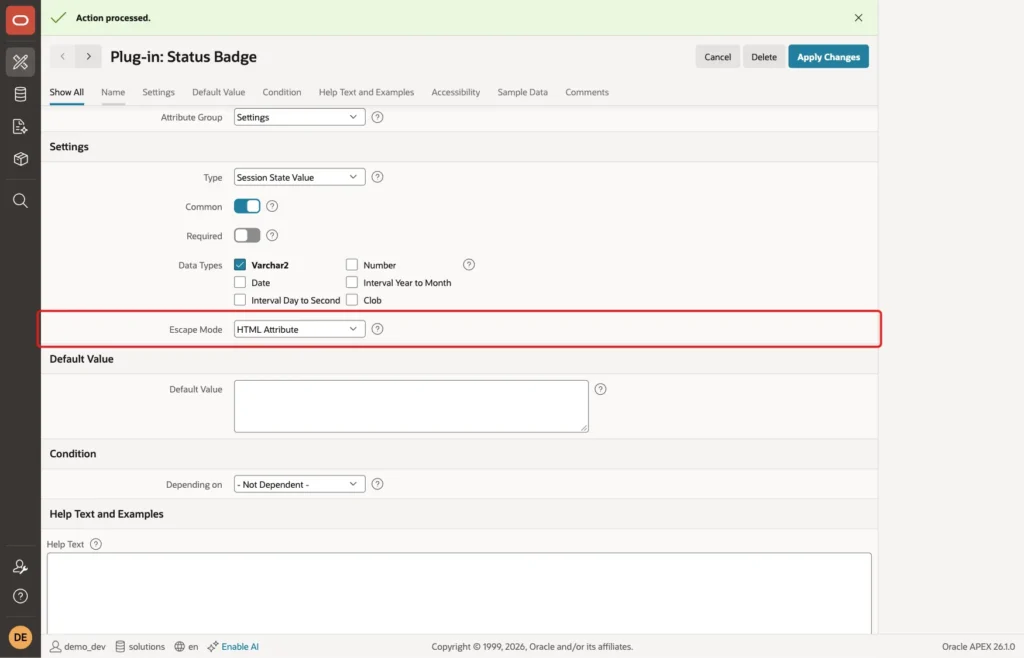
Now open Icon. Keep Required off, set Escape Mode to HTML Attribute and click Apply Changes. The icon value goes inside a class attribute, so it is escaped for that position:
The Custom Attributes list now shows Label and Status as required:
If you change the templates later, click Synchronize from Templates to add attributes for new placeholders.
Step 4: Add the CSS File to the Plug-in
The CSS classes in the template need styles. Keep them inside the plug-in, so the styles go wherever the plug-in goes. On the plug-in page, scroll to Files and click Create File:
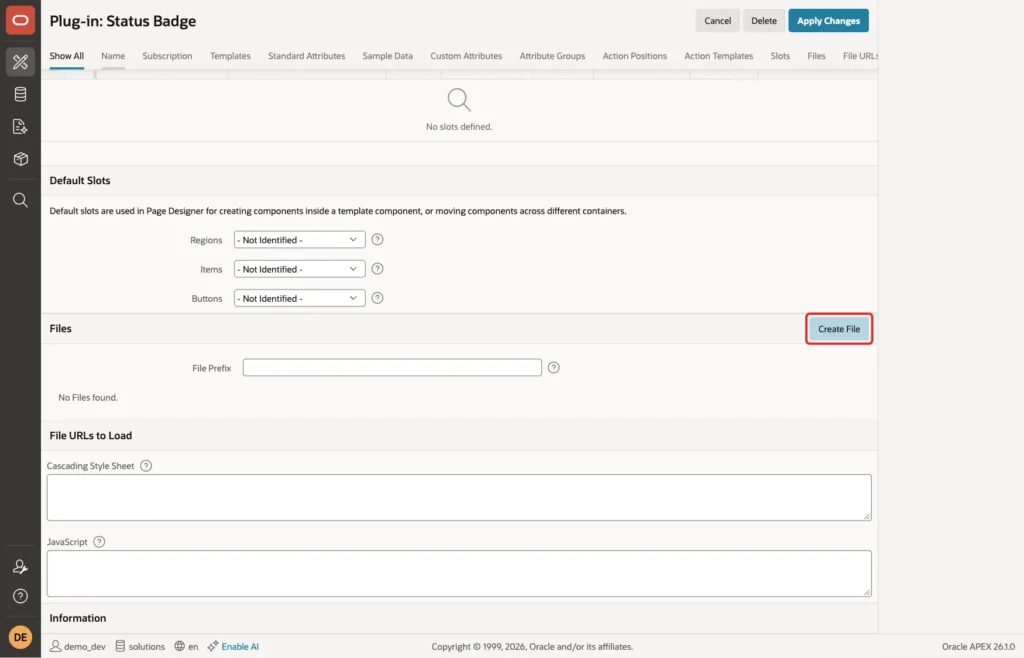
Enter File Name status-badge.css, leave Content empty and click Create:
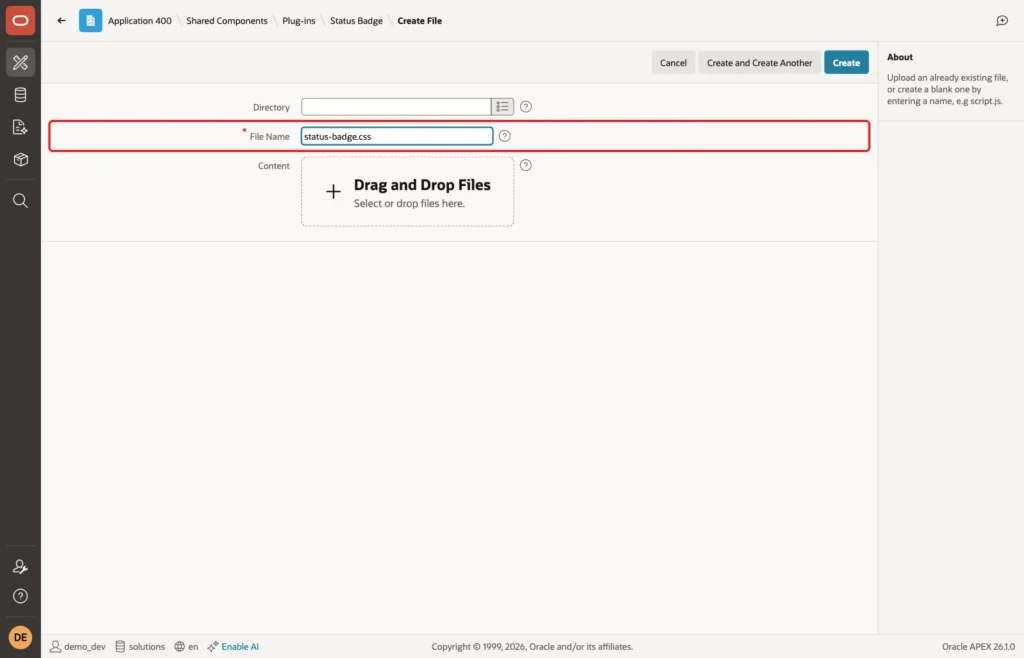
APEX opens the file editor. Enter this CSS and click Save Changes:
Example:
.tc-badge-list {
  display: flex;
  flex-wrap: wrap;
  gap: 8px;
  margin: 0;
  padding: 0;
  list-style: none;
}
.tc-badge {
  display: inline-flex;
  align-items: center;
  gap: 6px;
  padding: 2px 10px;
  border-radius: 999px;
  font-size: 12px;
  font-weight: 600;
  line-height: 20px;
  white-space: nowrap;
}
.tc-badge--open     { background: #e0ecff; color: #0b4fae; }
.tc-badge--progress { background: #fff1d6; color: #8a5300; }
.tc-badge--hold     { background: #f1e4ff; color: #6a2fa8; }
.tc-badge--closed   { background: #dcf3e3; color: #1d6b3a; }
.tc-badge--other    { background: #ececec; color: #4a4a4a; }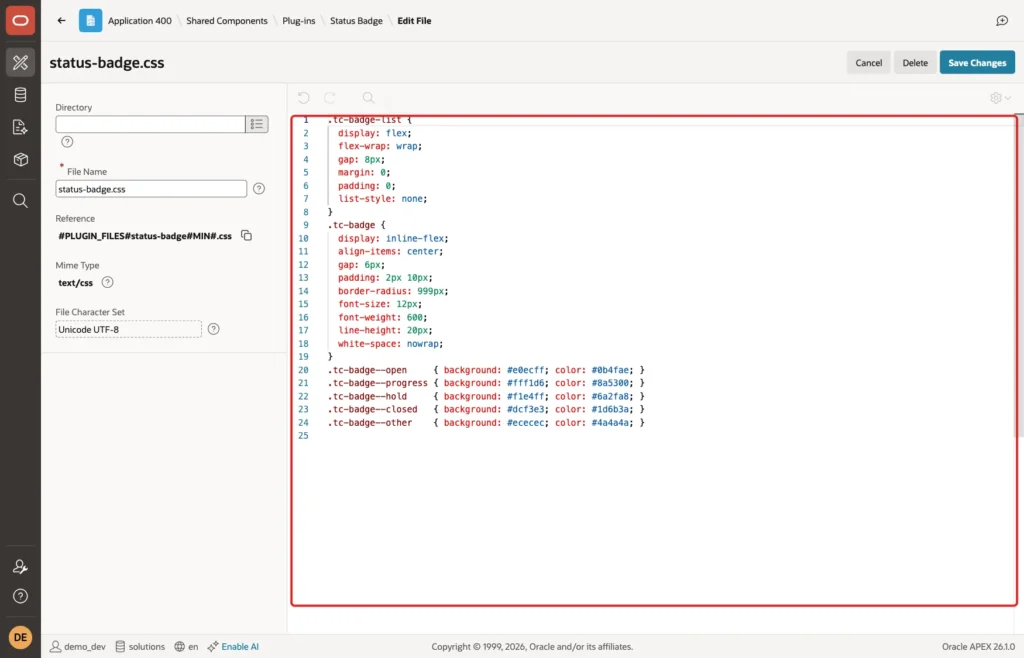
When the file was saved, APEX also created status-badge.min.css next to it. The Reference shown in the editor is #PLUGIN_FILES#status-badge#MIN#.css. At runtime, the page in this example loaded status-badge.min.css through this reference.
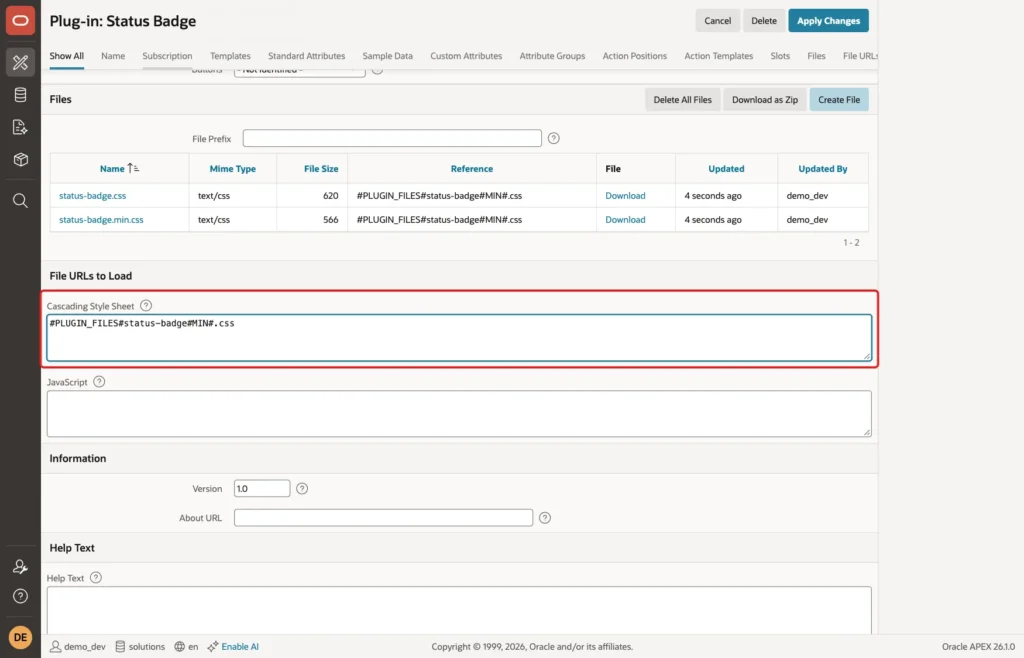
Back on the plug-in page, under File URLs to Load, enter this reference in Cascading Style Sheet and click Apply Changes:
Example:
#PLUGIN_FILES#status-badge#MIN#.css
Step 5: Create the Page
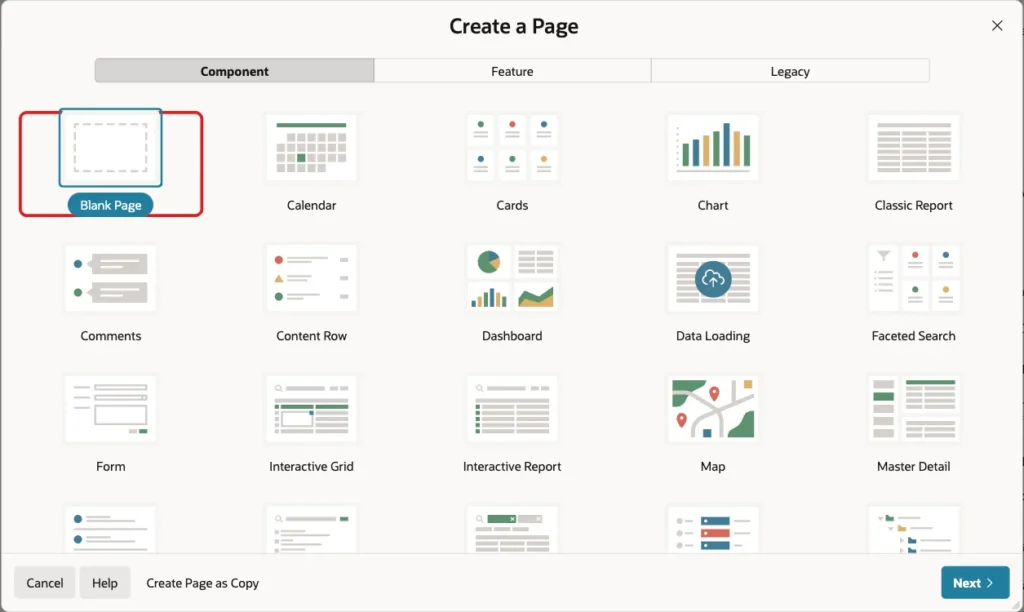
Click Create Page and choose Blank Page on the Component tab:
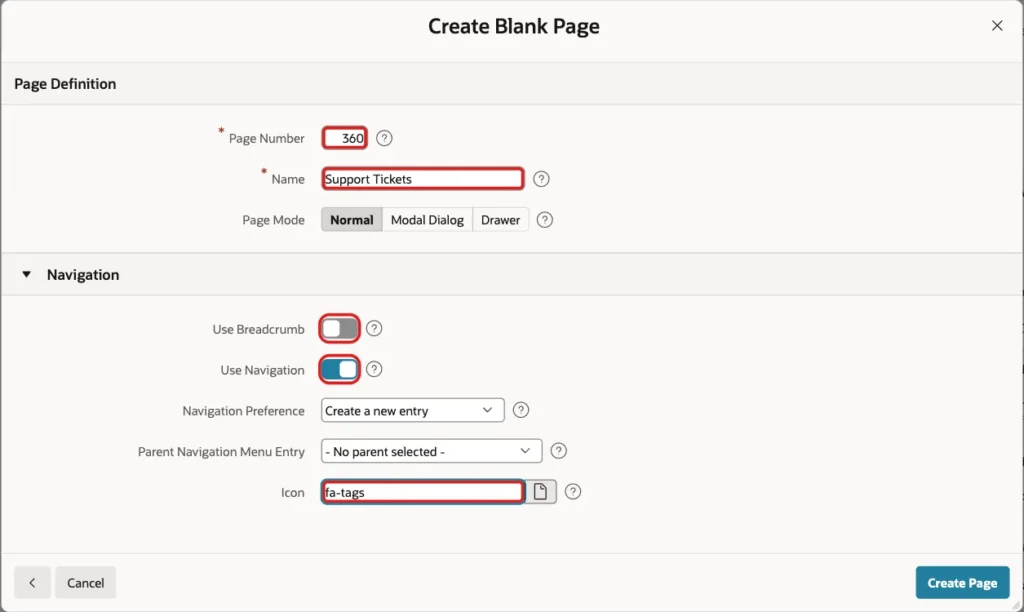
Enter Page Number 360 and Name Support Tickets. Turn off Use Breadcrumb, keep Use Navigation on, enter Icon fa-tags and click Create Page:
Step 6: Show the Status Counts as a Badge Region
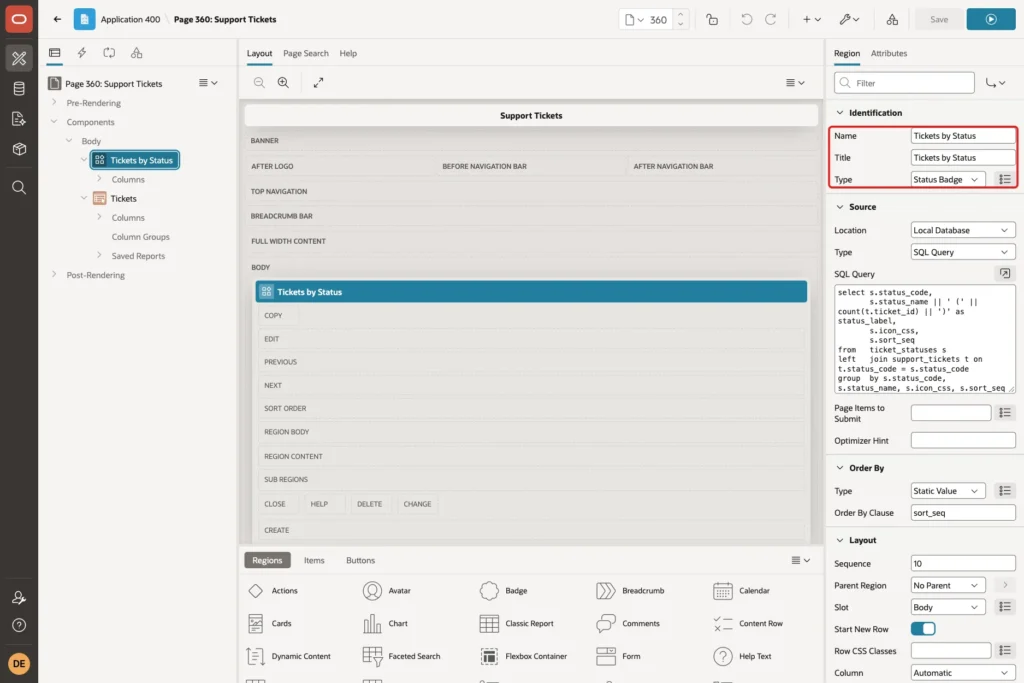
In Page Designer, right-click Body and choose Create Region. Set Name and Title to Tickets by Status. Open the Type list: Status Badge is listed under Application Components. Select it:
Under Source, set Type to SQL Query and enter this query. It counts the tickets per status and adds an All Tickets row:
Example:
select s.status_code,
       s.status_name || ' (' || count(t.ticket_id) || ')' as status_label,
       s.icon_css,
       s.sort_seq
from   ticket_statuses s
left   join support_tickets t on t.status_code = s.status_code
group  by s.status_code, s.status_name, s.icon_css, s.sort_seq
union all
select 'ALL', 'All Tickets (' || count(*) || ')', 'fa-ticket', 0
from   support_tickets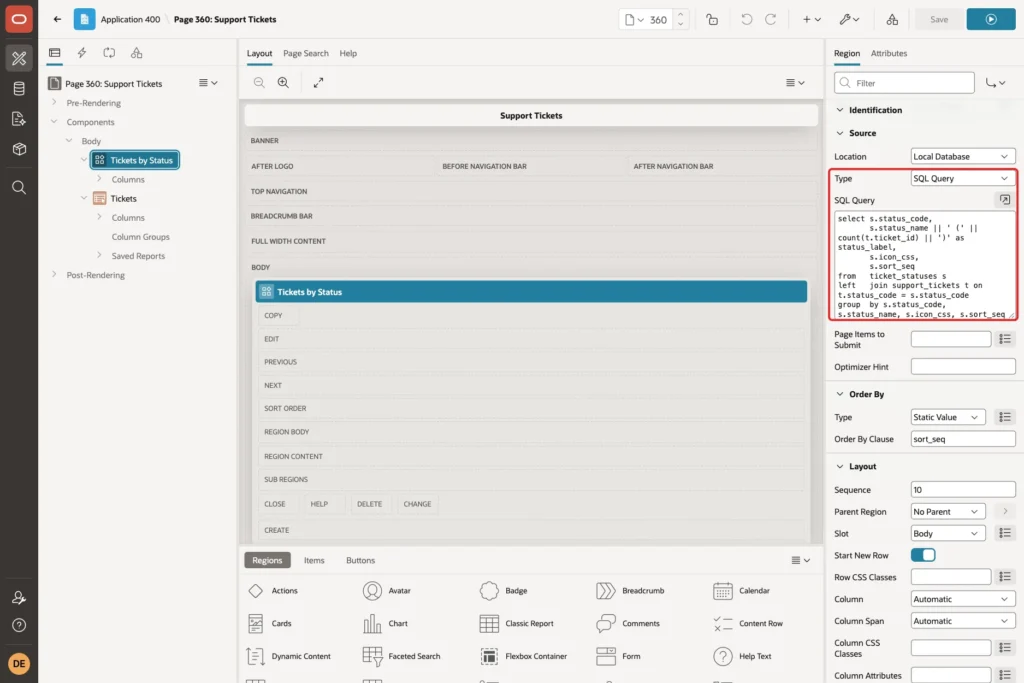
The ALL row has a status code that the template does not list, so it uses the {otherwise/} branch and gets the grey style.
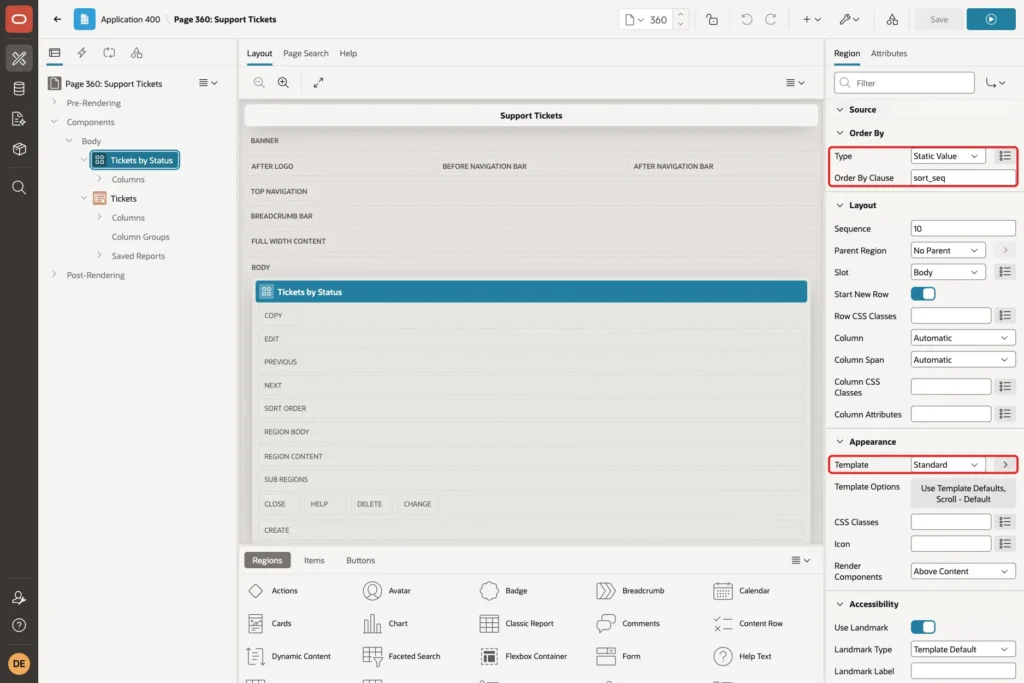
Set the order of the badges with the region's Order By setting. Set Order By Type to Static Value and Order By Clause to sort_seq. Then set Appearance, Template to Standard, so the region shows its title in a box:
Open the Attributes tab. Display is already Multiple (Report). Under Settings, set Icon to ICON_CSS, Label to STATUS_LABEL and Status to STATUS_CODE:
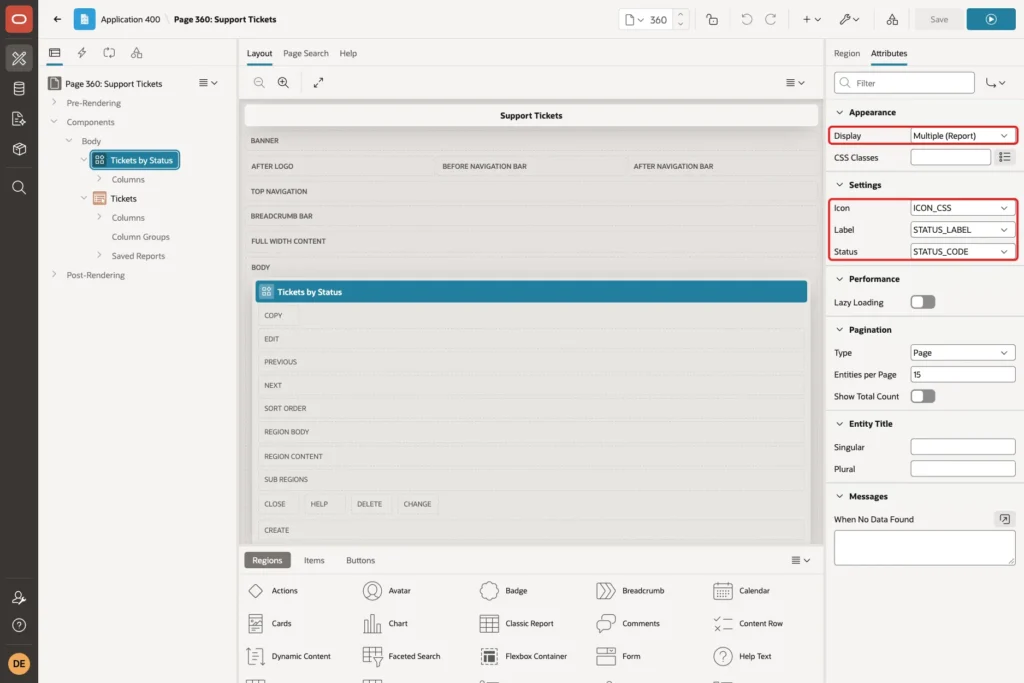
These are the three custom attributes from Step 3. Label and Status were marked as required, and they showed an error until they had a column.
Step 7: Use the Badge as a Report Column
Right-click Body again and choose Create Region. Set Name and Title to Tickets and Type to Interactive Report. Under Source, set Type to SQL Query and enter:
Example:
select t.ticket_id,
       t.title,
       t.requester,
       t.priority,
       t.created_on,
       t.status_code,
       s.status_name,
       s.icon_css
from   support_tickets t
join   ticket_statuses s on s.status_code = t.status_code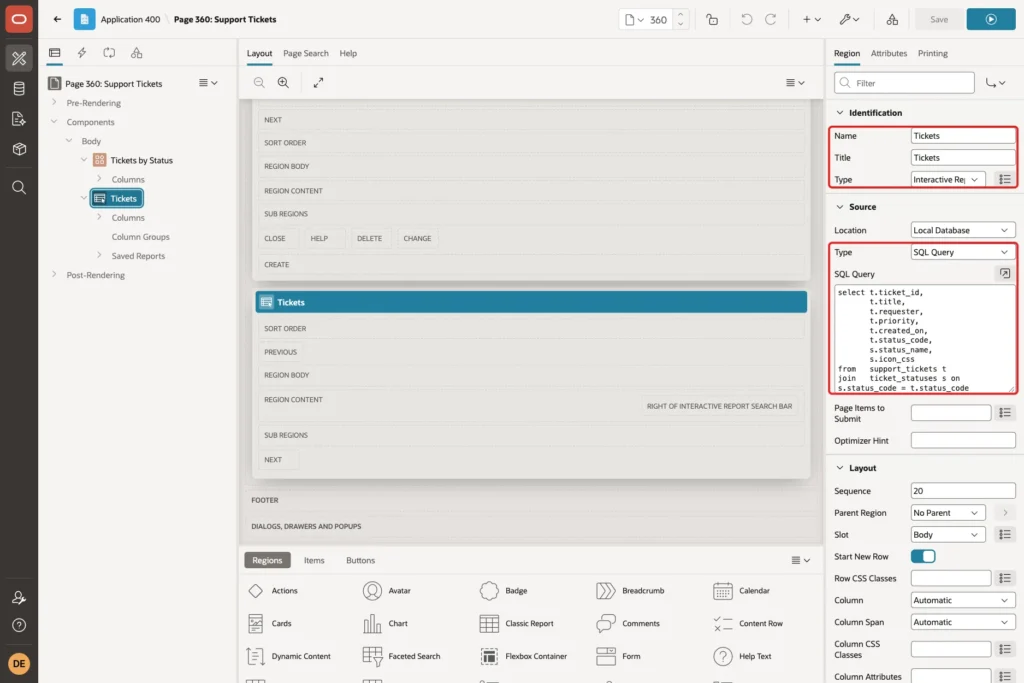
Expand the Columns of the Tickets region and select STATUS_CODE. Set Type to Status Badge and Heading to Status. Under Settings, set Icon to ICON_CSS, Label to STATUS_NAME and Status to STATUS_CODE:
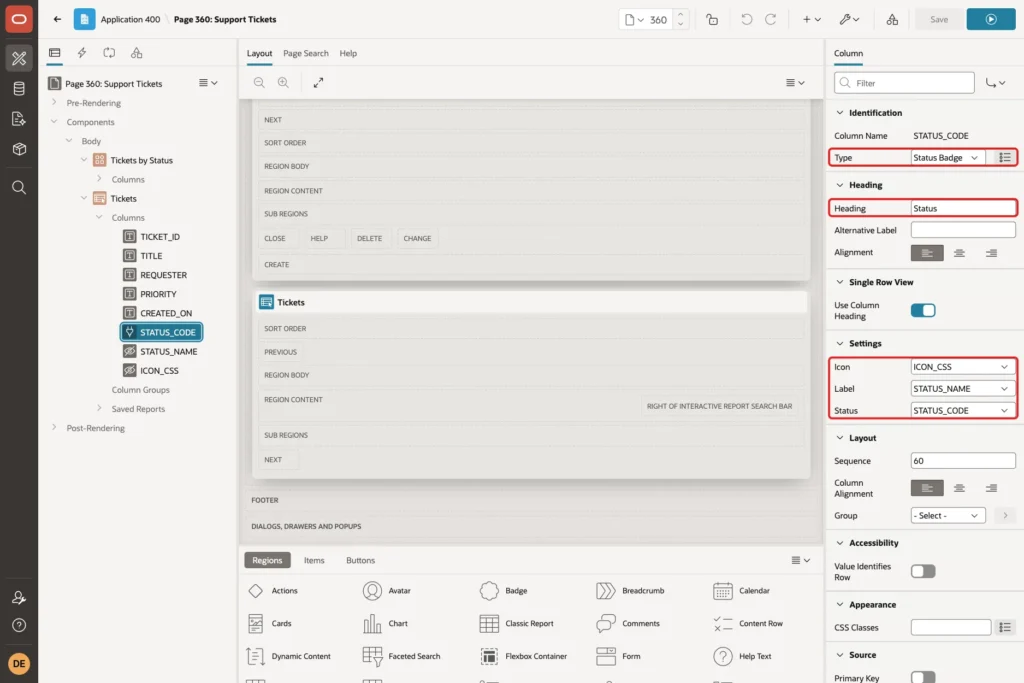
A report column uses the Partial template, one badge per row. Now select STATUS_NAME and set its Type to Hidden. Do the same for ICON_CSS. The badge still reads both columns:
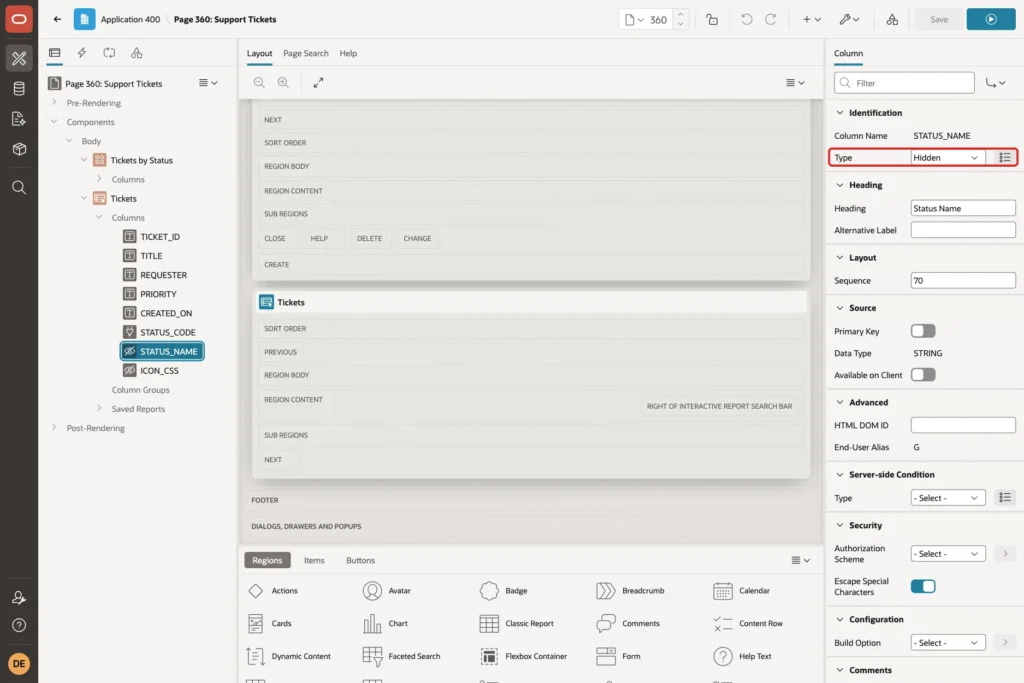
Click Save.
Step 8: Test the Badges
Run page 360. The region shows one badge per status with the ticket count, and the report shows the status of each ticket as a badge. Each status has its own color, and Closed has no icon because its ICON_CSS is empty:
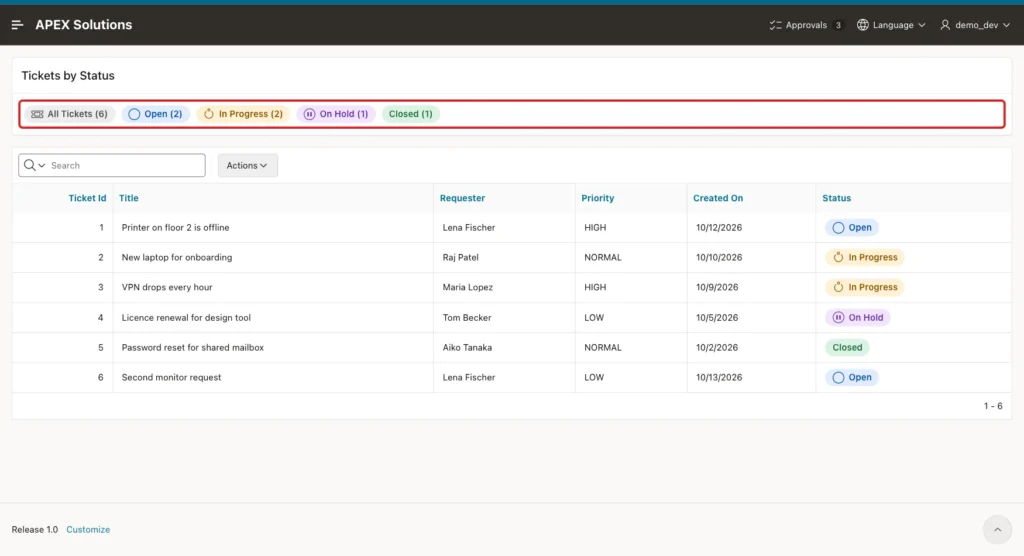
In the page source, the Open badge of the region was rendered like this. The {case} directive produced the class tc-badge--open, and the Report Row template wrapped it in a list item:
Output:
<li class="tc-badge-item" data-id="1" data-rownum="2"><span class="tc-badge tc-badge--open "> <span class="tc-badge-icon fa fa-circle-o" aria-hidden="true"></span> <span class="tc-badge-label">Open (2)</span> </span></li>
A browser check of all eleven badges on the page confirmed the colors: every Open badge had the light blue background, In Progress light orange, On Hold light purple, Closed light green and All Tickets grey. The page loaded status-badge.min.css from the plug-in files.
Next, change data. Move ticket 1 to In Progress and close ticket 4:
Example:
update support_tickets set status_code = 'IN_PROGRESS' where ticket_id = 1;
update support_tickets set status_code = 'CLOSED' where ticket_id = 4;
commit;

select status_code, count(*) as tickets
from   support_tickets
group  by status_code
order  by status_code;
Output:
1 row updated.

1 row updated.

Commit complete.

STATUS_CODE       TICKETS
______________ __________
CLOSED                  2
IN_PROGRESS             3
OPEN                    1
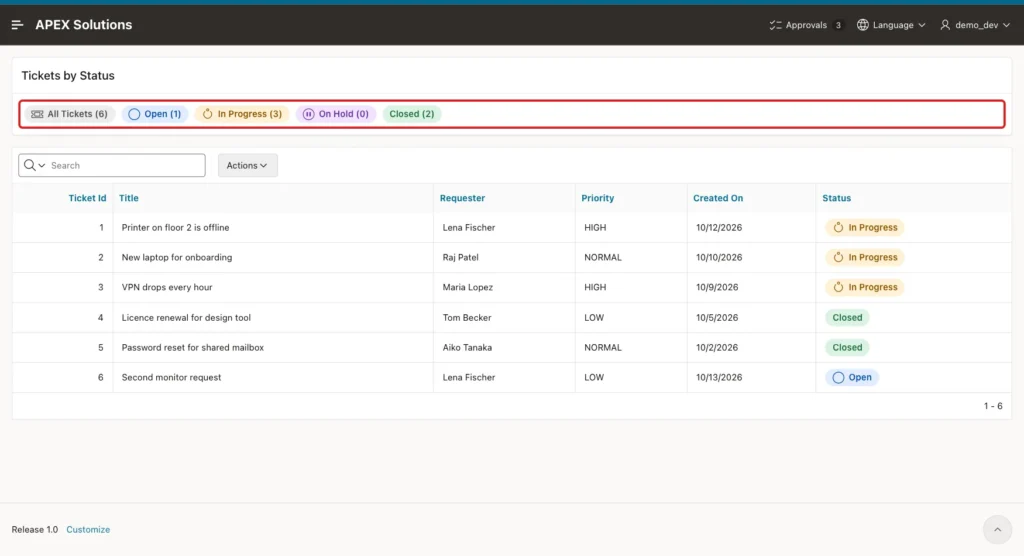
Reload the page. The counts and the badges follow the data: Open (1), In Progress (3), On Hold (0) and Closed (2), and tickets 1 and 4 show their new badges:
Step 9: Test the Escaping
A template component outputs data inside HTML, so test it with data that tries to inject markup. This insert adds a status whose name contains HTML and whose icon tries to add an onmouseover attribute, and a ticket that uses it:
Example:
insert into ticket_statuses (status_code, status_name, icon_css, sort_seq)
values ('ESCALATED', '<b>Escalated</b>', 'fa-warning" onmouseover="alert(1)', 50);

insert into support_tickets (title, requester, status_code, priority)
values ('Test ticket for escaping', 'Test User', 'ESCALATED', 'HIGH');
commit;

select status_code, status_name, icon_css
from   ticket_statuses
where  status_code = 'ESCALATED';
Output:
1 row inserted.

1 row inserted.

Commit complete.

STATUS_CODE    STATUS_NAME         ICON_CSS
______________ ___________________ ____________________________________
ESCALATED      <b>Escalated</b>    fa-warning" onmouseover="alert(1)
Reload page 360. The new status shows the tags as plain text, and the badge is grey because ESCALATED is not in the {case} list:
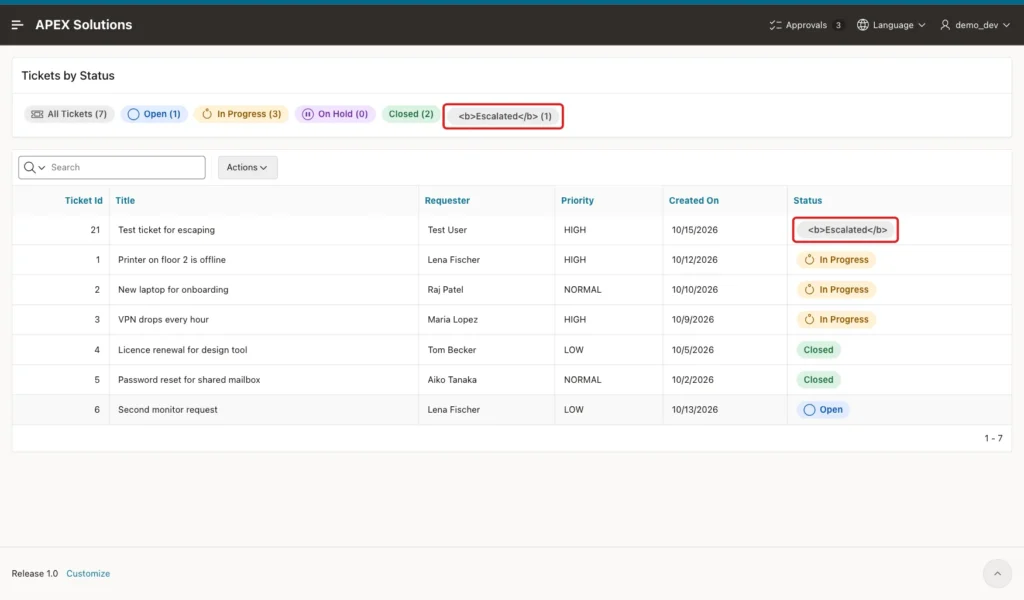
The HTML of the report badge shows what APEX did. The label was HTML-escaped, and the quotes in the icon value were escaped, so the value stayed inside the class attribute:
Output:
<span class="tc-badge tc-badge--other "> <span class="tc-badge-icon fa fa-warning" onmouseover="alert(1)" aria-hidden="true"></span> <span class="tc-badge-label"><b>Escalated</b></span> </span>
Hovering over the badges did not open an alert, and the page had no element with an onmouseover attribute. The only visible effect is that the broken icon class shows no icon. Remove the test rows afterwards:
Example:
delete from support_tickets where status_code = 'ESCALATED';
delete from ticket_statuses where status_code = 'ESCALATED';
commit;
Output:
1 row deleted.

1 row deleted.

Commit complete.
Things to Know
- Template directives work on the values of the attributes. {case} compares the exact value, so OPEN and Open are different. Keep codes in one case, as the check constraint and foreign key do here.
- APEX creates the custom attributes from the placeholders when the plug-in is created. After you add a placeholder later, click Synchronize from Templates.
- Saving the CSS file in the plug-in's file editor created a .min copy automatically, which the #MIN# reference uses.
- The badge order comes from the Order By property of the region, which this example sets to SORT_SEQ.
- Hidden report columns can still feed a template component column, so the report shows one badge column instead of three text columns.
- Leave Default Escape Mode on HTML. Use Raw only for an attribute whose value you build safely yourself.
- The plug-in is part of the application export, including its files. To use it in another app, copy it under Shared Components, Plug-ins.
Related Guides
Conclusion
A custom template component turns a piece of HTML into a reusable building block. Write a Partial template with placeholders and directives, add a Report template for lists, let APEX create the attributes, and store the CSS in the plug-in files.
The Status Badge from this guide works as a region and as a report column, and its colors come from the data through {case}. The tests showed that the badges follow data changes and that HTML in the data is escaped rather than run.
