
Many applications need data that lives in another system: a supplier price list, a stock service, or an API of another team. Copying that data by hand gets old fast, and writing HTTP calls and JSON parsing for every page is a lot of code to maintain.
Oracle APEX solves this with REST Data Sources. You describe the web service once in Shared Components, and then any report can use it like a table.
This guide builds a REST Data Source on an ORDS service, shows it in an Interactive Report with a category filter that is sent to the API, and copies the rows into a local table with REST Source Synchronization.
The overview Oracle APEX Data Sources: REST, Data Loads, and Duality Views explains the source types and uses a public web service with local post-processing.
This guide is the hands-on build: your own API, a parameter driven by a page item, the network ACL the database needs, and a scheduled copy into a local table. The example is a product catalog; the same steps work for any API that returns JSON.
Step 1: Create the Tables
The API in this example reads the CATALOG_ITEMS table. In a real project this table lives in the other system; here it is in the same database so that you can rebuild everything yourself:
Example:
create table catalog_items (
    item_id     number generated by default as identity
                constraint catalog_items_pk primary key,
    sku         varchar2(20)  not null
                constraint catalog_items_sku_uk unique,
    item_name   varchar2(100) not null,
    category    varchar2(30)  not null
                constraint catalog_items_category_ck
                check (category in ('Computers', 'Accessories', 'Furniture')),
    unit_price  number(10,2)  not null
                constraint catalog_items_price_ck check (unit_price > 0),
    in_stock    number default on null 0 not null
                constraint catalog_items_stock_ck check (in_stock >= 0),
    updated_on  date default on null sysdate
);

create index catalog_items_category_ix on catalog_items (category);

insert into catalog_items (sku, item_name, category, unit_price, in_stock)
values ('CMP-100', 'Laptop 14 inch', 'Computers', 899, 25);

insert into catalog_items (sku, item_name, category, unit_price, in_stock)
values ('CMP-110', 'Laptop 16 inch', 'Computers', 1299, 12);

insert into catalog_items (sku, item_name, category, unit_price, in_stock)
values ('CMP-200', 'Desktop Tower', 'Computers', 1099, 8);

insert into catalog_items (sku, item_name, category, unit_price, in_stock)
values ('CMP-300', 'Monitor 27 inch', 'Computers', 329, 40);

insert into catalog_items (sku, item_name, category, unit_price, in_stock)
values ('ACC-100', 'Wireless Mouse', 'Accessories', 25, 150);

insert into catalog_items (sku, item_name, category, unit_price, in_stock)
values ('ACC-110', 'Mechanical Keyboard', 'Accessories', 89, 60);

insert into catalog_items (sku, item_name, category, unit_price, in_stock)
values ('ACC-120', 'USB-C Dock', 'Accessories', 149, 35);

insert into catalog_items (sku, item_name, category, unit_price, in_stock)
values ('ACC-130', 'Webcam 1080p', 'Accessories', 59, 0);

insert into catalog_items (sku, item_name, category, unit_price, in_stock)
values ('FUR-100', 'Office Chair', 'Furniture', 249, 18);

insert into catalog_items (sku, item_name, category, unit_price, in_stock)
values ('FUR-110', 'Standing Desk', 'Furniture', 499, 6);

insert into catalog_items (sku, item_name, category, unit_price, in_stock)
values ('FUR-120', 'Desk Lamp', 'Furniture', 39, 70);

insert into catalog_items (sku, item_name, category, unit_price, in_stock)
values ('FUR-130', 'Filing Cabinet', 'Furniture', 179, 9);

commit;

select item_id, sku, item_name, category, unit_price, in_stock
from   catalog_items
order  by item_id;
Output:
Table CATALOG_ITEMS created.

Index CATALOG_ITEMS_CATEGORY_IX created.

1 row inserted.

1 row inserted.

1 row inserted.

1 row inserted.

1 row inserted.

1 row inserted.

1 row inserted.

1 row inserted.

1 row inserted.

1 row inserted.

1 row inserted.

1 row inserted.

Commit complete.

   ITEM_ID SKU        ITEM_NAME              CATEGORY          UNIT_PRICE    IN_STOCK
__________ __________ ______________________ ______________ _____________ ___________
         1 CMP-100    Laptop 14 inch         Computers                899          25
         2 CMP-110    Laptop 16 inch         Computers               1299          12
         3 CMP-200    Desktop Tower          Computers               1099           8
         4 CMP-300    Monitor 27 inch        Computers                329          40
         5 ACC-100    Wireless Mouse         Accessories               25         150
         6 ACC-110    Mechanical Keyboard    Accessories               89          60
         7 ACC-120    USB-C Dock             Accessories              149          35
         8 ACC-130    Webcam 1080p           Accessories               59           0
         9 FUR-100    Office Chair           Furniture                249          18
        10 FUR-110    Standing Desk          Furniture                499           6
        11 FUR-120    Desk Lamp              Furniture                 39          70
        12 FUR-130    Filing Cabinet         Furniture                179           9

12 rows selected.- CATALOG_ITEMS_PK is the key that the API returns as item_id. The REST Data Source uses it later as its primary key.
- CATALOG_ITEMS_SKU_UK keeps the SKU unique, and the check constraints allow only three categories, positive prices and a stock that is not negative.
- IN_STOCK and UPDATED_ON get their values from DEFAULT ON NULL, so no trigger is needed.
- CATALOG_ITEMS_CATEGORY_IX supports the category filter of the API.
The second table receives the copy of the API rows in Step 9. Its column names match the JSON attributes, and ITEM_ID is the primary key, so APEX can merge new data into existing rows:
Example:
create table catalog_items_local (
    item_id     number        constraint catalog_items_local_pk primary key,
    sku         varchar2(20)  not null,
    item_name   varchar2(100) not null,
    category    varchar2(30)  not null,
    unit_price  number(10,2),
    in_stock    number,
    updated_on  timestamp with time zone
);

create index catalog_items_local_cat_ix on catalog_items_local (category);

select count(*) as row_count from catalog_items_local;
Output:
Table CATALOG_ITEMS_LOCAL created.

Index CATALOG_ITEMS_LOCAL_CAT_IX created.

   ROW_COUNT
____________
           0
Step 2: Publish the Table as a REST API with ORDS
If you already have an API to show, skip this step. Otherwise, publish CATALOG_ITEMS with an ORDS module. The GET handler is a collection query with an optional category filter, and ORDS adds paging to it:
Example:
begin
    ords.enable_schema(
        p_enabled             => true,
        p_schema              => 'APXSOL',
        p_url_mapping_type    => 'BASE_PATH',
        p_url_mapping_pattern => 'apxsol',
        p_auto_rest_auth      => true);

    ords.define_module(
        p_module_name    => 'catalog',
        p_base_path      => '/catalog/',
        p_items_per_page => 25);

    ords.define_template(
        p_module_name => 'catalog',
        p_pattern     => 'items/');

    ords.define_handler(
        p_module_name    => 'catalog',
        p_pattern        => 'items/',
        p_method         => 'GET',
        p_source_type    => ords.source_type_collection_feed,
        p_items_per_page => 25,
        p_source         =>
'select item_id, sku, item_name, category, unit_price, in_stock, updated_on
from   catalog_items
where  :category is null or category = :category
order  by item_id');

    commit;
end;
/

select name, uri_prefix, status from user_ords_modules;
Output:
PL/SQL procedure successfully completed.

NAME       URI_PREFIX    STATUS
__________ _____________ ____________
catalog    /catalog/     PUBLISHED
When :category is empty, the handler returns all rows. When the URL has ?category=Computers, it returns only that category. The guide How to Create a REST Module, Template, and Handler with ORDS.DEFINE_MODULE explains these calls in detail.
On the host computer, the same API answers at localhost:8182. Call it to check the response:
Example:
curl "http://localhost:8182/ords/apxsol/catalog/items/?category=Computers"
Output:
{
  "items": [
    {
      "item_id": 1,
      "sku": "CMP-100",
      "item_name": "Laptop 14 inch",
      "category": "Computers",
      "unit_price": 899,
      "in_stock": 25,
      "updated_on": "2026-10-14T14:55:49Z"
    },
    {
      "item_id": 2,
      "sku": "CMP-110",
      "item_name": "Laptop 16 inch",
      "category": "Computers",
      "unit_price": 1299,
      "in_stock": 12,
      "updated_on": "2026-10-14T14:55:49Z"
    },
    {
      "item_id": 3,
      "sku": "CMP-200",
      "item_name": "Desktop Tower",
      "category": "Computers",
      "unit_price": 1099,
      "in_stock": 8,
      "updated_on": "2026-10-14T14:55:49Z"
    },
    {
      "item_id": 4,
      "sku": "CMP-300",
      "item_name": "Monitor 27 inch",
      "category": "Computers",
      "unit_price": 329,
      "in_stock": 40,
      "updated_on": "2026-10-14T14:55:49Z"
    }
  ],
  "hasMore": false,
  "limit": 25,
  "offset": 0,
  "count": 4,
  "links": [
    {
      "rel": "self",
      "href": "http://localhost:8182/ords/apxsol/catalog/items/?category=Computers"
    },
    {
      "rel": "describedby",
      "href": "http://localhost:8182/ords/apxsol/metadata-catalog/catalog/items/"
    },
    {
      "rel": "first",
      "href": "http://localhost:8182/ords/apxsol/catalog/items/?category=Computers"
    }
  ]
}
The rows are in the items array, and hasMore, limit and offset are the ORDS paging attributes. APEX understands this format when you pick the Oracle REST Data Services type in Step 4.
Step 3: Allow the Database to Call the API
A REST Data Source is called by the database, not by the browser. The URL must therefore be reachable from the database server, and the APEX schema needs a network ACL for that host and port.
In this example the database runs in a Docker container and ORDS runs on the host computer, so the URL uses host.docker.internal and port 8182, a plain HTTP listener of ORDS. Use the host and port of your own API.
In a first test, without an ACL, the Create REST Data Source wizard stopped with this error:
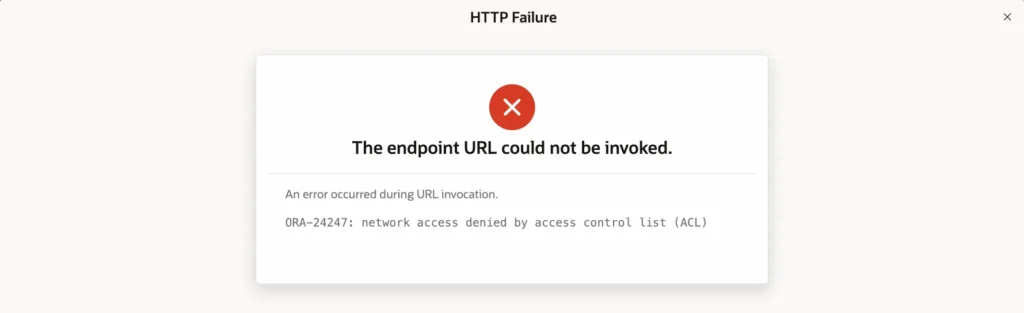
Run this block as SYS or ADMIN. APEX_260100 is the APEX schema of APEX 26.1; use the schema of your APEX version:
Example:
begin
    dbms_network_acl_admin.append_host_ace(
        host       => 'host.docker.internal',
        lower_port => 8182,
        upper_port => 8182,
        ace        => xs$ace_type(
                          privilege_list => xs$name_list('http'),
                          principal_name => 'APEX_260100',
                          principal_type => xs_acl.ptype_db));
end;
/

select host, lower_port, upper_port, principal, privilege
from   dba_host_aces
where  principal = 'APEX_260100'
and    host = 'host.docker.internal';
Output:
PL/SQL procedure successfully completed.

HOST                   LOWER_PORT UPPER_PORT PRINCIPAL    PRIVILEGE
---------------------- ---------- ---------- ------------ ----------
host.docker.internal         8182       8182 APEX_260100  HTTP

1 row selected.
Step 4: Create the REST Data Source
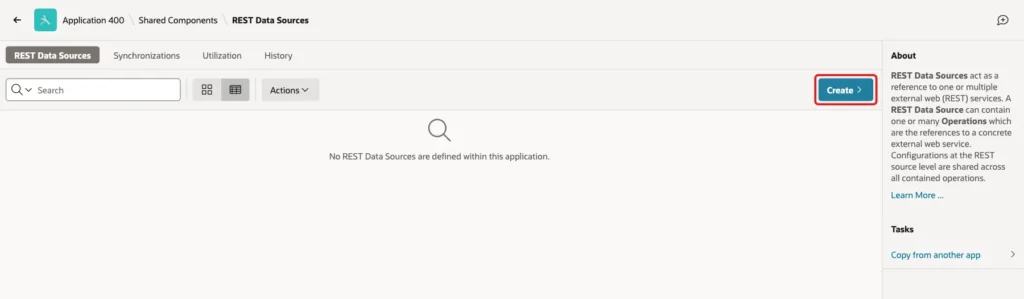
In App Builder, open the application, go to Shared Components, and click REST Data Sources under Data Sources. Click Create:
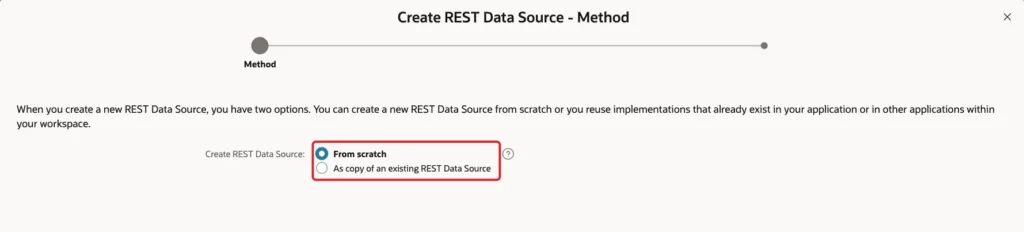
On the Method screen, keep From scratch and click Next:
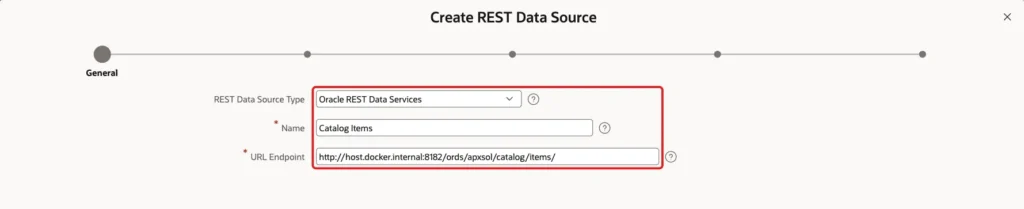
On the General screen, set REST Data Source Type to Oracle REST Data Services, Name to Catalog Items, and URL Endpoint to the URL of the API. Click Next:
APEX splits the URL into a Base URL and a Service URL Path. Keep Remote Server on - Create New - and click Next:
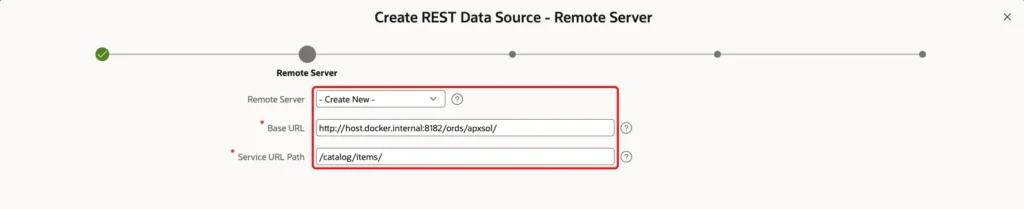
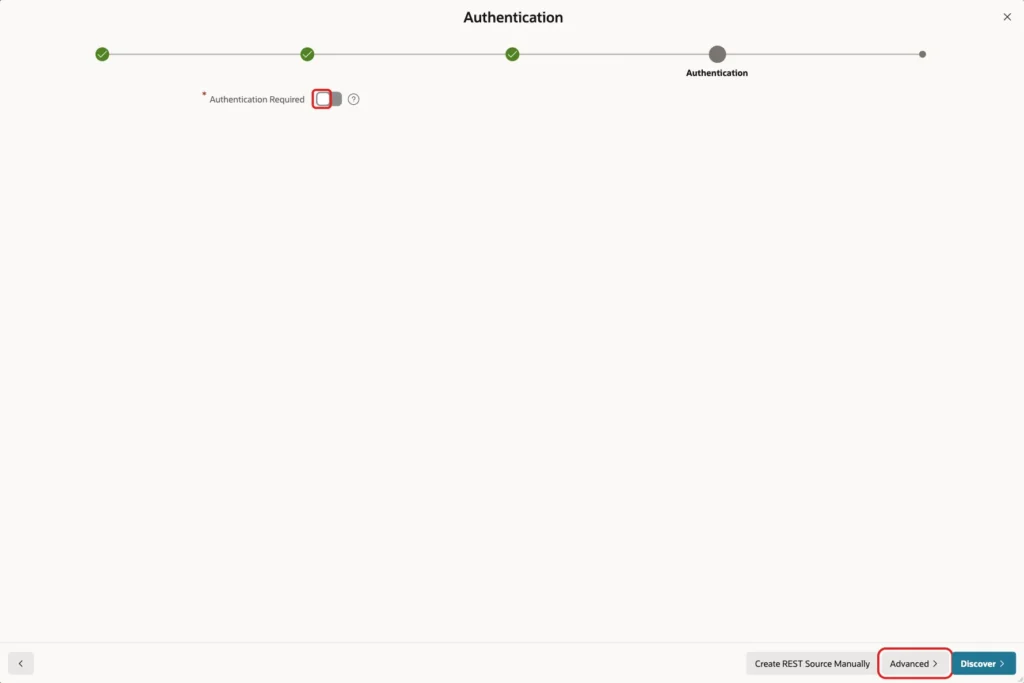
The API in this example is public, so leave Authentication Required off. Click Advanced to add the parameter before discovery:
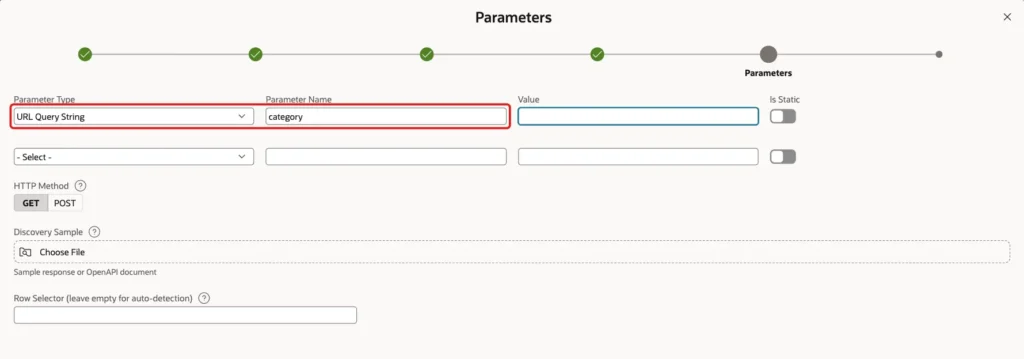
Set Parameter Type to URL Query String and Parameter Name to category. Leave Value empty, so the discovery call returns all rows. Click Discover:
APEX calls the API and shows the rows it found:
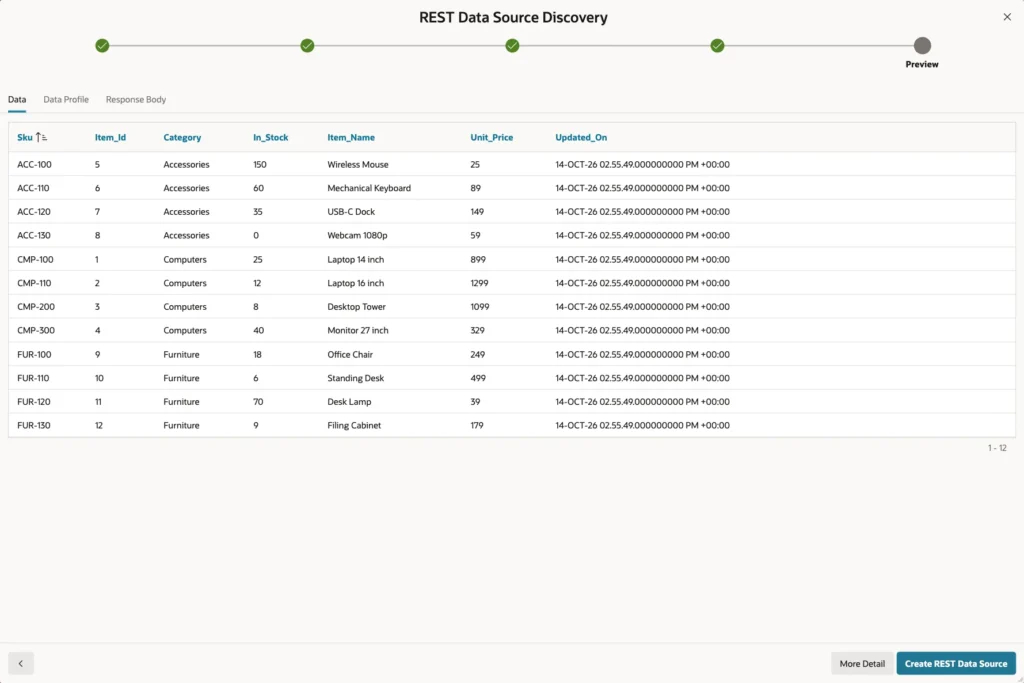
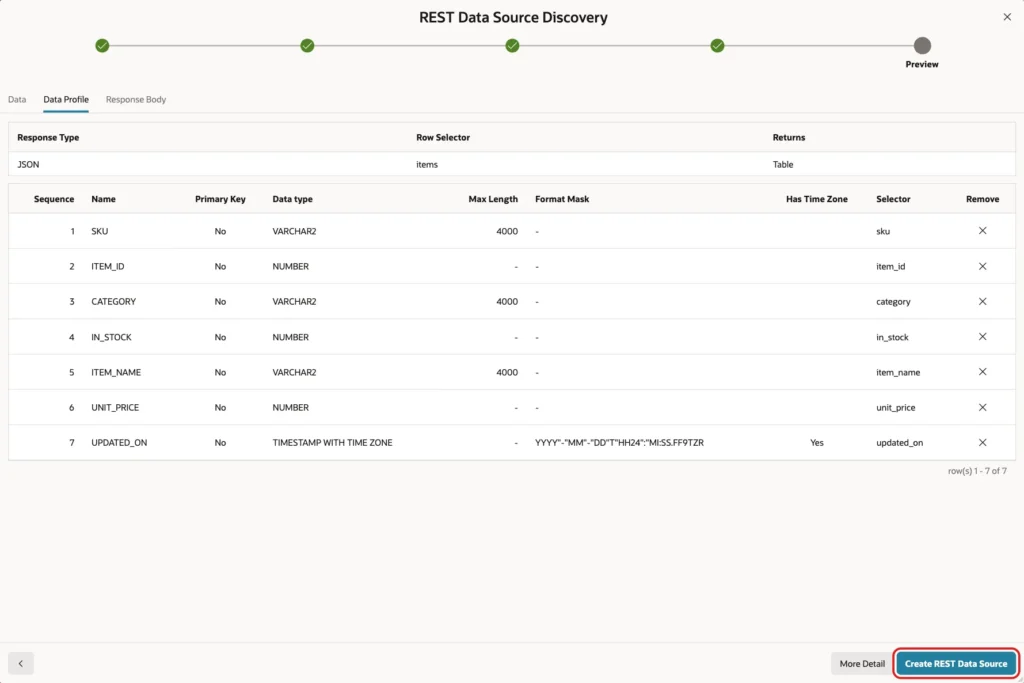
The Data Profile tab shows how the JSON becomes columns: the row selector is items, and each column has a data type and a selector. Click Create REST Data Source:
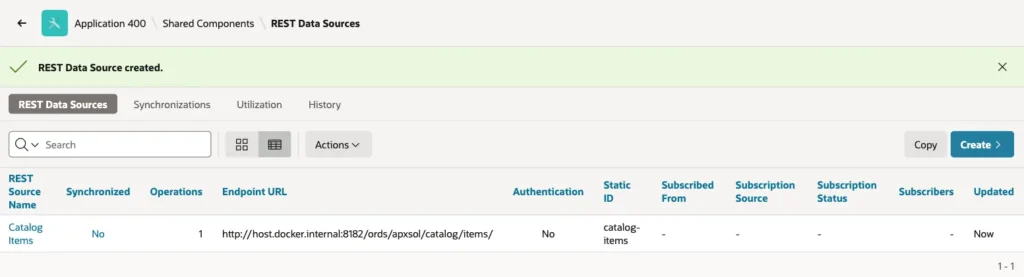
The new source appears in the list with its endpoint:
Step 5: Mark the Primary Key in the Data Profile
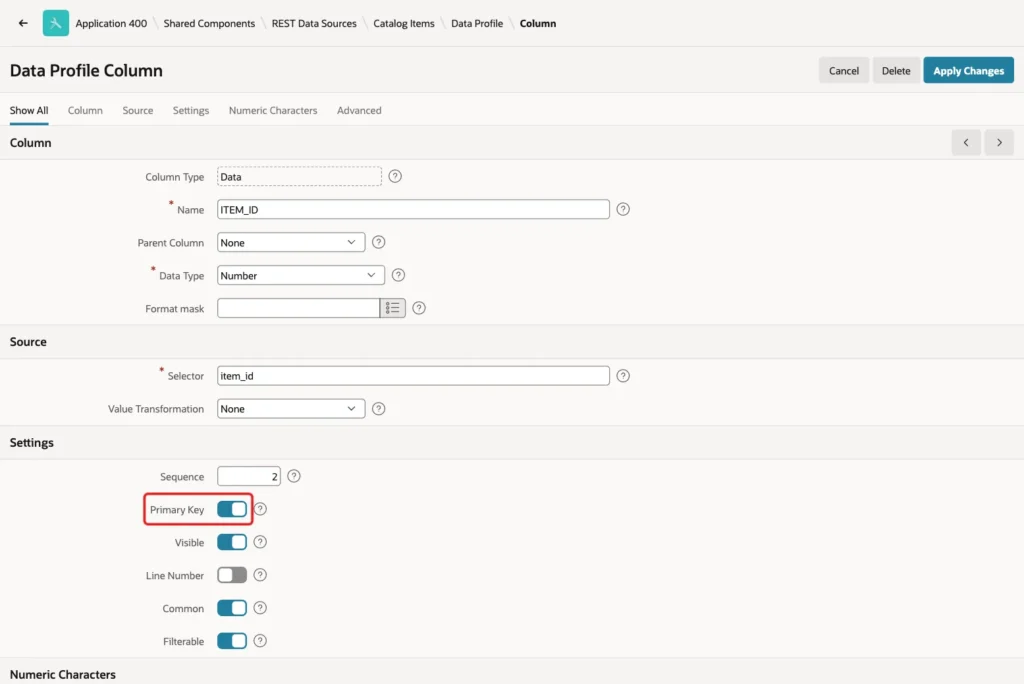
Discovery marked no column as the primary key. Synchronization in Step 9 needs one to merge rows. Click Catalog Items, then Edit Data Profile, and click the edit icon of the ITEM_ID column. Turn on Primary Key and click Apply Changes:
Step 6: Create the Report Page
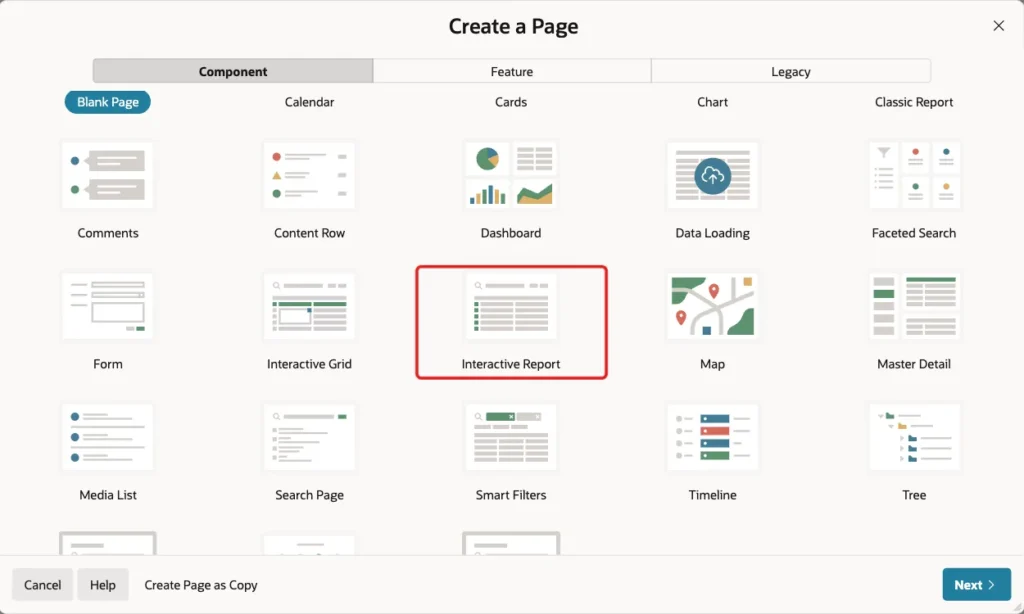
Click Create Page and choose Interactive Report on the Component tab:
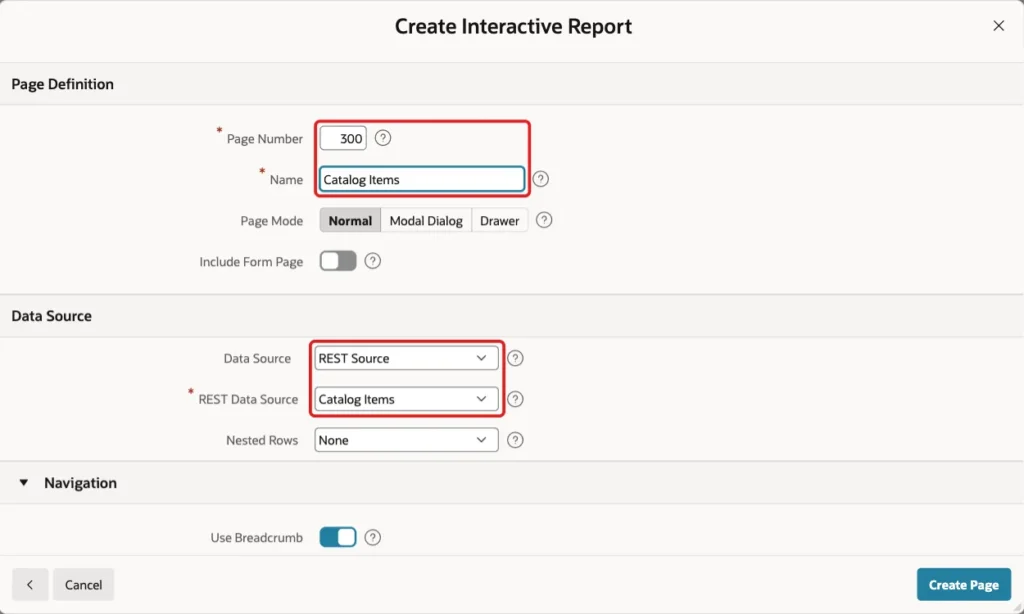
Enter Page Number 300 and Name Catalog Items. Set Data Source to REST Source and REST Data Source to Catalog Items:
Scroll down to Navigation. Turn off Use Breadcrumb, set Icon to fa-cloud-download, and click Create Page:
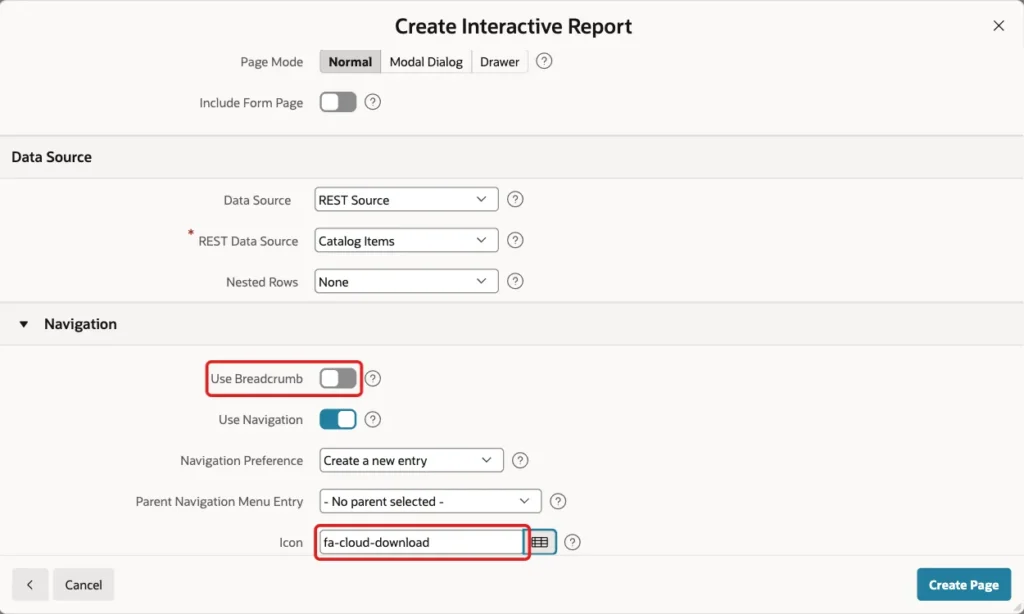
The wizard creates the report columns from the data profile. It also adds a node for the category parameter under Parameters in the region, with no value yet.
Step 7: Add the Category Filter
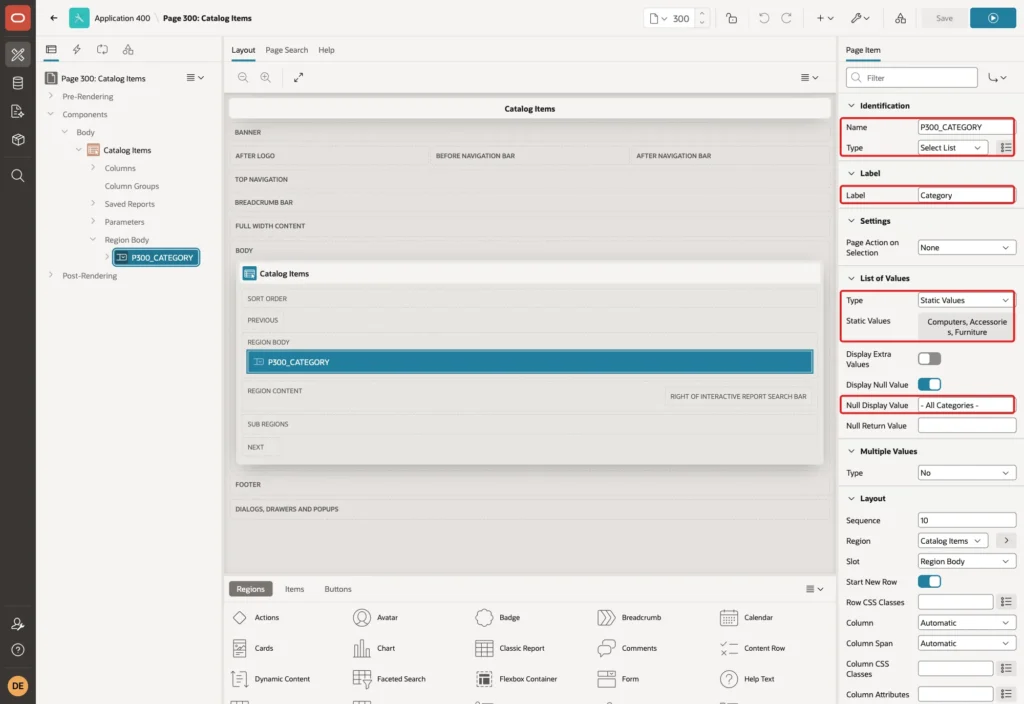
In Page Designer, right-click the Catalog Items region and add a page item in the Region Body slot. Set Name to P300_CATEGORY, Type to Select List and Label to Category.
Under List of Values, set Type to Static Values and enter three values, Computers, Accessories and Furniture, each with the same display and return value. Set Null Display Value to - All Categories -:
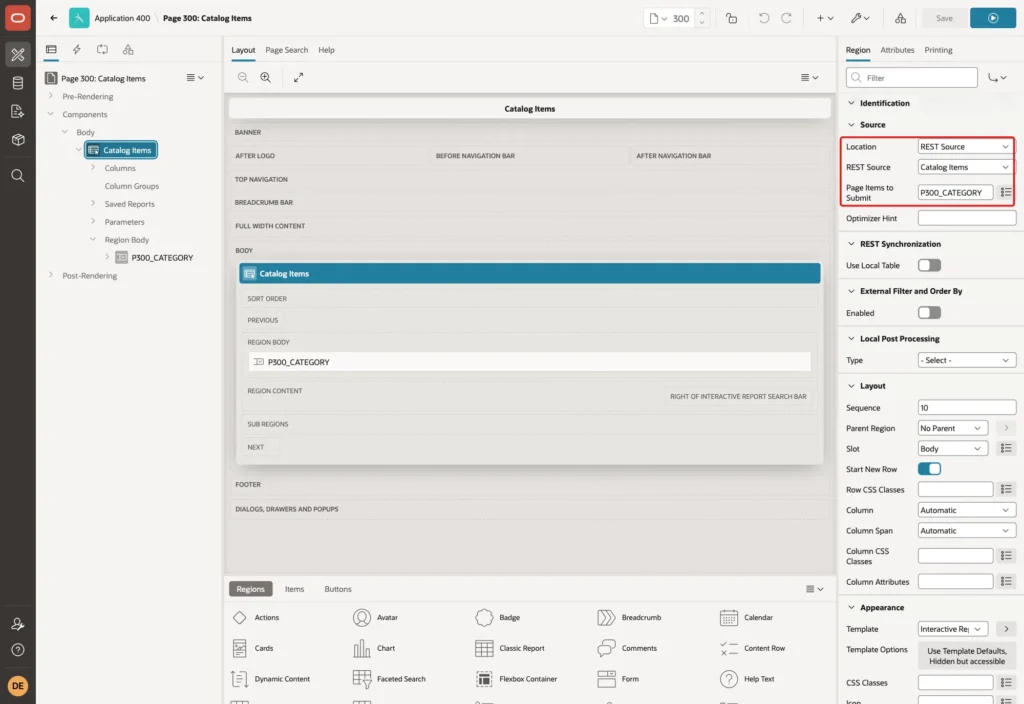
Select the Catalog Items region. Under Source, set Page Items to Submit to P300_CATEGORY, so the value is in session state when the region refreshes:
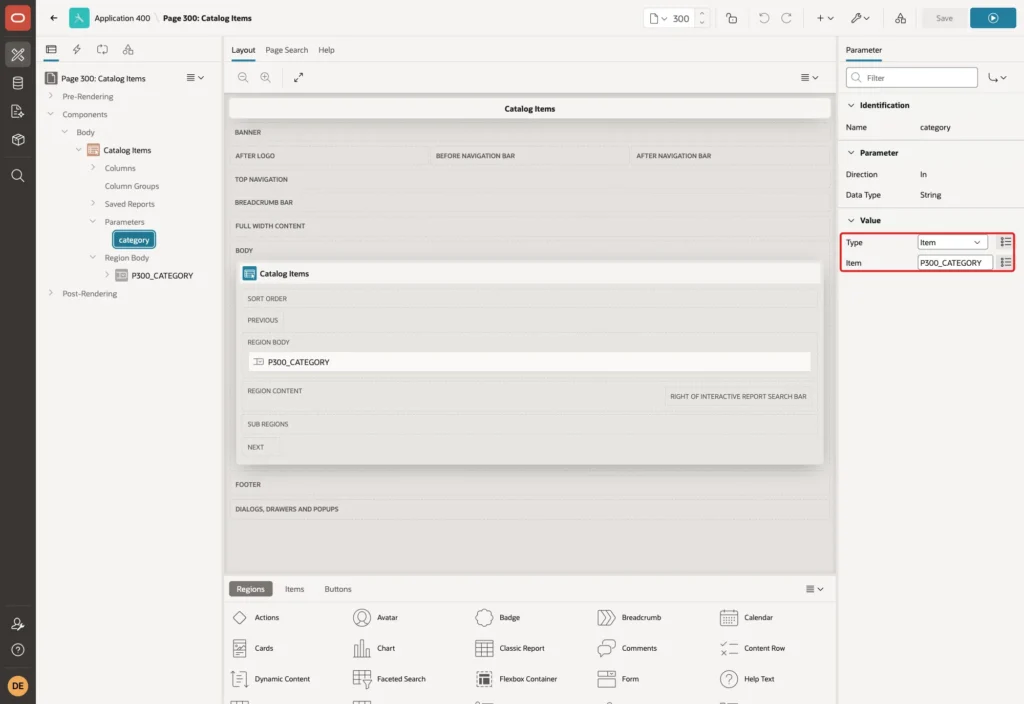
Expand Parameters under the region and select category. Under Value, set Type to Item and Item to P300_CATEGORY:
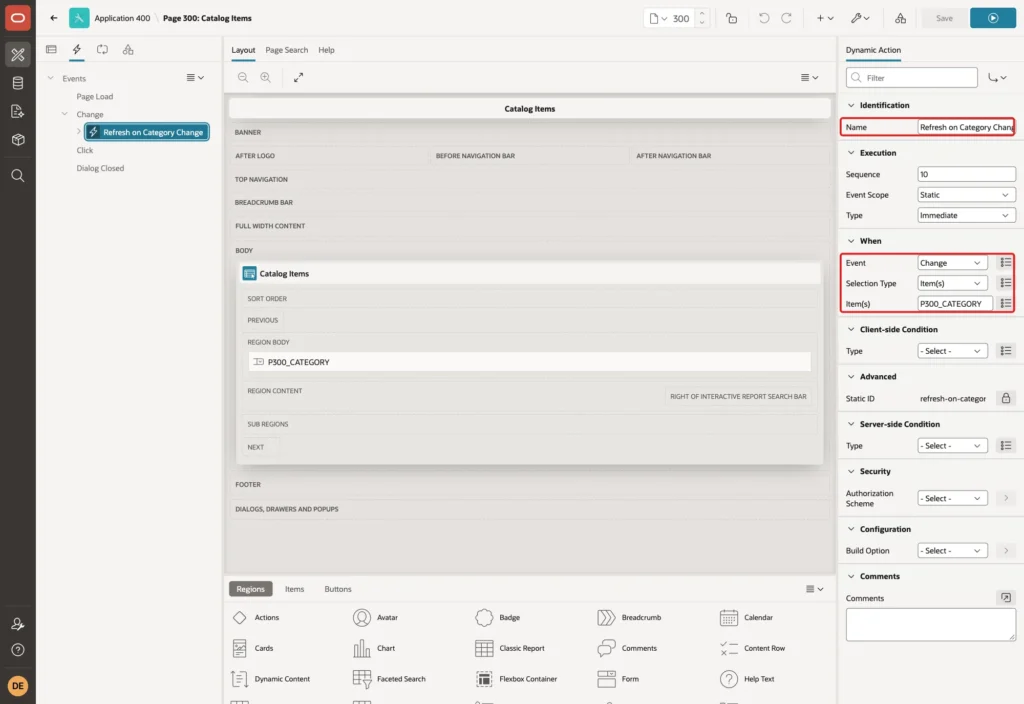
Now add a dynamic action that refreshes the report when the category changes. On the Dynamic Actions tab, create a dynamic action named Refresh on Category Change with Event Change, Selection Type Item(s) and Item(s) P300_CATEGORY:
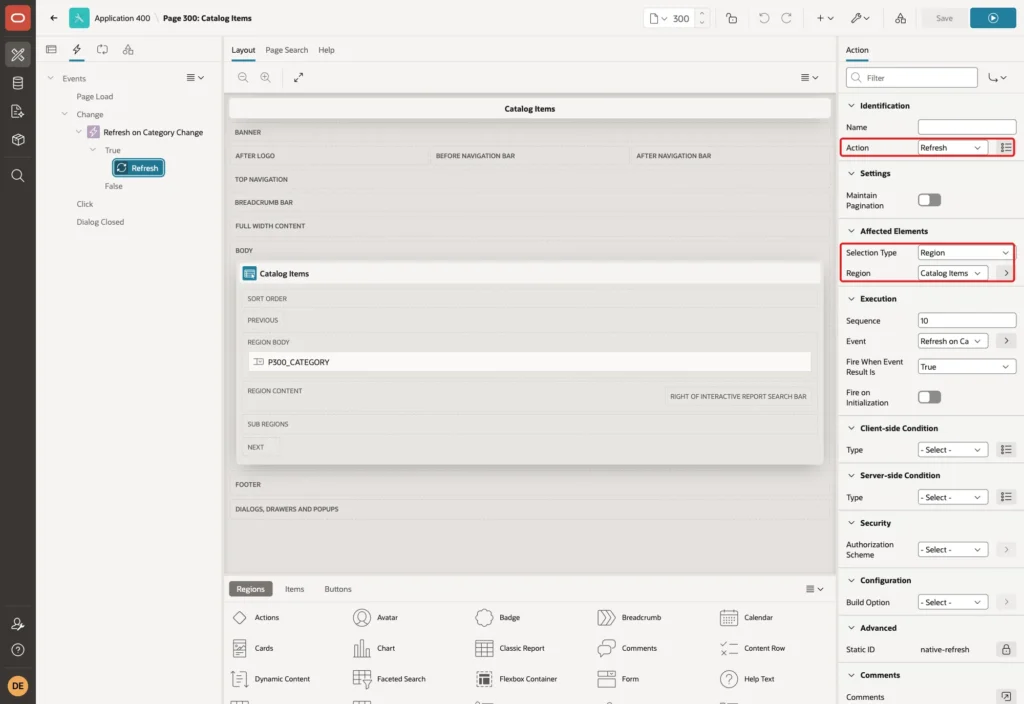
Set its True action to Refresh with Selection Type Region and Region Catalog Items. Save the page:
Step 8: Run the Report
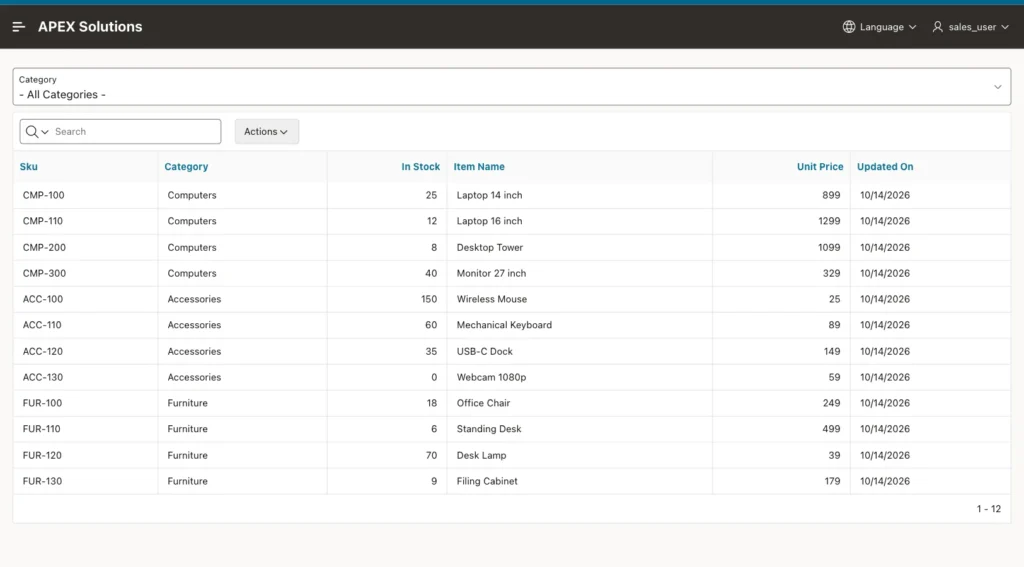
Run page 300. The report shows the 12 rows of the API with the usual Interactive Report search bar and Actions menu:
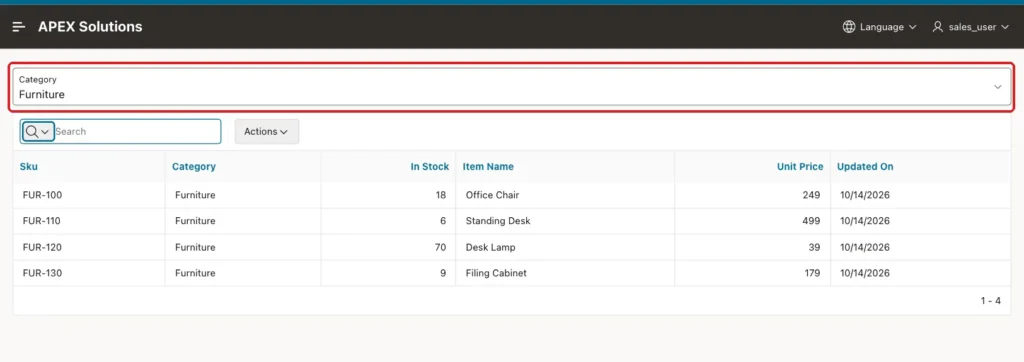
Choose Furniture in the Category list. The report refreshes and shows four rows:
Step 9: Copy the Rows into a Local Table
Every refresh of the report calls the API. For data that changes slowly, or for reports that join the data with local tables, keep a copy with REST Source Synchronization.
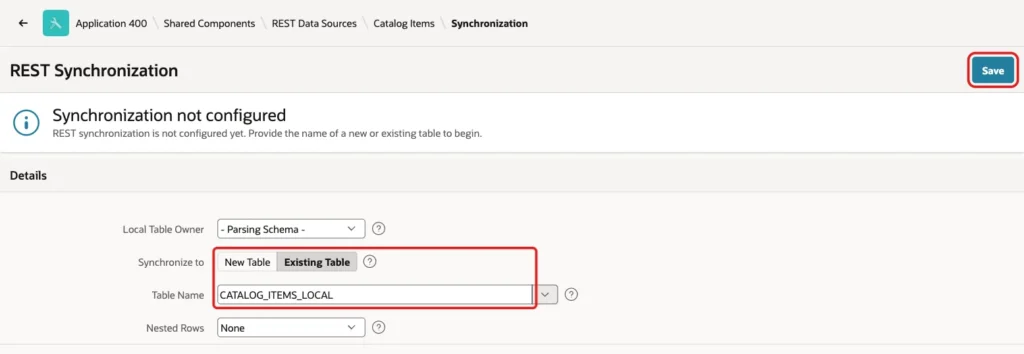
Open the Catalog Items REST Data Source and click Manage Synchronization on the right. Set Synchronize to Existing Table, choose CATALOG_ITEMS_LOCAL as the Table Name, and click Save:
Set Synchronization Type to Merge and Synchronization Schedule to FREQ=DAILY;BYHOUR=6;BYMINUTE=0. Click Save and Run:
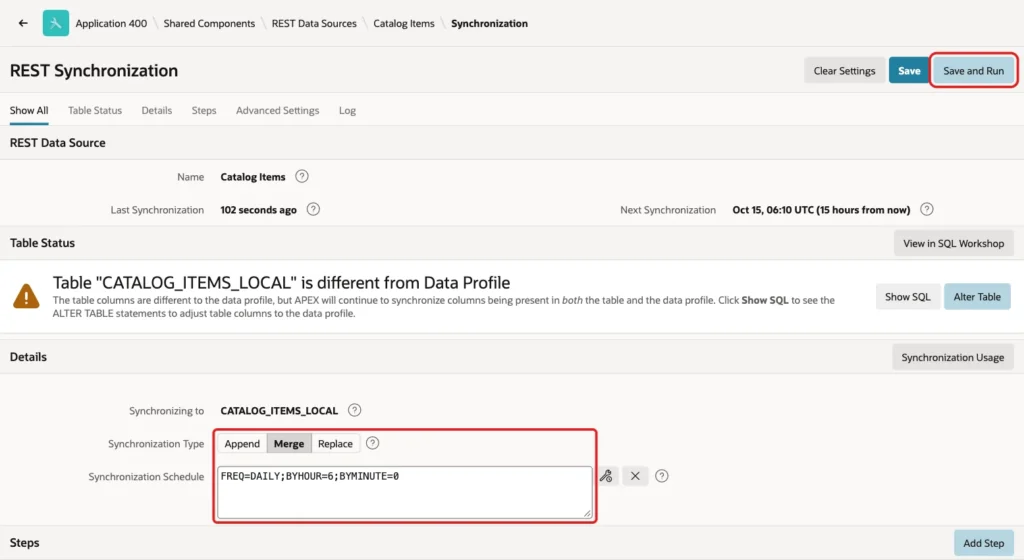
The page warns that CATALOG_ITEMS_LOCAL is different from the data profile. The profile uses VARCHAR2(4000) and plain NUMBER, while the table has smaller sizes. APEX still copies every column that exists in both, and Show SQL offers ALTER TABLE statements if you want them to match.
The Log section at the bottom of the page shows the first run: one HTTP request and 12 rows:

Check the local table in SQL:
Example:
select item_id, sku, item_name, category, unit_price, in_stock
from   catalog_items_local
order  by item_id;
Output:
   ITEM_ID SKU        ITEM_NAME              CATEGORY          UNIT_PRICE    IN_STOCK
__________ __________ ______________________ ______________ _____________ ___________
         1 CMP-100    Laptop 14 inch         Computers                899          25
         2 CMP-110    Laptop 16 inch         Computers               1299          12
         3 CMP-200    Desktop Tower          Computers               1099           8
         4 CMP-300    Monitor 27 inch        Computers                329          40
         5 ACC-100    Wireless Mouse         Accessories               25         150
         6 ACC-110    Mechanical Keyboard    Accessories               89          60
         7 ACC-120    USB-C Dock             Accessories              149          35
         8 ACC-130    Webcam 1080p           Accessories               59           0
         9 FUR-100    Office Chair           Furniture                249          18
        10 FUR-110    Standing Desk          Furniture                499           6
        11 FUR-120    Desk Lamp              Furniture                 39          70
        12 FUR-130    Filing Cabinet         Furniture                179           9

12 rows selected.
Test the Report and the Synchronization
Change the source data: a new price for ACC-100, a new item ACC-140, and FUR-130 removed:
Example:
update catalog_items
set    unit_price = 22, updated_on = sysdate
where  sku = 'ACC-100';

insert into catalog_items (sku, item_name, category, unit_price, in_stock)
values ('ACC-140', 'Laptop Stand', 'Accessories', 45, 30);

delete from catalog_items
where  sku = 'FUR-130';

commit;
Output:
1 row updated.

1 row inserted.

1 row deleted.

Commit complete.
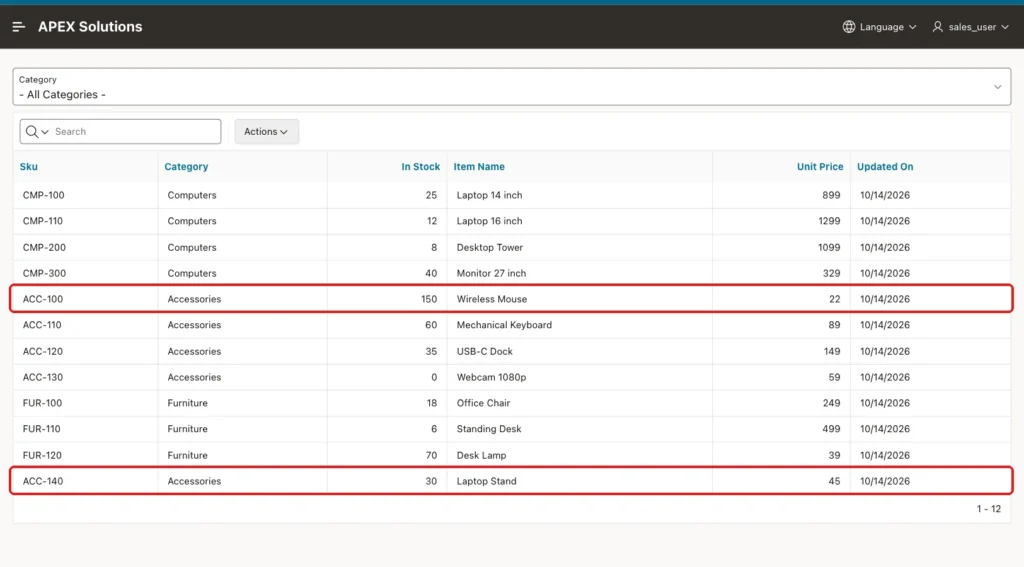
Reload page 300. The report reads the API, so it shows the new price and the new item right away, and FUR-130 is gone:
The local table has not changed yet, because the next scheduled run is tomorrow morning:
Example:
select item_id, sku, item_name, unit_price, in_stock
from   catalog_items_local
where  category = 'Accessories' or item_id >= 12
order  by item_id;
Output:
   ITEM_ID SKU        ITEM_NAME                 UNIT_PRICE    IN_STOCK
__________ __________ ______________________ _____________ ___________
         5 ACC-100    Wireless Mouse                    25         150
         6 ACC-110    Mechanical Keyboard               89          60
         7 ACC-120    USB-C Dock                       149          35
         8 ACC-130    Webcam 1080p                      59           0
        12 FUR-130    Filing Cabinet                   179           9
You do not have to wait for the schedule. APEX_REST_SOURCE_SYNC.SYNCHRONIZE_DATA runs the synchronization from PL/SQL. Outside an APEX page it needs an APEX session, which APEX_SESSION.CREATE_SESSION provides:
Example:
begin
    apex_session.create_session(
        p_app_id   => 400,
        p_page_id  => 1,
        p_username => 'DEMO_DEV');

    apex_rest_source_sync.synchronize_data(
        p_module_static_id => 'catalog-items',
        p_run_in_background => false);
end;
/

select item_id, sku, item_name, unit_price, in_stock
from   catalog_items_local
where  category = 'Accessories' or item_id >= 12
order  by item_id;
Output:
PL/SQL procedure successfully completed.

   ITEM_ID SKU        ITEM_NAME                 UNIT_PRICE    IN_STOCK
__________ __________ ______________________ _____________ ___________
         5 ACC-100    Wireless Mouse                    22         150
         6 ACC-110    Mechanical Keyboard               89          60
         7 ACC-120    USB-C Dock                       149          35
         8 ACC-130    Webcam 1080p                      59           0
        12 FUR-130    Filing Cabinet                   179           9
        41 ACC-140    Laptop Stand                      45          30

6 rows selected.
Merge updated the price of ACC-100 and inserted ACC-140. FUR-130 is still in the local table, although the API no longer returns it. In this test, Merge did not remove rows that disappeared from the API, so plan for that if your local copy must drop deleted rows.
To see what APEX sent to the API, query APEX_WEBSERVICE_LOG. The report calls carry the category parameter and a limit for paging:
Example:
select to_char(request_date, 'HH24:MI:SS') as called_at,
       http_method,
       status_code,
       substr(url, instr(url, '/catalog')) as url_path
from   apex_webservice_log
where  url like '%/catalog/items/%'
and    http_method = 'GET'
and    request_date > sysdate - interval '30' minute
order  by request_date desc
fetch first 5 rows only;
Output:
CALLED_AT    HTTP_METHOD       STATUS_CODE URL_PATH
____________ ______________ ______________ ______________________________________________
15:27:51     GET                       200 /catalog/items/?category=
15:27:37     GET                       200 /catalog/items/?category=&limit=51
15:24:37     GET                       200 /catalog/items/?category=&limit=51
15:24:34     GET                       200 /catalog/items/?category=Furniture&limit=51
15:24:32     GET                       200 /catalog/items/?category=&limit=51
The limit=51 comes from the paging of the report. The call without a limit, at 15:27:51, is the APEX_REST_SOURCE_SYNC run above.
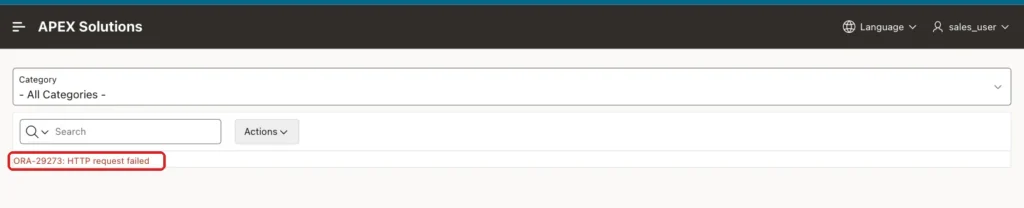
Finally, a negative test: stop the API and reload page 300. The report cannot read its data and shows the database error instead of rows:
The local copy is still there while the API is down:
Example:
select count(*) as local_rows
from   catalog_items_local;
Output:
   LOCAL_ROWS
_____________
           13
Things to Know
- The database makes the HTTP call. A URL that works in your browser can still fail in APEX if the database server cannot reach it, and every host needs a network ACL for the APEX schema (ORA-24247 without it).
- With the Oracle REST Data Services type, APEX found the items array by itself and added the ORDS limit parameter to the report calls.
- A parameter mapped to a page item only works if the item is in Page Items to Submit, or the region refresh sends the old value.
- Discovery does not mark a primary key. Set it in the data profile before you use Merge synchronization.
- Merge kept a row that was deleted in the source. Test the behavior with your own API before you rely on the local copy for deleted rows.
- After synchronization is set up, the region properties show a REST Synchronization group with a Use Local Table switch. This guide left it off, so the report and its category filter always call the API.
Related Guides
- Oracle APEX Data Sources: REST, Data Loads, and Duality Views
- How to Query Local and REST Data Sources from PL/SQL Using APEX_EXEC
Conclusion
To show data from a REST API in a report in Oracle APEX, give the database a network ACL for the API host, describe the service once as a REST Data Source, and use it as the source of an Interactive Report. A page item mapped to a query string parameter sends the user's filter to the API.
When the data must stay available while the API is slow or down, add REST Source Synchronization. A Merge into a local table with a primary key keeps a copy on a schedule, and APEX_REST_SOURCE_SYNC runs it on demand.
