
Users who sign in with Oracle APEX accounts need a way to change their password without asking a workspace administrator. A good change password page asks for the current password, checks that the new password was typed the same way twice, enforces password rules, and tells the user clearly what went wrong.
APEX has the PL/SQL calls for each part: APEX_UTIL.IS_LOGIN_PASSWORD_VALID checks the current password, APEX_UTIL.STRONG_PASSWORD_VALIDATION checks the instance's password policy, and APEX_UTIL.CHANGE_CURRENT_USER_PW sets the new password. This guide builds the page step by step, adds it to the user menu, and tests every case.
What You Need
No tables are needed: APEX stores the accounts and their passwords itself. You need:
- An application whose current authentication scheme is Oracle APEX Accounts. In Shared Components, Authentication Schemes, the scheme Oracle APEX Accounts must be marked Current. CHANGE_CURRENT_USER_PW changes the password of an APEX account, so it does not apply to other schemes such as custom or social sign-in.
- An end user account in the workspace to test with. This guide uses PW_TEST_USER, an account without developer privileges.
Step 1: Create a Blank Page
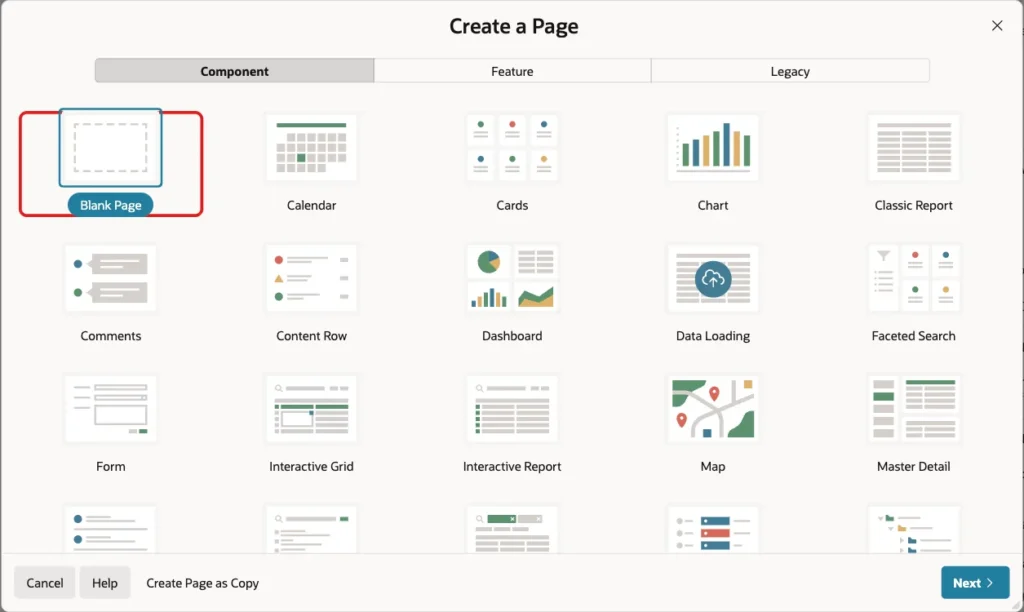
In App Builder, open the application and click Create Page. On the Component tab, click Blank Page:
In the Create Blank Page step, enter:
- Page Number: 180.
- Name: Change Password.
- Page Mode: Normal.
- Use Breadcrumb: off.
- Use Navigation: off. The page will get a link in the user menu in Step 7 instead of an entry in the side navigation menu.
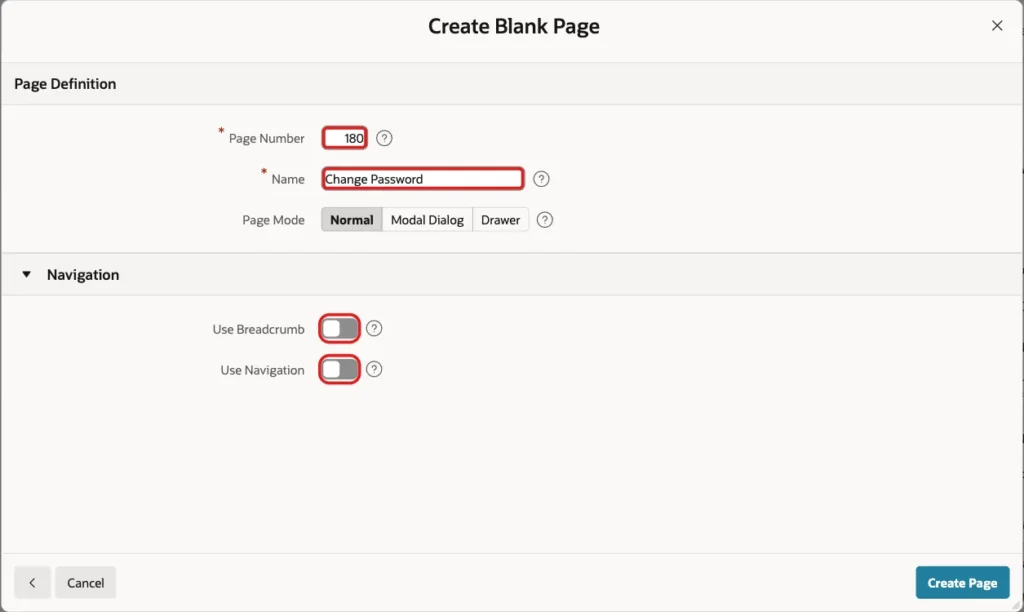
Click Create Page. Page Designer opens with the new, empty page.
Step 2: Add the Region and the Password Items
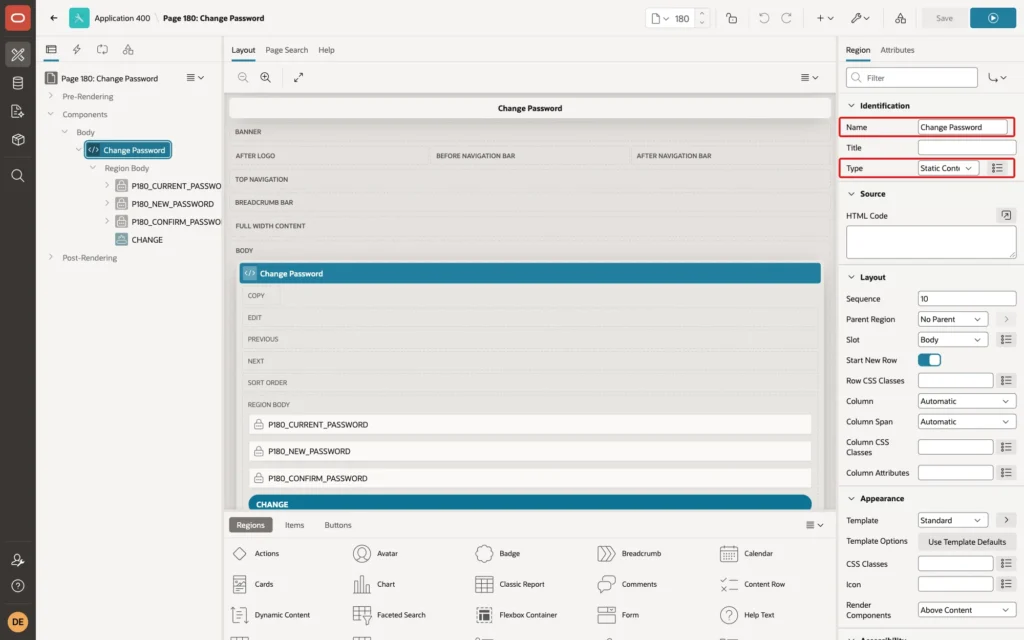
In the Rendering tree, right-click Body and click Create Region. In the Property Editor, set Name to Change Password and keep Type Static Content:
Right-click the Change Password region and click Create Page Item. Set its Name to P180_CURRENT_PASSWORD, its Type to Password, and its Label to Current Password:
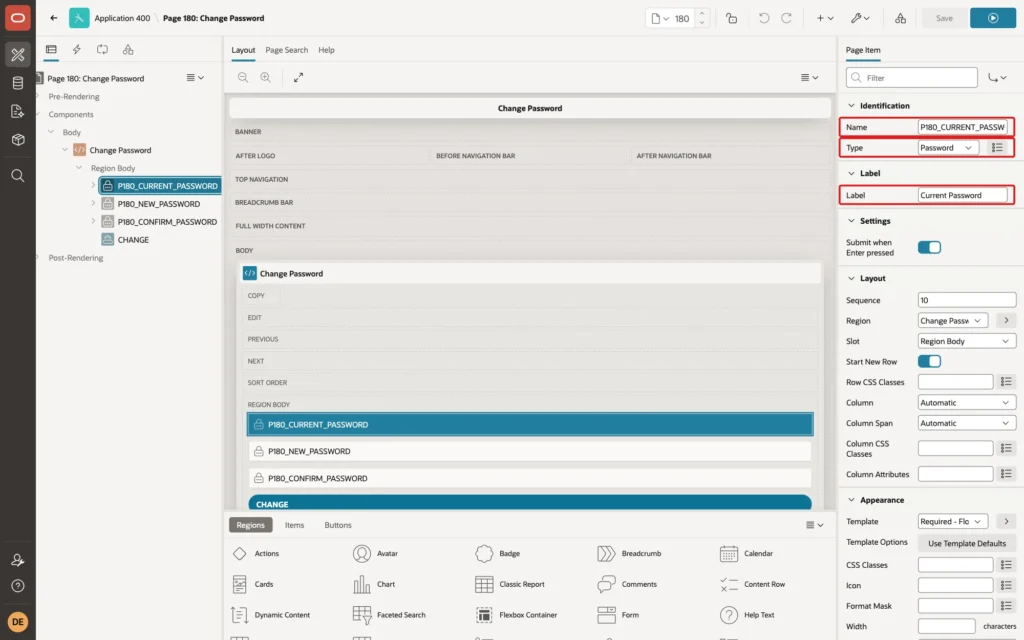
In the Validation group of the item, turn on Value Required, so APEX rejects an empty field with an error:
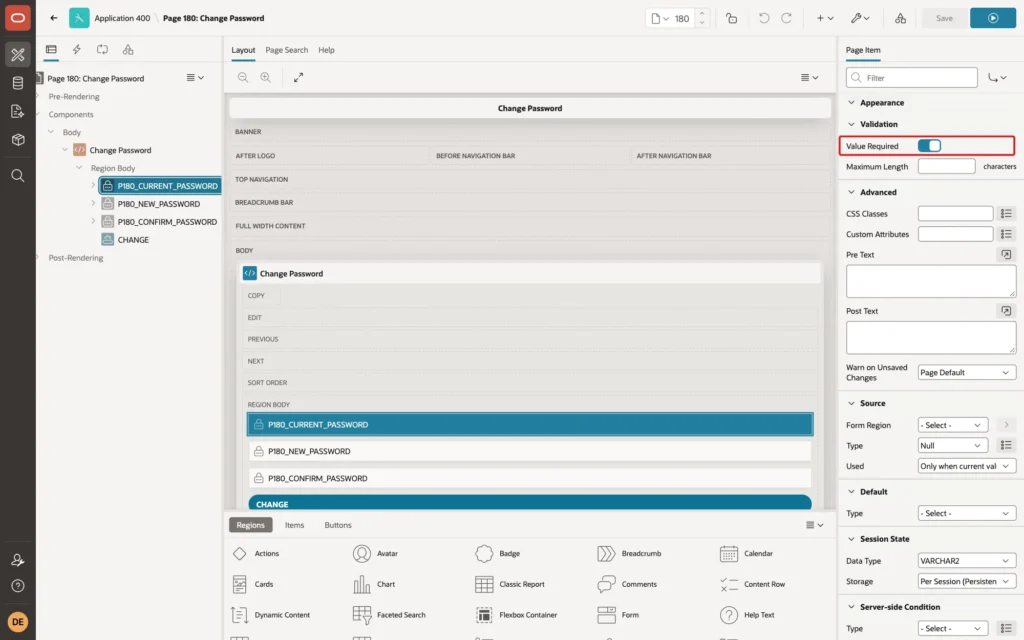
Create two more page items in the same region, with Type Password and Value Required on:
- P180_NEW_PASSWORD, label New Password.
- P180_CONFIRM_PASSWORD, label Confirm New Password.
Select the page itself in the tree, and in its Security group set Form Auto Complete to Off, so the browser does not offer to fill the fields with saved values.
Step 3: Add the Change Password Button
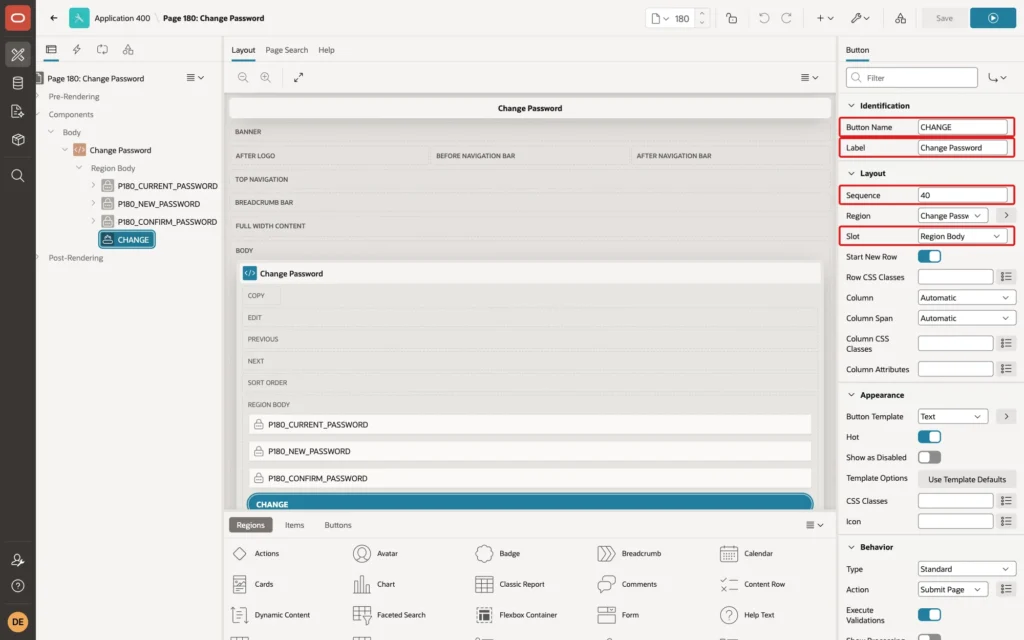
Right-click the Change Password region and click Create Button. Enter:
- Button Name: CHANGE.
- Label: Change Password.
- Slot: Region Body, with Sequence 40, so the button is placed below the three items.
- Hot: on. Behavior, Action: Submit Page, the default.
Step 4: Check the Current Password
Asking for the current password stops someone who finds a signed-in browser from taking over the account. Open the Processing tab, right-click Validations, and click Create Validation. Name it Current password is correct, and set Type to Function Body (returning Boolean), Language PL/SQL, and this PL/SQL Function Body:
Example:
return apex_util.is_login_password_valid(
           p_username => :APP_USER,
           p_password => :P180_CURRENT_PASSWORD);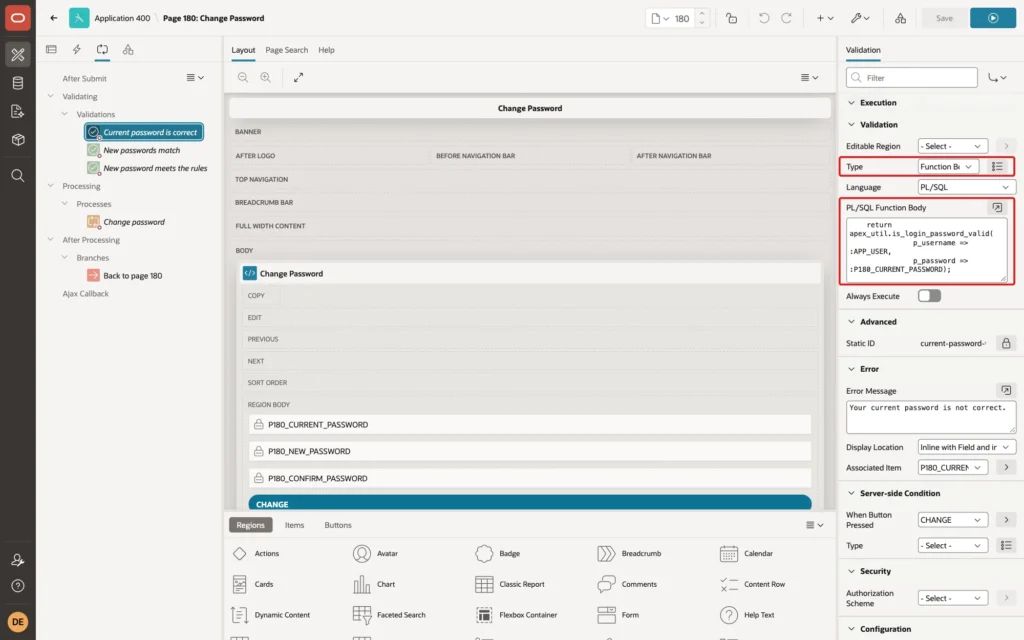
IS_LOGIN_PASSWORD_VALID returns TRUE when the password is correct for the user. :APP_USER is the signed-in user, so a user can only check and change their own password.
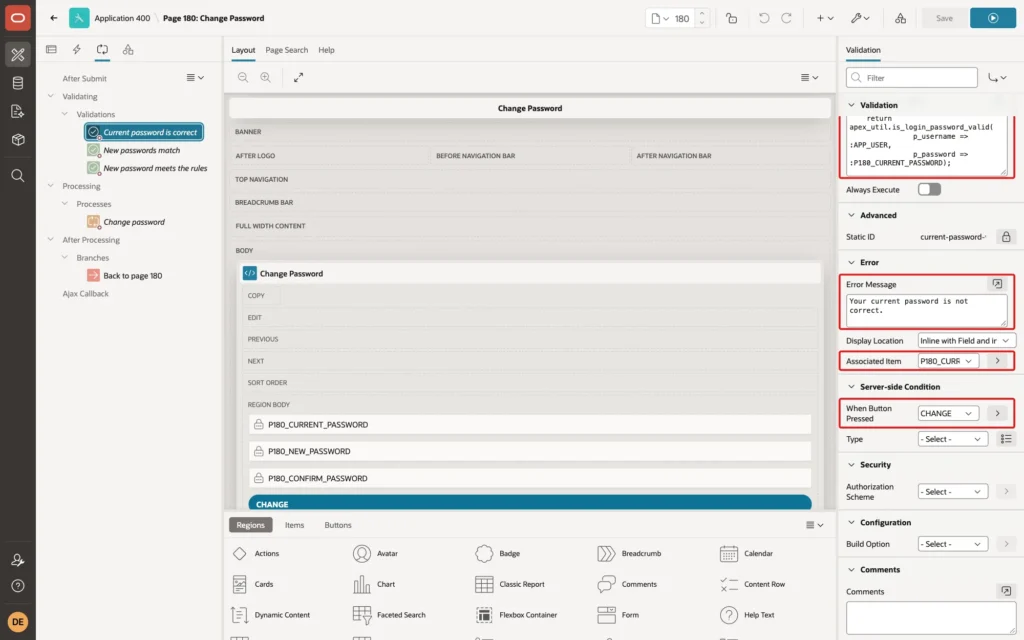
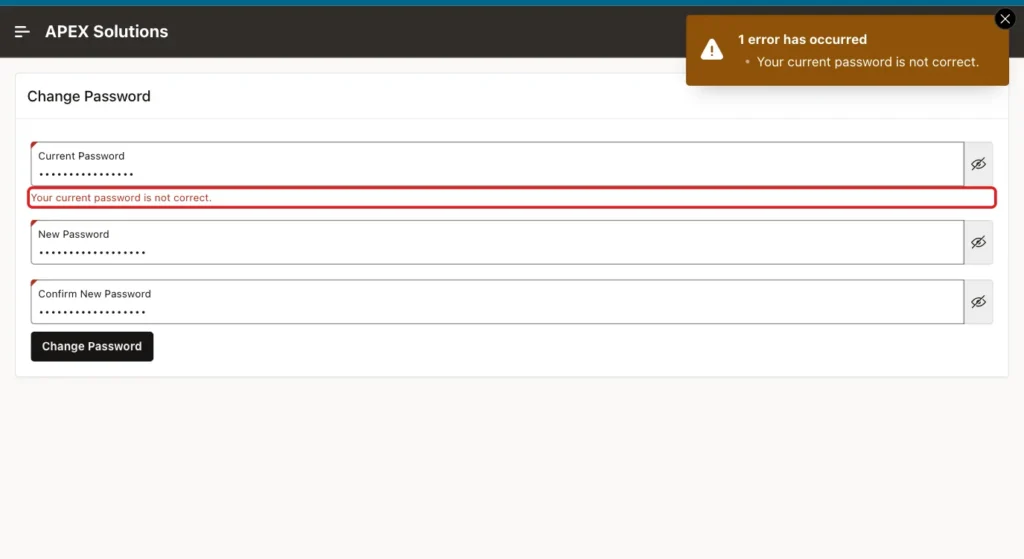
In the Error group, set Error Message to Your current password is not correct. and Associated Item to P180_CURRENT_PASSWORD, so the message also appears under that field. In Server-side Condition, set When Button Pressed to CHANGE:
Step 5: Check That the New Passwords Match
Create a second validation, New passwords match, with Type Expression, Language PL/SQL, and this PL/SQL Expression:
Example:
:P180_NEW_PASSWORD = :P180_CONFIRM_PASSWORD
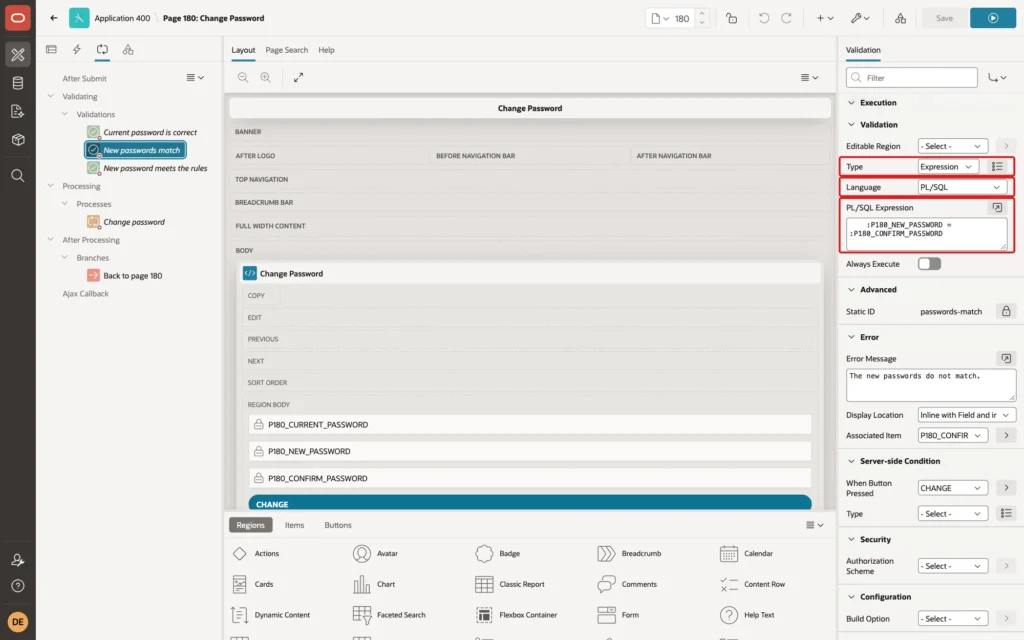
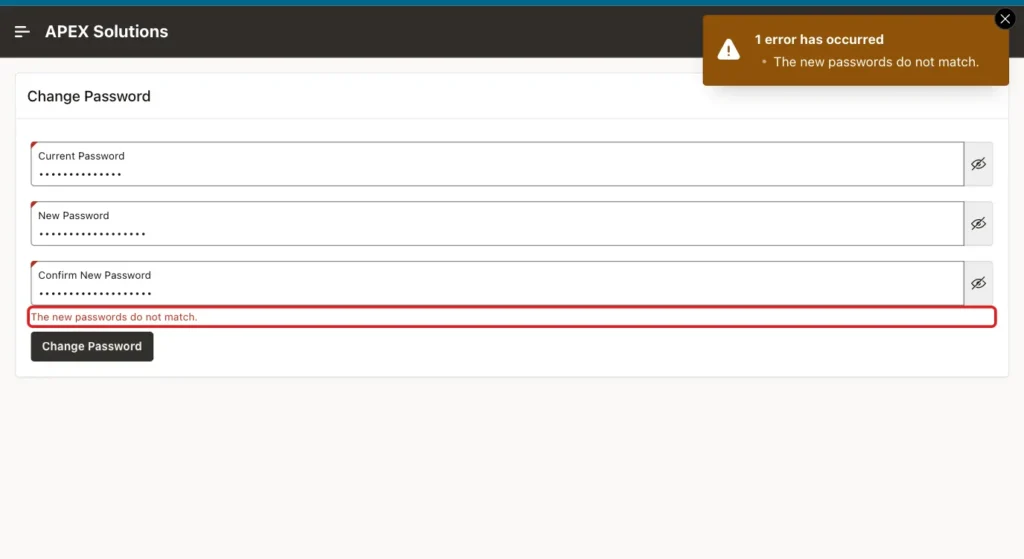
Set its Error Message to The new passwords do not match., its Associated Item to P180_CONFIRM_PASSWORD, and When Button Pressed to CHANGE.
Step 6: Enforce the Password Rules
Create a third validation, New password meets the rules, with Type Function Body (returning Error Text). With this type, the code returns the error message itself, or NULL when the value is valid:
Example:
declare
    l_message varchar2(4000);
begin
    l_message := apex_util.strong_password_validation(
                     p_username       => :APP_USER,
                     p_password       => :P180_NEW_PASSWORD,
                     p_old_password   => :P180_CURRENT_PASSWORD,
                     p_workspace_name => :WORKSPACE_NAME);
    if l_message is not null then
        return l_message;
    end if;

    if length(:P180_NEW_PASSWORD) < 12
    or not regexp_like(:P180_NEW_PASSWORD, '[0-9]')
    or not regexp_like(:P180_NEW_PASSWORD, '[A-Z]')
    or not regexp_like(:P180_NEW_PASSWORD, '[a-z]')
    then
        return 'Use at least 12 characters, with upper and lower case letters and a digit.';
    end if;

    return null;
end;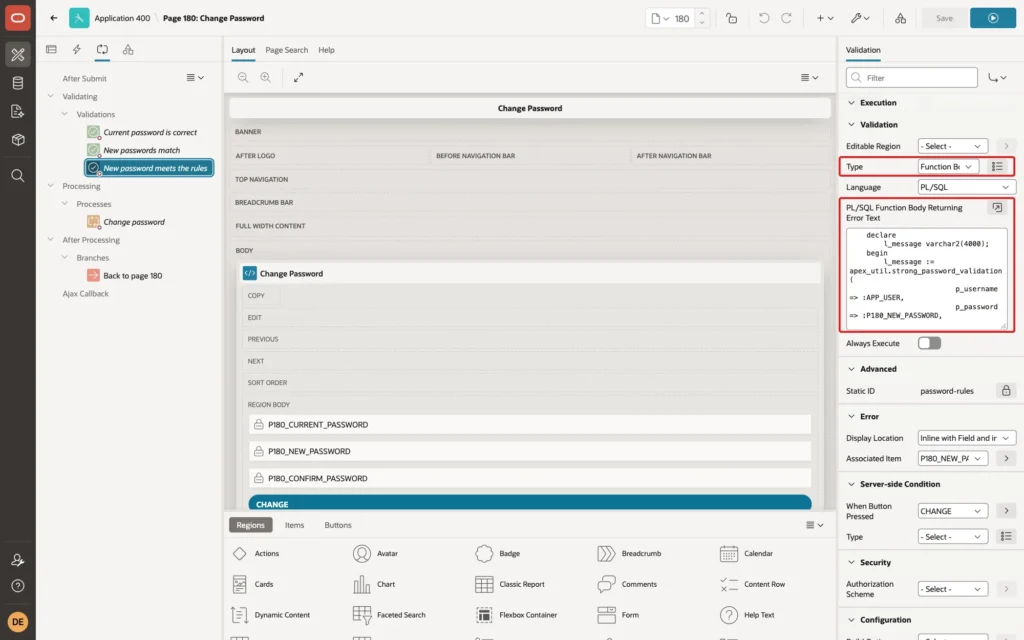
STRONG_PASSWORD_VALIDATION checks the new password against the password policy of the APEX instance, set by the instance administrator in Manage Instance, Security. It returns the reasons as text, or NULL when the policy is met.
The second check is needed because the instance policy can be empty. In a first test of this page with only STRONG_PASSWORD_VALIDATION, the password abc was accepted and really set, because the instance used for this guide had no minimum length or character rules. The application's own rules make the page safe whatever the instance settings are.
Set Associated Item to P180_NEW_PASSWORD and When Button Pressed to CHANGE. The error message comes from the code, so the Error Message property stays empty.
Step 7: Change the Password
In the Processing tab, right-click Processes and click Create Process. Name it Change password, keep Type Execute Code, and enter this PL/SQL Code:
Example:
apex_util.change_current_user_pw(
    p_new_password => :P180_NEW_PASSWORD);
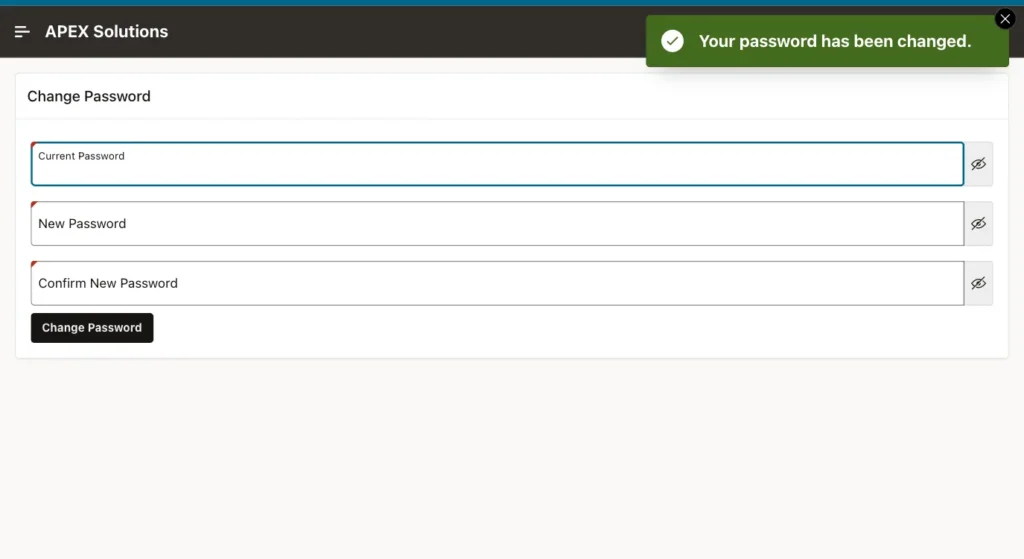
Set Success Message to Your password has been changed. and When Button Pressed to CHANGE:
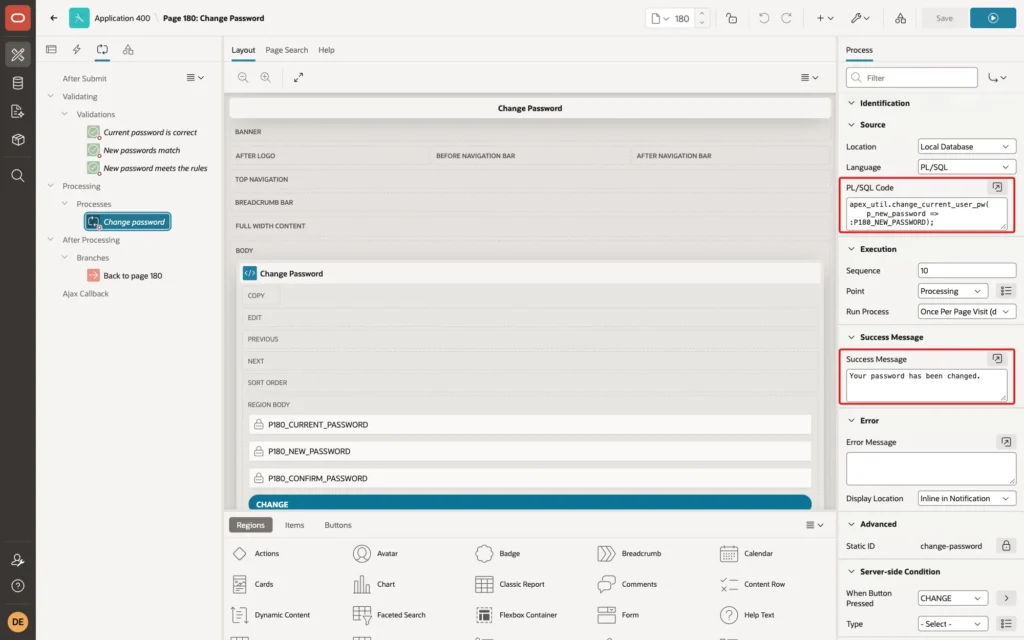
The process runs only after all three validations have passed. CHANGE_CURRENT_USER_PW changes the password of the current user only; it has no parameter for another user name.
Right-click After Processing and click Create Branch. Name it Back to page 180, keep Type Page or URL (Redirect), and set Target to page 180 with Clear Cache 180. Clearing the cache removes the typed passwords from session state:
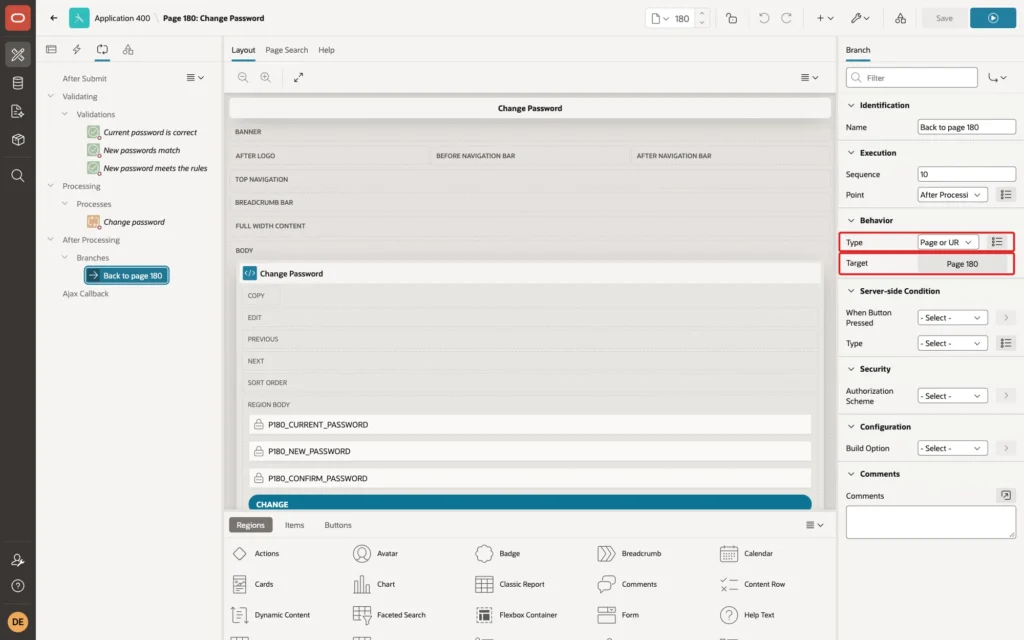
Click Save.
Step 8: Add the Page to the User Menu
Users look for Change Password next to Sign Out, under their user name at the top right. In Shared Components, click Lists, then Navigation Bar, and click Create List Entry. Enter:
- Parent List Entry: &APP_USER., the user menu.
- List Entry Label: Change Password.
- Sequence: 15, so the entry comes before the separator (20) and Sign Out (30).
- Icon: fa-key.
- Target type: Page in this Application, Page: 180.
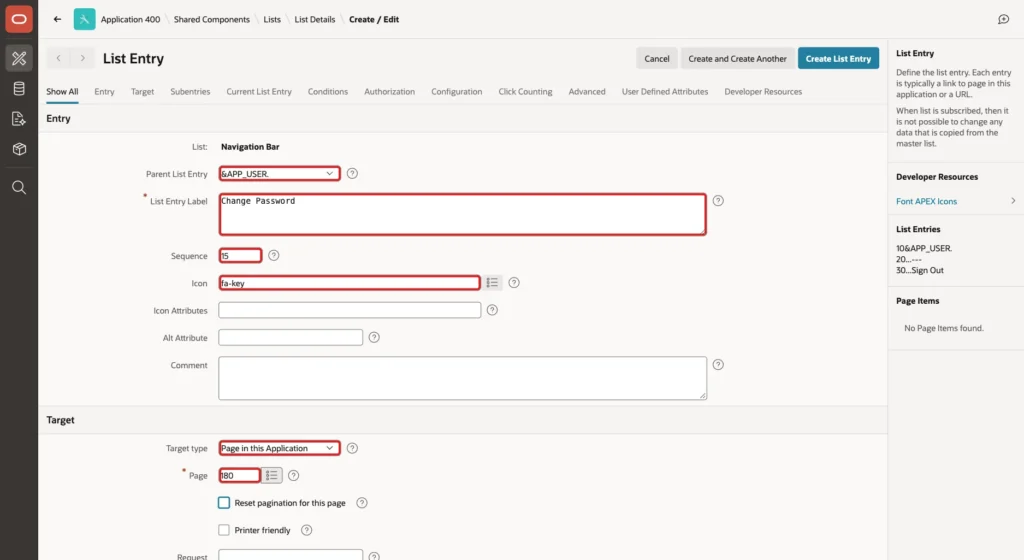
Click Create List Entry. The user menu now has the link:
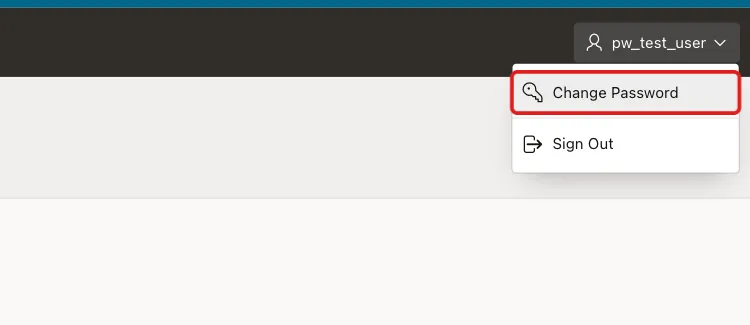
Step 9: Test Every Case
PW_TEST_USER signed in, opened Change Password from the user menu, and tried four cases. First, a wrong current password:
Second, the correct current password, but a different value in Confirm New Password:
Third, the weak password abc in both new fields:
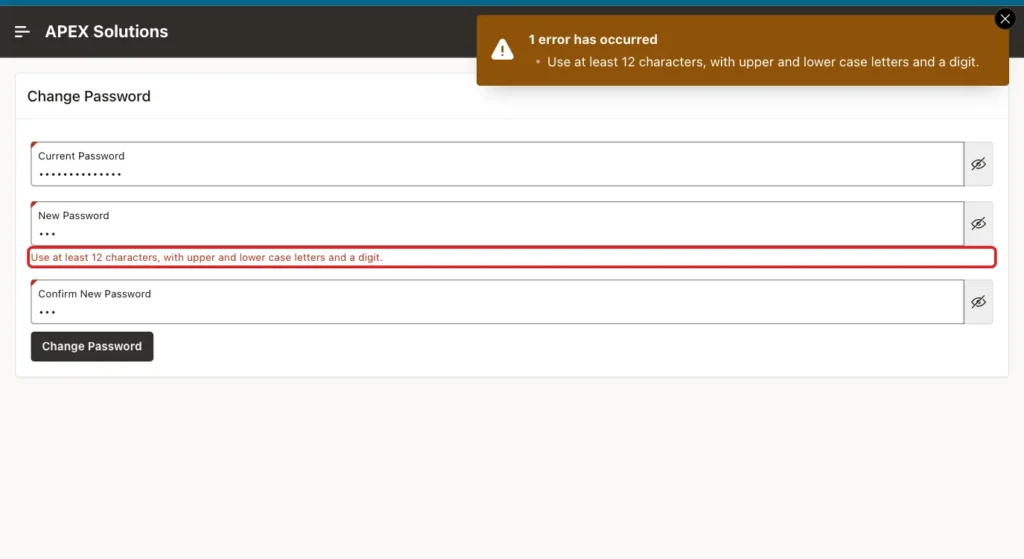
Fourth, the correct current password and a strong new password typed twice. The page showed the success message, and the fields were empty again:
Finally, two new browser sessions signed in as PW_TEST_USER: with the old password the sign-in failed, and with the new password the user reached the home page. The current session stayed signed in after the change.
Things to Know
- Every check with IS_LOGIN_PASSWORD_VALID is recorded in the workspace access log, APEX_WORKSPACE_ACCESS_LOG, like a sign-in attempt, so administrators can see repeated wrong passwords there.
- Never show the passwords in messages, logs, or debug output, and do not store them in your own tables.
- Administrators can force a change at the next sign-in with the Require Change of Password on First Use setting of an account, and reset passwords in Manage Users and Groups.
- For custom authentication, where passwords are in your own table, the same page works with your own check and update code instead of the APEX_UTIL calls.
Related Guides
- Oracle APEX Authentication: Schemes, Custom Login, and Sessions
- Create Change Password Screen for Custom Authentication in Oracle Apex
Conclusion
To let users change their own password in Oracle APEX, build a page with three password items, and validate it with APEX_UTIL.IS_LOGIN_PASSWORD_VALID for the current password, a comparison for the two new ones, and STRONG_PASSWORD_VALIDATION plus your own rules for the new password.
Then change the password with APEX_UTIL.CHANGE_CURRENT_USER_PW, clear the page cache, and link the page from the user menu. Test the wrong, mismatched, weak, and valid cases, and sign in again to confirm the new password works.
See my articles more often when you search Google.
