
Many applications need work that nobody should have to remember: cancel orders that were never approved, close old tickets, send reminders, clean up temporary data. Doing it by hand is easy to forget, and a separate database job lives outside the application, where developers of the application rarely look.
Oracle APEX has Automations for this: a shared component that runs on a schedule, finds the rows to work on with a query, and runs PL/SQL actions for each row, with a log of every run. This guide creates an automation that runs daily and cancels orders that stayed NEW for more than seven days, goes through every wizard and edit step, runs it, and checks the log.
Step 1: The Tables
The automation works on ORDERS, whose STATUS column has a check constraint with the allowed values NEW, APPROVED, SHIPPED, and CANCELLED. Here are the order tables of the example with their keys:
Example:
create table customers (
    customer_id number generated by default as identity
                constraint customers_pk primary key,
    name        varchar2(100) not null,
    email       varchar2(120) not null
);

create table products (
    product_id number generated by default as identity
               constraint products_pk primary key,
    name       varchar2(60)  not null,
    category   varchar2(30)  not null,
    price      number(10, 2) not null
);

create table orders (
    order_id    number generated by default as identity
                constraint orders_pk primary key,
    customer_id number not null
                constraint orders_customer_fk references customers,
    order_date  date default sysdate not null,
    status      varchar2(12) default 'NEW' not null
                constraint orders_status_ck
                check (status in ('NEW', 'APPROVED', 'SHIPPED', 'CANCELLED')),
    approved_by varchar2(60),
    approved_on date
);

create table order_lines (
    line_id    number generated by default as identity
               constraint order_lines_pk primary key,
    order_id   number not null
               constraint order_lines_order_fk references orders on delete cascade,
    product_id number not null
               constraint order_lines_product_fk references products,
    quantity   number not null
               constraint order_lines_qty_ck check (quantity > 0),
    unit_price number(10, 2) not null,
    constraint order_lines_product_uk unique (order_id, product_id)
);

create index order_lines_order_ix on order_lines (order_id);
create index order_lines_product_ix on order_lines (product_id);
Before creating the automation, check which orders it will cancel: NEW orders with an order date more than seven days ago:
Example:
select count(*) as orders_to_cancel
from   orders
where  status = 'NEW'
and    order_date < trunc(sysdate) - 7;
Output:
   ORDERS_TO_CANCEL
___________________
                 40
In the sample data of this guide, 40 of the 42 NEW orders were older than seven days.
Step 2: Create the Automation
In App Builder, open Shared Components, click Automations, and click Create. In the first step:
- Name: Cancel unapproved orders.
- Type: Scheduled. On Demand automations run only when started from code or from App Builder.
- Actions initiated on: Query, so the automation runs its actions for the rows of a query.
- Execution Schedule: Daily at Midnight.
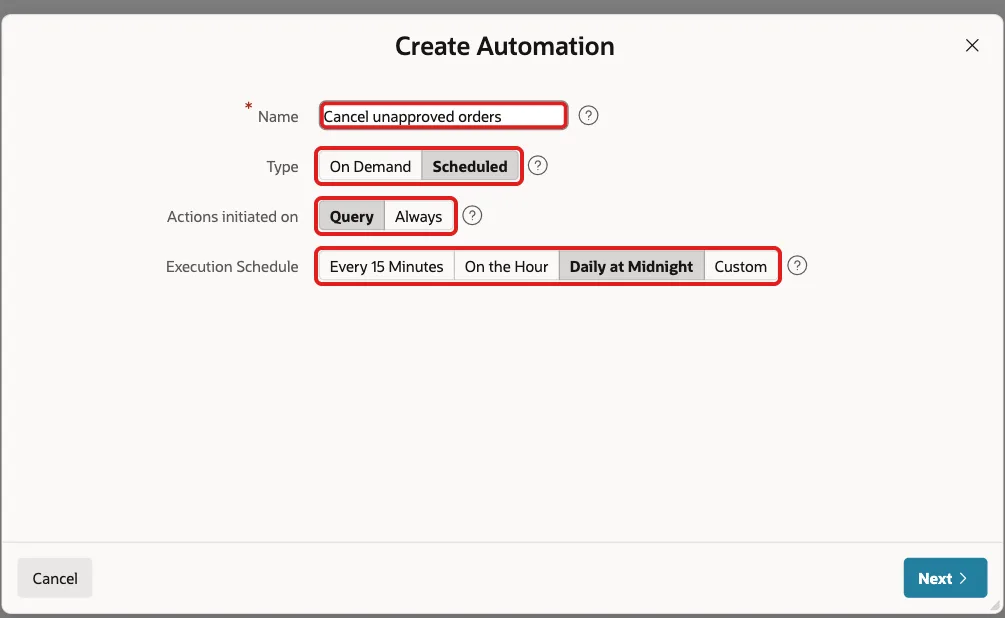
Click Next. Choose Source Type SQL Query, enter the query of the orders to cancel, and keep Execute Actions When Rows returned:
Example:
select order_id, order_date
from   orders
where  status = 'NEW'
and    order_date < trunc(sysdate) - 7
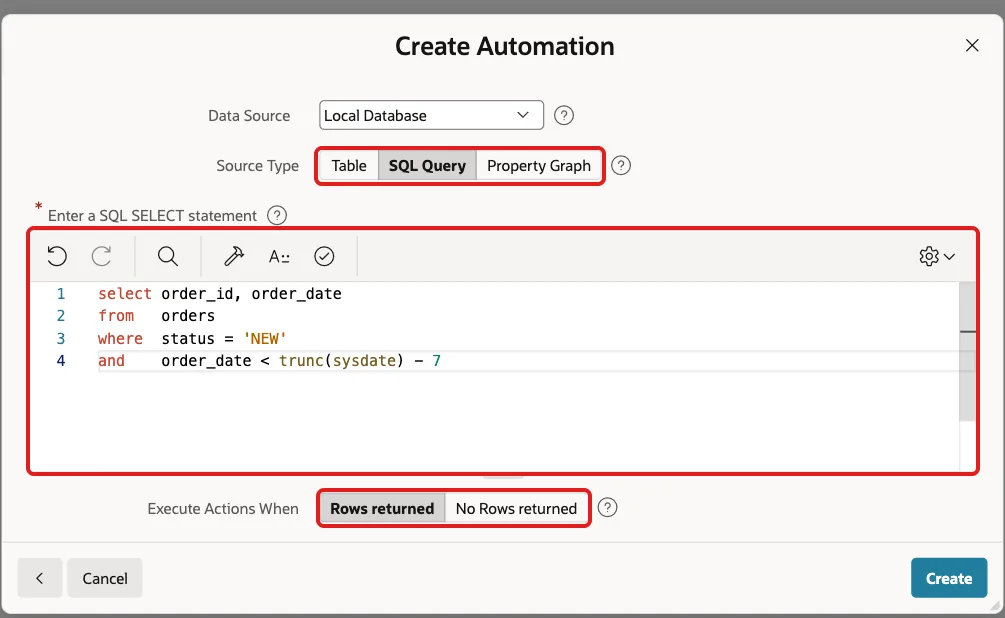
Click Create. APEX creates the automation in Disabled state, with a placeholder action named New Action whose code is only begin null; end;, and opens the edit page.
Step 3: Write the Action
In the Actions section, click the edit icon of New Action. Change its Name to Cancel order, keep Type Execute Code, and replace the code. Each column of the query is available as a bind variable, so :ORDER_ID is the order of the current row:
Example:
update orders
set    status = 'CANCELLED'
where  order_id = :ORDER_ID
and    status = 'NEW';

apex_automation.log_info('Order ' || :ORDER_ID || ' cancelled');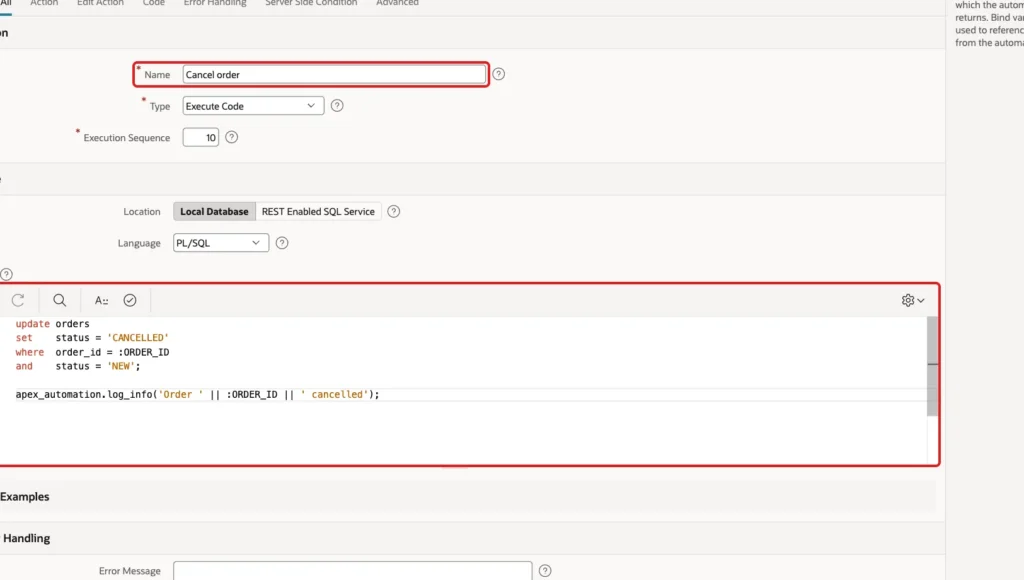
The condition status = 'NEW' repeats the query's filter, so an order approved between the query and the update is not cancelled. APEX_AUTOMATION.LOG_INFO writes a message into the automation's log. Click Apply Changes.
Edit the placeholder rather than adding a second action: in a first test, a new action was added next to New Action, and the automation ran both, the empty one first.
Step 4: Activate the Automation
Back on the automation's edit page, set Schedule Status to Active in the Settings section. The schedule expression created by the wizard, FREQ=DAILY;INTERVAL=1;BYHOUR=0;BYMINUTE=0, runs it every day at midnight:

In the Action Execution section, set Primary Key Column to ORDER_ID, so the log records which row each message belongs to, and Commit to Each Row, so every cancelled order is committed on its own and an error in one row does not undo the others:
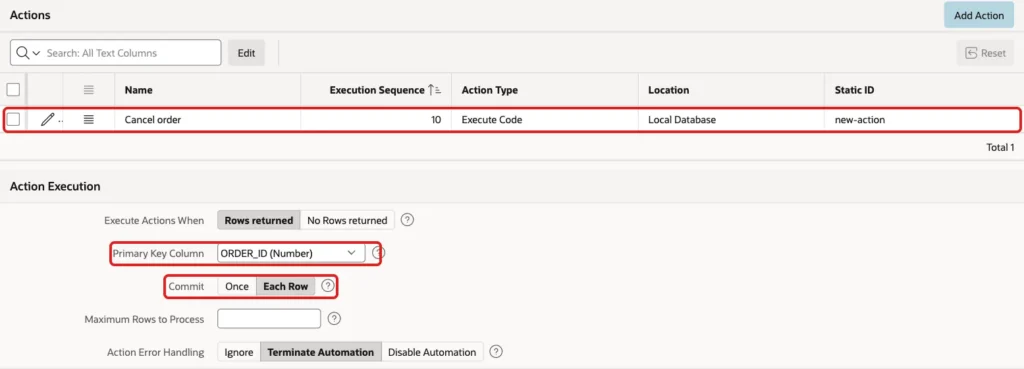
Action Error Handling decides what happens when an action fails: Ignore the error and continue, Terminate Automation for this run, or Disable Automation until someone looks at it.
Step 5: Run It and Check the Log
Click Save and Run to save the changes and run the automation at once, instead of waiting for midnight. Then check the log views:
Example:
select status,
       to_char(start_timestamp, 'HH24:MI:SS') as started,
       successful_row_count as ok_rows,
       error_row_count      as error_rows
from   apex_automation_log
where  automation_name = 'Cancel unapproved orders'
order  by start_timestamp desc
fetch  first 1 row only;

select message_type, message, pk_value
from   apex_automation_msg_log
where  automation_log_id = (select max(id)
                            from   apex_automation_log
                            where  automation_name = 'Cancel unapproved orders')
order  by message_timestamp
fetch  first 5 rows only;
Output:
STATUS        STARTED        OK_ROWS    ERROR_ROWS
_____________ ___________ __________ _____________
Successful    02:49:53            40             0

MESSAGE_TYPE    MESSAGE               PK_VALUE
_______________ _____________________ ___________
Info            Order 10 cancelled    10
Info            Order 12 cancelled    12
Info            Order 20 cancelled    20
Info            Order 21 cancelled    21
Info            Order 22 cancelled    22
The run was successful and processed 40 rows without errors, the same 40 orders the query found before. Each row's message has the order ID in PK_VALUE, from the Primary Key Column setting. The orders now look like this:
Example:
select status, count(*) as orders
from   orders
group  by status
order  by status;
Output:
STATUS          ORDERS
____________ _________
APPROVED            48
CANCELLED           55
NEW                  2
SHIPPED             45
The 15 cancelled orders became 55, and only the 2 recent NEW orders are left. From now on, the automation runs every night and cancels orders as soon as they are older than seven days.
Things to Know
- Importing an application disables its automations, so a copy of the application in another environment does not start running them unnoticed. Enable them on the edit page or with APEX_AUTOMATION.ENABLE.
- To stop an automation, set Schedule Status to Disabled, or call APEX_AUTOMATION.DISABLE with the application ID and the automation's static ID, here cancel-unapproved-orders.
- Test the query on its own before activating the schedule: the automation acts on every row it returns.
Related Guides
- How to Run a Long Process in the Background with a Progress Message in Oracle APEX
- Oracle APEX Automations, Email, and Push Notifications
Conclusion
To run a scheduled task in Oracle APEX, create a Scheduled automation with a query that returns the rows to work on, and write the work in its action, using the query's columns as bind variables and APEX_AUTOMATION.LOG_INFO for messages.
Set the Schedule Status to Active, choose the primary key and commit settings, run it once with Save and Run, and check the log before leaving it to run on its own.
