
Some processes take minutes: recalculating totals for thousands of orders, importing a large file, or sending many emails. Run as a normal page process, they block the browser until they finish, users see nothing but a spinner, and a timeout can stop the work halfway.
Oracle APEX can run such work in the background with an Execution Chain. The page submits, the chain starts a database job, and the user gets the page back at once. The PL/SQL code reports its progress with APEX_BACKGROUND_PROCESS, and a report on the page shows the status and a progress bar while the work runs. This guide builds a page that recalculates the totals of every order in the background and shows its progress.
Step 1: Create the Tables
The process reads orders and their lines. If you followed the master-detail guide, you have these tables already; otherwise create them with their primary and foreign keys:
Example:
create table customers (
    customer_id number generated by default as identity
                constraint customers_pk primary key,
    name        varchar2(100) not null,
    email       varchar2(120) not null
);

create table products (
    product_id number generated by default as identity
               constraint products_pk primary key,
    name       varchar2(60)  not null,
    category   varchar2(30)  not null,
    price      number(10, 2) not null
);

create table orders (
    order_id    number generated by default as identity
                constraint orders_pk primary key,
    customer_id number not null
                constraint orders_customer_fk references customers,
    order_date  date default sysdate not null,
    status      varchar2(12) default 'NEW' not null
                constraint orders_status_ck
                check (status in ('NEW', 'APPROVED', 'SHIPPED', 'CANCELLED')),
    approved_by varchar2(60),
    approved_on date
);

create table order_lines (
    line_id    number generated by default as identity
               constraint order_lines_pk primary key,
    order_id   number not null
               constraint order_lines_order_fk references orders on delete cascade,
    product_id number not null
               constraint order_lines_product_fk references products,
    quantity   number not null
               constraint order_lines_qty_ck check (quantity > 0),
    unit_price number(10, 2) not null,
    constraint order_lines_product_uk unique (order_id, product_id)
);

create index order_lines_order_ix on order_lines (order_id);
create index order_lines_product_ix on order_lines (product_id);
The results go into ORDER_TOTALS, one row per order. Its primary key is also a foreign key to ORDERS, so there is at most one total per order, and deleting an order deletes its total:
Example:
create table order_totals (
    order_id      number
                  constraint order_totals_pk primary key
                  constraint order_totals_order_fk references orders on delete cascade,
    line_count    number not null,
    total_amount  number(12, 2) not null,
    calculated_at date not null
);
Output:
Table ORDER_TOTALS created.
The lab used for this guide has 150 orders with 302 lines.
Step 2: Create the Page
Create a Blank Page, here page 160, Recalculate Totals. Add:
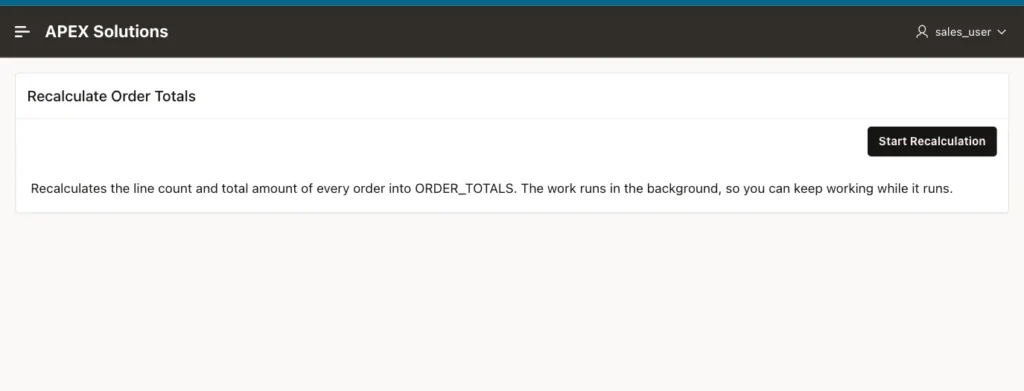
- A Static Content region, Recalculate Order Totals, with a short explanation as its text.
- A button START, label Start Recalculation, in the region's Next slot, with Action Submit Page.
- A hidden page item P160_EXEC_ID in the region. It will receive the ID of the background execution.
Step 3: The Execution Chain
In the Processing tab, create a process named Recalculate in background with Type Execution Chain. In its Background Execution group, turn on Run in Background, and set Return ID into Item to P160_EXEC_ID. Give it the server-side condition When Button Pressed START, and the Success Message Recalculation started in the background.:
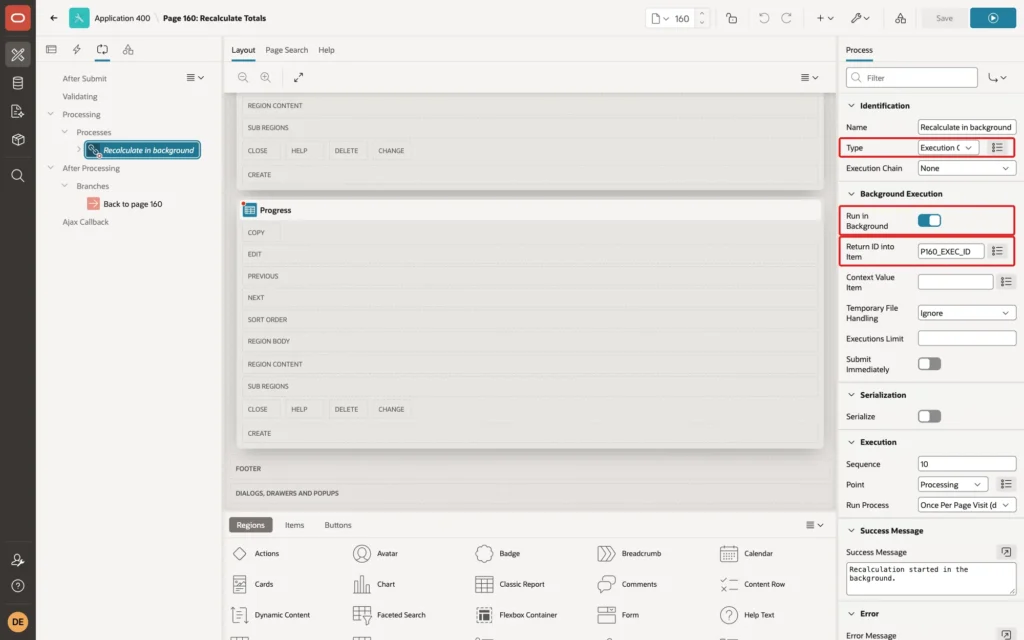
An execution chain is a container: it runs the processes inside it in order, here in a database scheduler job, so the page request ends as soon as the job is started.
Step 4: The Process Inside the Chain
Create a second process, Recalculate order totals, of type Execute Code, and set its Execution Chain to Recalculate in background. That places it inside the chain:
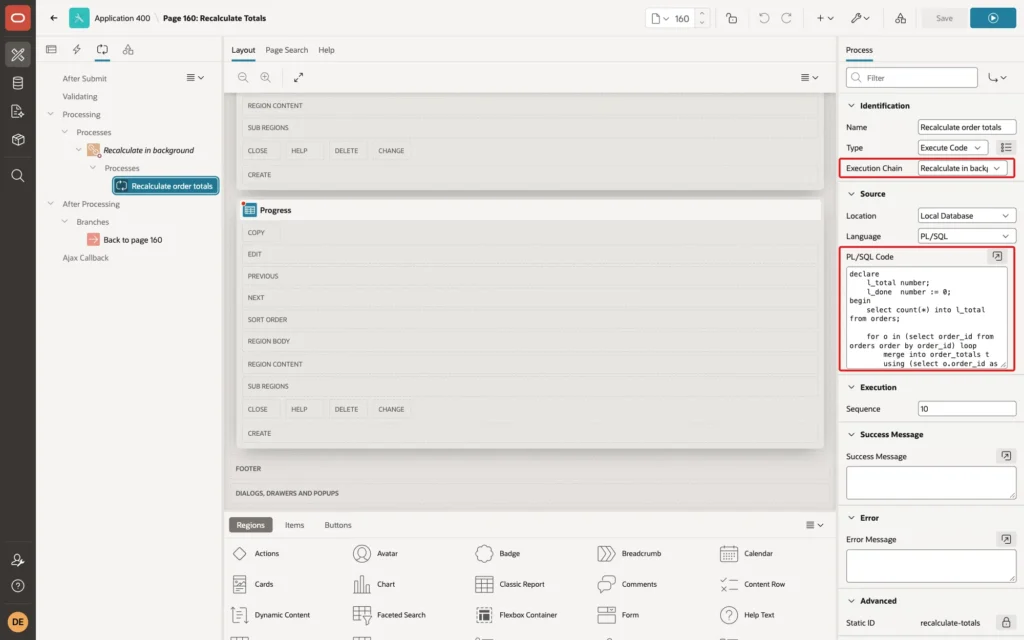
Its PL/SQL code recalculates each order and reports progress after each one:
Example:
declare
    l_total number;
    l_done  number := 0;
begin
    select count(*) into l_total from orders;

    for o in (select order_id from orders order by order_id) loop
        merge into order_totals t
        using (select o.order_id as order_id,
                      count(*) as line_count,
                      nvl(sum(quantity * unit_price), 0) as total_amount
               from   order_lines
               where  order_id = o.order_id) s
        on    (t.order_id = s.order_id)
        when matched then update
             set t.line_count    = s.line_count,
                 t.total_amount  = s.total_amount,
                 t.calculated_at = sysdate
        when not matched then insert
             (order_id, line_count, total_amount, calculated_at)
             values (s.order_id, s.line_count, s.total_amount, sysdate);

        l_done := l_done + 1;
        apex_background_process.set_progress(
            p_totalwork => l_total,
            p_sofar     => l_done);
        apex_background_process.set_status(
            'Order ' || o.order_id || ' recalculated');

        dbms_session.sleep(0.1);
    end loop;
end;- SET_PROGRESS stores how much of the work is done: p_sofar out of p_totalwork.
- SET_STATUS stores a message for the user, here the last order recalculated.
- DBMS_SESSION.SLEEP pauses 0.1 seconds per order only to make the progress visible in this example. Leave it out in real code.
Step 5: The Progress Report
APEX records each background execution in the view APEX_APPL_PAGE_BG_PROC_STATUS, with its status and the values set by the code. Add a Classic Report region, Progress, with this query:
Example:
select status,
       sofar,
       totalwork,
       round(100 * sofar / nullif(totalwork, 0)) as pct,
       status_message,
       to_char(last_updated_on, 'HH24:MI:SS') as last_updated
from   apex_appl_page_bg_proc_status
where  execution_id = :P160_EXEC_ID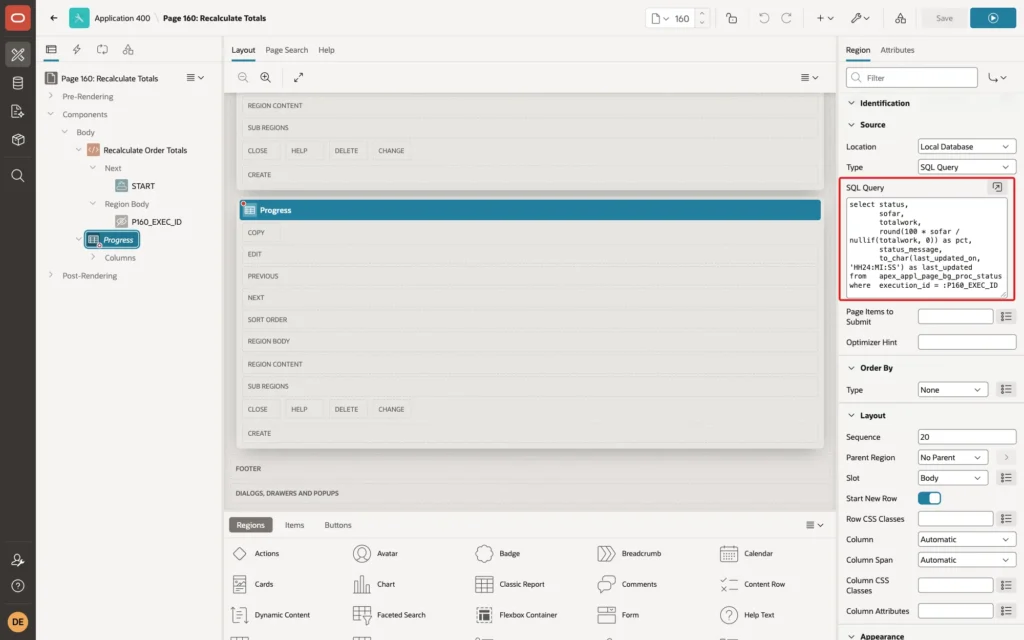
Set the PCT column's Type to Percent Graph, which draws the progress bar. In the region's Advanced group, set HTML DOM ID to progress, so JavaScript can find the region, and give it the server-side condition Item is NOT NULL P160_EXEC_ID, so it appears only after a recalculation has started:
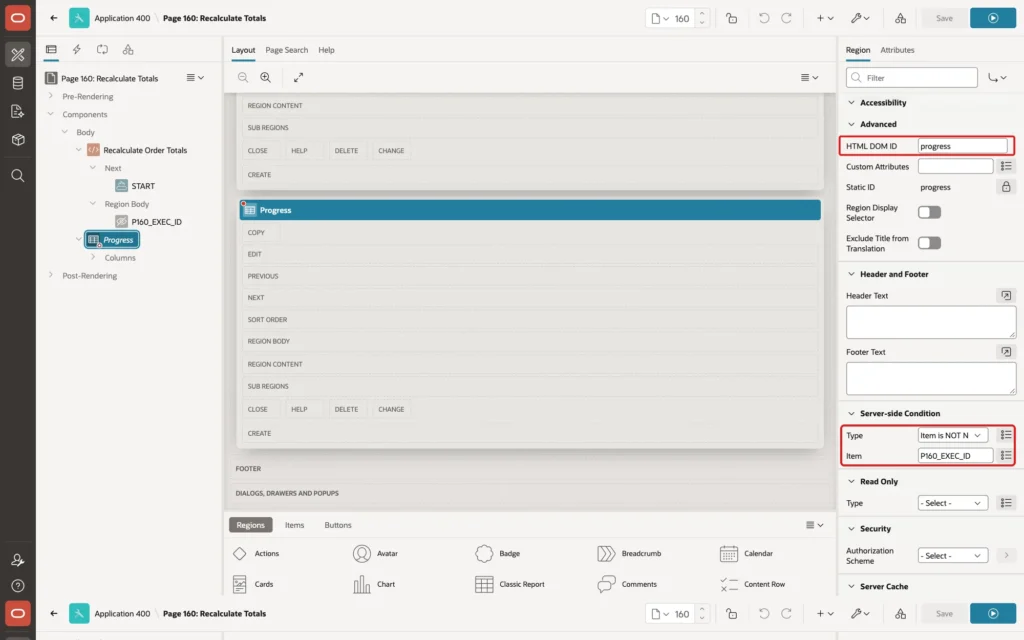
Without the HTML DOM ID, the region gets a generated ID, and the refresh code below found no region: in a first test, the browser console showed Cannot read properties of null (reading 'refresh') every two seconds.
Step 6: Refresh the Report Every Two Seconds
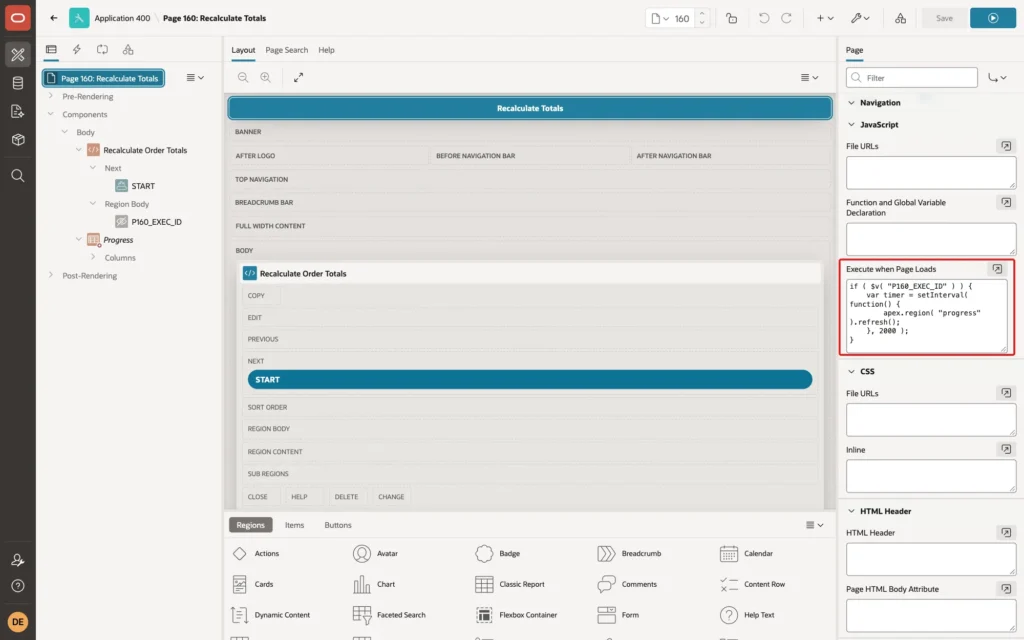
Select the page itself and enter this code in JavaScript, Execute when Page Loads:
Example:
if ( $v( "P160_EXEC_ID" ) ) {
    var timer = setInterval( function() {
        apex.region( "progress" ).refresh();
    }, 2000 );
}
Finally, add a branch After Processing to page 160, so the page opens again after the submit, with P160_EXEC_ID set.
Step 7: Test It
Click Start Recalculation. The page came back after about two seconds with the message Recalculation started in the background., and the Progress report started counting. Ten seconds later, 70 of 150 orders were done:
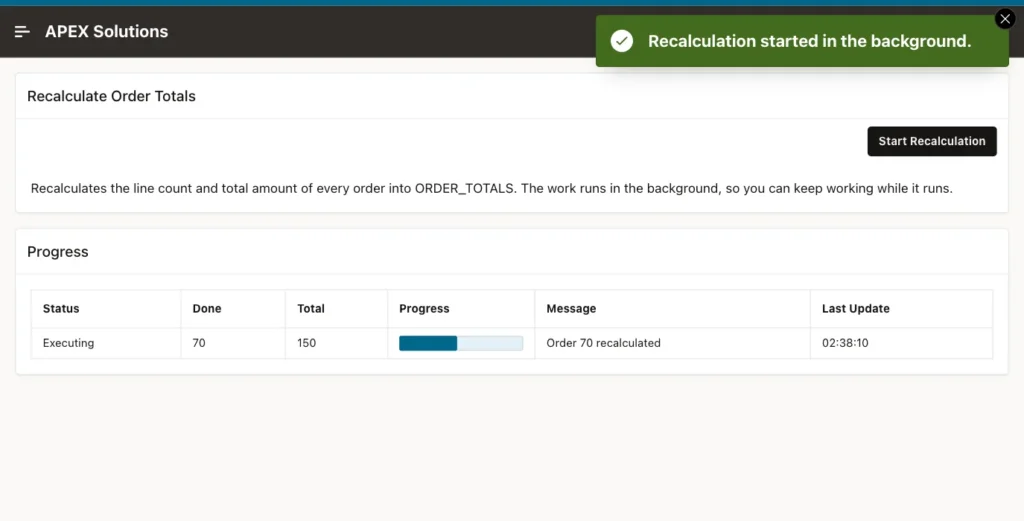
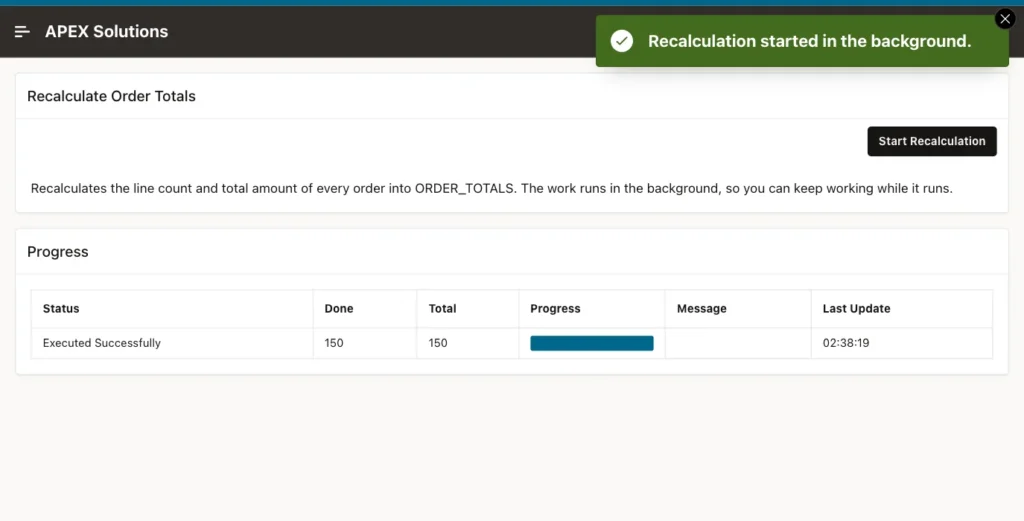
The report updated every two seconds: 32, 51, 70, 89, 126, and 145 orders, then Executed Successfully at 150 of 150, about 17 seconds after the start. The user could have worked on other pages in the meantime.
The table holds a total for every order:
Example:
select count(*)                                as orders,
       sum(line_count)                         as lines,
       sum(total_amount)                       as total_amount,
       to_char(min(calculated_at), 'HH24:MI:SS') as first_calc,
       to_char(max(calculated_at), 'HH24:MI:SS') as last_calc
from   order_totals;
Output:
   ORDERS    LINES    TOTAL_AMOUNT FIRST_CALC    LAST_CALC
_________ ________ _______________ _____________ ____________
      150      302          270165 02:38:03      02:38:19
Things to Know
- The chain's Serialization group has a Serialize switch, for work that must not run twice at the same time; check its help text for how it treats a second start.
- The refresh timer keeps running after the work is done. In a real page, stop it with clearInterval when the status shows Executed Successfully, or refresh only while the status is Executing.
- The number of background jobs per application is limited by Maximum Background Page Process Jobs in the application's settings, which protects the database from too many parallel jobs.
Related Guides
- Oracle APEX Page Processes: Doing the Work
- How to Build an Orders and Order Lines Master-Detail Page in Oracle APEX
Conclusion
To run a long process in the background in Oracle APEX, put it in an Execution Chain with Run in Background on, and return the execution ID into a page item. Report progress from the PL/SQL code with APEX_BACKGROUND_PROCESS.SET_PROGRESS and SET_STATUS.
Show the progress with a report on APEX_APPL_PAGE_BG_PROC_STATUS for that execution ID, refreshed every few seconds, so users can follow the work without waiting for it.
